Why this matters
Wholesale order desks still get purchase orders as scans. Someone retypes each one to prepare a sales order, and a single wrong quantity or item number ships the wrong goods.
DigiParser reads each scan into the same fields and line items, so your people check values instead of typing them. As its founder puts it, extracted values need review before downstream use, so this lesson builds the review in.
Practice
Do every step yourself in a practice copy of the real tool. It checks your work, and “Do it for me” finishes any step you get stuck on.
What you’ll build
You run the order desk at a made-up foodservice distributor. You build a purchase order parser, add a requested ship date, and add a review stage so every document waits for a person.
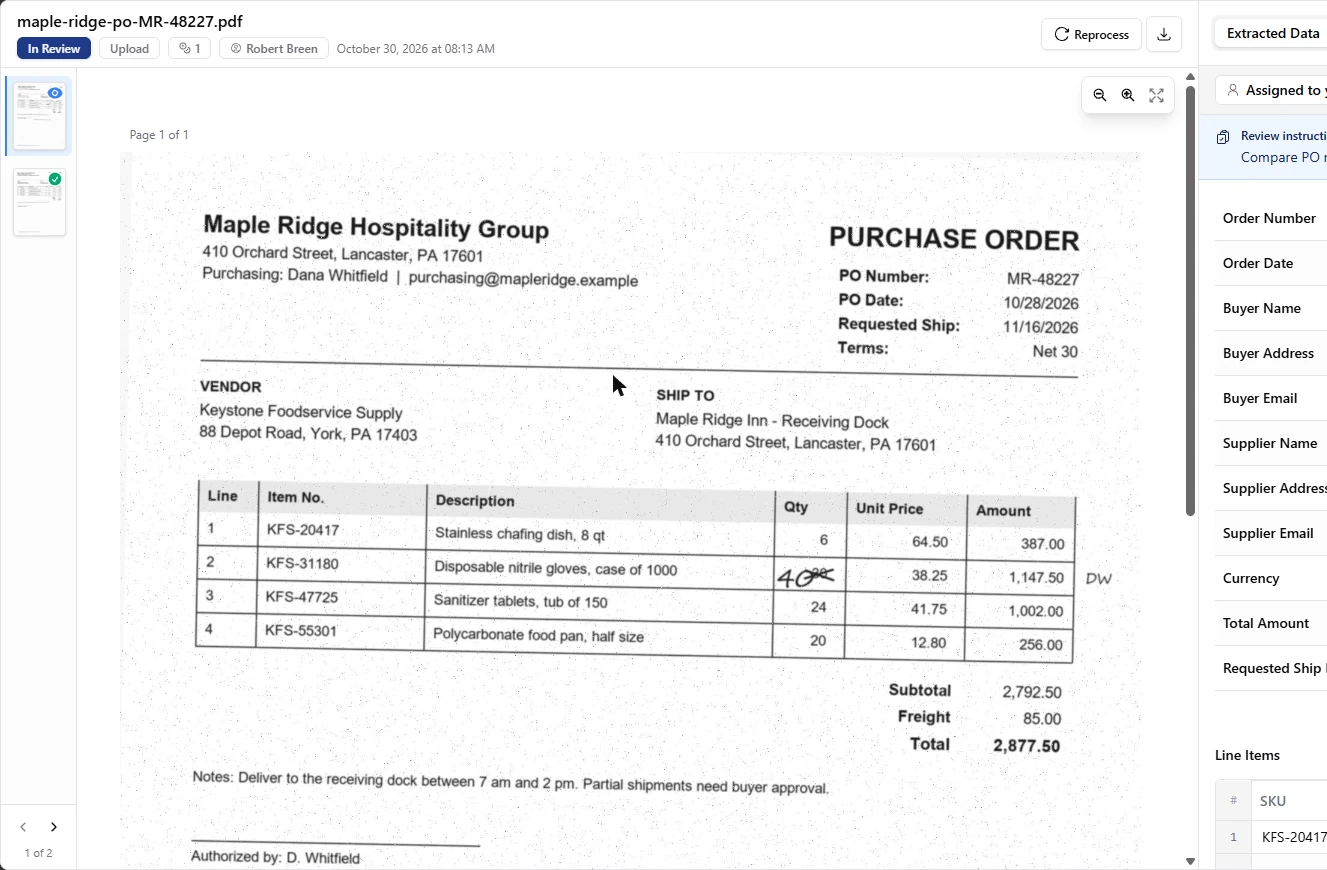
Then you catch a handwritten quantity change that leaves the printed total wrong, correct it, approve it and export a workbook. The screens are real screenshots from my own DigiParser trial account, captured October 2026.
What you need
- Nothing to start the practiceThe lesson is a practice copy. The companies and orders are made up.
- A DigiParser trial, to do it for realThe pricing page lists a 7-day free trial with no credit card required. Our trial included 20 page credits. Check the current plans.
- The two made-up purchase ordersDownload links are in the steps for doing it for real. Use these or approved test copies, not live customer orders, while you try it.
Concepts
Approved is not the same as checked
With no review stage, our first document showed Approved as soon as it finished. Nobody had looked at it.
Add a review stage and new documents wait in In Review for the person you name. Your reviewer instructions appear on each document, so write down the checks your desk actually does.
The AI can read the page and the page can still be wrong
On our marked-up PO, DigiParser read the handwritten 40 correctly in both runs. It also copied the printed line amount and order total, which the buyer never updated, so the record disagreed with itself.
Do the math on anything marked up, and confirm a phoned-in change with the buyer. Also watch for values the page never stated: our PO prints no currency, and the extraction said USD.
In Review does not block an export
We exported the marked-up PO before correcting it. The file held the old numbers, with In Review in its status column.
So decide who may export, and use only rows marked Approved. Corrections you save do carry into the export, and we confirmed that in the file.
Do it for real
Now repeat it in your own account. Tick each step as you go.
Downloads
- Clean sample PO (PDF)A made-up scanned purchase order, MR-48213.
- Marked-up sample PO (PDF)A made-up scan, MR-48227, with a handwritten quantity change on line 2.
Quick check
3 questions to check you’ve got it.
1. A new document shows Approved and you never added a review stage. What does that tell you?
- Nothing about whether a person checked it
- A teammate has signed off
- The values are guaranteed correct
Show the answer
Nothing about whether a person checked it. With no review stage, a finished document simply shows Approved. Add a stage to make a person check it.
2. The AI read a handwritten quantity correctly. Why was the total still wrong?
- It copied the printed total, which the change made out of date
- It cannot read handwriting
- The freight was missing
Show the answer
It copied the printed total, which the change made out of date. The page disagreed with itself. On a marked-up document, redo the math.
3. Can you export a document that is still In Review?
- Yes, so use only rows marked Approved
- No, export is blocked until approval
- Only as CSV
Show the answer
Yes, so use only rows marked Approved. Our test exported an In Review document with its uncorrected numbers. The status column shows which is which.