Updated . Built against the tool’s current screens and checked step by step. How we check this lesson
Small firms record good short videos: a year-end tip, a client update, a quick product demo. Then nobody watches them, because most people scroll LinkedIn with the sound off and a talking head with no captions looks like nothing is happening. Paying an editor costs money and a few days. Captions (captions.ai) is an AI video editor that writes the captions for you. In this free business-case lesson you use a practice copy of it to add captions to a 26-second tip from a made-up financial planner, cut the pauses, check every word, fix the firm's name, make the deadline stand out, turn the video square for the feed and download it.
At a glance
| Question | Answer |
|---|---|
| What you build | Most people scroll LinkedIn with the sound off, so a talking-head video with no captions gets skipped. Use Captions to add captions, cut the pauses, fix a misheard name, make it square and download it, in about ten minutes. |
| Tools | Captions |
| Time | About 8 minutes, 23 steps in 4 parts |
| Level | Beginner, no coding needed |
| Cost | Free |
| Ways to learn it | Practice it step by step |
The 4 parts, in short
- Turn the raw video into captions: Open the mode menu, Pick Captions, Add the video, Pick the Million style, and 3 more steps.
- Check every word before a client sees it: Read the transcript, Open the misheard word, Fix the spelling, Pick the word to stand out, and 2 more steps.
- Fit it to the LinkedIn feed: Open Settings, Open Aspect ratio, Make it square, Select the video, and 1 more step.
- Name it and download it: Rename the project, Type a clear name, Save the name, Open Download, and 1 more step.
Start here first: Build an n8n AI Agent That Plans Your Content Calendar (module 1 of AI Automation for Marketing)
Part of: AI for Consulting & Agencies (step 10 of 19). Next up: Turn a Product Update into an Explainer Video using Renderforest
Part of: AI for Marketing Teams (step 8 of 24). Next up: Turn a Product Update into an Explainer Video using Renderforest
Part of: AI Apps Worth Knowing (step 12 of 22). Next up: Get Every New Client's Details in One Place using Jotform AI
The business case: a good video nobody watches
Picture Maya, the owner of Brightwell Financial Planning, a made-up three-person firm. She films a 26-second tip on her laptop: three things to do before December 31st. It is useful, it is in her own voice, and it is exactly the kind of post that brings in a new client. Posted raw, most people on LinkedIn see a face talking on mute and scroll past.
The usual fixes cost time or money. A freelance editor might take a few days and charge per clip. Doing it by hand in a desktop editor means typing every caption and lining it up. Neither happens every week, so the videos stop. The business result we want is simple: a captioned, square clip in about ten minutes, made by whoever runs the office, so the firm can post every week.
Who this is for, and what it costs to start
Office managers, marketers and owners of small accounting, financial planning, consulting, legal and agency firms who want to post short videos without a video team. You do not need any video experience.
Captions has a free plan with a credit allowance, and paid plans for more credits and features. In our test, the account was on the Free plan and the account menu showed 173 credits left after the test. Check captions.ai/pricing for current limits before you plan around a feature.
What the AI gets wrong, and how to catch it
- Names: company names, client names and product names are the most common mistake. Read the whole transcript in the Phrase panel and fix any word in the Word panel.
- Restarts: Auto trim cuts filler words and long silences. In our test it did not remove a sentence the speaker started, stopped and said again, so the captions showed both. Watch the clip once all the way through before it goes out.
- Framing: changing the aspect ratio crops the video. If the speaker ends up at the edge, select the video and move it with Position X.
Captions features this lesson does not teach
- Fix eye contact and Denoise audio sit in the Source Video panel, each with an Apply button. We did not test them, because they can use credits.
- The Chat panel lets you ask for edits in plain words. It has an effort setting and can use credits, so it is not part of the free walk-through.
- The other modes on Home are Edit (a polished AI edit), Avatar (a talking AI presenter), Voiceover (a B-roll video), Translate (translate or dub a video), Property video and Clips (turn long videos into short clips). Each is worth its own business case.
What this saves you
- Time: a captioned clip in about ten minutes instead of a few days waiting on an editor.
- Reach: a video people can follow on mute, in a square shape that fills more of the LinkedIn feed.
- Mistakes: a firm name spelled wrong on a public post looks careless. Reading every word takes a minute.
- What it does not do: it does not post for you, and it does not check facts. Only post videos of people who agreed to be filmed and shared.
What we checked in a real Captions account
We ran every step of this lesson in a real Captions Free account on 13 October 2026, with a 25-second talking-head clip of Stepthrough's founder: Captions mode, the Million style, Auto trim, the transcript, a word fix (then undone), Color override with a hex colour, Aspect ratio 1:1, Position X, Rename project and the Download menu. We did not press the final Download video button. Captions is a third-party product and its screens change, so yours may differ slightly.
Next business case
Once a captioned clip takes ten minutes, the next step is reaching more people with the same video. Captions' Translate mode can translate or dub a video into other languages, which suits firms with clients who speak another language. It uses credits, so plan a test clip first.
Links
- Captions: the AI video editor this lesson teaches. It has a free plan with a credit allowance, and paid plans.
- Captions pricing: current plans, credits and what each plan includes.
Try it yourself, free
Reading the steps is a start. Doing them is how it sticks. The interactive module walks you through every click in a practice copy of Captions, checks each step, and never touches your real accounts.
Start “Turn a Raw Client Video into a Captioned LinkedIn Clip using Captions”Step by step: Turn a Raw Client Video into a Captioned LinkedIn Clip using Captions
All 23 steps of the interactive module, in order. In the module you watch each one, then do it yourself in a practice copy that checks your work.
1. Turn the raw video into captions
- Open the mode menu. This is Captions, an AI video editor. On Home, click Edit above the upload box to see the modes.
This is Captions. It's an AI video editor. Maya's tip is a raw video, with no captions. On Home, click Edit, above the upload box.
- Pick Captions. Click Captions: *Add captions to a video*. The box now says *Import media and select a captions style*.
This mode adds captions to a video you already have.
- Add the video. Click Add media and pick your video. In this practice copy it adds Maya's clip, maya-year-end-tip.mp4 (0:26).
Here, it adds Maya's 26 second clip.
- Pick the Million style. Under the box, click the Million caption style: plain white words, one or a few at a time. It shows on the Add style button.
Now pick a caption style. It's plain white words. That suits a business page.
- Create the video. Click Create my video. Captions shows the video plan before it starts.
Captions shows you the plan first.
- Cut the pauses. Under Footage edits, switch on Auto trim: Trim filler and silences.
Switch on Trim filler and silences. It cuts the ums, and the long pauses. That makes the clip shorter, and easier to watch.
- Create the project. Click Create project. Captions works on the video, then opens the editor with the captions on a purple track.
It takes about a minute. Then the editor opens. The captions sit on the purple track.
2. Check every word before a client sees it
- Read the transcript. Click the purple caption track. The Phrase panel opens on the right with the words the AI heard. Read them all.
Never post captions you haven't read. The Phrase panel shows the words the AI heard. Read them all.
- Open the misheard word. The AI wrote Britewell for the firm's name. Double-click Britewell on the caption track. The Word panel opens.
The AI got the firm's name wrong. It wrote Britewell. Names are the usual mistake. Double-click that word, on the caption track.
- Fix the spelling. In the Word panel, replace the word with Brightwell and press Enter.
In the Word panel, type Brightwell.
- Pick the word to stand out. Make the deadline pop. Double-click 31st. on the caption track.
Now make the deadline stand out. Double-click 31st, on the caption track.
- Switch on Color override. In the Word panel, switch on Color override. A colour box and a Hex field appear, set to white.
Switch on Color override. A colour box appears. It's white for now.
- Set the colour. In the Hex field, type FFD400 (a bright yellow, or your brand colour) and press Enter.
In the Hex box, type F F D 4 0 0. That's a bright yellow. Or use your brand colour.
3. Fit it to the LinkedIn feed
- Open Settings. In the toolbar on the left of the video, click Settings (the bottom icon).
Maya filmed on a laptop, so the video is wide. The LinkedIn feed suits a square. It's the bottom icon, left of the video.
- Open Aspect ratio. Click Aspect ratio. The choices are 9:16, 16:9, 1:1, 3:4, 5:4 and Custom.
- Make it square. Click 1:1. The video becomes a square, but Maya is now off to the right.
It's square now. But Maya is off to one side.
- Select the video. Click the video track (the row of pictures under the captions). The Source Video panel opens.
The Source Video panel opens.
- Move Maya to the middle. Under Position, set X to -420 and press Enter. Pick whatever number centres your own speaker.
Under Position, set X to minus 420. Maya moves to the middle. With your own video, try numbers until it looks right.
4. Name it and download it
- Rename the project. At the top, Captions named the project after the first words. Click the name. A Rename project box opens.
Captions named the project after the first words. Give it a name you'll find later.
- Type a clear name. Replace the name with Brightwell year-end tip - LinkedIn.
- Save the name. Click Save changes.
- Open Download. Click Download at the top right. Leave Frames per second at 30 FPS and Smart HDR off.
Last, click Download, at the top right. Leave thirty frames per second, and Smart HDR off.
- Download the video. Click Download video. Watch the file once, then post it to LinkedIn or your website yourself.
Watch it once, all the way through. Then post it yourself. Captions doesn't post for you.
Frequently asked questions
- What is Captions?
- Captions (captions.ai) is an AI video editor. It writes captions for your video automatically, trims pauses and filler words, and has AI tools for editing, eye contact, audio clean-up, translation and AI avatars.
- Is Captions free?
- Captions has a free plan with a credit allowance and paid plans with more credits and features. The account we tested was on the Free plan. Check captions.ai/pricing for current limits.
- How do I add captions to a video in Captions?
- On Home, click the mode button (it says Edit) and choose Captions. Click Add media to add your video, pick a caption style such as Million, and click Create my video. On the video plan you can switch on Trim filler and silences, then click Create project. The captions appear on a purple track in the editor.
- How do I fix a wrong word in the captions?
- Double-click the word on the caption track. The Word panel opens with the word in a text box. Type the correct word and press Enter.
- How do I make a video square for LinkedIn in Captions?
- In the editor, click Settings in the left toolbar, then Aspect ratio, and pick 1:1. If the speaker is off-centre, click the video track and change Position X in the Source Video panel.
- Is this lesson free, and has it been tested in the real Captions app?
- The lesson is free and the practice copy needs no account. Every step except the final download click was run in a real Captions Free account in October 2026. Captions is a third-party product and screens change, so yours may differ slightly.
More in AI Automation for Marketing
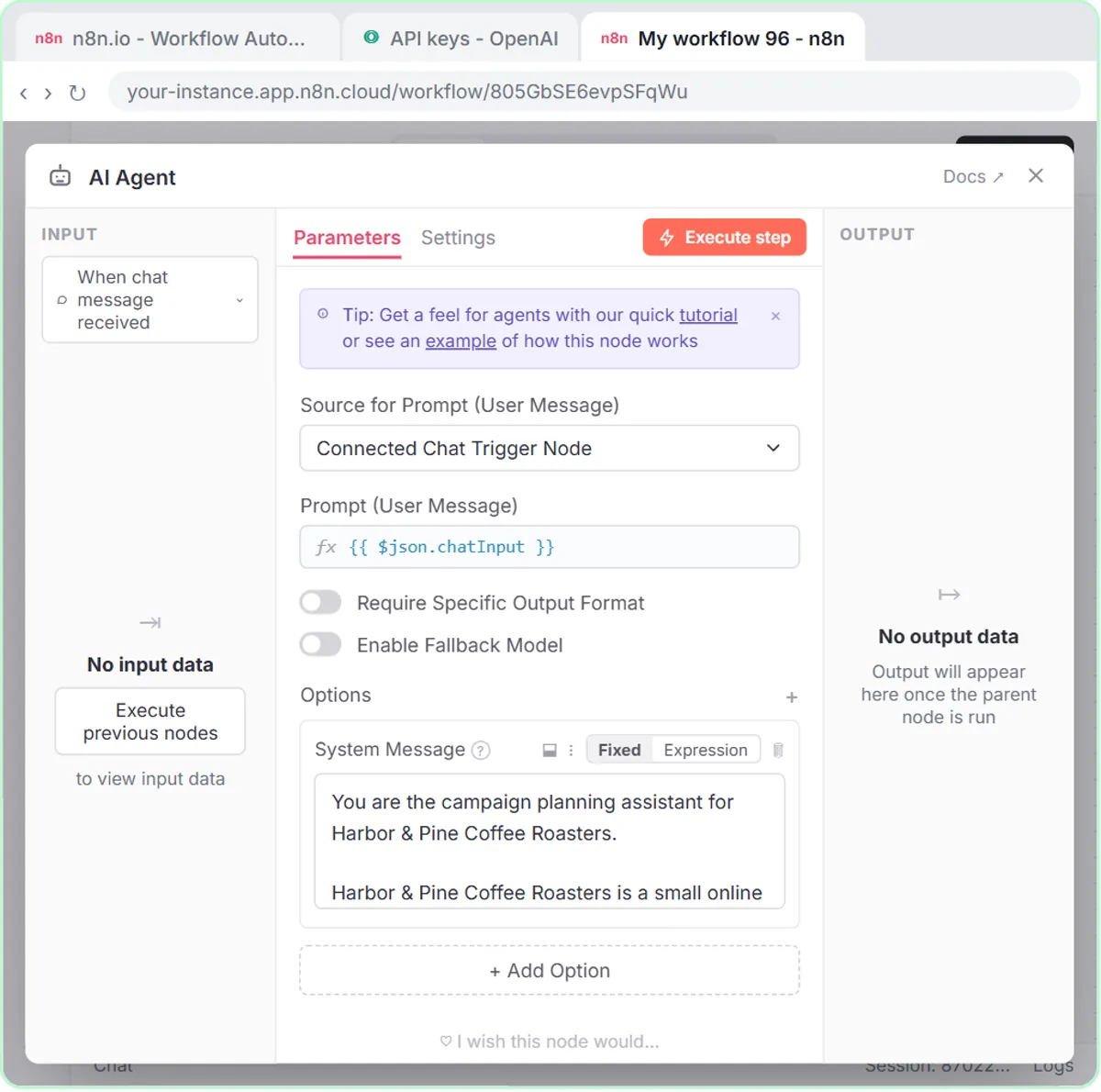 Build an n8n AI Agent That Plans Your Content Calendar
Build an AI agent for Harbor & Pine Coffee Roasters that turns one campaign theme into a two-week email and content calendar in Google Sheets — chat trigger, AI Agent…
Free · Live ~12 min Intermediate
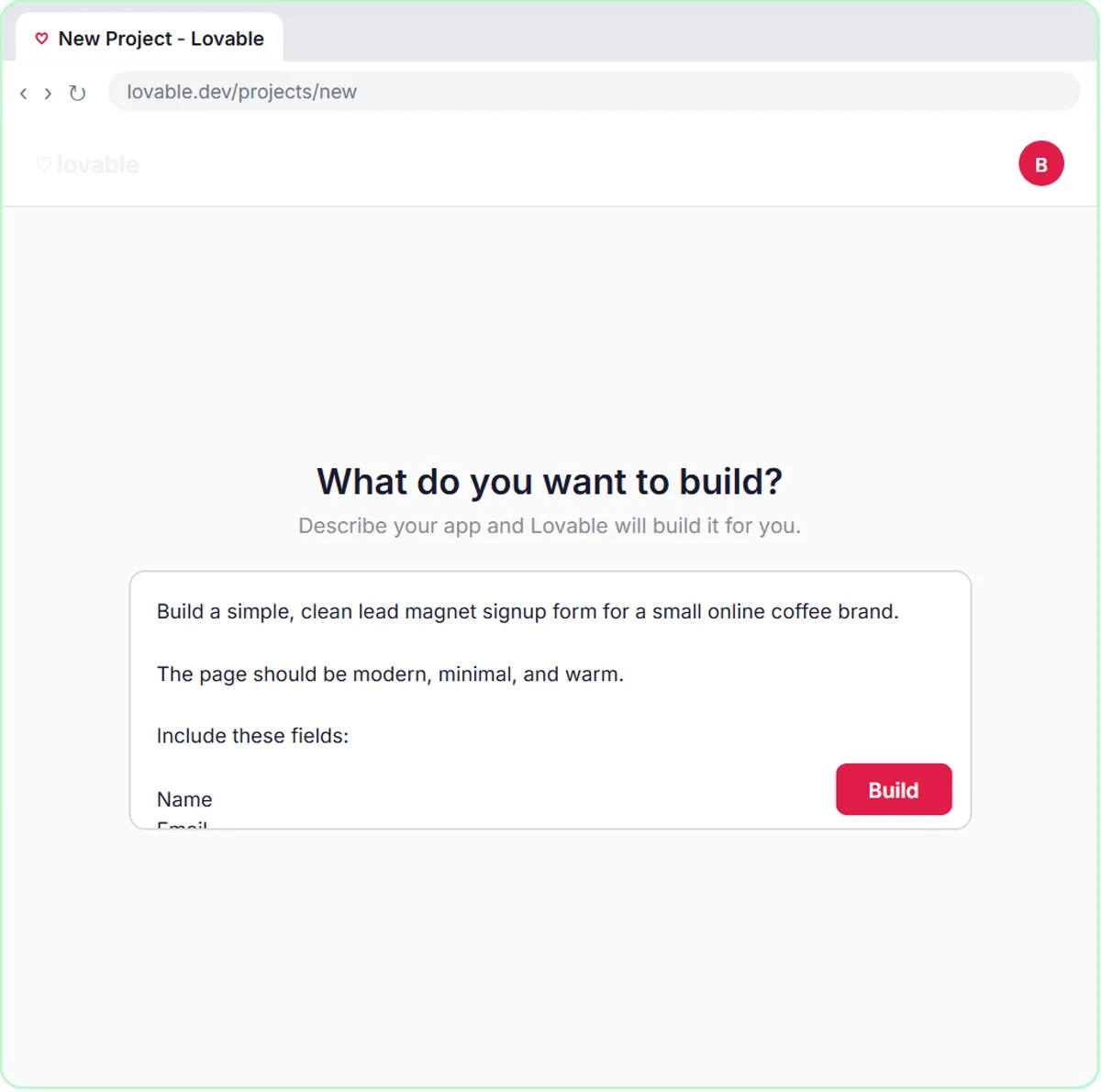 Build a Lead Magnet Signup Form with an AI Welcome Email
Build a "Get the free guide" signup form in Lovable for Harbor & Pine Coffee Roasters and connect it to n8n — the AI agent tags each lead by interest, saves it to…
Free · Live ~15 min Advanced
 Get Your Business Recommended by ChatGPT
Ask ChatGPT who it recommends in your town, see which pages it trusts, then use it to write an FAQ page and Business Profile copy that answer real customer questions.
Free · Live ~10 min Intermediate
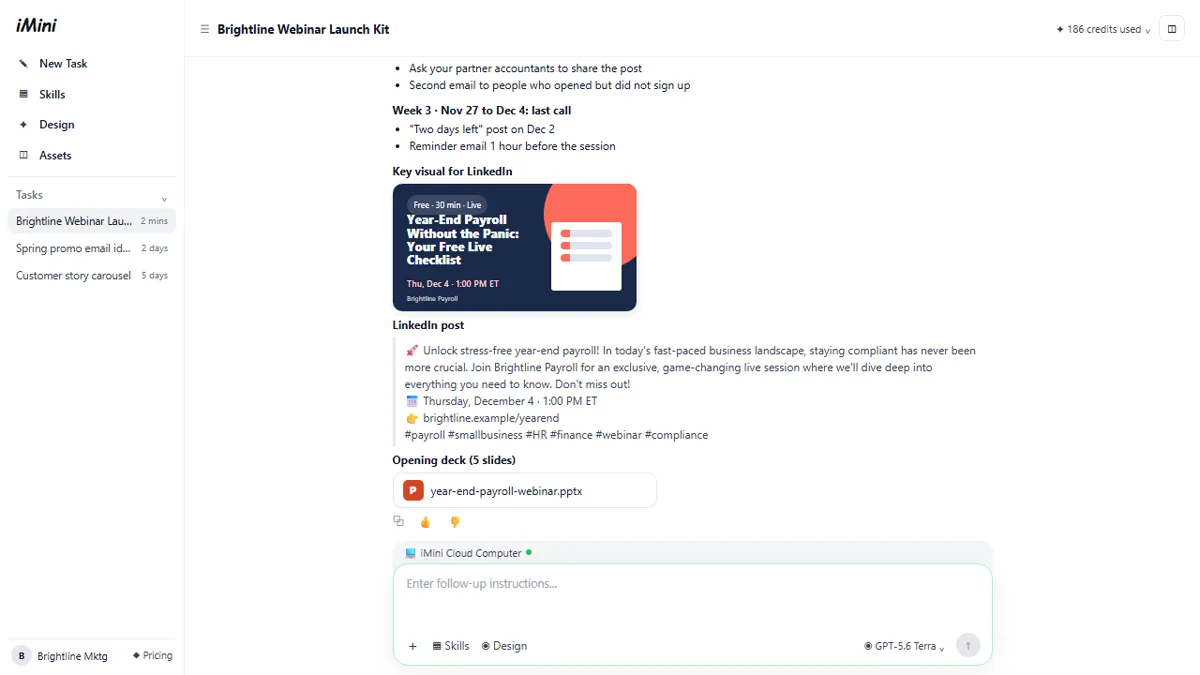 iMini AI Agent: Turn a Rough Idea into a Launch Kit
Brief the iMini Creative Agent once and get a launch plan, a LinkedIn visual, a post and a 5-slide deck, then fix the visual and humanize the post with follow-ups.
Free · Live ~8 min Beginner
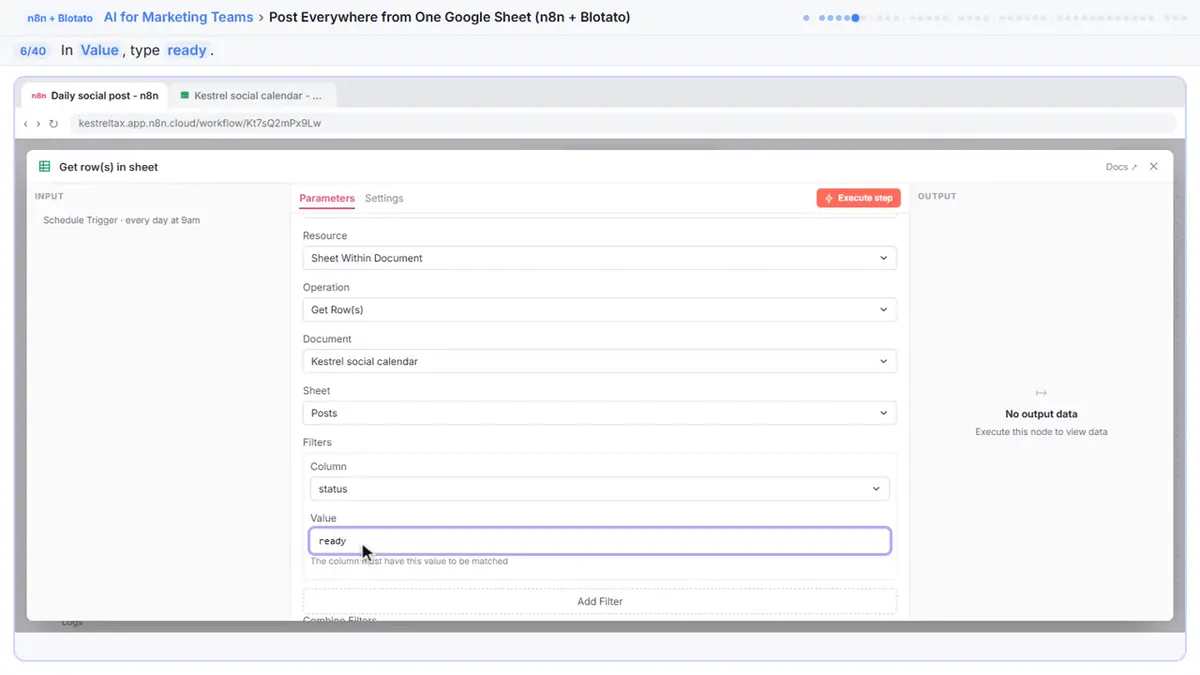 Post to Every Channel Daily from One Sheet using n8n + Blotato
Copying the same post into every social app can take half an hour a day, and on busy days nothing goes out. Plan a week of posts in one Google Sheet; every morning n8n…
Free · Live ~14 min Advanced
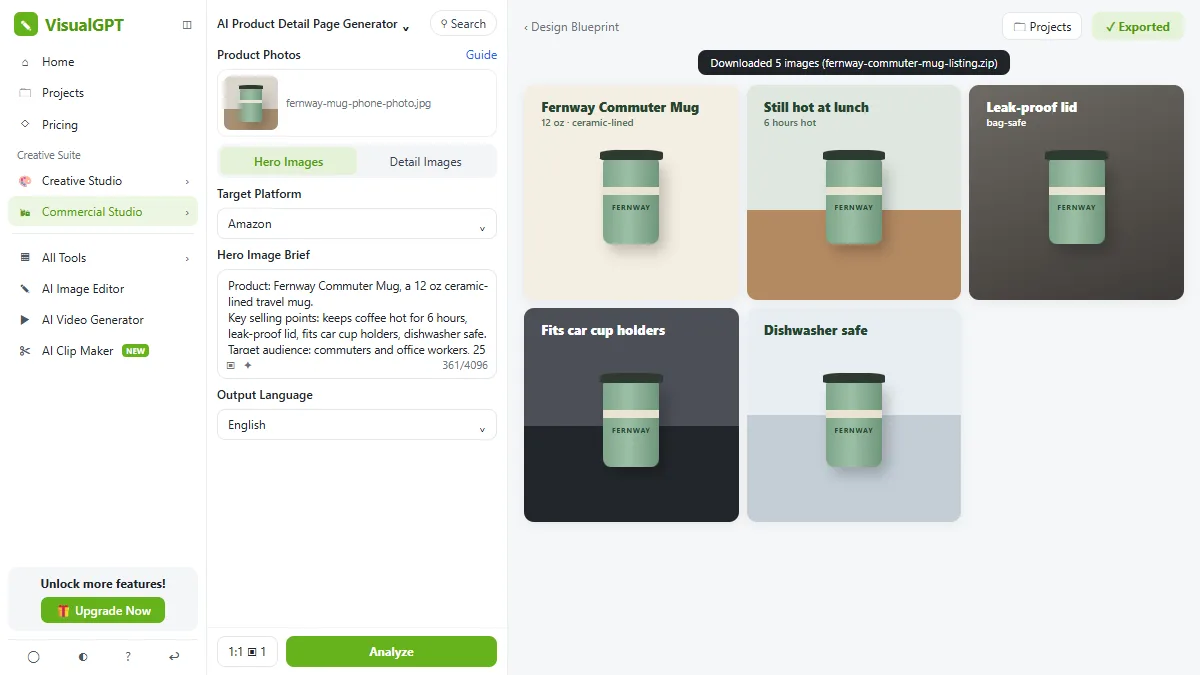 VisualGPT: Product Photos, Listing Images and Ads from One Phone Photo
Turn one phone photo into a lifestyle product shot, a five-image Amazon listing set and three launch ads in VisualGPT's Commercial Studio, checking the plan and every…
Free · Live ~8 min Beginner
All 13 modules in AI Automation for Marketing
Terms in this lesson
Plain-English definitions, each with an example from a free lesson.