Updated . Built against the tool’s current screens and checked step by step. How we check this lesson
iMini is a third-party AI creative platform, and its Creative Agent works by chat: you describe the job once and it plans the work and makes the files. In this free lesson you use a practice copy of it to launch a webinar for a made-up payroll company. You pick a ready-made skill, attach your notes, send one brief and get back a launch plan, a LinkedIn key visual, a LinkedIn post and a five-slide deck. Then you shorten the visual's headline, make the post sound human with a writing skill, and download the deck.
At a glance
| Question | Answer |
|---|---|
| What you build | Brief the iMini Creative Agent once and get a launch plan, a LinkedIn visual, a post and a 5-slide deck, then fix the visual and humanize the post with follow-ups. |
| Tools | iMini |
| Time | About 8 minutes, 20 steps in 5 parts |
| Level | Beginner, no coding needed |
| Cost | Free |
| Ways to learn it | Practice it step by step |
The 5 parts, in short
- Pick a skill for the job: Open Skills, Search for a launch skill, Save the skill, Open My Skills, and 1 more step.
- Brief the agent: Attach your notes, Write the brief, Send it.
- Check what it made: Open the key visual, Upscale it, Close the viewer.
- Refine it with follow-ups: Ask for a change, Send the change, Add a writing skill, Pick English Humanizer, and 2 more steps.
- Collect your files: Open the files panel, Open the deck, Download it.
Start here first: Build an n8n AI Agent That Plans Your Content Calendar (module 1 of AI Automation for Marketing)
Part of: AI Apps Worth Knowing (step 2 of 8). Next up: Kylon AI Sales Agent: Find the Reason to Reach Out
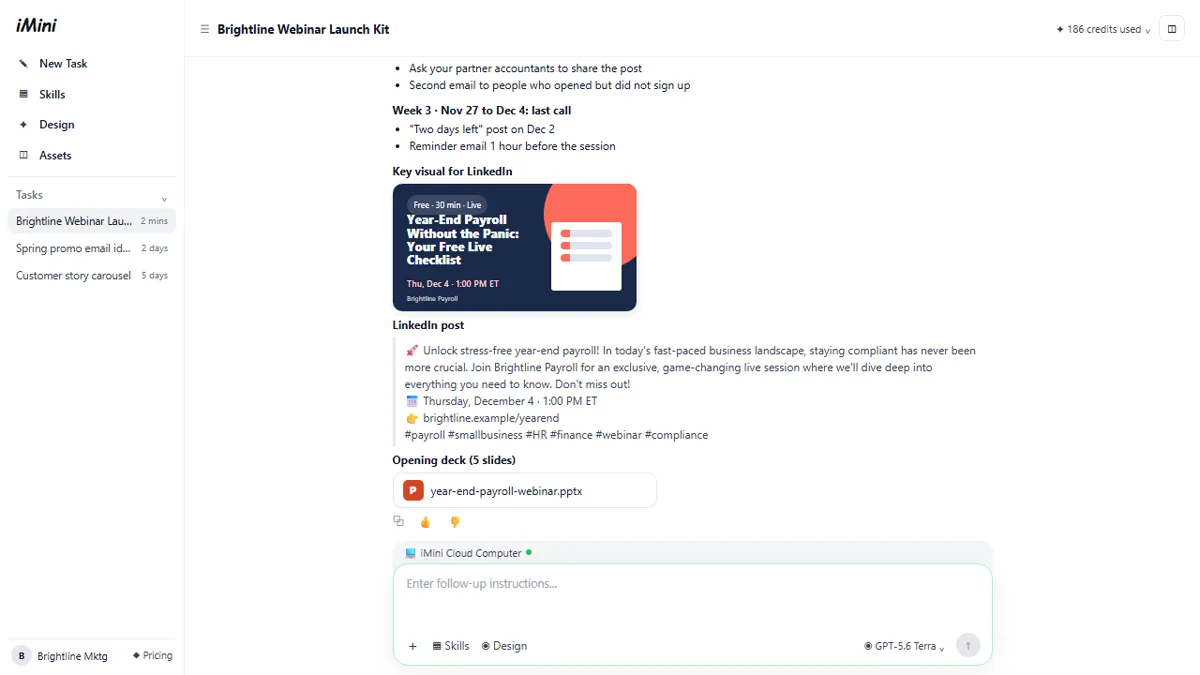
What you will do: one webinar launch, start to finish
You are Maya, the one-person marketing team at Brightline Payroll, a made-up payroll app for small businesses. The company is running a free 30-minute webinar, Year-End Payroll Without the Panic, on Thursday, December 4, and needs 300 sign-ups in three weeks. Maya has rough notes and no designer.
In the practice copy you open Skills, search for launch, save the Product Launch Planning skill and use it from My Skills. You attach the webinar notes, paste a brief that lists the goal, the four files you need and your brand rules, and send it. The agent answers with a three-week plan, a key visual, a LinkedIn post and a deck. You open the visual and upscale it, ask for a shorter headline, add the English Humanizer skill to rewrite the post, and download the deck from the files panel.
Who this is for
Marketers, founders and office managers who have to produce launch material without a designer or a copywriter: an event, a new feature, a webinar or a sale. You do not need any design or AI experience. The lesson is a practice copy, so no files are made, no credits are used, and you do not need an iMini account to take it.
How the iMini Creative Agent works
iMini brings many image, video and language models together on one platform. The Creative Agent sits on top: you type a request on the New Task screen, it plans the steps and runs them on what iMini calls the iMini Cloud Computer, and the results come back in the same conversation. One task can hold text, images, slide decks and videos, and every file is saved with the task so you can find it later.
Skills are ready-made workflows the agent follows, like a recipe. iMini lists more than 200 official skills in groups such as Growth Strategy, Brand, Presentation Creation, AI Writing Cleanup, Video and E-commerce. You save the ones you use to My Skills and add one to a message with Use skill or the Skills button under the message box. You can also call skills by typing / or $ in the message box.
Step 1: pick a skill and write one clear brief
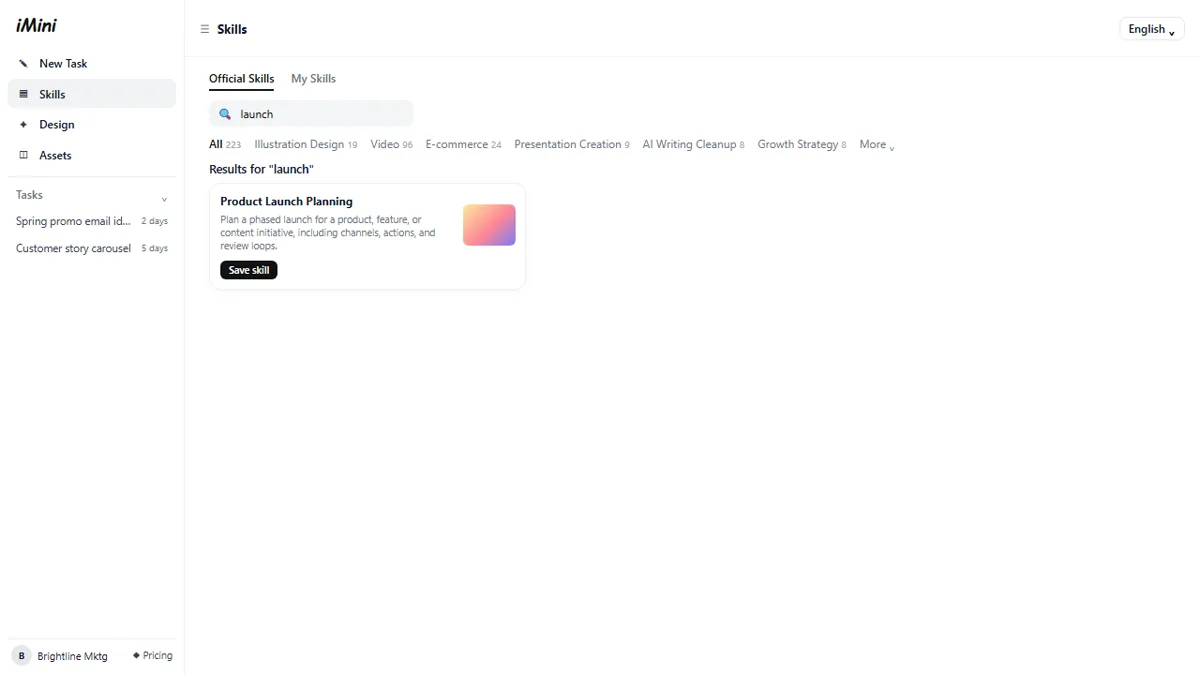
In the left sidebar, Skills opens the skill store. Search skills finds one by name, Save skill adds it to My Skills, and Use skill starts a new task with the skill already in the message box. For a launch, Product Launch Planning plans a phased launch with channels, actions and review points.
The brief does most of the work. Attach your notes with the + button, then say what you are launching, for whom, the goal, every file you need and your brand rules. The lesson's brief ends with a rule that matters: use only the facts in the attached notes, no made-up numbers. An agent that is told what it may claim is far easier to check.
Step 2: check the files and fix them with follow-ups
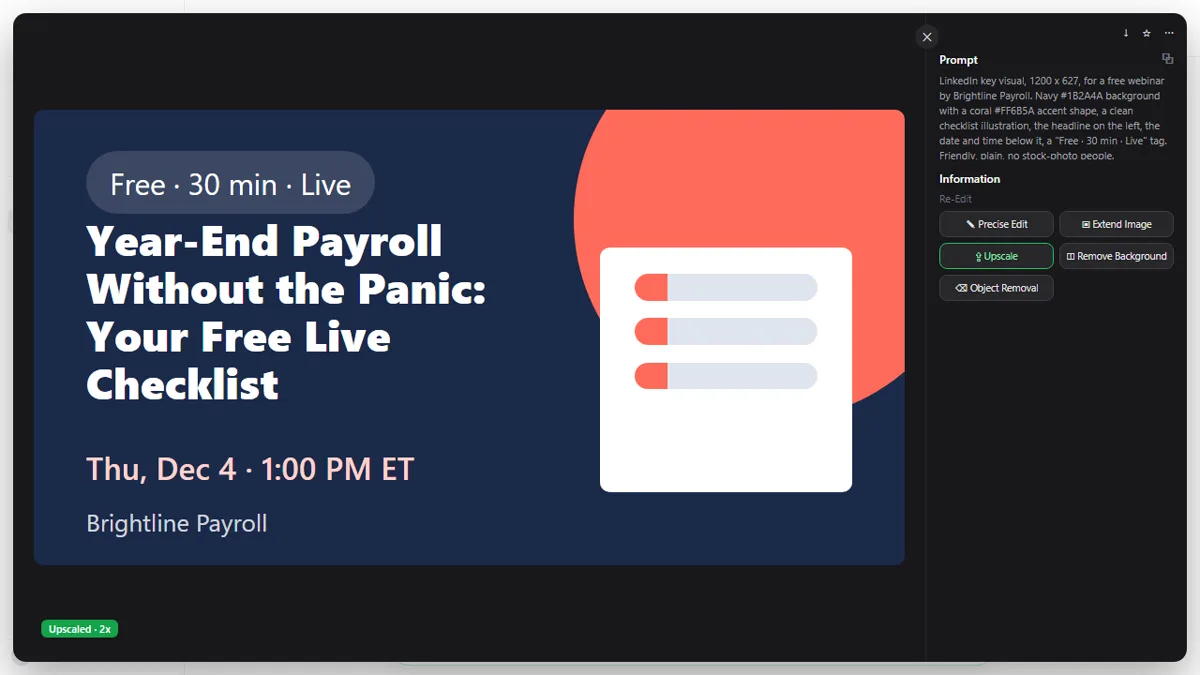
Click any image in the answer to open the viewer. On the right it shows the prompt the agent wrote for that image and Re-Edit tools: Precise Edit, Extend Image, Upscale, Remove Background and Object Removal. In the lesson you upscale the key visual for a sharper file.
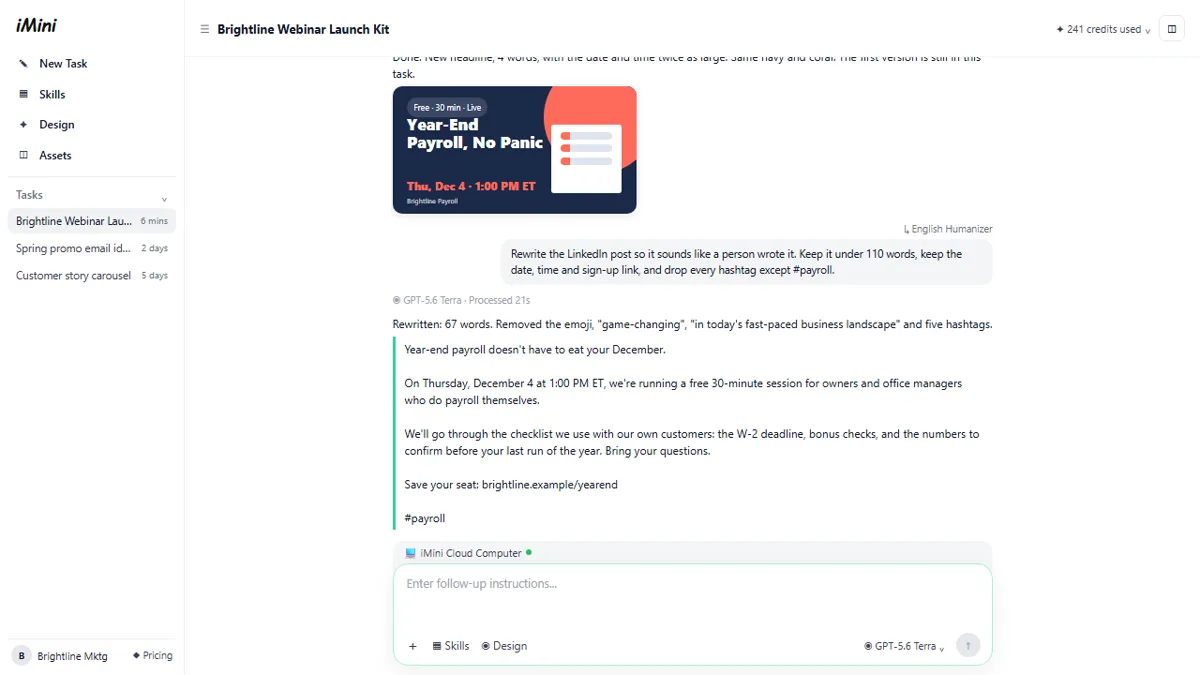
You do not start over when something is wrong. Type the change in Enter follow-up instructions and send it, and the agent makes a new version in the same task. In the lesson the first headline is too long for a small LinkedIn image, so you ask for six words or fewer and a bigger date. The LinkedIn post comes back full of AI phrases, emoji and hashtags, so you add the English Humanizer skill and ask for a rewrite under 110 words that keeps the date, time and sign-up link.
Step 3: collect your files
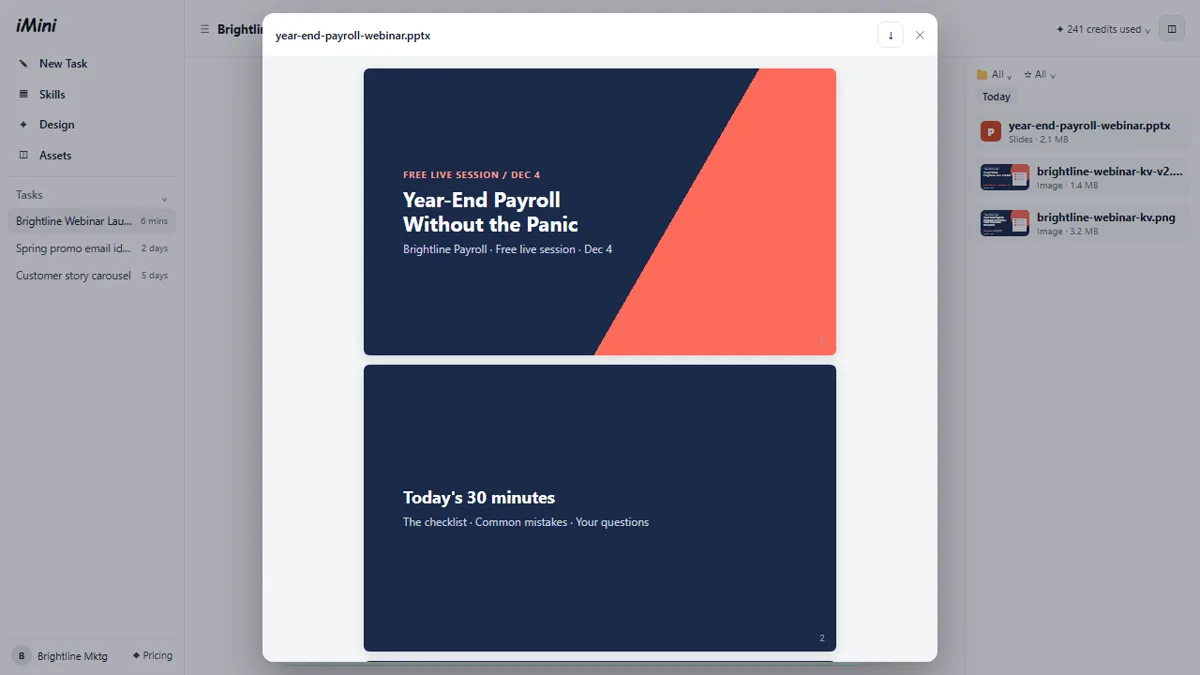
The panel button at the top right of a task opens the list of files the agent made, sorted by day, with filters for type and favorites. Open the deck to preview its slides and use the download button to save the PowerPoint file. The editing still happens on your side: open the deck, check every fact, and make it yours before the webinar.
Mistakes to avoid
- A one-line brief. 'Make a webinar poster' gets a generic poster. Give the audience, date, goal, files and brand colors, and attach your notes.
- Letting the agent invent facts. Say what it may use, then check every date, time, price and link in every file before anything is posted.
- Starting a new task for every fix. Follow-ups in the same task keep the context, the earlier versions and the files together.
- Posting the first draft. AI-written posts often sound like AI. Use a writing skill or your own edit before it goes out under your name.
Credits, rights and what to check
Each agent task uses iMini credits, and image and video work uses more than text. iMini offers free credits when you sign up and a daily allowance, plus paid plans; check imini.com/pricing for the current numbers, since plans change. Before you use generated images commercially, read iMini's terms for your plan, and do not upload customer data or anything confidential that your company's AI policy does not allow.
Links
- iMini Creative Agent (imini.com/agent): the agent this lesson teaches. It is a separate product with its own account, plans and credits.
- iMini skill store: the 200+ official skills, from Product Launch Planning to English Humanizer and Slide Deck.
Try it yourself, free
Reading the steps is a start. Doing them is how it sticks. The interactive module walks you through every click in a practice copy of iMini, checks each step, and never touches your real accounts.
Start “iMini AI Agent: Turn a Rough Idea into a Launch Kit”Step by step: iMini AI Agent: Turn a Rough Idea into a Launch Kit
All 20 steps of the interactive module, in order. In the module you watch each one, then do it yourself in a practice copy that checks your work.
1. Pick a skill for the job
- Open Skills. This is the iMini Creative Agent. Click Skills in the left sidebar.
This is the iMini Creative Agent. You chat with it, and it makes the files. Skills are ready-made workflows it can follow.
- Search for a launch skill. Click Search skills and type launch, then press Enter.
There are more than two hundred skills. Search for the one you need.
- Save the skill. On Product Launch Planning, click Save skill.
Product Launch Planning plans a launch in phases, with channels and actions.
- Open My Skills. Click the My Skills tab at the top.
Saved skills go to My Skills.
- Use the skill. On Product Launch Planning, click Use skill.
It opens a new task, with the skill already added.
2. Brief the agent
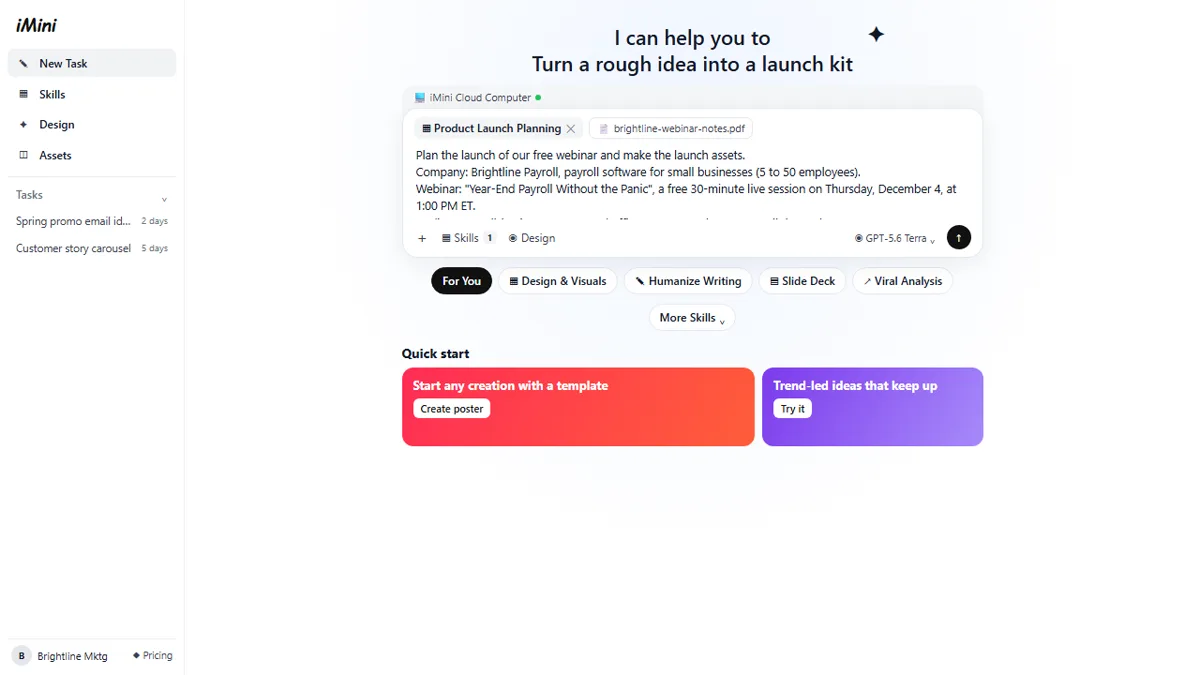
- Attach your notes. The skill is in the message box now. Click + (Upload attachment) and attach the webinar notes.
See the skill in the message box. Now give the agent your notes.
- Write the brief. Describe the job in the message box: what you are launching, for whom, the goal, the four things you need and your brand rules. Paste in the brief.
Now the brief. Say what you're launching, and who it's for. Give the goal, and list every file you need. Add your brand colors, and one rule. Use only the facts in the notes.
Plan the launch of our free webinar and make the launch assets.
Company: Brightline Payroll, payroll software for small businesses (5 to 50 employees).
Webinar: "Year-End Payroll Without the Panic", a free 30-minute live session on Thursday, December 4, at 1:00 PM ET.
Audience: small-business owners and office managers who run payroll themselves.
Goal: 300 sign-ups in 3 weeks.
I need: 1) a short launch plan with channels and dates, 2) a key visual for LinkedIn, 3) a LinkedIn post, 4) a 5-slide deck to open the webinar.
Brand: navy #1B2A4A and coral #FF6B5A, friendly and plain-spoken. Use only the facts in the attached notes. No made-up numbers.
- Send it. Click the send arrow.
The agent plans the work, and runs it on the iMini Cloud Computer. It can take a few minutes.
3. Check what it made
- Open the key visual. The plan, the visual, the post and the deck are back in one answer. Click the key visual to open it.
One message, and it's all back. A three week plan, a key visual, a LinkedIn post, and a deck. Read the plan first.
- Upscale it. The viewer shows the Prompt the agent wrote, and Re-Edit tools. Click Upscale.
On the right is the prompt the agent wrote for this image. Below it are the editing tools. Precise Edit, Extend Image, Upscale, and more.
- Close the viewer. Close the viewer with the X at the top.
The headline is too long for a small LinkedIn image. You'll fix that next. Close the viewer.
4. Refine it with follow-ups
- Ask for a change. Tell the agent what to change in Enter follow-up instructions. Paste in the change.
You don't start over. Just say what to change, in the same task. A shorter headline, a bigger date, and the same colors.
- Send the change. Click the send arrow.
The agent makes a new version, and keeps the old one.
- Add a writing skill. The LinkedIn post sounds like AI. Click Skills under the message box.
Now look at the LinkedIn post. Rocket emoji, game-changing, six hashtags. It sounds like AI. A writing skill can fix that.
- Pick English Humanizer. Click English Humanizer.
Pick English Humanizer. It takes out AI phrases, filler, and passive voice.
- Say how to rewrite the post. Tell it what to keep and how long the post can be. Paste in the rewrite.
Tell it what to keep. The date, the time, and the sign-up link. Set a word limit too.
Rewrite the LinkedIn post so it sounds like a person wrote it. Keep it under 110 words, keep the date, time and sign-up link, and drop every hashtag except #payroll.
- Send it. Click the send arrow.
Read the new post before you use it. Check the date, the time, and the link yourself.
5. Collect your files
- Open the files panel. Click the panel button at the top right to see every file in this task.
Every file the agent made is saved with the task.
- Open the deck. Click year-end-payroll-webinar.pptx.
Here are both visuals and the deck.
- Download it. Click the download button at the top right.
Five slides, in your colors. Then edit it, and check every fact, before the webinar.
Screenshots
Frequently asked questions
- How does the interactive lesson work?
- Each step is shown to you first (Watch). Then you do it yourself in a practice copy that checks every click (Your turn). If you get stuck, press Do it for me. It is a practice copy, so no files are made and no iMini account is touched.
- Is iMini part of Stepthrough?
- No. iMini is a separate, third-party product from imini.com. This lesson is free and teaches the Creative Agent's steps as shown on imini.com and in a public walkthrough video. To use it for real you need your own iMini account; check imini.com for its current plans.
- What is a skill in the iMini Creative Agent?
- A skill is a ready-made workflow the agent follows for a type of job, such as Product Launch Planning, Brand Voice Writing, Slide Deck or English Humanizer. You save skills to My Skills and add them to a message with Use skill or the Skills button.
- Can the iMini agent make a PowerPoint deck?
- Yes. Ask for a deck in your brief or use a presentation skill such as Slide Deck or PPT Master. The deck appears in the task's files panel, where you can preview it and download the file to edit.
- Will the agent post to LinkedIn for me?
- Not in this lesson. The agent writes the post and makes the visual; you check them and post them yourself.
More in AI Automation for Marketing
 Build an n8n AI Agent That Plans Your Content Calendar
Build an AI agent for Harbor & Pine Coffee Roasters that turns one campaign theme into a two-week email and content calendar in Google Sheets — chat trigger, AI Agent…
Free · Live ~12 min
 Build a Lead Magnet Signup Form with an AI Welcome Email
Build a "Get the free guide" signup form in Lovable for Harbor & Pine Coffee Roasters and connect it to n8n — the AI agent tags each lead by interest, saves it to…
Free · Live ~15 min
All 5 modules in AI Automation for Marketing
Terms in this lesson
Plain-English definitions, each with an example from a free lesson.