Updated . Built against the tool’s current screens and checked step by step. How we check this lesson
VisualGPT is a third-party AI image and video suite, and its Commercial Studio has tools made for selling products. In this free lesson you use a practice copy of three of them to launch a travel mug for a made-up coffee company, with no photographer. You turn one phone photo into a lifestyle product shot, write a short brief for a five-image Amazon listing set and check the plan before any image is made, then create three launch ads in the layout of the company's own best ad.
At a glance
| Question | Answer |
|---|---|
| What you build | Turn one phone photo into a lifestyle product shot, a five-image Amazon listing set and three launch ads in VisualGPT's Commercial Studio, checking the plan and every claim along the way. |
| Tools | VisualGPT |
| Time | About 8 minutes, 19 steps in 3 parts |
| Level | Beginner, no coding needed |
| Cost | Free |
| Ways to learn it | Practice it step by step |
The 3 parts, in short
- Turn a phone photo into a product shot: Open Commercial Studio, Open AI Product Photography, Upload your phone photo, Pick Lifestyle, and 2 more steps.
- Build a listing image set: Switch tools, Open AI Product Detail Page Generator, Add the product photo, Write the Hero Image Brief, and 3 more steps.
- Make launch ads from your best ad: Switch tools again, Open AI Ad Clone, Upload the product, Upload your best ad, and 2 more steps.
Start here first: Build an n8n AI Agent That Plans Your Content Calendar (module 1 of AI Automation for Marketing)
Part of: AI Apps Worth Knowing (step 4 of 8). Next up: Litescrape in n8n: Swap SerpApi for a Cheaper Search API
What you will do: one product launch, three kinds of images
You are Lena, the marketing manager at Fernway Coffee Co., a made-up company launching the Fernway Commuter Mug next week. There is no budget for a photoshoot and the store listing, the Amazon page and the Instagram ads all need images. All Lena has is one phone photo of the mug on her desk.
In the practice copy you open Commercial Studio, upload the photo to AI Product Photography, pick the Lifestyle style and generate a product shot, then download it. You switch to the AI Product Detail Page Generator, keep Amazon as the target platform, paste a Hero Image Brief and click Analyze. You read the Design Blueprint it writes, generate five listing images and export them. Last, you open AI Ad Clone, upload the mug and your own best spring ad as the reference, paste the ad requirements and generate three launch ads.
Who this is for
Marketers, e-commerce managers and small-business owners who need product images for a store, a marketplace listing or ads, without a designer or a photographer. You do not need any design or AI experience. The lesson is a practice copy, so nothing is uploaded, no credits are used, and you do not need a VisualGPT account to take it.
How VisualGPT is organized
VisualGPT brings many image and video models together behind task-based tools. The left sidebar has Home, Projects and Pricing, then Creative Studio for general image and video work and Commercial Studio for selling: product photography, virtual try-on, product listing images and ad creatives. All Tools lists everything else, from AI Image Editor to Background Remover and Image Upscaler.
Every tool uses the same layout: a panel on the left with the tool name at the top (click it to switch tools), your uploads, the tool's options and a Generate button that shows the credits it will use, and the results on the right. Finished work is saved in Projects, so you can download it later.
Step 1: turn a phone photo into a product shot
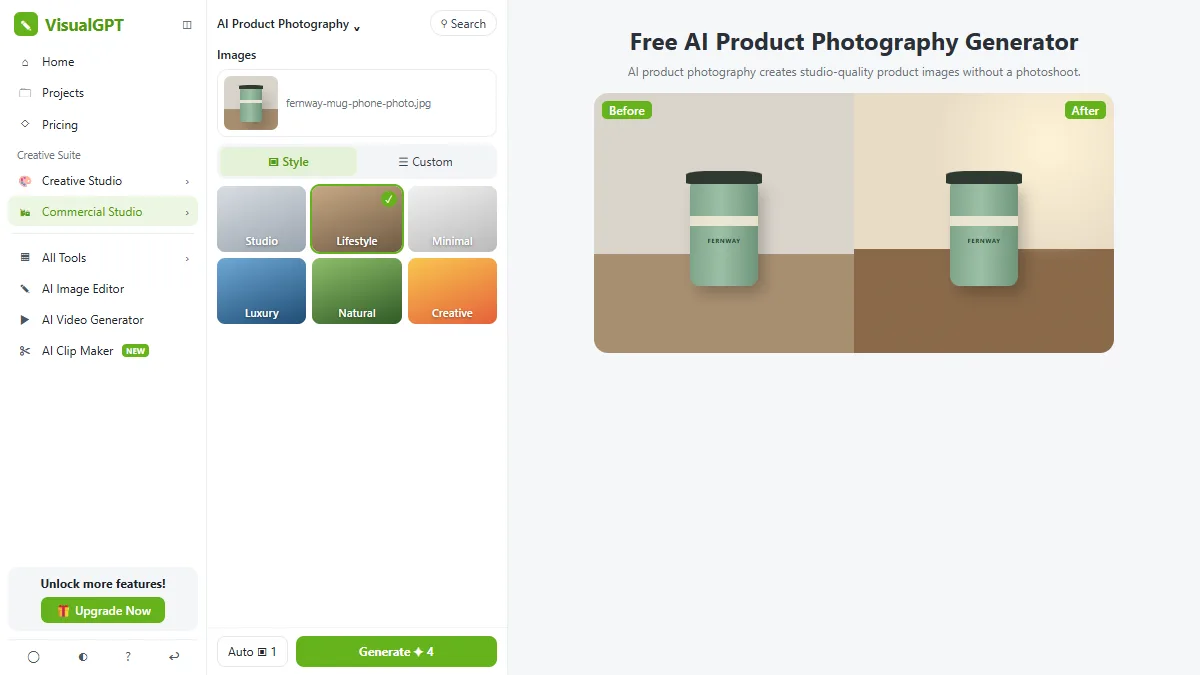
In AI Product Photography, upload a clear photo of the product (jpg, jpeg, png or webp, up to 16 MB). Under Style, pick a preset instead of writing a prompt: Studio, Lifestyle, Minimal, Luxury, Natural or Creative. Custom lets you describe the look in your own words, and the Auto button opens the aspect ratio and the number of images.
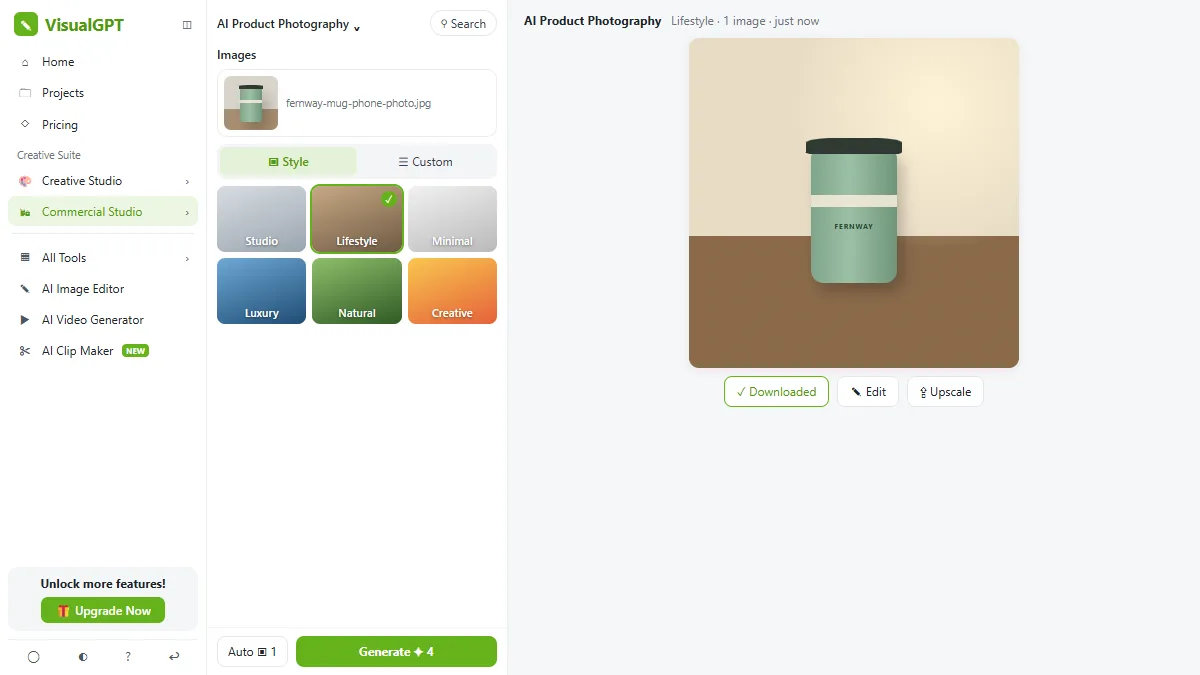
Before you download, compare the result with the real product: the shape, the logo and the color must match. A product shot that changes the product is worse than no product shot.
Step 2: check the Design Blueprint before you build a listing set
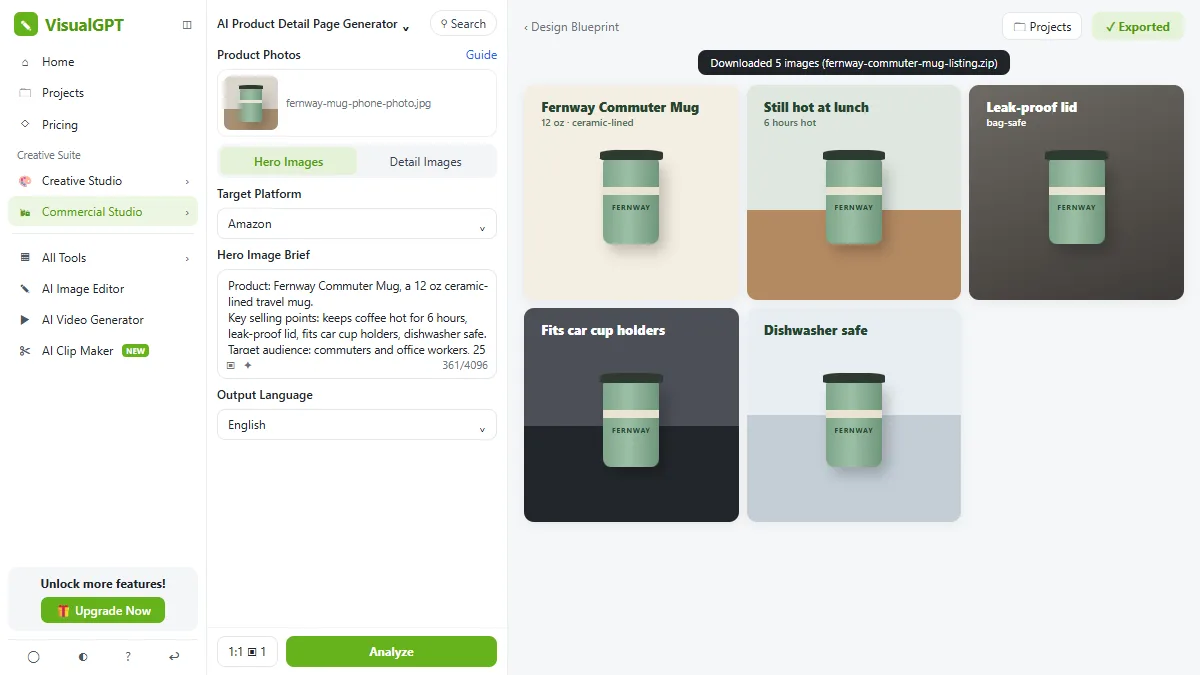
The AI Product Detail Page Generator makes a full set of listing images from one photo. Choose Hero Images or Detail Images and a Target Platform such as Amazon, then write a Hero Image Brief with the product name, key selling points, target audience and image style. The lesson's brief ends with the rule that matters most: use only these facts, no made-up awards, reviews or numbers.
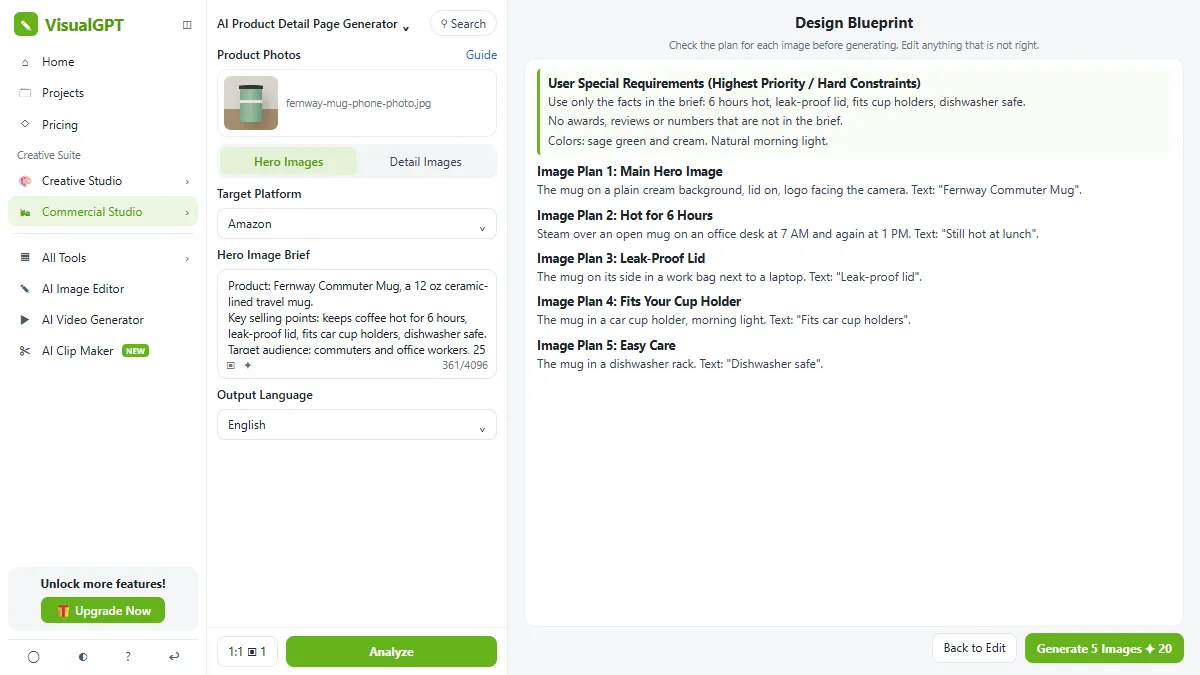
Analyze does not draw anything yet. It writes a Design Blueprint: your hard constraints first, then one plan per image with the text that will appear on it. This is where you catch a wrong claim, for free, before any credits go on images. When the plan is right, generate the set and export it.
Step 3: make launch ads from an ad that already worked
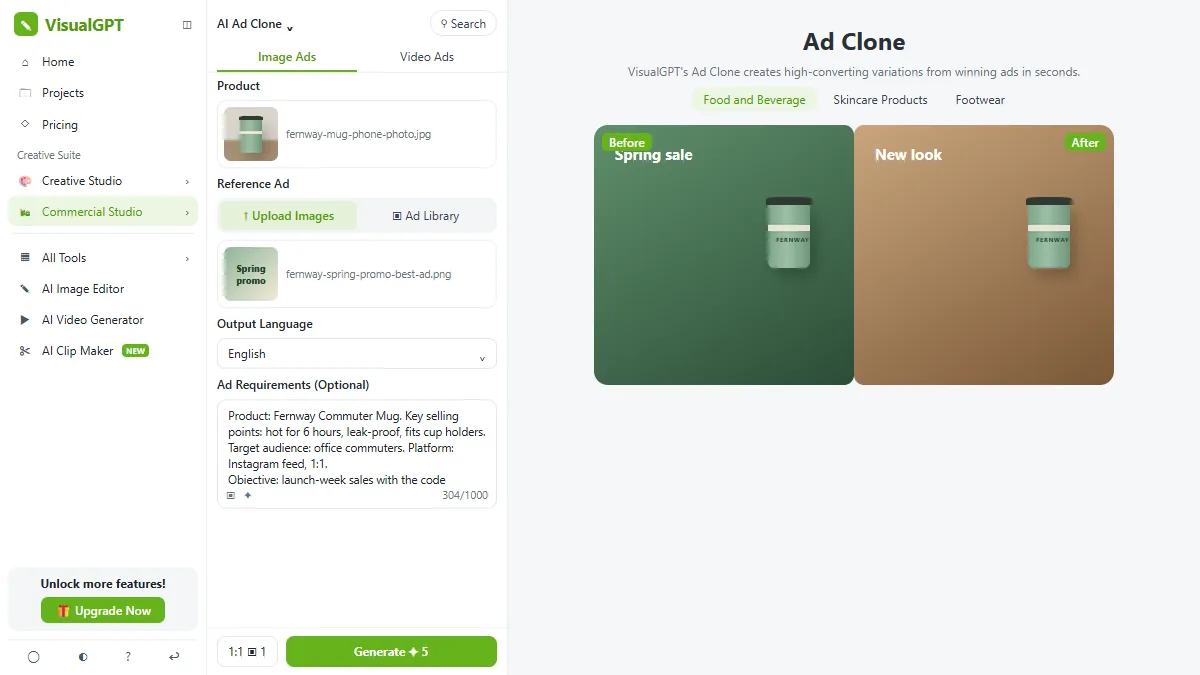
AI Ad Clone takes the structure of a reference ad, such as where the headline, the product and the offer sit, and rebuilds it around your product. Upload your product images, then a reference ad, either your own or one from the Ad Library, and add Ad Requirements: selling points, audience, platform, objective and what the ad must not say.
In the lesson the reference is Fernway's own best ad from the spring, so the new ads keep a layout that is already proven with its customers. Check the code, every claim and the logo on each variation before anything runs.
Mistakes to avoid
- Trusting the image over the product. Check shape, color, logo and size against the real item before you publish.
- Skipping the blueprint. Read every planned headline and claim before you generate the set.
- Copying a competitor's ad. Use your own ads as references, and never reuse another brand's logo, claims or photos.
- Leaving facts to the AI. Put the facts you can stand behind in the brief and tell it to use nothing else.
Credits, rights and what to check
VisualGPT gives free daily credits that reset and do not add up, and sells paid plans and permanent credit packs; each Generate button shows its cost. Check visualgpt.io/pricing for current prices. Commercial use, export resolution and limits depend on your plan, so read VisualGPT's terms and credit policies before you put generated images in ads or on a marketplace, and check each marketplace's own image rules.
Links
- VisualGPT AI Product Photography: the tool for chapter 1. VisualGPT is a separate product with its own account, credits and plans.
- VisualGPT AI Product Detail Page Generator: the listing image tool for chapter 2.
- VisualGPT Ad Clone: the ad tool for chapter 3.
- VisualGPT help center: credits, downloads and where past projects are saved.
Try it yourself, free
Reading the steps is a start. Doing them is how it sticks. The interactive module walks you through every click in a practice copy of VisualGPT, checks each step, and never touches your real accounts.
Start “VisualGPT: Product Photos, Listing Images and Ads from One Phone Photo”Step by step: VisualGPT: Product Photos, Listing Images and Ads from One Phone Photo
All 19 steps of the interactive module, in order. In the module you watch each one, then do it yourself in a practice copy that checks your work.
1. Turn a phone photo into a product shot
- Open Commercial Studio. This is VisualGPT. In the left sidebar, click Commercial Studio.
This is VisualGPT. It's a set of AI image and video tools in one place. The business tools live in Commercial Studio.
- Open AI Product Photography. Click AI Product Photography.
Start with one good product photo.
- Upload your phone photo. Click Drag or upload image and pick fernway-mug-phone-photo.jpg.
Upload a clear photo of the product. A phone picture on your desk is fine.
- Pick Lifestyle. Under Style, click Lifestyle.
Now pick a look. Studio is a plain background. Lifestyle puts the product in a real scene.
- Generate. Click Generate. The number on the button is the credits it uses.
The number on the button shows how many credits it uses.
- Download it. Check that the mug, logo and color match the real one. Then click Download on the result.
Check the result against the real mug. The shape, the logo, and the color should match. They do.
2. Build a listing image set
- Switch tools. Click the tool name at the top of the panel, AI Product Photography, to switch tools.
Next, a full set of images for your store listing.
- Open AI Product Detail Page Generator. Click AI Product Detail Page G... in the list.
- Add the product photo. Click Drag or Upload Your Product Photo and pick fernway-mug-phone-photo.jpg.
Add the product photo again.
- Write the Hero Image Brief. Target Platform is Amazon. In Hero Image Brief, give the product, its selling points, the audience and the style. Paste in the brief.
Target platform is Amazon. Now the brief. Name the product, list the selling points, and say who it's for. Add the style, and one rule. Use only these facts.
Product: Fernway Commuter Mug, a 12 oz ceramic-lined travel mug.
Key selling points: keeps coffee hot for 6 hours, leak-proof lid, fits car cup holders, dishwasher safe.
Target audience: commuters and office workers, 25 to 45.
Image style: warm and clean, natural morning light, sage green and cream.
Use only these facts. No made-up awards, reviews or numbers.
- Analyze. Click Analyze.
Before it makes any images, it writes a plan.
- Check the plan, then generate. Read the Design Blueprint: your hard rules first, then one plan per image. Then click Generate 5 Images.
This is the design blueprint. Your rules come first, then one plan for each image. Check every claim. Six hours hot, leak-proof, cup holders. All from your brief.
- Export the set. Click Export at the top right to download all five images.
Five listing images, each with one selling point.
3. Make launch ads from your best ad
- Switch tools again. Click the tool name at the top of the panel.
Last, launch ads.
- Open AI Ad Clone. Click AI Ad Clone.
It takes the layout of an ad that already worked, and rebuilds it around your product.
- Upload the product. Under Product, click Upload Your Product Images and pick fernway-mug-phone-photo.jpg.
Under Product, upload the mug photo.
- Upload your best ad. Under Reference Ad, click Upload your ad images and pick fernway-spring-promo-best-ad.png, your own best ad from the spring.
Under Reference ad, upload your own best ad, from the spring promo. Use your own ads, not a competitor's.
- Add the ad requirements. In Ad Requirements (Optional), give the selling points, audience, platform, objective and rules. Paste in the requirements.
Add the requirements. Selling points, the audience, the platform, the offer code, and what it must not say.
Product: Fernway Commuter Mug. Key selling points: hot for 6 hours, leak-proof, fits cup holders.
Target audience: office commuters. Platform: Instagram feed, 1:1.
Objective: launch-week sales with the code LAUNCH15 for 15% off.
Keep the Fernway logo and sage green. No made-up claims, prices or reviews.
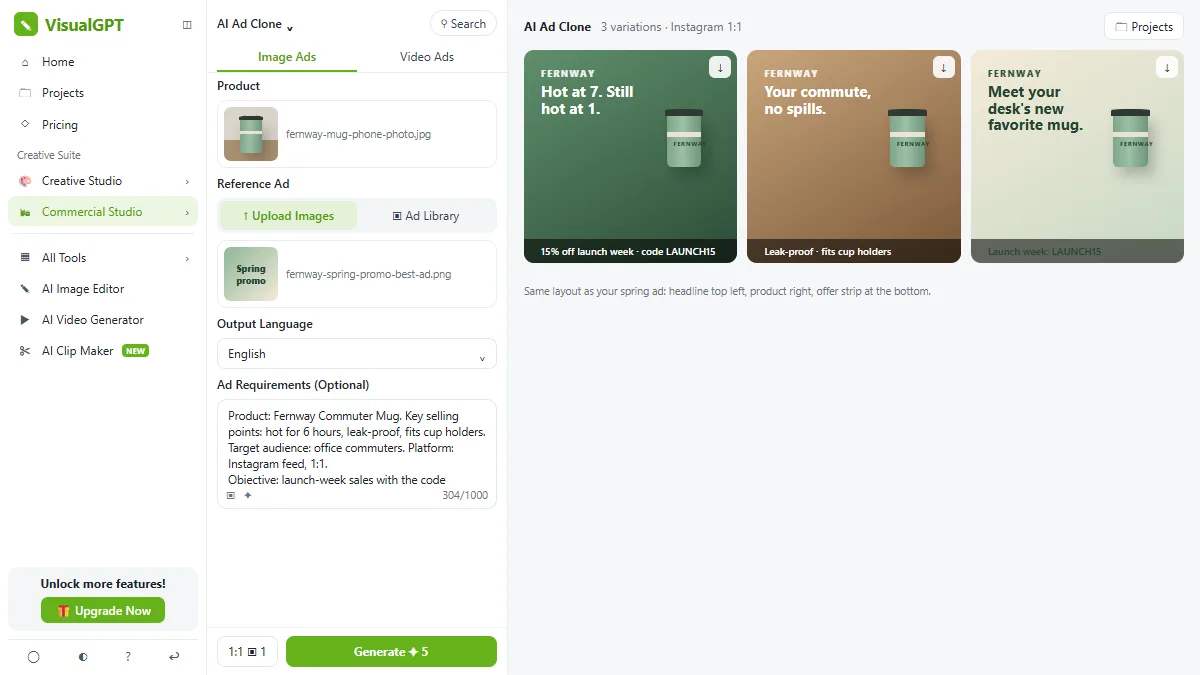
- Generate the ads. Click Generate.
Three ads, in the same layout as your spring ad. Check the code, the claims, and the logo on each one, before anything runs.
Screenshots
Frequently asked questions
- How does the interactive lesson work?
- Each step is shown to you first (Watch). Then you do it yourself in a practice copy that checks every click (Your turn). If you get stuck, press Do it for me. It is a practice copy, so nothing is uploaded and no VisualGPT account or credits are used.
- Is VisualGPT part of Stepthrough?
- No. VisualGPT is a separate, third-party product from visualgpt.io. This lesson is free and teaches its tools as shown on its public tool pages, help center and public walkthrough videos. To use it for real you need your own VisualGPT account.
- Can VisualGPT make Amazon listing images?
- Yes. The AI Product Detail Page Generator has a Target Platform setting with Amazon, writes a Design Blueprint from your brief, and then generates a set of hero or detail images you can export.
- What does VisualGPT Ad Clone do?
- It takes the structure of a reference ad and rebuilds it around your product images and requirements, giving you several variations. Use your own ads or the built-in Ad Library as references.
- Will the product look exactly like mine?
- VisualGPT says it keeps the product's shape, color and details, but always compare each image with the real product before you publish it.
More in AI Automation for Marketing
 Build an n8n AI Agent That Plans Your Content Calendar
Build an AI agent for Harbor & Pine Coffee Roasters that turns one campaign theme into a two-week email and content calendar in Google Sheets — chat trigger, AI Agent…
Free · Live ~12 min
 Build a Lead Magnet Signup Form with an AI Welcome Email
Build a "Get the free guide" signup form in Lovable for Harbor & Pine Coffee Roasters and connect it to n8n — the AI agent tags each lead by interest, saves it to…
Free · Live ~15 min
 Get Your Business Recommended by ChatGPT
Ask ChatGPT who it recommends in your town, see which pages it trusts, then use it to write an FAQ page and Business Profile copy that answer real customer questions.
Free · Live ~10 min
All 5 modules in AI Automation for Marketing
Terms in this lesson
Plain-English definitions, each with an example from a free lesson.