Updated . Built against the tool’s current screens and checked step by step. How we check this lesson
Every small firm has a job that eats a morning each month: the invoice chase, the client report, the onboarding checklist. Everyone agrees it should be automated, but nobody has written down how it is really done, and the exceptions (the client you phone, the invoice in dispute) are exactly where automations break. Screenpipe (screenpipe.com) records your screen and audio on your own computer and makes that history searchable, so an AI assistant can describe the task from what actually happened instead of from memory. This guide shows a small business how to use it safely: agree the recording rules first, capture a few real runs, check the source, ask for a step list with a timestamp on every step, and then decide which steps go to n8n, Make or Zapier and which stay human. It comes with a free practice lesson built from Screenpipe's docs. This is my own guide, not an official Screenpipe course.
At a glance
| Question | Answer |
|---|---|
| What you build | Use Screenpipe's screen history to see how a month-end invoice chase is really done: set privacy rules, search the recording, get a step list with timestamps and pick what to automate in n8n, Make or Zapier. |
| Tools | Screenpipe |
| Time | About 10 minutes, 21 steps in 6 parts |
| Level | Intermediate |
| Cost | Free |
| Ways to learn it | Practice it step by step |
The 6 parts, in short
- Set the privacy rules: Open Settings, Ignore the bank window, Open Privacy, Turn on AI PII removal.
- Check the capture: Open the Timeline, Open a moment from the chase.
- Search the history: Search for "past due", Open the first result.
- Get the step list: Go to Home, Ask for the current process, Send it, Check a cited step, and 1 more step.
- Pick what to automate: Back to Home, Rank the steps, Send it.
- Make it repeatable: Open Scheduled tasks, Open My tasks, Click NEW, Describe the task, and 1 more step.
Start here first: Build an AI Vendor Follow-Up Agent in n8n (module 1 of AI Automation for Operations)
Part of: AI for Operations Teams (step 31 of 36). Next up: Tell the Client, the Boss and the Team in One Go using ChatGPT
Part of: AI Apps Worth Knowing (step 54 of 62). Next up: Granola: Client Call Notes Written for You, With No Meeting Bot
Part of: AI Back Office for Small Business (step 13 of 18). Next up: Never Miss a Contract Renewal Deadline using ChatGPT
The two prompts from the lesson
Paste these into Screenpipe's Home chat or an AI assistant connected to Screenpipe, and replace the bracketed parts. The first maps the task with evidence; the second ranks the steps. The second is adapted from Screenpipe's automation-prioritization guide.
| Prompt | What it does |
|---|---|
| @screen @input Review my recorded work on [date] from [start] to [end] [timezone]. I did [the task]. Draft the current process as numbered steps: the trigger, each step with the app and the visible UI label, decisions, exceptions and the accepted result. Cite a timestamp for each step. List missing evidence. Leave out client names, amounts, email text and anything private. Mark inferred steps for review. Do not send or change anything. | Draft the current process from a bounded time window, with a timestamp on every step, exceptions and missing evidence. |
| Compare the steps of this task as automation candidates. For each, report frequency, active effort, variation, reversibility, success check, setup effort and human review. Label estimates and unknowns. Recommend one small experiment we could build in n8n, Make or Zapier. Do not infer time savings from screen-frame counts or promise ROI. Keep observed behavior separate from the proposed automation. | Score each step and suggest one small, testable automation. |
The business case: automate the real process, not the one you remember
Picture Priya Shah, office manager at Alder & Finch Bookkeeping, a made-up eight-person firm. On the last business day of every month she chases overdue invoices: filter the aging sheet to 30 days or more, find each client's last email, copy the reminder template, fill in the invoice, send it, and type the date in a Chased on column. Some clients get a phone call instead, and a disputed invoice goes to a colleague.
Here is the arithmetic, using example numbers you should replace with your own. About 24 reminders at 7 minutes each is close to 3 hours every month-end, plus the cash that comes in late when the chase slips. The obvious fix is an automation. The trap is building it from memory: the phone calls and disputes get missed, and the workflow sends a reminder to a client who is already in dispute. Mapping the real steps first is cheap, and it is how you find the part that is safe to automate.
What Screenpipe is
Screenpipe is a desktop app for macOS, Windows 10/11 and Linux that records your screen and audio and makes that history searchable with AI. Its README describes event-driven capture: it saves a screenshot and the app's accessibility text when something meaningful happens, such as an app switch, a click or a pause in typing, and falls back to OCR when there is no accessibility text. Audio is transcribed with a local Whisper model or a cloud service.
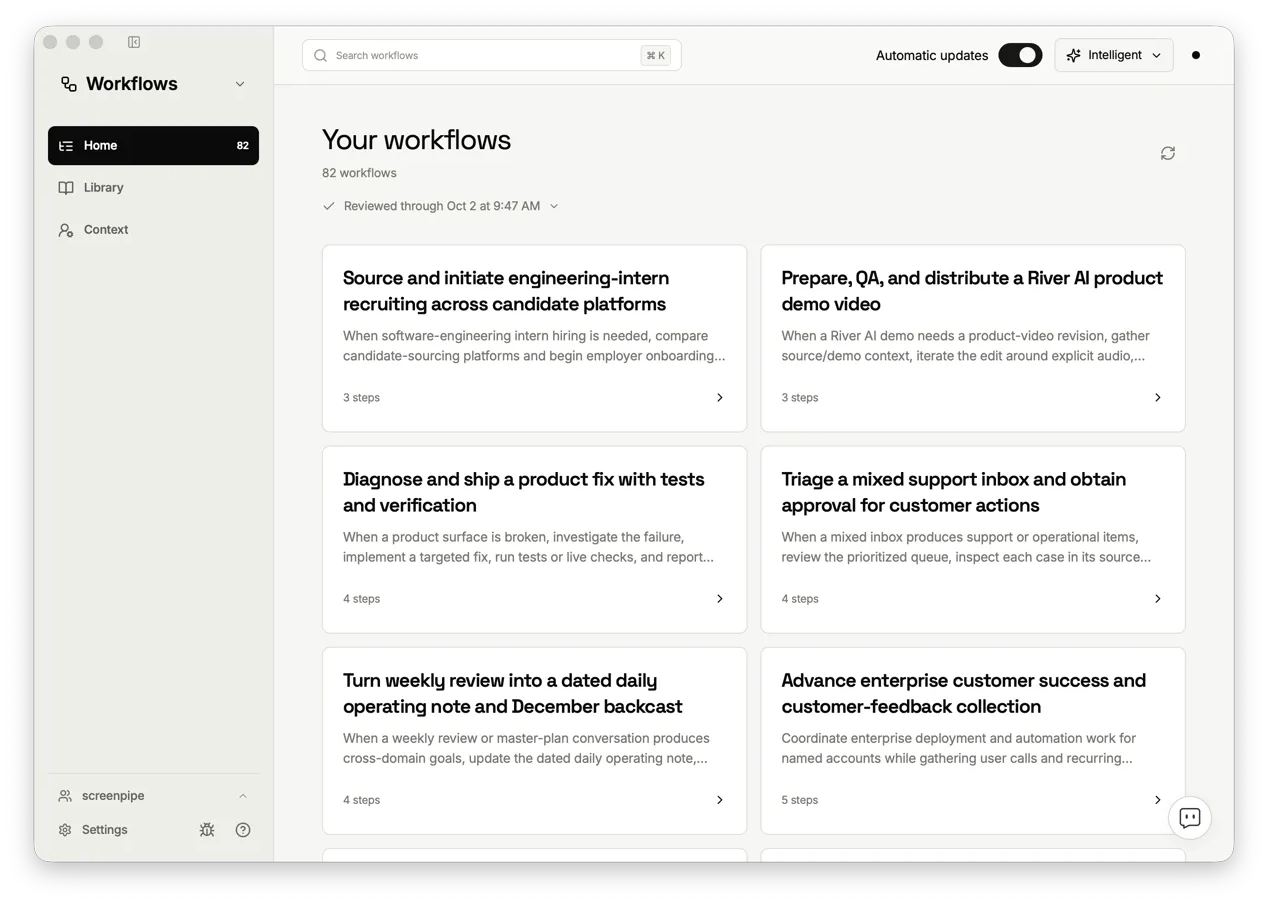
You search it by keyword, scroll back through a Timeline, ask questions in its built-in chat, or connect an AI assistant to it through MCP: the docs cover Claude Desktop, Claude Code, Codex, Cursor and ChatGPT, among others. Scheduled tasks (called pipes in the code) run a saved prompt on a schedule or by hand. Screenpipe also lists a Workflows app in beta that finds recurring work and links each step to its source.
Privacy and consent come first
Screenpipe is local-first: screen frames, audio, transcripts and the search index are stored on your computer by default. That changes when you turn on a cloud piece. Cloud transcription sends audio to that service, chat with a cloud AI model sends the selected context to that provider, sync and team sharing send encrypted data to the team store, and connected apps call their own APIs. The README also says product analytics are on by default (Settings, Privacy, Analytics turns them off) and that commercial use needs a paid license.
Recording coworkers needs their agreement. Screenpipe's workflow discovery guide says to tell participants what is recorded and why, who can review it, how long it is kept and how to pause or exclude sensitive apps, and says not to use it for covert employee monitoring. Check the recording and privacy rules where you work, too. For client data: add banking, payroll and client portals to the ignored windows list, turn on AI PII removal, keep transcription local, use a local model such as Ollama for the chat if the data must not leave the office, and pause capture during unrelated sensitive work. Redaction can miss things, so it is a safety net, not permission.
Step 1: set the rules, then capture two or three real runs
Install the app from Screenpipe's site and grant screen recording and microphone permissions (on a Mac, also Accessibility). Capture starts on its own. The quickstart checks it is running at http://localhost:3030/health after a couple of minutes.
In Settings, Recording, add the windows that must never be recorded to the ignored windows list, and test the rule with something harmless: a new rule does not change older recordings. In Settings, Privacy, review AI PII removal, API security and analytics. Then pick one outcome, such as "every invoice 30+ days past due has a reminder and a Chased on date", and do the task normally. Note the start and end times, so later searches stay inside that window.
Step 2: check the capture before you ask the AI
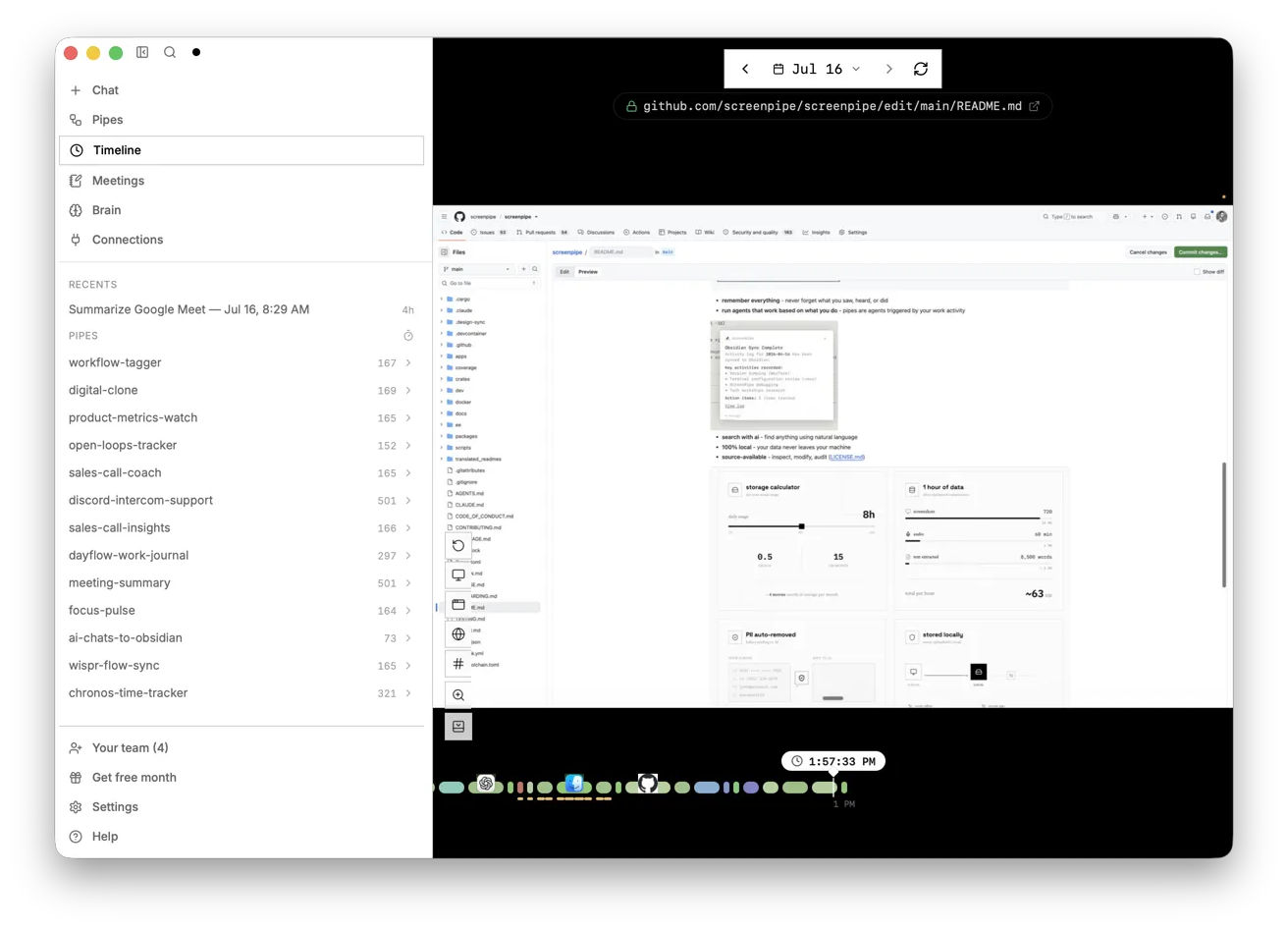
Open the Timeline for that time window and scroll through it: each block is an app in use, and clicking one shows what was on screen. Then use the search bar. Search matches words, not meaning, so use a short phrase that appears on screen, such as "past due". Each result shows the app and the time, and opens that moment.
If something is missing, check permissions, the selected audio devices and the ignored windows before you go on. The docs are blunt about it: missing data is not the same as zero work, and an AI will happily fill the gap with a guess.
Step 3: ask for the step list, with evidence
On Home, type @ in the chat box to limit what the AI sees: @screen for on-screen text, @audio for transcripts, @input for clicks and keystrokes, plus time ranges such as @last-week or an app. Paste the first prompt from the box above, with your date and times. It asks for each step with the app, the visible label and a timestamp, plus exceptions and missing evidence, and tells the AI to leave client details out and not to send or change anything.
Then check it. Open one or two cited timestamps on the Timeline. Separate the steps you saw done from pages that were only open. In the lesson, the answer finds five steps, two exceptions and one honest gap (how Priya decides who to phone first), and step 5 checks out at 9:21 AM. Turn the checked list into a standard operating procedure with the person who does the work: Screenpipe's SOP capture guide adds an owner, a review date and a teammate test.
Step 4: decide what to automate, and with what
Paste the second prompt. It scores each step on frequency, effort, variation, reversibility, how you would check success, setup and review, labels estimates as estimates, and suggests one small experiment. Screenpipe's guide warns not to infer time savings from screen-frame counts or promise ROI.
Good first candidates repeat often, have a clear result, are easy to check and can be undone. In the invoice chase that is building the overdue list and logging the Chased on date, with the reminder written as a draft Priya reads before sending. The phone calls and disputes stay human. That is a small workflow in n8n, Make or Zapier: on the last business day, read the aging sheet, create Gmail drafts, and update the sheet after sending. Measure the review time for a month before adding more.
Step 5: repeat the check every month
Open Scheduled tasks, then My tasks, and click NEW. Describe the result you want: a manual workflow-discovery task that reviews the last business day of the month and writes a local Markdown report of repeated steps, exceptions and evidence time ranges, without client details, and never sends messages or changes another system. Screenpipe builds the task from that description.
Run it by hand first, read the report and its logs, and only then give it a schedule. Time-based runs are things like daily, every 2h or a cron line; manual means it only runs when you start it. Tasks can use a cloud model, so check the provider in the task before it reads client work.
Where to go next
Once the steps are mapped, build the automation in the tool that fits your team, each a free practice lesson: your first n8n workflow, your first Make scenario or your first Zap. Not sure whether the job needs an agent or a plain workflow? See AI agent vs chatbot vs automation.
To turn the checked step list into a document the team can follow, try writing an SOP as an editable doc. For the invoice chase itself, the overdue invoices lesson drafts the reminder emails with ChatGPT.
Who this is for
Owners, office managers and operations leads at small white-collar firms who want to automate a recurring job but are not sure how it is really done today, or who are about to hand a process to a new hire or a consultant. The practice lesson needs nothing installed. To do it for real you need Screenpipe on the computer where the work happens, a paid license for commercial use, and the agreement of anyone being recorded.
A note on the screens: the lesson and this guide were built from Screenpipe's public docs and README on 20 October 2026 without installing the app, so labels and layout can differ in your version. The two screenshots below are Screenpipe's own, from its README.
Mistakes to avoid
- Recording people without telling them what is captured, who sees it and how to pause it.
- Leaving banking, payroll or client portals out of the ignored windows list.
- Assuming everything stays local after switching on a cloud model, cloud transcription or sync.
- Asking the AI before checking the Timeline, then trusting a confident answer with no timestamps.
- Automating the judgment calls (disputes, phone calls) instead of the stable, checkable steps.
- Building the automation to send straight away instead of creating drafts a person reviews.
- Scheduling a task before running it by hand and reading its logs.
Links
- Screenpipe: the product site: download, plans and the enterprise and security pages.
- Discover work worth automating (Screenpipe docs): Screenpipe's own guide this lesson follows: one outcome, a transparent observation policy, two or three runs, and a reusable discovery task.
- Choose which observed workflow to automate first (Screenpipe docs): the scoring factors and the prompt the ranking step is adapted from.
- Privacy data flow (Screenpipe docs): what stays on your computer and what leaves it in each configuration.
- Screenpipe on GitHub: the source code, the README and the Screenpipe Commercial License.
Try it yourself, free
Reading the steps is a start. Doing them is how it sticks. The interactive module walks you through every click in a practice copy of Screenpipe, checks each step, and never touches your real accounts.
Start “Screenpipe: Map a Recurring Task Before You Automate It”Step by step: Screenpipe: Map a Recurring Task Before You Automate It
All 21 steps of the interactive module, in order. In the module you watch each one, then do it yourself in a practice copy that checks your work.
1. Set the privacy rules
- Open Settings. This is Screenpipe on Priya's computer. Before anyone looks at a recording, set the rules. Click Settings at the bottom of the sidebar.
This is Priya Shah, office manager at Alder and Finch Bookkeeping, a made-up firm. Every month-end she chases overdue invoices by hand, and it eats a whole morning. Screenpipe recorded the last chase, with the team's agreement. Before we look at any of it, set the privacy rules.
- Ignore the bank window. Under Recording, the ignored windows list keeps an app or site out of every recording. Type Online Banking and press Enter. (Screenpipe's docs: Settings → Recording, add the app or site to the ignored windows list.)
Under Recording, the ignored windows list keeps an app or a site out of every recording. A bookkeeping firm should never record its online banking. A new rule only affects new recordings, so set it up before you start.
- Open Privacy. Click Privacy in the settings list.
- Turn on AI PII removal. Turn on AI PII removal, meant to remove personal details before text is sent to an AI model. Redaction can miss things, so still keep sensitive work out of the recording.
Turn on AI PII removal. It is meant to remove personal details before text goes to an AI model. Redaction can miss things, so it is a safety net, not a reason to record sensitive work.
2. Check the capture
- Open the Timeline. Click Timeline. The docs say to check the source before you ask the AI anything.
Screenpipe's docs give one rule before you ask the AI anything: check the source.
- Open a moment from the chase. This is September 30. Each colored block is an app in use. Click the red Gmail block at 9:14 AM.
This is September 30, the day of the last chase. Each block is an app in use: green for the aging sheet, red for Gmail, blue for the template.
3. Search the history
- Search for "past due". Click the search bar, type past due and press Enter. Search matches words, not meaning, so short distinctive terms work best.
There it is: a reminder email, captured. Now find every place the chase happened. Search matches words, not meaning, so use a short phrase that appears on screen.
- Open the first result. Three hits, each with a time and an app. Click the first one, AR aging – September at 9:02 AM, to jump to that moment.
Three hits, each with a time and the app it came from. That is where the chase starts.
4. Get the step list
- Go to Home. You know the data is there. Click Home to ask the AI.
The data is there. Now ask the AI to turn it into a step list.
- Ask for the current process. Paste the prompt into the chat box. @screen and @input limit it to on-screen text and clicks. It gives the exact time window, asks for a timestamp on every step and keeps client details out.
The at-screen and at-input mentions limit it to on-screen text and clicks. Then it gives the exact time window, asks for each step with the app and a timestamp, the exceptions, and what is missing. It also keeps client names and amounts out, and says do not send or change anything.
@screen @input Review my recorded work on Sep 30 from 9:00 AM to 12:00 PM Eastern. I did our month-end invoice chase. Draft the current process as numbered steps: the trigger, each step with the app and the visible UI label, decisions, exceptions and the accepted result. Cite a timestamp for each step. List missing evidence. Leave out client names, amounts, email text and anything private. Mark inferred steps for review. Do not send or change anything.
- Send it. Click send.
- Check a cited step. Five steps, two exceptions and one gap, each with a time. Don't trust it yet. Step 5 cites 9:21 AM. Click Timeline to check it.
Five steps, two exceptions, and an honest gap. It cannot see how Priya decides who to call first. A confident answer is not proof, so check one. Step five says she logged the date at 9:21.
- Open 9:21 AM. Click the green Google Sheets block at 9:21 AM.
5. Pick what to automate
- Back to Home. The sheet is open at 9:21, so step 5 checks out. Click Home.
The aging sheet, at 9:21. Step five checks out. Now decide what is worth automating.
- Rank the steps. Paste the second prompt. It is adapted from Screenpipe's automation-prioritization guide: score each step, label estimates, and recommend one small experiment.
It comes from Screenpipe's own guide on choosing what to automate. Score each step on how often it happens, whether it can be undone, and how you would check it worked. Label guesses as guesses, and suggest one small experiment, not a big project.
Compare the steps of this invoice chase as automation candidates. For each, report frequency, active effort, variation, reversibility, success check, setup effort and human review. Label estimates and unknowns. Recommend one small experiment we could build in n8n, Make or Zapier. Do not infer time savings from screen-frame counts or promise ROI. Keep observed behavior separate from the proposed automation.
- Send it. Click send.
6. Make it repeatable
- Open Scheduled tasks. Building the list and logging the date are safe to automate. The reminder becomes a draft Priya reads. Calls and disputes stay human. To repeat this check next month, click Scheduled tasks.
Here is the plan. Building the overdue list and logging the date are safe to automate. The reminder becomes a draft that Priya reads before sending. Calls and disputes stay human. That is a small n8n, Make or Zapier workflow. To repeat this check next month, click Scheduled tasks.
- Open My tasks. Click the My tasks tab. (Discover has ready-made tasks like Digital Clone.)
Discover has ready-made tasks. Yours goes under My tasks.
- Click NEW. Click NEW to open the new scheduled task form.
- Describe the task. Paste the task description and press Enter. It is adapted from the reusable task in Screenpipe's workflow-discovery guide: a local report, no client details, and it never sends or changes anything.
It is adapted from Screenpipe's workflow discovery guide. It writes a local report, leaves out client details, and never sends a message or changes another system.
Create a manual workflow-discovery scheduled task for our month-end invoice chase. Review the last business day of the month and write a local Markdown report. List only steps repeated in the data, with trigger, result, observed steps, repetitions, exceptions and evidence time ranges, plus one reversible improvement. Leave out client names, amounts and email text. Do not score productivity, send messages or change another system.
- Open the task. Click month-end-invoice-chase. Its trigger is manual: run it by hand and check the report and its logs before you give it a schedule.
Screenpipe built the task. The trigger is manual. Run it by hand next month-end, read the report and the logs, and only then give it a schedule. You now have a checked step list, and a short list of what to automate first.
Screenshots
Frequently asked questions
- Is this an official Screenpipe course?
- No. This is my own guide and practice lesson. Screenpipe is a separate product from screenpipe.com. The two screenshots are from Screenpipe's GitHub README, credited and linked; everything else follows Screenpipe's public docs, read 20 October 2026.
- Does Screenpipe send my screen to the cloud?
- Not by default. Screenpipe's docs say capture and storage are local by default. Data leaves your computer when you enable a cloud AI provider, cloud transcription, team sync, a connected app, or upload a support bundle. Product analytics are on by default; the README says they can be turned off in Settings, Privacy, Analytics.
- Can I use Screenpipe at work for free?
- Check before you do. Screenpipe is source-available under the Screenpipe Commercial License, which allows personal non-commercial use and evaluation; commercial use requires a paid license. Screenpipe lists Free, Basic, Business and Enterprise plans on its site.
- Do I need to tell coworkers I am recording?
- Yes. Screenpipe's workflow discovery guide says discovery should be transparent: tell people what is recorded and why, who can review it, how long it is kept and how to pause it, and do not use it for covert monitoring. Also check the rules where you work.
- Which AI assistants can use Screenpipe?
- Its own Home chat, plus any MCP-compatible assistant. The docs give setup steps for Claude Desktop, Claude Code, Codex, Cursor and ChatGPT, among others. A local model such as Ollama keeps the chat on your computer.
- Does Screenpipe build the automation for me?
- It maps the work and can run scheduled tasks that write reports. The automation itself, such as reading a sheet and creating email drafts, is a job for a workflow tool like n8n, Make or Zapier. Start with one small, reversible step.
More in AI Automation for Operations
 Build an AI Vendor Follow-Up Agent in n8n
Build an AI agent for Ridgeline Supply Co. that writes follow-up messages for late or pending purchase orders and saves them to Google Sheets — chat trigger, AI Agent…
Free · Live ~12 min Intermediate
 Build an AI Maintenance and IT Request Form
Build an internal maintenance and IT request form in Lovable for Ridgeline Supply Co. and connect it to n8n — the AI agent sets the priority, assigns a team, saves the…
Free · Live ~15 min Advanced
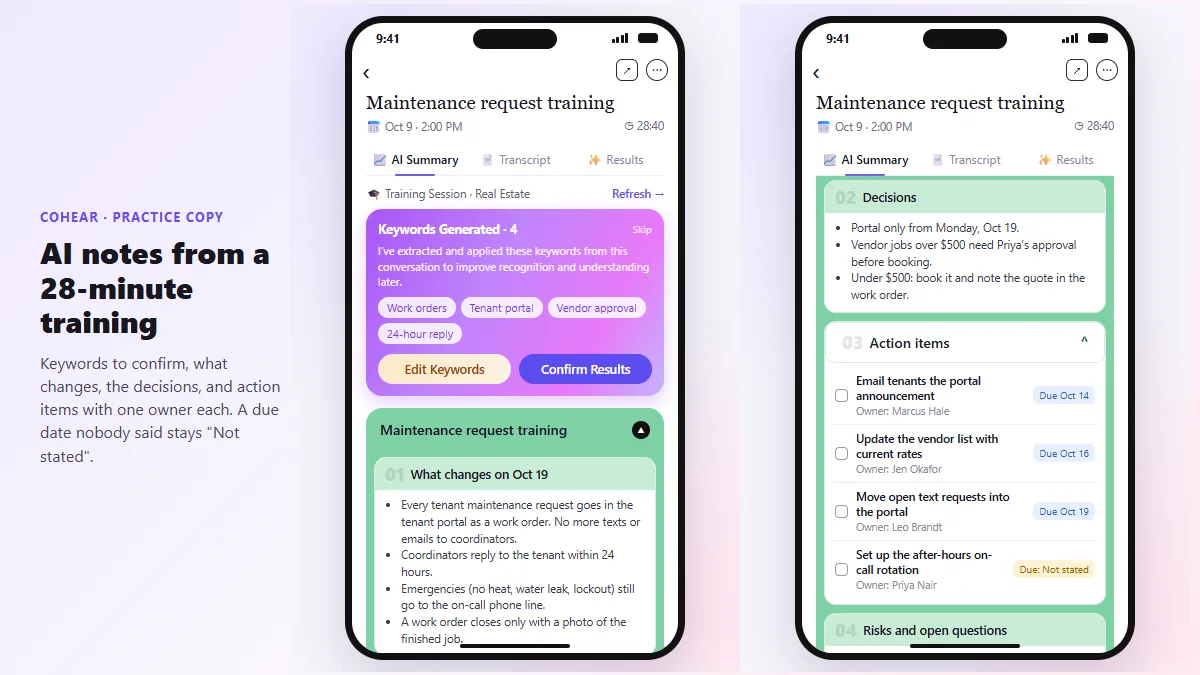 CoHear: AI Meeting Notes from a Team Training Session
Record a team training session on your iPhone with CoHear, check the AI notes and action items against the transcript, make a one-page handout and share it behind a…
Free · Live ~8 min Intermediate
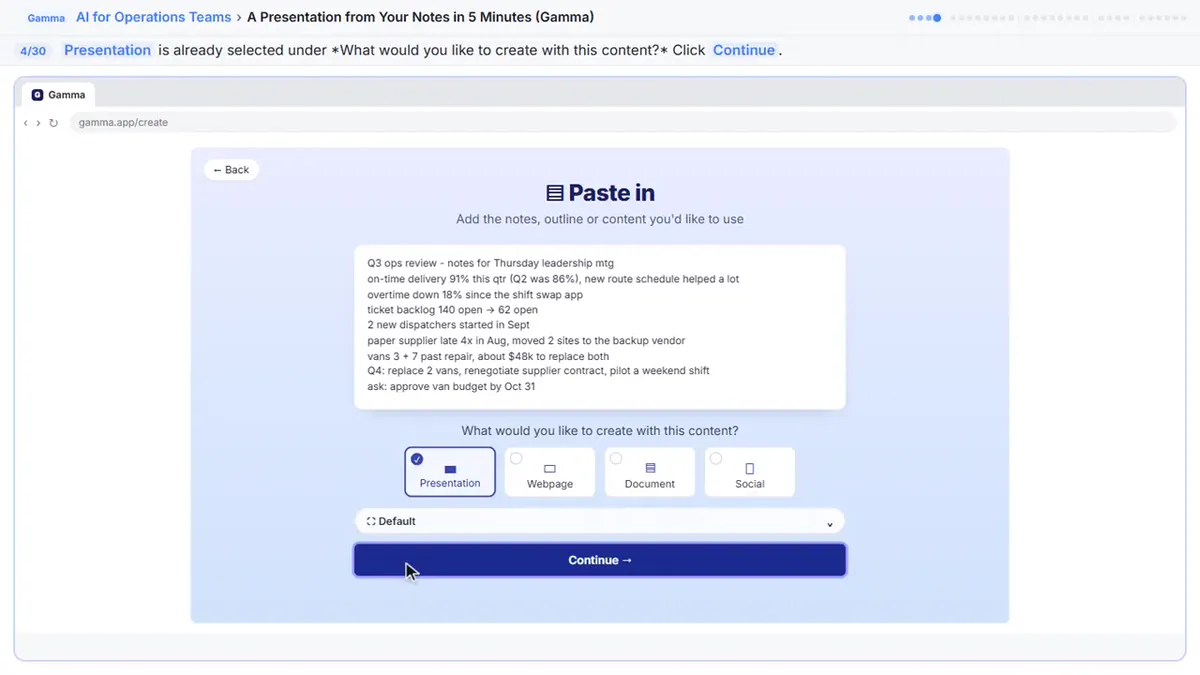 A Presentation from Your Notes in 5 Minutes (Gamma)
Paste rough meeting notes into Gamma, pick a theme, fix one slide by chatting with its AI, and export the deck to PowerPoint and PDF.
Free · Live ~9 min Intermediate
◷AI Contract Review in 10 Minutes using Foxit AISkimmed contracts hide auto-renewals, late fees and liability caps. Upload one to Foxit Workspace, get a plain-English summary and every renewal and exit date, check…
Free · Live ~10 min Beginner
 Answer Employee Policy Questions Instantly Using Airia
HR answers the same time-off and benefits questions all day. Give Airia your handbook, build a no-code agent that answers from it, test it, then share it with your team.
Free · Live ~10 min Intermediate
All 19 modules in AI Automation for Operations
Terms in this lesson
Plain-English definitions, each with an example from a free lesson.