Updated . Built against the tool’s current screens and checked step by step. How we check this lesson
Every release brings the same "how do I turn this on?" tickets. Paste the release note and a short screen recording into Clueso, prompt a 60-second customer how-to video, fix one line of the script, and take the help article from the same project.
At a glance
| Question | Answer |
|---|---|
| What you build | Every release brings the same "how do I turn this on?" tickets. Paste the release note and a short screen recording into Clueso, prompt a 60-second customer how-to video, fix one line of the script, and take the help article from the same project. |
| Tools | Clueso |
| Time | About 10 minutes, 21 steps in 4 parts |
| Level | Beginner, no coding needed |
| Cost | Free |
| Ways to learn it | Practice it step by step |
The 4 parts, in short
- Upload the recording: Start from the recording, Pick the file, Create the project, Read what it wrote from your clicks.
- Prompt the how-to video: Tell it what this is for, Send the pick, Paste the release note and the ask, Send it.
- Check the plan and fix a step: Skip the extras, Read the plan before it builds, Fix the one step, Send the fix.
- The video, the article and the share link: Let it build, Watch the steps scene, Read what it checked, and what it found, Open the article, and 5 more steps.
Start here first: AI Receipt Extractor: Receipts to Google Sheets with n8n (module 1 of Business Automations)
In the course: Part 9 · n8n Automation Toolkit (Module 119 of the full course)
Part of: AI Apps Worth Knowing (step 123 of 123)
What you'll build
You lead support at Bookline, a made-up 15-person scheduling-software company that ships a feature every two weeks. Version 4.2 adds Waitlist auto-fill, and the release note is text only, so for days after every release the queue fills with "how do I turn this on?" tickets. In this lesson you give Clueso the release note and a 22-second recording of the new setting, prompt a short customer how-to video with a voiceover and your branding, read the plan it wrote and fix the one step it got wrong, then open the step-by-step article from the same project and catch that it was never rebuilt. Nothing is published to a real help center.
One release note and one short recording became a 51-second narrated how-to video and a four-step article. Clueso wrote the plan from the note and the clicks, built it in about half an hour, drew its own explainer animation and checked every cut. It still needed you three times: the plan mislabelled a step, the article was never rebuilt with the video, and the recording itself had a 20-minute versus 30-minute mismatch that Clueso spotted before a customer did. Watch the video and read the article as a customer would before you share the link, then make it part of every release: note, recording, prompt, check both, share. Next, try it on the last feature you shipped.
- Tools: Clueso
- Time: about 10 minutes, 21 steps in 4 chapters
- Level: beginner, no coding needed
- Price: free
Practice first, then build it for real
Practice copy built from real Clueso screens (app.clueso.io), captured 3 November 2026 on Robert's account. Nothing here touches a Clueso account. Bookline, Riverbend Physio and the release note are made up. The script, video and article are what Clueso produced in that run, and yours will differ. To build it for real you need your own Clueso account, and some services charge once you use them for real work, so check each tool's current pricing.
Try it yourself, free
Reading the steps is a start. Doing them is how it sticks. The interactive module walks you through every click in a practice copy of Clueso, checks each step, and never touches your real accounts.
Start “Clueso: Turn Release Notes into a Customer How-to Video”Step by step: Clueso: Turn Release Notes into a Customer How-to Video
All 21 steps of the interactive module, in order. In the module you watch each one, then do it yourself in a practice copy that checks your work.
1. Upload the recording
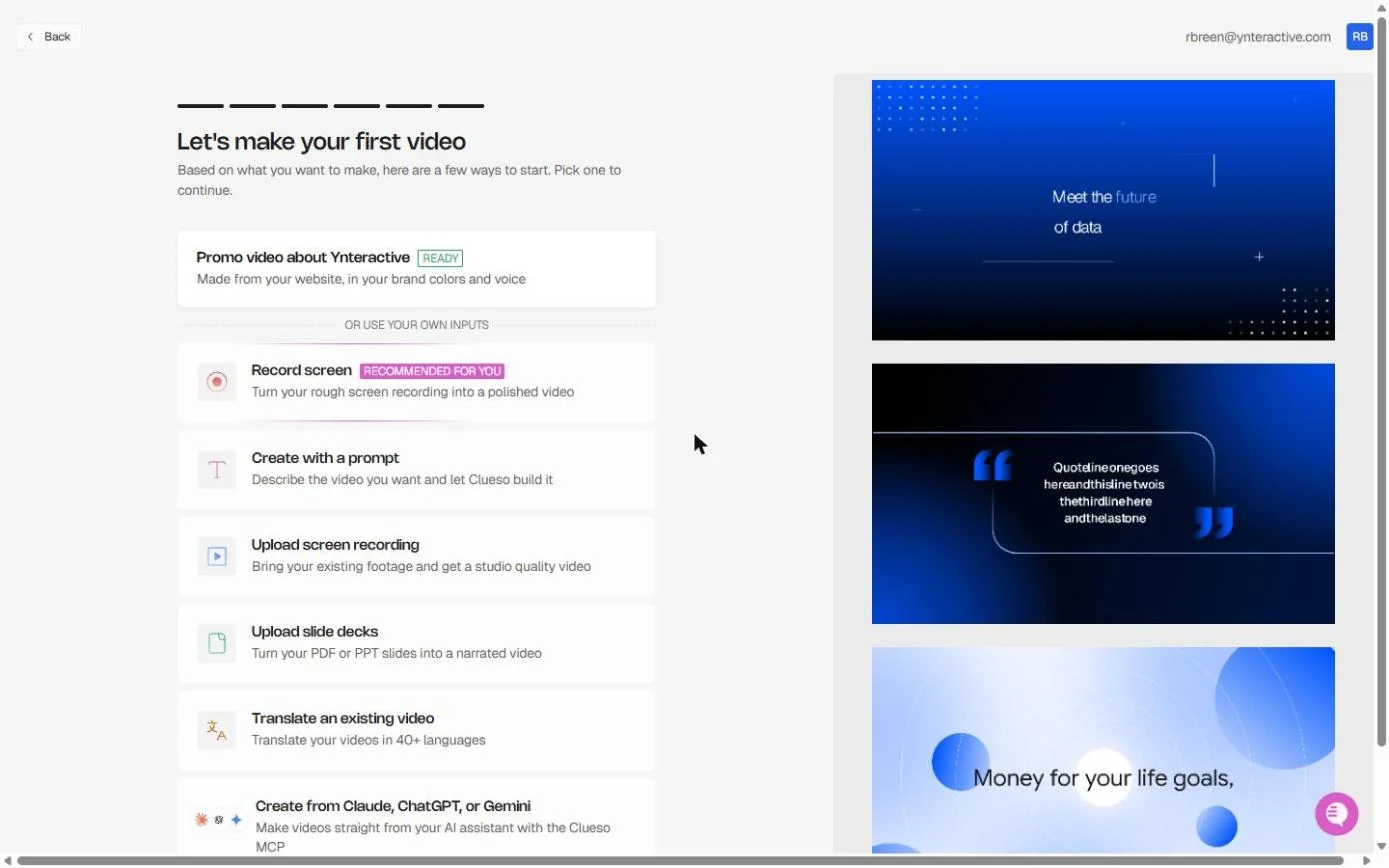
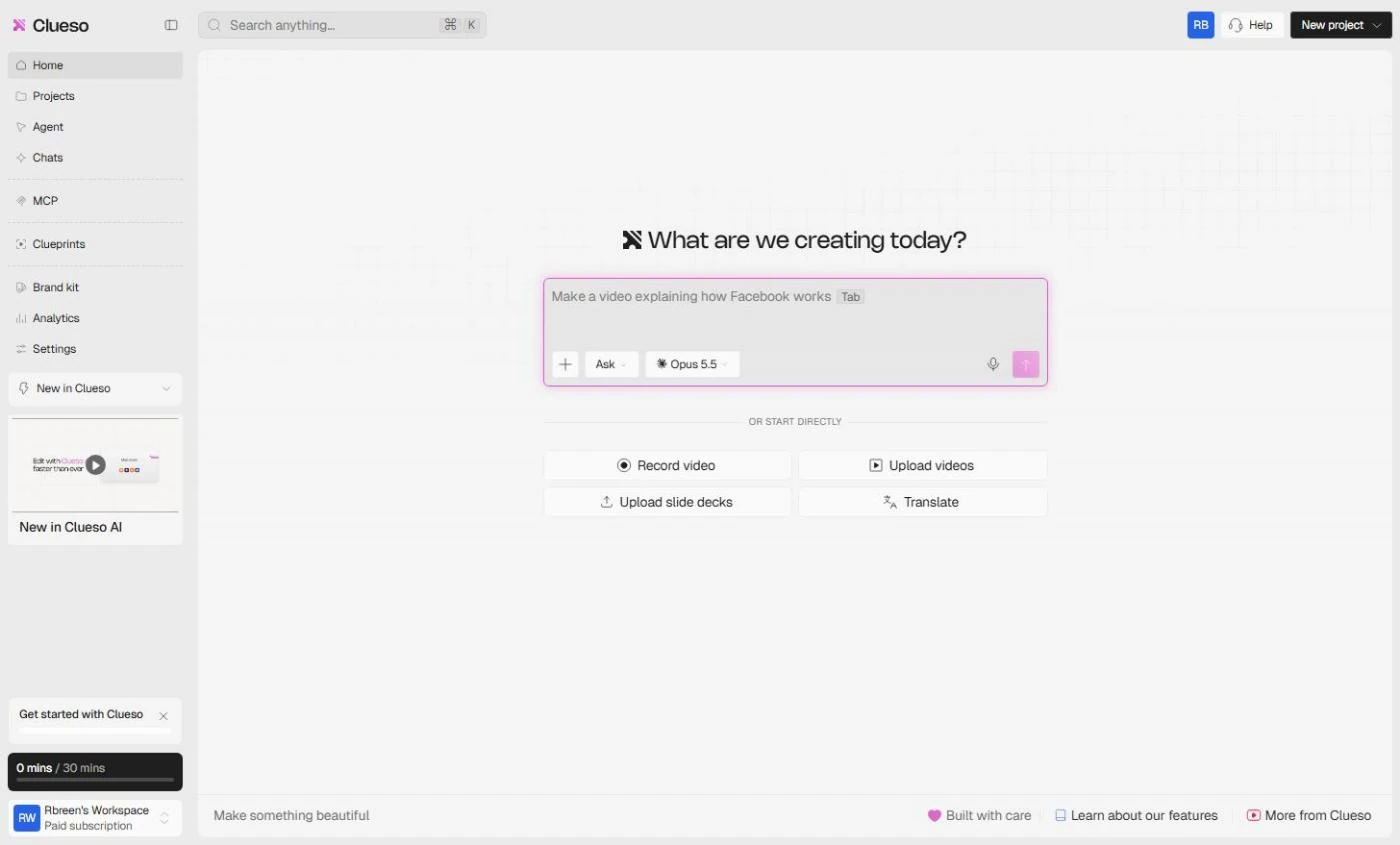
- Start from the recording. You lead support at Bookline, a made-up 15-person scheduling-software company. Version 4.2 shipped Waitlist auto-fill this morning, the release note went out as text, and the first "how do I turn this on?" tickets are already in. You recorded the setting once: 22 seconds, clicks only. On Clueso's start screen, click Upload screen recording.
You lead support at Bookline, a made-up scheduling software company. Version 4. 2 shipped this morning, and the how do I turn this on tickets are already in. You recorded the setting once.
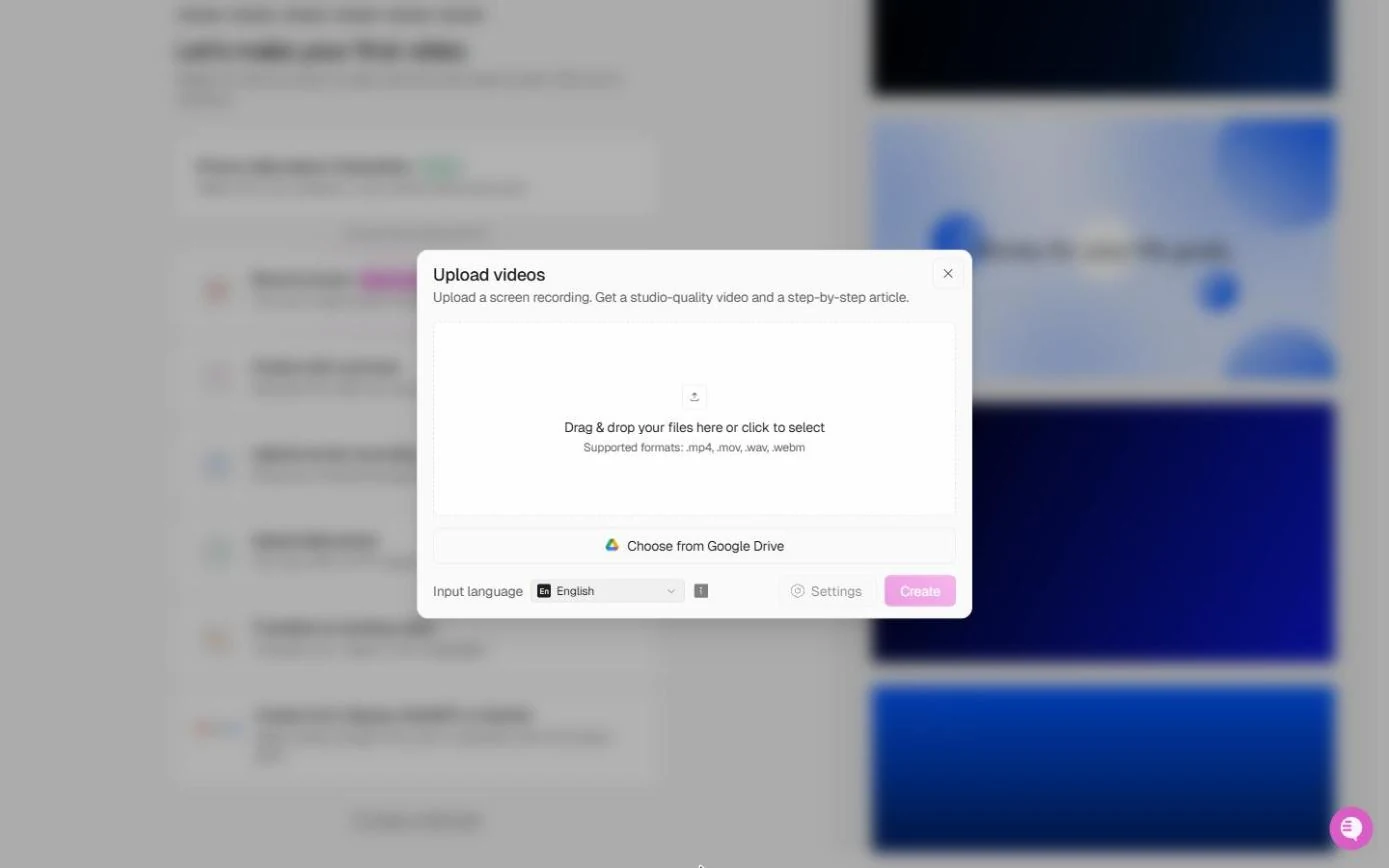
- Pick the file. The Upload videos dialog takes .mp4, .mov, .wav or .webm, and says what you get: a studio-quality video and a step-by-step article. Input language is English. Click the drop area and pick waitlist-autofill-raw.mp4.
The upload dialog takes an M P 4, and promises a studio quality video and a step by step article.
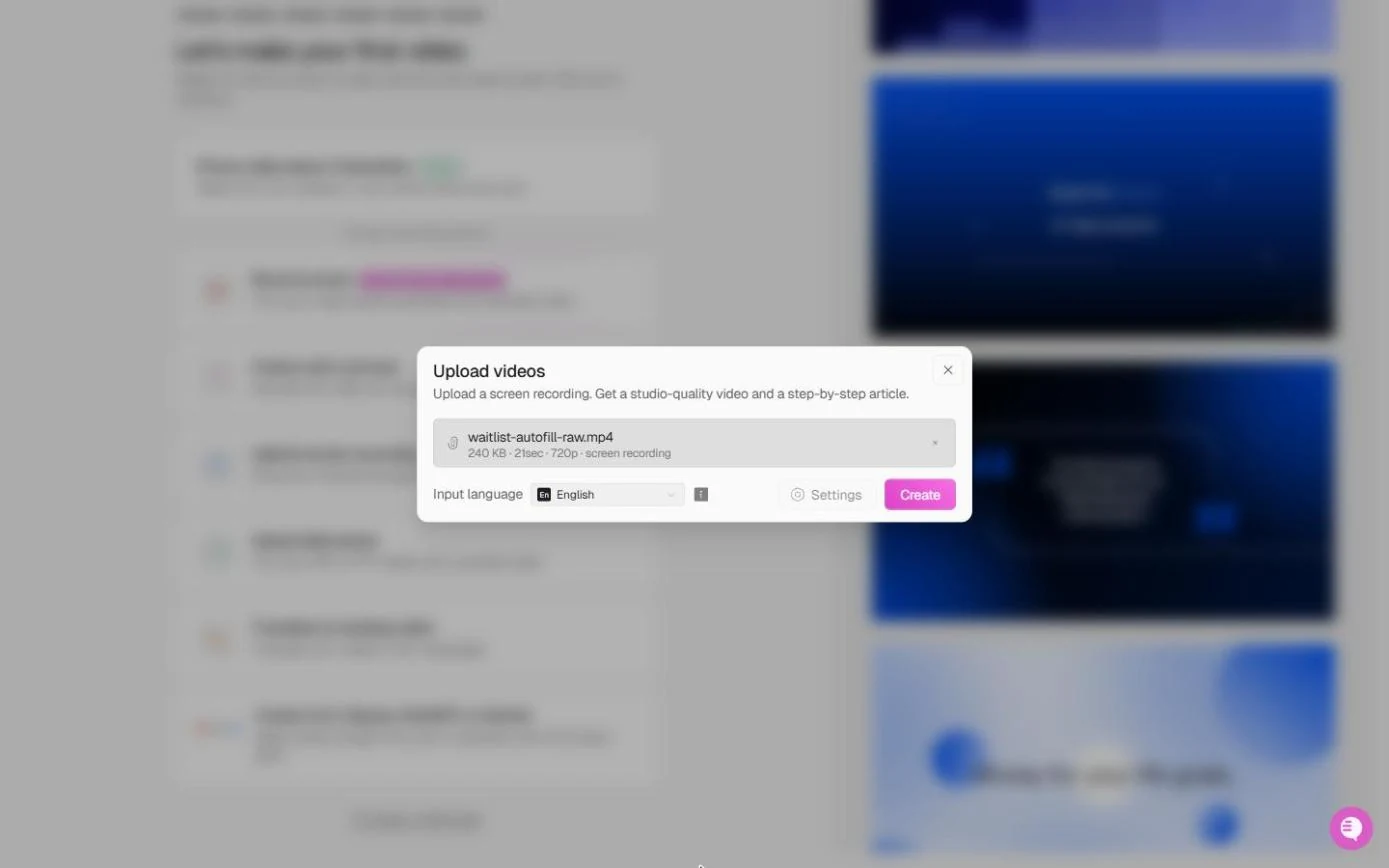
- Create the project. Clueso read the file: 240 KB · 21 sec · 720p · screen recording. Click Create.
Clueso read the file. Twenty one seconds, seven twenty p.
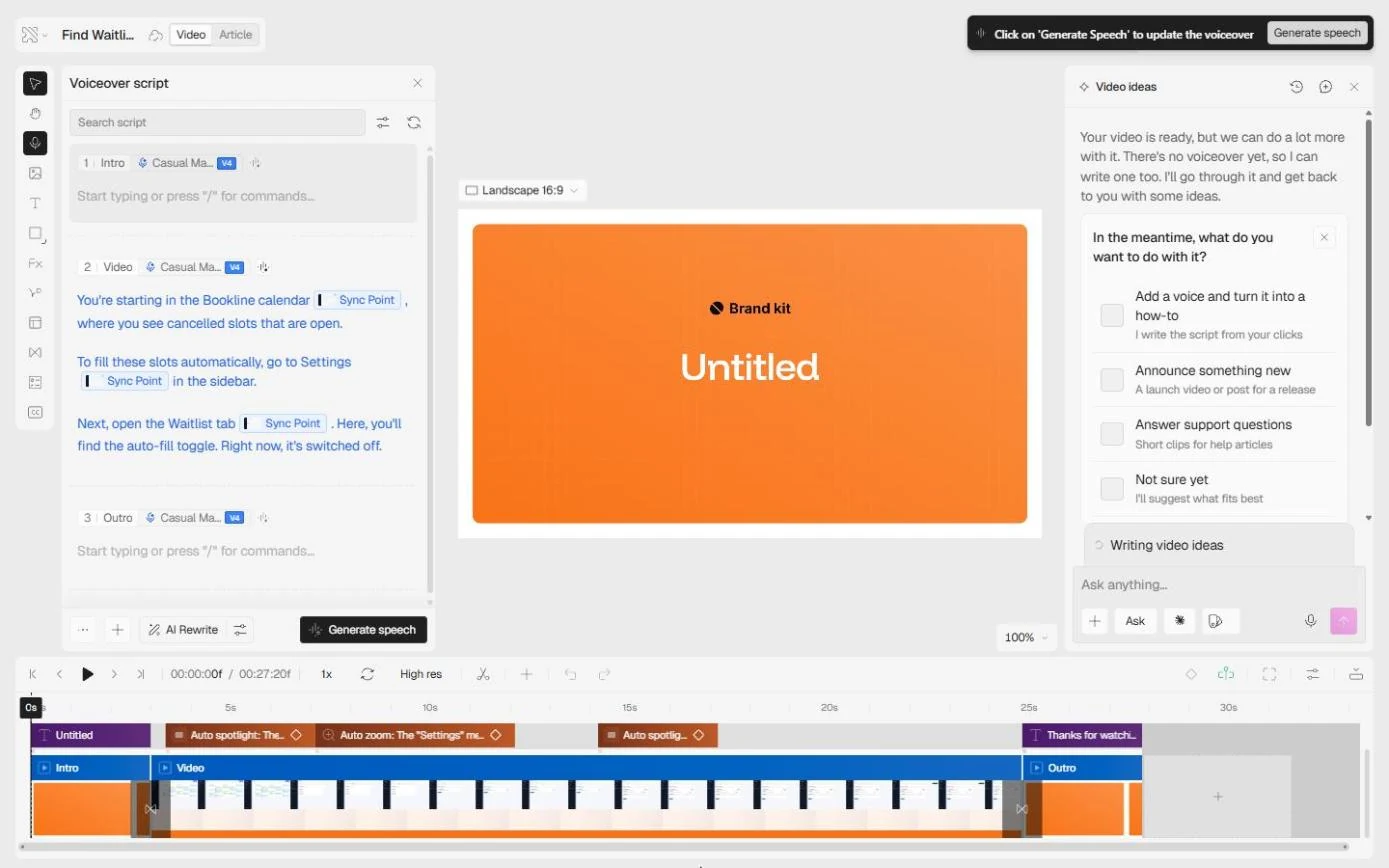
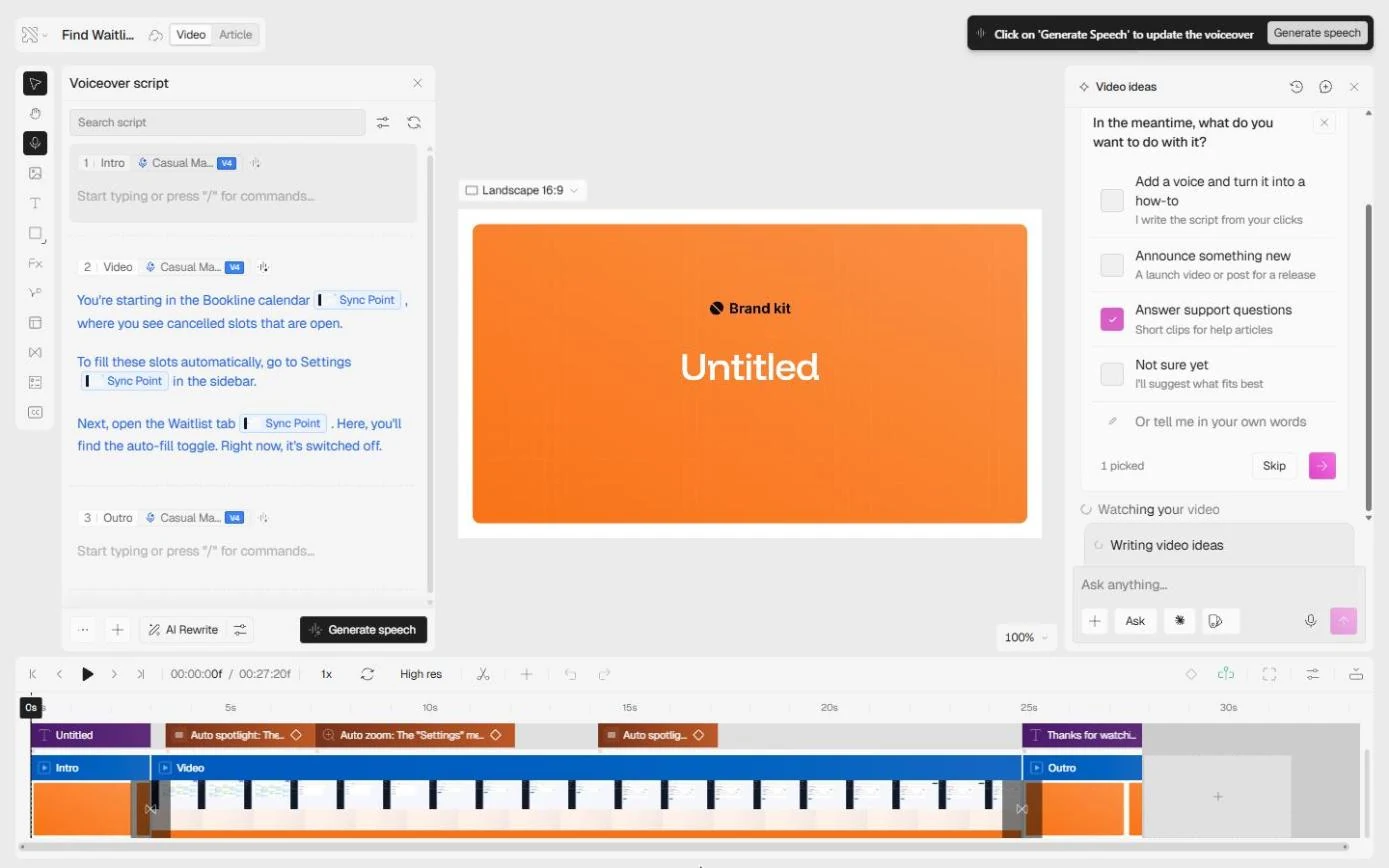
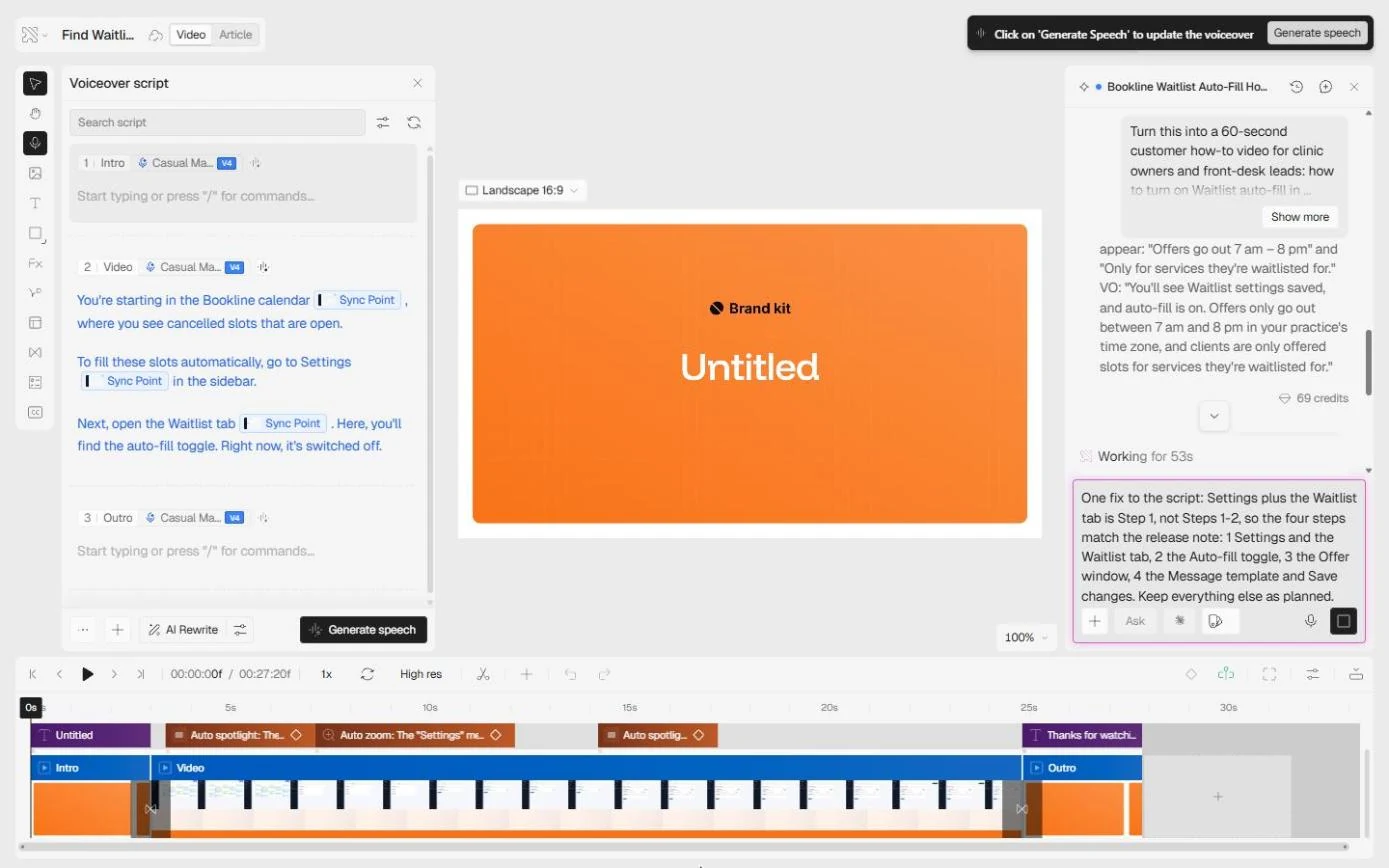
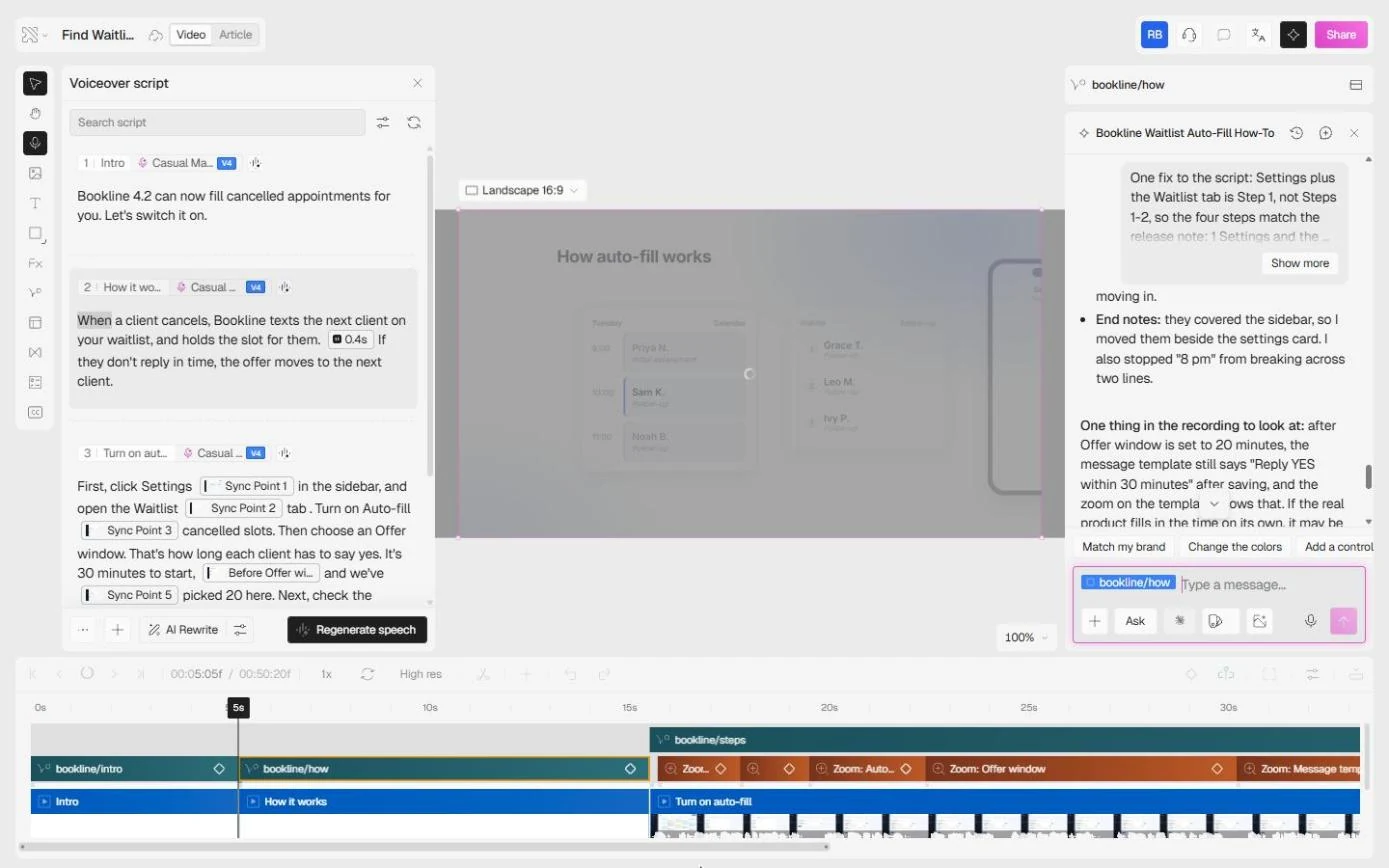
- Read what it wrote from your clicks. About thirty seconds later the editor opens. Clueso named the project Find Waitlist Auto-Fill in Bookline Settings and wrote a Voiceover script from the clicks in your recording. Read it: it ends at *"Right now, it's switched off."* It saw you open Settings and the Waitlist tab, but not the toggle, the offer window or Save. That is why you give it the release note next. Click the script.
The editor opens. Clueso named the project and wrote a voiceover script from your clicks. Read it. It stops at the toggle being switched off. It missed the toggle, the offer window and Save. That is why you give it the release note next.
2. Prompt the how-to video
- Tell it what this is for. On the right, Clueso AI asks what you want to do with the video. Tick Answer support questions, *short clips for help articles*. That is this job.
On the right, Clueso A I asks what you want to do with it. Tick Answer support questions.
- Send the pick. It says 1 picked. Click the pink arrow.
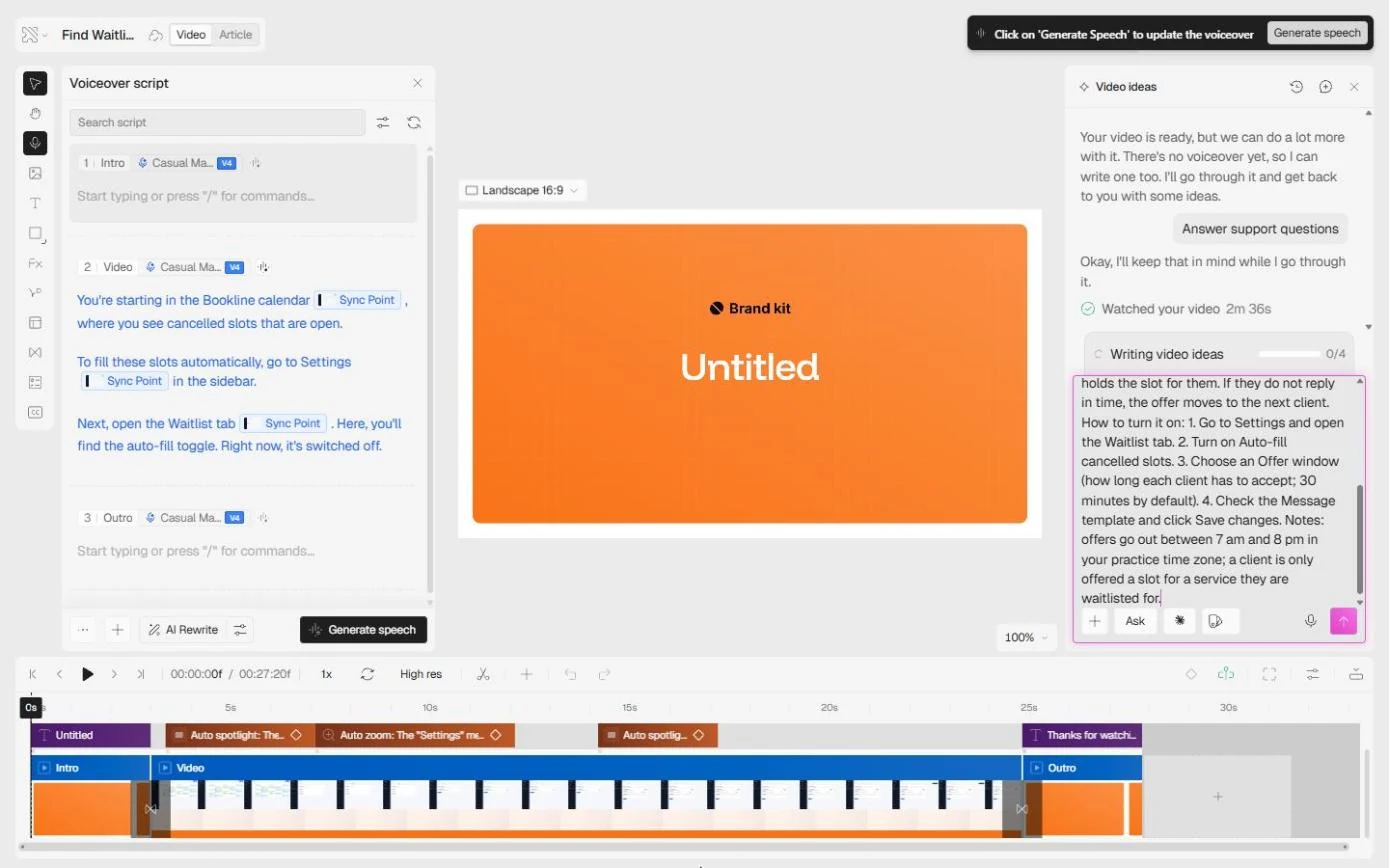
- Paste the release note and the ask. Now the real brief, in the Ask anything box. Say what to make (a 60-second customer how-to), who it is for (clinic owners and front-desk leads), the order (follow the release note), the voice (friendly, no jargon) and the brand (blue on white). Then paste the release note itself, so the steps come from the note, not a guess. Paste it.
Now the real brief. Say what to make, who it is for, the order, the voice and the brand.
Turn this into a 60-second customer how-to video for clinic owners and front-desk leads: how to turn on Waitlist auto-fill in Bookline 4.2. Follow the release note below, show each click with a zoom, in this order, and end on what they see after saving. Friendly plain-English voiceover, no jargon. Keep Bookline branding, blue on white. Release note: When a client cancels, Bookline now texts the next client on your waitlist and holds the slot for them. If they do not reply in time, the offer moves to the next client. How to turn it on: 1. Go to Settings and open the Waitlist tab. 2. Turn on Auto-fill cancelled slots. 3. Choose an Offer window (how long each client has to accept; 30 minutes by default). 4. Check the Message template and click Save changes. Notes: offers go out between 7 am and 8 pm in your practice time zone; a client is only offered a slot for a service they are waitlisted for.
- Send it. Click the pink arrow to send. Clueso says Watched your video, then starts writing.
3. Check the plan and fix a step
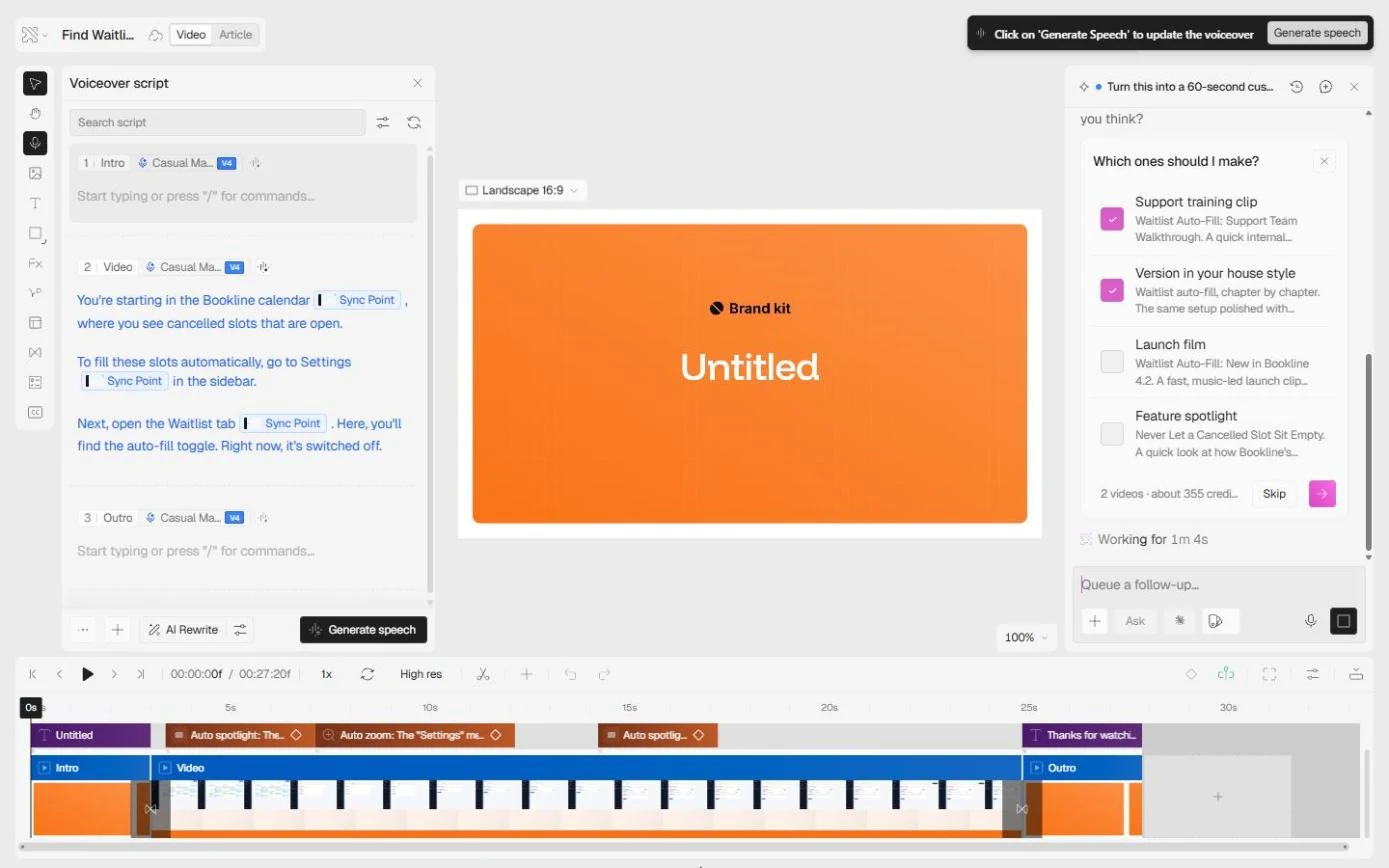
- Skip the extras. About a minute in, Clueso offers four more videos: a support training clip, a house-style version, a launch film, a feature spotlight. Two are pre-ticked at about 355 credits. You asked for one how-to. Click Skip.
A minute in, Clueso offers four more videos, two pre-ticked at about 355 credits. You asked for one how to.
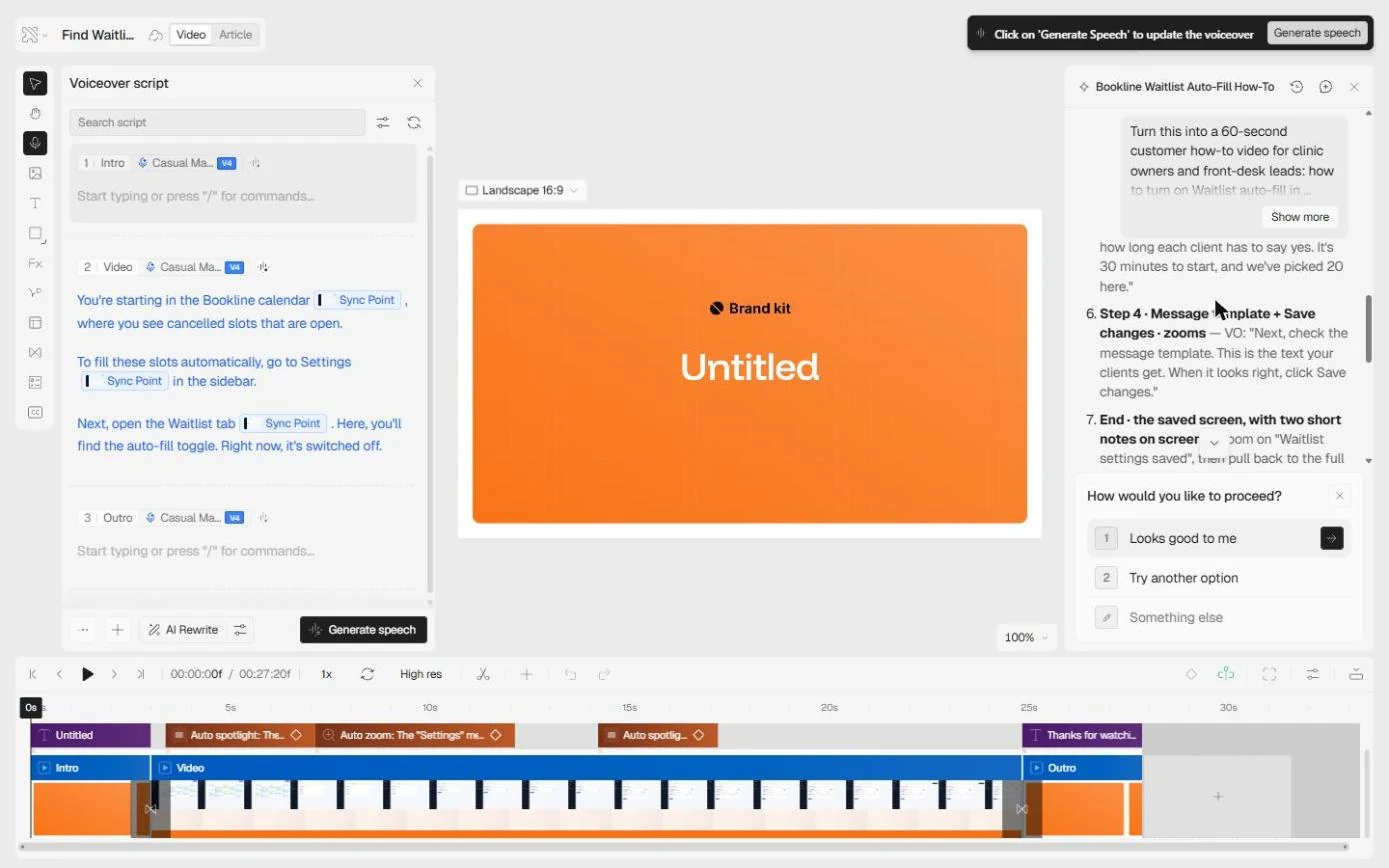
- Read the plan before it builds. Two minutes later: Here's the plan and script for your ~60-second how-to. Approve it and I'll build it. Writing it used 69 credits. Read it as a customer would. The steps follow your release note, and the end card carries the 7 am to 8 pm note. But look at the labels: Steps 1–2 · Settings → Waitlist tab, then Step 2 · Auto-fill toggle. The numbering drifted from the note. Click the plan.
Two minutes later, here is the plan and script. Read it as a customer would. The steps follow your release note, but the labels say Steps 1 to 2, then Step 2 again. The numbering drifted.
- Fix the one step. Do not approve it yet. Under How would you like to proceed?, pick Something else and say exactly what to change and nothing else: Settings plus the Waitlist tab is Step 1, so the four steps match the release note. Paste the fix.
Do not approve it yet. Pick Something else, and say exactly what to change and nothing else. Settings plus the Waitlist tab is Step 1.
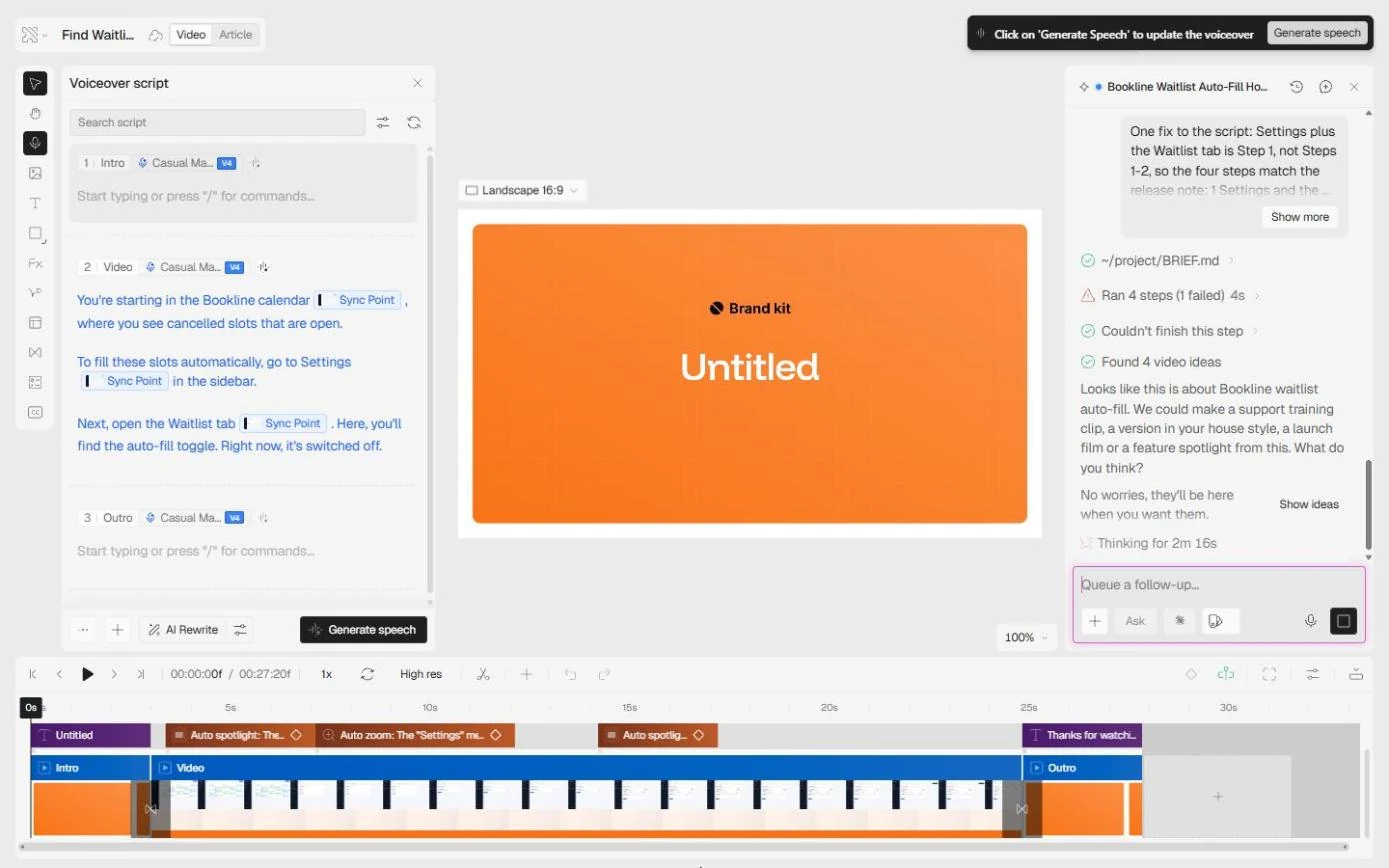
One fix to the script: Settings plus the Waitlist tab is Step 1, not Steps 1-2, so the four steps match the release note: 1 Settings and the Waitlist tab, 2 the Auto-fill toggle, 3 the Offer window, 4 the Message template and Save changes. Keep everything else as planned.
- Send the fix. Press Enter or click the arrow. Clueso updated its brief, and in our run two of its own next steps failed (Couldn't finish this step) before it carried on, wrote the narration and started building. Click the arrow.
Send it. Clueso updates its brief. In our run, two of its own next steps failed and said Couldn't finish this step, then it carried on and started building.
4. The video, the article and the share link
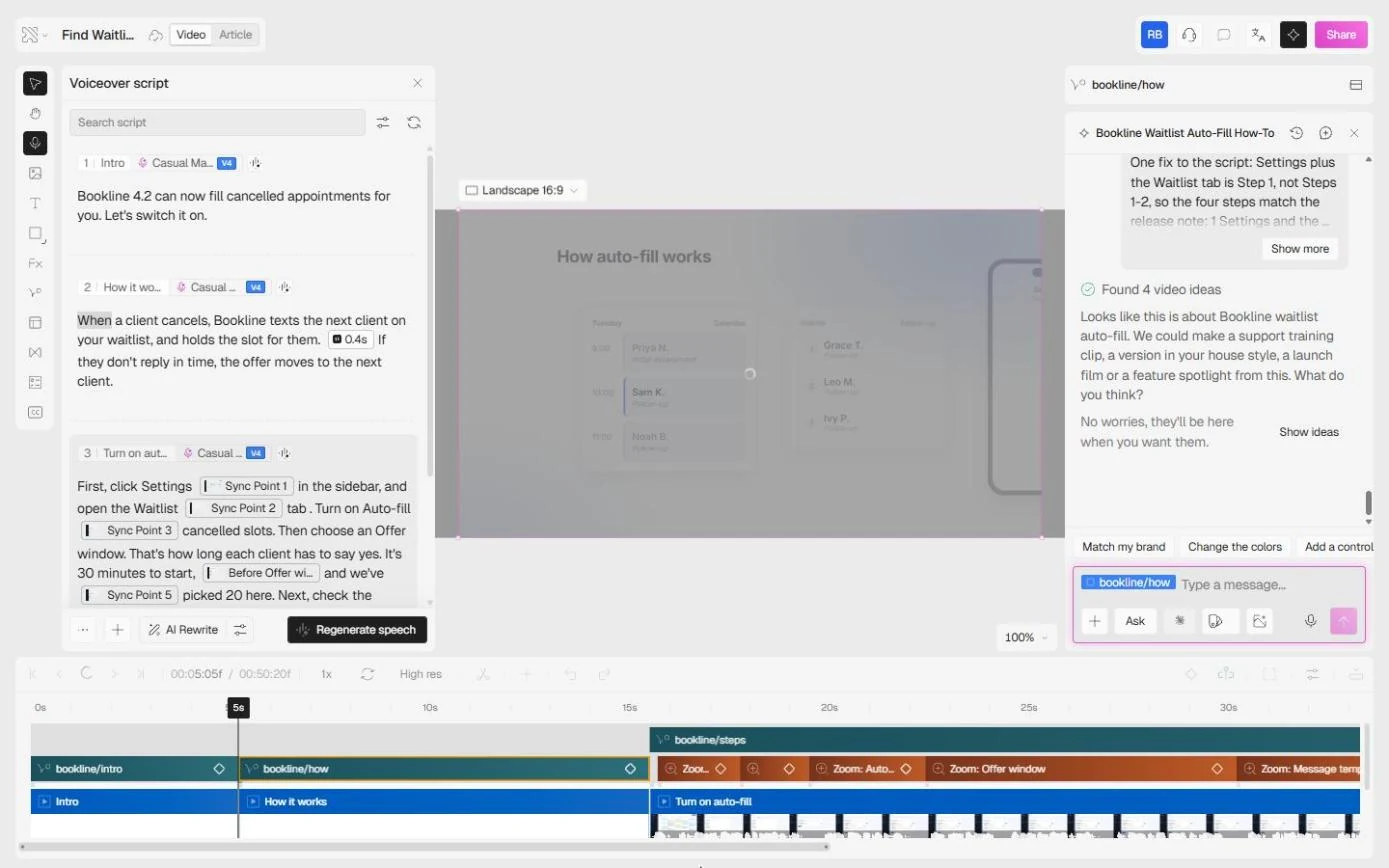
- Let it build. This is the slow part. Clueso rebuilt the video as three scenes, Intro, How it works and Turn on auto-fill, generated the voiceover, added a backdrop, then zoom effects on each click and a Step 1 of 4 to Step 4 of 4 label. The panel said Working for about 28 minutes. Click the status line.
This is the slow part. Clueso rebuilt the video as three scenes, generated the voiceover, added a backdrop and zooms on each click. The panel said Working for about twenty eight minutes.
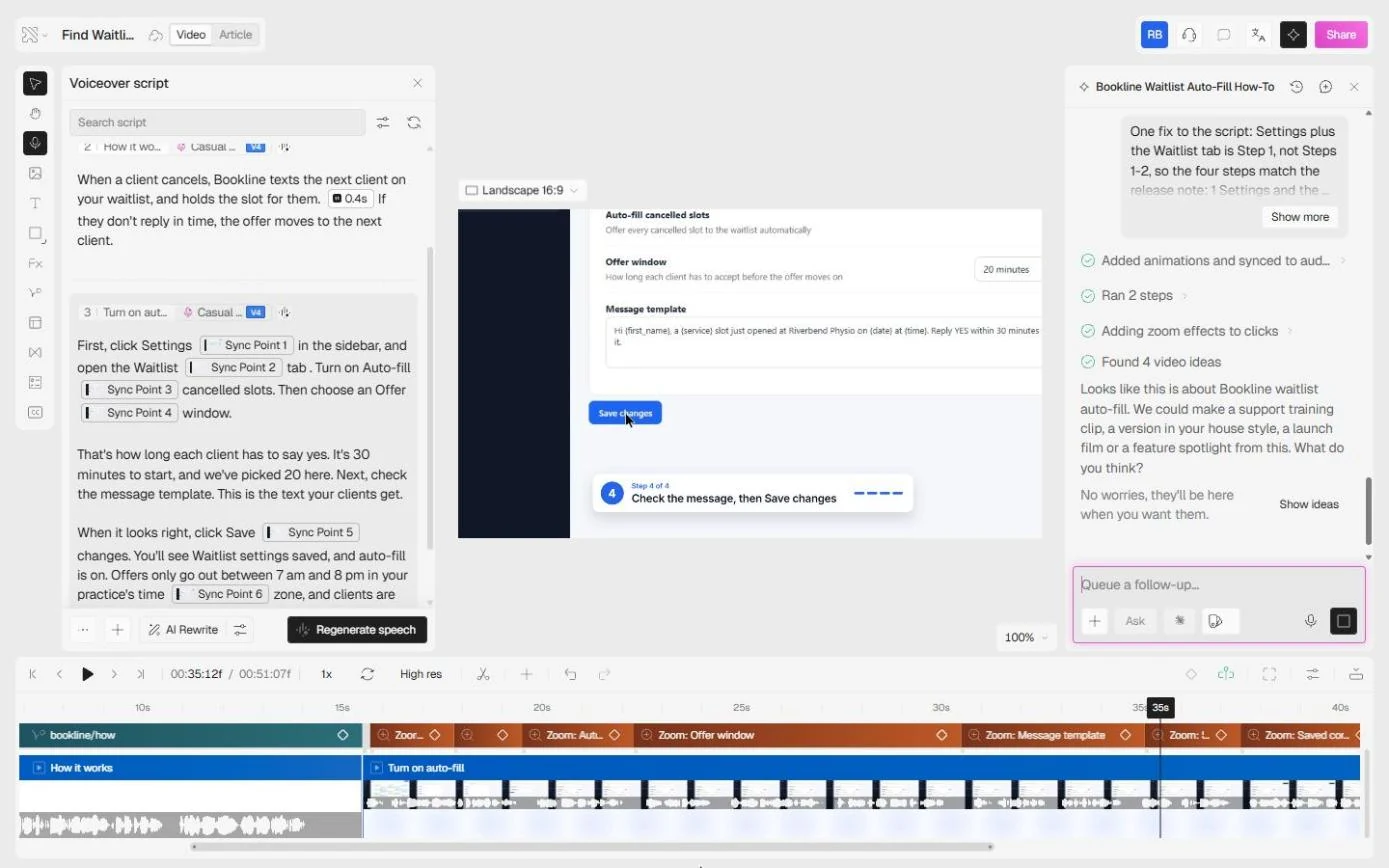
- Watch the steps scene. Halfway through, the canvas shows the settings page zoomed to Save changes, with a Step 4 of 4 · Check the message, then Save changes card. Your step fix is in. Click the canvas.
Halfway through, the canvas shows the settings page zoomed to Save changes, with a Step 4 of 4 card. Your fix is in.
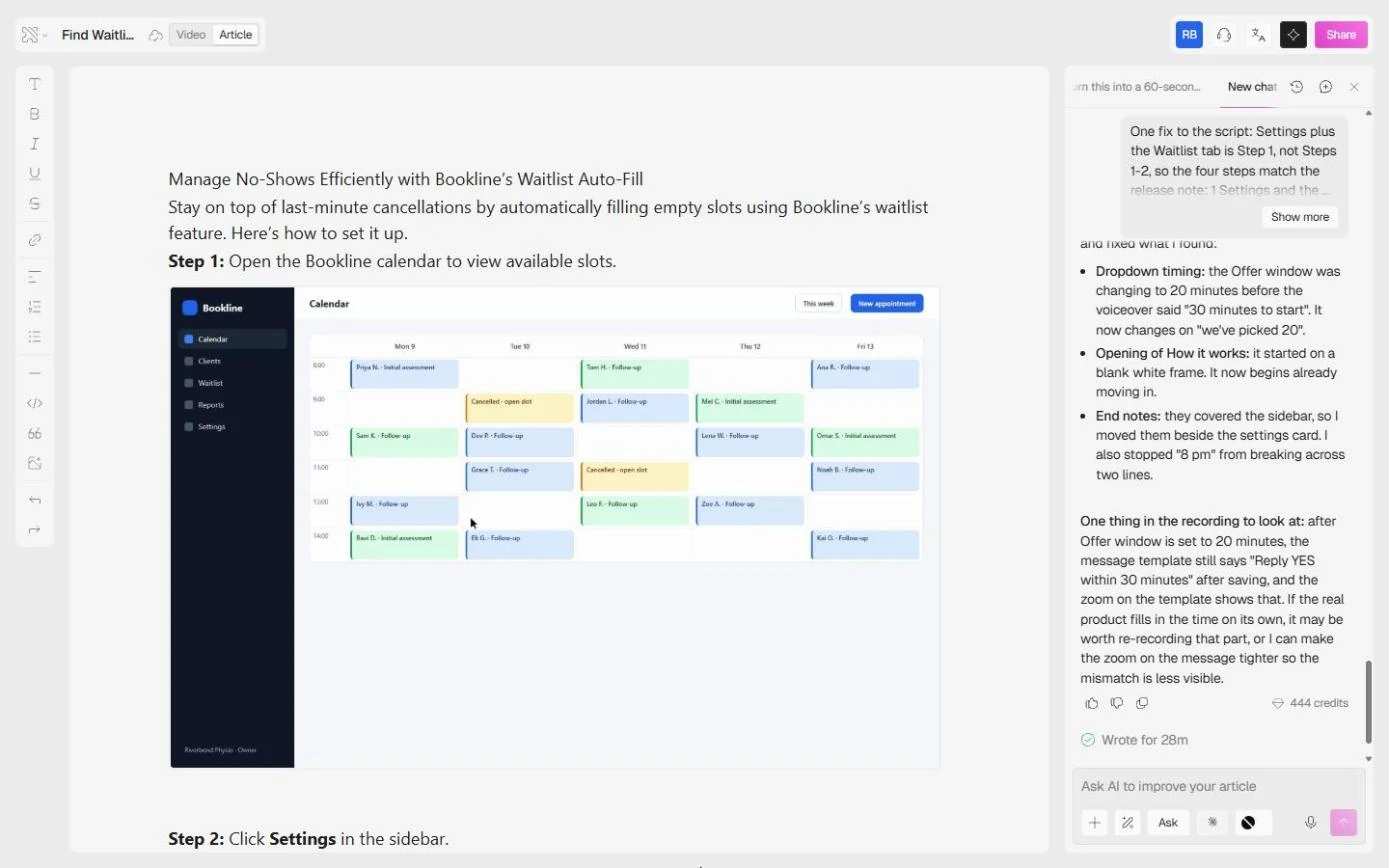
- Read what it checked, and what it found. Done: 51 seconds, three scenes, music, and a How auto-fill works animation it drew itself. The build used 444 credits. Read its own report to the end: it checked every cut, and it found something in *your* recording: after the offer window changes to 20 minutes, the message template still says Reply YES within 30 minutes. That is a real mismatch a customer would notice. Click the report.
Done. Fifty one seconds, three scenes, and a How auto fill works animation it drew itself. The build used 444 credits. Read its report to the end. It found a mismatch in your recording. The offer window says 20 minutes, the message template still says 30.
- Open the article. Now the second payoff. Click Article at the top. Clueso writes a step-by-step article from the same project.
Now the second payoff.
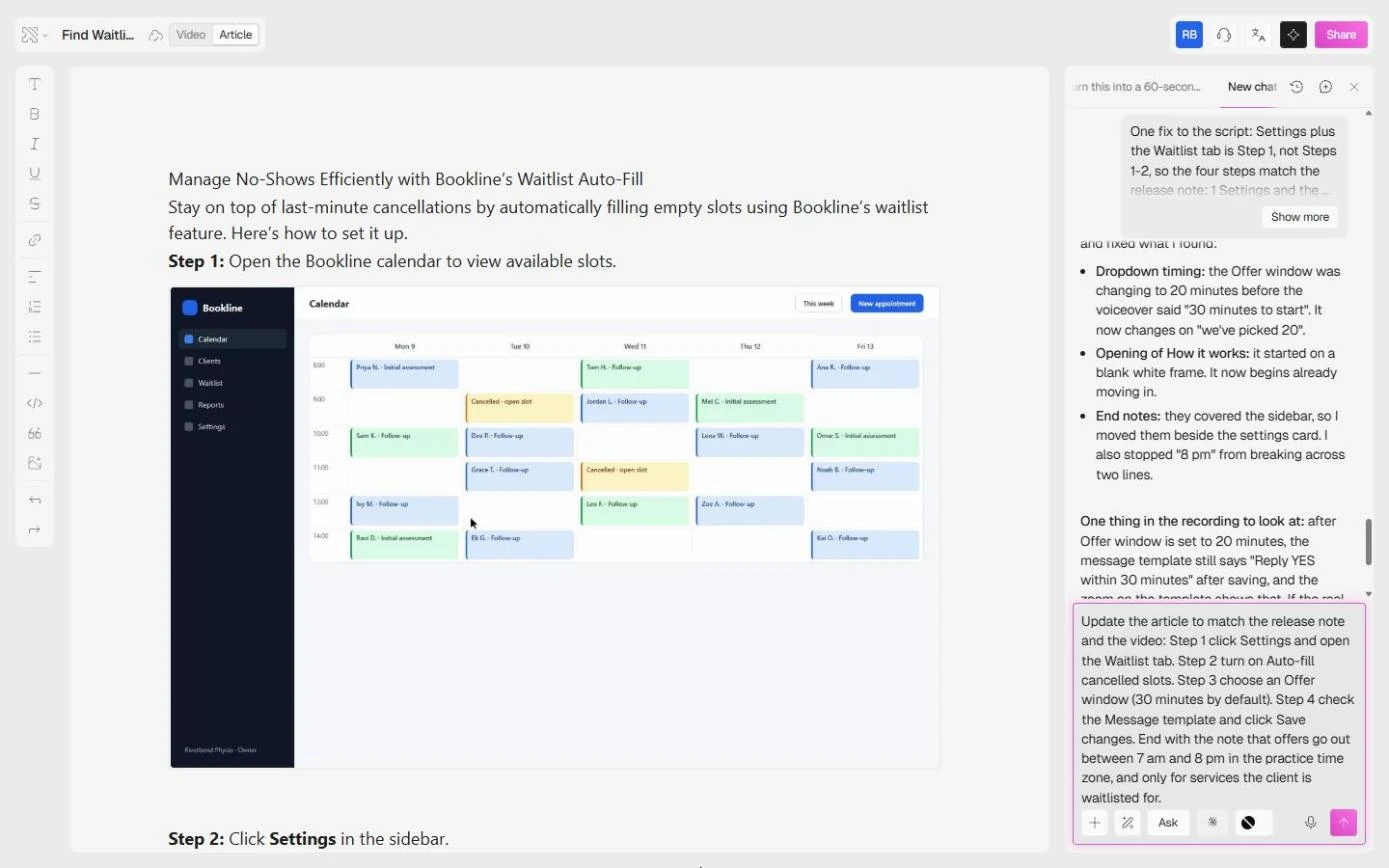
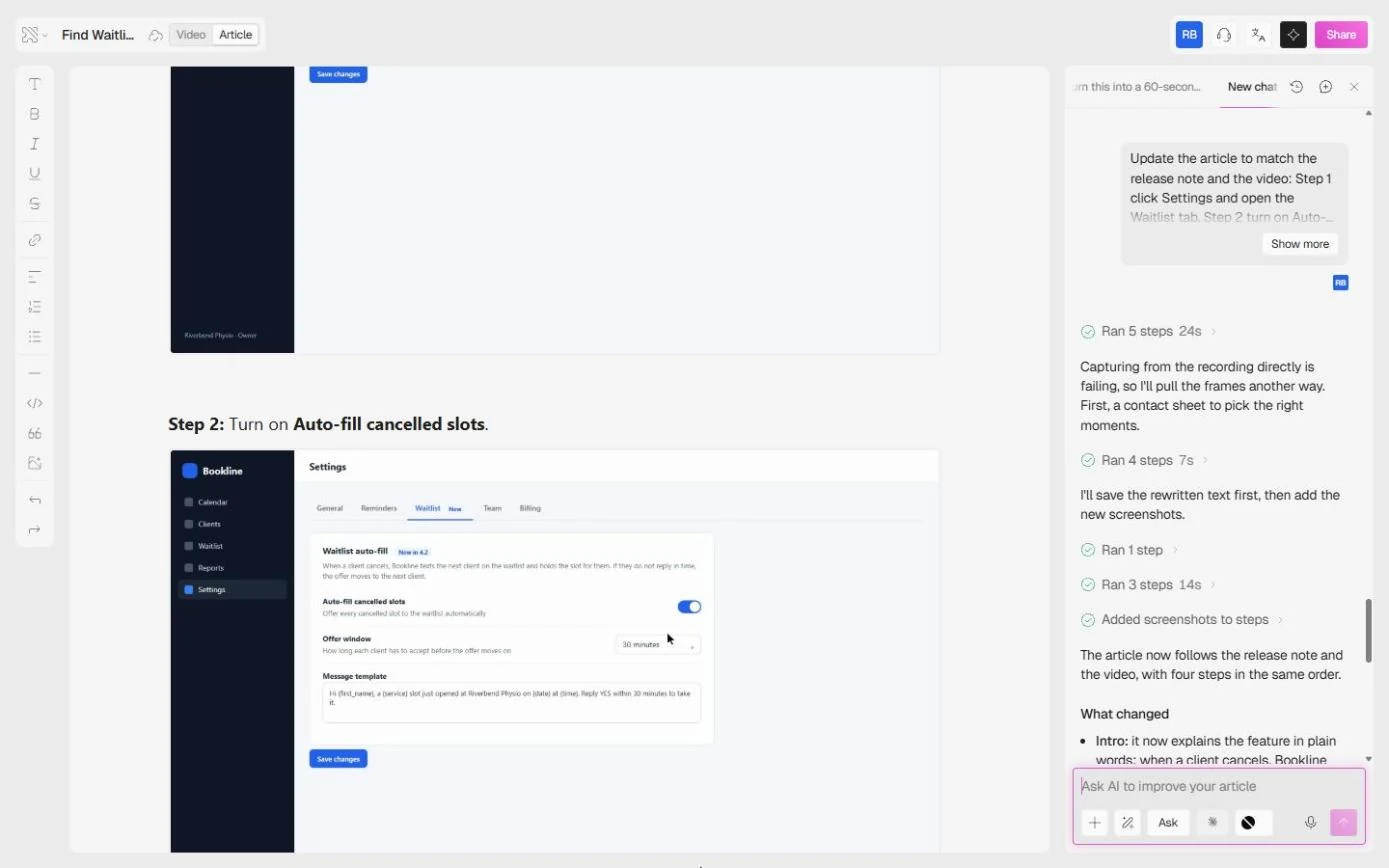
- Catch the old article. Read it. The article is still the first version, written from your clicks before the release note: Step 1: Open the Bookline calendar, and it ends at the toggle. No offer window, no Save. The video was rebuilt; the article was not. In Ask AI to improve your article, give it the four steps from the note. Paste the request.
Read it. The article is still the first version, written from your clicks. It ends at the toggle. No offer window, no Save. In Ask A I to improve your article, give it the four steps from the note.
Update the article to match the release note and the video: Step 1 click Settings and open the Waitlist tab. Step 2 turn on Auto-fill cancelled slots. Step 3 choose an Offer window (30 minutes by default). Step 4 check the Message template and click Save changes. End with the note that offers go out between 7 am and 8 pm in the practice time zone, and only for services the client is waitlisted for.
- Send it. Click the pink arrow.
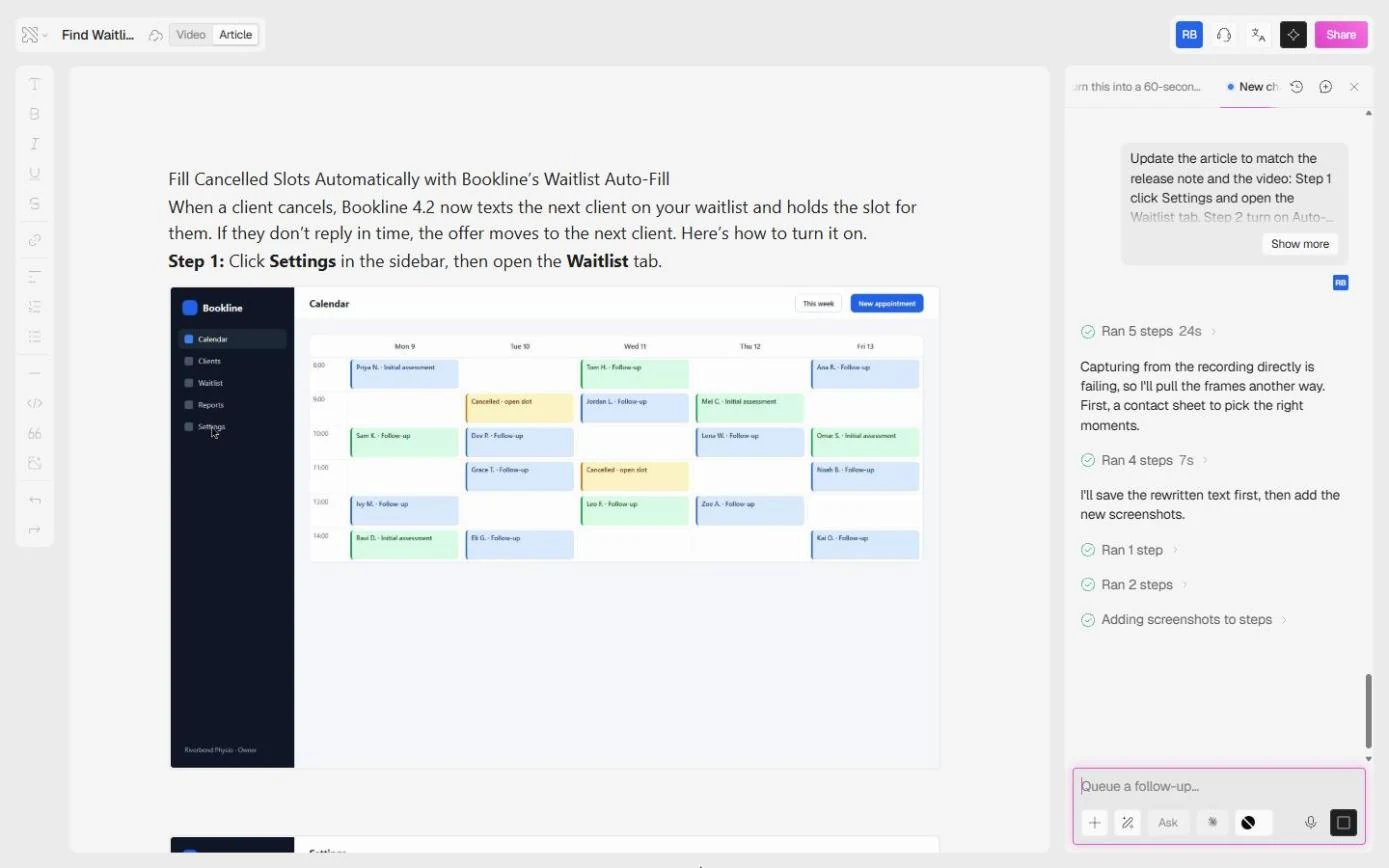
- Read the new article. About a minute later: a new title, a plain-words intro, and Step 1: Click Settings in the sidebar, then open the Waitlist tab through Step 4, then Keep in mind: offers only go out between 7 am and 8 pm. It also pulled four new screenshots from your recording, and again flagged the 20-minute versus 30-minute mismatch. This used 126 credits. Click Step 1.
A minute later, a new title, a plain words intro, Step 1 through Step 4, and the 7 a m to 8 p m note. It pulled four new screenshots from your recording, and flagged the mismatch again.
- Open Share. Each step now has its screenshot. Click Share at the top right.
Each step has its screenshot.
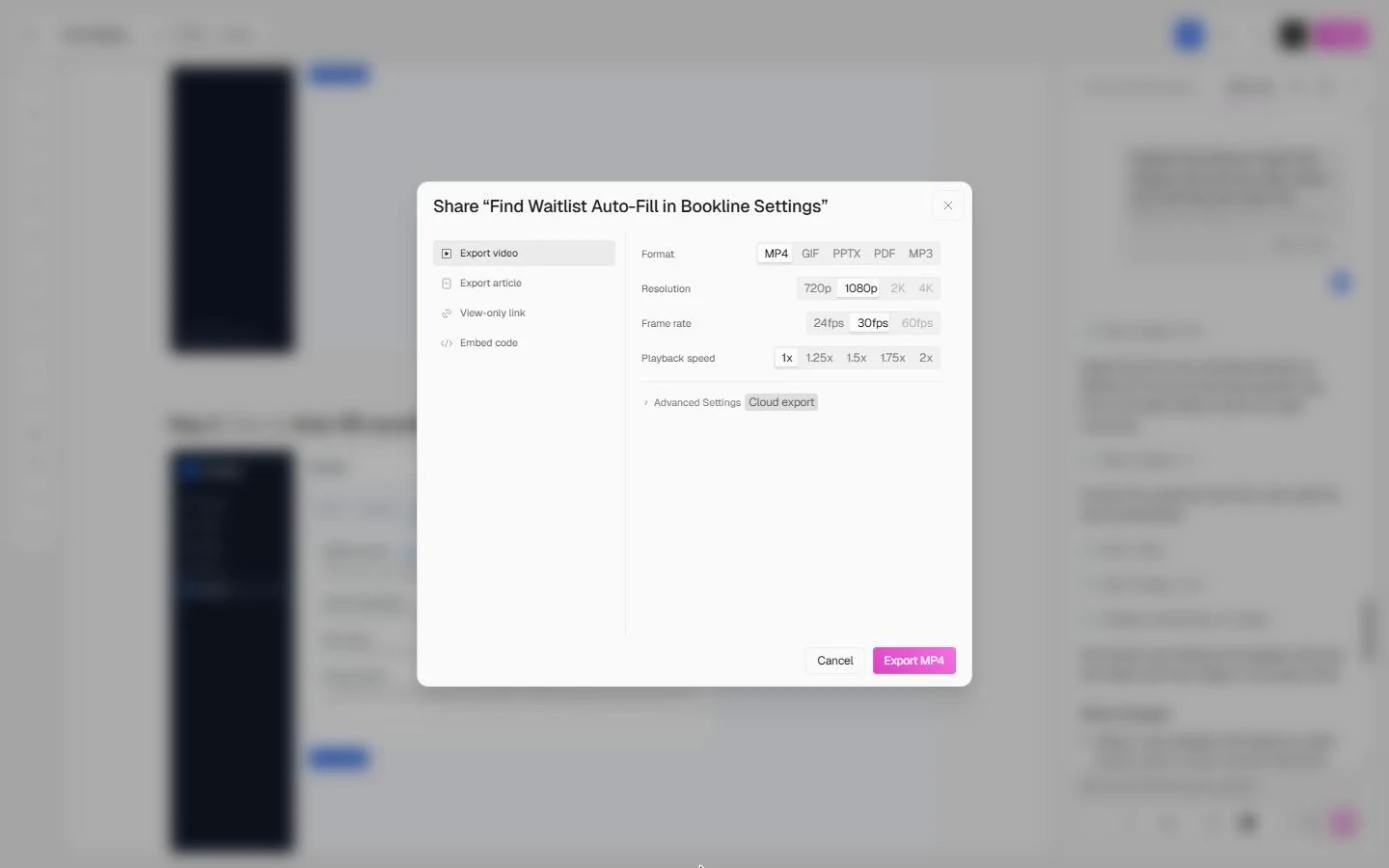
- Stop before you export. Share offers Export video (MP4, GIF, PPTX, PDF, MP3 at 720p to 4K), Export article, View-only link and Embed code. On the free plan, local export is off and video export runs in the cloud. We stopped here and published nothing. Before you share for real, fix the recording Clueso flagged, then put the link in the release email and the ticket macro. Click Cancel to finish.
Share offers video export, article export, a view only link and embed code. We stopped here and published nothing. Fix the recording Clueso flagged first, then put the link in the release email and the ticket macro.
Screenshots
More in Business Automations
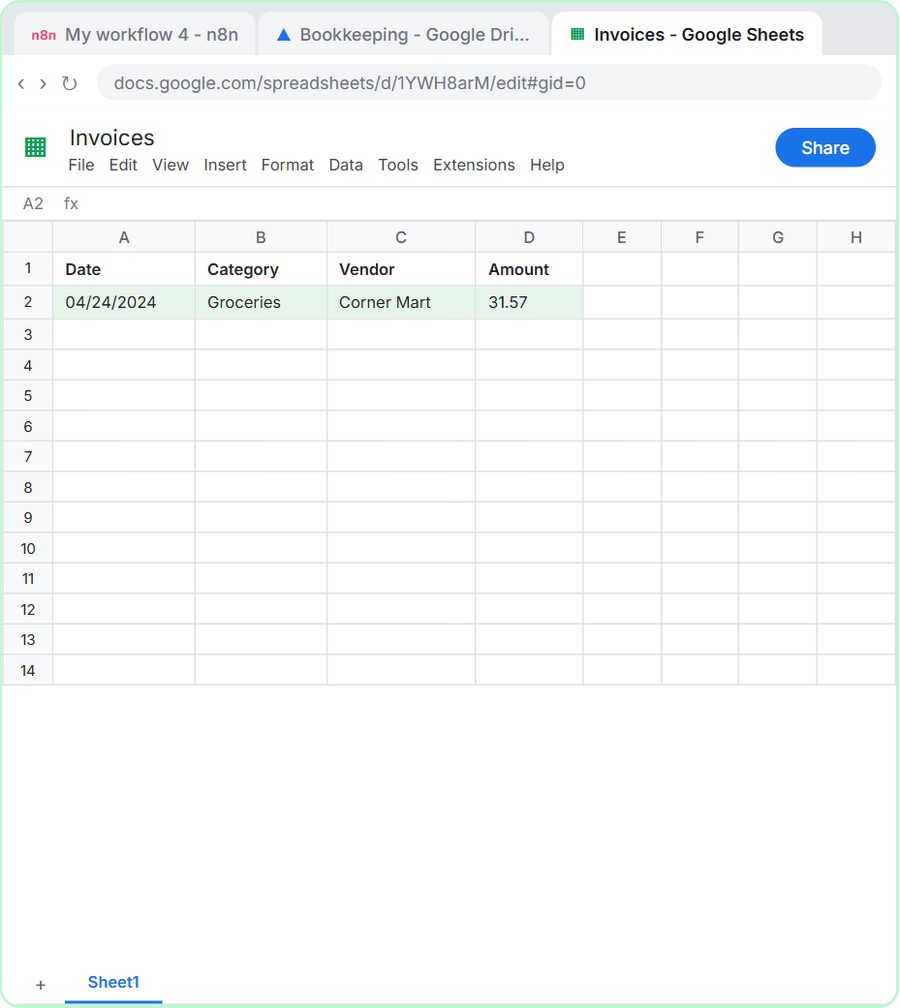 AI Receipt Extractor: Receipts to Google Sheets with n8n
Drop a photo of a receipt into an n8n chat. An AI agent reads it, pulls out the date, vendor and amount, picks a category, and adds a row to Google Sheets.
Free · Live ~12 min Intermediate
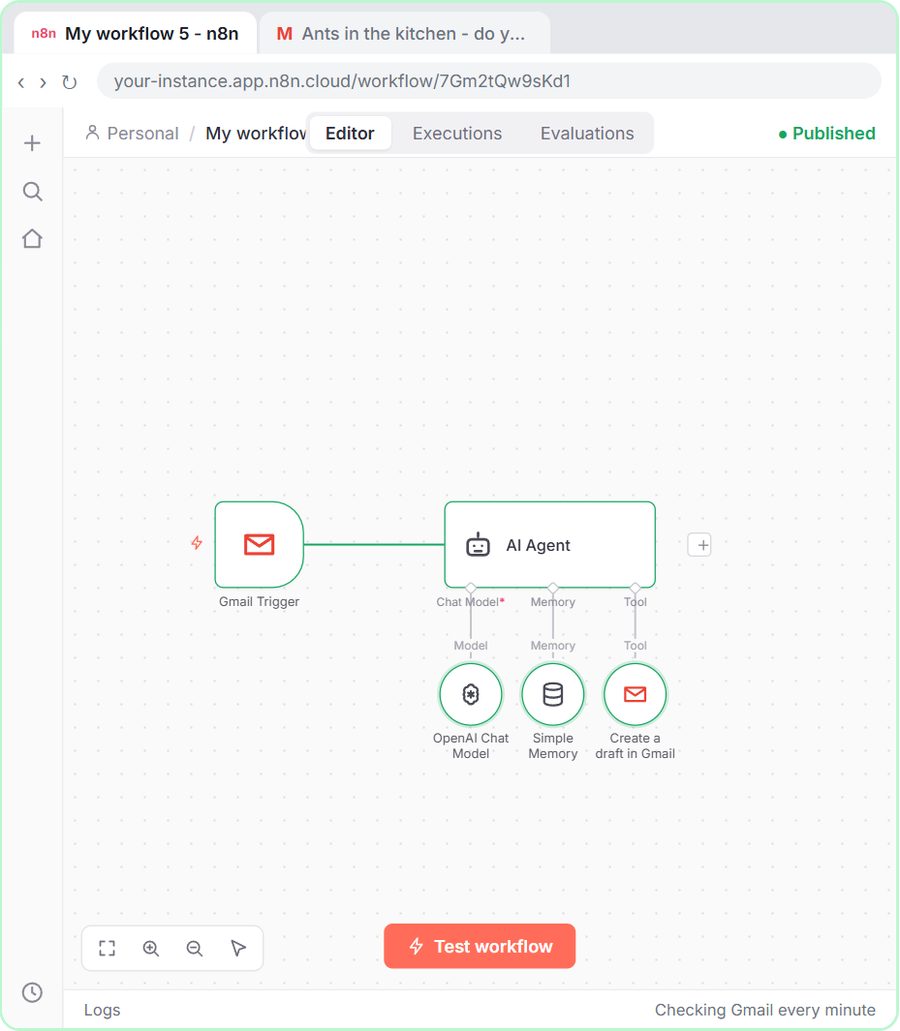 n8n AI Email Responder: Draft Gmail Replies Automatically
Build an n8n agent that watches your Gmail, reads each new customer email, and writes a reply as a draft in the same thread, ready for you to check and send.
Free · Live ~12 min Intermediate
 Daily Job Alerts: Email Each Tech Their Jobs from Google Sheets with n8n
Every morning at 7, n8n reads a plumbing company's jobs sheet, skips anything not assigned yet, and emails each job to the tech it's assigned to — customer, address…
Free · Live ~10 min Intermediate
 Gmail AI Triage: Auto-Label Every Email and Draft Replies
Build an n8n workflow that reads each new email, sorts it as a lead, a client or an invoice with a Text Classifier, adds the matching Gmail label, and drafts a reply to…
Free · Live ~18 min Advanced
 A Support Agent That Answers from Your Own Docs
Turn an n8n chat agent into a support agent that answers only from your policies in a Google Doc, refuses what it should, and hands off to a person by email.
Free · Live ~13 min Advanced
 Chatbase: Answer Customer FAQs with an AI Agent
A business case for a small firm that answers the same customer questions every week: build a Chatbase AI agent on your FAQ in the real app, make it say when it does…
Free · Live ~15 min Beginner
All 33 modules in Business Automations
More Clueso tutorials
Terms in this lesson
Plain-English definitions, each with an example from a free lesson.