Updated . Built against the tool’s current screens and checked step by step. How we check this lesson
Give Frase the phrase your buyers search for. It reads the pages that already rank, builds a brief and writes the draft. You fix the brief before it writes, read the SEO, GEO and EEAT scores, and fix what the score misses.
At a glance
| Question | Answer |
|---|---|
| What you build | Give Frase the phrase your buyers search for. It reads the pages that already rank, builds a brief and writes the draft. You fix the brief before it writes, read the SEO, GEO and EEAT scores, and fix what the score misses. |
| Tools | Frase |
| Time | About 10 minutes, 41 steps in 4 parts |
| Level | Beginner, no coding needed |
| Cost | Free |
| Ways to learn it | Practice it step by step |
The 4 parts, in short
- Set up the article: Start from your site, Open New Content, Choose Generate Article, Type the search you want to win, and 8 more steps.
- Check the brief: Let it research, Read the keywords, See what already ranks, Check who it is writing for, and 6 more steps.
- Write and read the score: Let Frase write, Wait for the draft, Find the missing keyword, Open Score, and 1 more step.
- Fix what the score misses: See why EEAT is low, Open Ask AI, Ask for the exact fix, Send it, and 10 more steps.
Start here first: AI Receipt Extractor: Receipts to Google Sheets with n8n (module 1 of Business Automations)
In the course: Part 9 · n8n Automation Toolkit (Module 118 of the full course)
Part of: AI for Marketing Teams (step 41 of 42). Next up: Frase: Refresh a Stale Law Firm Practice Page With the Optimizer
Part of: AI Apps Worth Knowing (step 119 of 123). Next up: Elyx: Build a Plan vs Actual Variance Report Inside Excel
What you'll build
You run marketing at a small online training company. We used our own site, Stepthrough. Office managers search for AI training for employees, and you want to be the page they find. In this lesson Frase researches the pages that rank, builds a brief and writes a 900-word draft. You catch where the brief drifted to the wrong reader, reject a fact that does not fit, and fix a draft that scored 69 while its title promised five steps and gave four.
Frase did the reading that usually takes hours: keywords, the pages that rank, evidence and an outline, then a full draft. It also wrote the brief for HR managers when you asked for office managers, kept a fact you rejected in the evidence list, promised five steps and gave four, and left your main phrase out of the text, all while scoring 69. Read the brief before Write, read the draft before the score, and add a real author before you publish. Next, try it on one search your buyers actually use.
- Tools: Frase
- Time: about 10 minutes, 41 steps in 4 chapters
- Level: beginner, no coding needed
- Price: free
Practice first, then build it for real
Practice copy built from real Frase screens (next.frase.io), captured 2 November 2026 on a trial account with learn.ynteractive.com added as the site. Nothing here touches a Frase account. The brief, facts, draft, scores and AI edits are what Frase produced in that run, and yours will differ. To build it for real you need your own Frase account, and some services charge once you use them for real work, so check each tool's current pricing.
Try it yourself, free
Reading the steps is a start. Doing them is how it sticks. The interactive module walks you through every click in a practice copy of Frase, checks each step, and never touches your real accounts.
Start “Frase: Turn One Keyword Into a Brief and a Ranking-Ready Draft”Step by step: Frase: Turn One Keyword Into a Brief and a Ranking-Ready Draft
All 41 steps of the interactive module, in order. In the module you watch each one, then do it yourself in a practice copy that checks your work.
1. Set up the article
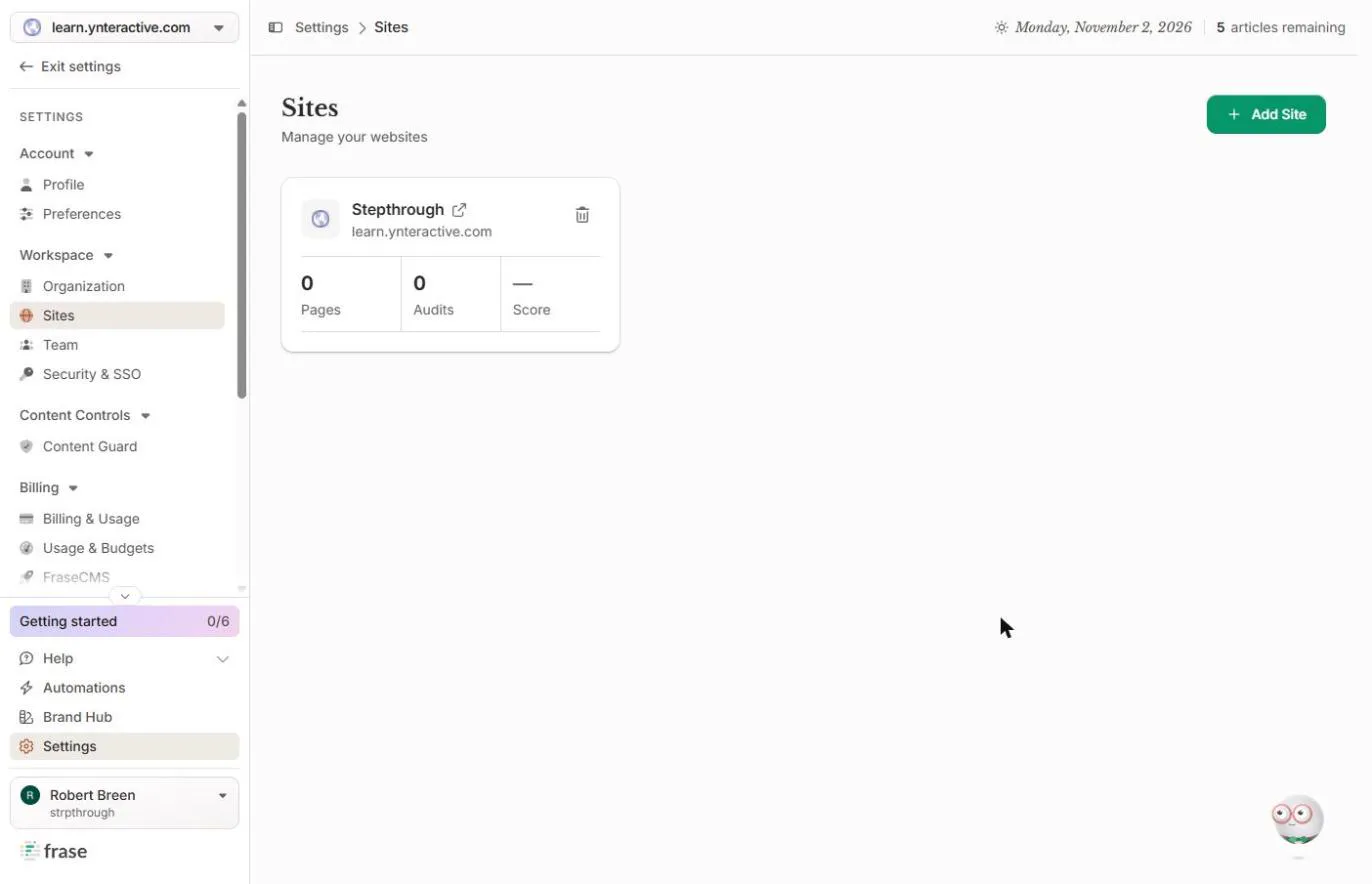
- Start from your site. You run marketing at a small online training company. We used our own site, Stepthrough. Frase builds everything around a site, so Content and Research stay empty until you add one. We added it under Settings › Sites › Add Site with a name, the domain and one line about what the site does. Click the site card.
You run marketing at a small online training company. Frase builds everything around a site, so add yours first under Settings, Sites.
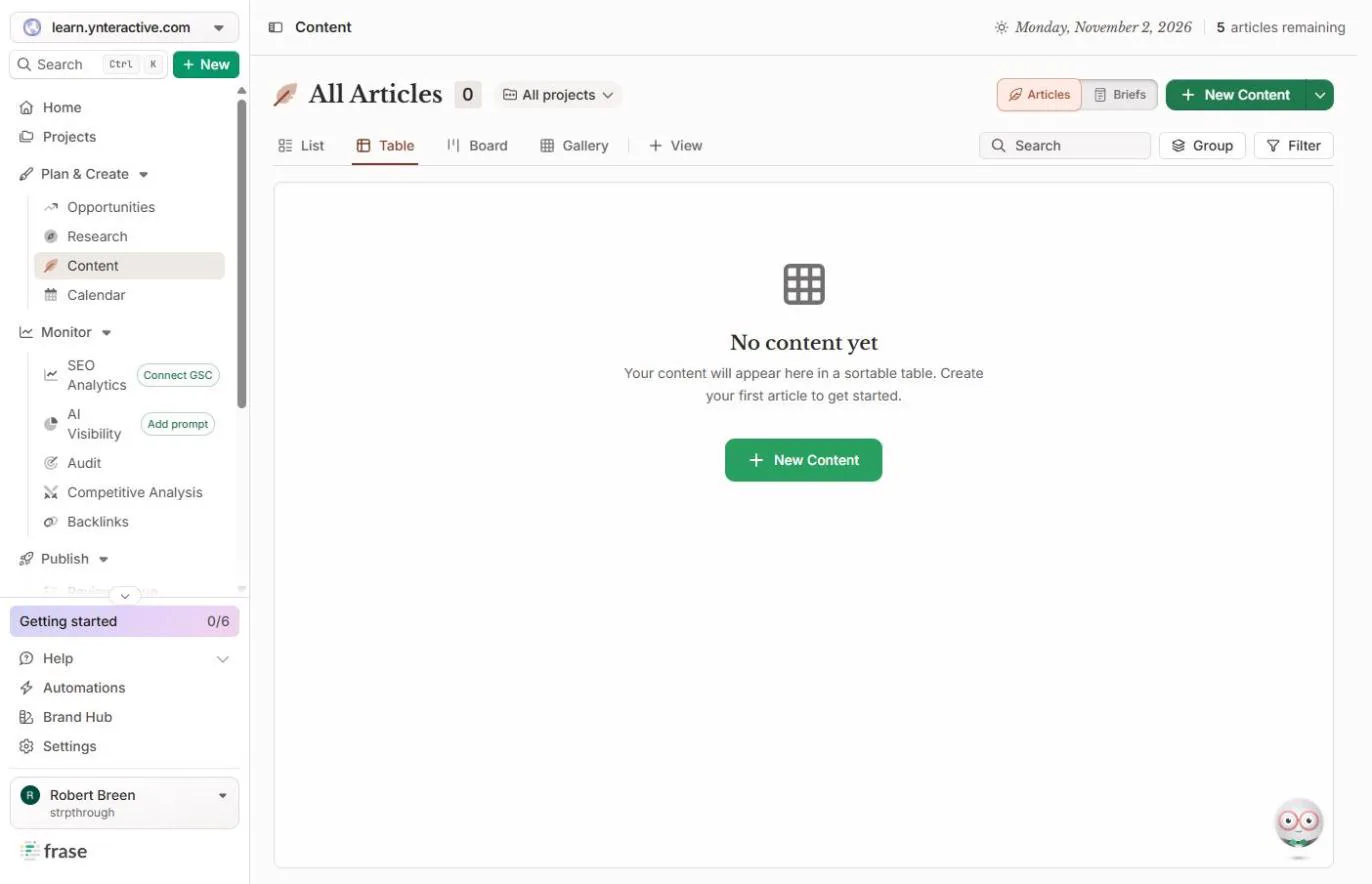
- Open New Content. Go to Plan & Create › Content. Nothing is here yet. Click New Content at the top right.
Go to Plan and Create, Content.
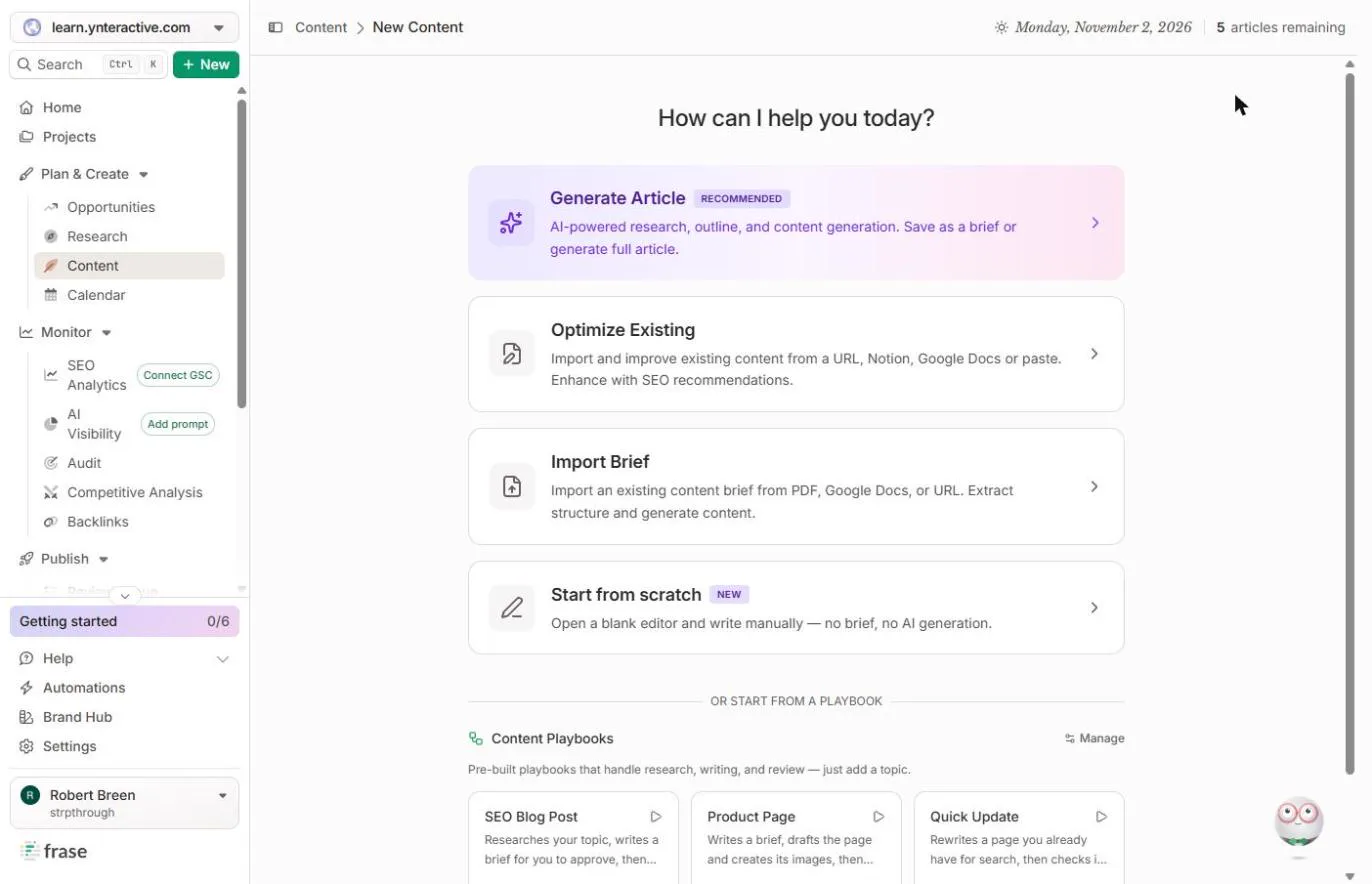
- Choose Generate Article. Four ways to start. Generate Article does the research, the outline and the draft, and is marked Recommended. Click it.
Generate Article does the research, the outline and the draft.
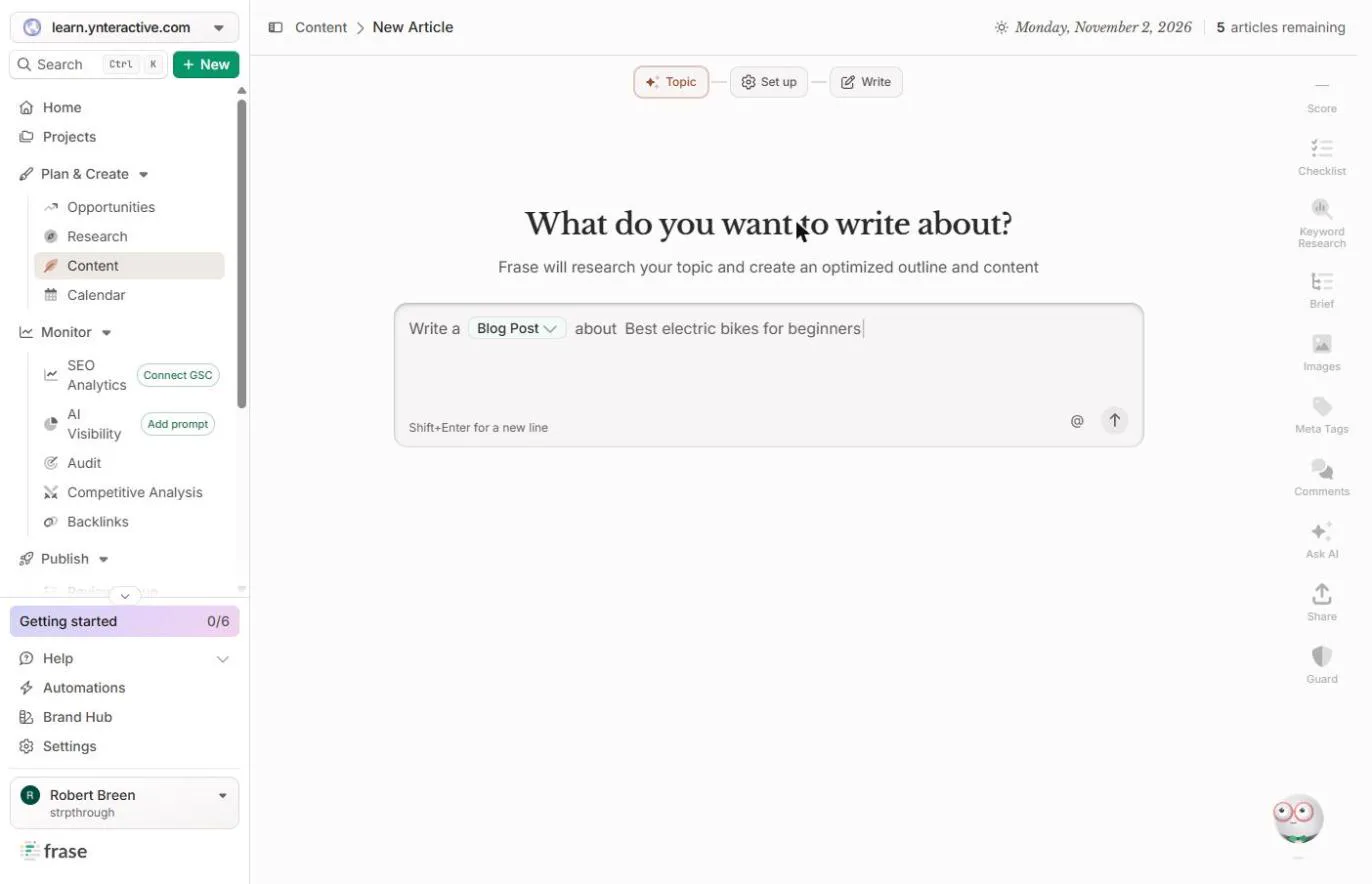
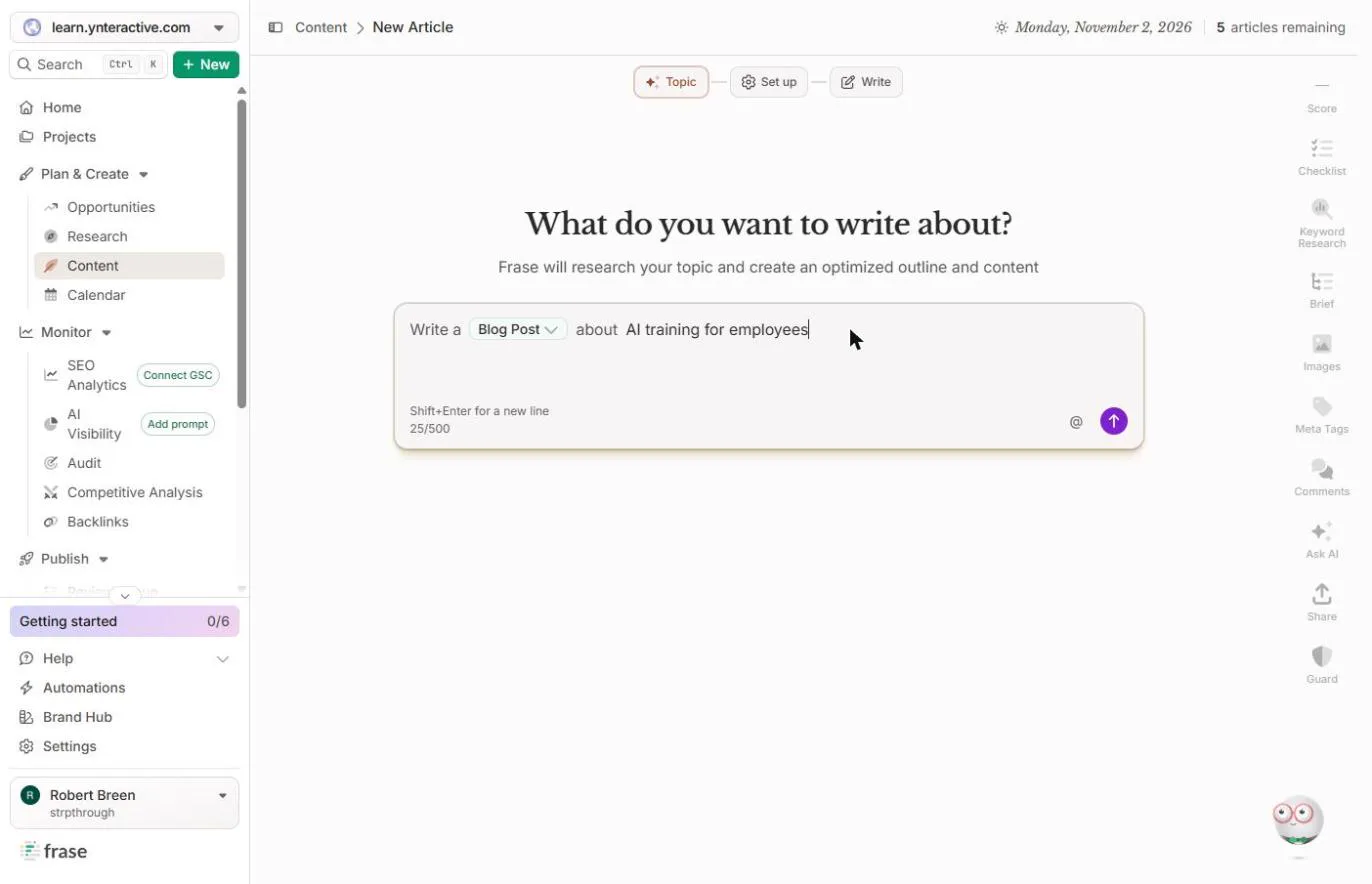
- Type the search you want to win. Type what your buyers actually search for, not your product name. Office managers search AI training for employees when they are asked to get their team trained. Type it after about.
- Send it. It says Write a Blog Post about AI training for employees. Click the purple arrow.
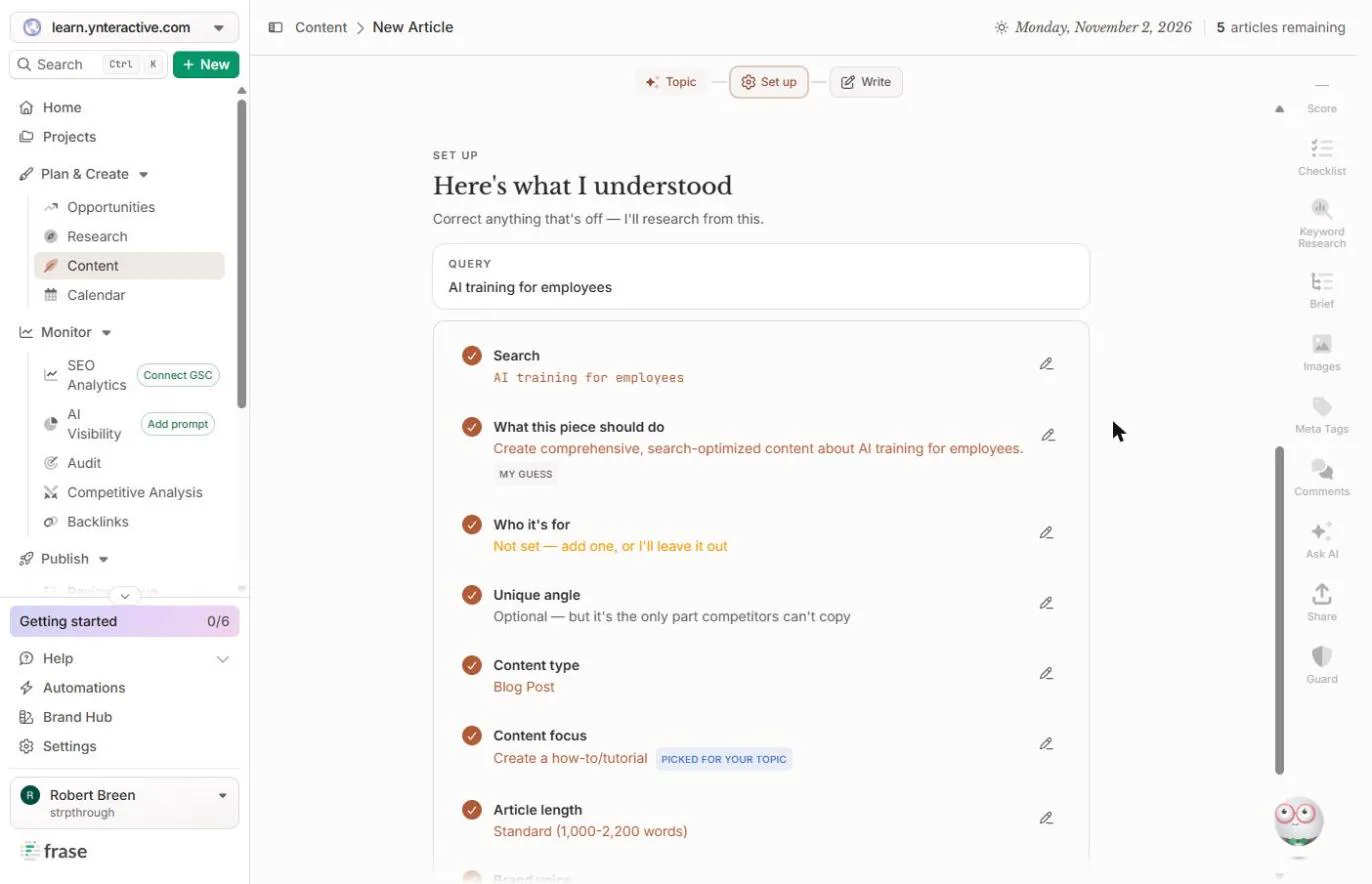
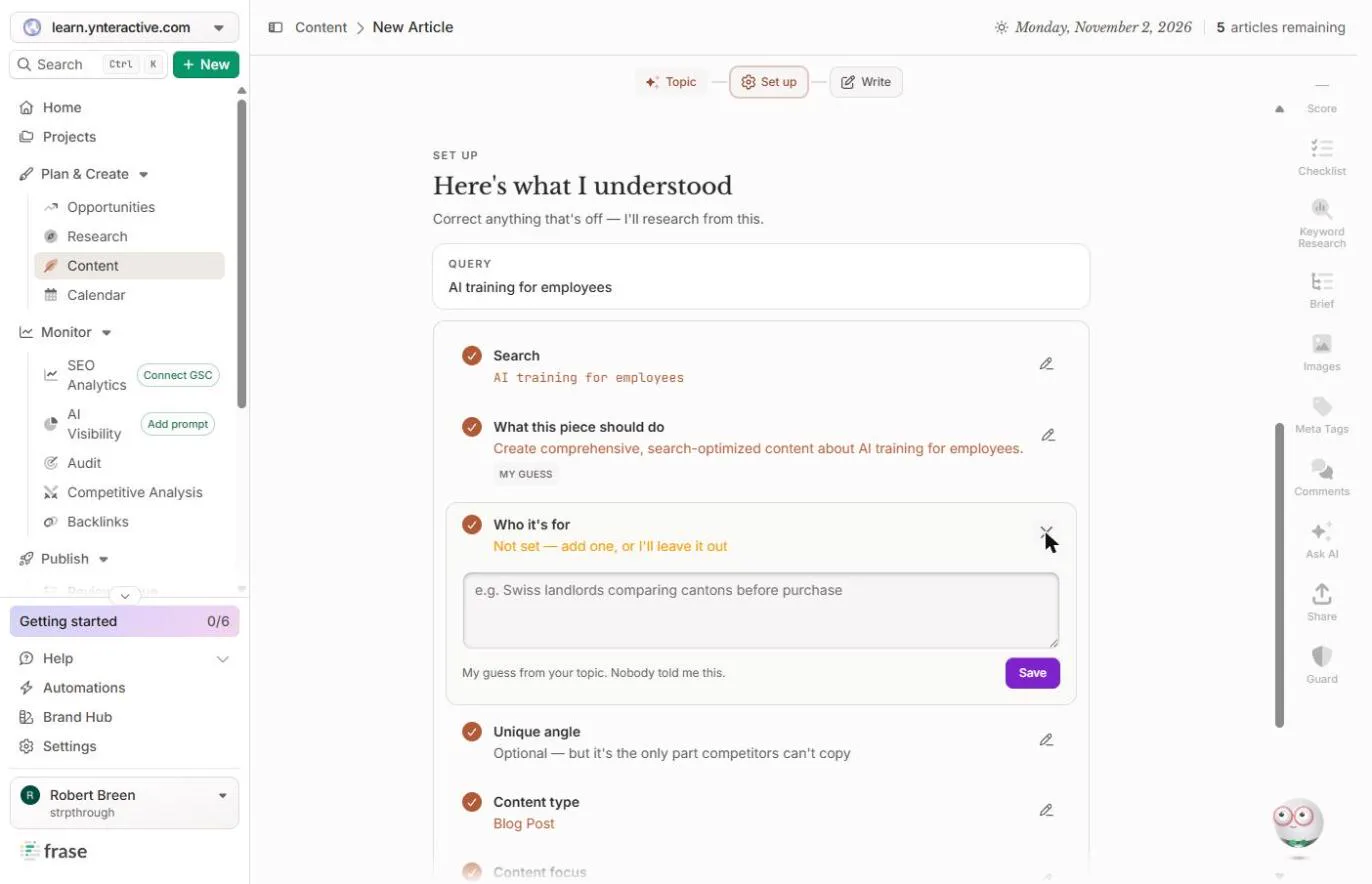
- Say who it is for. Frase shows what it understood before it researches. Who it’s for is Not set, and Frase says it will leave it out. Your reader matters, so click the pencil on that row.
Frase shows what it understood. Who it is for is not set, and your reader matters.
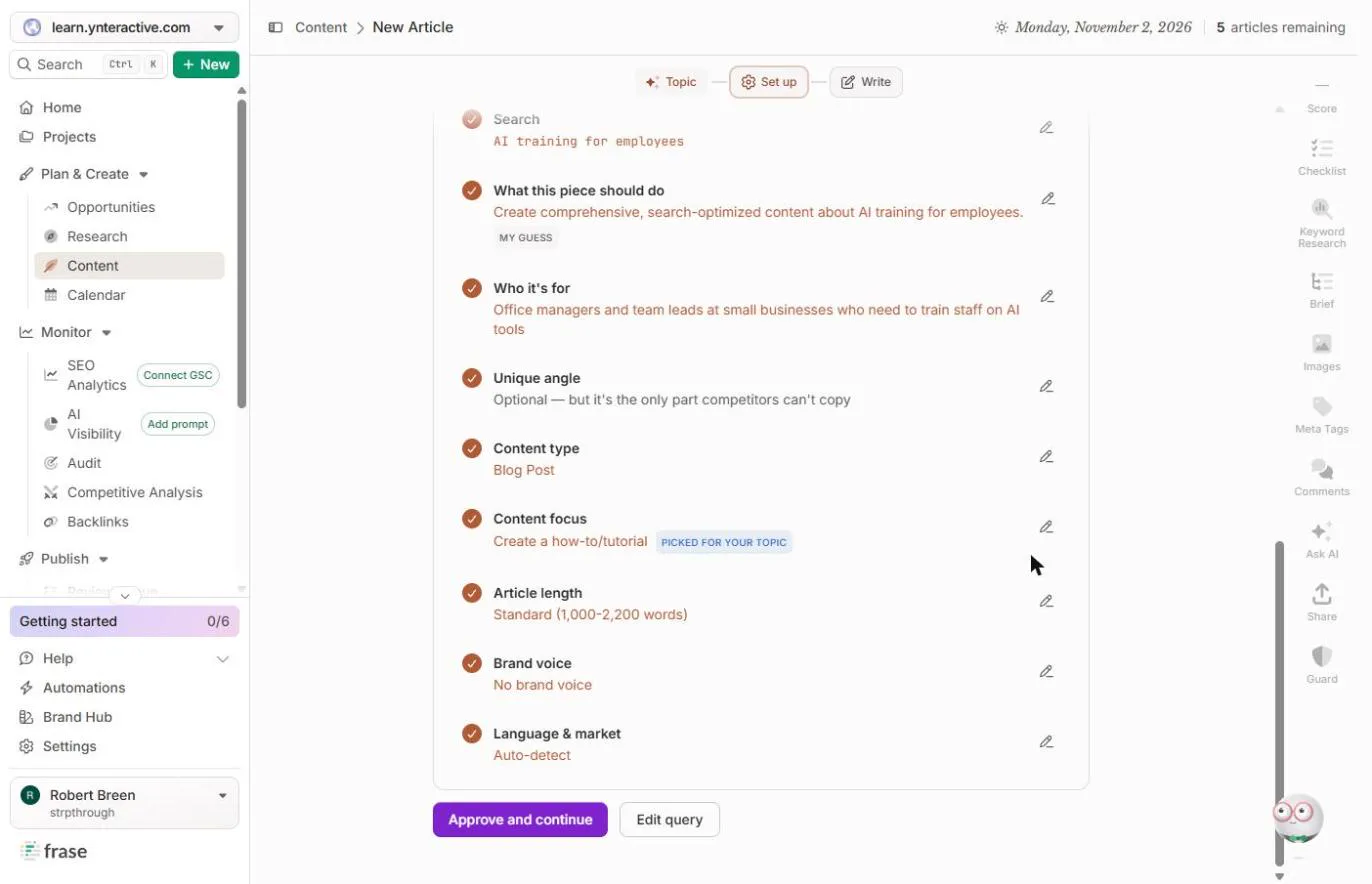
- Describe your reader. Describe the person you want to reach. We wrote office managers and team leads at small businesses. Then click Save.
Describe the person you want to reach, then click Save.
- Approve the setup. Content type, focus, length and language are filled in, and Brand voice says No brand voice. Click Approve and continue.
Everything else is filled in.
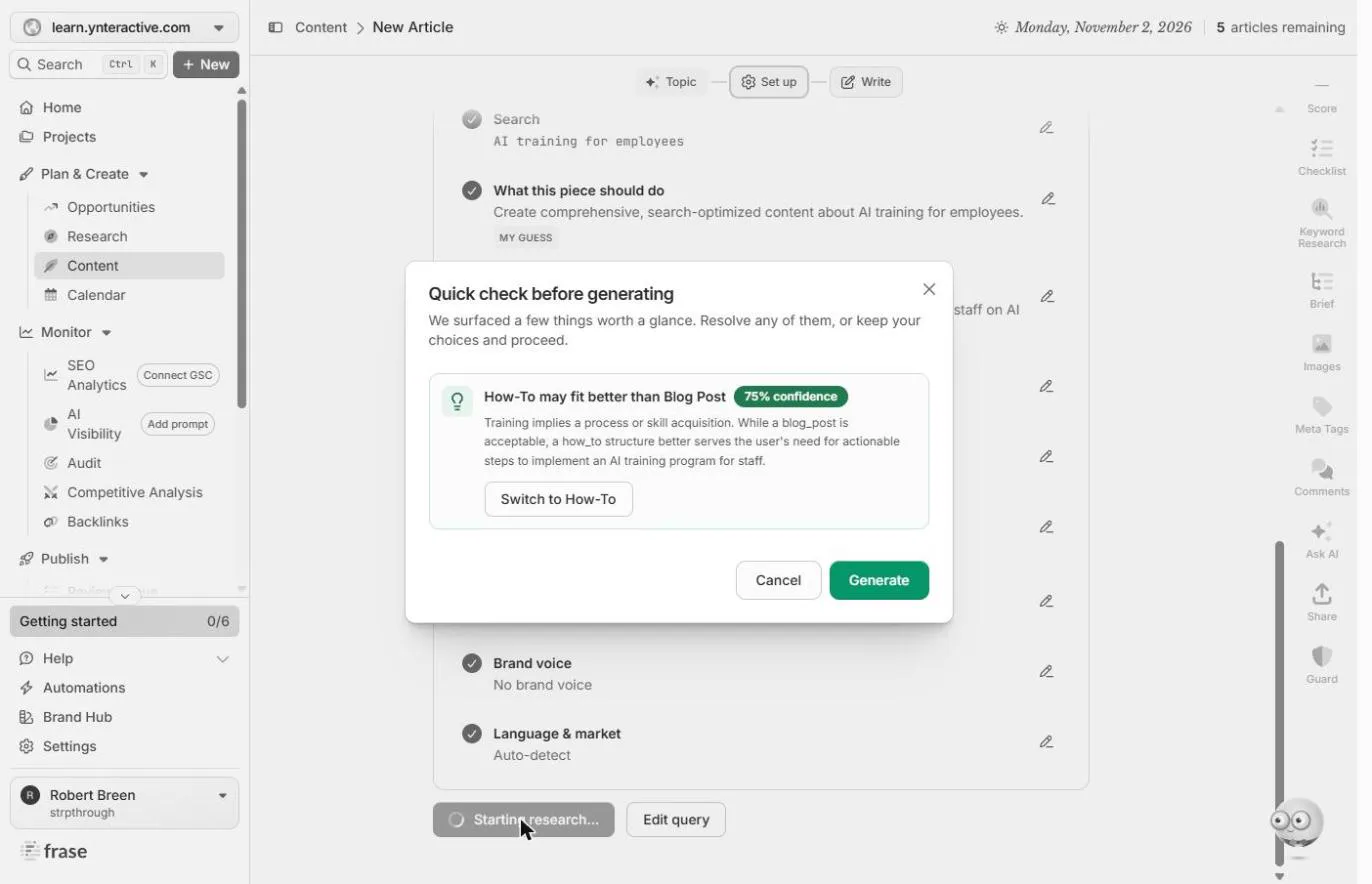
- Take the suggestion. A Quick check before generating: Frase thinks a How-To fits better than a blog post, with 75% confidence, because your reader wants steps. That is right for this search. Click Switch to How-To.
Frase thinks a How To fits better, because your reader wants steps.
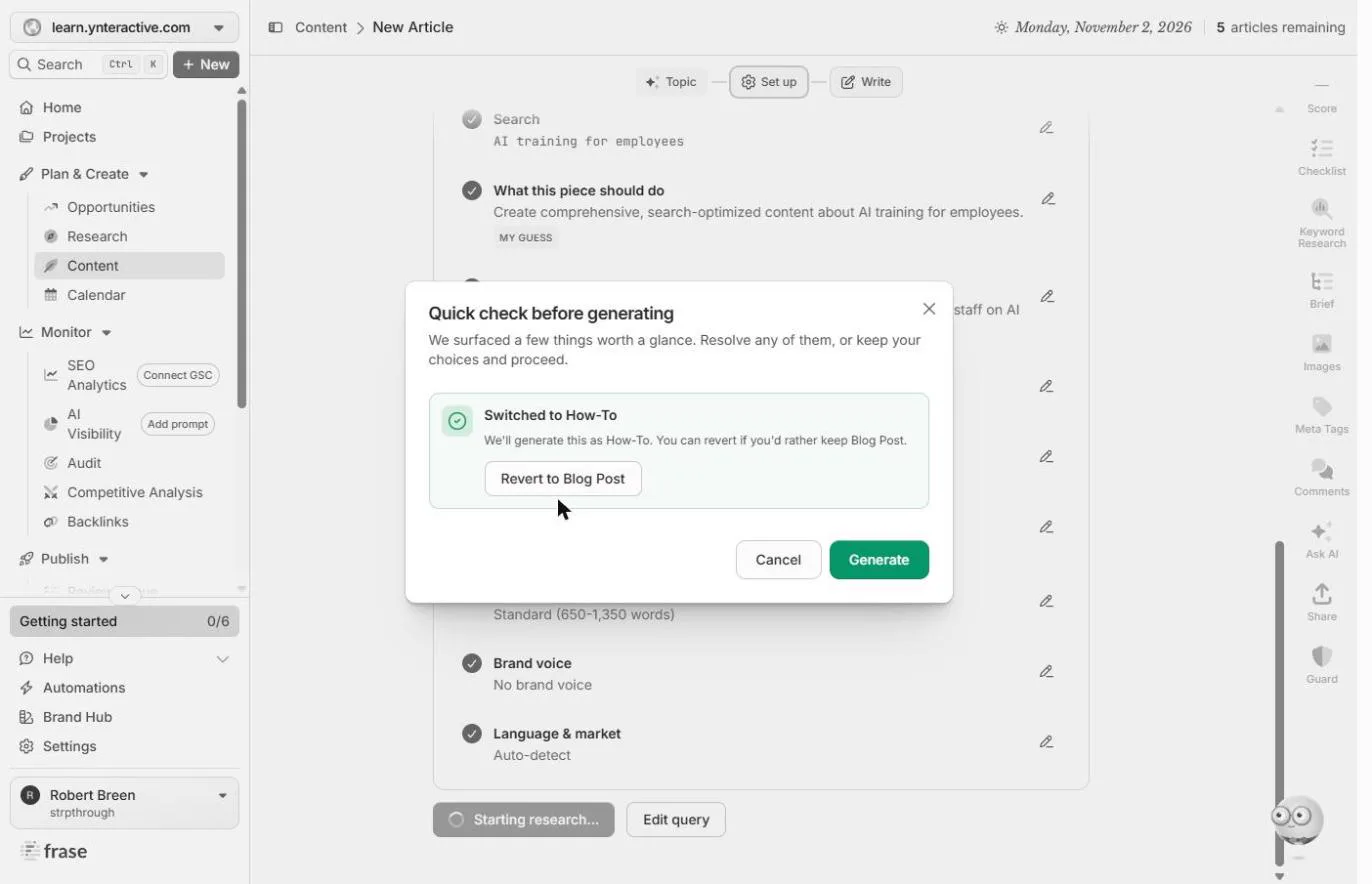
- Generate. It switched, and the target length dropped to 650 to 1,350 words. Click Generate.
It switched.
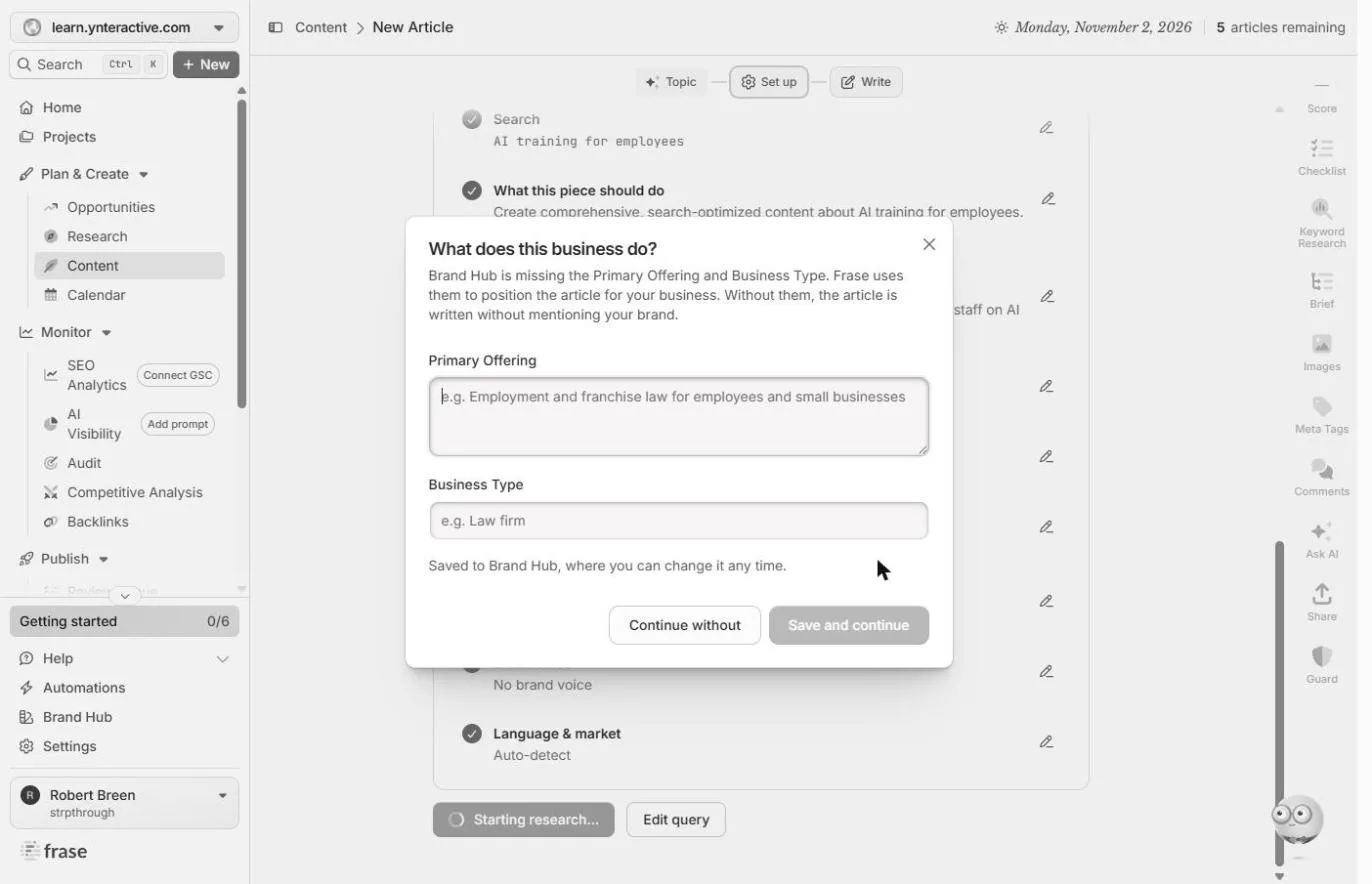
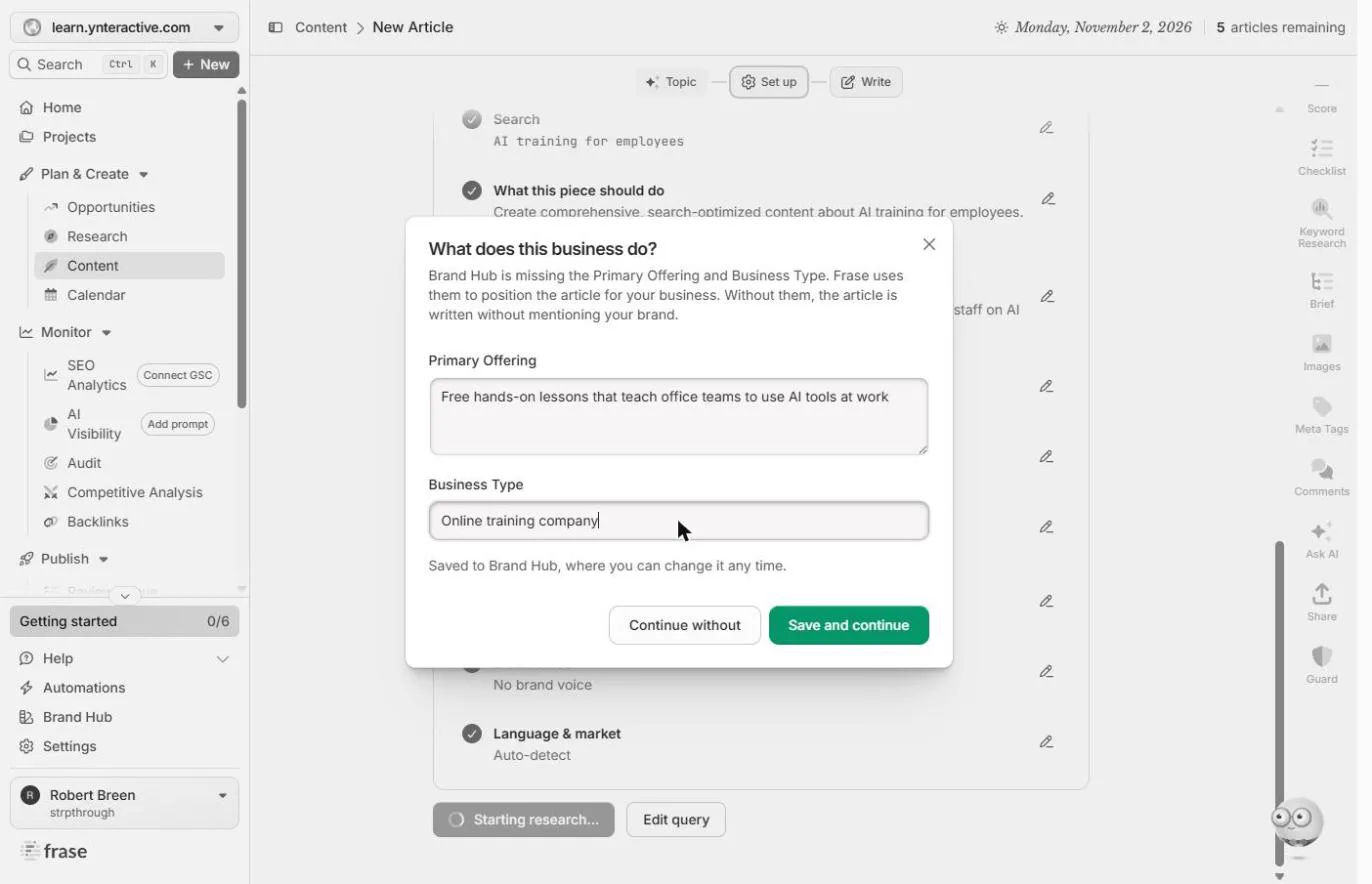
- Say what your business does. The first time, Frase asks What does this business do? Without it, the article will not mention your brand. Fill in Primary Offering and Business Type. We wrote free hands-on lessons that teach office teams to use AI tools, and online training company. Both are saved to Brand Hub, so on our second article it did not ask again. Click the box.
The first time, Frase asks what your business does. Without it, the article will not mention you. Fill in both boxes. They are saved to Brand Hub, so it only asks once.
- Save and continue. Click Save and continue.
2. Check the brief
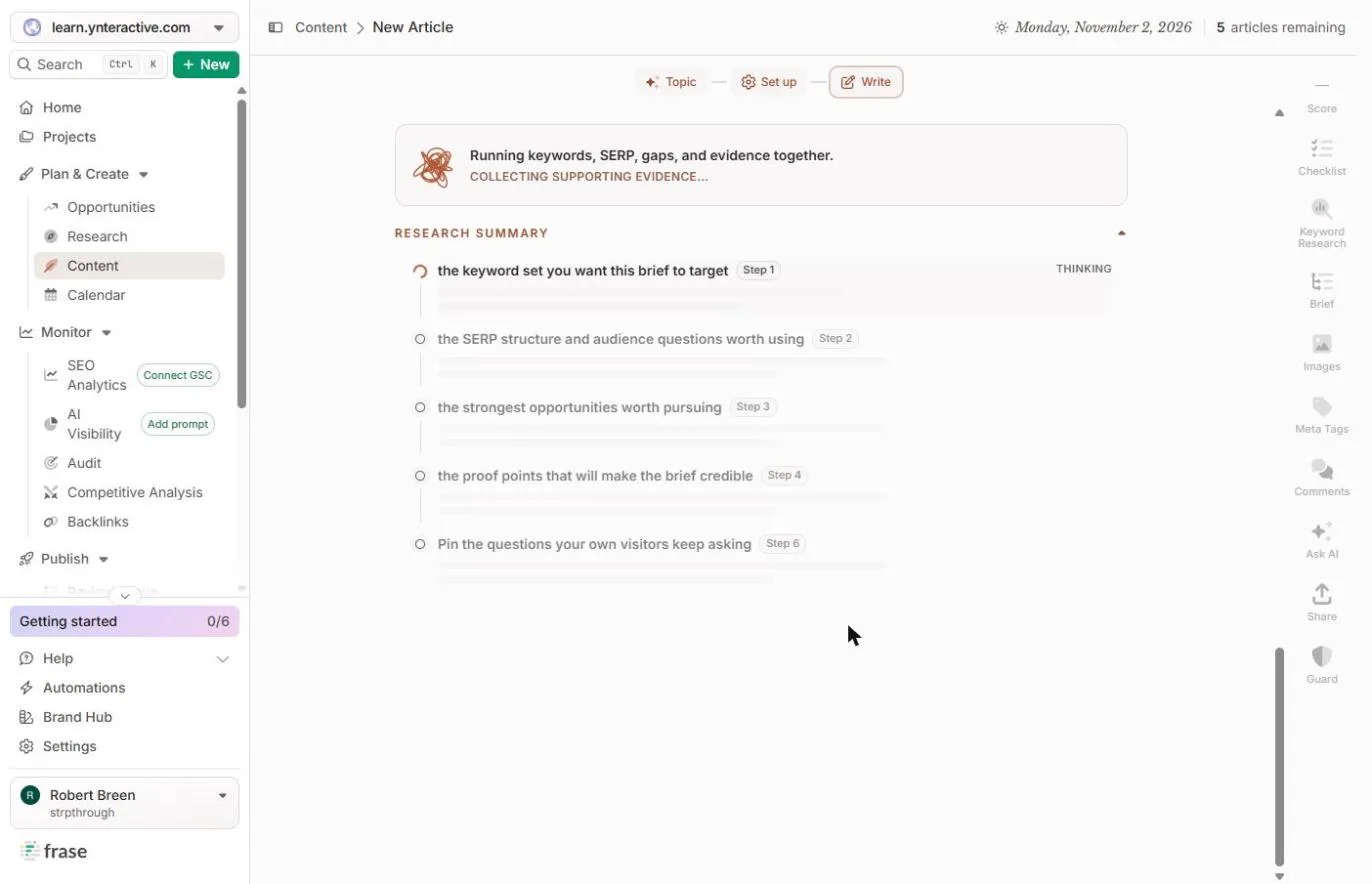
- Let it research. Frase runs keywords, the search results, gaps and evidence together. Ours took about four minutes to finish the brief. Click the banner while it works.
Frase researches keywords, search results and evidence together. Ours took about four minutes.
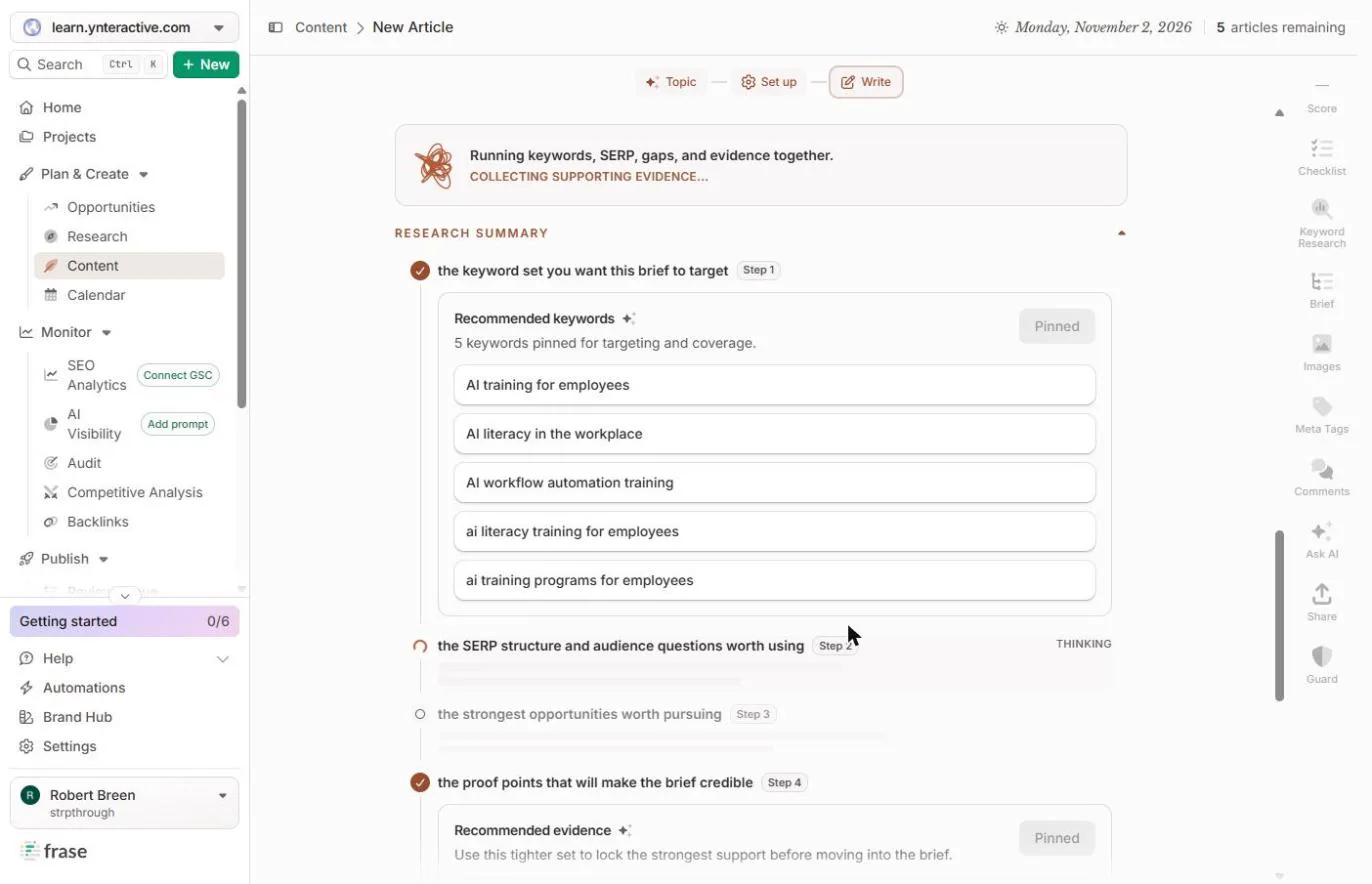
- Read the keywords. Step 1 pins 5 keywords, your phrase plus four close ones like AI literacy in the workplace. A second run on the same phrase picked different ones. The draft will be checked against these. Click the list.
It pins five keywords, your phrase plus four close ones. The draft is checked against these.
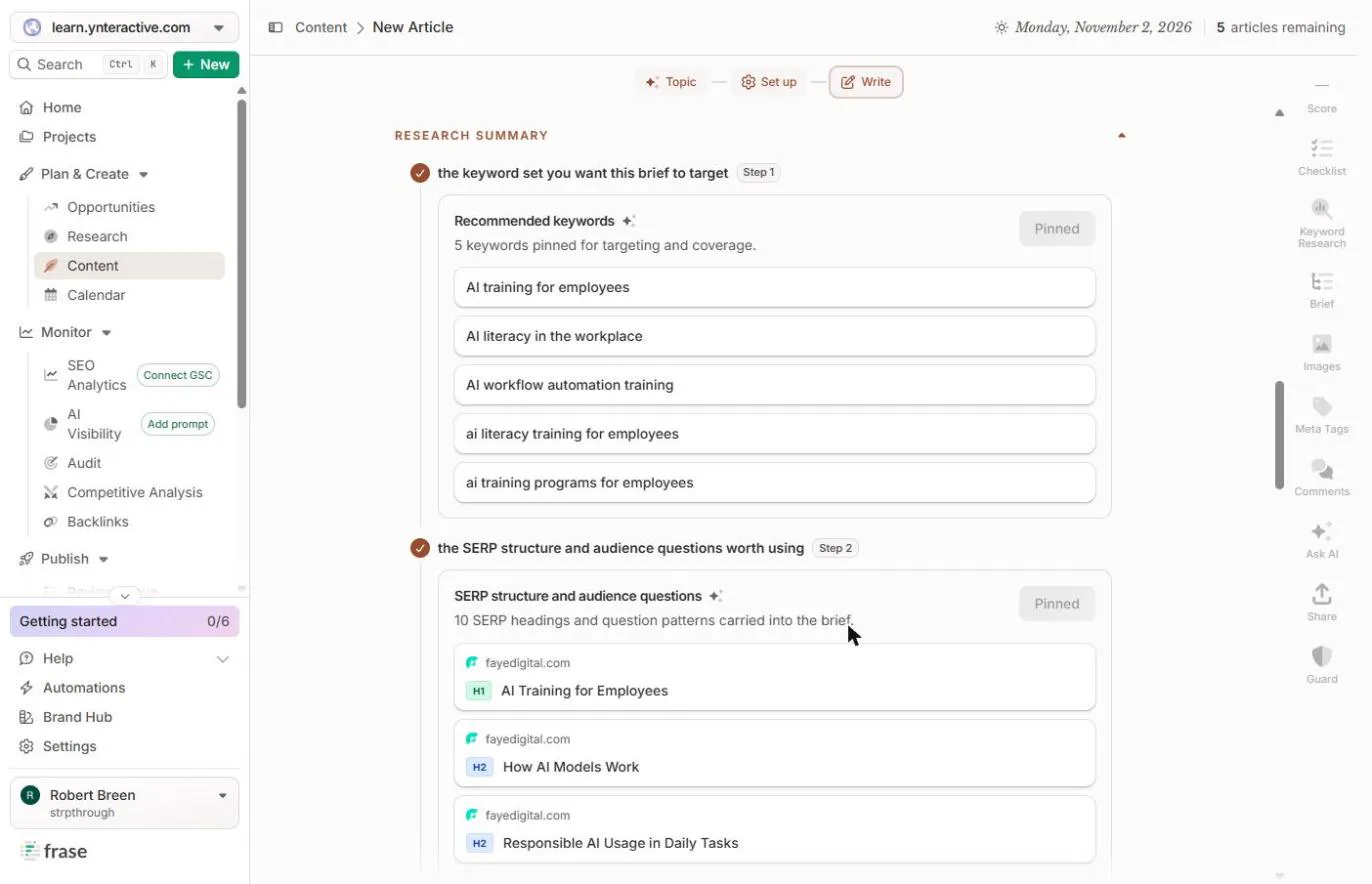
- See what already ranks. Step 2 reads the pages that rank now and carries 10 headings into the brief, with the site each came from. This is the reading you would otherwise do by hand. Click the headings.
It reads the pages that rank now, and carries ten headings into the brief. This is the reading you would do by hand.
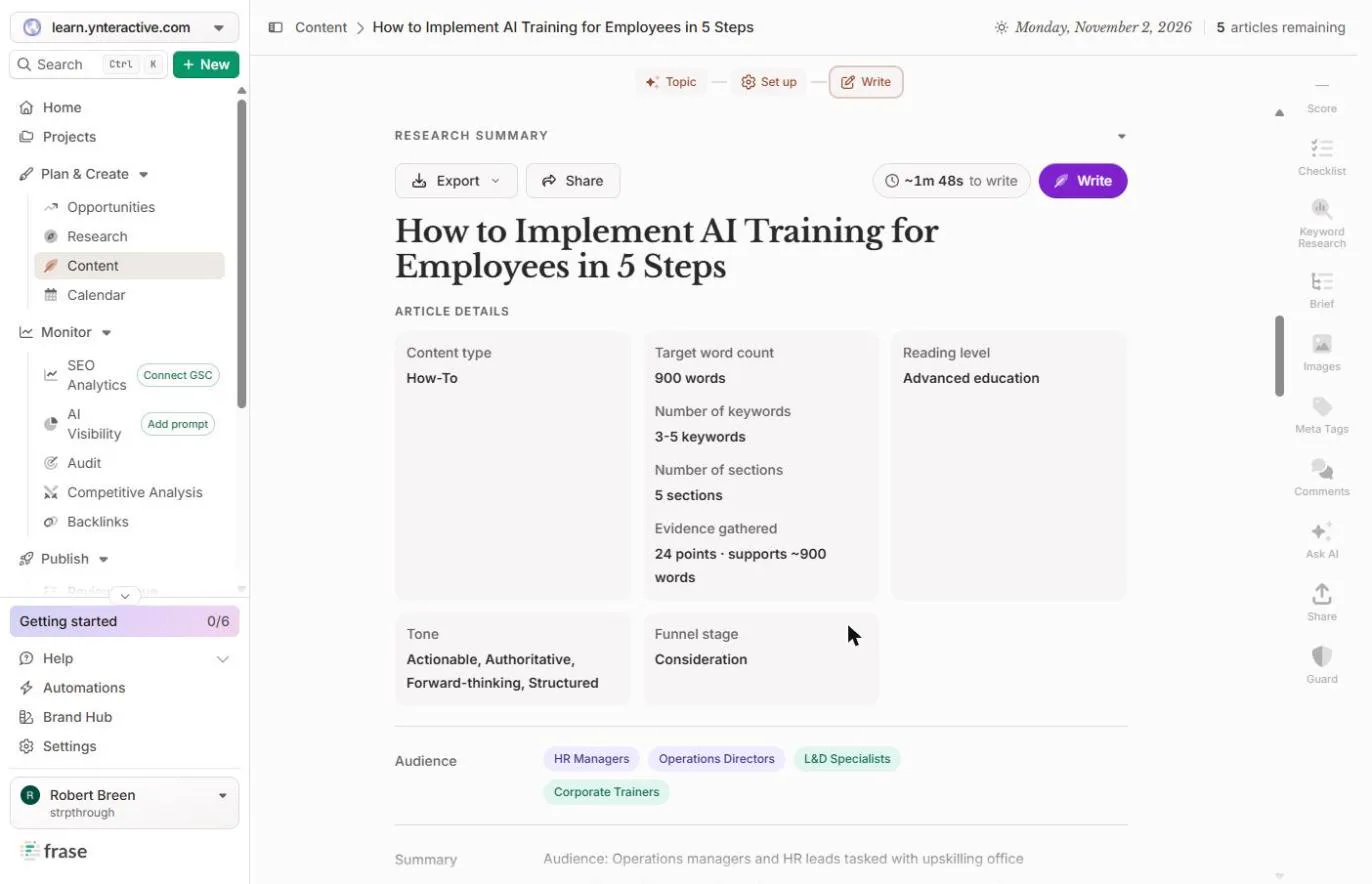
- Check who it is writing for. The brief is ready: How to Implement AI Training for Employees in 5 Steps, about 900 words. Now look at Audience: HR managers, operations directors, L&D specialists, corporate trainers. You asked for office managers at small businesses. Read the brief before you let it write. Click the audience.
The brief is ready. Now look at the audience. It says H R managers and corporate trainers. You asked for office managers at small businesses. Read the brief before it writes.
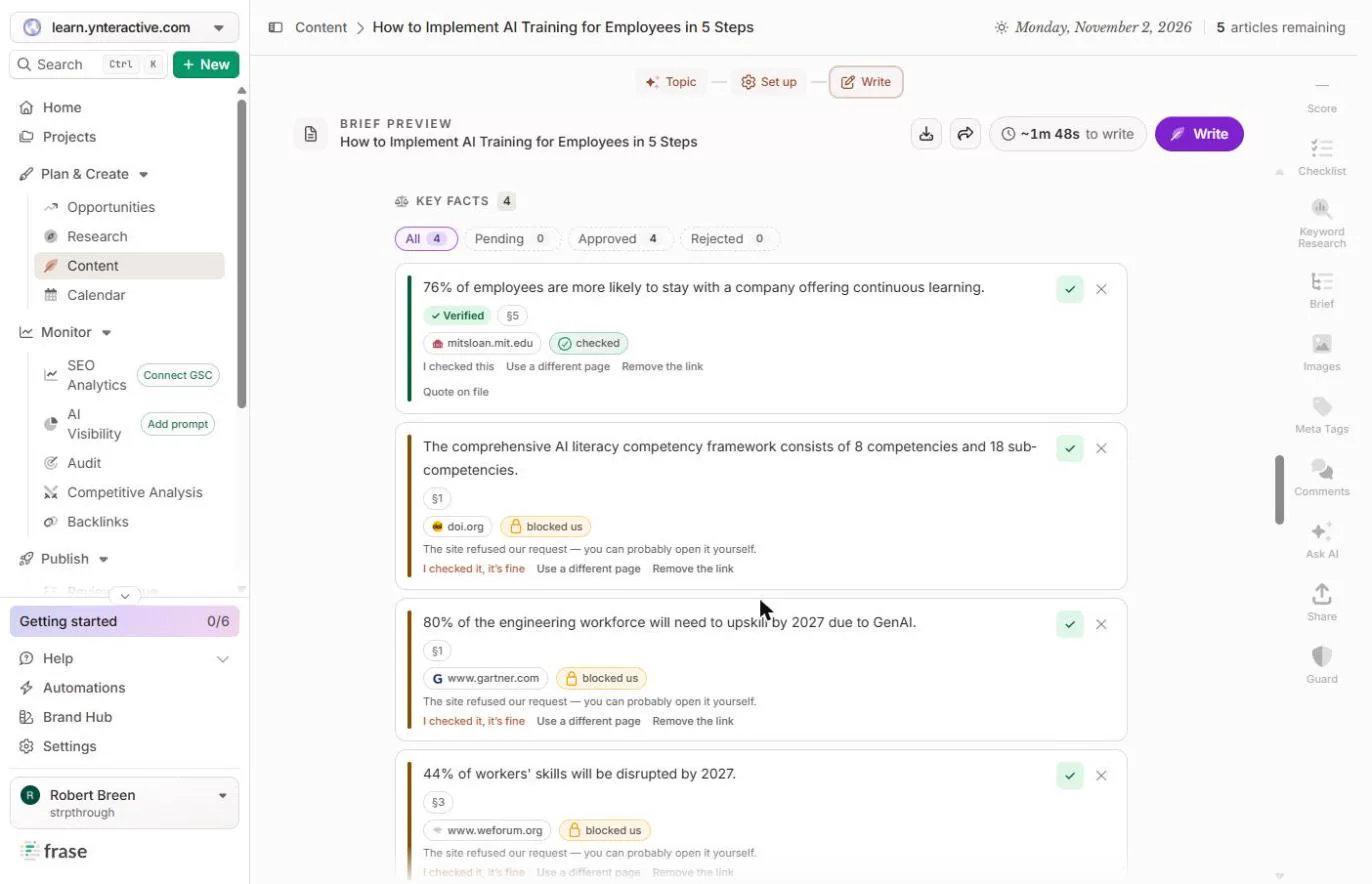
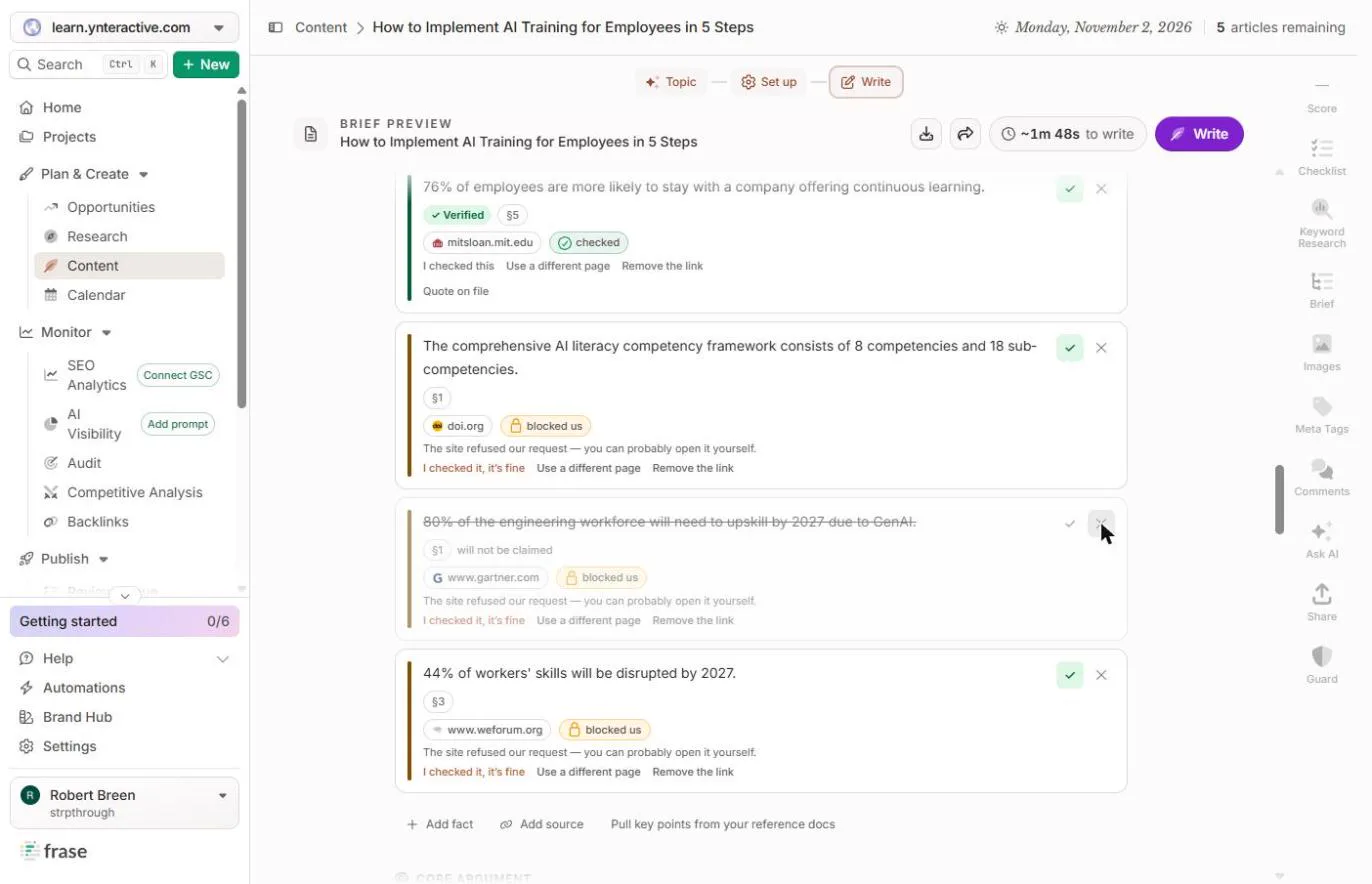
- Reject a fact that does not fit. Scroll to Key facts. Only the first one says Verified. In our run the third was about the engineering workforce, and your readers run offices, not engineering teams. Your facts will differ: reject any that do not fit your reader. Click its ✕ to reject it.
In our run, the third was about engineering teams, and your readers run offices. Reject any fact that does not fit.
- Notice blocked us. It is struck out and marked will not be claimed. Look at the others: blocked us means the source site refused Frase, so it could not check the quote. Open those links yourself before you publish a number. Click the label.
It is struck out. Blocked us means the source site refused Frase, so it could not check the quote.
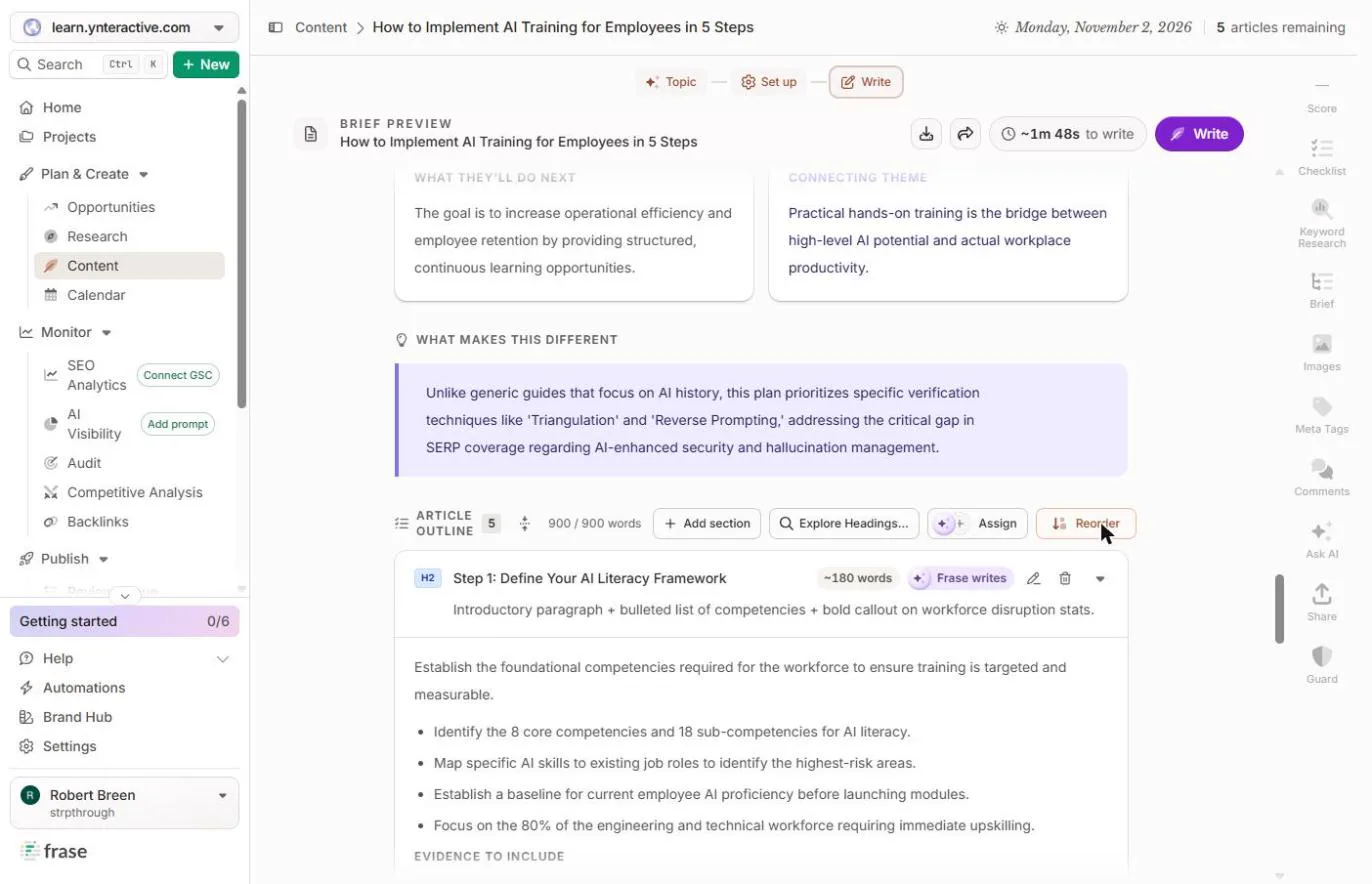
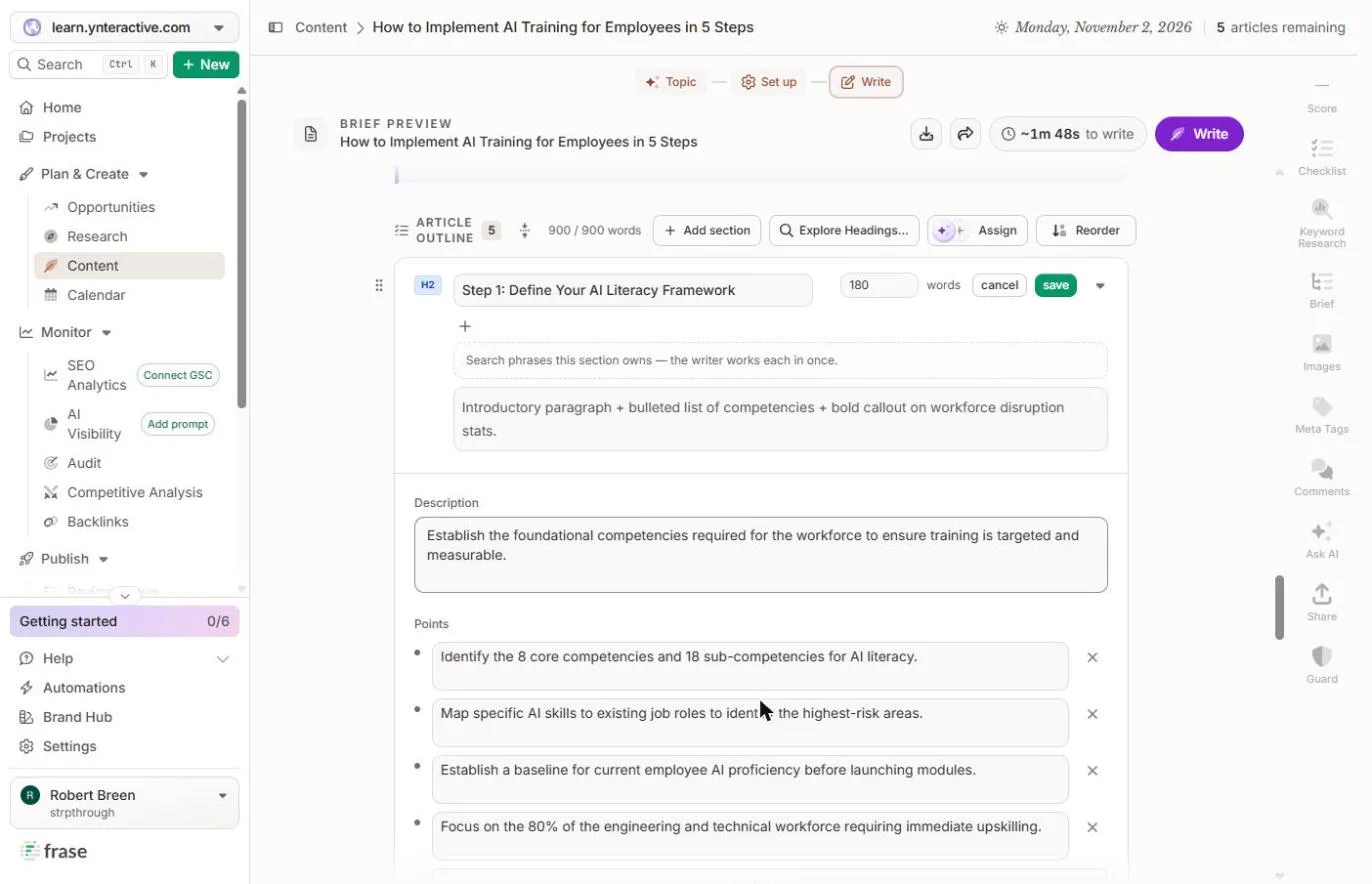
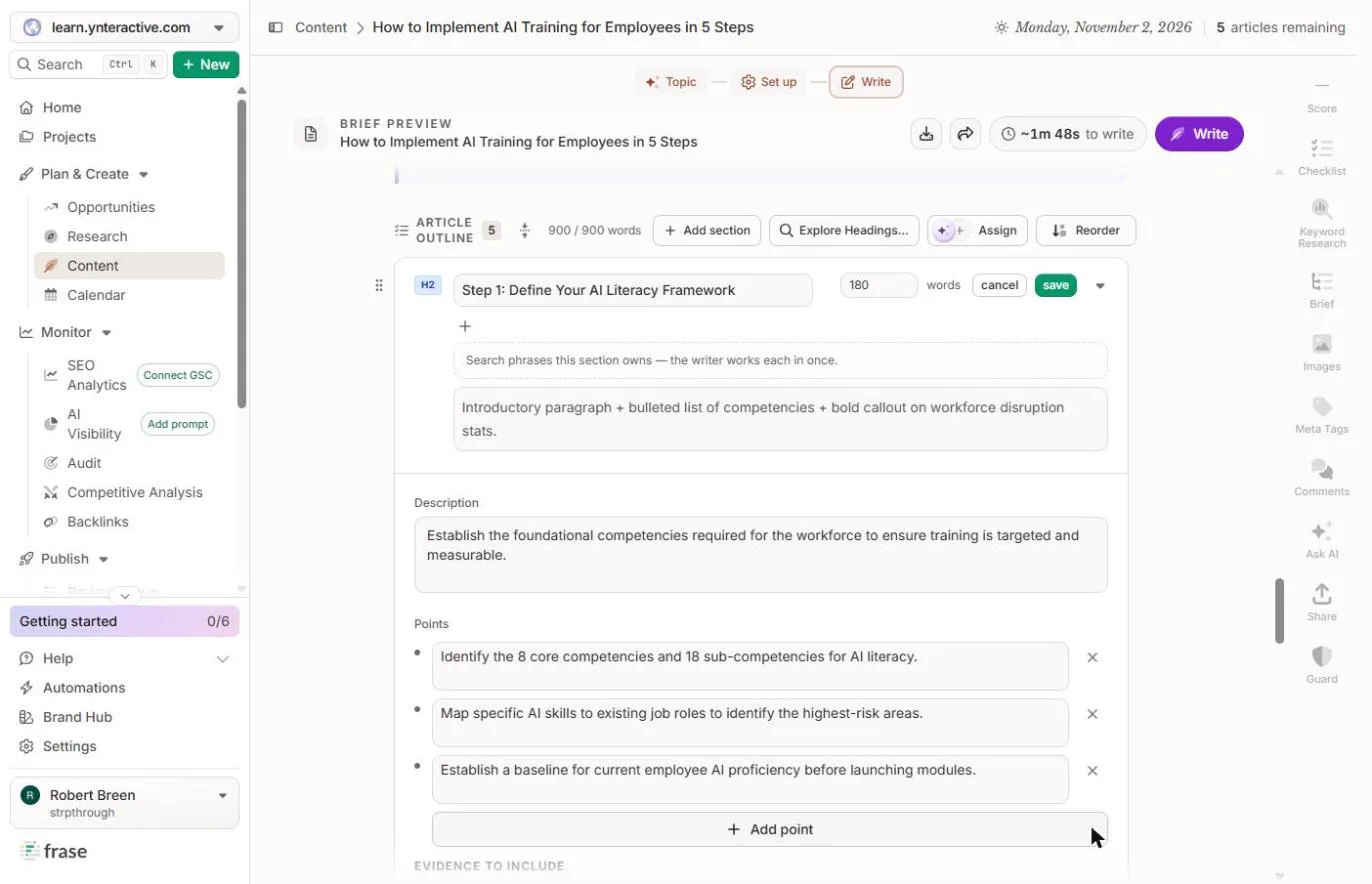
- Edit the first section. Scroll to Article outline. Five sections, each marked Frase writes. Step 1 still says to focus on the engineering workforce. Click the pencil on Step 1.
Step 1 still says to focus on engineering.
- Remove the point. Each section has a description and Points the writer must cover. Click the ✕ next to the engineering point.
Each section has points the writer must cover.
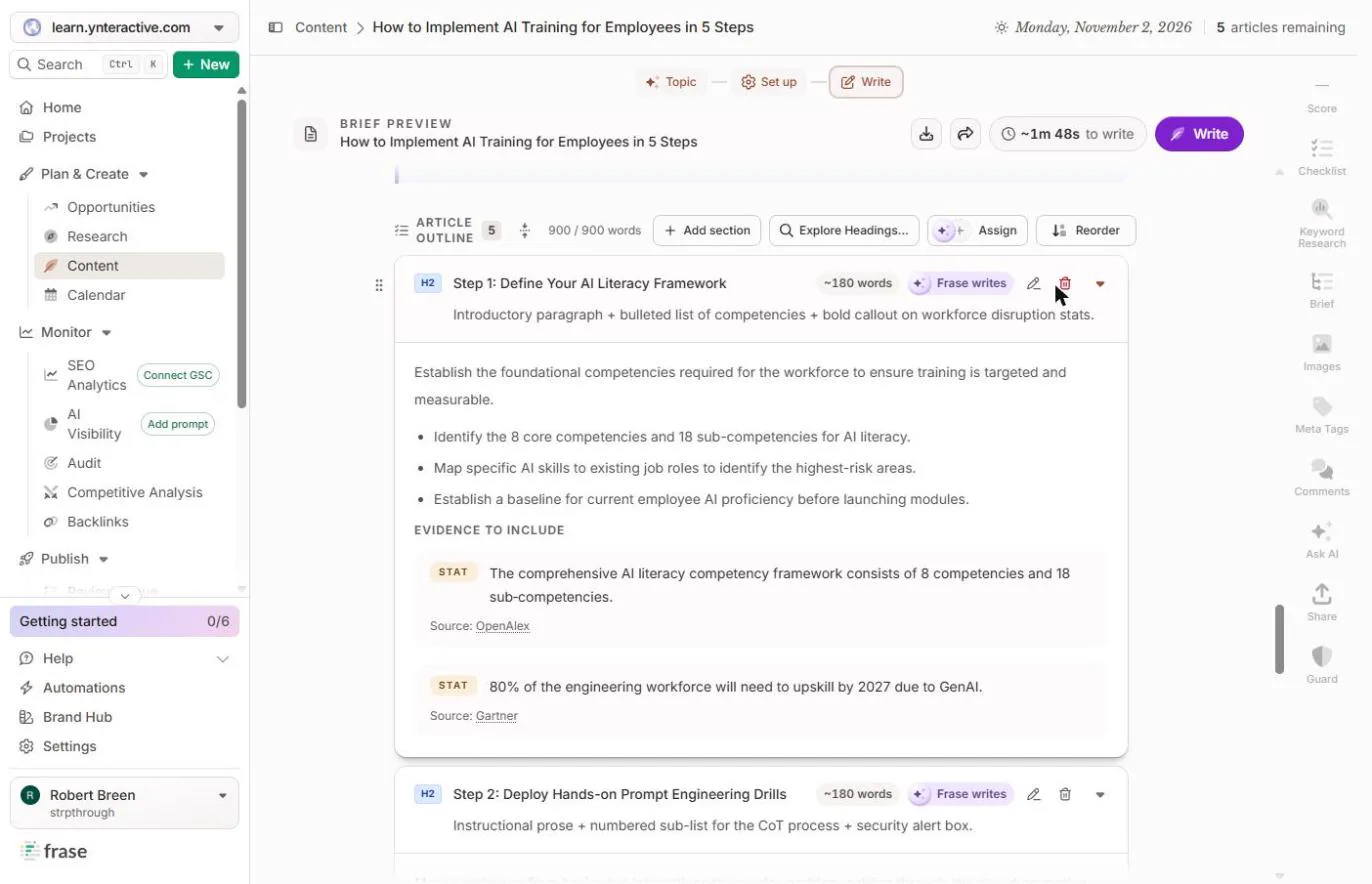
- Save the section. Click save.
- Look under Evidence to include. The point is gone, but Evidence to include still lists the Gartner number you rejected. In our run the draft did not use it. Rejecting a fact did not clear it everywhere, so read the draft for it. Click the stat.
The point is gone, but the rejected number is still listed as evidence. In our run, the draft did not use it. Read the draft for it anyway.
3. Write and read the score
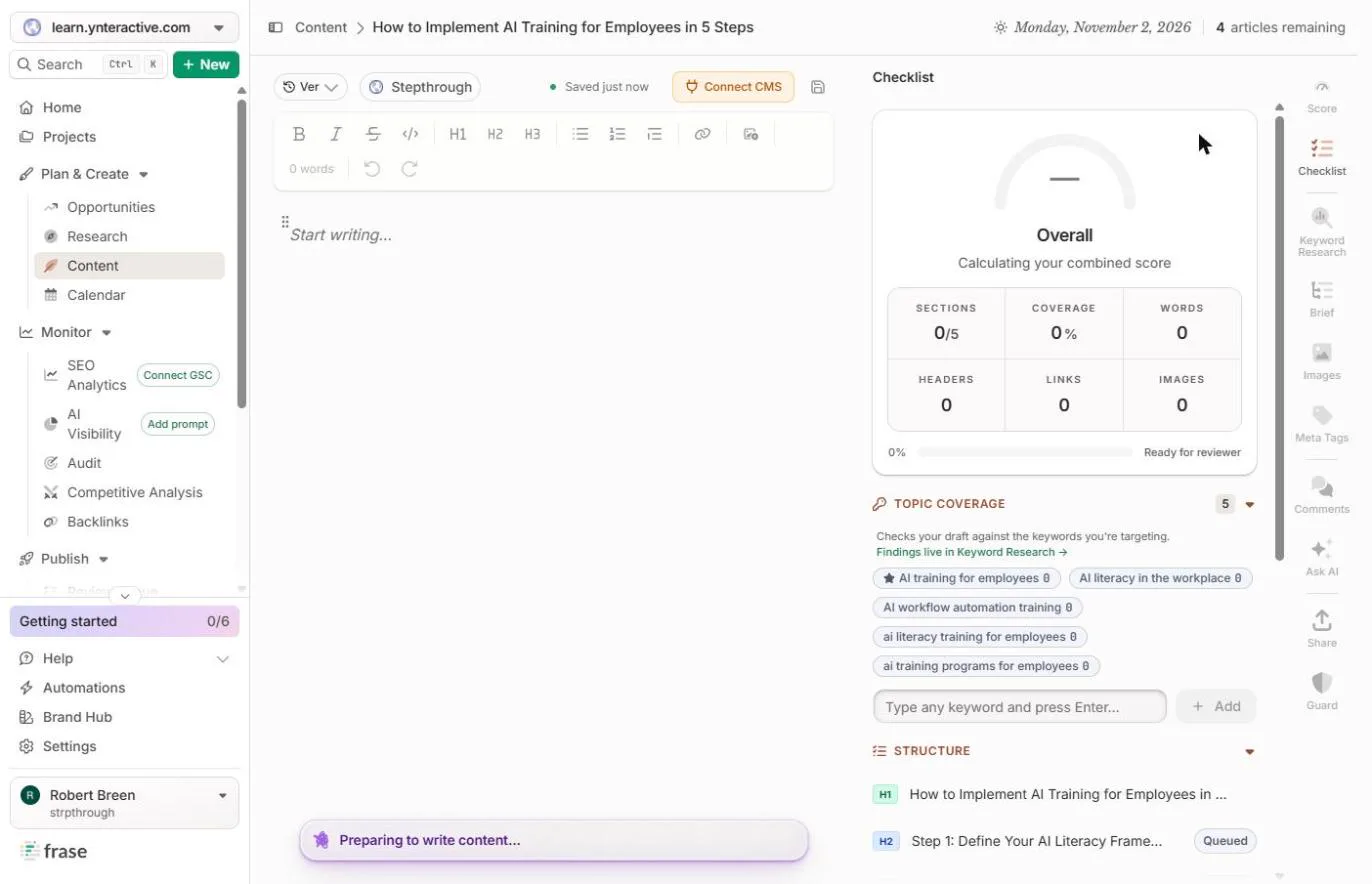
- Let Frase write. Click Write at the top right. This used one article from our trial: the counter went from 5 articles remaining to 4.
This used one article from our trial.
- Wait for the draft. The editor opens and Frase writes section by section. Ours took about two minutes. Click the progress bar.
Frase writes section by section. Ours took about two minutes.
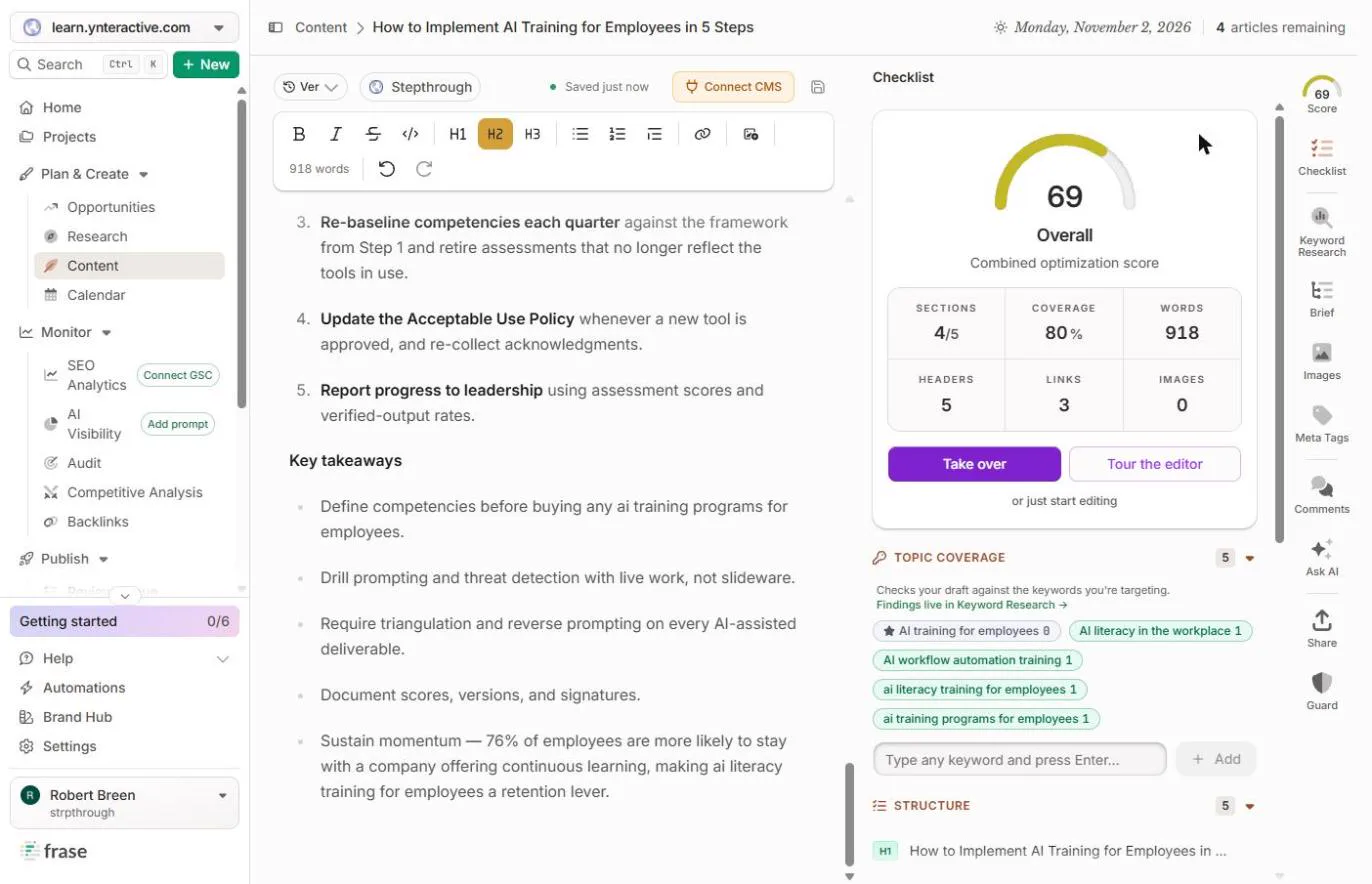
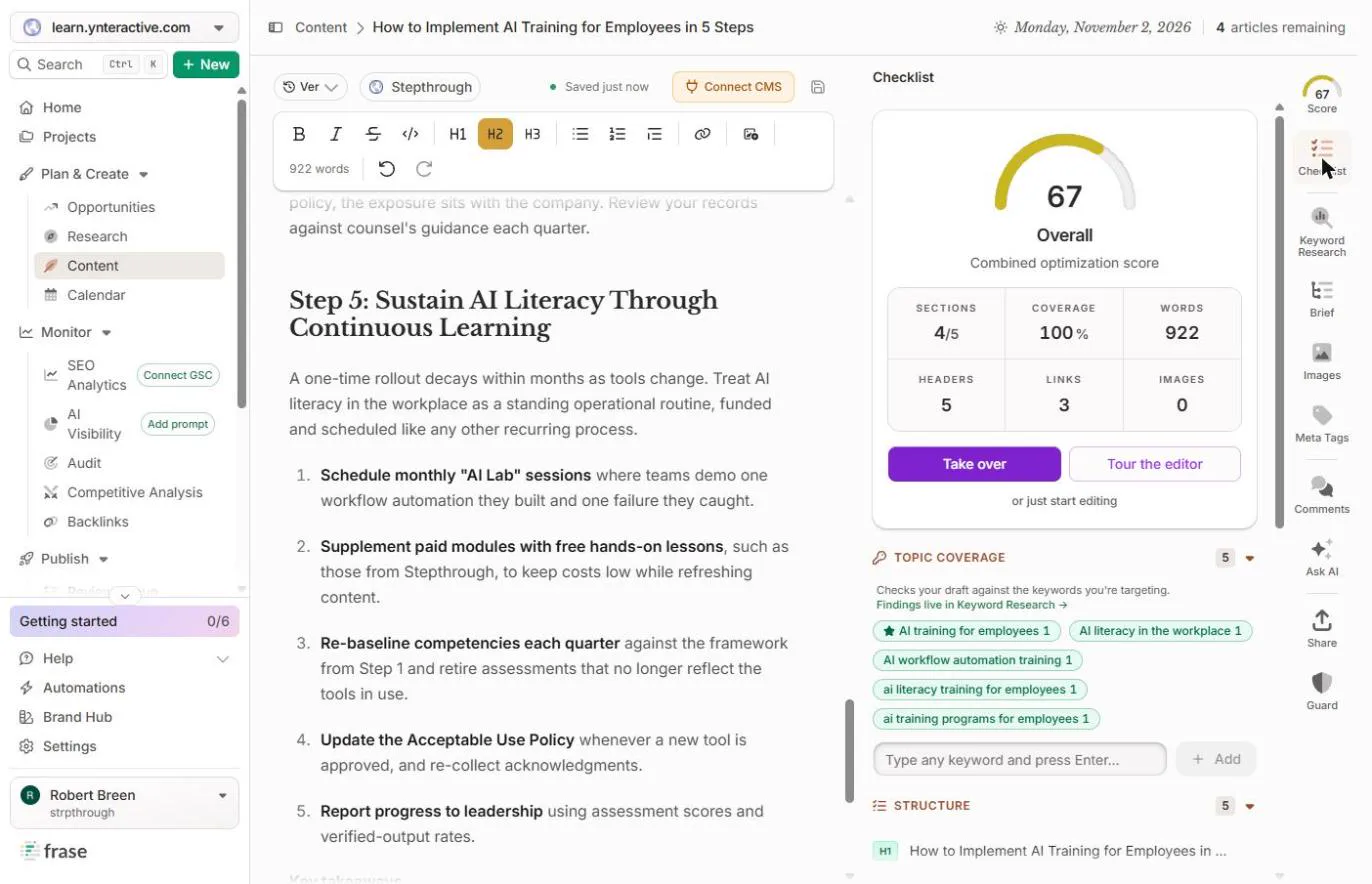
- Find the missing keyword. The Checklist shows 69, 918 words and Sections 4/5. Look at Topic coverage: the four close keywords show 1, but your main phrase, AI training for employees, shows 0. Read the draft too: the title promises 5 steps, and only four sections are numbered. Click the 0.
The score is 69. Your main phrase shows zero uses in the text, and the title promises five steps while only four are numbered.
- Open Score. Click Score at the top of the right-hand bar.
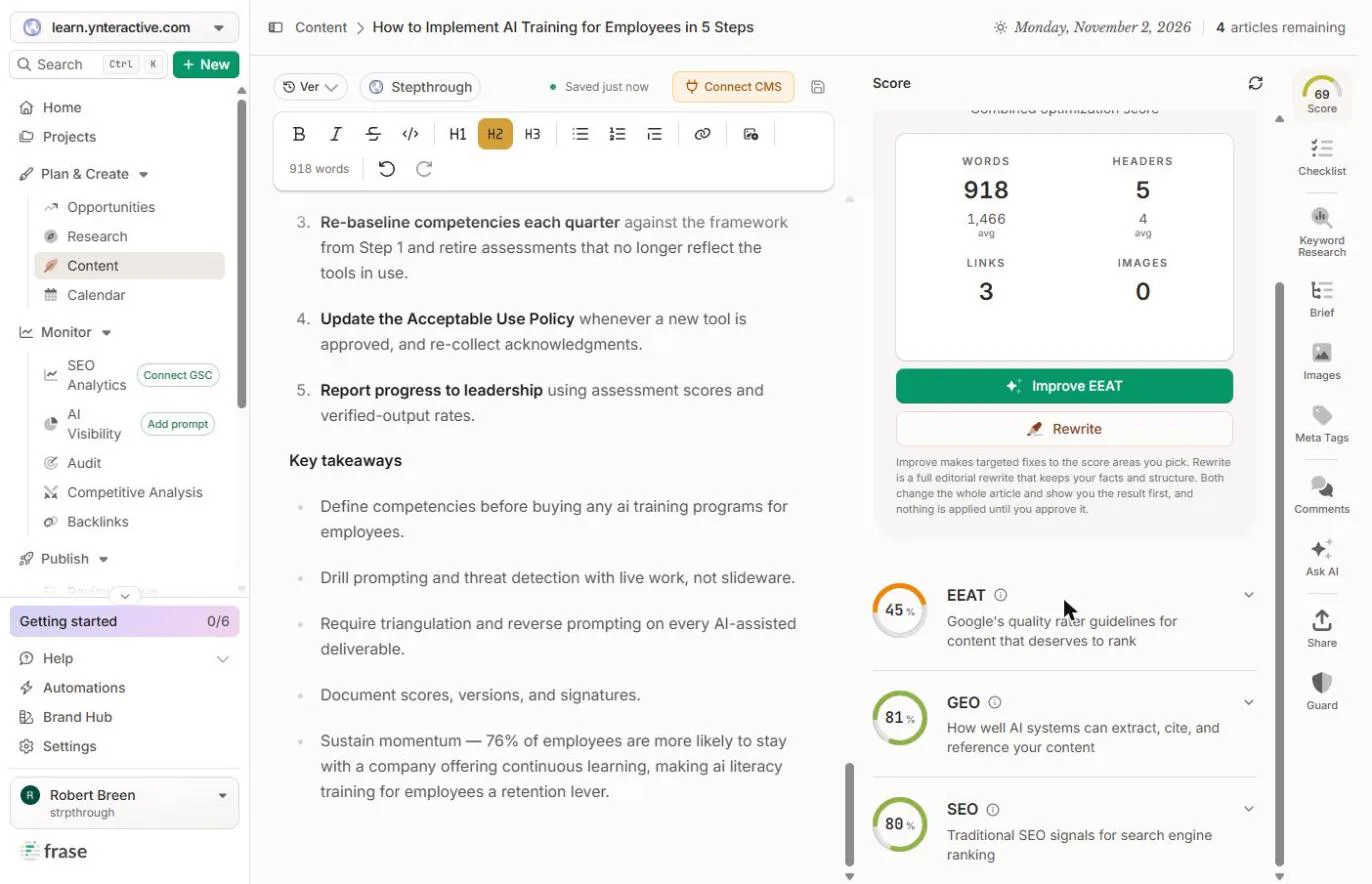
- Read the three scores. Scroll down. EEAT 45, GEO 81, SEO 80. GEO is how easily AI tools can quote you. EEAT is the lowest, so start there. Click EEAT.
E E A T is 45, GEO 81, S E O 80. E E A T is lowest, so start there.
4. Fix what the score misses
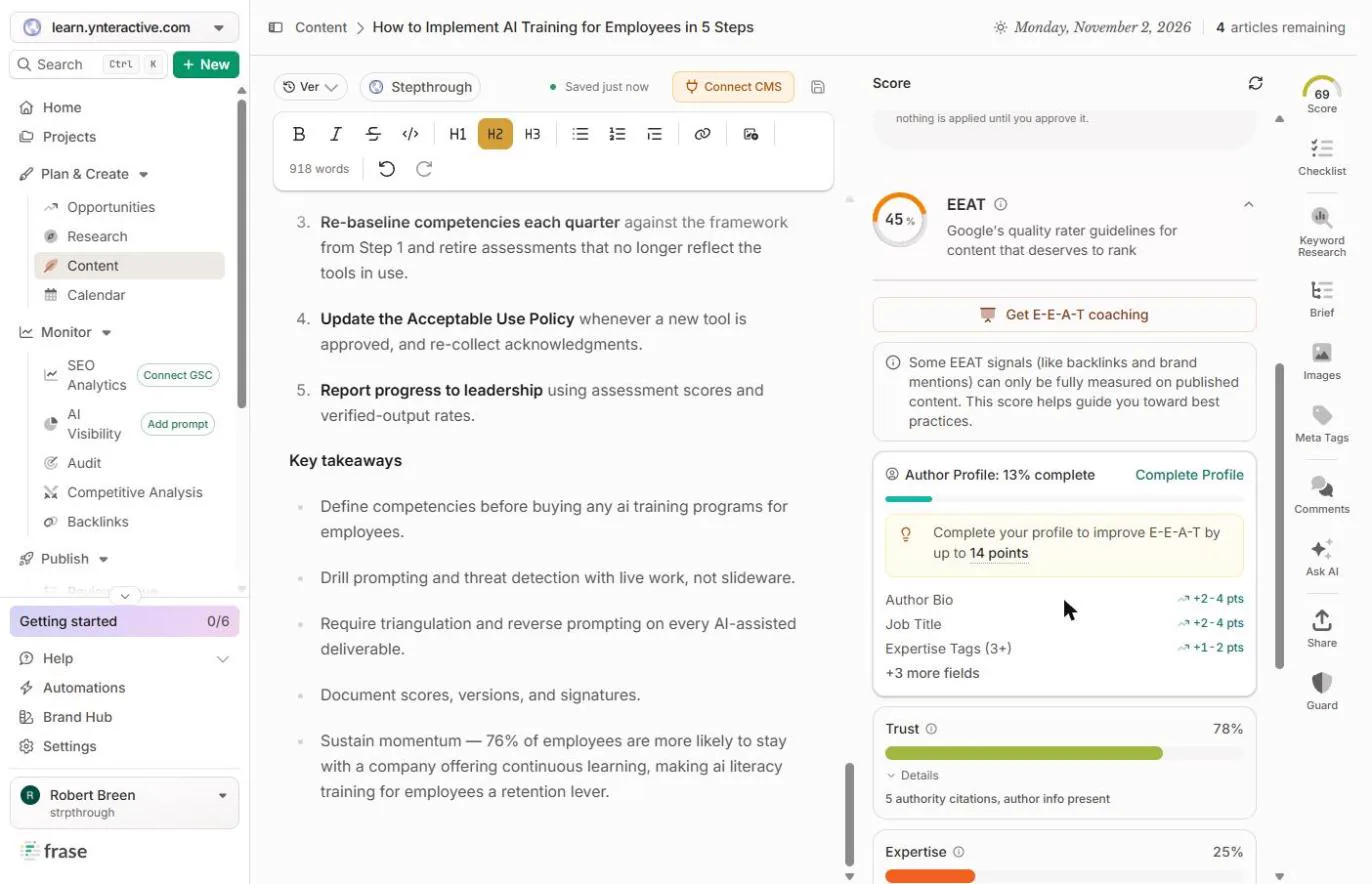
- See why EEAT is low. Most of it is the Author profile: 13% complete, worth up to 14 points, and Expertise 25%. That is about who wrote it, not the words. Fill in a real author bio and add your own experience, like what happened when your team tried this. We left Robert’s profile alone in this run. Click the profile card.
Most of it is the author profile, only thirteen percent complete. That is about who wrote it, not the words. Add a real author and your own experience.
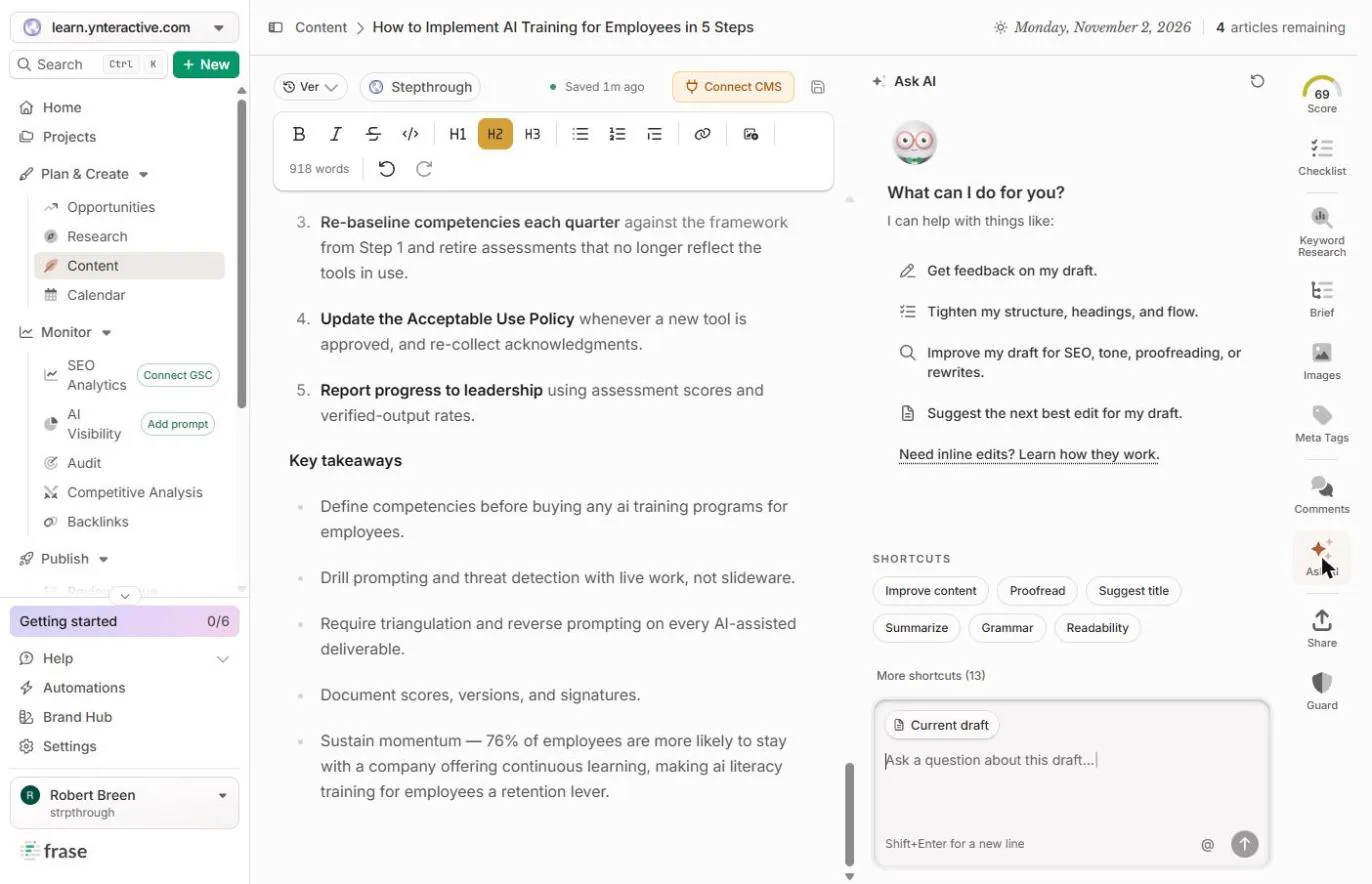
- Open Ask AI. Now fix what you found in the draft. Click Ask AI in the right-hand bar.
Now fix what you found.
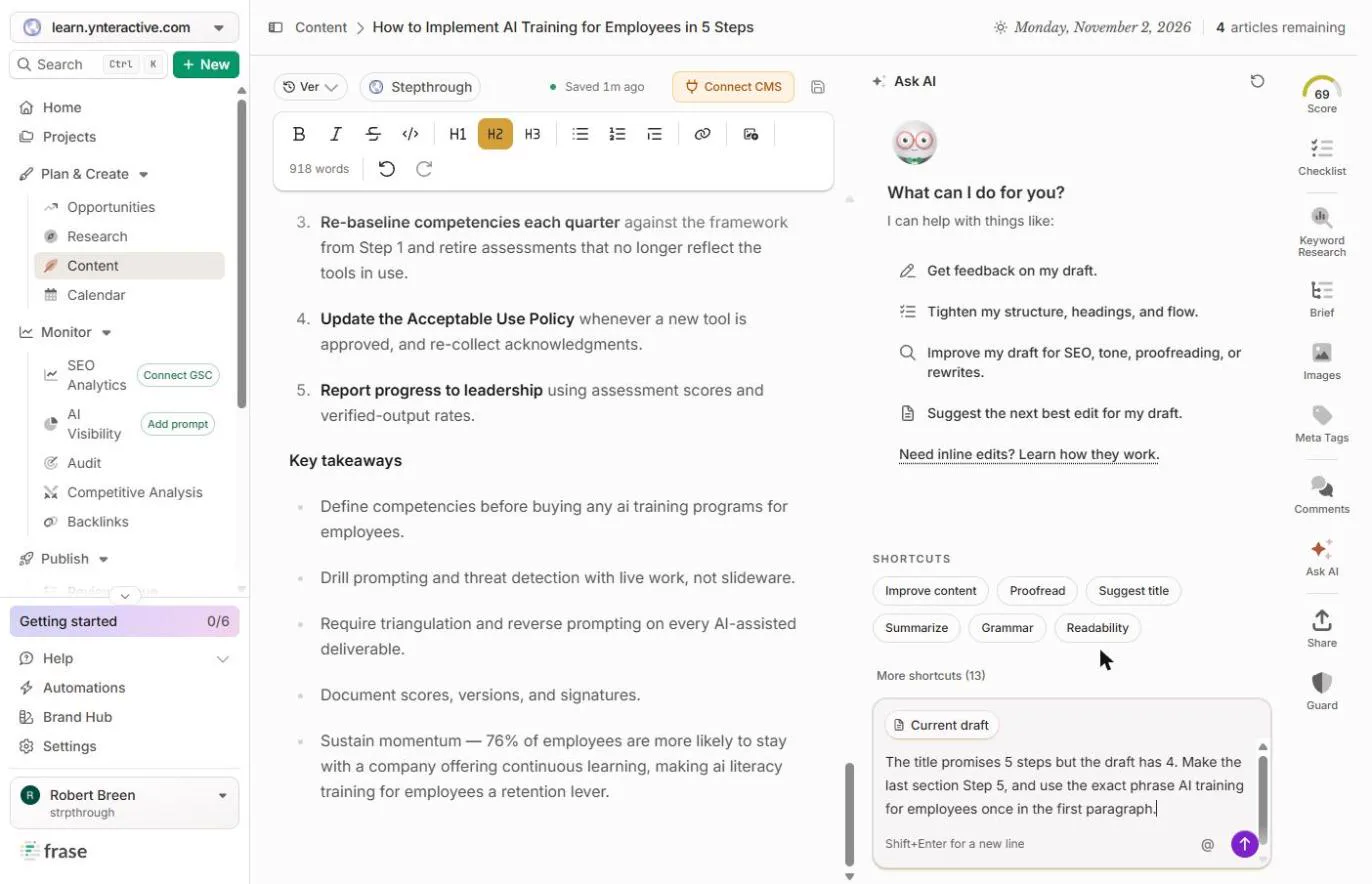
- Ask for the exact fix. Name the problem and the fix. Ask it to number the last section Step 5 and use your exact phrase once in the first paragraph.
Name the problem and the fix: number the last section Step 5, and use your exact phrase once in the first paragraph.
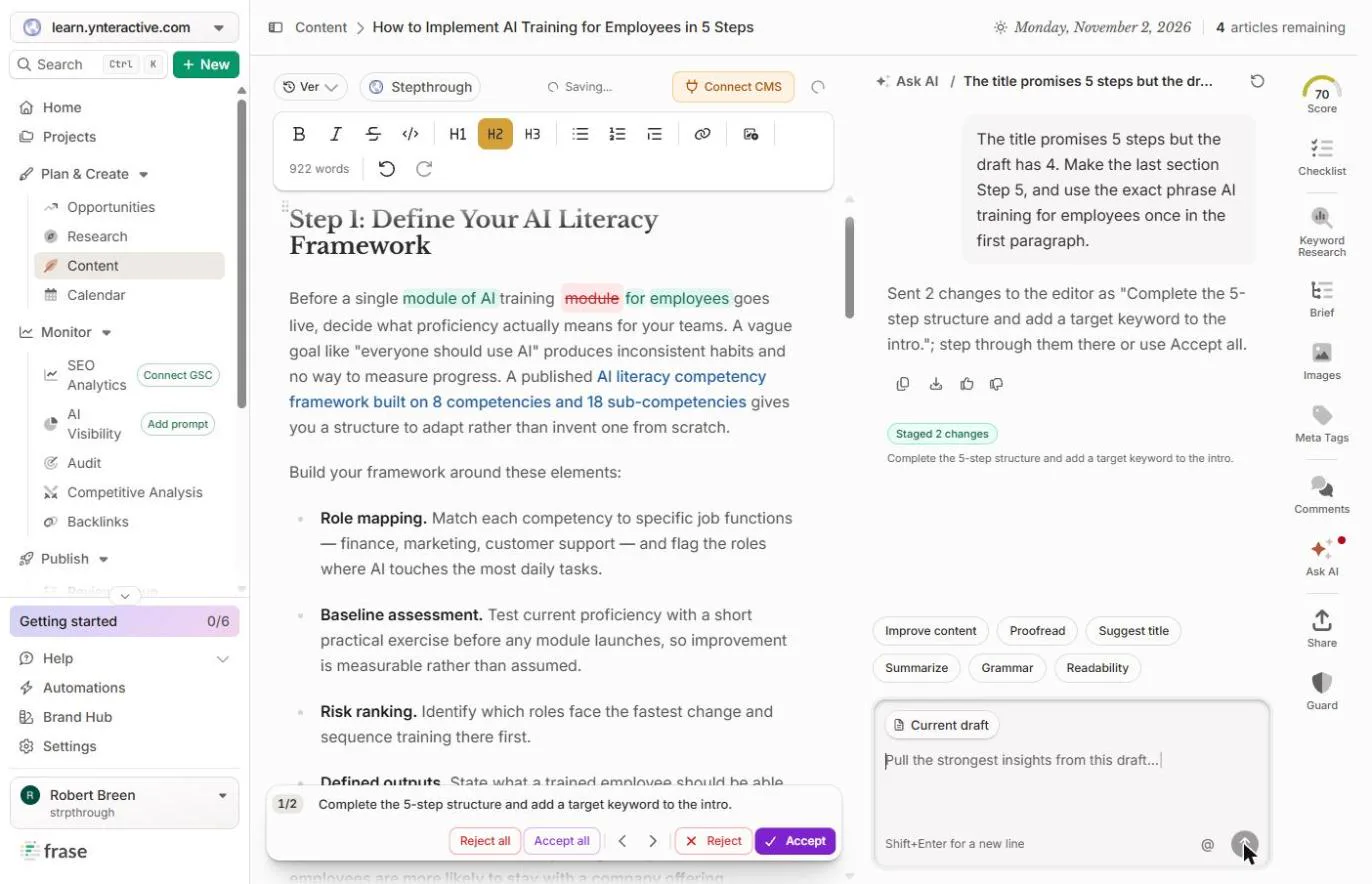
The title promises 5 steps but the draft has 4. Make the last section Step 5, and use the exact phrase AI training for employees once in the first paragraph.
- Send it. Click the purple arrow.
- Read the first change. It stages 2 changes in the editor, shown in green and red, and changes nothing until you accept. The first one squeezes your phrase in: Before a single module of AI training for employees goes live. Clunky, but it works. Click the line.
It stages two changes and applies nothing until you accept. The first squeezes your phrase in. Clunky, but it works.
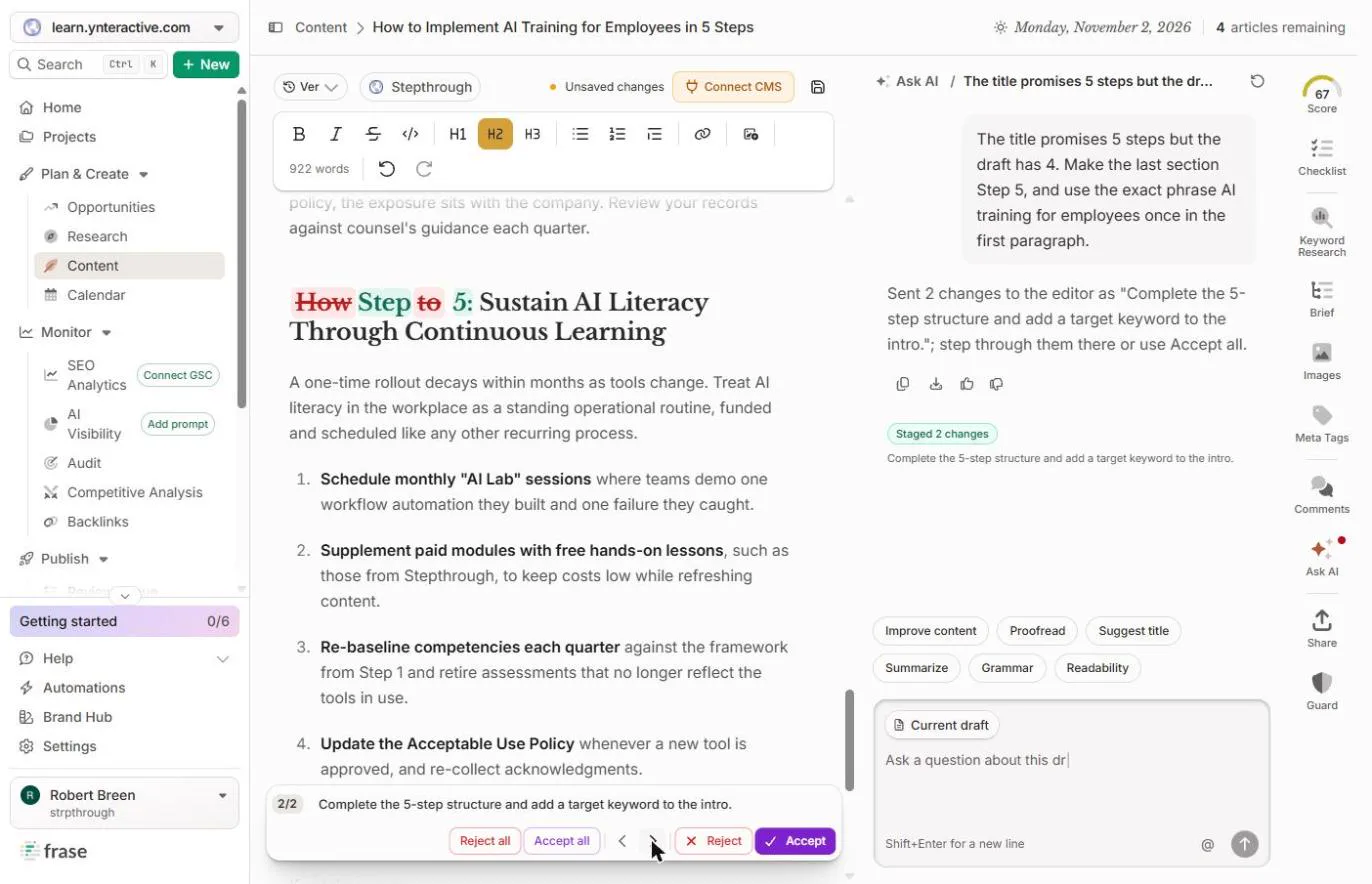
- Go to the second change. Click the › arrow to see change 2 of 2.
- Accept both. How to Sustain becomes Step 5: Sustain. Click Accept all.
How to Sustain becomes Step 5.
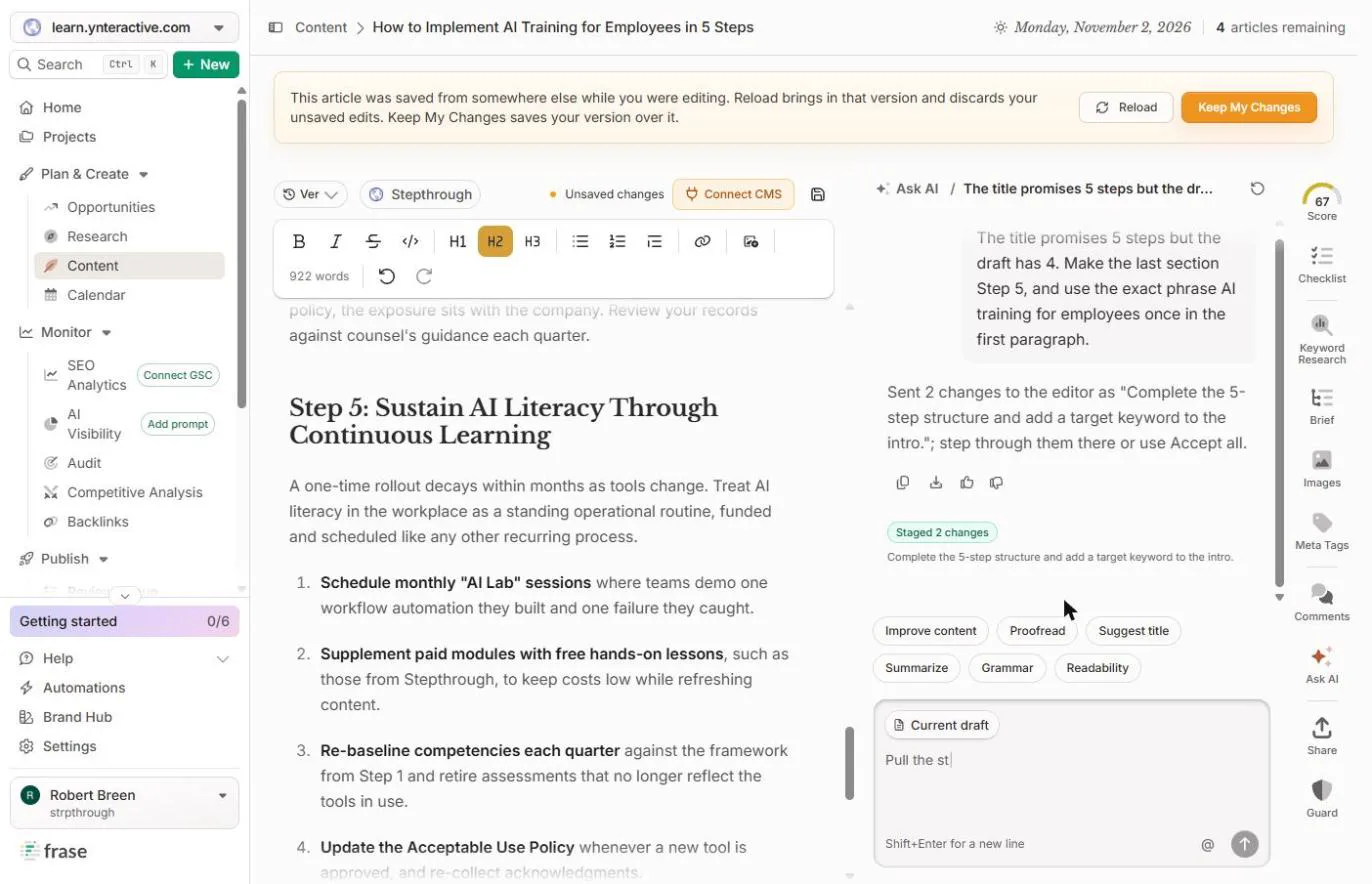
- Keep your changes. In our run a banner said the article was saved from somewhere else while you were editing. That was Frase’s own save of the accepted changes. Reload would discard your edits. Click Keep My Changes.
A banner said the article was saved from somewhere else. Reload would discard your edits.
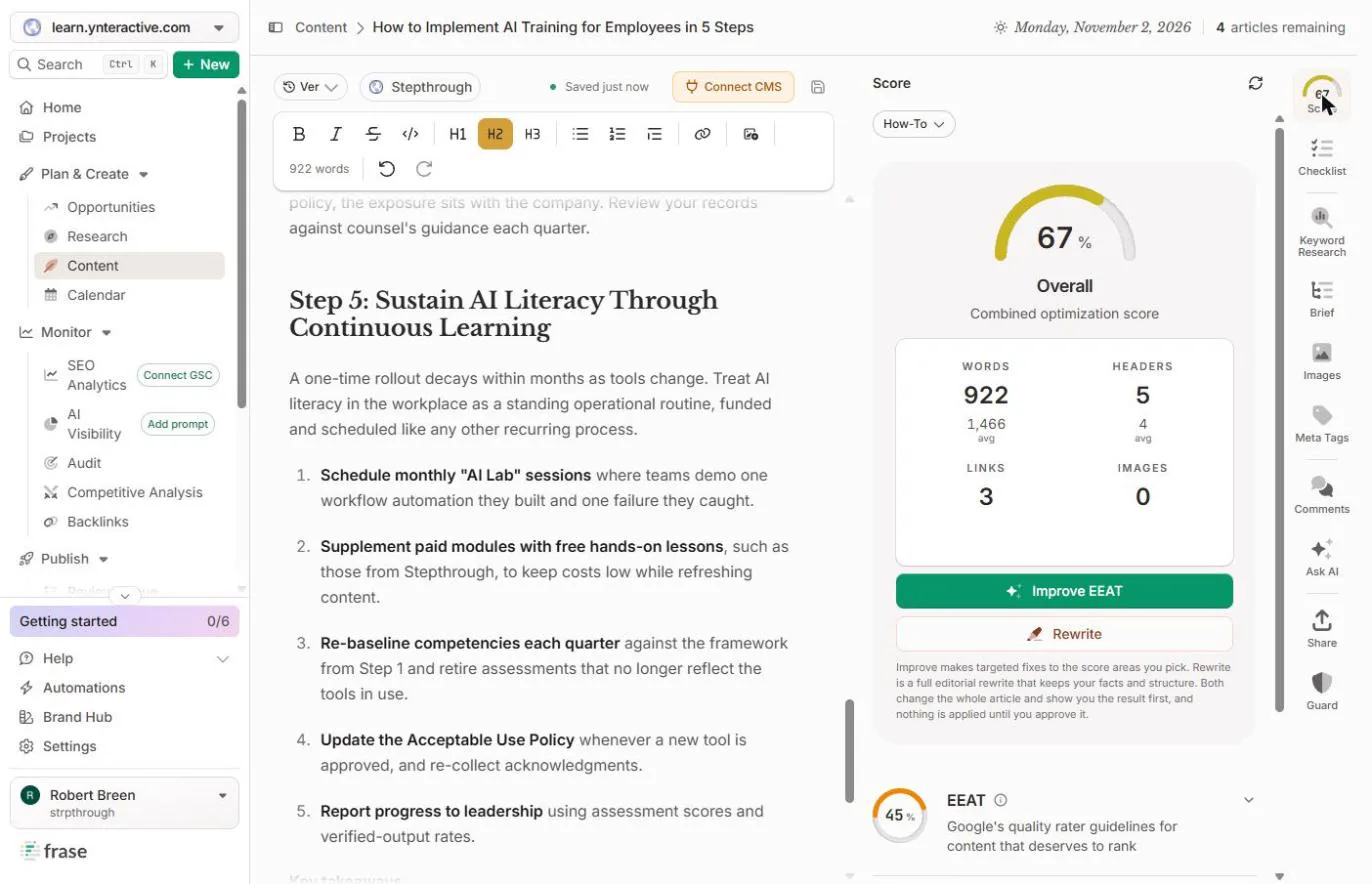
- Read the score again. Both real problems are fixed, and the score went from 69 to 67. The score is a guide, not the goal. A title that promises five steps and delivers four costs you more with readers than two points. Click the score.
Both problems are fixed, and the score went down, from 69 to 67. The score is a guide, not the goal.
- Open Meta Tags. Click Meta Tags in the right-hand bar.
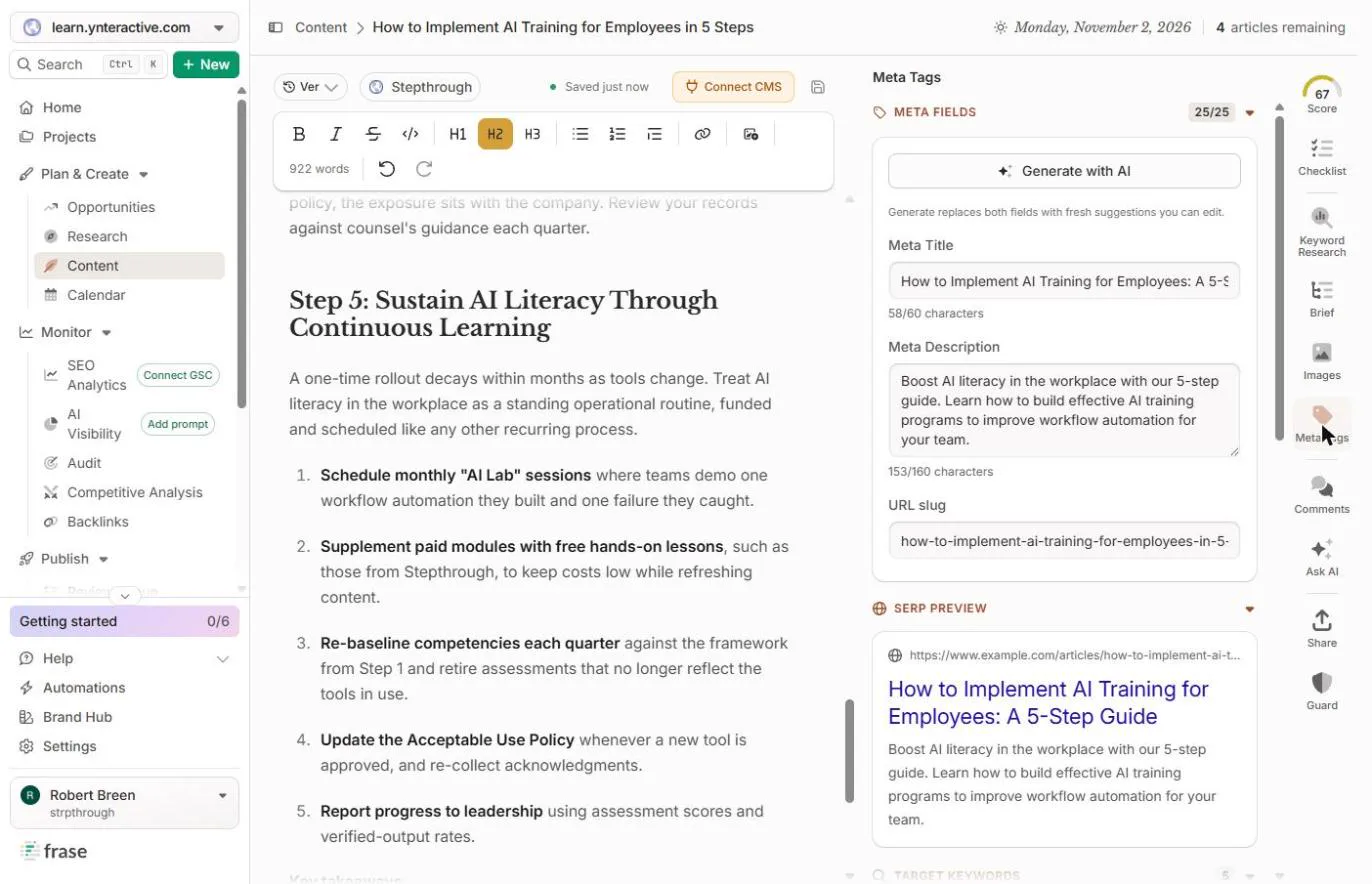
- Check the search snippet. Frase already filled the Meta Title (58 of 60 characters) and Meta Description (153 of 160). Generate with AI replaces both. The SERP preview shows how it looks in Google, with example.com until you connect a site. Check that it says 5 steps. Click the preview.
Frase filled the title and description already. The preview shows how it looks in Google.
- Back to the Checklist. Click Checklist.
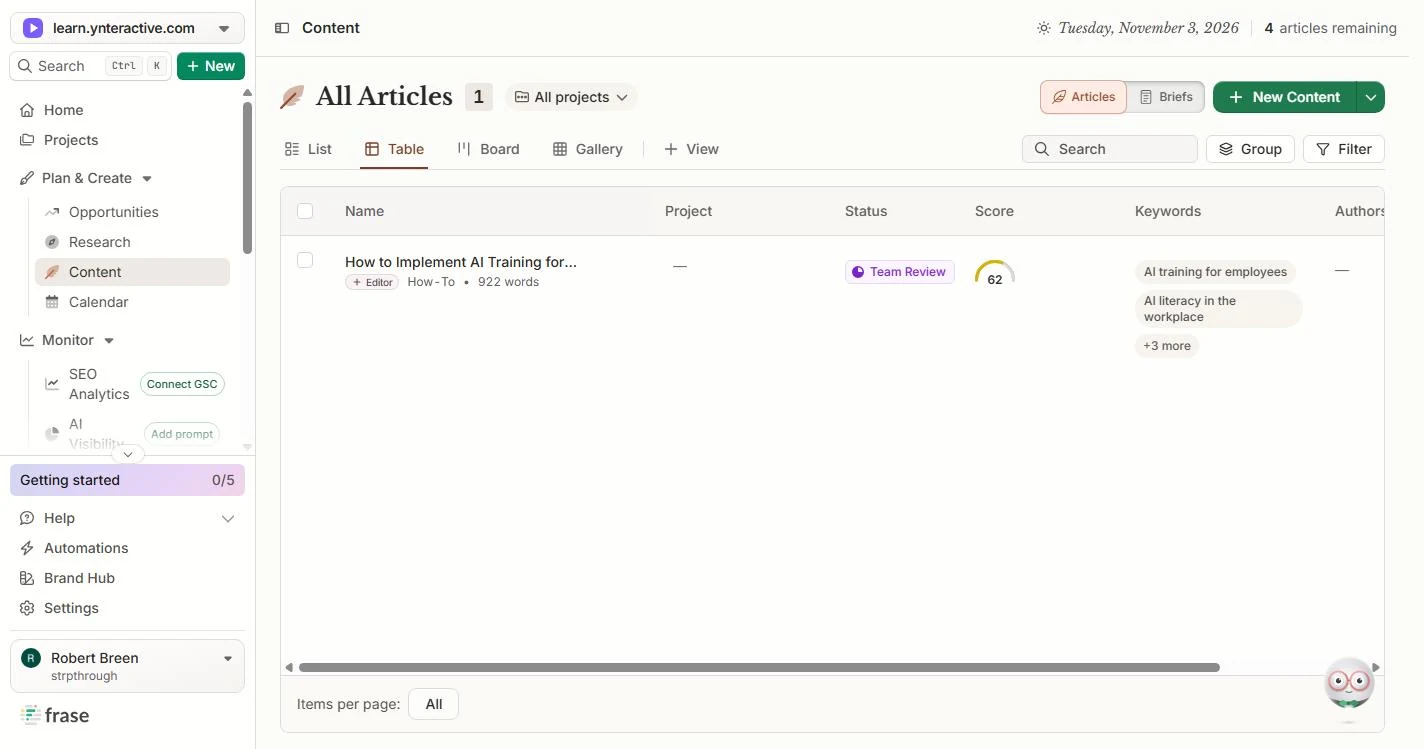
- Read the coverage. Coverage 100%, and your main phrase now shows 1. Sections still said 4/5 here. When we reopened the article later, it said 5/5 and the overall score said 62, with no edits in between. The numbers move, so do not chase them. Click Coverage.
Coverage is now one hundred percent. When we reopened the article later, the overall score said 62, with no edits in between. The numbers move, so do not chase them.
- Stop before publishing. From here, Connect CMS sends it to WordPress, Webflow, Sanity or Wix. We stopped here and published nothing. Before you do: add a real author, open every blocked us source, and read it once as your reader. Click Connect CMS to finish.
Connect C M S sends it to your website. We published nothing. Before you do, add a real author, check every source, and read it as your reader.
Screenshots
More in Business Automations
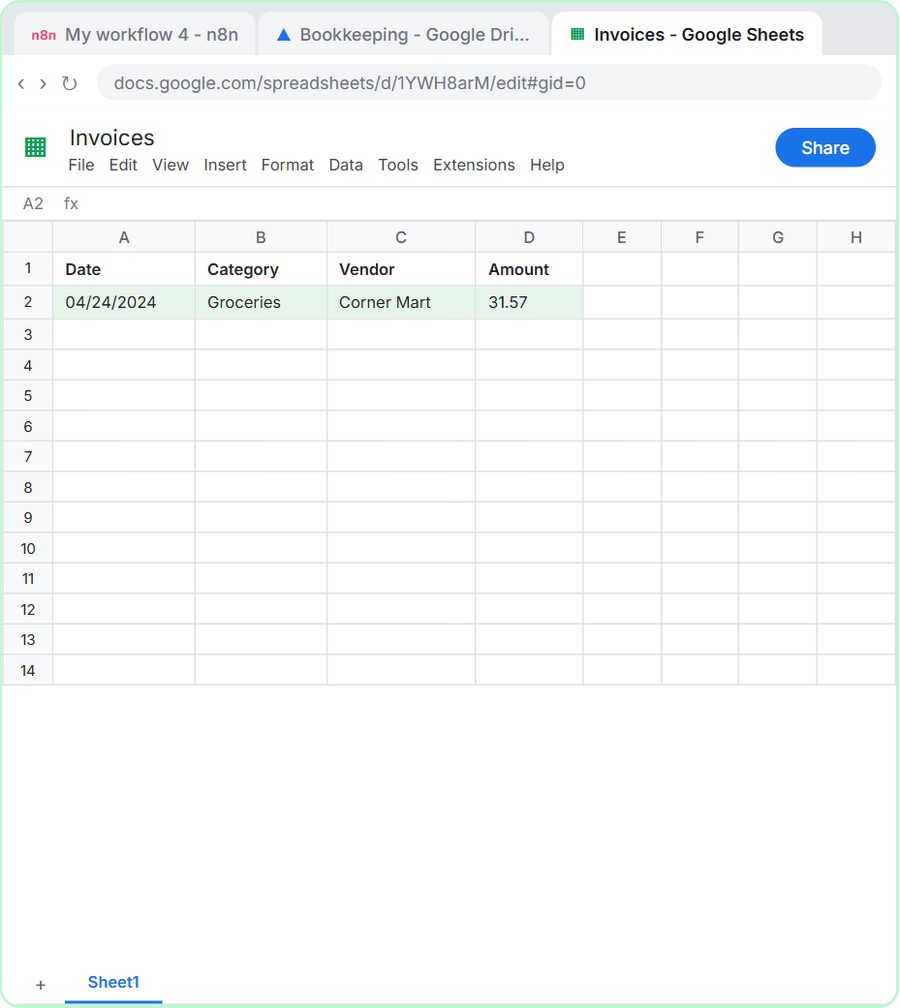 AI Receipt Extractor: Receipts to Google Sheets with n8n
Drop a photo of a receipt into an n8n chat. An AI agent reads it, pulls out the date, vendor and amount, picks a category, and adds a row to Google Sheets.
Free · Live ~12 min Intermediate
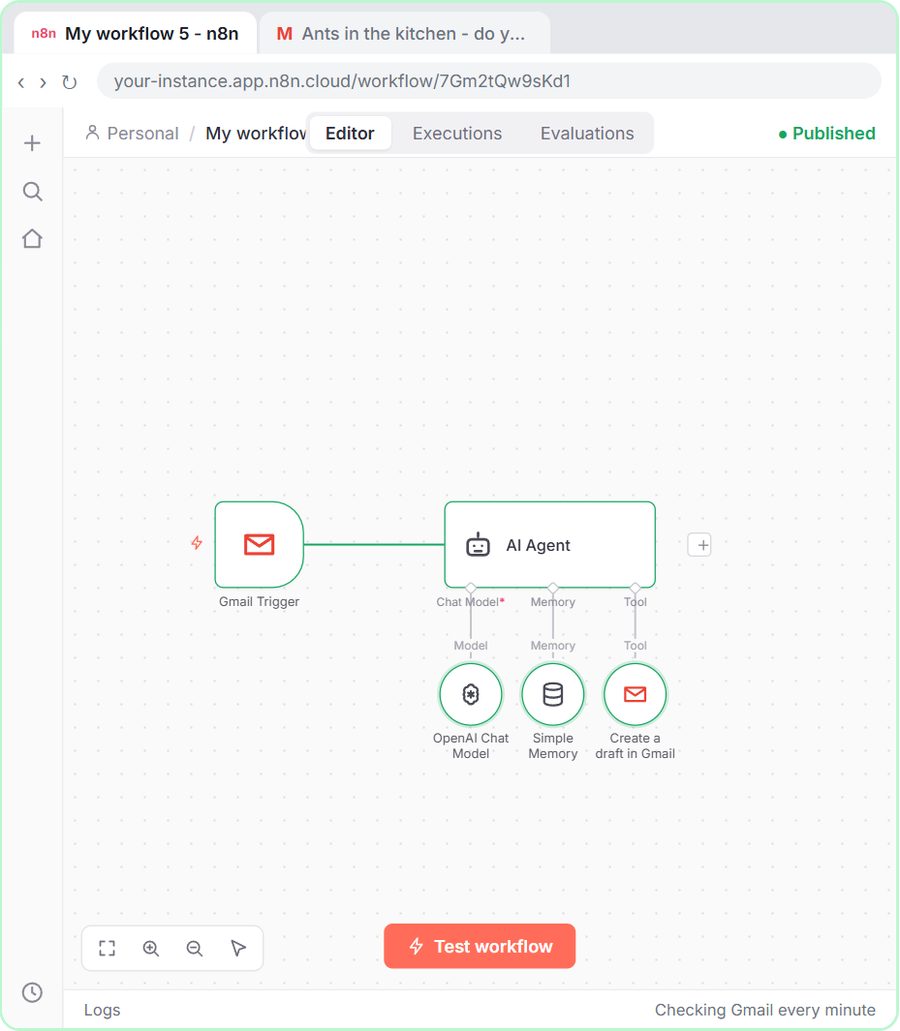 n8n AI Email Responder: Draft Gmail Replies Automatically
Build an n8n agent that watches your Gmail, reads each new customer email, and writes a reply as a draft in the same thread, ready for you to check and send.
Free · Live ~12 min Intermediate
 Daily Job Alerts: Email Each Tech Their Jobs from Google Sheets with n8n
Every morning at 7, n8n reads a plumbing company's jobs sheet, skips anything not assigned yet, and emails each job to the tech it's assigned to — customer, address…
Free · Live ~10 min Intermediate
 Gmail AI Triage: Auto-Label Every Email and Draft Replies
Build an n8n workflow that reads each new email, sorts it as a lead, a client or an invoice with a Text Classifier, adds the matching Gmail label, and drafts a reply to…
Free · Live ~18 min Advanced
 A Support Agent That Answers from Your Own Docs
Turn an n8n chat agent into a support agent that answers only from your policies in a Google Doc, refuses what it should, and hands off to a person by email.
Free · Live ~13 min Advanced
 Chatbase: Answer Customer FAQs with an AI Agent
A business case for a small firm that answers the same customer questions every week: build a Chatbase AI agent on your FAQ in the real app, make it say when it does…
Free · Live ~15 min Beginner
All 33 modules in Business Automations
More Frase tutorials
Terms in this lesson
Plain-English definitions, each with an example from a free lesson.