Updated . Built against the tool’s current screens and checked step by step. How we check this lesson
A customer call is recorded in Spanish and your team reads English. Transcribe and translate it in HappyScribe, get notes and a team update with owners and deadlines, and check the AI against the Spanish before you share it.
At a glance
| Question | Answer |
|---|---|
| What you build | A customer call is recorded in Spanish and your team reads English. Transcribe and translate it in HappyScribe, get notes and a team update with owners and deadlines, and check the AI against the Spanish before you share it. |
| Tools | HappyScribe |
| Time | About 8 minutes, 28 steps in 5 parts |
| Level | Beginner, no coding needed |
| Cost | Free |
| Ways to learn it | Practice it step by step |
The 5 parts, in short
- Meet the call: See the recording.
- Start the transcript: Choose Transcribe files, Pick the file, Continue, Fix the language, and 7 more steps.
- Get the notes: Read both languages, Create the notes, Note the limit, Read the owners, and 2 more steps.
- Check the AI: Read the update, List the facts to check, Compare with the Spanish, Catch the wrong word.
- Share it, and know the limits: Copy the update, See Write summary, Open Export, Look at the formats, and 2 more steps.
Start here first: AI Receipt Extractor: Receipts to Google Sheets with n8n (module 1 of Business Automations)
In the course: Part 9 · n8n Automation Toolkit (Module 117 of the full course)
Part of: AI Apps Worth Knowing (step 118 of 123). Next up: Frase: Turn One Keyword Into a Brief and a Ranking-Ready Draft
Part of: AI for Meetings (step 18 of 18)
What you'll build
Reservas Lumbra is made up. It sells booking software to small hotels. A hostel manager calls in Spanish about double bookings, and Dana, the support manager, reads no Spanish. Until someone translates the recording, her team does not know what was promised or by when. In this lesson you transcribe and translate the call in HappyScribe, turn it into notes and a team update, and check the result against the Spanish. The 1:23 call uses about a minute and a half of the 10 free AI minutes on the Free plan.
You turned a recording you could not read into a team update with owners and deadlines. HappyScribe got the numbers right in our run, but it translated one line to say bookings had doubled, left the customer’s biggest worry out of the summary, and named different owners on a second try. Read the update against the Spanish, or ask a Spanish speaker to check anything you will promise a customer. Next, try one real call that your company allows you to upload.
- Tools: HappyScribe
- Time: about 8 minutes, 28 steps in 5 chapters
- Level: beginner, no coding needed
- Price: free
Practice first, then build it for real
Practice copy built from real HappyScribe screens (happyscribe.com), captured 1 November 2026 on a Free plan account. Nothing here touches a HappyScribe account. The call, the companies and the people are made up. The transcript, translation, notes and update are what HappyScribe produced, and yours will differ. To build it for real you need your own HappyScribe account, and some services charge once you use them for real work, so check each tool's current pricing.
Try it yourself, free
Reading the steps is a start. Doing them is how it sticks. The interactive module walks you through every click in a practice copy of HappyScribe, checks each step, and never touches your real accounts.
Start “HappyScribe: Turn a Spanish Customer Call into an English Summary and Action Items”Step by step: HappyScribe: Turn a Spanish Customer Call into an English Summary and Action Items
All 28 steps of the interactive module, in order. In the module you watch each one, then do it yourself in a practice copy that checks your work.
1. Meet the call
- See the recording. You are Dana, support manager at Reservas Lumbra, a made-up company that sells booking software to small hotels. Carmen, a hostel manager, called Diego on the Spanish line, and you read no Spanish. Here is the recording and its script. Download both if you want to follow along in your own account. Click the file.
You run support at a small software company. A customer called in Spanish, and you read no Spanish. Here is the recording and its script. Download a copy if you want to follow along.
2. Start the transcript
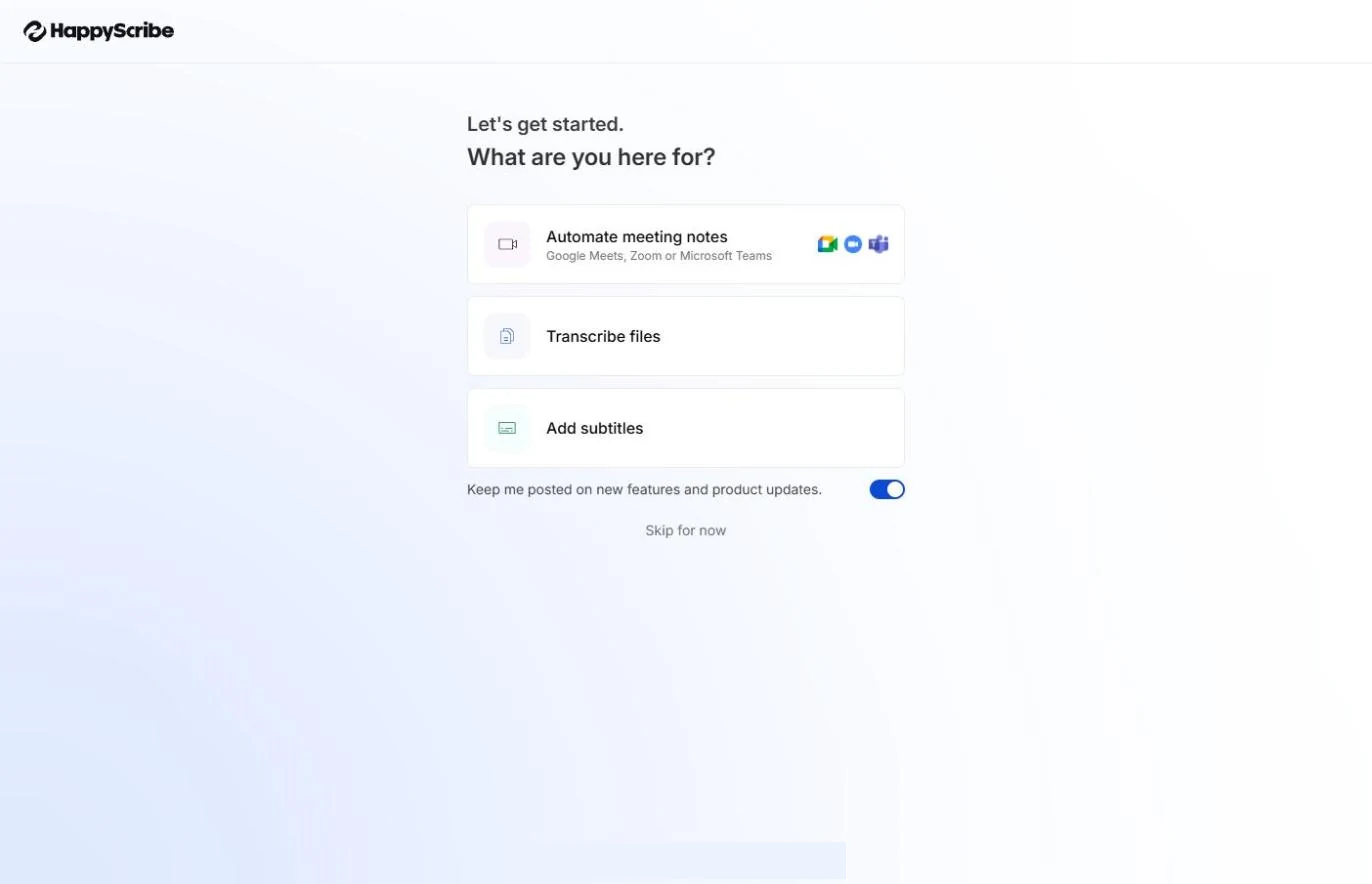
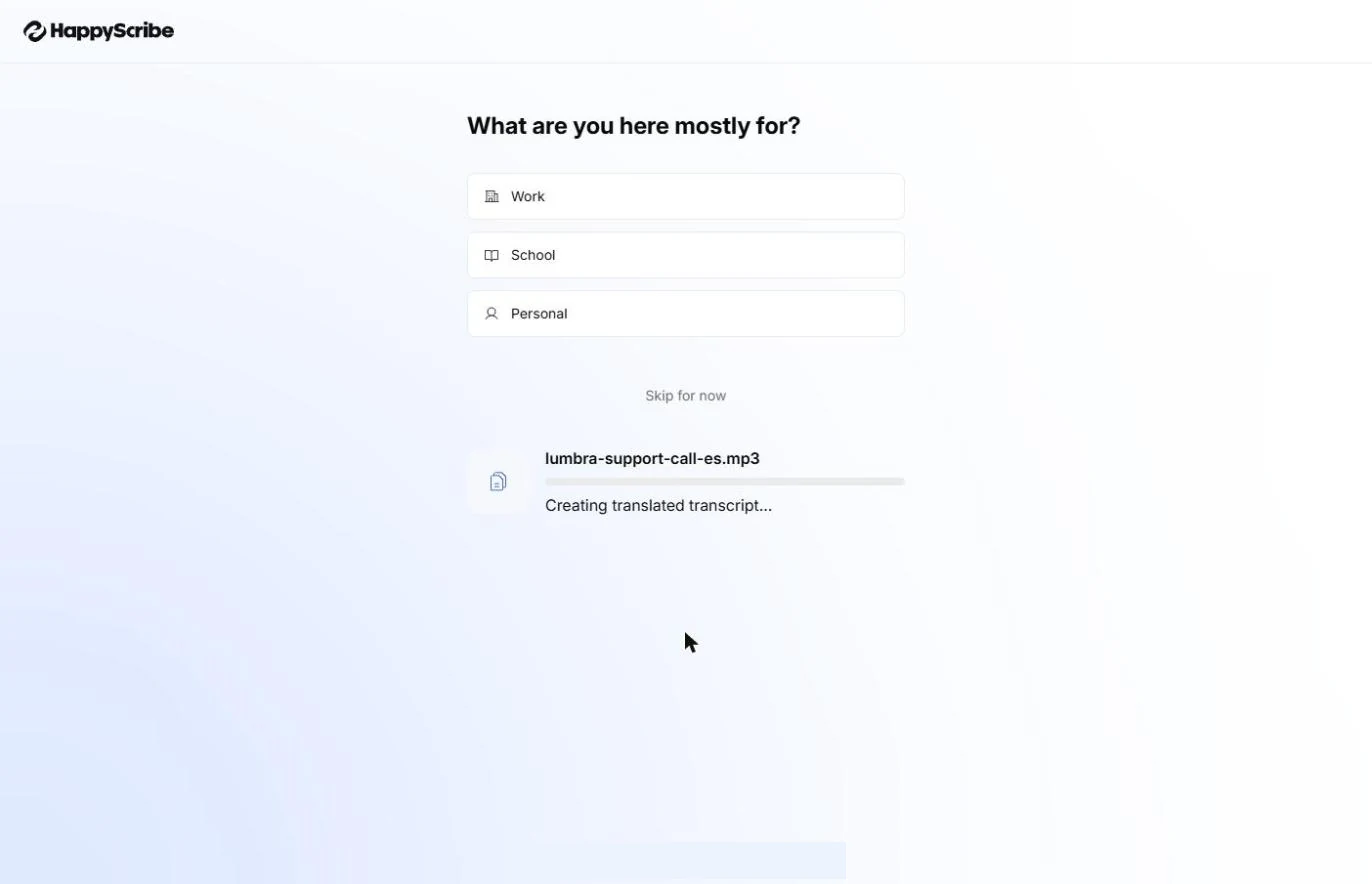
- Choose Transcribe files. On a new account, HappyScribe asks what you are here for. Click Transcribe files. The Keep me posted switch below it was on by default for us. Turn it off if you do not want product updates.
A new account asks what you are here for. The Keep me posted switch was on by default, so turn it off if you do not want updates.
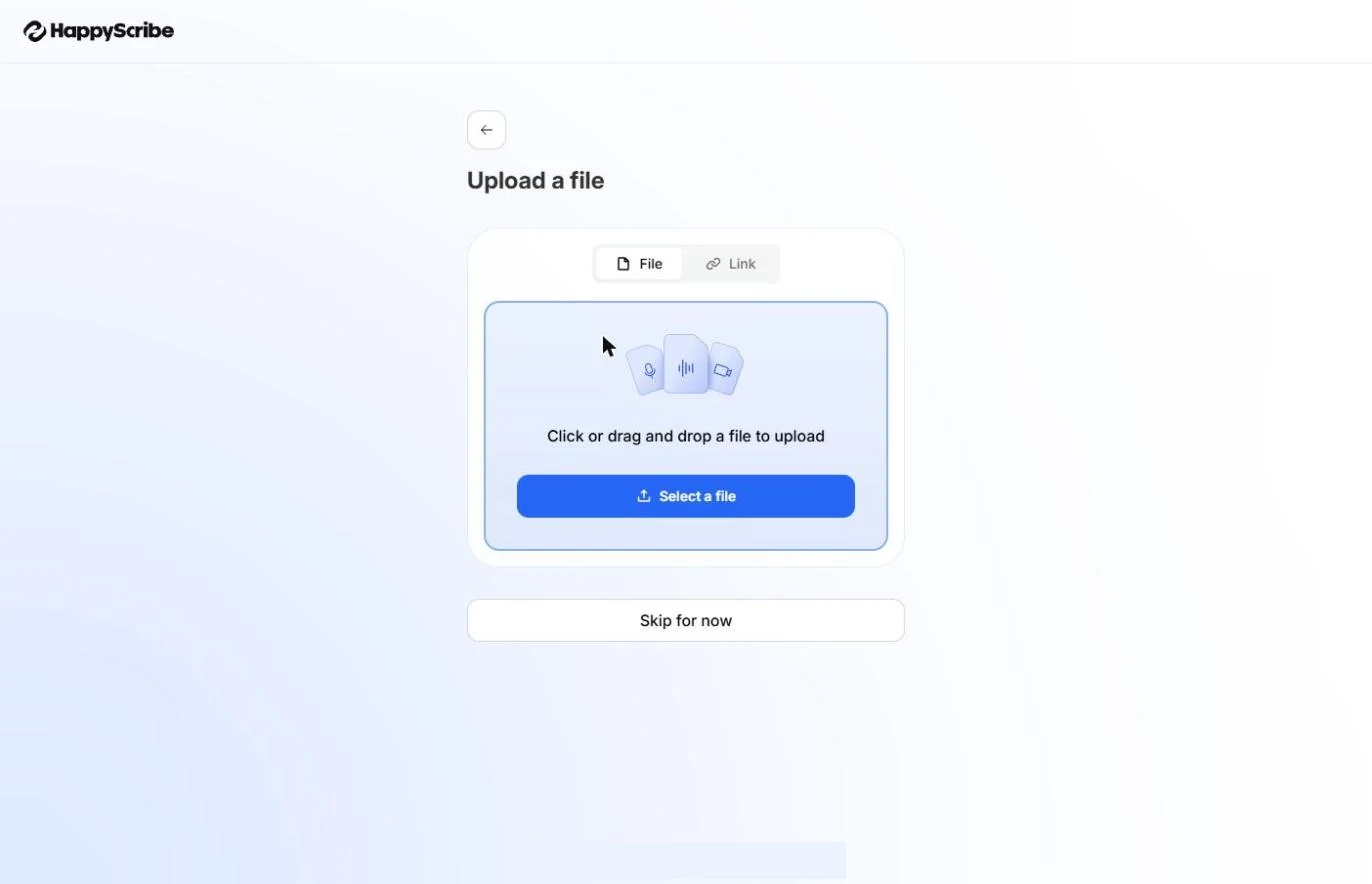
- Pick the file. Click Select a file and choose lumbra-support-call-es.mp3. Use only calls your company allows you to upload, and tell customers they are recorded if your rules require it.
Only upload calls your company allows.
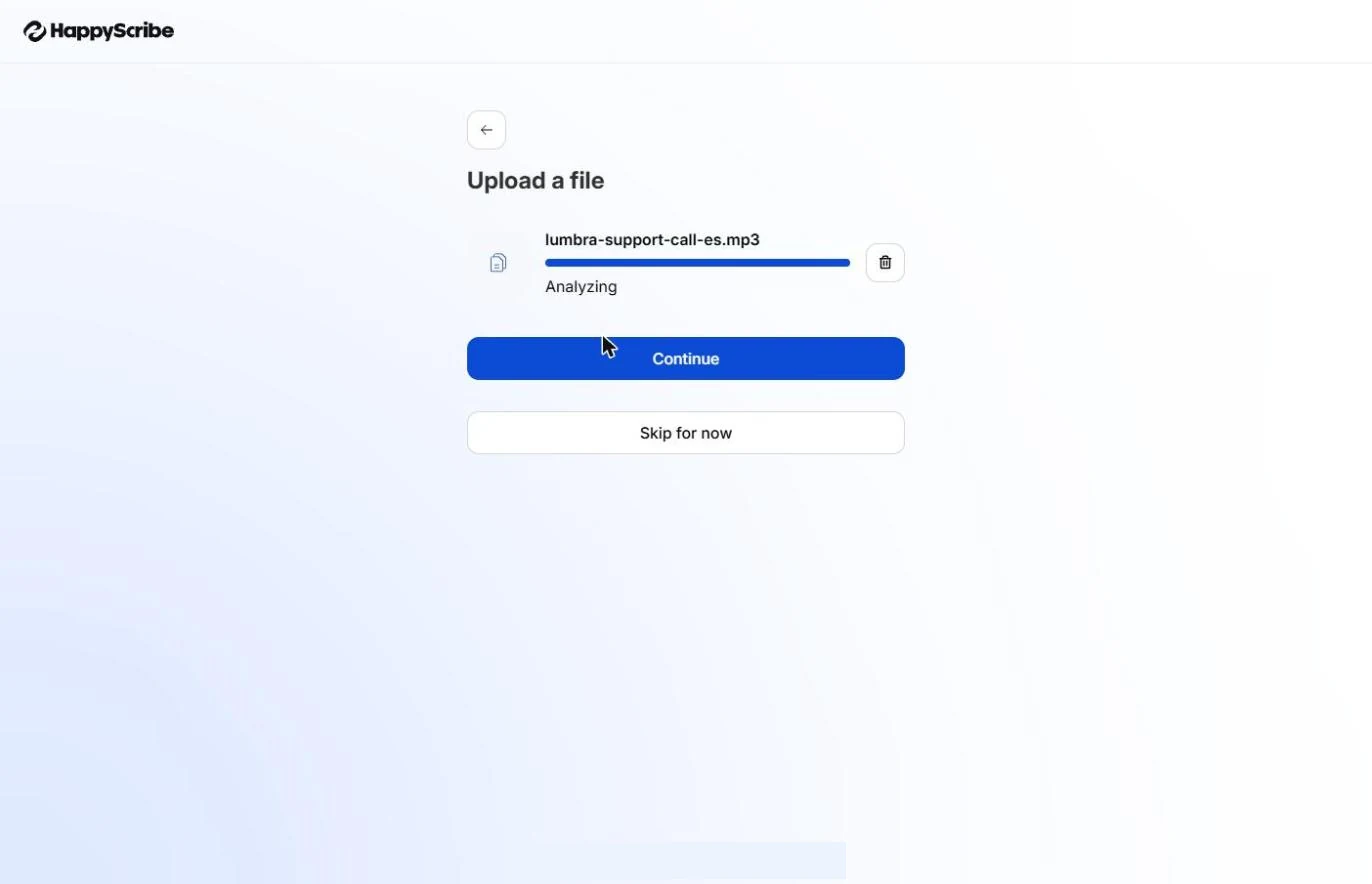
- Continue. It uploads the file and analyzes it. Click Continue.
It uploads and analyzes the file.
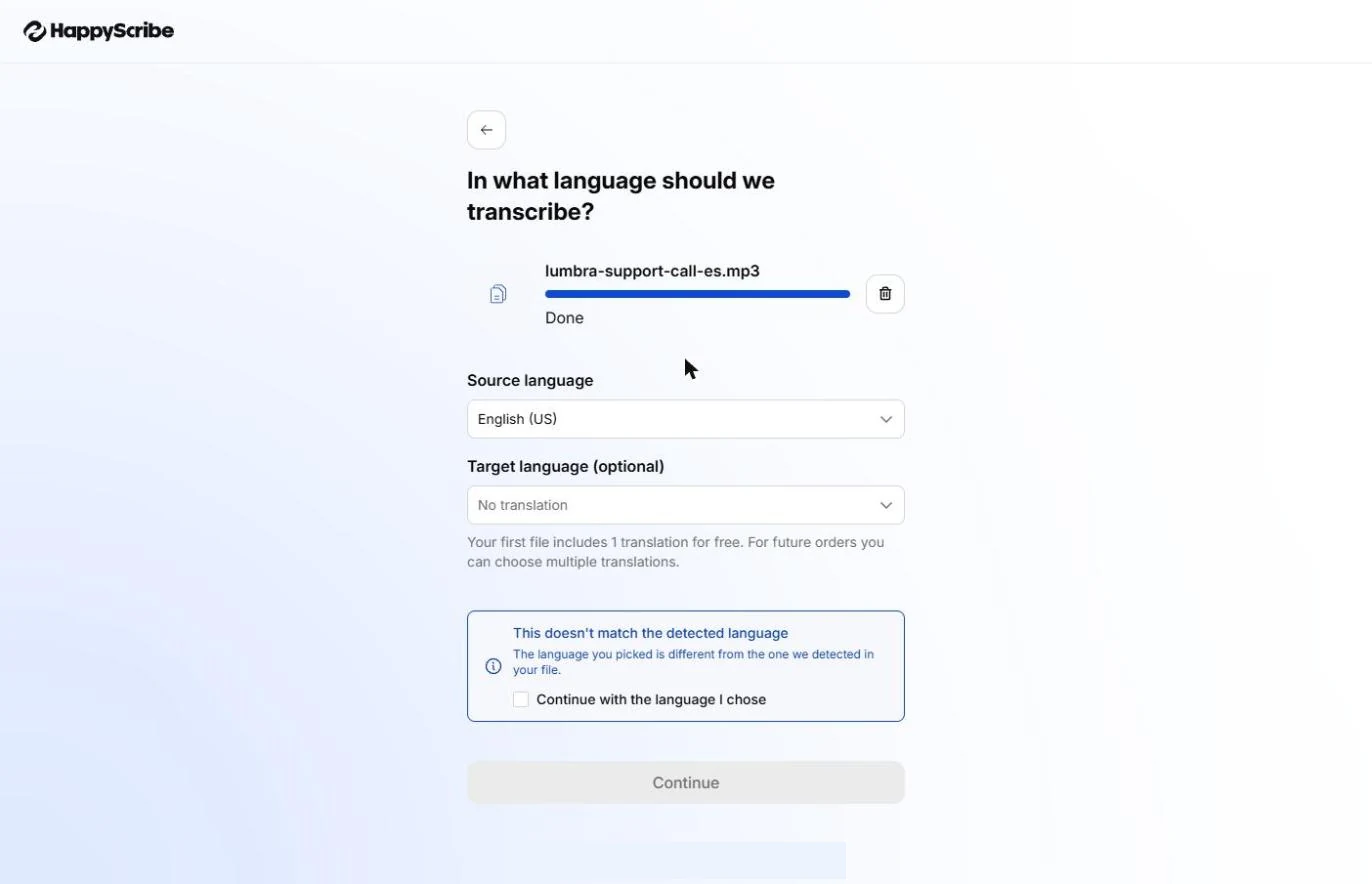
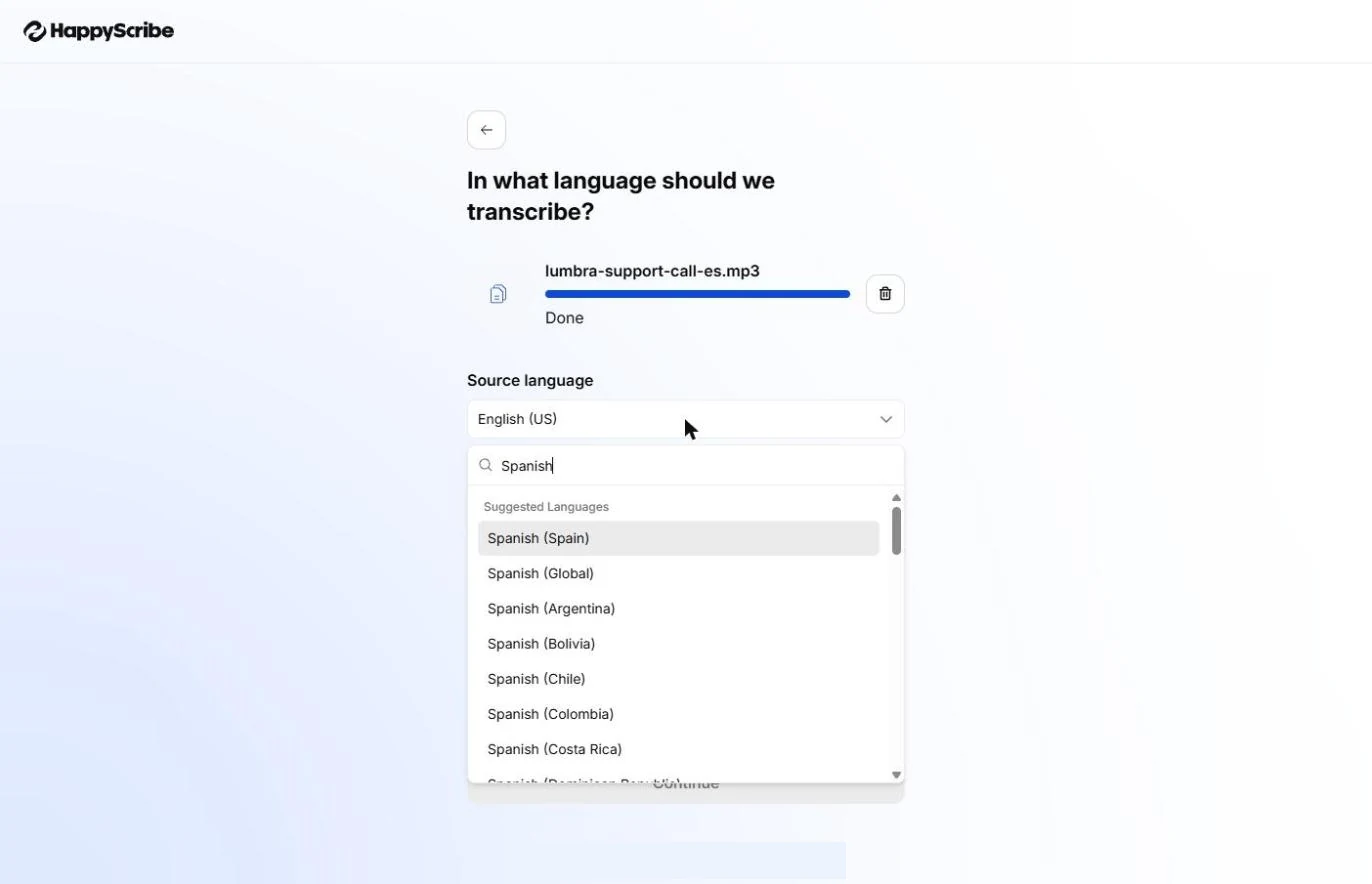
- Fix the language. Look at the default: Source language says English (US), and HappyScribe warns that this does not match what it detected in your file. Do not tick the box to continue anyway. Click Source language.
The source language says English, and HappyScribe warns that does not match the file. Do not continue anyway.
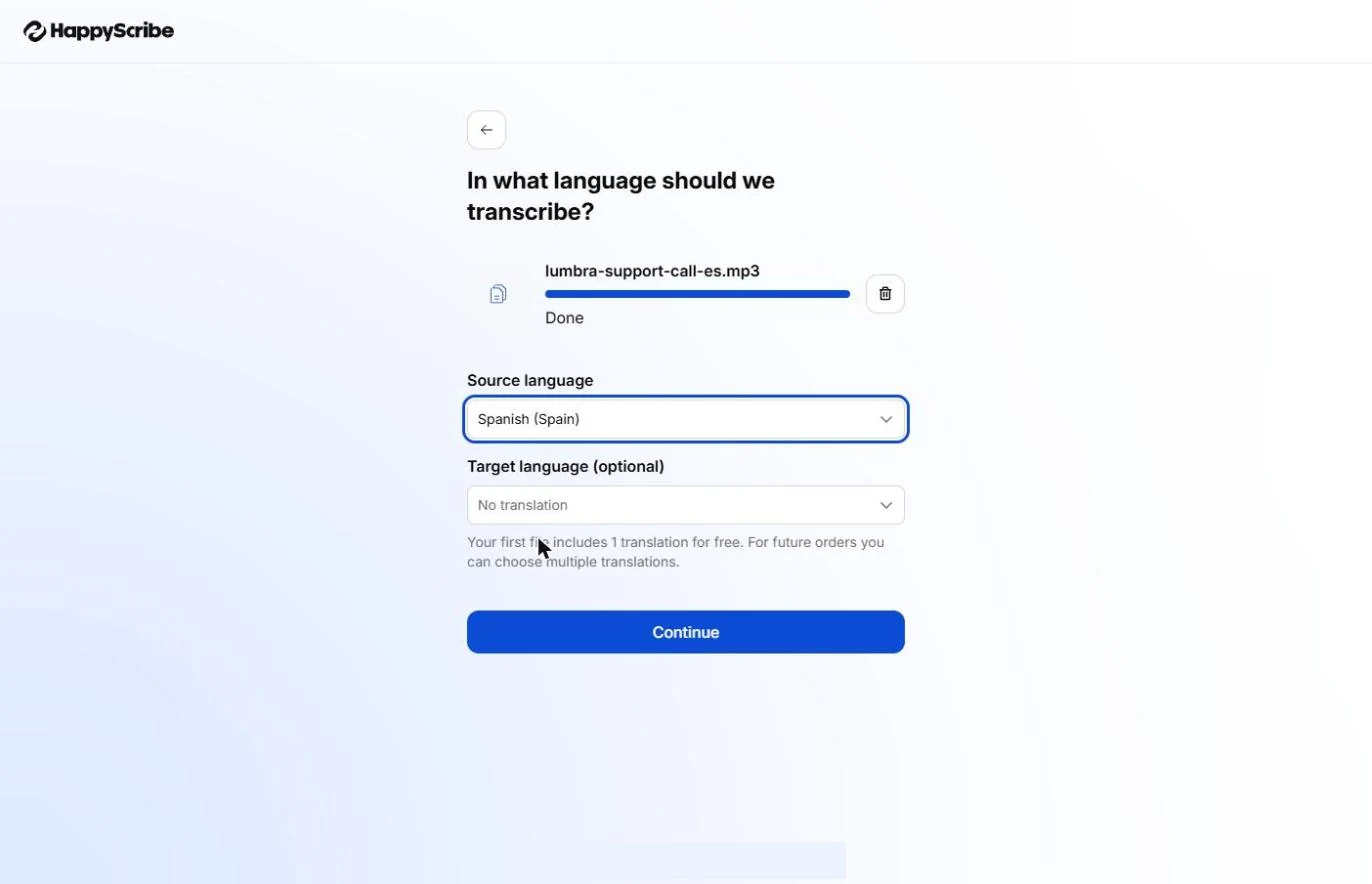
- Choose Spanish (Spain). Type Spanish. The list has one entry per country, so pick the one that fits your caller. Carmen is in Valencia. Click Spanish (Spain).
The list has one entry per country. Carmen is in Valencia, so click Spanish, Spain.
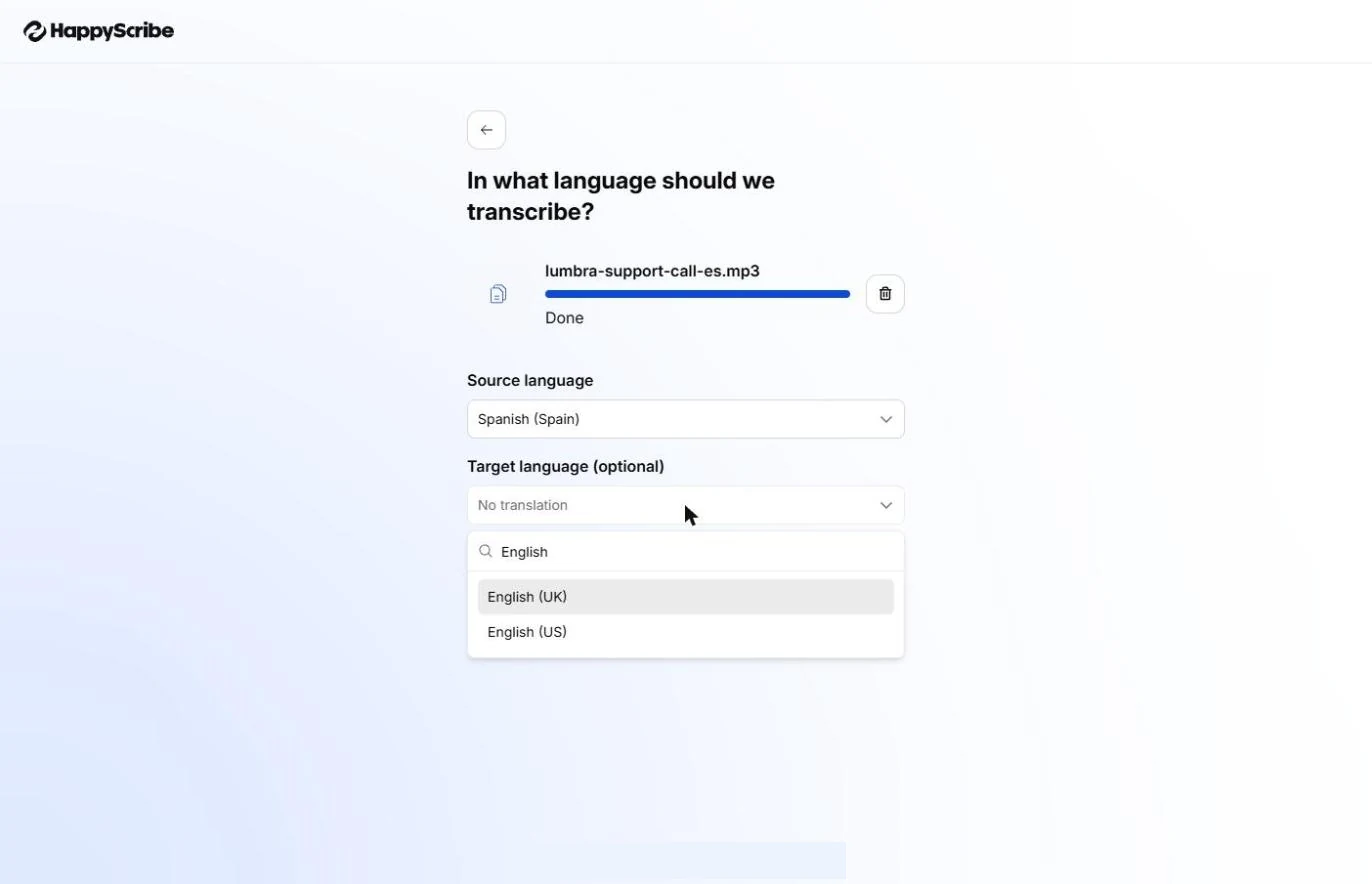
- Ask for English. The warning is gone. Target language is what gets you English, and it says No translation right now. The note says your first file includes 1 translation for free. Click Target language.
The warning is gone. Target language is what gets you English. Your first file includes one free translation.
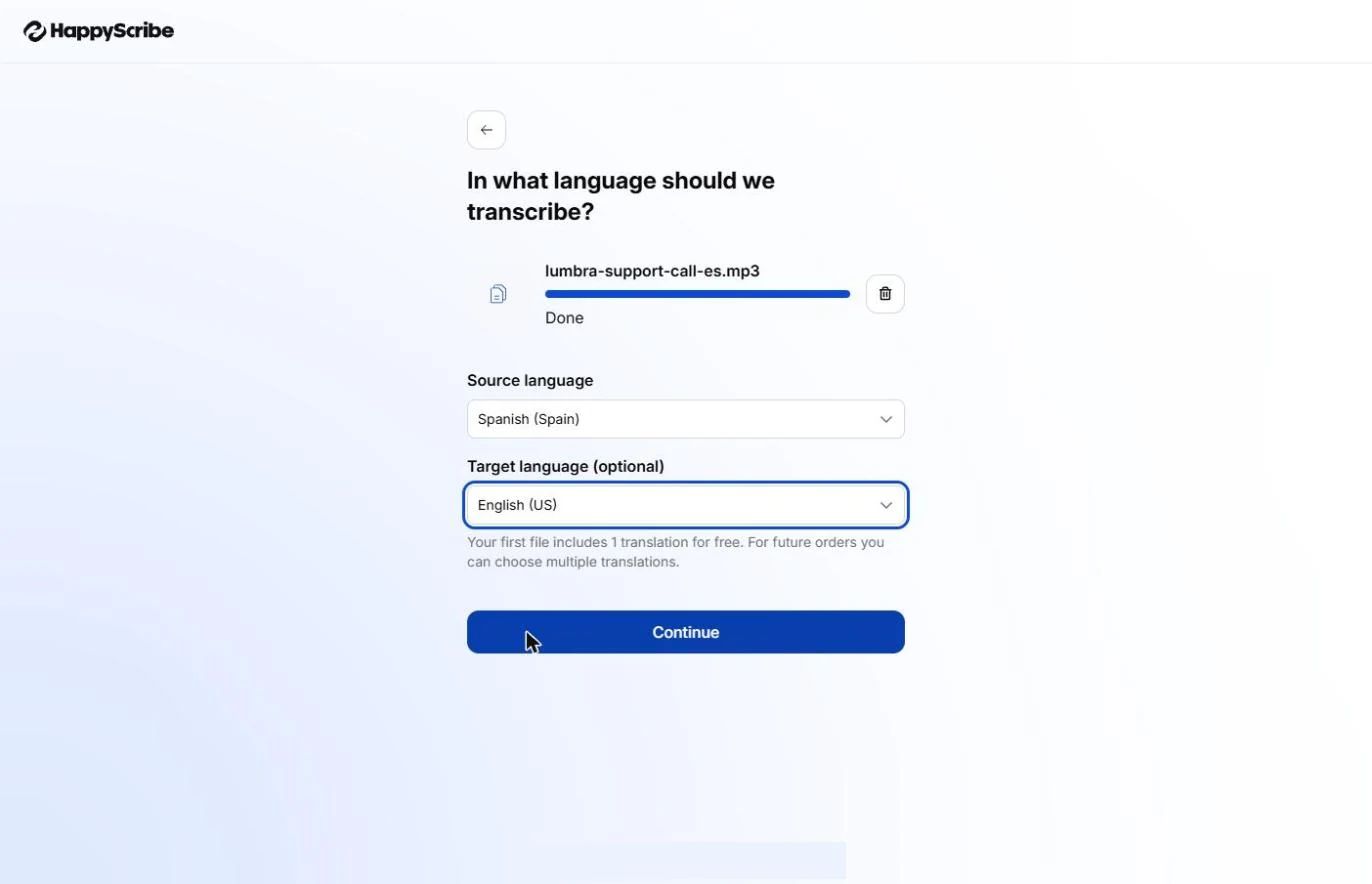
- Choose English (US). Type English and click English (US).
- Start it. Spanish in, English out. Click Continue. This starts the job and uses your free minutes.
Spanish in, English out. This starts the job, and uses your free minutes.
- Skip the profile question. The file keeps working underneath while HappyScribe asks about you. Answer it if you like. We clicked Skip for now.
The file keeps working while it asks about you. We clicked Skip for now.
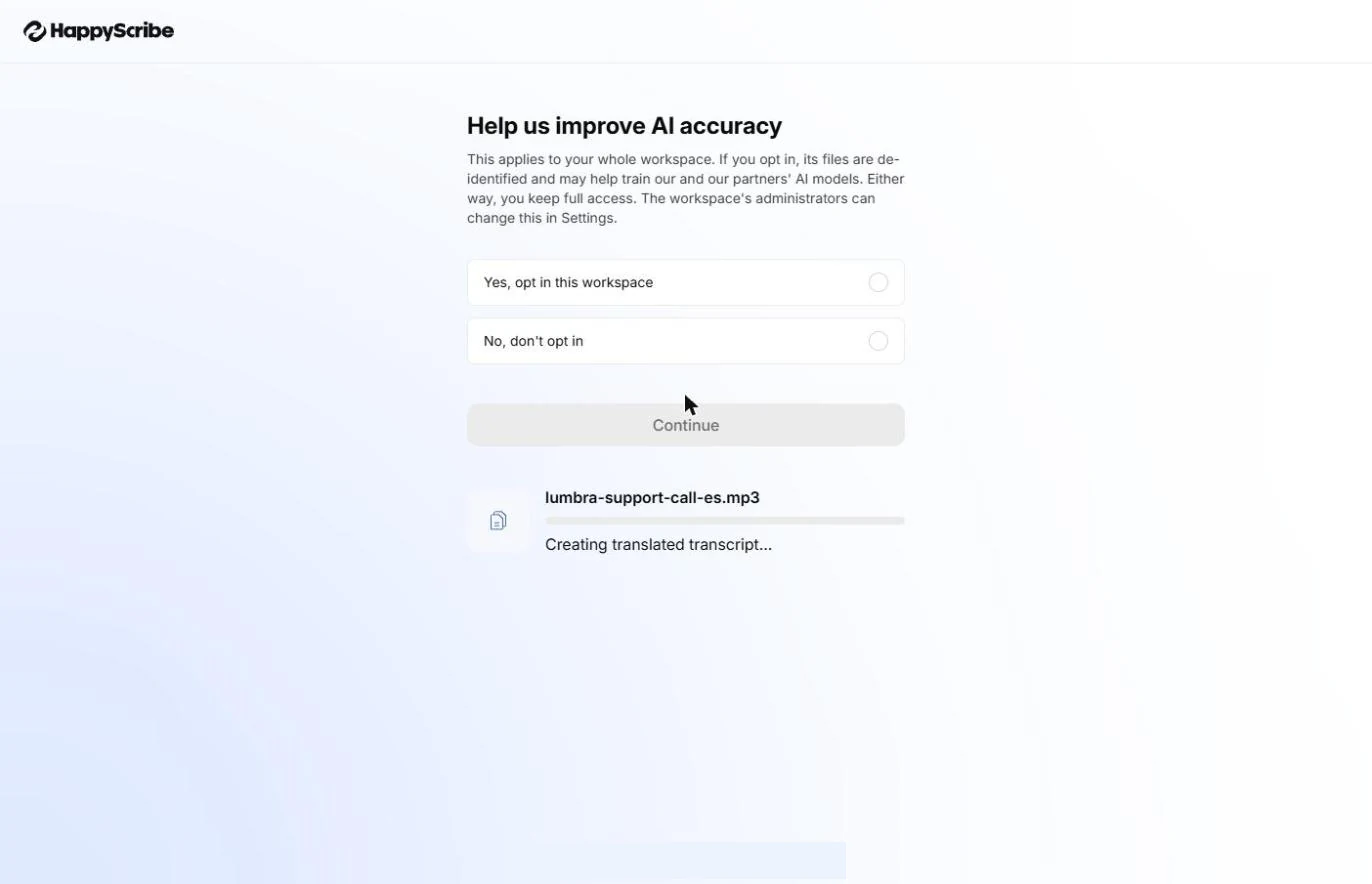
- Read the AI training question. HappyScribe asks whether your workspace files may help train AI models. Read this one properly. It says that if you opt in, files are de-identified and may help train its and its partners’ models, that it applies to the whole workspace, and that you keep full access either way. Click the text once you have read it.
It asks whether your workspace files may help train A I models. Read this one properly. It applies to the whole workspace.
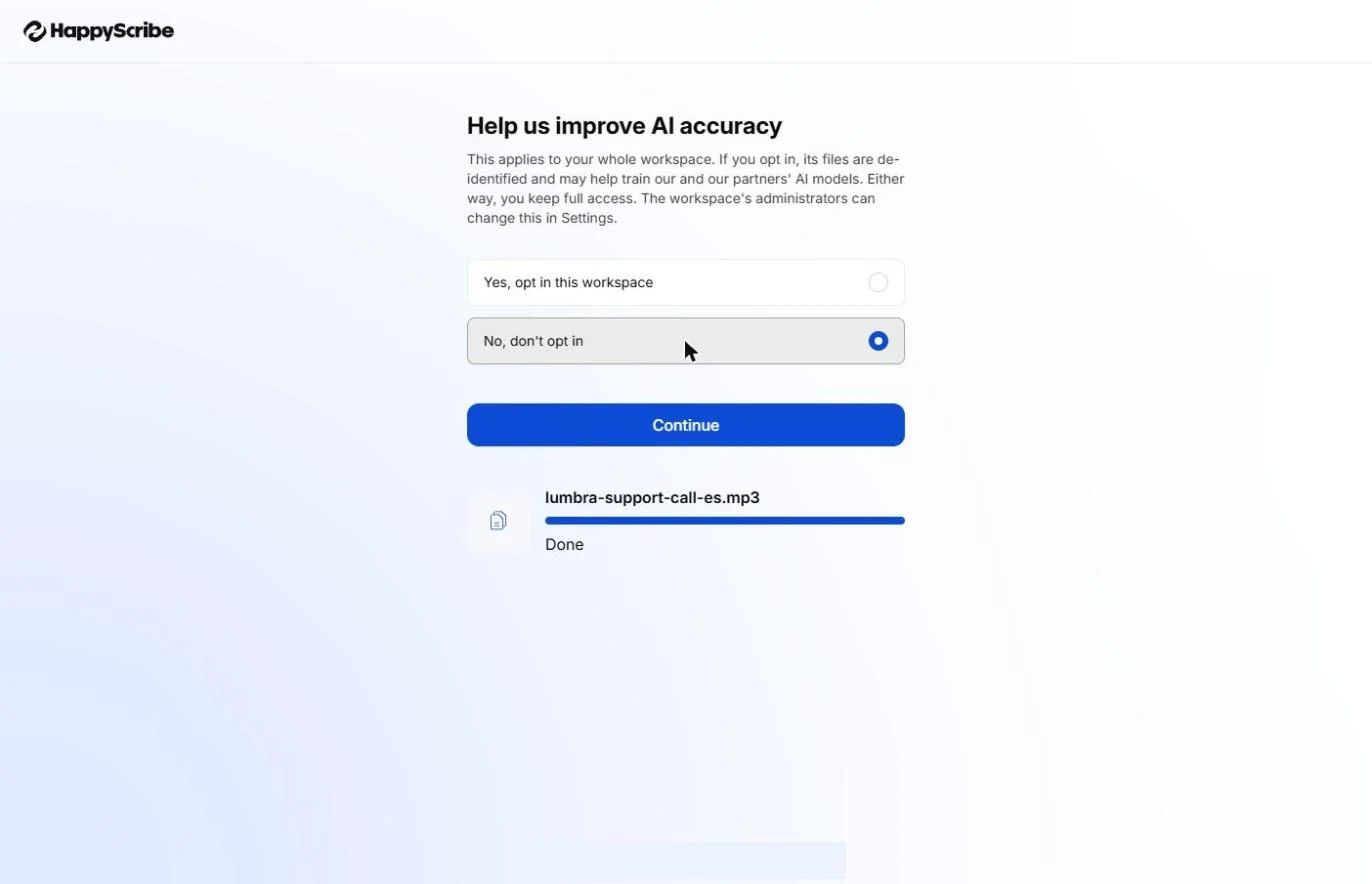
- Pick what fits your policy. You must pick one to go on. Choose what fits your company’s policy, and ask whoever owns that policy if you are not sure. Customer calls can hold private details. Admins can change this later in Settings. Our test account chose No, don’t opt in, so that is what you see here. Click Continue.
You must pick one to go on. Admins can change it later in Settings. Our test account chose no.
3. Get the notes
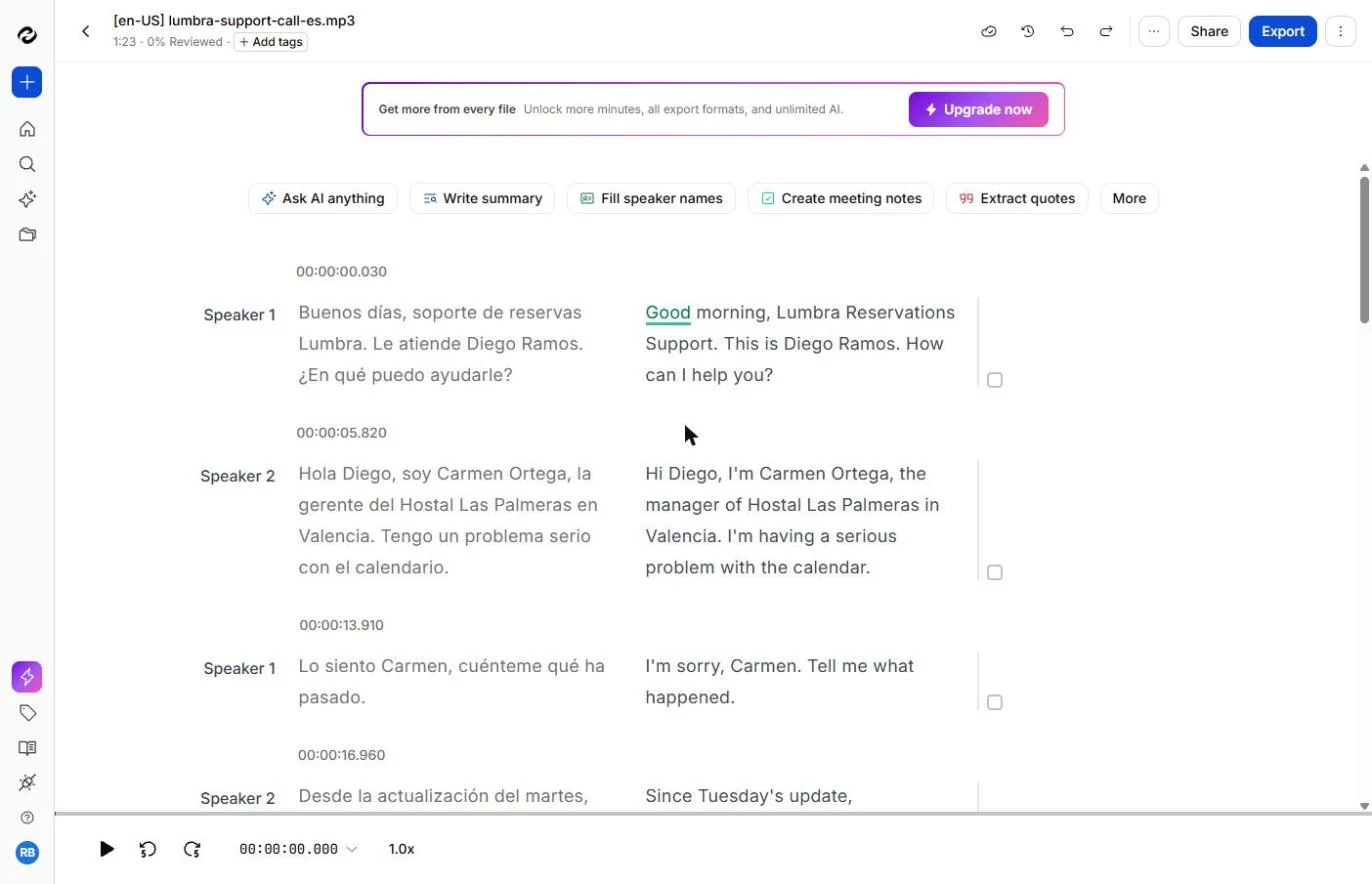
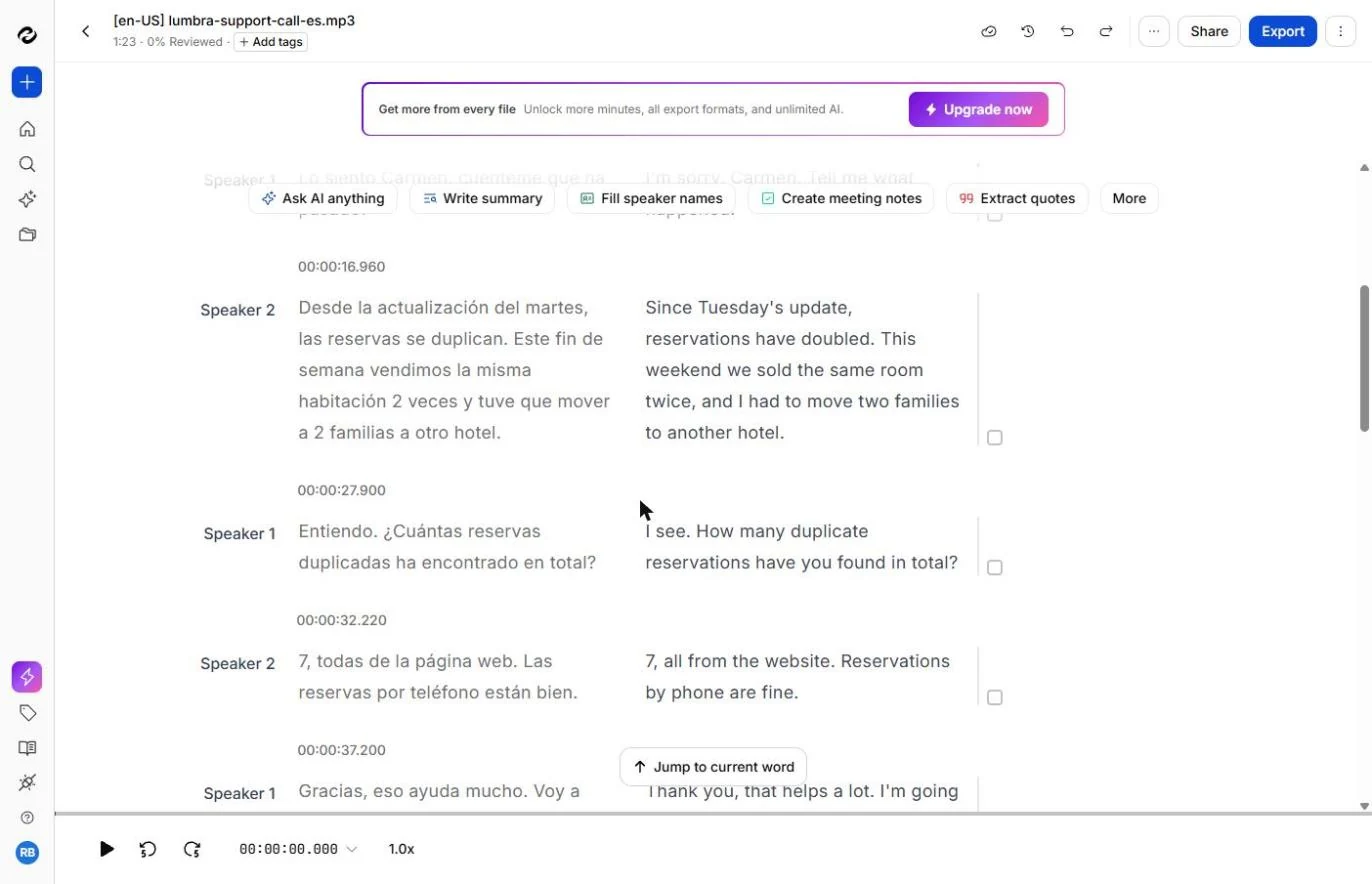
- Read both languages. Ours finished in about a minute. Spanish on the left, English on the right, line by line, with timestamps and Speaker 1 and Speaker 2. It split the two speakers correctly in all 13 turns of our call. Click the first English line.
Ours finished in about a minute. Spanish on the left, English on the right, line by line. It split the two speakers correctly.
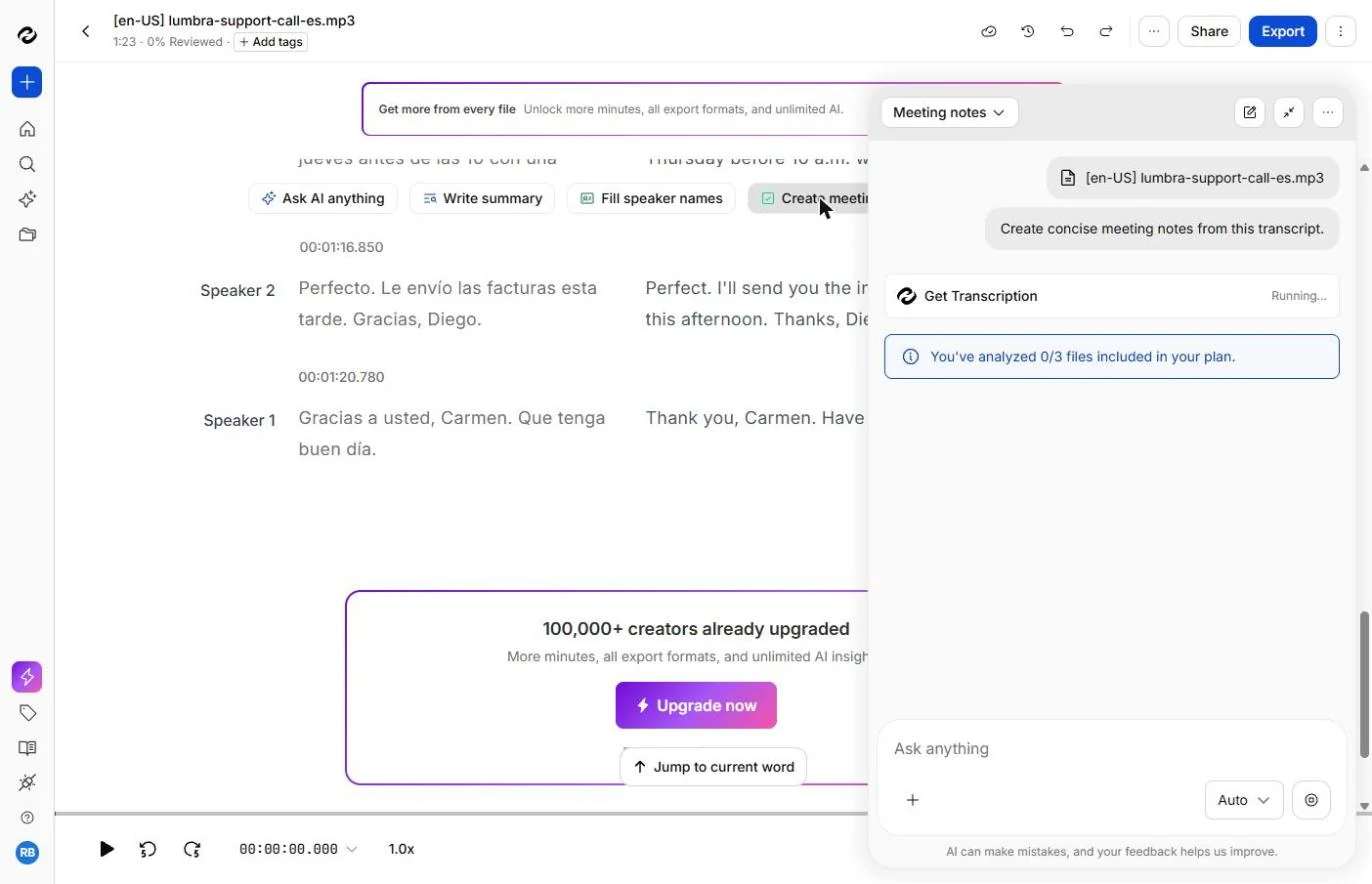
- Create the notes. You need the short version for your team. Click Create meeting notes. A support call counts as a meeting here.
You need the short version for your team.
- Note the limit. A chat panel opens and runs the request for you. See the blue line: You’ve analyzed 0/3 files included in your plan. The pricing page lists 3 files a month with AI Chat on the Free plan. Asking again about the same file stayed at 1/3 in our run. Click the blue line.
A chat panel opens and runs it. See the blue line. The Free plan lists three files a month with A I chat. Asking again about the same file did not use another one.
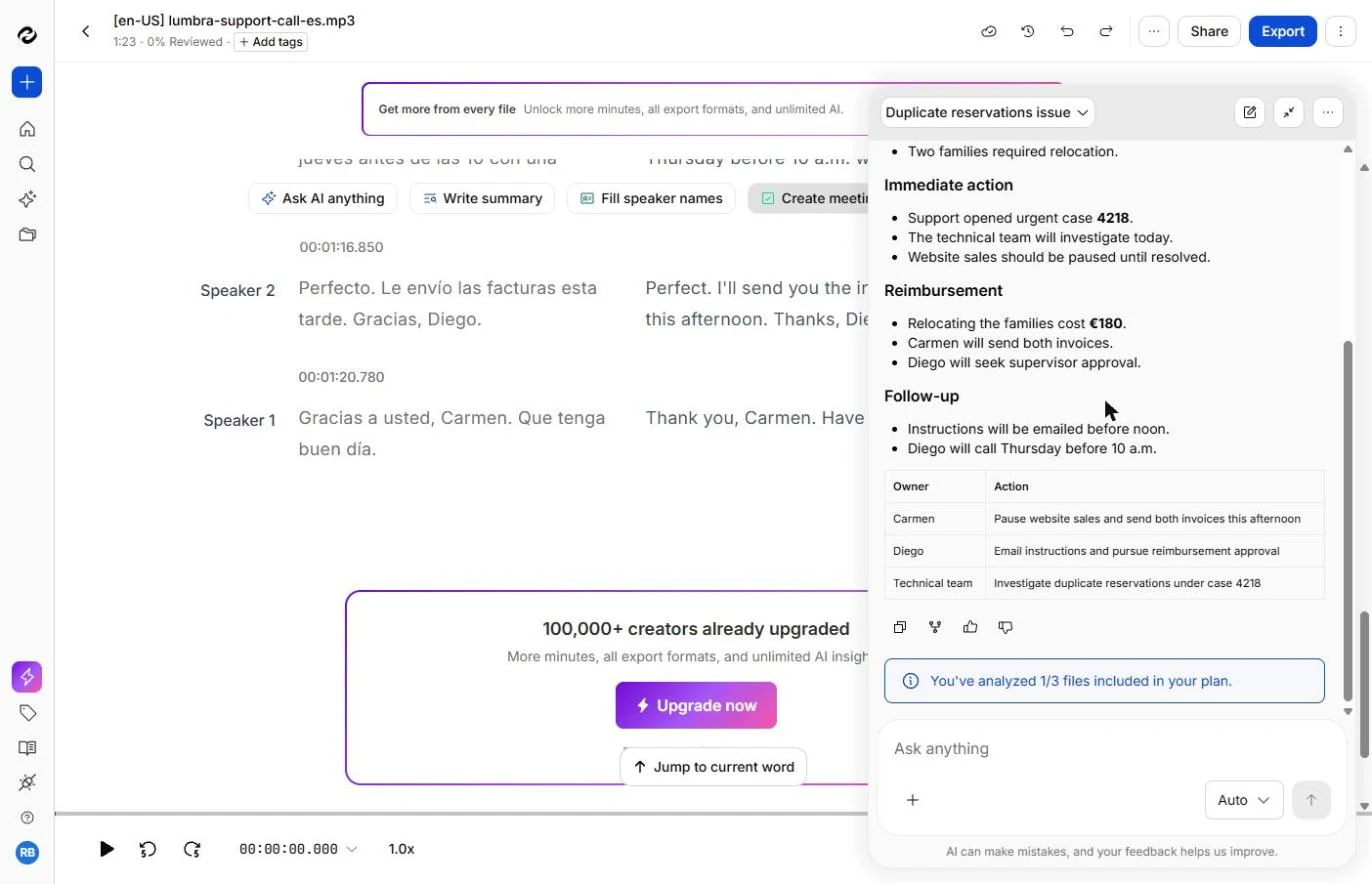
- Read the owners. In English: the issue, the immediate action, the reimbursement, the follow-up, and an Owner and Action table. It is a good start, but the table has no deadlines, and your team needs them. Click the table.
In English: the issue, the action, the reimbursement, and an owner table. It is a good start, but the table has no deadlines.
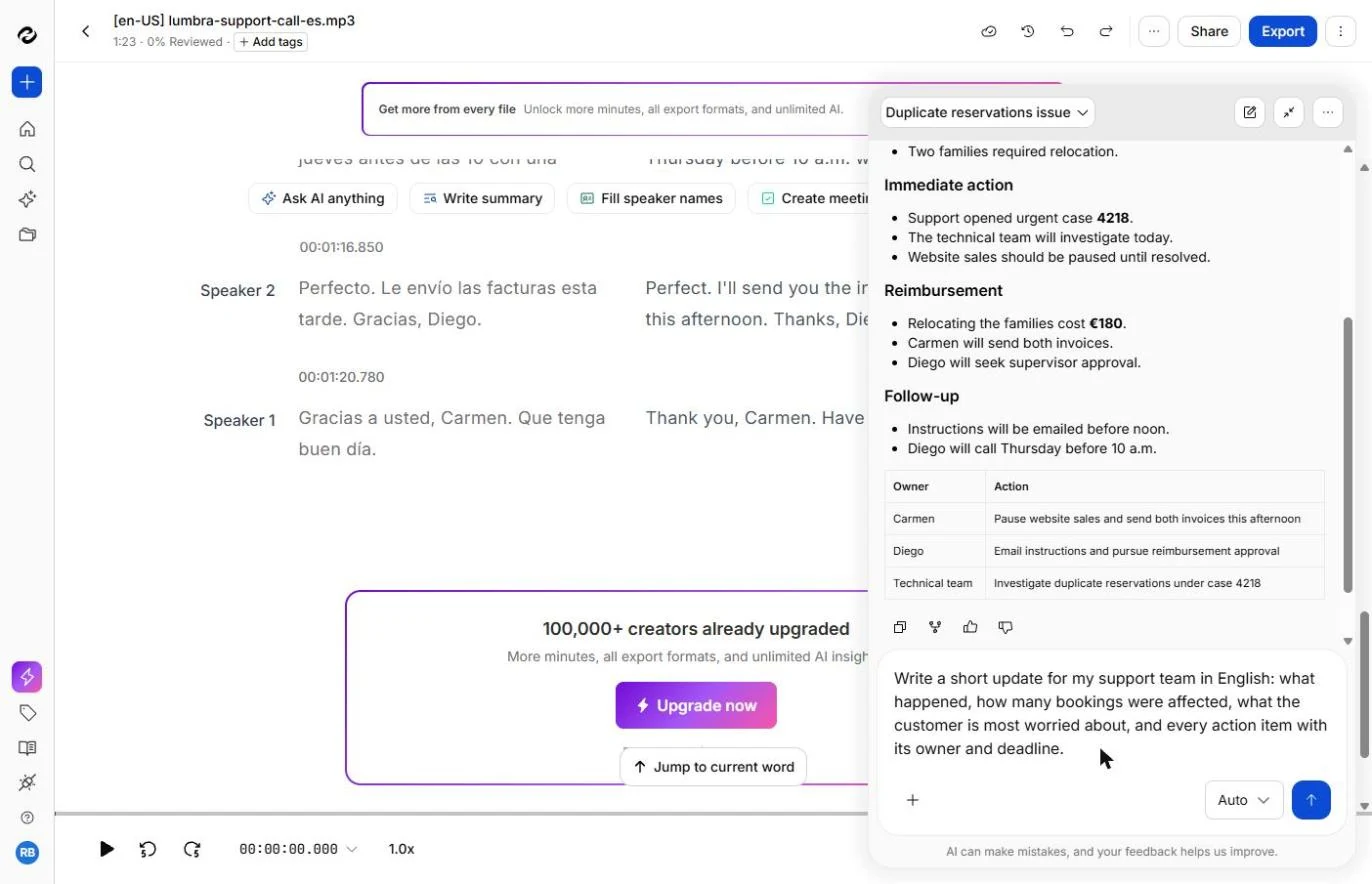
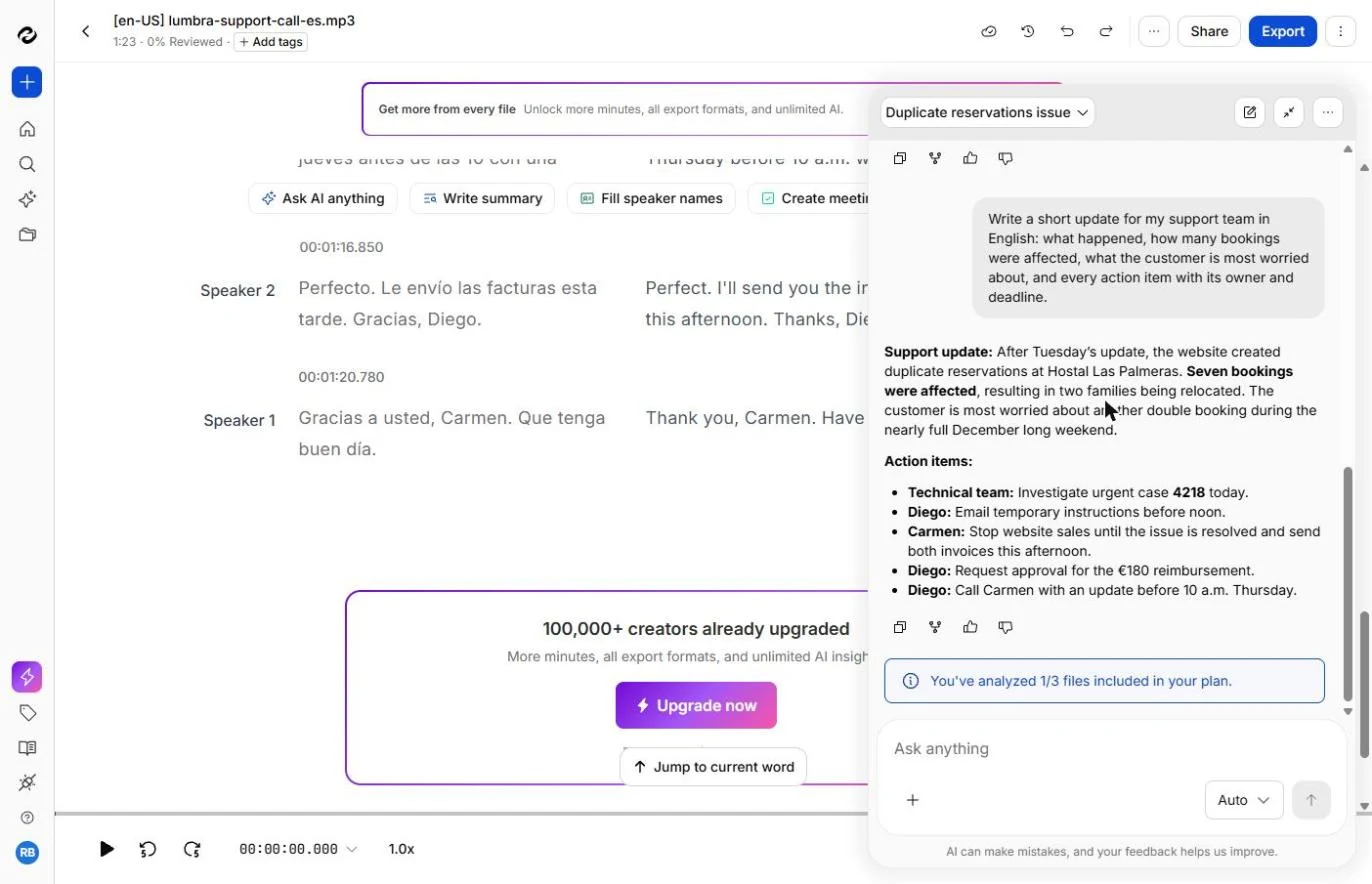
- Ask for what your team needs. Tell it exactly what the update must hold. Ask for what the customer is most worried about, plus owners and deadlines, in the Ask anything box.
Tell it exactly what the update must hold, including what the customer is most worried about, and owners and deadlines.
Write a short update for my support team in English: what happened, how many bookings were affected, what the customer is most worried about, and every action item with its owner and deadline.
- Send it. Click the blue arrow.
4. Check the AI
- Read the update. Now it says what you asked: seven duplicate bookings, two families moved, and the worry about the nearly full December long weekend. The notes before this left that worry out. Click the paragraph.
Now it says what you asked: seven duplicates, two families moved, and the worry about the nearly full December long weekend. The notes left that out.
- List the facts to check. Before you share this, check every number, name and deadline: case 4218, noon, 180 euros, Thursday before 10. Click the action items, then go to the Spanish.
Before you share this, check every number, name and deadline.
- Compare with the Spanish. Here is the script. Numbers and times are easy to match even with little Spanish. Siete is 7. Antes de las doce is before noon. Ciento ochenta euros is 180 euros. El jueves antes de las diez is Thursday before 10. All of them match. In a real call you have no script, so use the Spanish column in HappyScribe. Also look at yo le pido a mi supervisora que apruebe el reembolso: Diego only promised to ask. The refund is not approved yet. Click that line.
Numbers and times are easy to match, even with little Spanish. All of them match. Now look at the highlighted line. Diego only promised to ask his supervisor. The refund is not approved yet.
- Catch the wrong word. Scroll up in the transcript to this line. The Spanish says las reservas se duplican, meaning bookings are being duplicated. The English says reservations have doubled, which sounds like good news. Nothing else in the transcript was this far off. Correct it in anything you send. Click the word.
The Spanish says bookings are being duplicated. The English says reservations have doubled, which sounds like good news. Correct it in anything you send.
5. Share it, and know the limits
- Copy the update. Your update already says duplicate, and it was right on the facts we checked. On a second try the same request said Support where this one says Diego, so check the owners too. Click the copy icon, then paste it where your team works and read it once more.
On a second try, the same request named Support instead of Diego, so check the owners too.
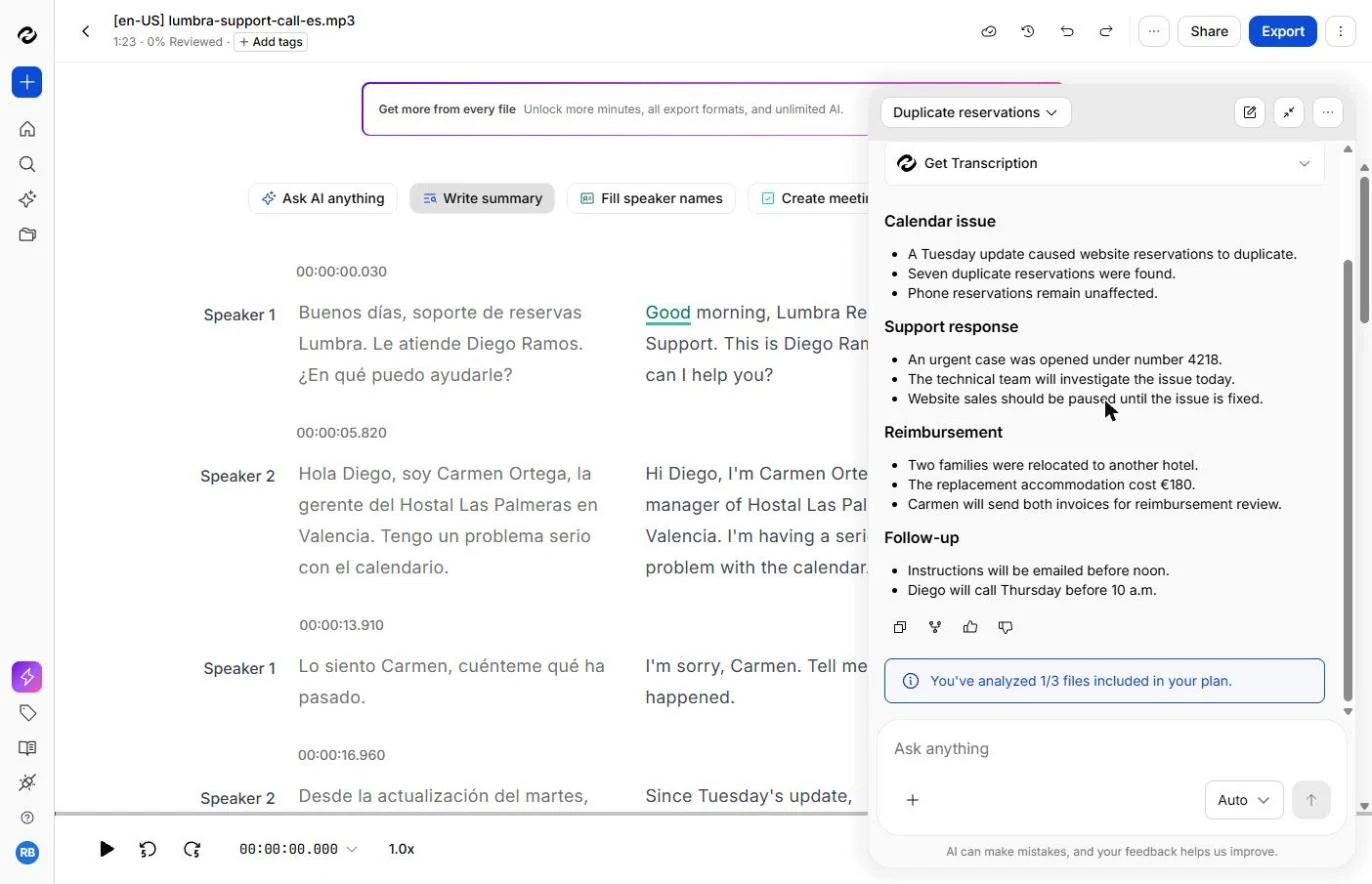
- See Write summary. Need it shorter? We opened the file again and clicked Write summary. It got the facts right, and added that phone bookings were fine. But it never mentioned December, the thing Carmen was most worried about. The buttons give you a fair start. Your question gets you what matters. Click the follow-up.
We opened the file again, and clicked Write summary. It got the facts right, but never mentioned December, the thing Carmen was most worried about.
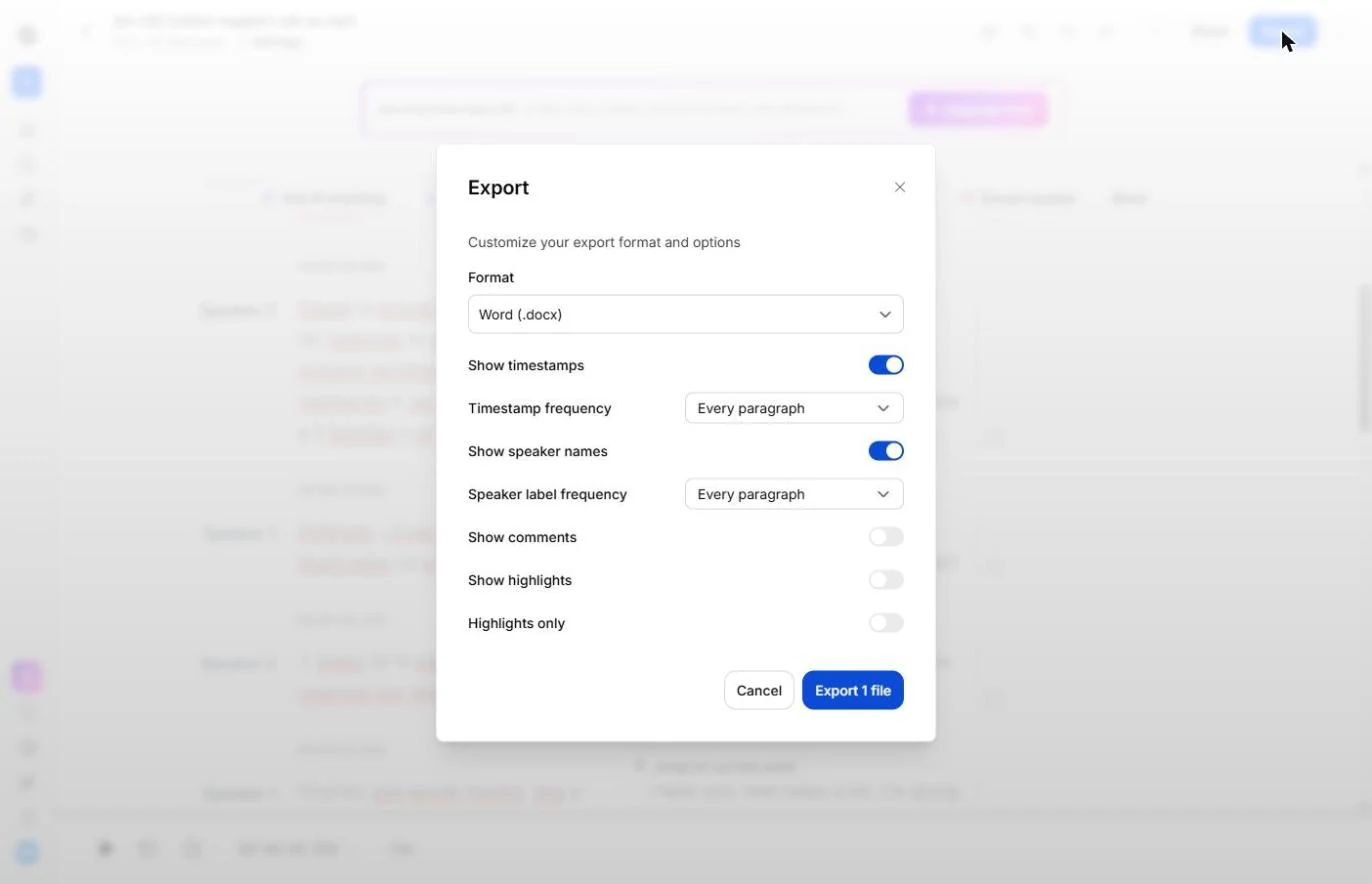
- Open Export. To keep the transcript as a file, click Export at the top right.
To keep the transcript as a file, click Export.
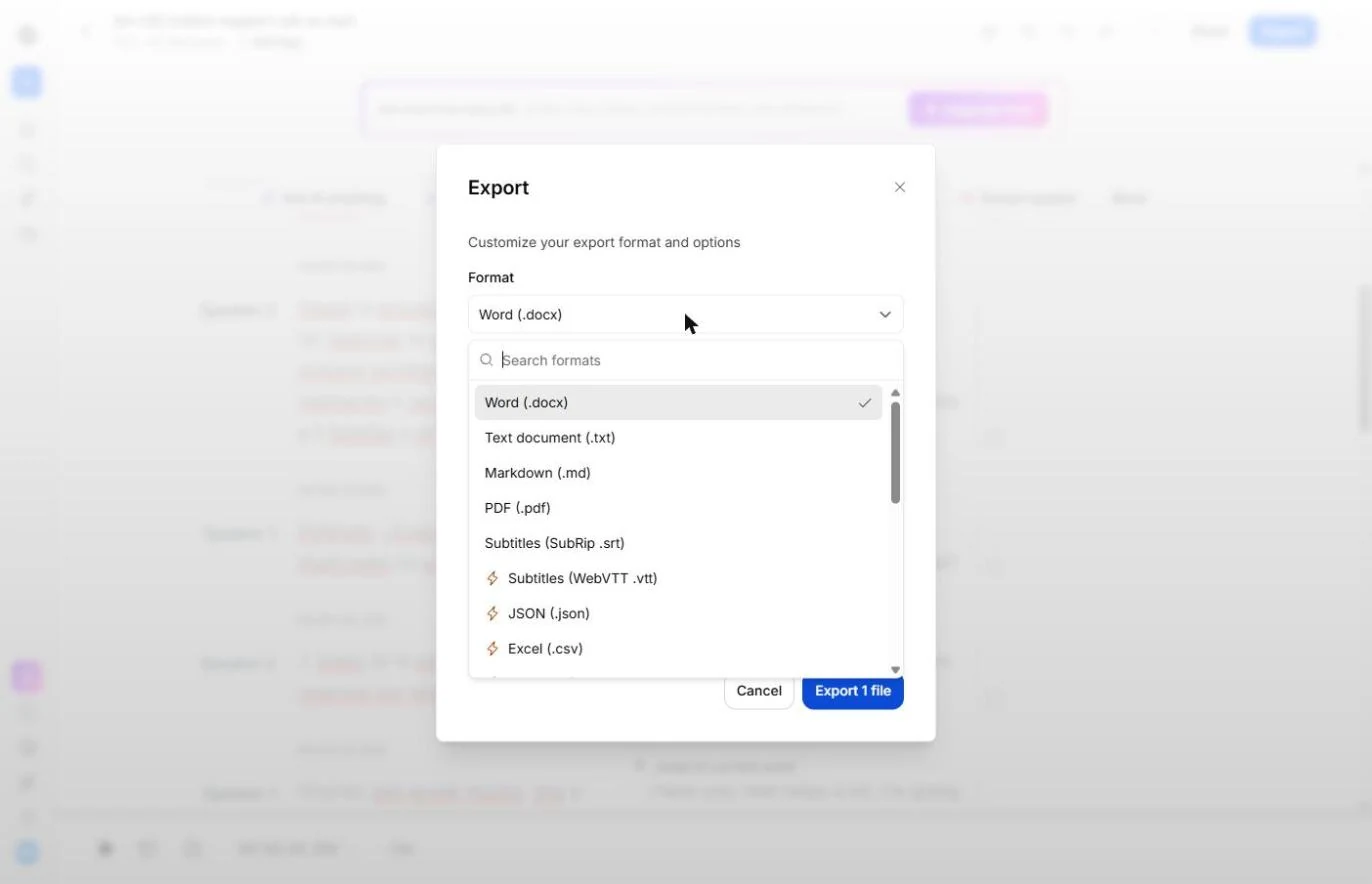
- Look at the formats. You can choose timestamps and speaker names. Click Format.
You can choose timestamps and speaker names.
- Spot the upgrade marks. Word, text, Markdown, PDF and SubRip show no mark in the list. Formats with a lightning bolt, like WebVTT, JSON and Excel CSV, are marked as upgrade features. We did not download a file in this run, so try the one you need. Click the marked ones.
Word, text, Markdown and P D F show no mark. Formats with a lightning bolt are upgrade features. We did not download a file, so try the one you need.
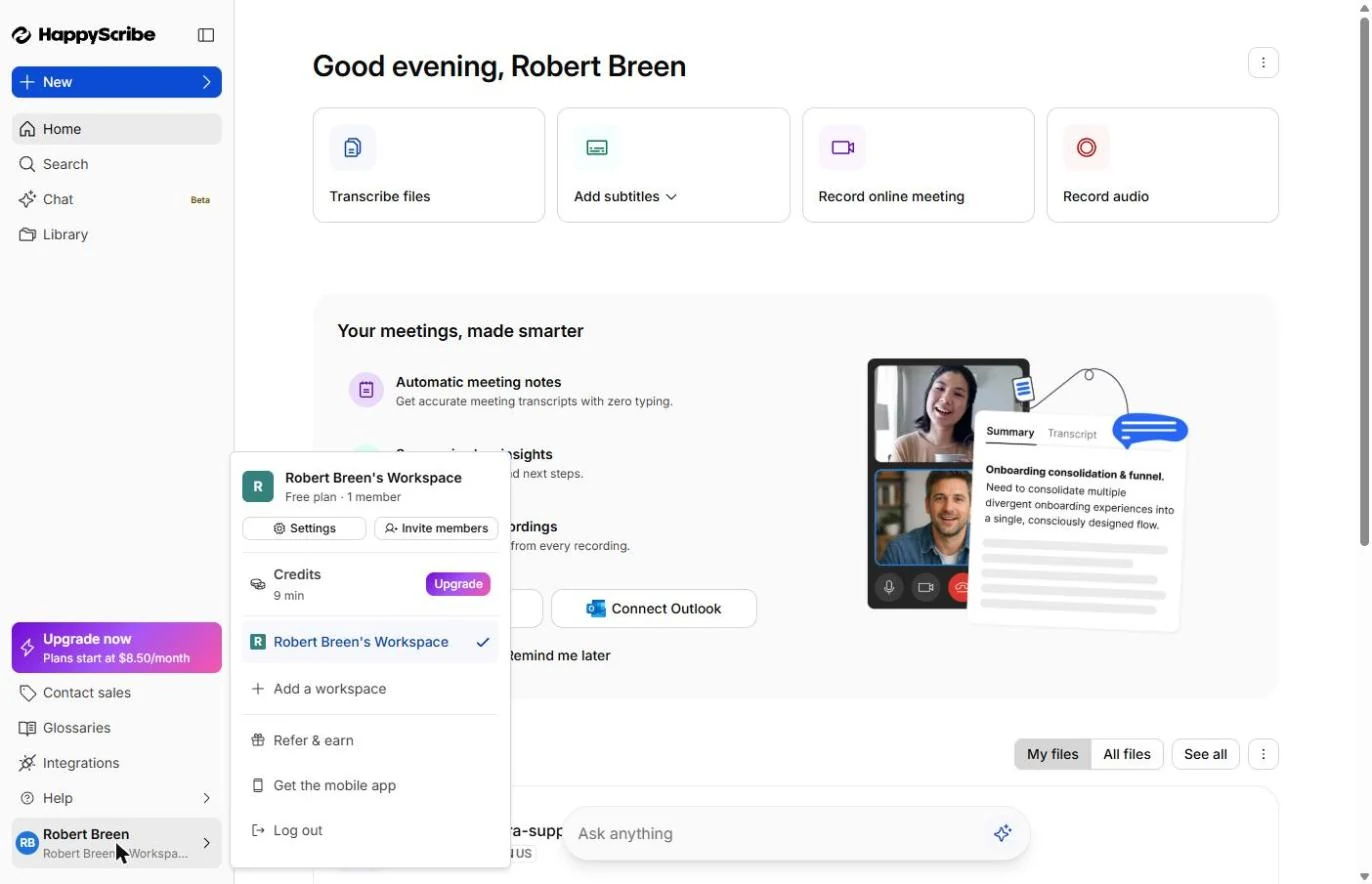
- Check your minutes. Click your name at the bottom left. Credits showed 9 min after our 1:23 call, from the 10 free AI minutes. That is the Free plan: enough to try a few short calls, not a support queue. Click Credits to finish.
Credits showed nine minutes after our call, from the ten free. That is enough to try a few short calls.
Screenshots
More in Business Automations
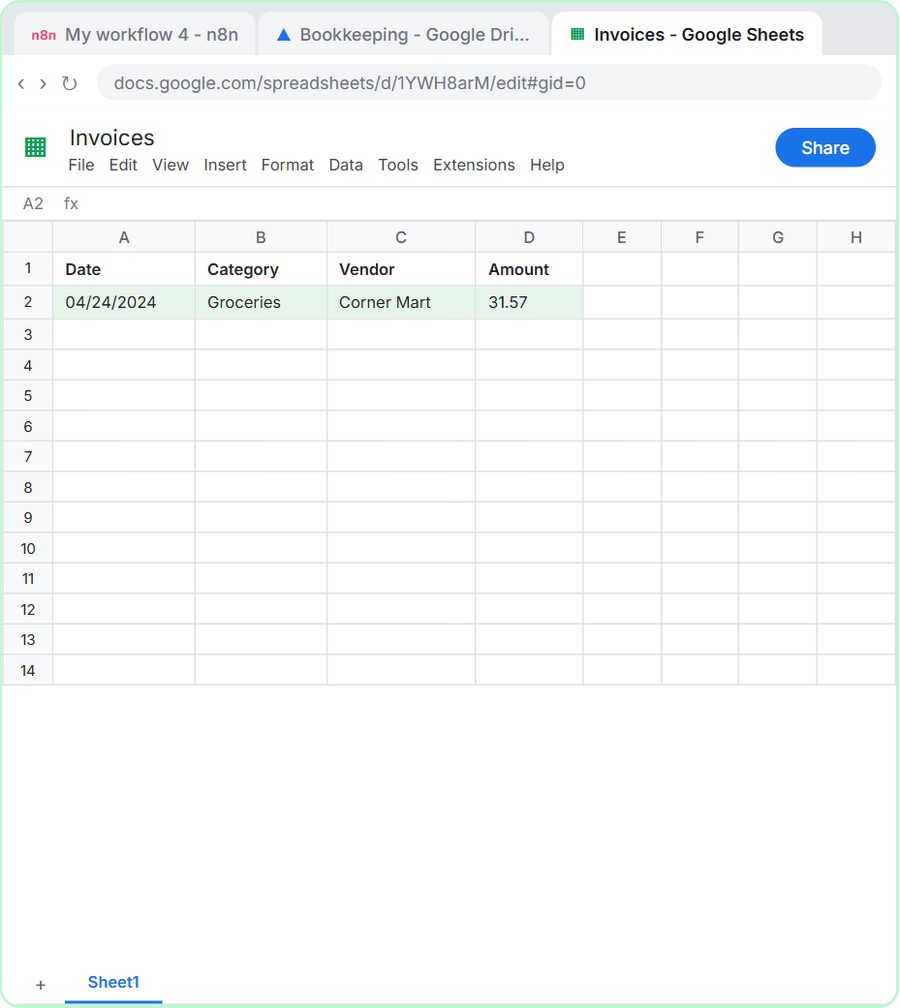 AI Receipt Extractor: Receipts to Google Sheets with n8n
Drop a photo of a receipt into an n8n chat. An AI agent reads it, pulls out the date, vendor and amount, picks a category, and adds a row to Google Sheets.
Free · Live ~12 min Intermediate
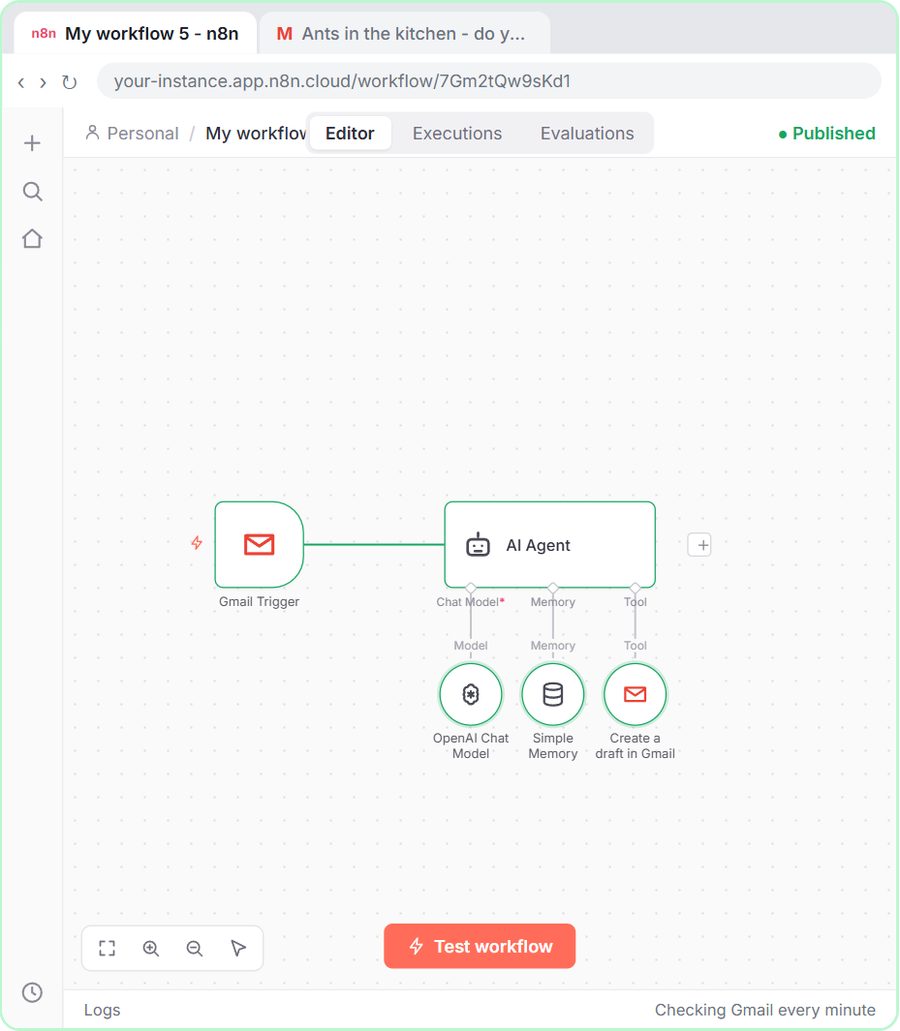 n8n AI Email Responder: Draft Gmail Replies Automatically
Build an n8n agent that watches your Gmail, reads each new customer email, and writes a reply as a draft in the same thread, ready for you to check and send.
Free · Live ~12 min Intermediate
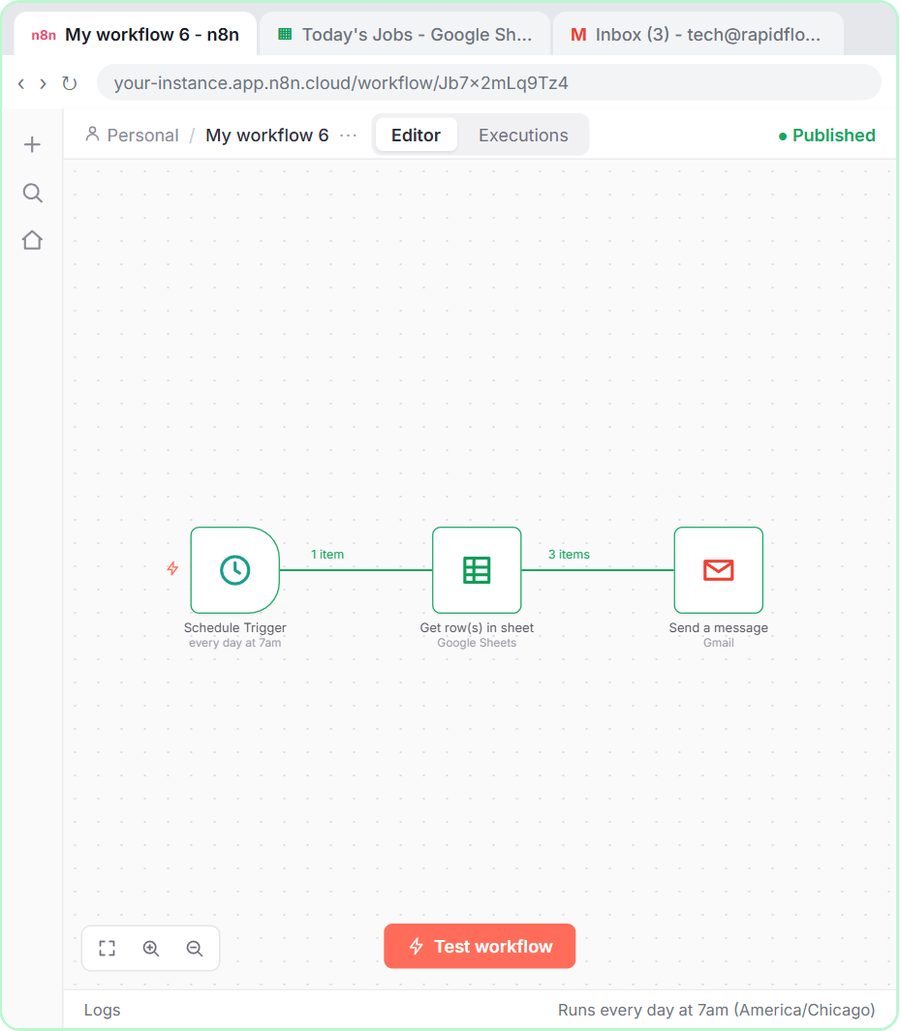 Daily Job Alerts: Email Each Tech Their Jobs from Google Sheets with n8n
Every morning at 7, n8n reads a plumbing company's jobs sheet, skips anything not assigned yet, and emails each job to the tech it's assigned to — customer, address…
Free · Live ~10 min Intermediate
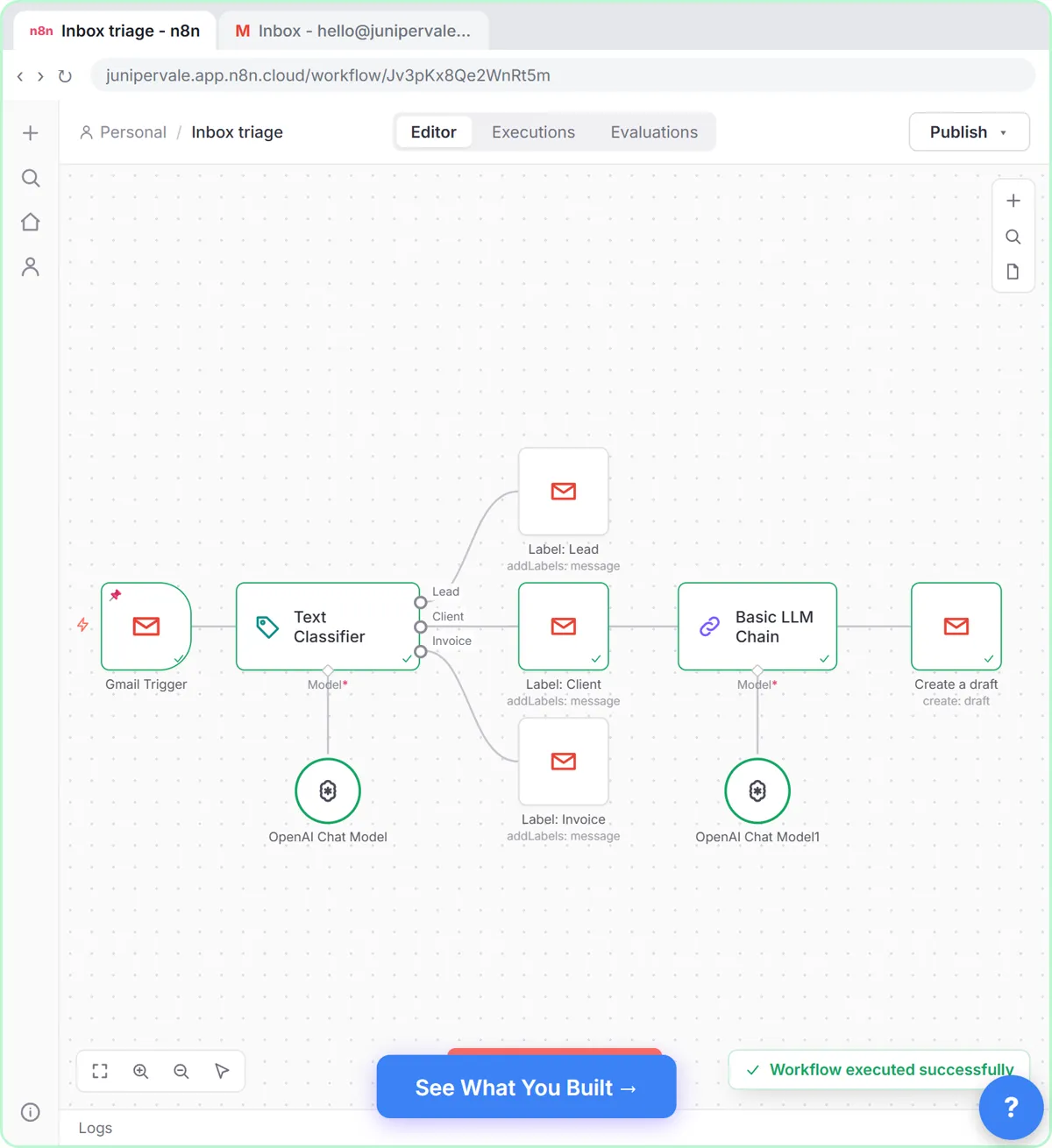 Gmail AI Triage: Auto-Label Every Email and Draft Replies
Build an n8n workflow that reads each new email, sorts it as a lead, a client or an invoice with a Text Classifier, adds the matching Gmail label, and drafts a reply to…
Free · Live ~18 min Advanced
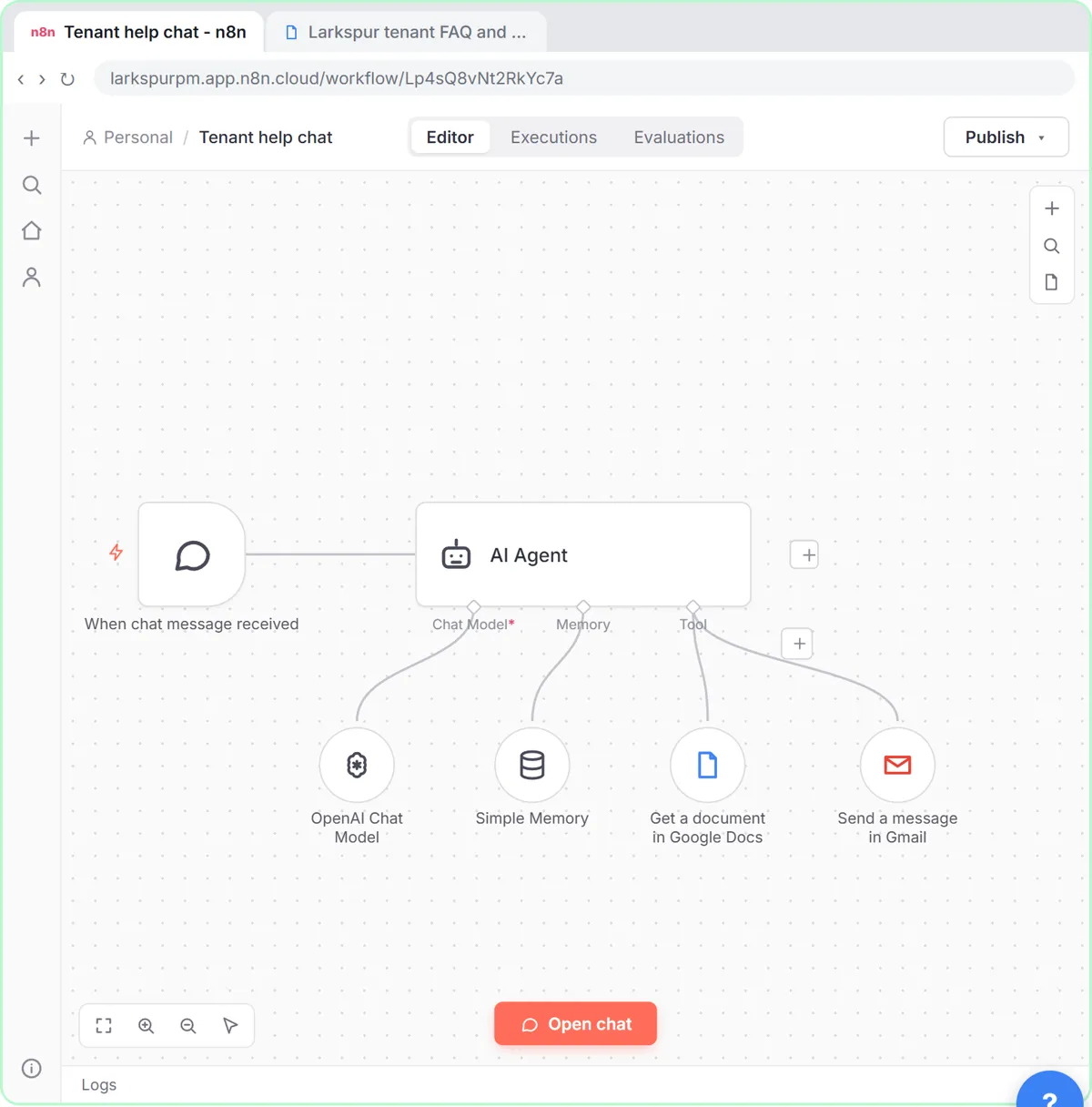 A Support Agent That Answers from Your Own Docs
Turn an n8n chat agent into a support agent that answers only from your policies in a Google Doc, refuses what it should, and hands off to a person by email.
Free · Live ~13 min Advanced
 Chatbase: Answer Customer FAQs with an AI Agent
A business case for a small firm that answers the same customer questions every week: build a Chatbase AI agent on your FAQ in the real app, make it say when it does…
Free · Live ~15 min Beginner
All 33 modules in Business Automations
Terms in this lesson
Plain-English definitions, each with an example from a free lesson.