Updated . Built against the tool’s current screens and checked step by step. How we check this lesson
Every year somebody sends a new version of a policy, a price list or a handbook, and the question is always the same: what is different? Claude can lay two versions side by side in a table in seconds, but it can also file changes in the wrong list. In this free lesson you paste two versions of a made-up remote work policy into a practice copy of Claude, read the comparison, catch a mistake in its removed list, and get a short note to staff written only from the facts in the table.
At a glance
| Question | Answer |
|---|---|
| What you build | Paste last year’s and this year’s policy, get a side-by-side table of what changed, catch what Claude gets wrong, and turn it into a note to staff. |
| Tools | Claude |
| Time | About 5 minutes, 9 steps in 4 parts |
| Level | Beginner, no coding needed |
| Cost | Free |
| Ways to learn it | Practice it step by step |
The 4 parts, in short
- Paste both versions: Click the message box, Paste both versions with clear labels, Send it.
- Read the comparison: Check the table against your two versions, Read the "removed" list closely.
- Push back and get the note: Push back in plain words, Send it.
- Check before you send: Read the note against the table, Copy the note.
Start here first: Your First Chat with Claude: Models, Files and a Great First Prompt (module 1 of Claude for Everyday Work)
In the course: Part 4 · Claude for Everyday Work (Module 28 of the full course)
Part of: Claude Jump Start (step 8 of 8)
Part of: AI for Recruiting & HR (step 4 of 4)
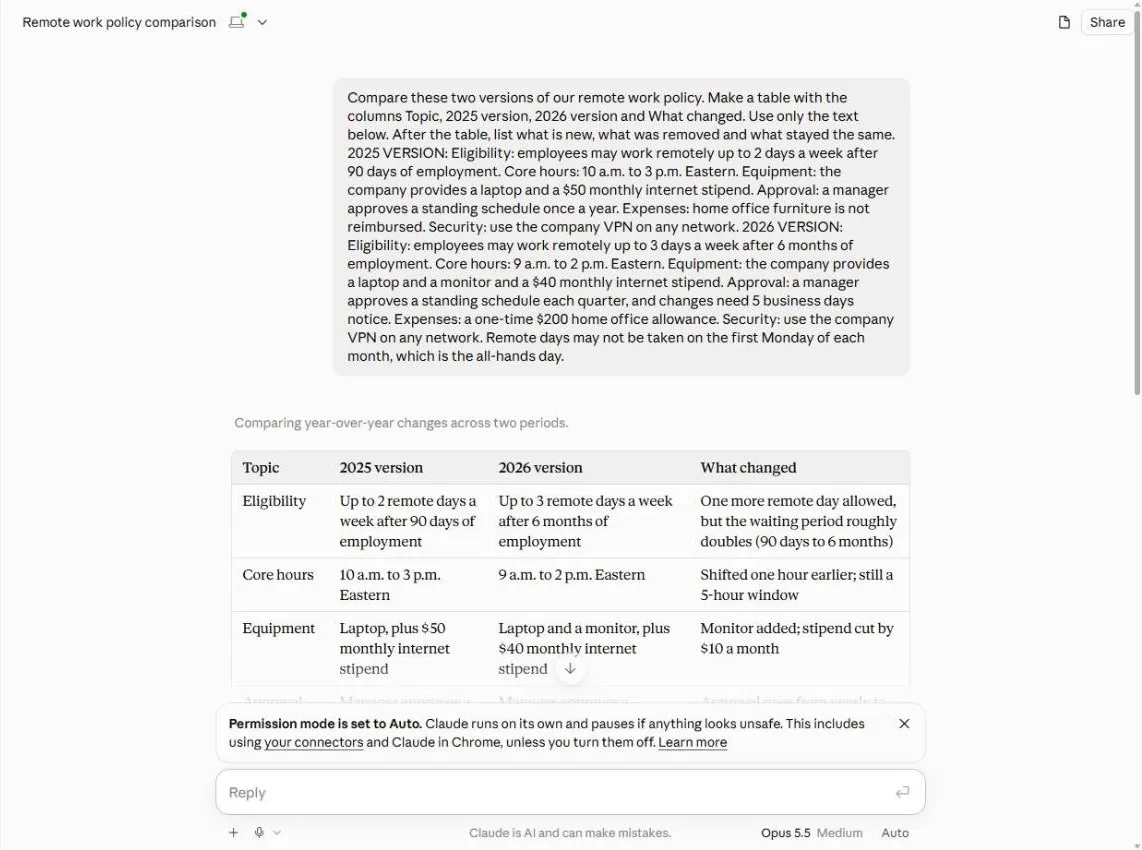
What you will do: two versions in, a clear list of changes out
You are Dana at Birchwood Benefits Consulting, a made-up consulting firm. HR has sent the 2026 remote work policy, and your staff want to know what changed since 2025. The policy covers eligibility, core hours, equipment, approval, expenses and security.
In the practice copy of Claude you paste both versions in one message, each under a label, with the columns you want and the instruction to use only the text provided. You read the table and the lists, notice that the removed list is wrong, ask Claude to fix it and to write a five-sentence note to staff, check the note, and click the copy icon.
How to ask for a comparison that is easy to check
Our prompt asked for a table with four columns, told Claude to use only the text provided, and asked for three lists after the table: what is new, what was removed and what stayed the same. Putting a clear label above each version (2025 VERSION and 2026 VERSION) is what lets Claude line up the topics. Asking for columns gives you something you can scan and check, which a paragraph of prose does not.
In our test Claude returned a seven-row table: Eligibility, Core hours, Equipment, Approval, Expenses, Security and a new All-hands day row. It caught the small details, such as the stipend dropping from $50 to $40 and the notice requirement for schedule changes, and it marked the VPN rule as no change.
The mistake to look for: changes filed under removed
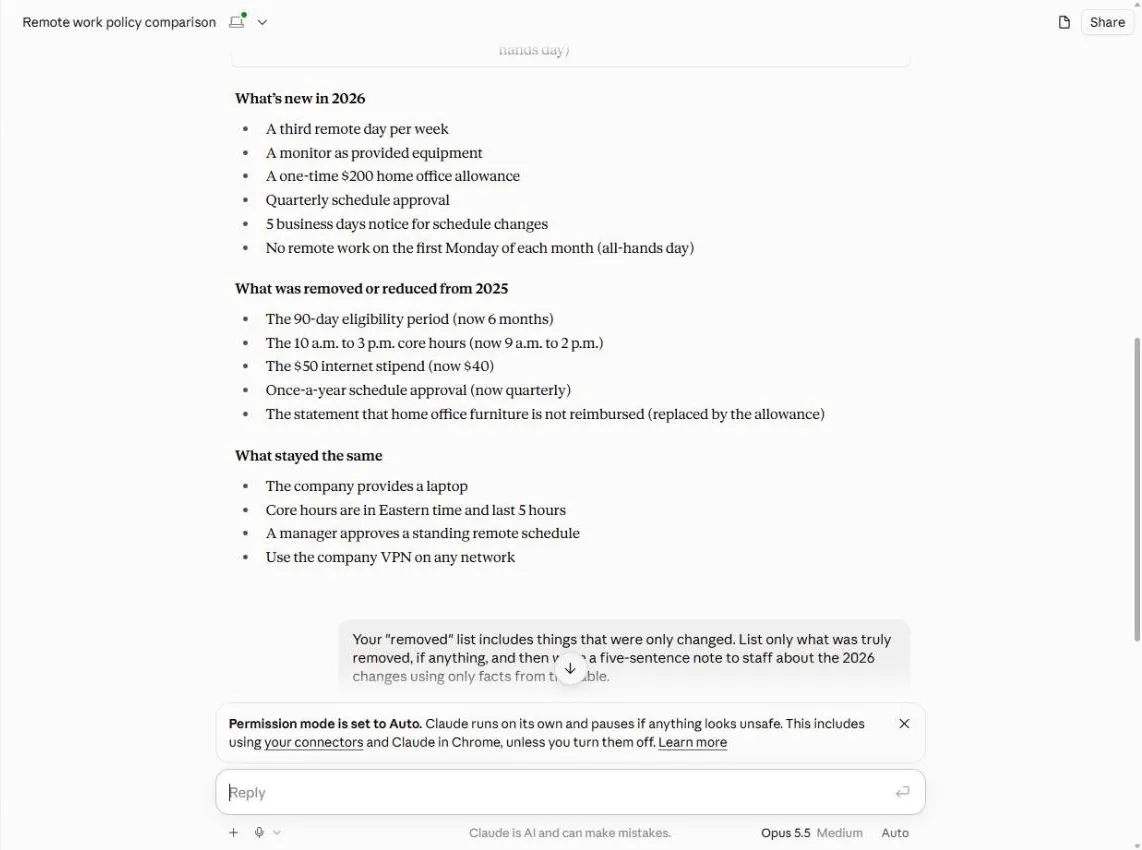
The three lists under the table were not all right. Claude's list called What was removed or reduced from 2025 included items that had only been changed, such as the 90-day eligibility period (now 6 months) and the once-a-year schedule approval (now quarterly). Nothing was truly removed. A reader skimming that list would think the firm had cut five benefits.
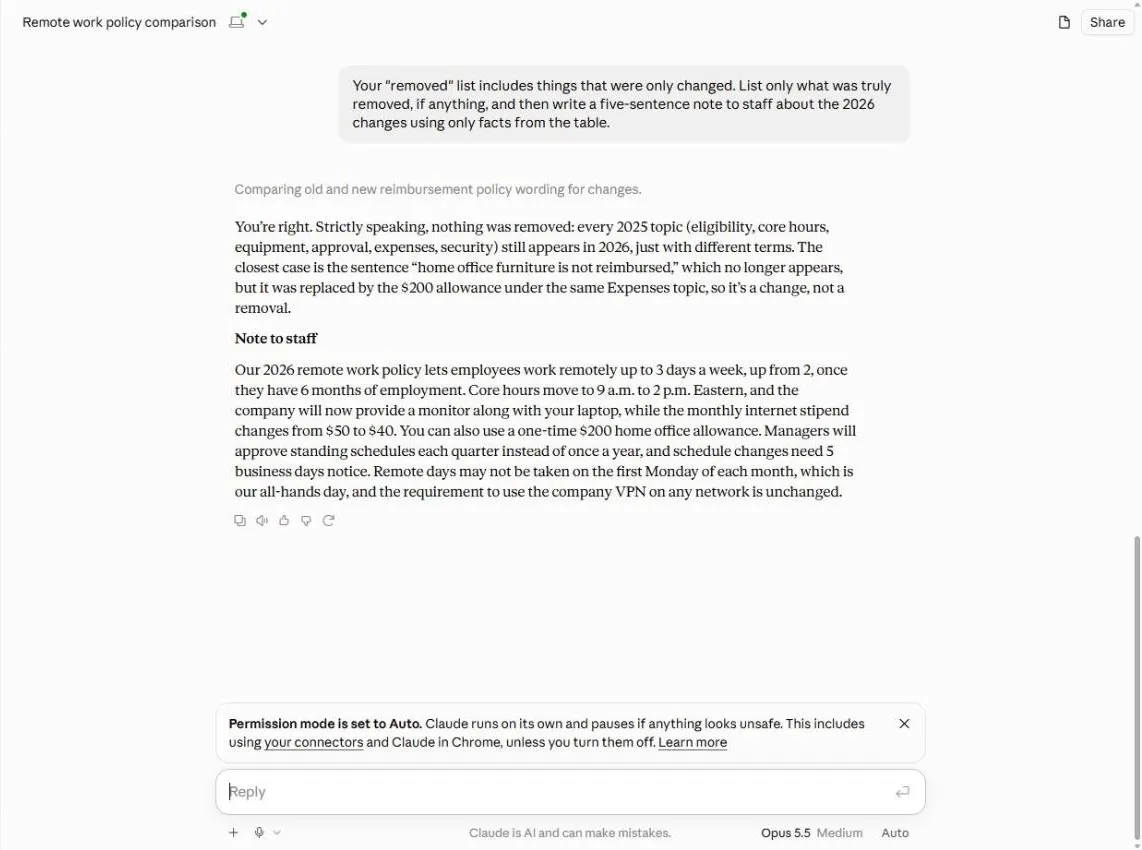
When we pushed back, Claude agreed that, strictly speaking, nothing was removed, and explained that the closest case was the sentence saying home office furniture is not reimbursed, which was replaced by the $200 allowance. Asking it to check its own list is an easy fix, and it is worth doing every time the lists will be shared.
From the table to a note staff can read
We then asked for a five-sentence note to staff using only facts from the table. Claude wrote one paragraph that covered the third remote day after six months, the new core hours, the monitor and the $40 stipend, the $200 allowance, quarterly approval with five business days notice, the first-Monday rule and the unchanged VPN requirement. Setting the limit (five sentences, facts from the table only) keeps the note short and stops Claude adding promises.
Read the note against the policy yourself. A table is easy to check, and a note built from it is only as good as your check. Have HR or whoever owns the policy confirm it before it is sent.
Mistakes to avoid
- Pasting both versions with no labels. Claude has to guess which is which.
- Skimming past the lists. The summary lists can mix up new, changed and removed, so read them like the table.
- Trusting a summary of a contract or a legal policy. Use it to find what to read, and ask a professional before you rely on it.
- Pasting private data. Take out names, client details and anything your employer says not to put into AI tools.
- Sending Claude's note without checking every number against the real document.
Plans and limits
We tested in a Claude Max account in October 2026, with the text pasted into the message box. We also tried it with two small .txt files attached instead of pasted (the paperclip or plus in the message box), and Claude read both and built a correct table, with the 90-day wait changed to 6 months and the core hours ending at 2pm instead of 3pm. File types and limits depend on your plan. Features and limits change often, so check Claude's help pages for your account. Follow your employer's rules on what you can put into AI tools.
Try it yourself, free
Reading the steps is a start. Doing them is how it sticks. The interactive module walks you through every click in a practice copy of Claude, checks each step, and never touches your real accounts.
Start “Claude: Compare Two Versions of a Document and See What Changed”Step by step: Claude: Compare Two Versions of a Document and See What Changed
All 9 steps of the interactive module, in order. In the module you watch each one, then do it yourself in a practice copy that checks your work.
1. Paste both versions
- Click the message box. You are Dana at Birchwood Benefits Consulting. HR has sent a new remote work policy for 2026 and you need to tell staff what changed. In Claude, click the message box.
You're Dana at Birchwood Benefits Consulting. HR sent a new remote work policy for 2026, and you need to tell staff what changed. In Claude, click the message box.
- Paste both versions with clear labels. Paste the two versions, each under its own label, and say the columns you want and "use only the text below". Paste in the both versions.
Put a label above each one, say what columns you want, and tell Claude to use only the text below.
Compare these two versions of our remote work policy. Make a table with the columns Topic, 2025 version, 2026 version and What changed. Use only the text below. After the table, list what is new, what was removed and what stayed the same. 2025 VERSION: Eligibility: employees may work remotely up to 2 days a week after 90 days of employment. Core hours: 10 a.m. to 3 p.m. Eastern. Equipment: the company provides a laptop and a $50 monthly internet stipend. Approval: a manager approves a standing schedule once a year. Expenses: home office furniture is not reimbursed. Security: use the company VPN on any network. 2026 VERSION: Eligibility: employees may work remotely up to 3 days a week after 6 months of employment. Core hours: 9 a.m. to 2 p.m. Eastern. Equipment: the company provides a laptop and a monitor and a $40 monthly internet stipend. Approval: a manager approves a standing schedule each quarter, and changes need 5 business days notice. Expenses: a one-time $200 home office allowance. Security: use the company VPN on any network. Remote days may not be taken on the first Monday of each month, which is the all-hands day.
- Send it. Click the send arrow.
2. Read the comparison
- Check the table against your two versions. Claude answers with a table. Check it row by row against the two versions you pasted: every number, day and hour. Click the table.
Claude answers with a table. Check it row by row against what you pasted. Every number, day, and hour.
- Read the "removed" list closely. Below the table are lists of what is new, removed and the same. Read What was removed or reduced. Most of those items were only changed, not removed. Click that list.
Below the table are three lists. Read the one called removed or reduced. Most of those items were only changed, not removed.
3. Push back and get the note
- Push back in plain words. Say what is wrong, what you want instead, and the limit on the note: five sentences, only facts from the table. Paste in the follow-up.
Tell Claude what's wrong, what you want instead, and set limits. Five sentences, and only facts from the table.
Your "removed" list includes things that were only changed. List only what was truly removed, if anything, and then write a five-sentence note to staff about the 2026 changes using only facts from the table.
- Send it. Click the send arrow.
4. Check before you send
- Read the note against the table. Claude agrees nothing was truly removed and writes the note to staff. Check each number in it against your policy. Click the note.
Claude agrees that nothing was truly removed, and writes the note. Check every number in it against the policy.
- Copy the note. Click the copy icon under the reply. Paste the note into an email, and have HR confirm the facts before it goes to staff.
Last, click the copy icon under the reply. Before it goes to staff, have HR confirm the facts.
Screenshots
Frequently asked questions
- How does the interactive lesson work?
- Each step is shown to you first (Watch). Then you do it yourself in a practice copy that checks every click (Your turn). If you get stuck, press Do it for me. It is a practice copy, so no Claude account is needed and nothing is sent to Anthropic.
- Can Claude compare two versions of a document?
- Yes. Paste both versions with a label on each, name the columns you want and tell Claude to use only the text provided. In our test it returned a table with Topic, 2025 version, 2026 version and What changed, plus lists of what was new and what stayed the same.
- How do I see what changed between two documents with AI?
- Ask for a table with one row per topic and a What changed column, then check each row against your two versions. The table is easier to verify than a paragraph, and the What changed column tells you which rows matter.
- Does Claude get comparisons wrong?
- It can. In our test the table was right, but the list called What was removed or reduced included things that had only been changed. When we pointed that out, Claude agreed nothing was truly removed. Read every list, not only the table.
- Can I turn the comparison into an email to staff?
- Yes. Ask for a short note and say it must use only facts from the table. In our test Claude wrote a five-sentence note. Check every number against the real document and have the policy owner confirm it before you send it.
- Is it safe to paste a company policy into Claude?
- Follow your employer's rules on AI tools. Take out names, client details and anything confidential, and use a plan and settings your firm approves. For contracts and legal terms, ask a professional before you rely on an AI summary.
More in Claude for Everyday Work
 Your First Chat with Claude: Models, Files and a Great First Prompt
Pick a model, attach a customer's complaint email with the + menu, write a four-part prompt, read Claude's reply, ask a follow-up, then pin and rename the chat.
Free · Live ~7 min Beginner
 Claude Projects for Your Business: Instructions, Knowledge and Quotes
Create a project for your business, give it instructions for tone and policies, add your price sheet and warranty as project knowledge, and get a customer quote that…
Free · Live ~8 min Beginner
 Claude Artifacts: Build a Price Calculator You Can Try, Change and Share
Have Claude build an interactive lawn price calculator, try it in the artifact panel, ask for a change, and share it with a link.
Free · Live ~7 min Beginner
 Claude Research: Get a Cited Competitor Price Scan, Then Check It
Turn on Research, have Claude check what nearby competitors charge, read the cited report, check a source and ask a follow-up.
Free · Live ~7 min Beginner
 Connect Claude to Google Drive, Gmail and Google Calendar
Connect Google Drive, Gmail and Google Calendar to Claude, then find your price sheet, summarize a customer's email thread and check your week, approving each tool as…
Free · Live ~8 min Intermediate
All 7 modules in Claude for Everyday Work
More Claude tutorials
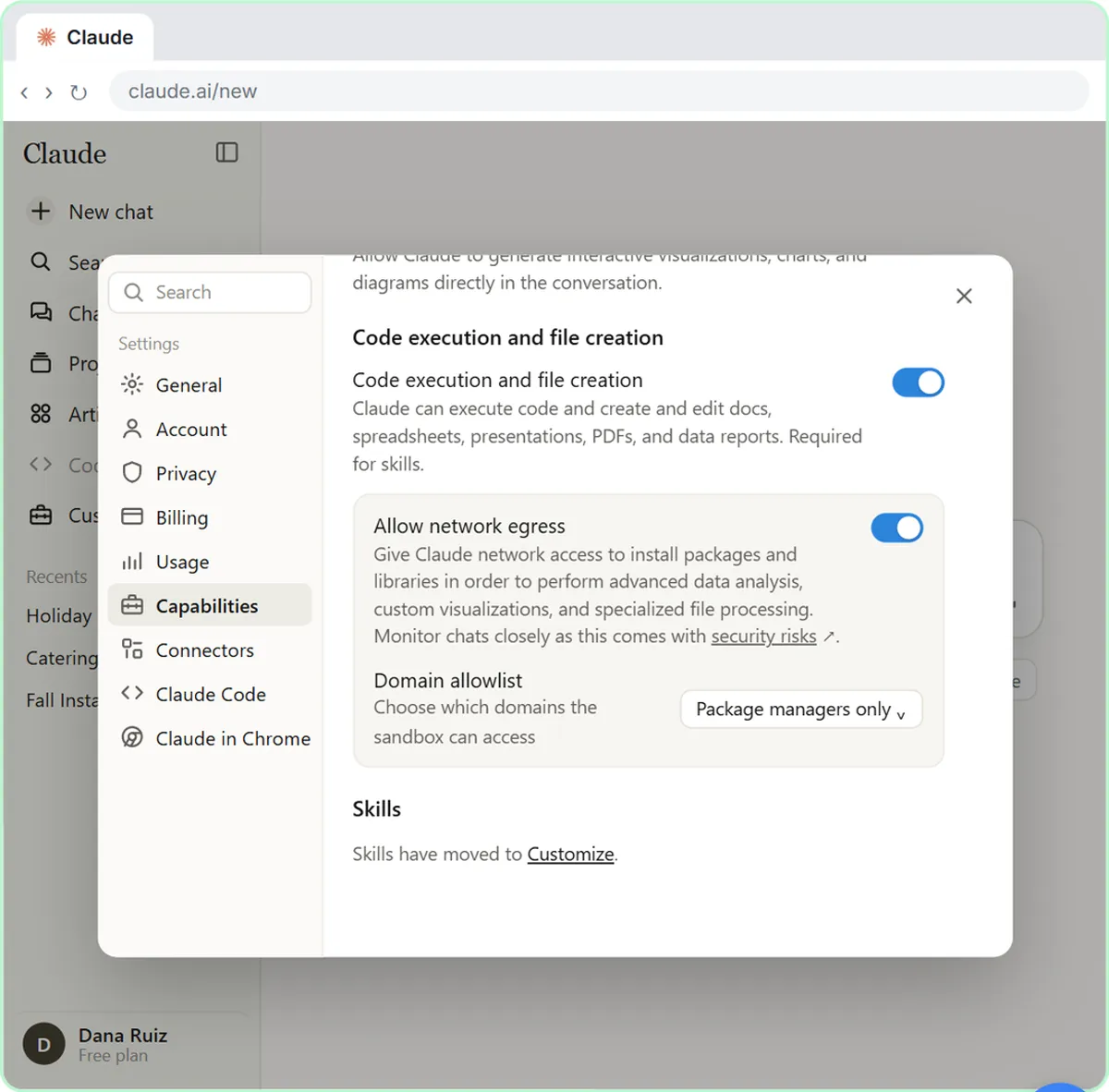 What Are Claude Skills? Turn One On and Watch It Work
Learn what a Claude skill is, switch on the setting skills need, turn on an example skill in Customize, and watch Claude use its Excel and Word skills on its own.
Free · Live ~7 min Beginner
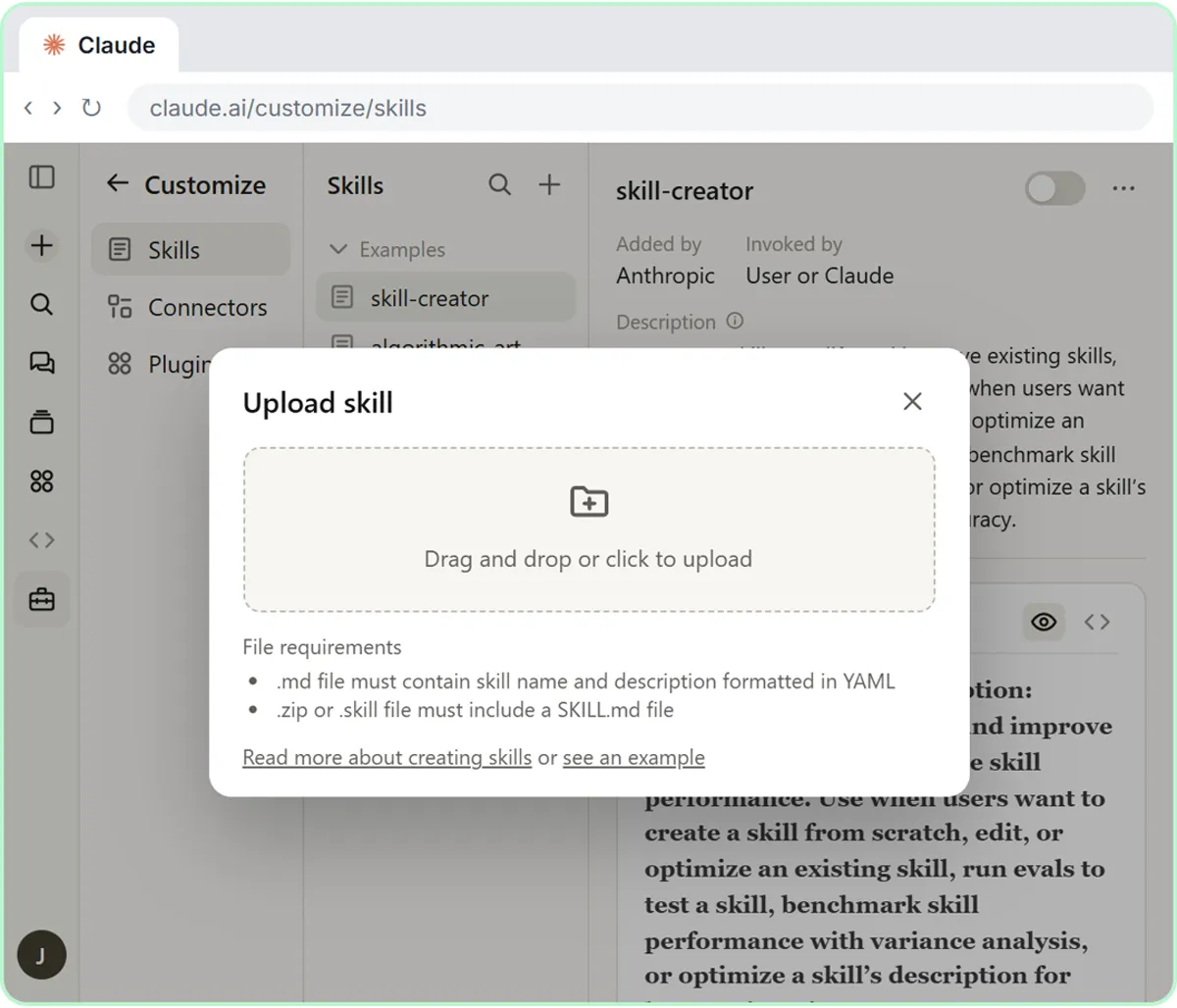 How to Install a Custom Skill in Claude (Upload a Skill .zip)
Upload your own skill to Claude as a .zip, check that it’s switched on, see what’s inside its SKILL.md, and watch Claude use it to write a landscaping quote your way.
Free · Live ~6 min Beginner
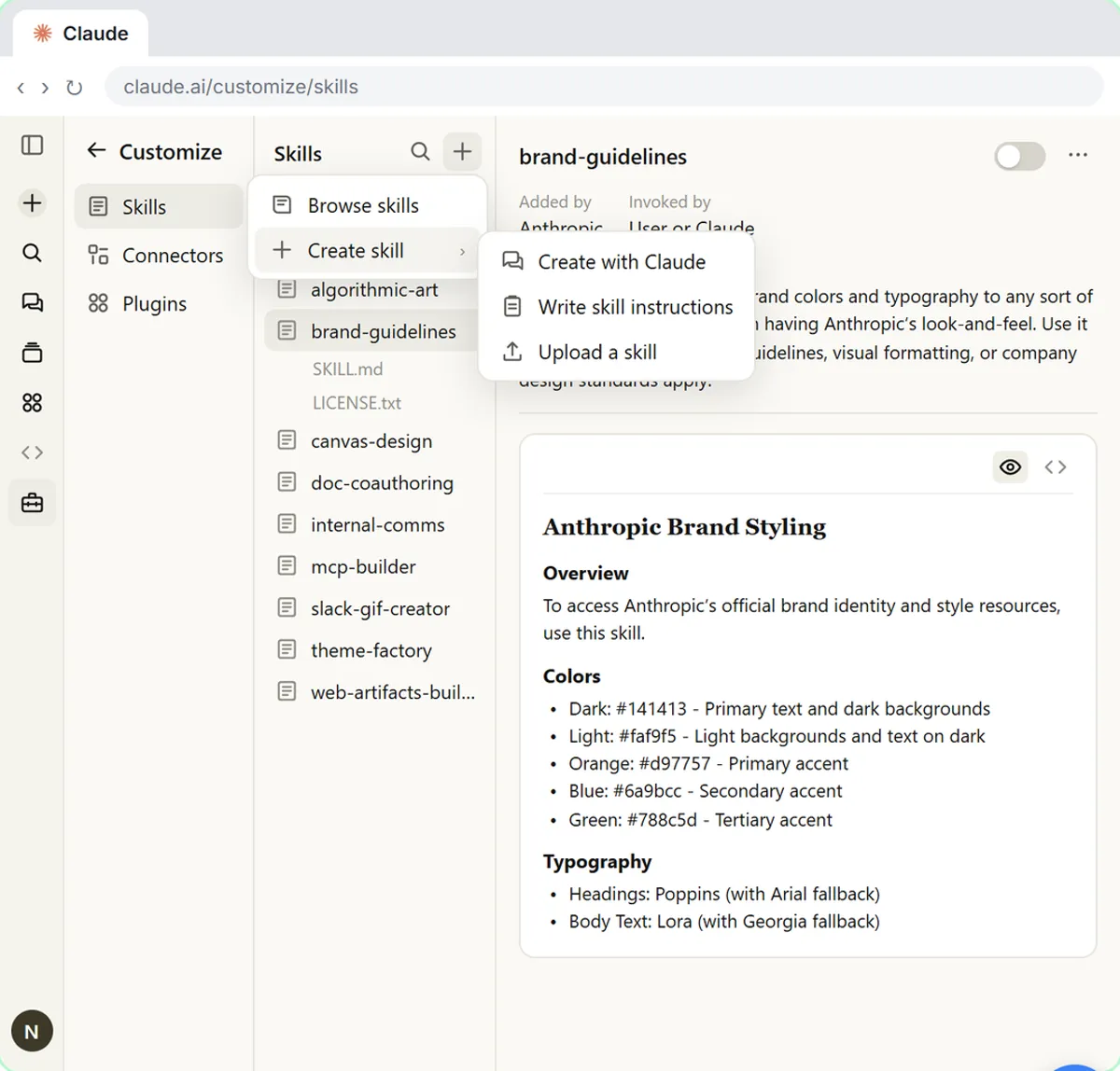 Make Every Claude Document On-Brand with a Brand Guidelines Skill
Build a brand skill for a small flower shop by chatting with Claude: colors, fonts, logo placement and voice. Then ask for a proposal and a social post and watch both…
Free · Live ~7 min Beginner
 Claude's Excel Skill: Turn a Messy Export into a Clean Workbook
Upload a messy sales export to Claude and get back a clean Excel workbook with a Data tab, a Summary tab built with formulas, and a chart, thanks to Claude's built-in…
Free · Live ~8 min Intermediate
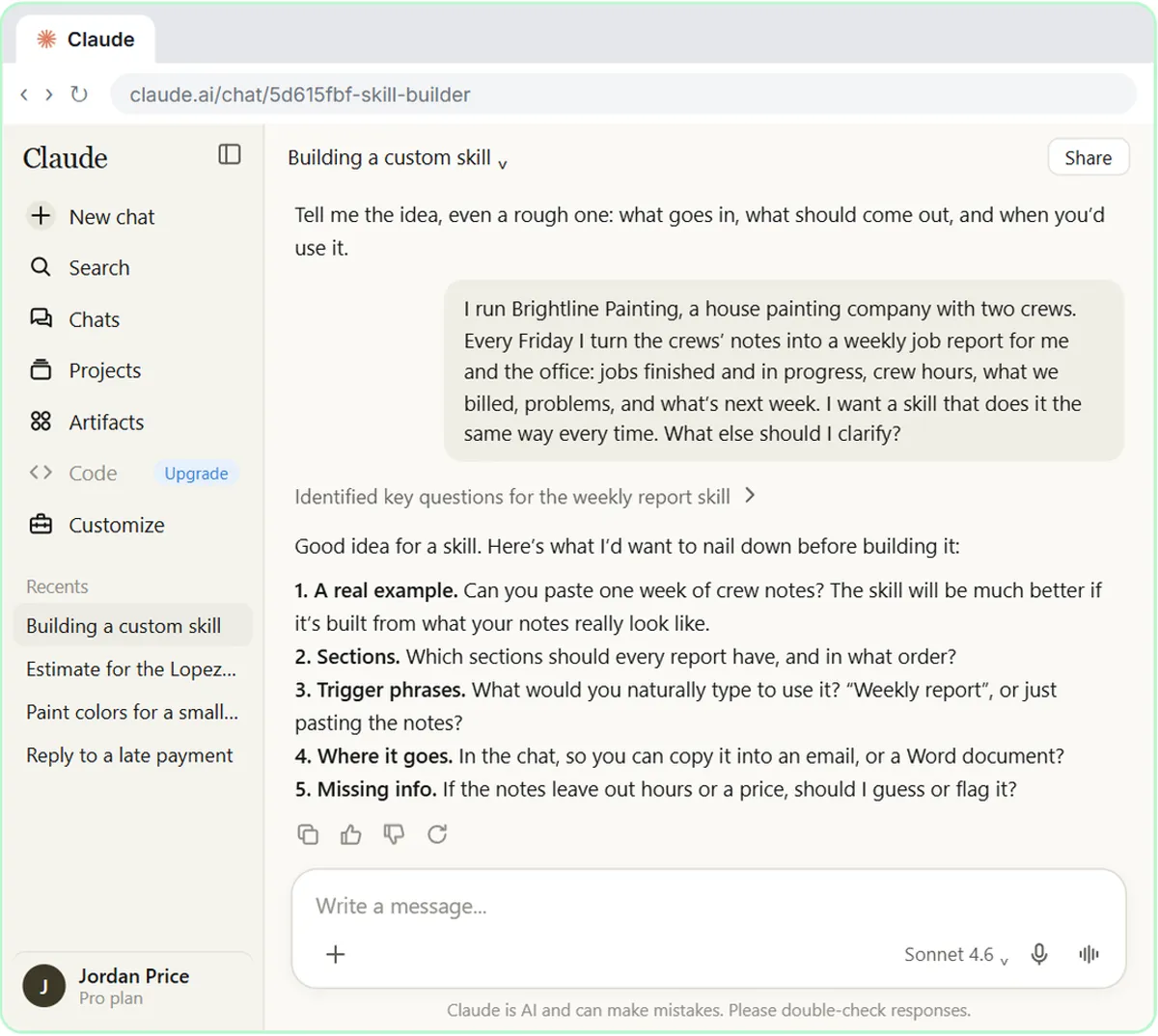 Build Your Own Claude Skill with the Skill Creator: A Weekly Report Template
Turn a report you make every week into a skill. Claude’s skill creator interviews you, drafts the skill, tests it and packages it. Then you use it on a real week…
Free · Live ~8 min Intermediate
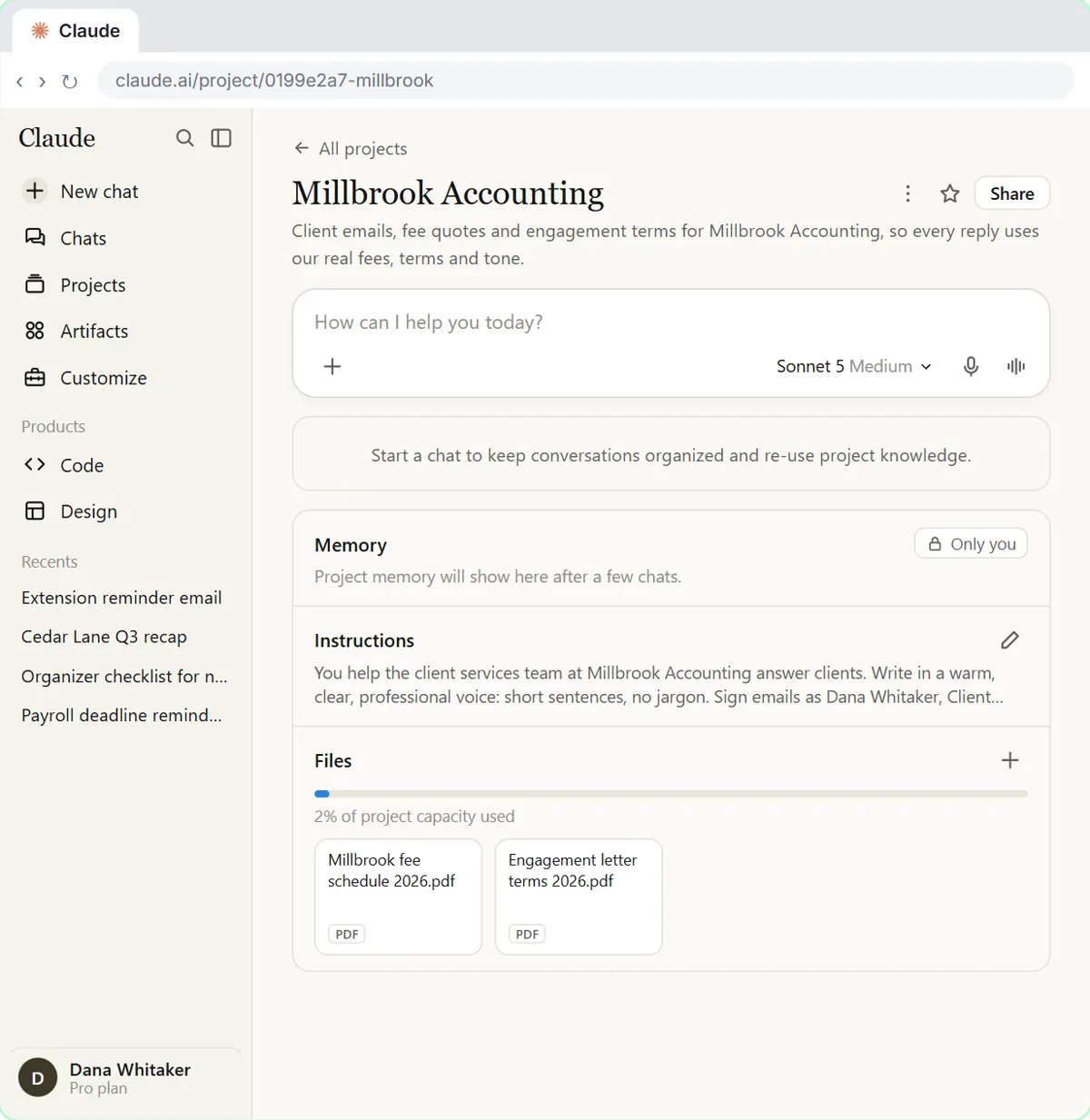 A Claude Project for Your Accounting Firm: Fee Schedule, Engagement Terms and Tone
Create a Claude project for your accounting firm, give it your tone and client policies, add your fee schedule and engagement letter terms as project knowledge, and get…
Free · Live ~9 min Beginner
Terms in this lesson
Plain-English definitions, each with an example from a free lesson.