Updated . Built against the tool’s current screens and checked step by step. How we check this lesson
A small firm gets supplier invoices as PDFs, and anything over $2,000 needs a partner’s OK. Upload one to PaperOffice AI, watch it name, sort and read the invoice, check the amounts it pulled out, and ask which invoices are over the limit and when they are due.
At a glance
| Question | Answer |
|---|---|
| What you build | A small firm gets supplier invoices as PDFs, and anything over $2,000 needs a partner’s OK. Upload one to PaperOffice AI, watch it name, sort and read the invoice, check the amounts it pulled out, and ask which invoices are over the limit and when they are due. |
| Tools | PaperOffice AI |
| Time | About 5 minutes, 9 steps in 3 parts |
| Level | Beginner, no coding needed |
| Cost | Free |
| Ways to learn it | Practice it step by step |
The 3 parts, in short
- Drop the invoice in: Open your Workspace, Add the invoice file, Pick the Premium tier, Upload 1 file.
- Check what PaperOffice read: Open the invoice, Data Fields, Check the amounts.
- Ask which ones need approval: Ask the agent, Press Enter.
Start here first: Turn a Client Meeting into Action Items and a Follow-Up Email (Accounting Firms) (module 1 of AI Automation for Accounting & Bookkeeping Firms)
Part of: AI for Accounting & Bookkeeping Firms (step 39 of 41). Next up: GoSwift: Build a Client Onboarding Tracker by Describing It for Accounting & Bookkeeping Firms
Part of: AI Apps Worth Knowing (step 90 of 123). Next up: GoSwift: Build a Client Onboarding Tracker by Describing It for Accounting & Bookkeeping Firms
Part of: AI That Reads Your Documents (step 10 of 10)
What you'll build
A made-up 12-person firm, Keystone Ledger Partners, gets its supplier invoices as PDFs by email. Its rule: anything over $2,000 needs a partner to approve it before it is paid. Today someone opens each PDF, types the supplier, total and due date into a spreadsheet, and checks the total by eye. In this lesson you drop an invoice into PaperOffice AI. It names the file, sorts it as an invoice, writes a summary and pulls out the amounts and the supplier. Then you ask its agent, in plain English, which invoices are over $2,000 and when they are due. Every screen is a real PaperOffice AI screen; the firm and the invoice are made up.
You uploaded one supplier invoice. PaperOffice AI named it, sorted it as an invoice, summed it up and read its fields (number, gross and net amount, tax, supplier, your firm, PO number). Then its agent answered your approval question: one invoice is over $2,000, BrightDesk INV-2291 for $2,494.18, due 19 November 2026. What it saves: typing invoices into a spreadsheet and hunting through PDFs every week. Next step: PaperOffice has an API and an n8n page, so invoices over the limit can go to a partner for approval automatically. PaperOffice plans change; check paperoffice.ai for what yours includes.
- Tools: PaperOffice AI
- Time: about 5 minutes, 9 steps in 3 chapters
- Level: beginner, no coding needed
- Price: free
Practice first, then build it for real
Practice copy built from real PaperOffice AI screens (app.paperoffice.ai), captured 27 October 2026. Nothing here touches a PaperOffice account. The firm, the supplier and the invoice are made up; the fields and the agent’s answer are what PaperOffice produced for that invoice. To build it for real you need your own PaperOffice AI account, and some services charge once you use them for real work, so check each tool's current pricing.
Try it yourself, free
Reading the steps is a start. Doing them is how it sticks. The interactive module walks you through every click in a practice copy of PaperOffice AI, checks each step, and never touches your real accounts.
Start “PaperOffice AI: Read Every Supplier Invoice and Spot the Ones That Need Approval for Accounting & Bookkeeping Firms”Step by step: PaperOffice AI: Read Every Supplier Invoice and Spot the Ones That Need Approval for Accounting & Bookkeeping Firms
All 9 steps of the interactive module, in order. In the module you watch each one, then do it yourself in a practice copy that checks your work.
1. Drop the invoice in
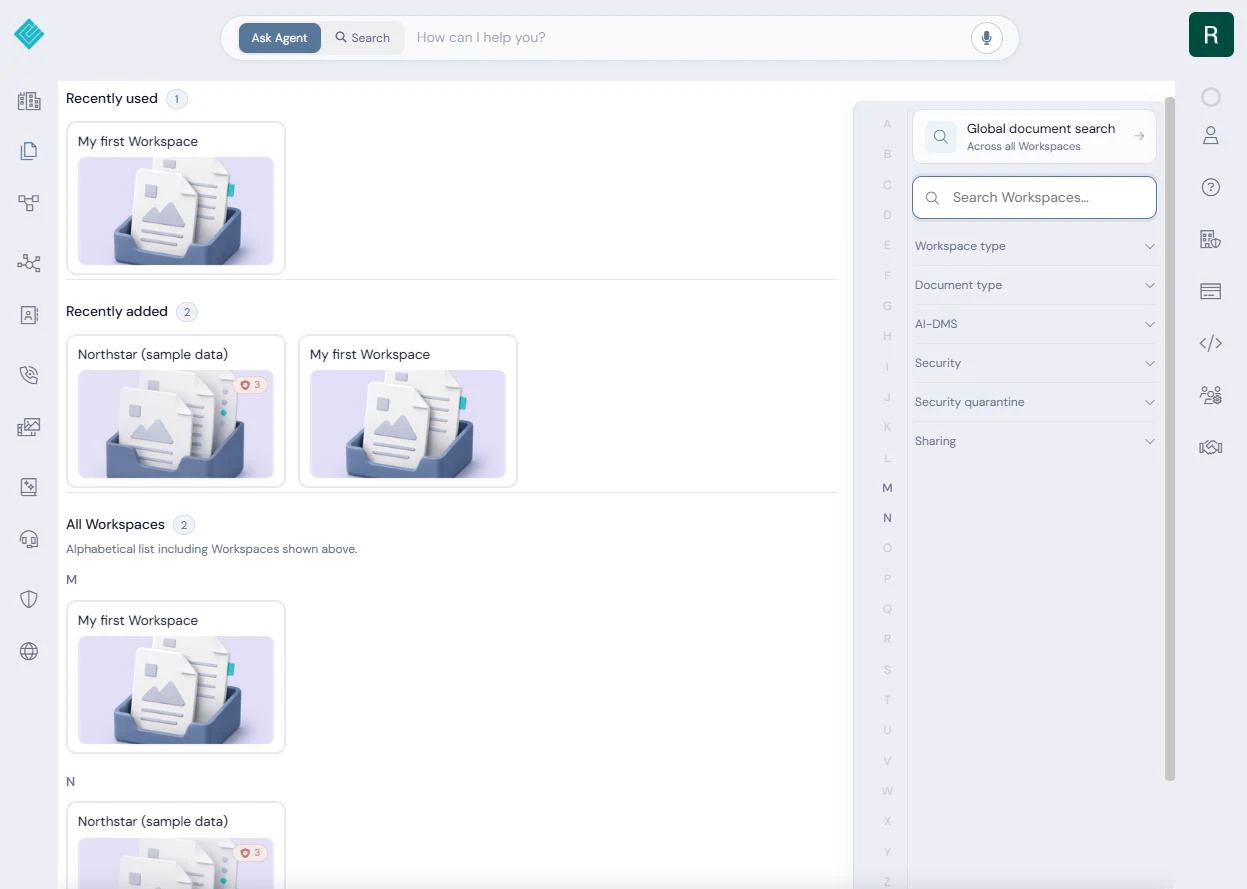
- Open your Workspace. In PaperOffice AI, Documents lists your Workspaces (folders the AI can read). Open My first Workspace, then click Add document at the top right.
Documents lists your Workspaces.
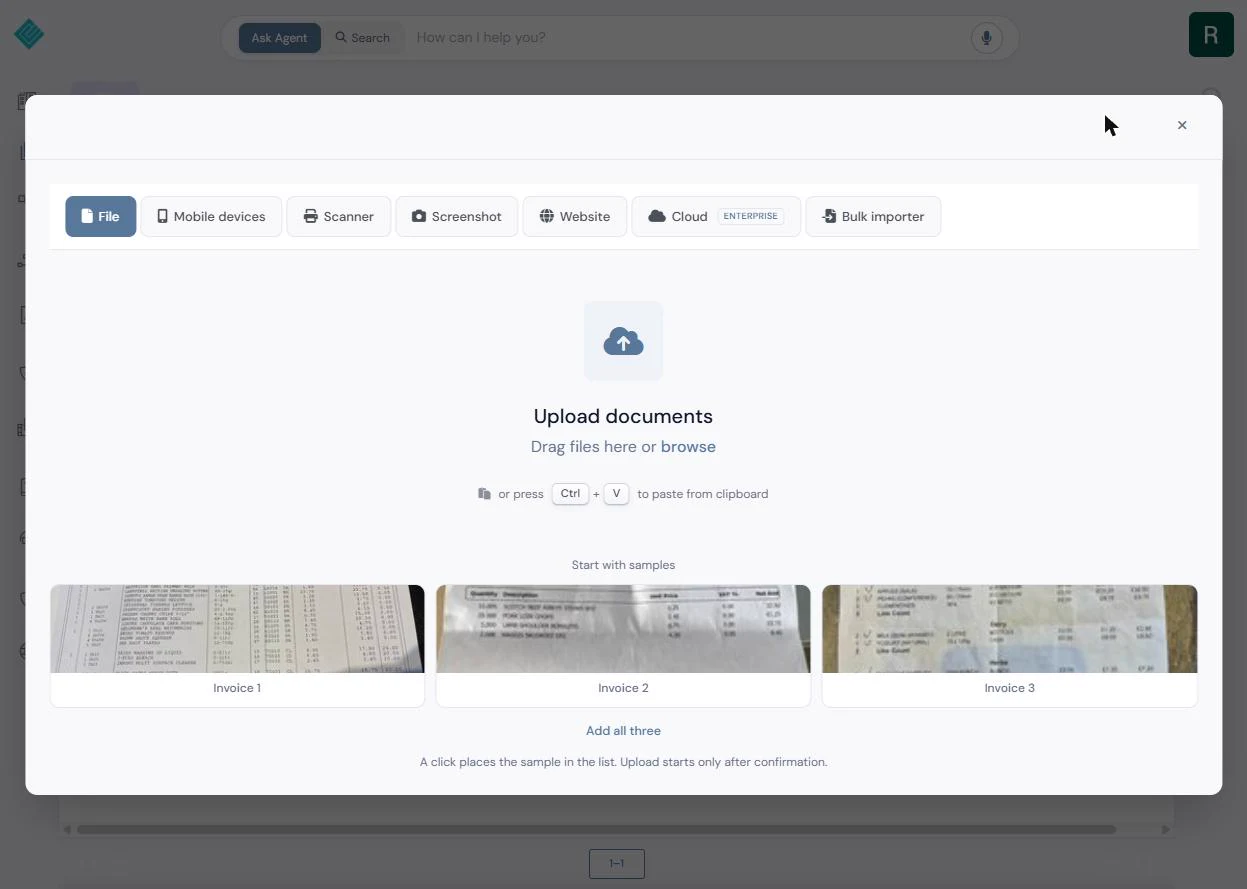
- Add the invoice file. The Upload documents box takes a file, a phone photo, a scanner, a screenshot or a website. Click browse and pick the supplier invoice PDF. Download the sample BrightDesk invoice from this lesson if you want the same result.
You can use our sample invoice to get the same result.
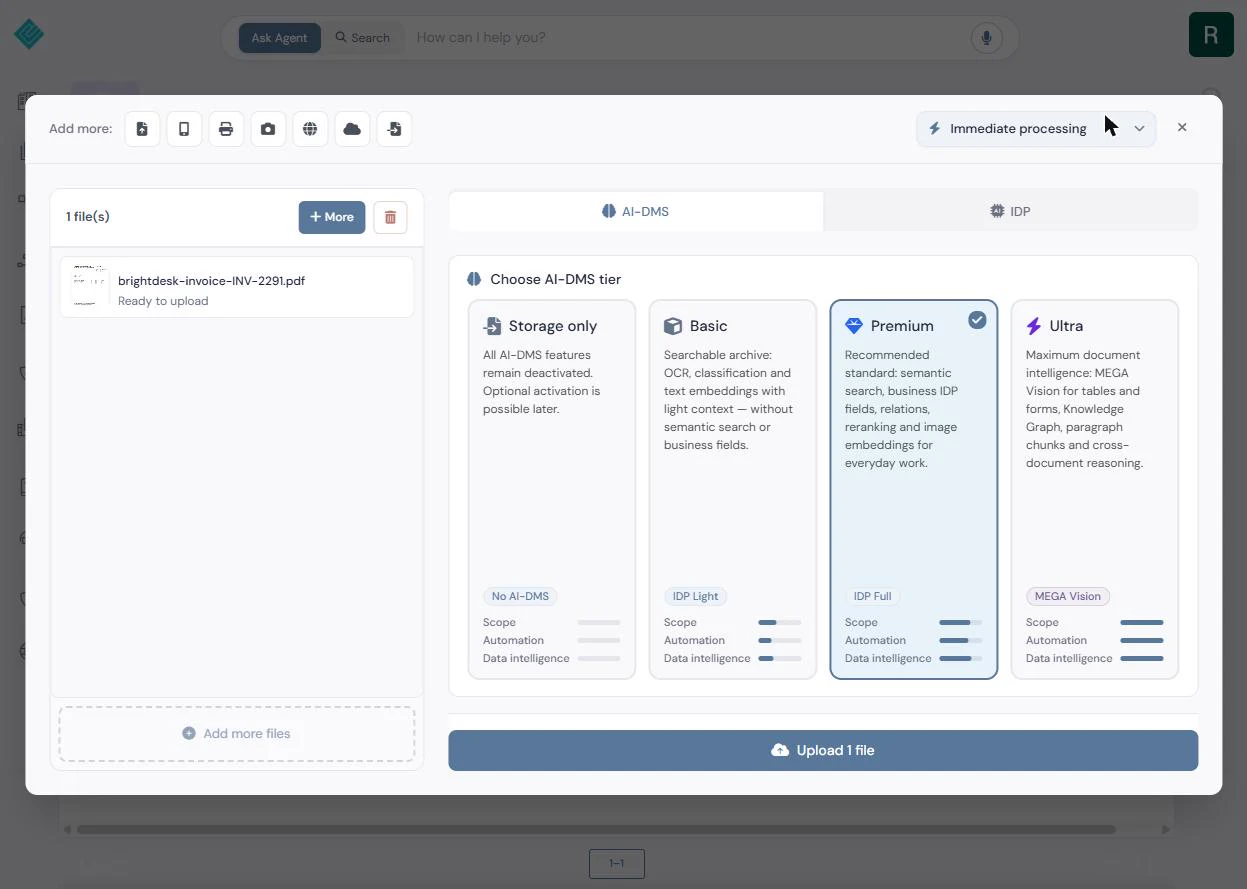
- Pick the Premium tier. PaperOffice asks how much the AI should do. Storage only just files it. Basic reads and sorts it. Premium also pulls out the business fields (amounts, dates, supplier), which is what an invoice needs. It is already ticked; click it to be sure.
Premium pulls out the business fields, like amounts, dates and the supplier. That is the one you want for invoices.
- Upload 1 file. Click Upload 1 file. In about half a minute PaperOffice reads the PDF.
PaperOffice reads it in about half a minute.
2. Check what PaperOffice read
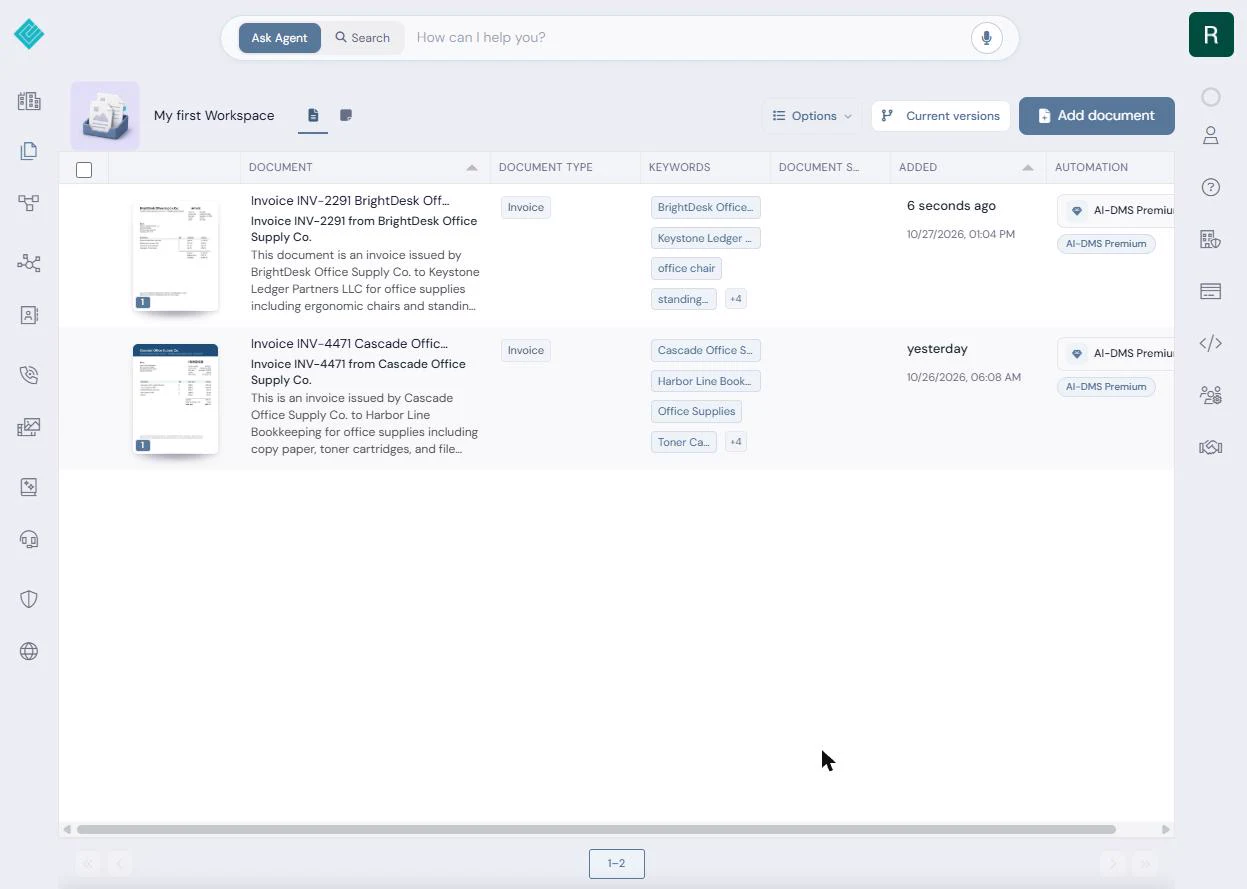
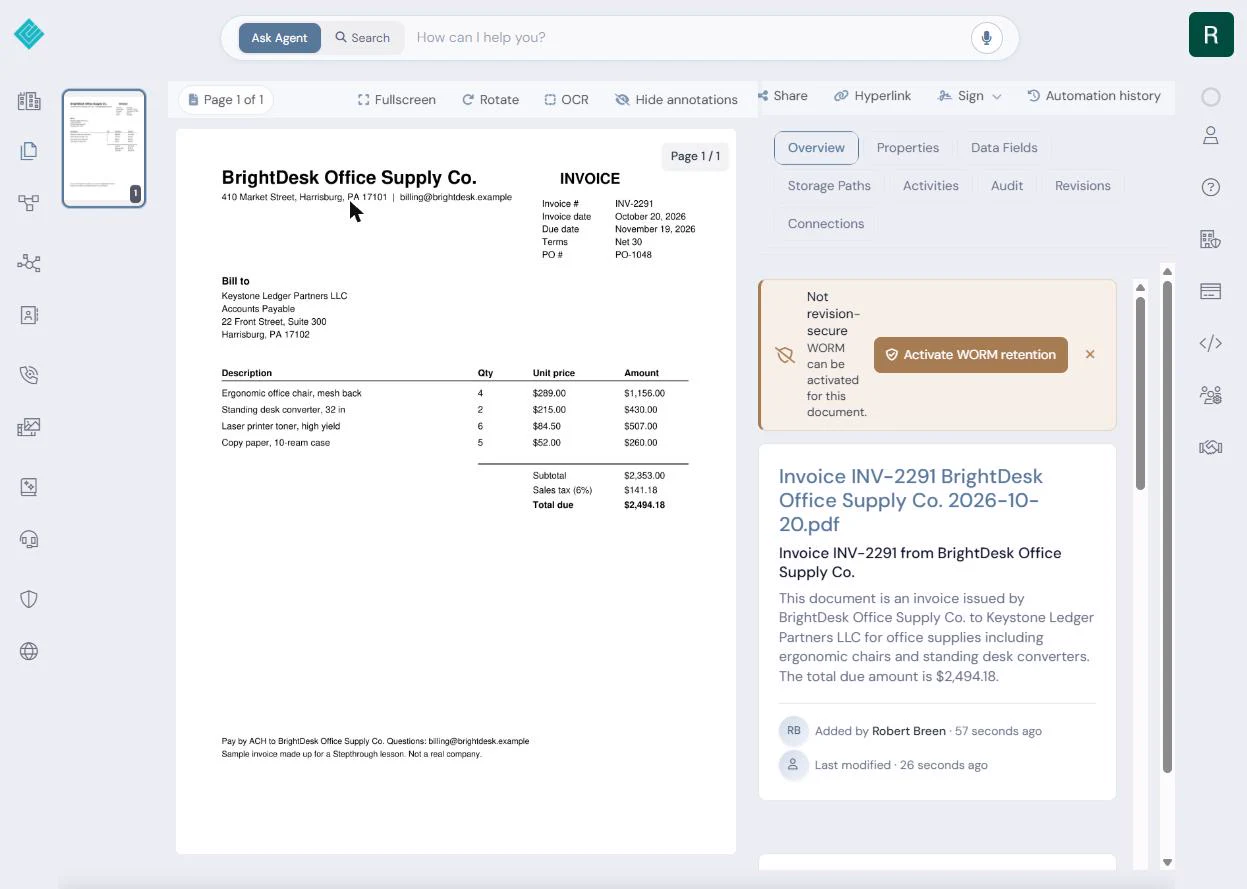
- Open the invoice. The file arrived as brightdesk-invoice-INV-2291.pdf and is now Invoice INV-2291 BrightDesk Office Supply Co., with Document type: Invoice, a short summary and keywords (supplier, client, what was bought). Nobody typed any of that. Click the invoice.
PaperOffice named it, sorted it as an invoice, and wrote a summary. Nobody typed that.
- Data Fields. The Overview shows the new file name (supplier, invoice number, date) and a summary that ends with the total: $2,494.18. Now click Data Fields.
The summary already gives the total. Two thousand, four hundred and ninety-four dollars.
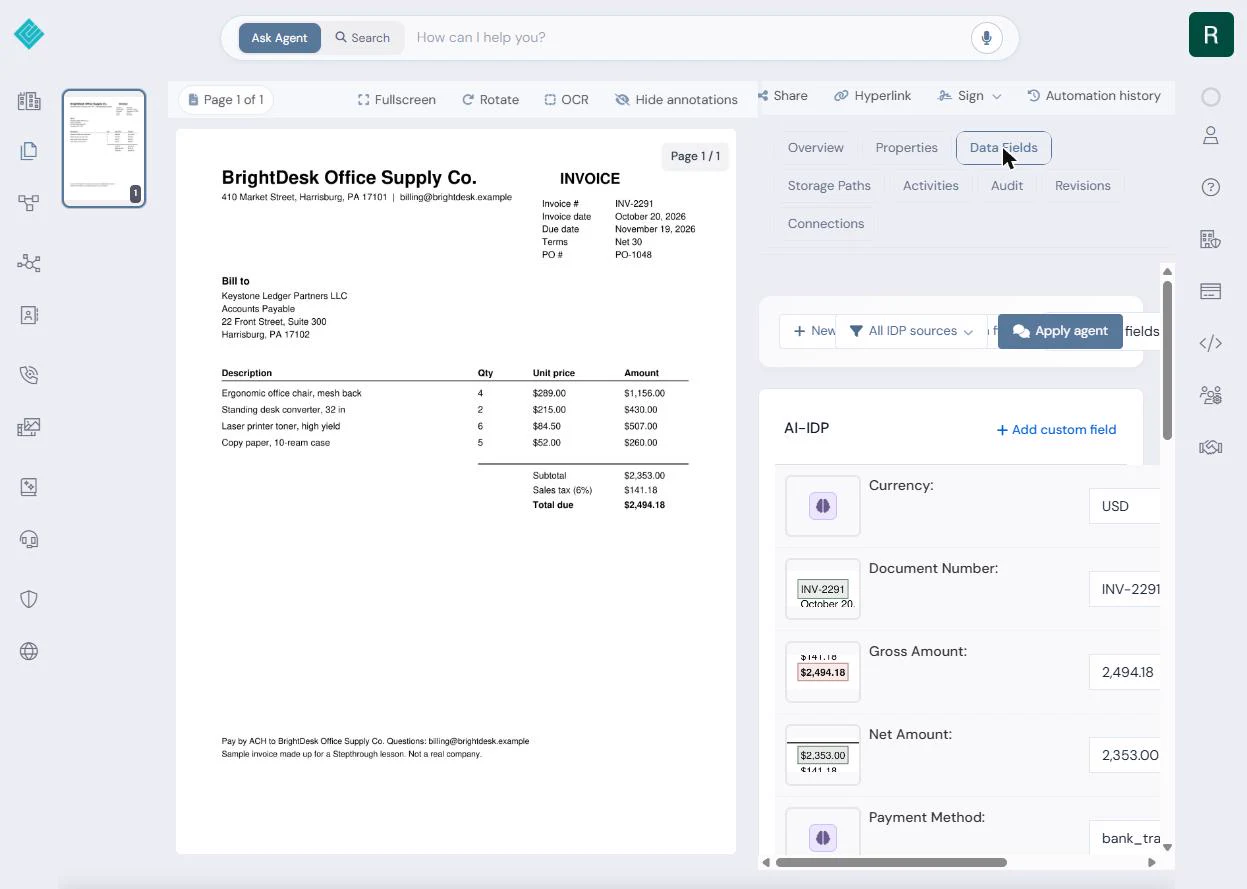
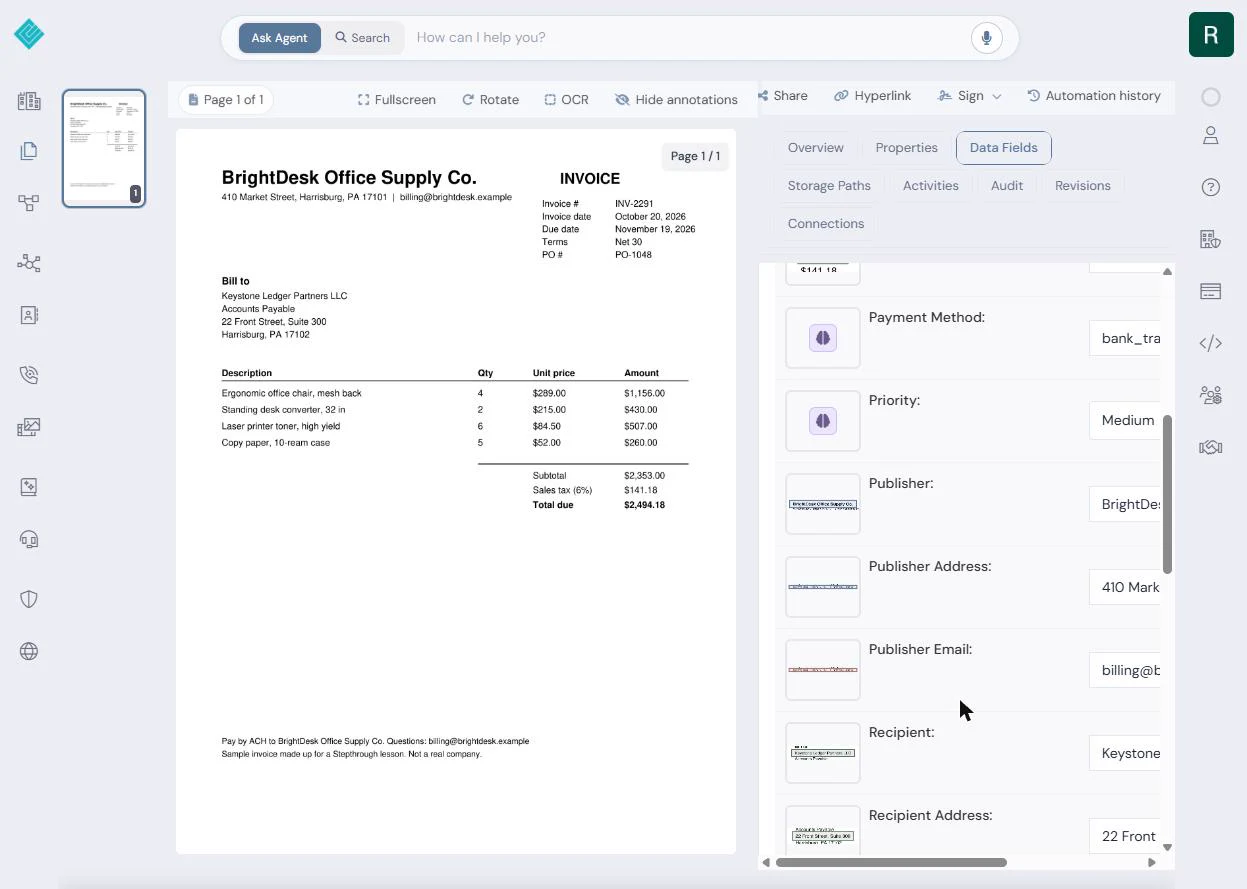
- Check the amounts. Under AI-IDP, every field shows the spot on the page it came from: Document Number INV-2291, Gross Amount 2,494.18, Net Amount 2,353.00, Currency USD. Further down: Publisher (the supplier) with its address and email, Recipient (your firm) and the PO number. Compare the Gross Amount with the PDF on the left, then click it.
Each field shows where on the page it came from. Check the gross amount against the PDF. It matches.
3. Ask which ones need approval
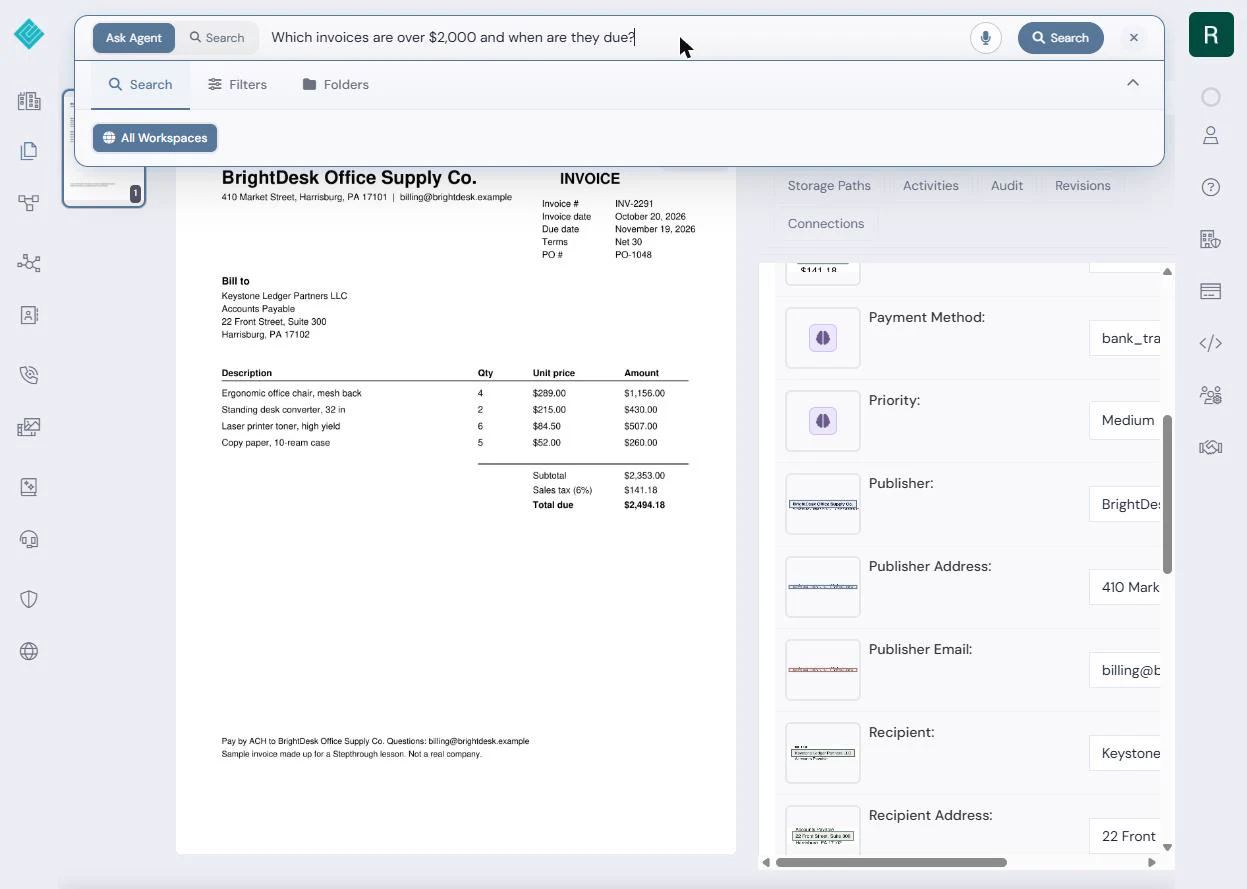
- Ask the agent. Your rule: any invoice over $2,000 needs a partner’s OK before it is paid. Instead of opening every PDF, ask. Click the box at the top (Ask Agent is on) and type the question.
Our rule is that anything over two thousand dollars needs a partner to approve it. So ask the agent which invoices are over two thousand, and when they are due.
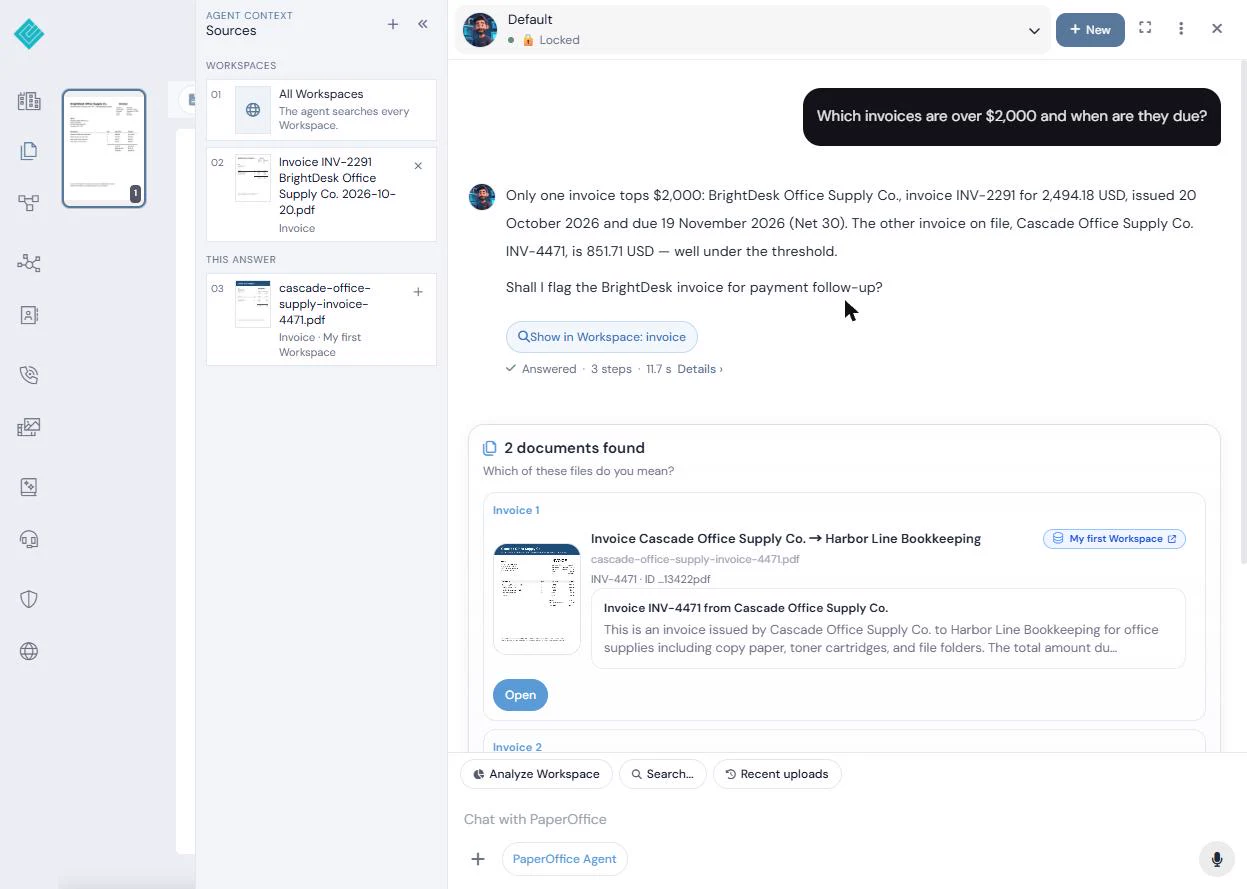
- Press Enter. Press Enter. The agent searches every Workspace, not just this file, and answers: only BrightDesk INV-2291 is over $2,000 ($2,494.18, due 19 November 2026, Net 30); the other invoice on file is $851.71. It then offers to flag the invoice for follow-up. Stop here: in your firm, that is where a partner approves it.
The agent finds the one invoice over two thousand, and gives its due date. That is the one your partner approves.
Screenshots
More in AI Automation for Accounting & Bookkeeping Firms
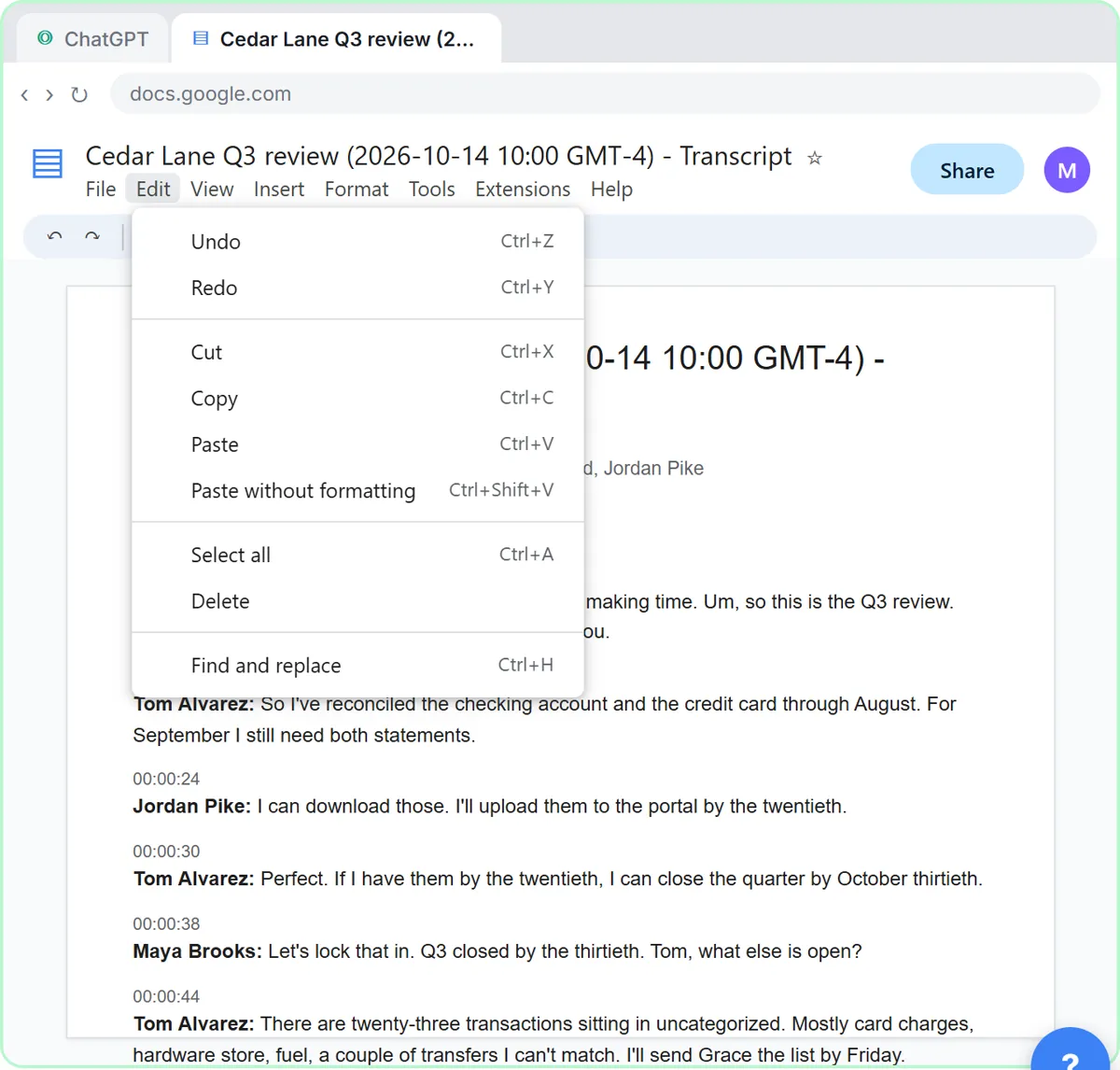 Turn a Client Meeting into Action Items and a Follow-Up Email (Accounting Firms)
Turn the transcript of a client's quarterly review into the decisions, an action items table with owners and due dates, and a follow-up email to the client.
Free · Live ~9 min Beginner
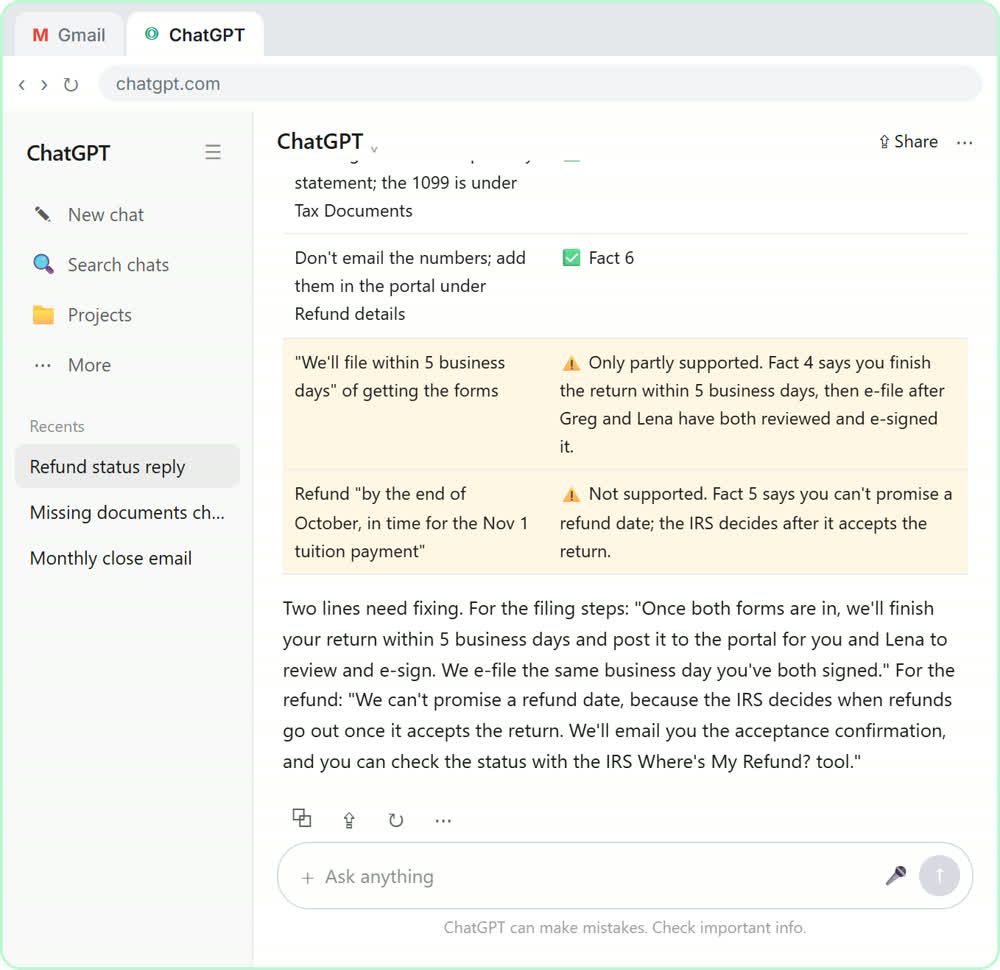 Answer Refund-Date Emails Without Overpromising using ChatGPT
A client wants a refund date while two tax forms are still missing. Give ChatGPT the thread and your firm's facts, catch the date it shouldn't promise, and send a calm…
Free · Live ~10 min Beginner
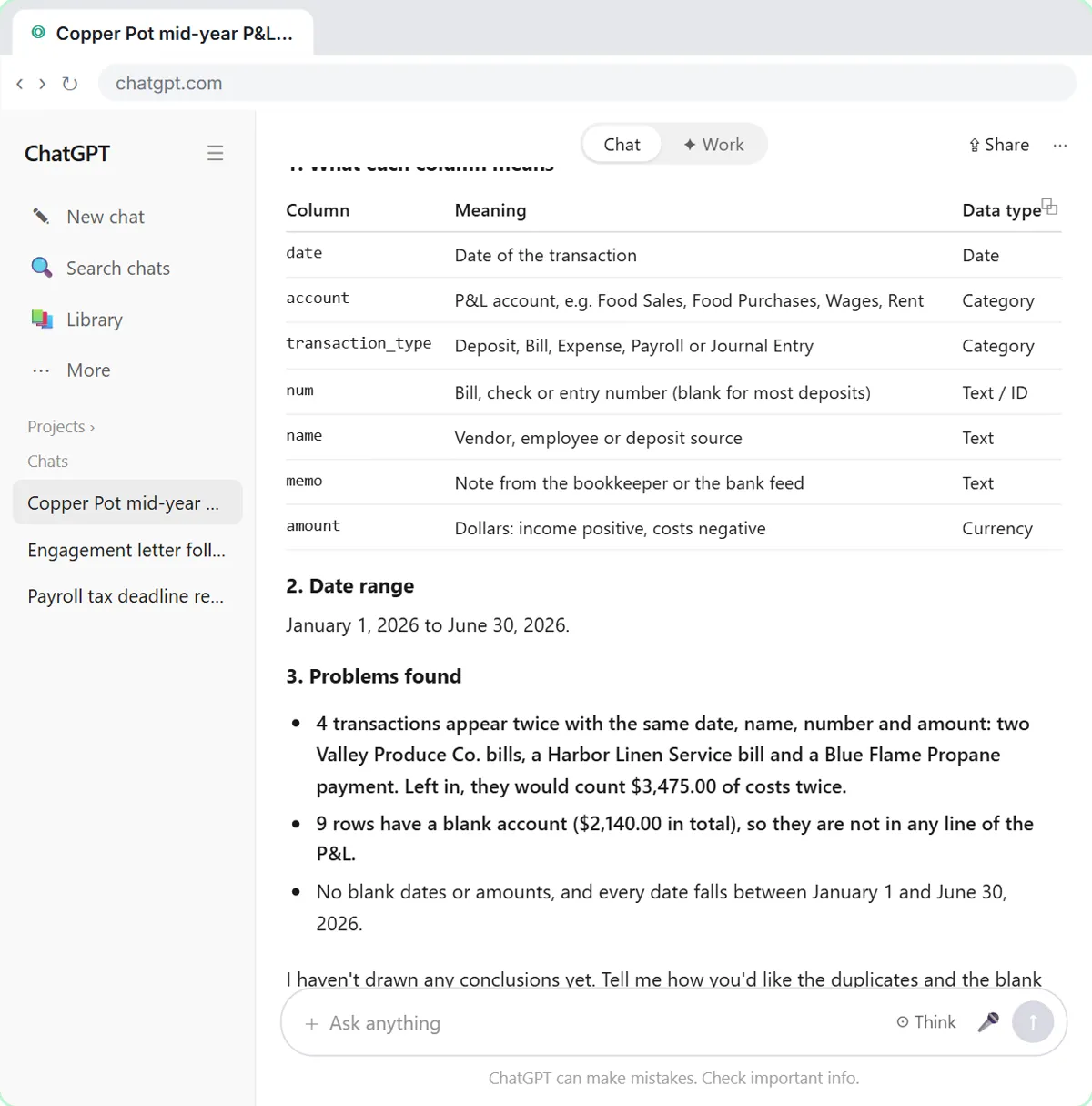 Analyze a Client's P&L Export with ChatGPT (Accounting & Bookkeeping Firms)
Upload a client's Profit and Loss Detail export to ChatGPT, catch duplicate bank-feed entries and uncategorized rows first, then get a monthly P&L summary, a chart and…
Free · Live ~11 min Beginner
 A Claude Project for Your Accounting Firm: Fee Schedule, Engagement Terms and Tone
Create a Claude project for your accounting firm, give it your tone and client policies, add your fee schedule and engagement letter terms as project knowledge, and get…
Free · Live ~9 min Beginner
 MonstarX: Turn New-Client Emails into an Intake Form and Tracker for Accounting & Bookkeeping Firms
New clients send their details by email and phone, and someone retypes them into a spreadsheet. Describe an intake app to MonstarX, answer its seven planning questions…
Free · Live ~8 min Beginner
◷Collect Overdue Invoices Faster using ChatGPTUpload your aging report, have ChatGPT build this week’s chase list (oldest and biggest first, disputes held back), check it against the file, then draft a friendly…
Free · Live ~12 min Beginner
All 15 modules in AI Automation for Accounting & Bookkeeping Firms
Terms in this lesson
Plain-English definitions, each with an example from a free lesson.