Updated . Built against the tool’s current screens and checked step by step. How we check this lesson
New clients send their details by email and phone, and someone retypes them into a spreadsheet. Describe an intake app to MonstarX, answer its seven planning questions, and get a branded intake form plus a staff list with a status for every client, without writing code.
At a glance
| Question | Answer |
|---|---|
| What you build | New clients send their details by email and phone, and someone retypes them into a spreadsheet. Describe an intake app to MonstarX, answer its seven planning questions, and get a branded intake form plus a staff list with a status for every client, without writing code. |
| Tools | MonstarX |
| Time | About 8 minutes, 18 steps in 3 parts |
| Level | Beginner, no coding needed |
| Cost | Free |
| Ways to learn it | Practice it step by step |
The 3 parts, in short
- Describe the app: Turn on Plan first, Describe the app, Plan it.
- Answer the planning questions: Name the firm, How staff sign in, Permissions, Who can be assigned, and 5 more steps.
- Build it and try the form: Start building, Let it build, Try the intake form, Submit intake, and 2 more steps.
Start here first: Turn a Client Meeting into Action Items and a Follow-Up Email (Accounting Firms) (module 1 of AI Automation for Accounting & Bookkeeping Firms)
Part of: AI for Accounting & Bookkeeping Firms (step 41 of 41)
Part of: AI Apps Worth Knowing (step 92 of 123). Next up: Pikzels: A YouTube Thumbnail and Title for a How-To Video for Marketing
What you'll build
A made-up 12-person accounting firm, Keystone Ledger Partners, gets new clients by email, phone and referral. Someone copies each one into a spreadsheet, the entity type is often missing, and nobody knows who is following up. In this lesson you describe an intake app to MonstarX, an AI app builder. With Plan first on, it asks seven questions (sign-in, permissions, emails, look) and then builds the whole thing: a branded intake form for clients and a staff list with a status for each one. You try the form as a client and find the record in Admin. Every screen is a real MonstarX screen; the firm and the client are made up.
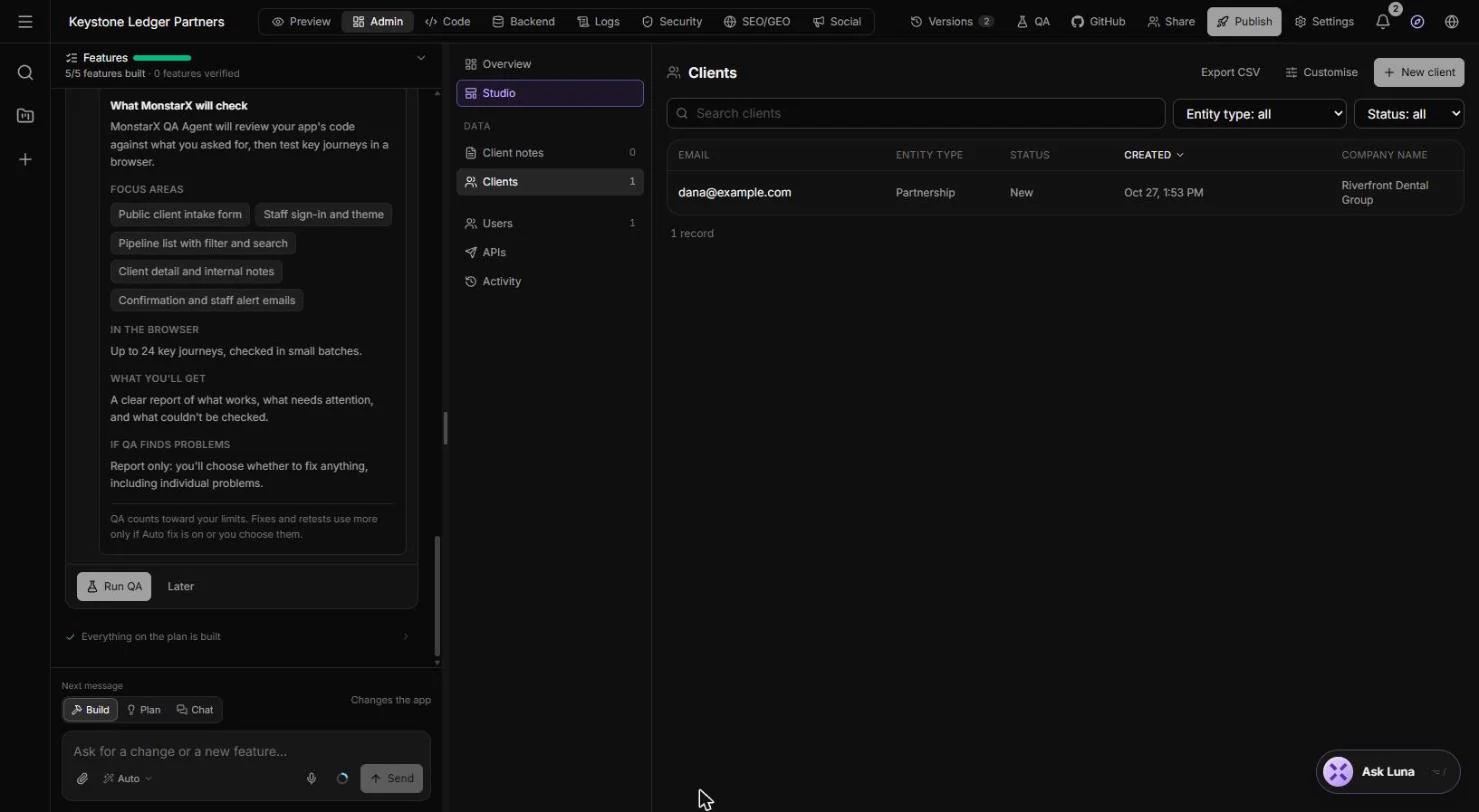
You described the app in one paragraph, answered seven questions (staff logins, permissions, who can be assigned, two emails, staff extras and a look), and MonstarX built all 5 features: a branded intake form, a thank-you screen with a confirmation email, and a Clients list where the new record arrived with status New. What it saves: retyping details from emails, missing entity types, and the "did anyone call them back?" question. Next: create your staff logins, then click Publish when you are ready to put the form on your website. MonstarX plans change; check monstarx.com for what yours includes.
- Tools: MonstarX
- Time: about 8 minutes, 18 steps in 3 chapters
- Level: beginner, no coding needed
- Price: free
Practice first, then build it for real
Practice copy built from real MonstarX screens (monstarx.com), captured 27 October 2026. Nothing here touches a MonstarX account. The firm and the client are made up; the questions, the app and the record are what MonstarX built from the description. The app was not published. To build it for real you need your own MonstarX account, and some services charge once you use them for real work, so check each tool's current pricing.
Try it yourself, free
Reading the steps is a start. Doing them is how it sticks. The interactive module walks you through every click in a practice copy of MonstarX, checks each step, and never touches your real accounts.
Start “MonstarX: Turn New-Client Emails into an Intake Form and Tracker for Accounting & Bookkeeping Firms”Step by step: MonstarX: Turn New-Client Emails into an Intake Form and Tracker for Accounting & Bookkeeping Firms
All 18 steps of the interactive module, in order. In the module you watch each one, then do it yourself in a practice copy that checks your work.
1. Describe the app
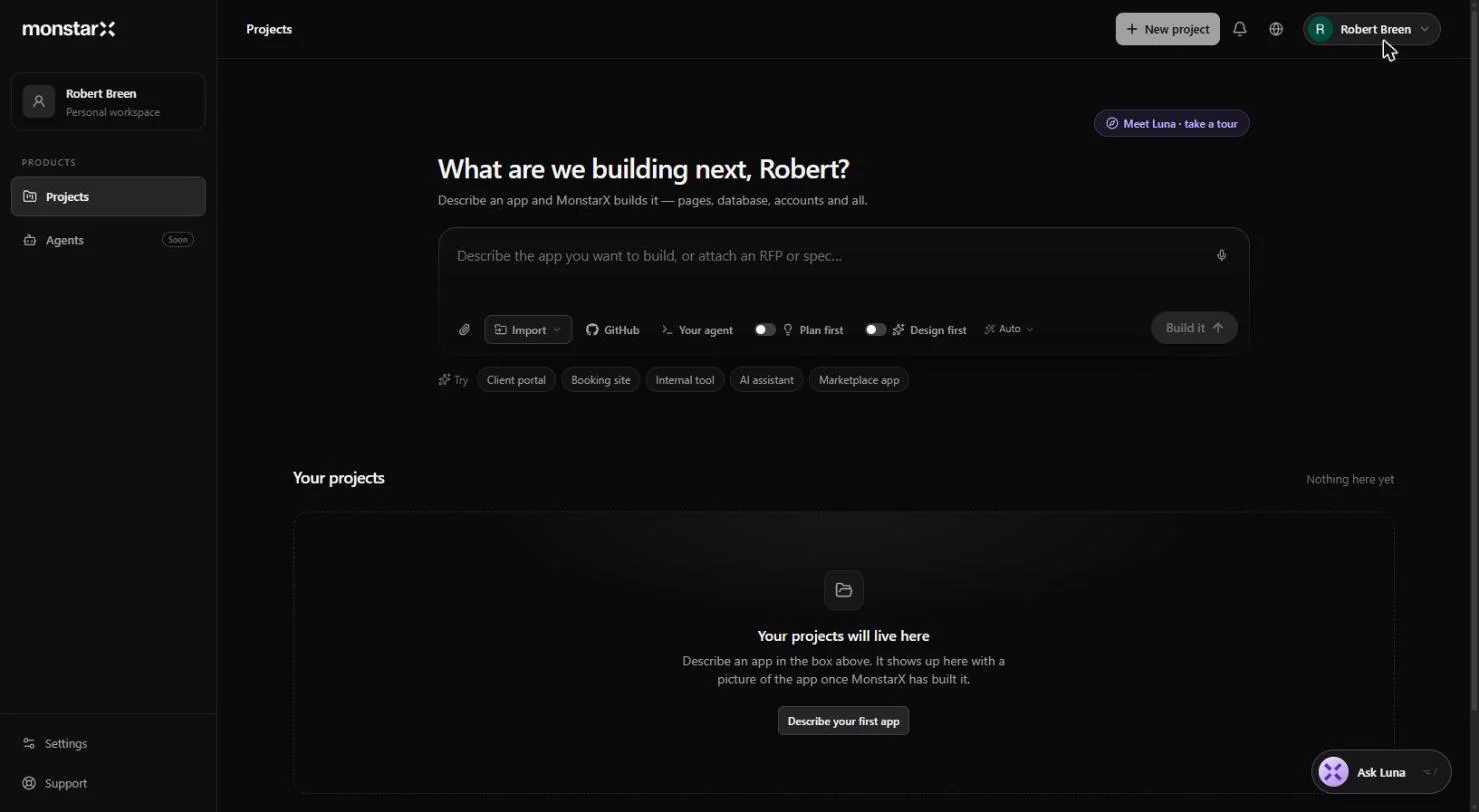
- Turn on Plan first. On the MonstarX Projects page it asks What are we building next? Before you type, switch on Plan first. MonstarX then asks a few questions before it builds, so the app fits your firm the first time.
Before you type, switch on Plan first. MonstarX will ask a few questions before it builds.
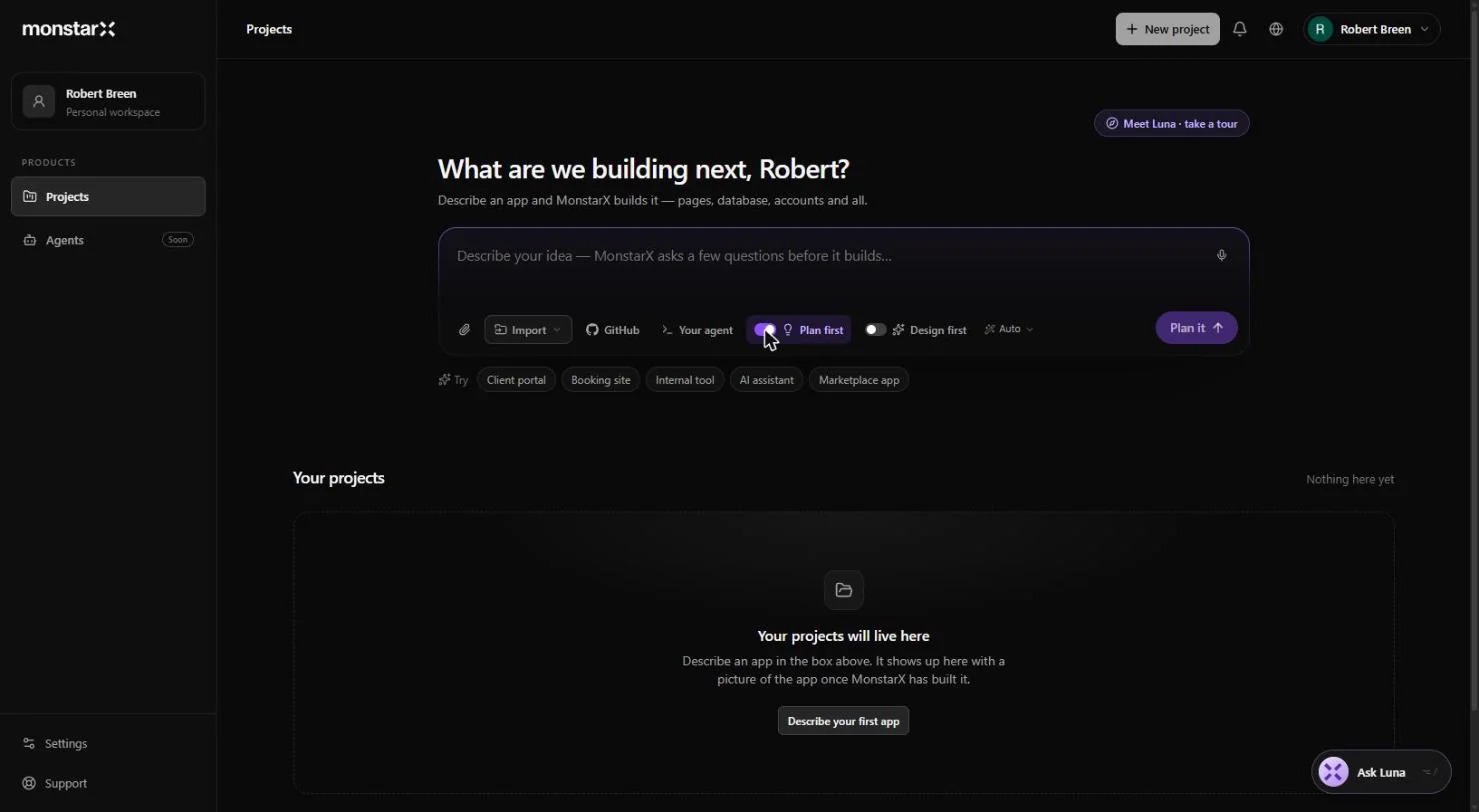
- Describe the app. Describe the app in plain words: who fills it in (new clients), what they enter, and what your staff need to see (one list, a status, an assigned accountant, a filter).
Describe the app in plain words. Who fills it in, what they enter, and what your staff need to see.
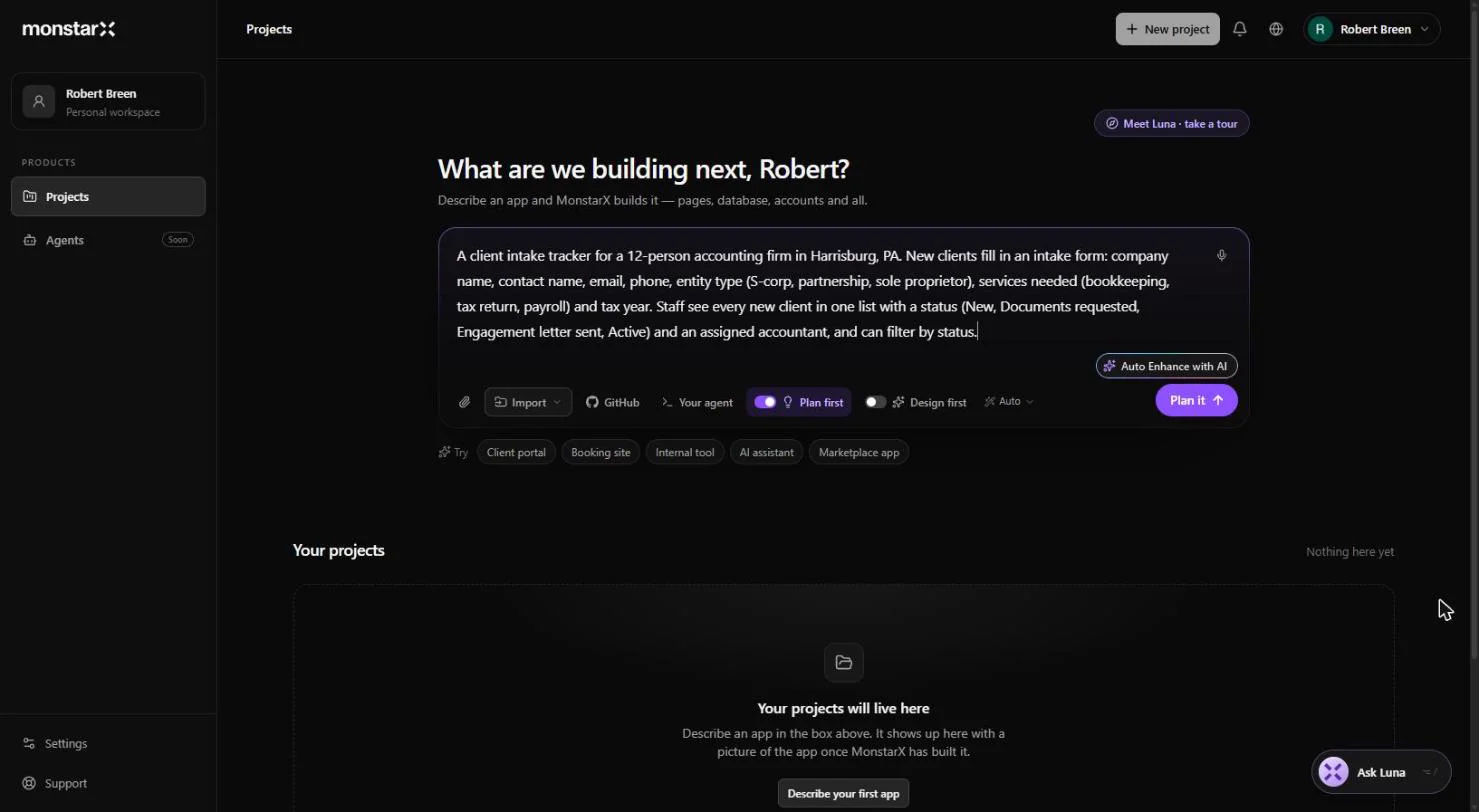
A client intake tracker for a 12-person accounting firm in Harrisburg, PA. New clients fill in an intake form: company name, contact name, email, phone, entity type (S-corp, partnership, sole proprietor), services needed (bookkeeping, tax return, payroll) and tax year. Staff see every new client in one list with a status (New, Documents requested, Engagement letter sent, Active) and an assigned accountant, and can filter by status.
- Plan it. With Plan first on, the button reads Plan it. Click it. MonstarX opens a new project and starts thinking.
MonstarX opens a new project.
2. Answer the planning questions
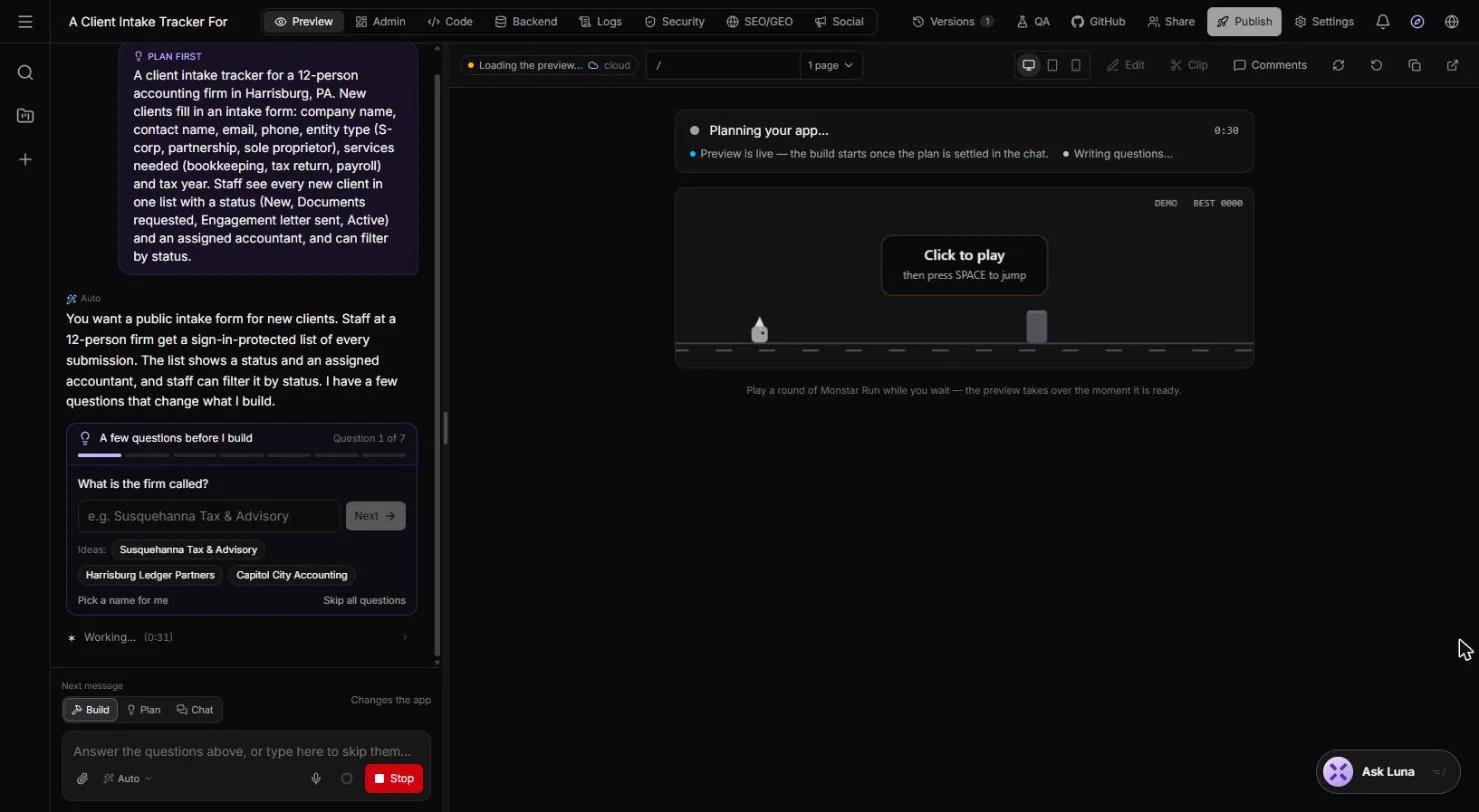
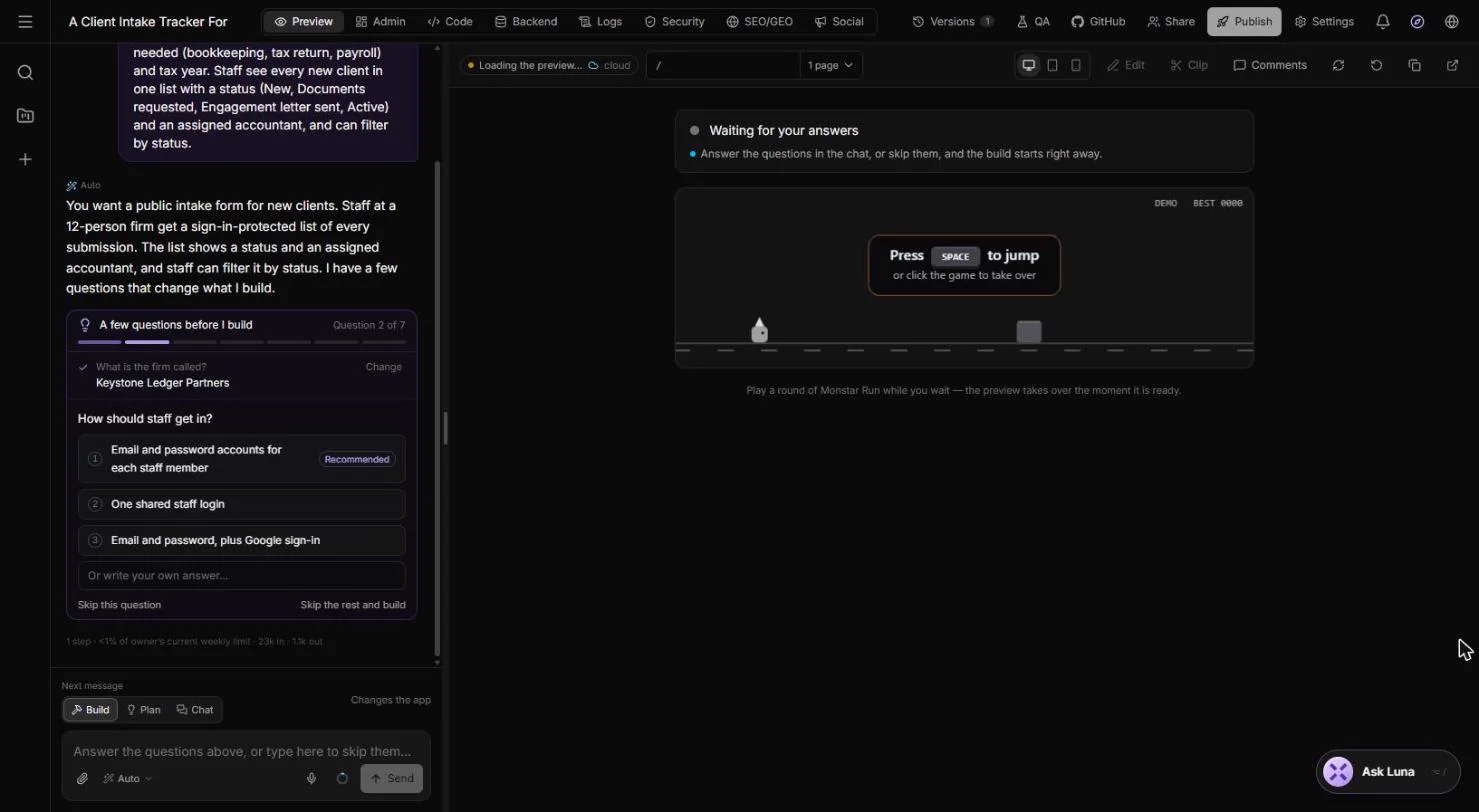
- Name the firm. MonstarX says back what it understood (a public intake form, and a sign-in-protected list for staff) and asks 7 questions. First: What is the firm called? Type the name and click Next.
It says back what it understood, then asks seven questions. First, the firm name.
- How staff sign in. How should staff get in? Pick Email and password accounts for each staff member (Recommended). Each person gets their own login, so you know who changed what.
How should staff sign in? Pick email and password accounts for each person.
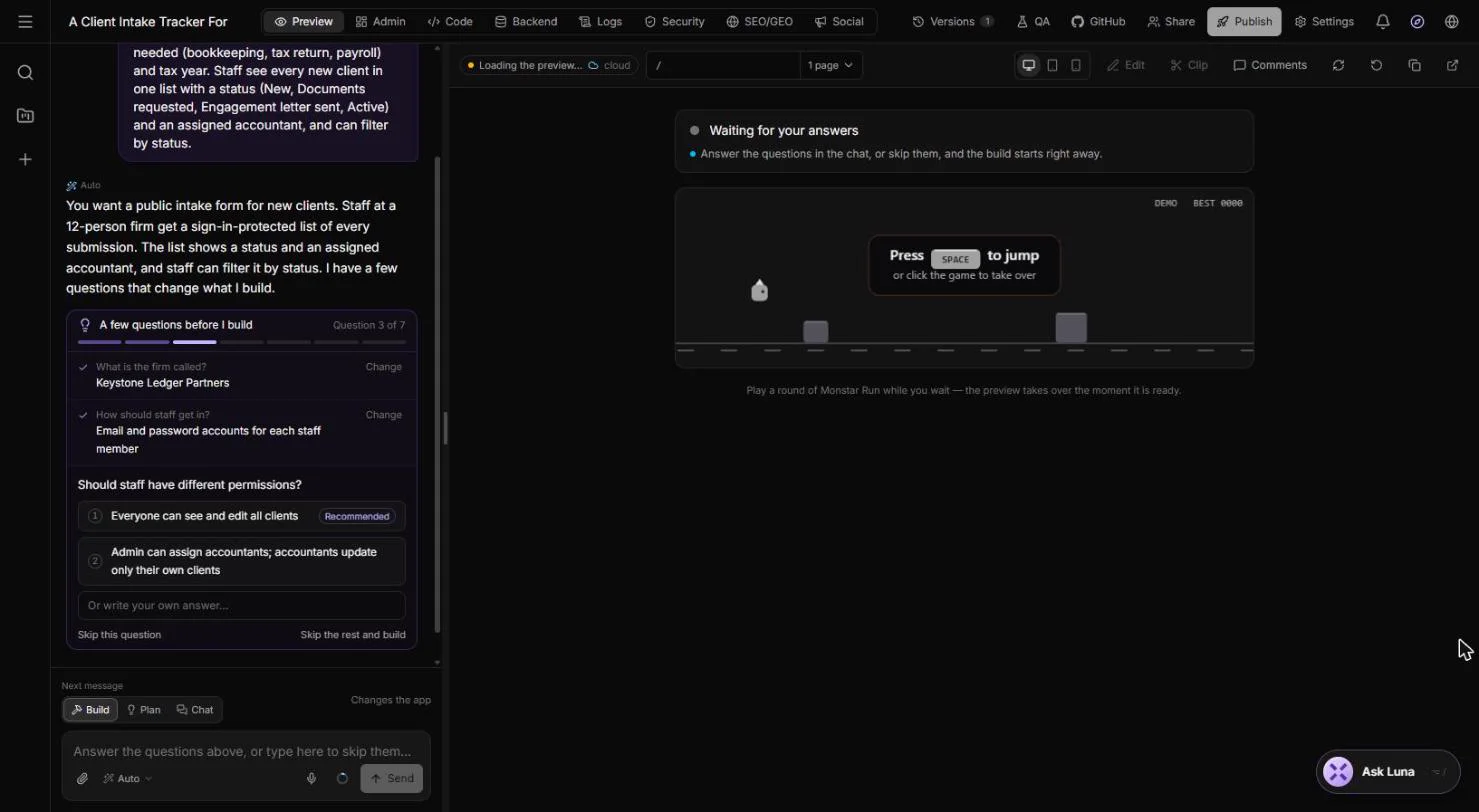
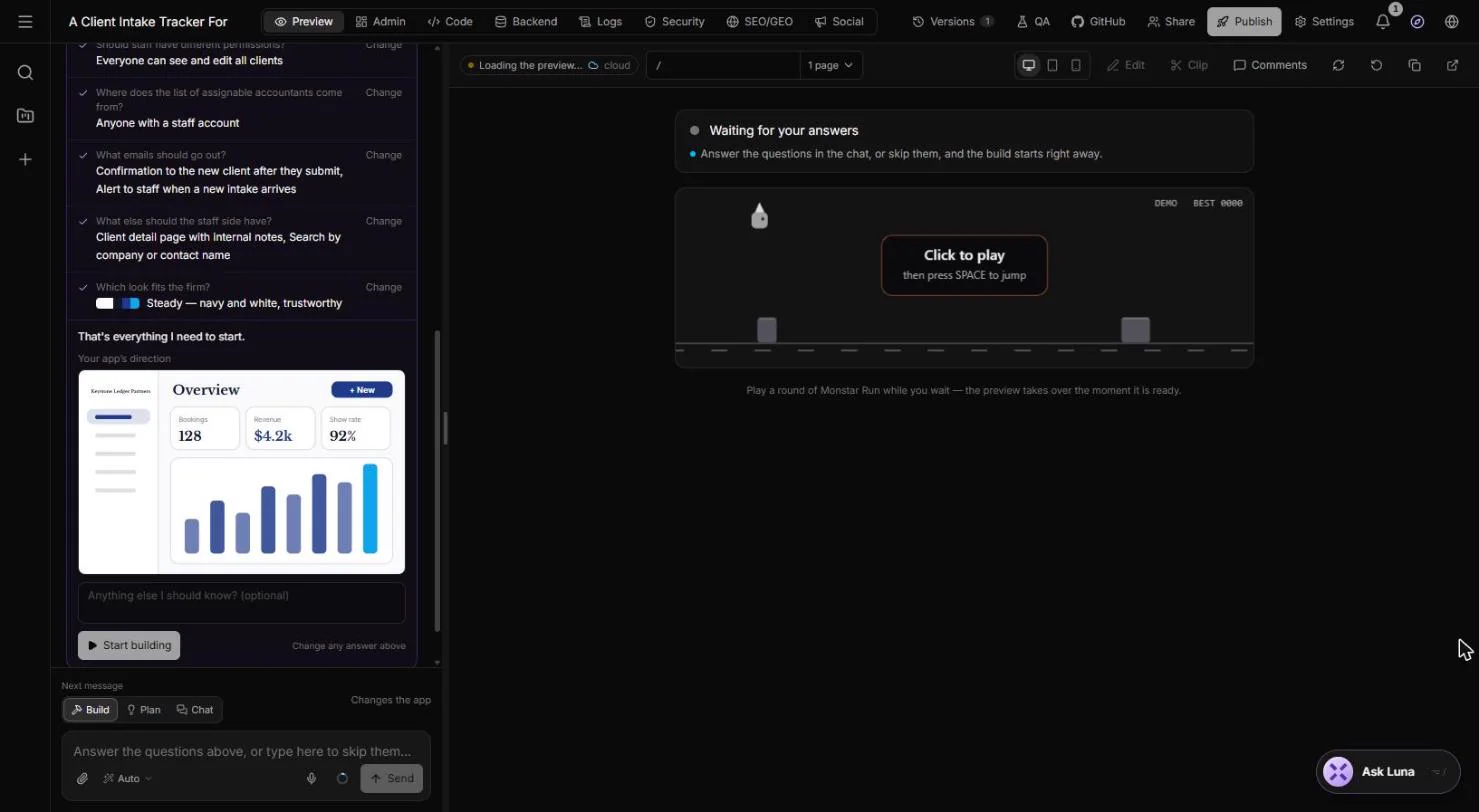
- Permissions. Should staff have different permissions? In a 12-person firm everyone helps with intake, so pick Everyone can see and edit all clients.
In a small firm everyone helps with intake. Pick, everyone can see and edit all clients.
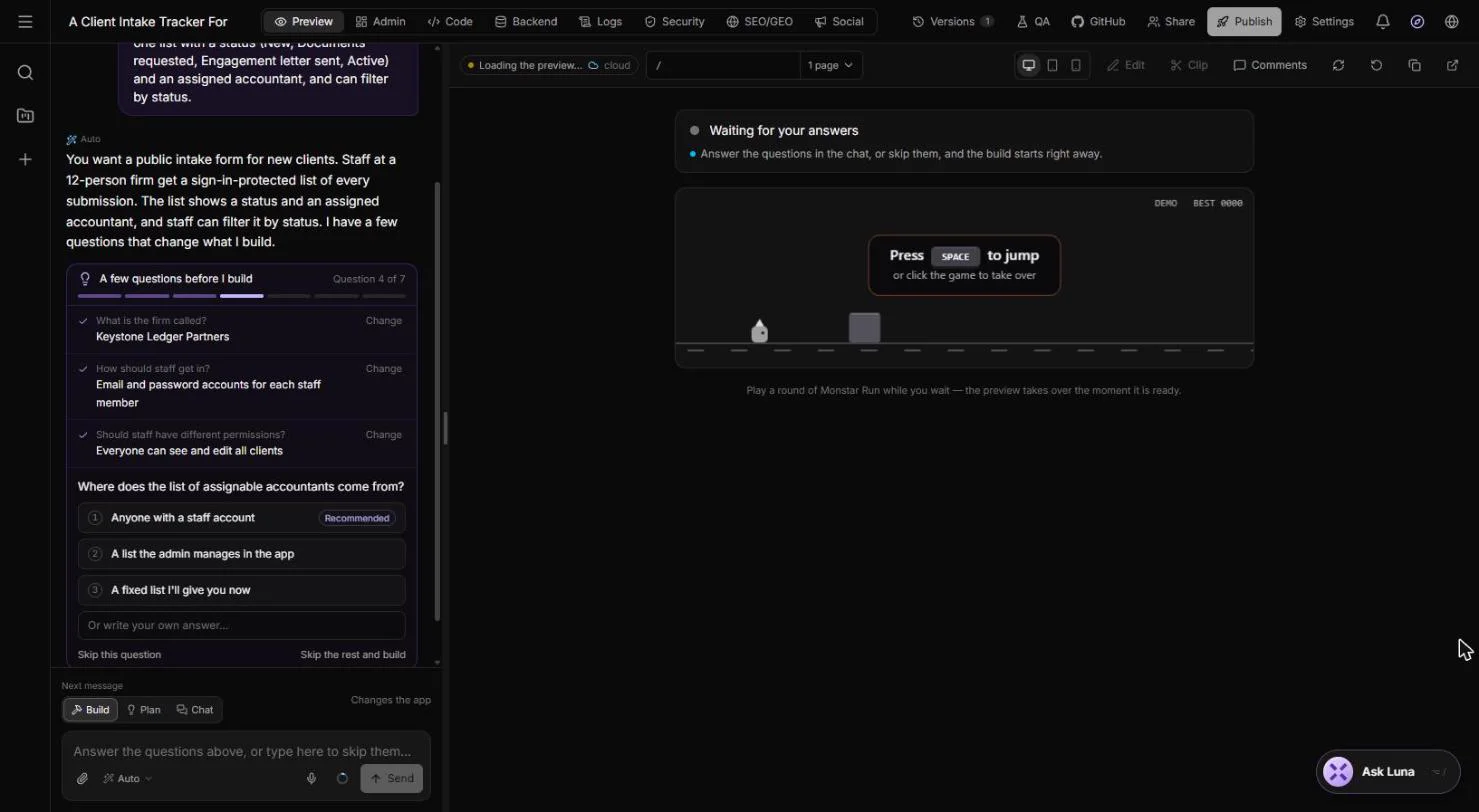
- Who can be assigned. Where does the list of assignable accountants come from? Pick Anyone with a staff account. New hires show up in the list as soon as they have a login.
Pick anyone with a staff account. New hires show up as soon as they have a login.
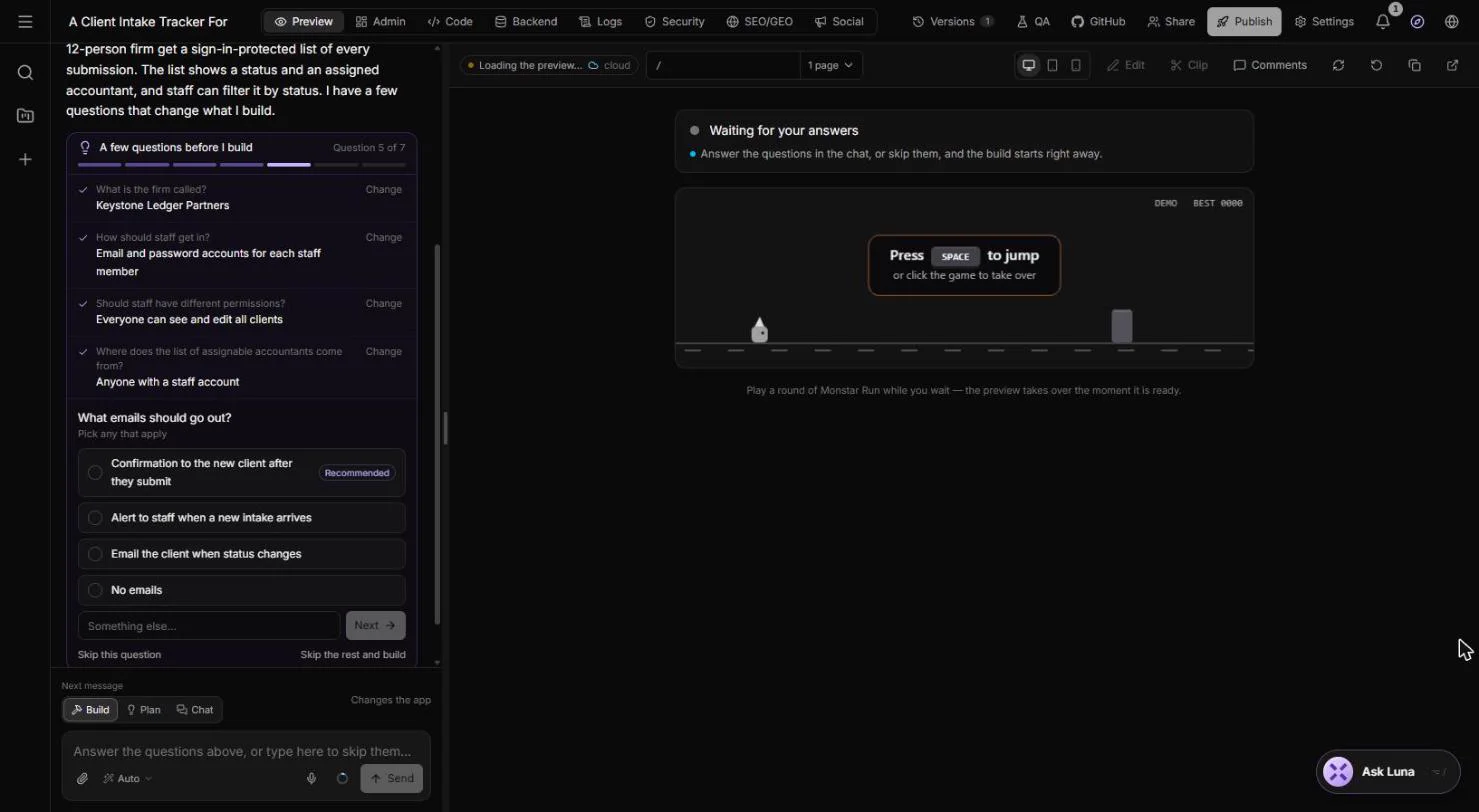
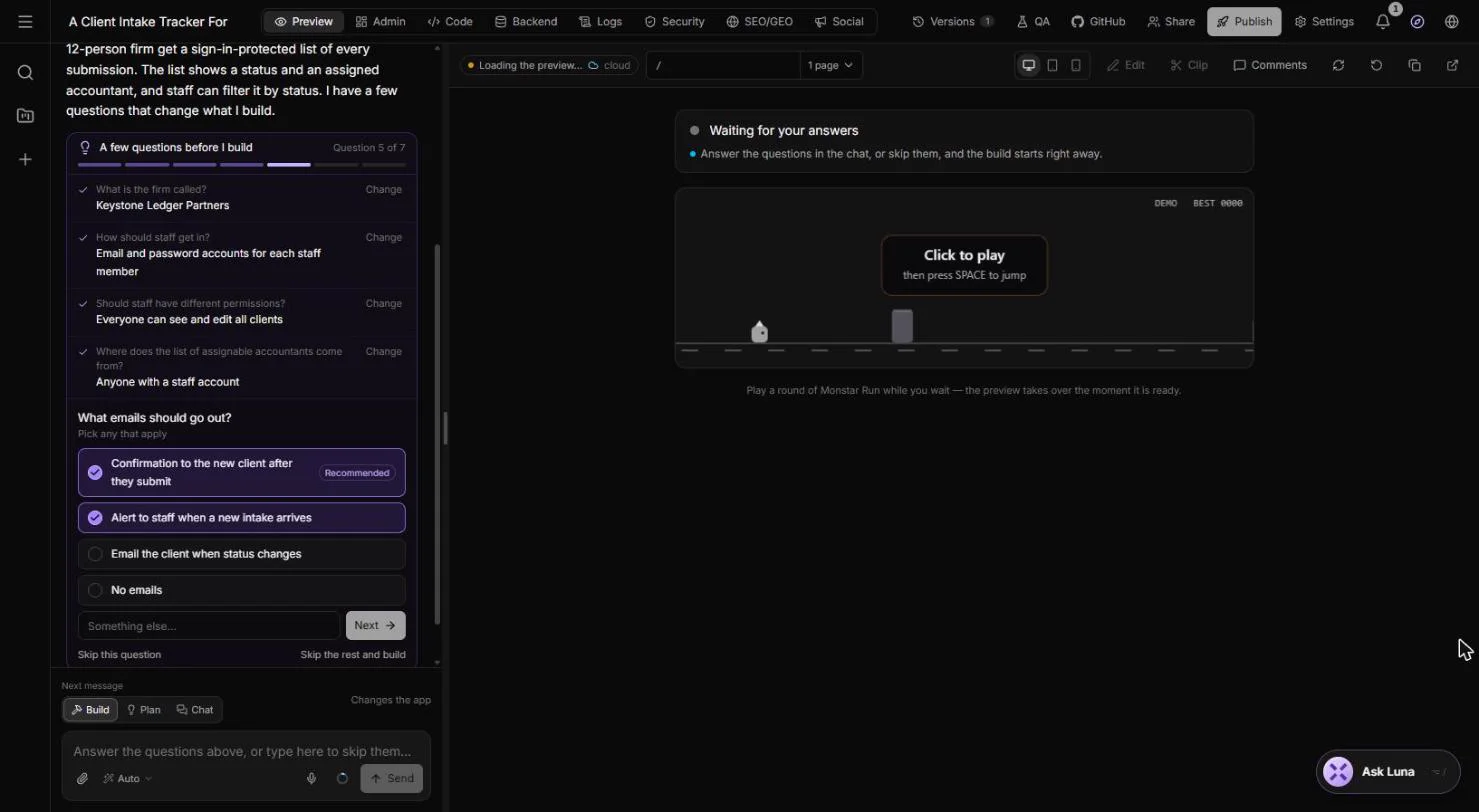
- Emails. What emails should go out? (pick any that apply). Tick Confirmation to the new client after they submit and Alert to staff when a new intake arrives. The client knows you have it, and nobody has to watch an inbox.
Tick the confirmation to the new client, and the alert to staff. Nobody has to watch an inbox.
- Next. Both are ticked. Click Next.
Both are ticked.
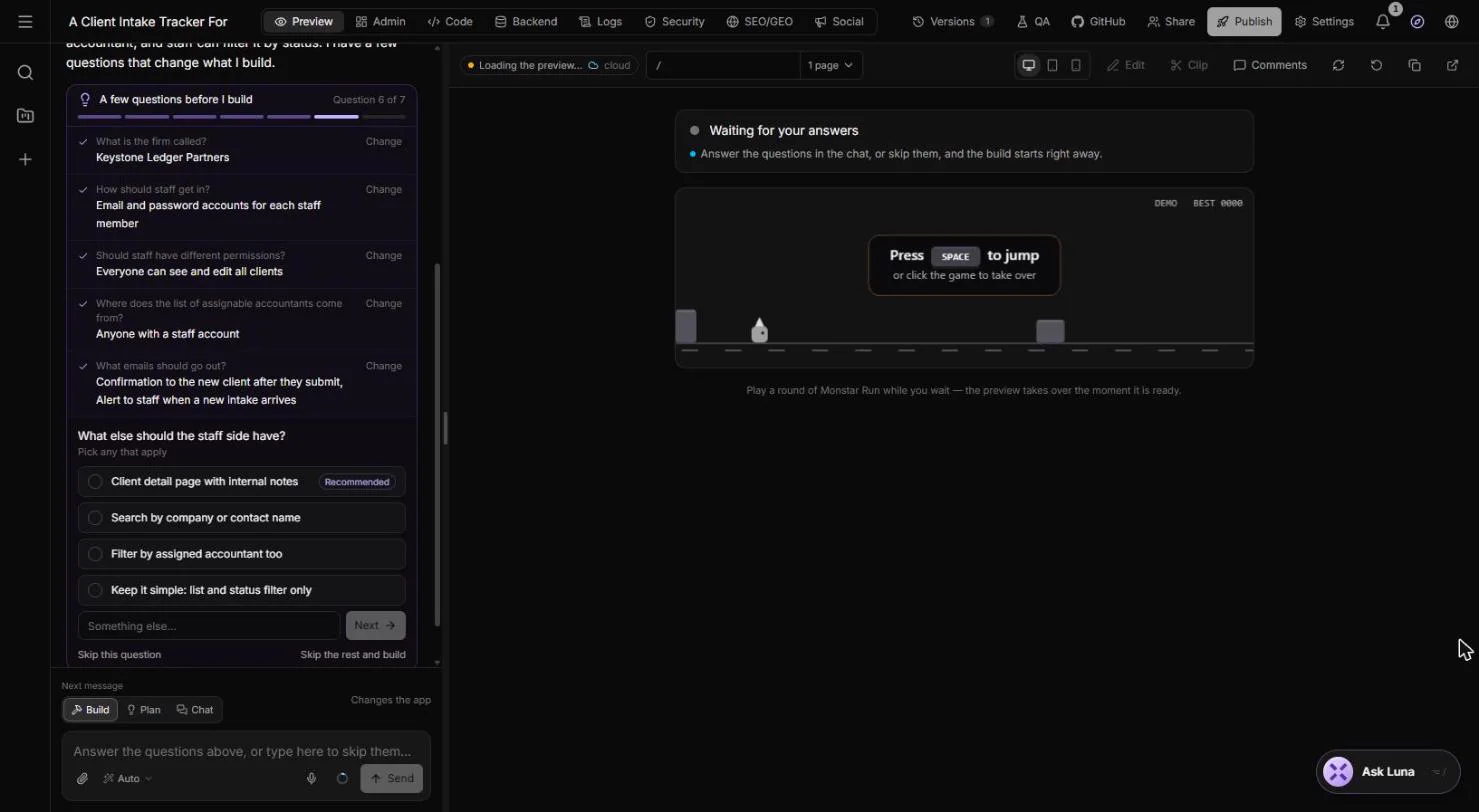
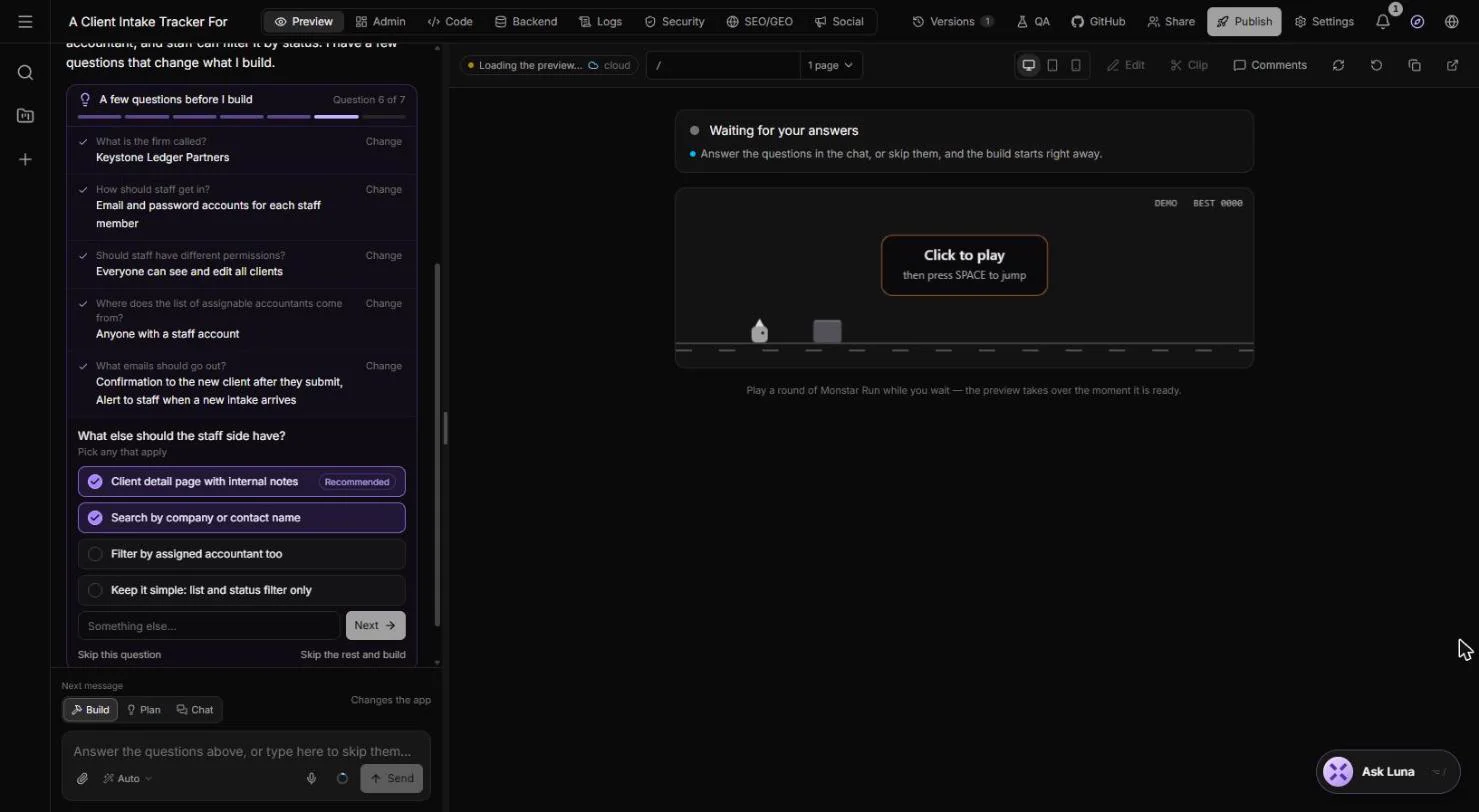
- Staff extras. What else should the staff side have? Tick Client detail page with internal notes and Search by company or contact name.
Tick a client detail page with notes, and search by company or contact.
- Next. Click Next.
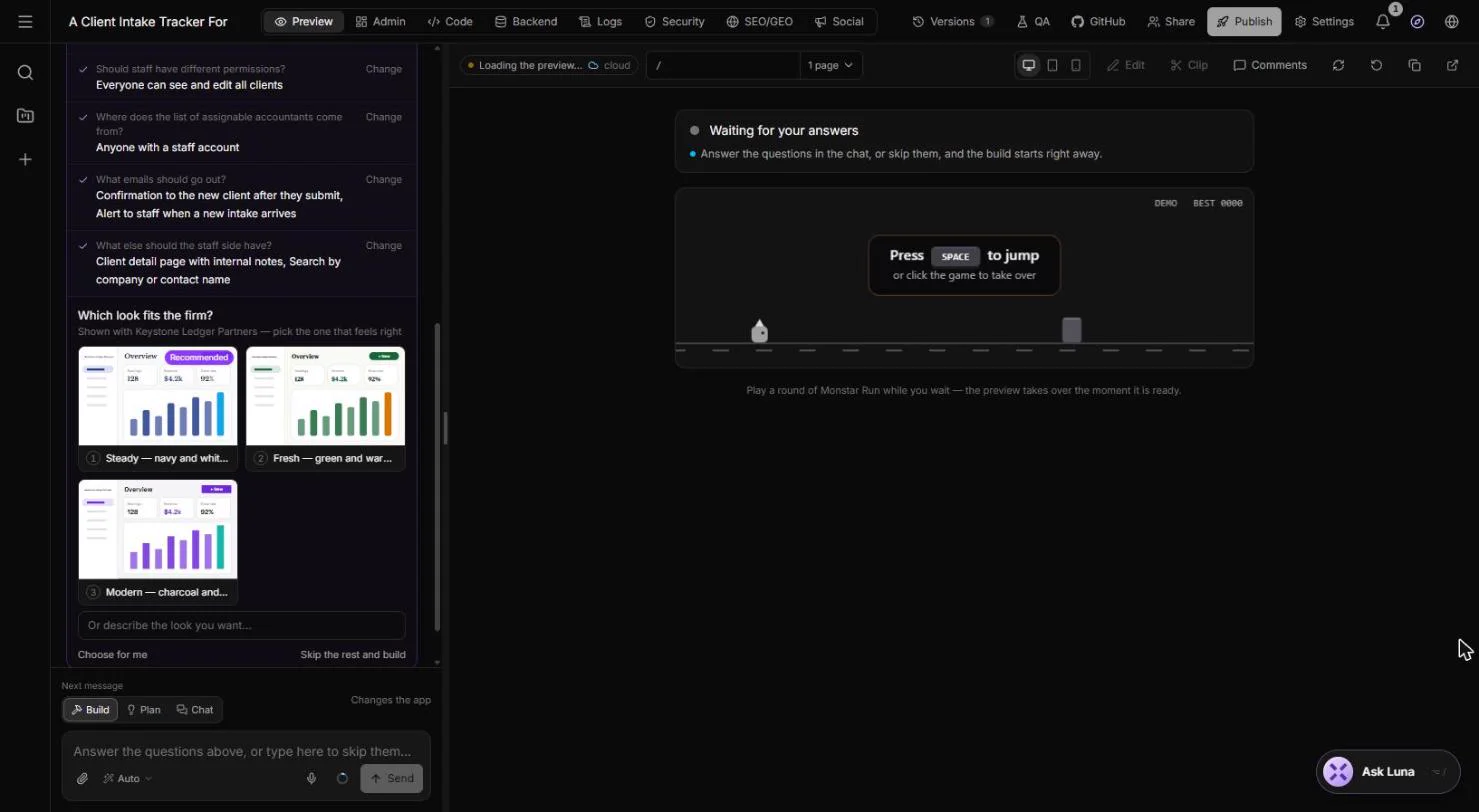
- Pick a look. Which look fits the firm? MonstarX shows three styles with your firm name on them. Pick Steady: navy and white, trustworthy (Recommended).
Pick a look. Steady, navy and white, suits an accounting firm.
3. Build it and try the form
- Start building. That is everything I need to start. You see the app’s direction and a box for anything else. Click Start building.
That is everything it needs.
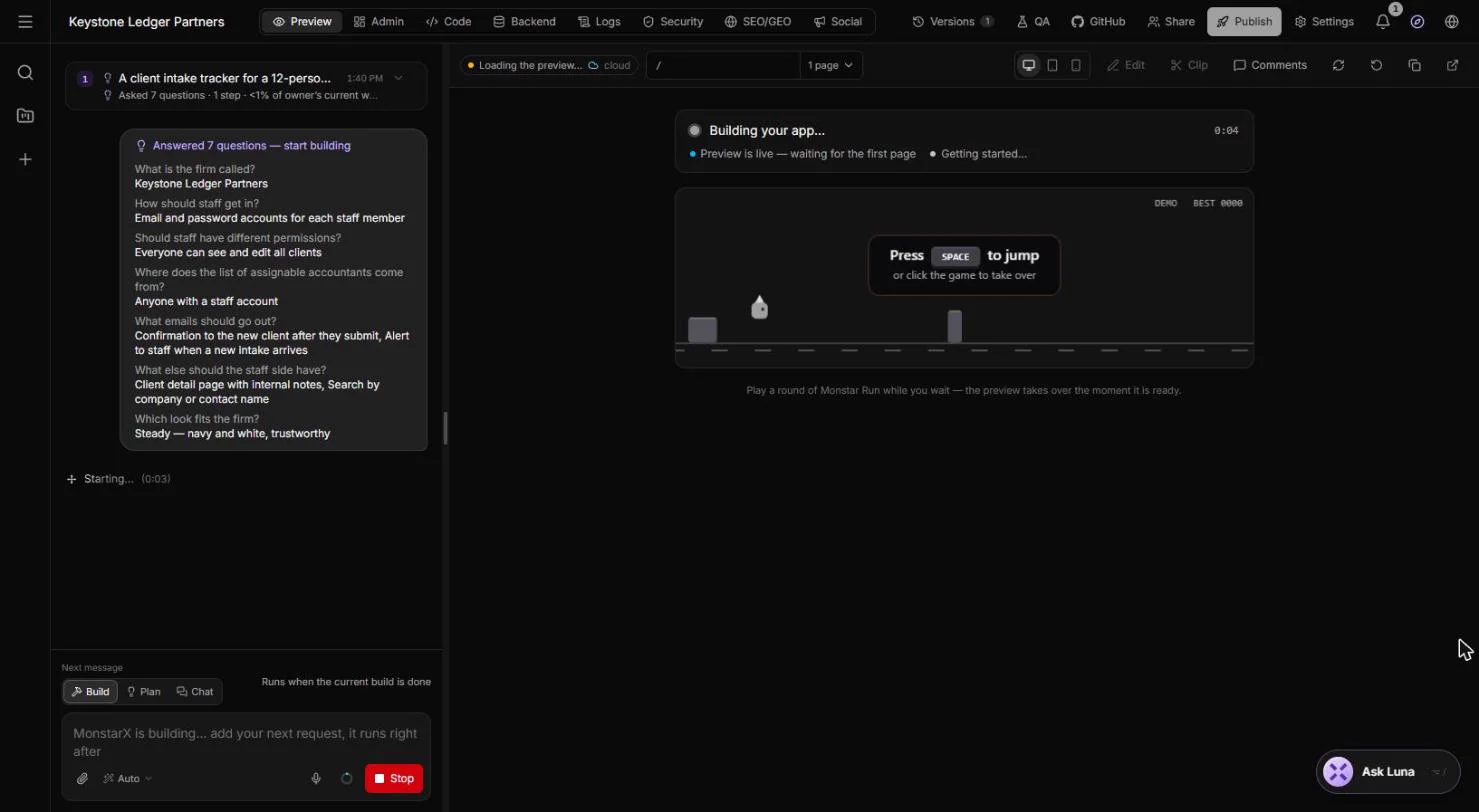
- Let it build. Your answers sit at the top of the chat, and Building your app... runs on the right (there is even a small game while you wait). Ours took about 15 minutes. Click the status card to move on.
Your answers sit at the top. The build takes a while. Ours took about fifteen minutes.
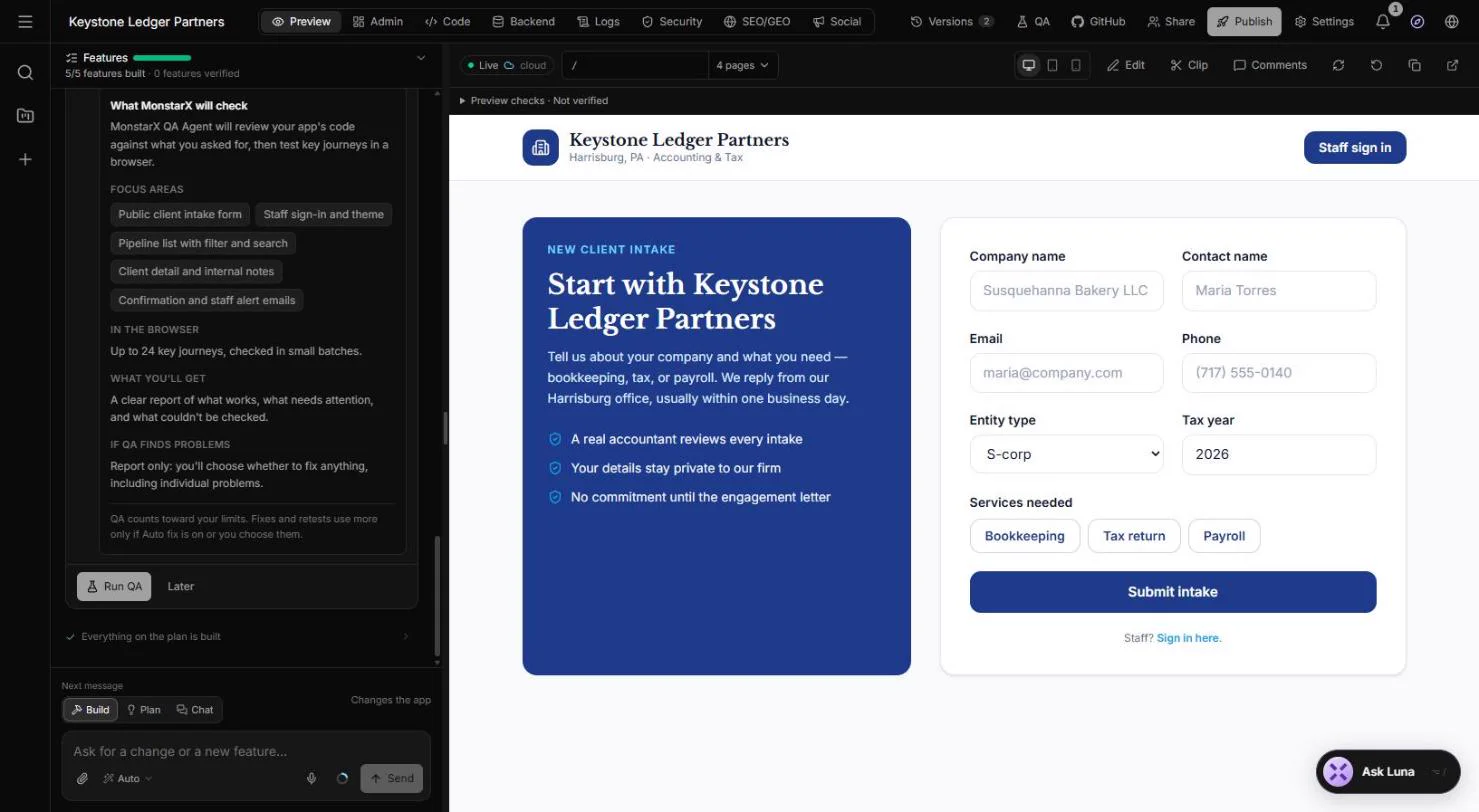
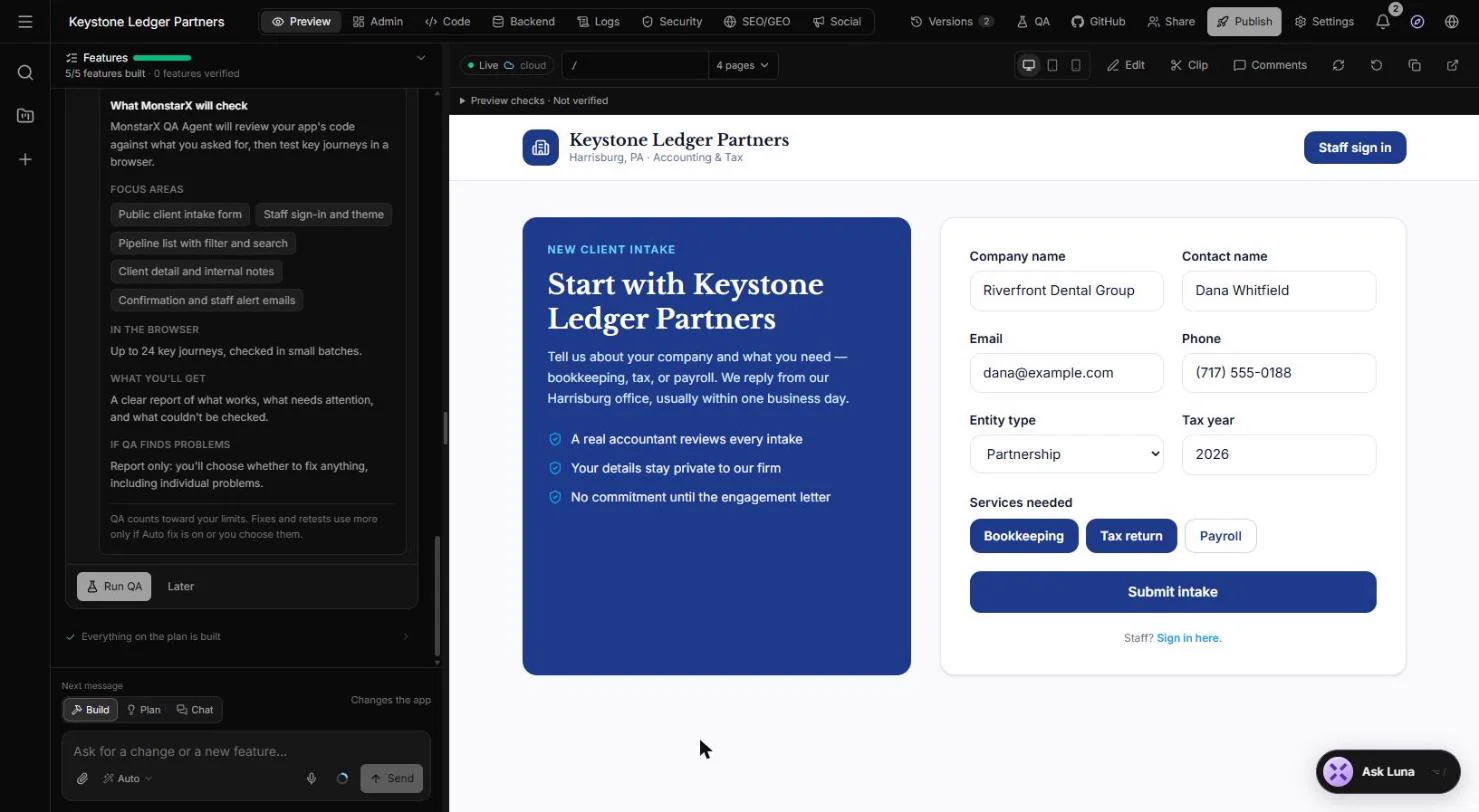
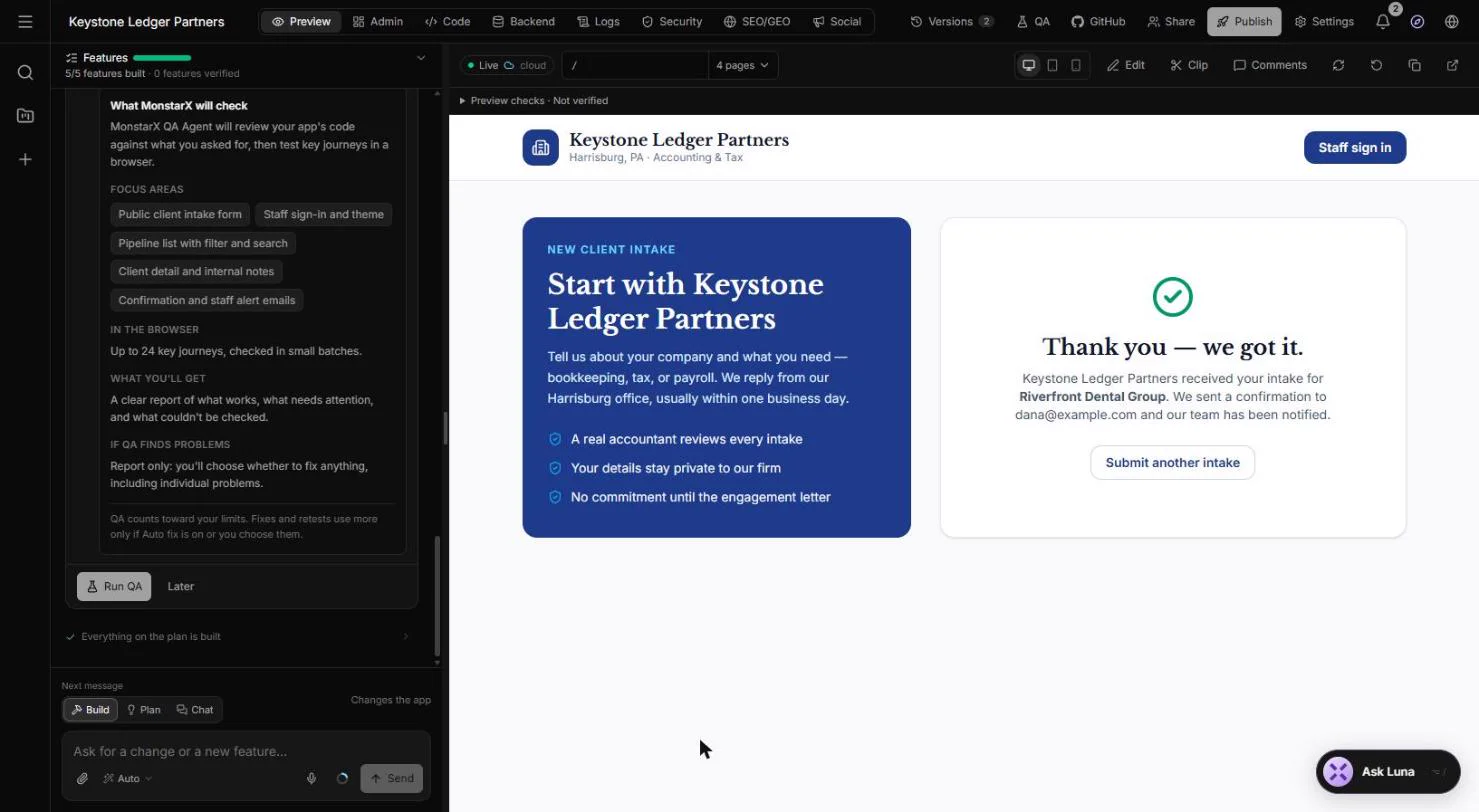
- Try the intake form. The Features bar reads 5/5 features built and the preview shows your form: Start with Keystone Ledger Partners, with every field you asked for. Try it as a new client. Type a made-up company, then fill in the contact, an example.com email, entity type, tax year and services.
Five of five features built. Try the form as a new client, with made-up details.
- Submit intake. Our test client is a partnership that needs Bookkeeping and a Tax return. Click Submit intake.
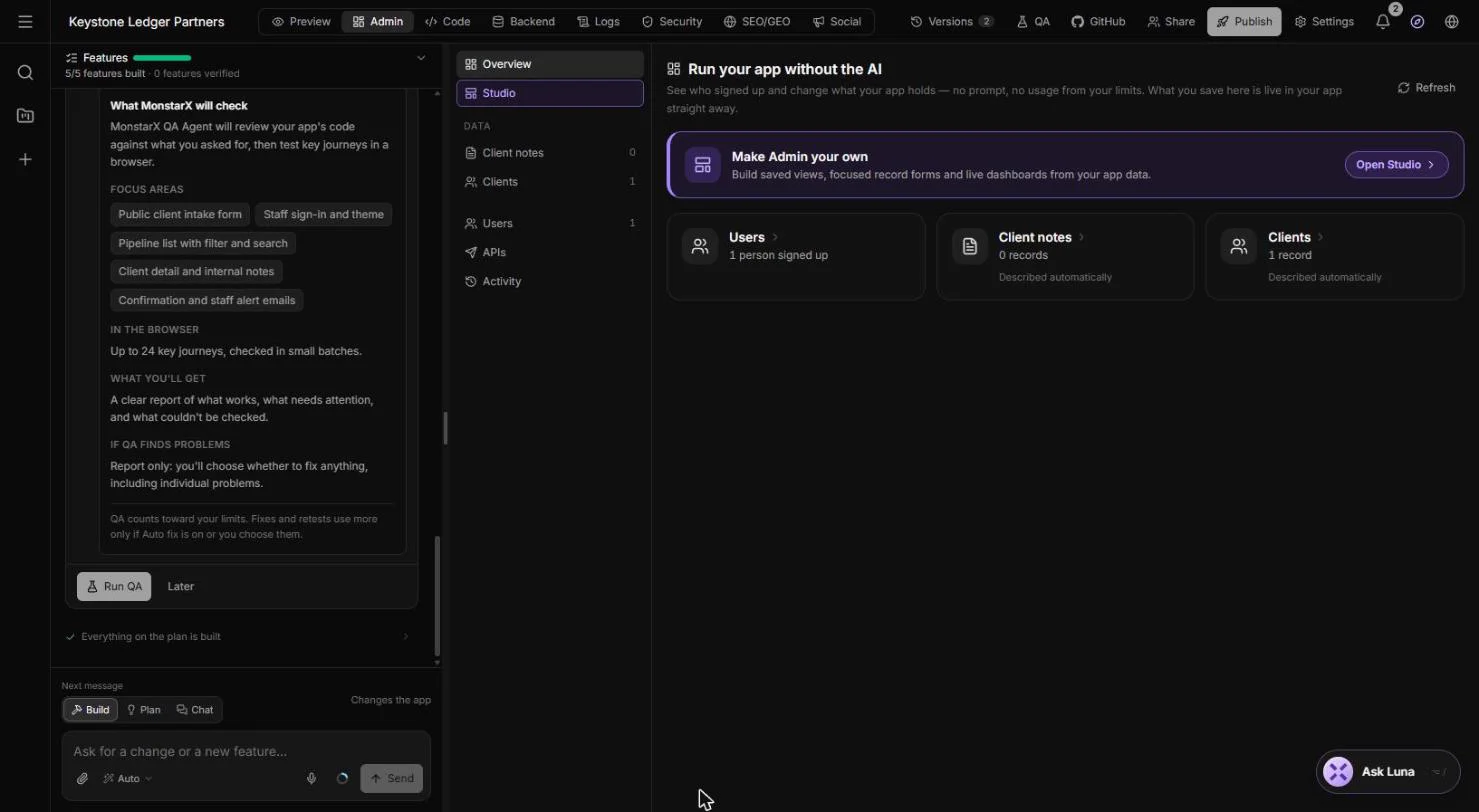
- Open Admin. Thank you, we got it. The form says a confirmation went to the client and the team was notified. Now see what your staff see: click Admin at the top.
The client sees a thank you.
- Open Clients. Admin lets you see and change what the app holds without the AI. Clients has 1 record. Click it.
Admin shows what the app holds. Clients has one record.
Screenshots
More in AI Automation for Accounting & Bookkeeping Firms
 Turn a Client Meeting into Action Items and a Follow-Up Email (Accounting Firms)
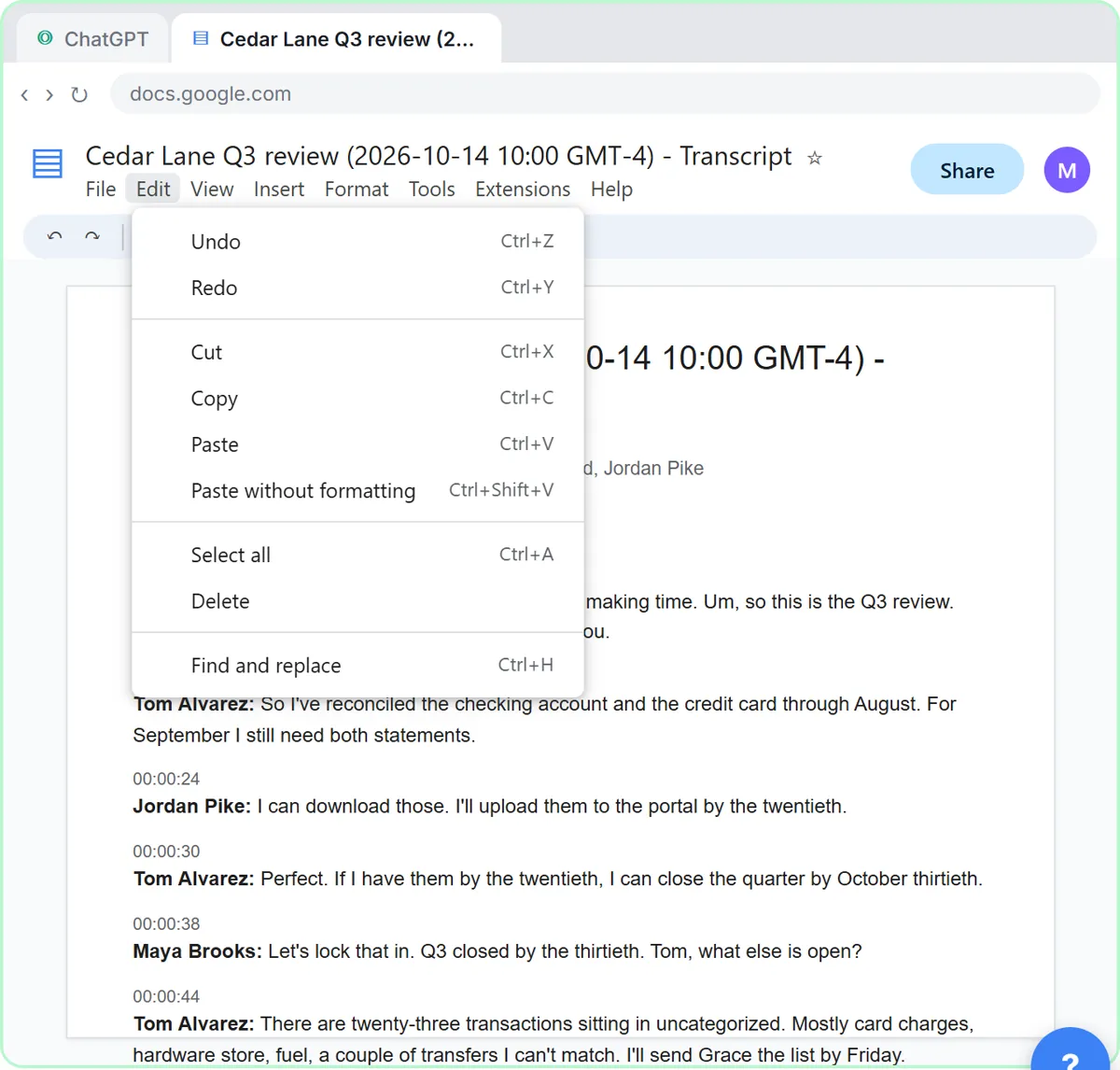
Turn the transcript of a client's quarterly review into the decisions, an action items table with owners and due dates, and a follow-up email to the client.
Free · Live ~9 min Beginner
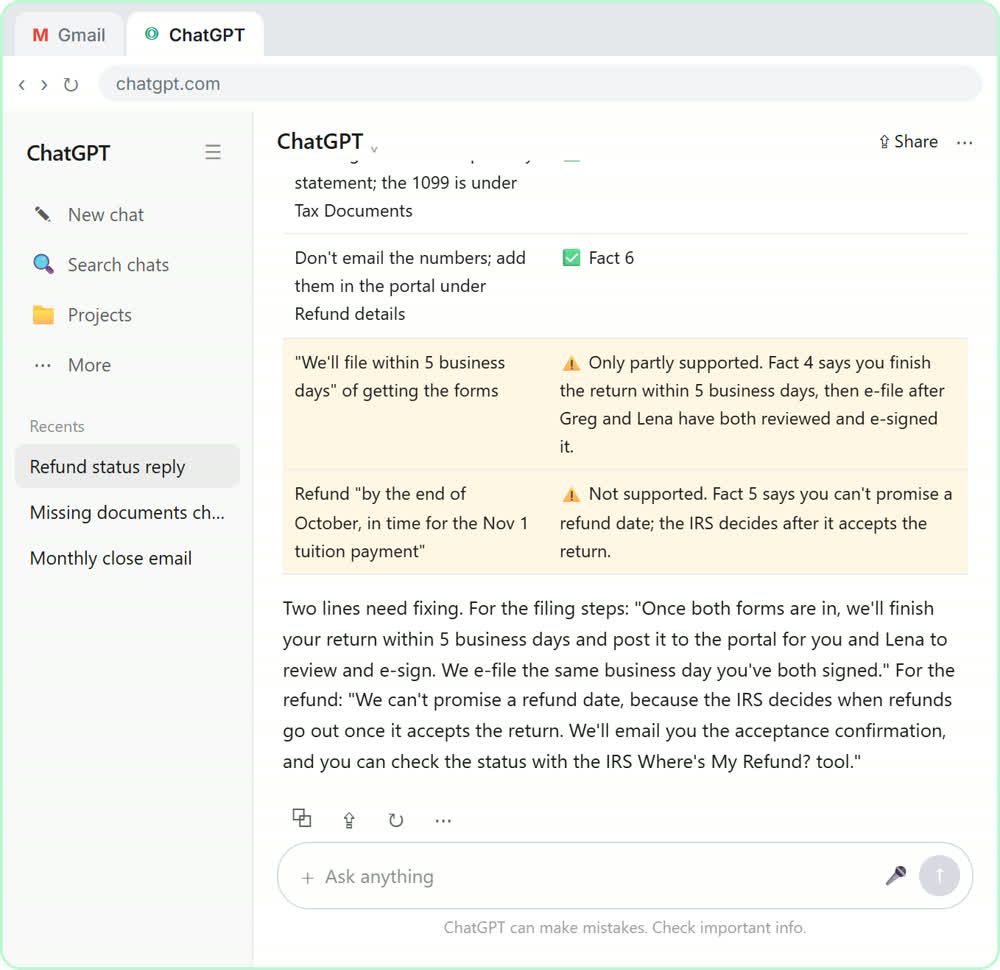 Answer Refund-Date Emails Without Overpromising using ChatGPT
A client wants a refund date while two tax forms are still missing. Give ChatGPT the thread and your firm's facts, catch the date it shouldn't promise, and send a calm…
Free · Live ~10 min Beginner
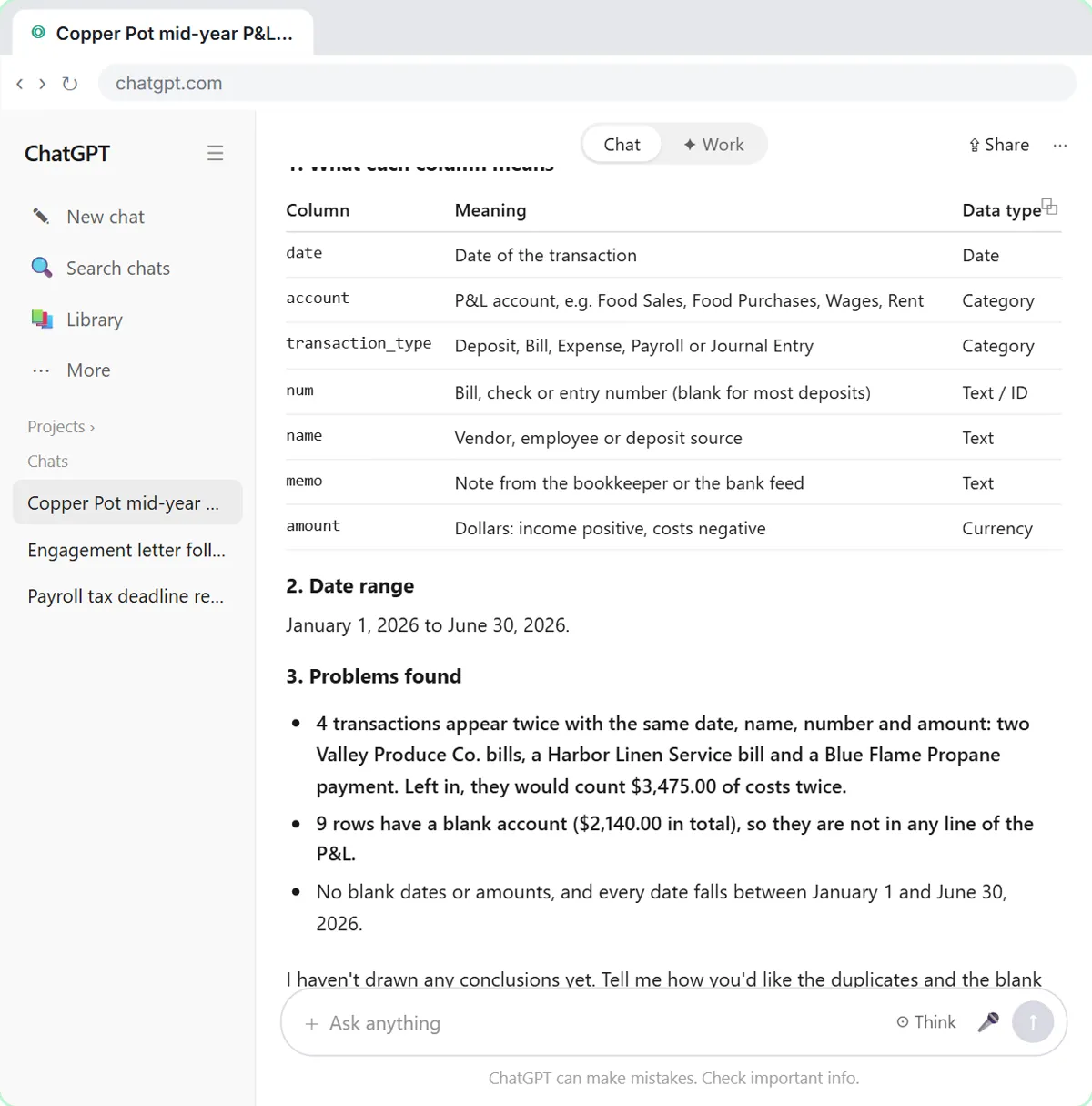 Analyze a Client's P&L Export with ChatGPT (Accounting & Bookkeeping Firms)
Upload a client's Profit and Loss Detail export to ChatGPT, catch duplicate bank-feed entries and uncategorized rows first, then get a monthly P&L summary, a chart and…
Free · Live ~11 min Beginner
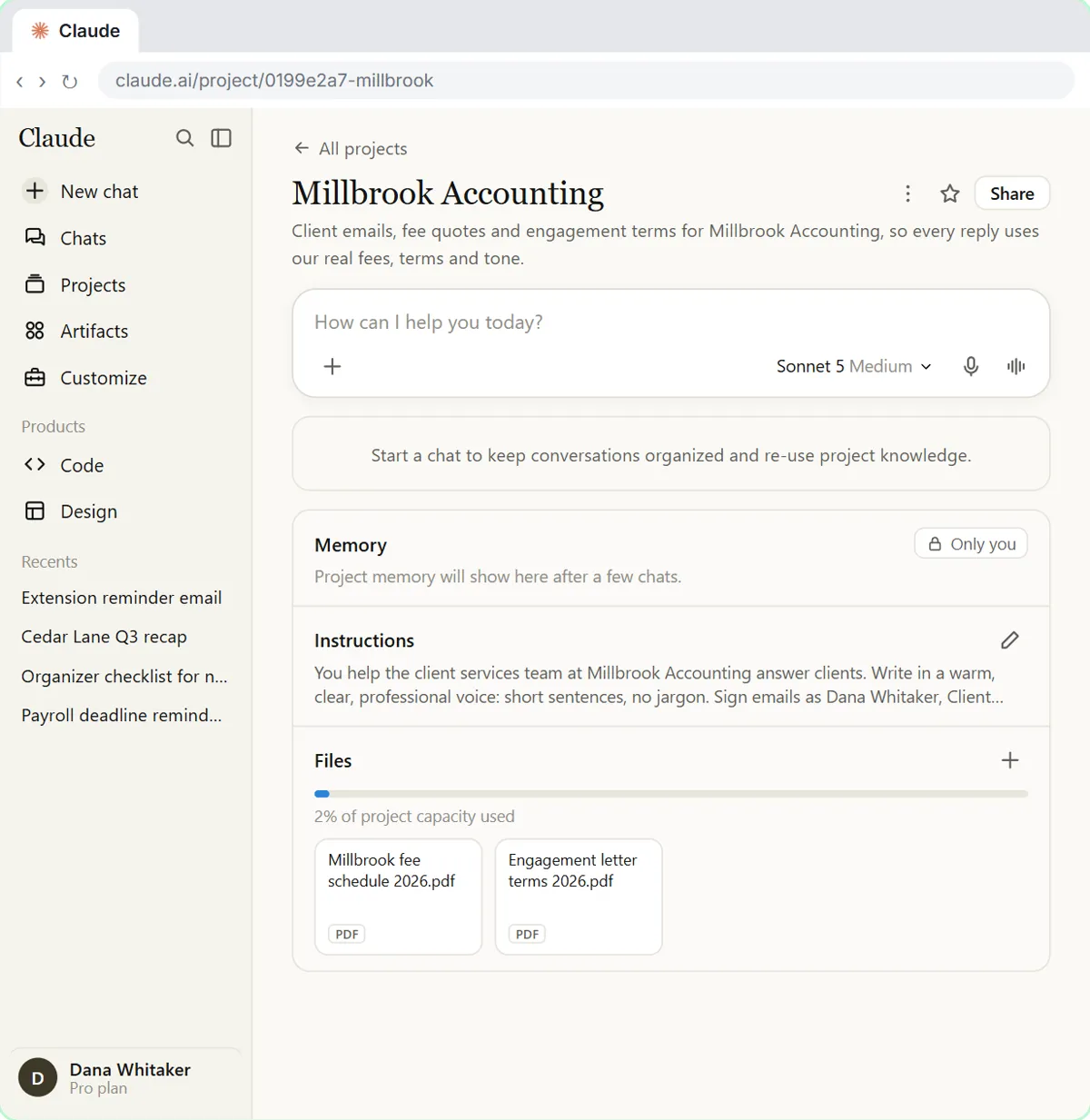 A Claude Project for Your Accounting Firm: Fee Schedule, Engagement Terms and Tone
Create a Claude project for your accounting firm, give it your tone and client policies, add your fee schedule and engagement letter terms as project knowledge, and get…
Free · Live ~9 min Beginner
◷Month-End Bank Reconciliation with ChatGPT: 20 Minutes, Not 3 HoursUpload the bank statement and the books, let ChatGPT match every row and list the exceptions, then check the answer and paste a reconciliation summary into the…
Free · Live ~12 min Beginner
 PaperOffice AI: Read Every Supplier Invoice and Spot the Ones That Need Approval for Accounting & Bookkeeping Firms
A small firm gets supplier invoices as PDFs, and anything over $2,000 needs a partner’s OK. Upload one to PaperOffice AI, watch it name, sort and read the invoice…
Free · Live ~5 min Beginner
All 15 modules in AI Automation for Accounting & Bookkeeping Firms
Terms in this lesson
Plain-English definitions, each with an example from a free lesson.