Updated . Built against the tool’s current screens and checked step by step. How we check this lesson
A small accounting firm records a how-to video so clients stop emailing tax documents, but nobody clicks it. Describe the video in Pikzels, pick one of three titles, turn it into scored thumbnails, fix the weak spots in one click and edit one corner.
At a glance
| Question | Answer |
|---|---|
| What you build | A small accounting firm records a how-to video so clients stop emailing tax documents, but nobody clicks it. Describe the video in Pikzels, pick one of three titles, turn it into scored thumbnails, fix the weak spots in one click and edit one corner. |
| Tools | Pikzels |
| Time | About 6 minutes, 15 steps in 3 parts |
| Level | Beginner, no coding needed |
| Cost | Free |
| Ways to learn it | Practice it step by step |
The 3 parts, in short
- Get a title: Open Title, Describe the video, Generate titles, Pick the title, and 1 more step.
- Turn it into thumbnails: Generate, Wait for both.
- Score and fix it: Open the score, Read why, One-Click Fix, Read the fix, and 4 more steps.
Start here first: Build an n8n AI Agent That Plans Your Content Calendar (module 1 of AI Automation for Marketing)
Part of: AI for Marketing Teams (step 37 of 40). Next up: Turn One Product Photo into a 5-Second Video Ad using Higgsfield
Part of: AI Apps Worth Knowing (step 88 of 104). Next up: Voicenotes: Turn a Client Meeting into Notes, To-dos and a Follow-up Email
What you'll build
A made-up 10-person accounting firm is tired of clients emailing receipts and tax documents as attachments. It is a security risk, and staff spend hours saving and filing them. The firm recorded a short how-to video showing clients how to use the secure portal instead, but a plain title and a screenshot thumbnail get almost no clicks. In this lesson you describe the video in Pikzels, an AI tool for YouTube titles and thumbnails. It writes three titles, turns your pick into two thumbnails and scores each one out of 100. You open the score, let One-Click Fix clean it up, then box one corner and type a change so the thumbnail shows the answer too. Every screen is a real Pikzels screen.
You described the video in one sentence, got three titles, turned "Stop Emailing Receipts to Your Accountant" into two thumbnails, read the score, raised it from 71 to 82 with One-Click Fix, and added the answer (a phone that says UPLOADED) by boxing one corner, for 85. The whole run took about five minutes and 43 credits, instead of an hour in a design tool. Before you post, check that the image fits your firm: Pikzels makes bold YouTube-style faces, and you can ask for a calmer one in the same chat.
- Tools: Pikzels
- Time: about 6 minutes, 15 steps in 3 chapters
- Level: beginner, no coding needed
- Price: free
Practice first, then build it for real
Practice copy built from real Pikzels screens (app.pikzels.com), captured 28 October 2026. Nothing here touches a Pikzels account. The firm is made up; the titles, thumbnails, scores and edits are what Pikzels produced. Your own titles and images will differ, because the AI writes new ones every time. To build it for real you need your own Pikzels account, and some services charge once you use them for real work, so check each tool's current pricing.
Try it yourself, free
Reading the steps is a start. Doing them is how it sticks. The interactive module walks you through every click in a practice copy of Pikzels, checks each step, and never touches your real accounts.
Start “Pikzels: A YouTube Thumbnail and Title for a How-To Video for Marketing”Step by step: Pikzels: A YouTube Thumbnail and Title for a How-To Video for Marketing
All 15 steps of the interactive module, in order. In the module you watch each one, then do it yourself in a practice copy that checks your work.
1. Get a title
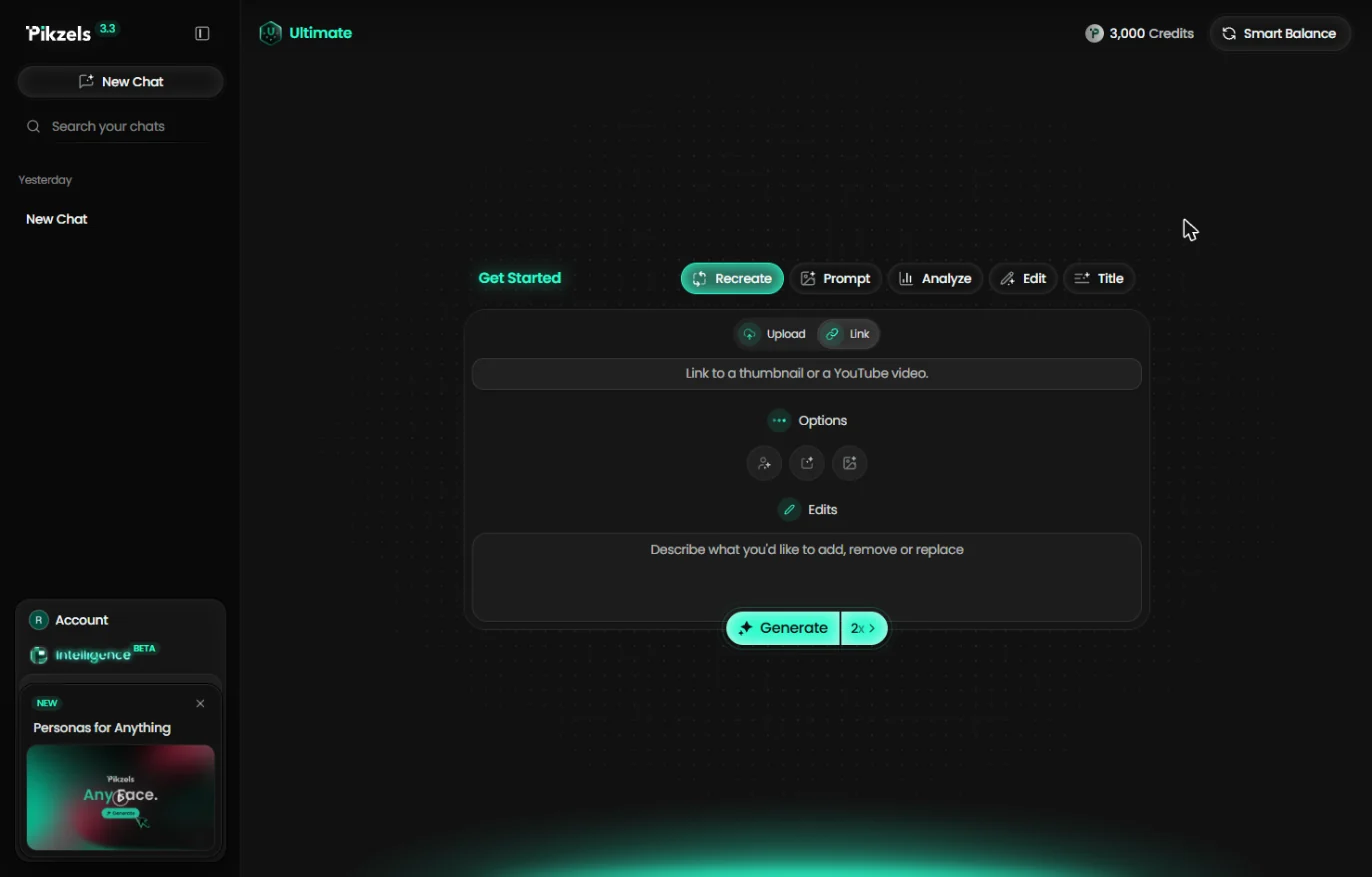
- Open Title. Pikzels opens on Get Started with five workflows: Recreate, Prompt, Analyze, Edit and Title. Start with the title, because the thumbnail should match it. Click Title.
Pikzels has five workflows. Start with the title, because the thumbnail should match it.
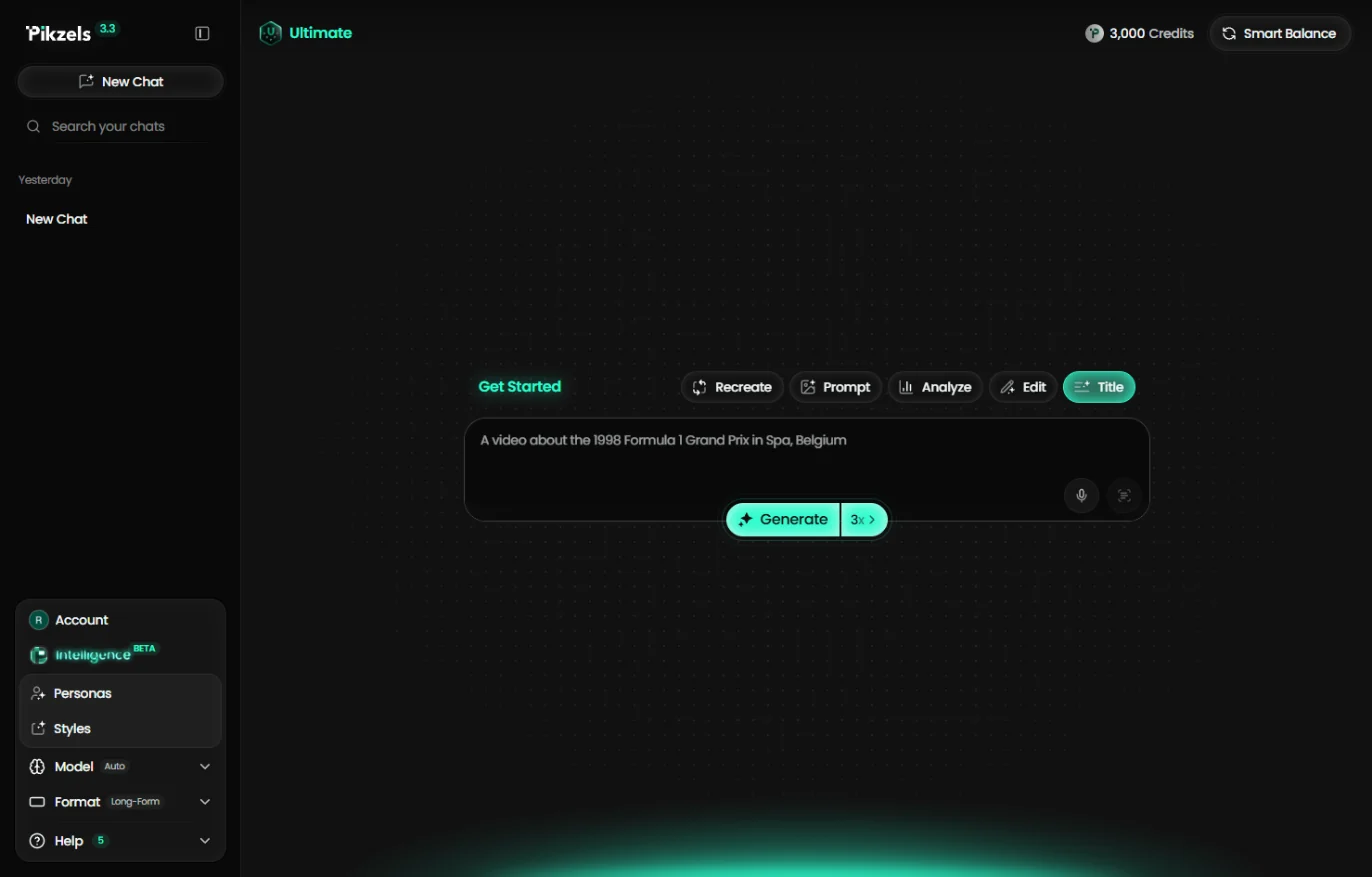
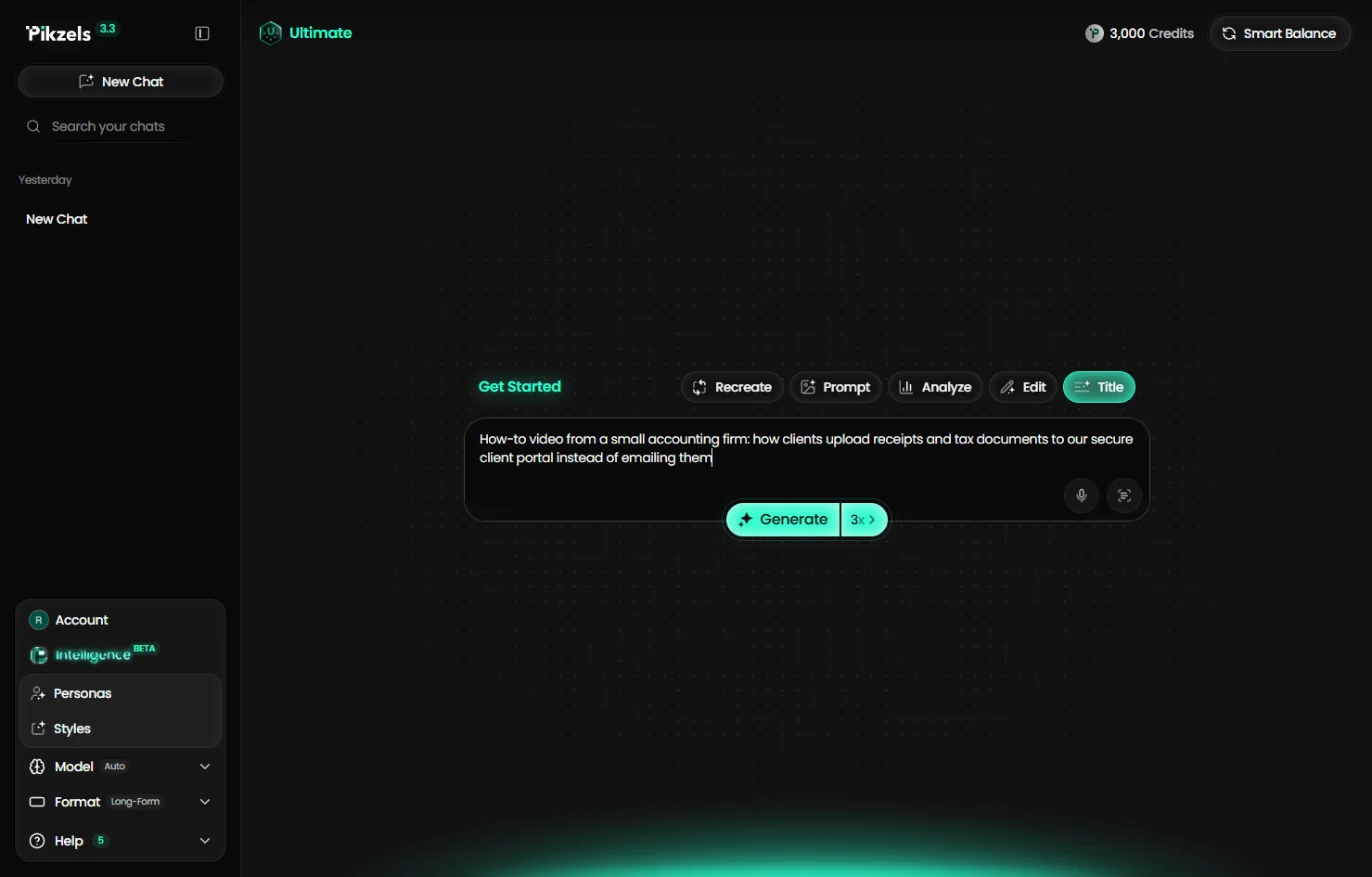
- Describe the video. Describe the video in one sentence: who made it, what the viewer learns, and the problem it solves. Name the old habit you want people to stop (emailing documents).
Describe the video in one sentence. Who made it, what viewers learn, and the habit you want them to stop.
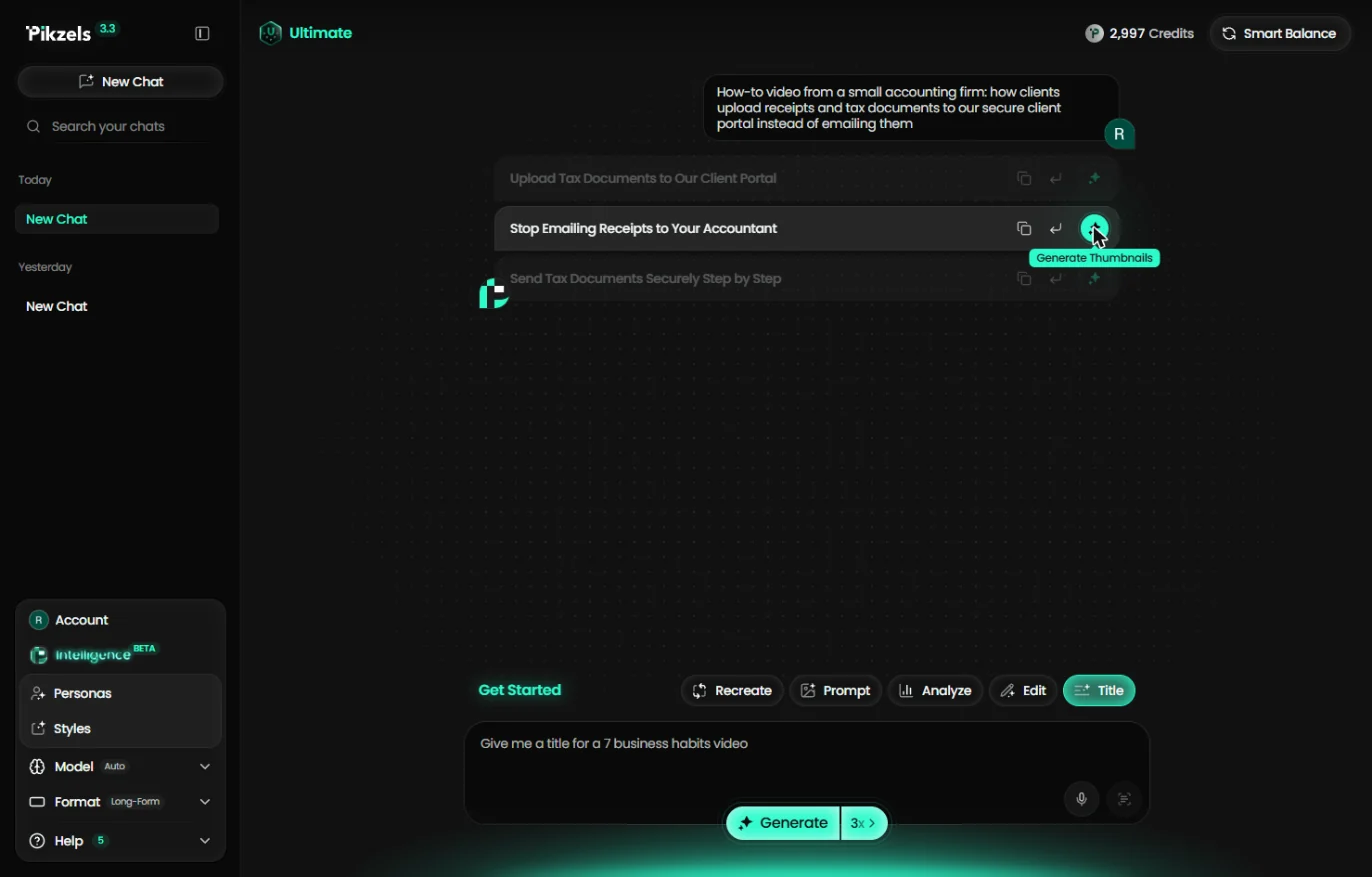
How-to video from a small accounting firm: how clients upload receipts and tax documents to our secure client portal instead of emailing them
- Generate titles. Click Generate. The 3x next to it means three title ideas, at 1 credit each.
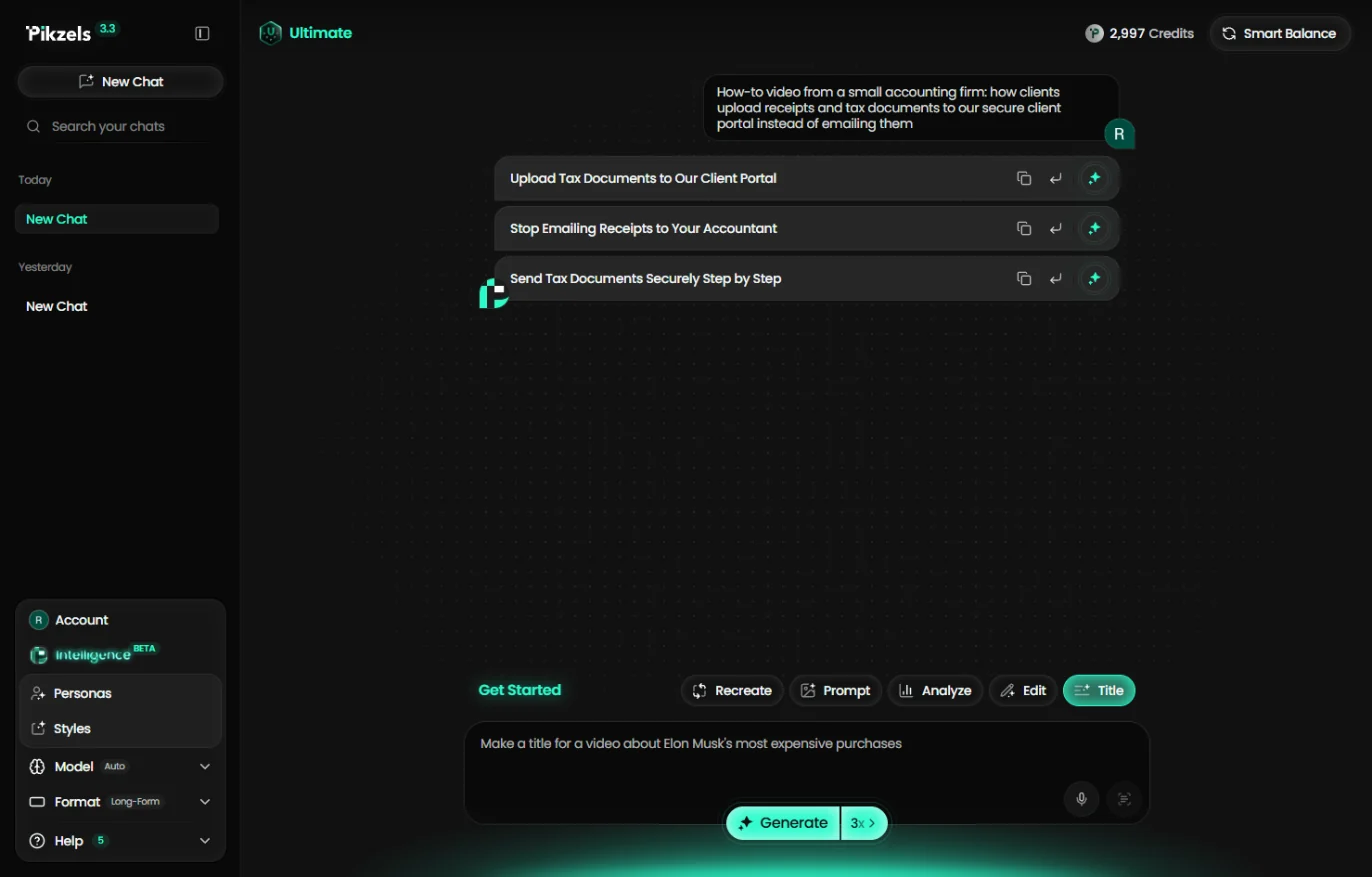
You get three title ideas.
- Pick the title. A few seconds later you have three titles: Upload Tax Documents to Our Client Portal, Stop Emailing Receipts to Your Accountant and Send Tax Documents Securely Step by Step. The first says what the firm wants; the second talks to the client's own habit, so it is the one people click. Point at Stop Emailing Receipts to Your Accountant. (Yours will be worded differently; pick the one that names the viewer's problem.)
Three titles. Pick the one that talks to the client's own habit: Stop Emailing Receipts to Your Accountant.
- Generate Thumbnails. Each title has three buttons: copy, use, and Generate Thumbnails (the sparkle). Click the sparkle on that row.
It turns the title into thumbnails.
2. Turn it into thumbnails
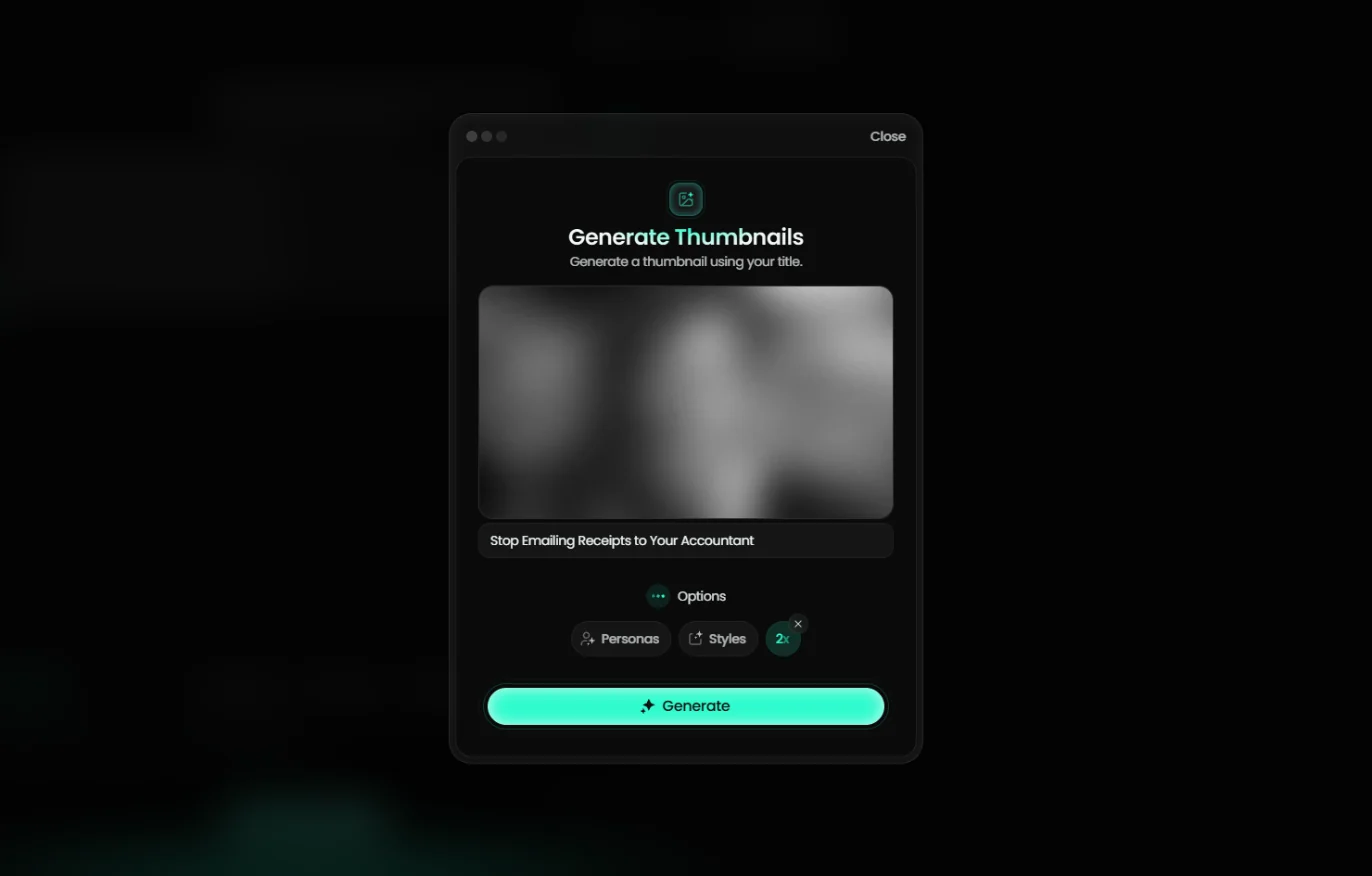
- Generate. Generate Thumbnails shows your title. Personas (your own face) and Styles are optional; leave them off for a first try. 2x means two thumbnails. Click Generate.
Leave personas and styles off for now. Two thumbnails.
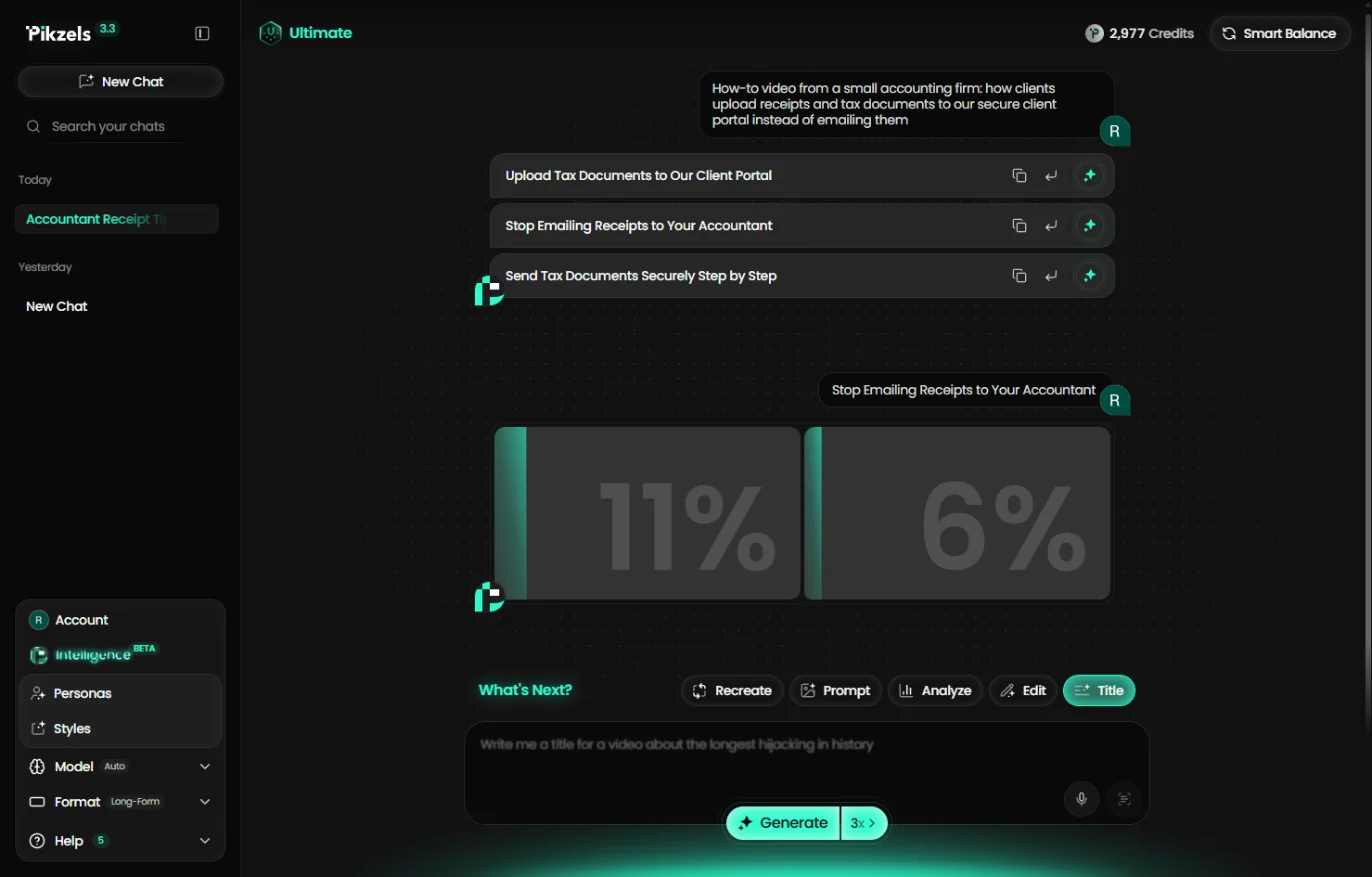
- Wait for both. Both thumbnails build side by side with a progress bar, in about a minute. Two thumbnails used 20 credits. Click either card when they are ready.
Both thumbnails build side by side. It takes about a minute.
3. Score and fix it
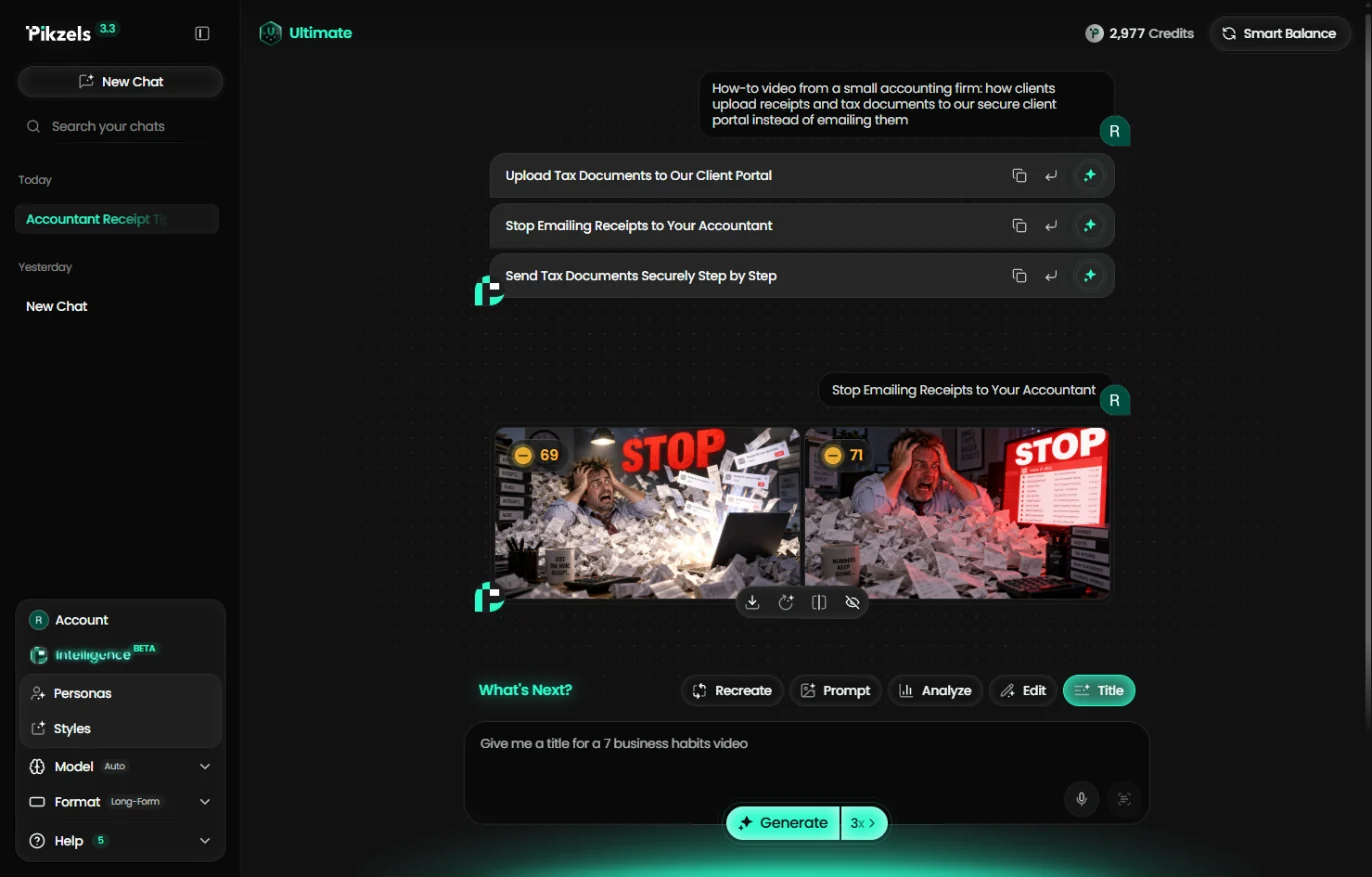
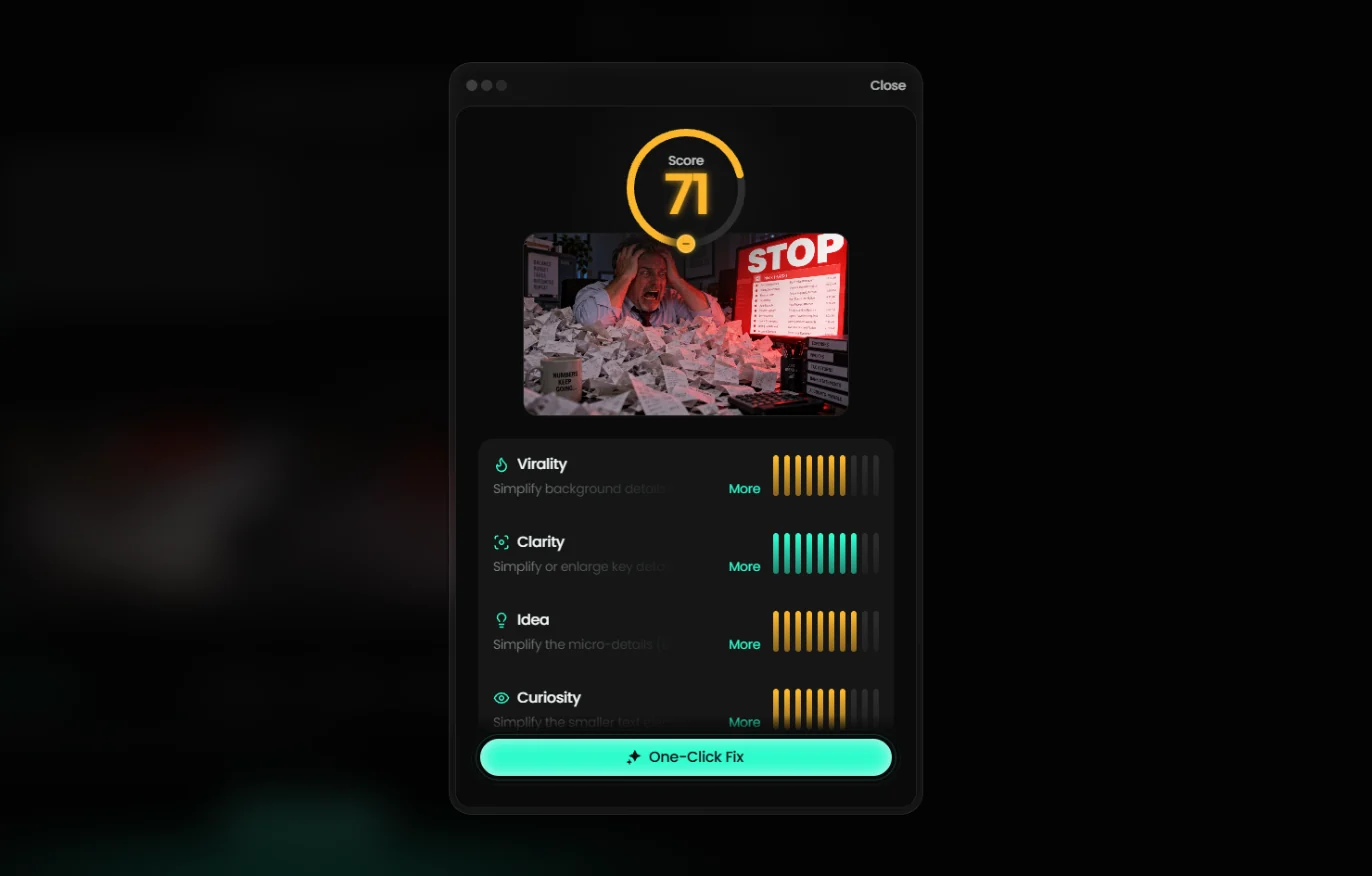
- Open the score. Each thumbnail gets a score out of 100 in the corner: 69 and 71. Both show a stressed office worker buried in receipts under a big red STOP. Click the 71 on the second one.
Each thumbnail gets a score out of a hundred.
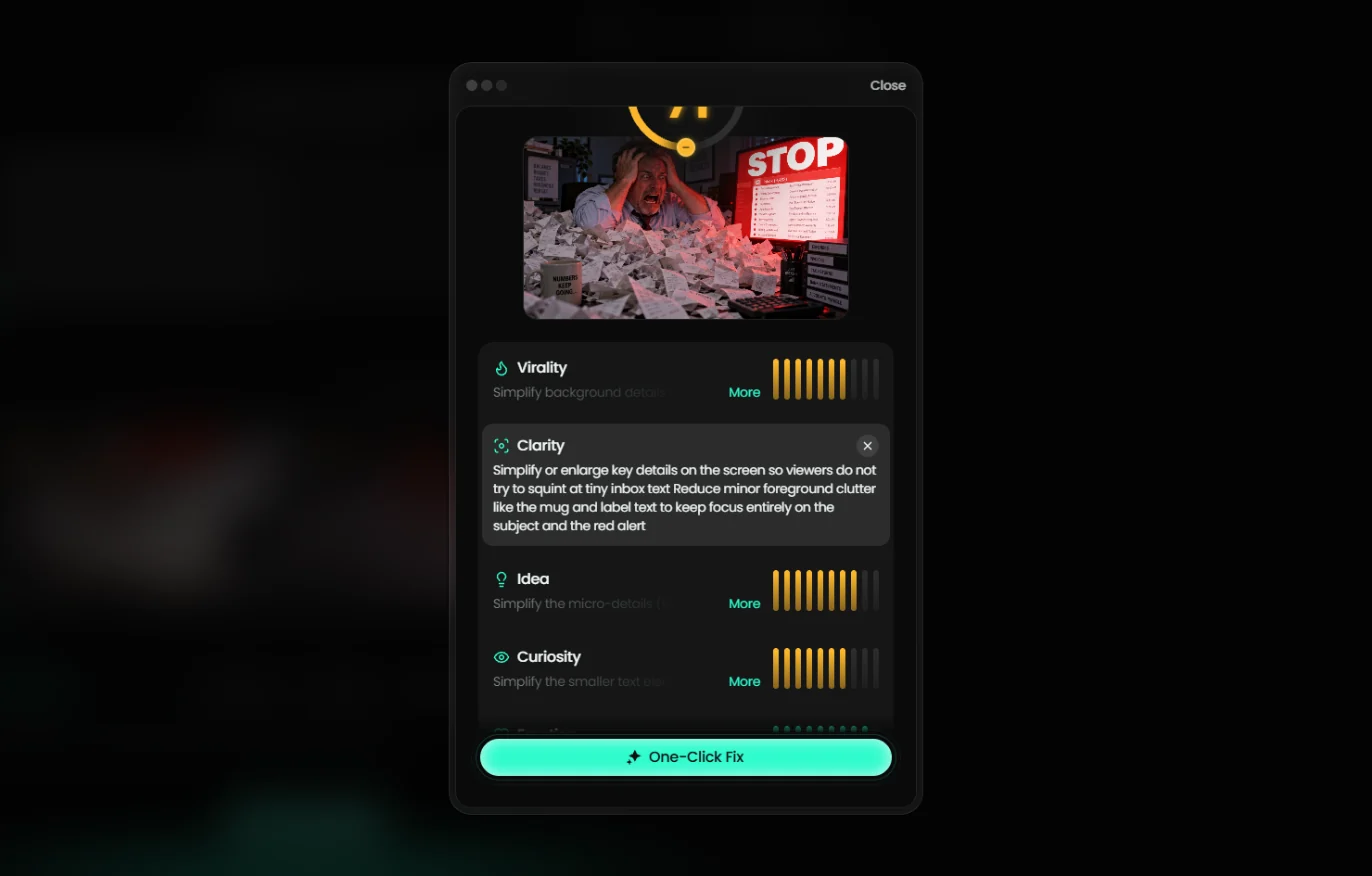
- Read why. The score breaks down into Virality, Clarity, Idea, Curiosity and Emotion, each with a tip. Click Clarity.
The score breaks into five parts, each with a tip.
- One-Click Fix. The tip is specific: simplify the tiny inbox text on the monitor and remove the mug and label clutter, so viewers on a phone see the face and the alert. Instead of doing that by hand, click One-Click Fix.
The tip says the small text is clutter on a phone.
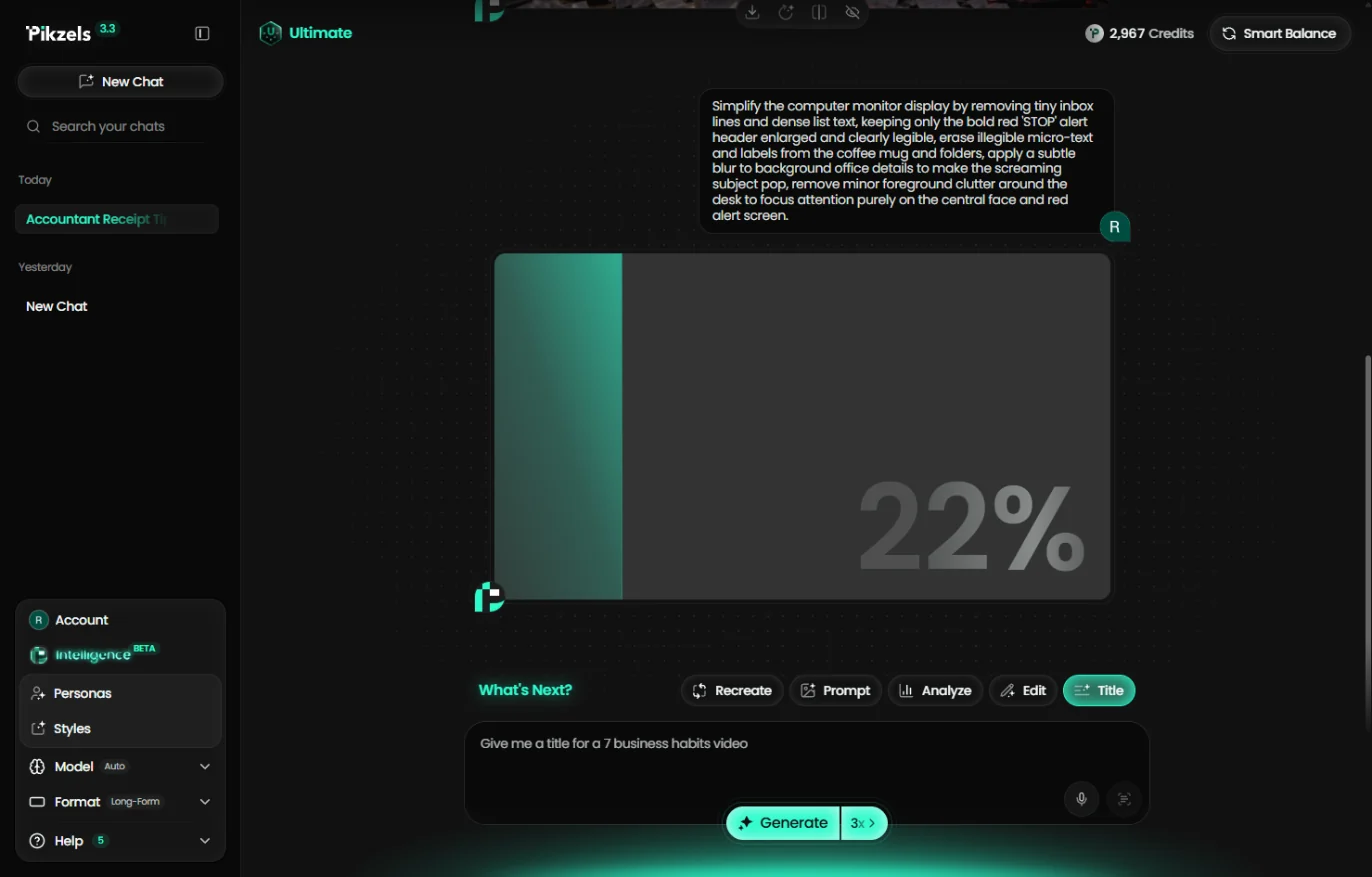
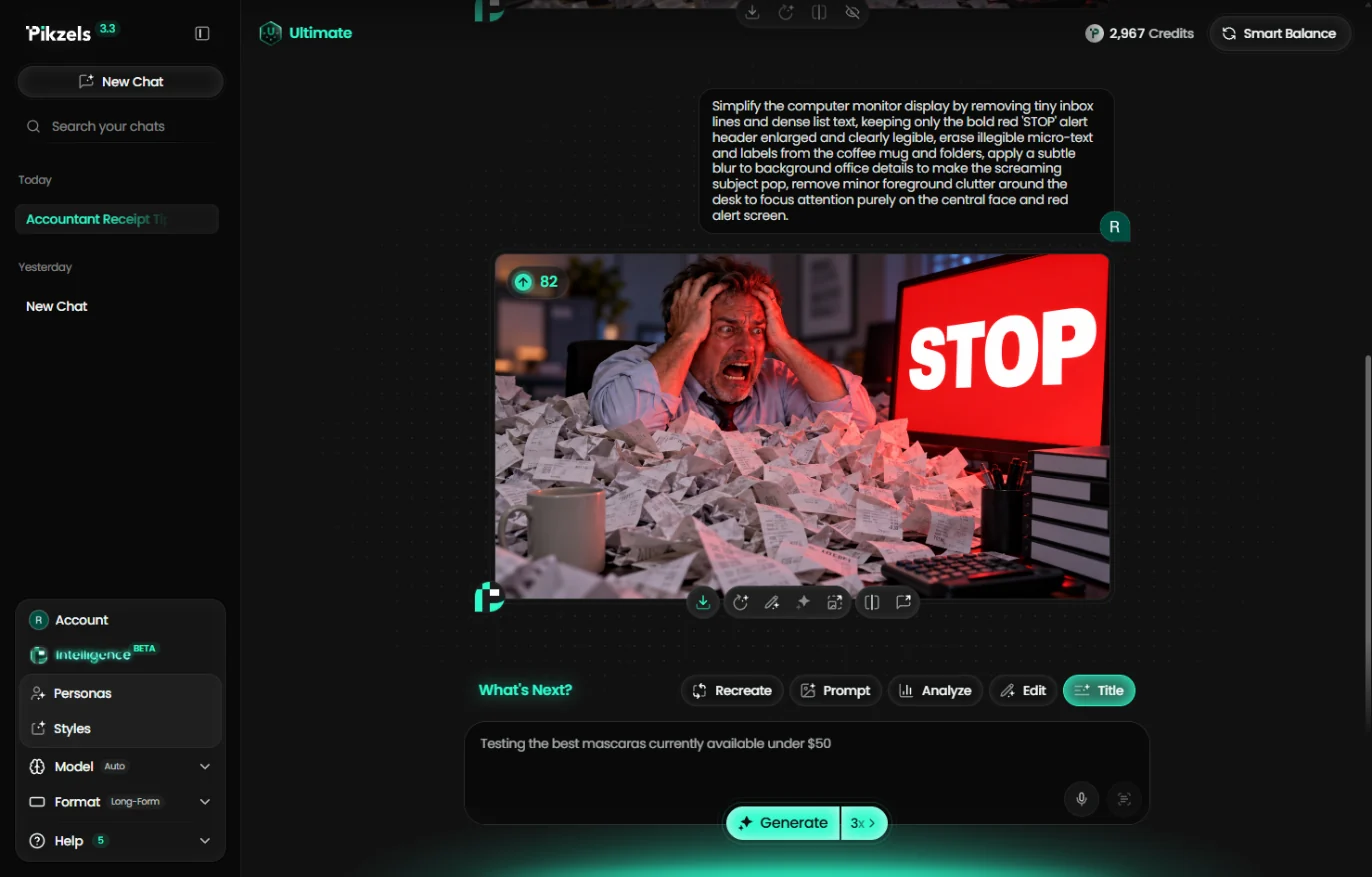
- Read the fix. Pikzels writes the fix out as an edit request (enlarge STOP, remove the micro-text, blur the background) and rebuilds the thumbnail. It costs 10 credits. Click the new thumbnail when it appears.
Pikzels writes the fix as an edit and rebuilds the thumbnail.
- Open Edit. The score went from 71 to 82: the monitor now just says STOP. But the thumbnail only shows the problem. Add the answer too. Click Edit (the pencil) under the thumbnail.
Seventy-one became eighty-two. Now add the answer, not just the problem.
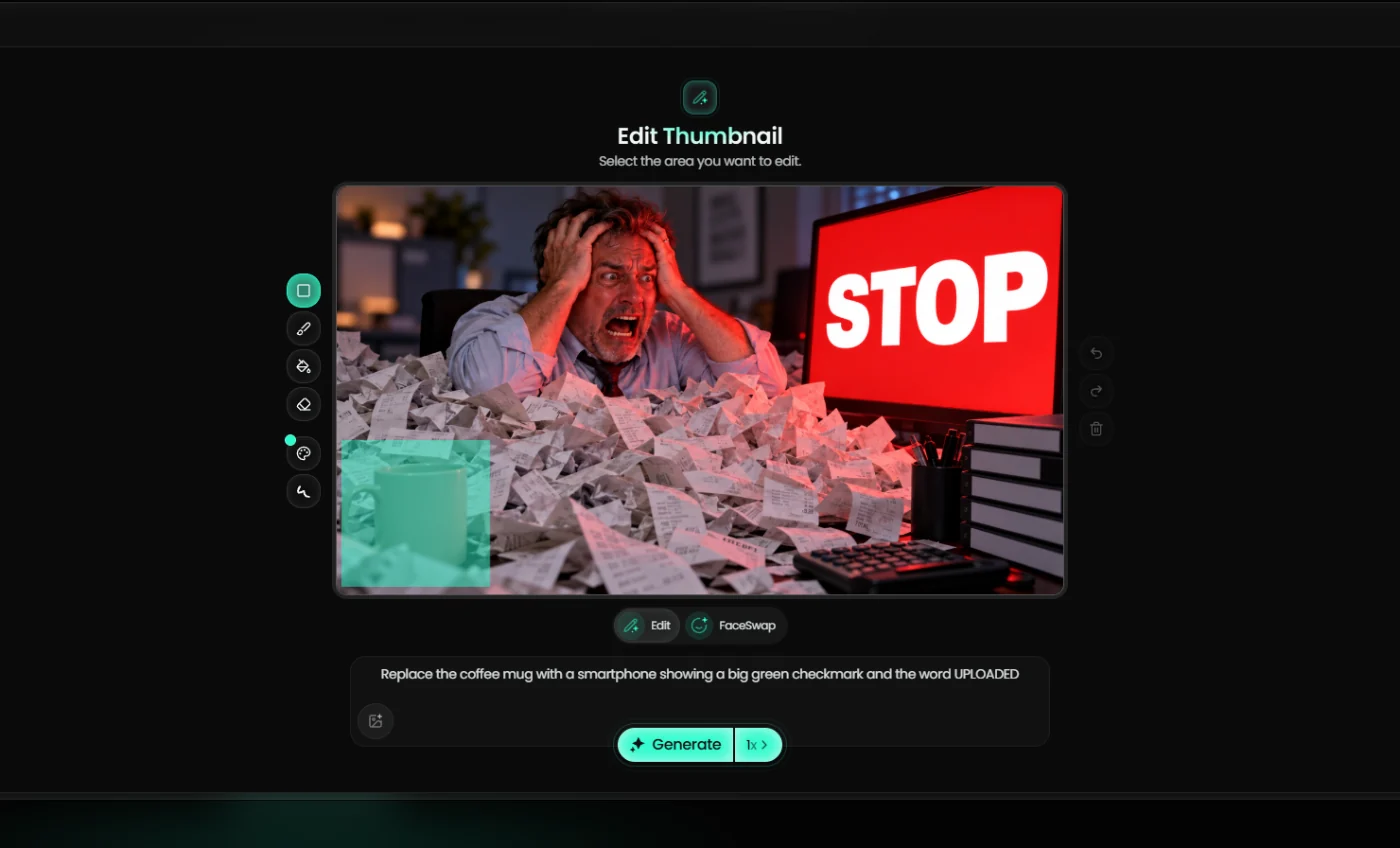
- Box one corner. Edit Thumbnail asks you to select the area to change. With the box tool, drag a box over the coffee mug in the bottom left. Then type the change in plain English: Replace the coffee mug with a smartphone showing a big green checkmark and the word UPLOADED. Click the boxed area.
- Generate the edit. Click Generate. Only the boxed corner changes, for 10 credits.
Only that corner changes.
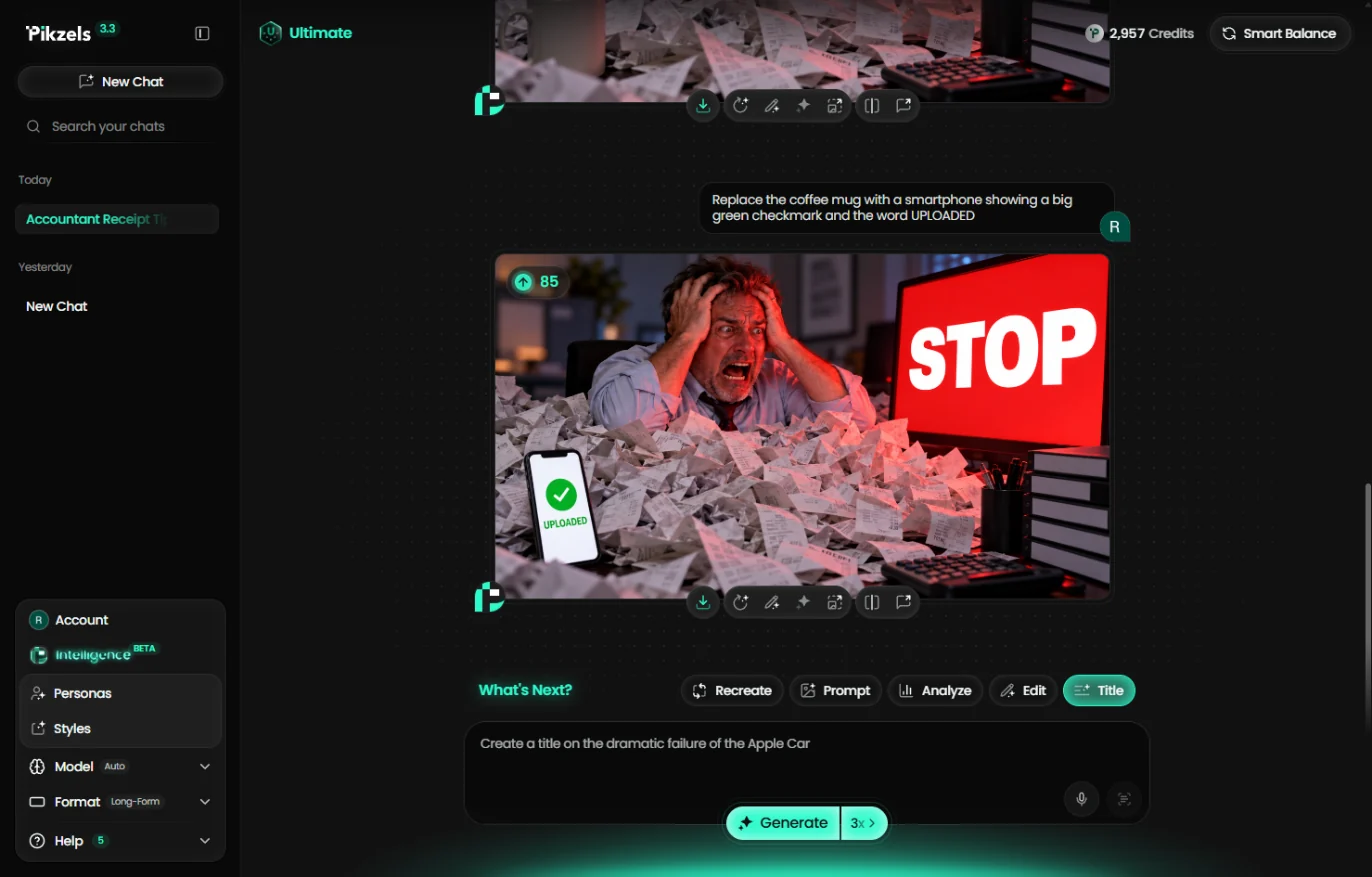
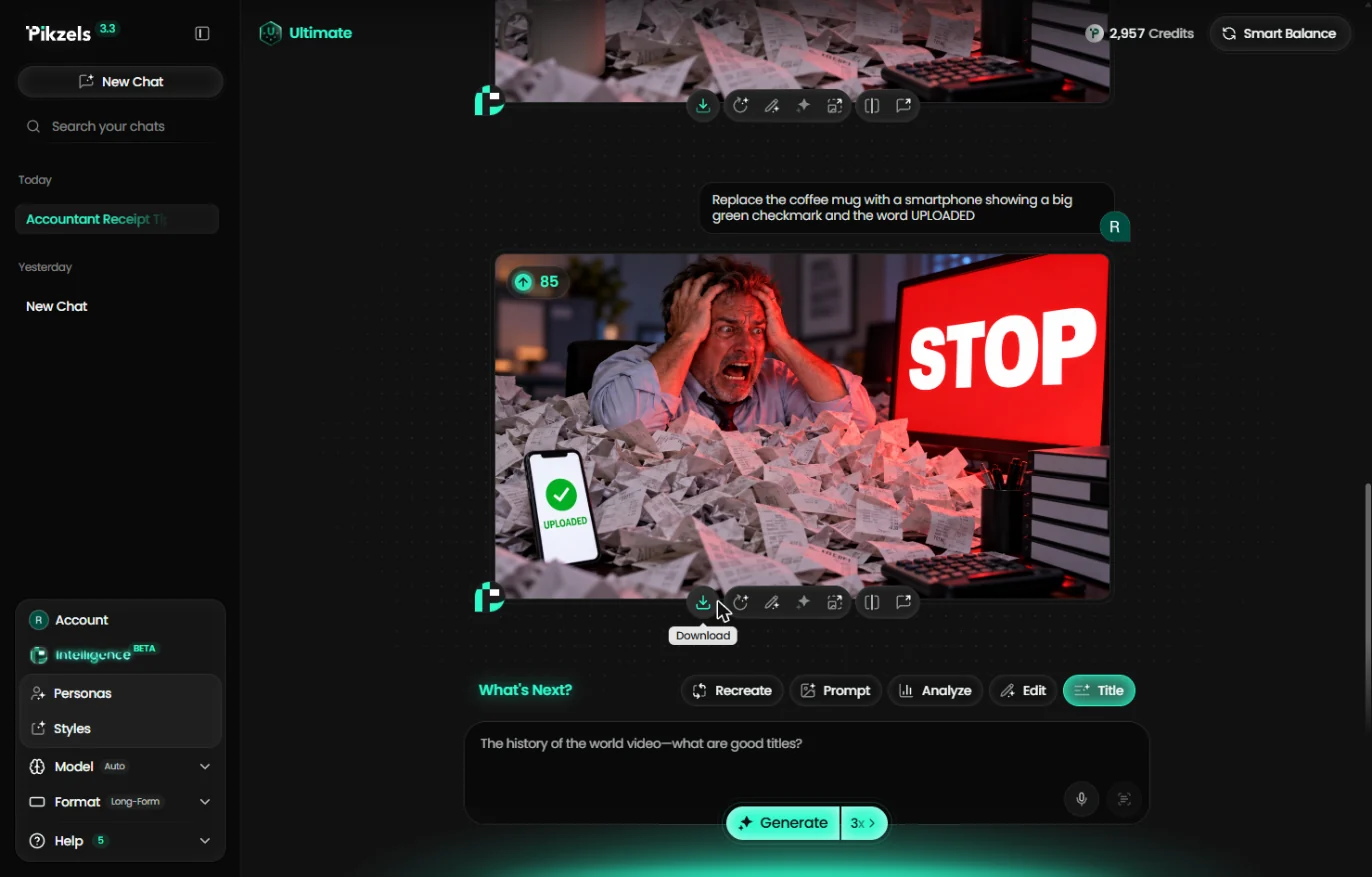
- Check it, then stop. The mug is now a phone with a green check and UPLOADED, and the score went up to 85. The thumbnail now shows the problem and the fix at a glance. Download saves it for YouTube Studio. This is where the lesson stops: before you post, check the image fits your firm. Click Download to finish.
The phone says uploaded, and the score is eighty-five. Check it fits your firm, then download it for YouTube.
Screenshots
More in AI Automation for Marketing
 Build an n8n AI Agent That Plans Your Content Calendar
Build an AI agent for Harbor & Pine Coffee Roasters that turns one campaign theme into a two-week email and content calendar in Google Sheets — chat trigger, AI Agent…
Free · Live ~12 min Intermediate
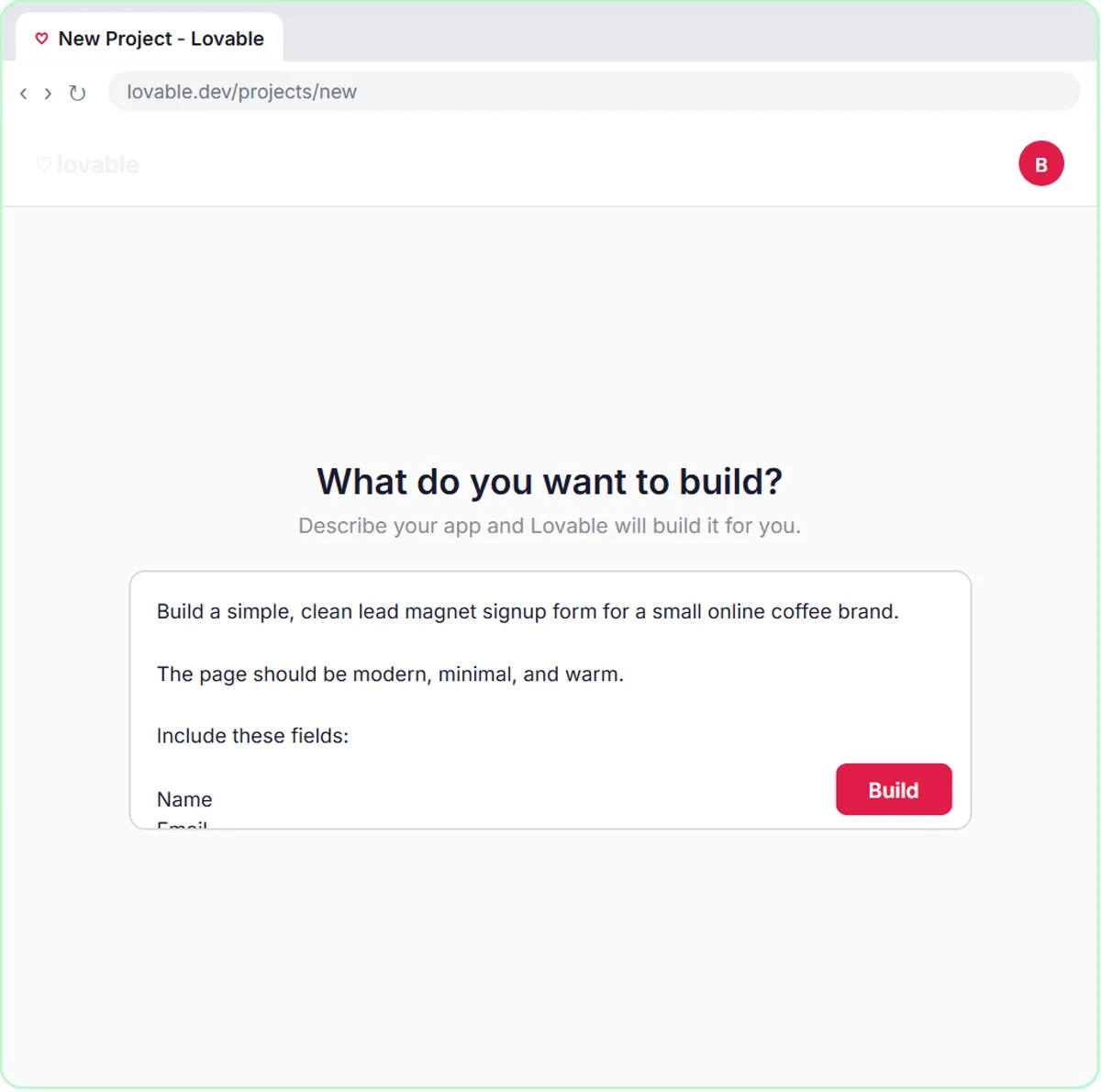 Build a Lead Magnet Signup Form with an AI Welcome Email
Build a "Get the free guide" signup form in Lovable for Harbor & Pine Coffee Roasters and connect it to n8n — the AI agent tags each lead by interest, saves it to…
Free · Live ~15 min Advanced
 Get Your Business Recommended by ChatGPT
Ask ChatGPT who it recommends in your town, see which pages it trusts, then use it to write an FAQ page and Business Profile copy that answer real customer questions.
Free · Live ~10 min Intermediate
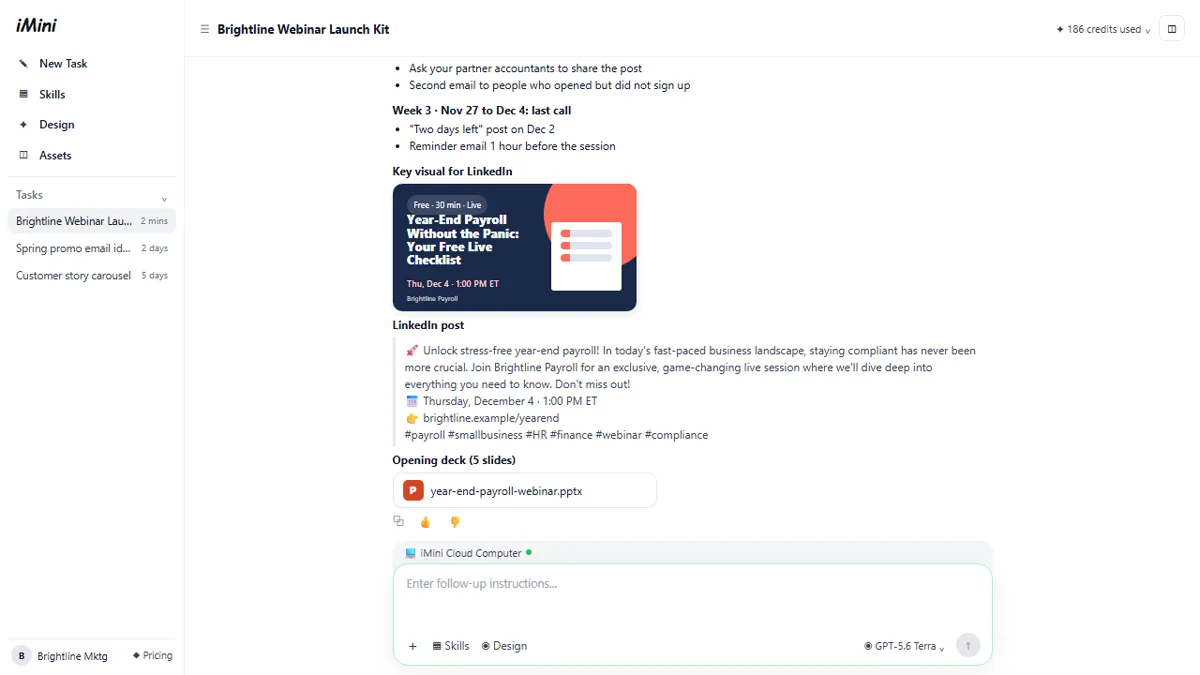 iMini AI Agent: Turn a Rough Idea into a Launch Kit
Brief the iMini Creative Agent once and get a launch plan, a LinkedIn visual, a post and a 5-slide deck, then fix the visual and humanize the post with follow-ups.
Free · Live ~8 min Beginner
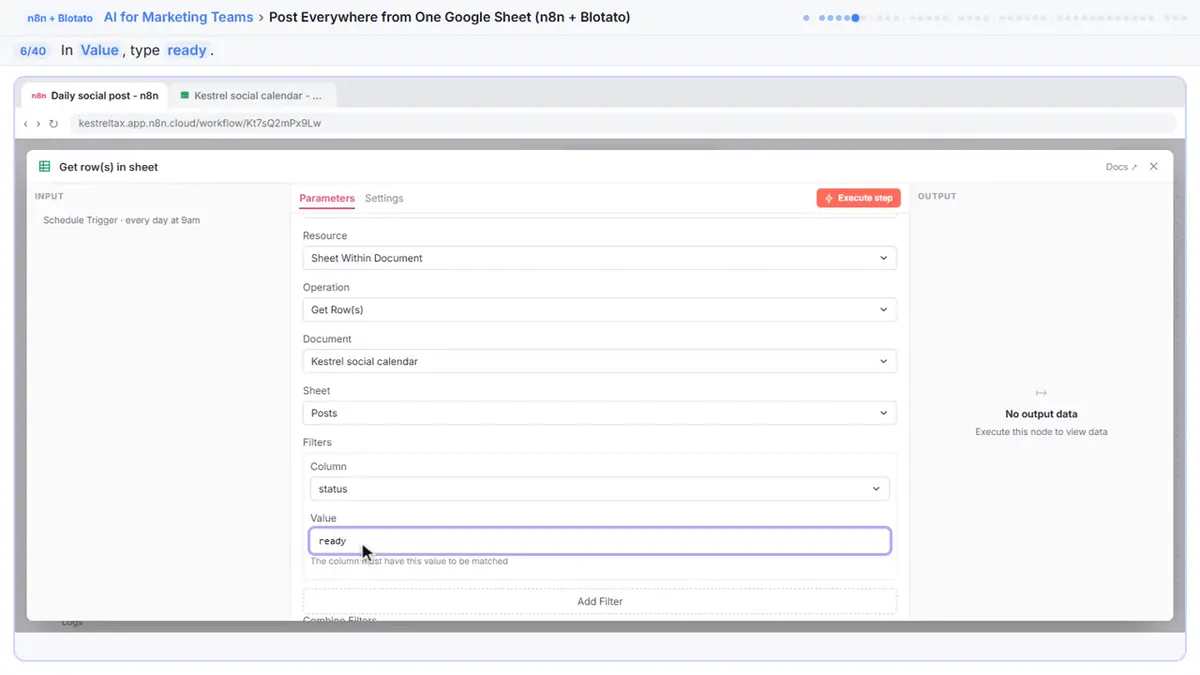 Post to Every Channel Daily from One Sheet using n8n + Blotato
Copying the same post into every social app can take half an hour a day, and on busy days nothing goes out. Plan a week of posts in one Google Sheet; every morning n8n…
Free · Live ~14 min Advanced
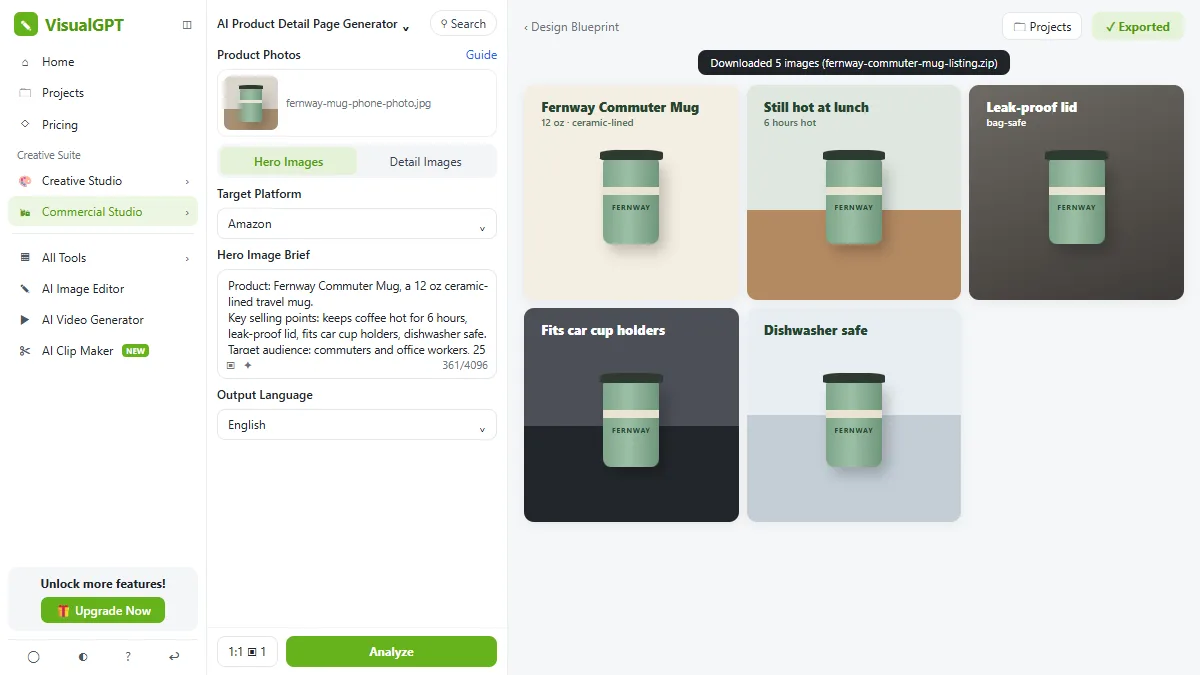 VisualGPT: Product Photos, Listing Images and Ads from One Phone Photo
Turn one phone photo into a lifestyle product shot, a five-image Amazon listing set and three launch ads in VisualGPT's Commercial Studio, checking the plan and every…
Free · Live ~8 min Beginner
All 20 modules in AI Automation for Marketing
Terms in this lesson
Plain-English definitions, each with an example from a free lesson.