Updated . Built from real Higgsfield runs on 29 October 2026 and redone click by click in the Higgsfield web app the same day; every app screen in the practice is a real capture. The inputs, outputs, mistakes and credit costs in the lesson are what Higgsfield produced in those runs. Every business and person is made up, and every person shown is AI-generated. How we check this lesson
A small brand launching a new product needs motion, and a studio wants $1,500 to $3,000 for one product video. In this free lesson you follow Jess Alvarez (made up) as she turns one photo of Fieldnote's new cold brew can into a 5-second vertical ad in Higgsfield: a motion prompt that protects the label, a 7.5-credit draft on Kling 3.0, a droplet caught sliding across the label at 3 seconds, and a clean 35-credit final on Seedance 2.5 in a true 9:16.
At a glance
| Question | Answer |
|---|---|
| What you build | A business case for small brands: turn one product photo into a 5-second vertical video ad with Higgsfield, draft it cheap on Kling 3.0, catch a smeared label, and finish on Seedance 2.5. Real outputs and real credit costs. |
| Tools | Higgsfield |
| Time | About 9 minutes, 18 steps in 5 parts |
| Level | Beginner, no coding needed |
| Cost | Free |
| Ways to learn it | Practice it step by step |
The 5 parts, in short
- A launch with no video budget: Price the usual way, Animate the photo instead.
- Start from the photo you have: Use one clean product photo.
- Animate it in Higgsfield: Add the photo as the start frame, Open the model list, Search for Kling 3, Pick Kling 3.0 for the first draft, and 3 more steps.
- Check it like a customer: Scrub through it and watch the label, Switch to Seedance 2.5 for the final, Add the photo again, Set 9:16, 720p, sound off, and generate, and 2 more steps.
- What it saved, and what is next: See what you have now, Up next.
Part of: AI for Marketing Teams (step 38 of 40). Next up: Keep One Brand Character Across Every Post using Higgsfield
Part of: AI Apps Worth Knowing (step 91 of 102). Next up: Professional Headshots for the Whole Team, No Photo Shoot, using Higgsfield
The business case: motion without a studio
Video ads stop the scroll in a way a still photo does not, but a product video means a studio, a day and two weeks. Most small teams post the photo instead. These are example numbers; use your own.
Higgsfield animates a still photo with a video model you pick. You describe the camera move and what must not change, and pay a few credits per try.
What happened in our run
Kling 3.0 (5 s, sound off) cost 7.5 credits and looked right at full speed. Paused at 3 seconds, a water droplet sat across the word FIELDNOTE, and the video had kept the photo's 4:5 shape even with 9:16 selected. The same photo and prompt on Seedance 2.5 (720p, 5 s, audio off) cost 35 credits and came back a true 9:16 with a clean label.
The habits the lesson teaches: protect the product in the prompt, draft cheap and finish once, scrub every second, and label the result as AI-generated when you post.
Links
- Higgsfield pricing: current plans and credits. Check them before you rely on a free tier: generation uses credits.
Try it yourself, free
Reading the steps is a start. Doing them is how it sticks. The interactive module walks you through every click in a practice copy of Higgsfield, checks each step, and never touches your real accounts.
Start “Turn One Product Photo into a 5-Second Video Ad using Higgsfield”Step by step: Turn One Product Photo into a 5-Second Video Ad using Higgsfield
All 18 steps of the interactive module, in order. In the module you watch each one, then do it yourself in a practice copy that checks your work.
1. A launch with no video budget
- Price the usual way. Fieldnote's new Oat Vanilla can launches in two weeks. A studio quotes $1,500 to $3,000 and 2 weeks for one 15-second product video, and the launch needs motion in 3 posts. Click the studio quote row.
A new product launches in two weeks. A studio wants up to three thousand dollars for one short video.
- Animate the photo instead. Higgsfield turns a still photo into a short video with a video model you choose. You describe the camera move; it keeps your product. Click the Higgsfield card.
Higgsfield turns a still photo into a short video. You describe the camera move.
2. Start from the photo you have
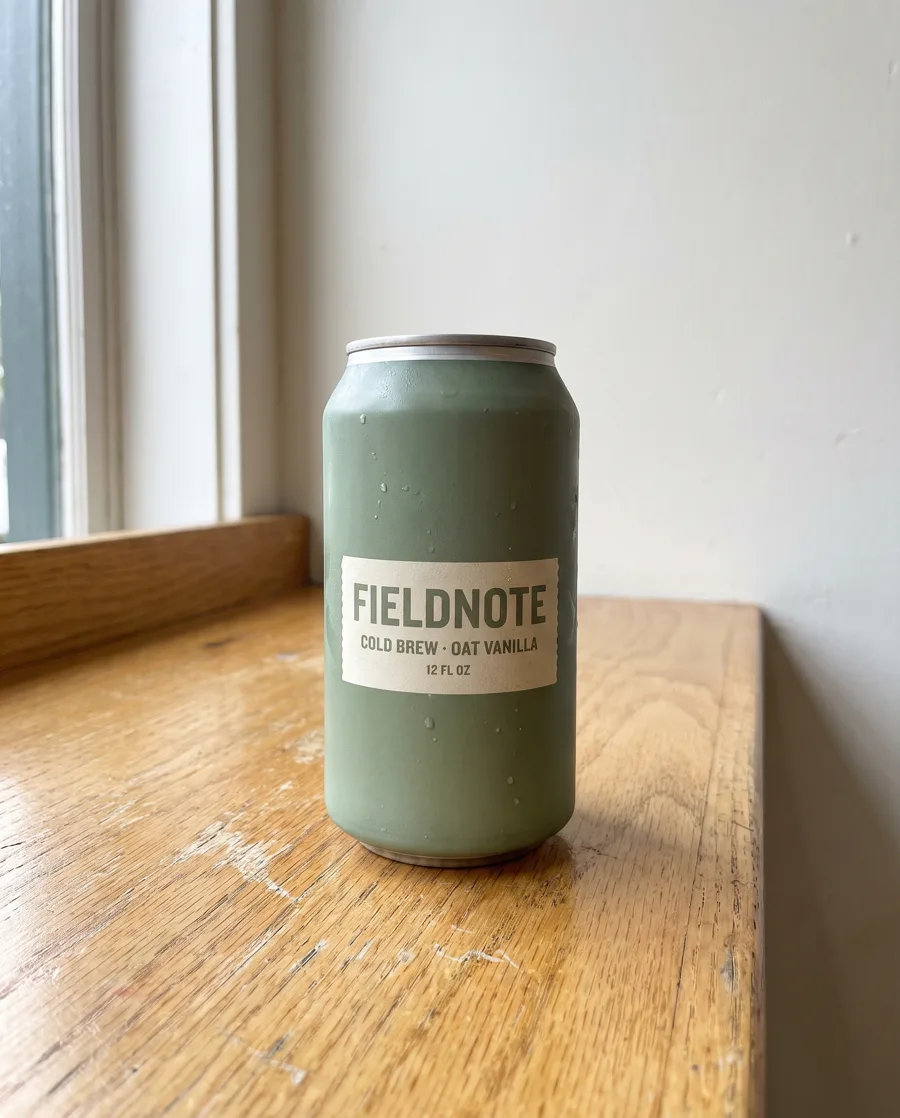
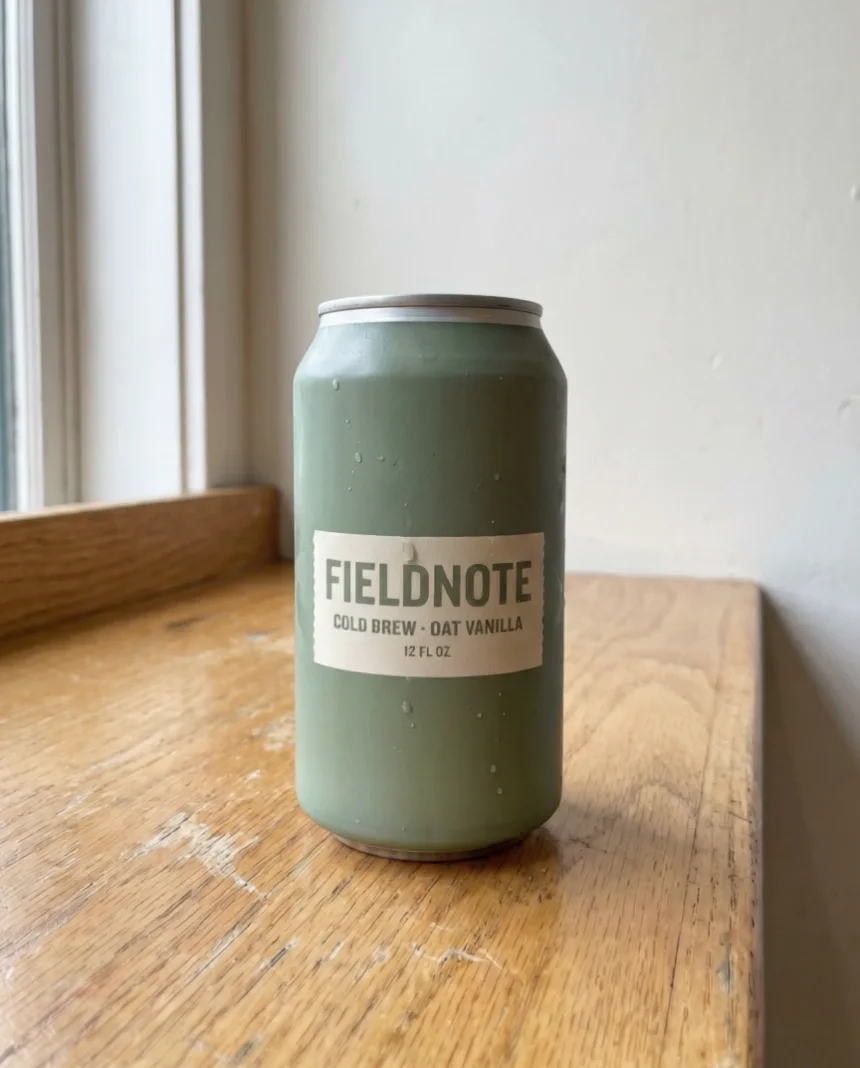
- Use one clean product photo. This is the only photo Jess has: the can on a counter, window light, label readable. Plain is good: the model keeps what is in the first frame and invents less. Download the sample on this page, then click the photo.
One clean photo. Label readable, nothing in the way. The model keeps what it sees.
3. Animate it in Higgsfield
- Add the photo as the start frame. In Higgsfield, click Video in the top bar. On Create Video, click the Start frame box and upload the product photo. The video begins from this exact image.
The video begins from this exact image.
- Open the model list. Each video model has its own look and price. Click Model.
Each model has its own look, and its own price.
- Search for Kling 3. The list is long. Type Kling 3 in the search box.
The list is long. Search for Kling three.
- Pick Kling 3.0 for the first draft. Start cheap. Kling 3.0 made our 5-second draft for 7.5 credits with sound off. Click Kling 3.0.
Start cheap. Kling three made our draft for seven and a half credits.
- Describe the camera, protect the label. Click the Prompt box. Describe the motion, not the product: a slow push-in, one droplet, light shifting. Then say what must not change: the can and label stay sharp and readable, no hands, no new objects. Leave Enhance off and sound Off.
Describe the motion, not the product. Then say what must not change. The label stays sharp. No hands. No new objects.
Slow smooth camera push-in toward the cold brew can on the wooden counter, condensation droplets glisten and one droplet slowly runs down the can, soft morning sunlight shifts gently across the counter. The can and its label stay sharp, unchanged and readable. No hands, no people, no new objects.
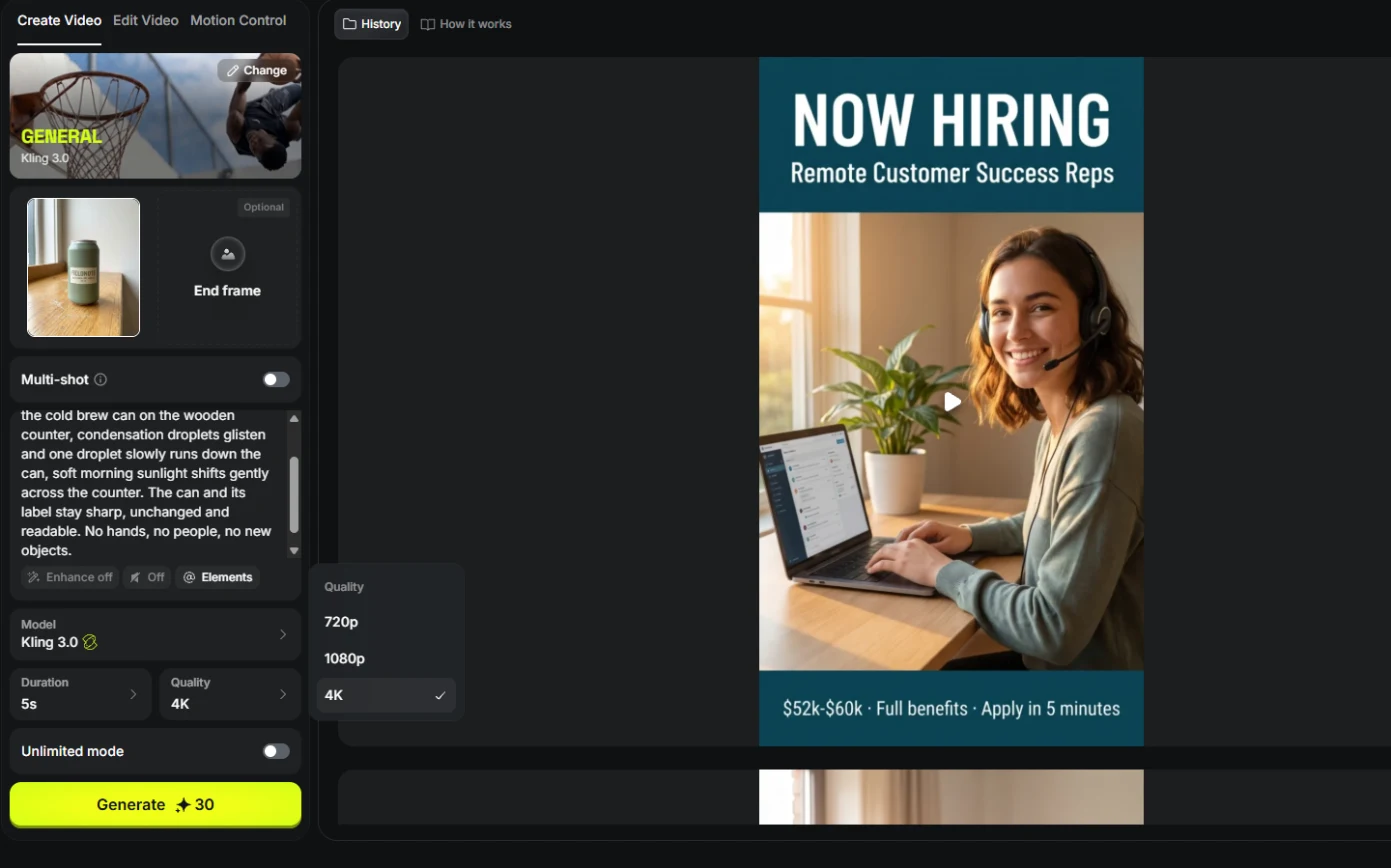
- Check the quality before you pay. Look at Generate: it says 30. Picking Kling 3.0 switched Quality to 4K. A draft doesn't need 4K: open Quality and pick 720p.
Look at the Generate button. Thirty credits. The quality jumped to four K. A draft doesn't need it. Pick seven twenty p.
- Generate the draft. Now it reads Generate 7.5: 5 s, 720p, sound off (sound on costs more). The video keeps the photo's shape, so ours came out 4:5. Click Generate.
Now it's seven and a half. Five seconds, seven twenty p, sound off.
4. Check it like a customer
- Scrub through it and watch the label. It looks great at full speed. Now scrub through it. Near the end a droplet runs down across the label. In our first run it crossed the word FIELDNOTE at 3 seconds. Small, but the label is the ad. Click the label.
Now scrub through it. Near the end, a droplet runs across the label. The label is the ad.
- Switch to Seedance 2.5 for the final. Open Model again, search Seedance 2.5 and pick it. It costs more, so you run it once, after the draft proves the idea.
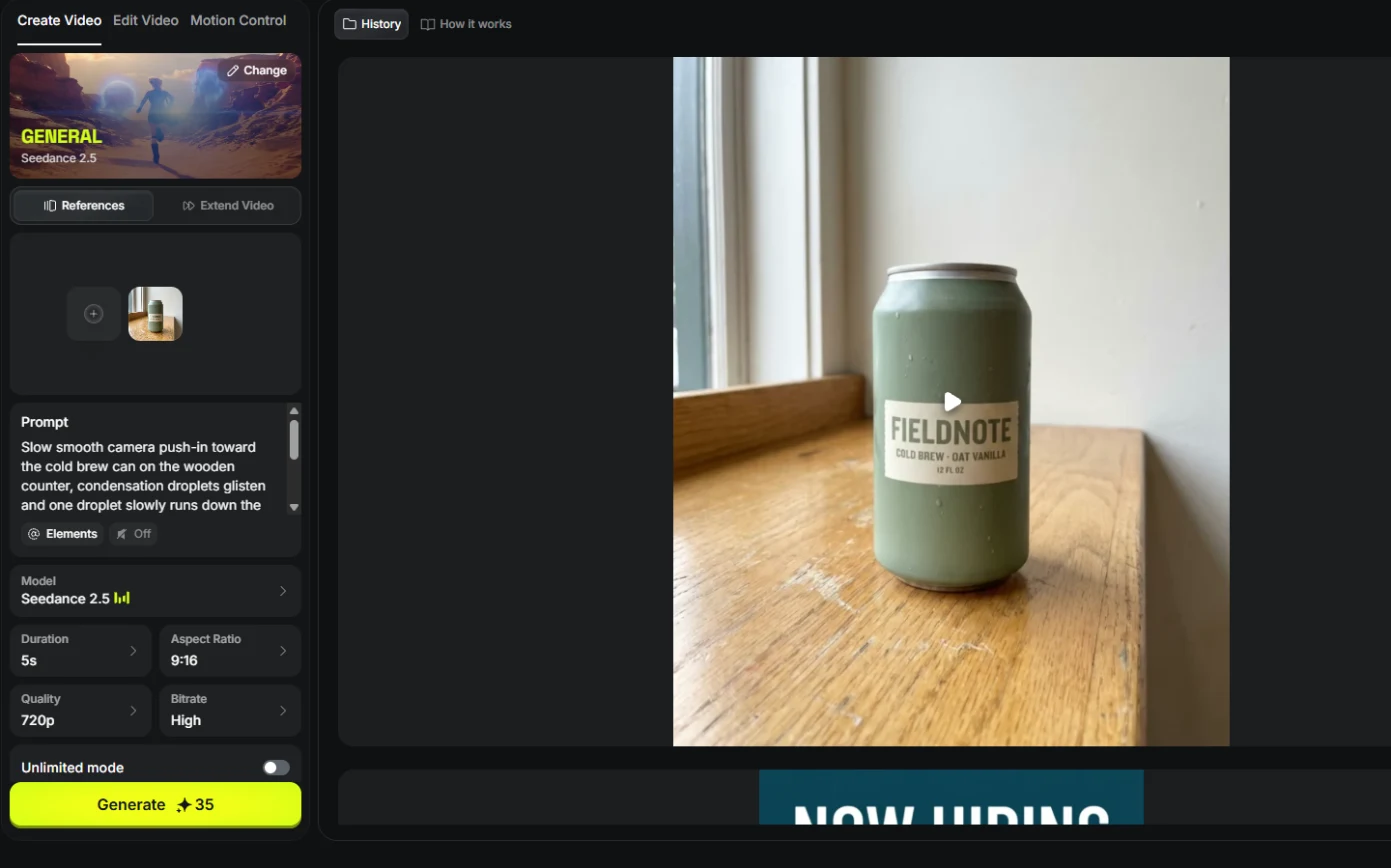
- Add the photo again. Seedance resets the panel: the photo is gone, and it defaults to 16:9, 1080p, sound On, Generate 80. Click Add references and pick the product photo from Uploads.
Seedance resets everything. Eighty credits, sixteen by nine, sound on.
- Set 9:16, 720p, sound off, and generate. Set Aspect Ratio 9:16, Quality 720p and sound Off. Generate drops from 80 to 35. Click Generate.
Nine by sixteen. Seven twenty p. Sound off. Eighty becomes thirty five.
- Download the final. Seedance made a true 9:16 (720x1280) and kept the label clean all the way through. Click the download icon.
A true nine by sixteen, and a clean label.
- Compare the two. Side by side: the 7.5-credit draft told you the idea works; the 35-credit final is the one you post. Click the Seedance video.
The cheap draft proves the idea. The final is the one you post.
5. What it saved, and what is next
- See what you have now. A launch-ready 9:16 product video from one photo, for about 44.5 credits including the draft. Click What you have now.
A launch-ready video from one photo.
- Up next. Next, a law firm and a different job: professional headshots for the whole team, without a photo shoot. Click Up next.
Next, professional headshots for a whole team, without a photo shoot.
Screenshots
Frequently asked questions
- Can Higgsfield turn a product photo into a video?
- Yes. Upload the photo as the start frame in Video, pick a model, describe the motion, and generate. Our 5-second draft on Kling 3.0 cost 7.5 credits with sound off; the final on Seedance 2.5 cost 35 (October 2026).
- Which Higgsfield video model is best for product ads?
- In our test, Kling 3.0 was the right cheap draft and Seedance 2.5 the better final: it reframed to a true 9:16 and kept the label clean, where Kling let a droplet cross the label.
- Do I need to label an AI product video?
- If it could pass for real footage, yes: say it is AI-generated and switch on the platform's AI label. Only animate products you actually sell, looking the way they actually look.
More in AI Video and Images with Higgsfield
 Turn a Text Idea into a 9:16 Hiring Ad using Higgsfield (and Keep the Words Right)
A business case for recruiters: turn a one-paragraph idea into a vertical hiring ad with Higgsfield, catch the misspelled line AI video added, and fix it the right way…
Free · Live ~10 min Beginner
 Keep One Brand Character Across Every Post using Higgsfield
A business case for small agencies and brands: design one illustrated character in Higgsfield, use the sheet as a reference to put it in any scene, catch a borrowed…
Free · Live ~9 min Beginner
 Rescue a Low-Res Photo for a Proposal or Print using Higgsfield Upscale
A business case for proposal and marketing teams: upscale a 640-pixel photo to 4K with Higgsfield for 2 credits, and learn what upscaling invents and when not to use…
Free · Live ~6 min Beginner
 One Webinar Image, Every Channel Size using Higgsfield (Expand, Don't Crop)
A business case for sales and marketing teams: expand one 16:9 webinar image to 9:16 and 1:1 with Higgsfield instead of cropping it, and place the headline in the new…
Free · Live ~6 min Beginner
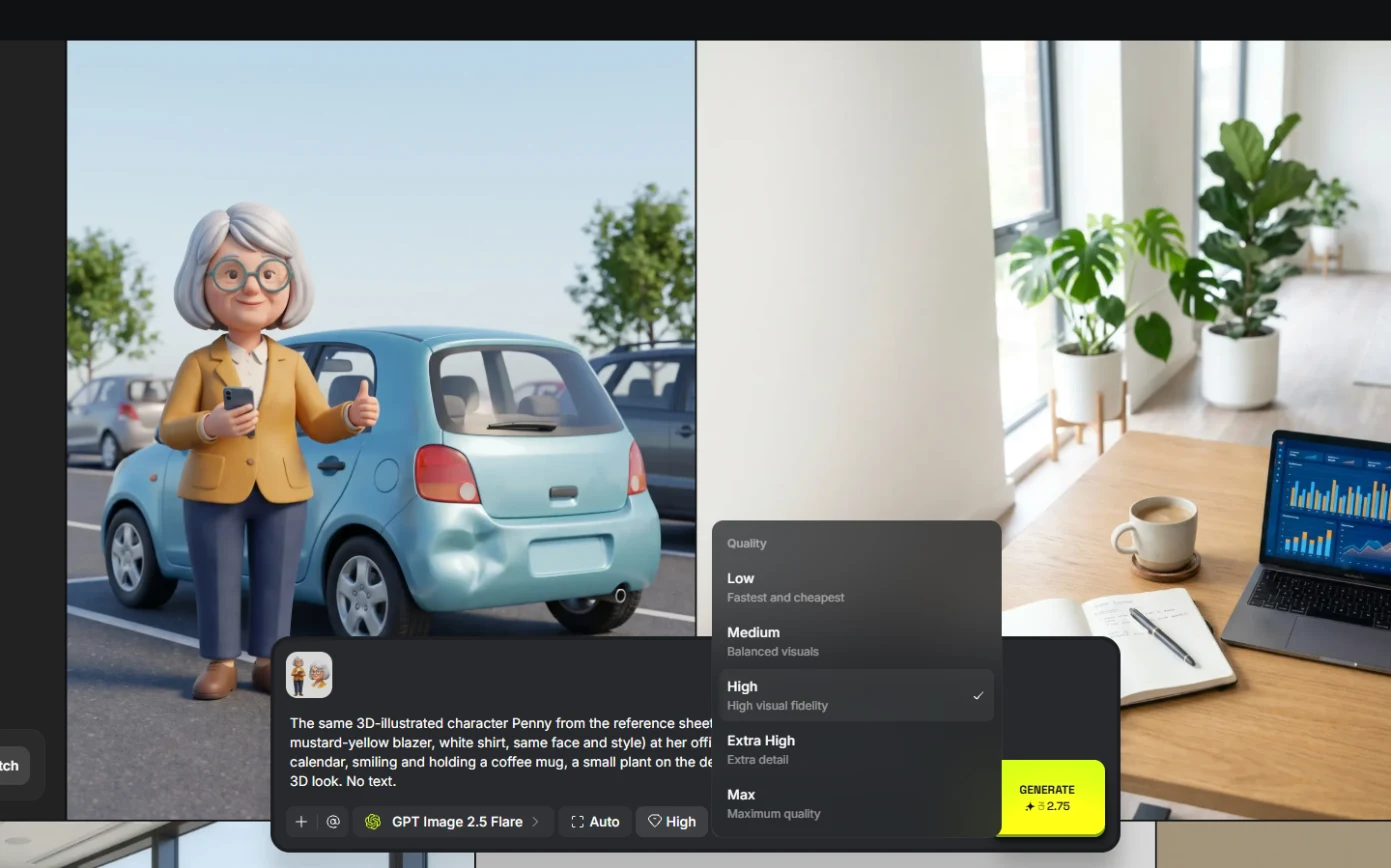 Pick the Right Model and Make Your Credits Last using Higgsfield
A business case for teams sharing one plan: read the cost before you generate, draft on cheap models, finish once on the right one, and compare four image models on the…
Free · Live ~8 min Beginner
 Use AI Images and Video Responsibly: Labels, Consent and Likeness using Higgsfield
A business case for any team publishing AI content: a one-page policy to disclose realistic AI images and video, get consent for faces and voices, and never make fake…
Free · Live ~7 min Beginner
All 8 modules in AI Video and Images with Higgsfield
Terms in this lesson
Plain-English definitions, each with an example from a free lesson.