Updated . Built from real Higgsfield runs on 29 October 2026 and redone click by click in the Higgsfield web app the same day; every app screen in the practice is a real capture. The inputs, outputs, mistakes and credit costs in the lesson are what Higgsfield produced in those runs. Every business and person is made up, and every person shown is AI-generated. How we check this lesson
Three designers share one Higgsfield plan and the credits ran out on day 18. In this free lesson you follow Sam Ortiz (made up) as she finds the balance and reset date, reads the price on the Generate button, runs one prompt on four image models (0.12 to 2 credits), sees what sound costs on video (7.5 vs 10), and sets team rules. Every cost is from our real account on 29 October 2026.
At a glance
| Question | Answer |
|---|---|
| What you build | A business case for teams sharing one plan: read the cost before you generate, draft on cheap models, finish once on the right one, and compare four image models on the same prompt. Real costs from our account. |
| Tools | Higgsfield |
| Time | About 8 minutes, 12 steps in 5 parts |
| Level | Beginner, no coding needed |
| Cost | Free |
| Ways to learn it | Practice it step by step |
The 5 parts, in short
- Out of credits on day 18: See when the credits ran out, Draft cheap, finish once.
- Know what things cost: Read the cheat sheet.
- Read the cost before you click: Find your balance, See the plan and the reset date, Read the number on Generate, Drop the quality for a draft, and 1 more step.
- Compare the results: Check usage weekly, Match the model to the job.
- What it saved, and what is next: See your team rules, Up next.
Start here first: Turn One Product Photo into a 5-Second Video Ad using Higgsfield (module 1 of AI Video and Images with Higgsfield)
Part of: AI Apps Worth Knowing (step 97 of 102). Next up: Use AI Images and Video Responsibly: Labels, Consent and Likeness using Higgsfield
The business case: a shared plan runs dry
When everyone tests ideas on the most expensive model at the highest setting, a team plan runs out mid-month and client work waits. These are example numbers.
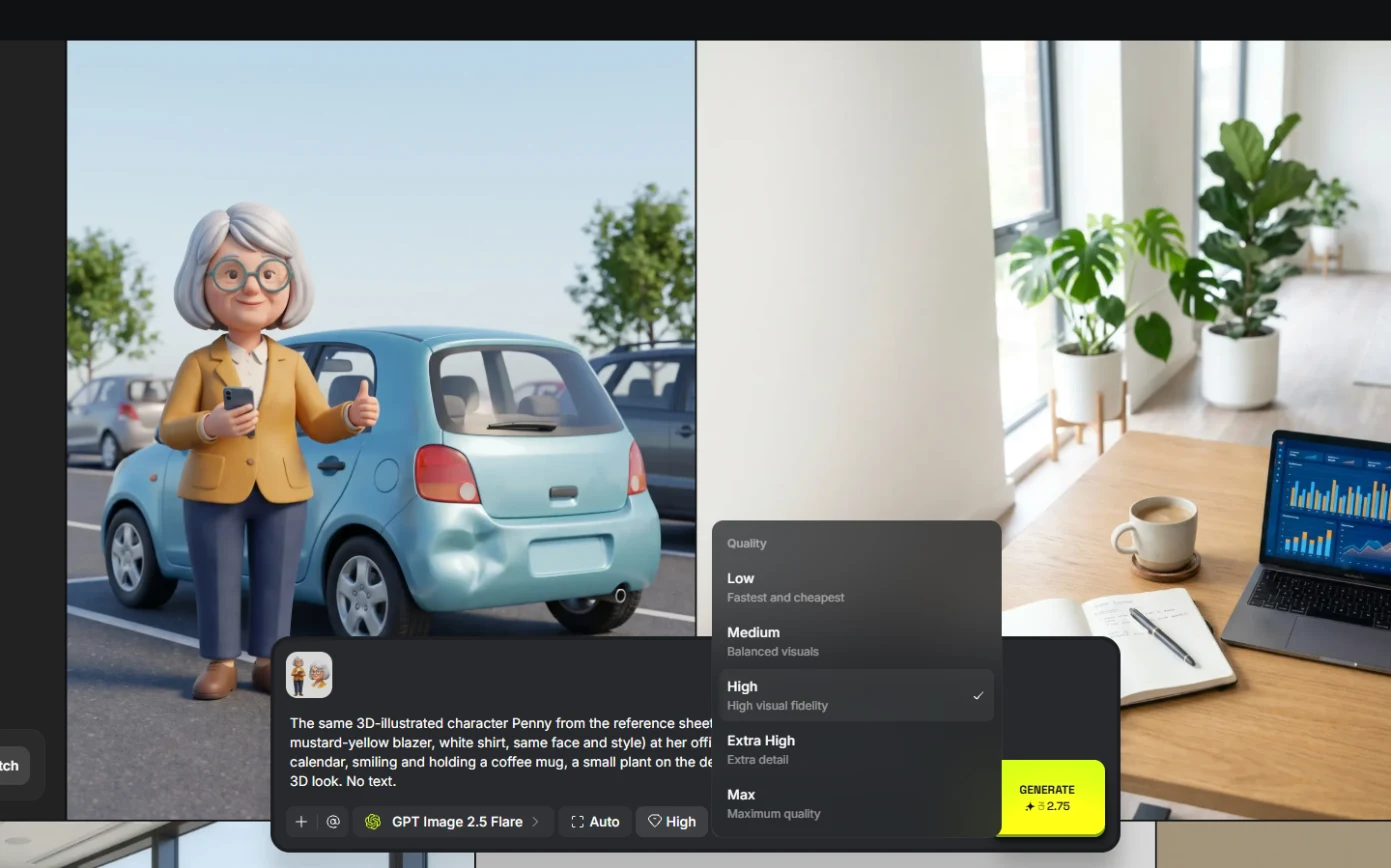
Higgsfield shows the price on the Generate button before you click. In the web app GPT Image 2.5 Flare at 2K cost 2.75 credits on High quality and 0.5 on Low; Kling 3.0 opened at 30 credits (4K) and cost 7.5 at 720p with sound off; Seedance 2.5 opened at 80 (1080p, sound on) and cost 35 at 720p with sound off.
One prompt, four models
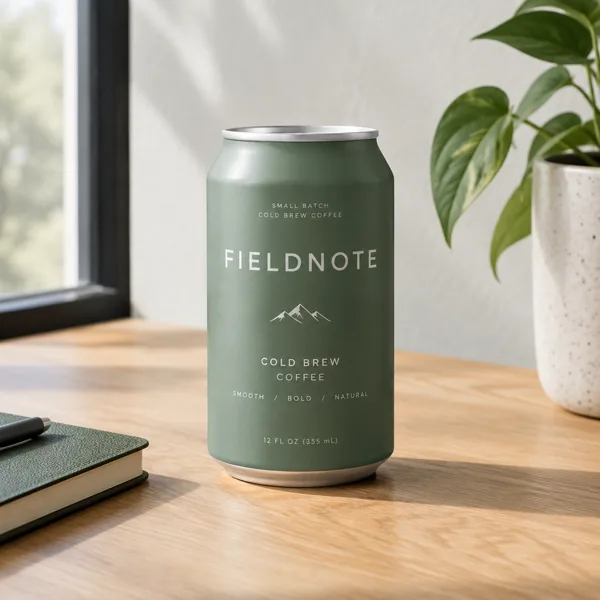
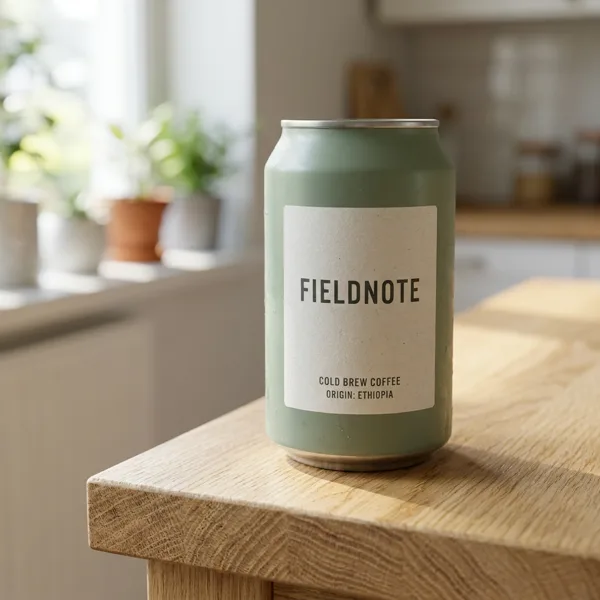
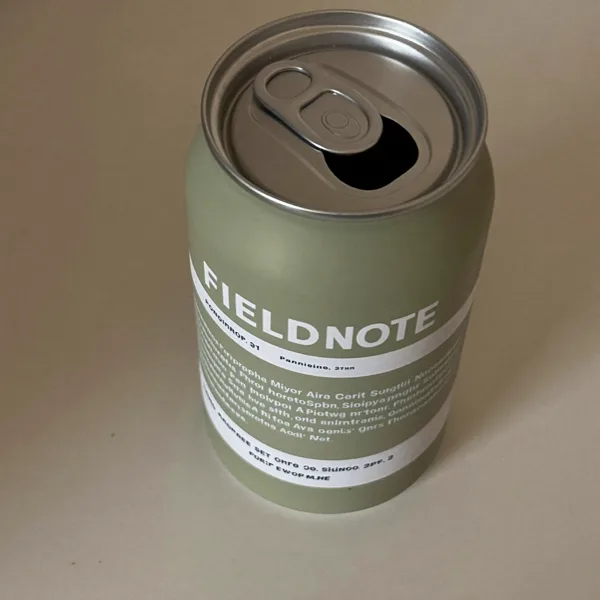
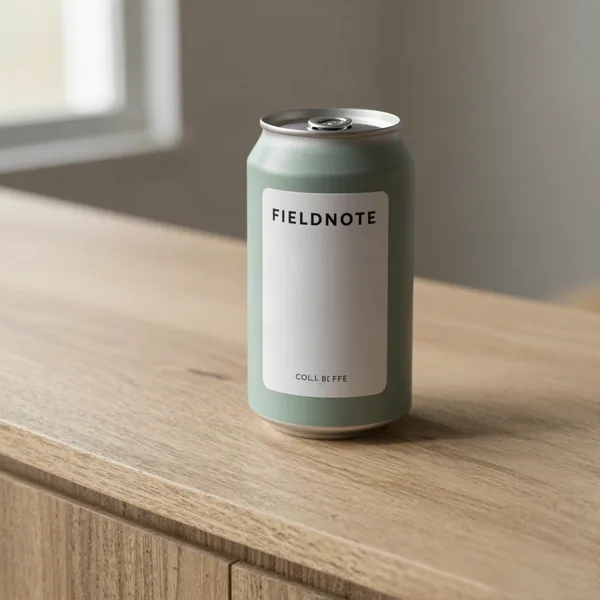
Z Image (0.15) garbled the small label; Soul 2 (0.12, made for people) wrote gibberish; GPT Image 2.5 (0.25) added "Small batch" and a logo; Nano Banana Pro (2) spelled FIELDNOTE right but added "Origin: Ethiopia". Cheap models are fine for layout ideas; exact text and faces need the stronger one, and every model needs checking.
Links
- Higgsfield pricing: current plans and credits. Check them before you rely on a free tier: generation uses credits.
Try it yourself, free
Reading the steps is a start. Doing them is how it sticks. The interactive module walks you through every click in a practice copy of Higgsfield, checks each step, and never touches your real accounts.
Start “Pick the Right Model and Make Your Credits Last using Higgsfield”Step by step: Pick the Right Model and Make Your Credits Last using Higgsfield
All 12 steps of the interactive module, in order. In the module you watch each one, then do it yourself in a practice copy that checks your work.
1. Out of credits on day 18
- See when the credits ran out. 3 designers share one plan. Last month the credits ran out on day 18, because every test ran on the priciest model at the highest setting. Click the ran out row.
Three designers, one plan. The credits ran out on day eighteen.
- Draft cheap, finish once. Higgsfield shows the price before you generate. Pick the model by the job. Click the Higgsfield card.
Higgsfield shows the price before you generate. Pick the model by the job.
2. Know what things cost
- Read the cheat sheet. Real costs from our runs: image models from 0.12 to 2 credits, a 5-second video from 7.5 to 35, a one-click ad from 60. Download the sheet, then click the image.
Images from about a tenth of a credit to two. Five second videos from seven and a half to thirty five.
3. Read the cost before you click
- Find your balance. In Higgsfield, click your profile picture (top right), then Settings (or go to higgsfield.ai/me/settings). The Credits card shows what is left. Click it.
The Credits card shows what's left.
- See the plan and the reset date. Open Subscription: the plan, the credits it renews each month, the renewal date and Monthly credits left. On a shared plan, this is the number everyone draws from. Do not click Buy credits or Set-up & Enable unless you mean to pay.
Subscription shows your plan, the renewal date, and the credits left. Don't click Buy unless you mean to.
- Read the number on Generate. Back in Image, pick GPT Image 2.5 Flare with a prompt typed in. Before you click anything, read Generate: 2.75 credits at High quality, 2K. Click the Generate number.
Pick a model, and read the Generate button before you click. Two point seven five, at High quality.
- Drop the quality for a draft. Open the quality menu (it says High). Low is "Fastest and cheapest". Click Low.
Low is fastest and cheapest.
- Same prompt, a fifth of the price. Generate now says 0.5: the same prompt and model, 5 times cheaper. Nano Banana Pro at 2K is 2; on video, Kling 3.0 jumps to 30 at its default 4K and 7.5 at 720p with sound off, and Seedance 2.5 opens at 80 (1080p, sound on) and drops to 35 at 720p, sound off. Click the 0.5.
Point five. Same prompt, five times cheaper. On video, the defaults can cost four times more than you need.
4. Compare the results
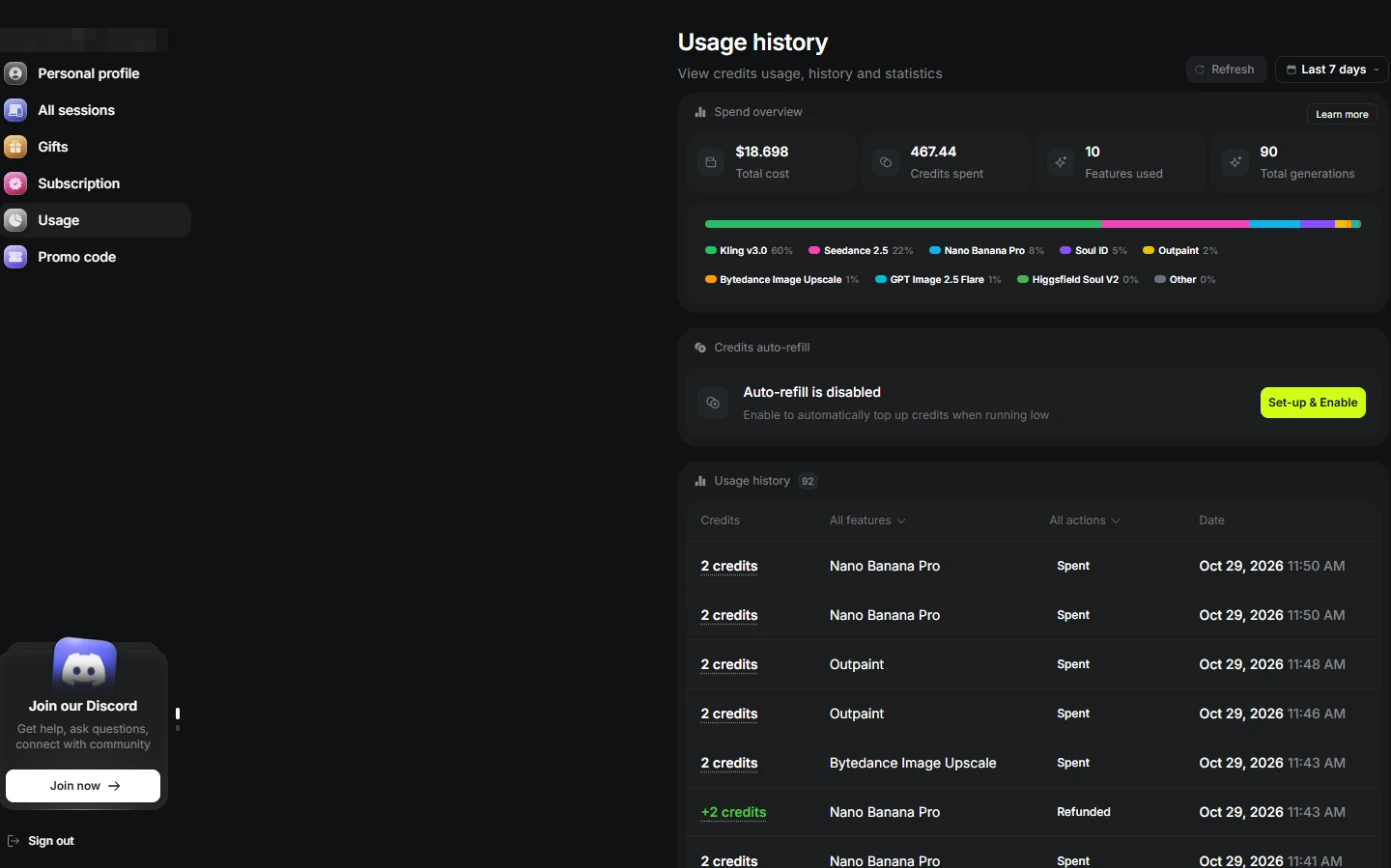
- Check usage weekly. In Settings, open Usage: the Spend overview (credits by model) and the Usage history, one row per generation, with refunds for failed jobs. A weekly look shows who is spending on what. Click a row.
Usage lists every generation and its cost, by model. Look at it weekly.
- Match the model to the job. Z Image and Soul 2 garbled the label; GPT Image 2.5 added a logo; Nano Banana Pro spelled it right but added "Origin: Ethiopia". Cheap is fine for a layout; exact text needs the 2-credit model, and every model needs checking. Click Nano Banana Pro.
Cheap is fine for a layout. Exact text needs the better model. And every model needs checking.
5. What it saved, and what is next
- See your team rules. Draft cheap, finish once, read the number on Generate, check usage weekly. Click What you have now.
Draft cheap. Finish once. Read the number. Check usage weekly.
- Up next. The last module: label AI content and respect people's likeness. Click Up next.
Last module. Label AI content, and respect likeness.
Screenshots
Frequently asked questions
- How much do Higgsfield generations cost?
- It depends on the model and settings. In the web app (October 2026) Nano Banana Pro at 2K cost 2 credits, GPT Image 2.5 Flare 0.5 (Low) to 2.75 (High), a 4K upscale 2, a 5-second Kling 3.0 video 7.5 at 720p with sound off (30 at its default 4K), and Seedance 2.5 35 at 720p without sound (80 at its defaults). The Generate button shows the current price.
- Which Higgsfield image model should I use?
- Draft layouts on a cheap model; use Nano Banana Pro for exact text or for keeping a face or product from a reference photo; use Soul models for people and fashion.
- How do I stop a team running out of credits?
- Draft cheap, finish once on the approved draft, turn off sound and 4K on drafts, read the price before every click, and check usage history weekly.
More in AI Video and Images with Higgsfield
 Turn One Product Photo into a 5-Second Video Ad using Higgsfield
A business case for small brands: turn one product photo into a 5-second vertical video ad with Higgsfield, draft it cheap on Kling 3.0, catch a smeared label, and…
Free · Live ~9 min Beginner
 Professional Headshots for the Whole Team, No Photo Shoot, using Higgsfield
A business case for firms with new hires: turn one casual photo into a matching set of professional headshots (LinkedIn, website, square) with Higgsfield, keep the…
Free · Live ~8 min Beginner
 Turn a Text Idea into a 9:16 Hiring Ad using Higgsfield (and Keep the Words Right)
A business case for recruiters: turn a one-paragraph idea into a vertical hiring ad with Higgsfield, catch the misspelled line AI video added, and fix it the right way…
Free · Live ~10 min Beginner
 Keep One Brand Character Across Every Post using Higgsfield
A business case for small agencies and brands: design one illustrated character in Higgsfield, use the sheet as a reference to put it in any scene, catch a borrowed…
Free · Live ~9 min Beginner
 Rescue a Low-Res Photo for a Proposal or Print using Higgsfield Upscale
A business case for proposal and marketing teams: upscale a 640-pixel photo to 4K with Higgsfield for 2 credits, and learn what upscaling invents and when not to use…
Free · Live ~6 min Beginner
All 8 modules in AI Video and Images with Higgsfield
Terms in this lesson
Plain-English definitions, each with an example from a free lesson.