Updated . Built from real Higgsfield runs on 29 October 2026 and redone click by click in the Higgsfield web app the same day; every app screen in the practice is a real capture. The inputs, outputs, mistakes and credit costs in the lesson are what Higgsfield produced in those runs. Every business and person is made up, and every person shown is AI-generated. How we check this lesson
A B2B software team promotes two webinars a month on LinkedIn, the Instagram feed and Stories, and the designer made one wide image. Cropping it tall cuts the laptop in half. In this free lesson you follow Elena Park (made up) as she expands the original to 9:16 and 1:1 in Higgsfield for 2 credits each, checks the invented edges, and plans where the headline goes.
At a glance
| Question | Answer |
|---|---|
| What you build | A business case for sales and marketing teams: expand one 16:9 webinar image to 9:16 and 1:1 with Higgsfield instead of cropping it, and place the headline in the new space. Real outputs, 2 credits per size. |
| Tools | Higgsfield |
| Time | About 6 minutes, 11 steps in 5 parts |
| Level | Beginner, no coding needed |
| Cost | Free |
| Ways to learn it | Practice it step by step |
The 5 parts, in short
- One webinar, three sizes: Count the resizing time, Expand instead of crop.
- Crop or expand: Look at what a crop would lose.
- Expand it in Higgsfield: Open Expand image, Upload and pick 9:16, Generate the tall version, Now 1:1 from the same original, and 1 more step.
- Place the words: Put the headline in the new space.
- What it saved, and what is next: See what you have now, Up next.
Start here first: Turn One Product Photo into a 5-Second Video Ad using Higgsfield (module 1 of AI Video and Images with Higgsfield)
Part of: AI for Marketing Teams (step 40 of 40)
Part of: AI Apps Worth Knowing (step 96 of 102). Next up: Pick the Right Model and Make Your Credits Last using Higgsfield
The business case: three shapes per promotion
Every promotion needs wide, square and tall versions. Asking a designer for each takes time; cropping throws most of the picture away. These are example numbers.
Expanding (outpainting) keeps the original untouched and paints new picture around it.
What happened in our run
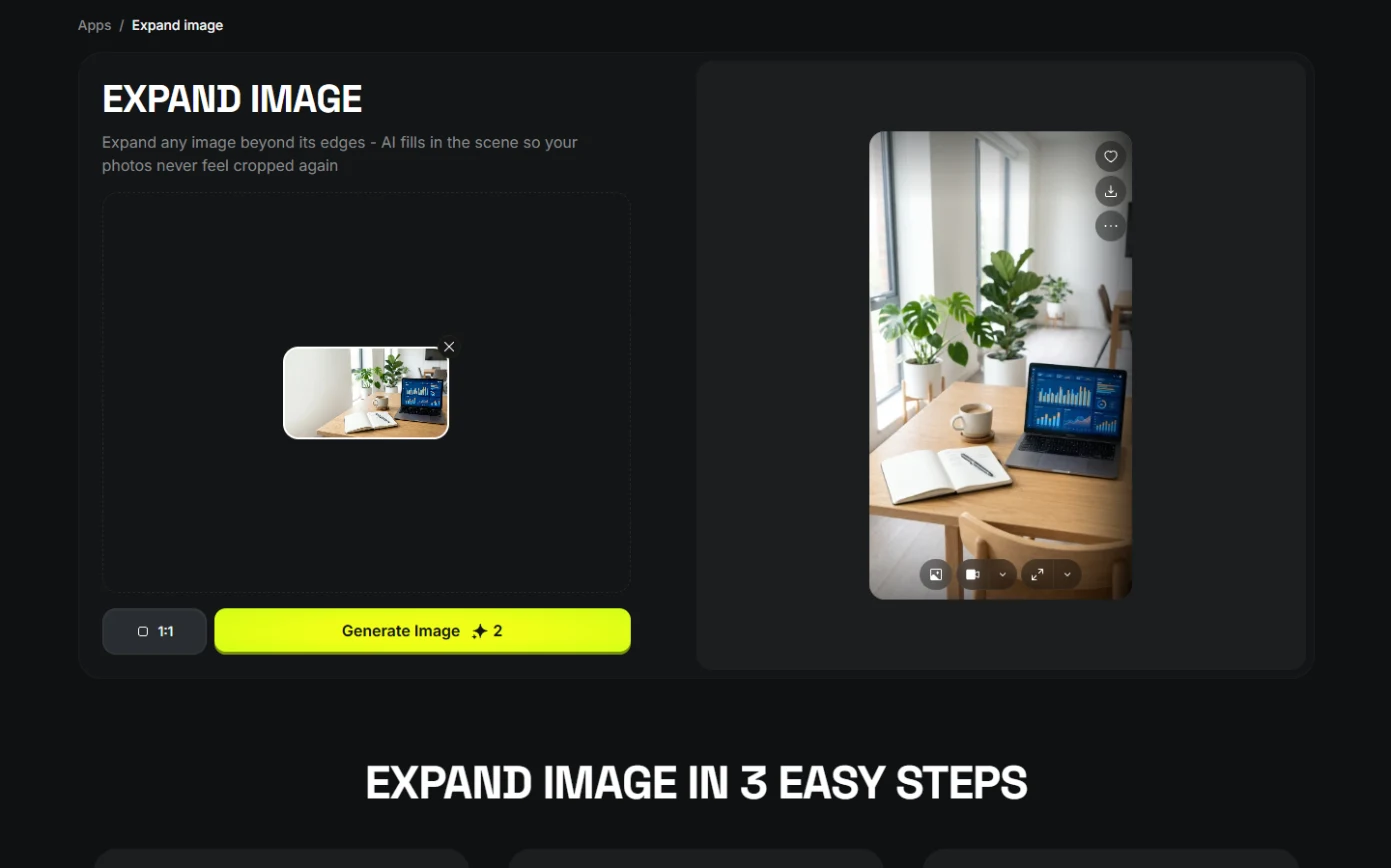
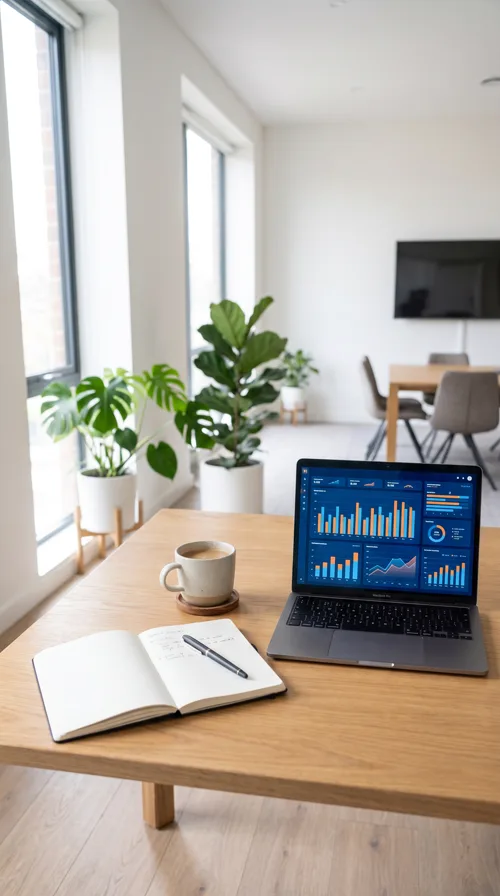
The 9:16 came back 1536 x 2752 with new wall above and floor below; the 1:1 came back 2048 x 2048. In the tall version the desk sits in the lower third, so the webinar title and date go in the empty top, added in an editor, away from the edges phone apps cover.
Links
- Higgsfield pricing: current plans and credits. Check them before you rely on a free tier: generation uses credits.
Try it yourself, free
Reading the steps is a start. Doing them is how it sticks. The interactive module walks you through every click in a practice copy of Higgsfield, checks each step, and never touches your real accounts.
Start “One Webinar Image, Every Channel Size using Higgsfield (Expand, Don't Crop)”Step by step: One Webinar Image, Every Channel Size using Higgsfield (Expand, Don't Crop)
All 11 steps of the interactive module, in order. In the module you watch each one, then do it yourself in a practice copy that checks your work.
1. One webinar, three sizes
- Count the resizing time. Every webinar needs 3 sizes: LinkedIn, the Instagram feed and Stories. That is about 45 minutes of designer time each, 2 times a month. Click the designer time row.
Three sizes per webinar. Forty five minutes of designer time, every time.
- Expand instead of crop. Higgsfield can expand a picture to a new shape, painting new edges around the untouched original. Click the Higgsfield card.
Higgsfield expands the picture to a new shape, and leaves the original untouched.
2. Crop or expand
- Look at what a crop would lose. Crop this to 9:16 and you keep a narrow slice: half a laptop. Expanding keeps it all. Click the image.
Crop it tall, and you keep half a laptop. Expand it, and you keep it all.
3. Expand it in Higgsfield
- Open Expand image. In Higgsfield, open Apps (higgsfield.ai/apps). Under Professional, find Expand image and click Try now.
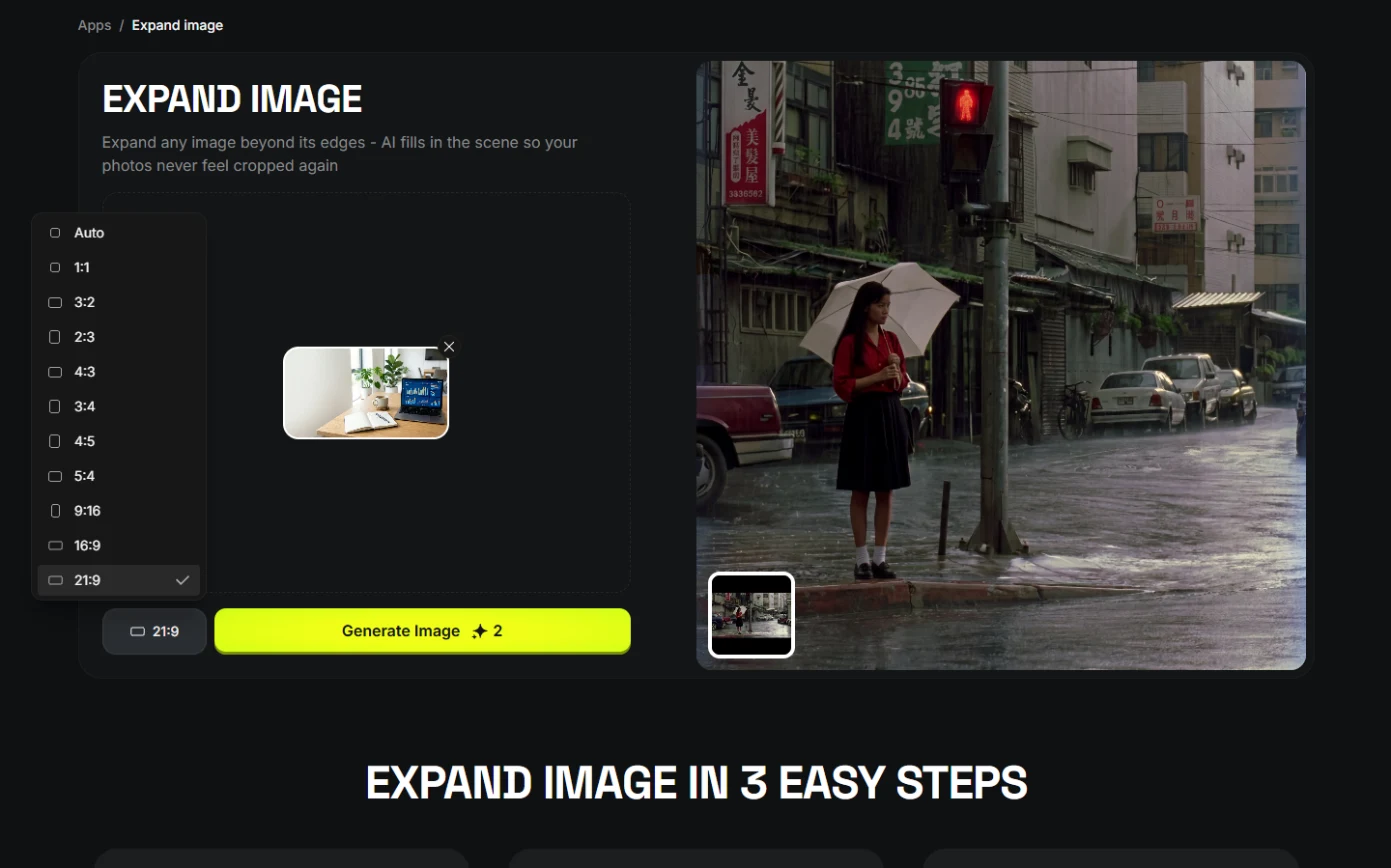
- Upload and pick 9:16. Click Upload Image and choose the 16:9 picture. The ratio button says 21:9: open it and pick 9:16.
Upload the wide picture.
- Generate the tall version. Generate Image shows 2. Click it.
Two credits.
- Now 1:1 from the same original. New wall and window light above, more floor below, the original untouched in the middle. Keep the same upload, switch the ratio to 1:1, and click Generate Image again.
New wall above, more floor below. Same upload, switch to one by one, and generate again.
- Check the edges and download. Check the new edges for anything strange (furniture, hands, text), then click the download icon on the result.
Check the new edges.
4. Place the words
- Put the headline in the new space. In the 9:16 version the laptop sits low and the top is empty: that is where the webinar title and date go, in your editor, inside the middle of the frame where phone buttons will not cover it. Click the 9:16 image.
The top is empty now. That's where the title and date go.
5. What it saved, and what is next
- See what you have now. Three channel sizes of one picture for 4 credits. Click What you have now.
Three sizes of one picture, for four credits.
- Up next. Next, an agency learns to pick the right model and make its credits last. Click Up next.
Next, pick the right model, and make credits last.
Screenshots


Frequently asked questions
- How do I change an image's aspect ratio without cropping?
- Use an expand (outpaint) tool: Higgsfield keeps the original and fills the new space. Ours cost 2 credits per new size in October 2026.
- Is the expanded part of the image real?
- No, it is invented. Check the new edges for strange furniture, hands or text before you post.
- Where should text go on a 9:16 story image?
- In the middle area of the frame, not the top or bottom where app buttons sit. Add it in your editor so the words stay exact.
More in AI Video and Images with Higgsfield
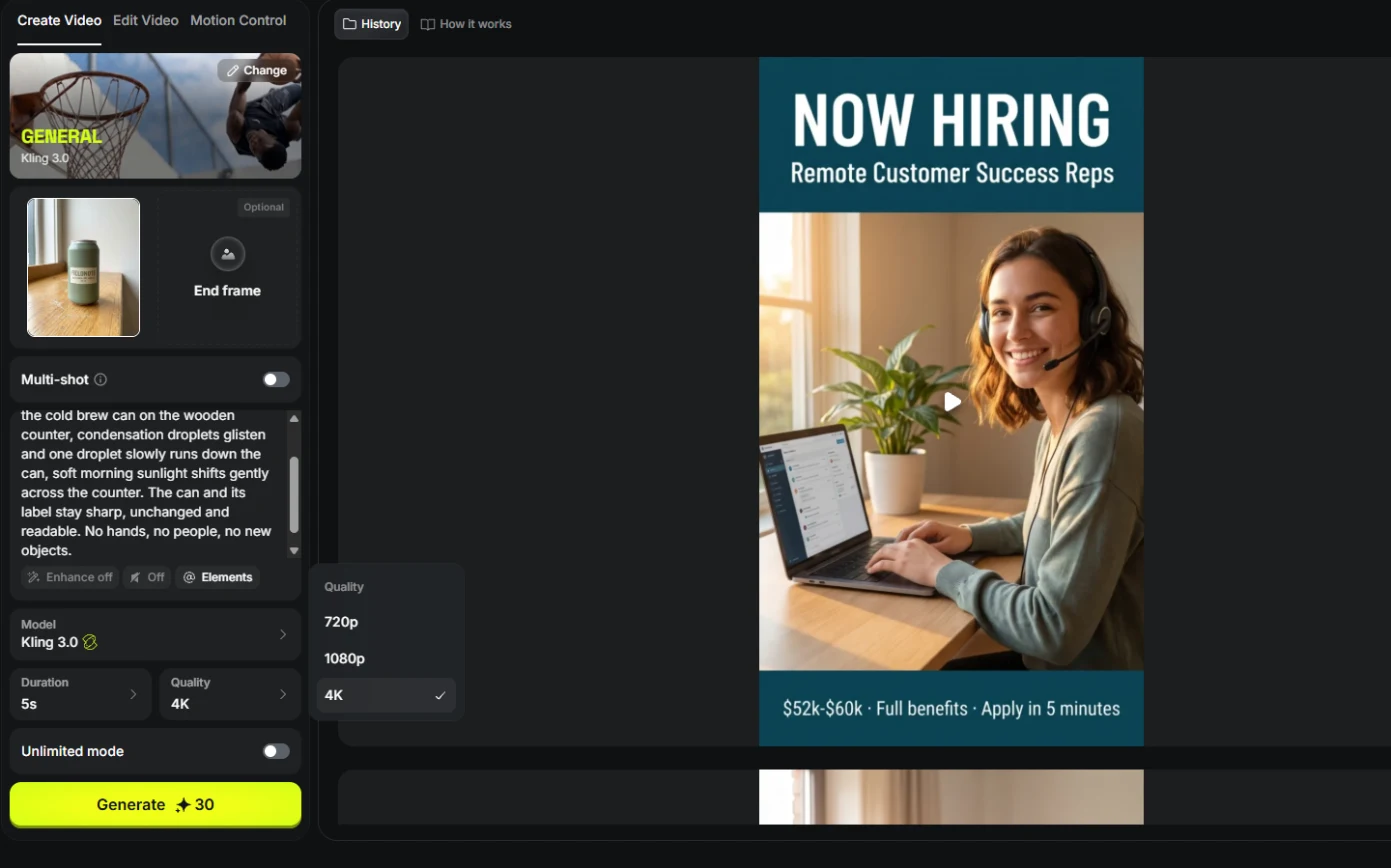 Turn One Product Photo into a 5-Second Video Ad using Higgsfield
A business case for small brands: turn one product photo into a 5-second vertical video ad with Higgsfield, draft it cheap on Kling 3.0, catch a smeared label, and…
Free · Live ~9 min Beginner
 Professional Headshots for the Whole Team, No Photo Shoot, using Higgsfield
A business case for firms with new hires: turn one casual photo into a matching set of professional headshots (LinkedIn, website, square) with Higgsfield, keep the…
Free · Live ~8 min Beginner
 Turn a Text Idea into a 9:16 Hiring Ad using Higgsfield (and Keep the Words Right)
A business case for recruiters: turn a one-paragraph idea into a vertical hiring ad with Higgsfield, catch the misspelled line AI video added, and fix it the right way…
Free · Live ~10 min Beginner
 Keep One Brand Character Across Every Post using Higgsfield
A business case for small agencies and brands: design one illustrated character in Higgsfield, use the sheet as a reference to put it in any scene, catch a borrowed…
Free · Live ~9 min Beginner
 Use AI Images and Video Responsibly: Labels, Consent and Likeness using Higgsfield
A business case for any team publishing AI content: a one-page policy to disclose realistic AI images and video, get consent for faces and voices, and never make fake…
Free · Live ~7 min Beginner
All 8 modules in AI Video and Images with Higgsfield
Terms in this lesson
Plain-English definitions, each with an example from a free lesson.