Updated . Built from real Higgsfield runs on 29 October 2026 and redone click by click in the Higgsfield web app the same day; every app screen in the practice is a real capture. The inputs, outputs, mistakes and credit costs in the lesson are what Higgsfield produced in those runs. Every business and person is made up, and every person shown is AI-generated. How we check this lesson
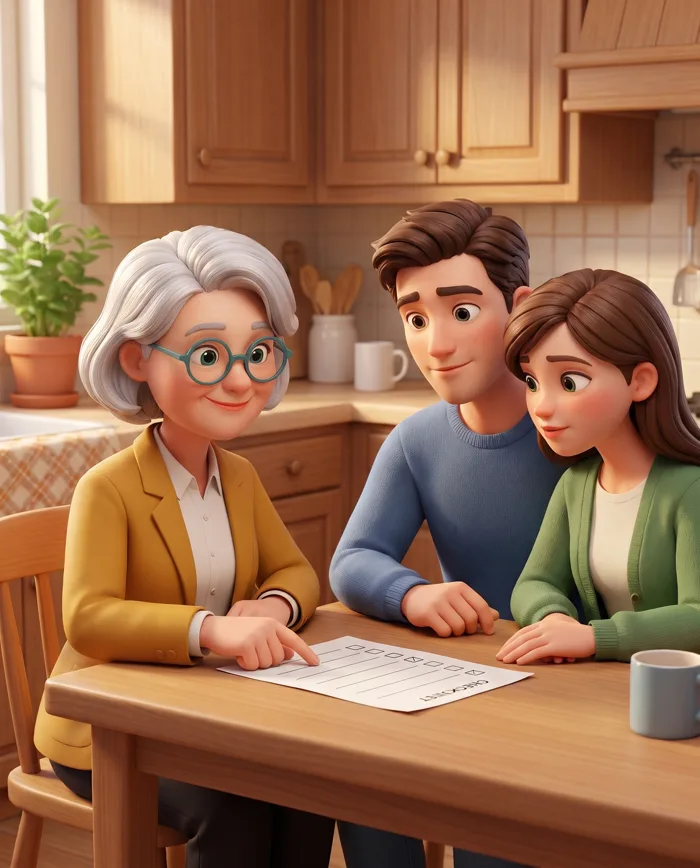
An insurance agency wants one friendly face in every post, without a photo shoot or anyone's real likeness. In this free lesson you follow Priya Shah (made up) as she designs Penny, an illustrated advisor, as a character sheet in Higgsfield, then attaches the sheet as the reference to put her at a kitchen table, beside a dented car and at a renewal desk. All three are clearly Penny. Then the catch: an Apple logo on her laptop. 15.5 credits including an animated scene.
At a glance
| Question | Answer |
|---|---|
| What you build | A business case for small agencies and brands: design one illustrated character in Higgsfield, use the sheet as a reference to put it in any scene, catch a borrowed logo, and animate a scene. Real outputs, 15.5 credits. |
| Tools | Higgsfield |
| Time | About 9 minutes, 11 steps in 5 parts |
| Level | Beginner, no coding needed |
| Cost | Free |
| Ways to learn it | Practice it step by step |
The 5 parts, in short
- A friendly face for every post: Price a scene, One sheet, any scene.
- Design the character once: Illustrated, on purpose, Describe the character sheet.
- Put the same character in new scenes: Use the sheet as the reference, Name what stays, then the scene.
- Check every scene: Check what stayed the same, Why not a trained character?, Fix it before you post.
- What it saved, and what is next: See what you have now, Up next.
Start here first: Turn One Product Photo into a 5-Second Video Ad using Higgsfield (module 1 of AI Video and Images with Higgsfield)
Part of: AI for Marketing Teams (step 39 of 40). Next up: One Webinar Image, Every Channel Size using Higgsfield (Expand, Don't Crop)
Part of: AI Apps Worth Knowing (step 94 of 102). Next up: Rescue a Low-Res Photo for a Proposal or Print using Higgsfield Upscale
The business case: recognisable, not stock
Stock photos look like every other agency, and an illustrator charges for every new scene. A recognisable character makes a small brand memorable. These are example numbers.
Design the character once as a sheet, then reuse the sheet as the reference for each new scene, repeating the defining features in the prompt.
What happened in our run
The sheet cost 2 credits; each scene 2 more with the sheet attached; the animated renewal scene 7.5 on Kling 3.0. Silver bob, teal glasses and mustard blazer held in every scene. The renewal scene also had an Apple logo on the laptop: a real brand in your ad suggests a partnership you do not have, so regenerate with "no logos on any device" or crop it.
Higgsfield can also train a character on 5 to 20 photos of a real person. That is for your own face, with consent. For a mascot, an illustrated sheet is cheaper and borrows nobody's likeness.
Links
- Higgsfield pricing: current plans and credits. Check them before you rely on a free tier: generation uses credits.
Try it yourself, free
Reading the steps is a start. Doing them is how it sticks. The interactive module walks you through every click in a practice copy of Higgsfield, checks each step, and never touches your real accounts.
Start “Keep One Brand Character Across Every Post using Higgsfield”Step by step: Keep One Brand Character Across Every Post using Higgsfield
All 11 steps of the interactive module, in order. In the module you watch each one, then do it yourself in a practice copy that checks your work.
1. A friendly face for every post
- Price a scene. Northgate wants one recognisable character across 12 posts this quarter. An illustrator charges $150 per new scene after the design. Click the each new scene row.
One character, twelve posts. An illustrator charges for every new scene.
- One sheet, any scene. Make the character once as a sheet, then attach the sheet as the reference for every new scene. Click the Higgsfield card.
Make the character once, then use it as the reference for every scene.
2. Design the character once
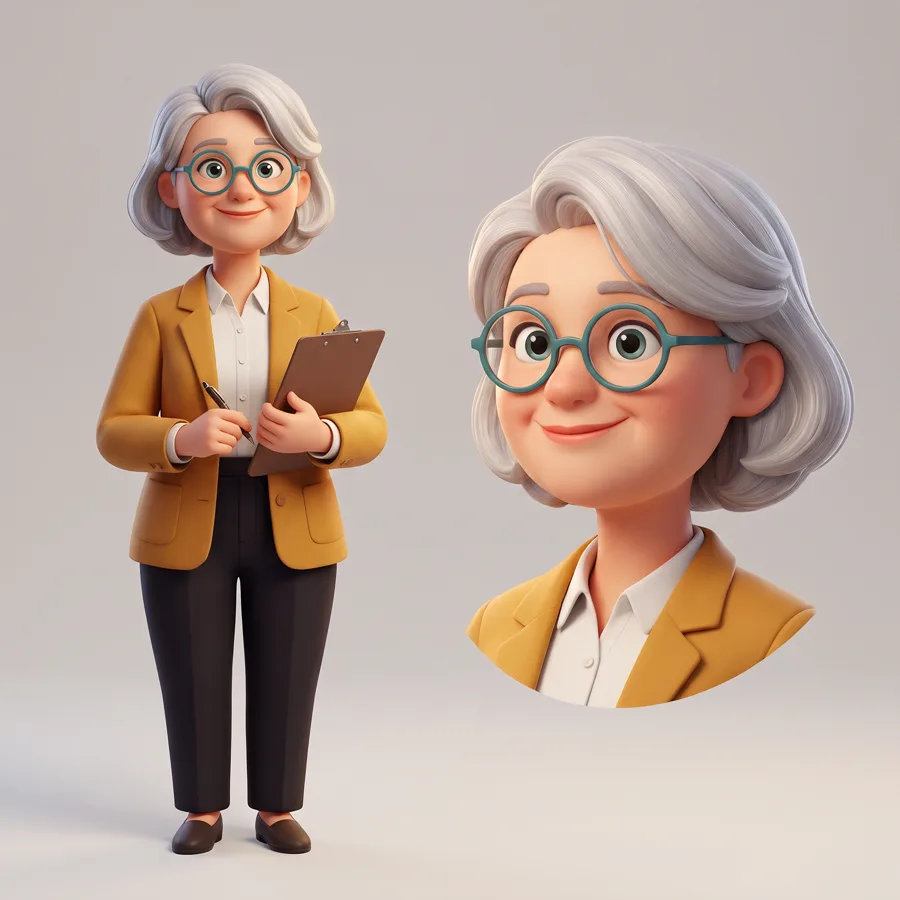
- Illustrated, on purpose. Penny is clearly illustrated: nobody will mistake her for a real advisor, and she borrows no one's face. Click the sheet.
Penny is clearly illustrated. Nobody mistakes her for a real person.
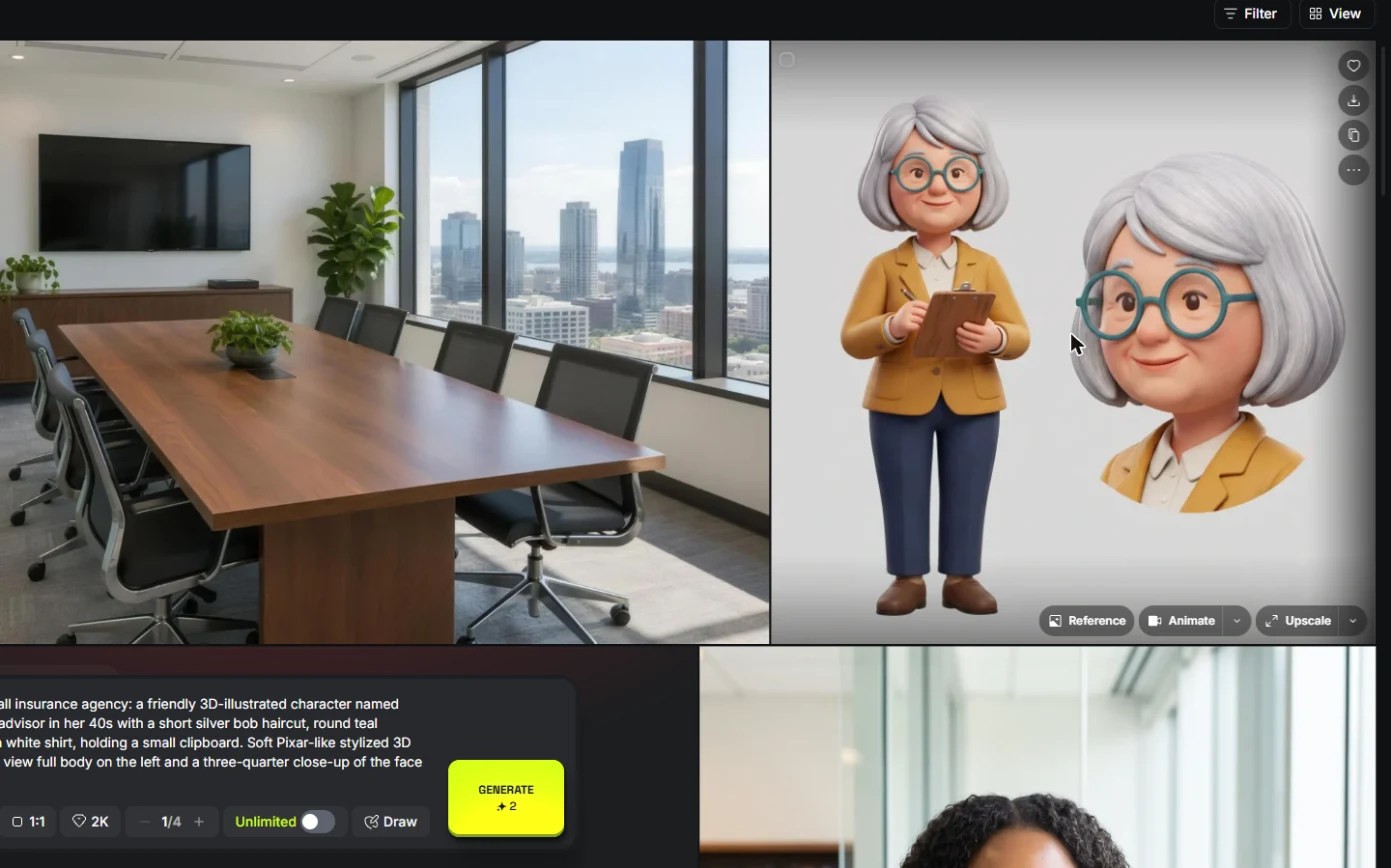
- Describe the character sheet. Click Image in the top bar. In the prompt bar pick Nano Banana Pro and set the ratio to 1:1. Describe the features you want repeated (silver bob, round teal glasses, mustard blazer), the style, and ask for full body and a face close-up on a plain background. Then click Generate (2 credits).
Describe the features you want repeated. The hair, the glasses, the blazer. And ask for a full body and a face, on a plain background. Then generate.
Brand mascot character sheet for a small insurance agency: a friendly 3D-illustrated character named Penny, a cheerful round-faced woman advisor in her 40s with a short silver bob haircut, round teal glasses, a mustard-yellow blazer over a white shirt, holding a small clipboard. Soft Pixar-like stylized 3D look, clean light grey background, front view full body on the left and a three-quarter close-up of the face on the right. No text, no logos.
3. Put the same character in new scenes
- Use the sheet as the reference. The sheet cost 2 credits. Hover it and click Reference: the sheet now sits above the prompt, so every new scene starts from it.
Two credits. Hover the sheet, and click Reference.
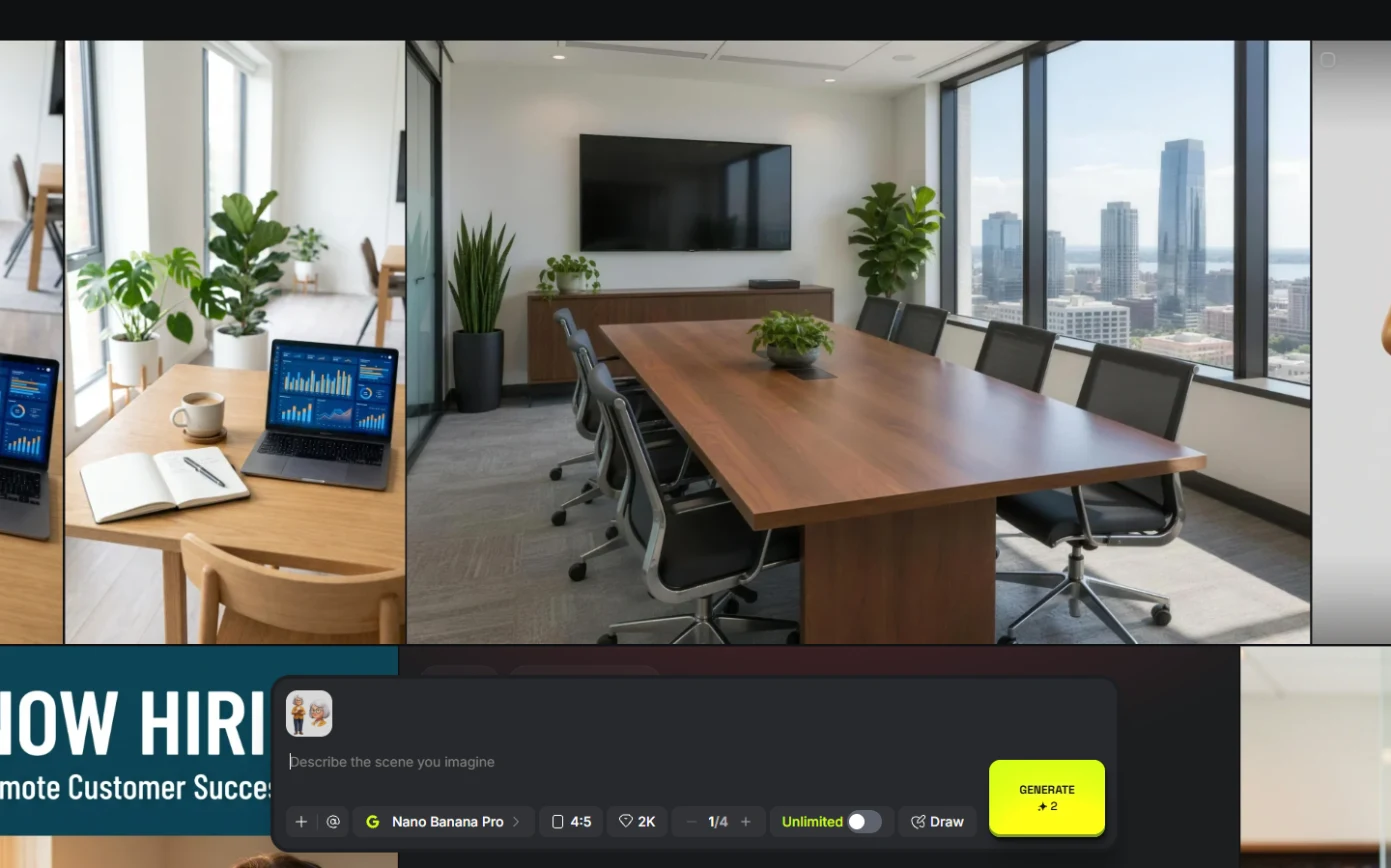
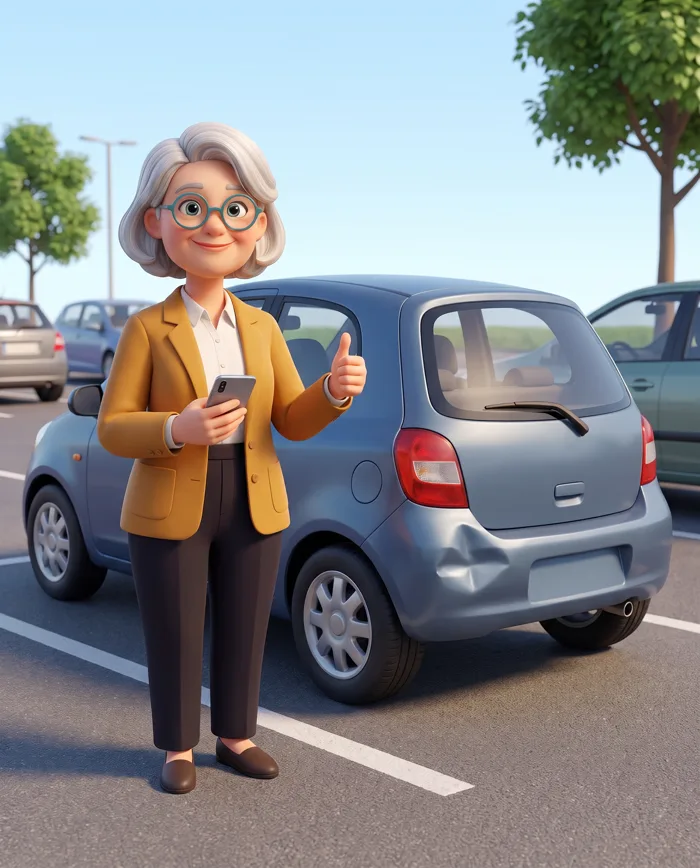
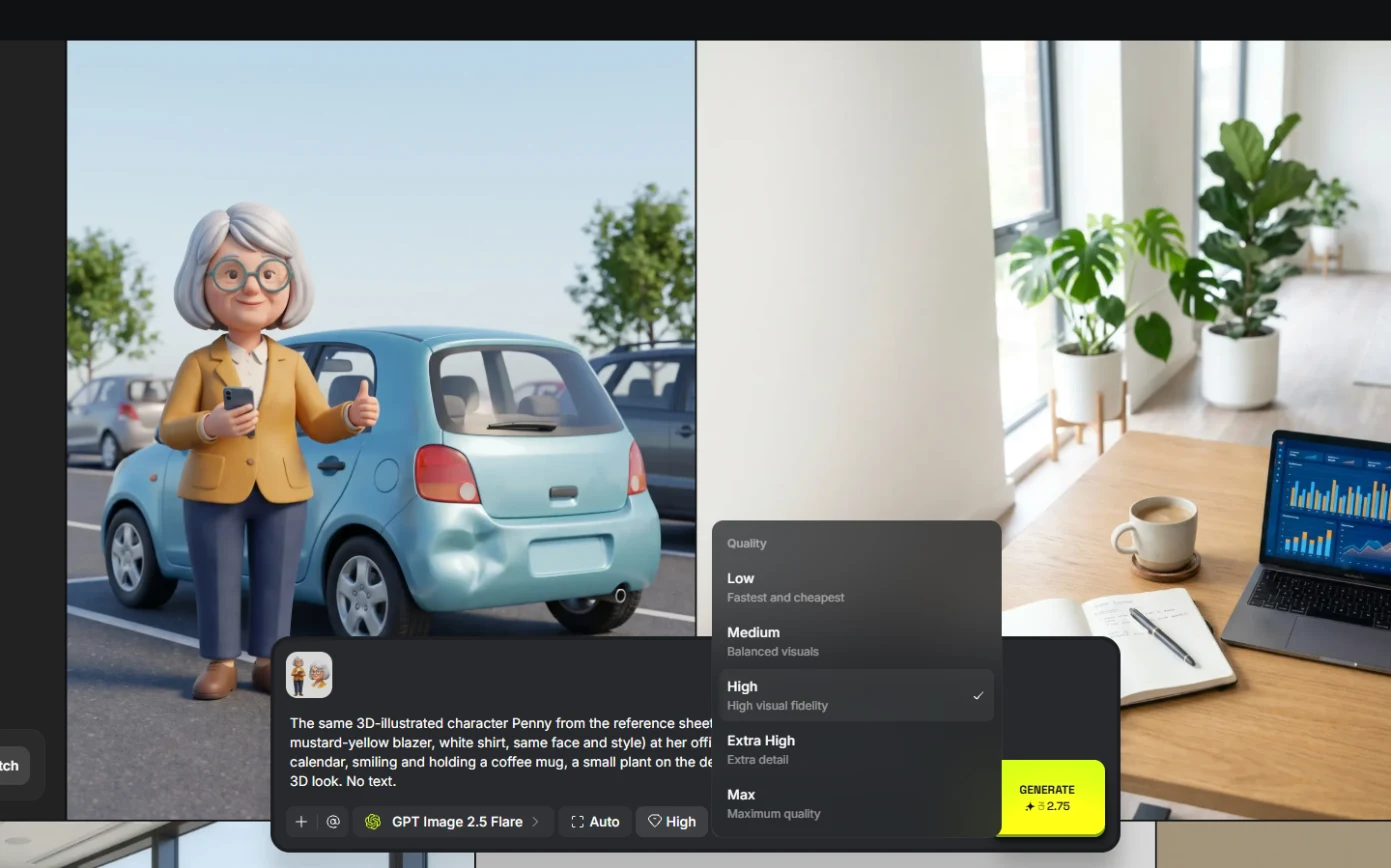
- Name what stays, then the scene. Set the ratio to 4:5. Repeat the features in the prompt ("same silver bob, round teal glasses, mustard-yellow blazer"), then describe the new scene: the parking lot, the dented bumper, a calm thumbs up. Click Generate.
Repeat what stays the same. Then describe the new scene. Generate.
The same 3D-illustrated character Penny from the reference sheet (same silver bob, round teal glasses, mustard-yellow blazer, white shirt, same face and style) standing in a parking lot next to a small hatchback with a dented rear bumper, holding a smartphone and giving a calm reassuring thumbs up, daytime, same stylized 3D look. No text, no license plate numbers.
4. Check every scene
- Check what stayed the same. Same silver bob, same round teal glasses, same mustard blazer: clearly Penny. Check every new scene the same way, and look for anything the model added. In our first run the renewal desk came back with an Apple logo on her laptop. Click her face.
Same hair, same glasses, same blazer. Clearly Penny. And look for anything the model added. Our first run put an Apple logo on her laptop.
- Why not a trained character?. Higgsfield can also train a character from photos of a real person (Create character at higgsfield.ai/character). That is for your own face, with consent. For a brand mascot, an illustrated sheet is cheaper and borrows nobody else's likeness. To animate a scene, hover it and click Animate (Kling 3.0, 7.5 credits). Click Create character to see where it lives.
Higgsfield can train a character from photos of a real person. That's for your own face, with consent. For a mascot, an illustrated sheet is enough.
- Fix it before you post. Regenerate with "no logos on any device", or crop it. Click the renewal scene.
Regenerate with no logos, or crop it.
5. What it saved, and what is next
- See what you have now. A reusable brand character, three scenes and an animated clip for 15.5 credits. Click What you have now.
A reusable character, three scenes and a clip.
- Up next. Next, a consulting firm upscales a low-res photo for a printed proposal. Click Up next.
Next, upscale a low-res photo for a printed proposal.
Screenshots

Frequently asked questions
- How do I keep a character consistent in Higgsfield?
- Make a character sheet (full body and face on a plain background), attach it as the image reference for every new scene, and repeat the defining features word for word in each prompt.
- Why did a logo appear in my AI image?
- Image models add real brand logos to laptops, phones and cars. Ask for "no logos on any device" and check every scene before posting.
- Should a brand mascot be illustrated or photoreal?
- Illustrated is safer: nobody mistakes it for a real advisor or customer and it borrows no one's face. A photoreal character that does not exist must be labeled every time.
More in AI Video and Images with Higgsfield
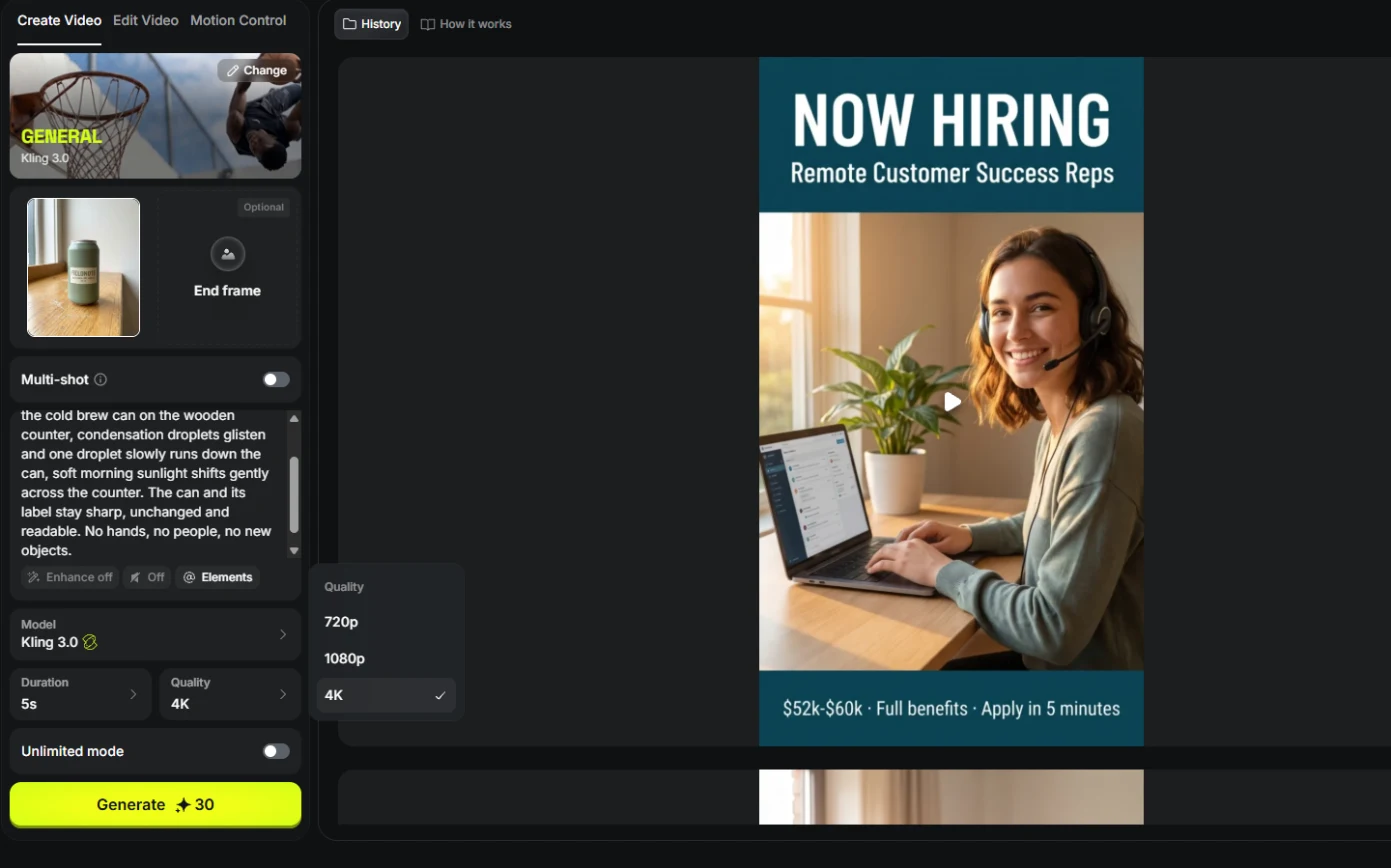 Turn One Product Photo into a 5-Second Video Ad using Higgsfield
A business case for small brands: turn one product photo into a 5-second vertical video ad with Higgsfield, draft it cheap on Kling 3.0, catch a smeared label, and…
Free · Live ~9 min Beginner
 Professional Headshots for the Whole Team, No Photo Shoot, using Higgsfield
A business case for firms with new hires: turn one casual photo into a matching set of professional headshots (LinkedIn, website, square) with Higgsfield, keep the…
Free · Live ~8 min Beginner
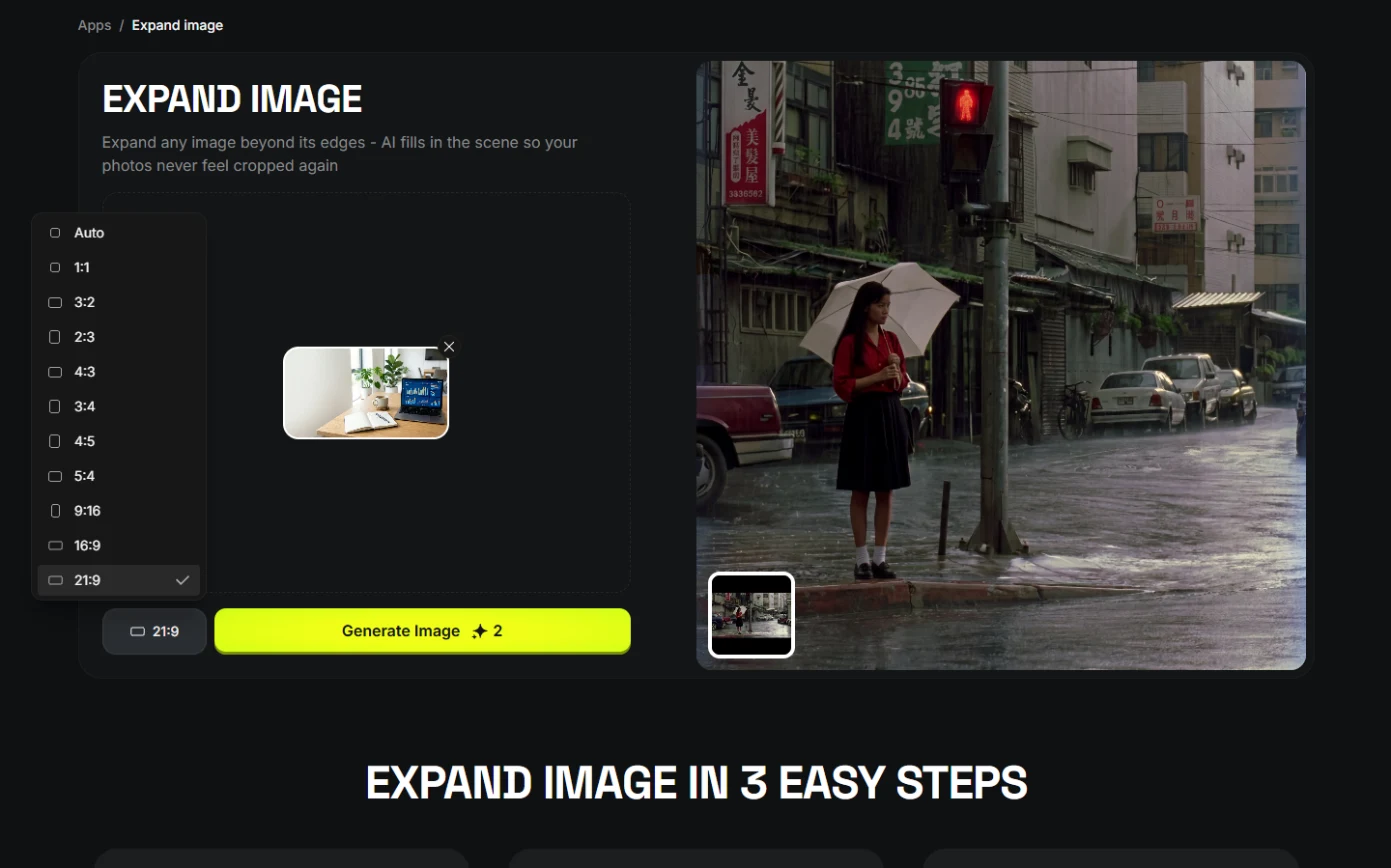 One Webinar Image, Every Channel Size using Higgsfield (Expand, Don't Crop)
A business case for sales and marketing teams: expand one 16:9 webinar image to 9:16 and 1:1 with Higgsfield instead of cropping it, and place the headline in the new…
Free · Live ~6 min Beginner
 Pick the Right Model and Make Your Credits Last using Higgsfield
A business case for teams sharing one plan: read the cost before you generate, draft on cheap models, finish once on the right one, and compare four image models on the…
Free · Live ~8 min Beginner
 Use AI Images and Video Responsibly: Labels, Consent and Likeness using Higgsfield
A business case for any team publishing AI content: a one-page policy to disclose realistic AI images and video, get consent for faces and voices, and never make fake…
Free · Live ~7 min Beginner
All 8 modules in AI Video and Images with Higgsfield
Terms in this lesson
Plain-English definitions, each with an example from a free lesson.