Updated . Built from real Higgsfield runs on 29 October 2026 and redone click by click in the Higgsfield web app the same day; every app screen in the practice is a real capture. The inputs, outputs, mistakes and credit costs in the lesson are what Higgsfield produced in those runs. Every business and person is made up, and every person shown is AI-generated. How we check this lesson
Six new people joined a 22-person law firm, and a photographer wants about $350 each and three weeks. In this free lesson you follow Dana Okafor (made up) as she attaches one casual photo as a reference in Higgsfield, writes what must stay (the face) and what changes (blazer, backdrop, light), and gets three matching headshots for 6 credits with Nano Banana Pro. The person in the photo is AI-generated; with a real colleague you need their written OK and their approval of every image.
At a glance
| Question | Answer |
|---|---|
| What you build | A business case for firms with new hires: turn one casual photo into a matching set of professional headshots (LinkedIn, website, square) with Higgsfield, keep the face, and get the person's consent and approval. Real outputs, 6 credits. |
| Tools | Higgsfield |
| Time | About 8 minutes, 14 steps in 5 parts |
| Level | Beginner, no coding needed |
| Cost | Free |
| Ways to learn it | Practice it step by step |
The 5 parts, in short
- Six new faces, no matching photos: Price the photographer, Keep the face, change the rest.
- Start with consent and one photo: Their photo, their yes.
- Make the headshot in Higgsfield: Open the image model picker, Pick Nano Banana Pro, Upload the photo as a reference, Read the upload agreement, and 2 more steps.
- Check it with the person: Compare with the original, Make the other two sizes and download, Send them to the person to approve.
- What it saved, and what is next: See what you have now, Up next.
Start here first: Turn One Product Photo into a 5-Second Video Ad using Higgsfield (module 1 of AI Video and Images with Higgsfield)
Part of: AI Apps Worth Knowing (step 92 of 102). Next up: Turn a Text Idea into a 9:16 Hiring Ad using Higgsfield (and Keep the Words Right)
The business case: matching headshots all year
Team pages, LinkedIn and conference programs need headshots that match, and people join all year. A photographer per hire is expensive and slow, so team pages end up a mix of selfies. These are example numbers.
With the person's own photo as a reference, Higgsfield's image models keep the face and change everything else. One prompt per size.
What happened in our run, and the consent rule
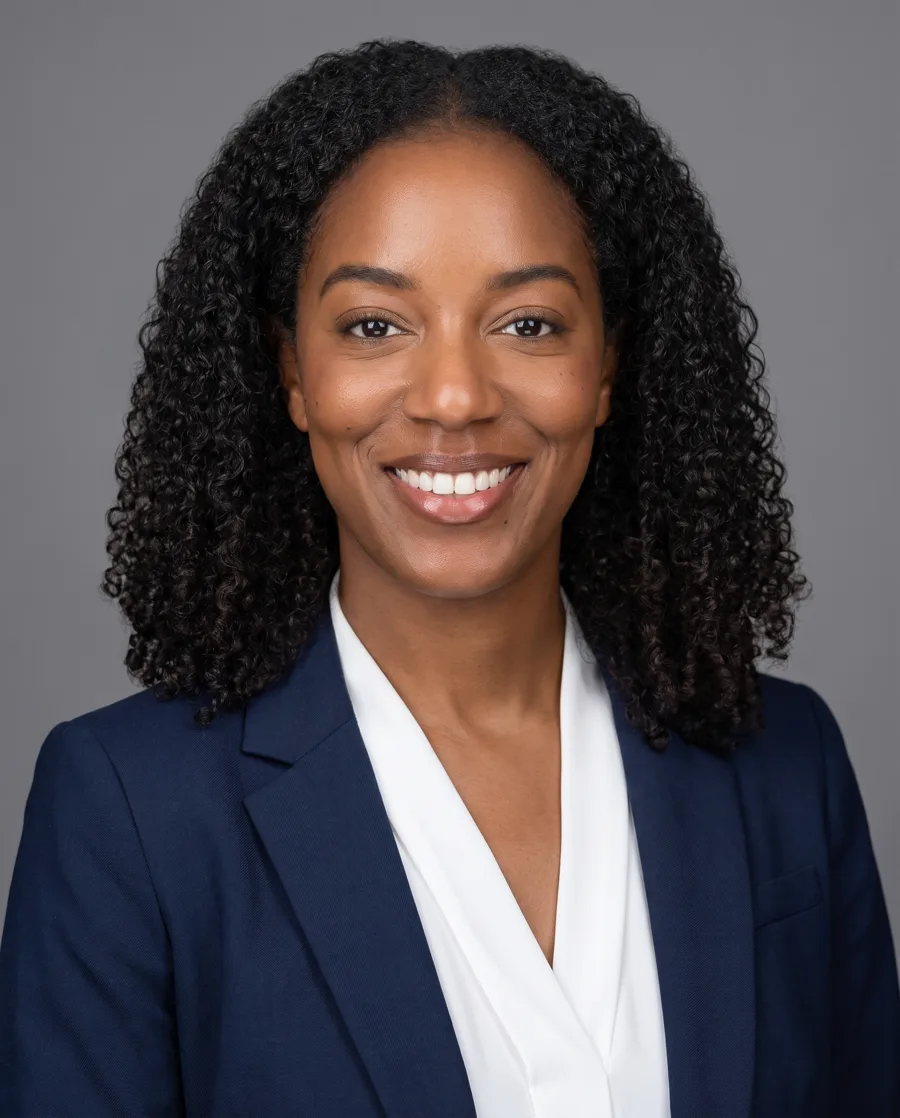
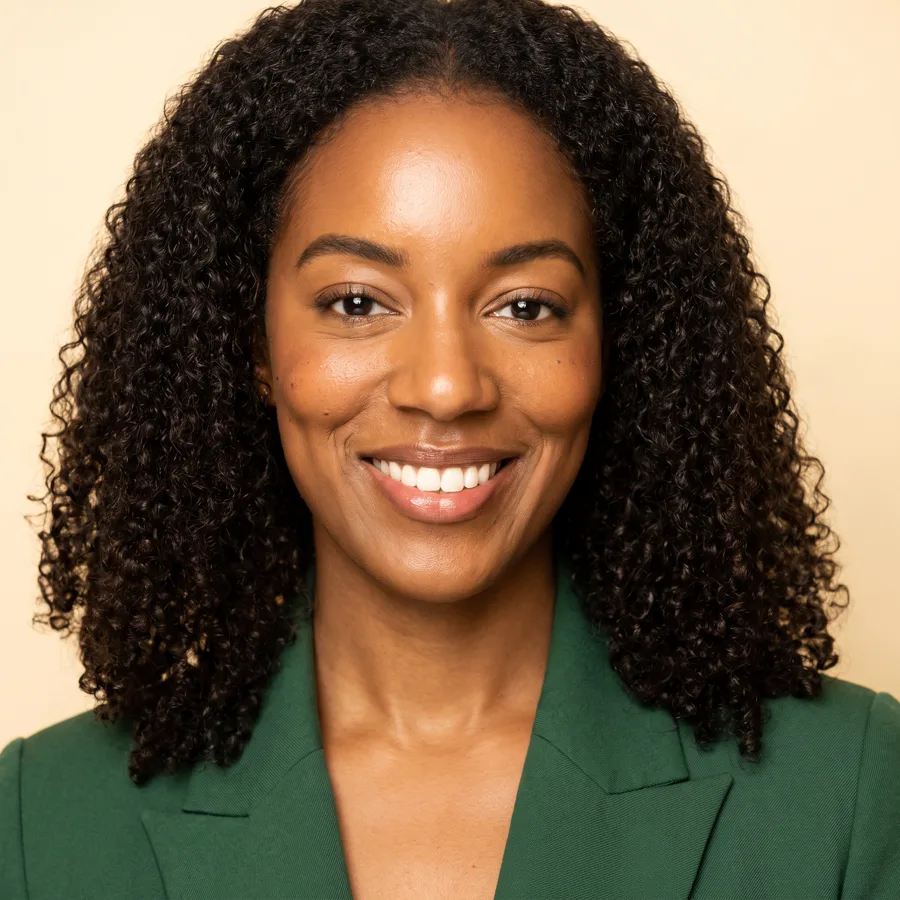
All three headshots (LinkedIn on grey, website in an office, a square on cream) kept her face, skin tone, curls and smile, at 2 credits each. The lesson still compares each with the original, closely: skin tone, hairline, teeth and jewelry are where models drift.
A face belongs to the person. Use only their own photo, with their written OK, and let them approve the finals. Never make one of someone who has not agreed, or of a public figure.
Links
- Higgsfield pricing: current plans and credits. Check them before you rely on a free tier: generation uses credits.
Try it yourself, free
Reading the steps is a start. Doing them is how it sticks. The interactive module walks you through every click in a practice copy of Higgsfield, checks each step, and never touches your real accounts.
Start “Professional Headshots for the Whole Team, No Photo Shoot, using Higgsfield”Step by step: Professional Headshots for the Whole Team, No Photo Shoot, using Higgsfield
All 14 steps of the interactive module, in order. In the module you watch each one, then do it yourself in a practice copy that checks your work.
1. Six new faces, no matching photos
- Price the photographer. Six people joined Calder & Wynn this quarter. A photographer is about $350 a person, $2,100 for all six, and 3 weeks to get everyone in on one day. Click the photographer row.
Six new people. A photographer for all of them is about two thousand dollars, and three weeks.
- Keep the face, change the rest. With the person's own photo as a reference, Higgsfield's image models keep the face and change the clothes, background and light. Click the Higgsfield card.
Attach the person's own photo, and the model keeps the face while changing everything else.
2. Start with consent and one photo
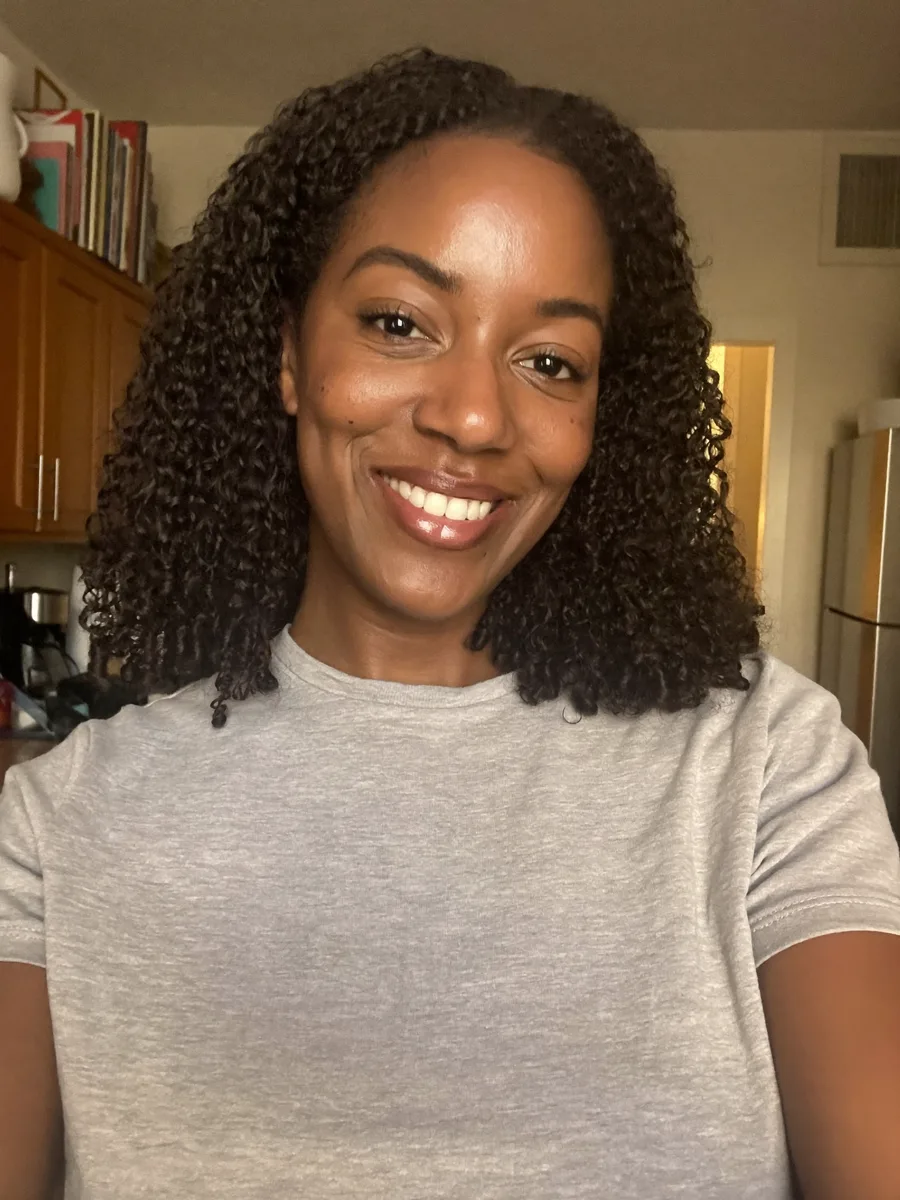
- Their photo, their yes. Only with a colleague's own photo and their written OK, and they approve the finals. Here the new associate is an AI-generated person, so no real face is used. Download the sample, then click the photo.
Only with their own photo, and their written OK. Here the person is AI generated.
3. Make the headshot in Higgsfield
- Open the image model picker. Click Image in the top bar. The prompt bar sits at the bottom. Click the model name in it.
- Pick Nano Banana Pro. Nano Banana Pro kept the face best in our runs when a photo was attached, for 2 credits an image at 2K. Click Nano Banana Pro.
Nano Banana Pro kept the face best, for two credits an image.
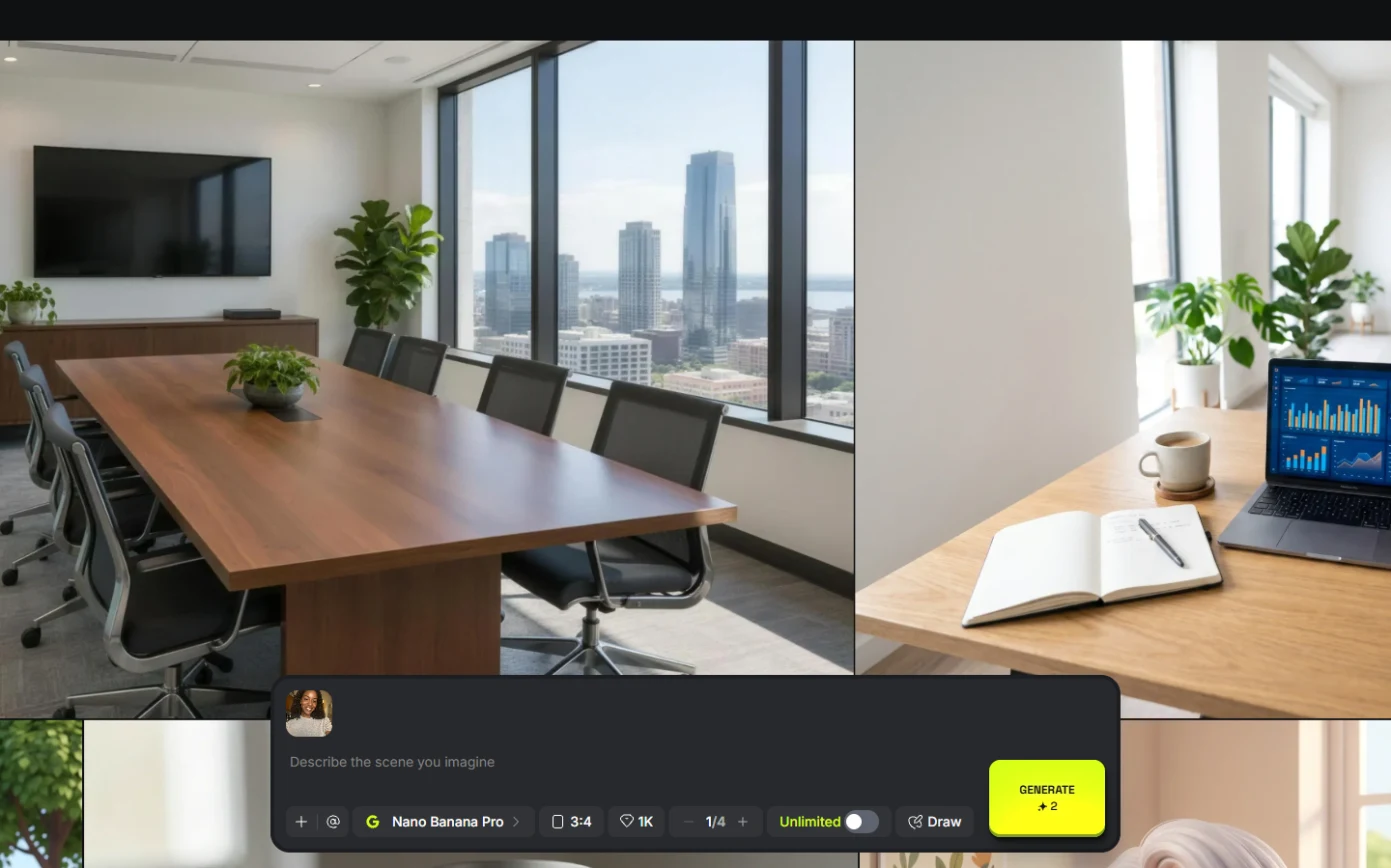
- Upload the photo as a reference. Click + (References) at the left of the prompt bar, then Upload media, and choose the photo.
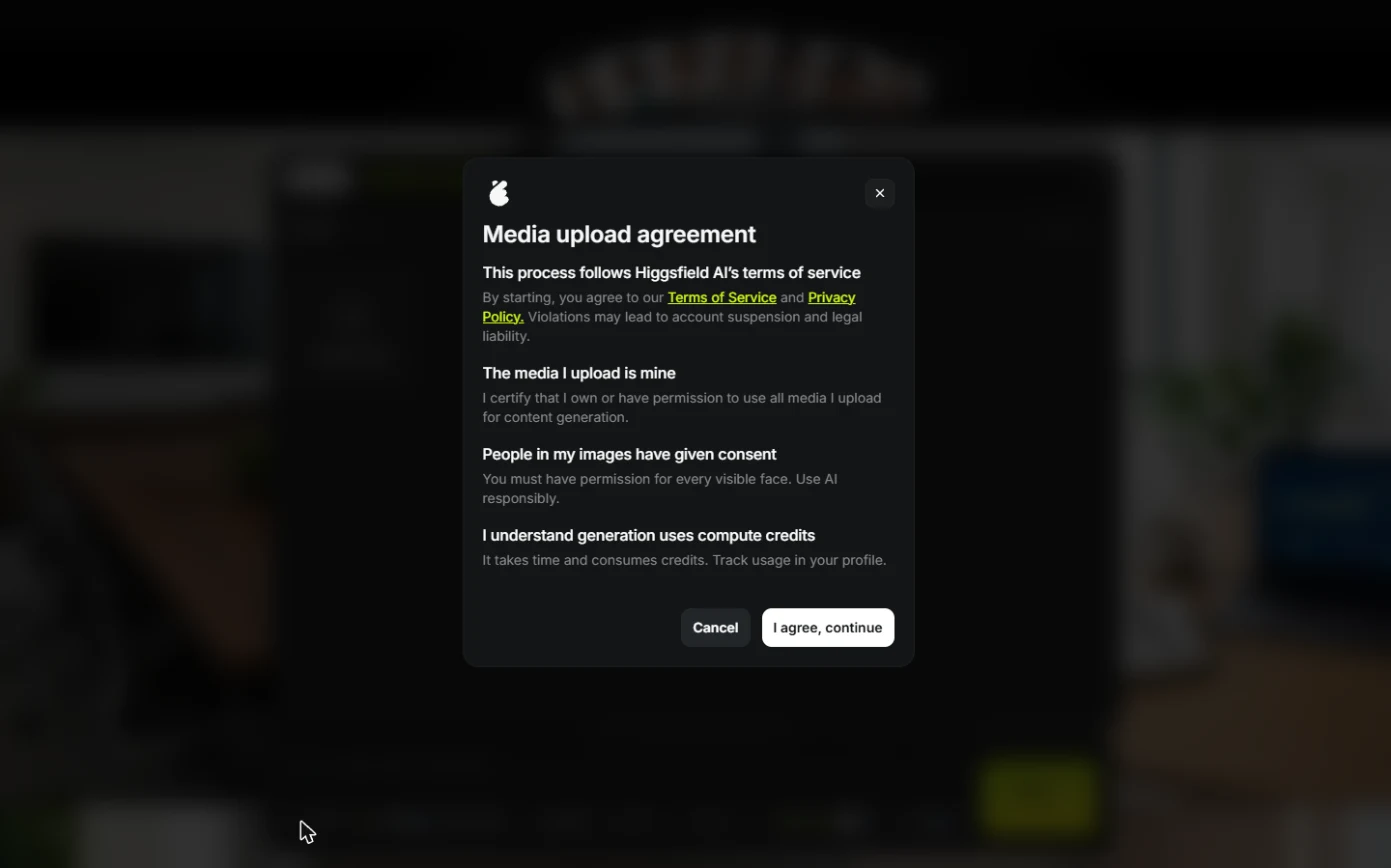
- Read the upload agreement. The first time you upload, Higgsfield shows a Media upload agreement: you confirm you own the photo and that everyone in it has consented. Only click I agree, continue when that is true. Then click the uploaded photo to attach it.
The first upload asks you to confirm you own the photo, and everyone in it agreed. Only agree if that's true.
- Say what stays and what changes. The photo now sits above the prompt. Type the prompt: first what must stay ("keep her face, skin tone, curly hair and smile exactly the same"), then what changes: navy blazer, grey studio backdrop, soft light, chest-up.
Say what stays: her face, skin tone, hair and smile. And what changes: the blazer, the backdrop, the light.
Professional corporate headshot of the same woman from the reference photo, keep her face, skin tone, curly hair and smile exactly the same. Navy blazer over a white blouse, plain mid-grey studio backdrop, soft even studio lighting, chest-up framing, centered, sharp focus, LinkedIn profile photo style.
- Set 4:5 and 2K, then generate. LinkedIn and most team pages crop to a portrait. Set the ratio to 4:5 and the quality to 2K, check the 2 on Generate, and click it.
Four by five, two K. Check the credits, and click Generate.
4. Check it with the person
- Compare with the original. Put the result next to the selfie. Same face, same skin tone, same curls, same smile, and a navy blazer she never wore. Look closely at the hairline, teeth and skin tone: that is where models drift. Click the result.
Compare it with the original. Same face. Check the hairline, teeth and skin tone. That's where models drift.
- Make the other two sizes and download. Replace the prompt with the website one (4:5), then the square one (1:1), same reference: three matching headshots for 6 credits. Hover a result and click the download icon.
Run the website and square prompts with the same photo. Three headshots, six credits.
- Send them to the person to approve. All three keep her face. The last check is not yours: send the set to the person and use only the ones they approve. Click the square headshot.
The last check isn't yours. Send the set to the person, and use only what they approve.
5. What it saved, and what is next
- See what you have now. A matching headshot set per person for 6 credits, and three prompts to reuse for every new hire. Click What you have now.
A matching set for six credits, and prompts to reuse for every new hire.
- Up next. Next, a staffing agency turns a text idea into a 9:16 hiring ad, and you see what AI video does to words. Click Up next.
Next, a text idea becomes a vertical hiring ad.
Screenshots

Frequently asked questions
- Can Higgsfield make professional headshots from a selfie?
- Yes. In Image, pick Nano Banana Pro, attach the photo as an image reference and describe the outfit, backdrop and light while asking it to keep the face. Ours cost 2 credits per headshot at 2K (October 2026).
- Is it OK to make AI headshots of employees?
- Only with their own photo, their written consent and their approval of the final images. Do not use AI headshots where an unaltered photo is required, such as ID badges.
- How do I keep the face the same in Higgsfield?
- Attach the photo as a reference rather than describing the person, and start the prompt with what must stay exactly the same: face, skin tone, hair and smile.
More in AI Video and Images with Higgsfield
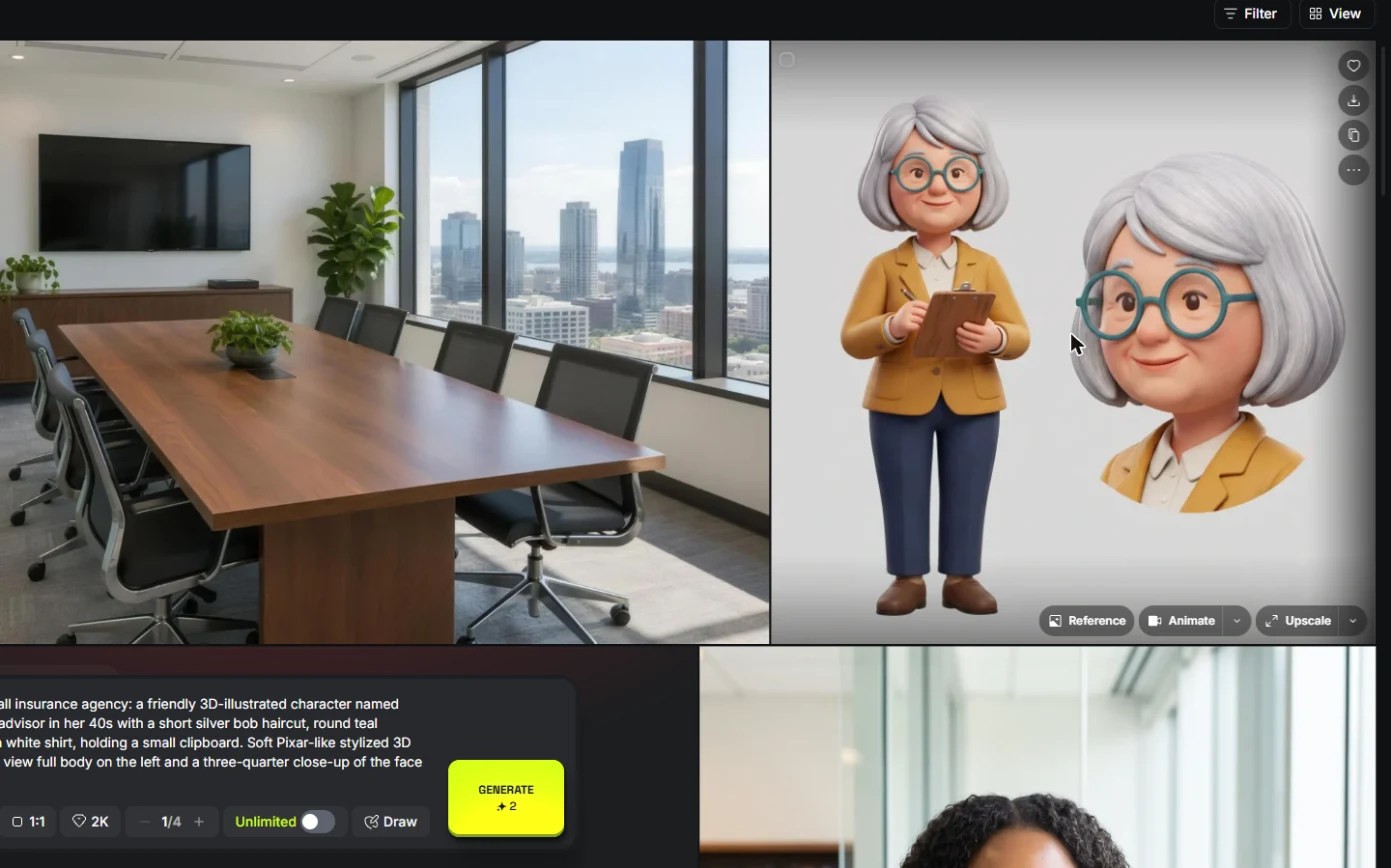 Keep One Brand Character Across Every Post using Higgsfield
A business case for small agencies and brands: design one illustrated character in Higgsfield, use the sheet as a reference to put it in any scene, catch a borrowed…
Free · Live ~9 min Beginner
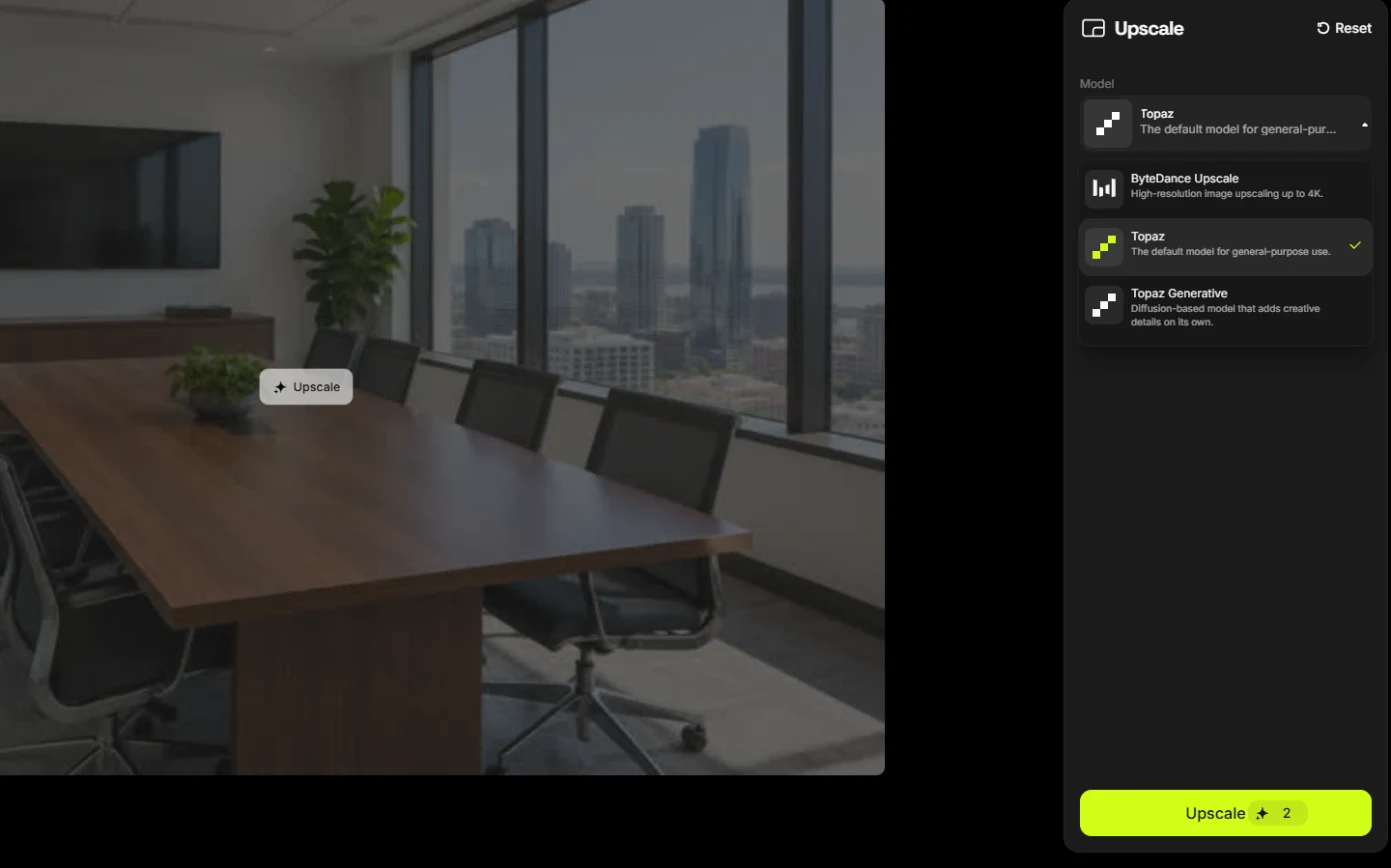 Rescue a Low-Res Photo for a Proposal or Print using Higgsfield Upscale
A business case for proposal and marketing teams: upscale a 640-pixel photo to 4K with Higgsfield for 2 credits, and learn what upscaling invents and when not to use…
Free · Live ~6 min Beginner
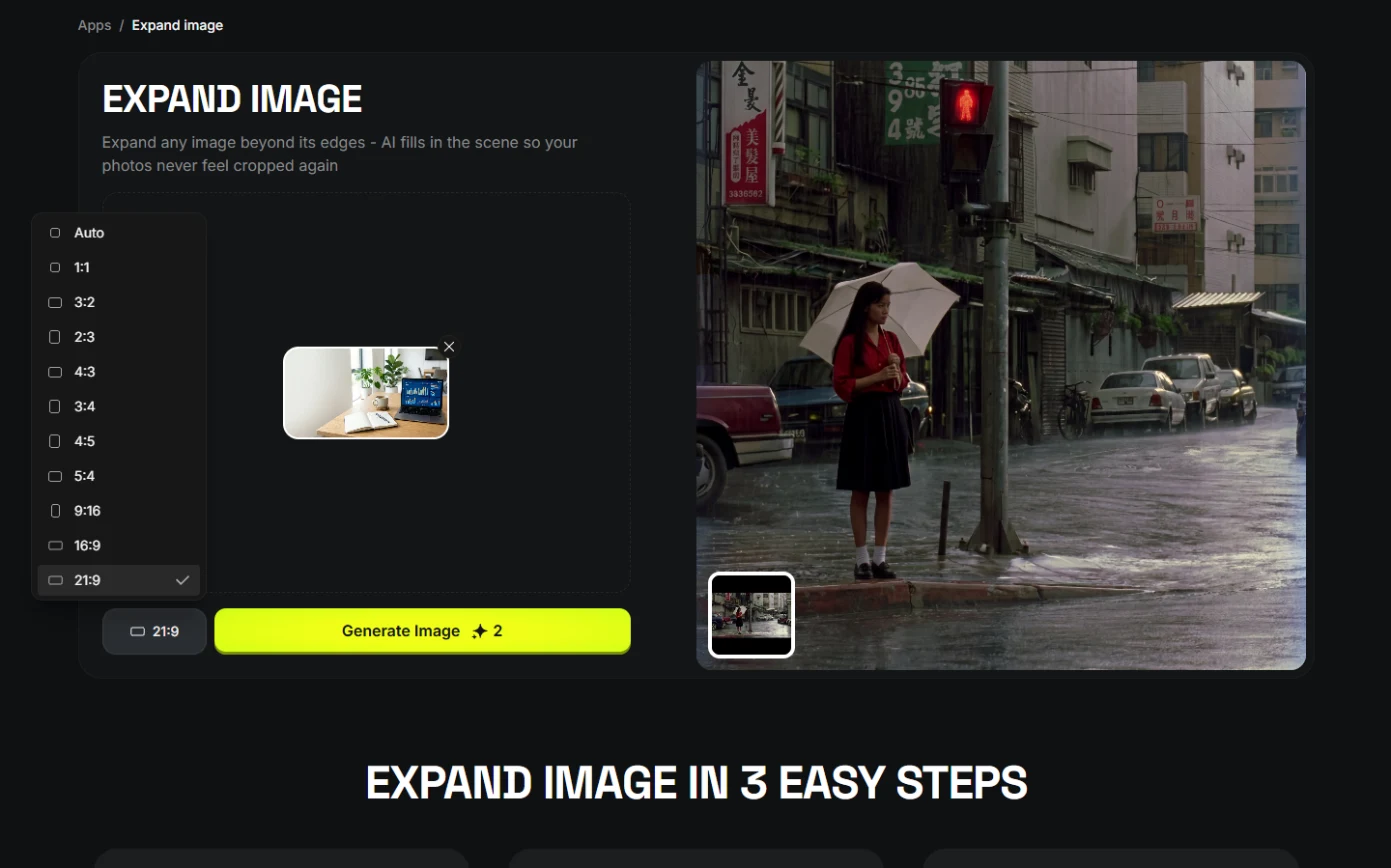 One Webinar Image, Every Channel Size using Higgsfield (Expand, Don't Crop)
A business case for sales and marketing teams: expand one 16:9 webinar image to 9:16 and 1:1 with Higgsfield instead of cropping it, and place the headline in the new…
Free · Live ~6 min Beginner
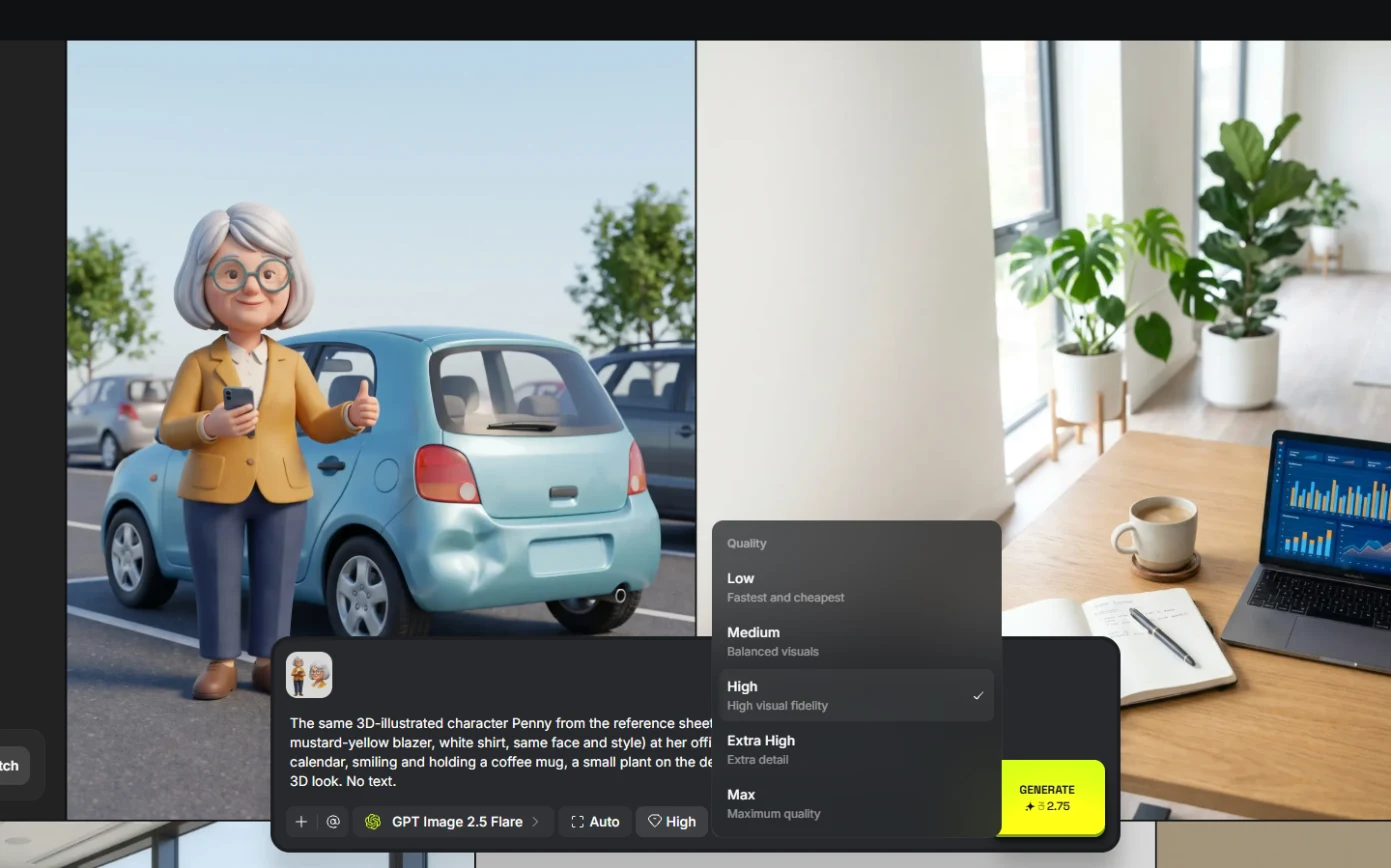 Pick the Right Model and Make Your Credits Last using Higgsfield
A business case for teams sharing one plan: read the cost before you generate, draft on cheap models, finish once on the right one, and compare four image models on the…
Free · Live ~8 min Beginner
 Use AI Images and Video Responsibly: Labels, Consent and Likeness using Higgsfield
A business case for any team publishing AI content: a one-page policy to disclose realistic AI images and video, get consent for faces and voices, and never make fake…
Free · Live ~7 min Beginner
All 8 modules in AI Video and Images with Higgsfield
Terms in this lesson
Plain-English definitions, each with an example from a free lesson.