What is aspect ratio in video, like 9:16, 16:9 and 1:1?
Quick answer
Aspect ratio is the shape of a video, written as width to height. 16:9 is the wide shape of a laptop or TV, 9:16 is the tall shape for TikTok, Reels and Shorts, and 1:1 is a square that suits many social feeds. Changing it means cropping, so the subject has to stay in frame.
Last updated
Take the free module →Module 28 of the free AI Apps Worth Knowing course, about 10 minutes. No account needed.
Updated · By Robert Breen
Why it matters for a small business
Most office video is filmed wide: a laptop webcam, a Zoom recording, a webinar. Posted as is to a vertical feed, it shows up as a small strip with empty space around it, and it looks like an afterthought. Re-editing every clip into a new shape by hand is slow, and done carelessly it cuts the speaker's face out of the frame.
Picking the shape first, and letting a tool reframe the video, solves both problems. Tools that change the ratio crop the wide picture to the new shape, and the better ones keep the speaker centred. Some do it for you, others give you a position setting. Either way, watch the result once: a speaker who drifts to the edge looks careless to a client.
Which shape goes where
| Aspect ratio | Shape | Typical use |
|---|---|---|
| 9:16 | Tall | TikTok, Reels and Shorts |
| 16:9 | Wide | YouTube, webinars, a website video |
| 1:1 | Square | Feeds such as LinkedIn |
| 4:5 | Slightly tall | A feed post that takes more of the screen |
In a real lesson: Opus Clip: Turn One Video into Ranked Social Clips
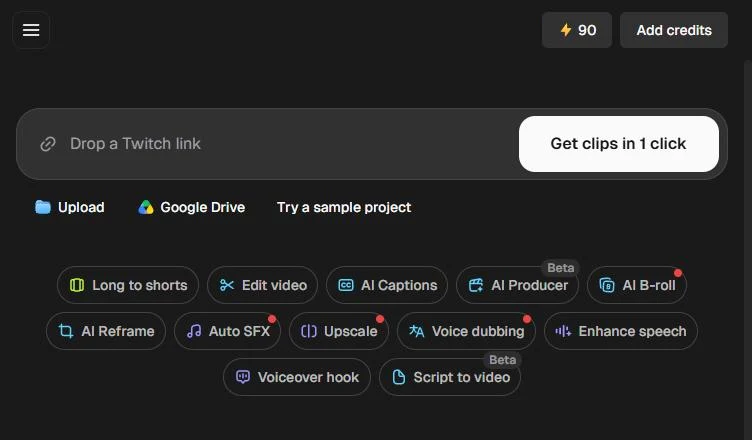
In the Opus Clip lesson, Choose aspect ratio opens a menu with 9:16, 1:1, 16:9 and 4:5. You pick 9:16 for TikTok, Reels and Shorts before you click Get clips in 1 click, and every ranked clip shows a 9:16 button. Opus Clip makes the clips vertical as part of the job.
The Captions lesson shows the manual version. Maya filmed a year-end tip on her laptop, so it is wide. In Settings, Aspect ratio offers 9:16, 16:9, 1:1, 3:4, 5:4 and Custom. Choosing 1:1 for LinkedIn leaves Maya off to the right, so you set X under Position to -420 to bring her back to the middle.
Try this lesson free or read the step-by-step guide.
Common confusions
Aspect ratio vs resolution
Aspect ratio is the shape. Resolution is the number of pixels, which sets how sharp it looks. A 9:16 clip can be low or high resolution.
Reframing vs resizing
Resizing squeezes the whole picture into the new shape and distorts it. Reframing crops to the new shape and moves the crop to follow the subject.
Tips
- Decide where a clip will be posted before you pick the shape.
- Film with space around the speaker so a tall crop still fits them.
- Watch every reframed clip once to check the speaker stays centred.
Related terms
More Web apps terms
Where you use it: free lessons
- Opus Clip: Turn One Video into Ranked Social Clips (Opus Clip, 10 min)
- Turn a Raw Client Video into a Captioned LinkedIn Clip using Captions (Captions, 8 min)
- VisualGPT: Product Photos, Listing Images and Ads from One Phone Photo (VisualGPT, 8 min)
- Turn a Product Update into an Explainer Video using Renderforest (Renderforest, 9 min)
AI tools that use it
Frequently asked questions
- What aspect ratio is best for TikTok and Reels?
- 9:16, the tall shape. It is the option the Opus Clip lesson picks for TikTok, Reels and Shorts.
- What aspect ratio should I use for LinkedIn video?
- Square, 1:1, works well in the feed. The Captions lesson turns a wide laptop video square for LinkedIn.
- Can AI change a video's aspect ratio for me?
- Yes. Clipping and editing tools crop to the new shape, and some keep the speaker centred. Check the result, because you may need to move the frame.