Updated . Built against the tool’s current screens and checked step by step. How we check this lesson
Writing up every client call takes 15 to 20 minutes, and action items still get lost. Record the meeting in Voicenotes, get the transcript, a summary, a dated to-do list and a follow-up email, then ask what is still open across all your meetings.
At a glance
| Question | Answer |
|---|---|
| What you build | Writing up every client call takes 15 to 20 minutes, and action items still get lost. Record the meeting in Voicenotes, get the transcript, a summary, a dated to-do list and a follow-up email, then ask what is still open across all your meetings. |
| Tools | Voicenotes |
| Time | About 7 minutes, 16 steps in 3 parts |
| Level | Beginner, no coding needed |
| Cost | Free |
| Ways to learn it | Practice it step by step |
The 3 parts, in short
- Record the client meeting: Start recording, Stop when the meeting ends, Let it upload, Open the meeting note.
- Turn it into notes and to-dos: Open Create, Create a Summary, Check the summary, Create a To-do list, and 3 more steps.
- Ask across every meeting: Back to all notes, Open Ask AI, Ask across your meetings, Send the question, and 1 more step.
Start here first: AI Receipt Extractor: Receipts to Google Sheets with n8n (module 1 of Business Automations)
In the course: Part 9 · n8n Automation Toolkit (Module 101 of the full course)
Part of: AI Apps Worth Knowing (step 89 of 111). Next up: Hardline: Turn a Site-Walk Call into a Daily Log and Punch List
Part of: AI for Meetings (step 16 of 17). Next up: Hardline: Turn a Site-Walk Call into a Daily Log and Punch List
What you'll build
Jordan, a bookkeeper at a small firm, has a monthly check-in with Sam, who runs a made-up design studio. The call covers the October close, three late invoices and a new hire. Usually Jordan types notes while half-listening, then spends 20 minutes writing the recap. In this lesson you record the call in Voicenotes, open the transcript, create a Summary, a To-do list and a follow-up Email, and then ask Ask AI what is still open across two meetings. Every screen is a real Voicenotes screen; the people, the firm and both meetings are made up.
You recorded a client check-in, got a word-for-word transcript and a title, then created a Summary, a dated To-do list and a ready follow-up Email, and asked one question across two meetings with the sources shown. What it saves: the 15 to 20 minutes of write-up after every call, and the "what did we agree last time?" scramble before the next one. Check owners and dates before you share anything. Voicenotes plans change; check voicenotes.com for what yours includes.
- Tools: Voicenotes
- Time: about 7 minutes, 16 steps in 3 chapters
- Level: beginner, no coding needed
- Price: free
Practice first, then build it for real
Practice copy built from real Voicenotes screens (voicenotes.com/app, free Basic plan), captured 28 October 2026. Nothing here touches a Voicenotes account. The firm, the people and both meetings are made up (a scripted role-play); the transcript, summary, to-dos, email and answer are what Voicenotes produced. To build it for real you need your own Voicenotes account, and some services charge once you use them for real work, so check each tool's current pricing.
Try it yourself, free
Reading the steps is a start. Doing them is how it sticks. The interactive module walks you through every click in a practice copy of Voicenotes, checks each step, and never touches your real accounts.
Start “Voicenotes: Turn a Client Meeting into Notes, To-dos and a Follow-up Email”Step by step: Voicenotes: Turn a Client Meeting into Notes, To-dos and a Follow-up Email
All 16 steps of the interactive module, in order. In the module you watch each one, then do it yourself in a practice copy that checks your work.
1. Record the client meeting
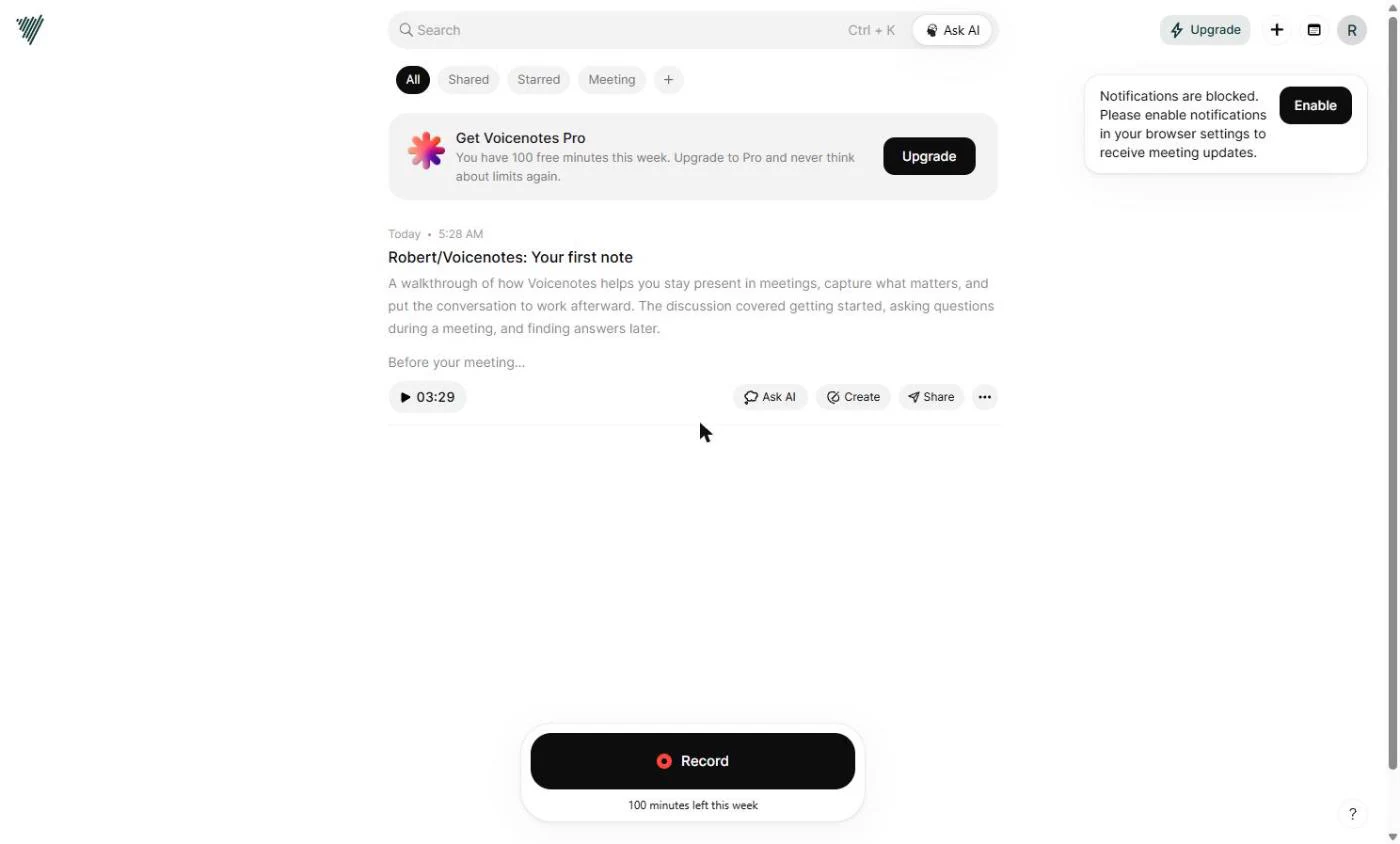
- Start recording. Your monthly check-in with a client is about to start. Open voicenotes.com/app on your laptop and click Record at the bottom. The free plan gives you 100 minutes a week. Tell the client you are taking notes before you start.
Your client check-in is about to start. Tell the client you are taking notes, then click Record.
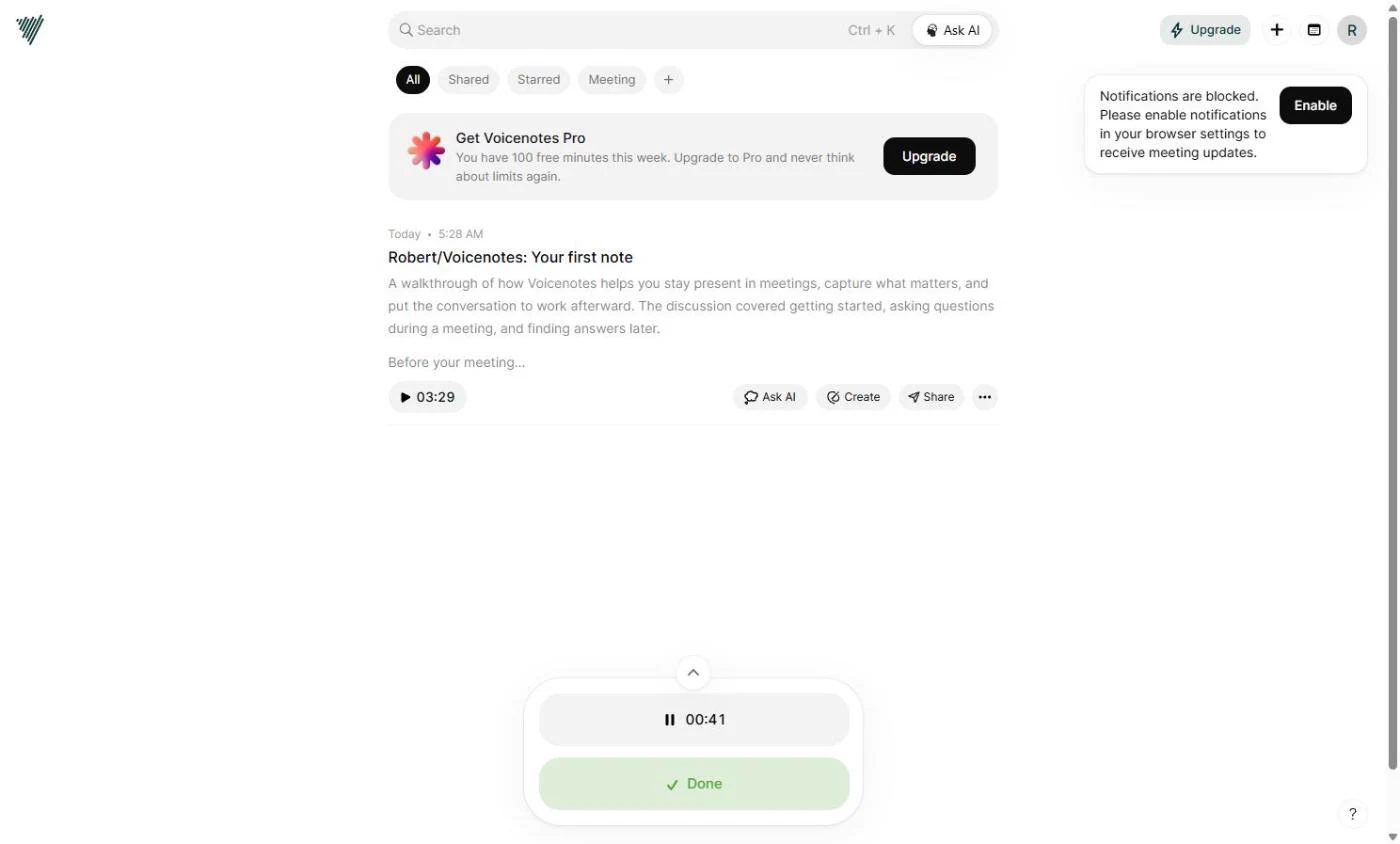
- Stop when the meeting ends. The timer runs while you talk, so you can listen instead of typing. Our made-up meeting with Sam from Northgate Design Studio covers the October close, three late invoices and a new hire. When it ends, click Done.
The timer runs while you talk, so you can listen instead of typing. When the meeting ends, click Done.
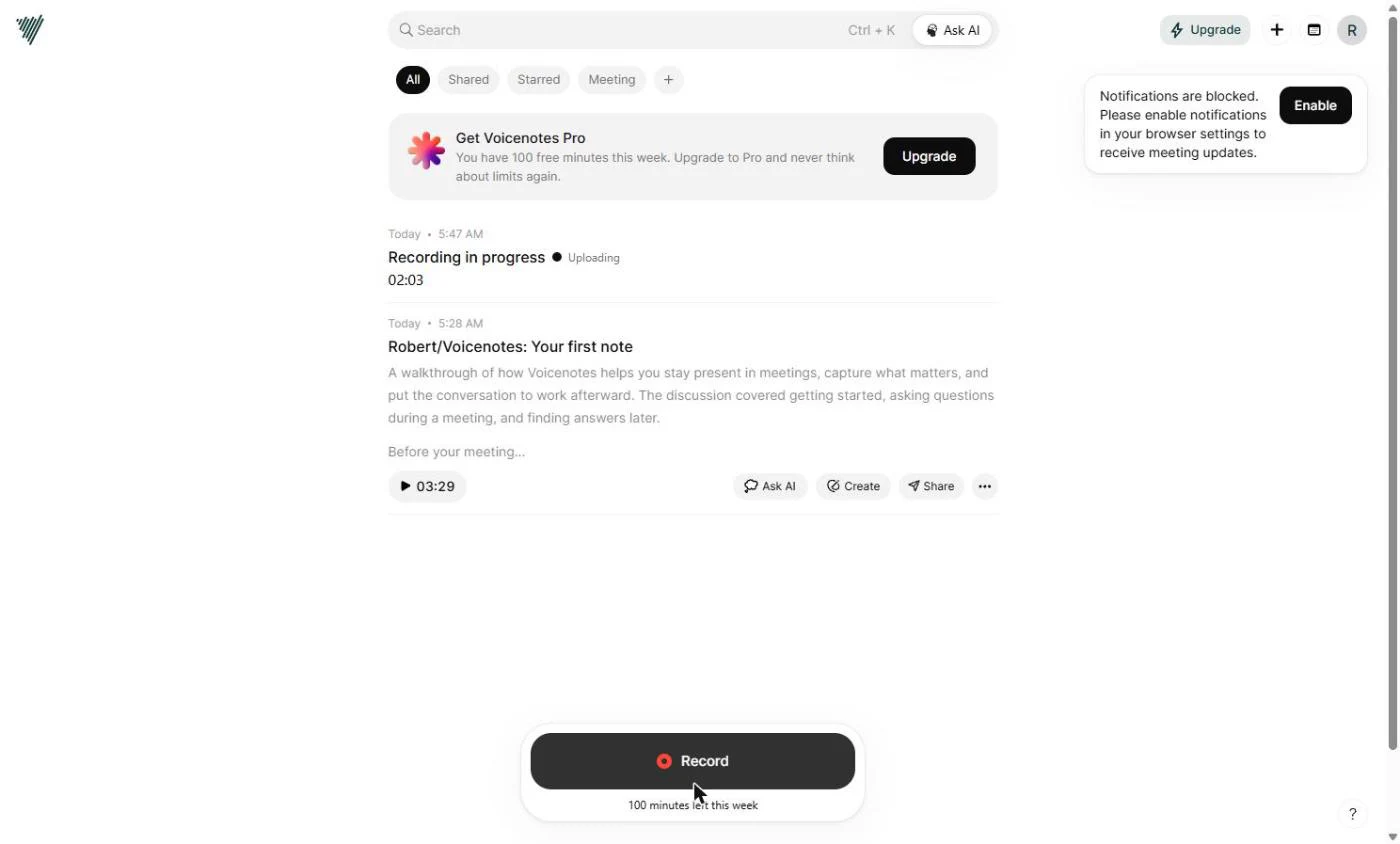
- Let it upload. The note shows Recording in progress and Uploading. Give it a few seconds. Voicenotes transcribes the audio and writes a title for you.
Voicenotes uploads the audio and transcribes it. Give it a few seconds.
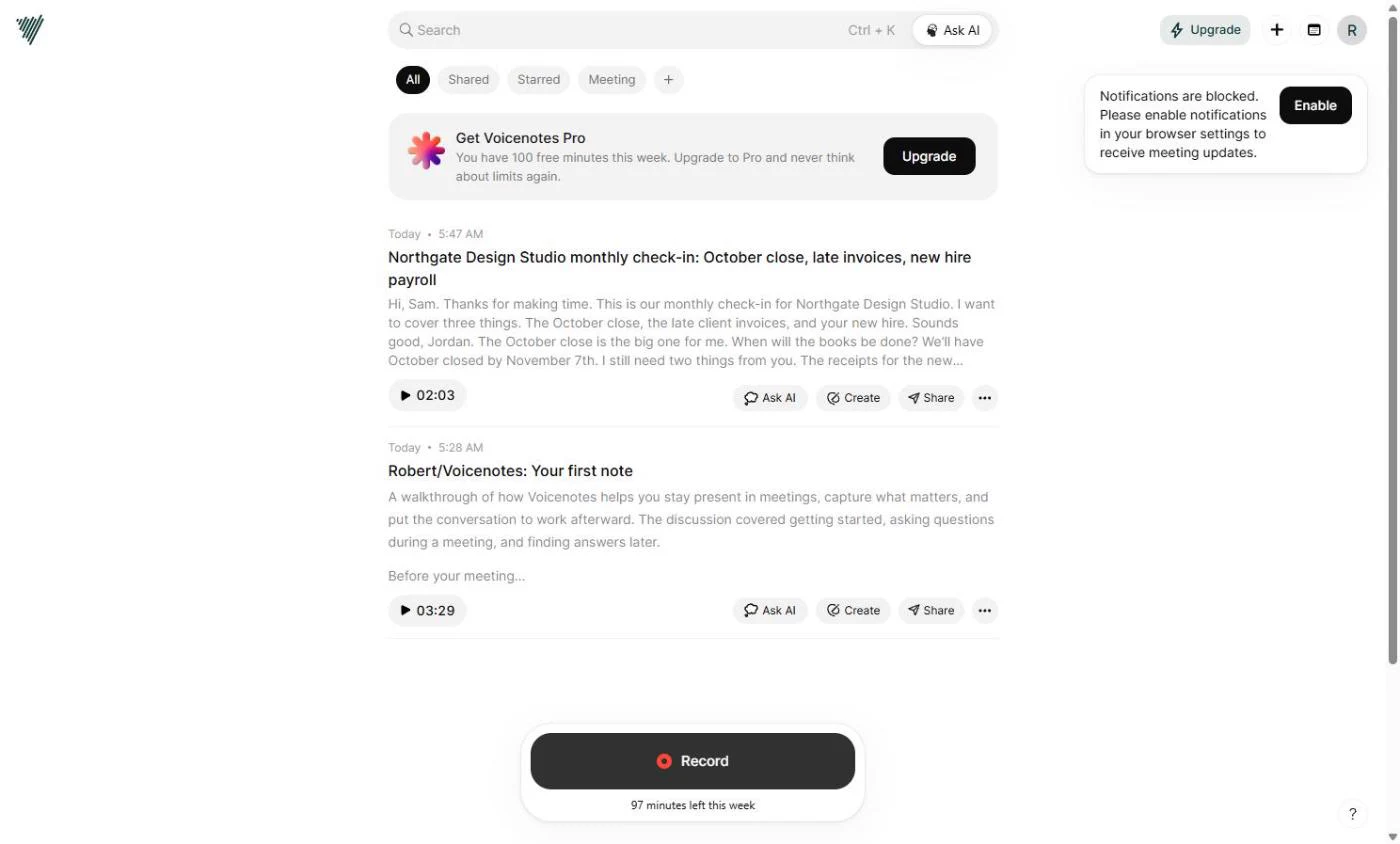
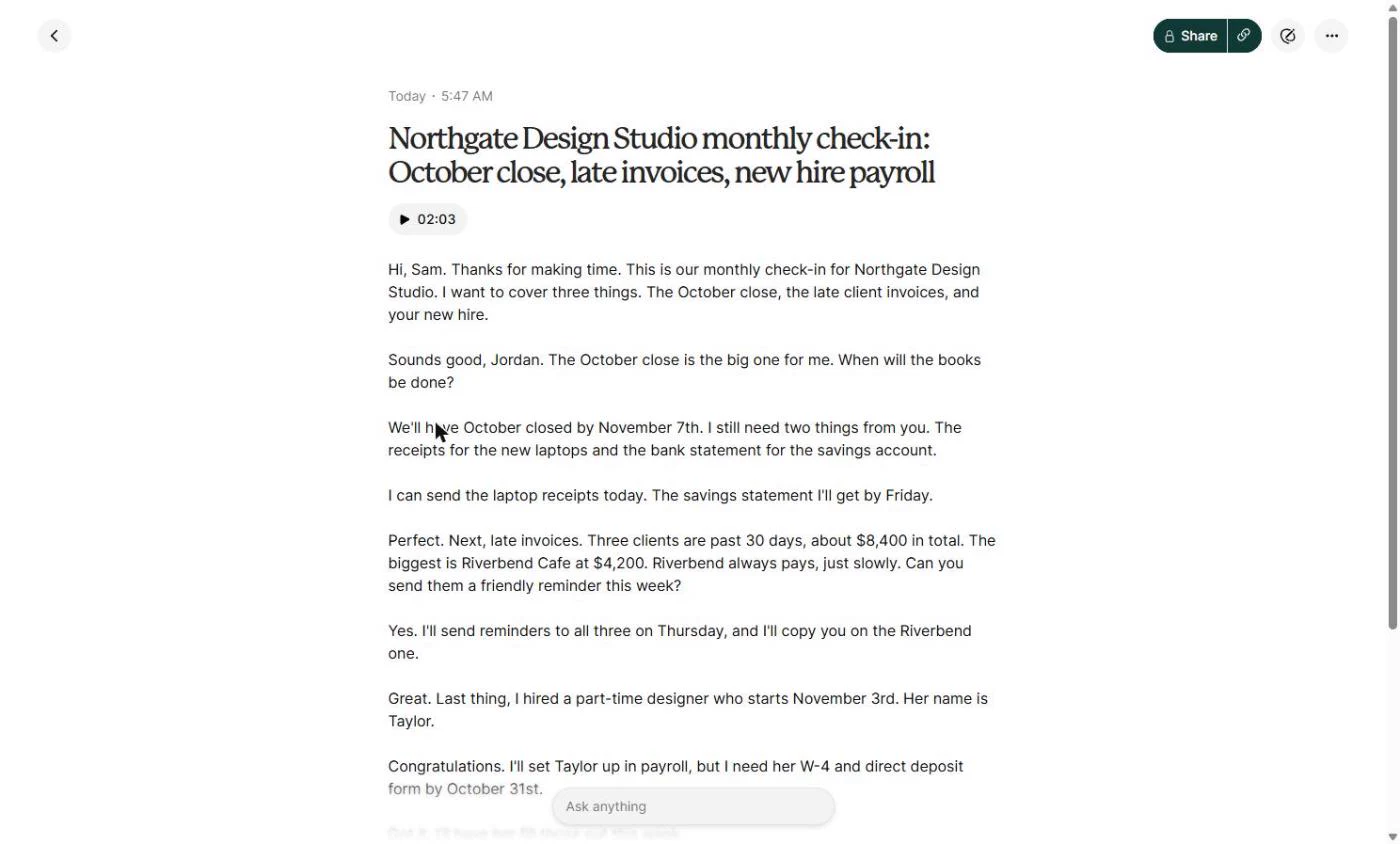
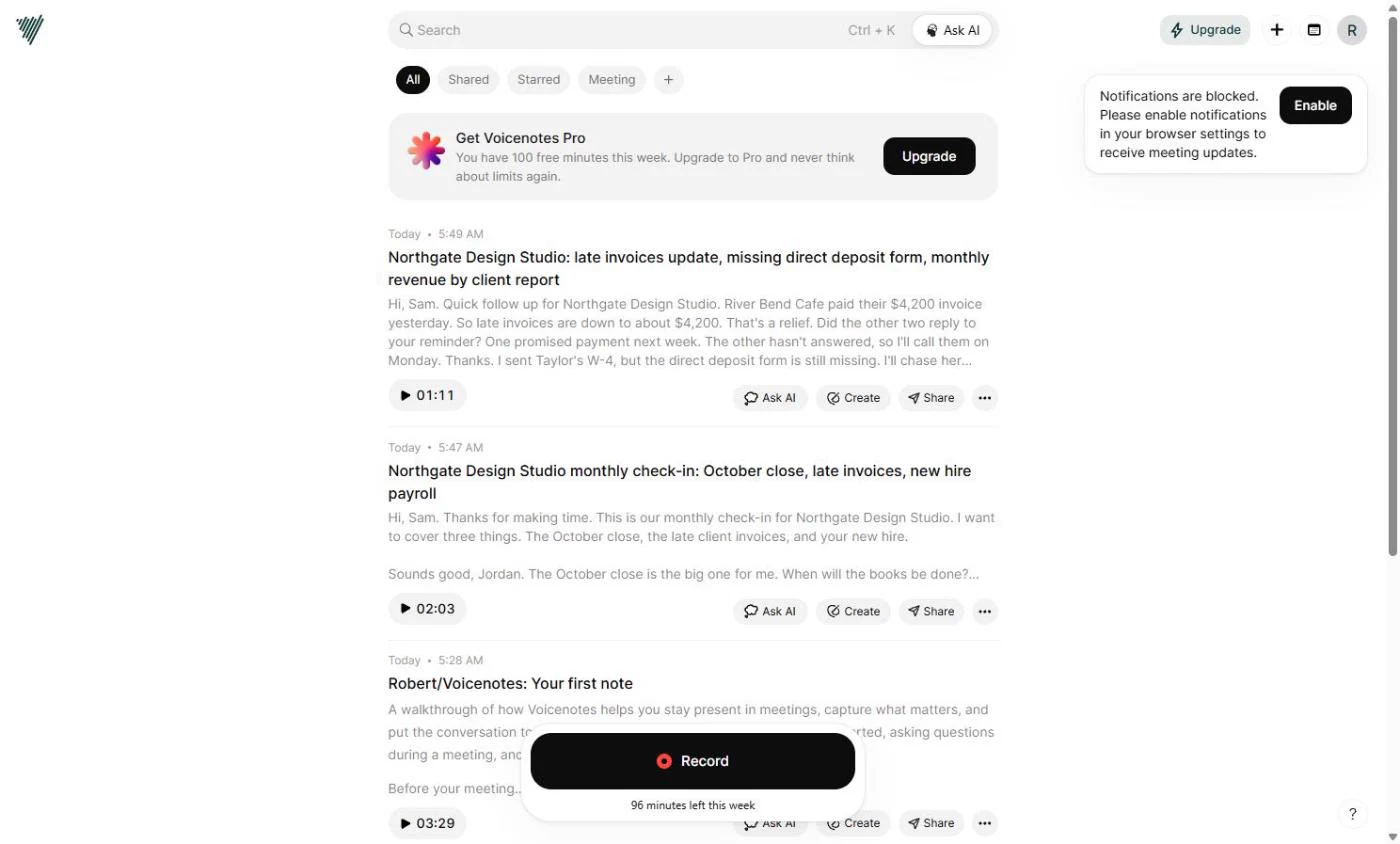
- Open the meeting note. The note now has a title Voicenotes wrote from the conversation: Northgate Design Studio monthly check-in: October close, late invoices, new hire payroll. The 97 minutes left this week line shows what the meeting used. Click the title.
Voicenotes wrote a title from the conversation.
2. Turn it into notes and to-dos
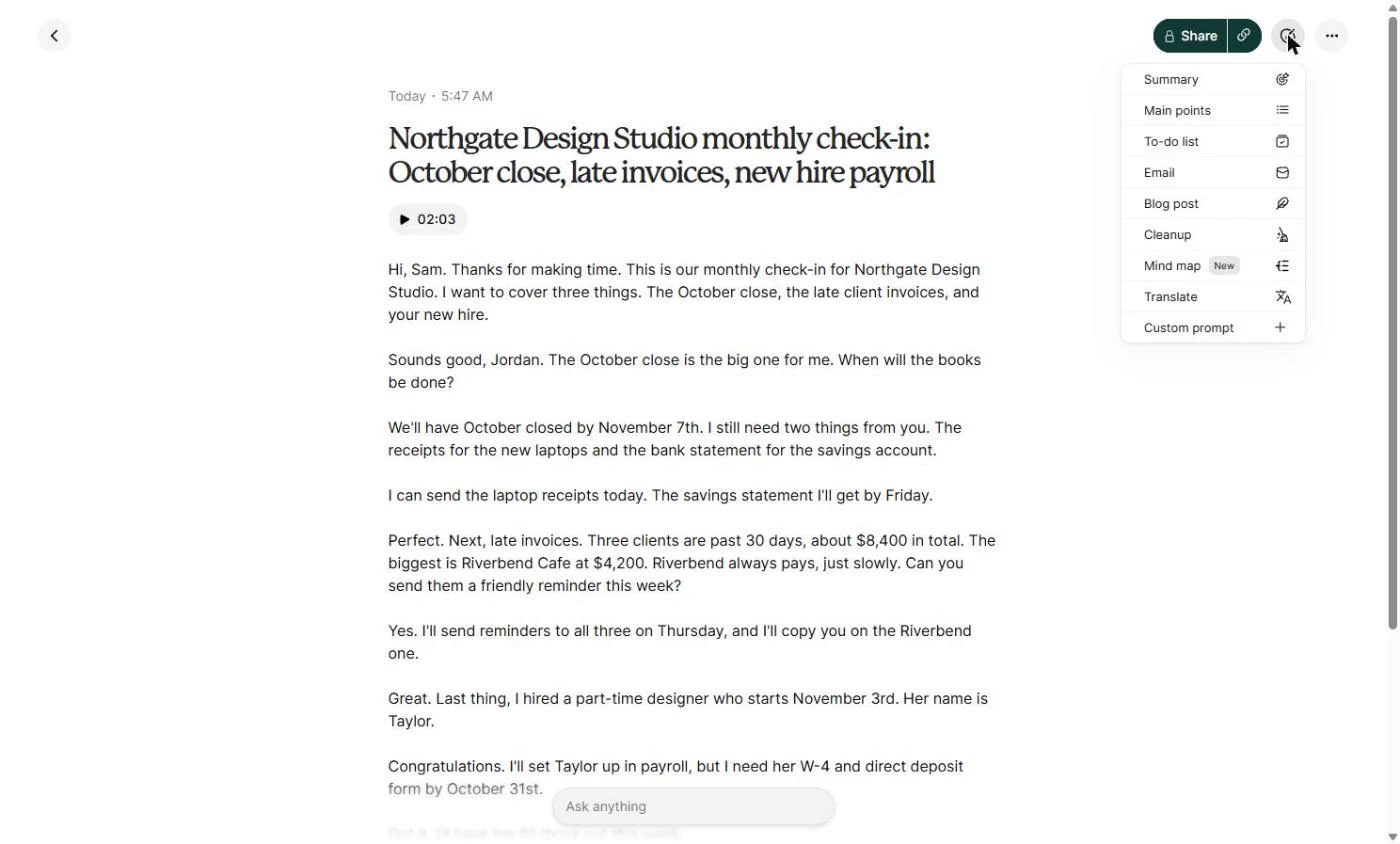
- Open Create. The full transcript is here, word for word, with the dates and amounts ($8,400 overdue, November 7th). Now turn it into something useful. Click the Create icon (the tick in a circle) at the top right.
Here is the full transcript, word for word.
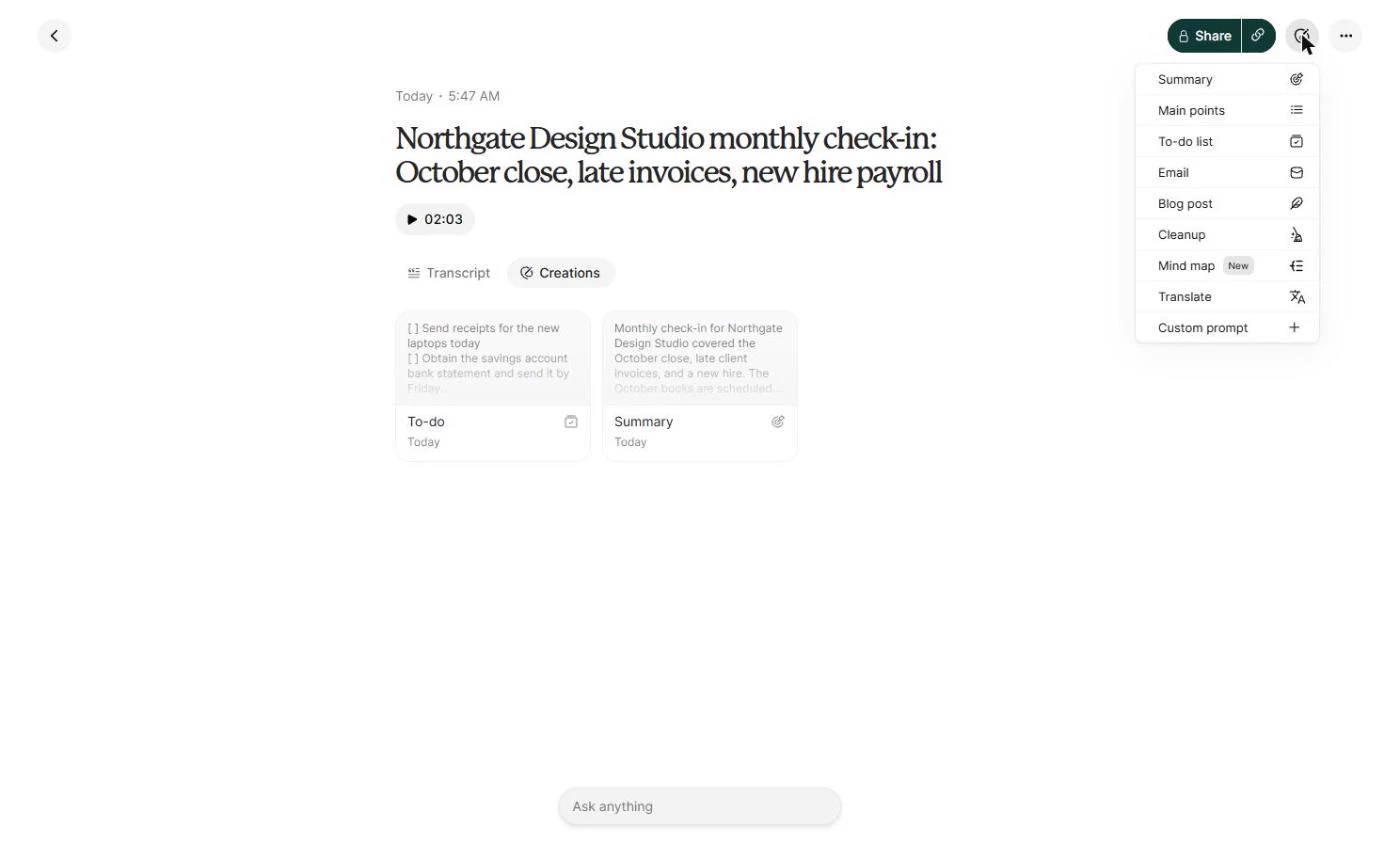
- Create a Summary. Create can turn one meeting into many things: Summary, Main points, To-do list, Email, a blog post and more. Start with Summary.
Create turns one meeting into many things. Start with Summary.
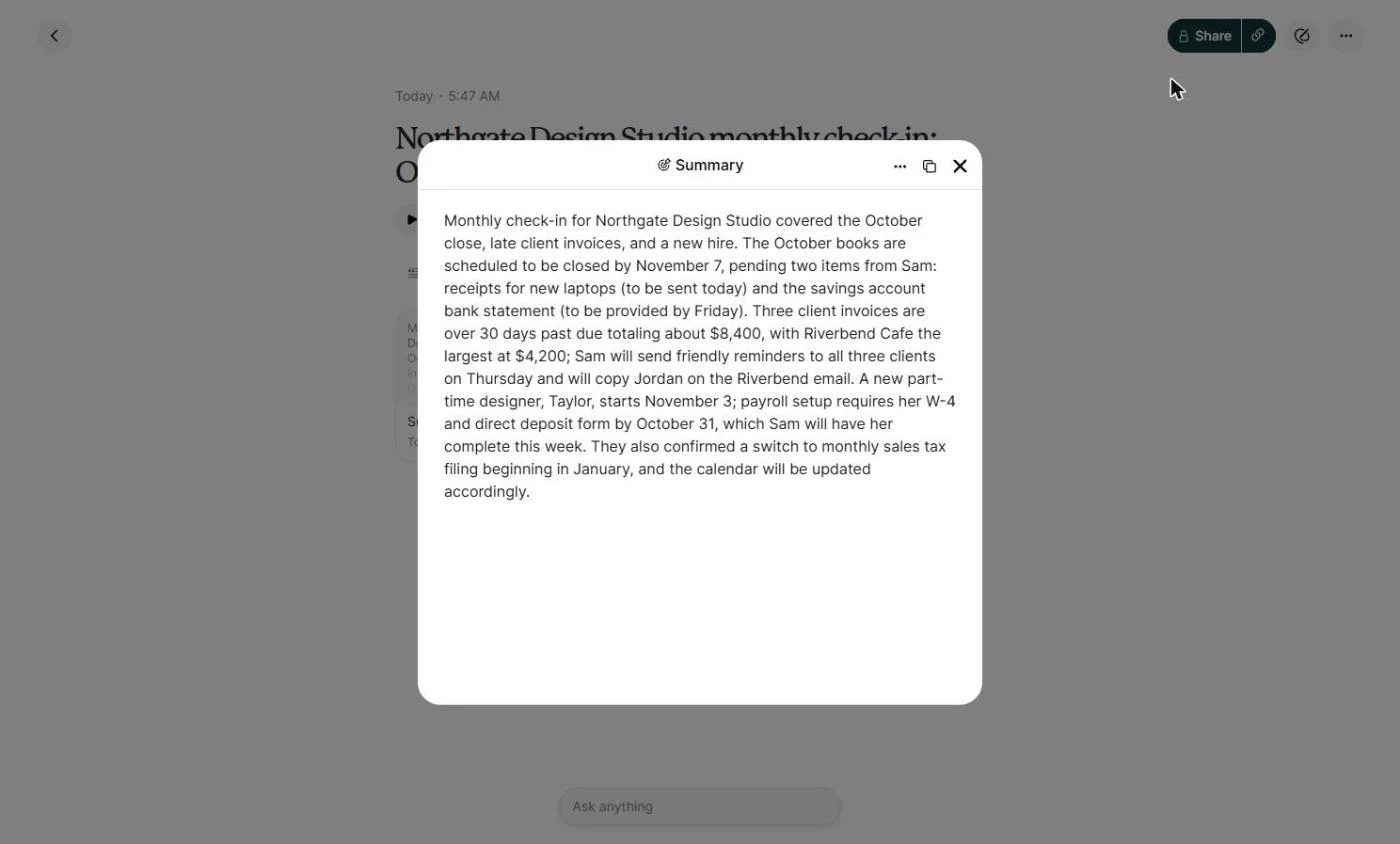
- Check the summary. One paragraph covers the close date, the two missing items, the $8,400 overdue and Taylor’s start date. Check who does what: our summary says Sam sends the reminders, but in the meeting Jordan (the bookkeeper) said she would. Fix names before you share. Click X to close.
One paragraph covers the whole meeting. Check who does what before you share it. Then close it.
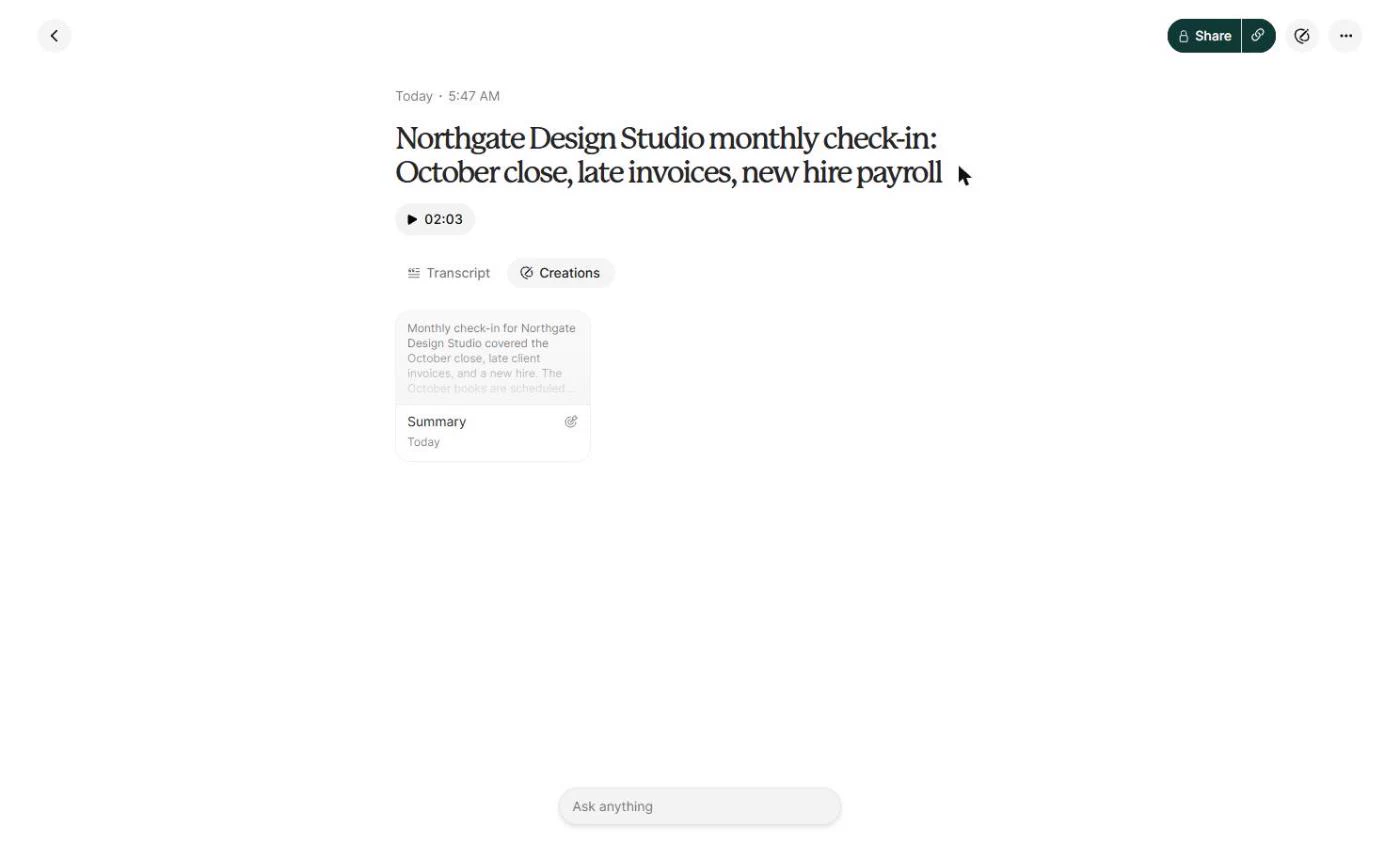
- Create a To-do list. The summary is saved under Creations, next to the Transcript. Click Create again and pick To-do list.
The summary is saved under Creations.
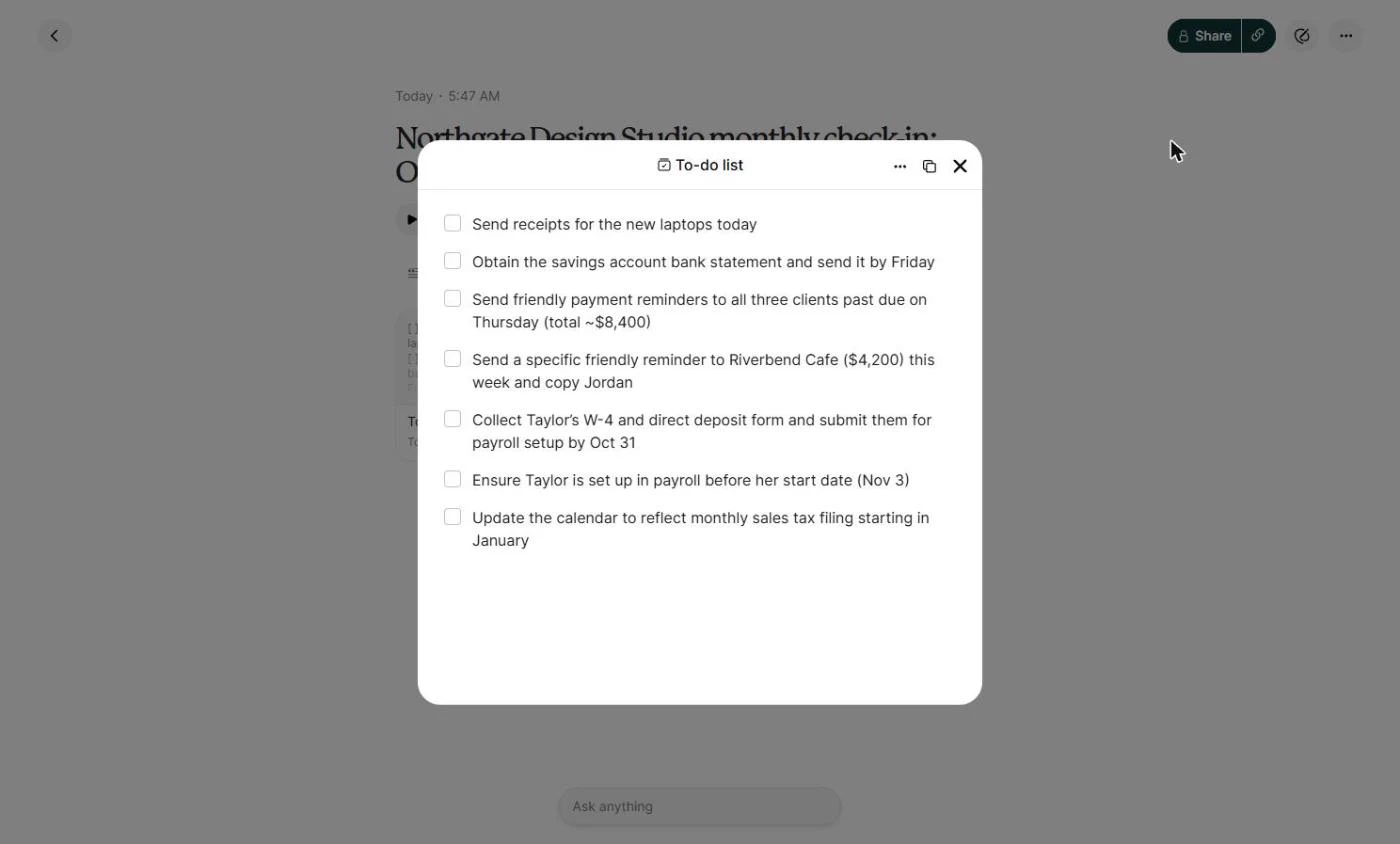
- Review the to-dos. Seven to-dos with dates: the laptop receipts today, the savings statement by Friday, reminders on Thursday, Taylor’s W-4 and direct deposit form by October 31, and the sales tax calendar. Tick them off as they are done. Click X, then open Create again.
Seven to-dos, with dates. Tick them off as they are done. Close it, and open Create again.
- Draft the follow-up email. Pick Email. This is the recap you would otherwise write after every client call.
Pick Email. This is the recap you would otherwise write after every call.
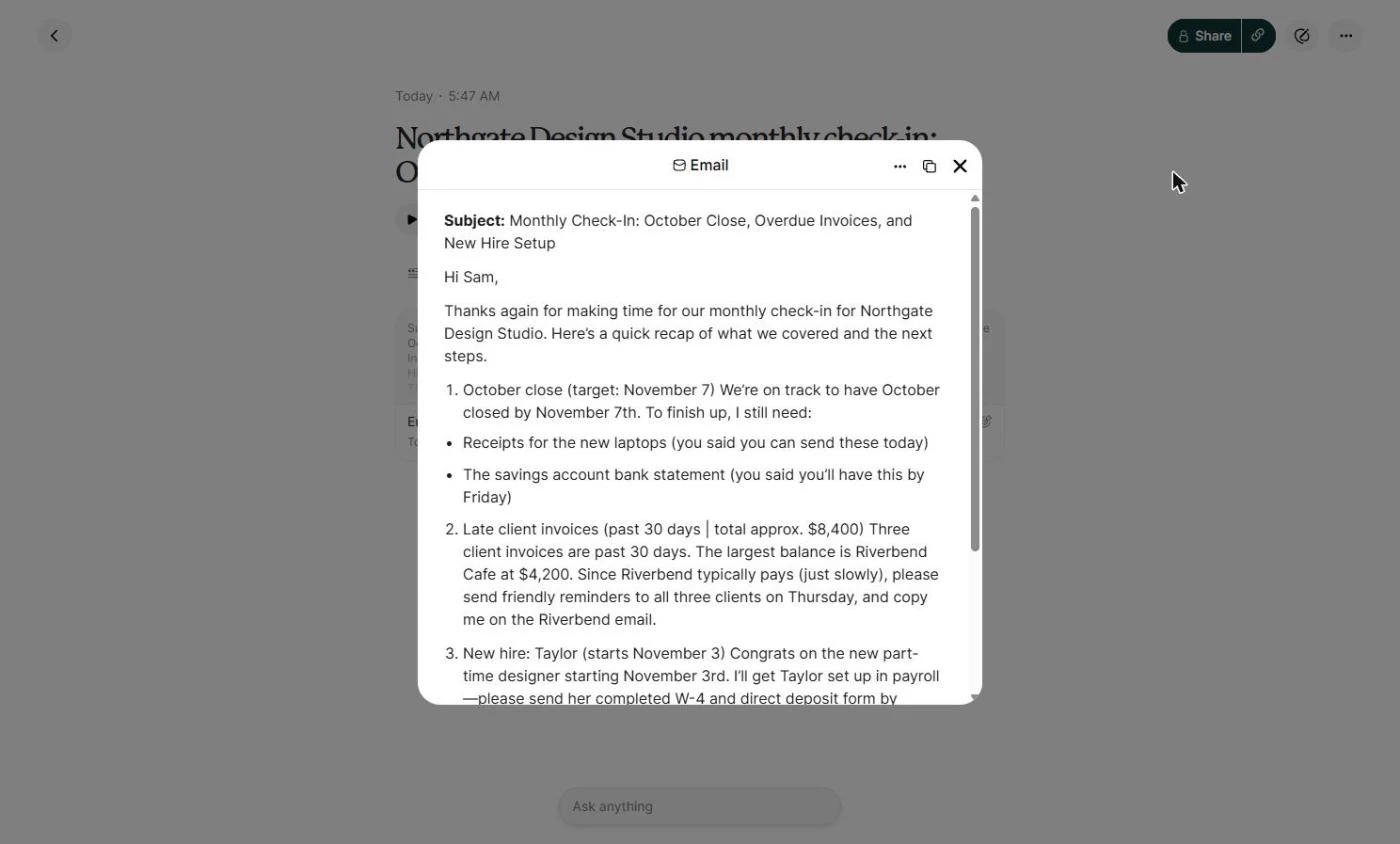
- Read the email draft. Voicenotes writes the subject, a greeting and a numbered recap of each topic with the next steps. Copy it into your own email app, read it once, and send it yourself. Voicenotes does not send it for you. Click X.
A ready recap, with a subject and next steps. Copy it into your email app, check it, and send it yourself.
3. Ask across every meeting
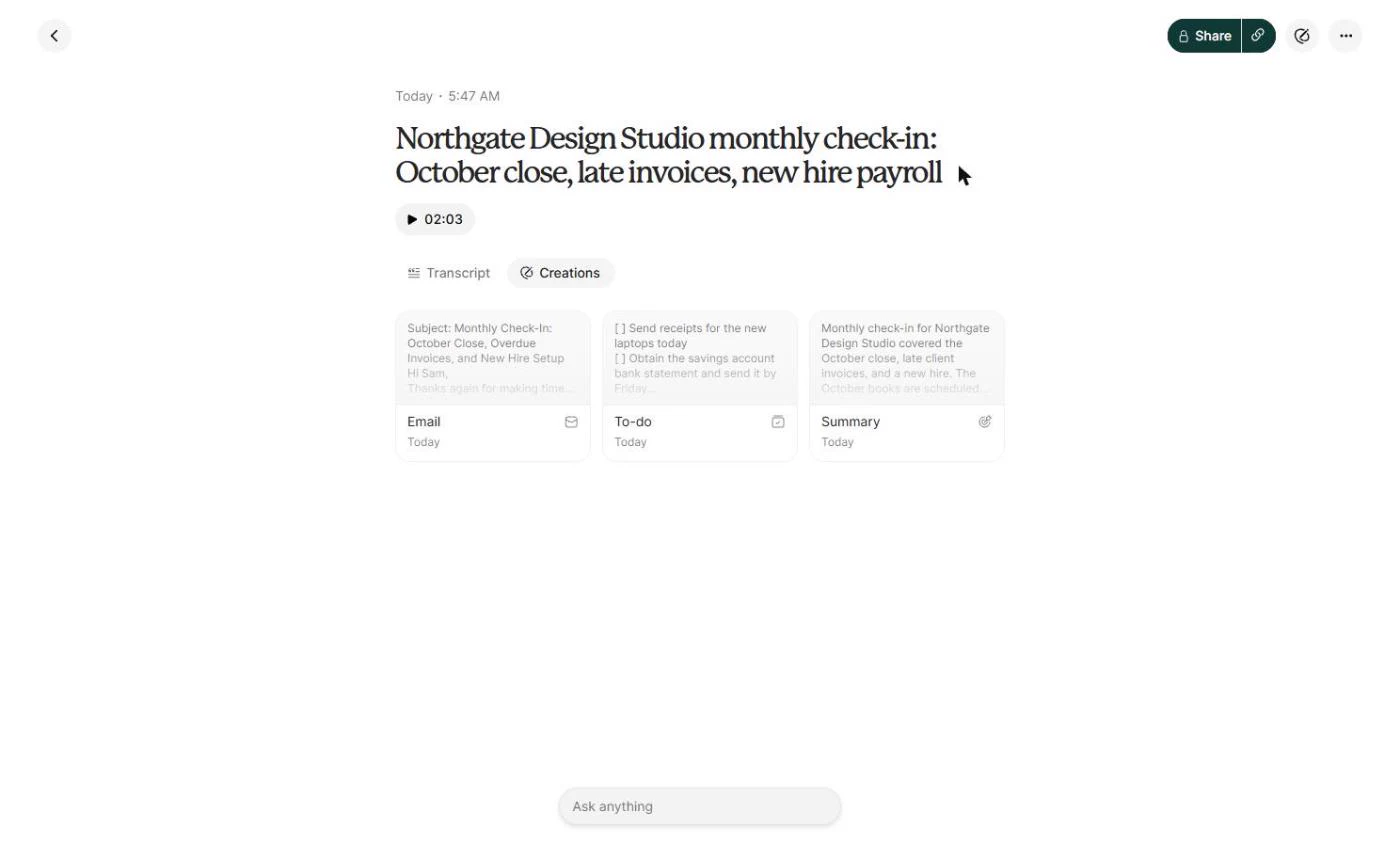
- Back to all notes. Summary, To-do and Email are all saved with the meeting. Click the back arrow to see all your notes.
Everything is saved with the meeting.
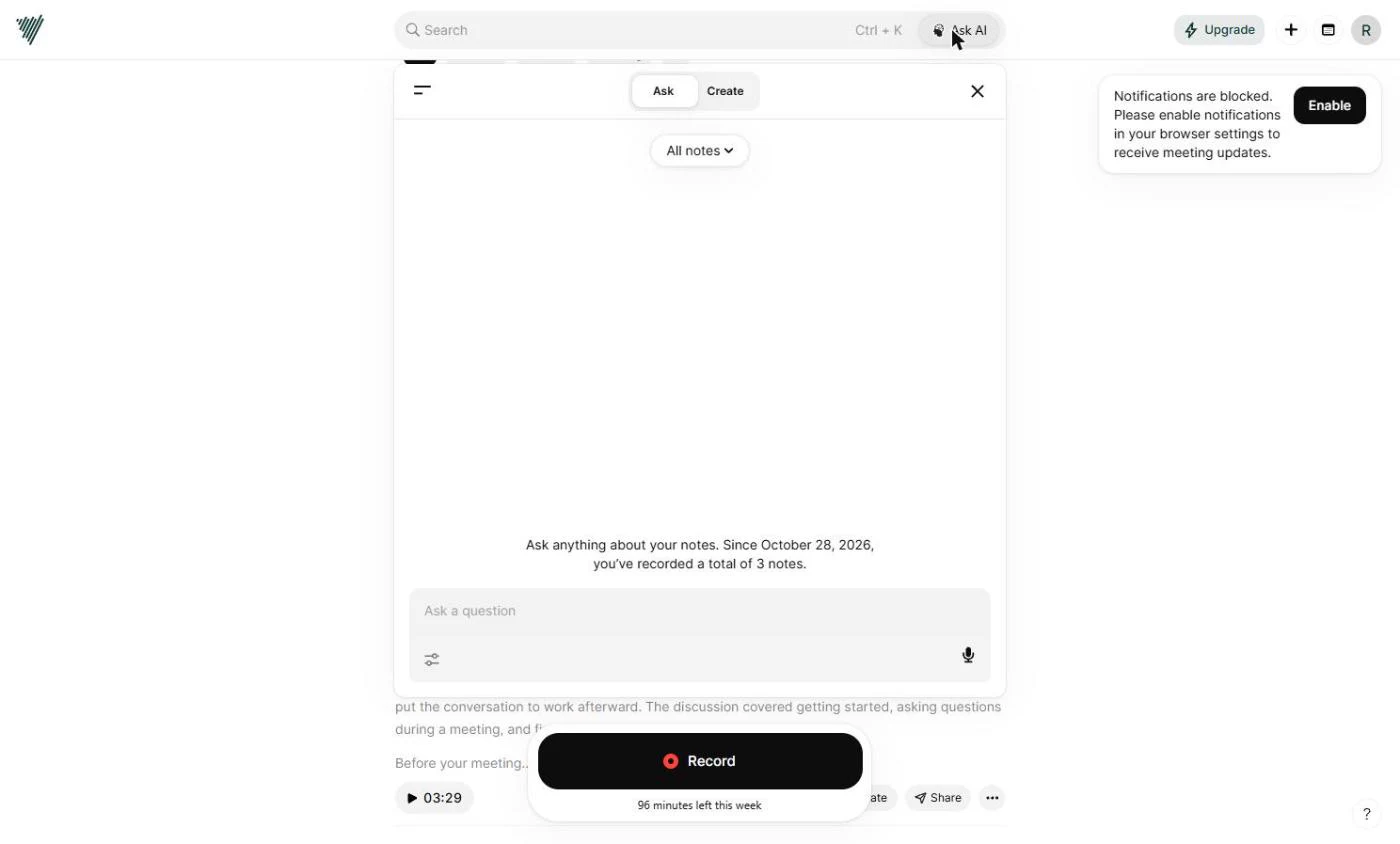
- Open Ask AI. A week later you had a short follow-up call with Sam, recorded the same way. Now there are two Northgate meetings. Instead of re-reading both, click Ask AI at the top.
A week later there is a second meeting. Instead of re-reading both, click Ask AI.
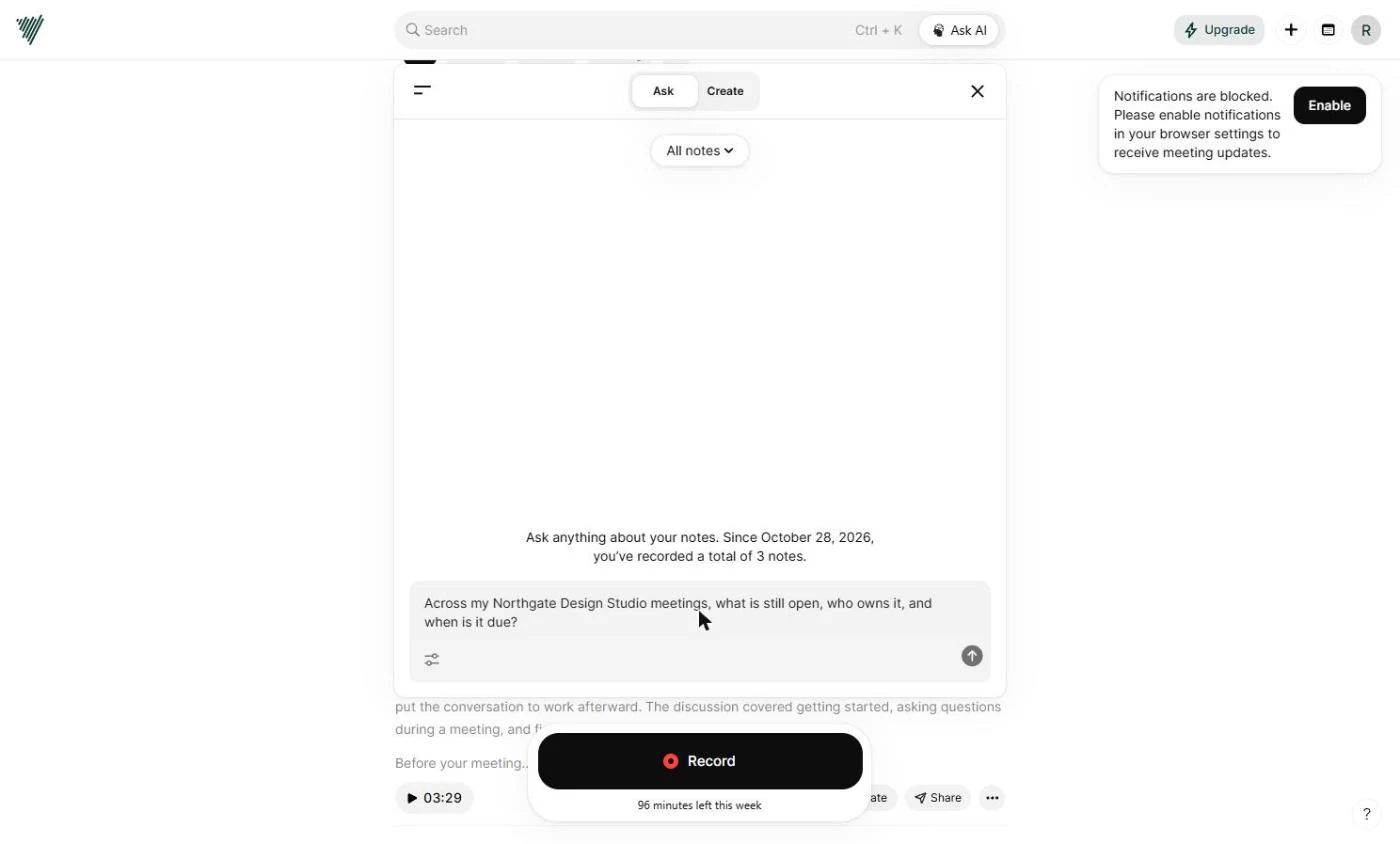
- Ask across your meetings. Ask AI searches All notes. Ask the question you would ask before the next call: what is still open, who owns it, and when it is due.
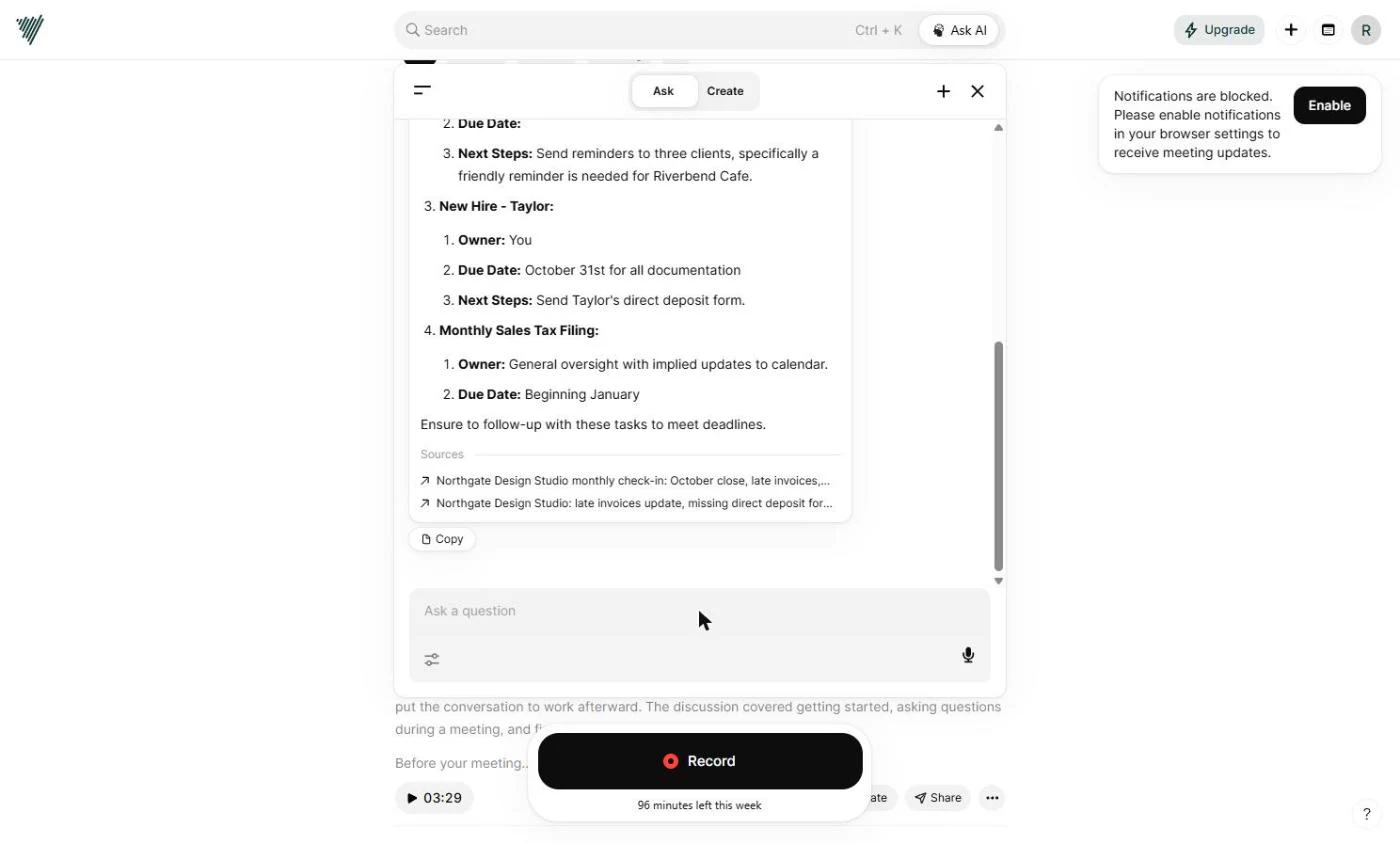
Ask AI searches all your notes. Ask what is still open, who owns it, and when it is due.
- Send the question. Click the send arrow.
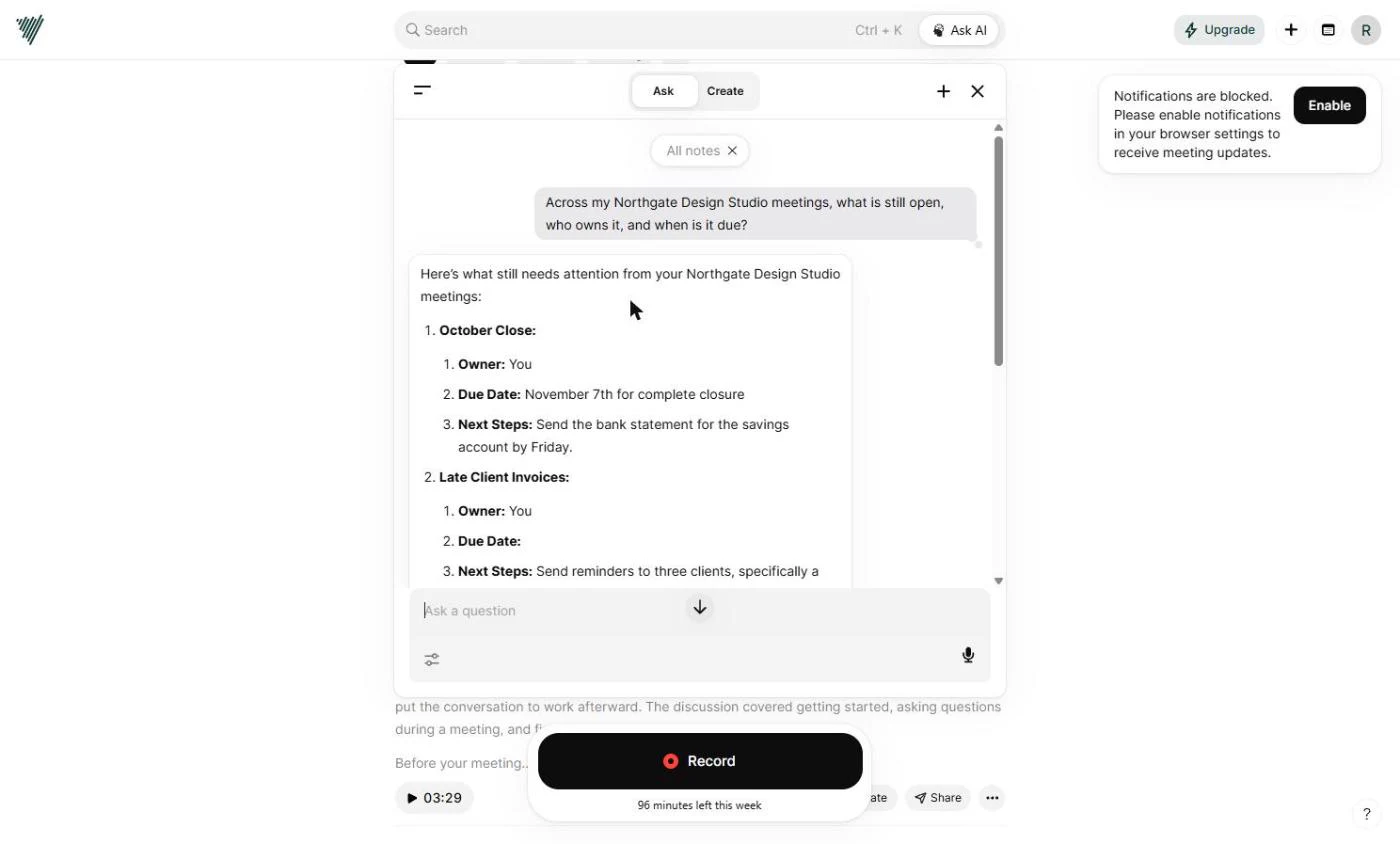
- Check the sources. The answer lists the October close, the late invoices, Taylor’s paperwork and the sales tax change, with owners and due dates. Scroll down to Sources: it used both meetings. Our answer still listed the savings statement as open although the second call said it arrived, so open a source and check before you act on it.
The answer pulls from both meetings.
Screenshots
More in Business Automations
 AI Receipt Extractor: Receipts to Google Sheets with n8n
Drop a photo of a receipt into an n8n chat. An AI agent reads it, pulls out the date, vendor and amount, picks a category, and adds a row to Google Sheets.
Free · Live ~12 min Intermediate
 n8n AI Email Responder: Draft Gmail Replies Automatically
Build an n8n agent that watches your Gmail, reads each new customer email, and writes a reply as a draft in the same thread, ready for you to check and send.
Free · Live ~12 min Intermediate
 Daily Job Alerts: Email Each Tech Their Jobs from Google Sheets with n8n
Every morning at 7, n8n reads a plumbing company's jobs sheet, skips anything not assigned yet, and emails each job to the tech it's assigned to — customer, address…
Free · Live ~10 min Intermediate
 Gmail AI Triage: Auto-Label Every Email and Draft Replies
Build an n8n workflow that reads each new email, sorts it as a lead, a client or an invoice with a Text Classifier, adds the matching Gmail label, and drafts a reply to…
Free · Live ~18 min Advanced
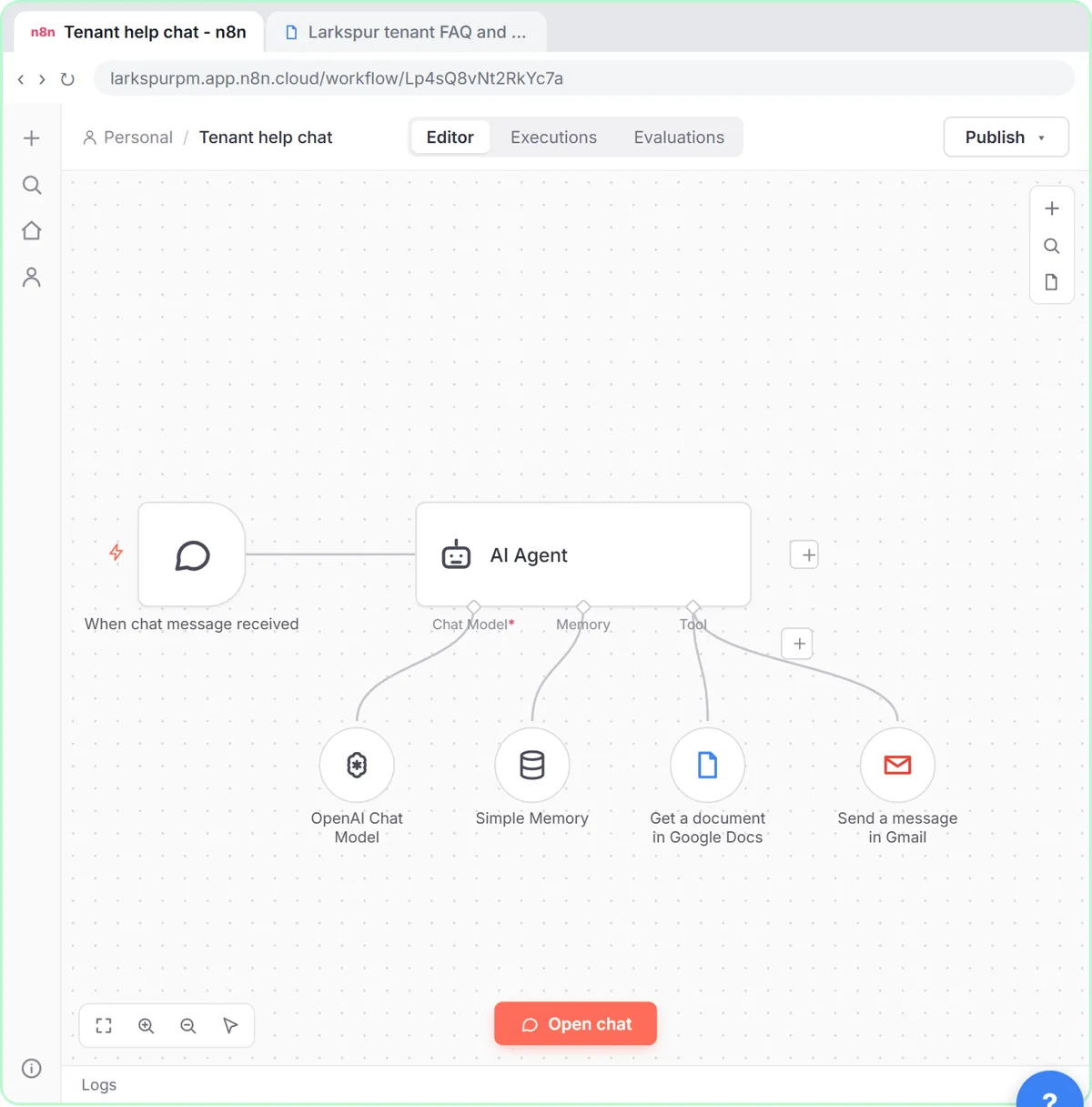 A Support Agent That Answers from Your Own Docs
Turn an n8n chat agent into a support agent that answers only from your policies in a Google Doc, refuses what it should, and hands off to a person by email.
Free · Live ~13 min Advanced
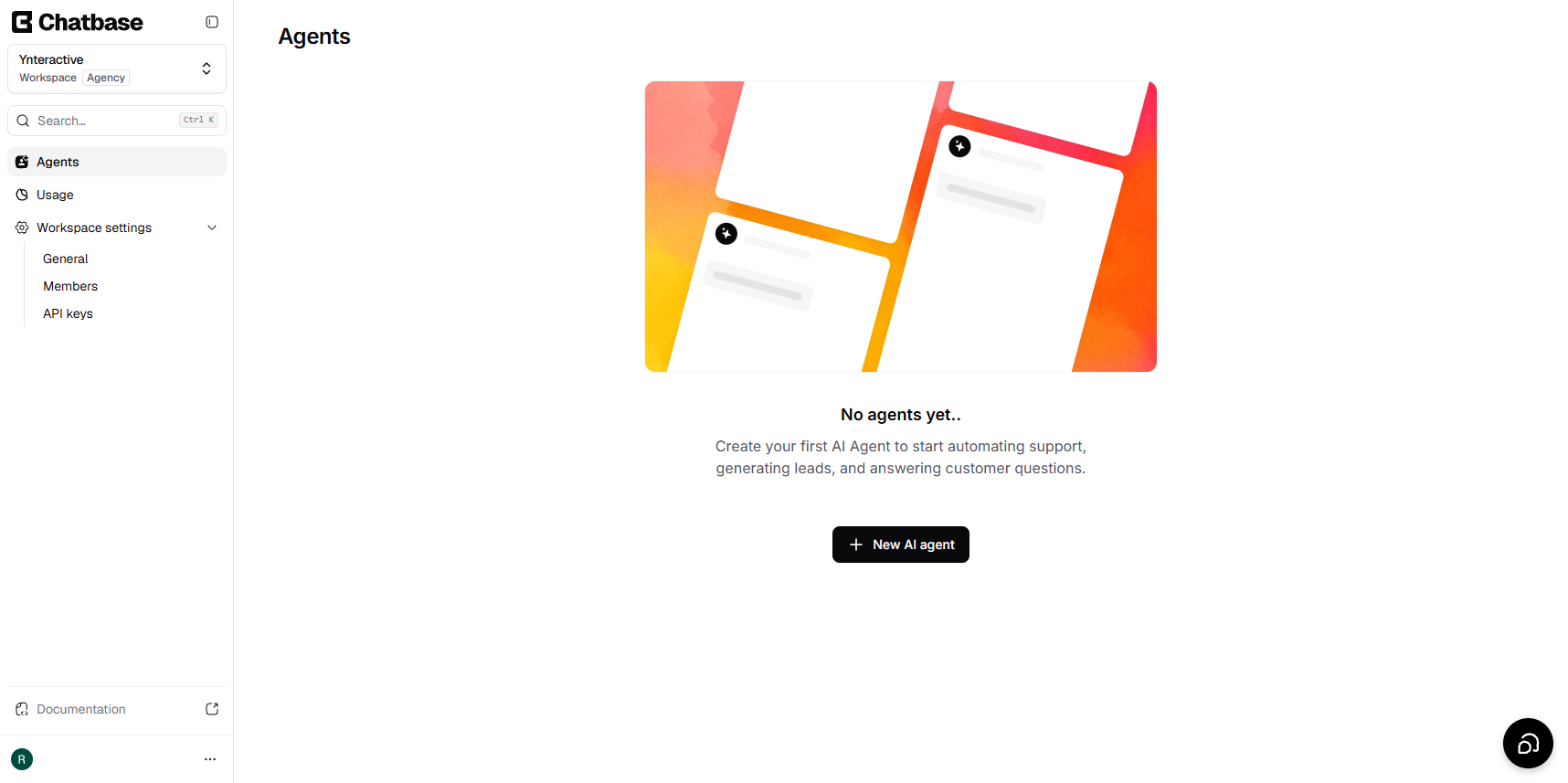 Chatbase: Answer Customer FAQs with an AI Agent
A business case for a small firm that answers the same customer questions every week: build a Chatbase AI agent on your FAQ in the real app, make it say when it does…
Free · Live ~15 min Beginner
All 26 modules in Business Automations
Terms in this lesson
Plain-English definitions, each with an example from a free lesson.