Updated . Built against the tool’s current screens and checked step by step. How we check this lesson
A beginner SQL walkthrough in the free DB Fiddle: total revenue per customer with GROUP BY, sort the biggest to the top, keep the top three with LIMIT and list key accounts with HAVING.
At a glance
| Question | Answer |
|---|---|
| What you build | A beginner SQL walkthrough in the free DB Fiddle: total revenue per customer with GROUP BY, sort the biggest to the top, keep the top three with LIMIT and list key accounts with HAVING. |
| Tools | DB Fiddle |
| Time | About 12 minutes, 14 steps in 3 parts |
| Level | Beginner, no coding needed |
| Cost | Free |
| Ways to learn it | Practice it step by step |
The 3 parts, in short
- Make the orders table: Click in Schema SQL, Create the orders table, Add the first two orders, Add three more orders, and 1 more step.
- Total each customer: Total each customer, Run it, Biggest first, Run it, and 2 more steps.
- Key accounts with HAVING: Count orders too, Keep accounts over $3,000, Run it.
Start here first: SQL: Build a Monthly Revenue Report from an Orders Table (module 1 of SQL)
What you'll build
The owner of Lakeside Office Supply (made up) wants two lists before the quarterly review: the top three customers, and every 'key account' worth $3,000 or more this quarter so each gets a thank-you call. Priya would normally sort a spreadsheet and add up each customer by hand. In this lesson you type the same orders table into DB Fiddle and answer both questions with GROUP BY, ORDER BY, LIMIT and HAVING, typing every line yourself.
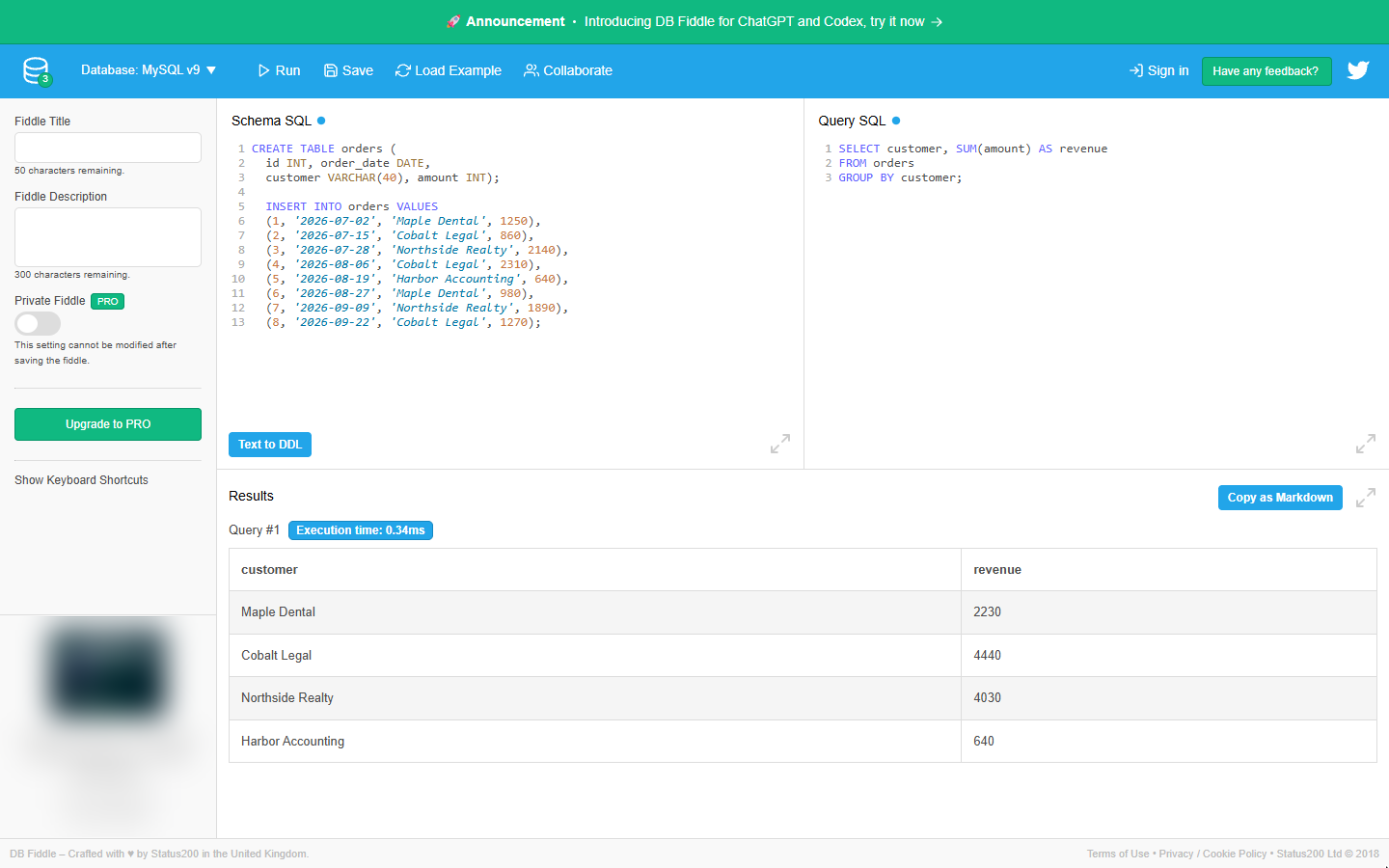
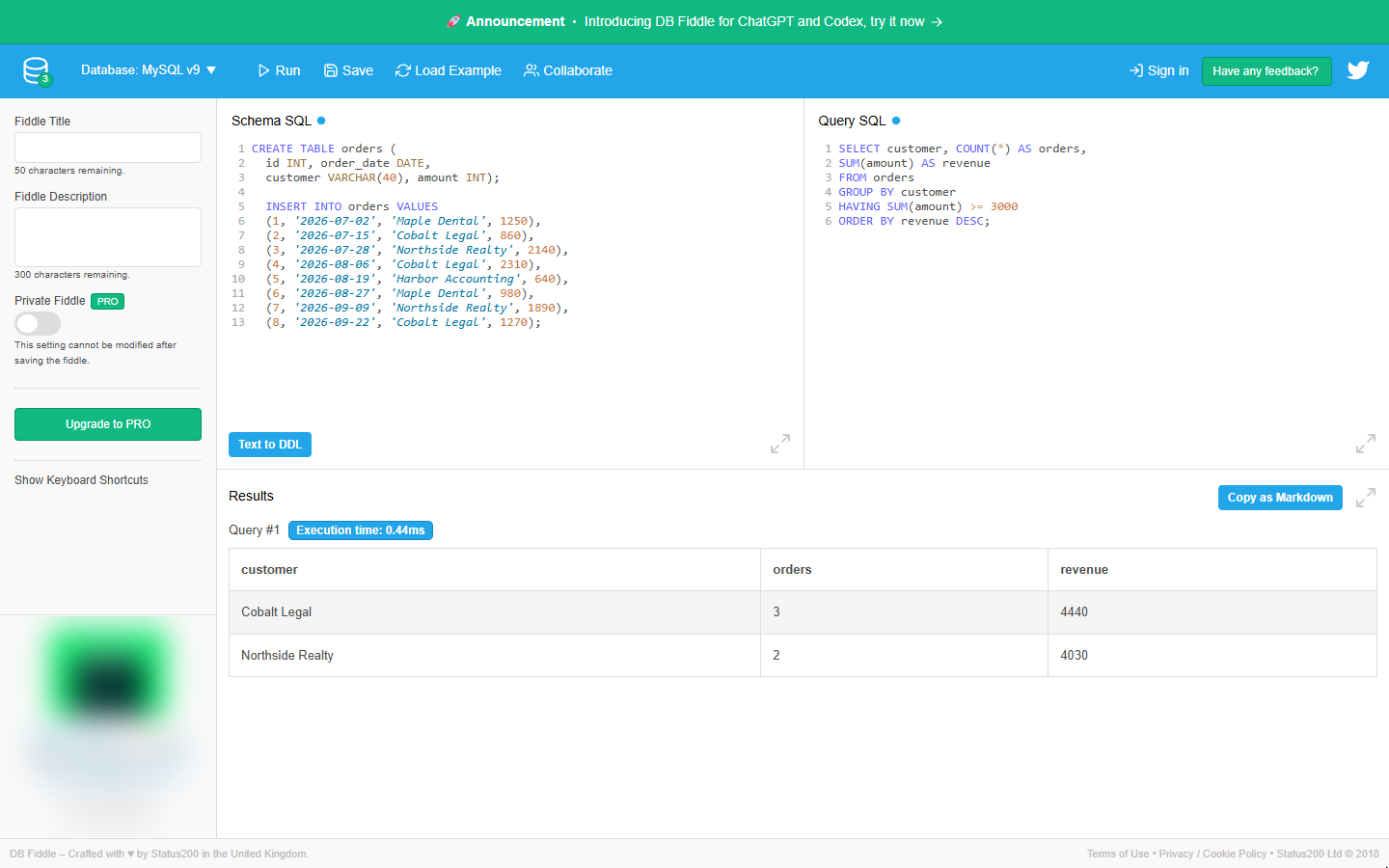
Cobalt Legal ($4,440 from 3 orders) and Northside Realty ($4,030 from 2) are the key accounts; Maple Dental ($2,230) completes the top three. Change 3000 in the HAVING line and the list updates for any threshold. Do it in DB Fiddle yourself: the lesson page has the checklist.
- Tools: DB Fiddle
- Time: about 12 minutes, 14 steps in 3 chapters
- Level: beginner, no coding needed
- Price: free
Practice first, then build it for real
Practice copy built from real DB Fiddle screens (db-fiddle.com, MySQL v9, captured 24 October 2026). Every query in it was typed and run there. The shop, its customers and its orders are made up; the ad box on the left is blurred. To build it for real you need your own DB Fiddle account, and some services charge once you use them for real work, so check each tool's current pricing.
Try it yourself, free
Reading the steps is a start. Doing them is how it sticks. The interactive module walks you through every click in a practice copy of DB Fiddle, checks each step, and never touches your real accounts.
Start “SQL: Top Customers and Key Accounts with GROUP BY and HAVING”Step by step: SQL: Top Customers and Key Accounts with GROUP BY and HAVING
All 14 steps of the interactive module, in order. In the module you watch each one, then do it yourself in a practice copy that checks your work.
1. Make the orders table
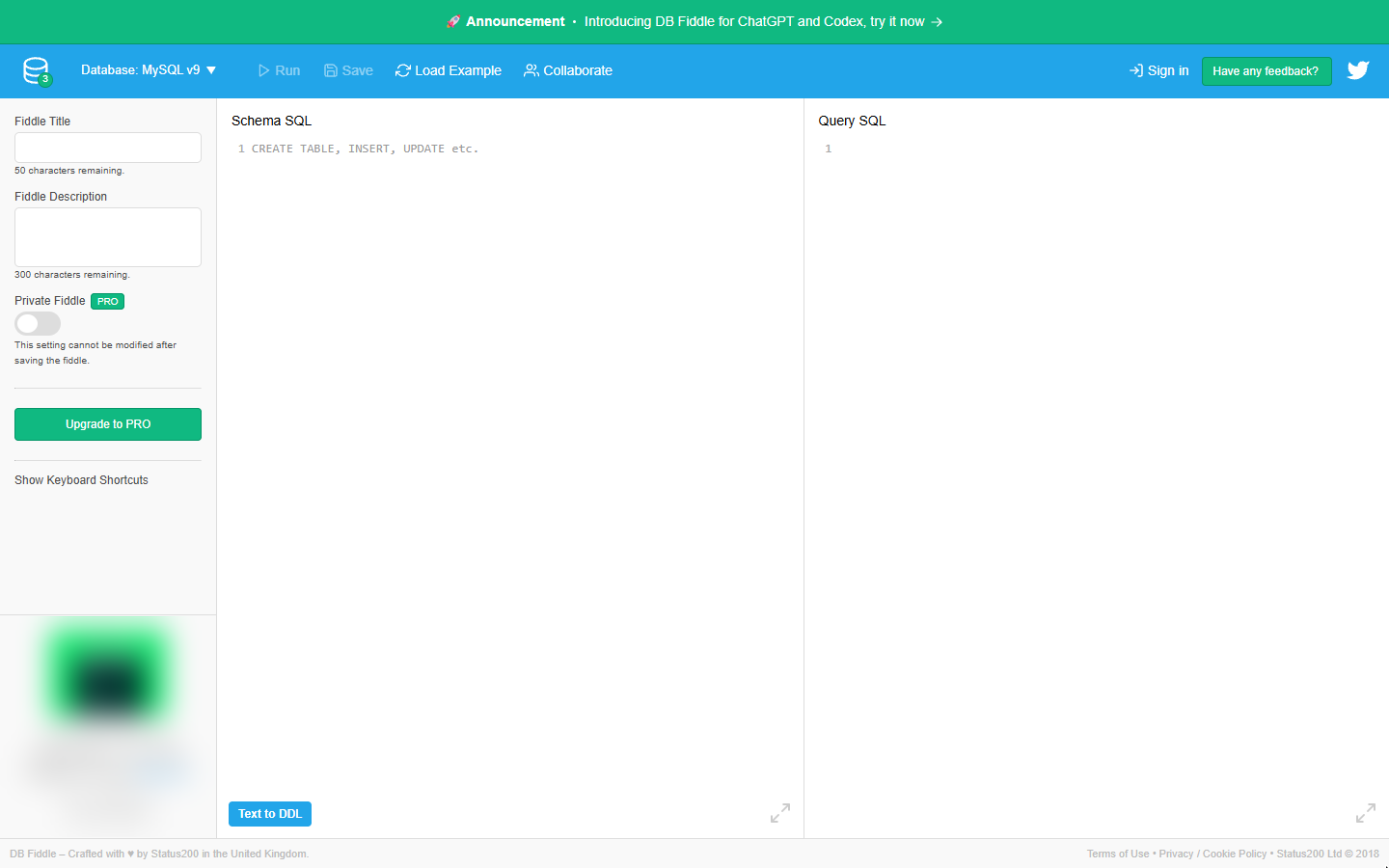
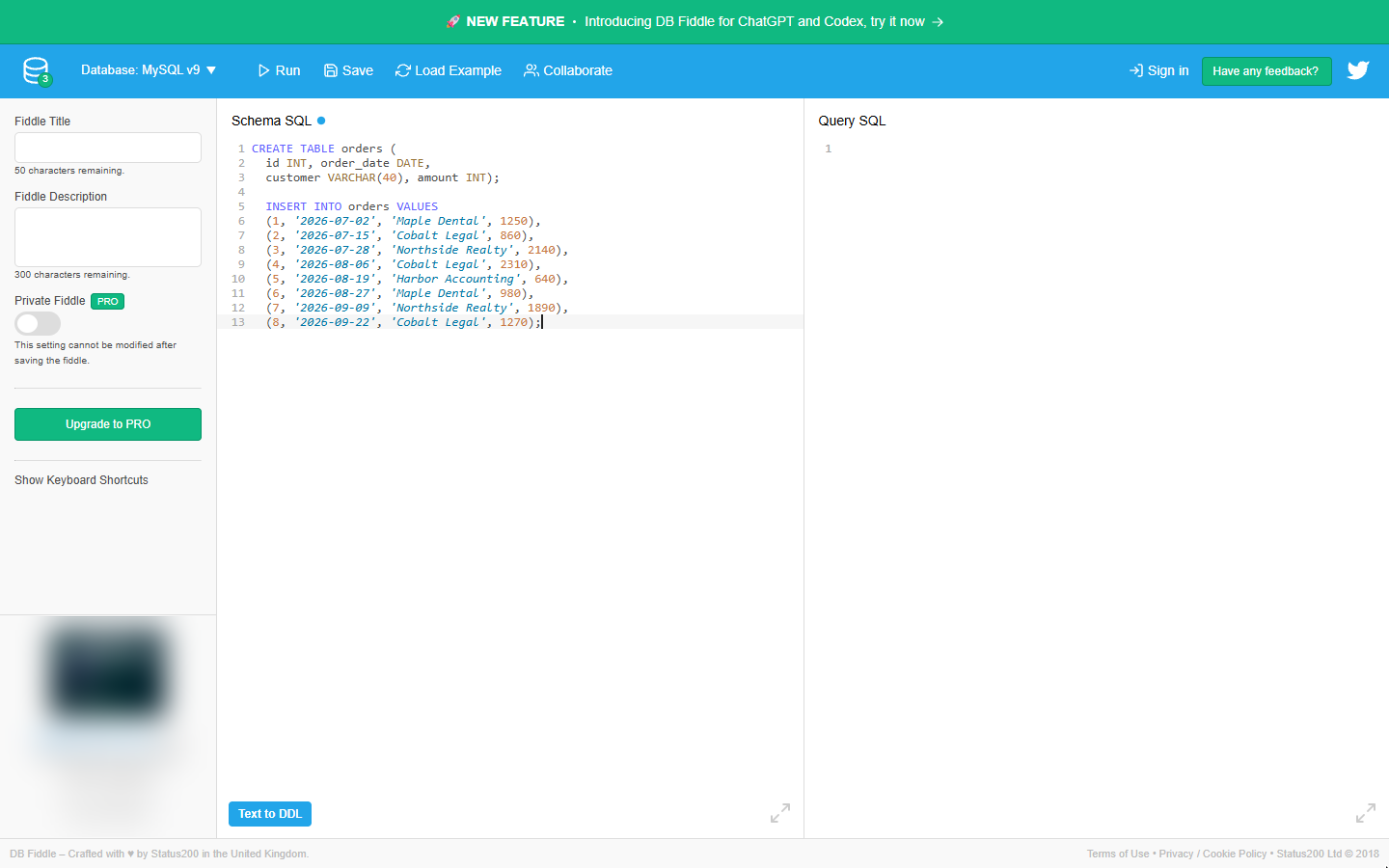
- Click in Schema SQL. Open db-fiddle.com (no account needed). The left box, Schema SQL, is where the table goes. Click inside it.
This is DB Fiddle, a free database in your browser.
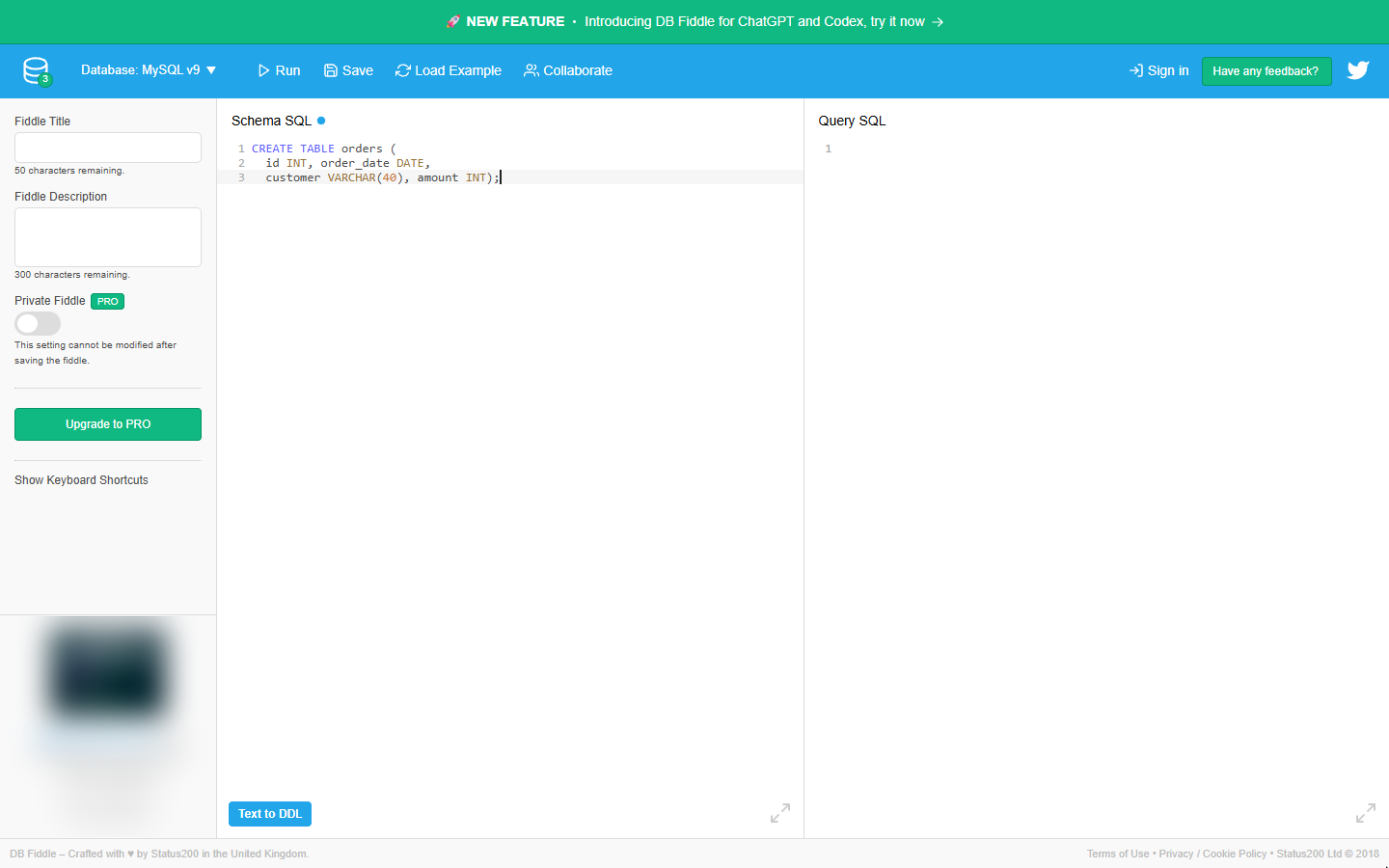
- Create the orders table. Type these three lines. They make an empty table with four columns: an id, the order date, the customer and the amount. In the practice you can type it on one line; in DB Fiddle press Enter between lines.
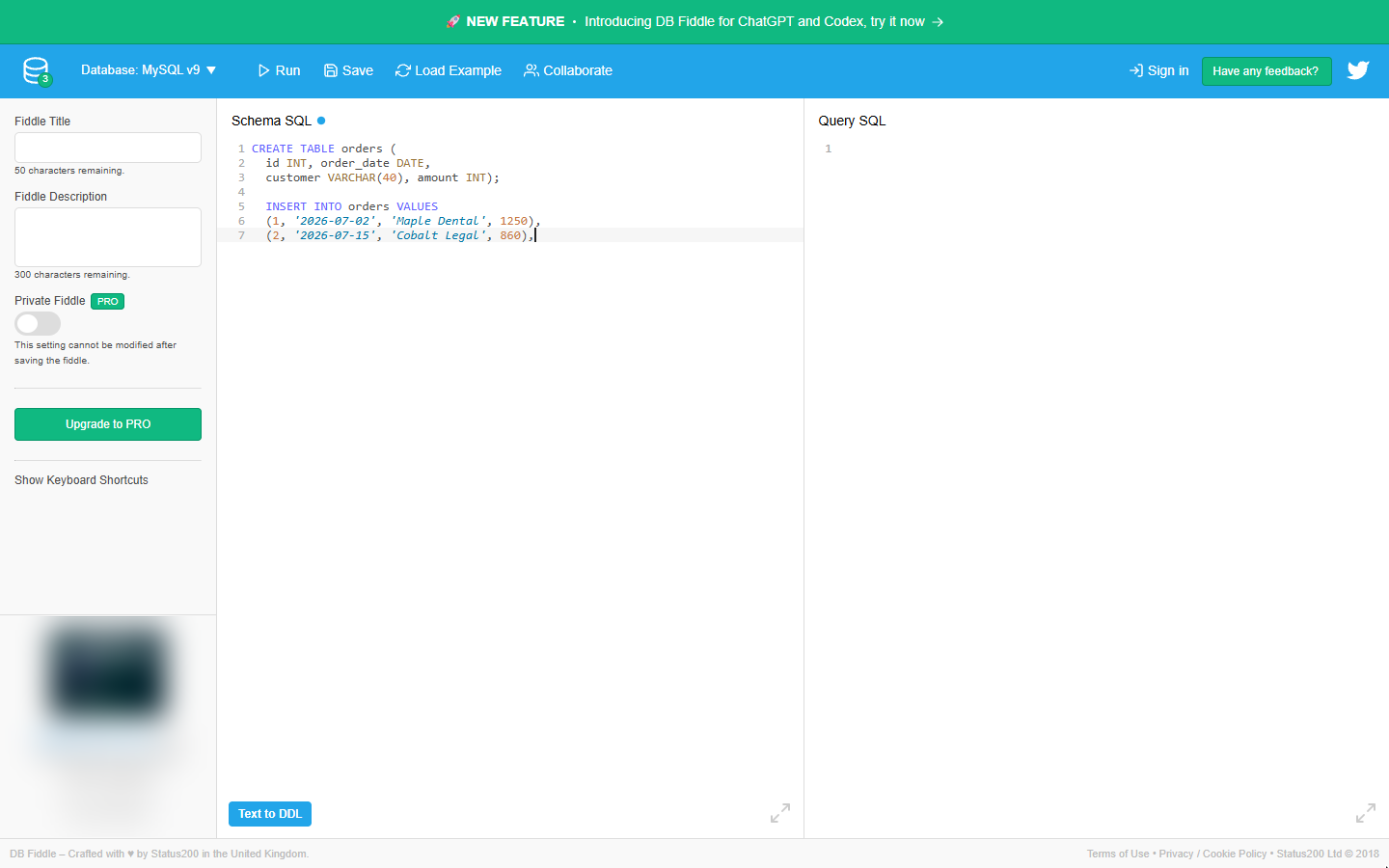
- Add the first two orders. Leave a blank line, then type the INSERT line and the first two orders. Text goes in single quotes; numbers do not.
Names in single quotes.
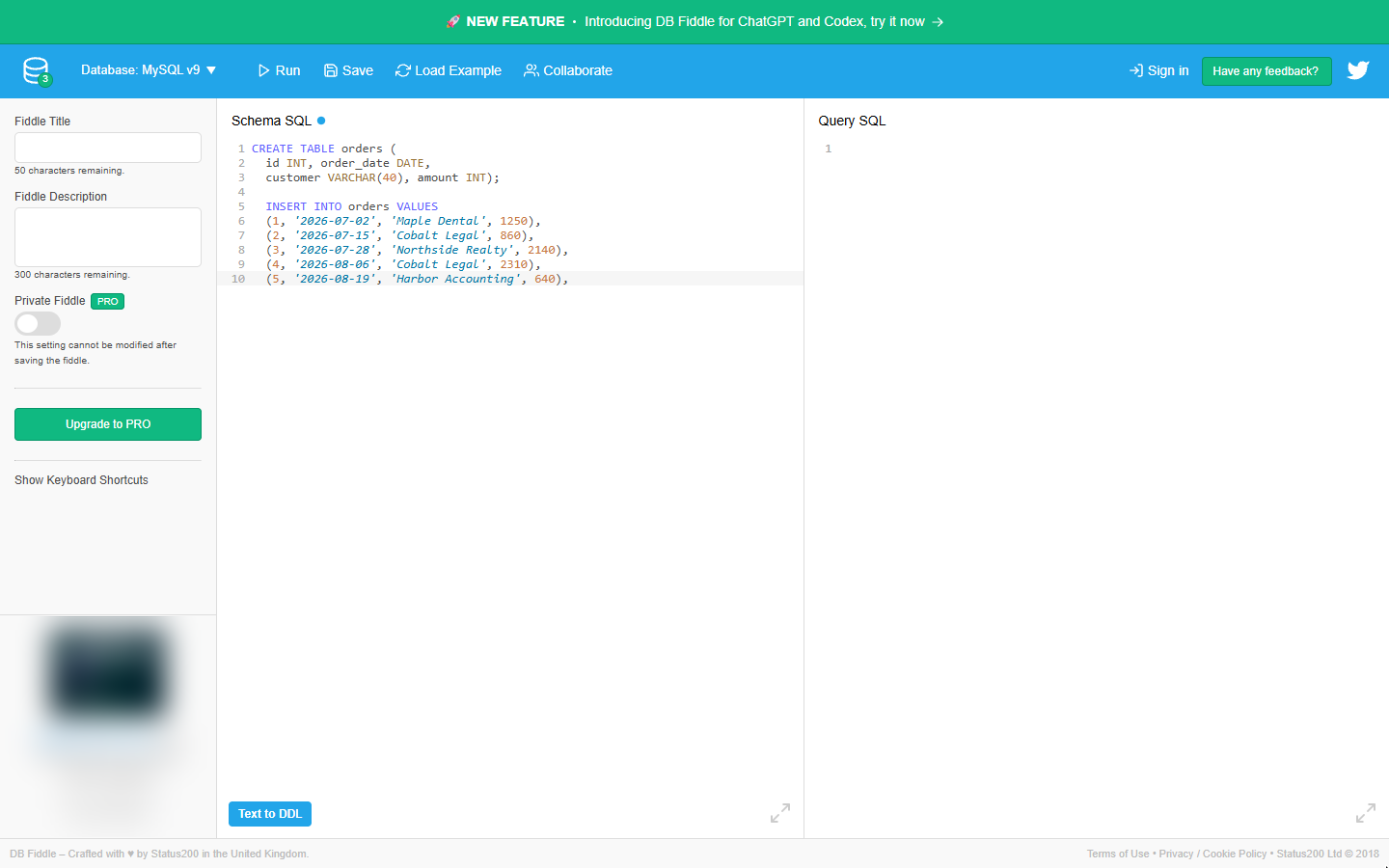
- Add three more orders. Type the next three orders. Each row ends with a comma.
Three more orders. Each row ends with a comma.
- Add the last three orders. Type the last three. The very last row ends with a semicolon instead of a comma: that tells the database the statement is finished.
The last three orders. The very last one ends with a semicolon, not a comma.
2. Total each customer
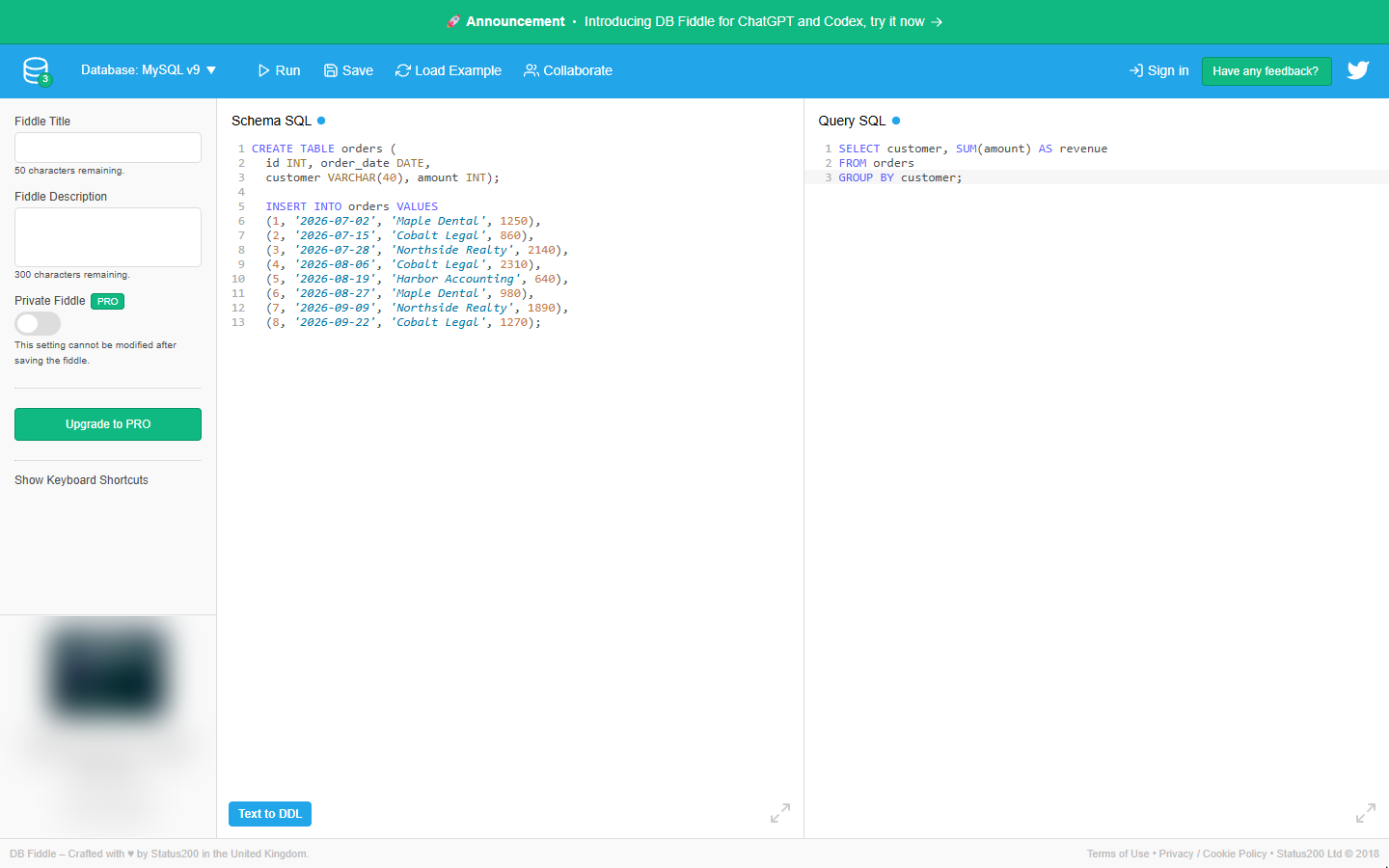
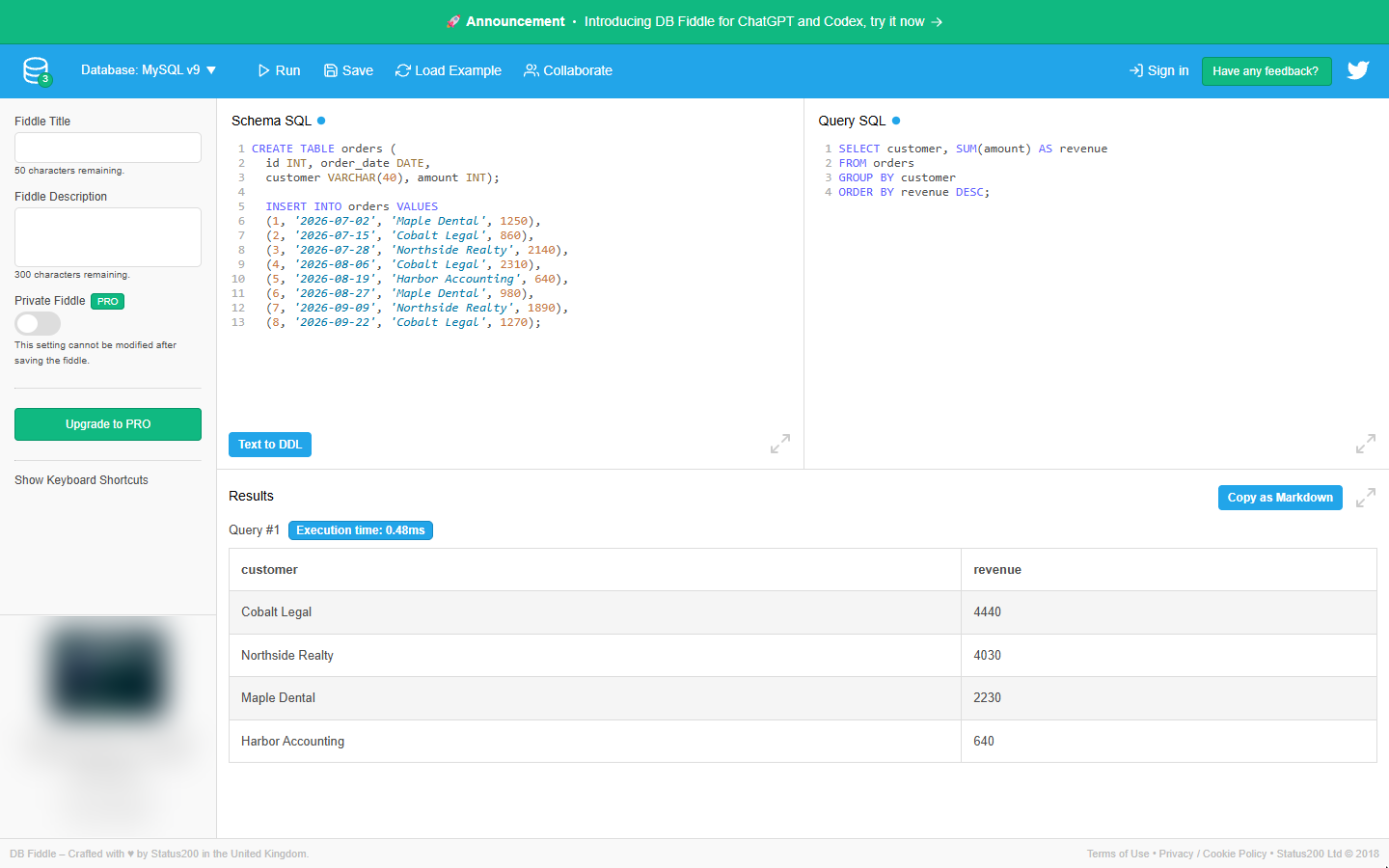
- Total each customer. In Query SQL, type a query that adds up the amount for each customer. GROUP BY customer makes one row per customer.
In the Query SQL box, type a query that adds up each customer, with GROUP BY customer.
- Run it. Click Run.
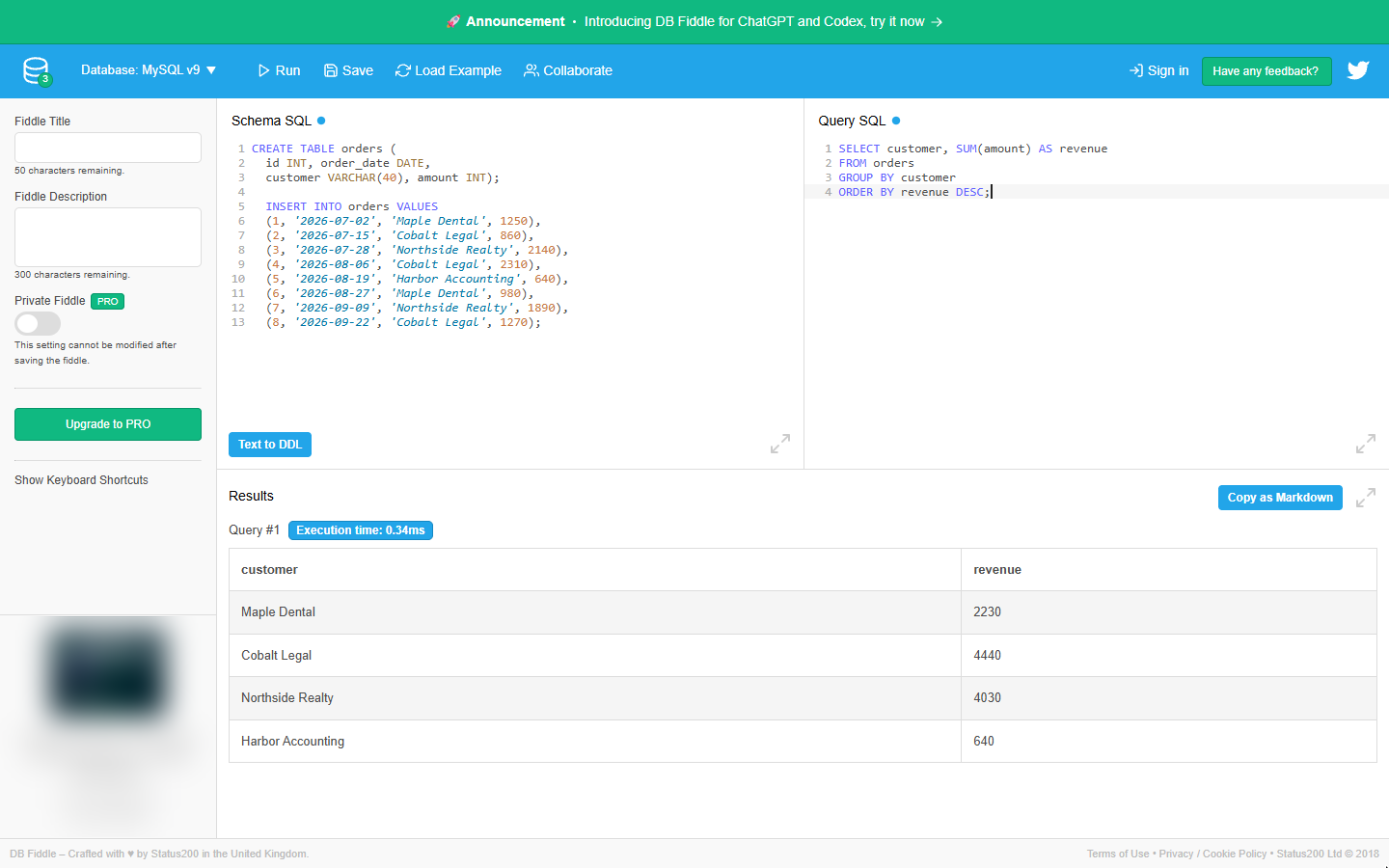
- Biggest first. One row per customer, in no useful order. Click at the end of the last line, delete the semicolon, press Enter and type the line shown below. DESC means descending: biggest first.
Now sort it. Remove the semicolon and add ORDER BY revenue DESC, biggest first.
- Run it. Click Run.
Run it.
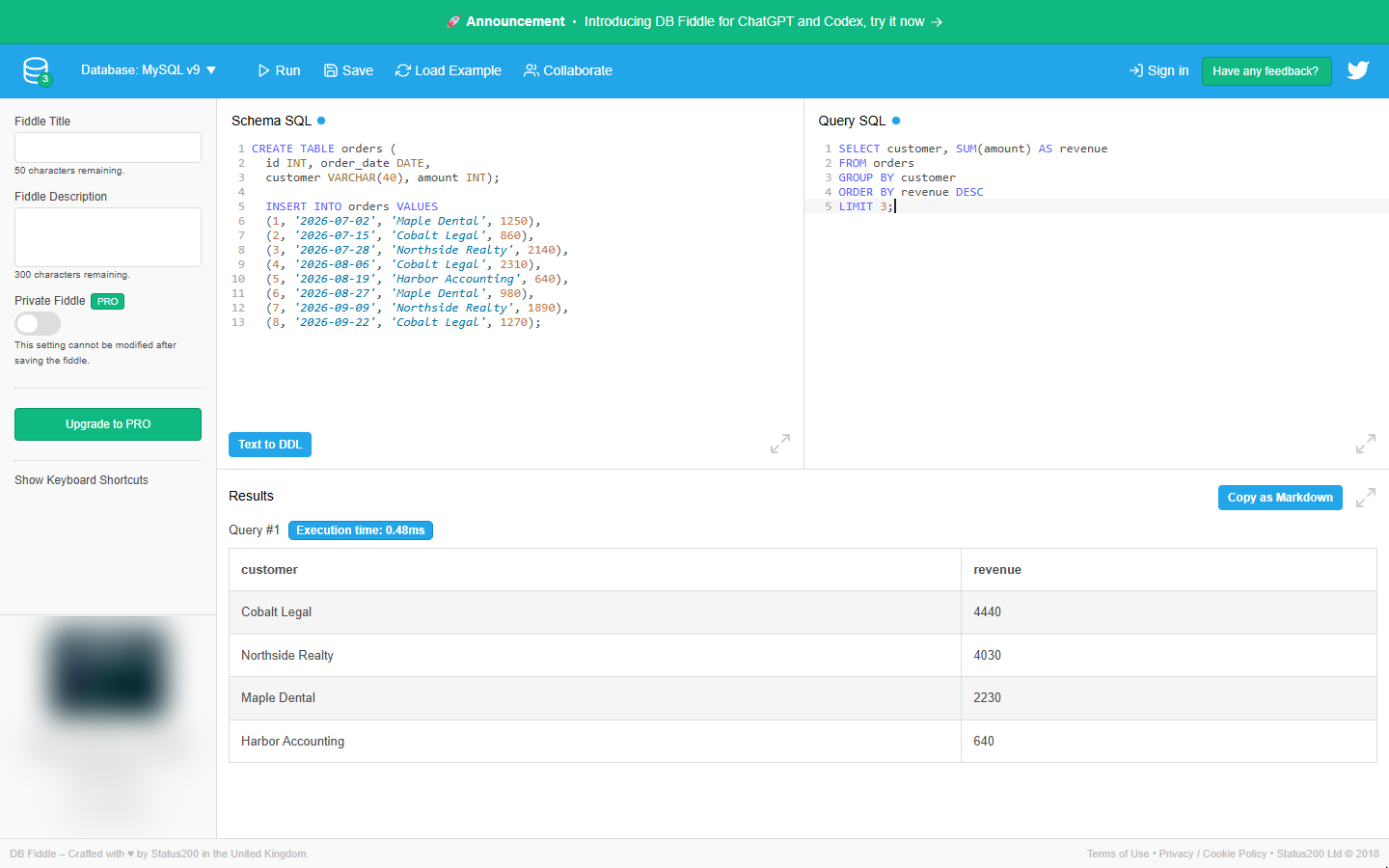
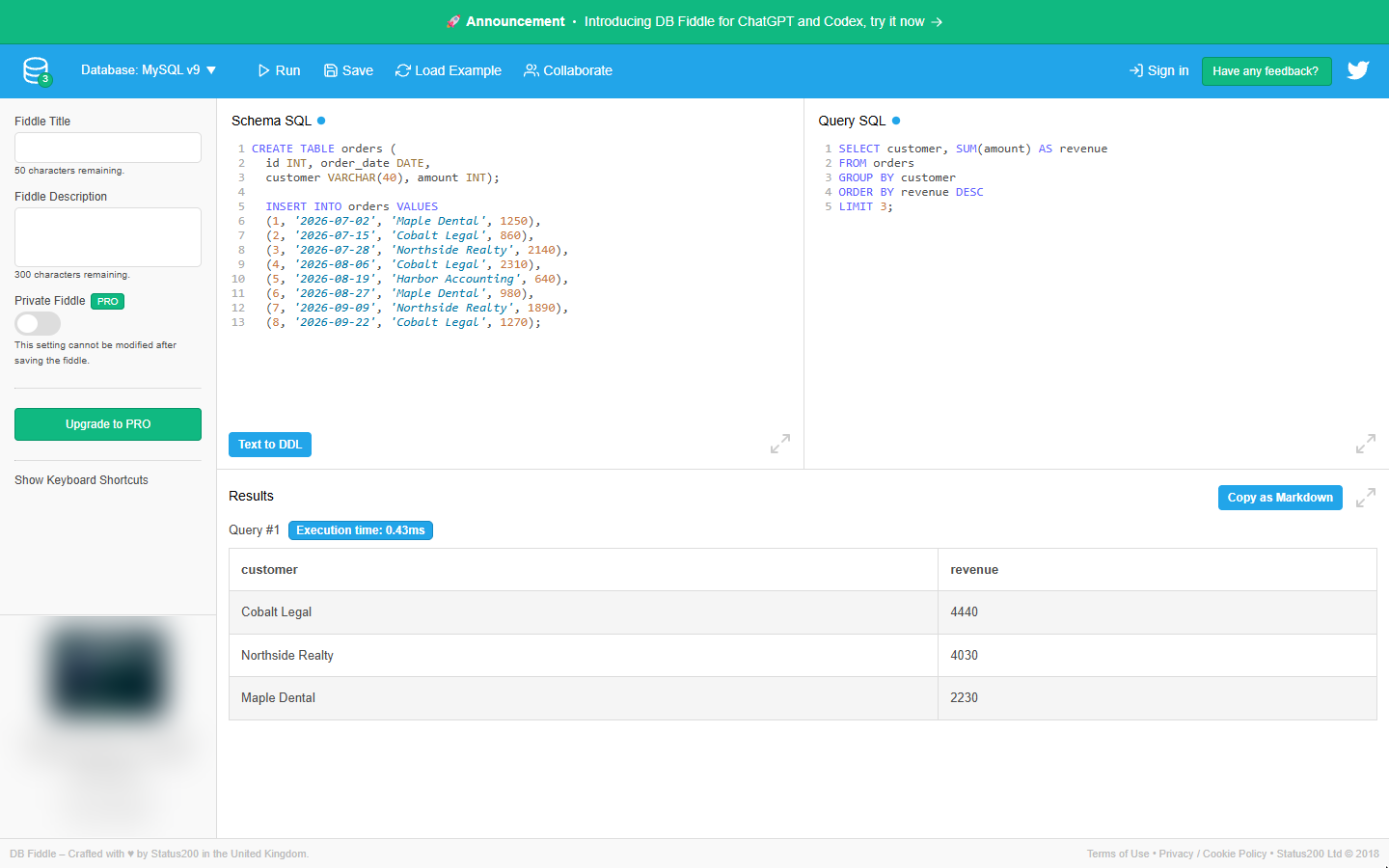
- Keep the top three. Cobalt Legal is on top with $4,440. For a top-three list, remove the last semicolon again and add one line.
Cobalt Legal is on top. Add LIMIT 3 to keep only the top three.
- Run it. Click Run.
Run it.
3. Key accounts with HAVING
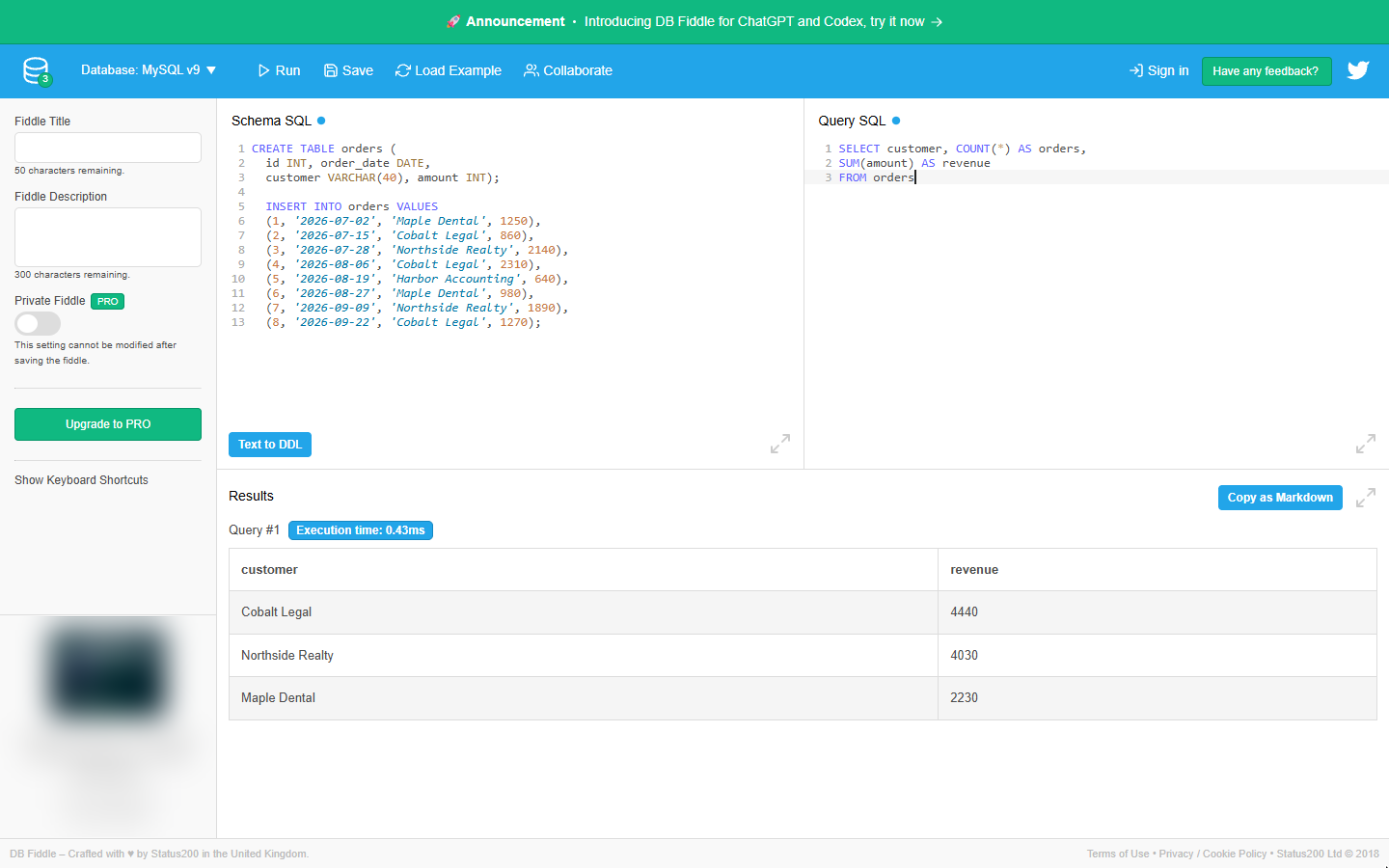
- Count orders too. Now the key accounts. Replace the query (Ctrl+A, then type) and start with three lines. COUNT(*) adds the number of orders next to the revenue.
Now the key accounts. Replace the query, and count the orders as well as the revenue.
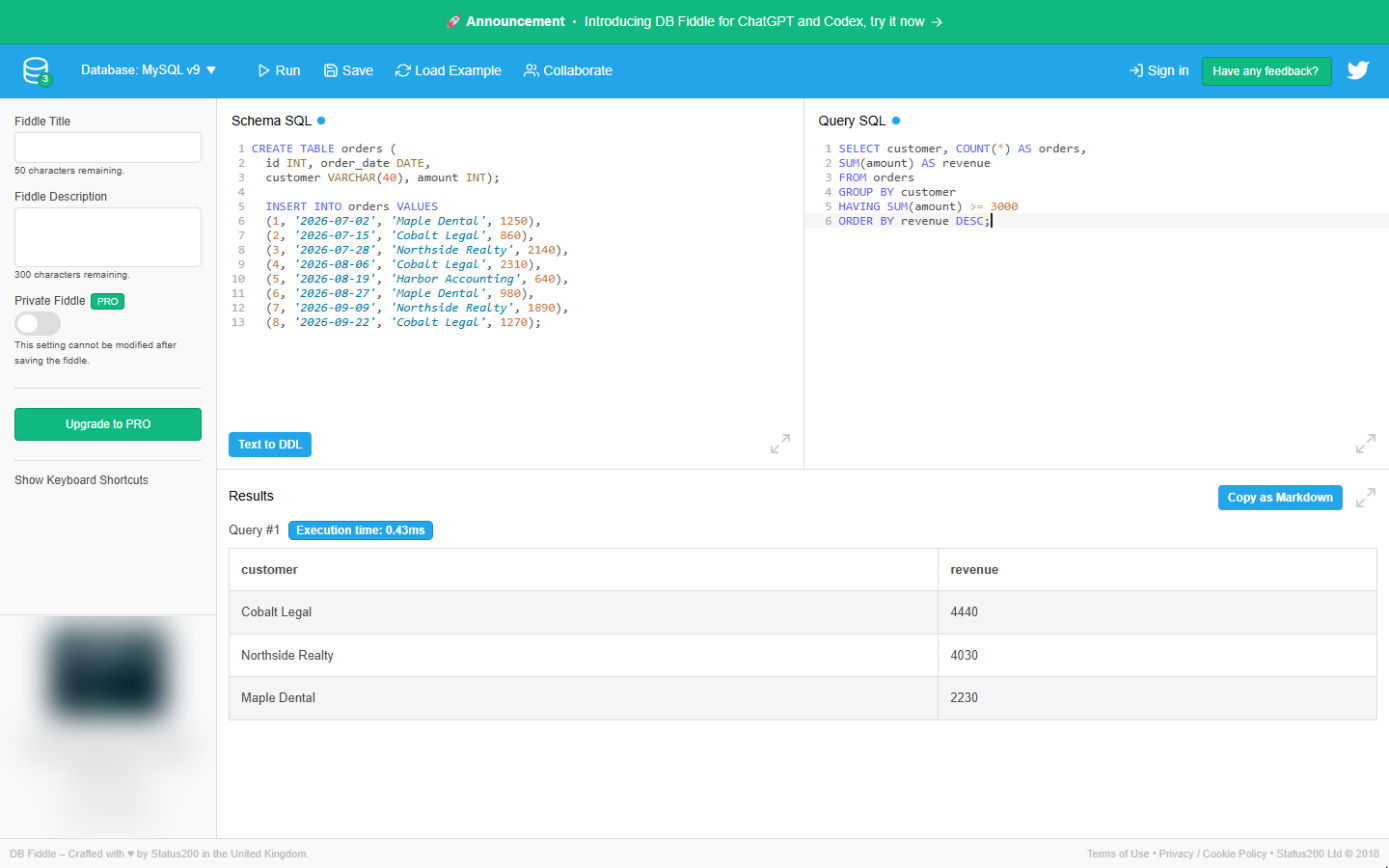
- Keep accounts over $3,000. Add three lines. HAVING filters the totals after they are added up, so it can say "only customers whose total is at least 3000".
Add GROUP BY customer, HAVING the total at least three thousand, and the sort.
- Run it. Click Run.
Run it.
Screenshots
Free cheat sheet
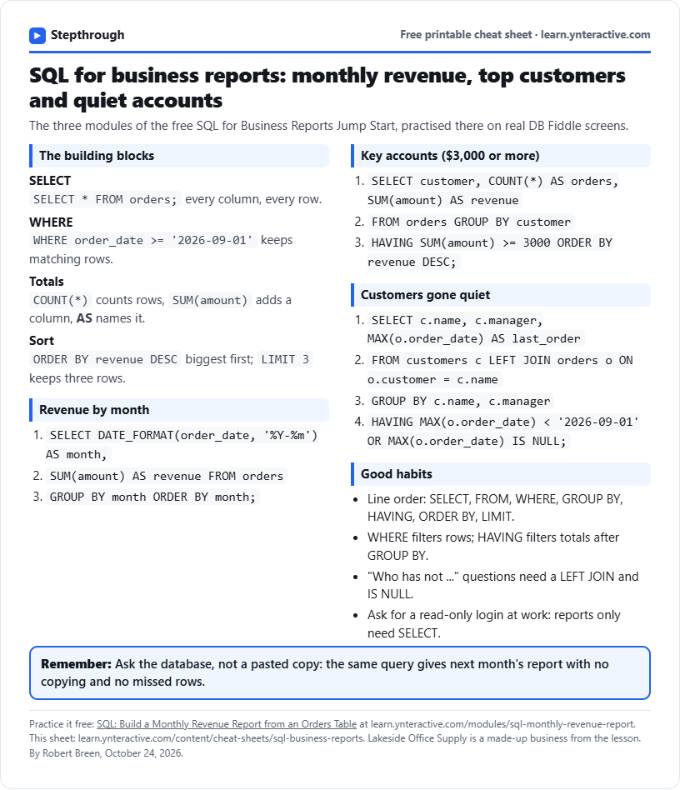
Print it or save the PDF: the key steps and checks from this lesson on one page, free.
All free printable cheat sheets
Terms in this lesson
Plain-English definitions, each with an example from a free lesson.