Updated . Built against the tool’s current screens and checked step by step. How we check this lesson
Most small firms build a new service first and find out later whether anyone wants it. A one-page site with a sign-up box answers that question in a few weeks, for almost nothing. Mixo (mixo.io) is an AI website builder: you describe your idea in one sentence, it builds the page, and you edit and publish it. In this free business-case lesson you help a made-up bookkeeping firm test a monthly Cash-Flow Check-in service, then follow Mixo's own help center to generate the page, rewrite the headline, turn the button into a sign-up form, add your logo and color, publish it and download the list of people who signed up. The screenshots on this page and in the lesson come from Mixo's help center, credited and linked under each one, so they show Mixo's demo sites. This is my own lesson, not an official Mixo course.
At a glance
| Question | Answer |
|---|---|
| What you build | A business case for a firm testing a new service before building it: describe the idea in one sentence, let Mixo build the page, turn on a sign-up form, publish it free and download the list of people who want it. |
| Tools | Mixo |
| Time | About 12 minutes, 17 steps in 7 parts |
| Level | Beginner, no coding needed |
| Cost | Free |
| Ways to learn it | Practice it step by step |
The 7 parts, in short
- Test the idea before you build it: Price the risk, Meet Mixo.
- Describe the idea in one sentence: Type the idea, Generate the site, Try another style.
- Save it and open the editor: Click Save and customize, Click Edit Site.
- Make it ask for an email: Open the Hero section, Rewrite the headline, Turn on the sign-up form, Label the button.
- Save, then publish: Add your logo and color, Click Save, Click Publish.
- See who signed up: Read Recent Subscribers, Download the list.
- What to do next: Decide with real numbers.
Start here first: AI Receipt Extractor: Receipts to Google Sheets with n8n (module 1 of Business Automations)
In the course: Part 9 · n8n Automation Toolkit (Module 92 of the full course)
Part of: AI for Accounting & Bookkeeping Firms (step 31 of 35). Next up: AI Workflow Automation for Beginners: Sort Every Client Inquiry and Draft the Reply using n8n
Part of: AI for Marketing Teams (step 35 of 35)
Part of: AI Apps Worth Knowing (step 59 of 62). Next up: n8n + Signatoro: AI Drafts Every Reply, Signatoro Signs It
The business case: test it before you build it
Picture Nora Okafor, who runs Lakeshore Ledger, a made-up bookkeeping firm. Clients keep saying they never know what next month's cash looks like, so she wants to add a monthly Cash-Flow Check-in: a 13-week cash forecast and a 30-minute call. Nobody has actually asked to buy it yet.
Here is the arithmetic, using example numbers you should replace with your own. Building the service properly (templates, a client checklist, pricing) is about 30 hours of her time. At $85 an hour, that is about $2,550 spent before she knows anyone wants it. The cheaper test is a one-page site that describes the service and asks for an email, with a goal set in advance: 20 early sign-ups in 3 weeks.
Who this is for, and what you need
Owners and managers at bookkeeping, consulting, HR and other professional firms who want to test a new service, workshop or package. To follow the practice you need nothing. To do it for real you need a Mixo account. Mixo's help center says the free plan lets you create, edit and publish a one-page site on a Mixo address, such as yoursite.mixo.io, with Mixo branding. Paid plans add a custom domain, more pages and no branding, so check mixo.io/pricing before you start.
A note on the screens: this lesson uses the screenshots Mixo publishes in its own help center. They show Mixo's demo sites, such as InHomeDesign and Wedding Wordsmiths, and some were taken on an older version of the app, so a label can differ a little from what you see.
Step 1: describe the idea in one sentence
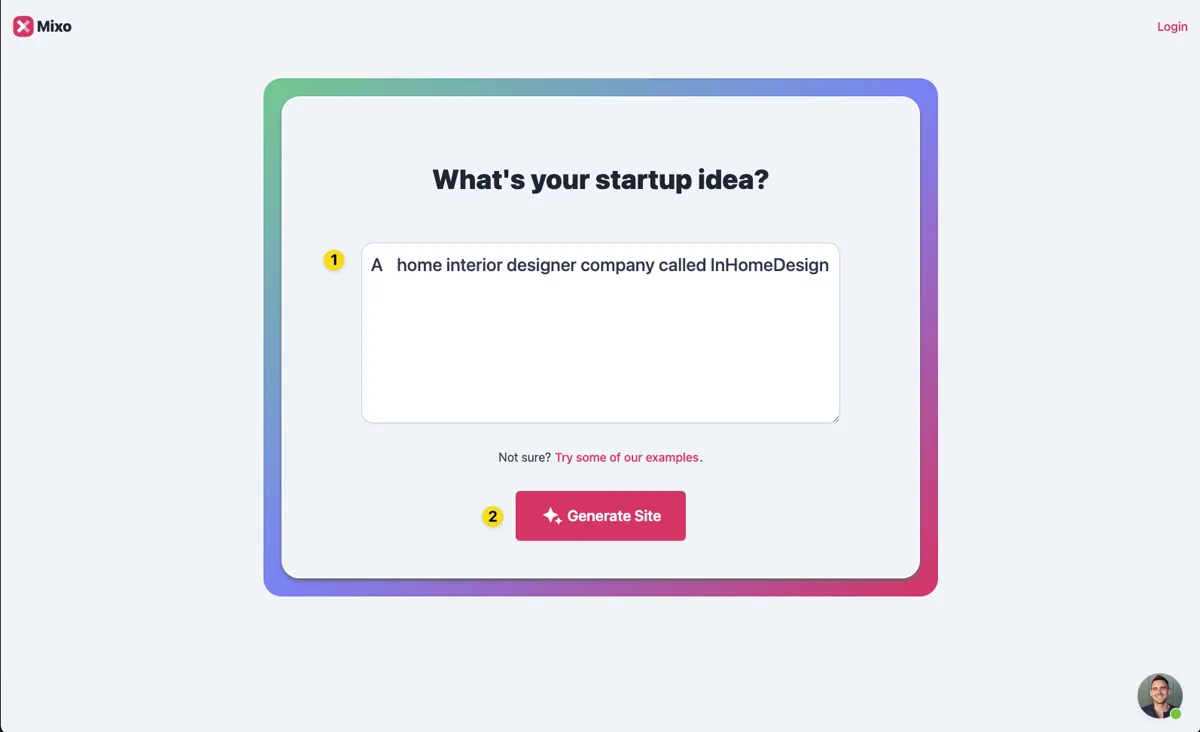
Go to app.mixo.io and click Get Started. The first box asks for your idea in one sentence. Mixo's tutorial says to word it as a business idea, and the more specific the better: "an online hairdressing service" works better than "haircare". Name the service, the customer and what they get. The lesson uses: A monthly cash-flow check-in service for small business owners, run by Lakeshore Ledger, a bookkeeping firm, with a 13-week cash forecast and a 30-minute call each month.
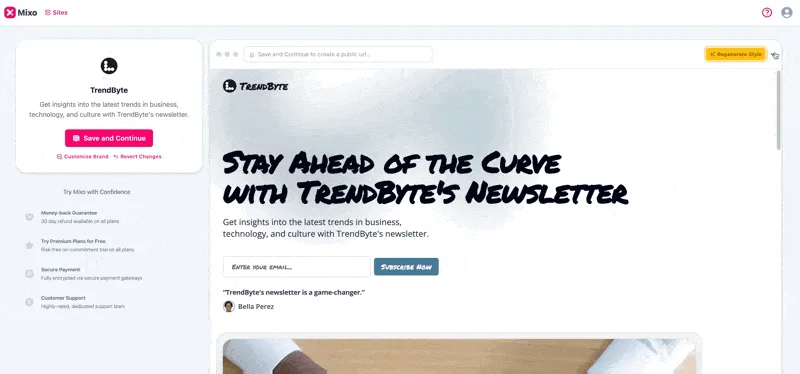
You may also be asked to pick a goal, such as Promote a service, and a language. Click Generate Site. Mixo's docs say it usually takes around 60 seconds, and you can watch it build. If you do not like the look, click Regenerate Style and pick a style from the menu.
Step 2: save it and open the editor
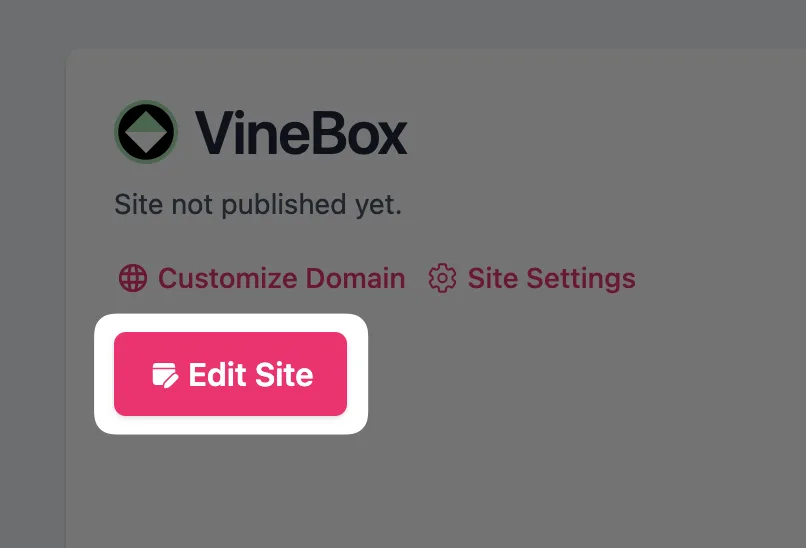
Click Save and customize (newer screens say Save and Continue) to save the site to your account. You may be asked to sign up or log in. Mixo then shows upgrade options. To stay on the free plan, click Sites in the menu, find your site and click Edit Site.
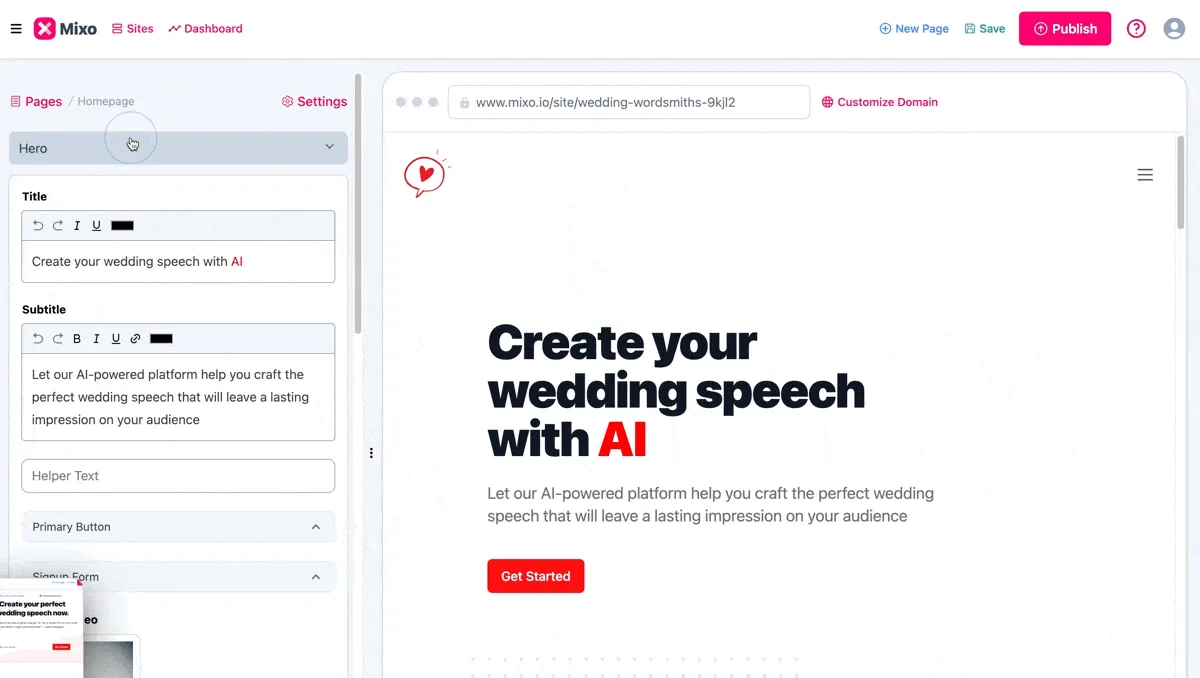
The editor lists your page's sections on the left and shows a live preview on the right. Open Hero, the top of the page, and rewrite the Title so it says what the customer gets, for example "Know your cash for the next 13 weeks". Use the Subtitle to say who it is for and that they can join an early list.
Step 3: turn the button into a sign-up form
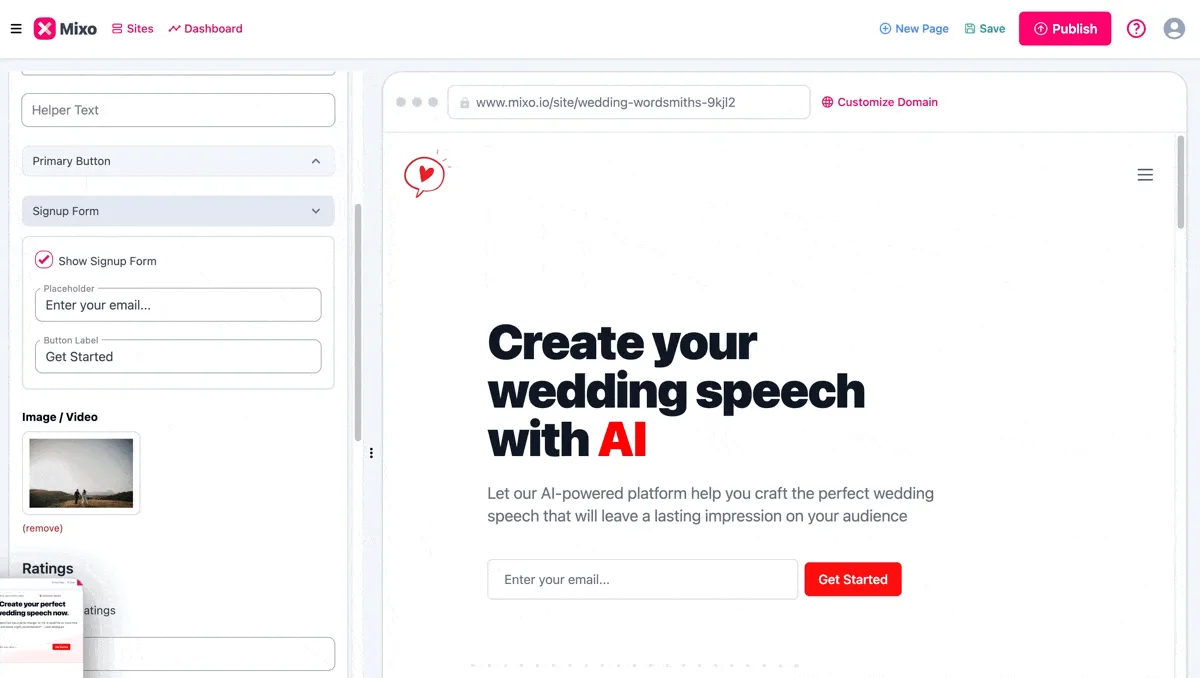
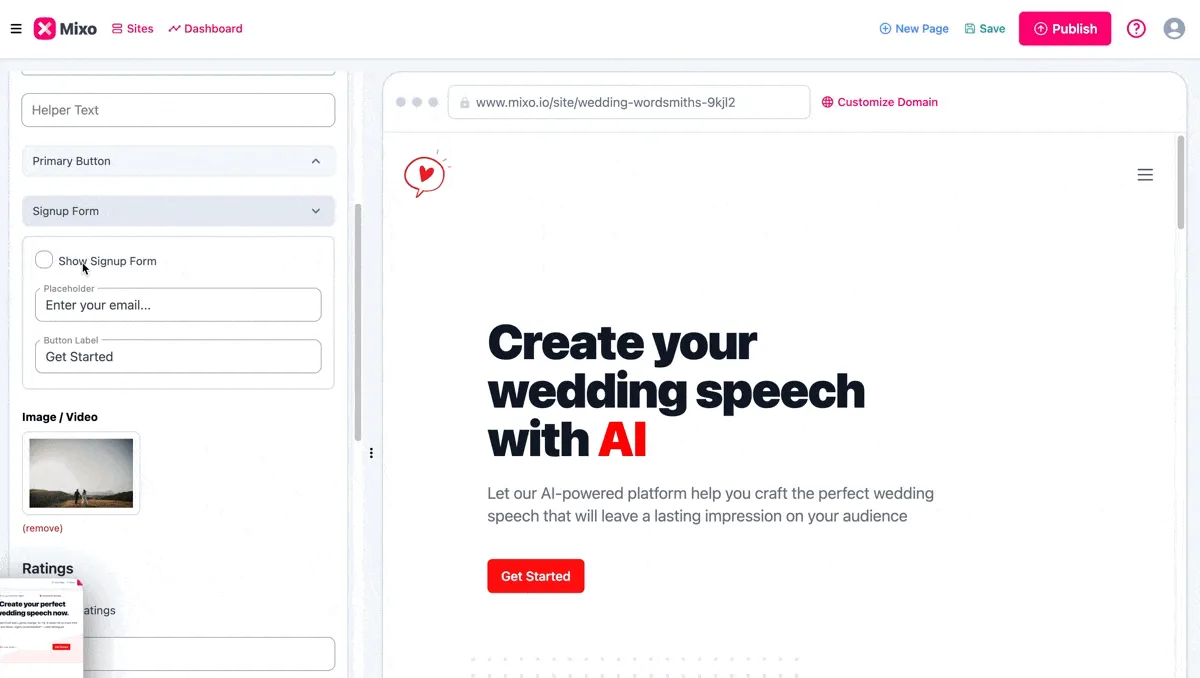
Scroll down the Hero section to Primary Button and Signup Form. Mixo's help center says only one of the two can be active at a time. Open Signup Form and tick Show Signup Form. The button in the preview becomes an email box and a button. Change the Button Label to something specific, such as "Join the early list", and leave the Placeholder as "Enter your email..." or reword it.
In the site Settings, under the Config tab, Signup Form Settings lets you change the confirmation page people see after they sign up, add a GDPR message as a checkbox they must tick, and turn on Captcha to stop spam sign-ups. Mixo's help center describes these settings. The lesson does not show them, because the help article has no screenshot of them.
Step 4: add your logo and color, save, then publish
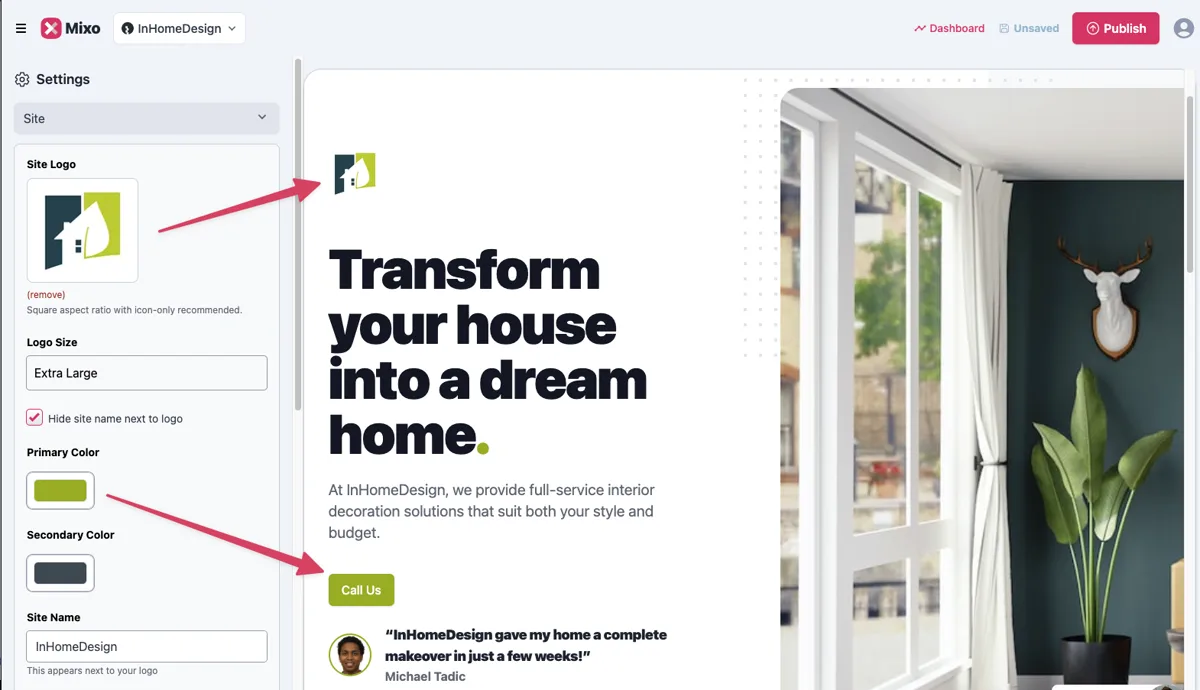
Open Settings, then Site. Upload your Site Logo, set the Logo Size, and pick a Primary Color and Secondary Color, so the page looks like your firm. Click Save. Mixo's docs explain that Save keeps your changes private, while Publish puts them on the internet.
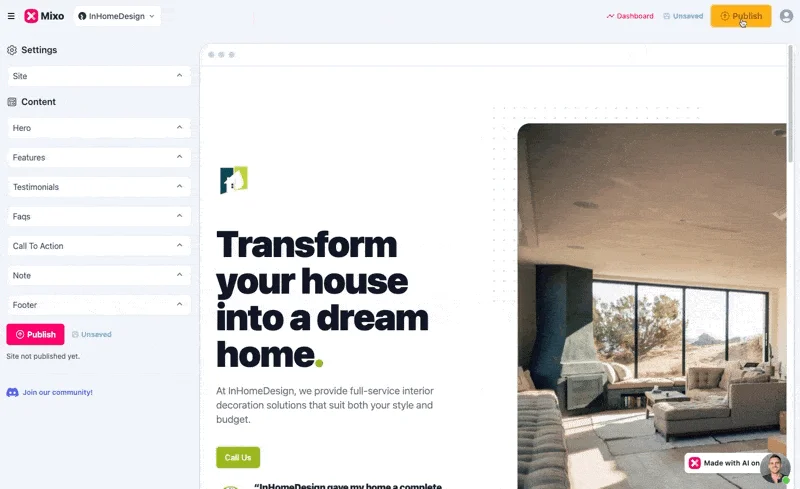
When the page reads well, click Publish at the top right. On the free plan the site goes on a Mixo address with hosting and SSL included. You may see a short processing status, then the dashboard shows sharing tools: a WhatsApp message, a social post to copy and local groups to share in. Mixo also tells search engines about the new page each time you publish. Changes you make later go live only when you publish again.
Step 5: see who signed up and follow up
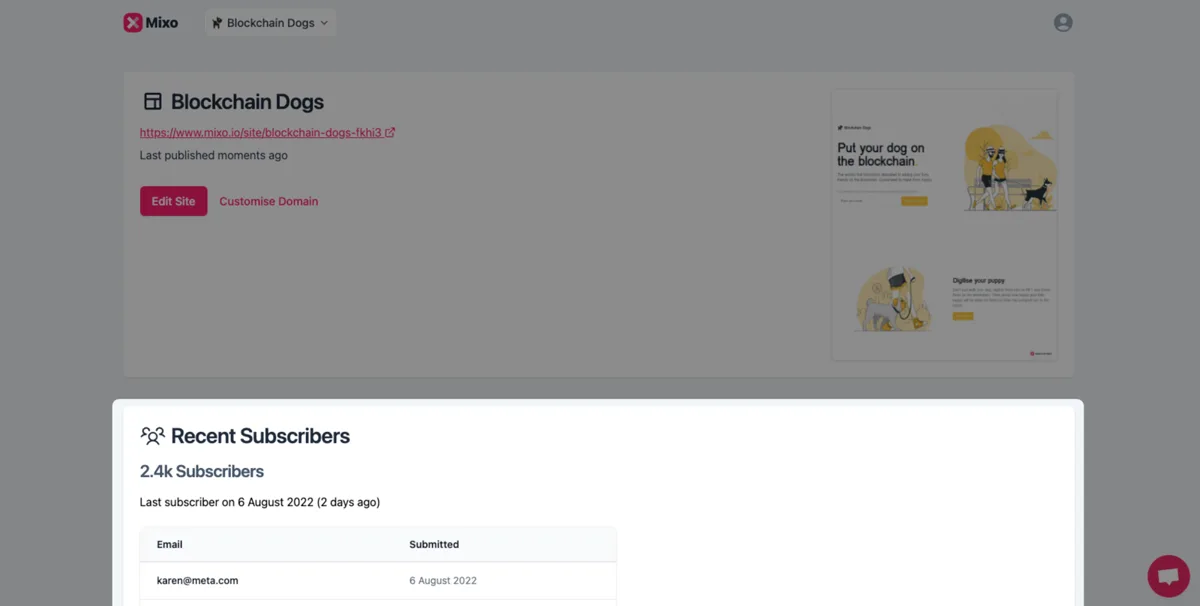
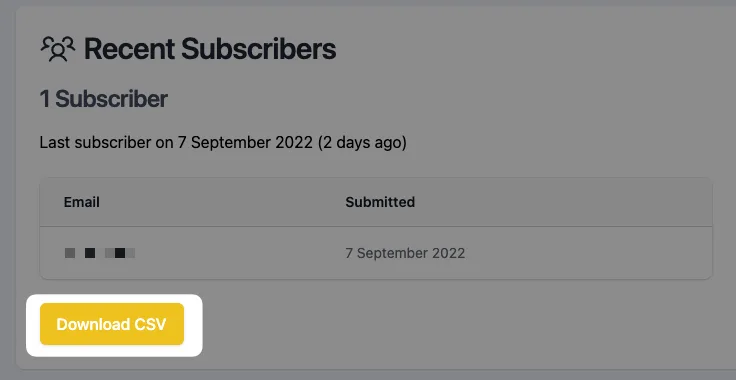
When someone enters their email and submits, Mixo adds them to your site's dashboard, and the help center says you also get an email notification. Open Dashboard and scroll down to Recent Subscribers: the count, the date of the last sign-up, and each email with its date. Once you have at least one subscriber, Download CSV exports the list for Excel or Google Sheets.
Email each person within a day. Mixo's own advice is to reply quickly and personally. When the deadline comes, count: if you reached your goal, build the service and offer it to the list first. If not, you saved the hours, and you can change the headline or the offer and test again.
Mistakes to avoid
- A vague idea sentence. "Bookkeeping" gets a generic page. Say the service, the customer and what they get.
- Leaving the AI's headline as it is. Read every line and make it say what the customer gets.
- Keeping the Primary Button on. You want emails, so switch to the Signup Form.
- Clicking Save and expecting the change to be live. Only Publish makes it public.
- Sharing the link without a goal and a deadline. Decide what number means yes before you start.
- Waiting a week to reply to sign-ups. They are most interested on the day they sign up.
Links
- Mixo: the AI website builder this lesson teaches.
- Tutorial: Create a free website on Mixo (Mixo help): Mixo's own walk-through: generate, save, edit, publish.
- Creating a Contact Us Call-To-Action Button (Mixo help): how to switch the hero button to a sign-up form.
- Where do my subscriber data go? (Mixo help): the subscriber list on your dashboard and its CSV export.
- Does Mixo have a free plan? (Mixo help): what the free plan includes. Check mixo.io/pricing for current paid plans.
Try it yourself, free
Reading the steps is a start. Doing them is how it sticks. The interactive module walks you through every click in a practice copy of Mixo, checks each step, and never touches your real accounts.
Start “Mixo: Launch a Landing Page and Collect Early Sign-ups”Step by step: Mixo: Launch a Landing Page and Collect Early Sign-ups
All 17 steps of the interactive module, in order. In the module you watch each one, then do it yourself in a practice copy that checks your work.
1. Test the idea before you build it
- Price the risk. Nora Okafor runs Lakeshore Ledger, a small bookkeeping firm (made up). She wants to add a new service, a monthly Cash-Flow Check-in: a 13-week cash forecast and a 30-minute call. Building it properly (templates, a checklist, pricing) is about 30 hours of her time. At $85 an hour, that is about $2,550 spent before she knows anyone wants it. Her test: a one-page site with a sign-up box, and a goal of 20 early sign-ups in 3 weeks. These are example numbers, so swap in your own. Click the total.
Meet Nora. She runs a small bookkeeping firm, and she wants to add a new service. Building it properly would take about thirty hours. That's real money, before she knows anyone wants it. So first, she'll test it. One page, one sign-up box, and a goal of twenty sign-ups.
- Meet Mixo. Mixo (mixo.io) is an AI website builder. You describe your idea in one sentence, it builds a site with the words, images and a sign-up form, and you edit and publish it. Mixo's help center says creating and publishing your first site is free, on a Mixo address such as yoursite.mixo.io. The Mixo screens in this lesson are screenshots from Mixo's own help center, linked under each one. They show Mixo's demo sites, so yours will show your own. Click the Mixo card.
Mixo is an A I website builder. You describe your idea in one sentence, and it builds the site. The screens in this lesson are screenshots from Mixo's own help center. So the names on them are Mixo's demo sites, not Nora's.
2. Describe the idea in one sentence
- Type the idea. Go to app.mixo.io and click Get Started. The first box asks for your idea in one sentence. Mixo's tutorial says to word it as a business idea, and the more specific the better: "an online hairdressing service" works better than "haircare". Type: *A monthly cash-flow check-in service for small business owners, run by Lakeshore Ledger, a bookkeeping firm, with a 13-week cash forecast and a 30-minute call each month*. You may also be asked to pick a goal, such as Promote a service, and a language. Click the idea box.
Go to app dot mixo dot io, and click Get Started. Be specific. Say what the service is, who it's for, and who runs it.
- Generate the site. Click Generate Site. Mixo's docs say you can watch the AI build a preview of your site, and that it usually takes around 60 seconds. Click Generate Site.
It takes about a minute, and you can watch it build.
- Try another style. The preview shows your site. Read the headline and the text: is this the service you meant? If you do not like the look, click Regenerate Style and pick a style from the menu. The words stay, the design changes. Click Regenerate Style.
Here's your preview. Read it. Is this the service you meant? Don't like the look?
3. Save it and open the editor
- Click Save and customize. Happy with it? Click Save and customize to save the site to your account. (The newer screenshot on the last step labels this button Save and Continue.) You may be asked to sign up or log in here. Mixo then shows upgrade options. To stay on the free plan, click Sites in the menu instead. Click Save and customize.
Happy with it? You may need to sign up or log in. Then, to stay on the free plan, just go to Sites.
- Click Edit Site. Your site is in your Sites list, marked Site not published yet. Next to it are Customize Domain, Site Settings and Edit Site. Click Edit Site to open the Mixo editor.
Your site is in the list, not published yet.
4. Make it ask for an email
- Open the Hero section. The editor has the sections of your page down the left, and a live preview on the right. The Hero is the top of the page: the headline, the text under it and the button. Click Hero.
On the left are the sections of your page. On the right is a live preview. The hero is the top of the page.
- Rewrite the headline. The AI wrote a headline. Make it say what the customer gets. In Title, type: *Know your cash for the next 13 weeks*. Under it, the Subtitle says who it is for and how it works, for example: *A 30-minute call each month and a 13-week forecast, from Lakeshore Ledger. Join the early list and we will tell you when it opens.* The preview updates as you type. Click Title.
Make the headline say what the customer gets. Then say who it's for in the subtitle.
- Turn on the sign-up form. Scroll down the Hero section to Primary Button and Signup Form. Mixo's docs say only one of the two can be on at a time. You want emails, not a click, so open Signup Form and tick Show Signup Form. The button in the preview becomes an email box with a button. Click Show Signup Form.
Only one can be on, the button or the form. You want emails, so tick Show Signup Form.
- Label the button. The form has a Placeholder (the grey text in the email box) and a Button Label. Change the label to *Join the early list*, so people know what they are signing up for. Click Button Label.
Now label the button, so people know what they're signing up for.
5. Save, then publish
- Add your logo and color. At the top of the editor, open Settings, then Site. Here you upload your Site Logo, set the Logo Size, and pick a Primary Color and Secondary Color. The arrows in Mixo's screenshot show where each one appears on the page. Use your firm's logo and color, so the page looks like you. Click Primary Color.
Upload your logo, and pick your brand color.
- Click Save. Click Save at the top. Mixo's docs explain the difference: Save keeps your changes private, so you can come back later. Nothing is public yet. Click Save.
Saving keeps your work. It doesn't make anything public.
- Click Publish. Publish makes the site live. On the free plan it goes on a Mixo address, such as yoursite.mixo.io, with hosting and SSL included. You may see a short processing status, then the site is live and the dashboard shows sharing tools. Changes you make later only go live when you publish again. Before you click it, ask a colleague to read the page once. Click Publish.
Publish makes it live, on a free Mixo address. Later changes only go live when you publish again.
6. See who signed up
- Read Recent Subscribers. Share the link with your clients and contacts. When someone enters their email and submits, Mixo adds them to your site's dashboard, and its docs say you also get an email notification. Open Dashboard and scroll down to Recent Subscribers: the count, the date of the last sign-up, and each email with its date. The screenshot shows Mixo's demo site. Click Recent Subscribers.
Share the link. Every time someone signs up, Mixo adds them to your dashboard, and emails you.
- Download the list. Once you have at least one subscriber, Download CSV exports the list. Open it in Excel or Google Sheets, and email each person within a day to book their first check-in. Mixo's help center says a quick, personal reply is how you keep sign-ups interested. Click Download CSV.
Once someone signs up, click Download C S V. Then email each person within a day.
7. What to do next
- Decide with real numbers. In three weeks, count the sign-ups. If Nora reaches 20 early sign-ups, she builds the service and emails the list first. If she gets three, she has saved about 30 hours and can test a different offer with a new headline. Click the decision card.
In three weeks, count the sign-ups. Twenty? Build the service, and email the list first. Three? You just saved thirty hours. Try a different headline.
Screenshots


Frequently asked questions
- Is this an official Mixo course?
- No. This is my own lesson. Mixo is a separate, third-party product from mixo.io. The screenshots come from Mixo's own help center and are credited and linked under each one.
- Is Mixo free?
- Mixo's help center says the free plan lets you create, edit and publish a website on a Mixo subdomain, such as yoursite.mixo.io, with hosting, SSL and Mixo branding, and one page. Paid plans add a custom domain, more pages, removing the branding and features such as Google Analytics. Check mixo.io/pricing for current plans.
- Where do the sign-ups go?
- To your site's Mixo dashboard, under Recent Subscribers. You get an email notification for each one, and Download CSV exports the list once you have at least one.
- Can I use my own domain?
- Yes, on a paid plan. Mixo's help center explains how to buy a domain through Mixo or connect one you already own.
- How long does Mixo take to build a site?
- Mixo's docs say the AI usually generates the preview in around 60 seconds.
- Can Mixo make the site in another language?
- Yes. When you start, you can be asked to pick the language for the text on your site.
More in Business Automations
 AI Receipt Extractor: Receipts to Google Sheets with n8n
Drop a photo of a receipt into an n8n chat. An AI agent reads it, pulls out the date, vendor and amount, picks a category, and adds a row to Google Sheets.
Free · Live ~12 min Intermediate
 n8n AI Email Responder: Draft Gmail Replies Automatically
Build an n8n agent that watches your Gmail, reads each new customer email, and writes a reply as a draft in the same thread, ready for you to check and send.
Free · Live ~12 min Intermediate
 Daily Job Alerts: Email Each Tech Their Jobs from Google Sheets with n8n
Every morning at 7, n8n reads a plumbing company's jobs sheet, skips anything not assigned yet, and emails each job to the tech it's assigned to — customer, address…
Free · Live ~10 min Intermediate
 Gmail AI Triage: Auto-Label Every Email and Draft Replies
Build an n8n workflow that reads each new email, sorts it as a lead, a client or an invoice with a Text Classifier, adds the matching Gmail label, and drafts a reply to…
Free · Live ~18 min Advanced
 A Support Agent That Answers from Your Own Docs
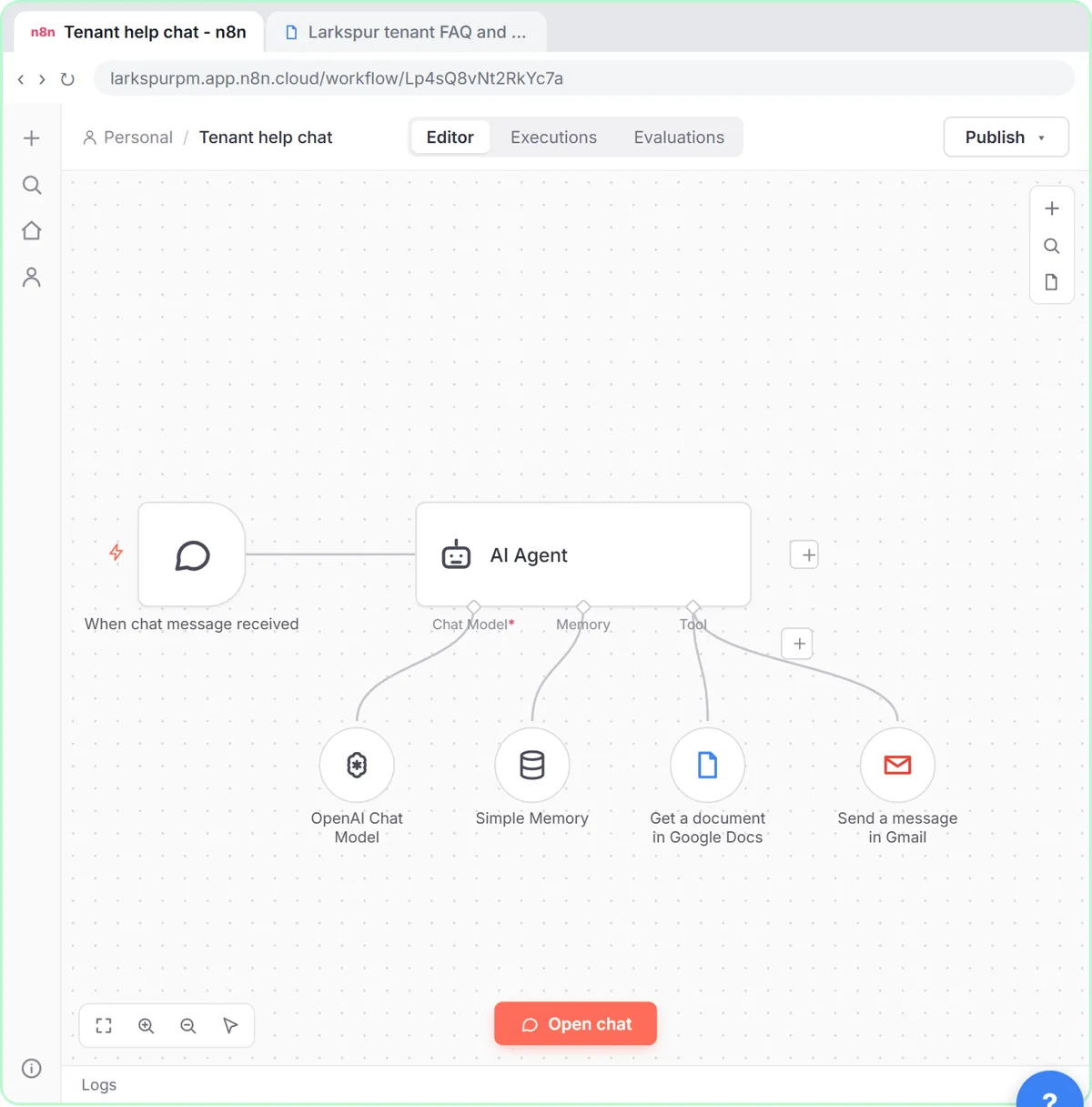
Turn an n8n chat agent into a support agent that answers only from your policies in a Google Doc, refuses what it should, and hands off to a person by email.
Free · Live ~13 min Advanced
All 7 modules in Business Automations
Terms in this lesson
Plain-English definitions, each with an example from a free lesson.