Updated . Built against the tool’s current screens and checked step by step. How we check this lesson
A beginner Word for the web walkthrough on real screens: turn rough meeting notes into a one-page client update with heading styles, bullets, a next-steps table and a comment for a colleague.
At a glance
| Question | Answer |
|---|---|
| What you build | A beginner Word for the web walkthrough on real screens: turn rough meeting notes into a one-page client update with heading styles, bullets, a next-steps table and a comment for a colleague. |
| Tools | Word |
| Time | About 12 minutes, 21 steps in 5 parts |
| Level | Beginner, no coding needed |
| Cost | Free |
| Ways to learn it | Practice it step by step |
The 5 parts, in short
- Start the update: Create a blank document, Close the Copilot box, Rename the file, Name it Client update, Harbor Accounting, and 1 more step.
- Headings from styles: Open the Styles list, Title, Style the Summary line, Heading 1.
- Bullets for what you did: Select what you did, Bullets.
- A next-steps table: Open the Insert tab, Table, Pick 3 by 4, Fill in the next steps, and 2 more steps.
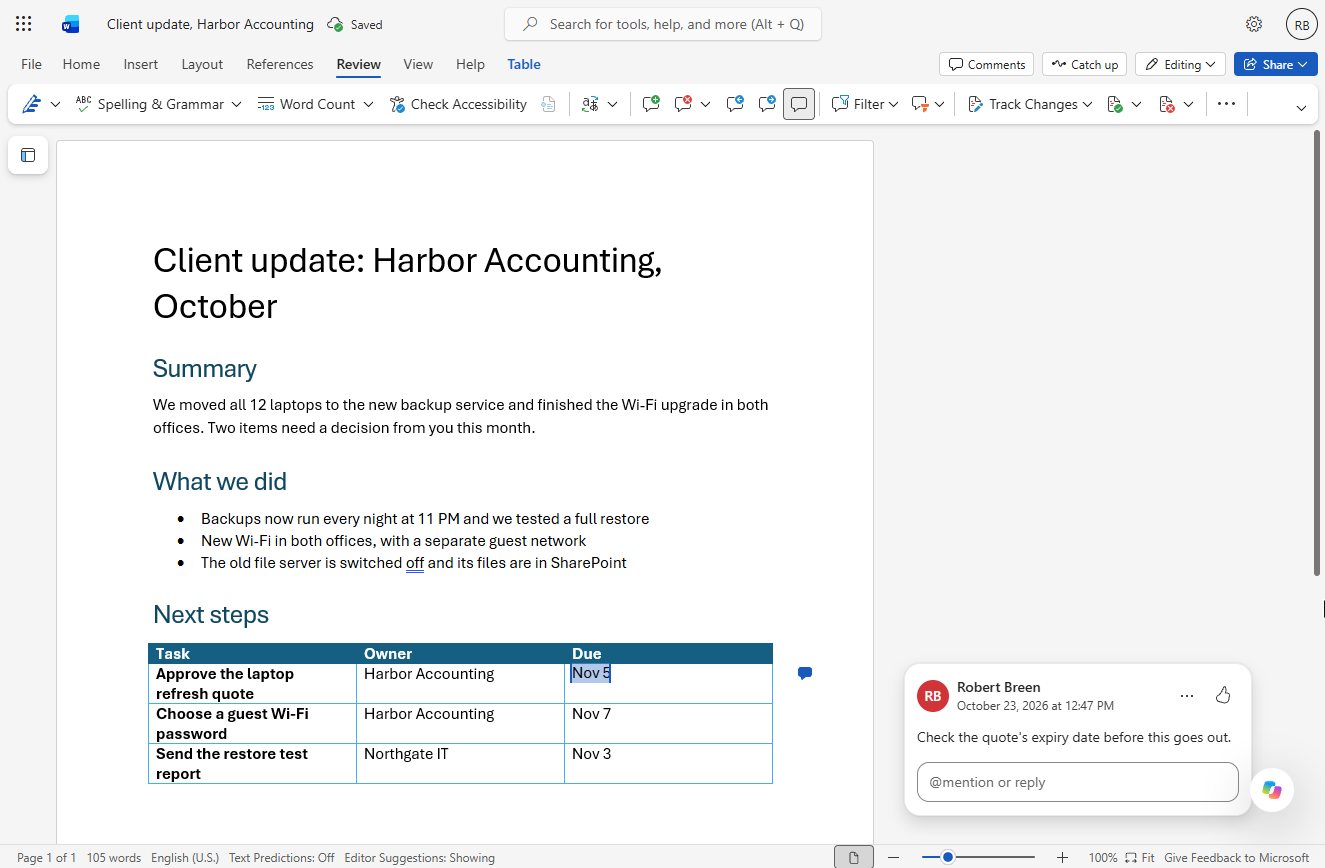
- A comment before it goes out: Select a date and open Review, New Comment, Write the comment, Post it.
Start here first: Excel for the Web: Your First Budget Spreadsheet (module 1 of Microsoft 365)
What you'll build
Dana (made up) is an account manager at Northgate IT, a small IT services firm. After every monthly check-in she owes the client an update, and she used to spend half an hour fixing fonts and lining up a list of who does what by when. In this lesson you turn her rough notes for Harbor Accounting into a clean one-page update: a title and headings that come from styles, a bulleted list, a next-steps table and a comment that asks a colleague to check one date. Every screen is a real Word for the web screen.
You gave the update a Title and Heading 1 sections, turned what was done into bullets, put the three next steps in a styled table with owners and dates, and left a comment so a colleague checks the quote date before it goes out. Next month, copy this file and change the words: the look stays. Now do it in your own Microsoft account: the lesson page has the checklist.
- Tools: Word
- Time: about 12 minutes, 21 steps in 5 chapters
- Level: beginner, no coding needed
- Price: free
Practice first, then build it for real
Practice copy built from real Word for the web screens (Microsoft 365, captured 23 October 2026). Nothing here touches your Microsoft account. The IT firm, its client and the notes are made up. To build it for real you need your own Word account, and some services charge once you use them for real work, so check each tool's current pricing.
Try it yourself, free
Reading the steps is a start. Doing them is how it sticks. The interactive module walks you through every click in a practice copy of Word, checks each step, and never touches your real accounts.
Start “Word for the Web: Turn Meeting Notes into a Client Update”Step by step: Word for the Web: Turn Meeting Notes into a Client Update
All 21 steps of the interactive module, in order. In the module you watch each one, then do it yourself in a practice copy that checks your work.
1. Start the update
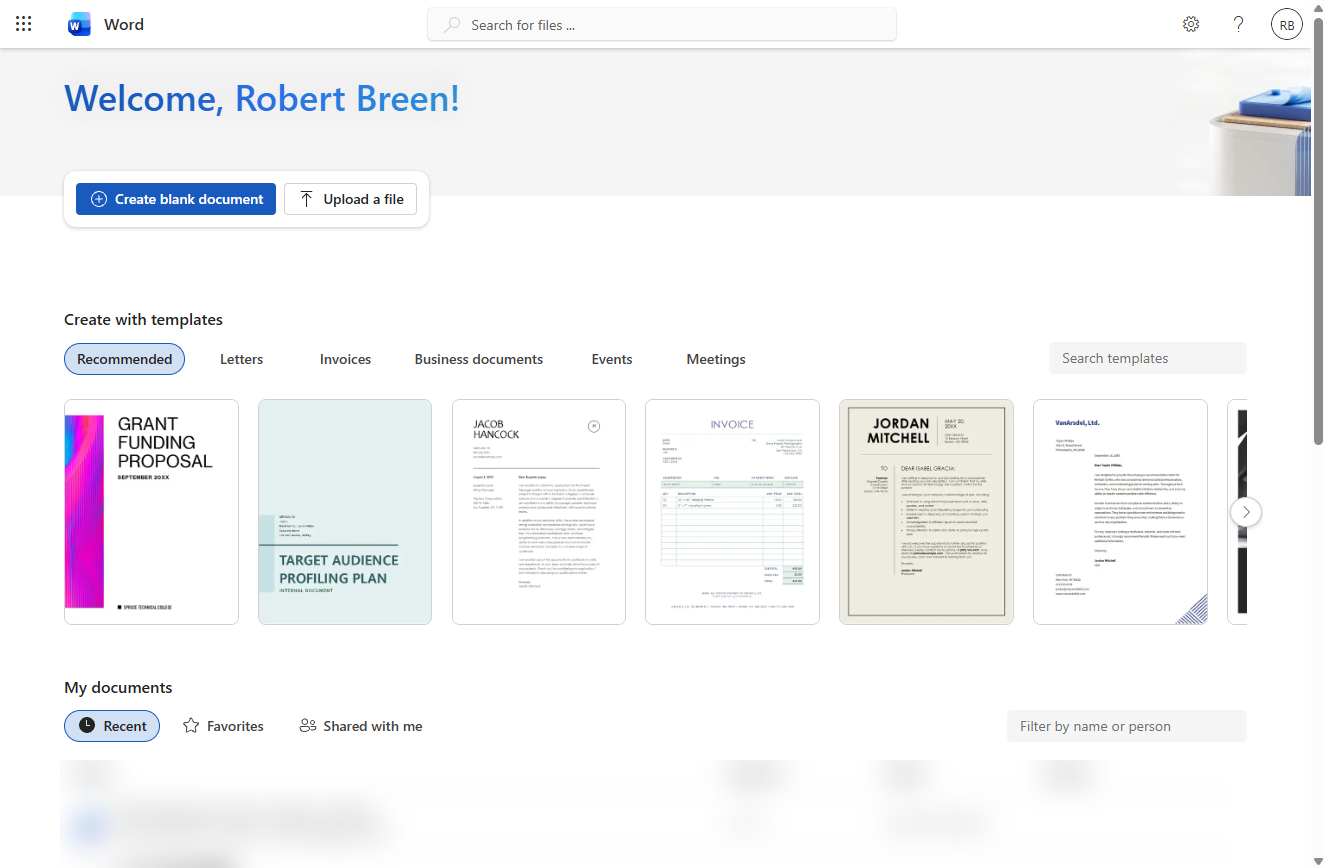
- Create a blank document. Open Word for the web (from microsoft365.com, or the app launcher in any Microsoft 365 app). Click Create blank document.
This is the Word start page.
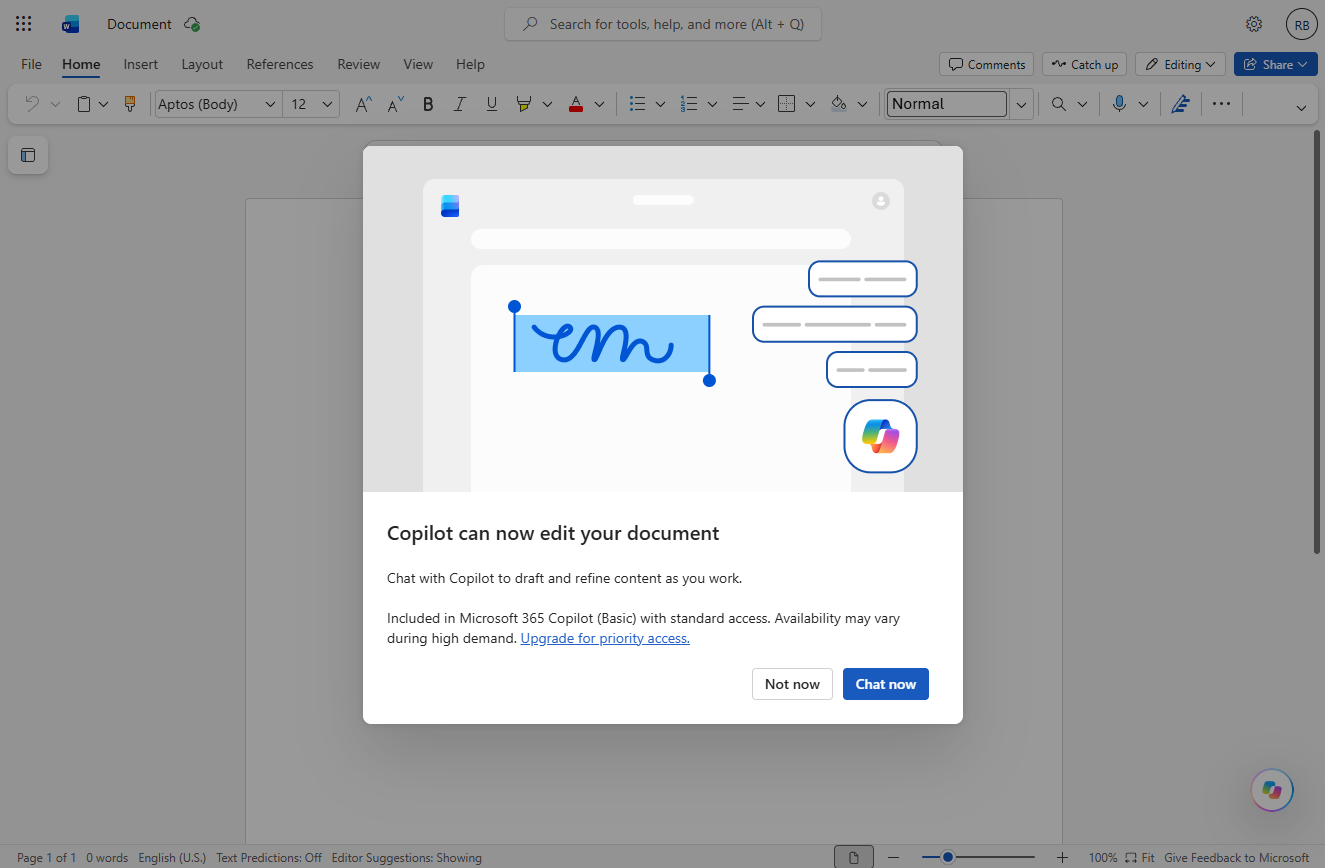
- Close the Copilot box. The first time, Word may show Copilot can now edit your document. This lesson does it by hand, so click Not now. (No box? Go straight on.)
Word may offer Copilot the first time.
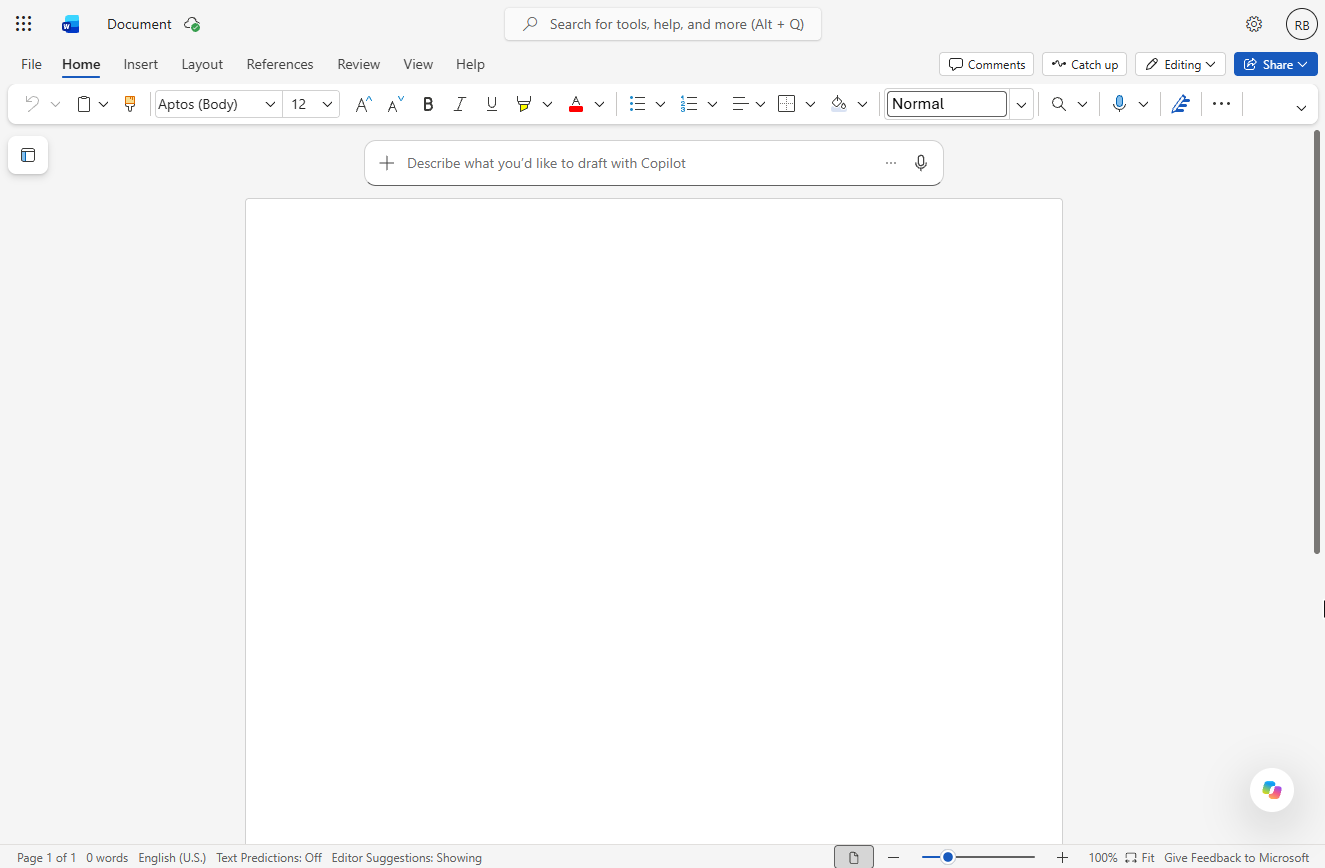
- Rename the file. New files are called "Document". Click the file name at the top. Word for the web saves as you go.
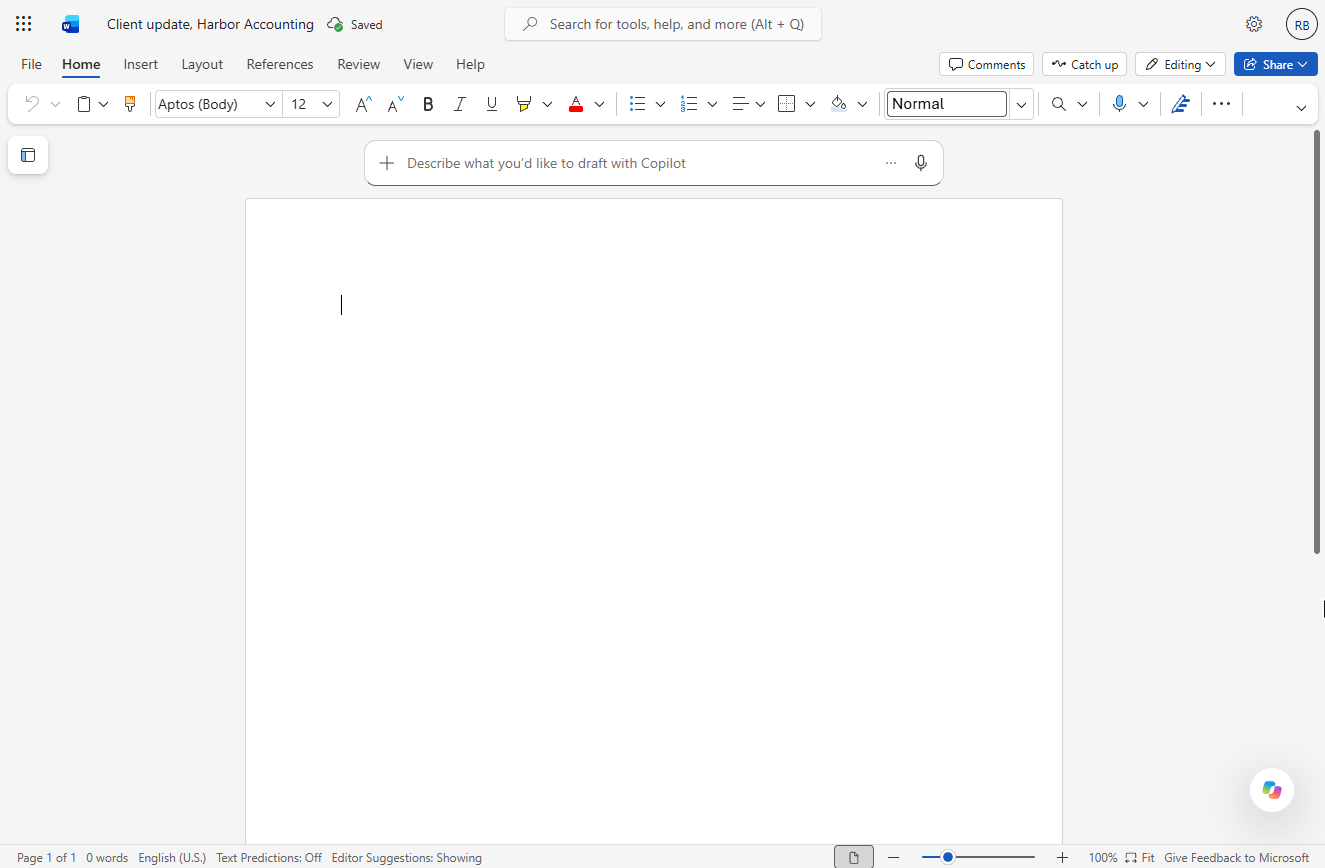
- Name it Client update, Harbor Accounting. Type Client update, Harbor Accounting and press Enter.
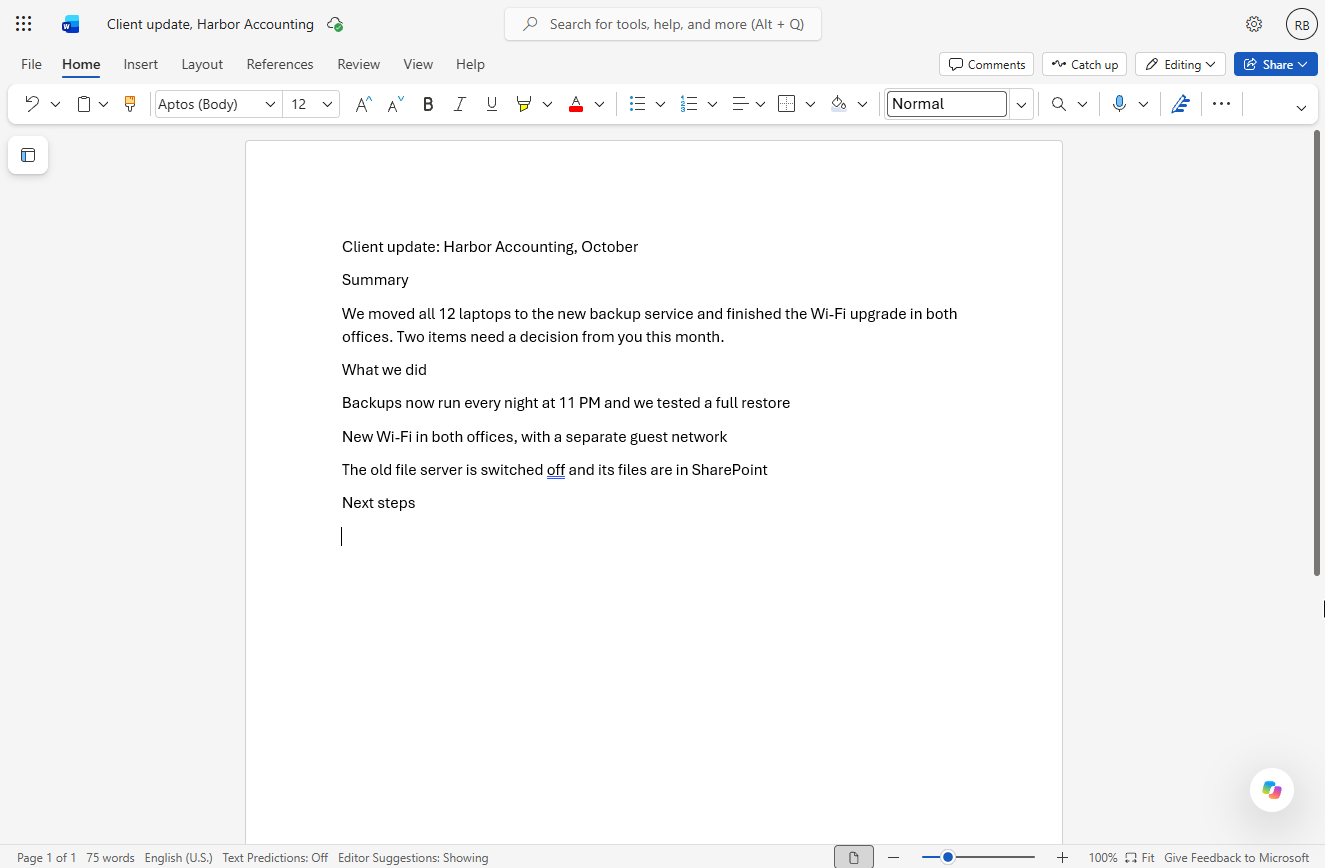
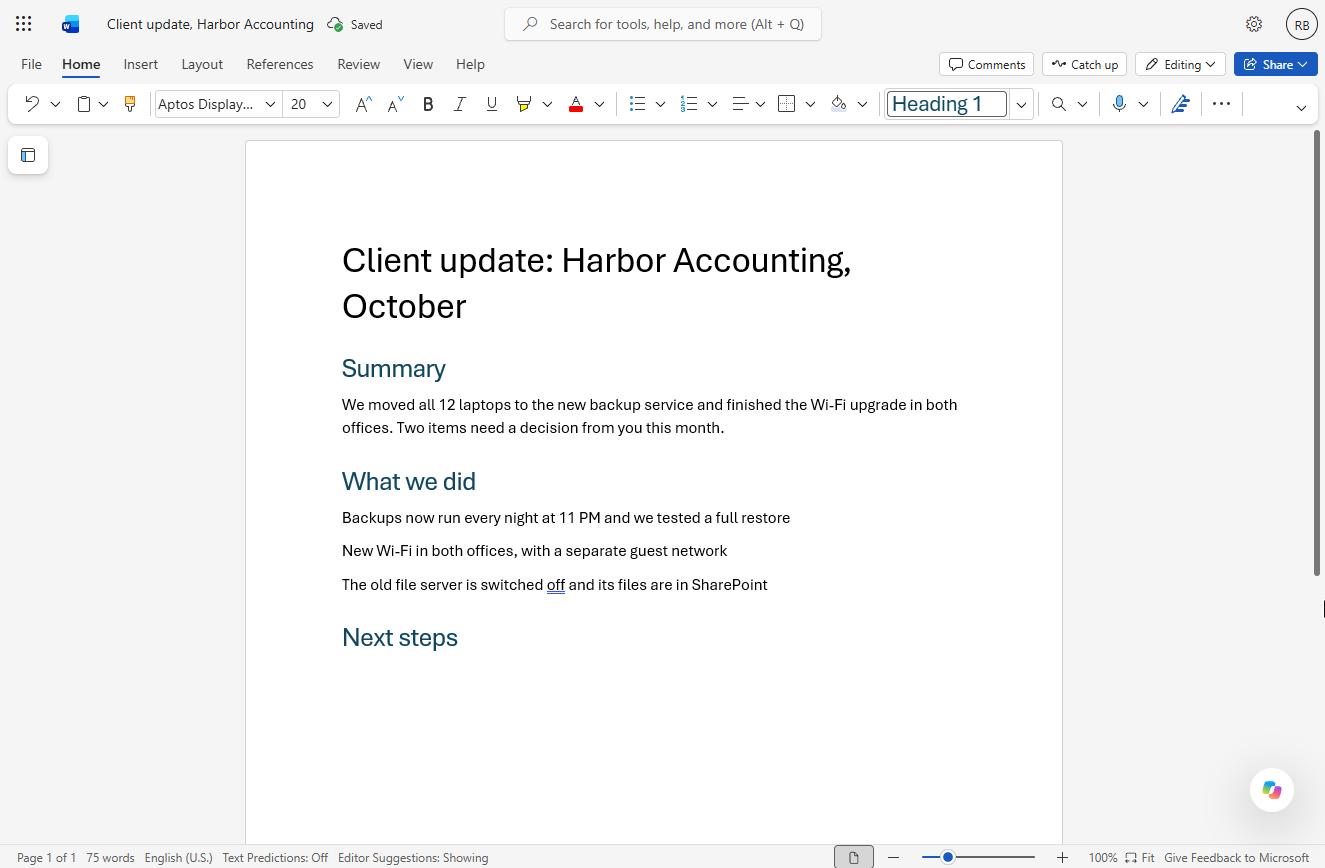
- Paste the rough notes. Click in the page and paste (or type) the notes from the meeting: a title line, Summary, one paragraph, What we did, three lines and Next steps. Everything is plain text in the Normal style.
Right now everything looks the same.
Client update: Harbor Accounting, October
Summary
We moved all 12 laptops to the new backup service and finished the Wi-Fi upgrade in both offices. Two items need a decision from you this month.
What we did
Backups now run every night at 11 PM and we tested a full restore
New Wi-Fi in both offices, with a separate guest network
The old file server is switched off and its files are in SharePoint
Next steps
2. Headings from styles
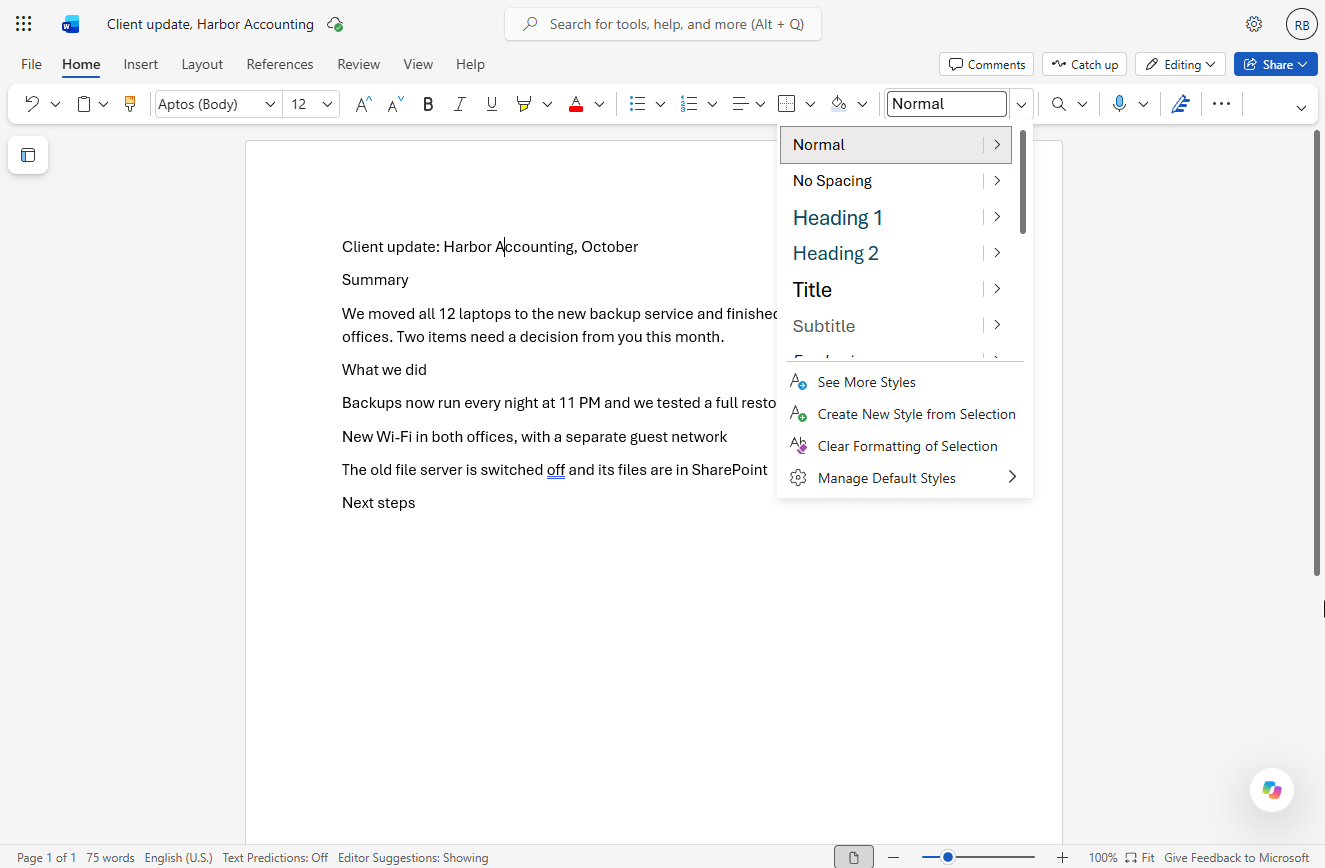
- Open the Styles list. Click anywhere in the first line, then click the arrow next to the Styles box on the Home tab (it says Normal).
It says Normal.
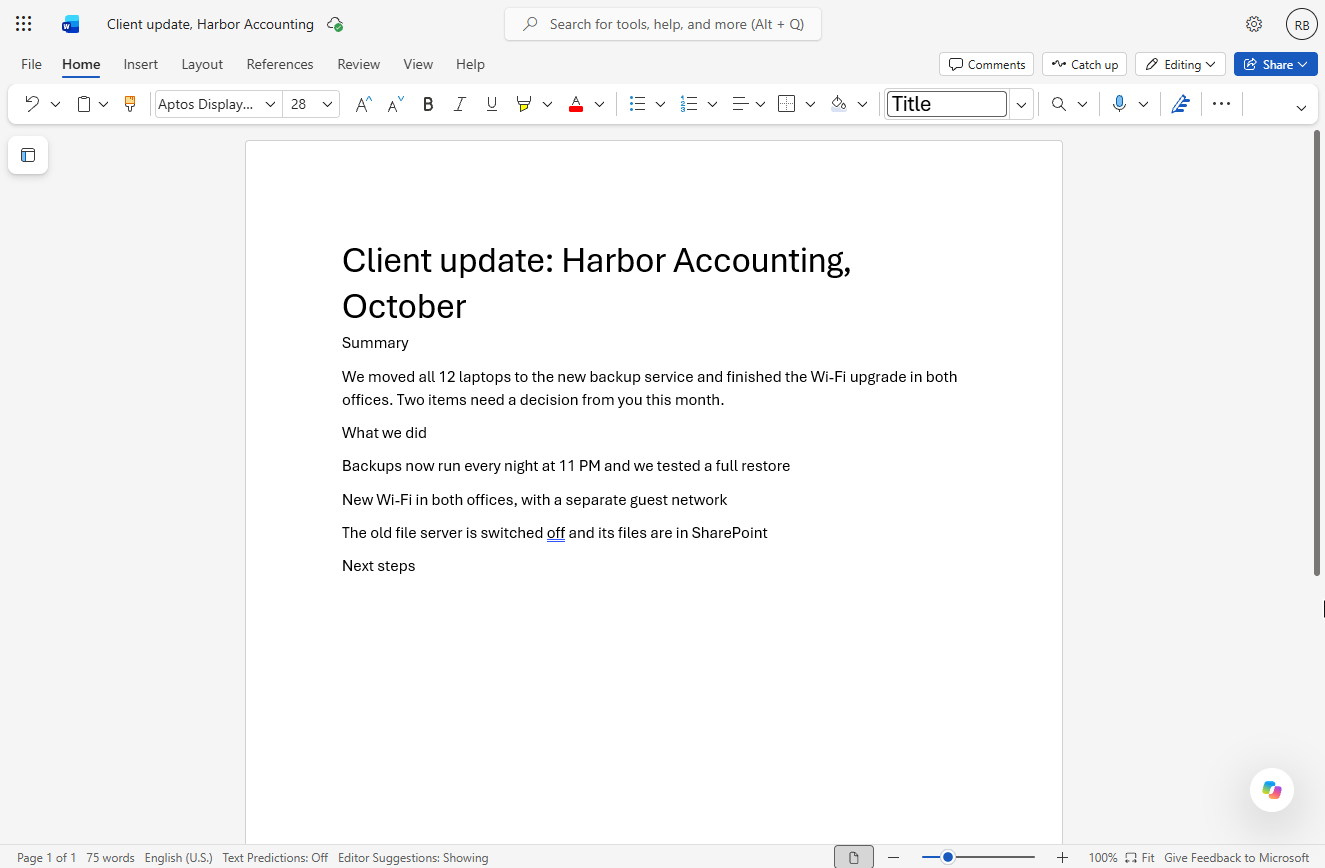
- Title. Click Title.
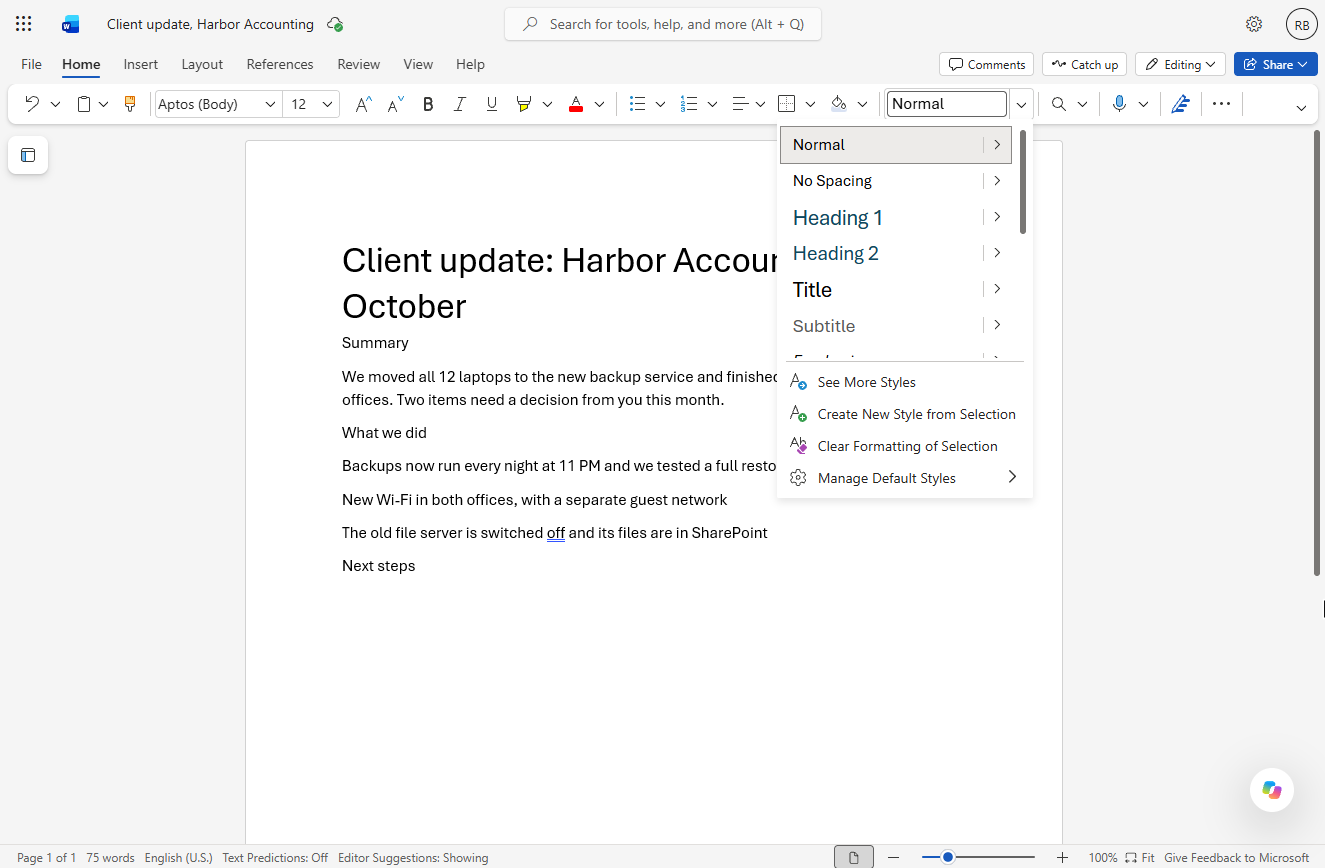
- Style the Summary line. The first line is now a big title. Click in Summary and open the Styles arrow again.
- Heading 1. Click Heading 1. Then do the same for What we did and Next steps: click in the line, Styles arrow, Heading 1.
Then do the same for What we did, and Next steps.
3. Bullets for what you did
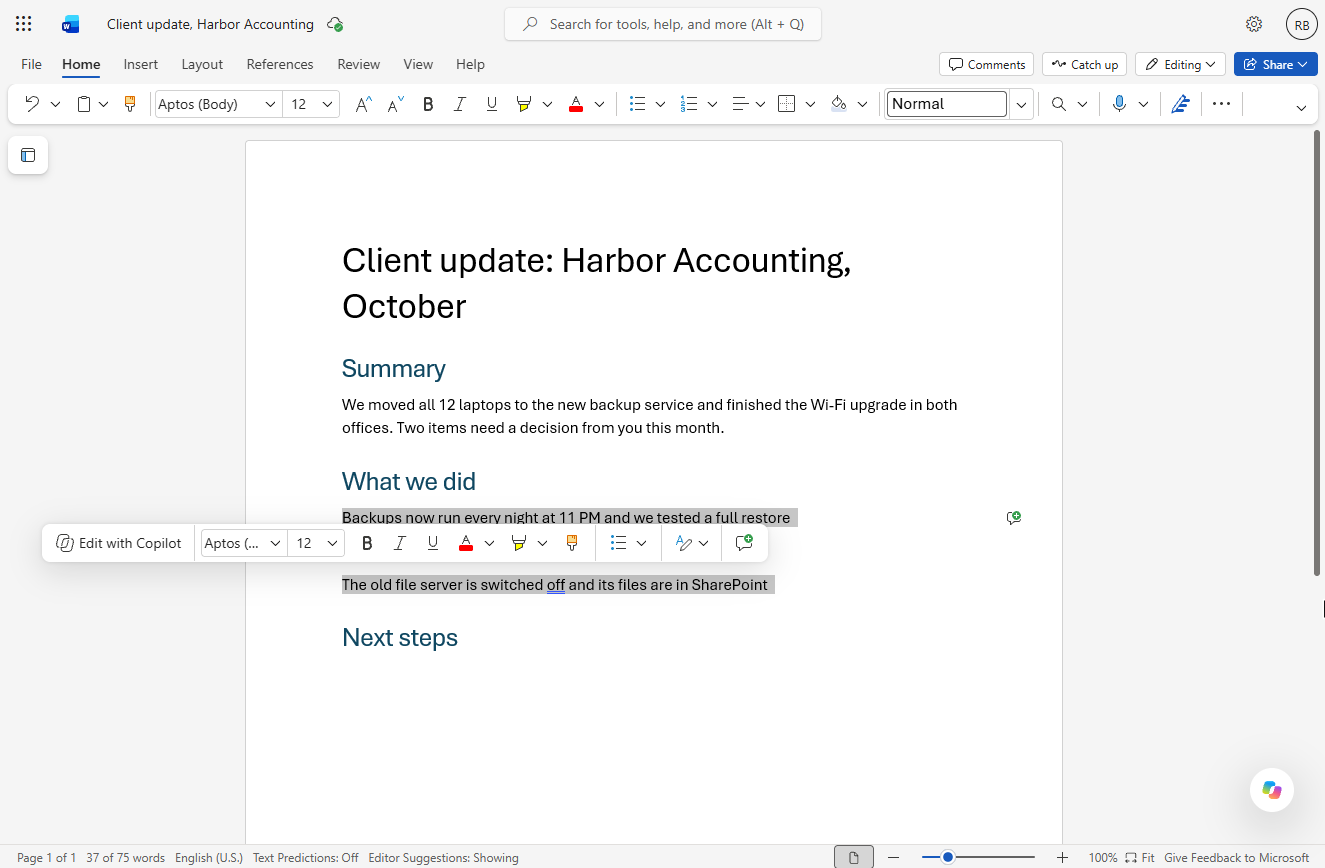
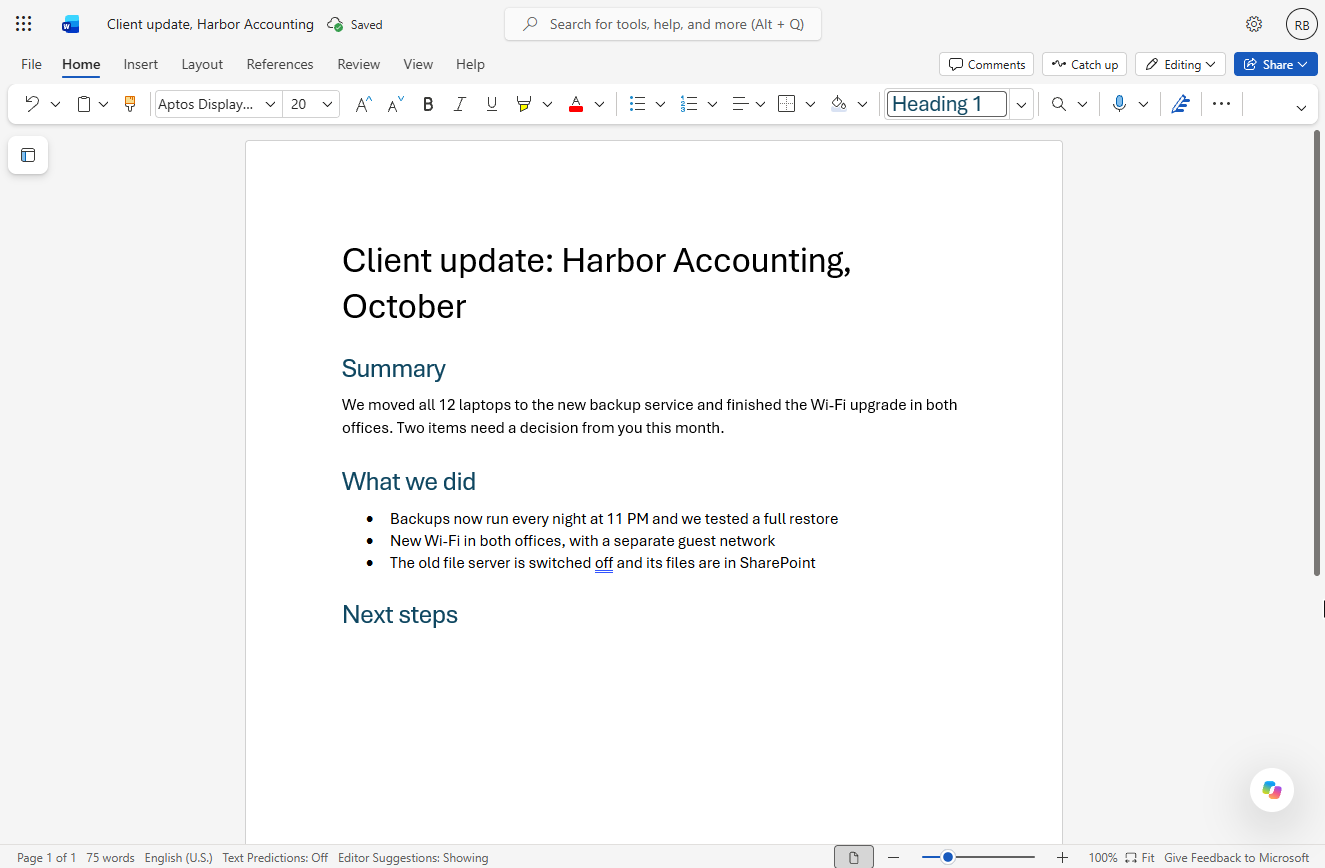
- Select what you did. The update has a title and three blue headings. Select the three lines under What we did: click before Backups, then Shift+click after SharePoint.
- Bullets. A small toolbar pops up next to the text; you can ignore it. Click Bullets on the Home tab.
4. A next-steps table
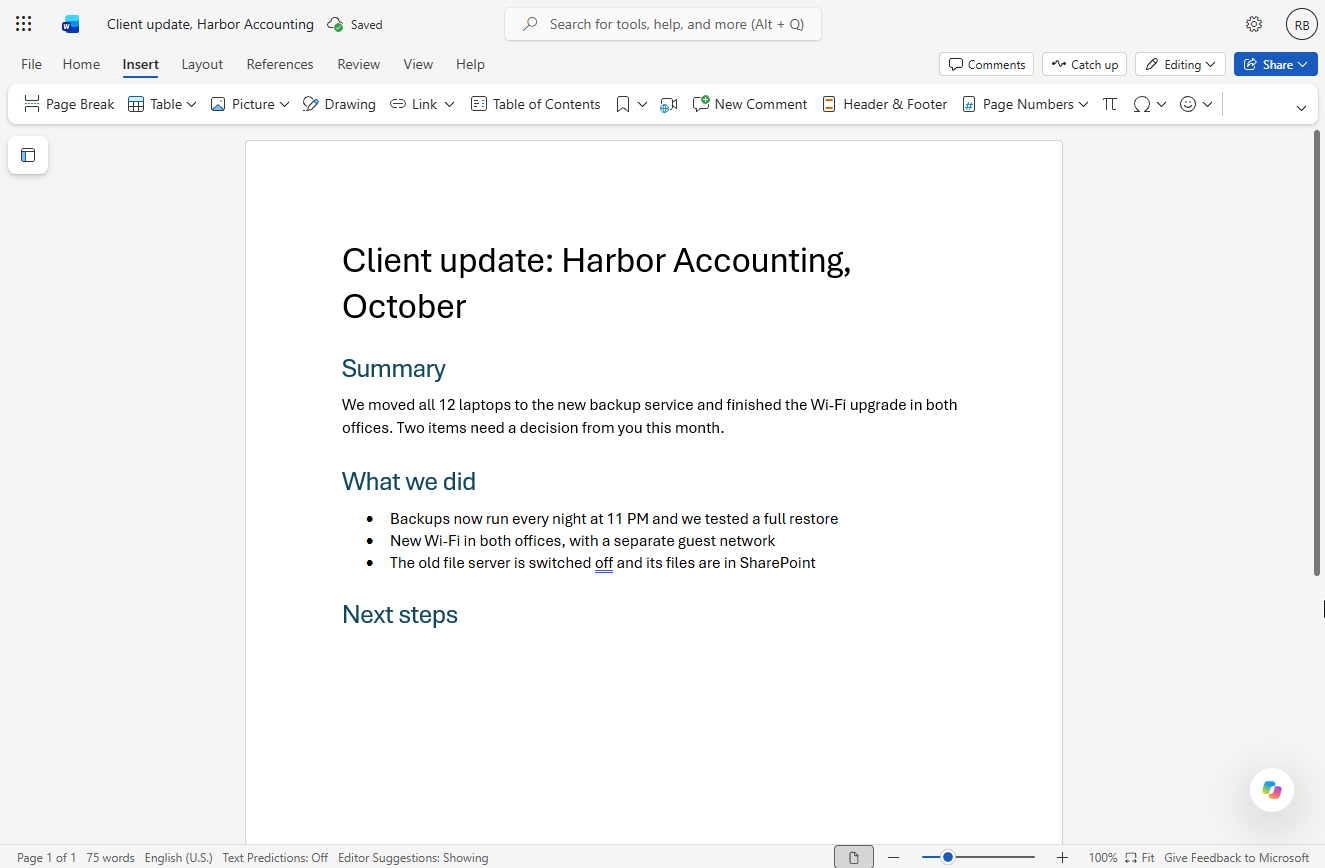
- Open the Insert tab. Click at the end of Next steps and press Enter for a new line. Then click the Insert tab.
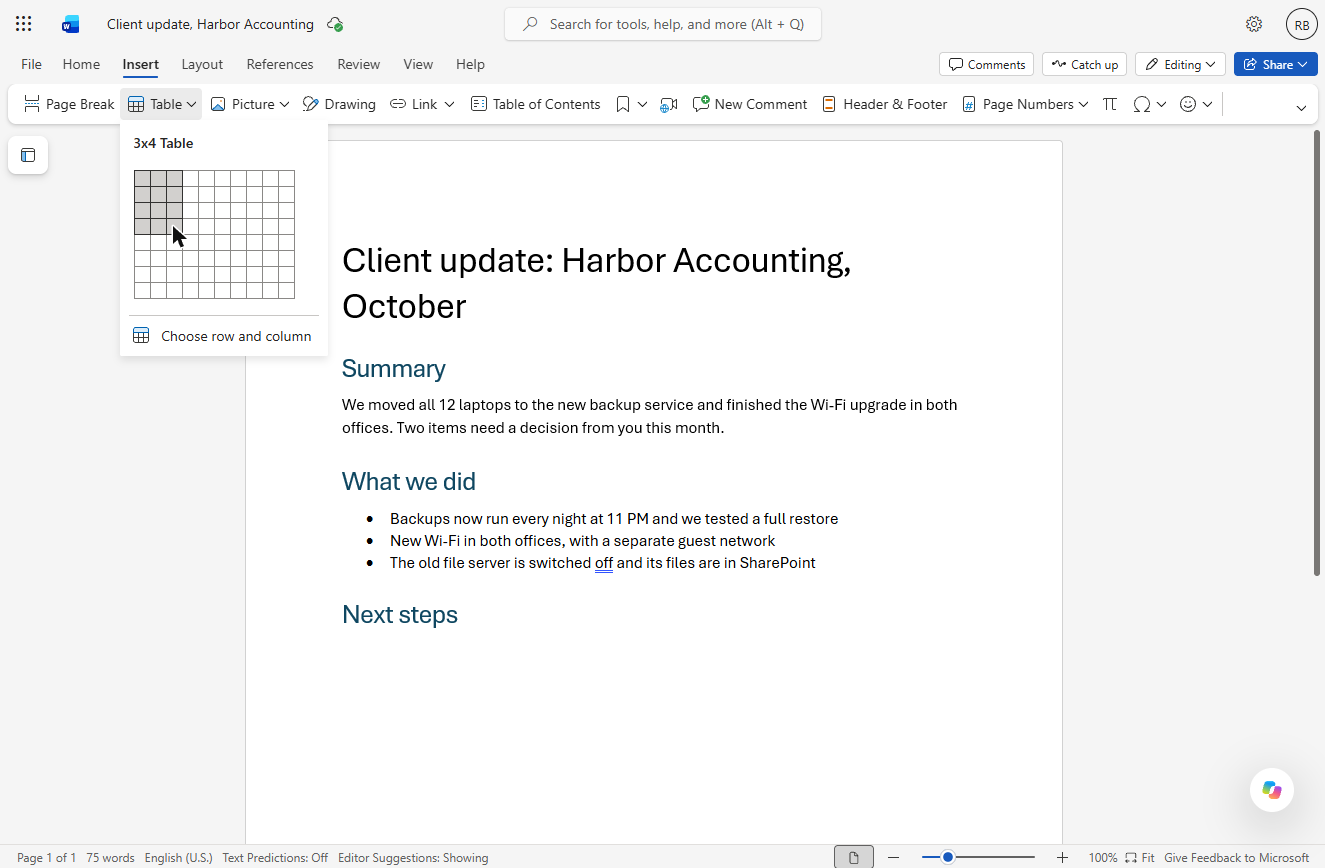
- Table. Click Table.
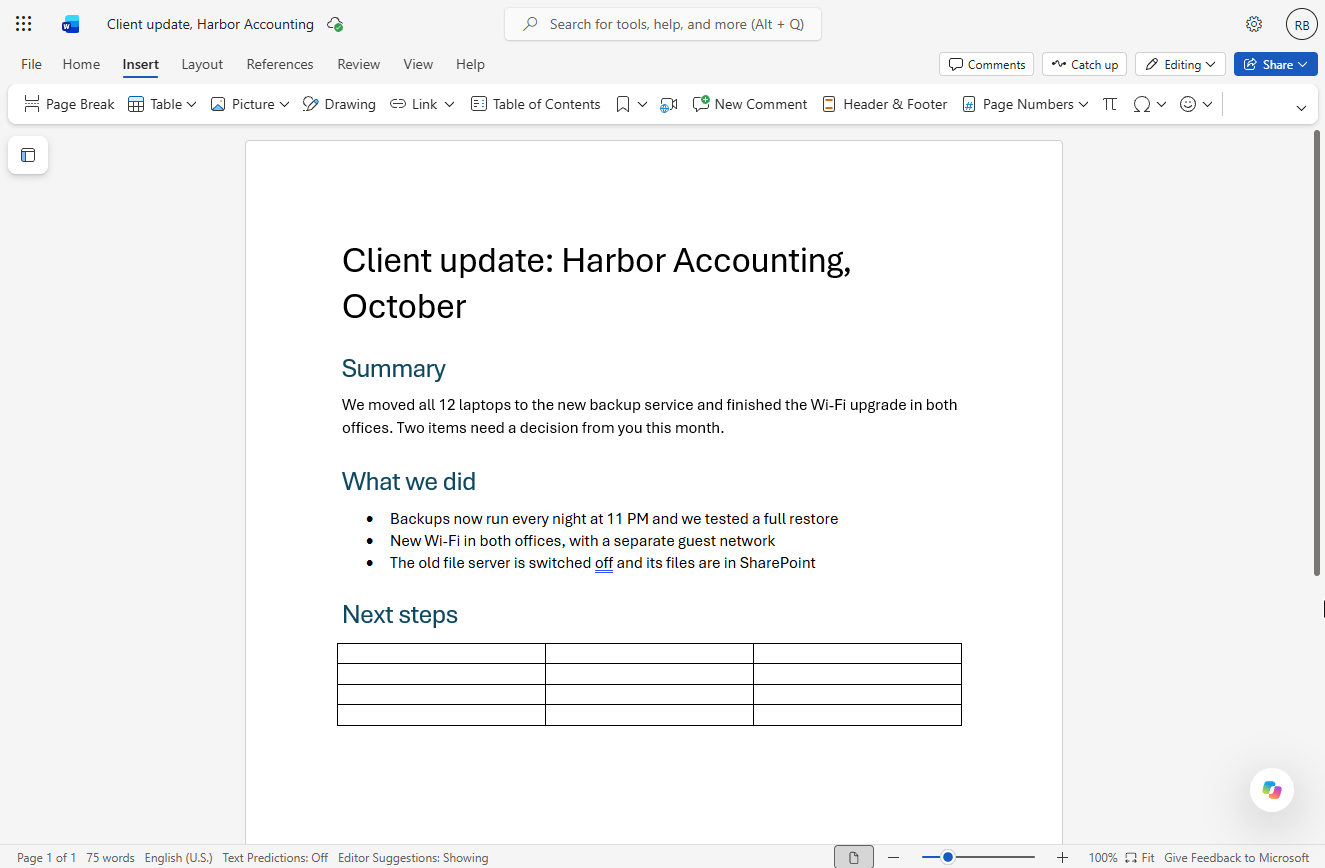
- Pick 3 by 4. Move over the grid until it says 3x4 Table (3 columns, 4 rows) and click.
Pick three columns and four rows, and click.
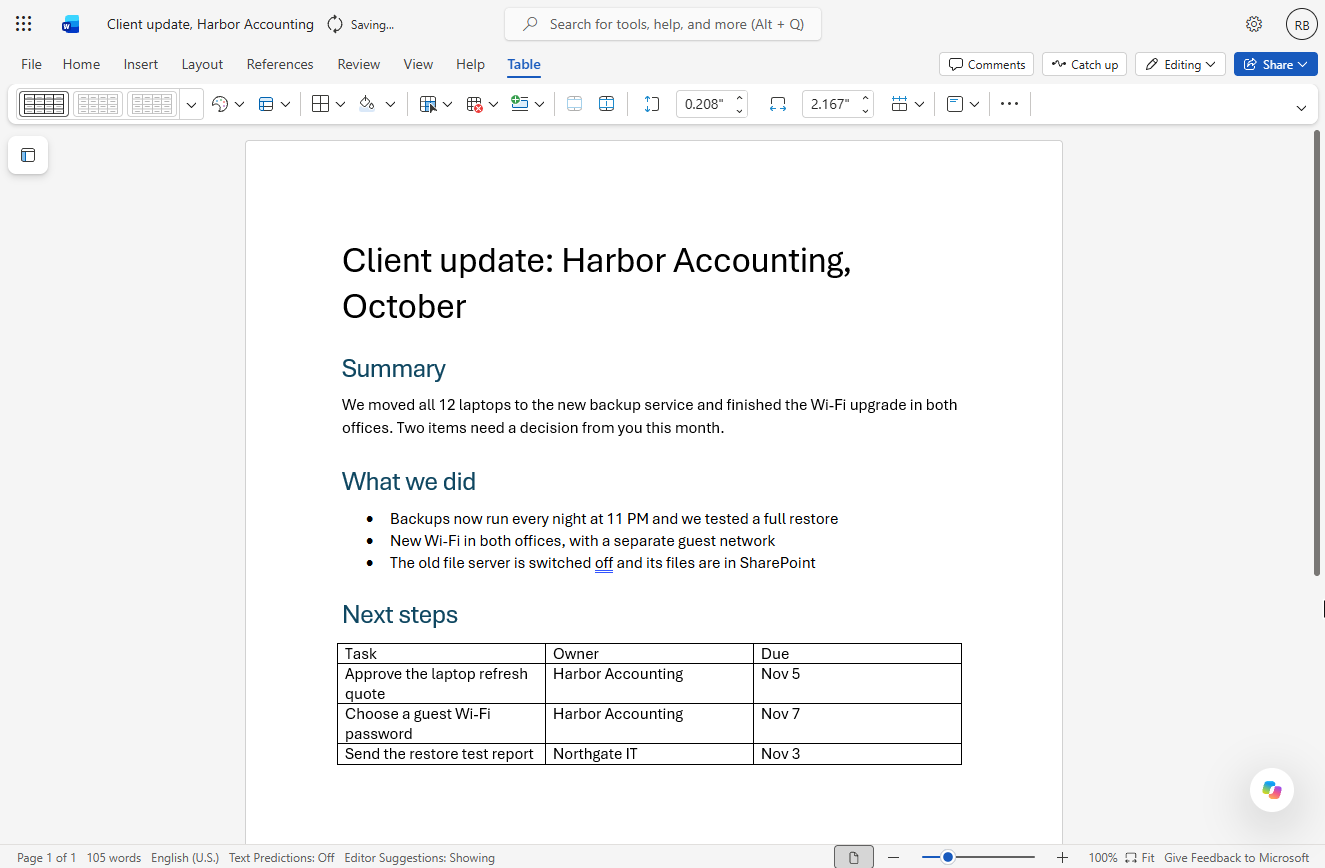
- Fill in the next steps. Click the first cell and type Task, Owner and Due, pressing Tab to move to the next cell. Then the three tasks: approve the laptop refresh quote (Harbor Accounting, Nov 5), choose a guest Wi-Fi password (Harbor Accounting, Nov 7) and send the restore test report (Northgate IT, Nov 3).
Fill in the table. Task, Owner and Due, then the three tasks.
Task	Owner	Due
Approve the laptop refresh quote	Harbor Accounting	Nov 5
Choose a guest Wi-Fi password	Harbor Accounting	Nov 7
Send the restore test report	Northgate IT	Nov 3
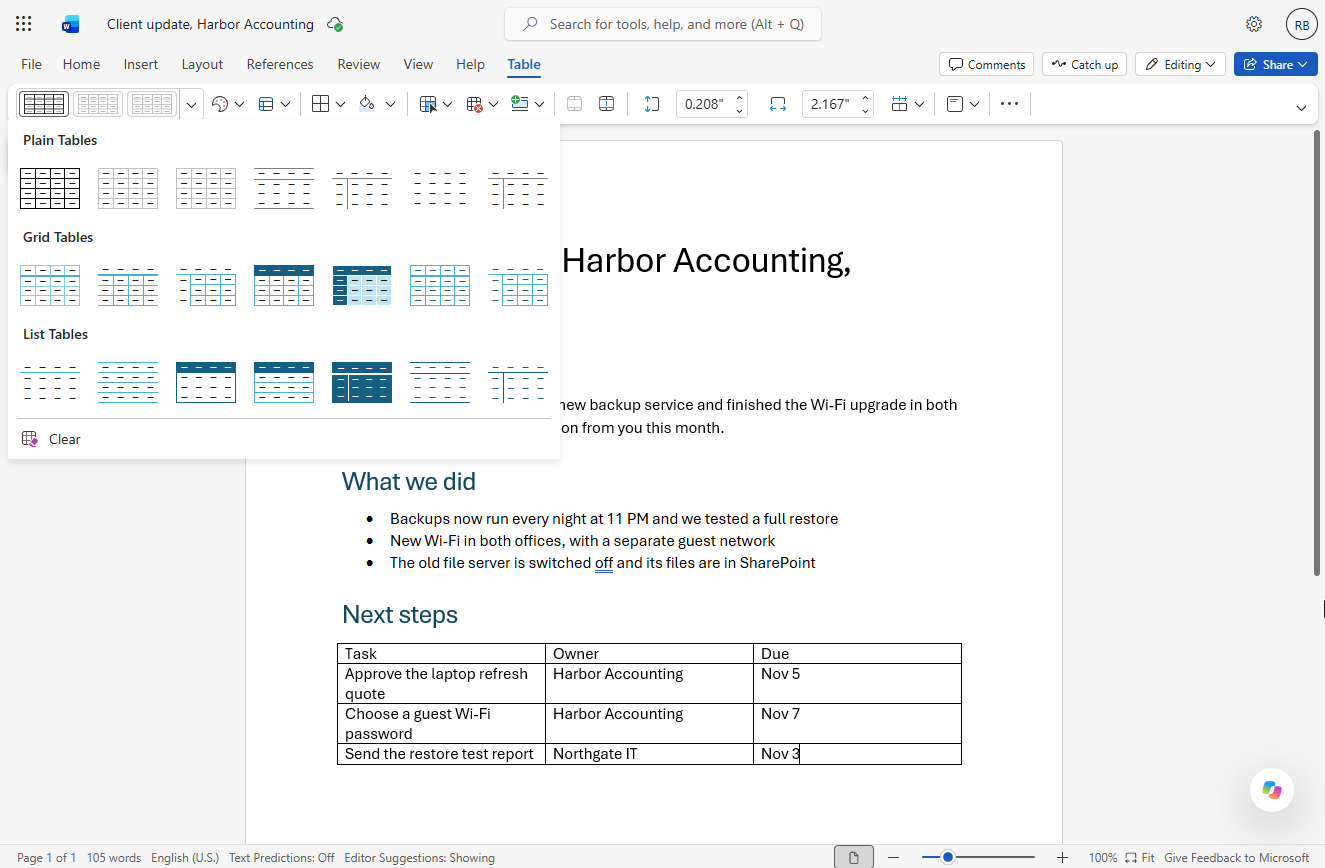
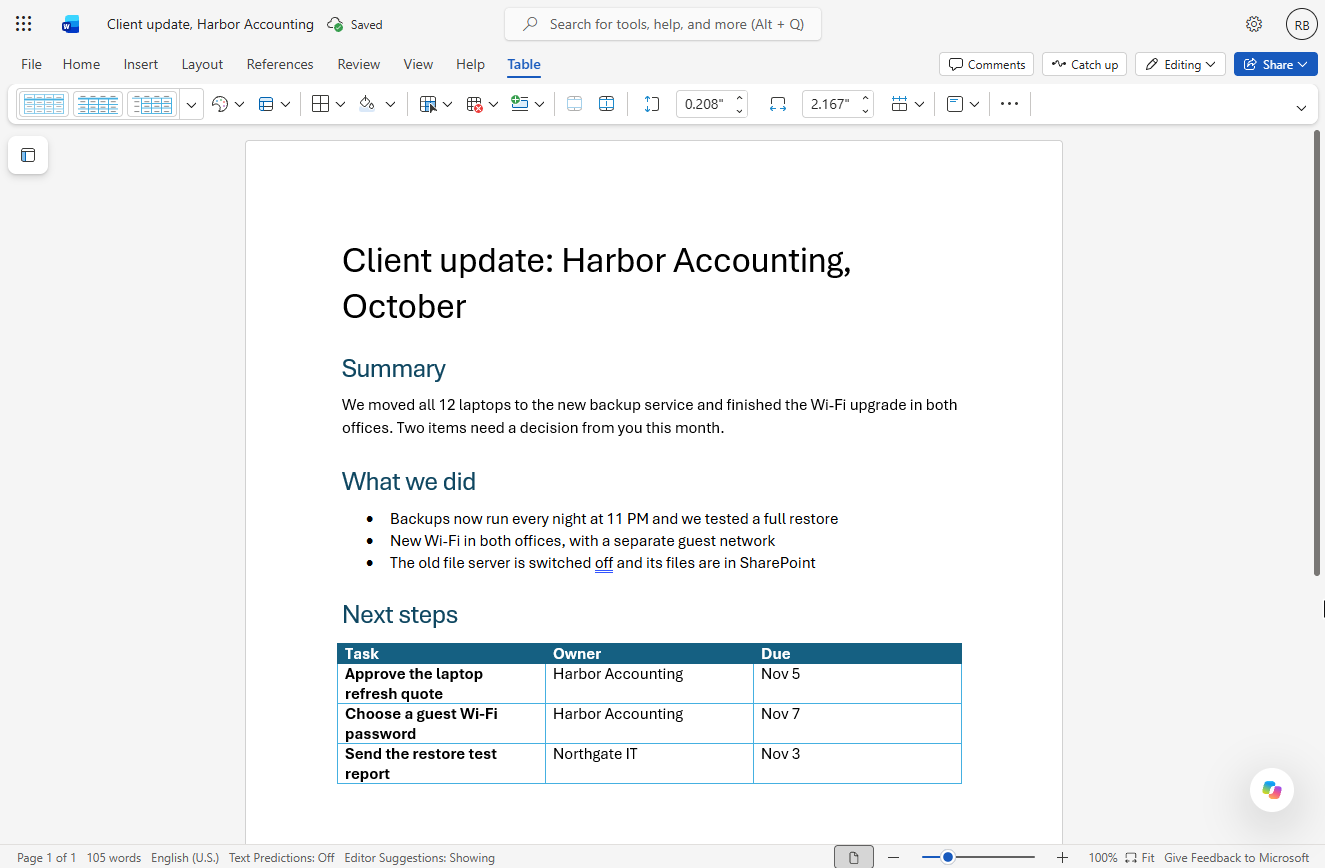
- Open the table styles. With the cursor in the table, Word shows the Table tab. Click the arrow next to the three style pictures.
The Table tab is open.
- Pick a style. Under Grid Tables, pick the one with the dark header row.
Under Grid Tables, pick the one with the dark header.
5. A comment before it goes out
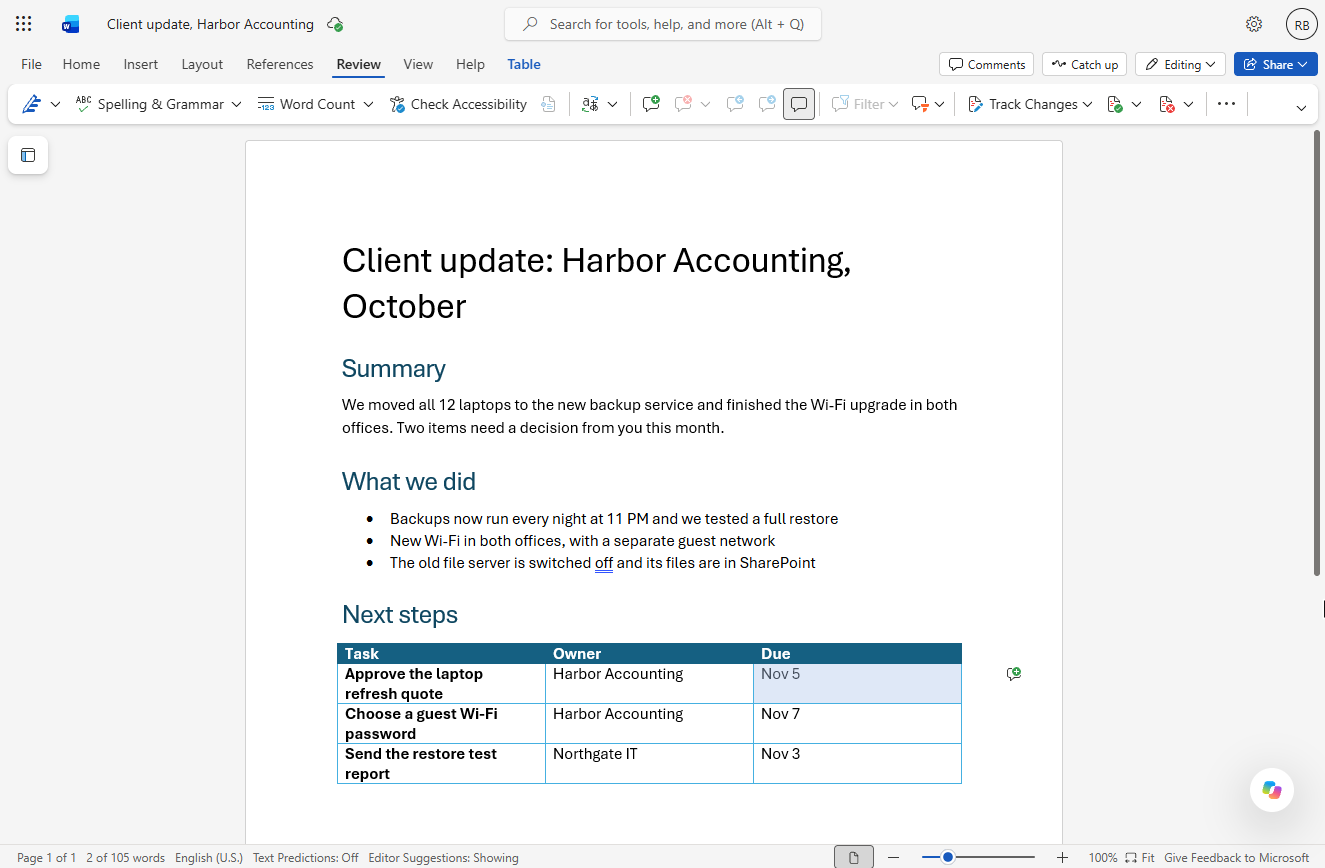
- Select a date and open Review. The header row is dark and the tasks are bold. Select Nov 5 in the Due column, then click the Review tab.
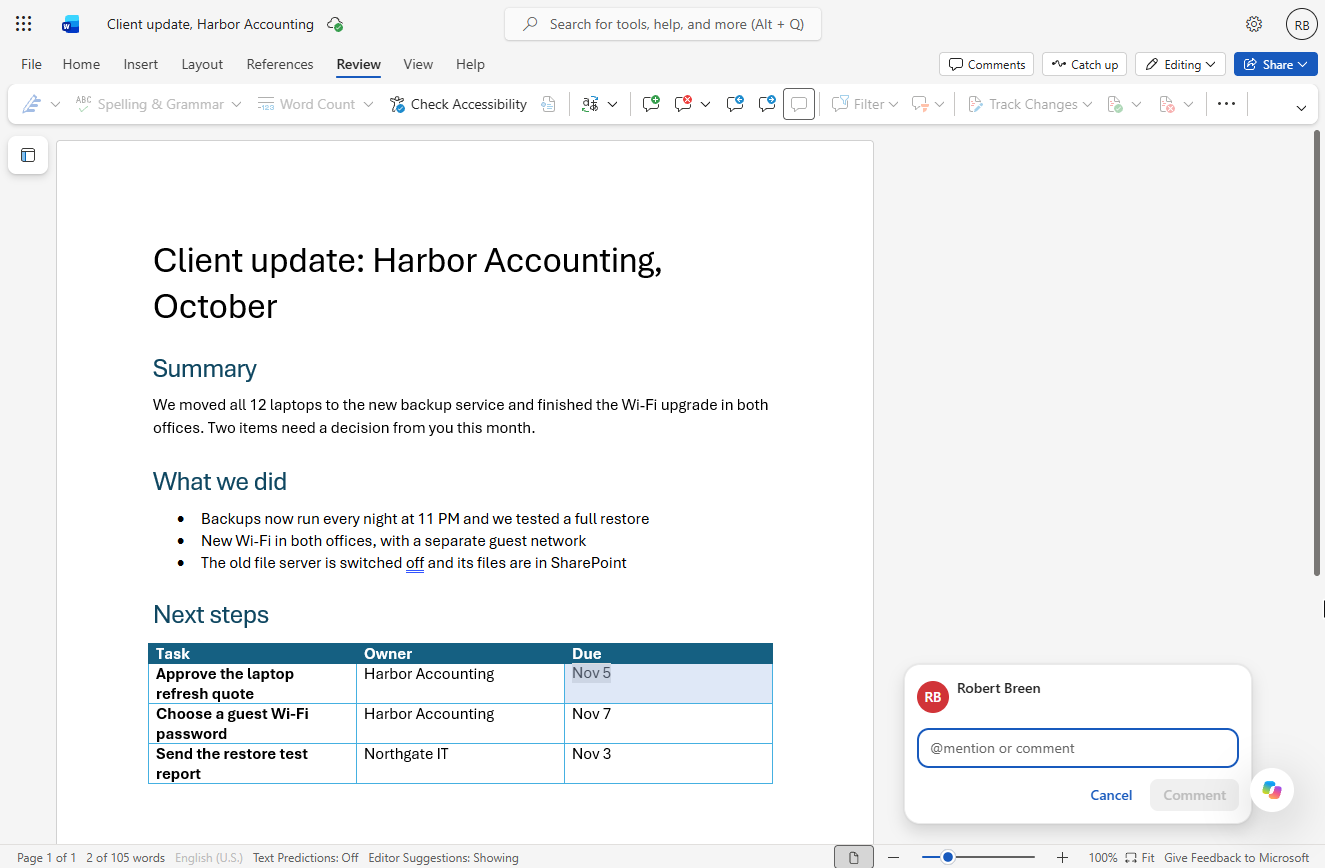
- New Comment. Click New Comment (the speech bubble with a plus).
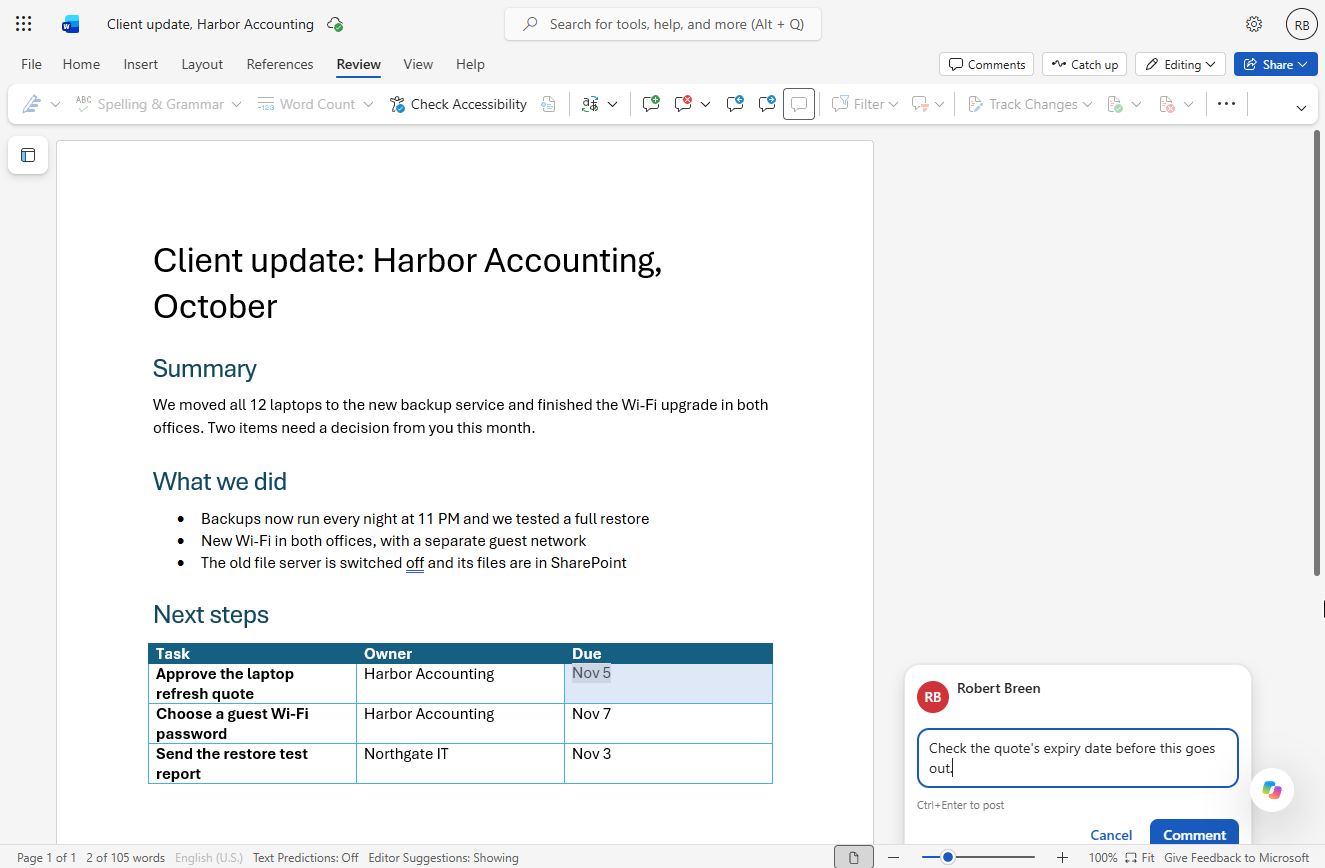
- Write the comment. Type Check the quote's expiry date before this goes out. To ask a named colleague, type @ and their name; we did not here, so nobody was emailed.
Check the quote expiry date before this goes out.
- Post it. Click Comment (or press Ctrl+Enter).
Screenshots
More in Microsoft 365
All 3 modules in Microsoft 365
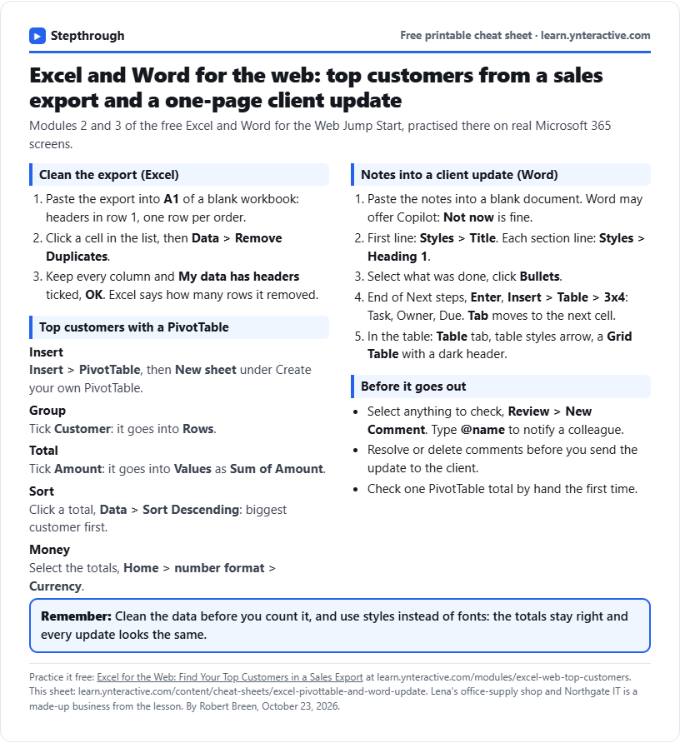
Free cheat sheet
Print it or save the PDF: the key steps and checks from this lesson on one page, free.
All free printable cheat sheets
Terms in this lesson
Plain-English definitions, each with an example from a free lesson.