Updated . Built against the tool’s current screens and checked step by step. How we check this lesson
A beginner Excel for the web walkthrough on real screens: clean a sales export with Remove Duplicates, total every customer with a PivotTable and sort the biggest to the top in about ten minutes.
At a glance
| Question | Answer |
|---|---|
| What you build | A beginner Excel for the web walkthrough on real screens: clean a sales export with Remove Duplicates, total every customer with a PivotTable and sort the biggest to the top in about ten minutes. |
| Tools | Excel |
| Time | About 12 minutes, 17 steps in 4 parts |
| Level | Beginner, no coding needed |
| Cost | Free |
| Ways to learn it | Practice it step by step |
The 4 parts, in short
- Bring in the export: Create a blank workbook, Rename the file, Name it Q3 sales export, Paste the export.
- Remove the duplicate order: Open the Data tab, Remove Duplicates, Keep every column ticked, One duplicate removed.
- Total every customer with a PivotTable: Insert a PivotTable, Put it on a new sheet, Tick Customer, Tick Amount.
- Put the biggest customers on top: Select a total, Sort Descending, Select the totals, Open the number format, and 1 more step.
Start here first: Excel for the Web: Your First Budget Spreadsheet (module 1 of Microsoft 365)
What you'll build
Lena (made up) runs sales at a small office-supply shop. Before Monday's meeting the owner asks who the top customers were last quarter, and the only source is an export of 12 orders with one order in it twice. Adding it up by hand takes an hour, and the duplicate makes Cobalt Legal look $2,310 bigger than it is. In this lesson you clean the export, let a PivotTable total each customer and sort the biggest to the top. Every screen is a real Excel for the web screen.
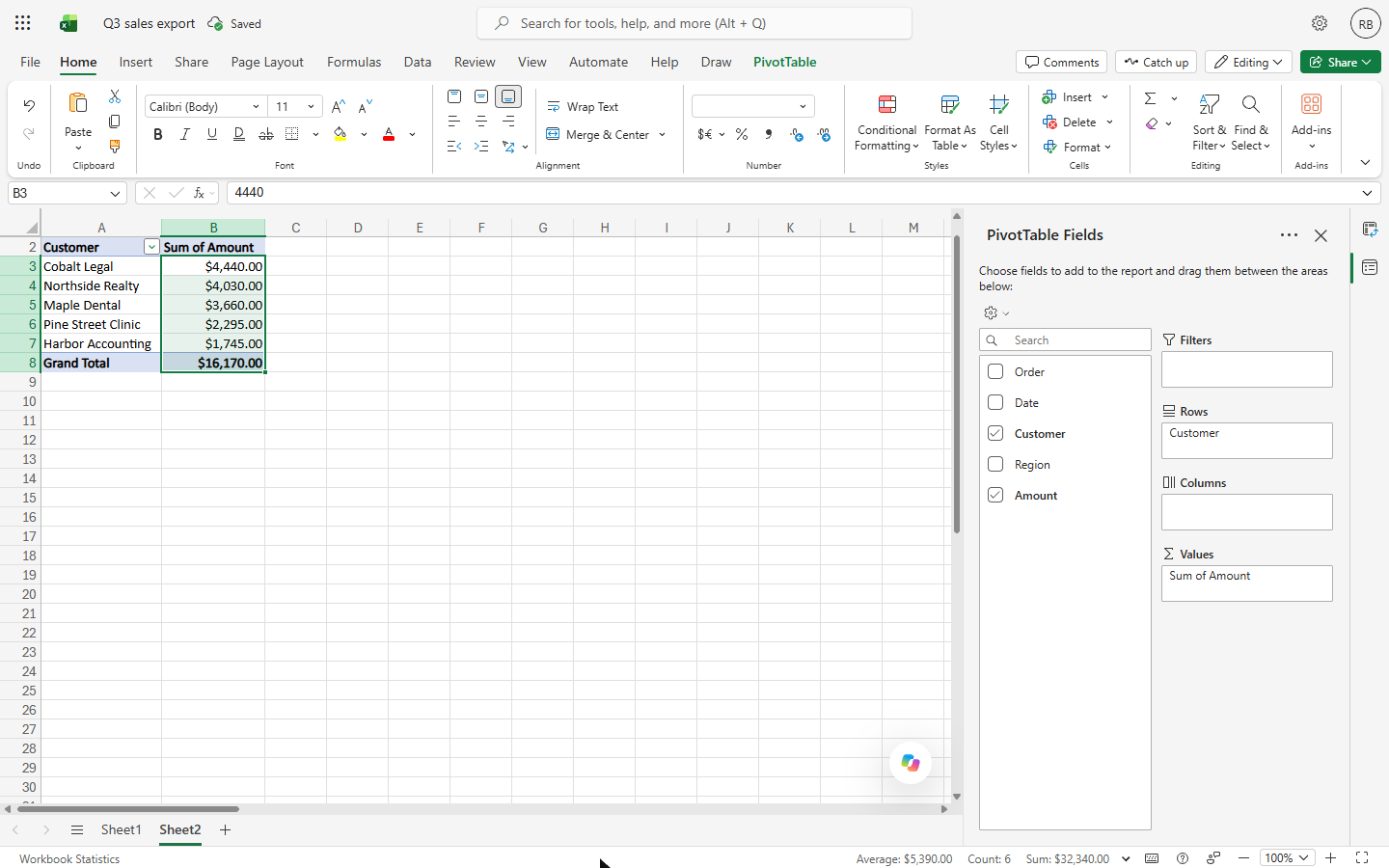
You removed the duplicate order, totalled every customer with a PivotTable ($16,170 in all) and sorted them: Cobalt Legal $4,440, Northside Realty $4,030 and Maple Dental $3,660 bring in three quarters of the quarter. Next quarter it is the same five minutes. Now do it in your own Microsoft account: the lesson page has the checklist.
- Tools: Excel
- Time: about 12 minutes, 17 steps in 4 chapters
- Level: beginner, no coding needed
- Price: free
Practice first, then build it for real
Practice copy built from real Excel for the web screens (Microsoft 365, captured 23 October 2026). Nothing here touches your Microsoft account. The shop, its customers and its orders are made up. To build it for real you need your own Excel account, and some services charge once you use them for real work, so check each tool's current pricing.
Try it yourself, free
Reading the steps is a start. Doing them is how it sticks. The interactive module walks you through every click in a practice copy of Excel, checks each step, and never touches your real accounts.
Start “Excel for the Web: Find Your Top Customers in a Sales Export”Step by step: Excel for the Web: Find Your Top Customers in a Sales Export
All 17 steps of the interactive module, in order. In the module you watch each one, then do it yourself in a practice copy that checks your work.
1. Bring in the export
- Create a blank workbook. Open Excel for the web (from microsoft365.com, or the app launcher in any Microsoft 365 app). Click Create blank workbook.
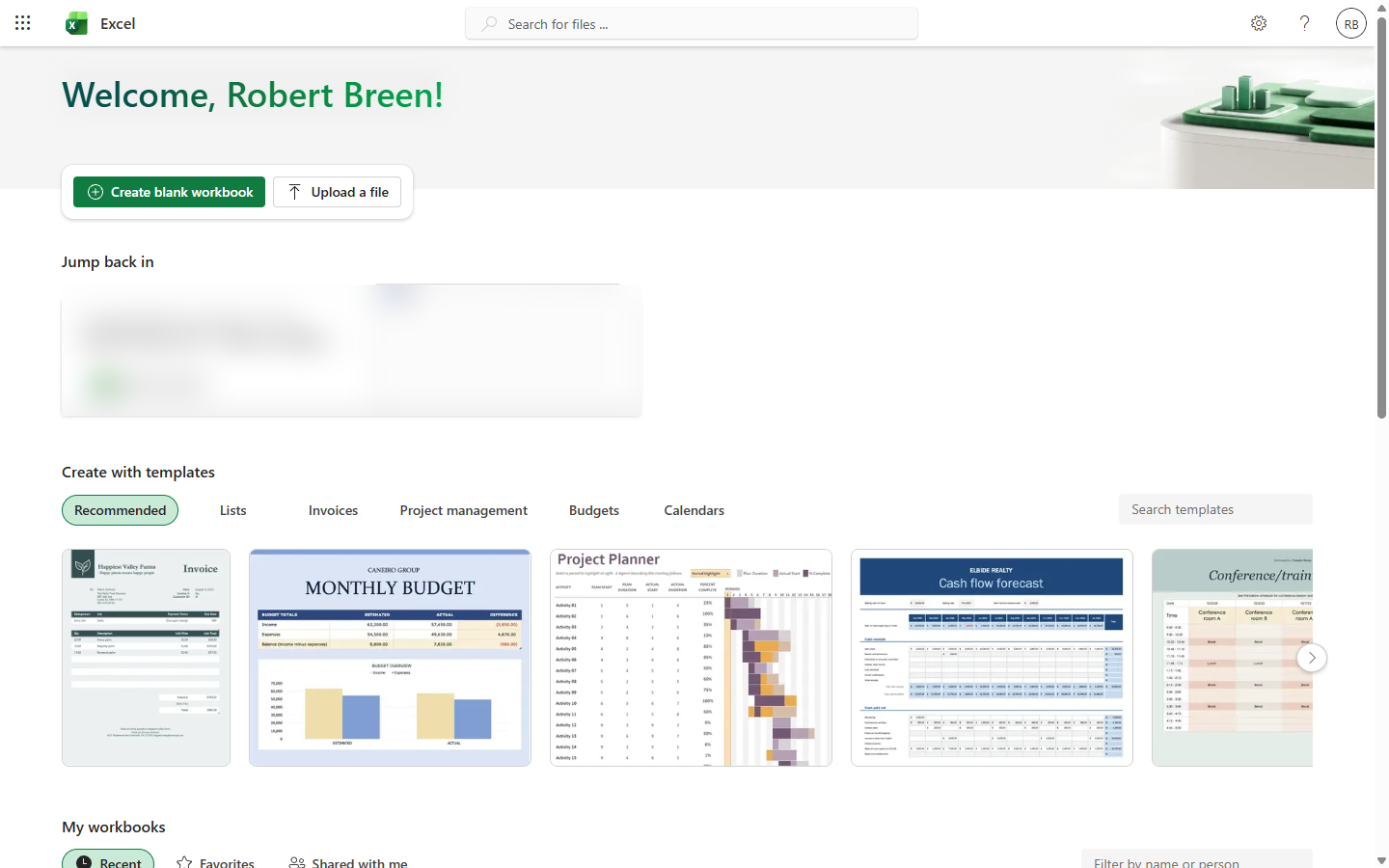
This is the Excel start page.
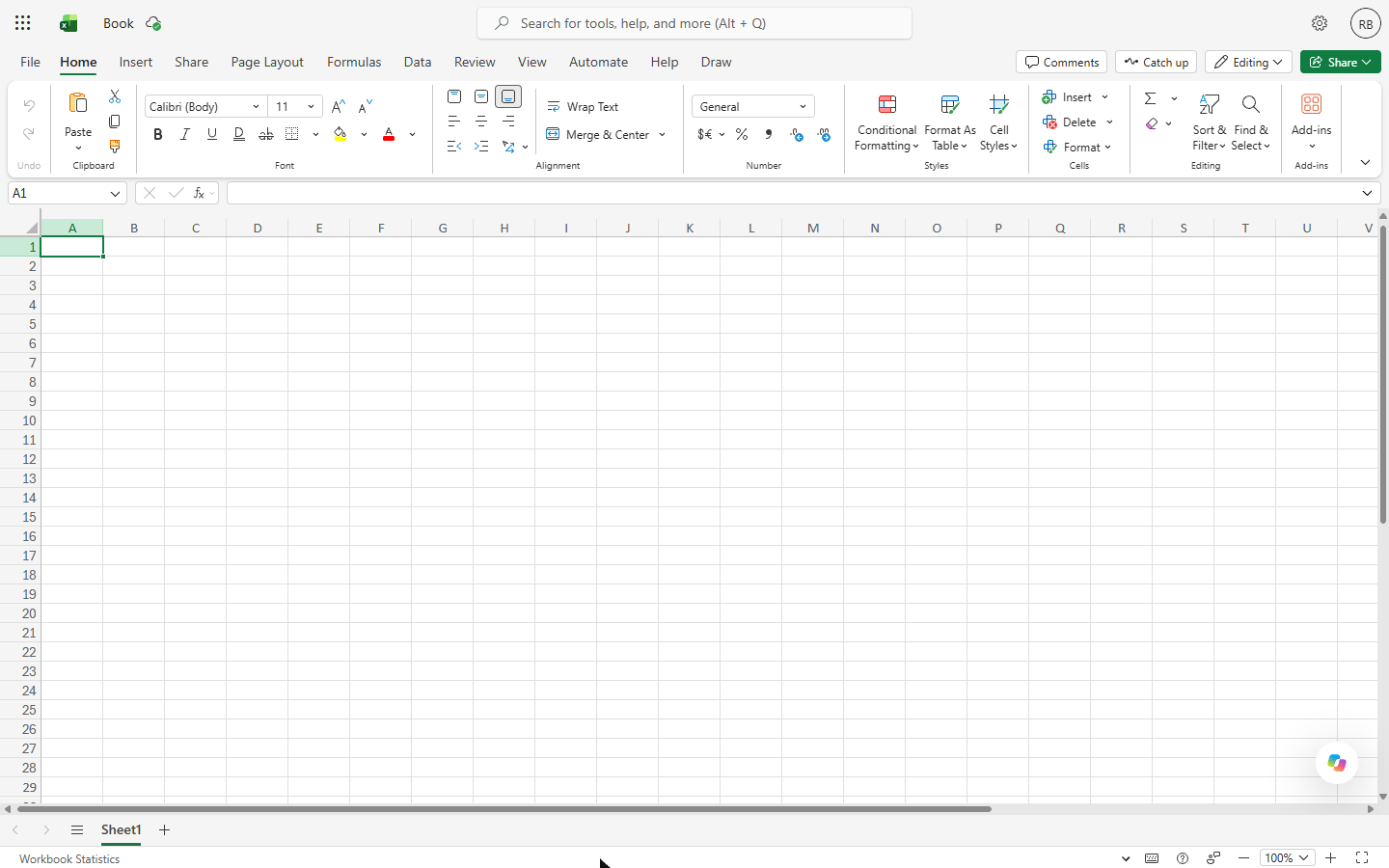
- Rename the file. New files are called "Book". Click the file name at the top. Excel for the web saves as you go.
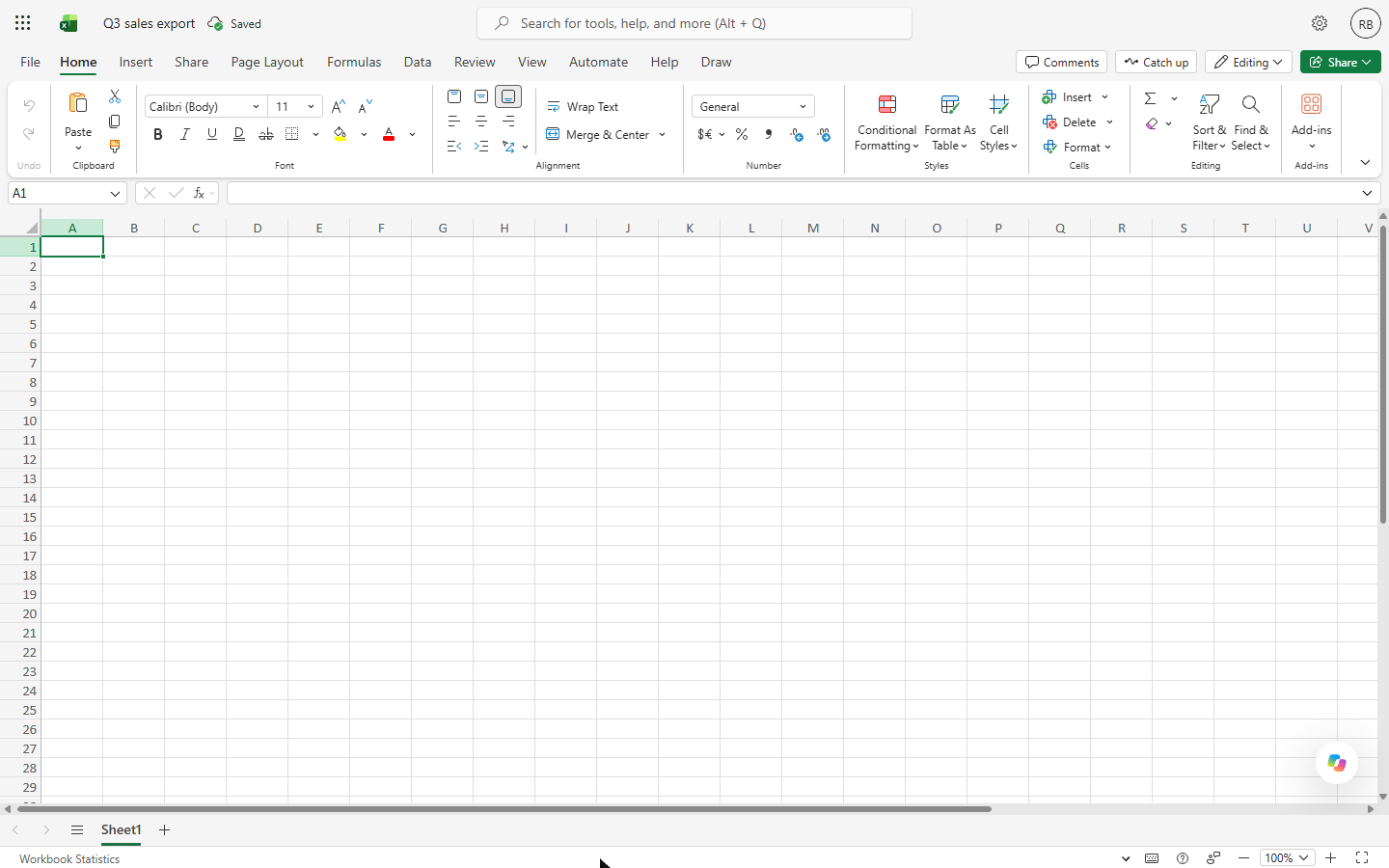
- Name it Q3 sales export. Type Q3 sales export and press Enter.
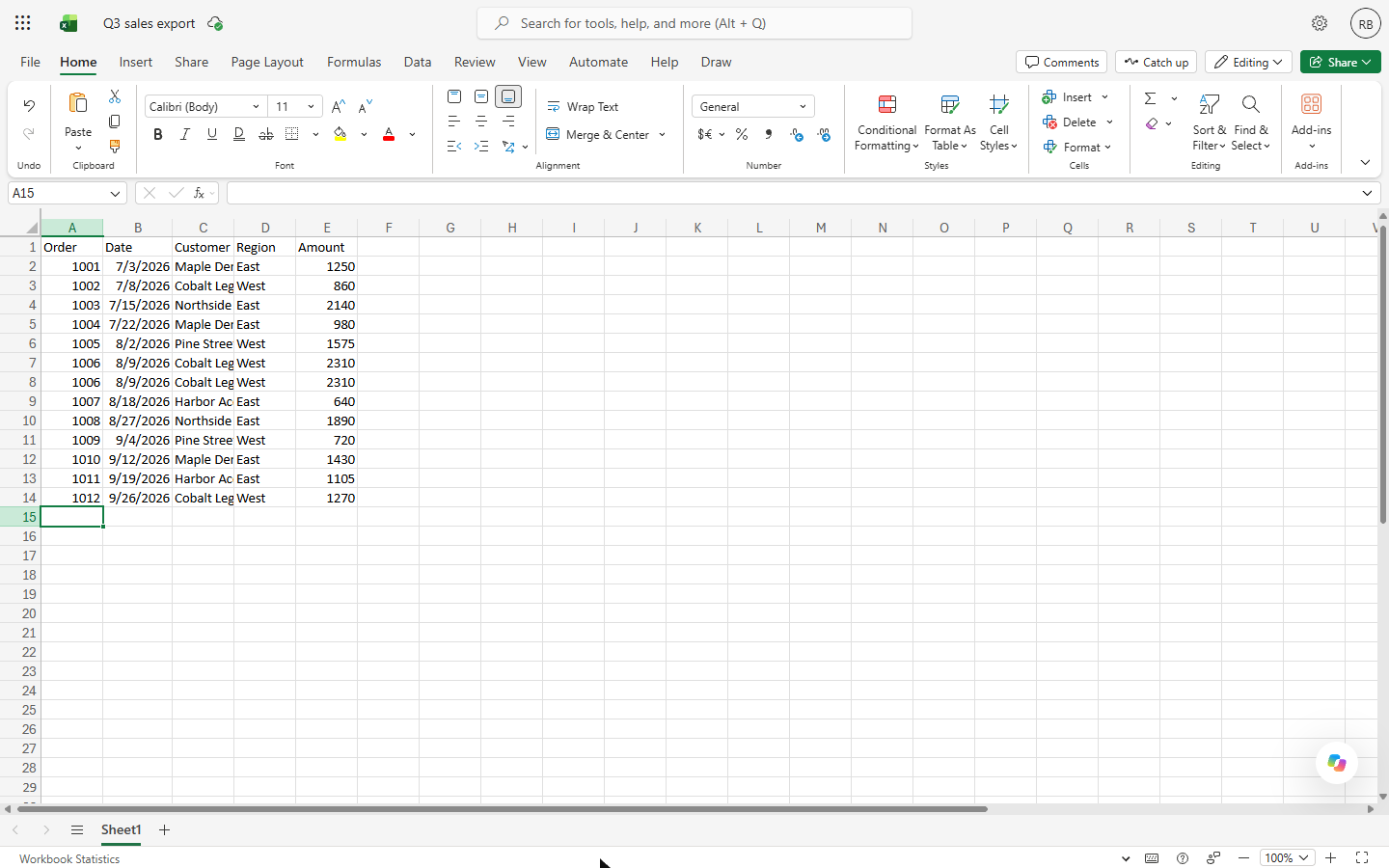
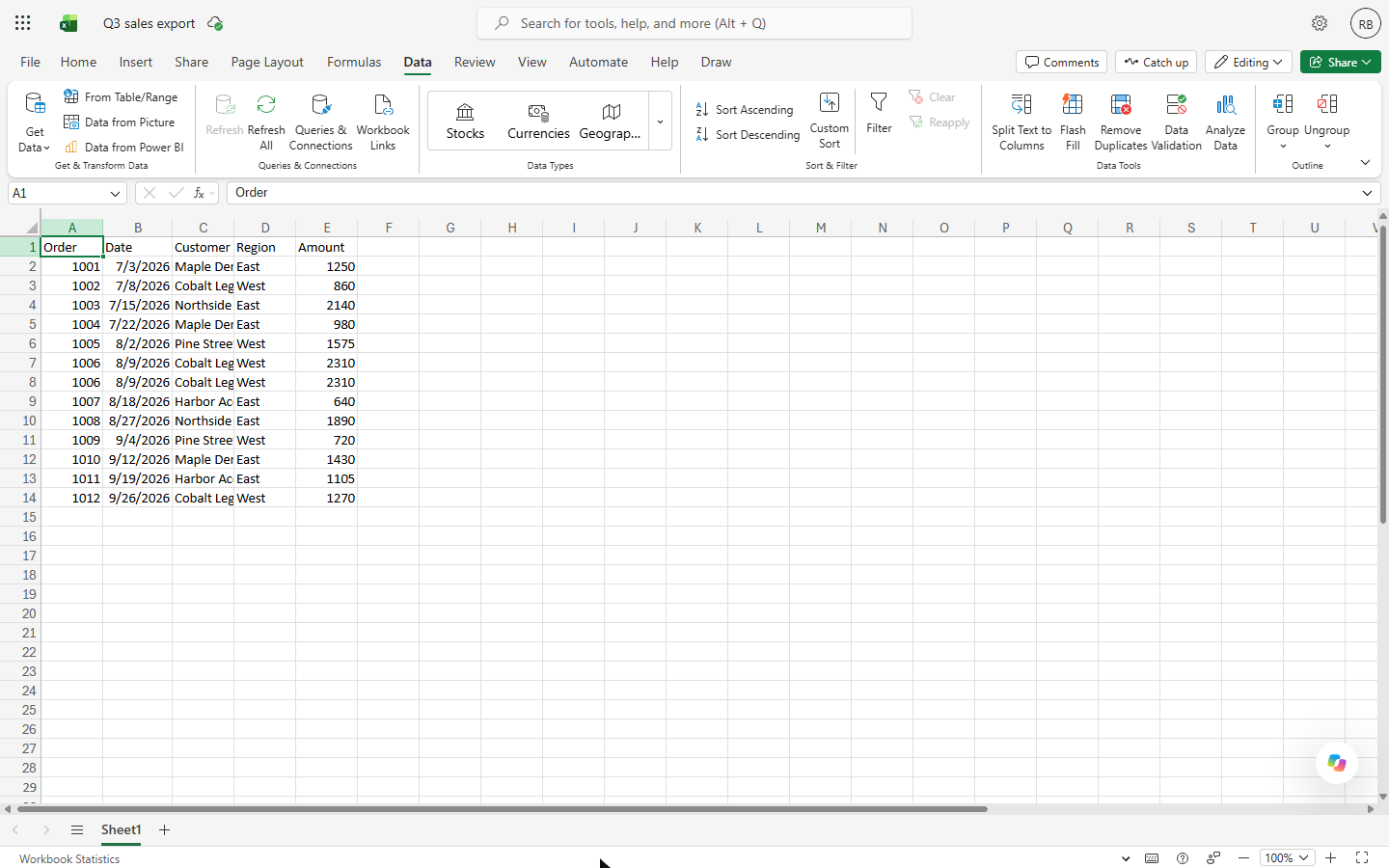
- Paste the export. Click A1 and paste (Ctrl+V) the export: Order, Date, Customer, Region and Amount for 12 orders. In real life you paste or open the CSV your sales system gives you. Look closely: order 1006 is in it twice.
Twelve orders. Look closely: order ten oh six is in it twice.
Order	Date	Customer	Region	Amount
1001	7/3/2026	Maple Dental	East	1250
1002	7/8/2026	Cobalt Legal	West	860
1003	7/15/2026	Northside Realty	East	2140
1004	7/22/2026	Maple Dental	East	980
1005	8/2/2026	Pine Street Clinic	West	1575
1006	8/9/2026	Cobalt Legal	West	2310
1006	8/9/2026	Cobalt Legal	West	2310
1007	8/18/2026	Harbor Accounting	East	640
1008	8/27/2026	Northside Realty	East	1890
1009	9/4/2026	Pine Street Clinic	West	720
1010	9/12/2026	Maple Dental	East	1430
1011	9/19/2026	Harbor Accounting	East	1105
1012	9/26/2026	Cobalt Legal	West	1270
2. Remove the duplicate order
- Open the Data tab. With a cell in the data selected (A1 is fine), click the Data tab.
With a cell in the data selected, click the Data tab.
- Remove Duplicates. Click Remove Duplicates.
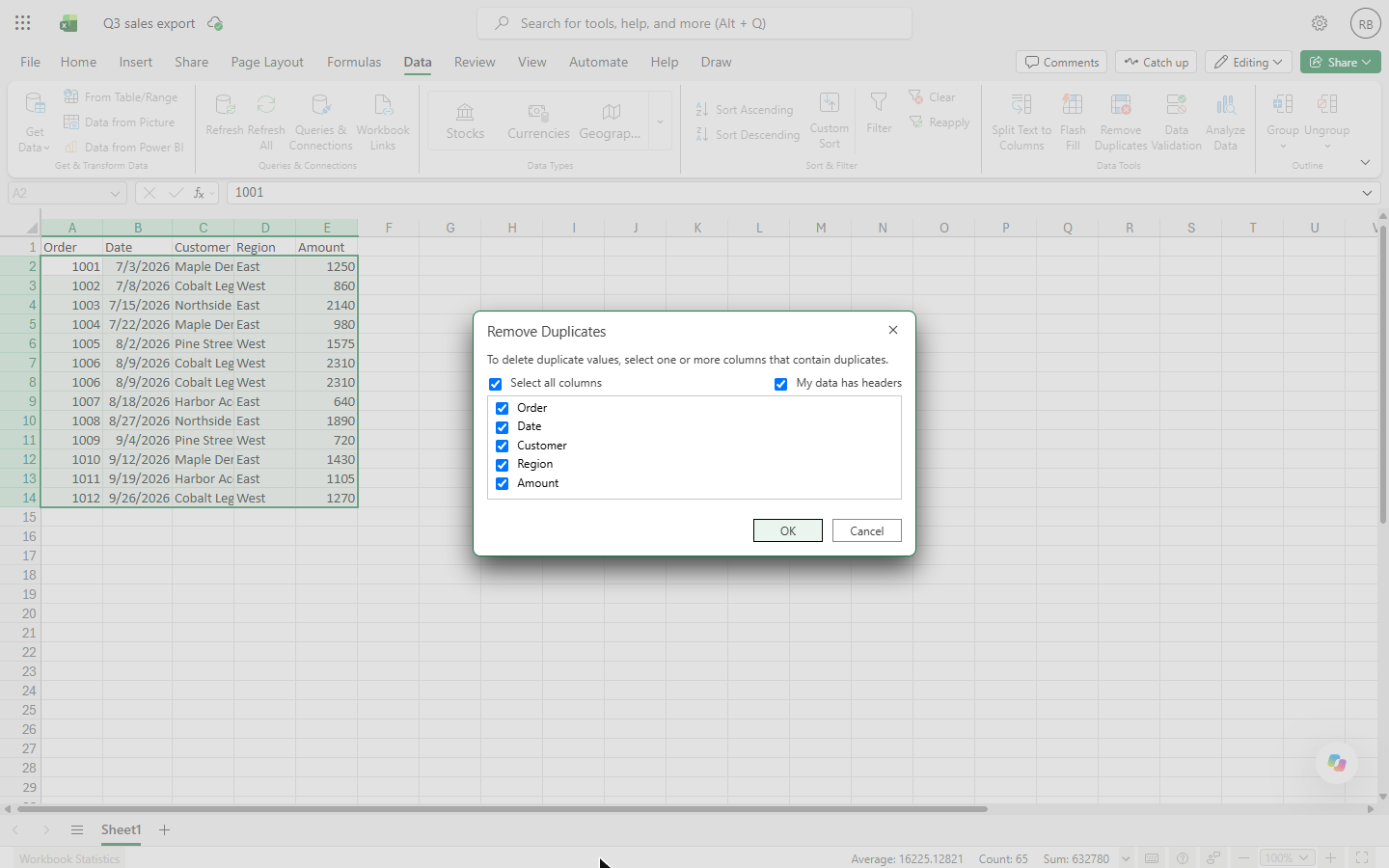
- Keep every column ticked. Excel selected the whole list. Leave Select all columns and My data has headers ticked, so a row only counts as a copy when every column matches, and click OK.
Leave every column ticked, so only exact copies go.
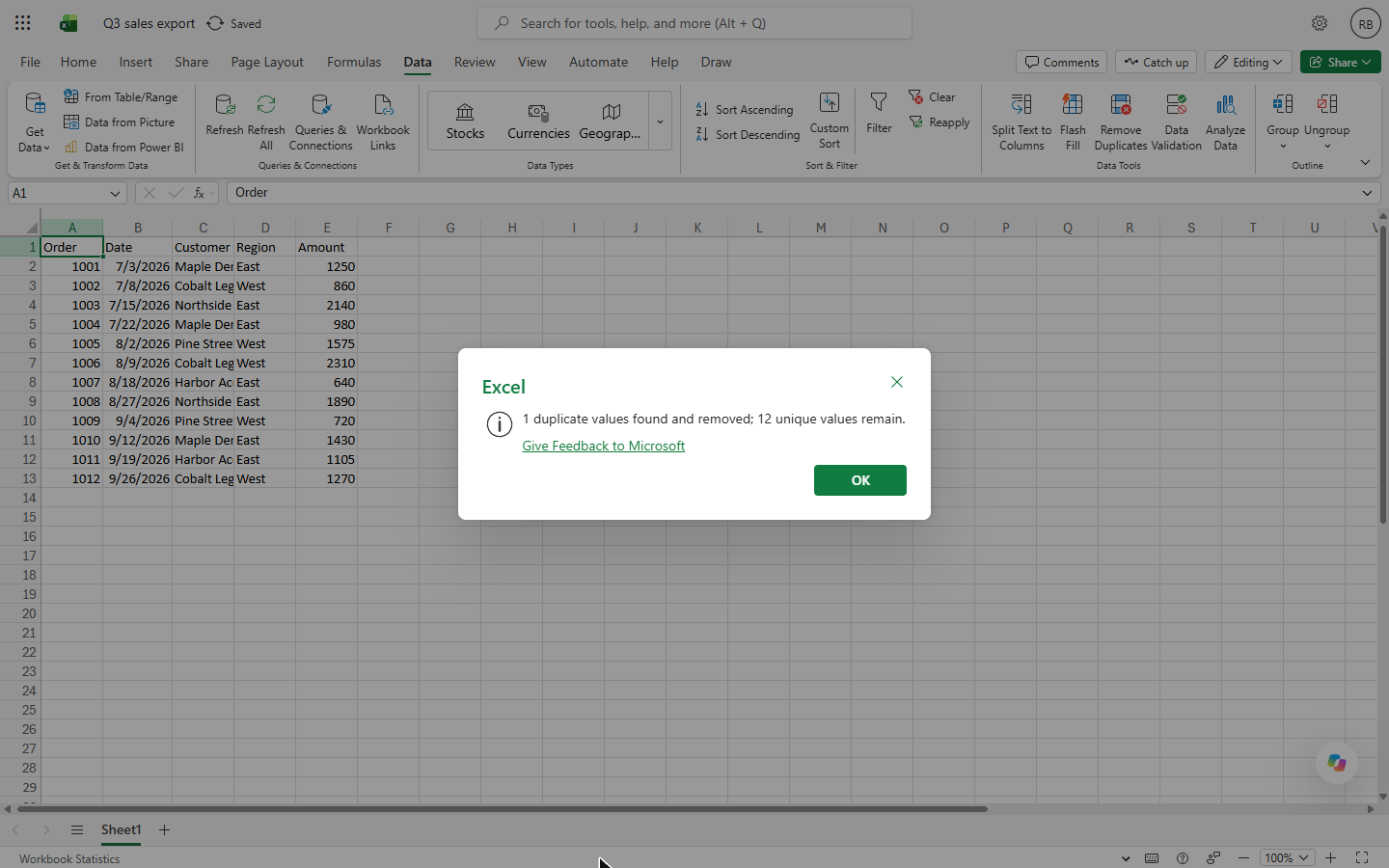
- One duplicate removed. Excel says 1 duplicate values found and removed; 12 unique values remain. The second order 1006 is gone. Click OK.
One duplicate removed, twelve orders left.
3. Total every customer with a PivotTable
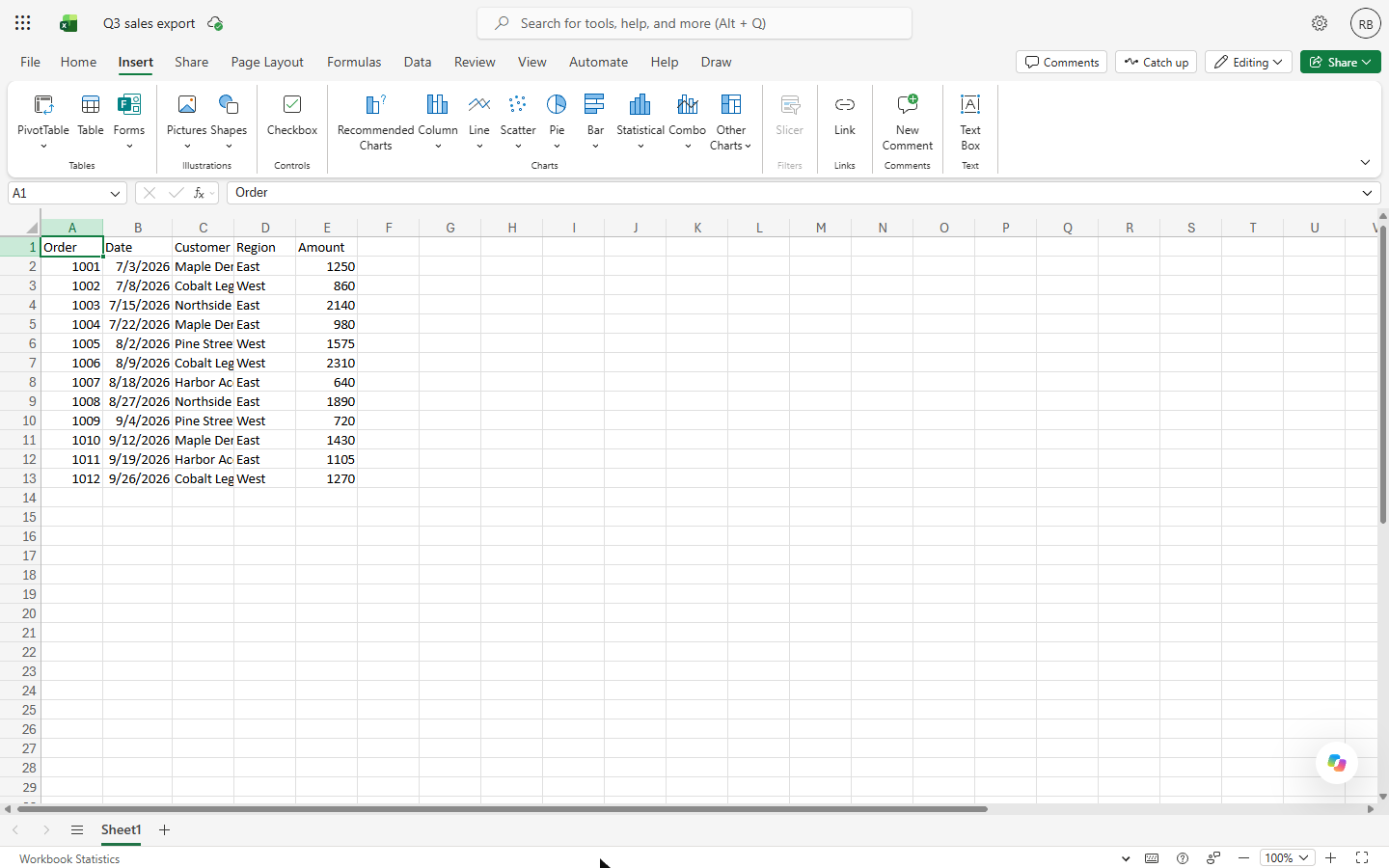
- Insert a PivotTable. Click the Insert tab, then PivotTable.
On the Insert tab, click PivotTable.
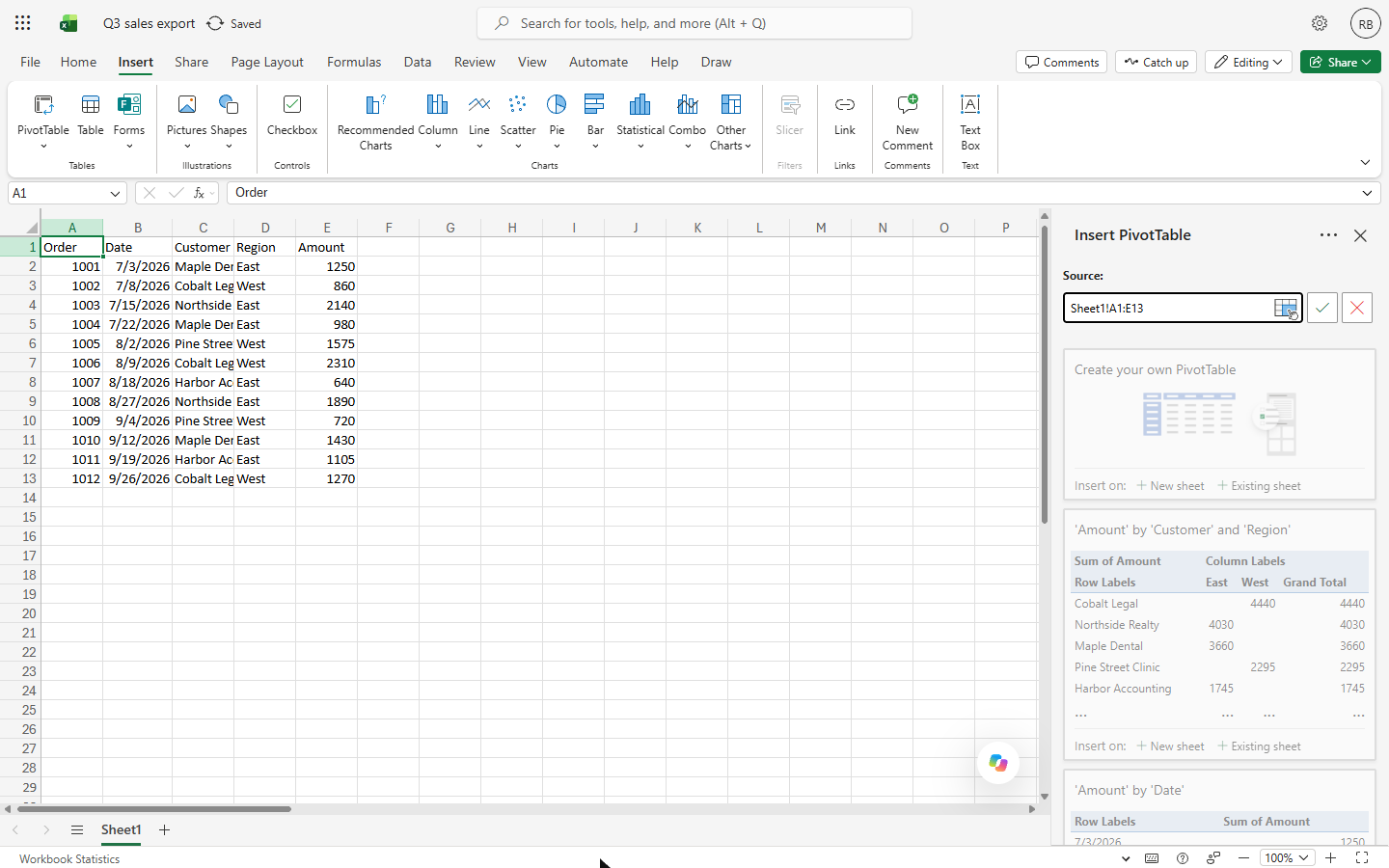
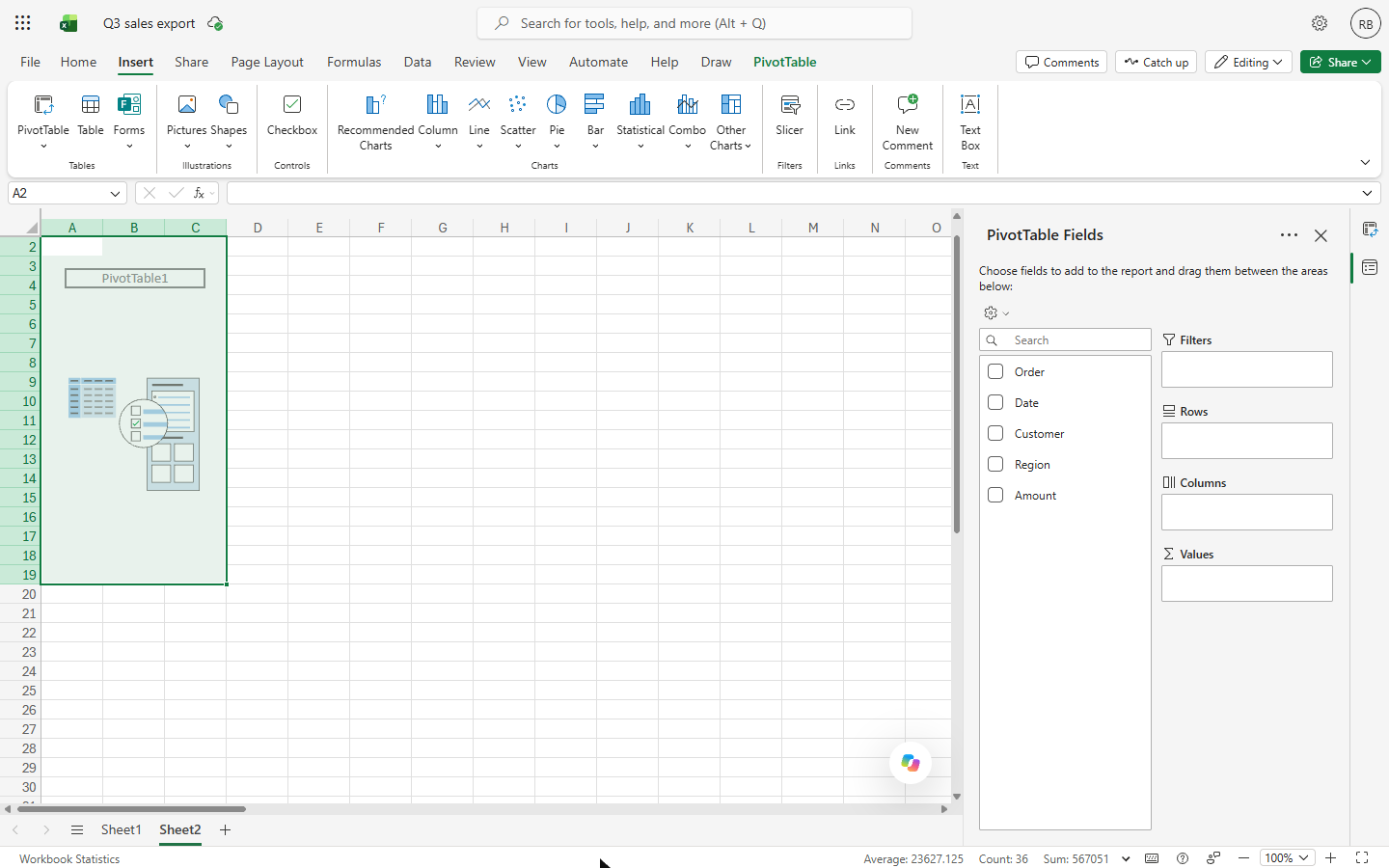
- Put it on a new sheet. An Insert PivotTable panel opens with the source Sheet1!A1:E13 and a few suggestions. Under Create your own PivotTable, click New sheet. (If Excel stays on Sheet1, click the new Sheet2 tab at the bottom.)
The source is the whole list. Under Create your own PivotTable, click New sheet.
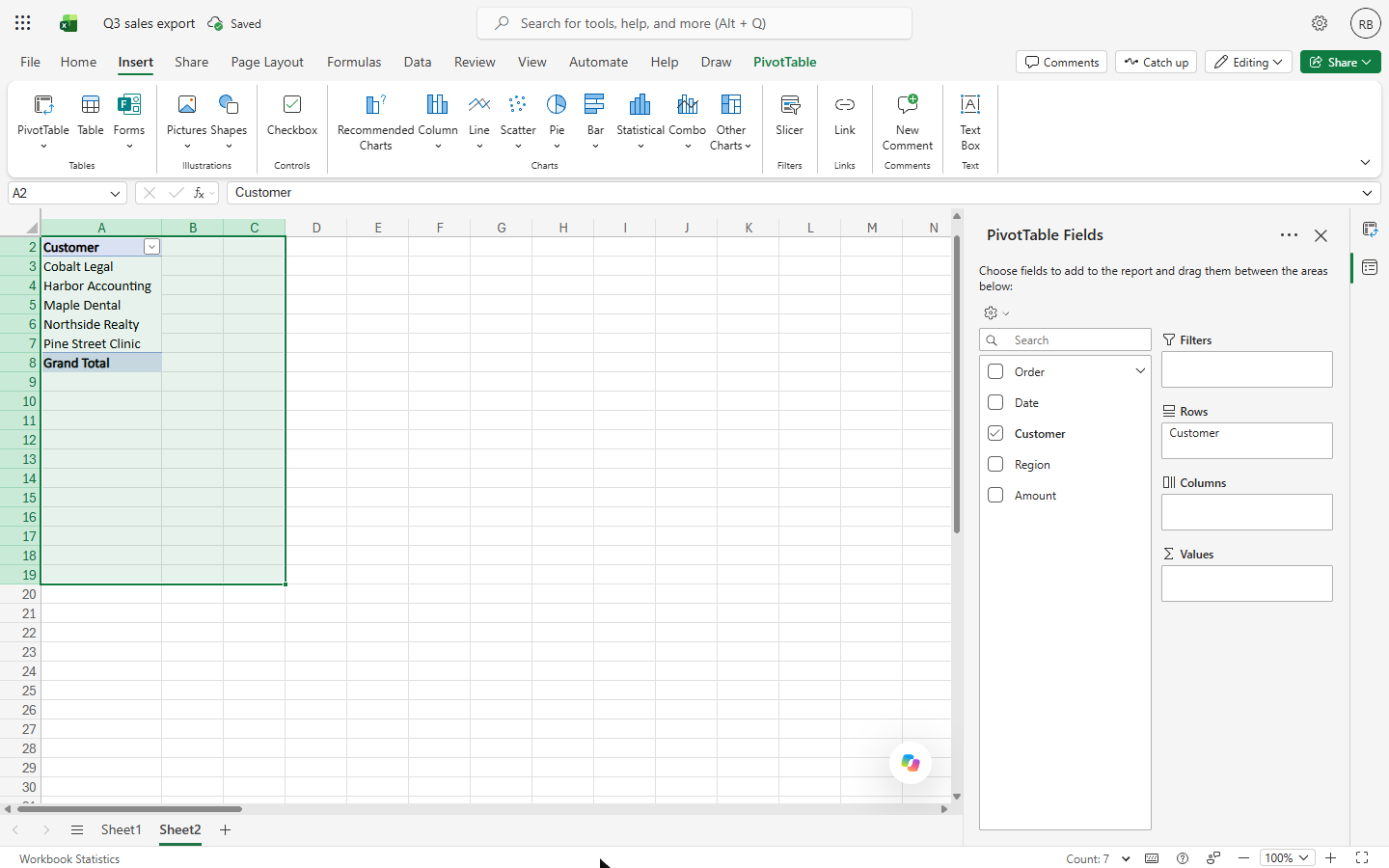
- Tick Customer. The PivotTable Fields list shows your five columns. Tick Customer. It goes into Rows: one row per customer.
Tick Customer. Each customer gets one row.
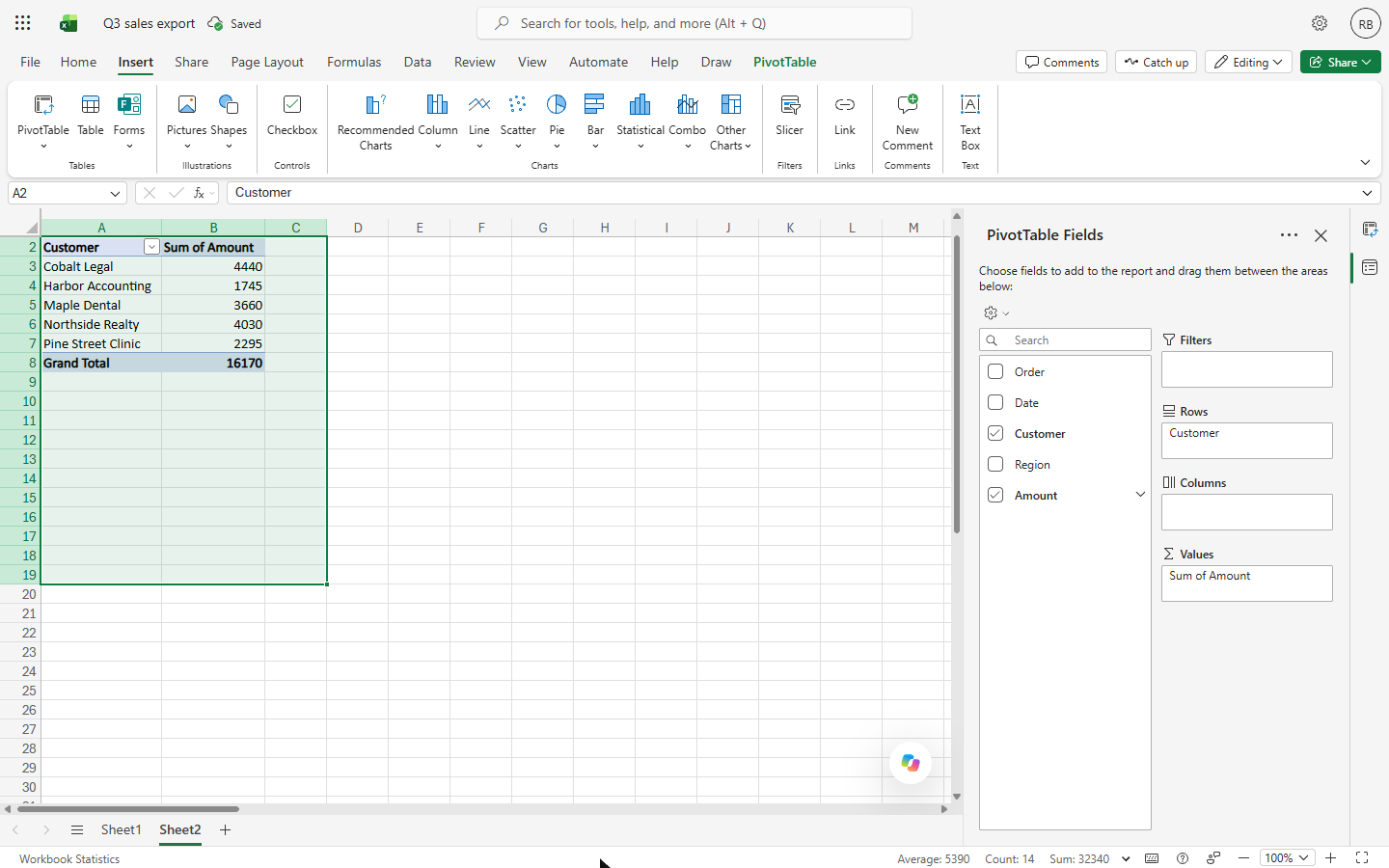
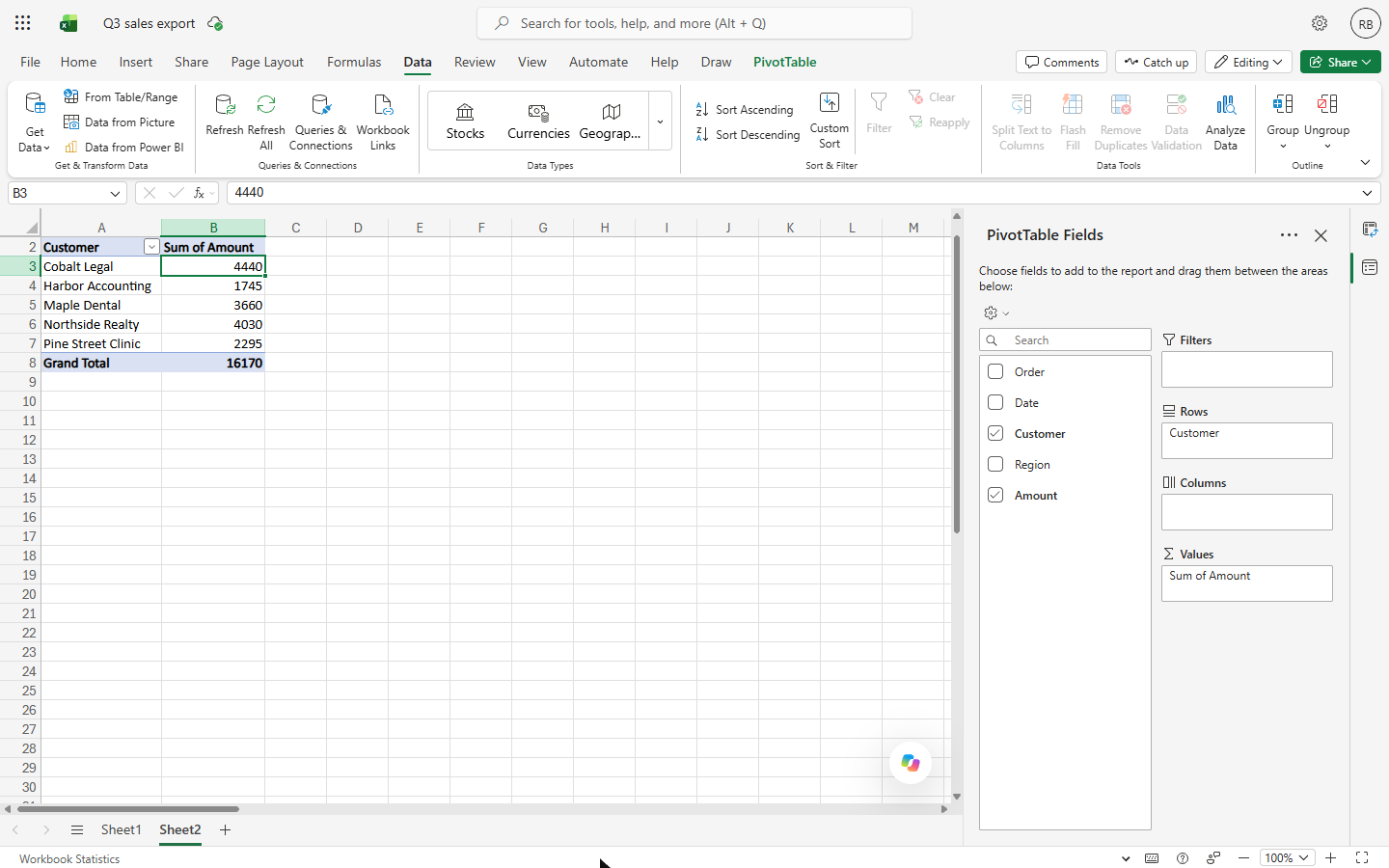
- Tick Amount. Tick Amount. It goes into Values as Sum of Amount.
Tick Amount. It becomes Sum of Amount.
4. Put the biggest customers on top
- Select a total. Every customer now has a total and the Grand Total is 16170. Click a total, such as B3 (Cobalt Legal, 4440), then the Data tab.
The grand total is sixteen thousand one hundred seventy.
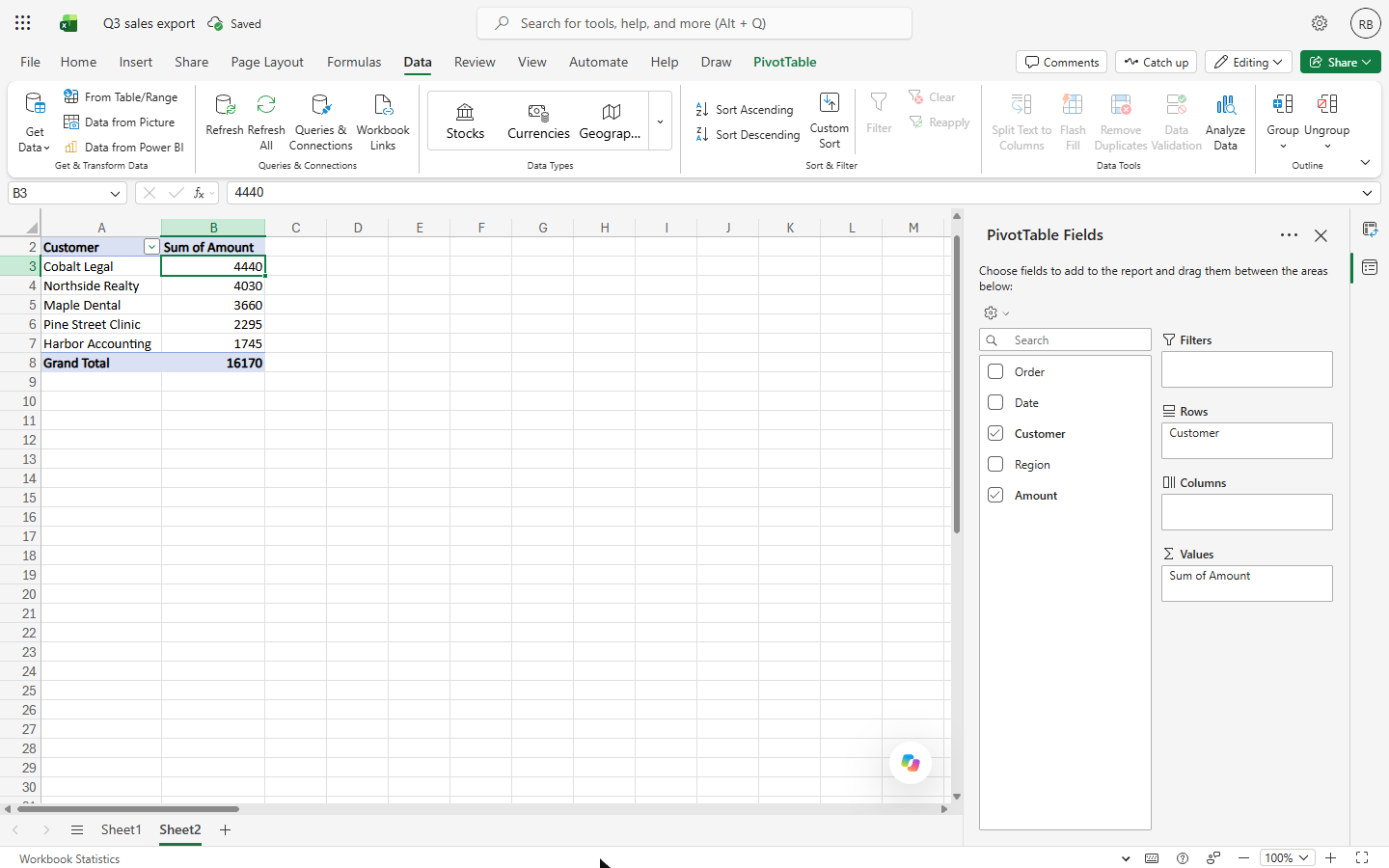
- Sort Descending. Click Sort Descending (Z to A). In a PivotTable it sorts the customers by their totals, biggest first.
The biggest customer moves to the top.
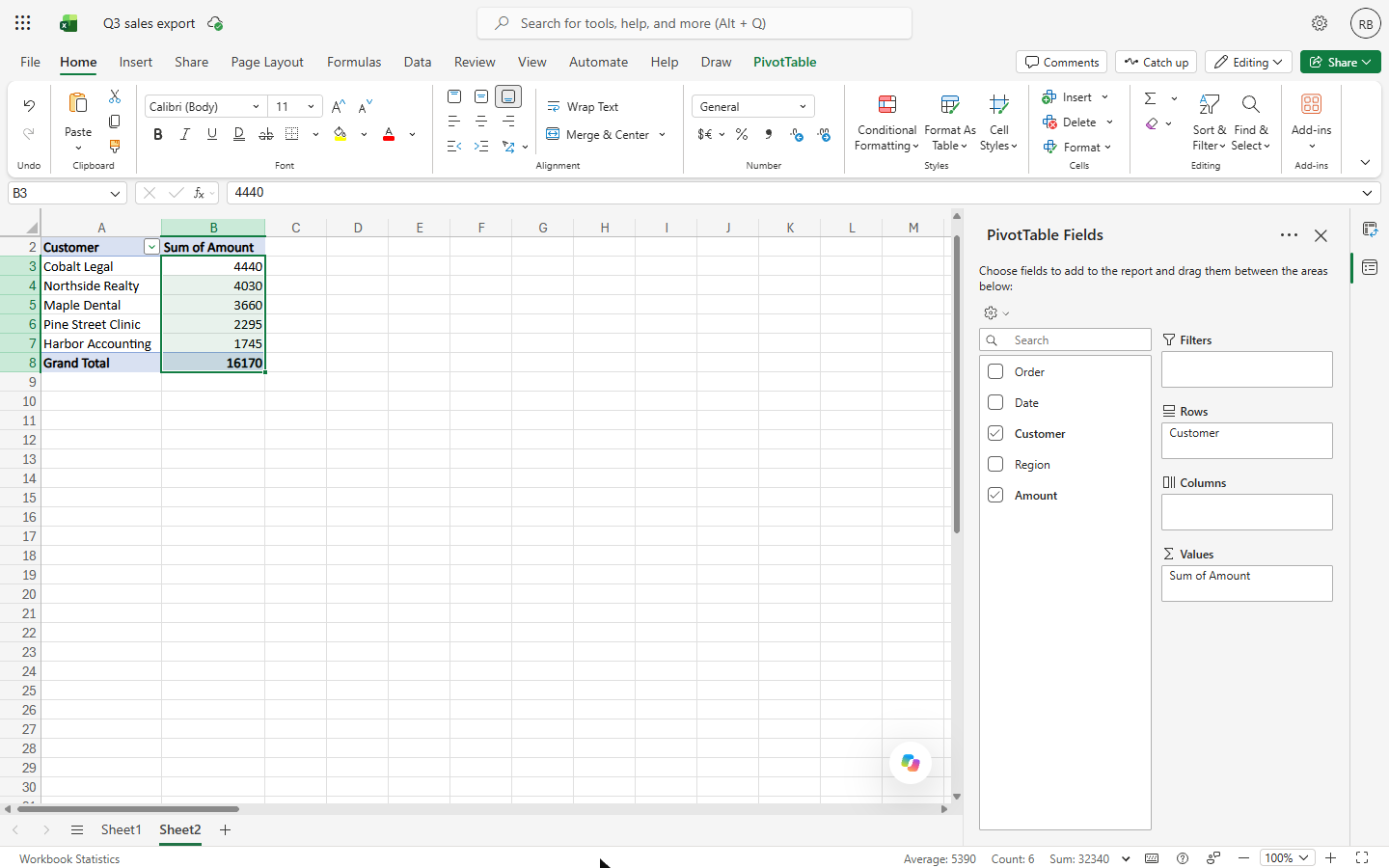
- Select the totals. Cobalt Legal 4440, Northside Realty 4030, Maple Dental 3660, Pine Street Clinic 2295, Harbor Accounting 1745. Select B3:B8 (click B3, then Shift+click B8) and click the Home tab.
Now the biggest is on top.
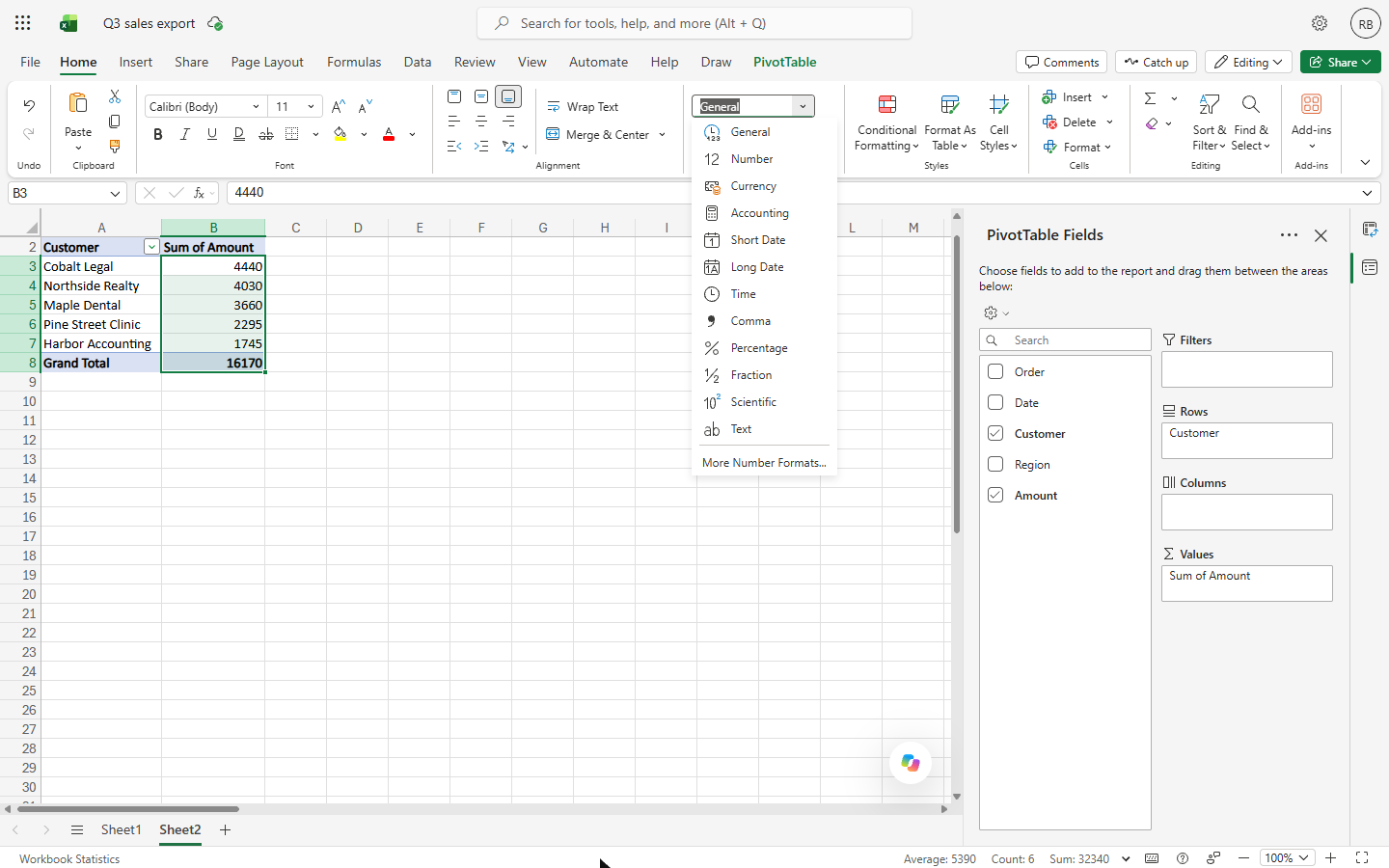
- Open the number format. Click the arrow on the number format box (it says General).
- Currency. Click Currency. The totals read $4,440.00 down to $1,745.00, and $16,170.00 in all.
Now it reads like money.
Screenshots
Same business, other tools
Maple Dental shows up in these modules too, built with different tools.
 SQL: Build a Monthly Revenue Report from an Orders Table
A beginner SQL walkthrough in the free DB Fiddle: type a small orders table, then filter it, total it and turn it into revenue by month with GROUP BY, typing every line…
Free · Live ~12 min Beginner
 SQL: Find Customers Who Have Gone Quiet with a LEFT JOIN
A beginner SQL walkthrough in the free DB Fiddle: join a customers table to orders, see why a plain JOIN hides customers who never ordered, and list every quiet account…
Free · Live ~15 min Beginner
 JavaScript: Turn Invoice Dates into Due-Date Reminders
A beginner JavaScript walkthrough in the free JSFiddle: work out Net 30 due dates, count the days left and list every invoice as due or overdue, typing every line…
Free · Live ~15 min Beginner
 Python: Total a Sales Export by Customer in Google Colab
A beginner Python walkthrough in the free Google Colab: put six orders in a pandas table, total the quarter and rank customers by revenue, typing every line yourself.
Free · Live ~12 min Beginner
 Python: Combine Monthly Sales Exports into One Quarter
A beginner Python walkthrough in the free Google Colab: label three monthly exports, stack them into one quarter with pandas concat and total by month and by customer…
Free · Live ~12 min Beginner
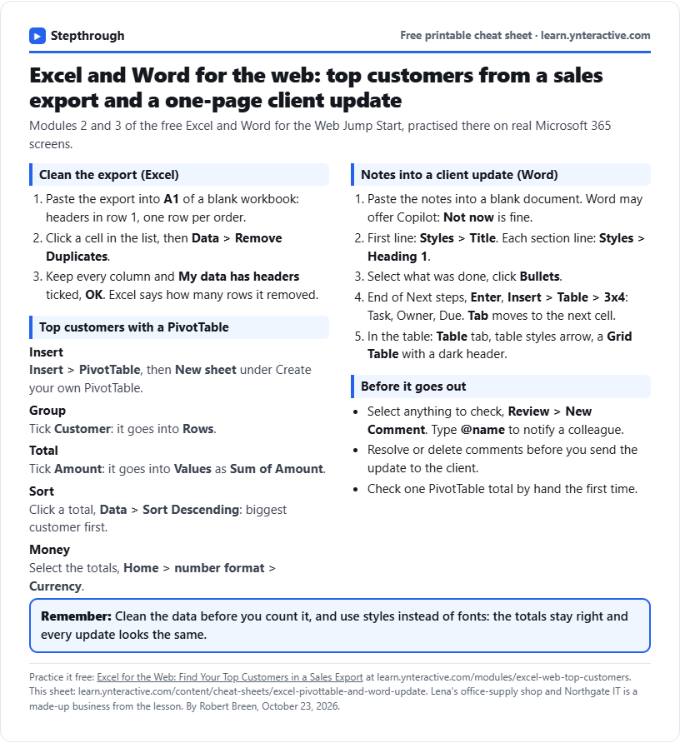
Free cheat sheet
Print it or save the PDF: the key steps and checks from this lesson on one page, free.
All free printable cheat sheets
Terms in this lesson
Plain-English definitions, each with an example from a free lesson.