Updated . Built against the tool’s current screens and checked step by step. How we check this lesson
A beginner Python walkthrough in the free Google Colab: put six orders in a pandas table, total the quarter and rank customers by revenue, typing every line yourself.
At a glance
| Question | Answer |
|---|---|
| What you build | A beginner Python walkthrough in the free Google Colab: put six orders in a pandas table, total the quarter and rank customers by revenue, typing every line yourself. |
| Tools | Google Colab |
| Time | About 12 minutes, 15 steps in 3 parts |
| Level | Beginner, no coding needed |
| Cost | Free |
| Ways to learn it | Practice it step by step |
The 3 parts, in short
- Open a notebook: New notebook, Rename it, Name it, Load pandas, and 1 more step.
- Put the orders in a table: Add a cell, Type the customers, Type the amounts, Run it, and 2 more steps.
- Total and rank: Total the quarter, Run it, Total each customer, Run it.
What you'll build
Priya (made up) runs the office at Lakeside Office Supply. Every quarter she adds up the sales export by customer with a calculator, and every quarter one total is off. Python, with its free pandas library, does the adding for any number of rows, and Google Colab runs it in your browser with nothing to install. In this lesson you make a notebook, put six orders in a table, total the quarter and rank the customers. You type every line yourself, one or two lines at a time.
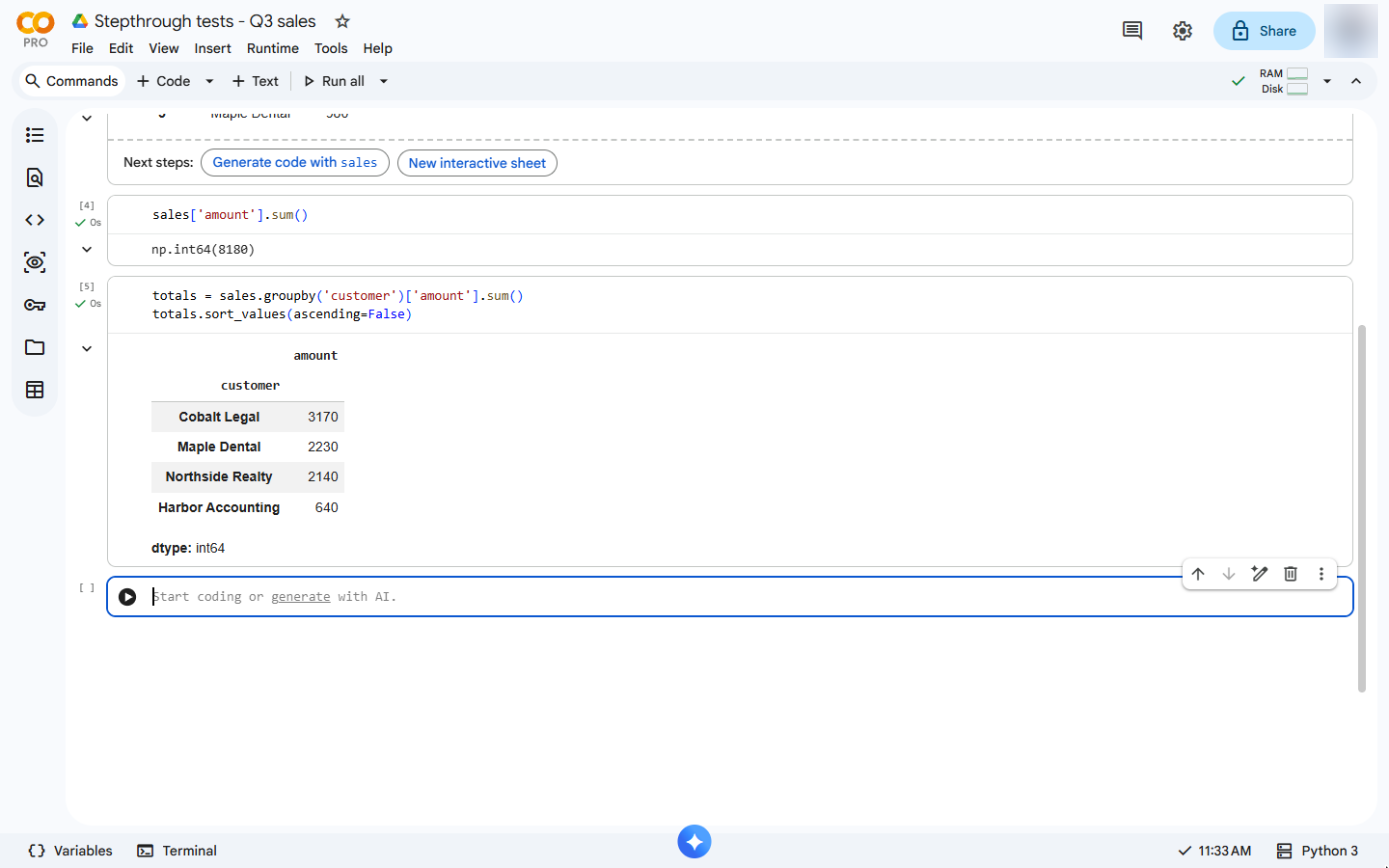
Six orders, $8,180 in all: Cobalt Legal $3,170, Maple Dental $2,230, Northside Realty $2,140 and Harbor Accounting $640. The same three lines work on 6 orders or 60,000. Do it in Colab yourself: the lesson page has the checklist.
- Tools: Google Colab
- Time: about 12 minutes, 15 steps in 3 chapters
- Level: beginner, no coding needed
- Price: free
Practice first, then build it for real
Practice copy built from real Google Colab screens (captured 24 October 2026). Every line of Python in it was typed and run there. Nothing here touches your Google account. Our account shows a PRO badge; everything in the lesson works the same in free Colab. The shop, its customers and its numbers are made up, and the account picture is blurred. To build it for real you need your own Google Colab account, and some services charge once you use them for real work, so check each tool's current pricing.
Try it yourself, free
Reading the steps is a start. Doing them is how it sticks. The interactive module walks you through every click in a practice copy of Google Colab, checks each step, and never touches your real accounts.
Start “Python: Total a Sales Export by Customer in Google Colab”Step by step: Python: Total a Sales Export by Customer in Google Colab
All 15 steps of the interactive module, in order. In the module you watch each one, then do it yourself in a practice copy that checks your work.
1. Open a notebook
- New notebook. Go to colab.research.google.com and sign in with any Google account (Colab is free). Click New notebook.
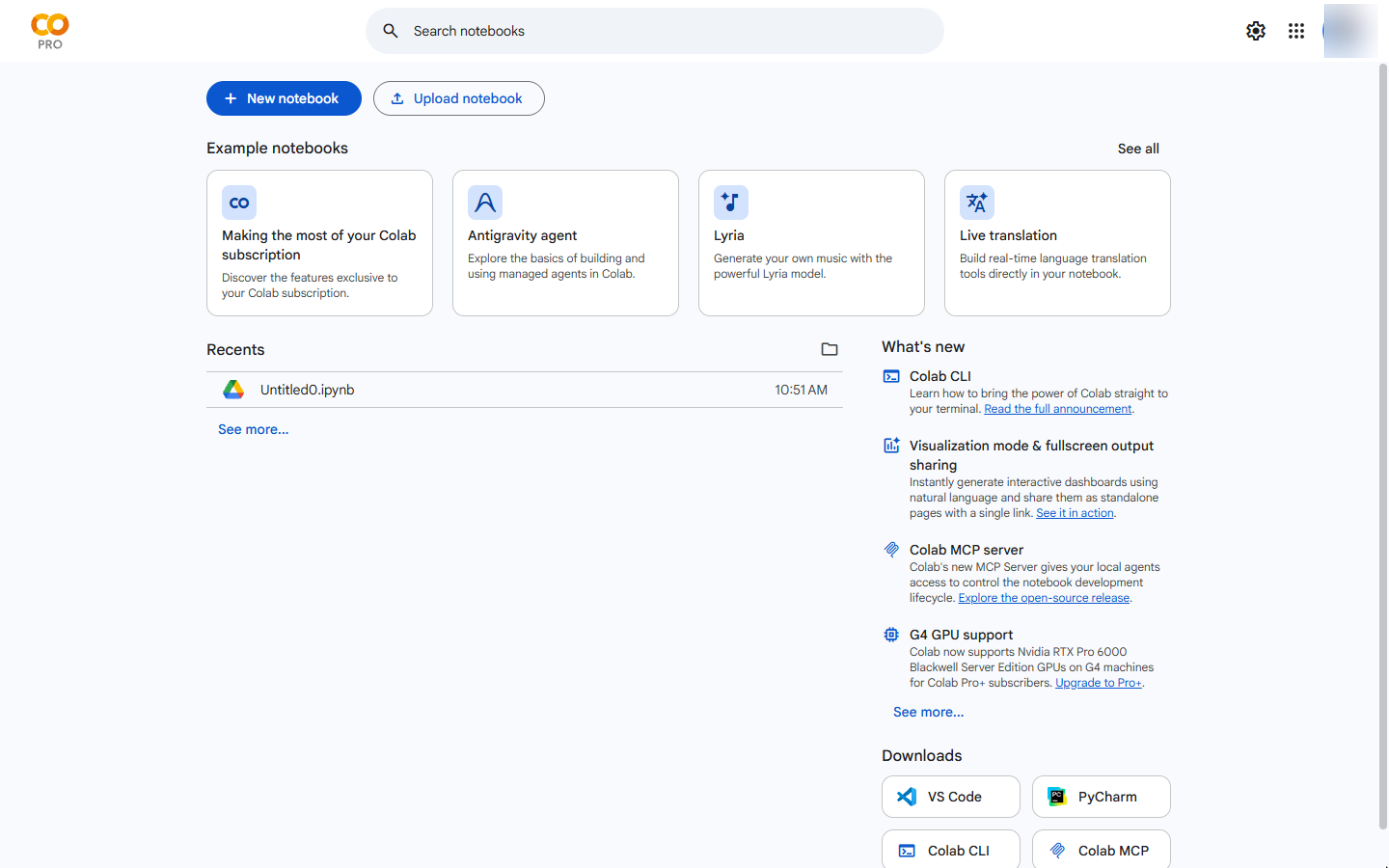
This is Google Colab.
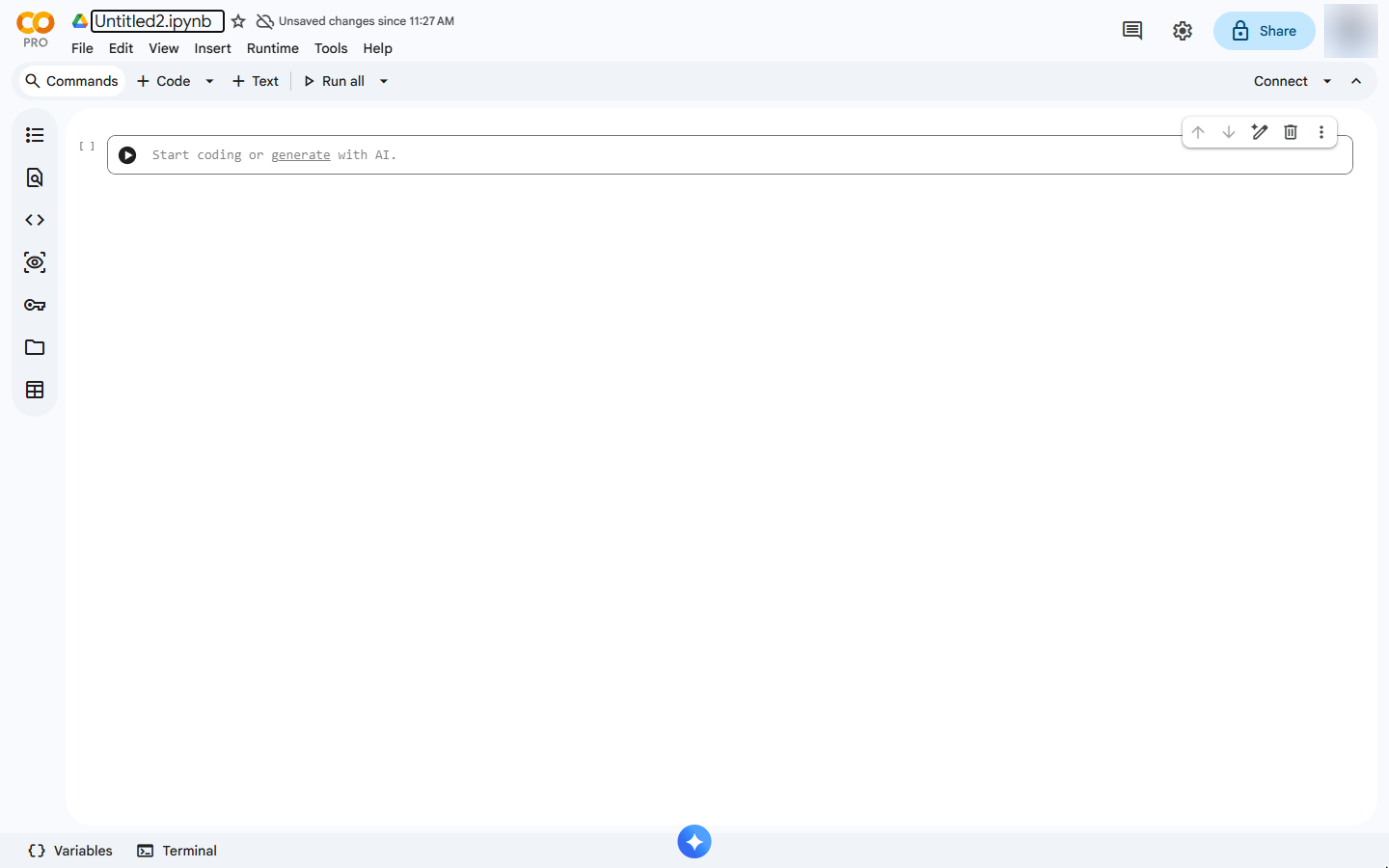
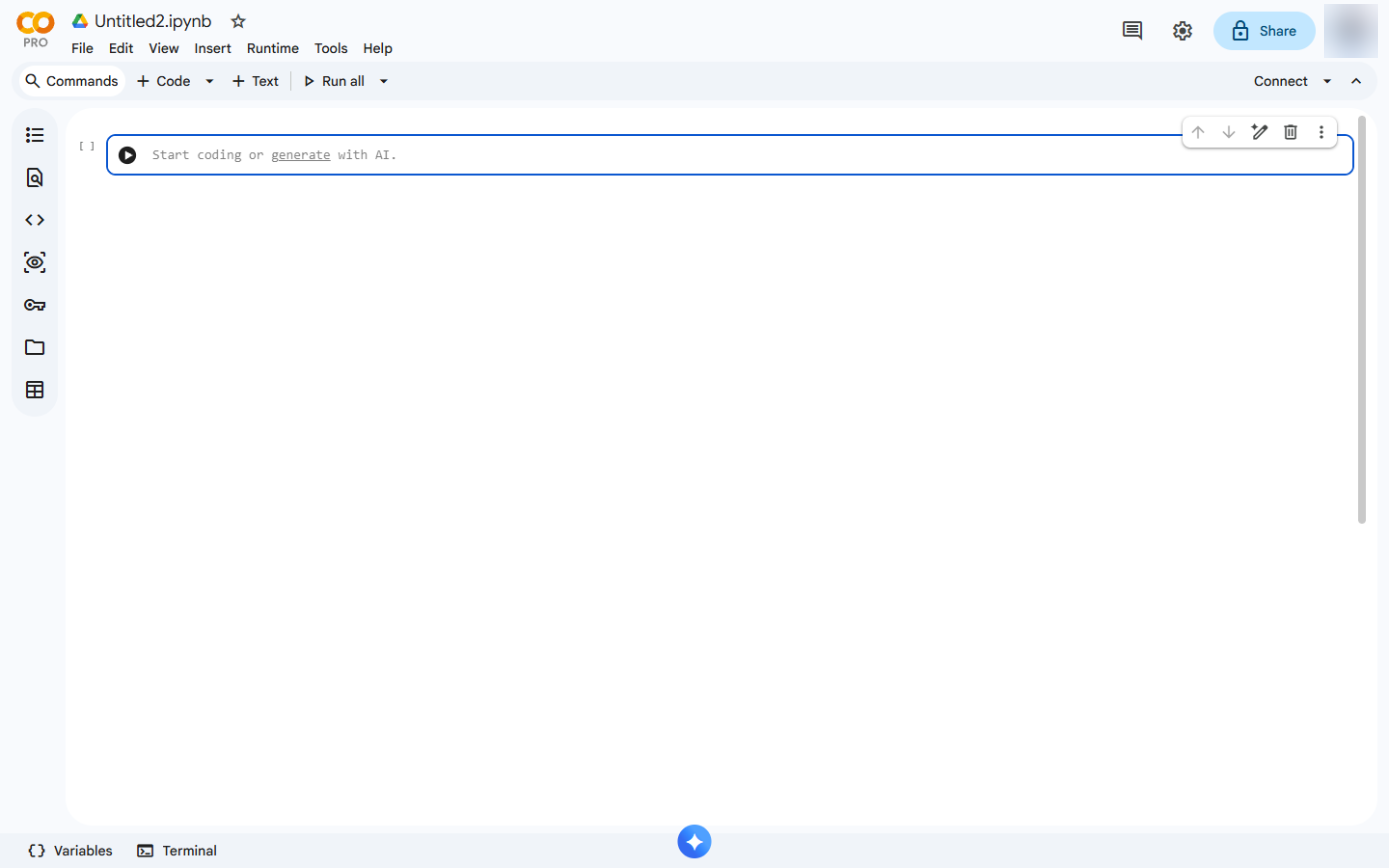
- Rename it. The notebook is saved in your Google Drive as Untitled. Click the name at the top to rename it.
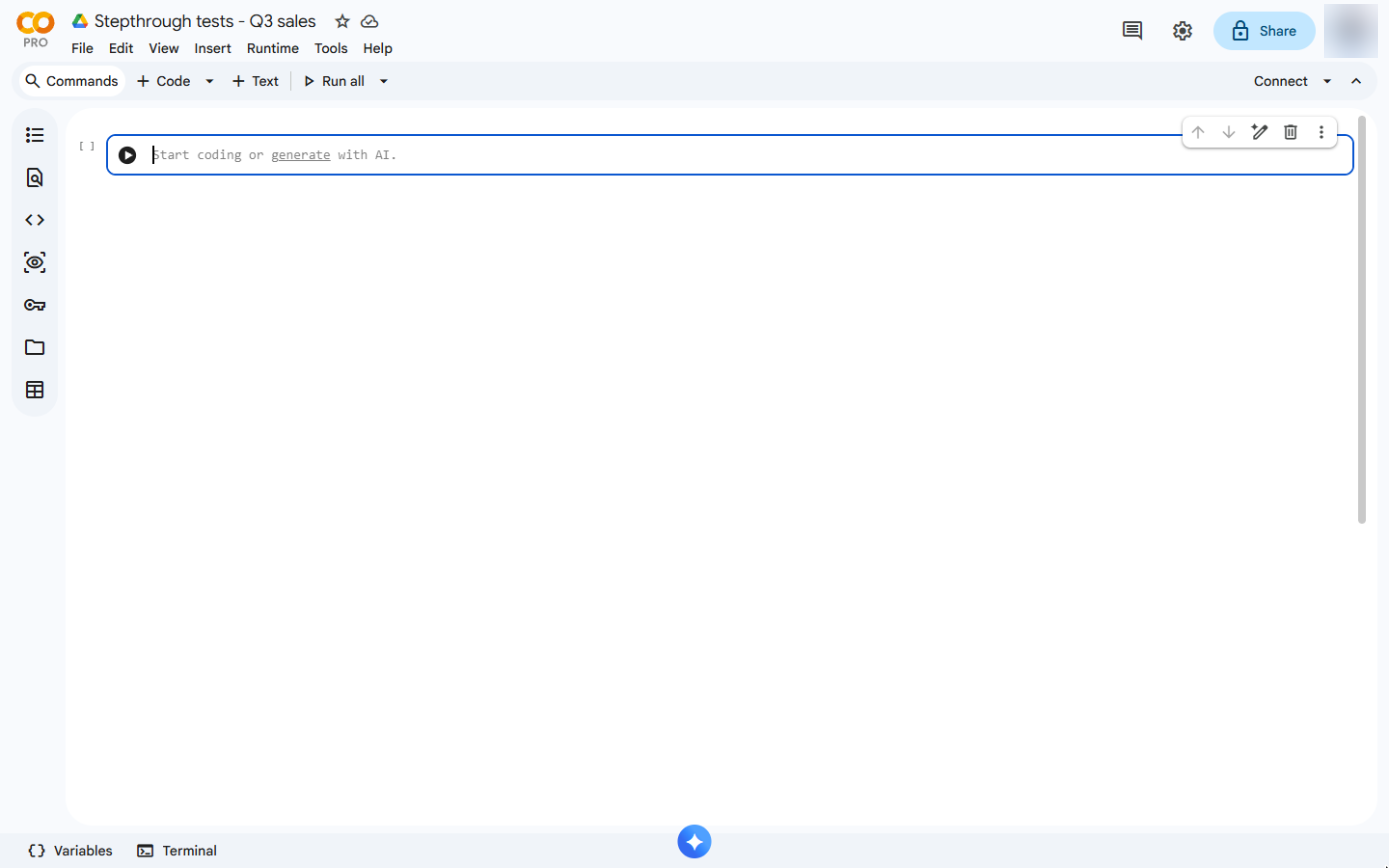
- Name it. Type a name and press Enter. Ours is.
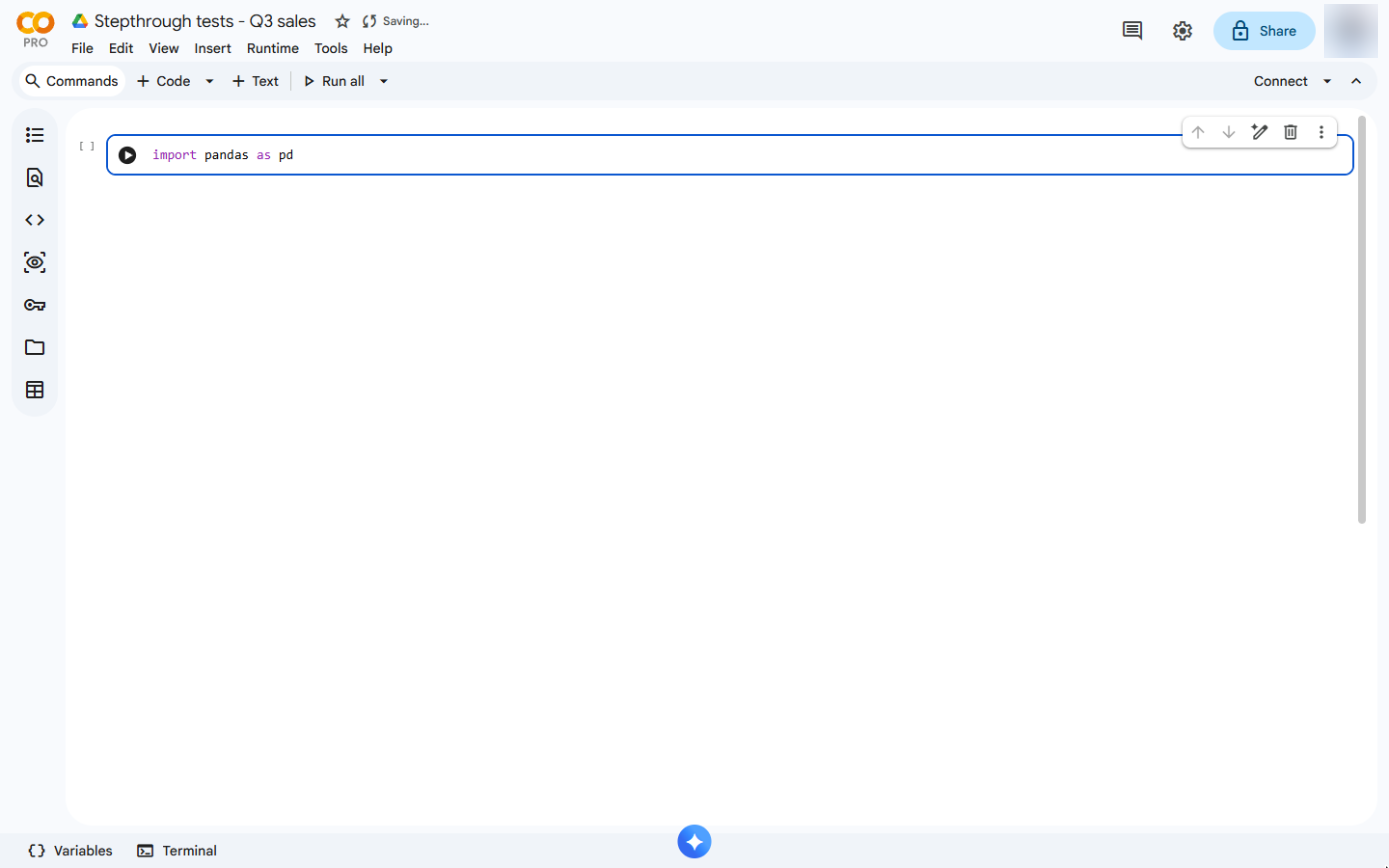
- Load pandas. Click in the first cell and type the line that loads pandas, the free table library every Python data job uses. pd is its short name.
In the first cell, type import pandas as p d. Pandas is the free table library.
- Run the cell. Click the run button ▶ at the left of the cell (or press Shift+Enter). The first run takes a few seconds while Colab starts; a green tick means it worked.
The first run takes a few seconds.
2. Put the orders in a table
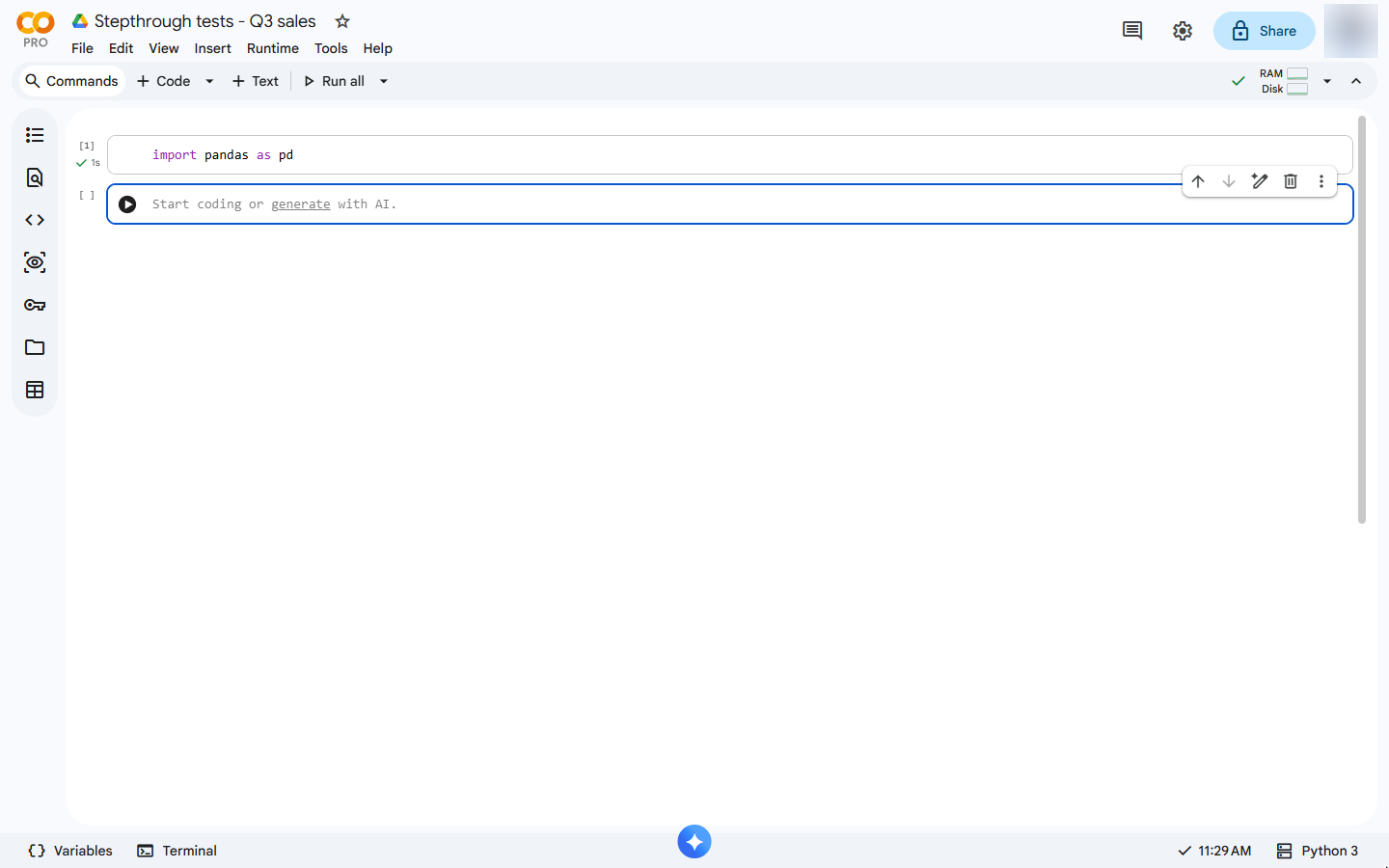
- Add a cell. Click + Code at the top to add a new cell.
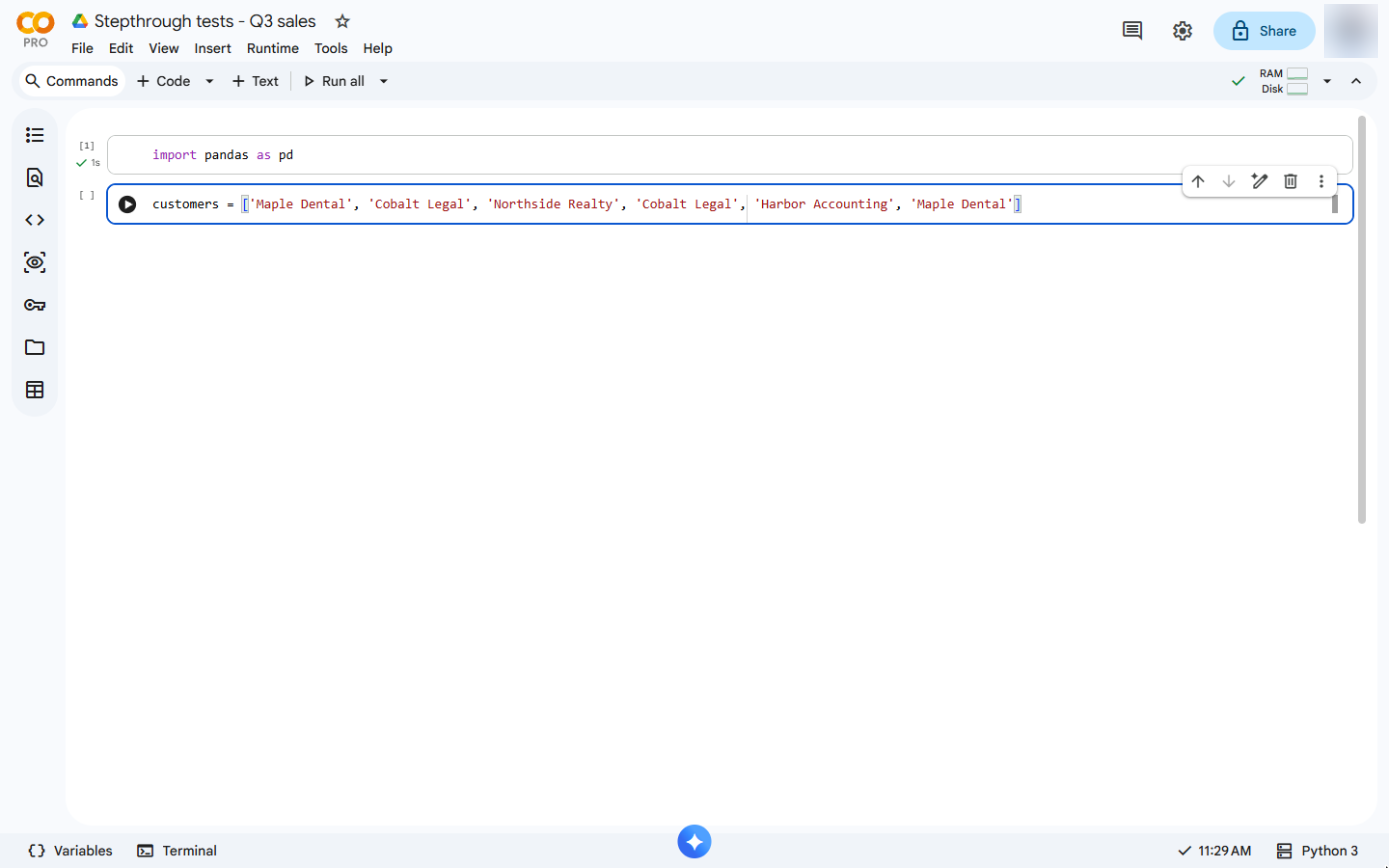
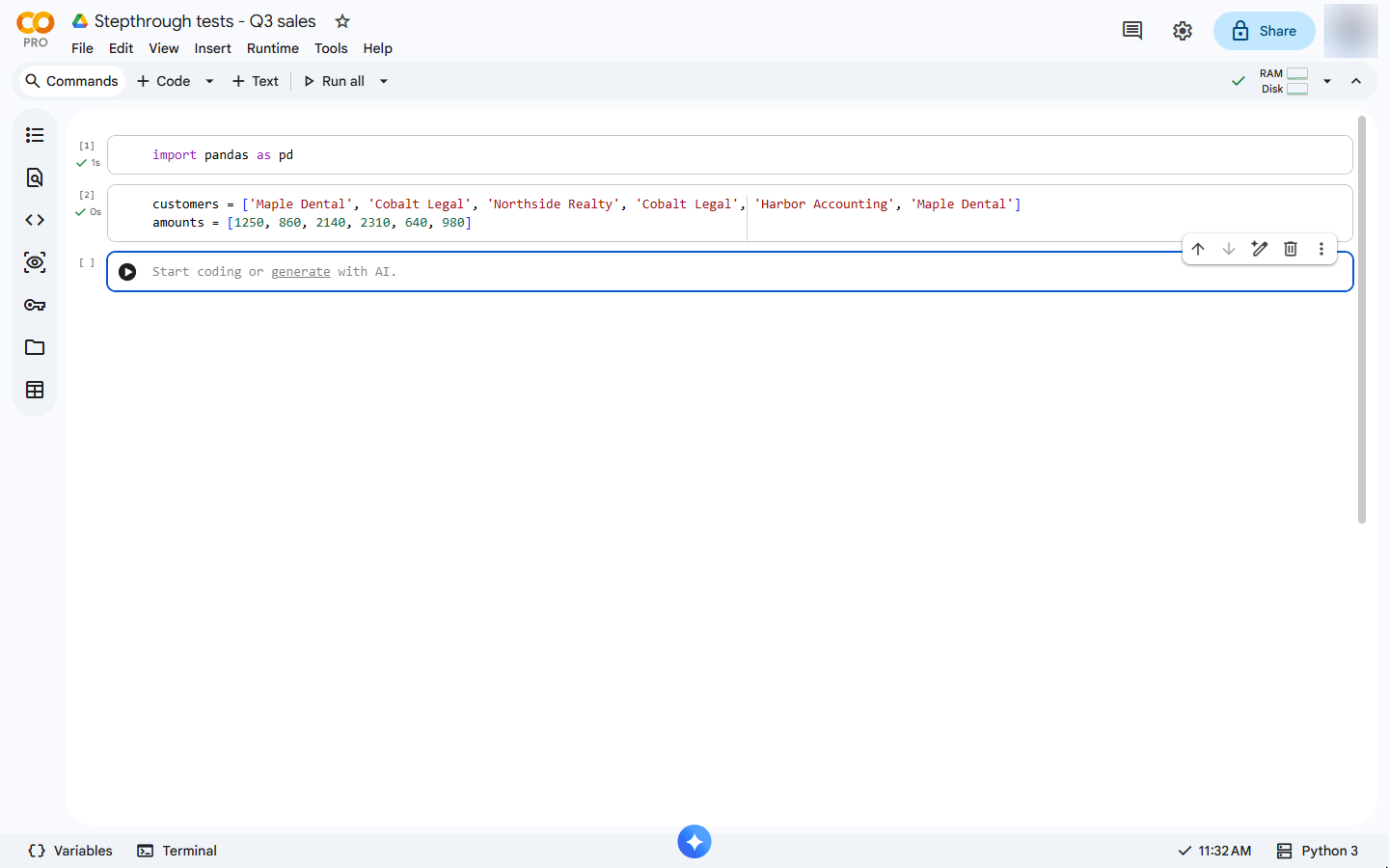
- Type the customers. Type the customer on each of the six orders as a list: square brackets, names in quotes, commas between. Colab adds the closing bracket and quotes for you; just type over them.
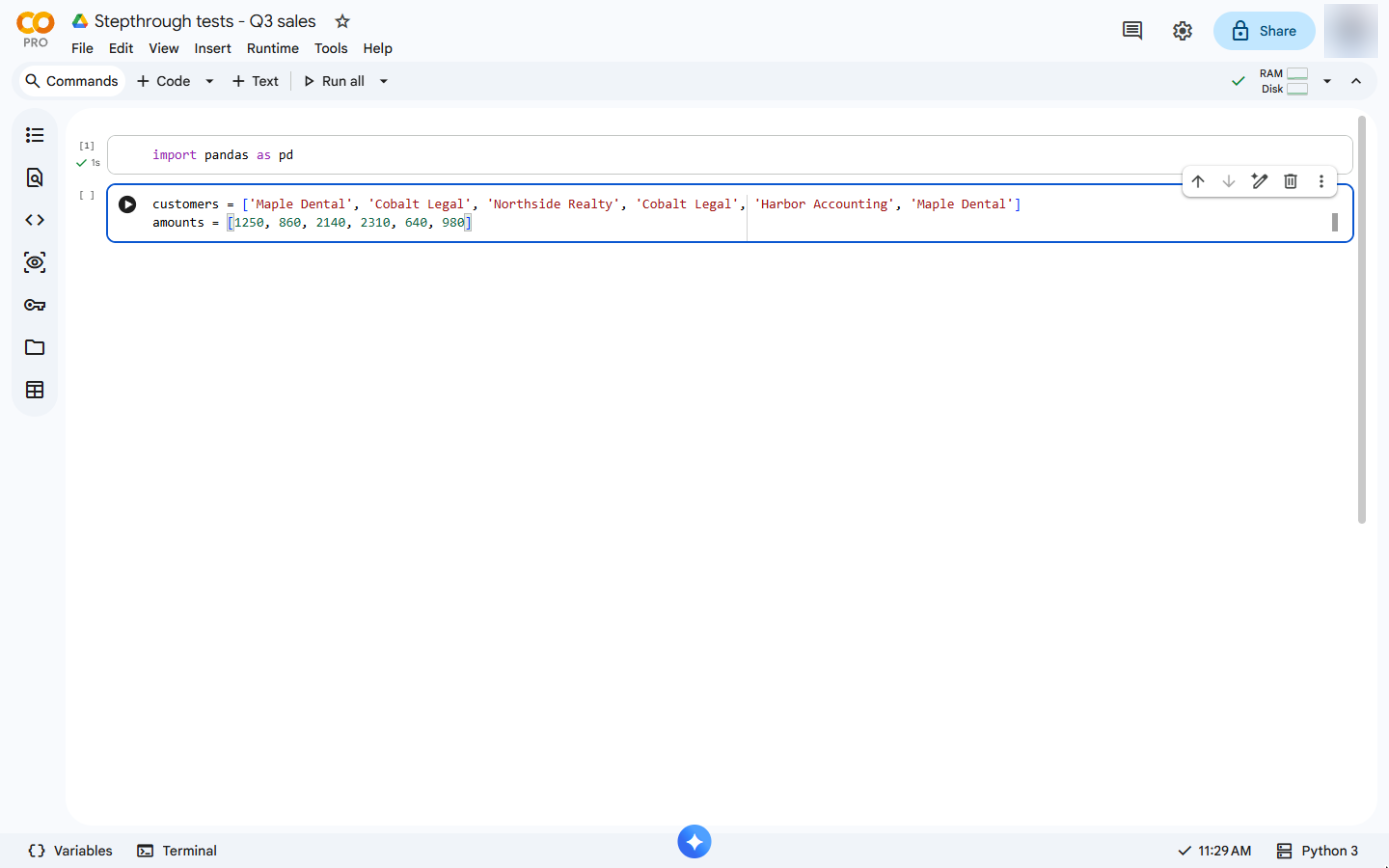
- Type the amounts. Press Enter and type the six amounts in the same order. Numbers have no quotes.
On the next line, the six amounts in the same order. Numbers have no quotes.
- Run it. Press Shift+Enter: Colab runs the cell and opens a new empty cell below. (In the practice, click the run button ▶ at the left of the cell.)
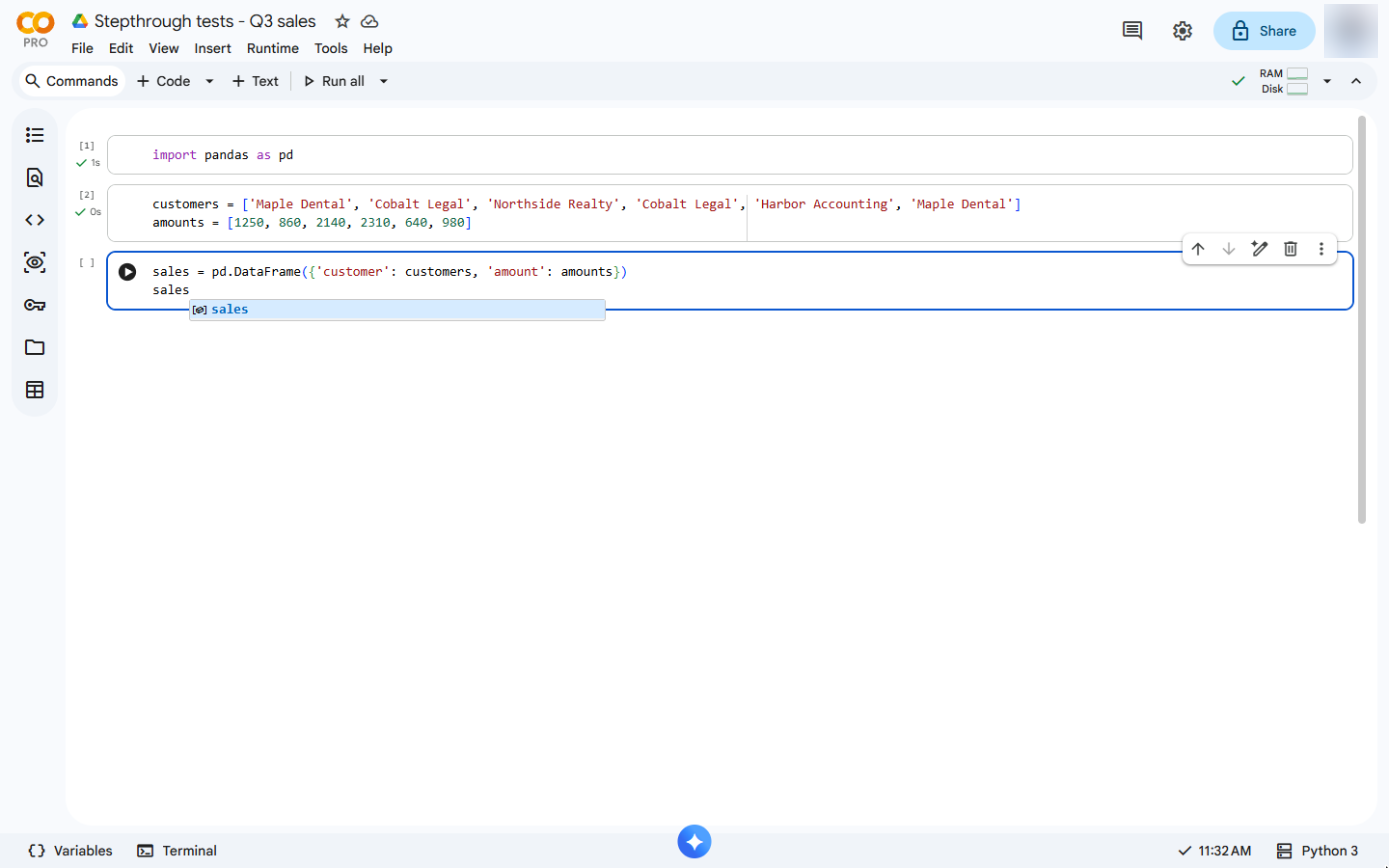
- Make a table. In the new cell, put the two lists side by side in a pandas table (a DataFrame), then type its name on the next line to show it.
Put the two lists side by side in a pandas table, called a DataFrame, and show it.
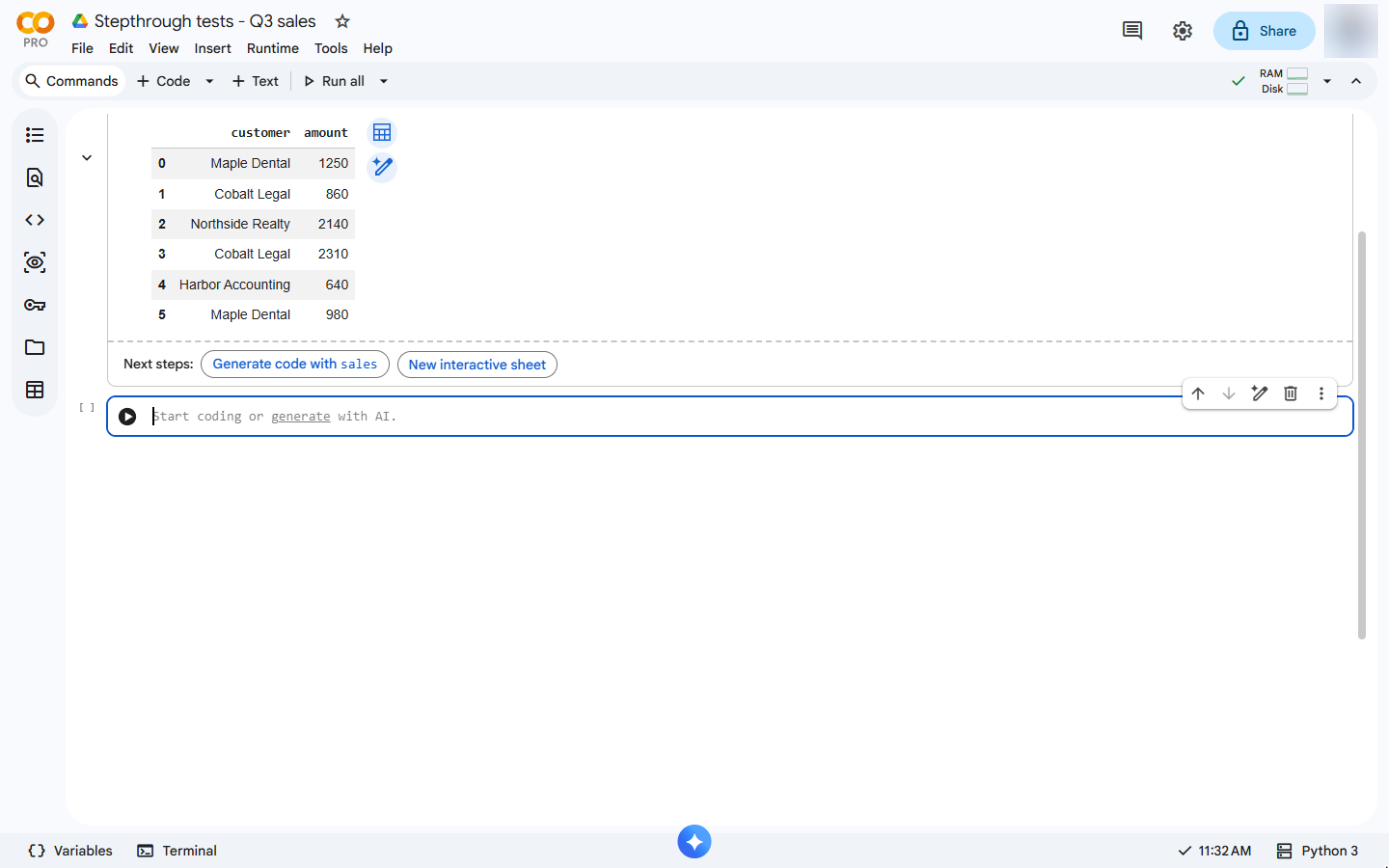
- Run it. Press Shift+Enter: Colab runs the cell and opens a new empty cell below. (In the practice, click the run button ▶ at the left of the cell.)
Run it.
3. Total and rank
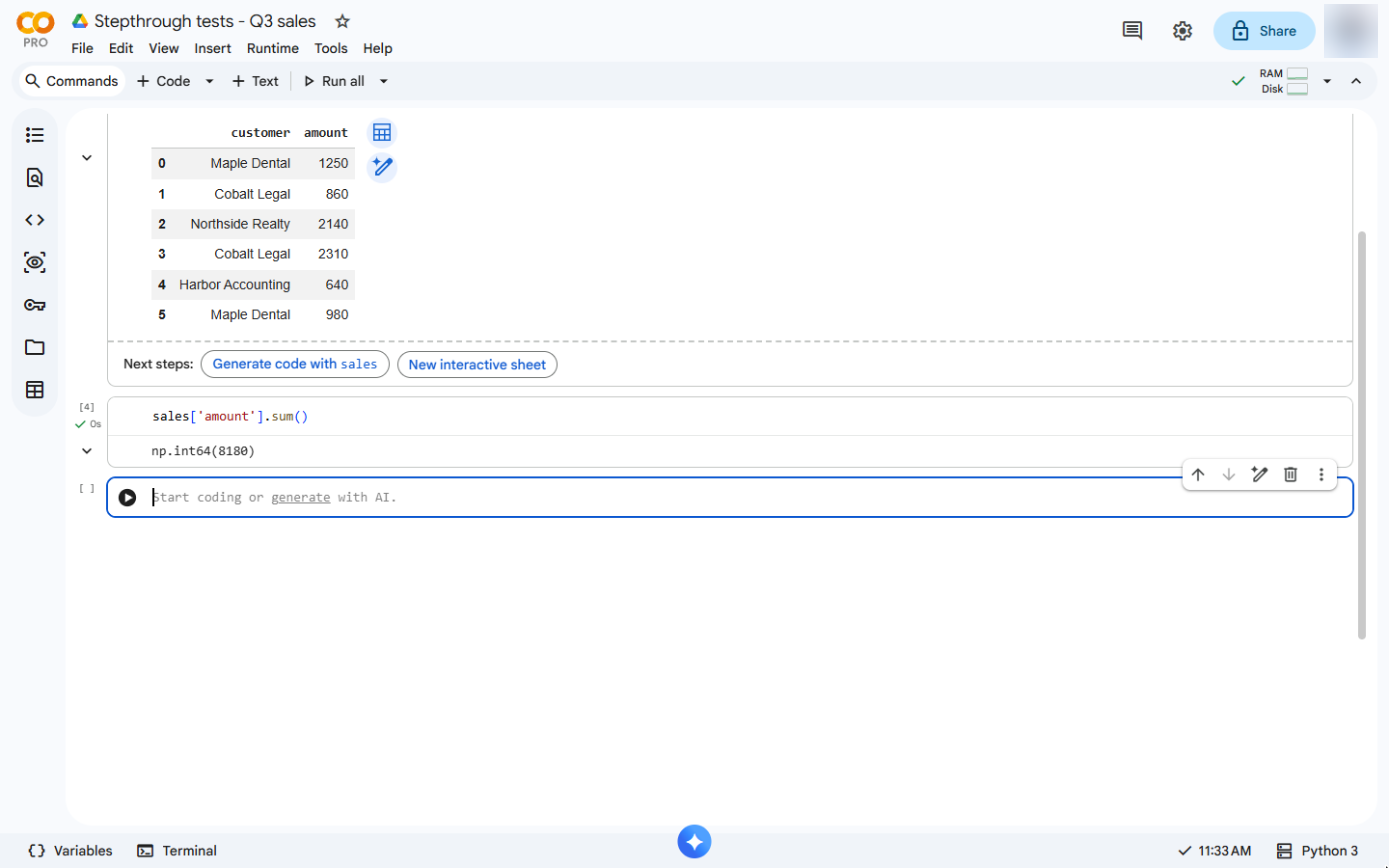
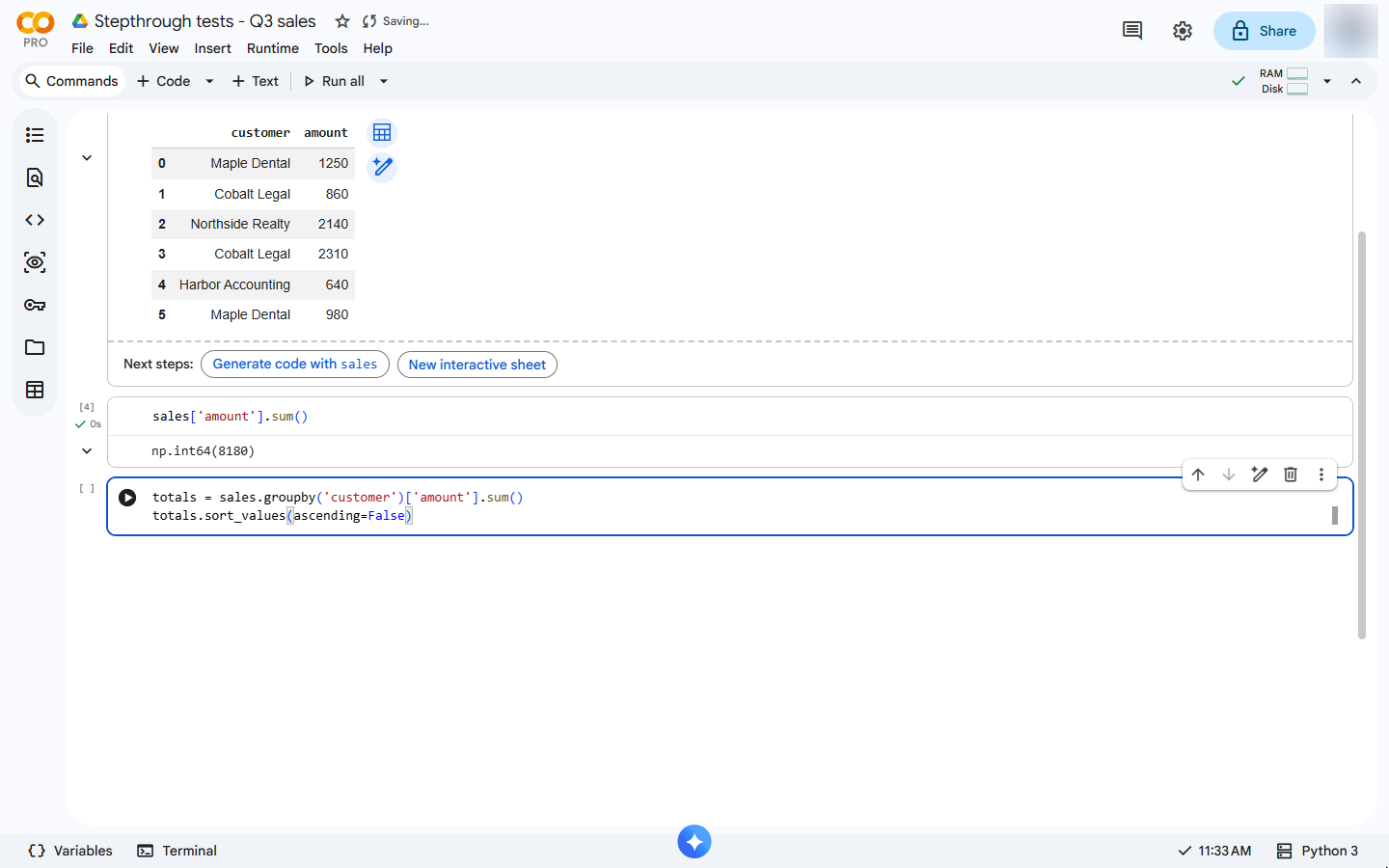
- Total the quarter. A table of six orders, like a spreadsheet. Now add up the amount column.
A table of six orders. Now add up the amount column.
- Run it. Press Shift+Enter: Colab runs the cell and opens a new empty cell below. (In the practice, click the run button ▶ at the left of the cell.)
Run it.
- Total each customer. 8180: np.int64 is just how pandas labels a whole number. Now one total per customer, biggest first. groupby makes one group per customer, sum adds each group, sort_values puts the biggest on top.
Eight thousand one hundred eighty for the quarter. Now group by customer, total each one, and sort the biggest to the top.
- Run it. Press Shift+Enter: Colab runs the cell and opens a new empty cell below. (In the practice, click the run button ▶ at the left of the cell.)
Run it.
Screenshots
![The first cell ran (a green tick and [1]); Colab is connected](/content/img/python-sales-report/05-c1-run.webp)
![sales['amount'].sum() typed](/content/img/python-sales-report/12-c4.webp)
More in Python
Same business, other tools
Maple Dental shows up in these modules too, built with different tools.
 Excel for the Web: Find Your Top Customers in a Sales Export
A beginner Excel for the web walkthrough on real screens: clean a sales export with Remove Duplicates, total every customer with a PivotTable and sort the biggest to…
Free · Live ~12 min Beginner
 SQL: Build a Monthly Revenue Report from an Orders Table
A beginner SQL walkthrough in the free DB Fiddle: type a small orders table, then filter it, total it and turn it into revenue by month with GROUP BY, typing every line…
Free · Live ~12 min Beginner
 SQL: Find Customers Who Have Gone Quiet with a LEFT JOIN
A beginner SQL walkthrough in the free DB Fiddle: join a customers table to orders, see why a plain JOIN hides customers who never ordered, and list every quiet account…
Free · Live ~15 min Beginner
 JavaScript: Turn Invoice Dates into Due-Date Reminders
A beginner JavaScript walkthrough in the free JSFiddle: work out Net 30 due dates, count the days left and list every invoice as due or overdue, typing every line…
Free · Live ~15 min Beginner
Free cheat sheet
Print it or save the PDF: the key steps and checks from this lesson on one page, free.

All free printable cheat sheets
Terms in this lesson
Plain-English definitions, each with an example from a free lesson.