Updated . Built against the tool’s current screens and checked step by step. How we check this lesson
A beginner Excel for the web walkthrough on real screens: turn a budget into a table, let one formula fill the Difference column, total it with the Total Row, turn overspending red and share one link.
At a glance
| Question | Answer |
|---|---|
| What you build | A beginner Excel for the web walkthrough on real screens: turn a budget into a table, let one formula fill the Difference column, total it with the Total Row, turn overspending red and share one link. |
| Tools | Excel |
| Time | About 15 minutes, 26 steps in 6 parts |
| Level | Beginner, no coding needed |
| Cost | Free |
| Ways to learn it | Practice it step by step |
The 6 parts, in short
- A new workbook with the budget: Create a blank workbook, Rename the file, Name it Bakery budget, October, Enter the budget.
- Turn it into a table: Format As Table, Pick a style, Confirm the range.
- A Difference column that fills itself: Add a Difference column, Type the formula, Press Enter.
- Totals with the Total Row: Open Table Design, Tick Total Row, Select the Budget total, Open the total menu, and 1 more step.
- Turn overspending red: Conditional Formatting, Highlight Cells Rules, Greater Than, Greater than 0, and 1 more step.
- Format as money and share: Open the number format, Currency, Open Share, Share, and 2 more steps.
What you'll build
Tom (made up) owns a small bakery. Each month his bookkeeper asks where he went over budget, and he adds receipts on a calculator. In this lesson you build his budget-vs-actual sheet in Excel for the web: five lines, an Excel table, a Difference column that fills itself, totals from the Total Row, a red flag on anything over budget, and a share link. Every screen is a real Excel for the web screen.
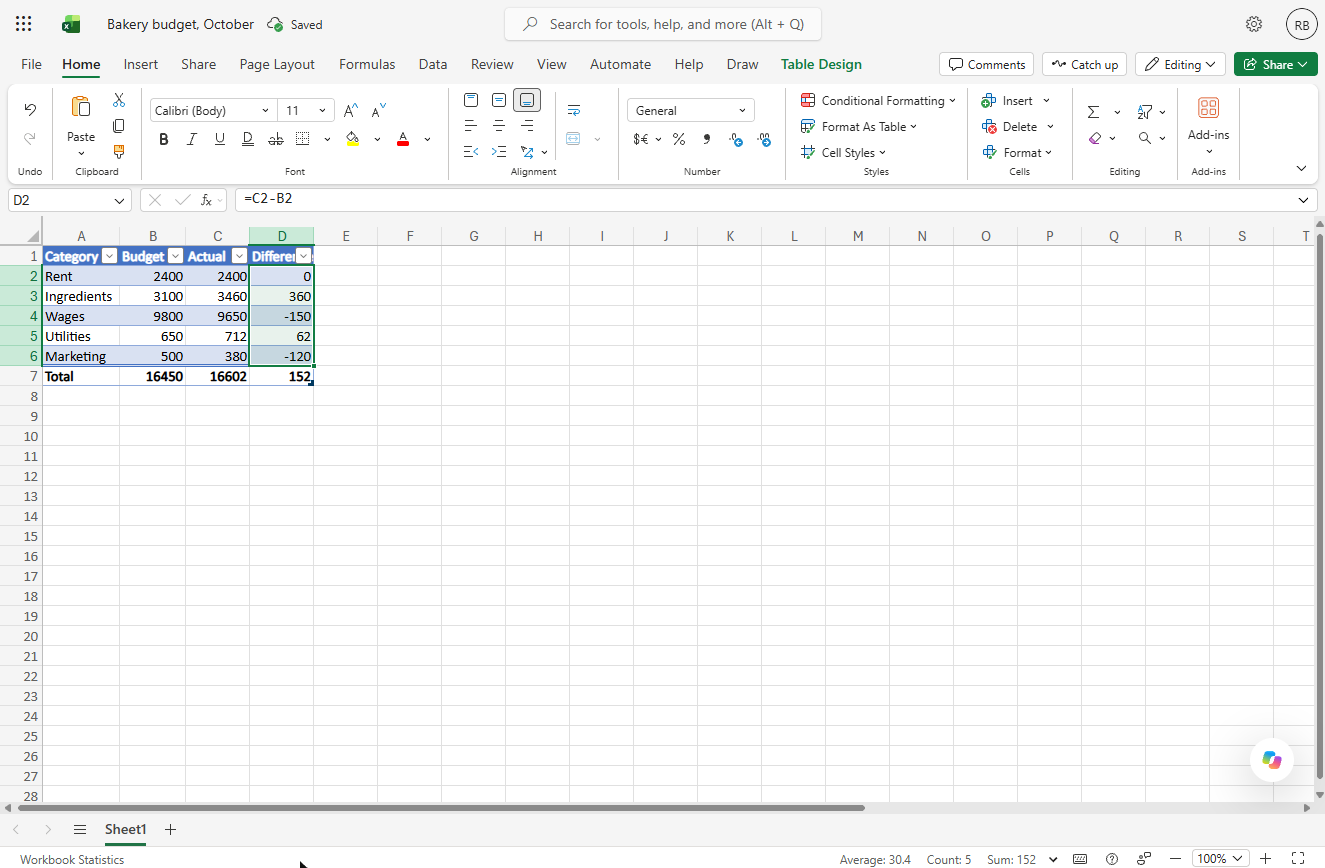
You made a table, let one formula fill the Difference column, added Sum totals ($16,450 budget, $16,602 actual, $152 over), turned Ingredients and Utilities red with a Greater-than-0 rule, formatted it as currency and opened Share. Now build it in your own Microsoft account: the lesson page has the checklist.
- Tools: Excel
- Time: about 15 minutes, 26 steps in 6 chapters
- Level: beginner, no coding needed
- Price: free
Practice first, then build it for real
Practice copy built from real Excel for the web screens (Microsoft 365, captured 22 October 2026). Nothing here touches your Microsoft account. The bakery and its numbers are made up. To build it for real you need your own Excel account, and some services charge once you use them for real work, so check each tool's current pricing.
Try it yourself, free
Reading the steps is a start. Doing them is how it sticks. The interactive module walks you through every click in a practice copy of Excel, checks each step, and never touches your real accounts.
Start “Excel for the Web: Your First Budget Spreadsheet”Step by step: Excel for the Web: Your First Budget Spreadsheet
All 26 steps of the interactive module, in order. In the module you watch each one, then do it yourself in a practice copy that checks your work.
1. A new workbook with the budget
- Create a blank workbook. Open Excel for the web (from microsoft365.com, or the app launcher in any Microsoft 365 app). Click Create blank workbook.
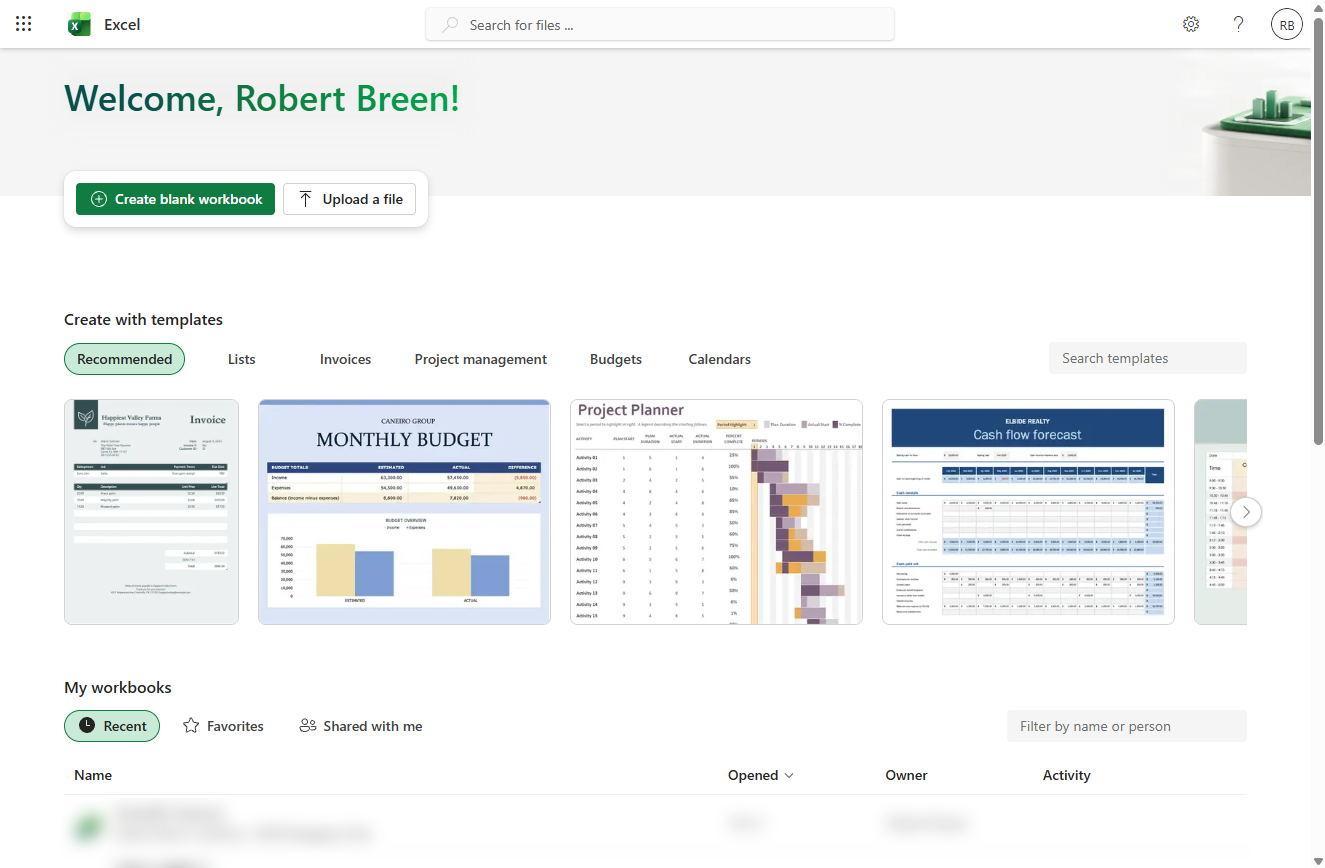
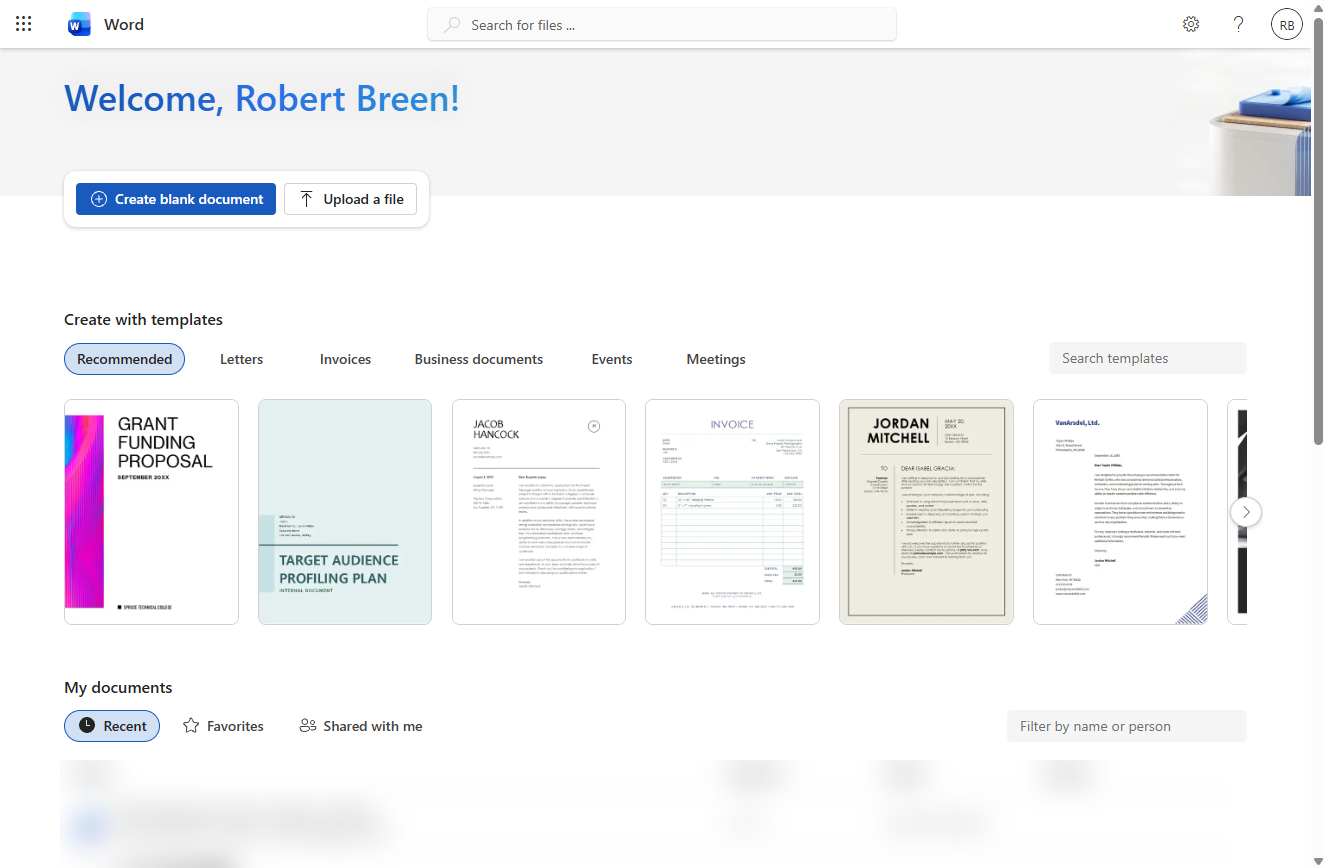
This is the Excel start page.
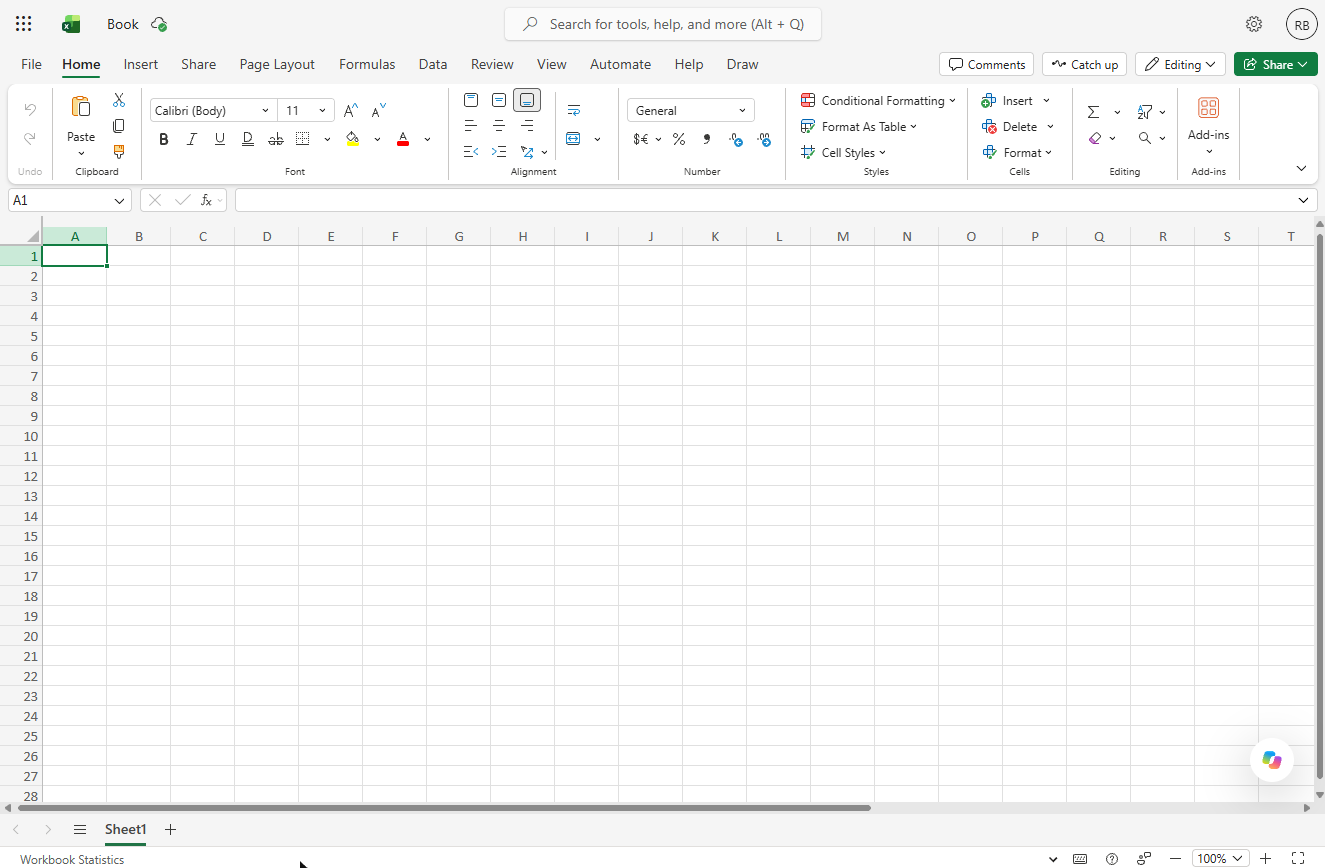
- Rename the file. New files are called "Book". Click the file name at the top. Excel for the web saves as you go, so there is no Save button to forget.
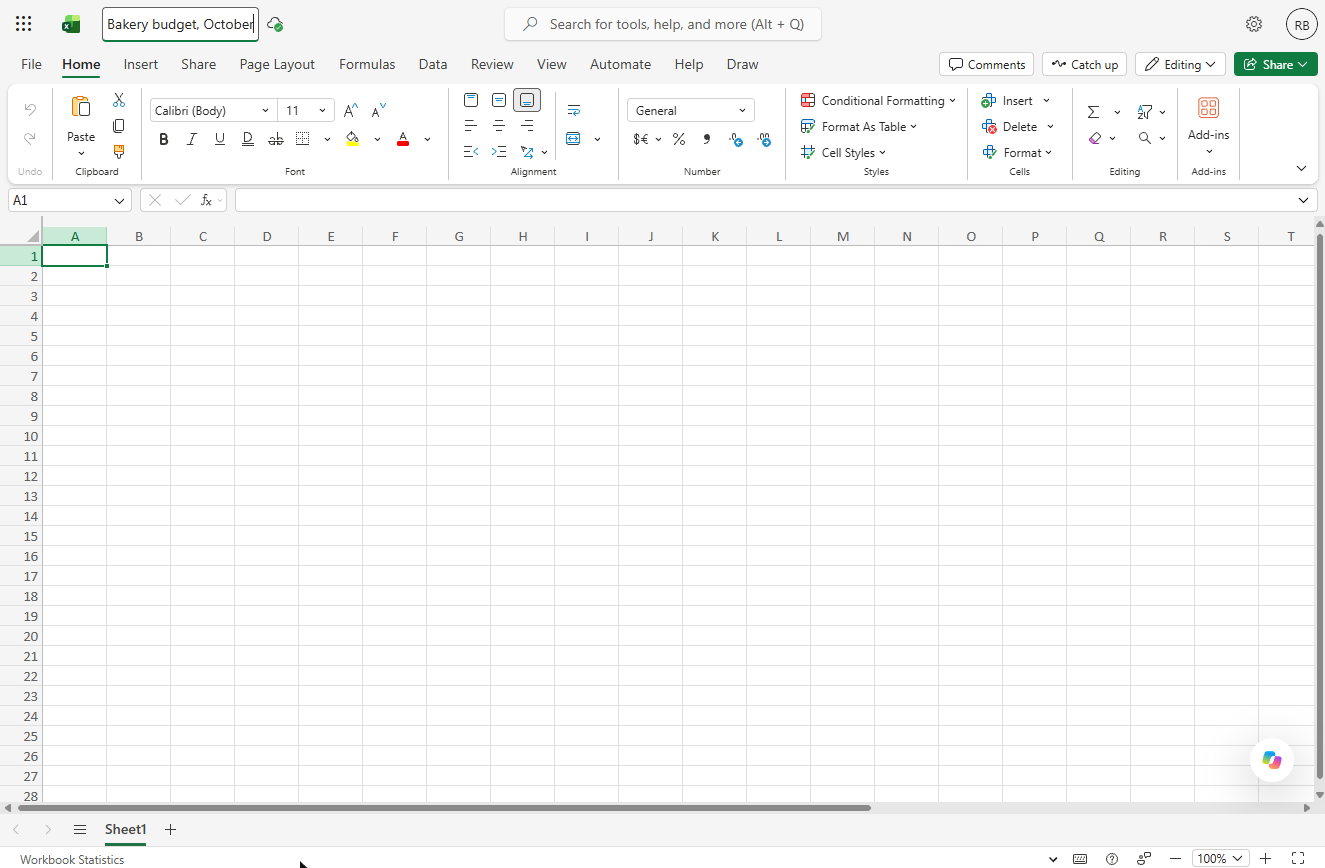
- Name it Bakery budget, October. Type Bakery budget, October and press Enter.
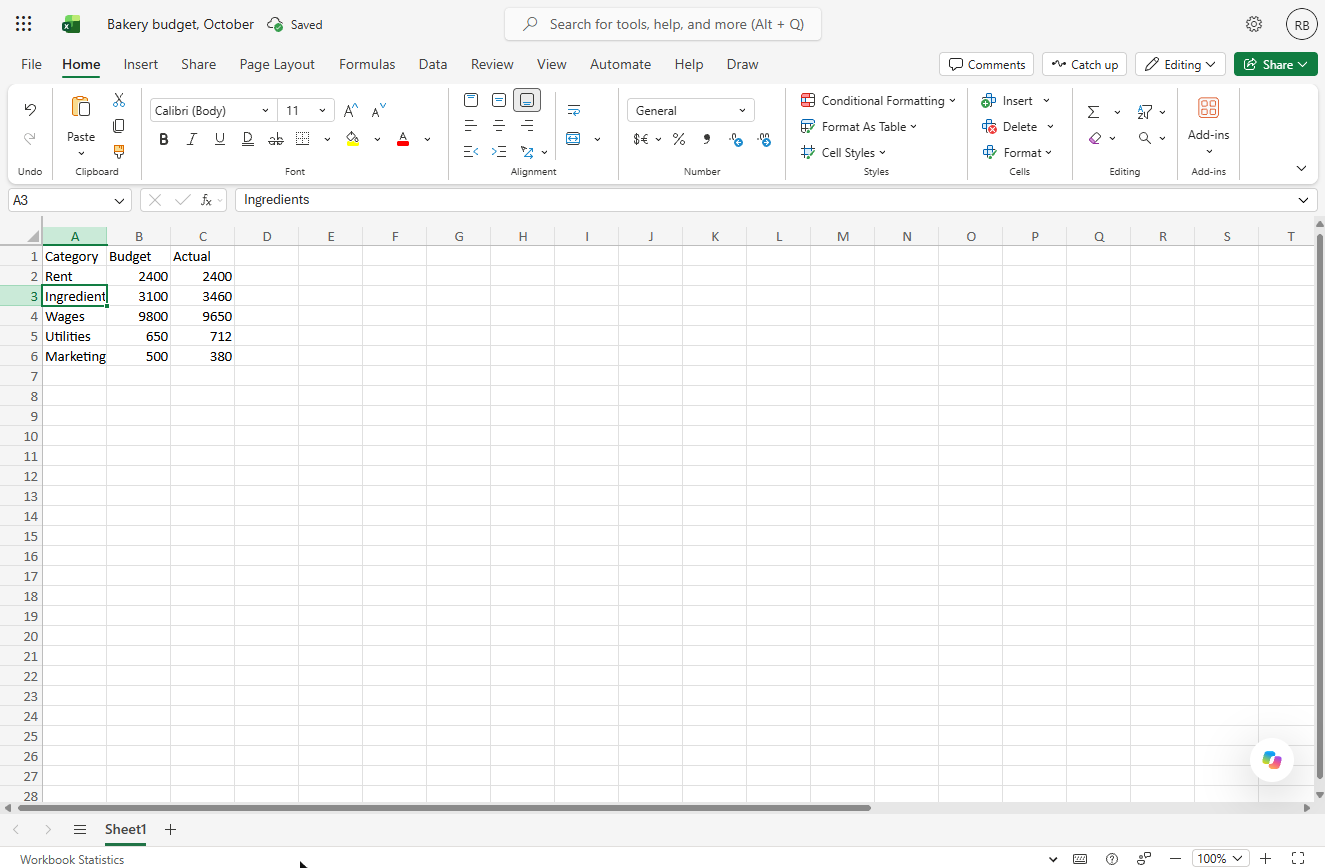
- Enter the budget. Click A1 and type (or paste) the headers Category, Budget and Actual, then the five rows. Type numbers without commas or a $ sign; you format them at the end.
Category, Budget and Actual, then five rows. Numbers only.
2. Turn it into a table
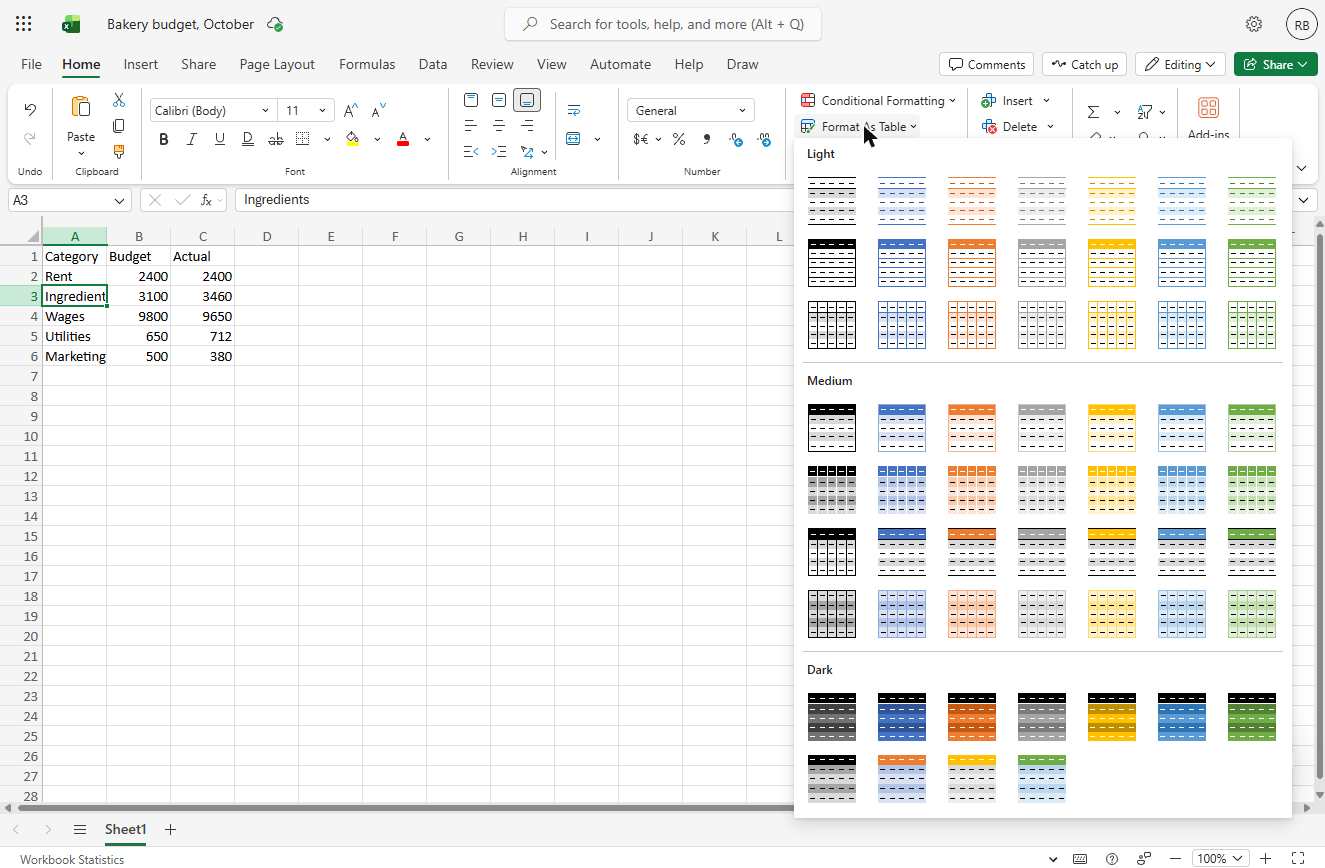
- Format As Table. Click any cell in the data, then on the Home tab click Format As Table.
Then, on the Home tab, click Format As Table.
- Pick a style. Pick any style. We chose a blue one under Medium.
Pick a style. Any one works.
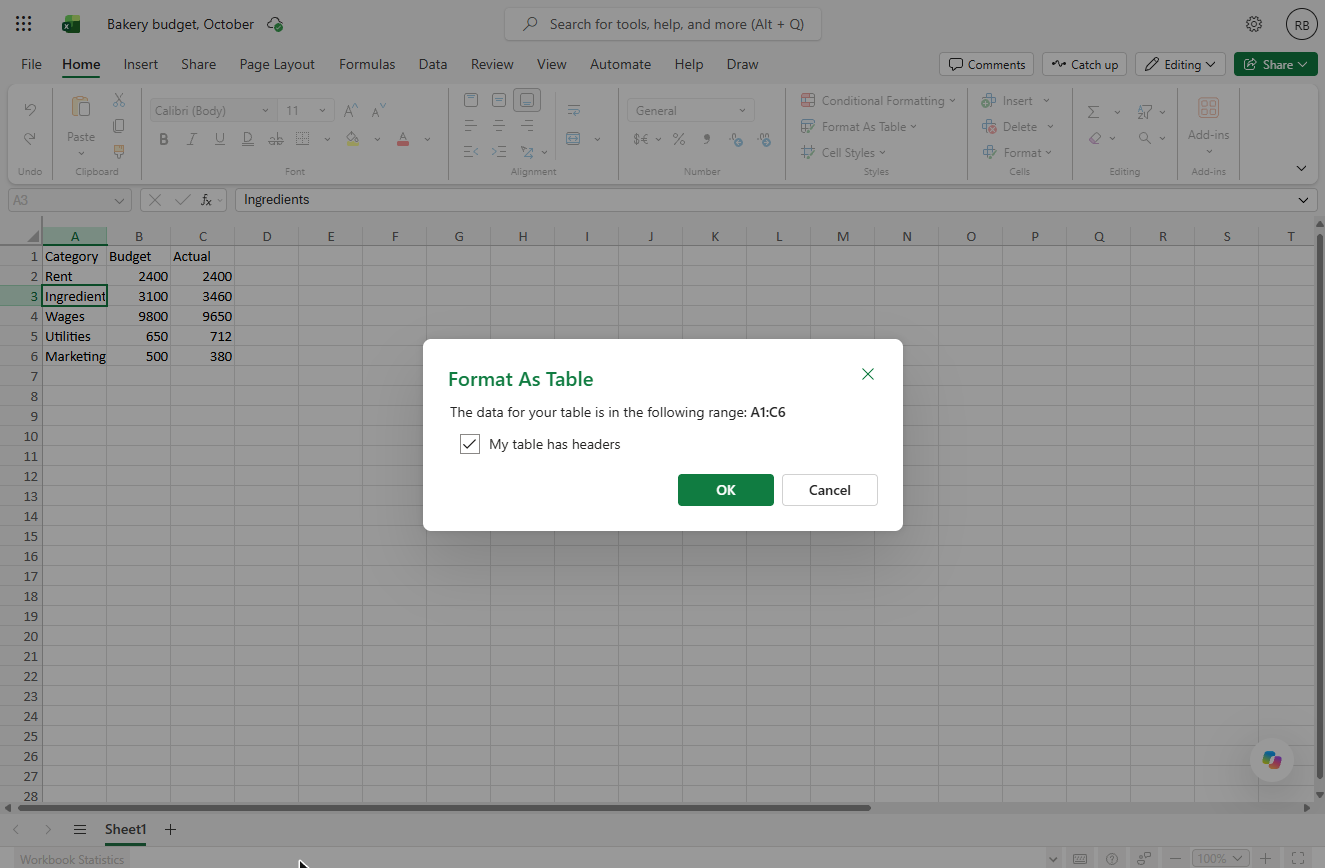
- Confirm the range. Excel found the range A1:C6. Check My table has headers is ticked and click OK.
Check that My table has headers is ticked.
3. A Difference column that fills itself
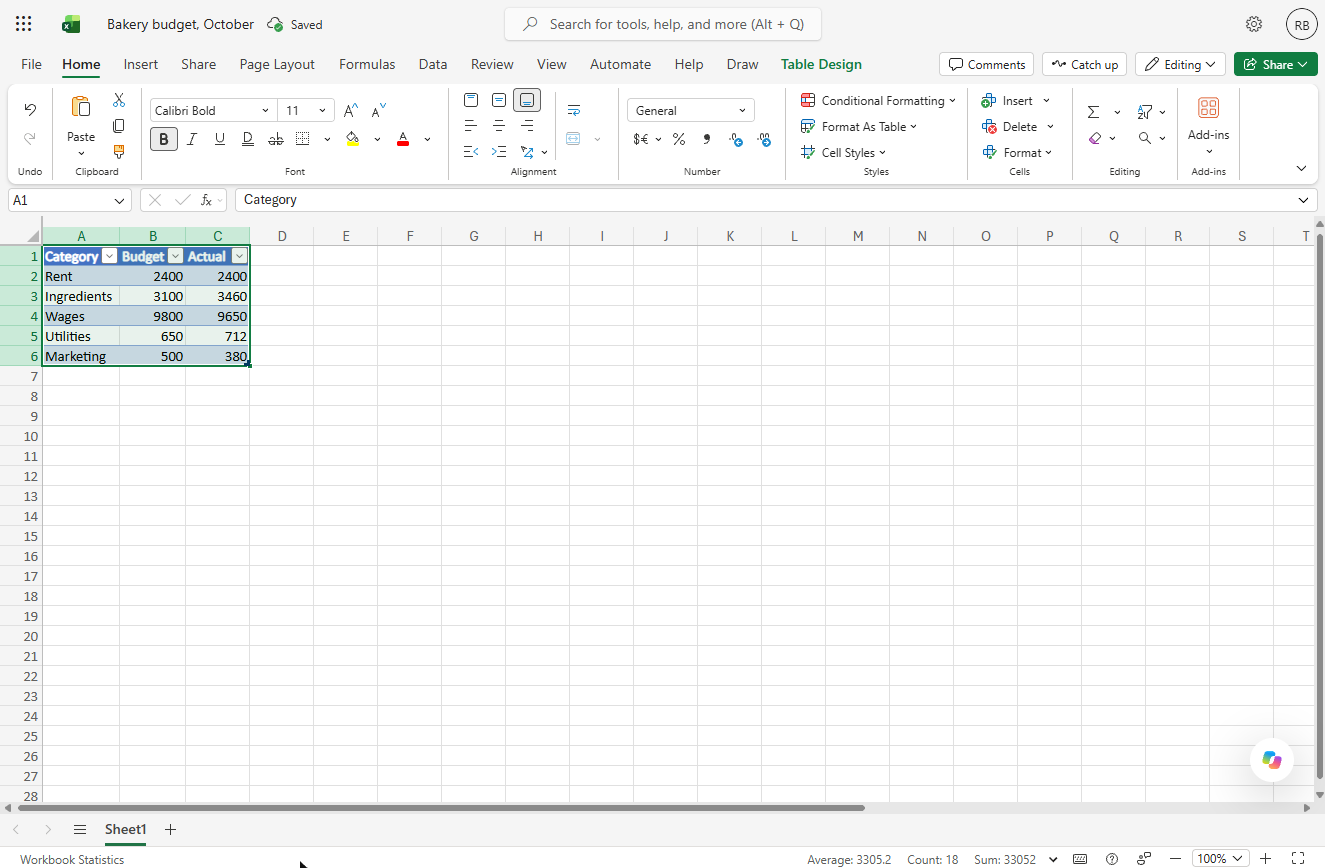
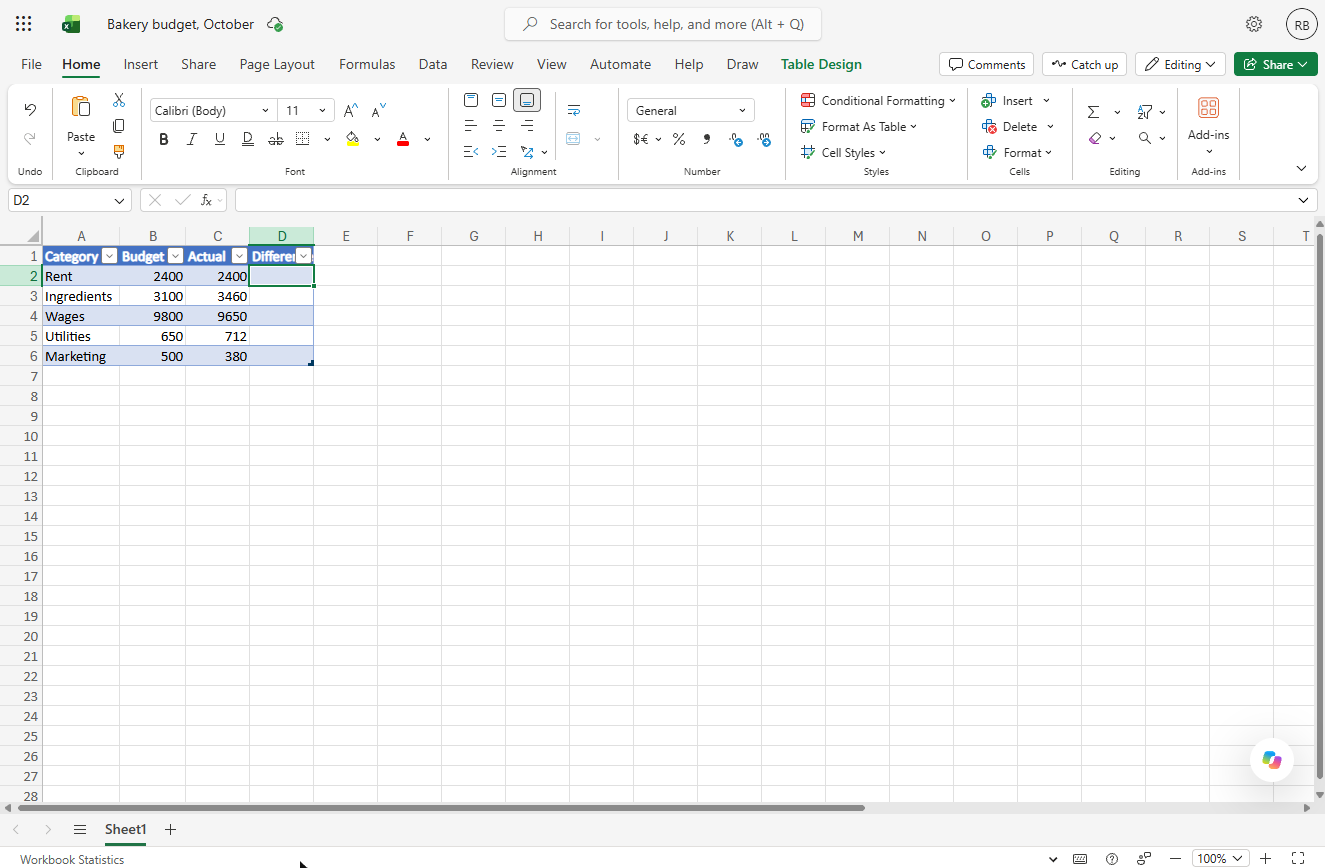
- Add a Difference column. Now it is an Excel table, with a filter arrow on each header. Click D1, type Difference and press Enter. The table grows to include it.
The table grows to include it.
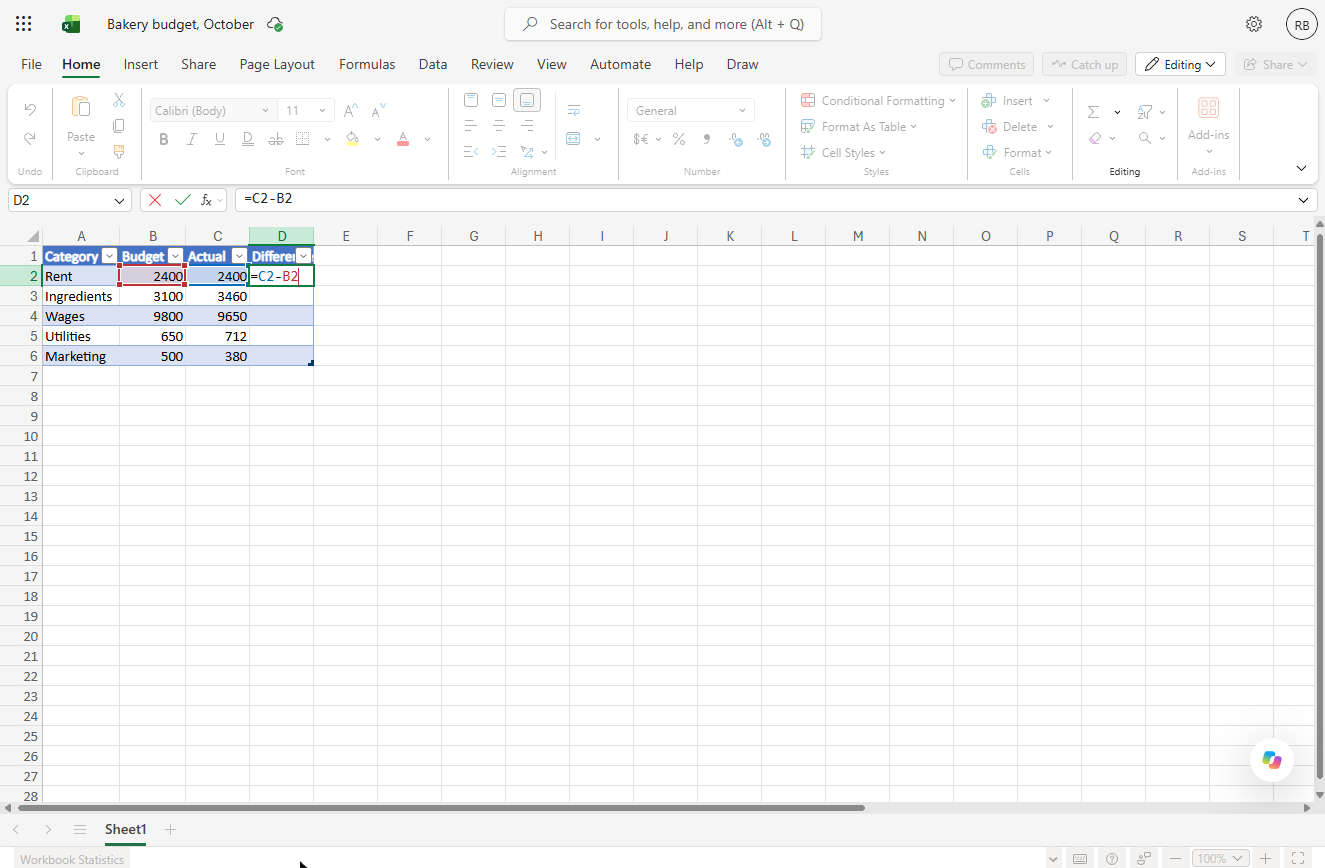
- Type the formula. In D2 type =C2-B2: actual minus budget, so a positive number means overspent.
In D2, type equals C2 minus B2. Actual minus budget.
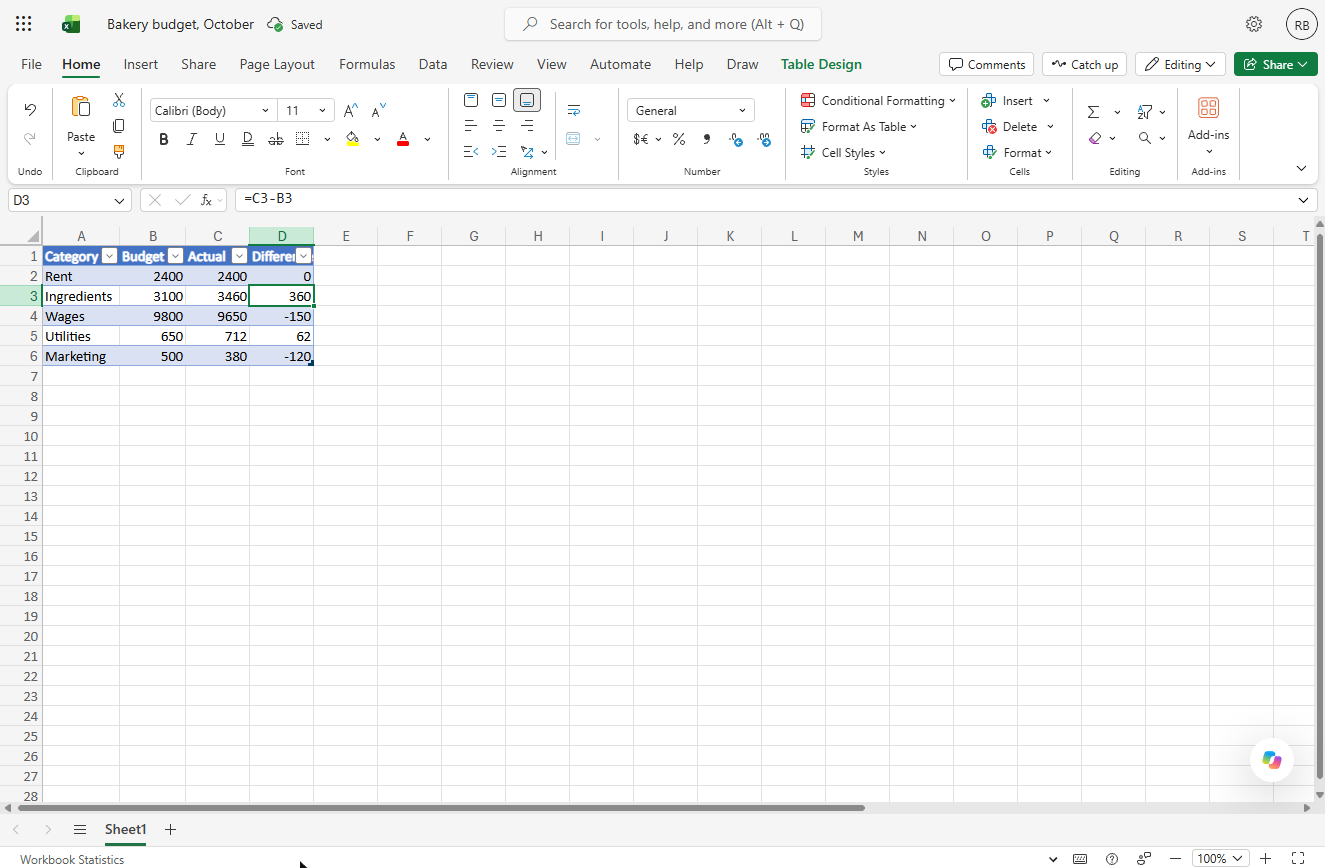
- Press Enter. Press Enter. Because you are inside a table, Excel copies the formula down the whole column for you: a calculated column.
Excel fills the formula down the whole column.
4. Totals with the Total Row
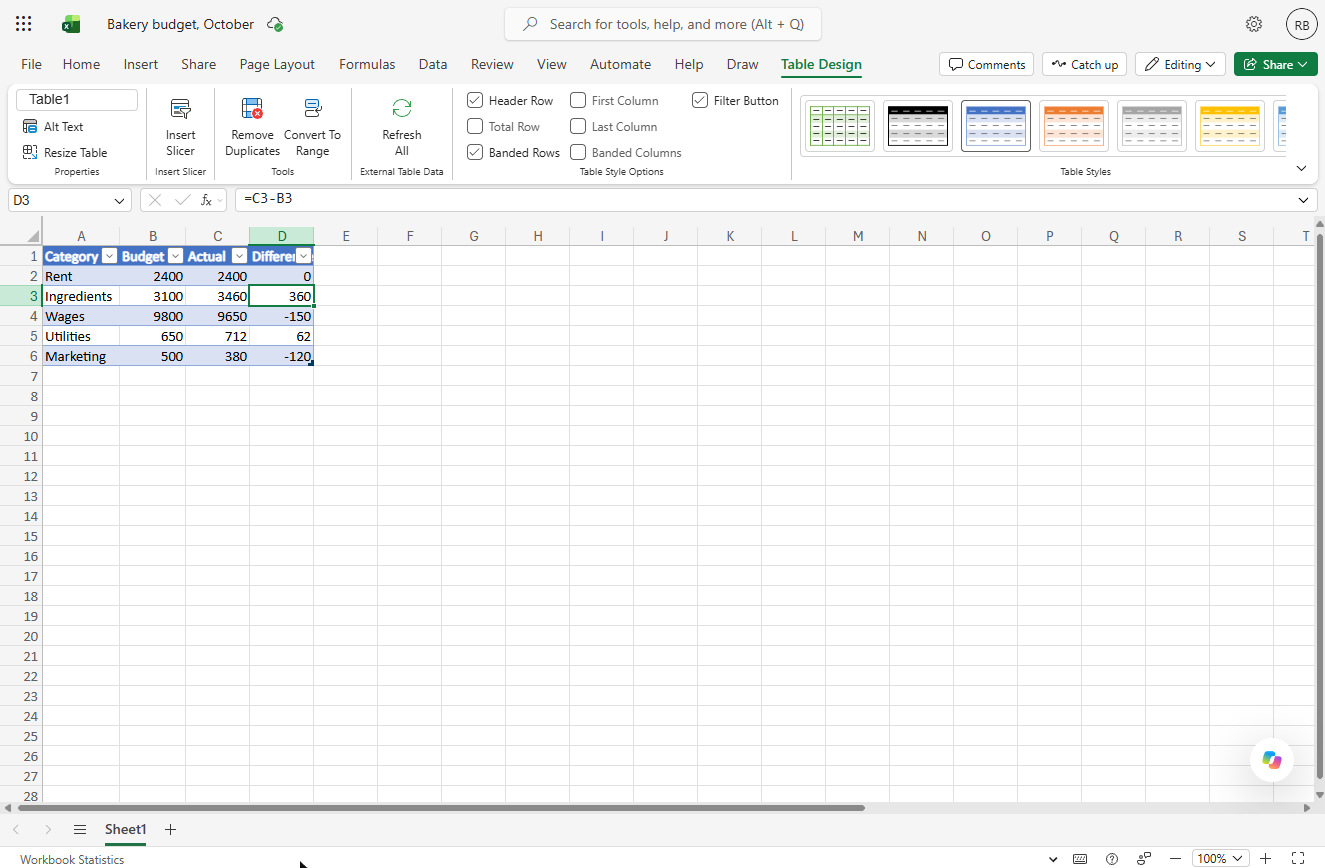
- Open Table Design. Excel filled 0, 360, −150, 62 and −120. With a cell in the table selected, click the Table Design tab (it only shows while you are in the table).
It only shows while you are in the table.
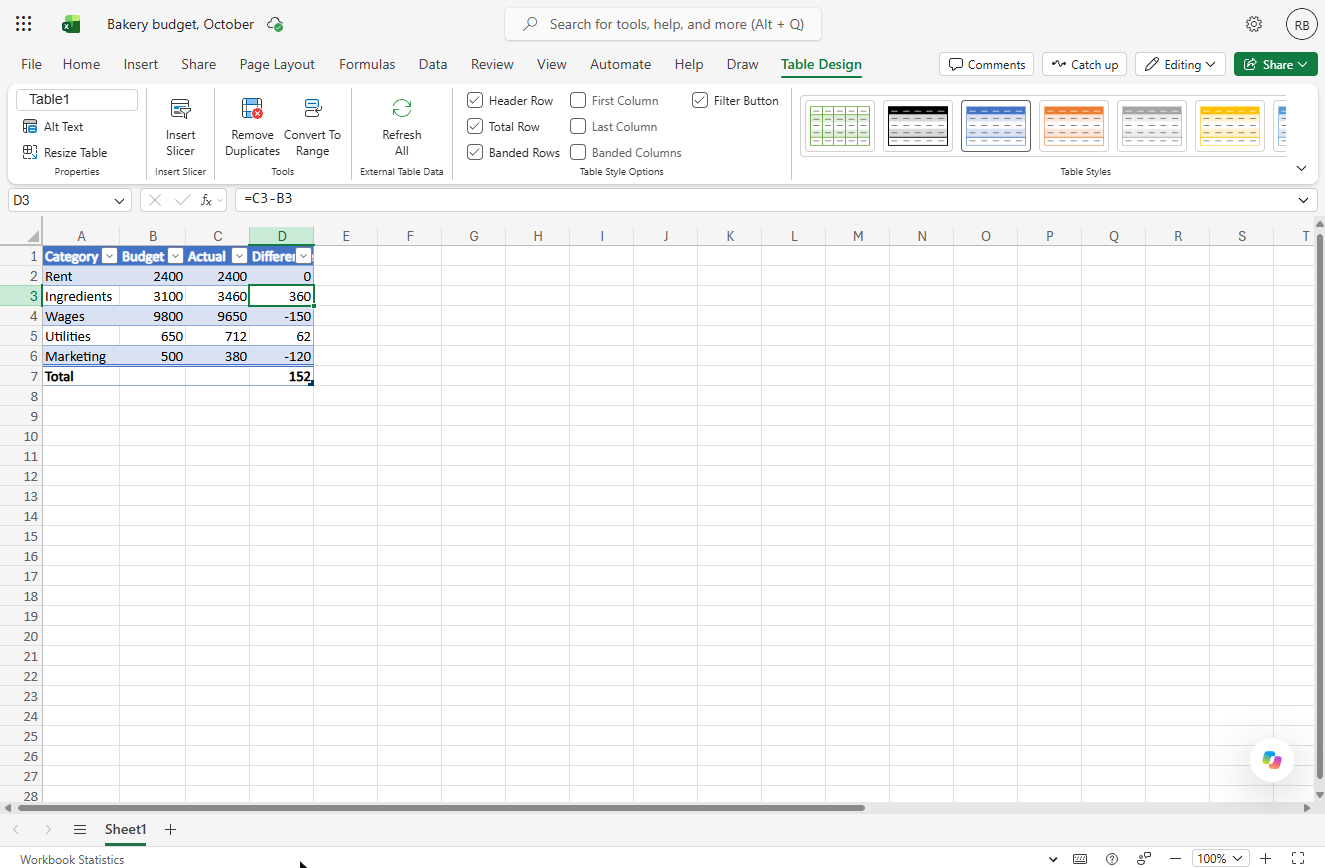
- Tick Total Row. Tick Total Row.
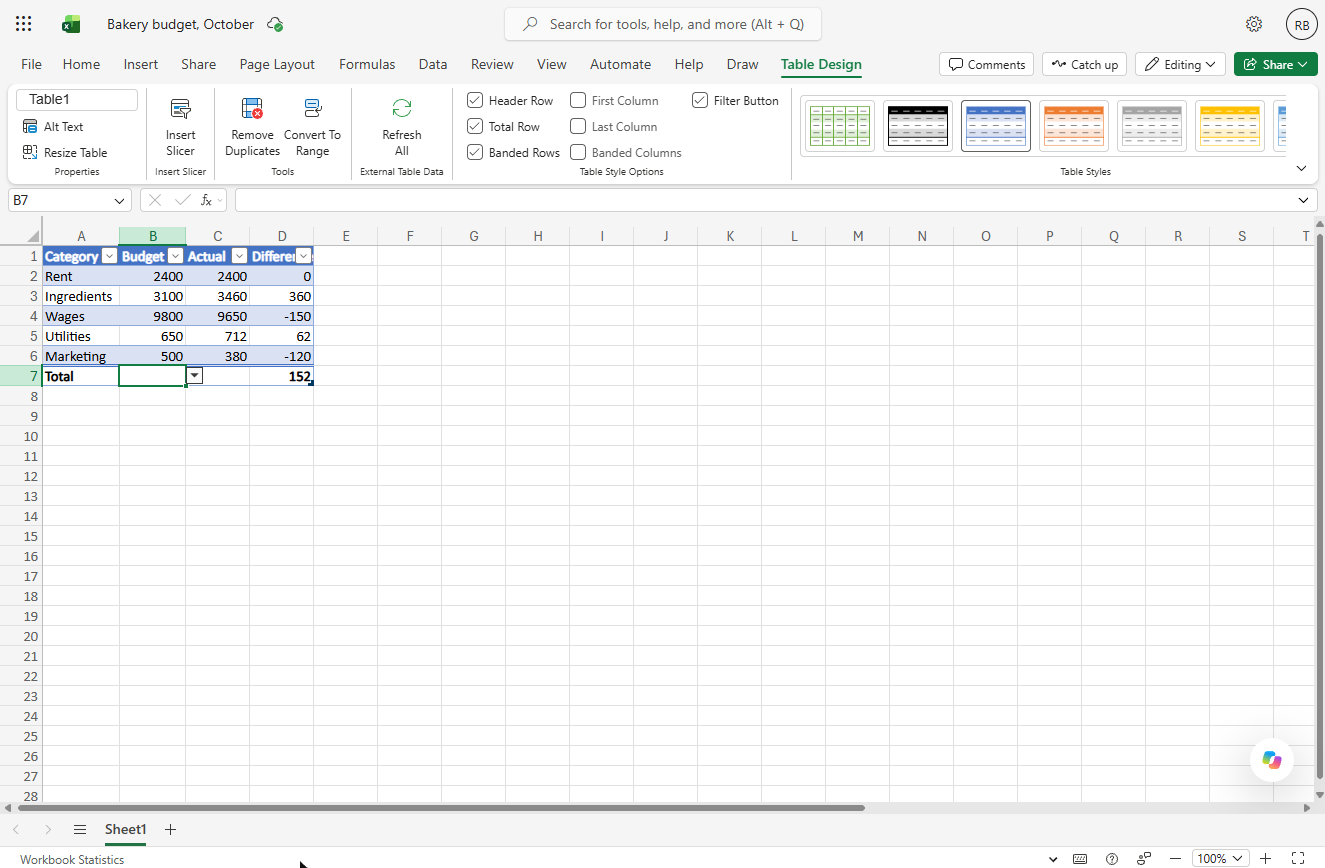
- Select the Budget total. A Total row appears and already sums the last column: 152. Budget and Actual are empty. Click cell B7.
A Total row appears. It sums the last column.
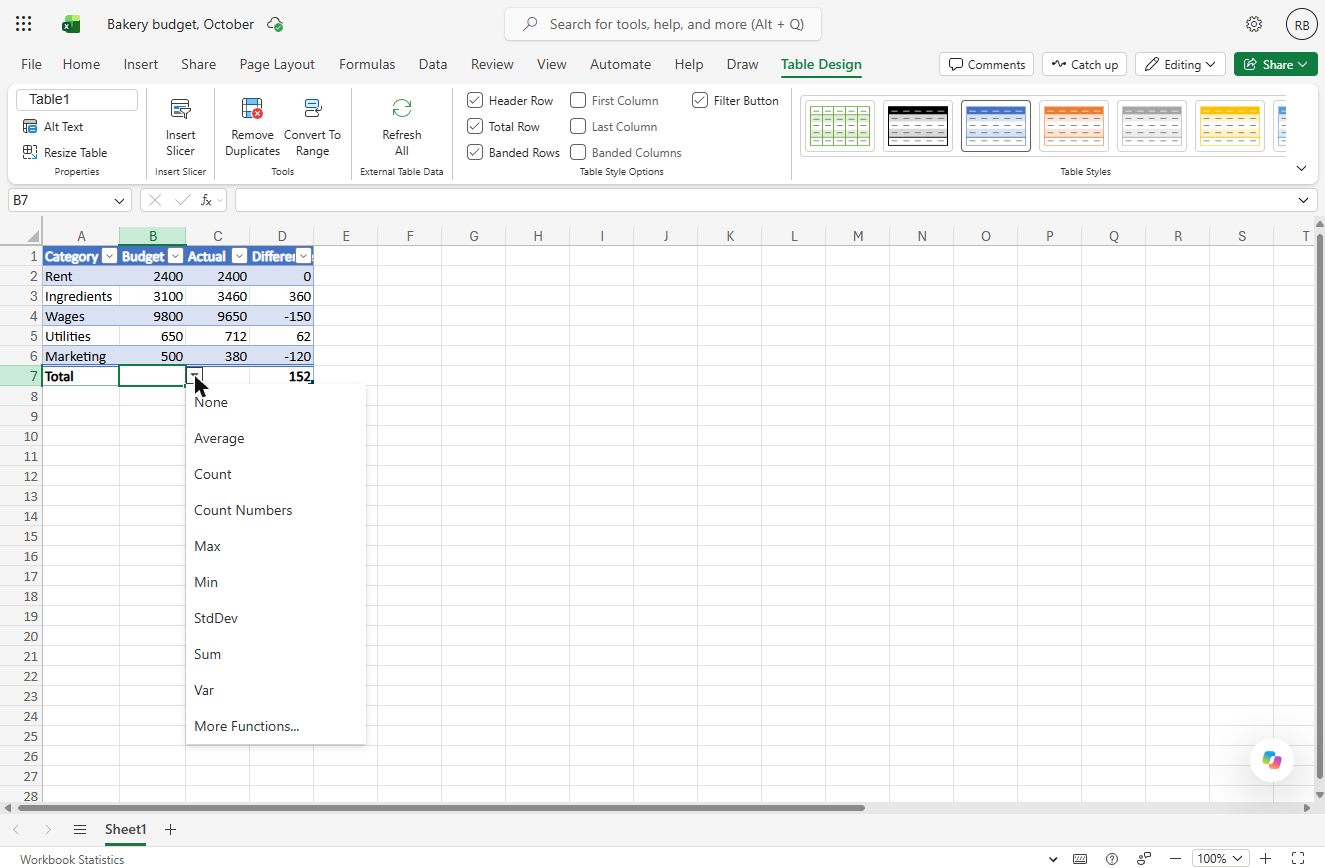
- Open the total menu. Click the small arrow next to the cell.
- Choose Sum. Click Sum. Then do the same in C7 for Actual.
Then do the same for Actual.
5. Turn overspending red
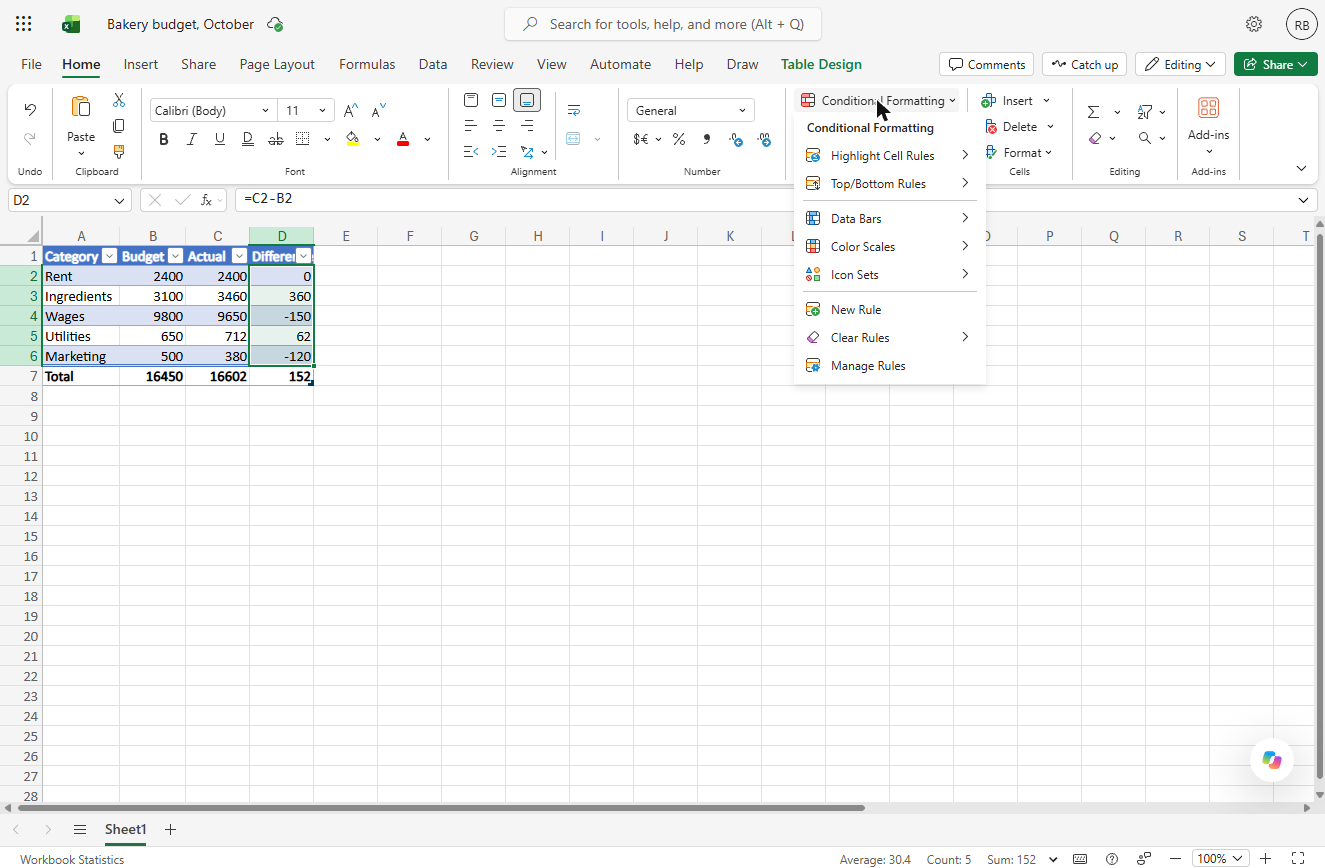
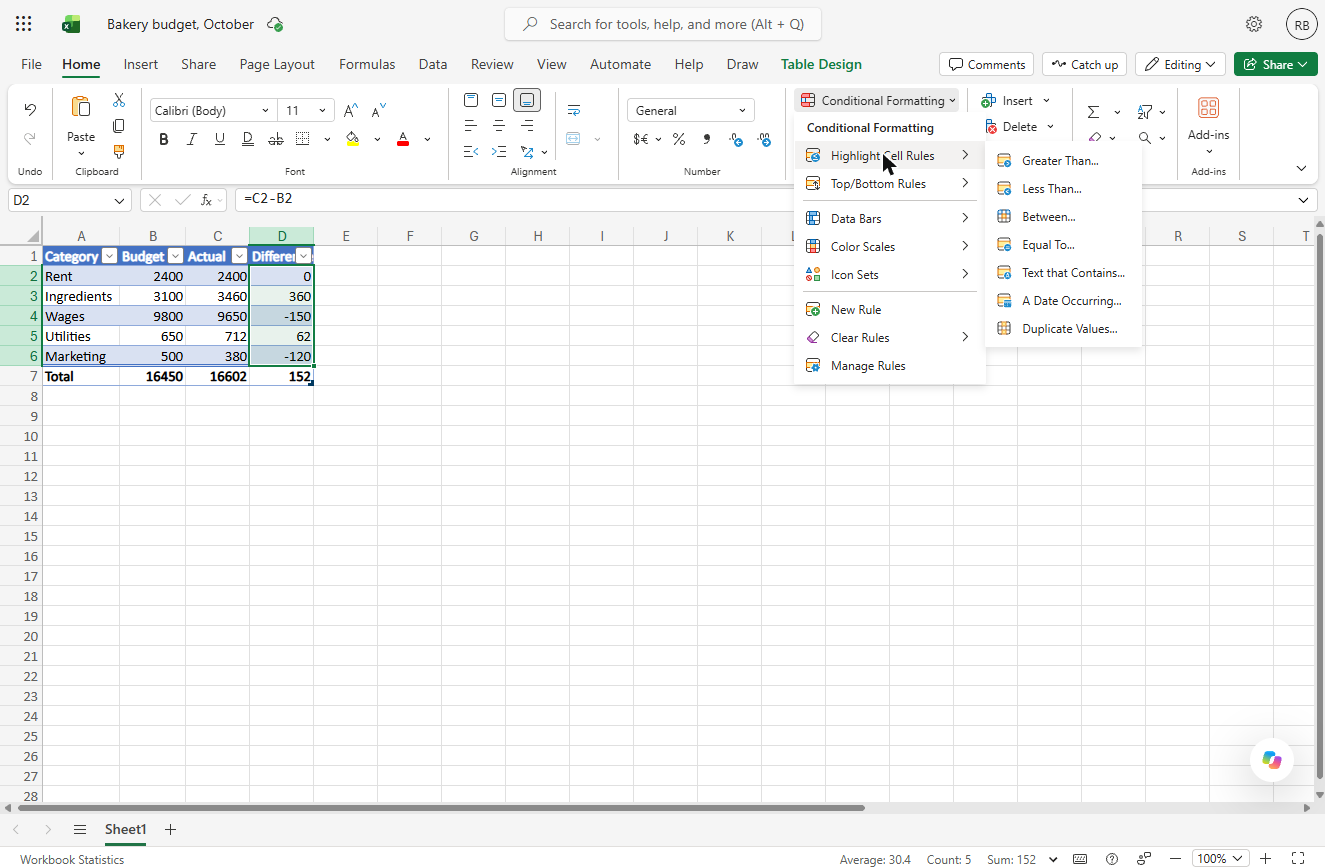
- Conditional Formatting. Budget totals 16450, Actual 16602: 152 over. Select the Difference cells D2:D6, then on the Home tab click Conditional Formatting.
Budget sixteen four fifty. Actual sixteen six oh two.
- Highlight Cells Rules. Click Highlight Cell Rules.
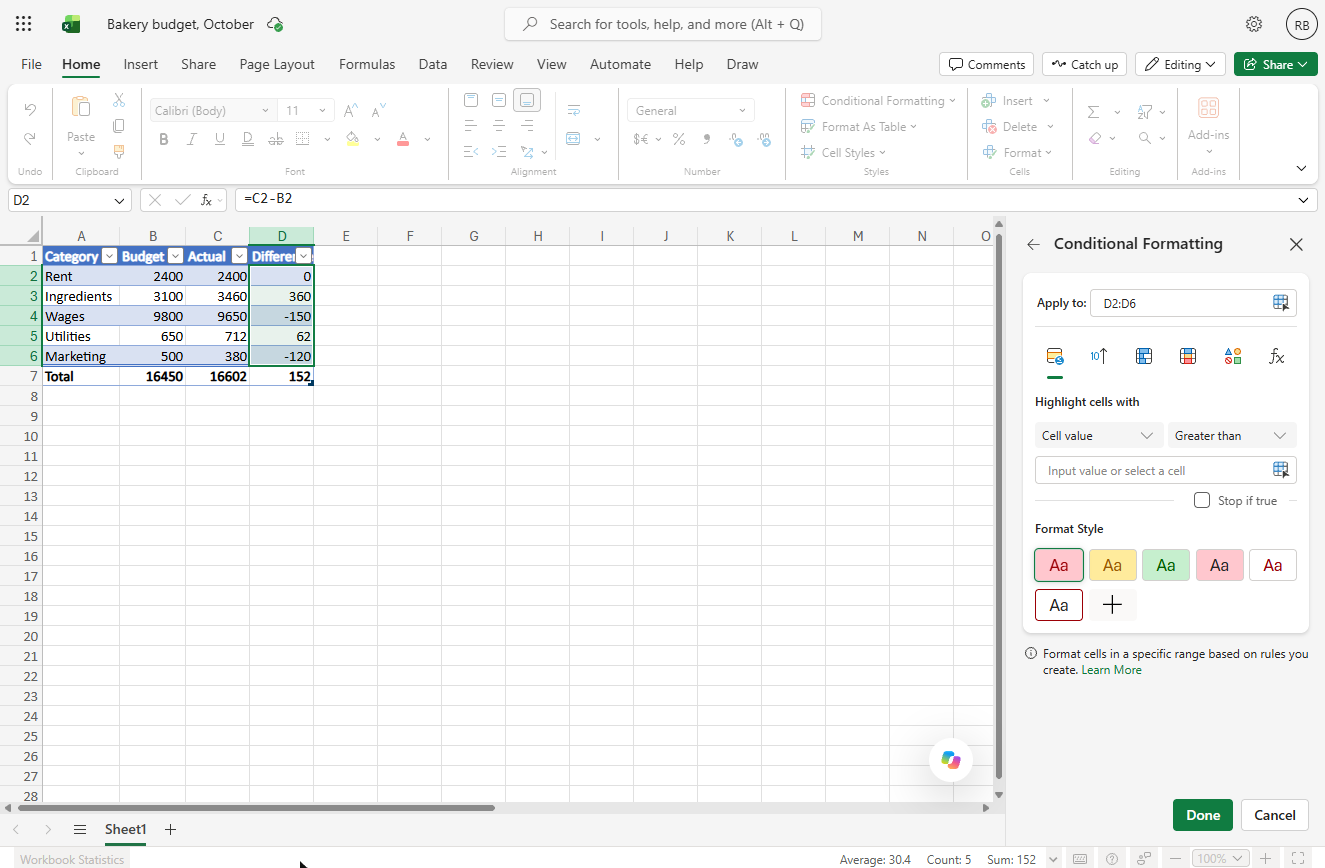
- Greater Than. Click Greater Than…. In Excel for the web it opens a Conditional Formatting panel on the right, not a dialog.
A panel opens on the right.
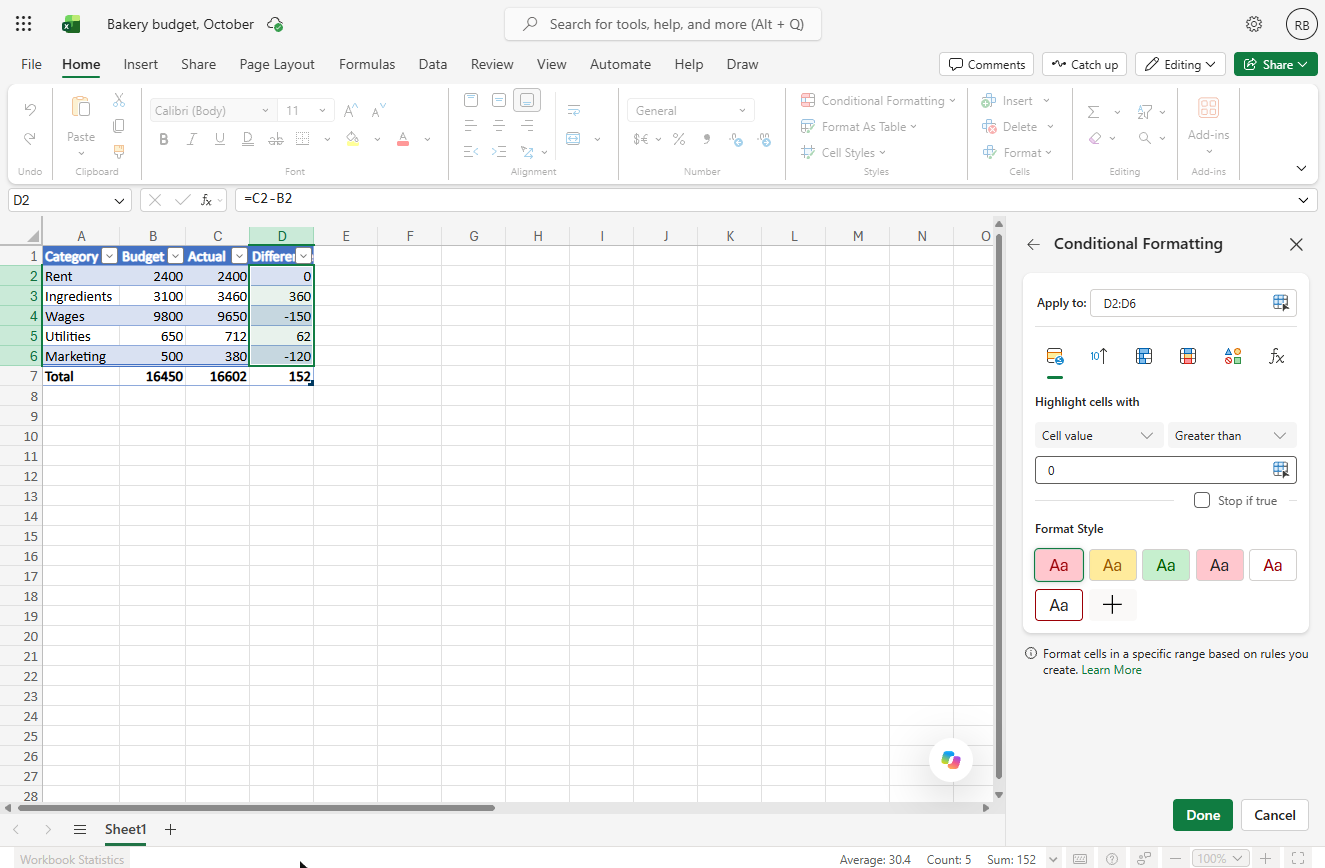
- Greater than 0. It already applies to D2:D6 and says Cell value, Greater than. Type 0 in the value box. The first format style (light red fill) is already picked.
The light red style is already picked.
- Save the rule. Click Done.
6. Format as money and share
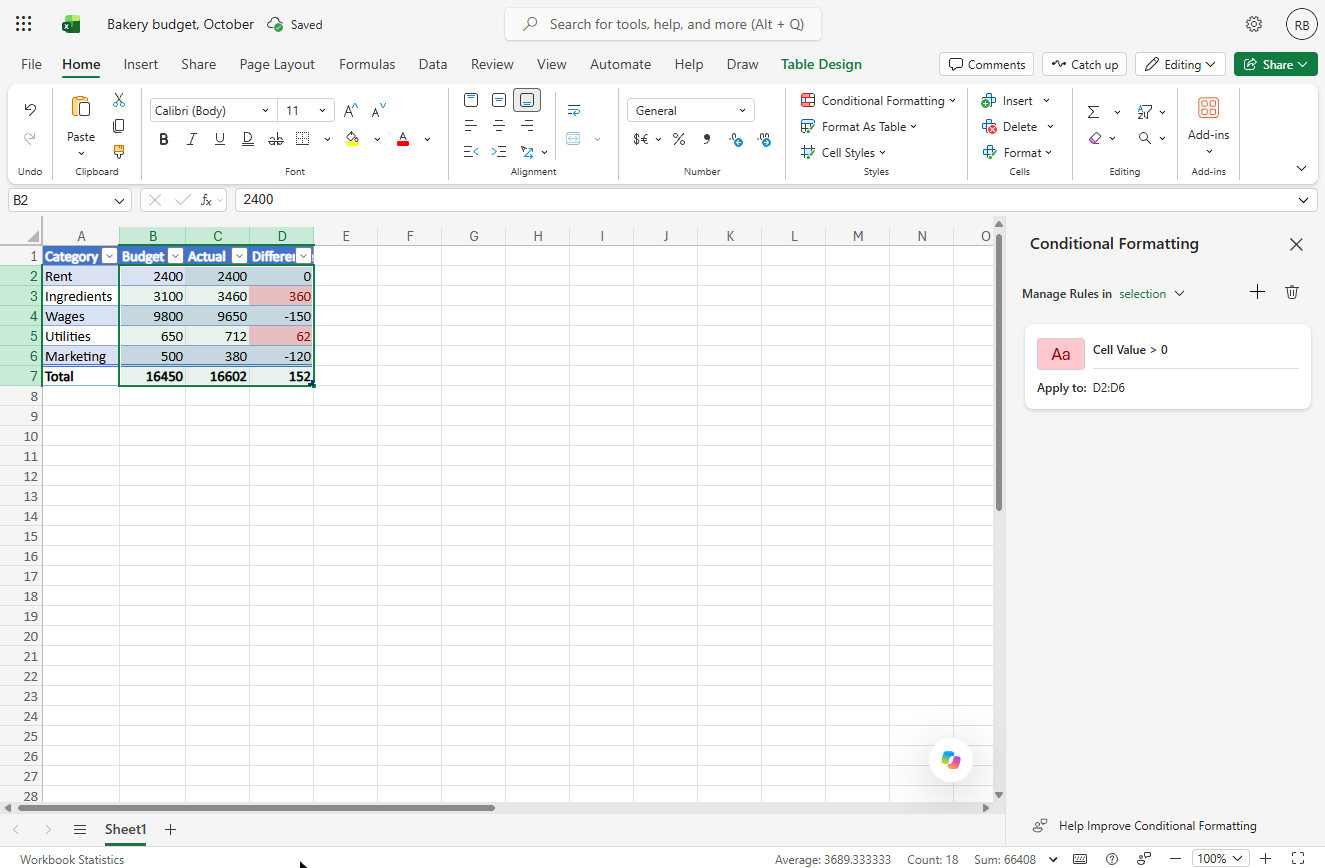
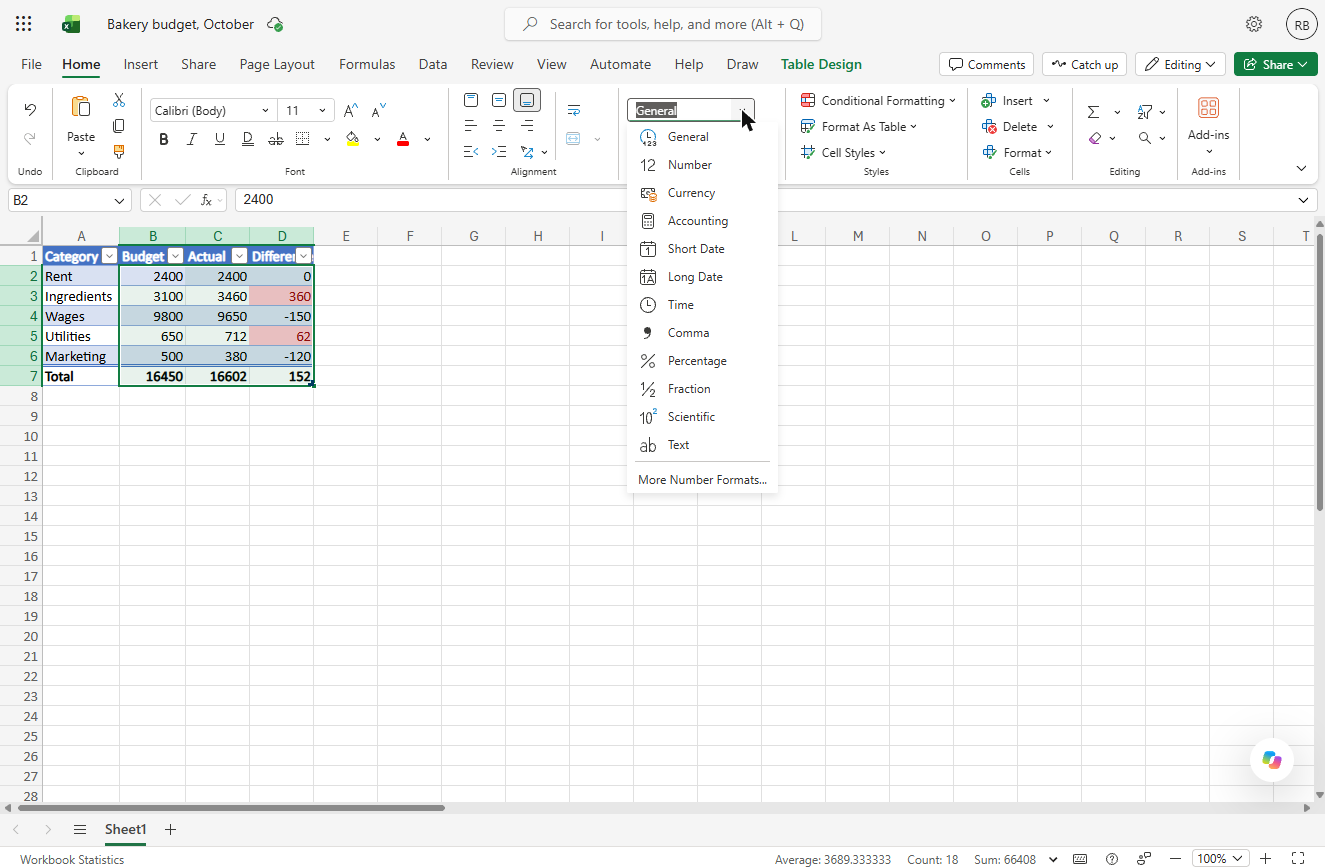
- Open the number format. Ingredients (360) and Utilities (62) turn red; Wages and Marketing came in under. Close the panel, select B2:D7, and click the arrow on the number format box (it says General).
Ingredients and Utilities are red.
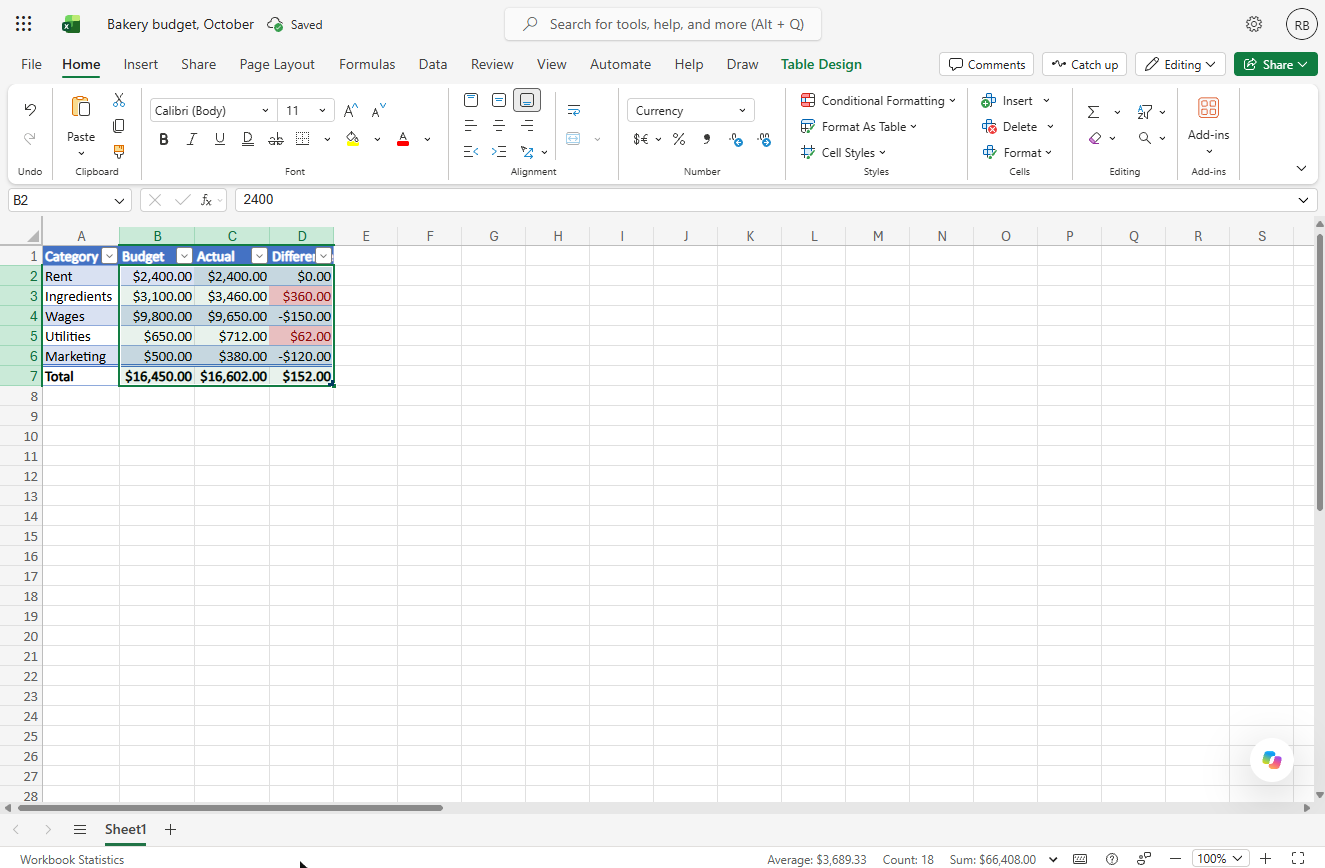
- Currency. Click Currency.
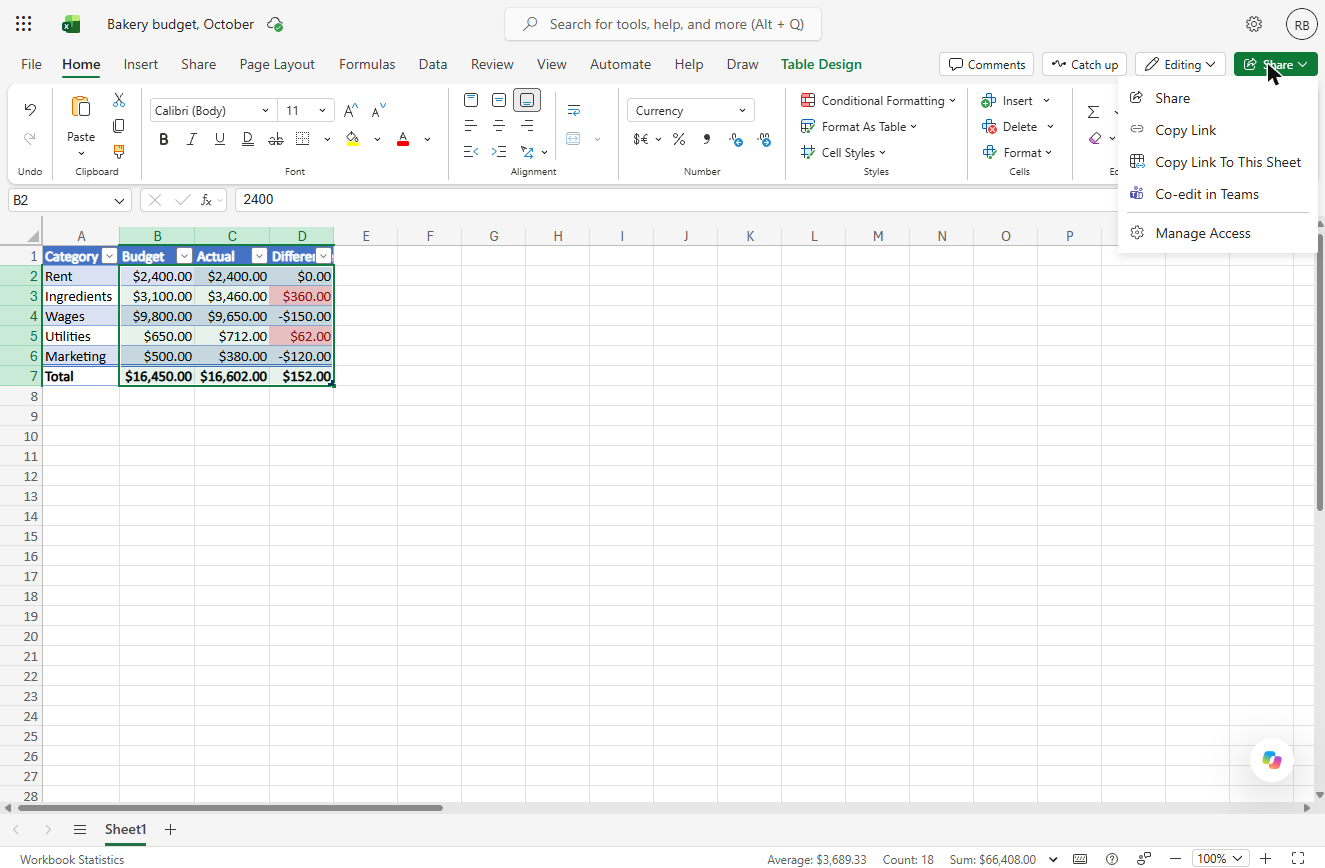
- Open Share. Totals now read $16,450.00, $16,602.00 and $152.00. Click Share at the top right.
Now it reads like money.
- Share. Click Share. (Copy Link makes a link with the default access instead.)
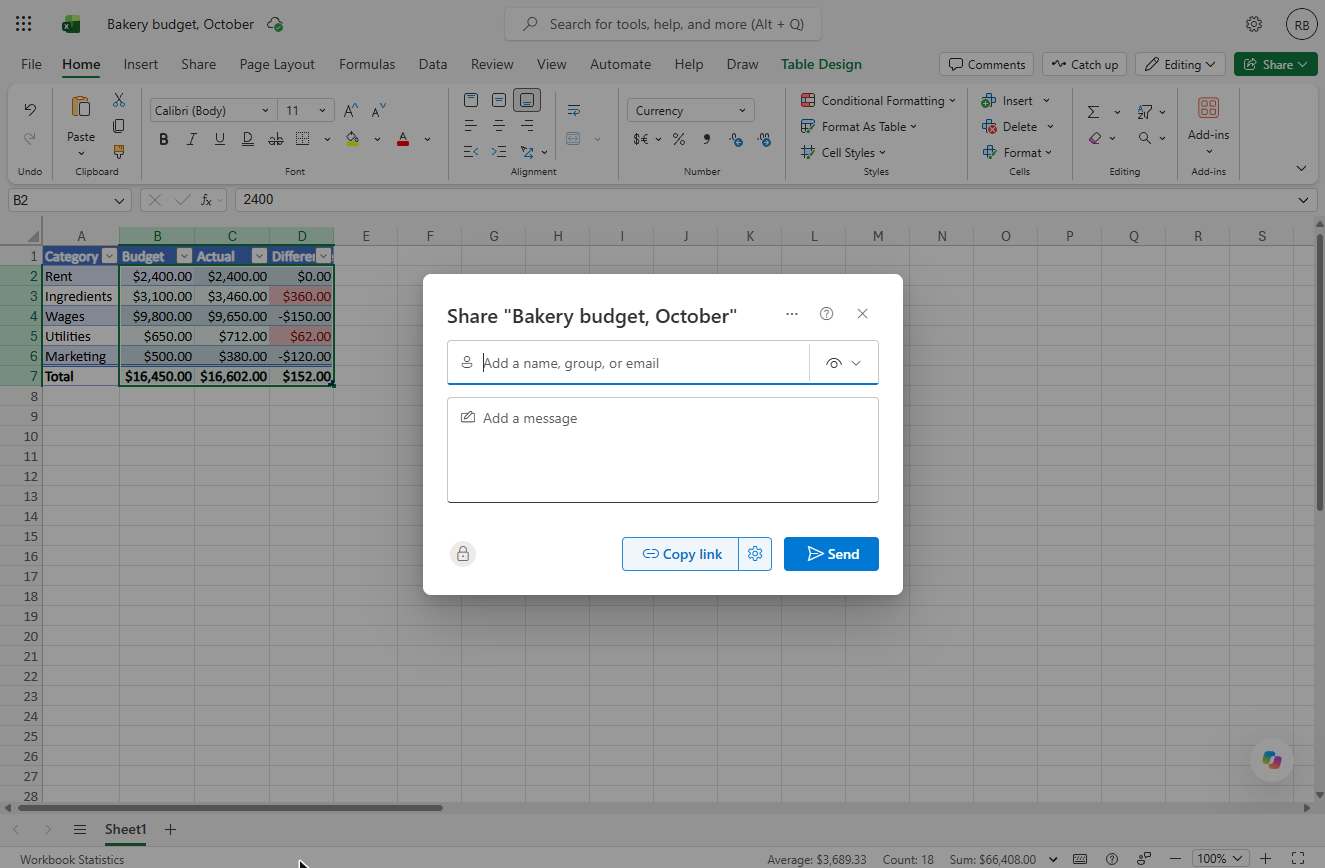
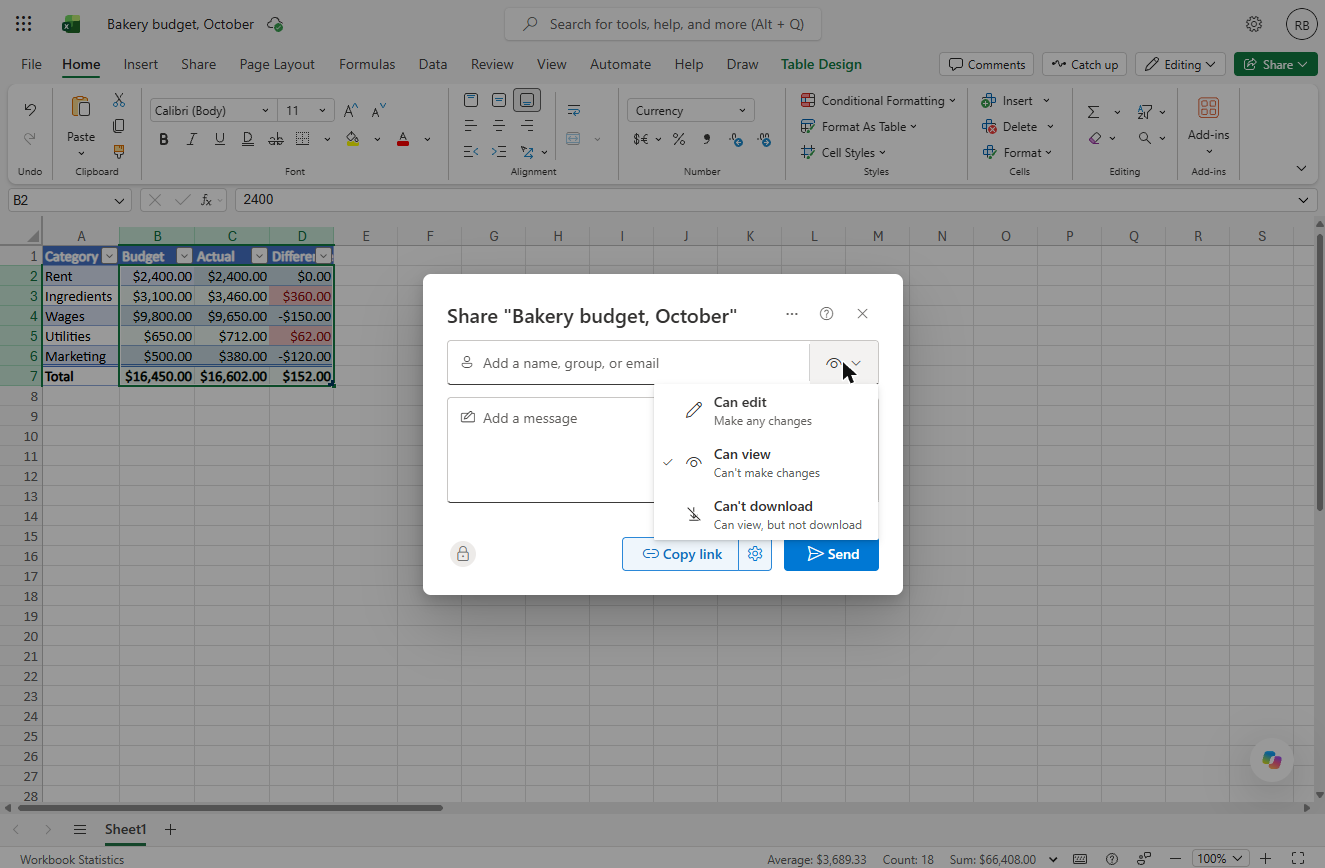
- Choose edit or view. Type your bookkeeper’s email in Add a name, group, or email (we did not send it here). Then click the eye button to choose what they can do.
Add your bookkeeper’s email.
- Can edit. Can edit lets them change numbers; Can view only reads. Pick Can edit for a bookkeeper, then Send.
Pick Can edit for your bookkeeper. Then send.
Screenshots
More in Microsoft 365
All 3 modules in Microsoft 365
Free cheat sheet
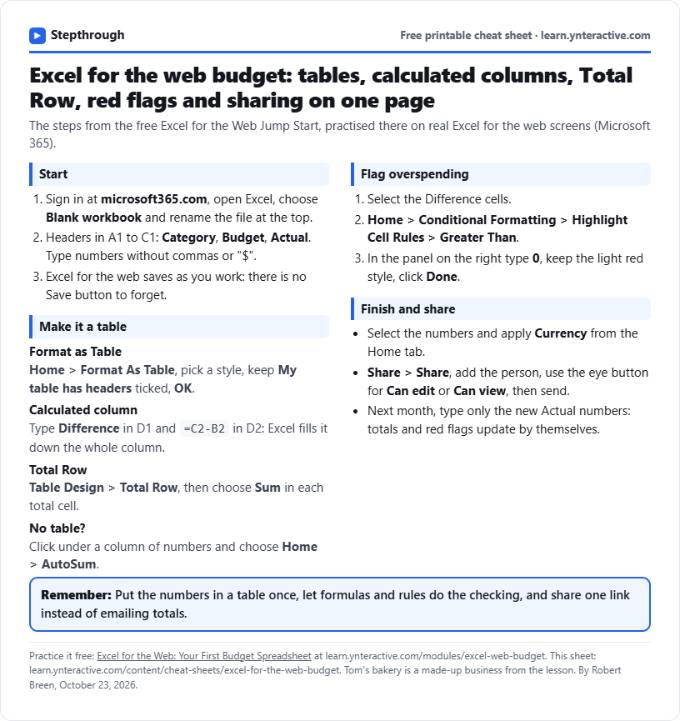
Print it or save the PDF: the key steps and checks from this lesson on one page, free.
All free printable cheat sheets
Terms in this lesson
Plain-English definitions, each with an example from a free lesson.