Updated . Setup screens checked in a real Kosuke account on 20 October 2026; the session and QA screens are Kosuke's own screenshots from docs.kosuke.ai. How we check this lesson
AI coding agents make changes fast, but someone still has to test them, and hand-testing is slow and easy to skip. Kosuke's /kosuke:automated-qa skill tests a change in a real browser from a written Testing Checklist, records a video per section, and reports each item as passed, failed or blocked. In this free business-case lesson you price what hand-testing costs a small online store, run Kosuke's QA on a new delivery-date column, read a failed and a blocked item, repair the bug with --fix, unblock the last item, and hand off a pull request labelled qa: passed.
At a glance
| Question | Answer |
|---|---|
| What you build | A business case for small teams that use an AI coding agent: price what hand-testing every change costs, then let Kosuke's automated QA test the change in a real browser, record video, fix what failed and put a qa: passed label on the pull request. |
| Tools | Kosuke |
| Time | About 12 minutes, 23 steps in 8 parts |
| Level | Intermediate |
| Cost | Free |
| Ways to learn it | Practice it step by step, read the guide with screenshots |
The 8 parts, in short
- What hand-testing really costs: Read the customer email, Put a price on hand-testing, Meet Kosuke automated QA.
- Before you start: GitHub and Claude: Open Settings, Connect GitHub, Open AI Providers, Connect Claude Code.
- Ask for the change: Describe the change, Start the session.
- Let Kosuke test it: Ask Kosuke to test it, Send it.
- Read the QA Report: Read the failed item, Read the blocked item, Open the Testing Checklist.
- Fix it and test again: Read the checklist, Let Kosuke repair it, Send it, Unblock the last item, and 1 more step.
- Hand it off with proof: Open the pull request, Review it on GitHub.
- What this saves you: What this saves you, Up next.
Start here first: Preview Every Website Change Before Your Client Sees It using Kosuke (module 1 of AI Automation for Consulting & Agencies)
Part of: AI for Consulting & Agencies (step 18 of 33)
Part of: AI for Operations Teams (step 31 of 37)
Part of: AI Apps Worth Knowing (step 35 of 77)
Kosuke: Let the AI Test Its Own Changes with Automated QA: step-by-step guide with screenshots
About the screenshots. They come from Stepthrough’s simulated practice environment (a practice copy of Kosuke), not the live tool, so no real account appears. The buttons and labels match the real screens the lesson was built against. Practice it yourself free at learn.ynteractive.com.
- Tools: Kosuke
- Time: about 12 minutes, 23 steps in 8 parts
- Level: intermediate
Part 1: What hand-testing really costs
Step 1: Read the customer email
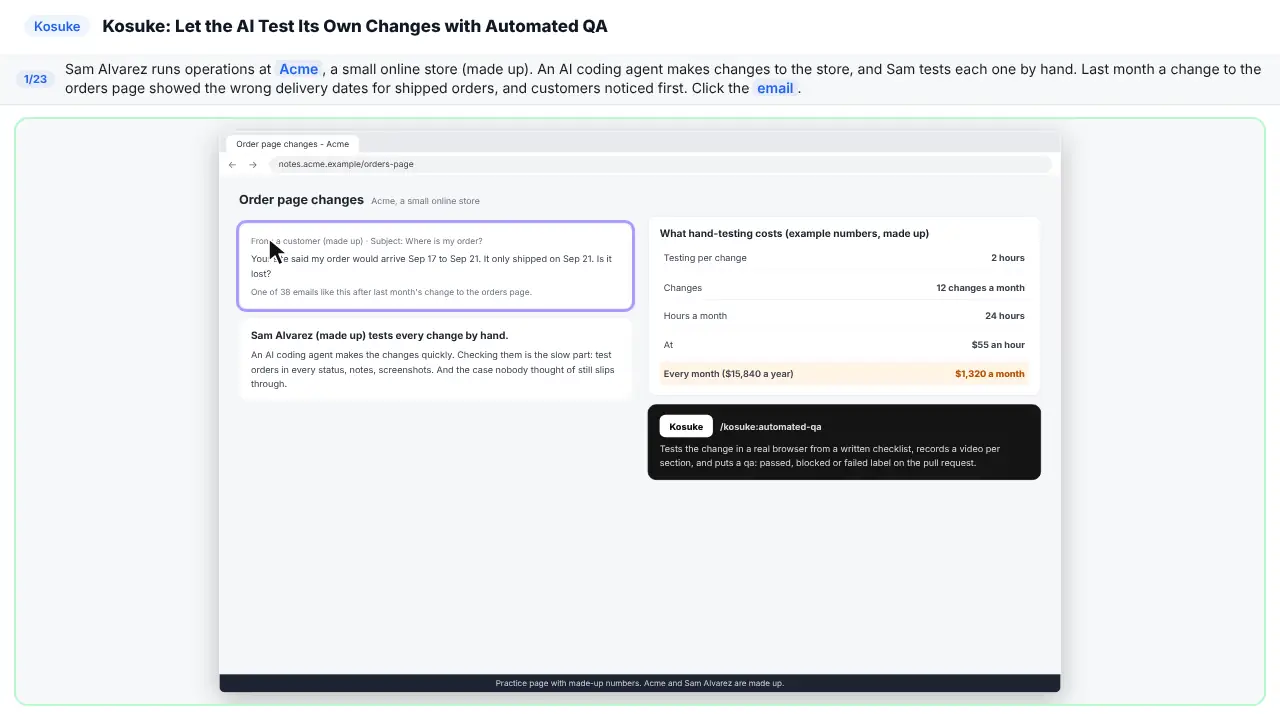
Sam runs operations at a small online store. An A I coding agent changes the store. Sam tests each change by hand. Last month the orders page showed the wrong delivery dates. Customers noticed first.
Step 2: Put a price on hand-testing
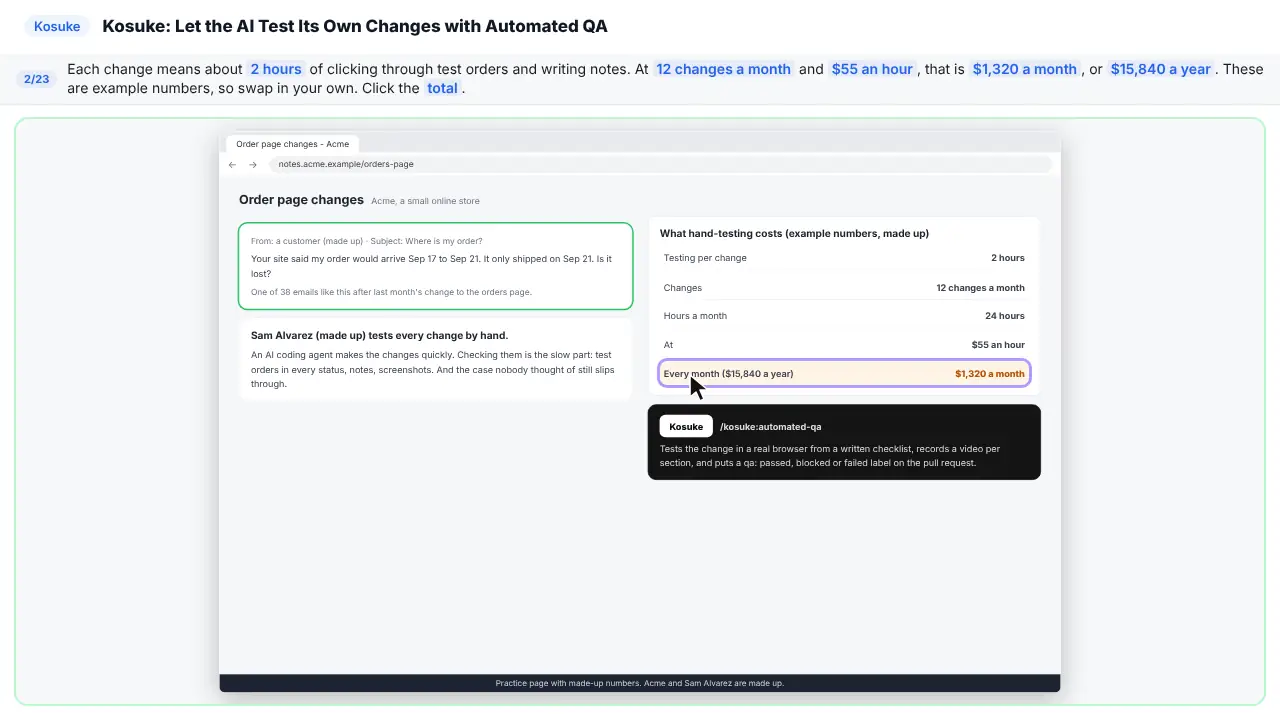
Each change takes about two hours of clicking and notes. Twelve changes a month. That is about thirteen hundred dollars a month. These are example numbers. Use your own.
Step 3: Meet Kosuke automated QA
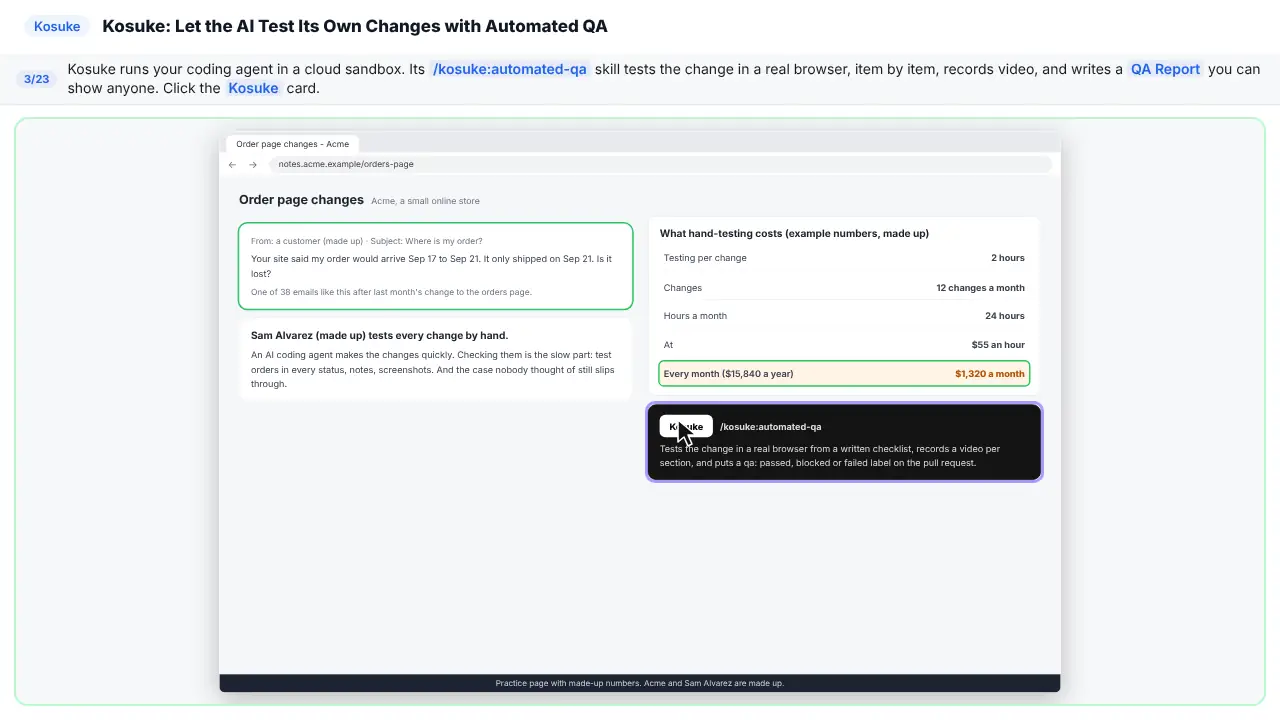
Kosuke runs your coding agent in the cloud. Its automated Q A tests the change in a real browser. It records video, and writes a report you can show anyone.
Part 2: Before you start: GitHub and Claude
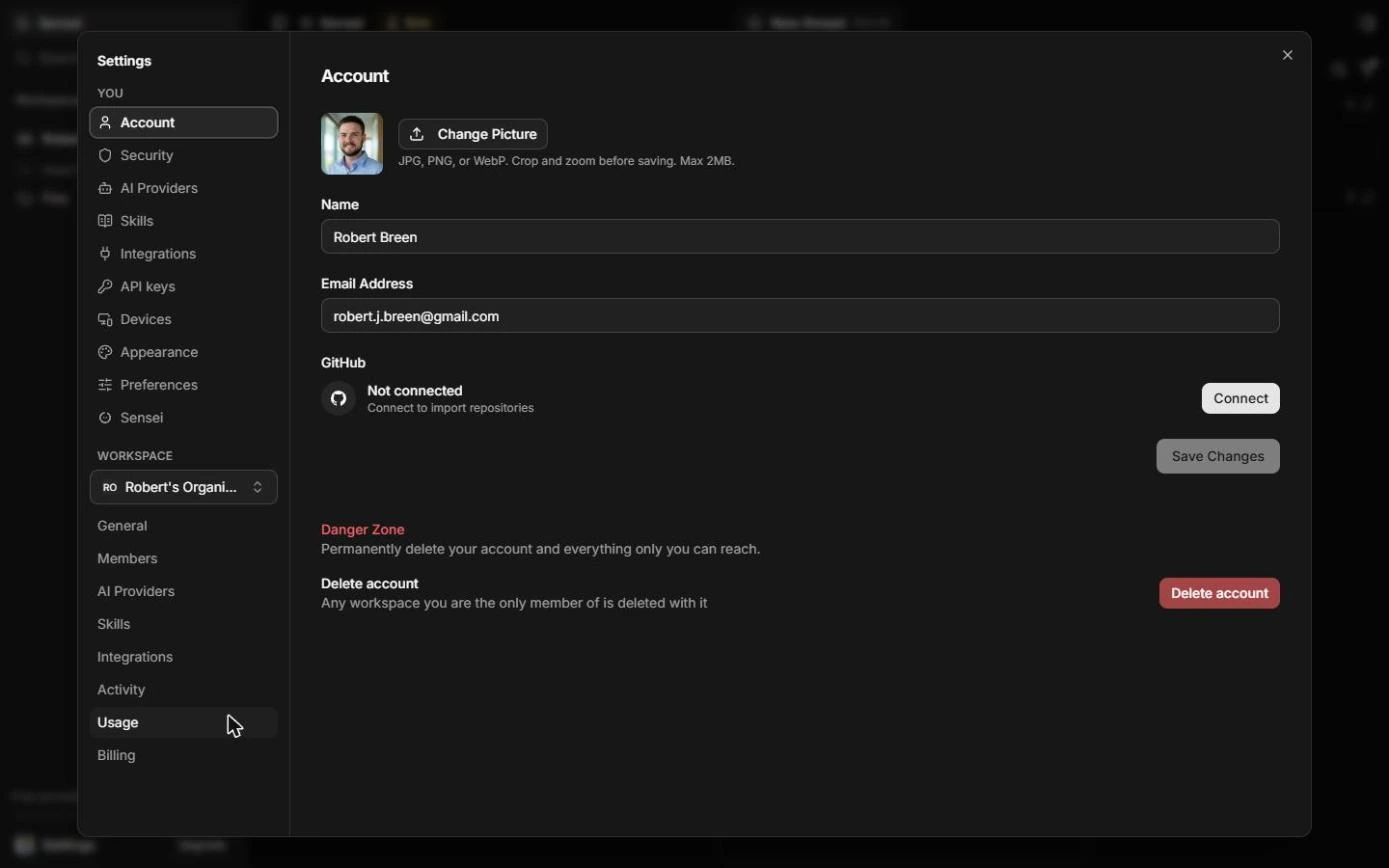
Step 4: Open Settings
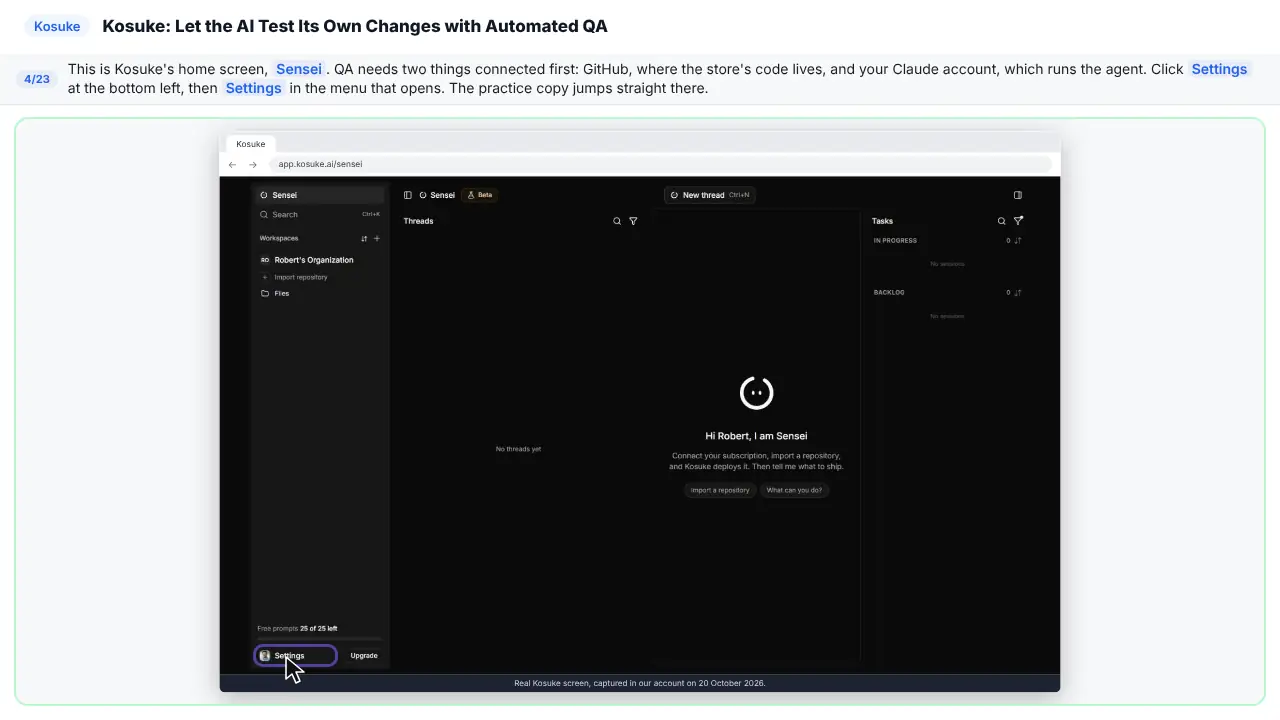
This is Kosuke's home screen. Q A needs two things connected first. GitHub, where the code lives. And your Claude account, which runs the agent.
Step 5: Connect GitHub
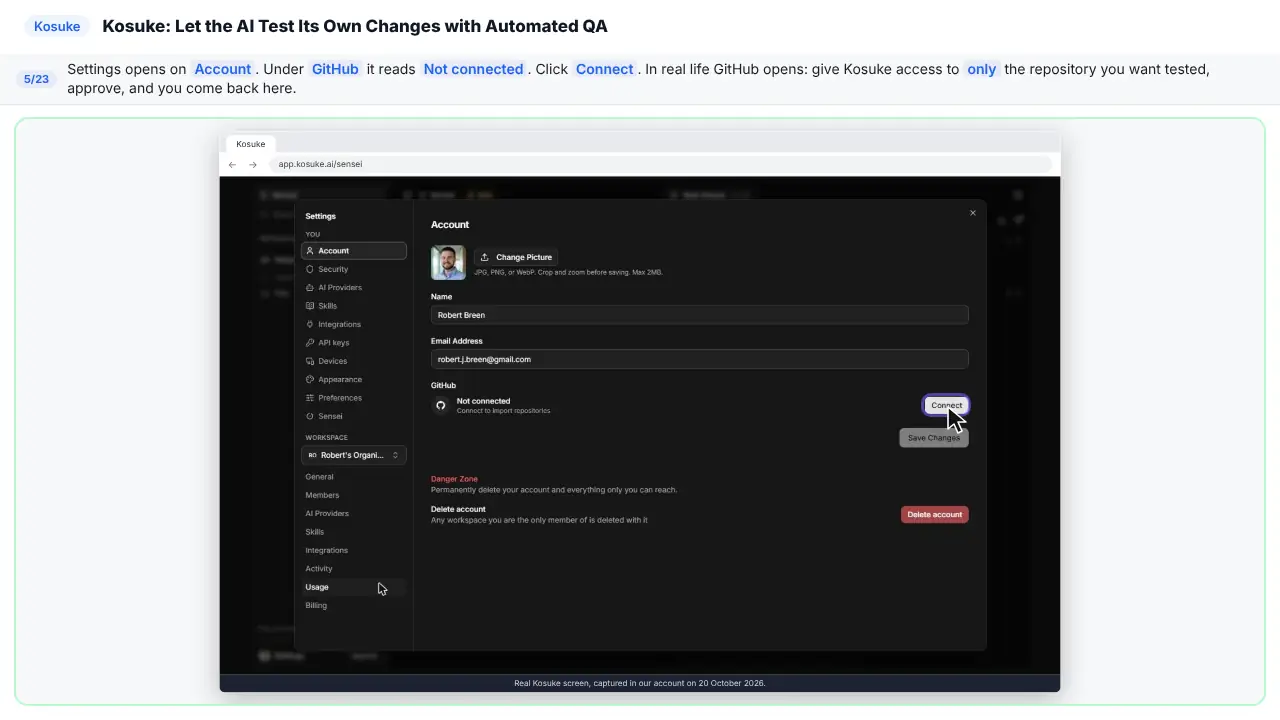
Under GitHub, it says not connected. In real life, GitHub opens. Give Kosuke only the one project you want tested. Then approve it.
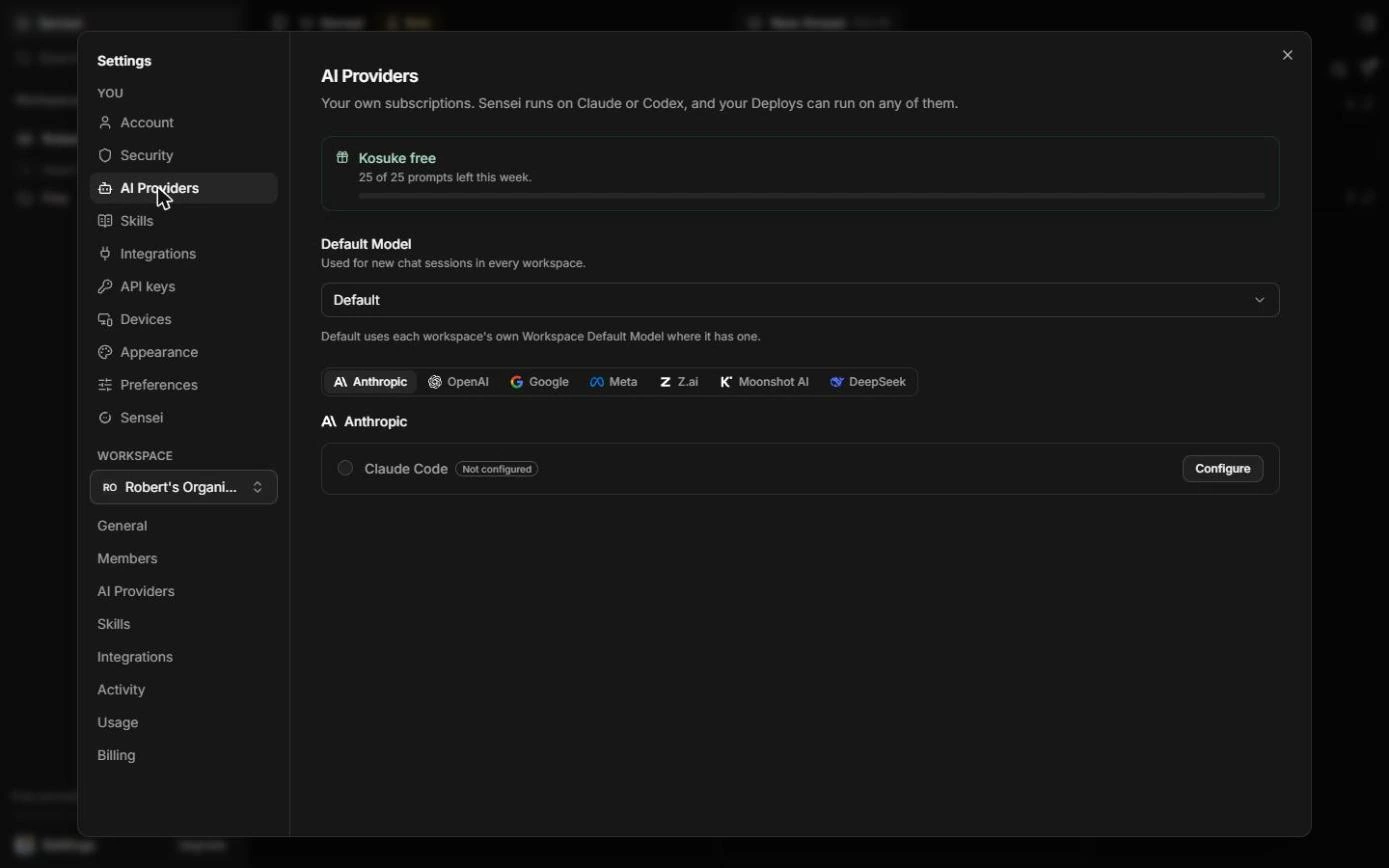
Step 6: Open AI Providers
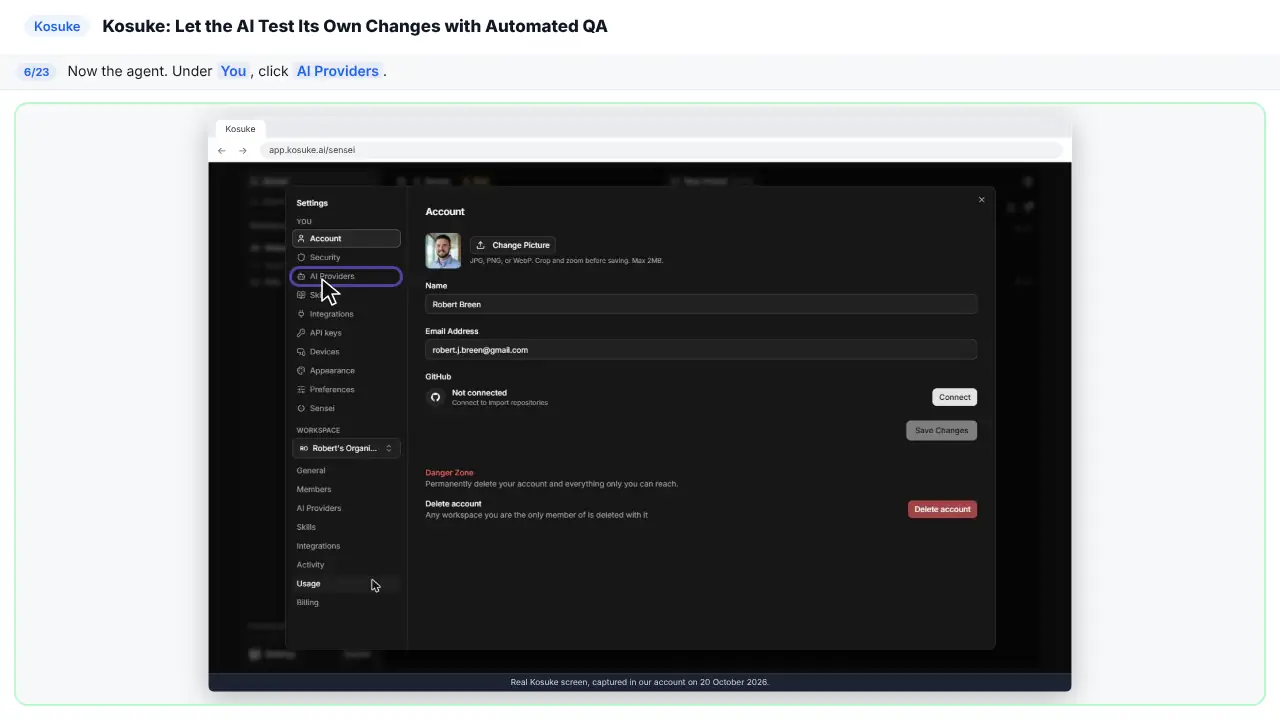
Now the agent. Under You, click A I Providers.
Step 7: Connect Claude Code
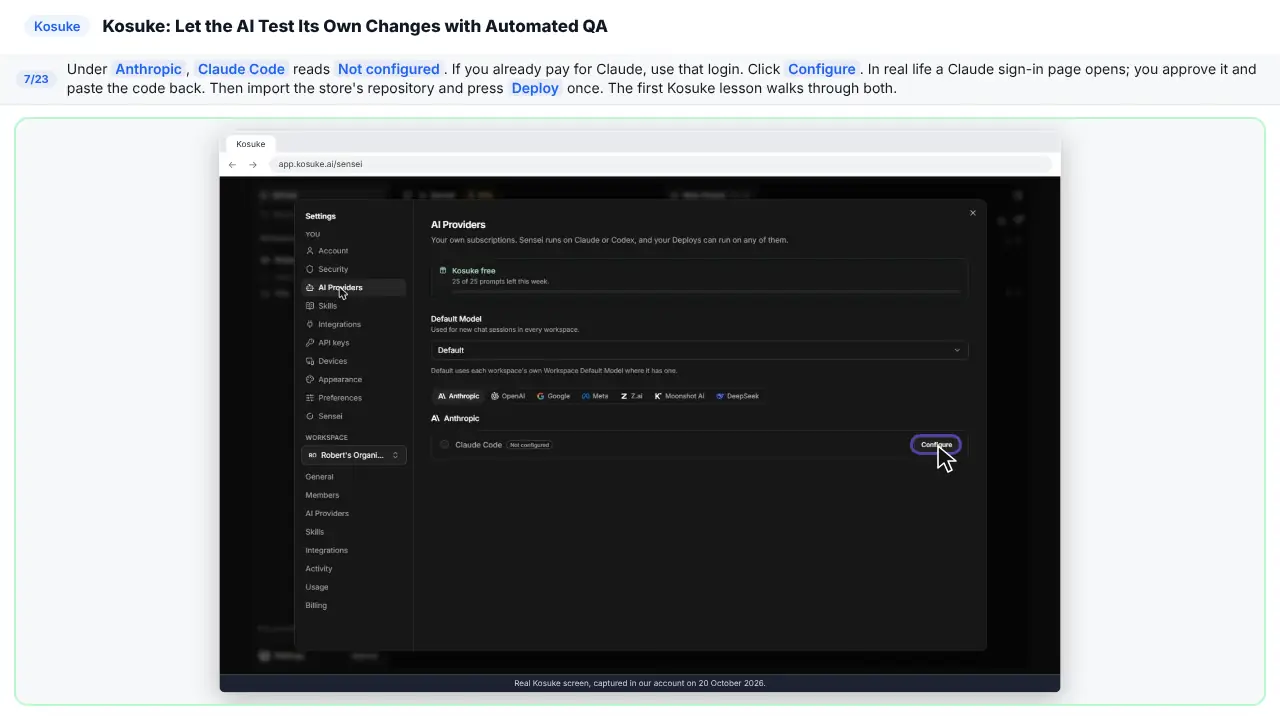
Claude Code is not configured yet. If you pay for Claude, use that login. You sign in to Claude, and paste a code back. Then import the store, and deploy it once.
Part 3: Ask for the change
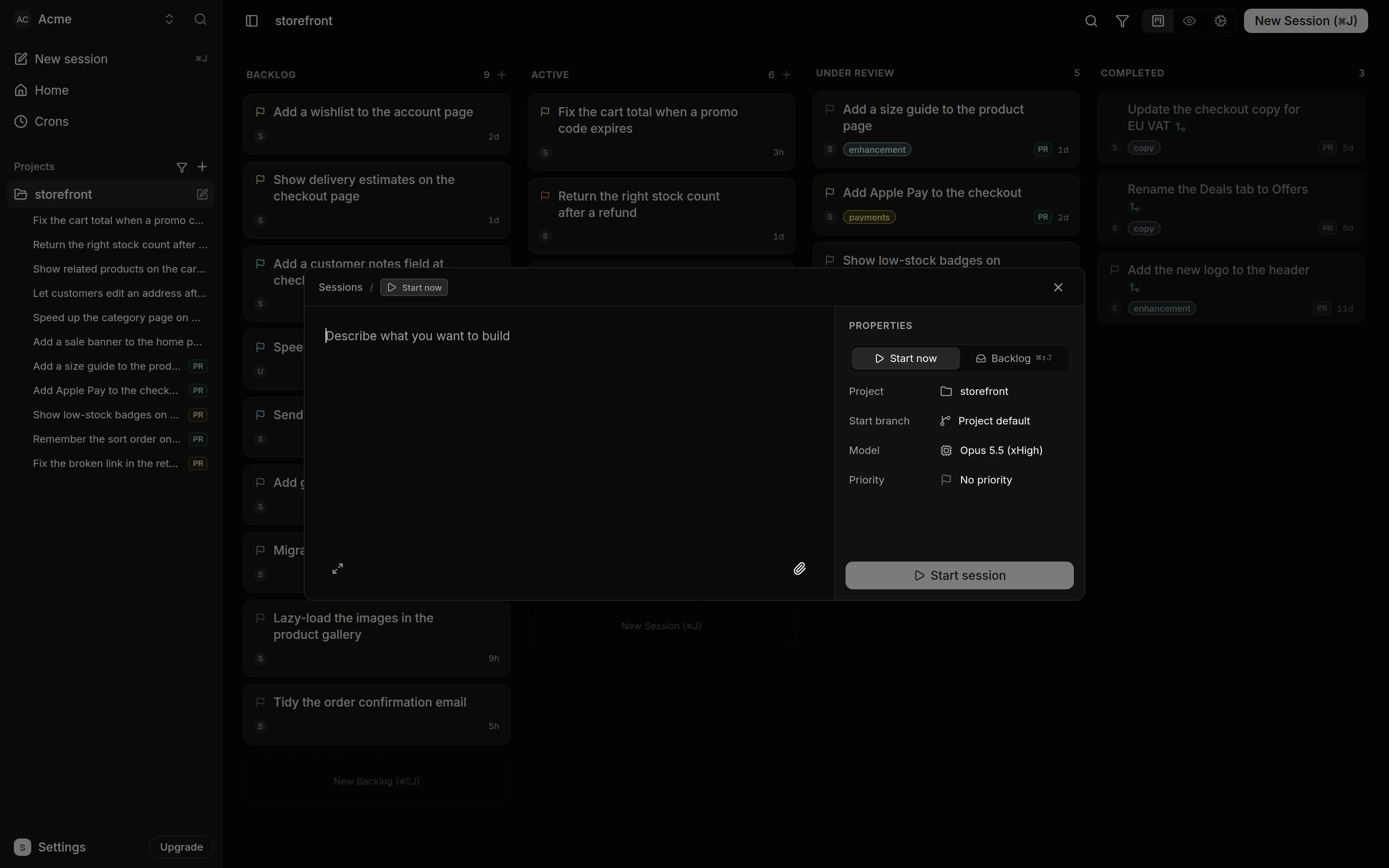
Step 8: Describe the change
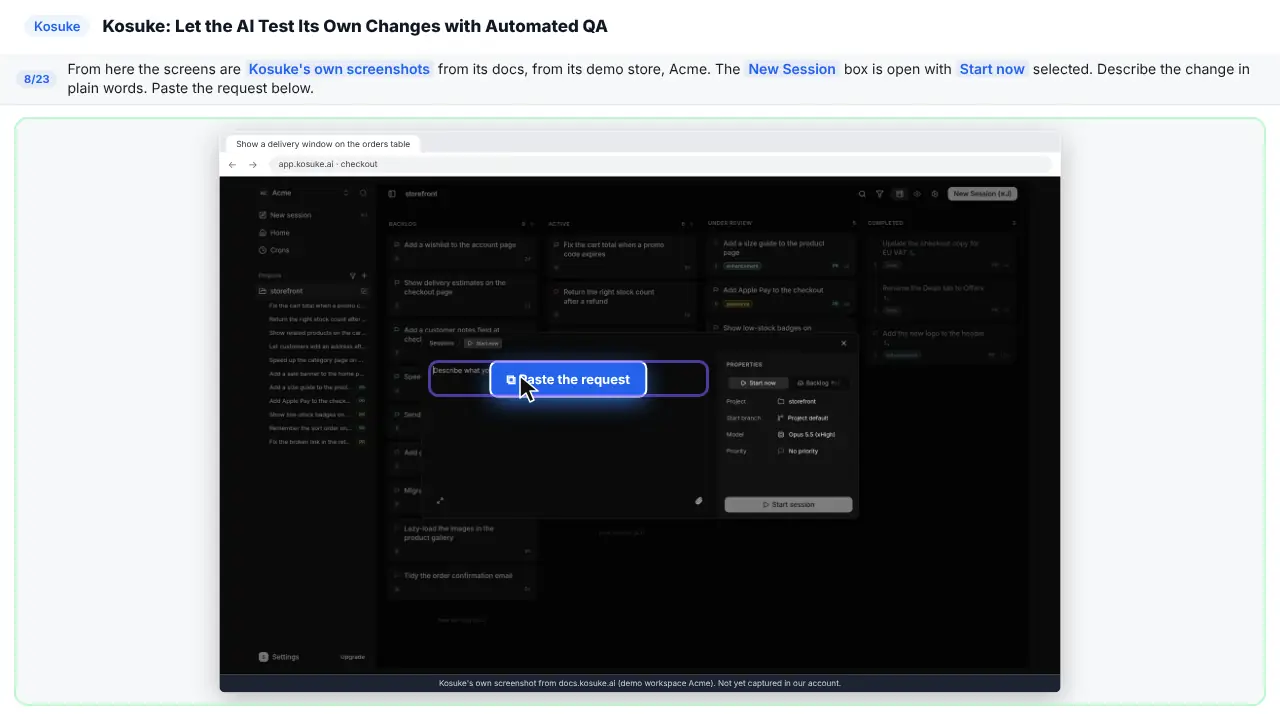
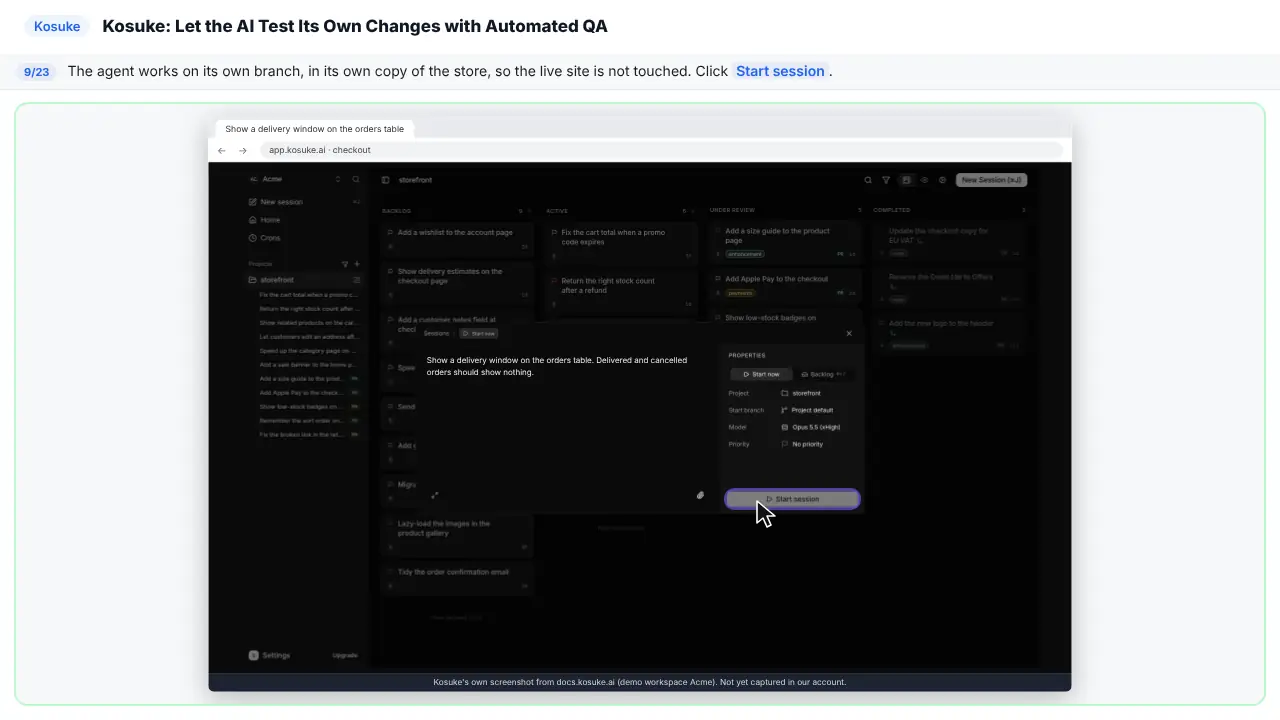
From here, the screens are Kosuke's own pictures, from its demo store. The New Session box is open. Describe the change in plain words.
Step 9: Start the session
The agent works on its own copy of the store. The live site is not touched.
Part 4: Let Kosuke test it
Step 10: Ask Kosuke to test it
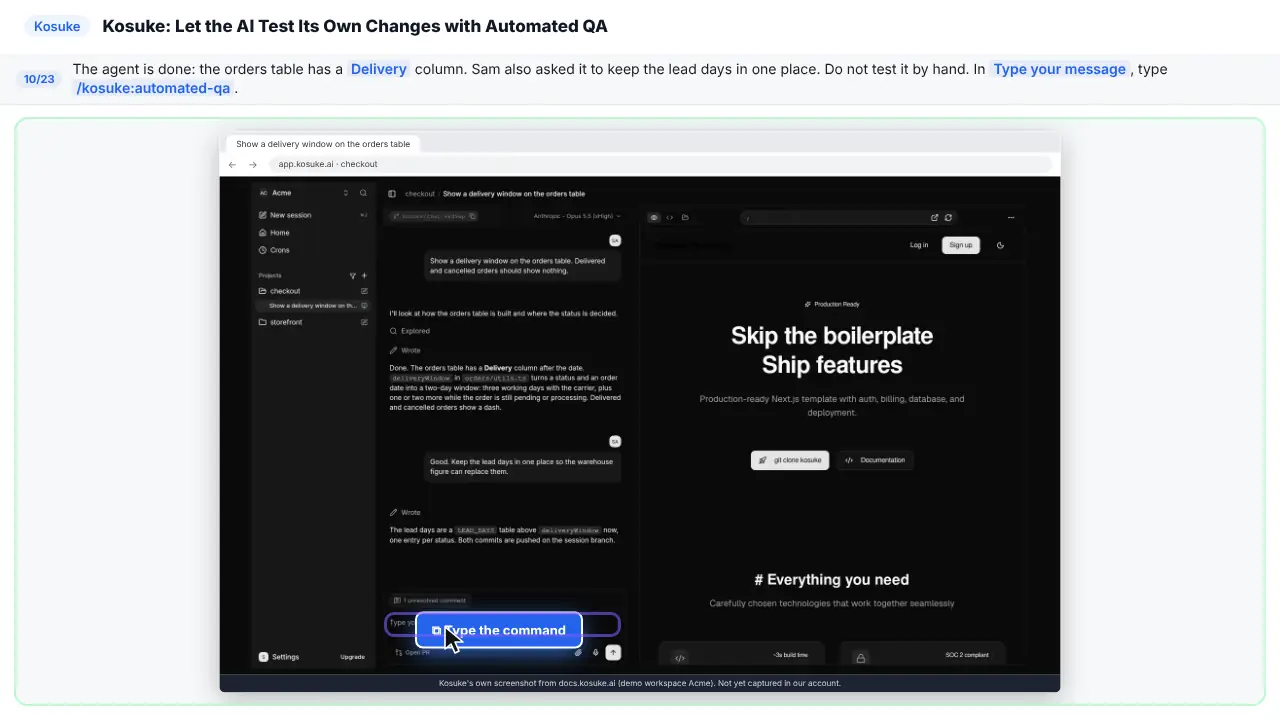
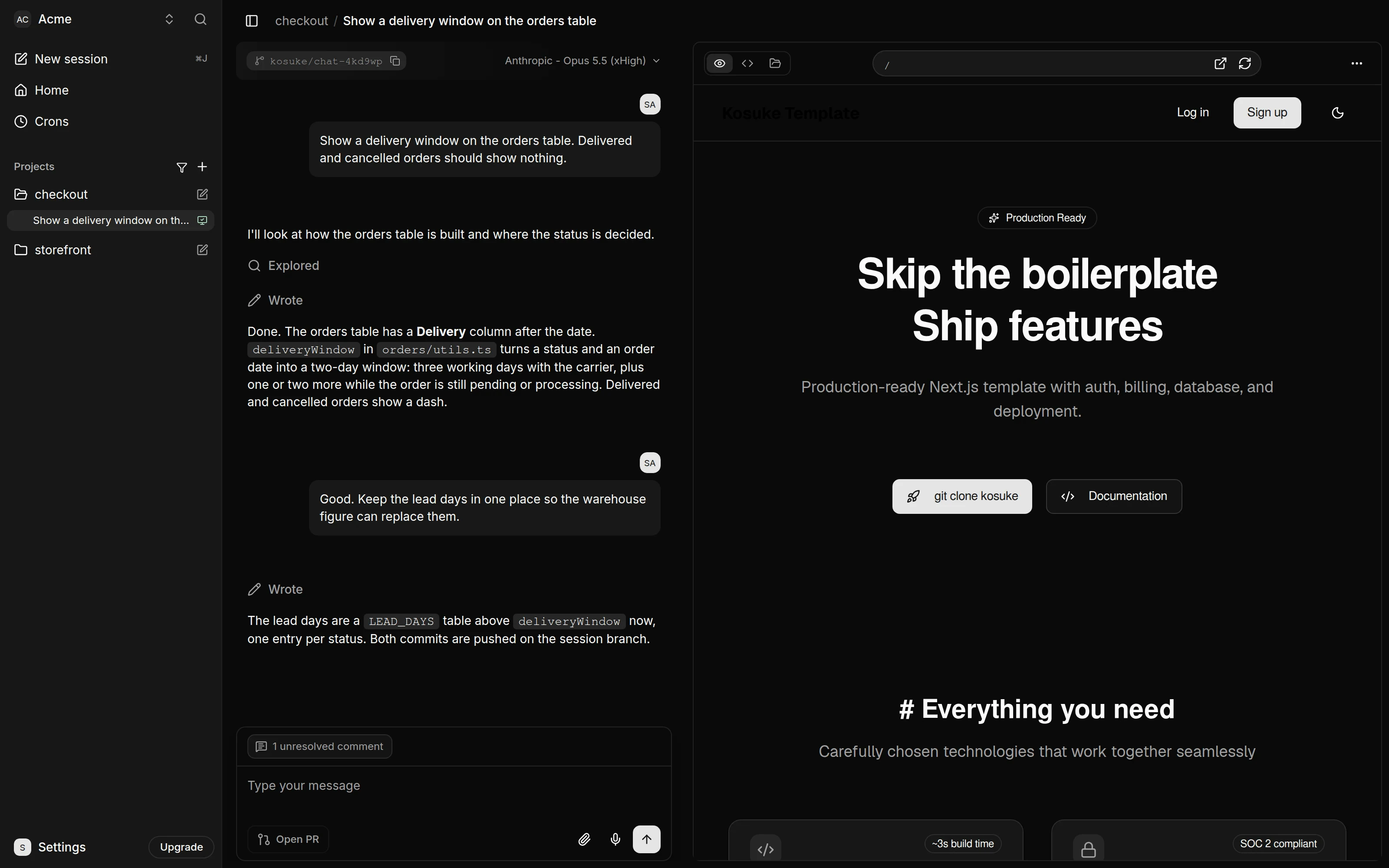
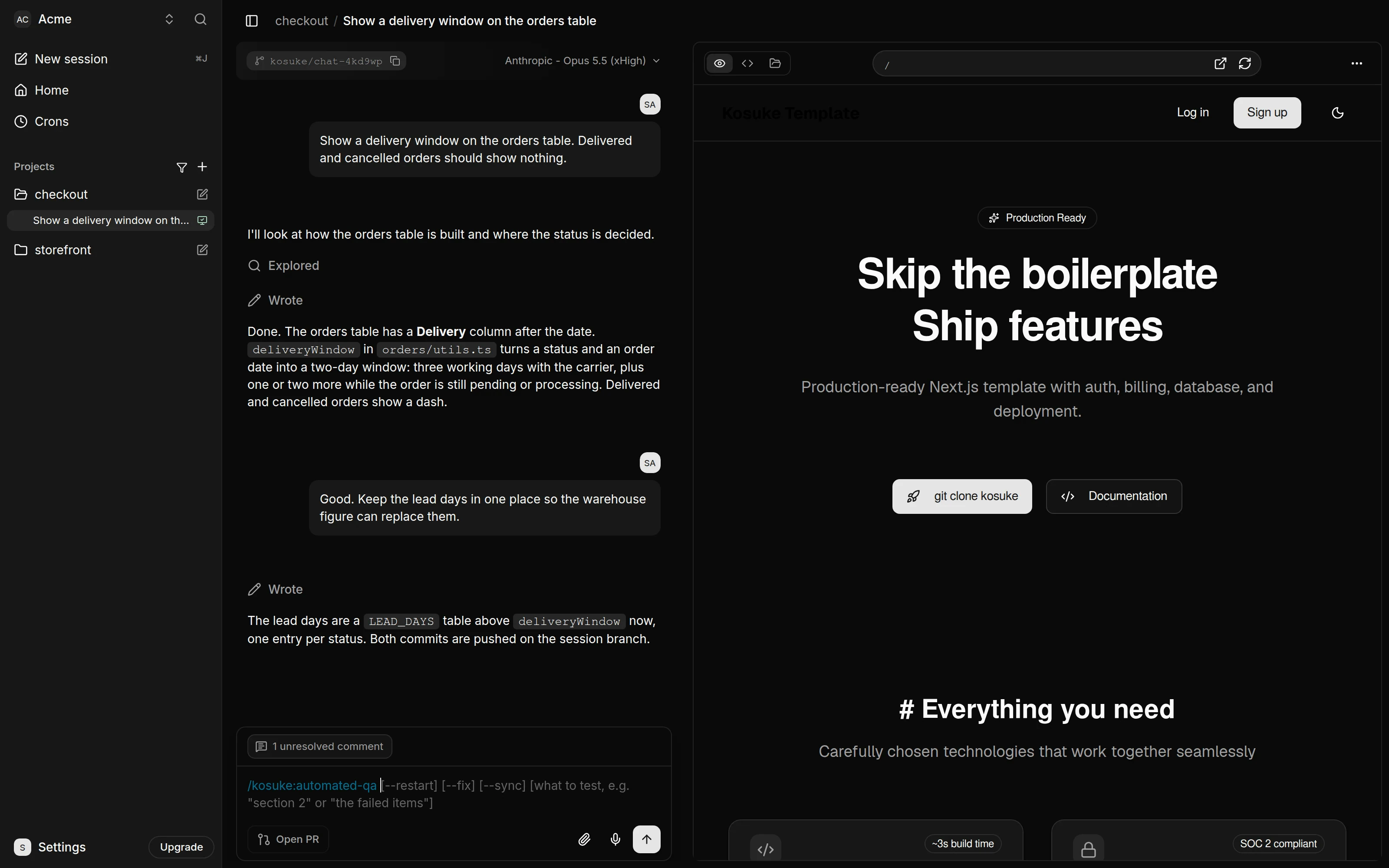
The agent is done. The orders table has a delivery column. Now, don't test it by hand. In the message box, type slash kosuke, automated Q A.
Step 11: Send it
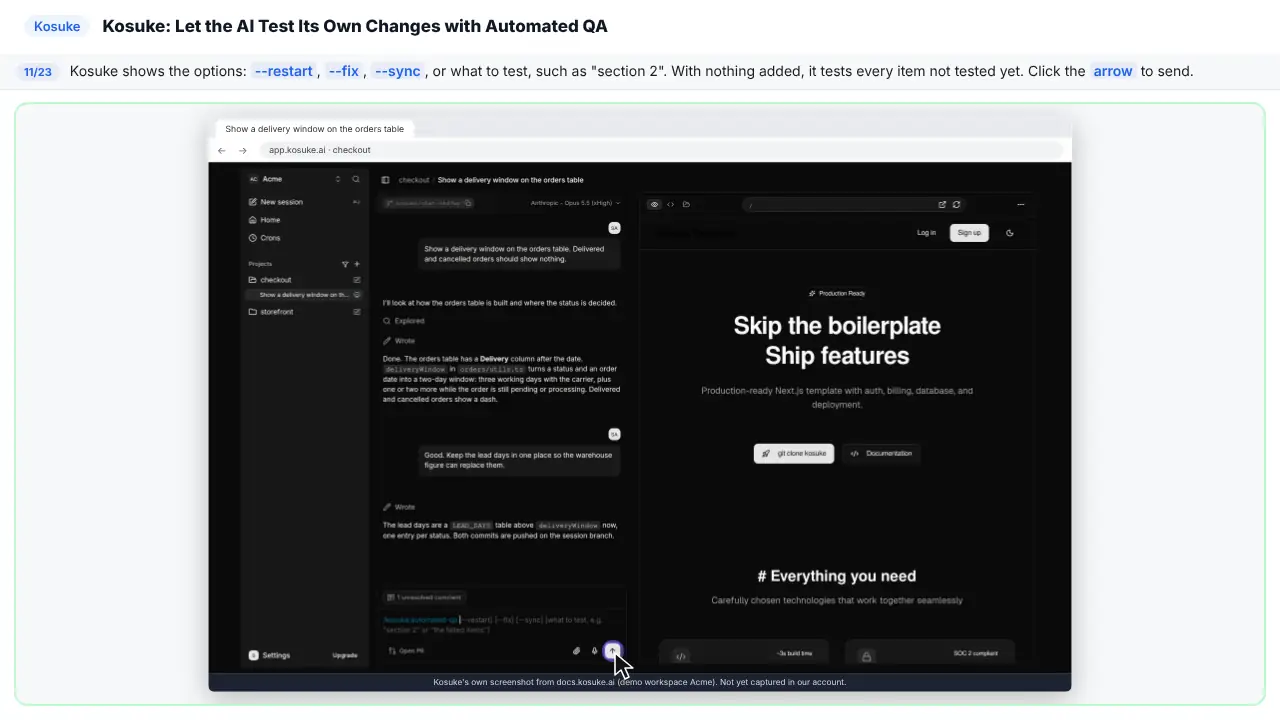
It shows the options. Restart. Fix. Or a section to test. With nothing added, it tests everything new.
Part 5: Read the QA Report
Step 12: Read the failed item
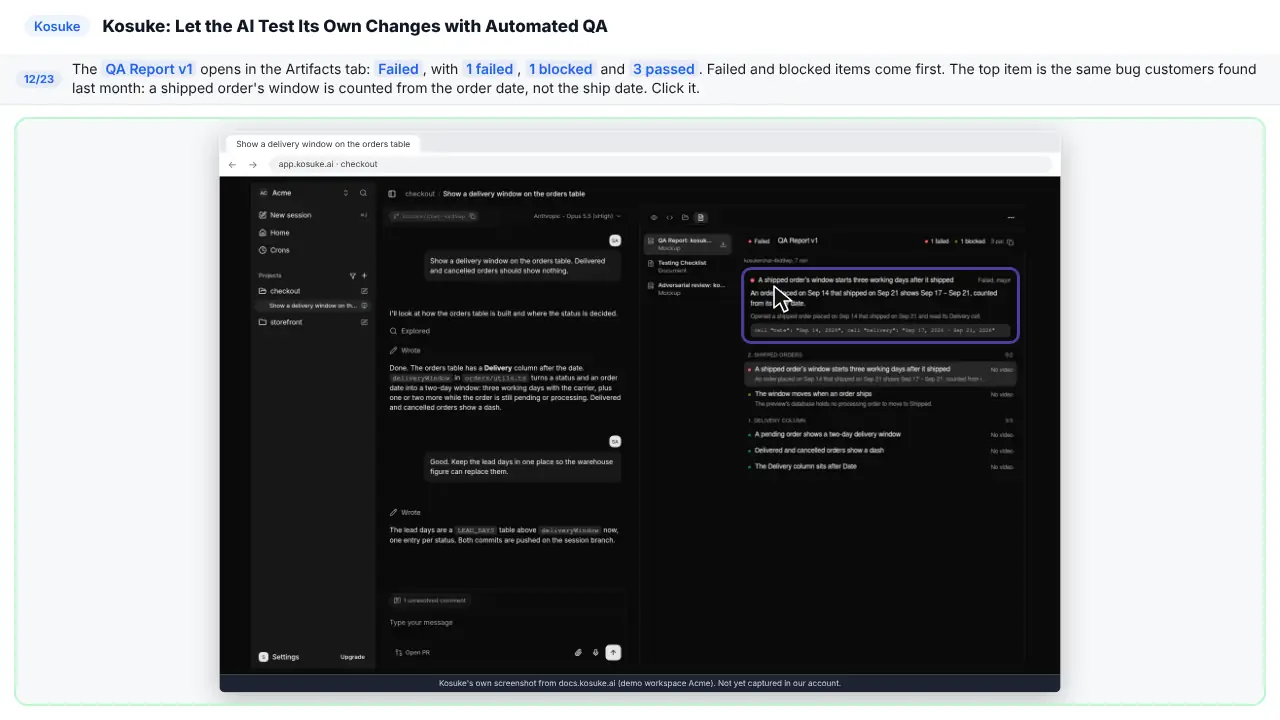
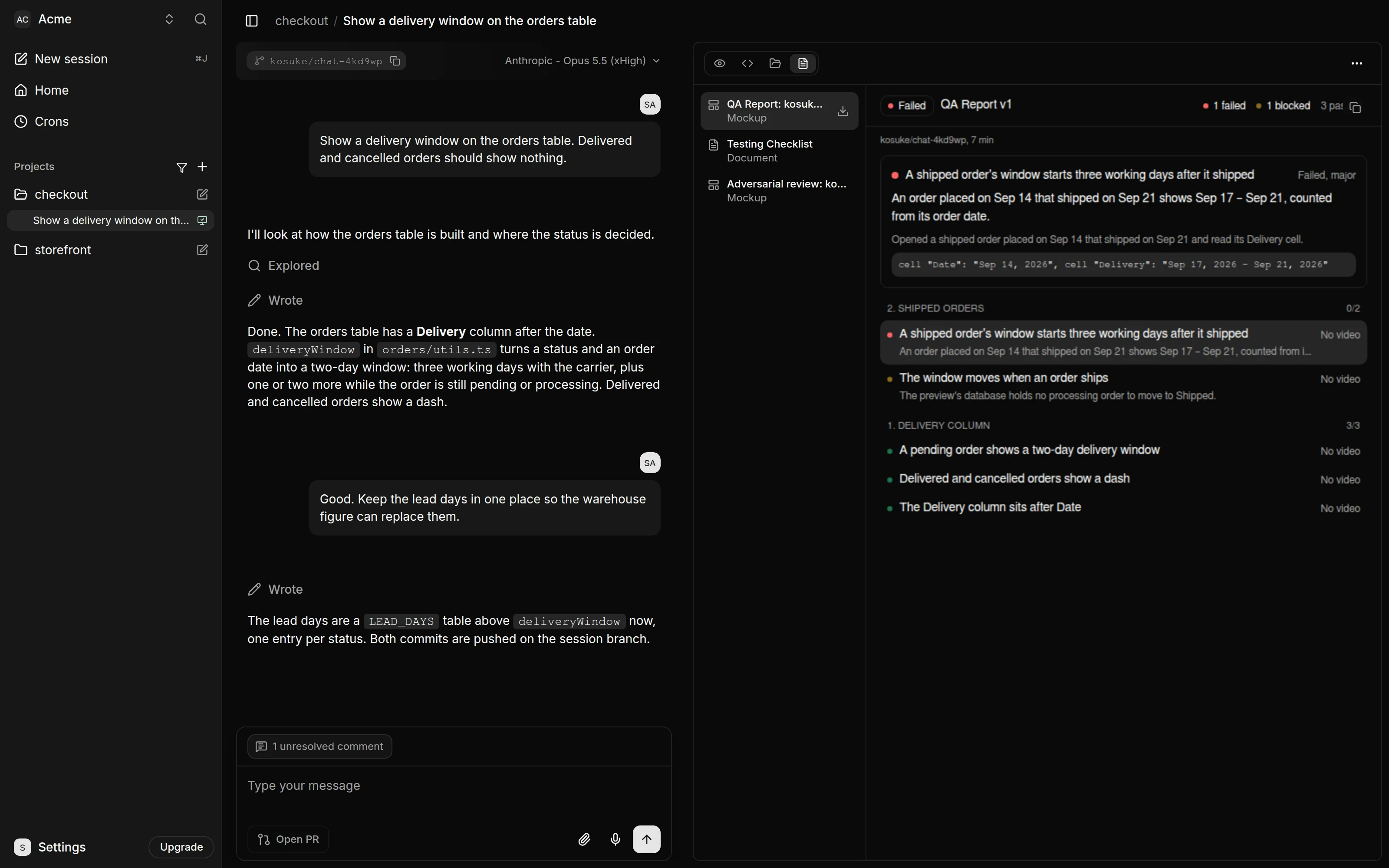
The Q A report is in. One failed. One blocked. Three passed. The failed one is the same bug customers found last month. The date is counted from the order, not from shipping.
Step 13: Read the blocked item
Blocked is not the same as failed. The tester could not set up the test. There was no processing order to move to shipped.
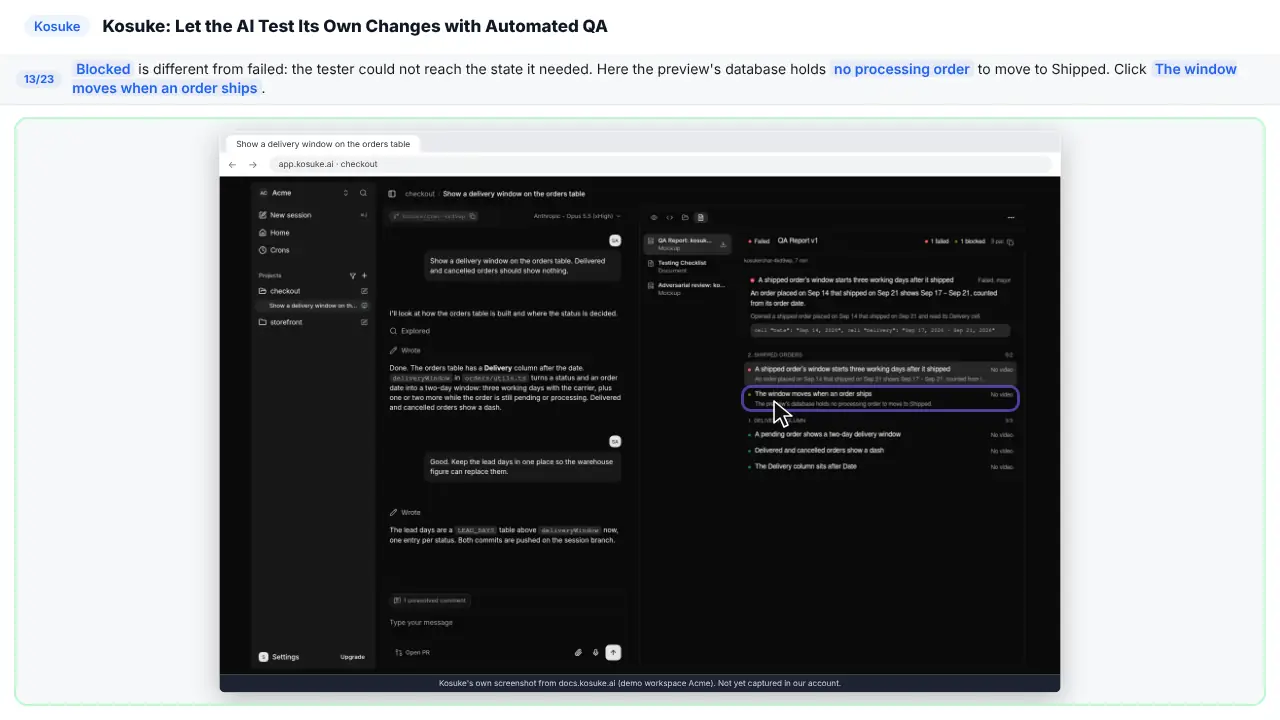
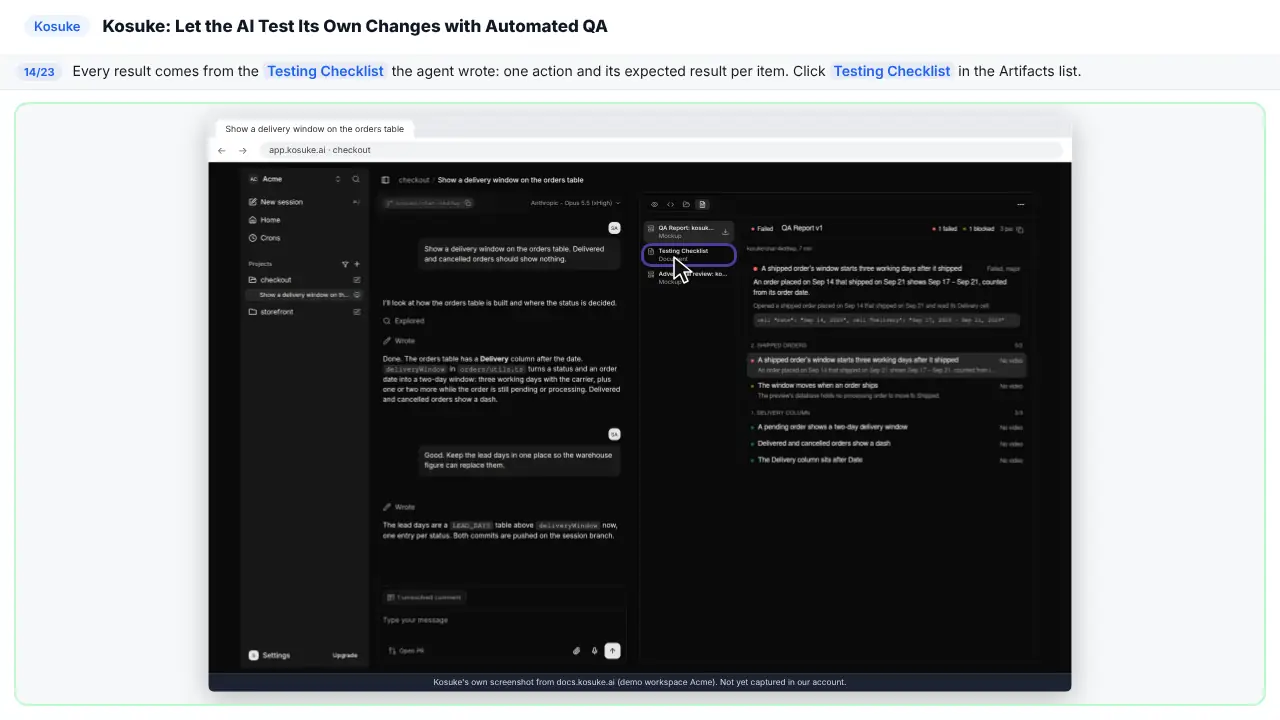
Step 14: Open the Testing Checklist
Every result comes from a testing checklist the agent wrote. One action, and what should happen.
Part 6: Fix it and test again
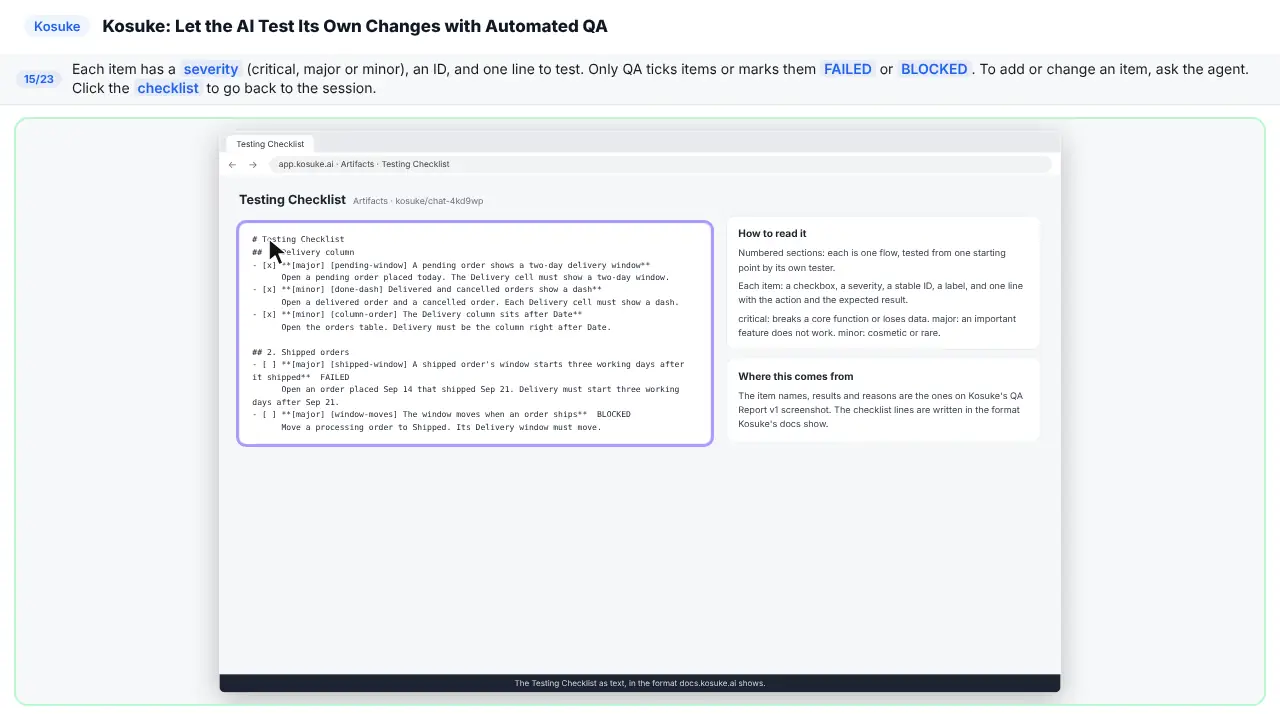
Step 15: Read the checklist
Each item has a severity, and one line to test. Only Q A ticks them. To change one, ask the agent.
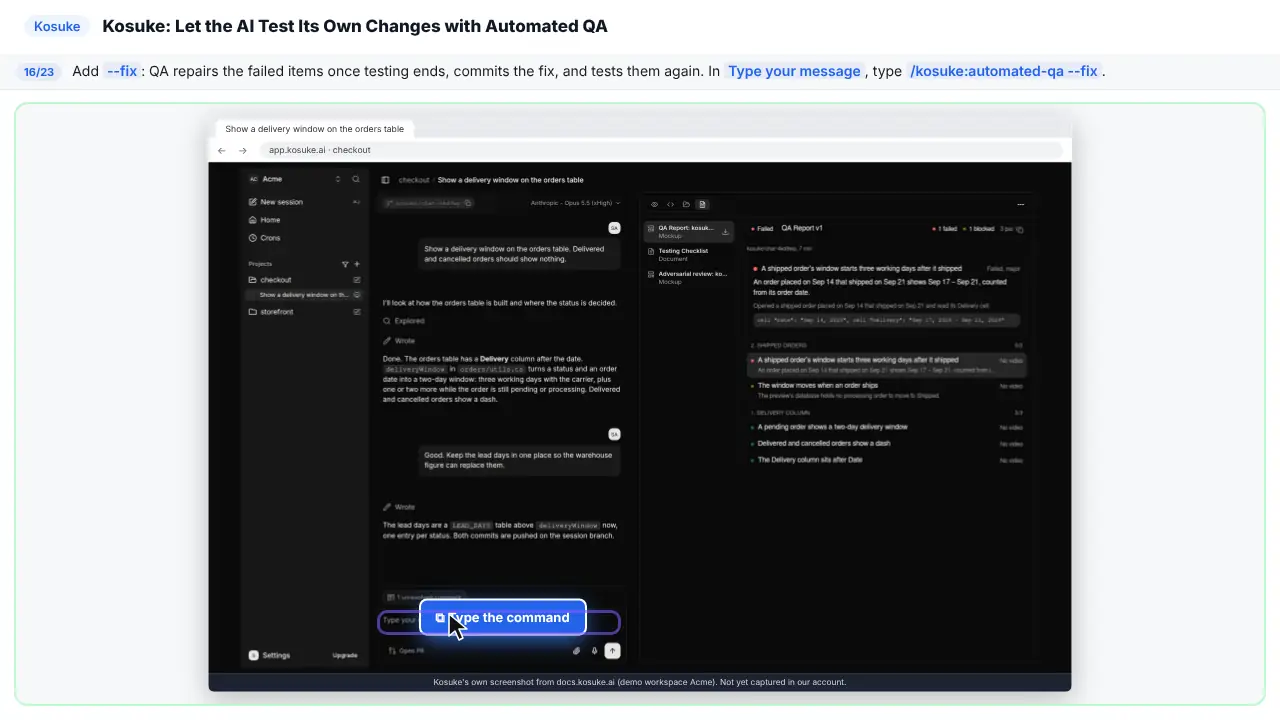
Step 16: Let Kosuke repair it
Add dash dash fix. Kosuke repairs what failed, and tests it again.
Step 17: Send it
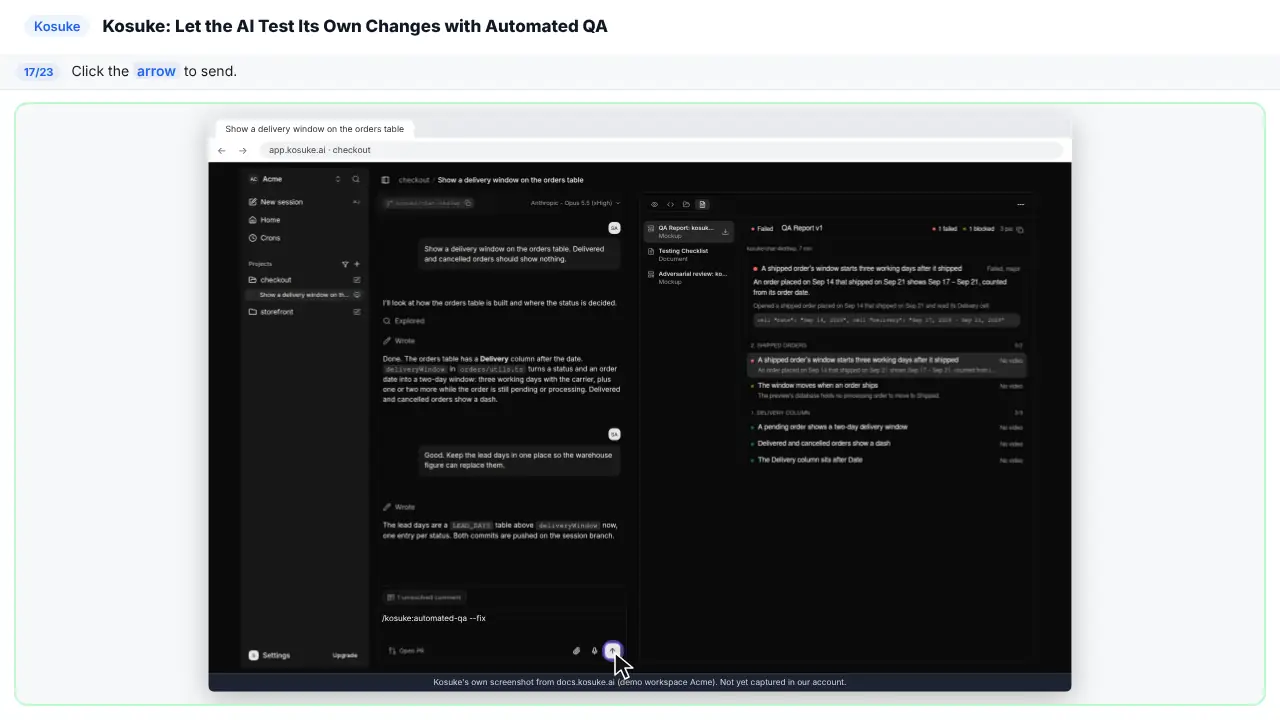
Step 18: Unblock the last item
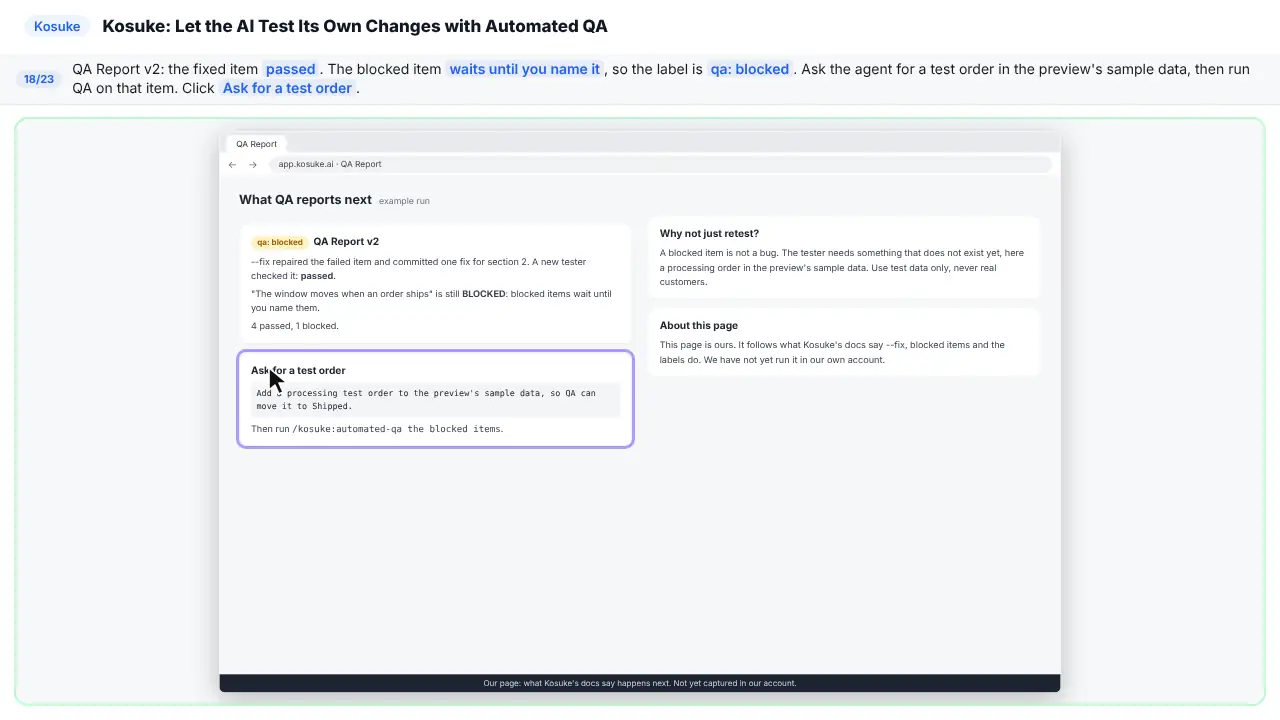
Version two. The fix passed. The blocked item is still waiting. Ask the agent for a test order, then test it again.
Step 19: The Project QA Guide
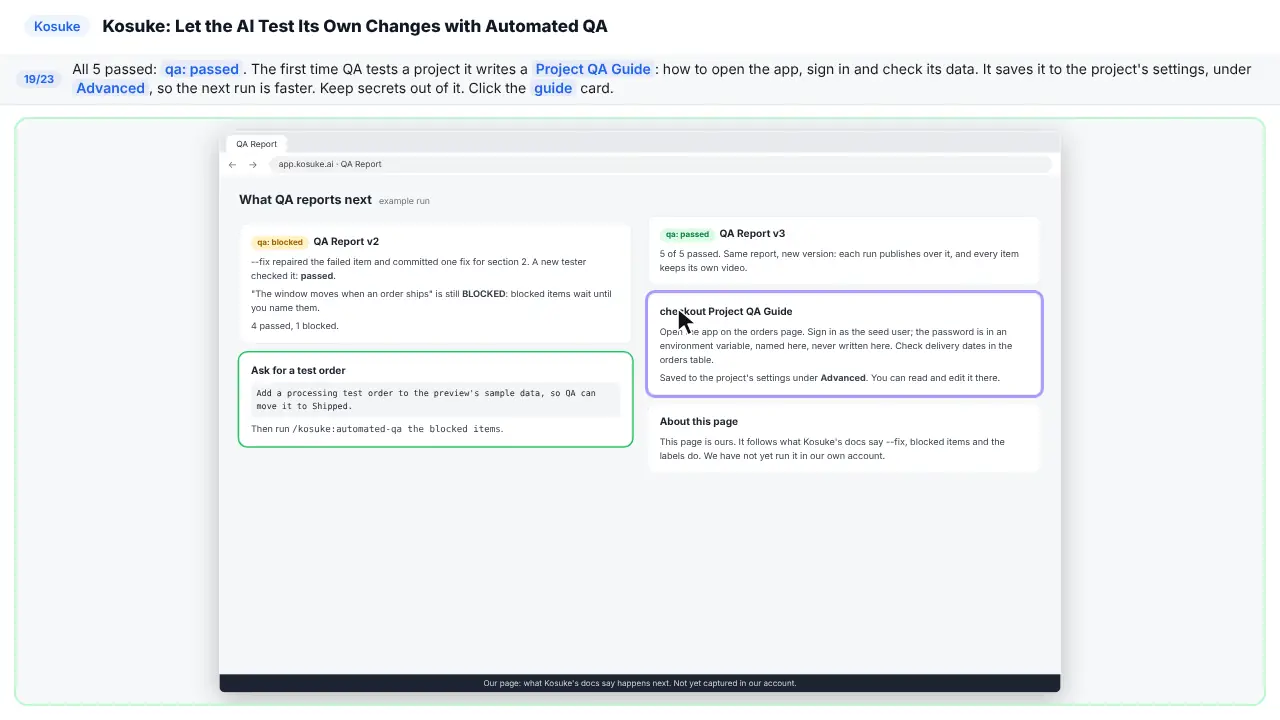
All five passed. The first time, Q A also writes a guide to your project. How to open it, sign in, and check the data. Keep passwords out of it.
Part 7: Hand it off with proof
Step 20: Open the pull request
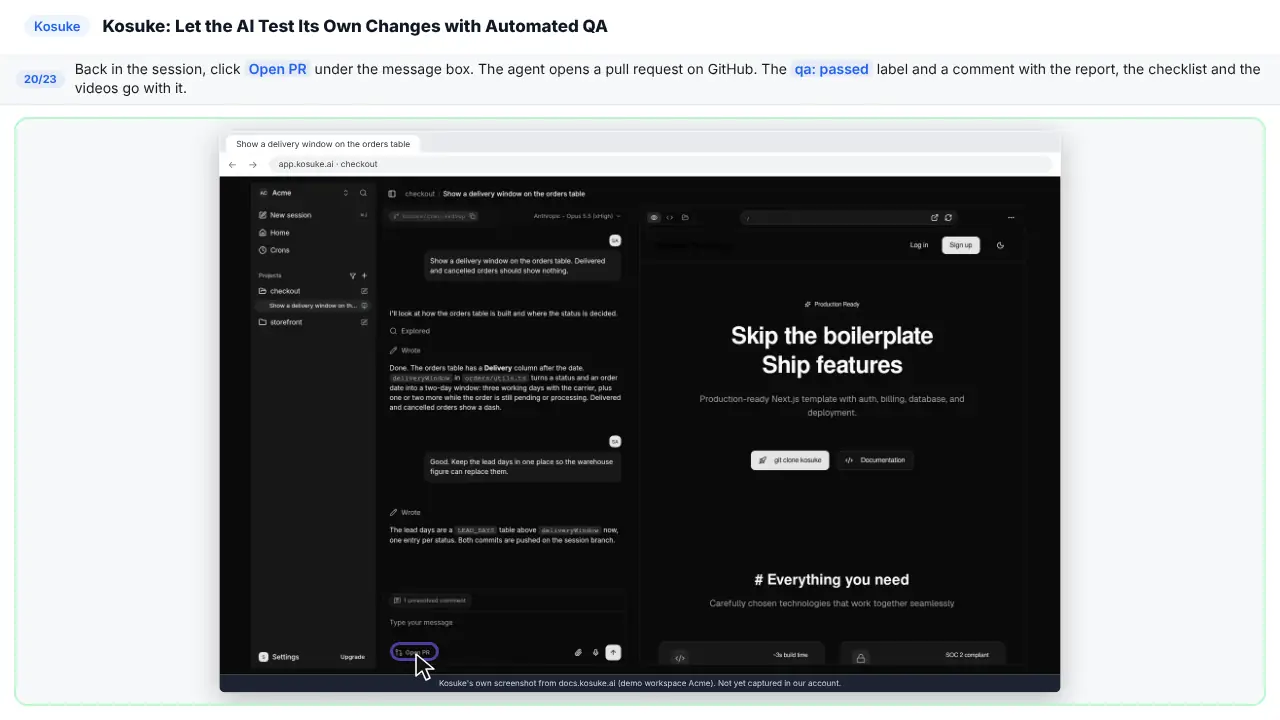
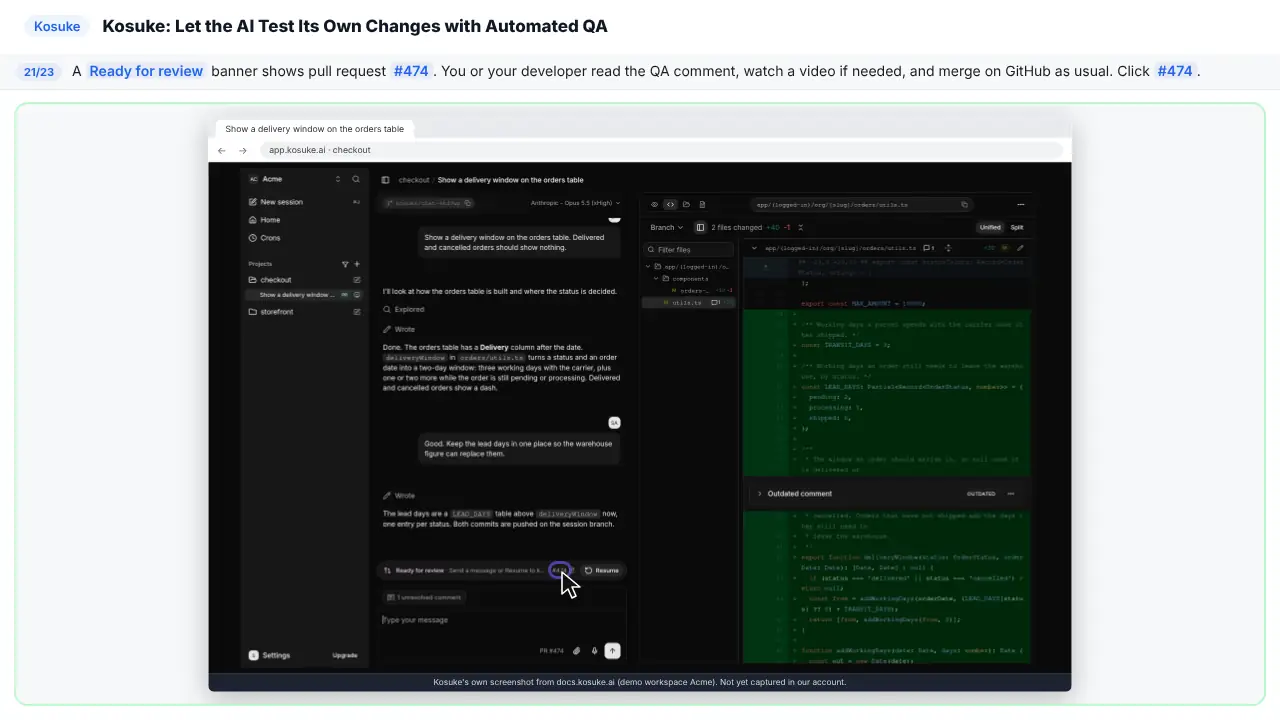
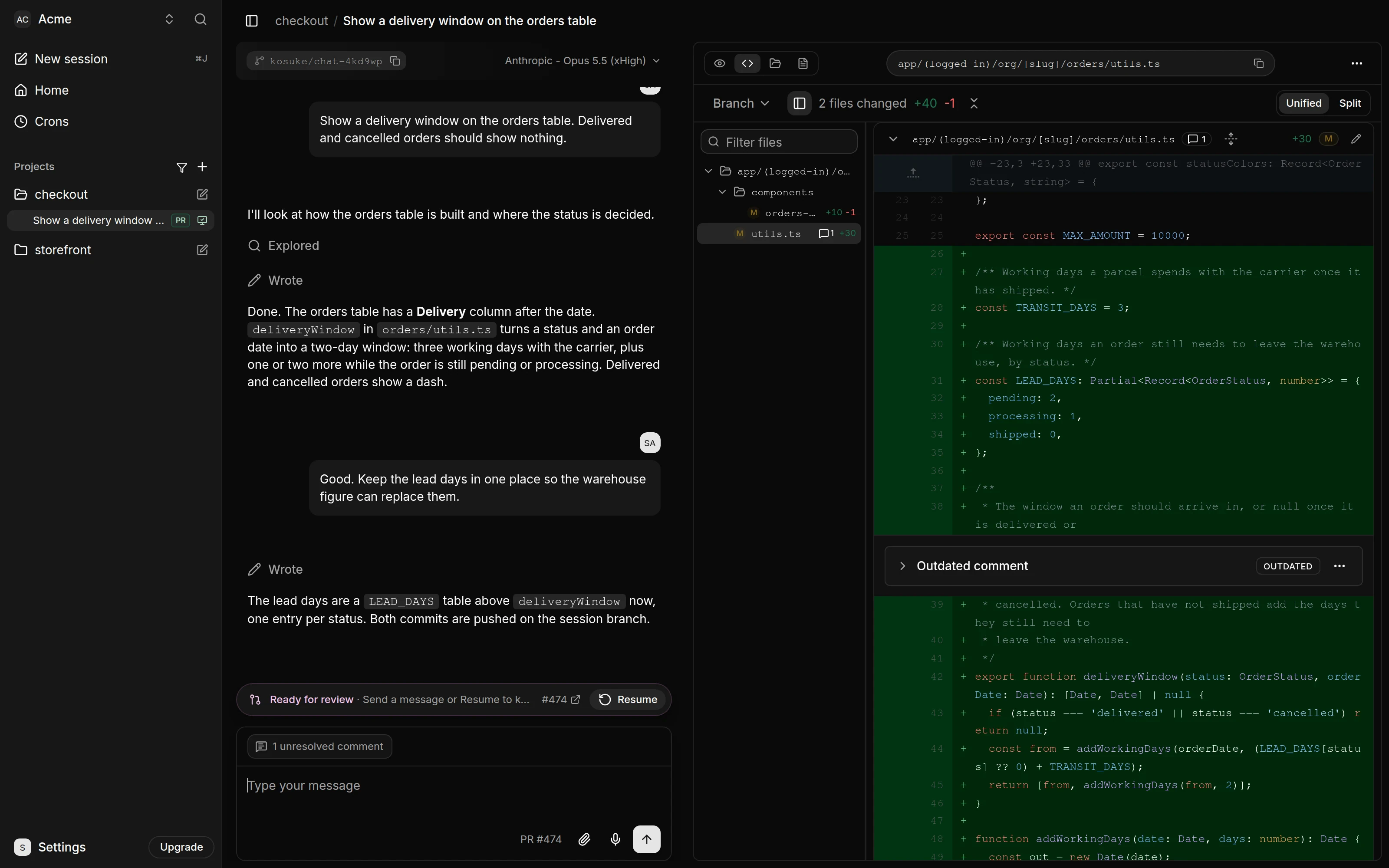
The pull request goes to GitHub, with the Q A label, and a link to the proof.
Step 21: Review it on GitHub
Ready for review. You or your developer read the Q A comment, and merge it on GitHub, as usual.
Part 8: What this saves you
Step 22: What this saves you
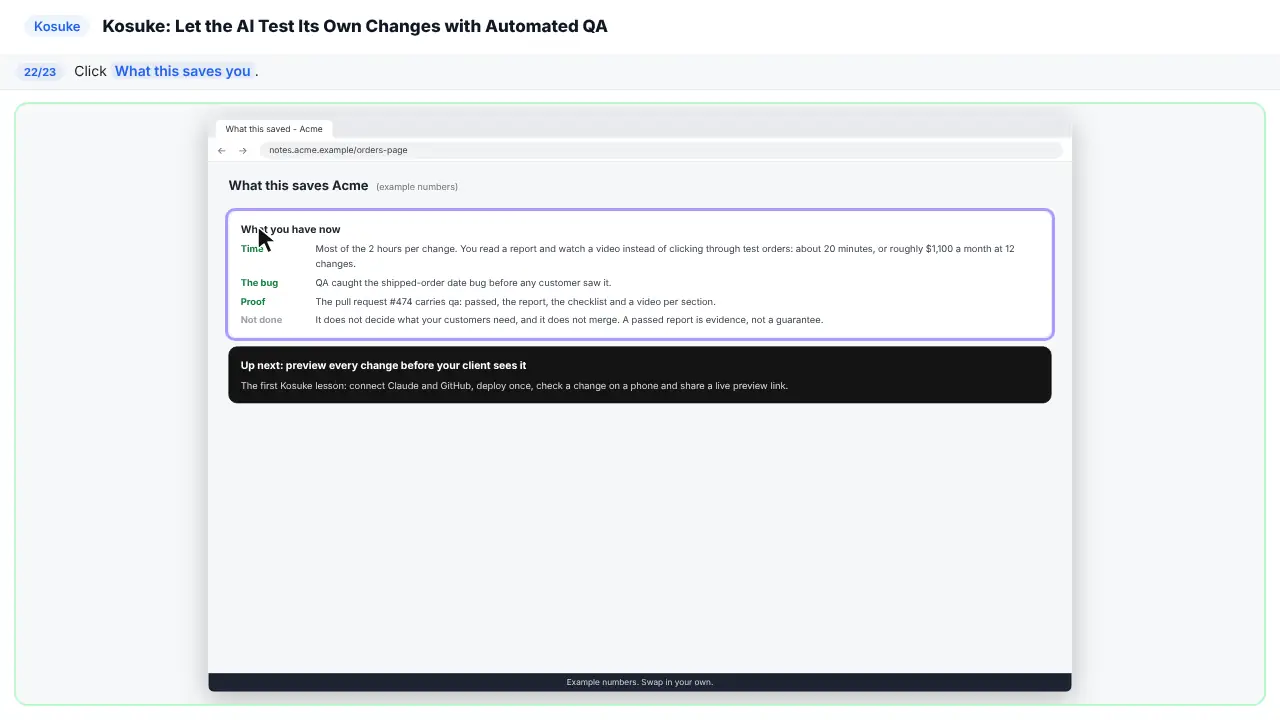
Here is what it saves.
Step 23: Up next
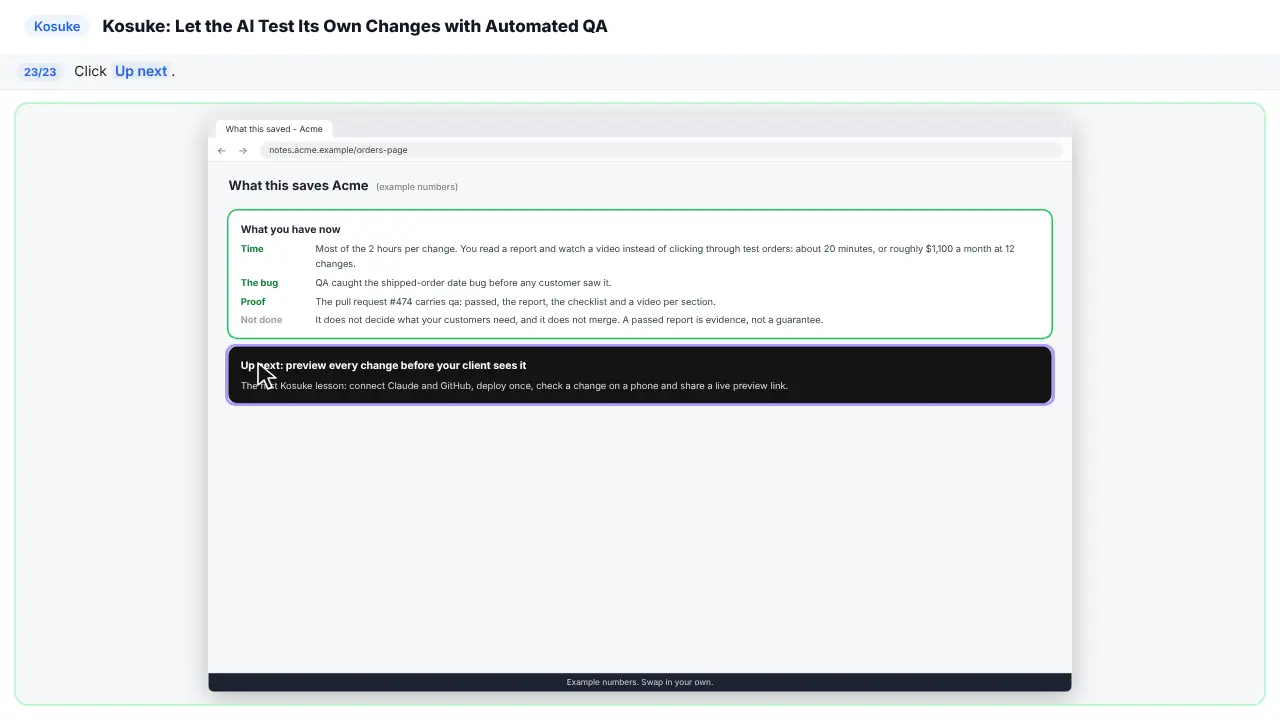
Next up, previews your client can click.
Part of these free courses: AI Apps Worth Knowing, Kosuke Tutorial: Kosuke Jump Start
Now do it yourself, free
Reading the steps is a start. Doing them is how it sticks. The interactive lesson puts you in a practice copy of Kosuke: you do every step yourself, it checks your work, and “Do it for me” finishes any step you get stuck on. Nothing touches your real accounts.
Practice “Kosuke: Let the AI Test Its Own Changes with Automated QA” step by step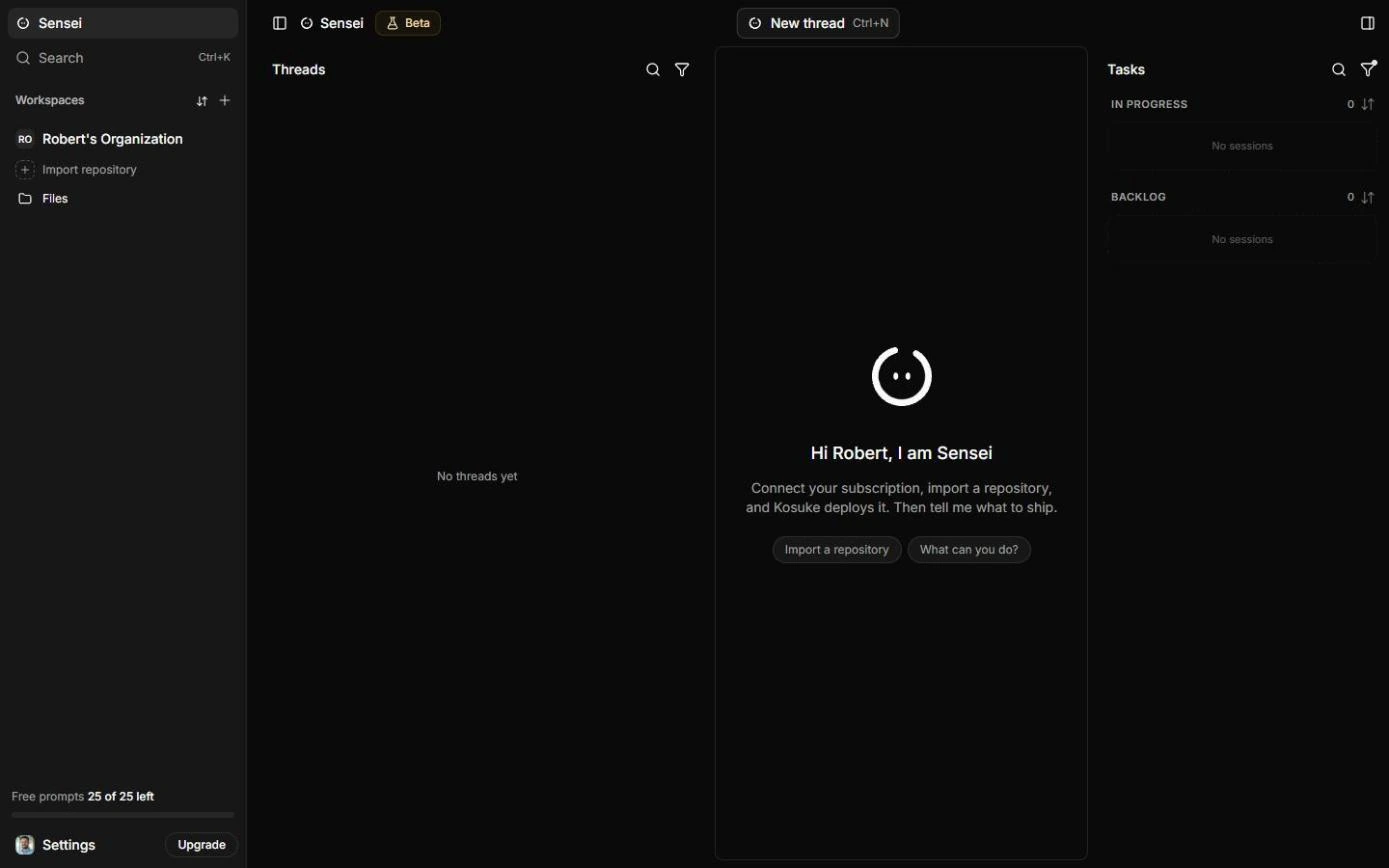
The business case: what hand-testing every AI change costs
Picture Sam Alvarez, who runs operations at Acme, a made-up small online store. An AI coding agent makes changes to the store, so the code part is quick. The slow part is testing: Sam opens test orders in every status, clicks through each change, writes notes and takes screenshots. Last month a change to the orders page showed shipped orders the wrong delivery window, and 38 customers emailed to ask where their order was before anyone at Acme noticed.
Here is the arithmetic, using example numbers you should replace with your own. Testing takes about 2 hours per change, and Acme ships 12 changes a month. That is 24 hours, or about $1,320 a month at $55 an hour, and $15,840 a year. Hand-testing also gets skipped in a busy week, and nothing records what was checked.
Who this is for, and what you need
Operations people, agency owners and small business owners who use an AI coding agent such as Claude Code or Codex on a website or an internal tool, and who need changes tested without reading code. It follows on from Kosuke: Preview Website Changes Before Your Client Does, which covers connecting Claude, importing a repository and deploying it once.
To use it for real you need a Kosuke workspace, a GitHub repository connected to Kosuke (use a test repository with made-up data while you learn), your Anthropic or OpenAI account for the agent, and the project deployed once in Kosuke. The practice copy in this lesson needs none of them.
How the Testing Checklist works
The agent keeps a Testing Checklist for the branch as it works. It is grouped in numbered sections, and each section is one flow tested from one starting point. Each item has a checkbox, a severity, a stable ID, a label, and one line with the action and its expected result.
Severity tells you how much a failure matters: critical breaks a core function, loses data or opens a security hole; major stops an important feature from working as expected; minor is cosmetic or a rare edge case. The agent favours edge cases, errors and recovery over the obvious path. Only QA ticks items or marks them FAILED or BLOCKED. To add, change or drop an item, ask the agent in a message.
Passed, FAILED and BLOCKED: what each one means
Passed means a tester watched the expected result happen. FAILED means a tester watched it not happen, and the item carries the reason. BLOCKED means the tester could not reach the state the item needs, such as a missing test user or test order.
They need different fixes. A failed item is a bug: run /kosuke:automated-qa --fix, and QA repairs it, commits one fix per section and has a new tester check it. A blocked item is a missing setup: give the tester what it needs (in the lesson, a processing test order in the preview's sample data), then name the item in the next run. Blocked items wait until you name them.
The QA Report, the label and the pull request
Each run publishes over one QA Report per branch, in the session's Artifacts tab, with a version number: v1, then v2, then v3. Failed and blocked sections come first, and selecting an item plays its video and shows what the tester did and saw.
The label follows the run: qa: passed (green) when every tested item passed, qa: blocked (yellow) when nothing failed but something could not run, and qa: failed (red) when anything failed. Before a pull request exists, the label sits on the chat session and moves to the pull request when you press Open PR. QA also posts a comment on the pull request with the counts and links to the report, the checklist and the videos.
The Project QA Guide
The first time QA tests a project, it works out how to open the app, sign in and check its data, and writes that down as the Project QA Guide. It is saved to the project's settings, under Advanced, and later runs read it, so they start faster. You can read and edit it there. Keep secrets out of it: name the environment variable that holds a password, never the password itself.
What this saves you
- Most of the 2 hours per change: you read a report and watch a video instead of clicking through test orders yourself. In the example that is about 20 minutes per change, roughly $1,100 a month at 12 changes. These are estimates from example numbers, not a promise.
- The bug a customer finds first: in the lesson, QA caught the same delivery-date bug that reached customers last month.
- Proof on every pull request: what was tested, what the tester saw, and a video.
- What it does not do: decide what your customers need, or merge for you. A passed report is evidence, not a guarantee.
What we checked in a real Kosuke account
On 20 October 2026 we opened a real Kosuke workspace (Enterprise plan) and checked the Sensei home screen, Settings > Account with GitHub Not connected and its Connect button, Settings > AI Providers with Claude Code Not configured and its Configure button, and Skills. We did not connect GitHub or a Claude account, so the New Session box, the session, the /kosuke:automated-qa command, QA Report v1 and the Ready for review banner are Kosuke's own screenshots from docs.kosuke.ai, from its demo workspace Acme, and the --fix and unblock results follow Kosuke's documentation. Kosuke's screens change over time, so yours may differ slightly.
Links
- Kosuke: the product this lesson teaches.
- Kosuke docs: /kosuke:automated-qa: the Testing Checklist, --fix, --restart, the QA Report, the qa: labels and the Project QA Guide.
- Kosuke docs: Test a change in the browser: Kosuke's own walkthrough of testing a change.
- Kosuke docs: Open a pull request: what Open PR does and where the QA label goes.
Try it yourself, free
Reading the steps is a start. Doing them is how it sticks. The interactive module walks you through every click in a practice copy of Kosuke, checks each step, and never touches your real accounts.
Start “Kosuke: Let the AI Test Its Own Changes with Automated QA”Screenshots
Frequently asked questions
- What does /kosuke:automated-qa do?
- It tests your branch's Testing Checklist in a headless browser against the running app. One tester takes each section, several run at once, and each records a video. You get a QA Report in the Artifacts tab, and the pull request gets a qa: passed, qa: blocked or qa: failed label with a comment.
- What is the difference between FAILED and BLOCKED in Kosuke QA?
- FAILED means a tester watched the expected result not happen: a real bug. BLOCKED means the tester could not reach the state the item needs, such as a missing test user or test order. Fix failed items with --fix; fix blocked items by adding what the tester needs, then name them in the next run.
- What does --fix do?
- With --fix, QA repairs the FAILED items once testing ends, commits one fix per section, and has a new tester check the fixed items again. Each run with --fix makes one repair round.
- Do I need to write the test checklist myself?
- No. The agent writes and updates the Testing Checklist as it works, favouring edge cases and errors. You can ask it to add, change or drop an item in a message.
- Has this lesson been tested in the real Kosuke app?
- Partly. We checked the setup screens (Sensei home, Account with the GitHub Connect button, AI Providers with Claude Code) in a real Kosuke account. The session and QA screens are Kosuke's own screenshots from its documentation, because our test account had no GitHub repository connected yet.
From the blog
Kosuke Use Cases: AI Website Changes for Non-DevelopersHow agency owners, ops leads, marketing managers, founders and consultants use Kosuke previews and automated QA to check AI-made changes safely.
Oct 20, 2026 5 min read
Kosuke FAQ: Previews, Automated QA, Costs and SafetyPlain answers about Kosuke for non-developers: what it does, how previews and automated QA work, share links, pull requests and what the Trial covers.
Oct 20, 2026 4 min read
Kosuke Mistakes: 9 Ways to Misread AI Website ChangesCommon Kosuke mistakes for agencies and ops teams: skipping the phone check, treating BLOCKED like FAILED, open share links, and trusting a pass blindly.
Oct 20, 2026 5 min read
Terms in this lesson
Plain-English definitions, each with an example from a free lesson.