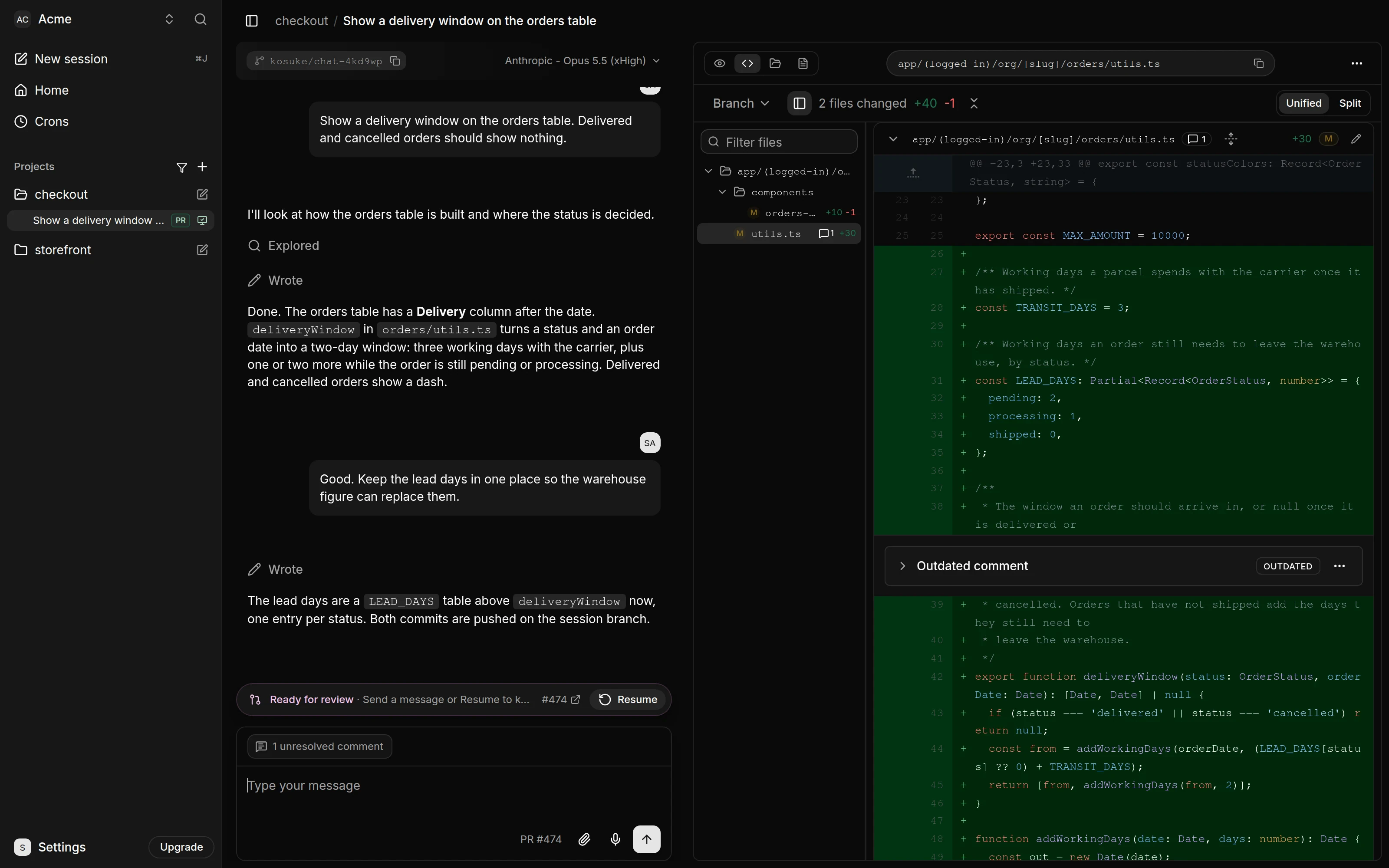
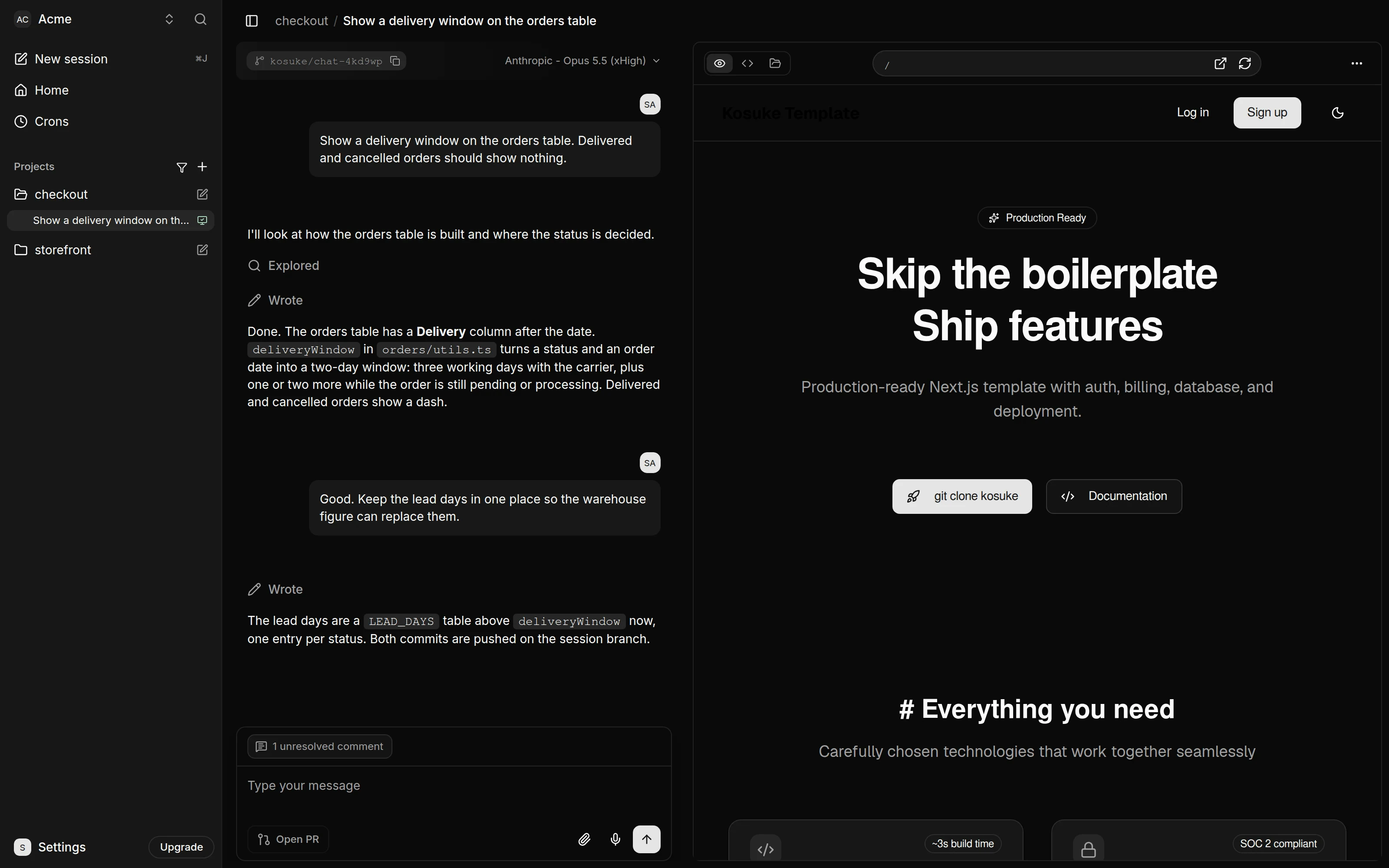
Kosuke runs your AI coding agent, such as Claude Code, in a cloud sandbox. Every change gets its own branch, its own sandbox and its own live Preview, and nothing reaches the live site until a pull request is merged on GitHub.
What are the most common Kosuke mistakes?
| # | Mistake | Fix |
|---|---|---|
| 1 | Giving Kosuke every GitHub repository | Choose only the repositories it may see |
| 2 | Forgetting to deploy once | Press Deploy and wait for Deployed · Your project is live |
| 3 | Writing the change request like code | Describe it like you would to a colleague |
| 4 | Checking only at desktop size | Turn on the responsive toggle for phone size |
| 5 | Fixing a BLOCKED item with --fix | Add the missing setup, then name the item in the next run |
| 6 | Expecting --fix to loop until green | Each --fix run is one repair round |
| 7 | Leaving the share link live | Revoke link when the client is done |
| 8 | A password in the Project QA Guide | Name the environment variable, never the secret |
| 9 | Treating qa: passed as a guarantee | Still click through what matters to the client |
What goes wrong during setup?
1. Too much access. When you press Install on GitHub, choose only the repositories Kosuke may see. In the QA lesson, press Connect on the Account page and give access to only the repository you want tested. While you learn, use a test repository with made-up data.
2. No first deploy. After Import Project, press Deploy once. The chat reads Deployed · Your project is live when it's done. Sessions and previews build on that first deploy.
3. Technical change requests. You don't need code words. The lessons ask in plain language, for example: "Show a delivery window on the orders table. Delivered and cancelled orders should show nothing." Kosuke's Agent replies setting, Not-tech, makes the agent answer in plain language too.
Why did the client find a bug I missed?
4. Desktop-only review. In the preview lesson, the new fee cards look fine on a laptop and run off a phone screen. Turn on the responsive toggle in the Preview and check the change at phone size before anything else. The Preview is the site running from the sandbox, not a screenshot, so you can click through it, type a path such as /services, and open it in a new tab. If something is off, tell the agent in plain words and the Preview updates. A live preview deployment only helps if you use it the way your client will.
Try it free, step by step
Preview Every Website Change Before Your Client Sees It using Kosuke. A business case for agencies and small businesses that use an AI coding agent: price what an unchecked website change costs, then use Kosuke to give every change a live preview, check it on a phone… You do every step yourself in a practice copy of Kosuke, it checks your work as you go, and “Do it for me” finishes any step you get stuck on. Free, and nothing touches your real accounts.
Start the free lessonWhy does my QA report say BLOCKED?
5. Treating BLOCKED like FAILED. They mean different things and need different fixes. FAILED means a tester watched the expected result not happen: a real bug. BLOCKED means the tester couldn't reach the state the item needs, such as a missing test user or test order. In the QA lesson, report v1 reads 1 failed, 1 blocked and 3 passed. The failed item is the bug: a shipped order's window was counted from the order date, not the ship date. The blocked item couldn't run because the preview's database had no processing order to move to Shipped.
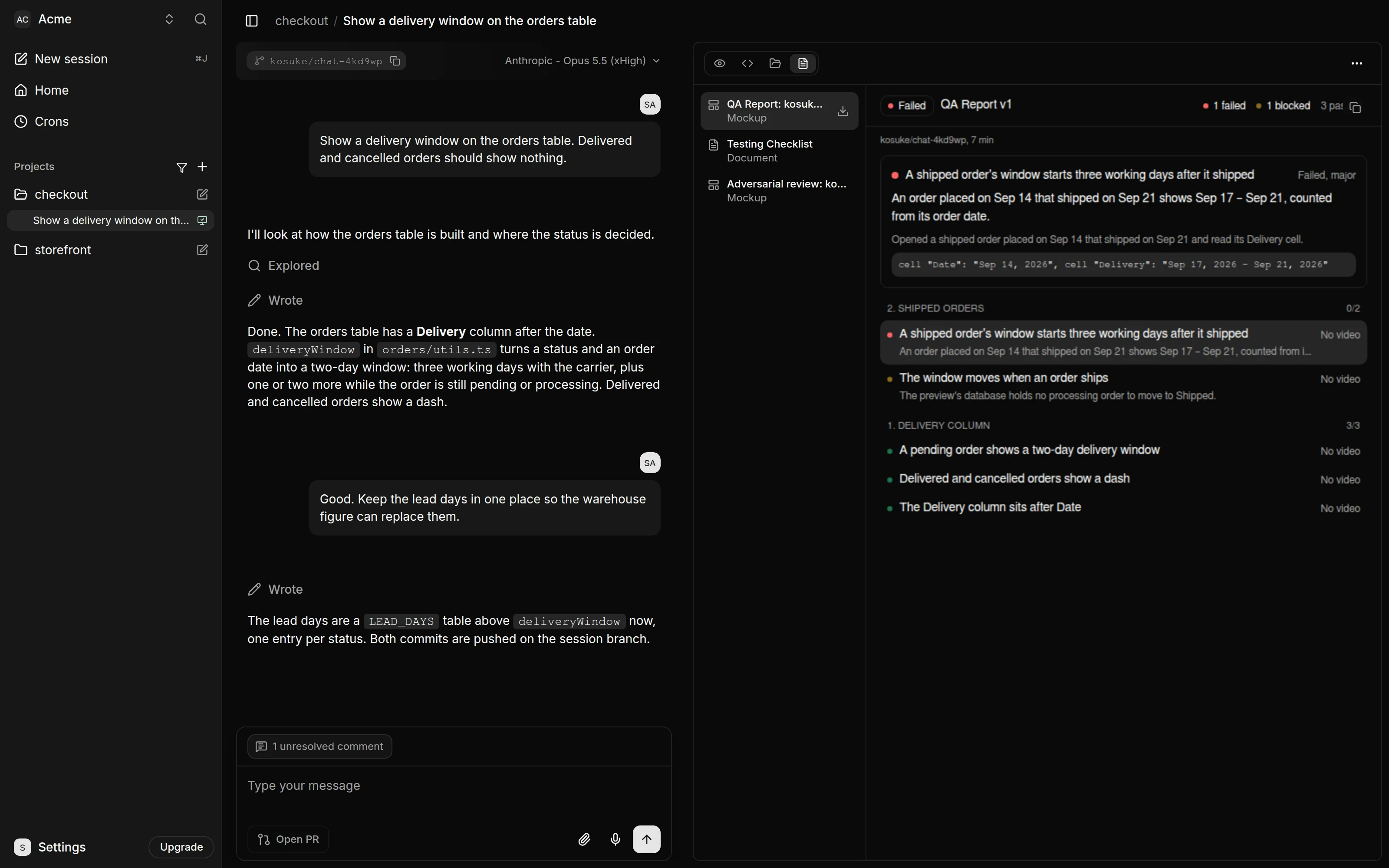
For the failed item, send /kosuke:automated-qa --fix. For the blocked one, ask the agent for a processing test order in the preview's sample test data, then name the item in the next run. Blocked items wait until you name them.
6. Expecting endless repair. Each run with --fix makes one repair round: QA repairs the failed items once testing ends, commits one fix per section, and has a new tester check them again. If something still fails, read the report and run it again.
What should I watch when sharing with a client?
7. A link that never ends. Share preview, Create share link, Copy share link gives the client the running site with no Kosuke account. The visitor sees the site and the QA Report if there is one, not the chat or the code. The link has no password and no expiry, so send it only to the client and press Revoke link when you're done. A visit also wakes a paused sandbox, and that time counts toward your workspace's usage.
What belongs in the Project QA Guide?
8. Secrets. The first time QA tests a project, it writes down how to open the app, sign in and check its data as the Project QA Guide, saved in the project's settings under Advanced. You can edit it. Name the environment variable that holds a password, never the password itself.
Is qa: passed enough to merge?
9. A pass is evidence, not a guarantee. Both lessons say it plainly. qa: passed means every tested item passed, and the pull request carries a comment linking the report, the checklist and each section's video. It does not decide what the client wants, and Kosuke doesn't merge for you. Click through anything that matters to the client, then you or your developer merge on GitHub as usual.
Key takeaways
- Limit repository access, deploy once, and ask for changes in plain words.
- Check every change at phone size in the Preview.
- FAILED is a bug (use
--fix); BLOCKED is missing setup (add it, then name the item). - Revoke share links, and keep passwords out of the Project QA Guide.
- Read the report and click through key flows before merging. Settings are on the preview and QA cheat sheets, and Kosuke is in the AI tools directory.
Frequently asked questions
- Do I need to read code to use Kosuke?
No. Both lessons are for non-developers. Someone imports the repository and deploys it once, and someone merges the pull request.
- Can a change break the live site while I test?
The agent works on its own branch in its own sandbox, so the live site isn't touched until a pull request is merged.
- Who writes the Testing Checklist?
The agent, as it works. Ask it in a message to add, change or drop an item. Only QA ticks items.
- Where is the QA Report?
In the session's Artifacts tab, versioned v1, v2, v3.
- Where can I read more?
See the Kosuke FAQ and Kosuke use cases by role.