Updated . Built against the tool’s current screens and checked step by step. How we check this lesson
Most small firms keep their leads wherever they happened to land: an inbox, a notebook, a spreadsheet someone forgot to share. Then leads go cold because nobody knew whose turn it was. Zoho CRM puts Leads, Contacts, Accounts and Deals in one place, and its Free edition covers all four. In this free business-case lesson you help a made-up consulting firm add a lead with its Lead Source and Lead Status, save a note and log the call, convert the lead into an account, a contact and a deal, and find that deal in the Deals Kanban view. The screenshots on this page and in the lesson come from Zoho's own help center, credited and linked under each one, so they show Zoho's demo records. This is my own lesson, not an official Zoho course.
At a glance
| Question | Answer |
|---|---|
| What you build | A business case for a firm with leads scattered across inboxes and a notebook: add a lead with its source and status, note the call, convert it to an account, contact and deal, and see it in the Deals pipeline. Zoho CRM Free edition. |
| Tools | Zoho CRM |
| Time | About 12 minutes, 16 steps in 6 parts |
| Level | Beginner, no coding needed |
| Cost | Free |
| Ways to learn it | Practice it step by step |
The 6 parts, in short
- Leads in too many places: Count the scattered leads, Meet Zoho CRM.
- Add the lead: Click + in Leads, Set the Lead Source, Set the Lead Status, Click Save.
- Qualify it: Add a note, Log the call.
- Convert it to a deal: Click Convert, Tick Create a new Deal, Name the deal and set the Closing Date, Pick the Stage, then Convert.
- See it in the pipeline: Find your note on the deal, Switch to Kanban View, Read the pipeline.
- What to do next: Move the other 45.
Start here first: AI Receipt Extractor: Receipts to Google Sheets with n8n (module 1 of Business Automations)
In the course: Part 9 · n8n Automation Toolkit (Module 95 of the full course)
Part of: AI for Consulting & Agencies (step 32 of 33). Next up: Prompting for Slides: Outline, Brand Kit, Check the Numbers
Part of: AI for Sales Teams (step 23 of 23)
Part of: AI Apps Worth Knowing (step 77 of 77)
The business case: leads in too many places
Picture Priya Raman, the sales manager at Kestrel Ridge Consulting, a made-up 9-person operations consulting firm. Her team has 46 open leads. 31 sit in three people's email inboxes, and 15 are in her notebook from a trade show. Nobody can say which ones were called back.
Here is what that costs, in example numbers you should replace with your own. Last quarter 7 leads went cold with no follow-up at all, and the team spends about 3 hours a week hunting through email for who said what. The fix is not more effort. It is one list, where every lead shows where it came from, where it stands and what was said.
Who this is for, and what you need
Owners, sales managers and account managers at consulting, IT services, agencies, accounting and other B2B service firms who track leads by hand today. To follow the practice you need nothing. To do it for real you need a Zoho CRM account. Zoho's edition comparison lists Leads, Contacts, Accounts and Deals, and tasks, events, call log and notes, in the Free edition, which is free for up to 3 users with storage for 5,000 records. Multiple pipelines need a paid edition. Check zoho.com/crm for current plans.
A note on the screens: this lesson uses the screenshots Zoho publishes in its own help center. They show Zoho's demo records, such as Jenny Ken at JK Inc, and the demo deals carry Zoho's sample amounts. Zoho's Creating Leads article has no screenshot of the Create Lead form, so the lesson draws a simplified version of it with the field names from the docs.
Step 1: add the lead
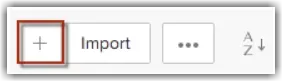
Zoho's help center lists three ways to create leads: fill in the lead form, import CSV and XLS files, or capture them from web forms on your website. For one new lead, open the Leads module, click the + button, enter the details on the Create Lead page and click Save. The lesson uses a referral: Daniel Ortiz at Marlow Freight Co.
Two fields do most of the work. Lead Source says where the lead came from, for example External Referral, so you can count which sources bring real work. Lead Status says where it stands, for example Pre-Qualified. Also fill in Company: Zoho's docs say an account is only created on conversion if the lead has a company name. By default the person who creates the lead owns it, and the Change link in the Lead Owner field hands it to someone else.
Step 2: qualify it with a note and a logged call
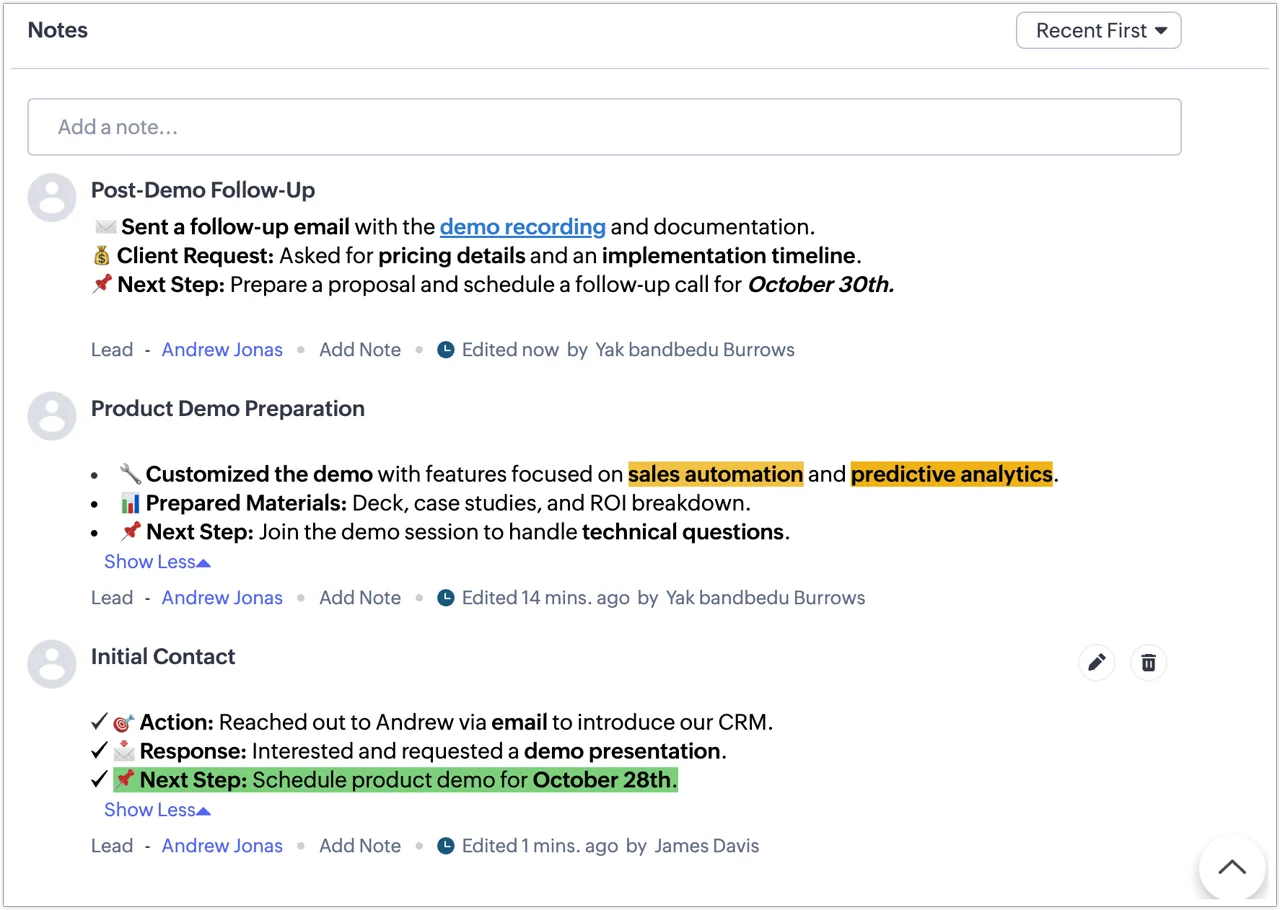
Zoho's help center describes qualification as following up a lead by phone, mail, email, meetings, documents and notes until it is ready to become a business opportunity. Write down what you learn on the lead itself: in the Notes section of the lead's details page, type in the Add a note... box, optionally add a title, and save. Every note counts as one more record toward your storage.
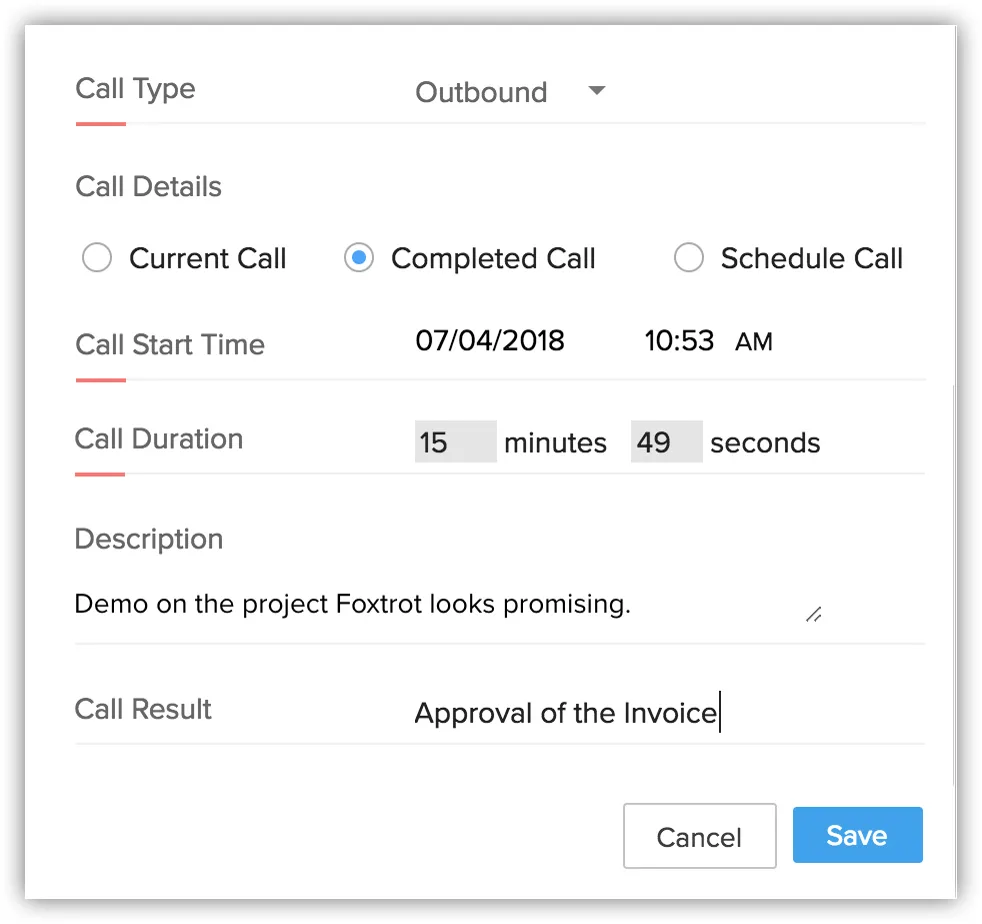
Log the call too. On the lead, click Log a Call in the Open Activities related list. In the Create Call window, pick the lead, enter a Subject, set the Call Type, choose Completed Call under Call Details, and fill in the Call Duration, Description and Call Result. Click Save. The call appears under Closed Activities on the lead, and Zoho's docs say a completed call cannot be edited afterwards.
Step 3: convert the lead to a deal
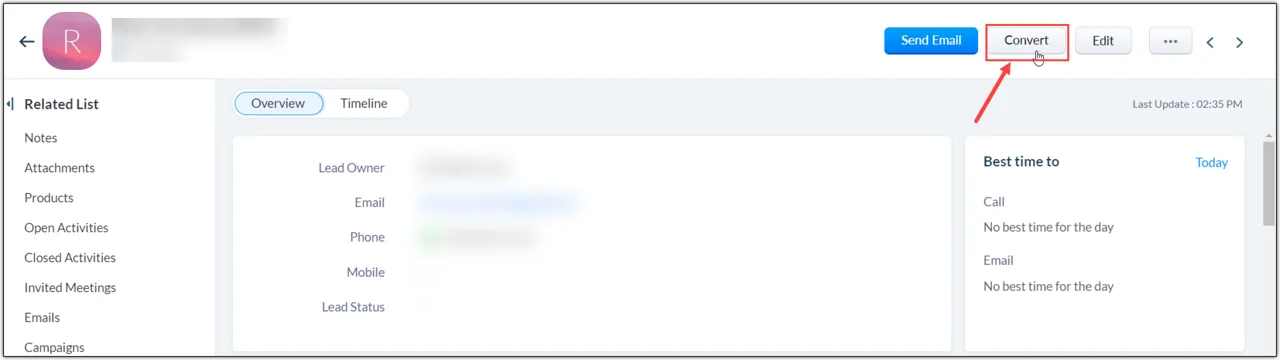
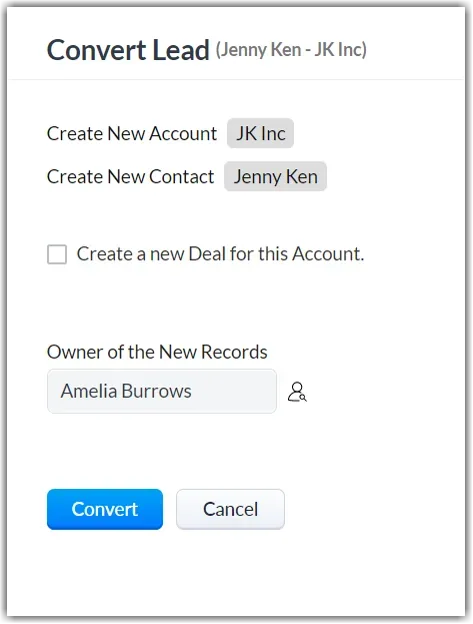
When there is a real next step, such as a proposal, convert the lead. Open it and, on the Lead Details page, click Convert. Zoho turns the lead into an account (the company) and a contact (the person), and if a matching account or contact already exists, it offers to add to the existing record instead. A converted lead cannot be reverted.
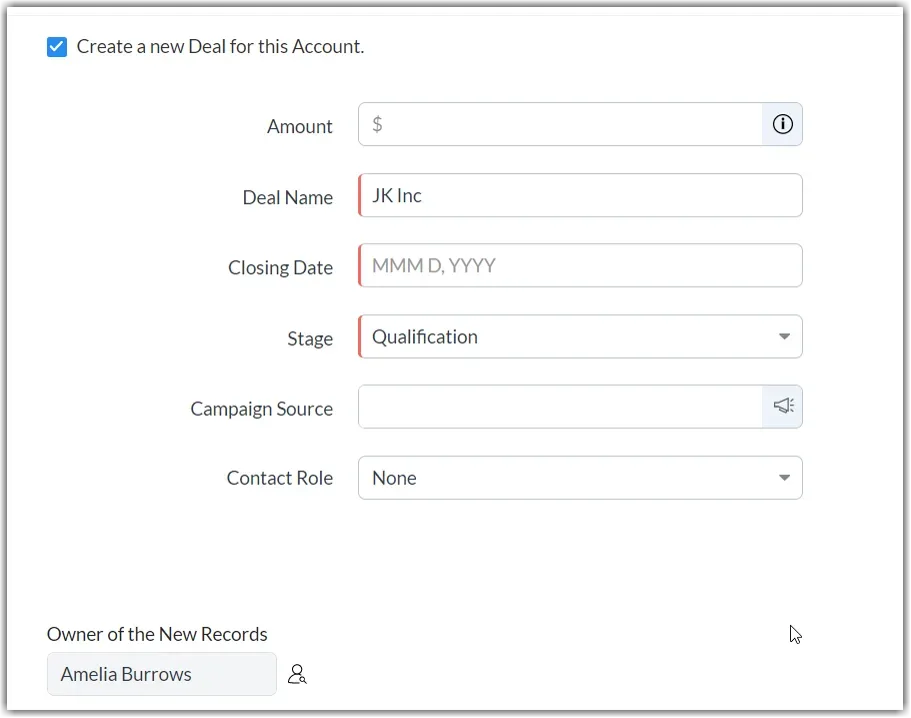
In the Convert Lead window, tick Create a new Deal for this Account. Zoho fills Deal Name with the company name, so rename it to say what the work is, such as Marlow Freight - Process Review. Set the Closing Date, the day you expect a yes or no, and pick the Stage: Lead Status does not carry over, so the docs say you choose the deal stage while converting. Amount is optional. Click Convert.
Step 4: find the deal in the pipeline
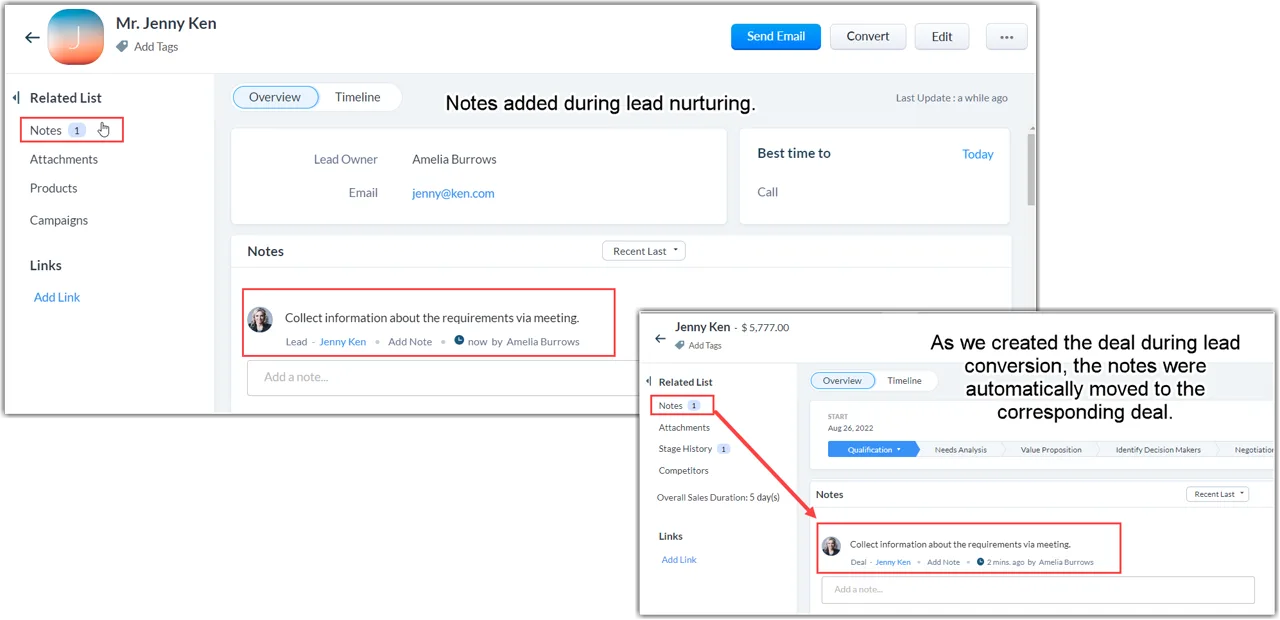
Open the new deal. Zoho's help screenshot shows that notes added while you worked the lead are moved to the deal, so the history comes with it. The deal page shows its stage across the top.
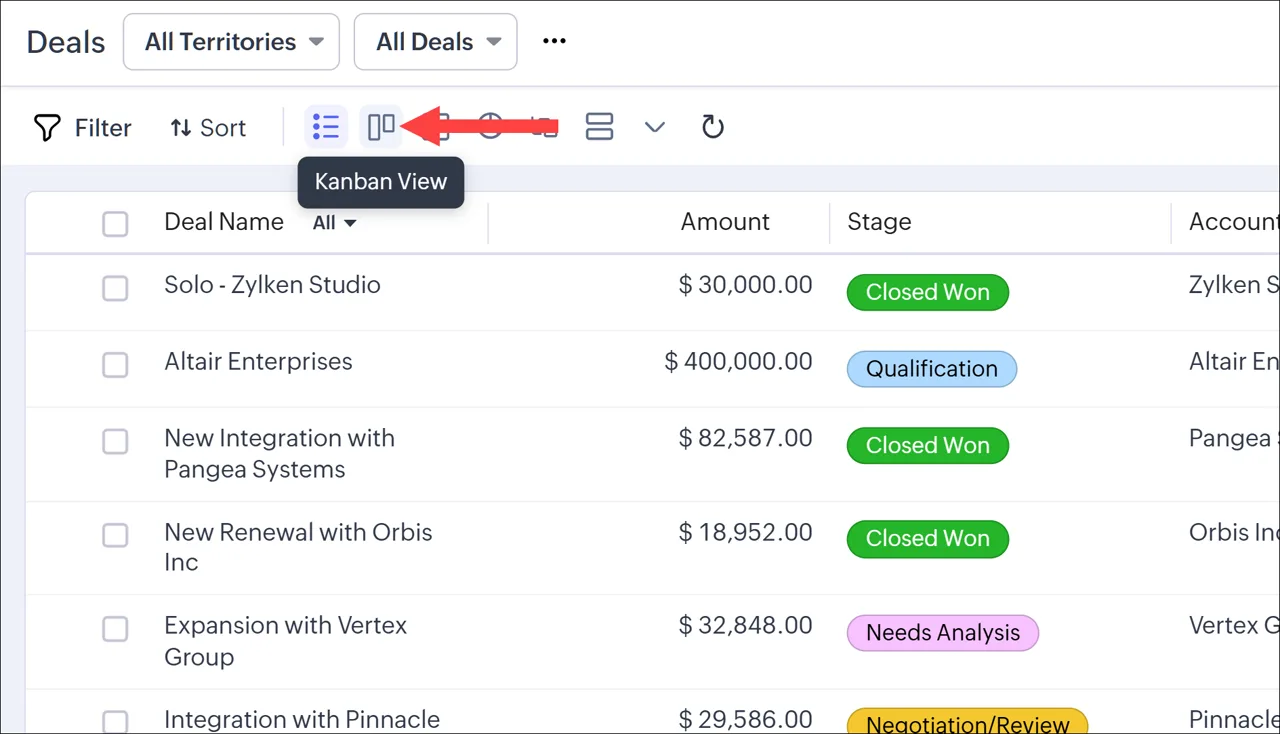
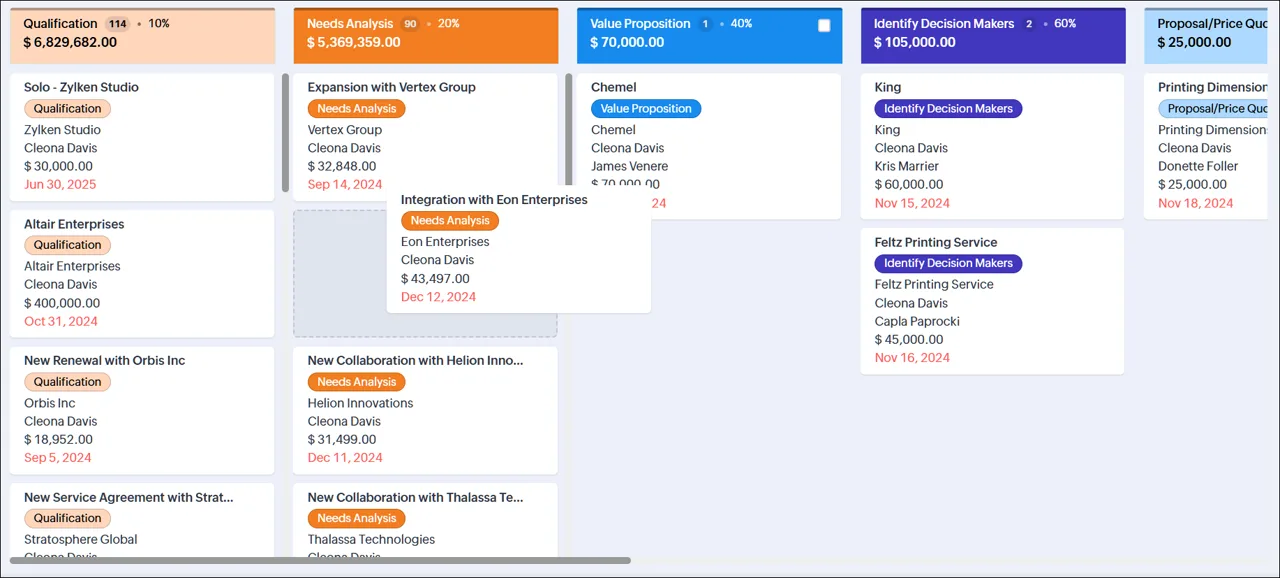
Then open the Deals module and click the Kanban View icon. Each stage becomes a column of cards, with a count at the top. When a deal moves forward, drag its card to the next column and the stage changes. Zoho's Kanban FAQ says the Deals Kanban view is available in all editions.
Mistakes to avoid
- Leaving Lead Source and Lead Status empty. Without them, you cannot see which leads nobody called, or which sources work.
- Skipping Company on the lead. No company name, no account on conversion.
- Keeping call notes in a notebook. Put them on the lead, so they follow it to the deal.
- Converting every lead straight away. Convert when there is a real next step. A converted lead cannot be turned back.
- Keeping the company name as the deal name. Say what the work is, so the pipeline reads at a glance.
- Importing hundreds of leads without a status. Set Lead Status for everything you import.
Links
- Zoho CRM: the CRM this lesson teaches.
- Creating Leads (Zoho CRM help): the three ways to add leads, and qualifying them.
- Converting Leads (Zoho CRM help): Convert, the account and contact options, and the deal fields.
- Organizing Notes (Zoho CRM help): adding notes to a record.
- Logging Calls (Zoho CRM help): logging current, completed and scheduled calls.
- Creating Kanban Views (Zoho CRM help): the card view of deals by stage.
- Zoho CRM edition comparison: what the Free edition includes. Check it for current plans.
Try it yourself, free
Reading the steps is a start. Doing them is how it sticks. The interactive module walks you through every click in a practice copy of Zoho CRM, checks each step, and never touches your real accounts.
Start “Zoho CRM: Add a Lead, Qualify It and Convert It to a Deal”Step by step: Zoho CRM: Add a Lead, Qualify It and Convert It to a Deal
All 16 steps of the interactive module, in order. In the module you watch each one, then do it yourself in a practice copy that checks your work.
1. Leads in too many places
- Count the scattered leads. Priya Raman is the sales manager at Kestrel Ridge Consulting, a 9-person operations consulting firm (made up). Her team has 46 open leads: 31 sit in three people's email inboxes and 15 are in her notebook from a trade show. Nobody can say which ones were called back. Last quarter 7 went cold with no follow-up, and the team spends about 3 hours a week hunting for who said what. These are example numbers, so swap in your own. Click the leads total.
Meet Priya. She runs sales at a small consulting firm. Her team has forty-six open leads. Some are in email. Some are in her notebook. Last quarter, seven went cold, because nobody followed up.
- Meet Zoho CRM. Zoho CRM keeps your Leads, Contacts, Accounts and Deals in one place. Zoho's edition comparison lists all four in the Free edition, which is free for up to 3 users, along with tasks, the call log and notes. Priya's plan: every lead goes into Zoho with where it came from and where it stands, and the good ones become deals. The Zoho screens in this lesson are screenshots from Zoho's own help center, linked under each one, so they show Zoho's demo records. Click the Zoho CRM card.
Zoho C R M keeps leads, contacts, accounts and deals in one place. The free edition has all four. The screens ahead are from Zoho's own help center. So the names on them are Zoho's demo records.
2. Add the lead
- Click + in Leads. Priya starts with a referral: Daniel Ortiz at Marlow Freight Co.. Open the Leads module. Zoho's "Creating Leads" article says to click the + button. (Next to it, Import brings in CSV and XLS files, which is how the rest of the inbox and notebook leads go in later.) Click +.
Start with one lead, a referral. Later, you can import the rest from a spreadsheet.
- Set the Lead Source. On the Create Lead page, type the details: First Name *Daniel*, Last Name *Ortiz*, Company *Marlow Freight Co.*, Email and Phone. Do fill in Company: Zoho's docs say an account is only created on conversion if the lead has a company name. Then set Lead Source to External Referral, so you can count later which sources bring work. Click Lead Source.
Don't skip the company. Then set the lead source. This one is an external referral.
- Set the Lead Status. Lead Status says where the lead stands. Daniel already told the referrer he wants a process review, so set it to Pre-Qualified. When the team works the list, they sort by status instead of asking each other. Click Lead Status.
Lead status says where this lead stands. Daniel already wants a review, so pick pre-qualified.
- Click Save. Click Save. The lead now has its own details page. Zoho's docs say the person who creates the lead owns it, and you can change that with the Change link in Lead Owner. Click Save.
Now the lead has its own page, and you are the owner.
3. Qualify it
- Add a note. Priya calls Daniel. What he says goes on the lead, not in her notebook. On the lead's details page, the Notes section has a box that says Add a note.... Type: *Call 21 Oct: 40 drivers, dispatch runs on spreadsheets. Wants a process review proposal by 6 Nov.* You can add a title and use bold or bullets. Click Save. The screenshot shows Zoho's demo lead, Andrew Jonas. Click Add a note....
Priya calls Daniel. What he says goes on the lead, not in a notebook. Find the notes box, type what you learned, and save.
- Log the call. Log the call too, so the team can see it happened. On the lead, click Log a Call in the Open Activities related list. In the Create Call window, pick the lead, type a Subject, set Call Type to Outbound and, under Call Details, choose Completed Call. Enter the Call Duration, a Description and the Call Result, then click Save. Zoho's docs say a completed call cannot be edited afterwards, and it shows under Closed Activities on the lead. Click Completed Call.
Now log the call, so the team can see it happened. Add how long it took, and what came of it. Then save.
4. Convert it to a deal
- Click Convert. Daniel wants a proposal, so this lead is now real work. Zoho's "Converting Leads" article says: open the lead and, on the Lead Details page, click Convert. Converting turns the lead into an Account (the company) and a Contact (the person), and can create a Deal. A converted lead cannot be turned back into a lead. Click Convert.
Daniel wants a proposal. Now it's real work. It turns the lead into a company, a person, and a deal.
- Tick Create a new Deal. The Convert Lead window shows what it will create: Create New Account (here, Marlow Freight Co.) and Create New Contact (Daniel Ortiz). If a matching account or contact already exists, Zoho offers to add to the existing one instead. Tick Create a new Deal for this Account. The screenshot shows Zoho's demo lead, Jenny Ken at JK Inc. Click the checkbox.
Zoho shows what it will create. A new account, and a new contact. Now tick, create a new deal for this account.
- Name the deal and set the Closing Date. The deal fields open. Deal Name starts as the company name, so make it say what the work is: *Marlow Freight - Process Review*. Then set Closing Date, the day you expect a yes or no: *Dec 15, 2026*. Amount is optional, and this lesson leaves it blank. Click Closing Date.
Give the deal a name that says what the work is. Then pick a closing date. That's when you expect a yes or a no.
- Pick the Stage, then Convert. Lead Status does not carry over: Zoho's docs say you pick the deal Stage while converting. This deal is just starting, so leave it at Qualification. Owner of the New Records is you unless you change it. Then click Convert at the bottom. Click Stage.
Pick the stage. This deal is just starting, so leave it at qualification.
5. See it in the pipeline
- Find your note on the deal. Open the new deal. Zoho's screenshot shows what happens to your notes: the note added while working the lead was moved to the deal automatically, so the history comes with it. The deal page also shows the stage bar across the top. Click the note on the deal.
Your note came with it. So the history is all in one place.
- Switch to Kanban View. Go to the Deals module. It opens as a list with Deal Name, Amount and Stage. Click the Kanban View icon to see the deals as cards in columns, one column per stage. Zoho's Kanban FAQ says the Deals Kanban view is available in all editions. Click Kanban View.
Go to Deals. It opens as a list.
- Read the pipeline. Each column is a stage, with a count of deals at the top. Your new deal sits in Qualification. When Daniel says yes to the proposal, drag the card to the next column, and the stage changes. The cards here are Zoho's demo deals, with Zoho's sample amounts. Click the Qualification column.
Each column is a stage, with a count at the top. Your deal sits in qualification. When it moves forward, drag the card.
6. What to do next
- Move the other 45. One lead is in, qualified and now a deal. Next, Priya imports the other 45 leads from a spreadsheet, gives each one a Lead Source and a Lead Status, and sets one rule for the team: every call gets a note the same day. In a month she counts how many went cold. Click the next steps card.
One lead down. Next, import the other forty-five. Give each one a source and a status. And every call gets a note, the same day.
Screenshots
Frequently asked questions
- Is this an official Zoho course?
- No. This is my own lesson. Zoho CRM is a separate, third-party product from zoho.com. The screenshots come from Zoho's own help center and are credited and linked under each one.
- Can I convert leads to deals on the Zoho CRM Free edition?
- Zoho's edition comparison lists Leads, Contacts, Accounts and Deals in the Free edition, free for up to 3 users. Converting needs the Convert Leads permission in your profile, according to Zoho's help center. Check zoho.com/crm for current plans.
- What happens to a lead when I convert it?
- Zoho creates an account from the company and a contact from the person, or adds them to existing records, and can create a deal. Field values are carried over to the mapped fields, notes move to the deal, and the lead cannot be reverted.
- Which deal fields do I have to fill in when converting?
- In the Convert Lead screenshot in Zoho's help center, Deal Name, Closing Date and Stage are marked as required. The docs say all mandatory Deals fields are listed during conversion, so your account may show more. Amount, Campaign Source and Contact Role are there too.
- Can I bring in leads from a spreadsheet?
- Yes. Zoho's Creating Leads article says you can import CSV and XLS files into the Leads module, as well as create leads one by one or capture them from web forms.
- Does the Lead Status carry over to the deal?
- No. Zoho's field mapping table says you specify the Deal Stage while converting the lead.
More in Business Automations
 AI Receipt Extractor: Receipts to Google Sheets with n8n
Drop a photo of a receipt into an n8n chat. An AI agent reads it, pulls out the date, vendor and amount, picks a category, and adds a row to Google Sheets.
Free · Live ~12 min Intermediate
 n8n AI Email Responder: Draft Gmail Replies Automatically
Build an n8n agent that watches your Gmail, reads each new customer email, and writes a reply as a draft in the same thread, ready for you to check and send.
Free · Live ~12 min Intermediate
 Daily Job Alerts: Email Each Tech Their Jobs from Google Sheets with n8n
Every morning at 7, n8n reads a plumbing company's jobs sheet, skips anything not assigned yet, and emails each job to the tech it's assigned to — customer, address…
Free · Live ~10 min Intermediate
 Gmail AI Triage: Auto-Label Every Email and Draft Replies
Build an n8n workflow that reads each new email, sorts it as a lead, a client or an invoice with a Text Classifier, adds the matching Gmail label, and drafts a reply to…
Free · Live ~18 min Advanced
 A Support Agent That Answers from Your Own Docs
Turn an n8n chat agent into a support agent that answers only from your policies in a Google Doc, refuses what it should, and hands off to a person by email.
Free · Live ~13 min Advanced
 Chatbase: Answer Customer FAQs with an AI Agent
A business case for a small firm that answers the same customer questions every week: build a Chatbase AI agent on your FAQ in the real app, make it say when it does…
Free · Live ~15 min Beginner
All 11 modules in Business Automations
Terms in this lesson
Plain-English definitions, each with an example from a free lesson.