Updated . Built against the tool’s current screens and checked step by step. How we check this lesson
Most small firms post to social media in bursts: a few posts one week, nothing for a month, because every network is a separate login and every post gets written twice. Buffer (buffer.com) fixes the routine: you connect your pages once, write a post once, pick the channels and schedule it. In this free business-case lesson you help a made-up HR consulting firm get its LinkedIn Page and Facebook Page posting every week, then follow Buffer's own help center to connect a Page, open the composer, pick the channels, write one post, add an image, ask the AI Assistant for a rewrite, customize it for each network, pick a time, schedule it and find it on the calendar. The screenshots on this page and in the lesson come from Buffer's help center, credited and linked under each one, so they show Buffer's demo account. This is my own lesson, not an official Buffer course.
At a glance
| Question | Answer |
|---|---|
| What you build | A business case for a small firm whose pages go quiet: connect the LinkedIn and Facebook Pages to Buffer, write one post, fit it to each network, add an image, schedule it and plan the week on the calendar, on the free plan. |
| Tools | Buffer |
| Time | About 12 minutes, 16 steps in 7 parts |
| Level | Beginner, no coding needed |
| Cost | Free |
| Ways to learn it | Practice it step by step |
The 7 parts, in short
- One post, every channel: Count the hours, Meet Buffer.
- Connect your channels: Connect the Facebook Page, Let Facebook connect.
- Write the post once: Open a new post, Pick the channels, Write the post once, Add an image.
- Fit it to each network: Ask the AI Assistant for a rewrite, Customize for each network, Edit the LinkedIn version.
- Pick a time and schedule it: Pick a time, or add it to the queue, Click Schedule Post.
- Check the calendar: Find it on the calendar, Fill the rest of the week.
- What to do next: Make it a weekly habit.
Start here first: AI Receipt Extractor: Receipts to Google Sheets with n8n (module 1 of Business Automations)
In the course: Part 9 · n8n Automation Toolkit (Module 96 of the full course)
Part of: AI for Recruiting & HR (step 18 of 19). Next up: FigJam: Run a Team Brainstorm on One Board and Share It
Part of: AI for Marketing Teams (step 36 of 36)
Part of: AI Apps Worth Knowing (step 74 of 77). Next up: FigJam: Run a Team Brainstorm on One Board and Share It
The business case: one login, one sitting, every week
Picture Dana Whitaker, office manager at Brookfield HR Partners, a made-up HR consulting firm. The firm has a LinkedIn Page and a Facebook Page. Each one is a separate login, so Dana writes every post twice, on two sites, whenever she finds a gap.
Here are the example numbers, to replace with your own. Posting takes her about 3 hours a week, and the result is about 1 post a week, with some weeks none. The goal is 3 posts a week on each page, written in one sitting of about 1 hour on Monday morning.
Who this is for, and what you need
Office managers, owners and marketing leads at accounting, HR, law, consulting and other professional firms who post to more than one network. To follow the practice you need nothing. To do it for real you need a free Buffer account and admin access to your firm's pages. Buffer's pricing page says the free plan connects up to 3 channels and holds 10 scheduled posts per channel, with the queue, the calendar and the AI Assistant included. Features such as first-comment scheduling and channel groups are on paid plans, so check buffer.com/pricing.
A note on the screens: this lesson uses the screenshots Buffer publishes in its own help center. They show Buffer's demo account, Luna Sneakers, so your screens will show your own pages. The help center does not picture the boxes you get after Customize for each network, so that one screen in the lesson is a simple drawing.
Step 1: connect your LinkedIn Page and Facebook Page
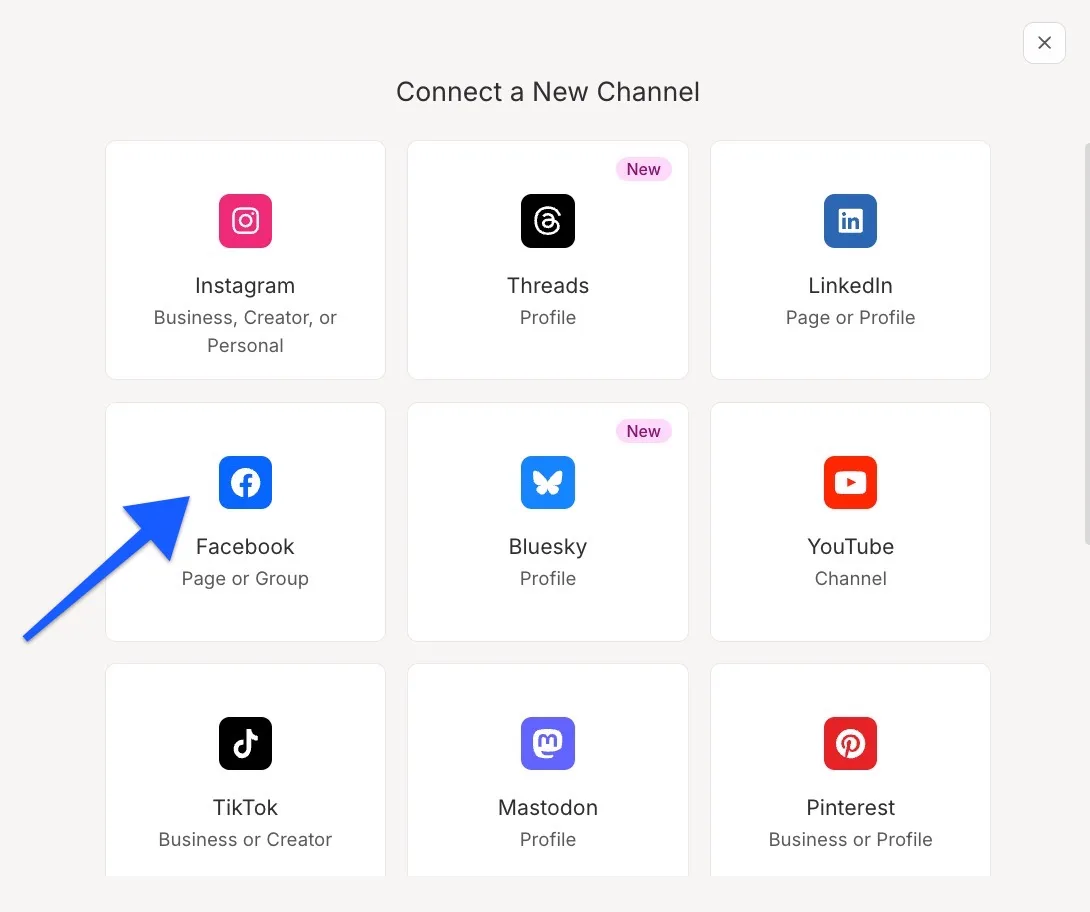
Before you connect a channel, log in to that network in another browser tab as the right person. Buffer's docs say this helps it find the account you mean. In Buffer, open Channels and click Connect New Channel (or + New, then Connect a New Channel), and pick the network.
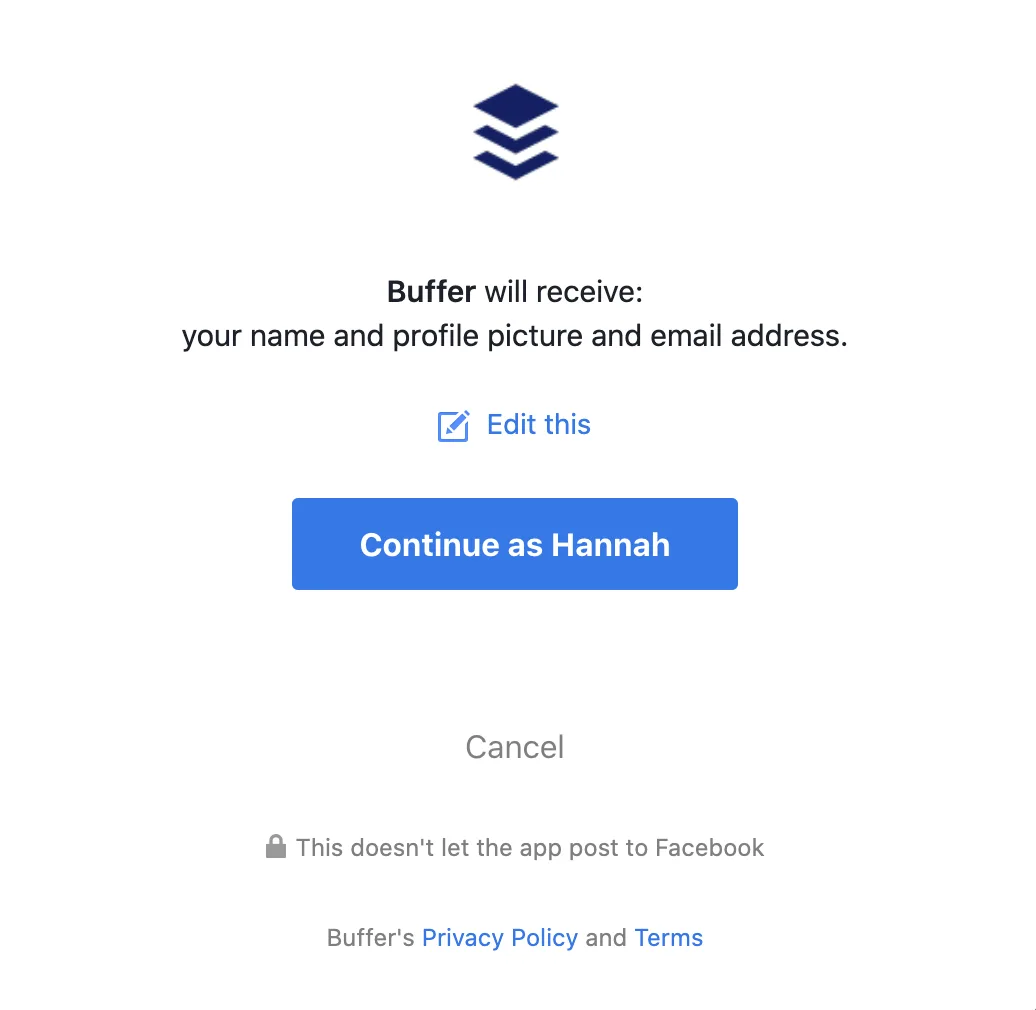
For Facebook, click Facebook Page, then Start Connecting, then Continue as your name and OK. Leave every permission on under Choose what you allow, or Buffer may not find the Page. Then pick the Page and click Add to Buffer. For LinkedIn, you sign in with your personal profile, because LinkedIn does not let you sign in as a Page, and then pick the Company Page from the list. You must be a Super Admin of the Page. Content Admins cannot connect it. Buffer's docs say signing in with your personal profile does not post to that profile.
Step 2: write one post and add an image
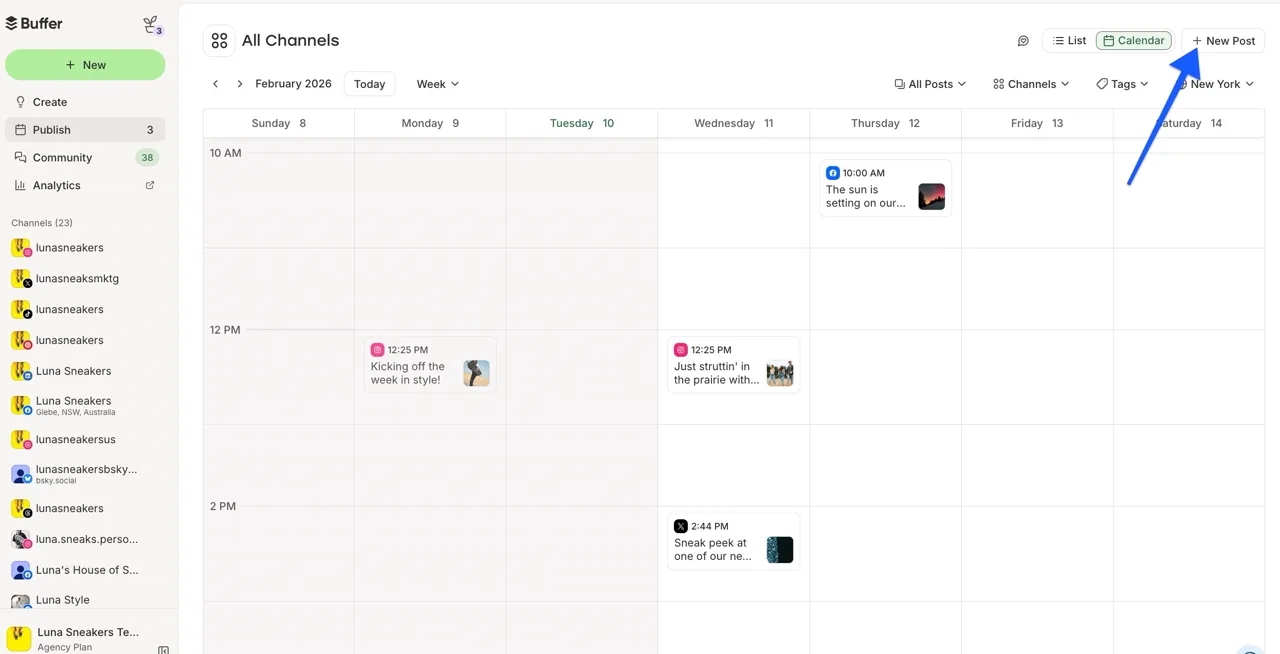
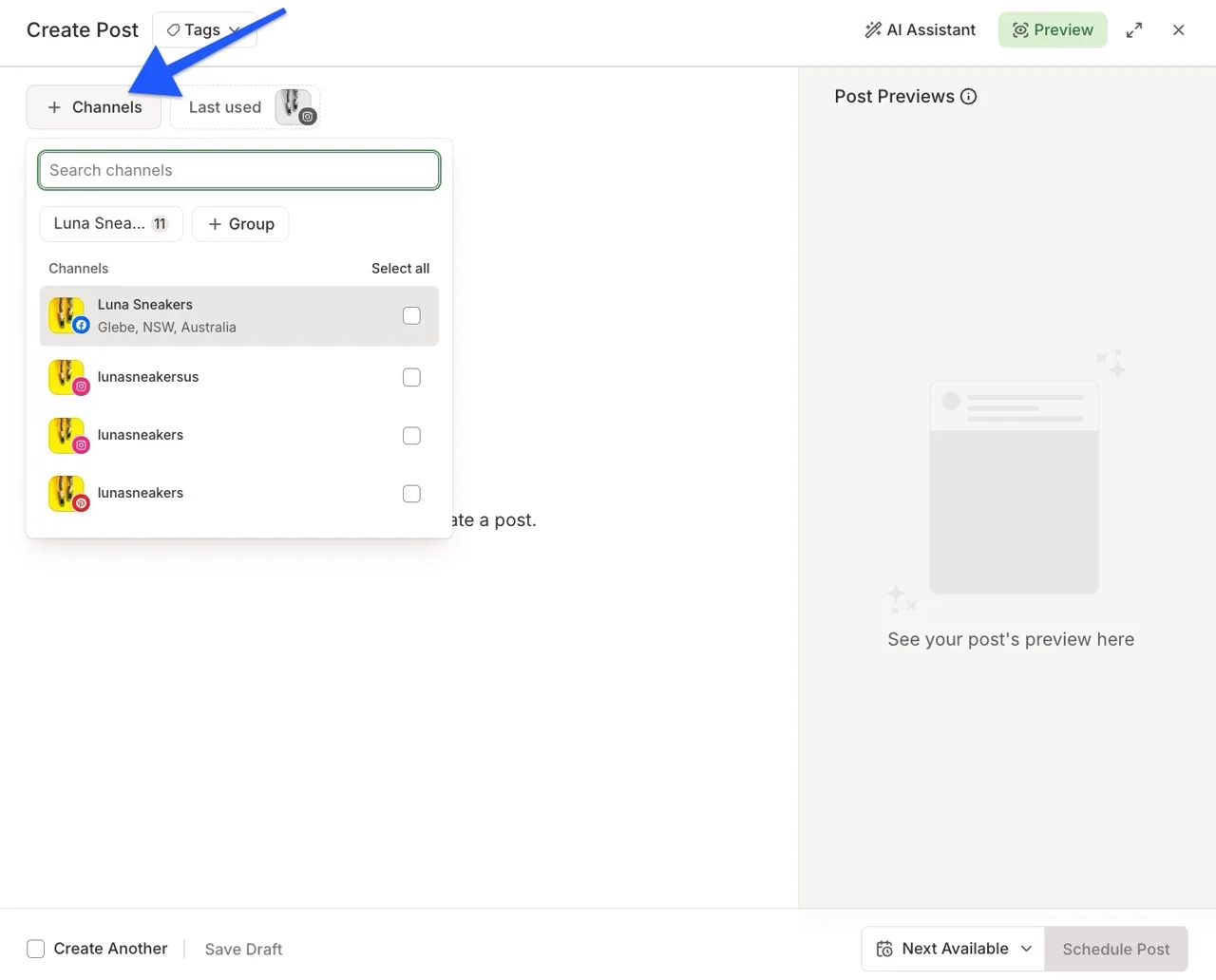
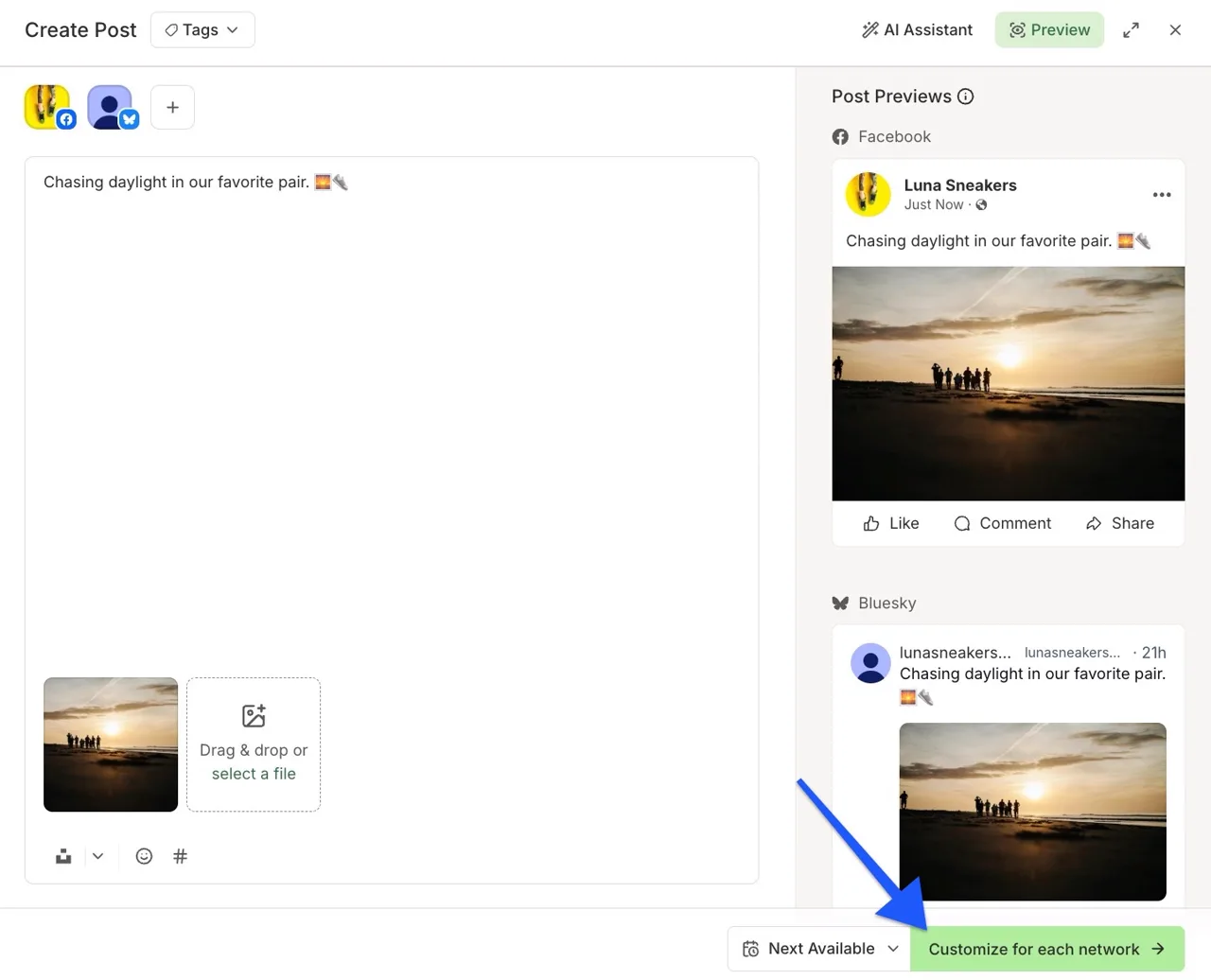
Click + New Post (top right of the dashboard or the calendar) to open the composer, called Create Post. Click + Channels and tick the Pages this post goes to. Select all ticks every channel, and Last used picks the ones you used before.
Type one base post in the big box. Buffer's docs recommend starting with one base when the message is similar for each network. Under it, click Drag & drop or select a file to add an image, or paste one in. The Post Previews on the right show how the post will look on each channel.
Step 3: ask the AI Assistant, then customize for each network
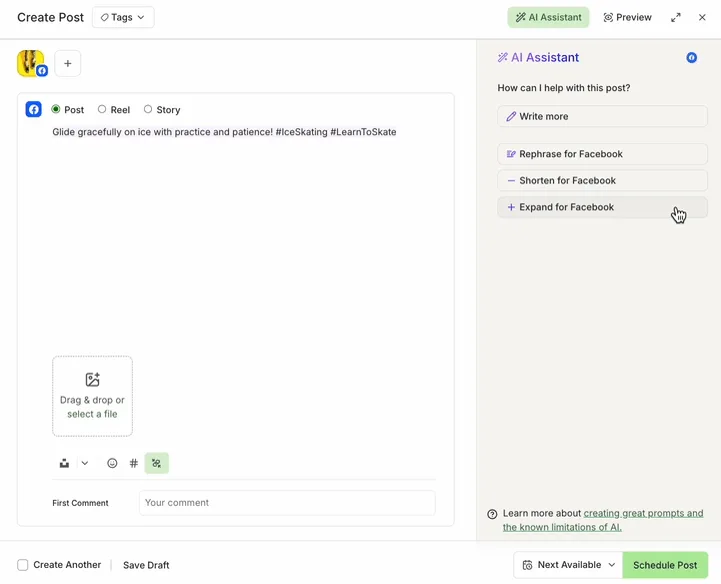
Click AI Assistant at the top of the composer. Give it a prompt of at least 4 words and click Generate, or work on the text you have, with Rephrase, Shorten, Expand, More Casual or More Formal. In the composer it knows the channel, so it offers options such as Rephrase for Facebook. Click Insert to add the result. Buffer's docs say to review and fact-check everything the AI writes.
Then click Customize for each network. A separate box appears for each type of network you picked, so you can rewrite the LinkedIn version for other professionals and keep the Facebook version for local clients. If you plan to add @ mentions, add them after you click Customize, because each network handles mentions differently.
Step 4: pick a time and schedule it
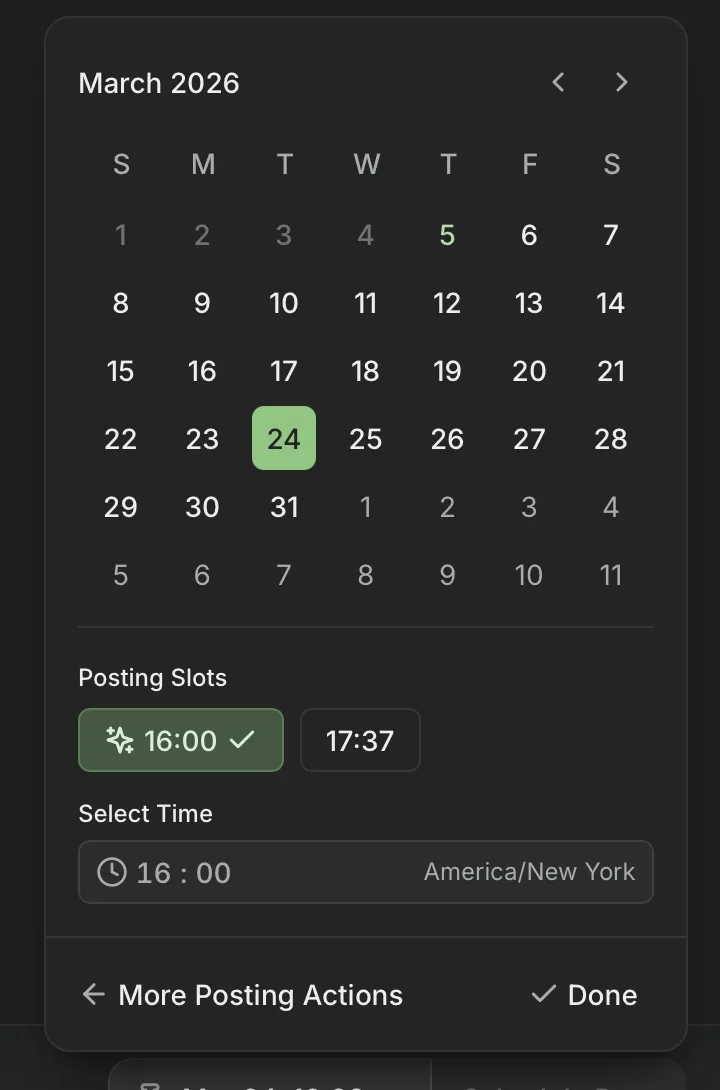
At the bottom of the composer, choose how the post goes out. Next Available (also called Add to Queue) puts it in the next open slot of each channel's posting schedule. Prioritize puts it at the top of the queue. Set Date and Time picks an exact time, and Buffer suggests good times for that day under Posting Slots, marked with a sparkle. Now publishes it straight away.
The queue needs posting times on every channel you picked. If even one channel has none, Next Available does not appear. Set a posting goal for the channel (for example 3 times a week) and Buffer fills in a schedule for you, which you can adjust in the channel's settings. Click Schedule Post. Tick Create Another first to write the next post straight away.
Step 5: check the calendar and fill the week
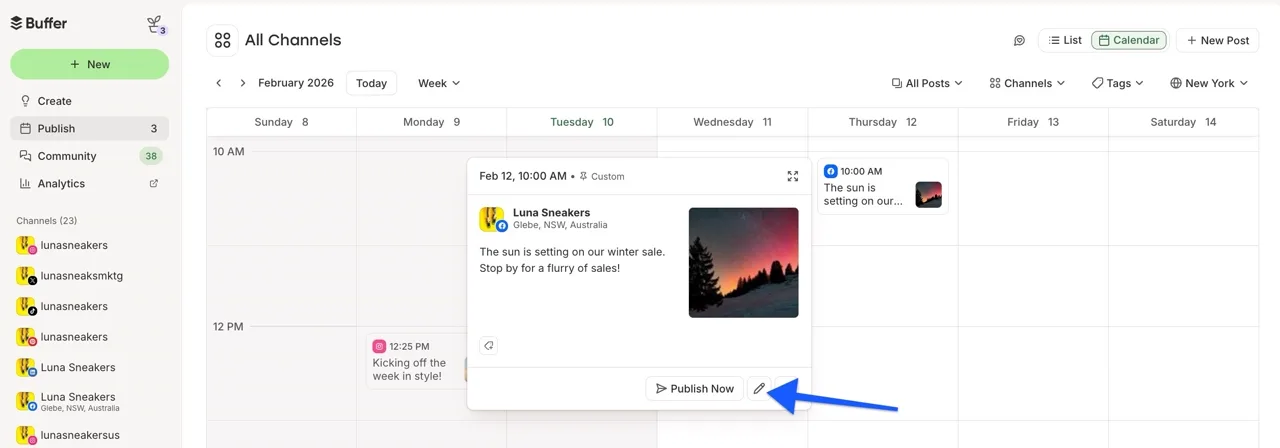
Open Calendar at the top of the Publish dashboard and switch between Week and Month. Your post shows at its time with each channel's icon. Click it, then the pencil icon to change the text or image, or drag it to a new time. Once a post is published, Buffer cannot edit or delete it. You change it on the network itself.
With three or fewer channels, an empty week shows suggested slots marked Add a Post. Click one and the composer opens with that channel and time already picked. That is how Dana writes her three posts in one sitting on Monday.
Mistakes to avoid
- Connecting while logged in to the wrong account. Log in to the right Facebook or LinkedIn account in another tab first.
- Turning off permissions on Choose what you allow. Buffer may then not find your Facebook Page.
- Trying to connect a LinkedIn Page as a Content Admin. Only a Super Admin can connect it.
- Posting the exact same words everywhere. Click Customize for each network and fit each version to its readers.
- Expecting Next Available with no posting times set. Set a posting schedule or a posting goal for each channel first.
- Publishing AI text without reading it. Buffer's own docs say to check everything it writes.
Links
- Buffer: the social media scheduler this lesson teaches.
- Connecting your channels to Buffer (Buffer help): which channels Buffer supports and how to connect one.
- Connecting your Facebook Page to Buffer (Buffer help): the Facebook Page connection, step by step.
- Using LinkedIn with Buffer (Buffer help): connecting a LinkedIn Page, and why you must be a Super Admin.
- Scheduling posts (Buffer help): the composer, Customize for each network and the scheduling options.
- How to use Buffer's calendar feature (Buffer help): creating, editing and moving posts on the calendar.
- Buffer pricing: what the free plan includes. Check it for current paid plans.
Try it yourself, free
Reading the steps is a start. Doing them is how it sticks. The interactive module walks you through every click in a practice copy of Buffer, checks each step, and never touches your real accounts.
Start “Buffer: Write One Post and Schedule It to Every Channel”Step by step: Buffer: Write One Post and Schedule It to Every Channel
All 16 steps of the interactive module, in order. In the module you watch each one, then do it yourself in a practice copy that checks your work.
1. One post, every channel
- Count the hours. Dana Whitaker is the office manager at Brookfield HR Partners, a small HR consulting firm (made up). The firm has a LinkedIn Page and a Facebook Page. Each one is a separate login, so Dana writes every post twice, on two sites, whenever she finds a gap. That takes about 3 hours a week, and the result is 1 post a week, some weeks none. Clients notice when the pages go quiet. Her goal: 3 posts a week on each channel, in about 1 hour a week, written in one sitting. These are example numbers, so swap in your own. Click the hours row.
Meet Dana. She's the office manager at a small HR firm. The firm has a LinkedIn page and a Facebook page. Each one is a separate login. So she writes every post twice. That's about three hours a week. And some weeks, nothing goes out at all.
- Meet Buffer. Buffer (buffer.com) lets you write a post once, pick the channels it goes to, and schedule it. Buffer's pricing page says the free plan connects up to 3 channels and holds 10 scheduled posts per channel at a time, and includes the queue, the calendar and the AI Assistant. The Buffer screens in this lesson are screenshots from Buffer's own help center, linked under each one. They show Buffer's demo account, Luna Sneakers, so yours will show your own pages. Click the Buffer card.
Buffer lets you write a post once, and send it to all your channels. The free plan covers up to three channels. The screens ahead are screenshots from Buffer's own help center. So the names on them are Buffer's demo account, not Dana's.
2. Connect your channels
- Connect the Facebook Page. First, in another browser tab, log in to Facebook as the person who is an admin of the firm's Page. Buffer's docs say this helps it find the right account. Then in Buffer, open Channels and click Connect New Channel (or + New, then Connect a New Channel). Pick the network. For the LinkedIn Page it is the same flow, but you must be a Super Admin of the Page, and you pick the Page, not your profile, from the list. Click Facebook.
First, log in to Facebook in another tab, as an admin of the firm's page. Then in Buffer, open Channels, and click Connect New Channel. LinkedIn works the same way. You just need to be a super admin of the page.
- Let Facebook connect. Click Facebook Page, then Start Connecting. Facebook asks you to confirm who you are: click Continue as [your name], then OK. On Choose what you allow, Buffer's docs say to leave every permission on, or it may not find the Page. Then on What channels would you like to add?, pick the firm's Page and click Add to Buffer. Buffer says it will not post to your personal profile. Click Continue as Hannah, the name in Buffer's demo.
Facebook asks who you are. Leave all the permissions on. Then pick the firm's page, and click Add to Buffer.
3. Write the post once
- Open a new post. Do the same for the LinkedIn Page, and both pages sit in your channel list on the left. Now open Publish, then Calendar at the top right. Click + New Post to open the composer, called Create Post. You can also click a time on the calendar to start a post at that time. Click + New Post.
Connect the LinkedIn page the same way. That opens the composer.
- Pick the channels. Click + Channels and tick the channels this post goes to: the firm's Facebook Page and LinkedIn Page. Select all ticks every channel at once, and Last used picks the ones you used before. Selected channels show in color at the top of the composer. Click + Channels.
- Write the post once. Type one base post in the big box. Buffer's docs recommend starting with one base when the message is similar for each network. Dana writes: *New this month: our free one-page checklist for onboarding a new hire in their first 30 days. Ask us for a copy, or book a 15-minute call.* The Post Previews on the right show how it will look on each channel. Click the text box.
The previews on the right show how it will look on each channel.
- Add an image. Under the text, click Drag & drop or select a file and pick an image, such as a picture of the checklist's cover. You can also drag a file in, or paste an image. The previews update with the image for each channel. Click Drag & drop or select a file.
Add an image.
4. Fit it to each network
- Ask the AI Assistant for a rewrite. Not sure about the wording? Click AI Assistant at the top of the composer. It opens on the side. Type what you want to write about, at least 4 words, and click Generate, or work on the text you already have. Then pick Rephrase, Shorten or Expand, or More Casual or More Formal, and click Insert to add the result to your post. In the composer it knows the channel, so it offers Rephrase for Facebook. Buffer's docs say to double-check everything the AI writes. Click Rephrase for Facebook.
Not sure about the wording? Ask it to rephrase, shorten, or make it more formal. Always read what it wrote.
- Customize for each network. LinkedIn readers are other professionals, and Facebook readers are often local clients. Click Customize for each network. Buffer's docs say a separate box appears for each type of network you picked: one for Facebook and one for LinkedIn. Click Customize for each network.
LinkedIn and Facebook readers are different. You get one box for each.
- Edit the LinkedIn version. Each box starts with your base post. Change the LinkedIn box to speak to HR leaders: *Onboarding a new hire this quarter? Our free 30-day onboarding checklist covers paperwork, first-week meetings and the 30-day check-in. Comment "checklist" and we will send it over.* Leave the Facebook box as it is. Buffer's help center has no picture of this screen, so this one is a simple drawing. Click the LinkedIn box.
Each box starts with your post. Change the LinkedIn one, so it speaks to HR leaders. Leave Facebook as it is.
5. Pick a time and schedule it
- Pick a time, or add it to the queue. At the bottom, the button says Next Available. Open it to choose how the post goes out. Next Available (also called Add to Queue) puts it in the next open slot of each channel's posting schedule. Set Date and Time picks an exact day and time, and Buffer suggests good times for that day under Posting Slots, marked with a sparkle. Now posts it straight away. Pick a date, click the suggested slot, then Done. Click the suggested slot.
At the bottom, choose when it goes out. Next Available adds it to the queue. Or pick a date and time. Buffer suggests good times, marked with a sparkle.
- Click Schedule Post. Click Schedule Post. Buffer creates one scheduled post per channel. To write the next post straight away, tick Create Another first. This screenshot is the same composer from another article, so its text is Buffer's demo post. Click Schedule Post.
To write the next one straight away, tick Create Another first.
6. Check the calendar
- Find it on the calendar. The post now sits on the Calendar at its day and time, with each channel's icon. Switch between Week and Month at the top. Click a post to see it, then the pencil icon to change the text or image and Save. To move it, drag it to a new time. Once a post is published, Buffer cannot edit it: you change it on the network itself. Click the pencil.
Your post is on the calendar now. Or drag it to a new time.
- Fill the rest of the week. With three or fewer channels, an empty week is not blank: Buffer shows suggested slots marked Add a Post next to each channel's icon. Click one and the composer opens with that channel and time already picked. Dana writes her three posts this way in one sitting on Monday morning. Click Add a Post.
An empty week shows suggested slots, marked Add a Post. Dana fills her whole week in one sitting.
7. What to do next
- Make it a weekly habit. Dana now blocks one hour on Monday. She writes three posts, customizes each for LinkedIn and Facebook, and schedules the week. Instead of 1 post a week, some weeks none, both pages get 3 posts a week on each channel, in about 1 hour a week. The free plan holds 10 scheduled posts per channel, so she stays about three weeks ahead. Click the weekly plan card.
Dana blocks one hour on Monday. Three posts, both pages, done for the week. Before, it was three hours, and some weeks nothing.
Screenshots
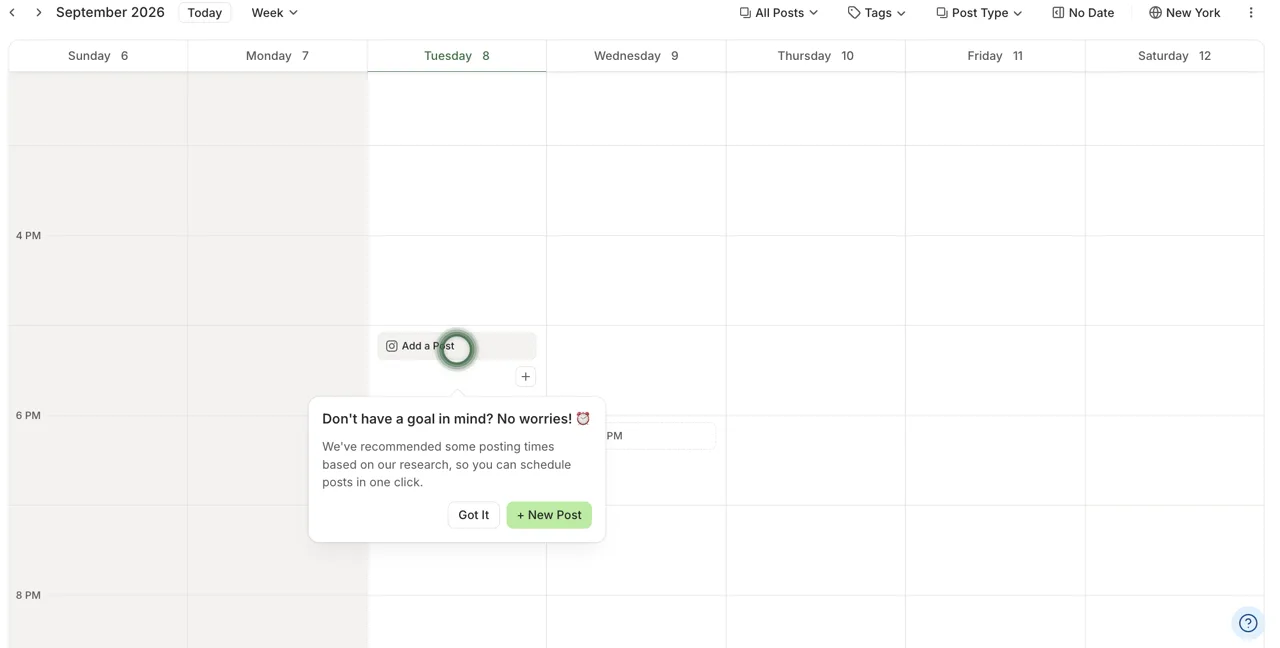
Frequently asked questions
- Is this an official Buffer course?
- No. This is my own lesson. Buffer is a separate, third-party product from buffer.com. The screenshots come from Buffer's own help center and are credited and linked under each one.
- Is Buffer free?
- Buffer has a free plan. Its pricing page says the free plan connects up to 3 channels and holds 10 scheduled posts per channel, and includes the queue, the visual content calendar and the AI Assistant. Paid plans add unlimited scheduled posts and features such as first-comment scheduling and channel groups. Check buffer.com/pricing for current plans.
- Can I connect my personal Facebook profile?
- No. Buffer's help center says personal Facebook profiles cannot be connected. You can connect Facebook Pages, and LinkedIn Pages and personal LinkedIn profiles.
- Does connecting a LinkedIn Page post to my personal profile?
- No. You sign in with your personal profile because LinkedIn requires it, then pick the Page from the list. The Page appears as its own channel in Buffer.
- What is the difference between Next Available and Set Date and Time?
- Next Available (Add to Queue) puts the post in the next open slot of your posting schedule, and it can move if you change the schedule. Set Date and Time fixes an exact time and does not move.
- Can I edit a post after Buffer publishes it?
- No. Buffer's help center says you edit or delete a published post on the social network itself. Before it publishes, you can edit it from the calendar or the queue.
More in Business Automations
 AI Receipt Extractor: Receipts to Google Sheets with n8n
Drop a photo of a receipt into an n8n chat. An AI agent reads it, pulls out the date, vendor and amount, picks a category, and adds a row to Google Sheets.
Free · Live ~12 min Intermediate
 n8n AI Email Responder: Draft Gmail Replies Automatically
Build an n8n agent that watches your Gmail, reads each new customer email, and writes a reply as a draft in the same thread, ready for you to check and send.
Free · Live ~12 min Intermediate
 Daily Job Alerts: Email Each Tech Their Jobs from Google Sheets with n8n
Every morning at 7, n8n reads a plumbing company's jobs sheet, skips anything not assigned yet, and emails each job to the tech it's assigned to — customer, address…
Free · Live ~10 min Intermediate
 Gmail AI Triage: Auto-Label Every Email and Draft Replies
Build an n8n workflow that reads each new email, sorts it as a lead, a client or an invoice with a Text Classifier, adds the matching Gmail label, and drafts a reply to…
Free · Live ~18 min Advanced
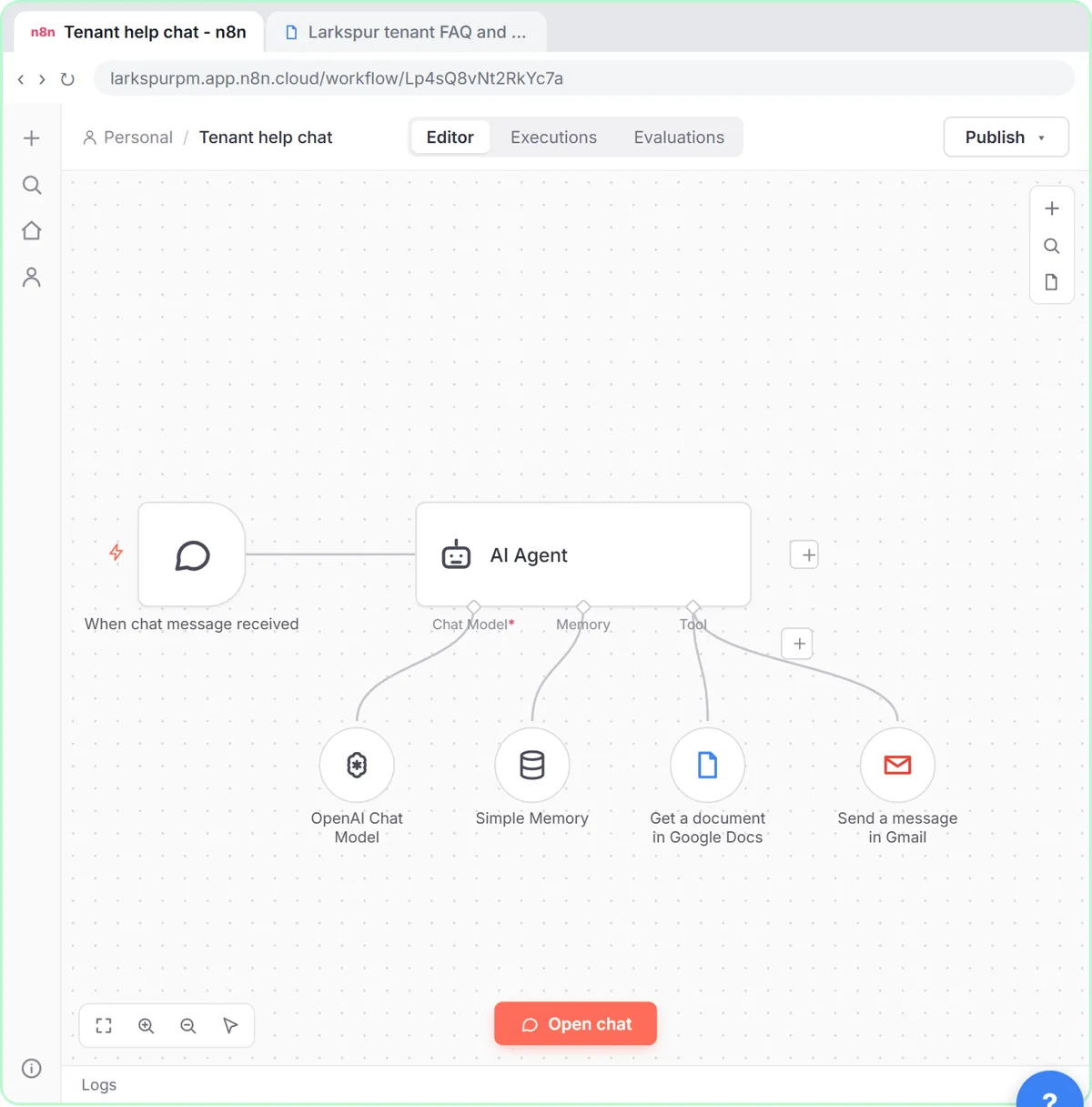 A Support Agent That Answers from Your Own Docs
Turn an n8n chat agent into a support agent that answers only from your policies in a Google Doc, refuses what it should, and hands off to a person by email.
Free · Live ~13 min Advanced
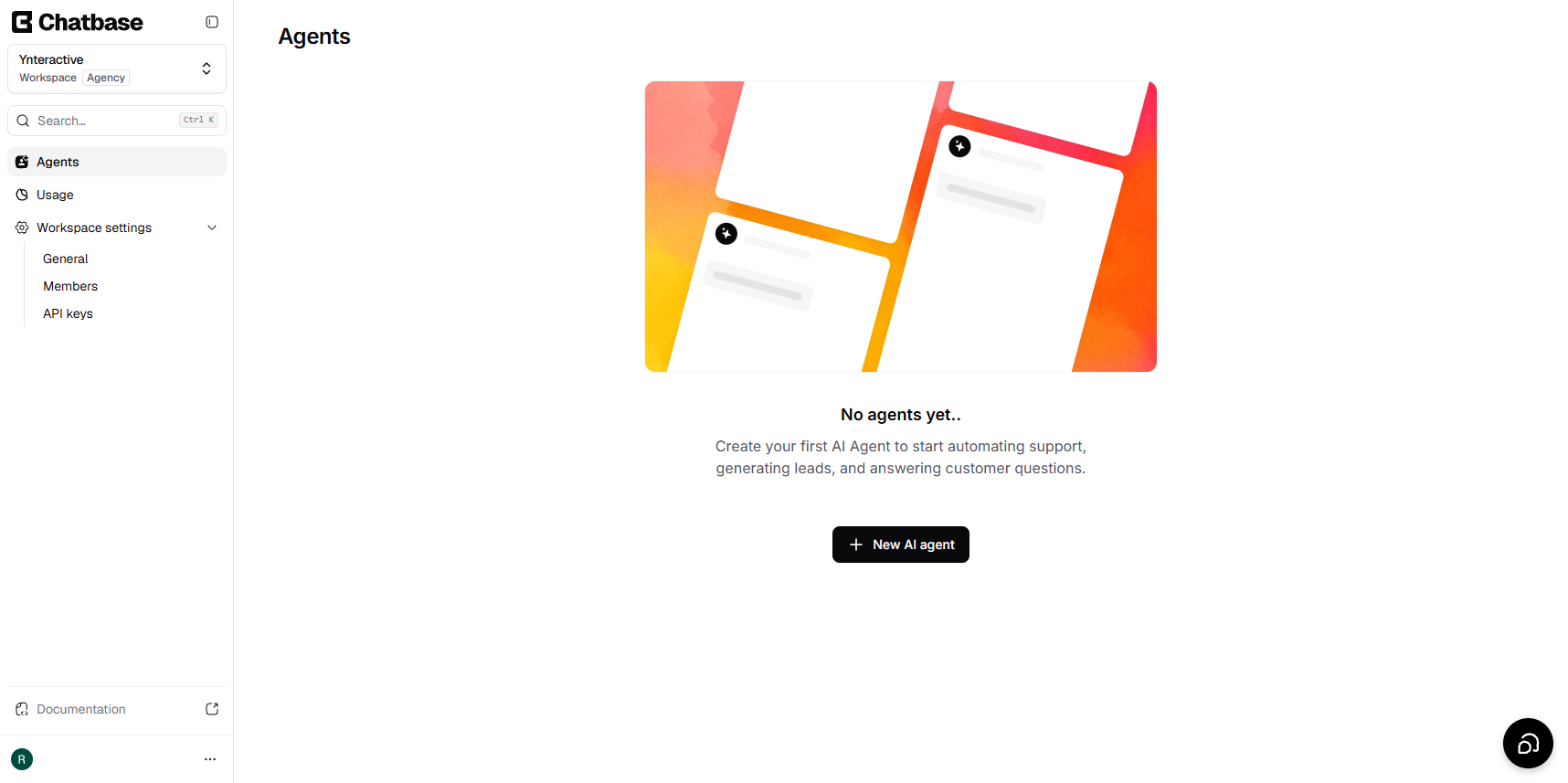 Chatbase: Answer Customer FAQs with an AI Agent
A business case for a small firm that answers the same customer questions every week: build a Chatbase AI agent on your FAQ in the real app, make it say when it does…
Free · Live ~15 min Beginner
All 11 modules in Business Automations
Terms in this lesson
Plain-English definitions, each with an example from a free lesson.