Updated . Built against the tool’s current screens and checked step by step. How we check this lesson
AI presentation tools make a deck in a minute, and a careless minute shows: generic slides, colours that change every time and numbers the AI rounded, mixed up or invented. In this free, hands-on lesson you learn four habits that fix it in Gamma, Presentations.AI, Slidebean, Runable or a chat assistant: a strong prompt, an outline you fix first, a brand kit and a number check. Every screen is a simple worksheet, so there is nothing to sign up for.
At a glance
| Question | Answer |
|---|---|
| What you build | Four habits for any AI slide tool: a prompt with audience, message, source and shape, an outline you fix first, a brand kit, and a check of every number against your notes. |
| Tools | Stepthrough |
| Time | About 7 minutes, 18 steps in 4 parts |
| Level | Beginner, no coding needed |
| Cost | Free |
| Ways to learn it | Practice it step by step |
The 4 parts, in short
- Prompt for slides: Open the weak prompt, Part 1: the audience, Part 2: the one message, Part 3: the source, and 2 more steps.
- Outline first: Open Outline first, Spot the slide out of place, When to fix the order.
- Brand kit: Open Brand kit, Colours, Image style, Fix the look for good.
- Check the numbers: Open Check the numbers, Check revenue, Check growth, Check retention, and 1 more step.
Start here first: Start Here: How Stepthrough Works (module 1 of AI Basics)
Part of: AI for Consulting & Agencies (step 33 of 33)
Part of: AI Presentations & Client Decks (step 2 of 10). Next up: A Presentation from Your Notes in 5 Minutes (Gamma)
Part of: AI Presentations and Visual Content (step 1 of 8). Next up: Presentations.AI: Build a Quarterly Sales Review Deck from Your Notes
What you will do
The example is Cedar & Finch Consulting, a made-up firm where Jordan Lee has a Q3 review with a client on Friday. You compare a one-line prompt with a strong one, move a slide that is out of order at the outline, set up the parts of a brand kit, then check four numbers on a slide against Jordan's notes. Two match. One is wrong. One was made up.
How to prompt AI for a presentation
A strong slide prompt has four parts. Who the deck is for, because a client owner and a finance team need different words. The one message the deck proves, in one sentence. The real source material, pasted in, because numbers you leave out are numbers the AI may invent. And the shape: how many slides, one idea per slide, how much text. Adjectives like "professional" add nothing.
Outline first, then the brand kit
Most AI slide tools show an outline before they design anything. That is the cheapest moment to fix the story: moving a line takes seconds, moving a designed slide can break the layout. In the lesson, a recommendation that asks for budget before showing results moves after the results.
A brand kit, also called a theme or brand settings, stores your logo, exact hex colours, fonts and the kind of images you allow. Set it up once and pick it for every deck, instead of describing your brand in every prompt.
Check every number the AI puts on a slide
AI tools can round, mix up or invent numbers, especially when they condense notes. Compare each figure with your source, one by one. Keep the ones that match, fix the ones that differ, and remove any number you cannot trace to a source. In the lesson the deck says growth was 18% when the notes say 12%, and shows a retention rate that is not in the notes at all.
How the interactive lesson works
Each step is shown first in the Watch panel, then you do it yourself in Your turn on a Stepthrough worksheet. It is module 2 of the free course AI Presentations and Visual Content, which then uses the same habits in Presentations.AI, Gamma, Slidebean, Runable, VisualGPT and Opus Clip.
Try it yourself, free
Reading the steps is a start. Doing them is how it sticks. The interactive module walks you through every click in a practice copy of Stepthrough, checks each step, and never touches your real accounts.
Start “Prompting for Slides: Outline, Brand Kit, Check the Numbers”Step by step: Prompting for Slides: Outline, Brand Kit, Check the Numbers
All 18 steps of the interactive module, in order. In the module you watch each one, then do it yourself in a practice copy that checks your work.
1. Prompt for slides
- Open the weak prompt. Click the Weak prompt.
Jordan has a quarterly review with a client on Friday. Any AI slide tool will make a deck from one line. But look what one line gets you.
- Part 1: the audience. Click Part 1: who it is for.
Generic slides, and guessed numbers. A strong prompt has four parts. First, who the deck is for.
- Part 2: the one message. Click Part 2: the one message.
Second, the one message. One sentence the whole deck proves.
- Part 3: the source. Click Part 3: the real source material.
Third, the real source material. Numbers you leave out are numbers it may invent.
- Part 4: the shape. Click Part 4: the shape.
Fourth, the shape. How many slides, and how much text.
- Pick the best prompt. Answer the question: which prompt gets the best first draft?
So which prompt gets Jordan the best first draft?
2. Outline first
- Open Outline first. Click the Outline first tab.
Audience, message, source, shape. Next, the outline.
- Spot the slide out of place. Click slide 2. Our recommendation.
Most tools show an outline before they design anything. Read it like a client would. Slide two asks for money before showing any results.
- When to fix the order. Answer the question: when is it cheapest to fix the order?
Move it after the results. When is the cheapest moment to fix the order?
3. Brand kit
- Open Brand kit. Click the Brand kit tab.
At the outline. Now, the look.
- Colours. Click the Colours card.
A brand kit stores your logo, colours and fonts, so every deck starts on brand. Use exact colour codes, not navy and gold.
- Image style. Click the Image style card.
And say which images are allowed. AI-made people can embarrass you in front of a client.
- Fix the look for good. Answer the question: what fixes the colours and fonts for good?
Every deck comes out in different colours. What fixes that for good?
4. Check the numbers
- Open Check the numbers. Click the Check the numbers tab.
Set it up once and pick it every time. The last step matters most.
- Check revenue. Click Revenue: $412K.
AI tools can round, mix up or invent numbers. Compare every number with the notes at the bottom. Revenue matches.
- Check growth. Click Growth: 18%.
Growth says eighteen percent. The notes say twelve. Wrong.
- Check retention. Click Client retention: 96%.
And this one isn't in the notes at all. The AI made up a number that sounds right.
- A number you cannot source. Answer the question: what do you do with a number that is not in your notes?
So what do you do with a number that is not in your notes?
Frequently asked questions
- How do I write a good prompt for AI slides?
- Include four things: the audience, the one message the deck must prove, your real notes pasted in, and the shape (number of slides and how much text). Then read the outline before the tool designs the slides.
- Why does my AI presentation have wrong numbers?
- AI tools fill gaps with plausible numbers and can blur figures when they condense notes. Paste the real numbers into the prompt and check every figure on the slides against them before the deck goes out.
- What is a brand kit in an AI presentation tool?
- A saved set of your logo, colours, fonts and image style that the tool applies to every deck. Most AI slide tools have one under a name like theme, brand kit or brand settings.
- Does this work in Gamma, Canva or PowerPoint?
- Yes. The four habits are about what you give the tool and what you check, so they work in any AI slide tool or chat assistant.
- Is this lesson free?
- Yes. Stepthrough is free and the practice needs no account.
More in AI Basics
Try the practice in under two minutes: watch a step, click, type, get unstuck with Do it for me, and finish.
Free · Live ~2 min Beginner
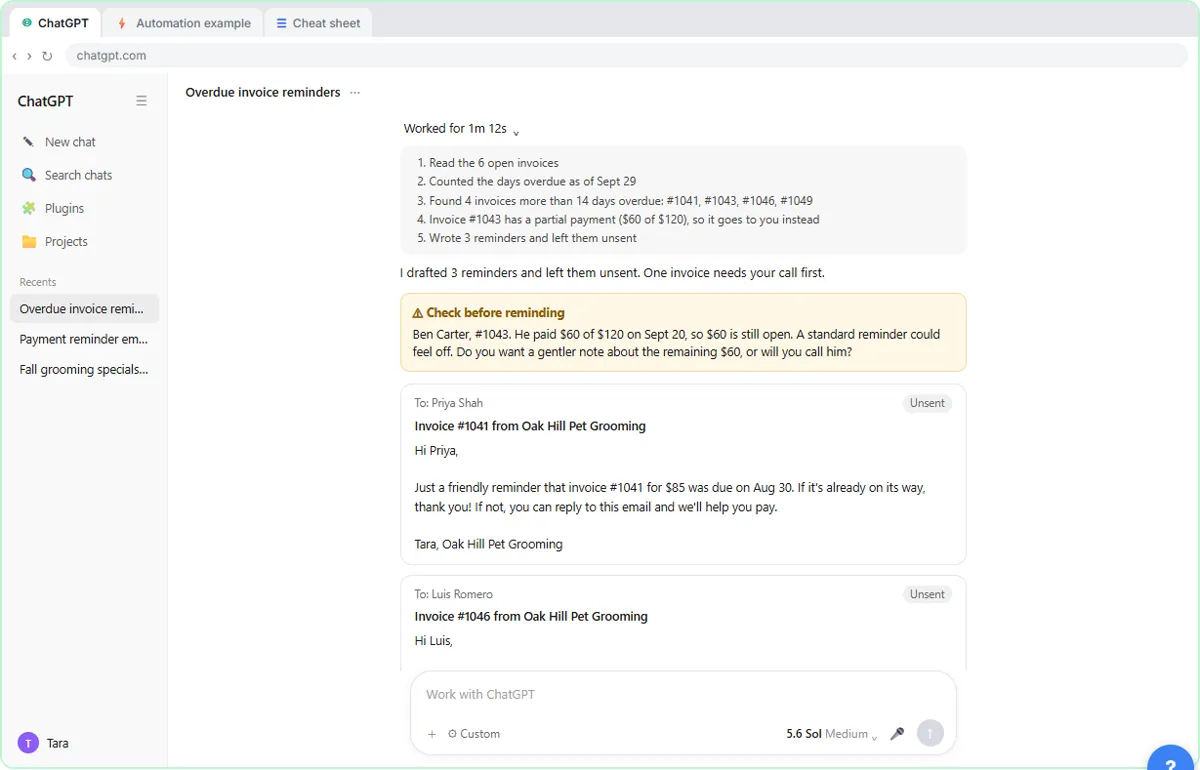 AI Agent vs Chatbot vs Automation: One Job Done Three Ways
Chase six unpaid invoices three ways: a chatbot writes a template, an automation follows a rule, and an AI agent works out the steps and flags the tricky one.
Free · Live ~7 min Beginner
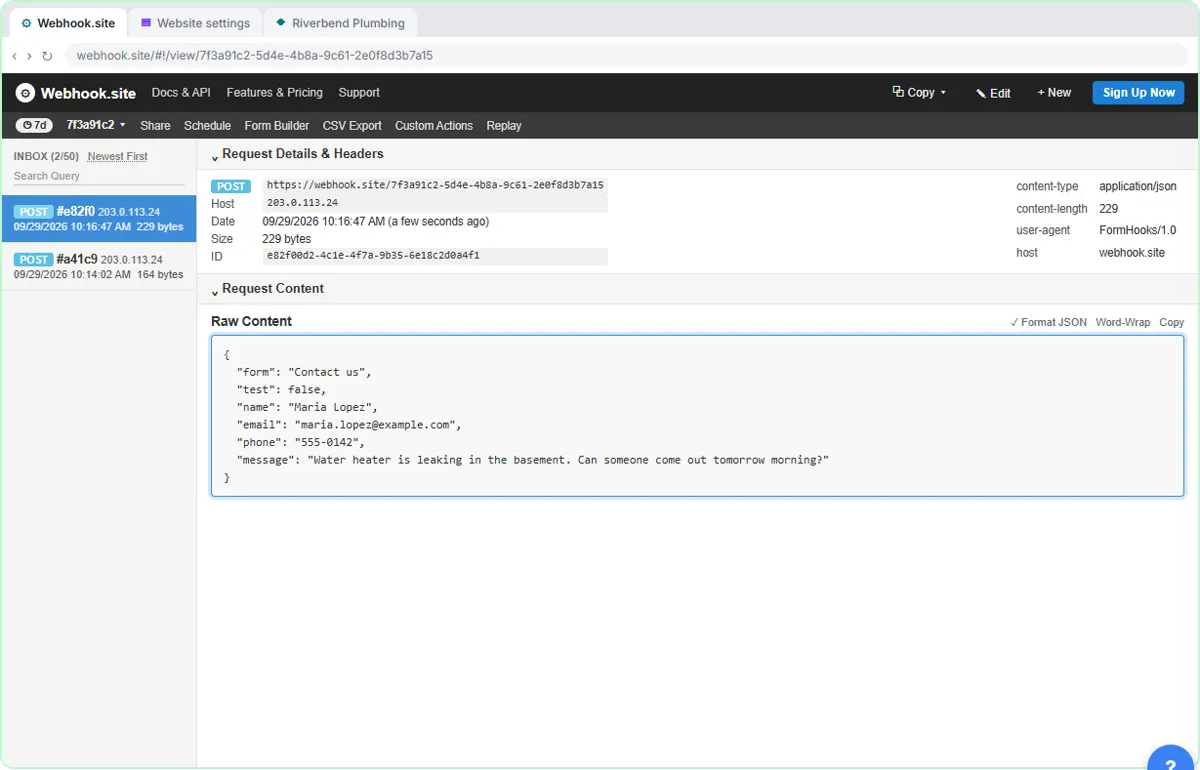 What Is a Webhook? Send a Test and Watch the Data Arrive
Point a plumber's website contact form at a free webhook tester, send a test and a real message, and watch the data arrive the moment it's sent.
Free · Live ~6 min Intermediate
◷Automation Basics: Triggers, Actions and Data MappingLearn the three ideas behind every n8n workflow, Make scenario and Zap: a trigger starts it, actions do the jobs, and data mapping carries the details. Fix the classic…
Free · Live ~6 min Beginner
◷When to Add AI to an Automation (n8n, Make or Zapier)Sort six office jobs into plain rules, AI steps and human decisions, then see the safe shape of an AI automation and how n8n, Make and Zapier each add the AI step.
Free · Live ~6 min Beginner
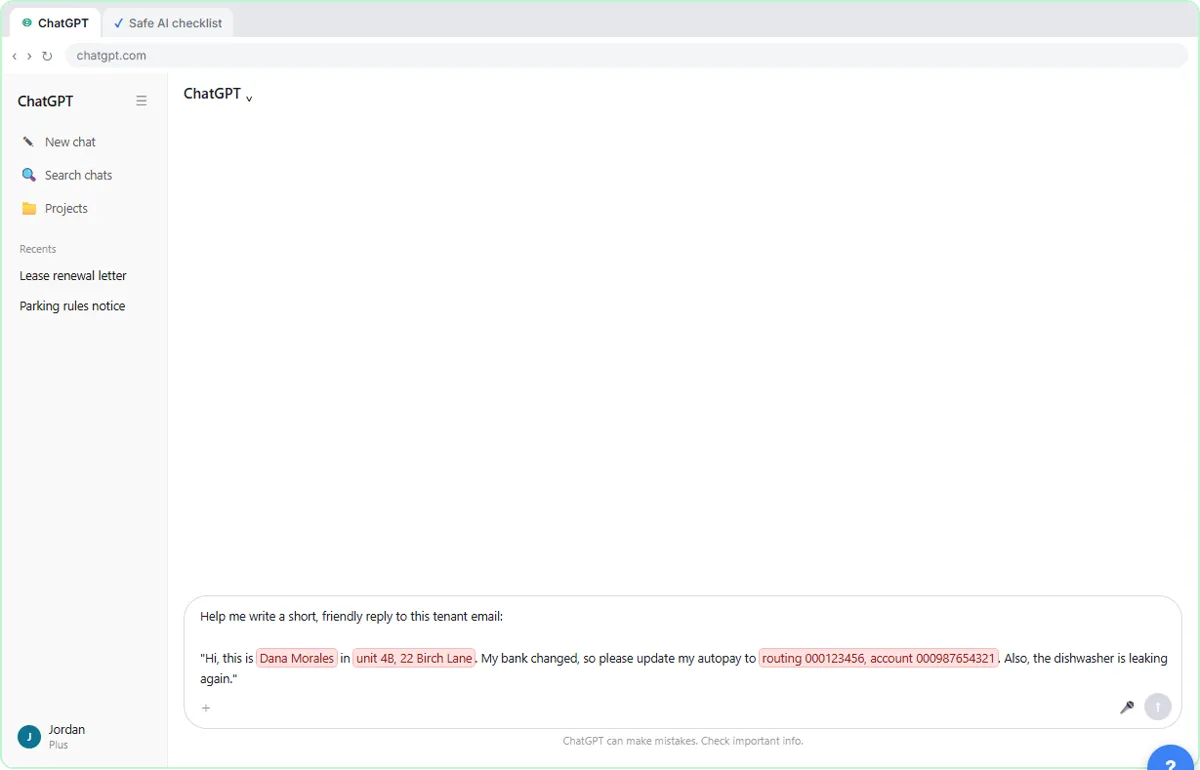 Use AI at Work Without Leaking Client Data using ChatGPT
Turn off model training, strip a tenant's bank details and address out of a prompt, then catch the two promises ChatGPT made up before the reply goes out.
Free · Live ~7 min Beginner
More Stepthrough tutorials
Follow one customer question through a support bot: files cut into chunks, a search by meaning, the AI told to answer only from what it found, and a safe fallback when…
Free · Live ~7 min Beginner
◷AI Support Bot Guardrails, Fallback Answers and Human HandoffWrite the rules for an insurance agency’s website bot, run five hard test chats (advice, a trick message, an upset customer) and design a handoff to a person that…
Free · Live ~7 min Beginner
◷How AI Reads a PDF: OCR, Document Parsing and Field ExtractionFollow two vendor invoices, one digital and one scanned, through OCR, parsing rules vs AI extraction, and the four checks that stop a misread total from reaching your…
Free · Live ~7 min Beginner
◷How AI Transcription Works: Speech-to-Text, Speaker Diarization and ThemesFollow one recorded client call from sound to transcript, catch the kind of error speech-to-text makes, name the speakers, and pull out action items and themes you can…
Free · Live ~6 min Beginner
◷Safe AI Agents: Least Privilege, Approvals and Audit TrailsSet up the safety around a firm's inbox agent: strip the access it doesn't need, send client emails to a person, write rules a prompt can't talk past, and read the log.
Free · Live ~8 min Beginner
◷APIs vs Scraping vs RSS: Pick the Right Way to Get Web DataCompare the four ways web data gets into an automation, read the five parts of an HTTP request, and pick the right source for news, CRM data and competitor prices.
Free · Live ~7 min Beginner
Terms in this lesson
Plain-English definitions, each with an example from a free lesson.