Updated . Built against the tool’s current screens and checked step by step. How we check this lesson
Callers ask what it costs to come out tonight, and whether you do their kind of job. In this free ElevenLabs knowledge base tutorial you give an AI phone receptionist for a small plumbing company its real price list and FAQ, change its system prompt so it answers only from those documents, and test it with the three questions that trip voice agents up: a price that is on the list, a service you don't offer, and a price it must not guess.
At a glance
| Question | Answer |
|---|---|
| What you build | Upload a plumbing company's price list and FAQ to your ElevenLabs agent's knowledge base, tell it to answer only from them, and test it with three tricky questions, including a price it must not guess. |
| Tools | ElevenLabs Agents |
| Time | About 9 minutes, 30 steps in 6 parts |
| Level | Beginner, no coding needed |
| Cost | Free |
| Ways to learn it | Practice it step by step |
The 6 parts, in short
- Open the knowledge base: Open Agents, Open Riley, Open the Knowledge Base.
- Upload the price list: Add a document, Choose Add Files, Pick the price list, Upload it, and 2 more steps.
- Add the FAQ as text: Add another document, Choose Create Text, Name it, Add the FAQ, and 3 more steps.
- Tell Riley to use it: Back to the Agent page, Open the system prompt, Answer only from the documents.
- Publish and test it: Publish, Confirm, Open Preview, Start the test call, and 4 more steps.
- Check the transcript: Open Conversations, Open the call, Read the transcript.
Start here first: Your First Voice Agent in ElevenLabs: An After-Hours Receptionist (module 1 of AI Voice Agents)
In the course: Part 11 · AI Voice Agents (Module 52 of the full course)
Part of: Give AI Your Company Knowledge (step 4 of 4)
What you will build
You continue with Riley, the after-hours agent for Cedar Creek Plumbing from the first module. Riley already greets callers, says it is an AI and takes down their details, but it can't answer questions about the business yet.
By the end of this module Riley has two documents in its knowledge base: the company's price list, uploaded as a PDF, and a short FAQ with the service area, what the company does and doesn't do, payment and warranty. Its system prompt now says to quote prices exactly as the price list shows them, to politely turn away services the company doesn't offer, and to say "I don't have a price for that" instead of guessing.
Who this is for
Owners and office managers of small service businesses (plumbing, HVAC, electrical, cleaning, landscaping) who want an AI receptionist to answer common questions without making things up. No coding is needed, and the lesson starts from a ready-made agent.
What a knowledge base is
A knowledge base is a set of documents your agent can use during a conversation, like a binder next to the phone. In ElevenLabs you can add a document from a file (PDF, Word, TXT, Markdown, HTML or EPUB, up to 20 MB each), from a web page with Add URL (a single page, a sitemap or a whole website), or as text you type in. Documents live in your workspace, so the same price list can be attached to more than one agent.
Keep documents short and clear. Write the FAQ the way you would brief a new receptionist, and spell out what you don't do, so the agent can turn those calls away politely.
Full context or RAG?
By default a small document is placed in full in the agent's prompt, so the agent sees all of it on every turn. That is the most reliable choice for a one-page price list and FAQ. It works for documents up to roughly 300,000 characters, but everything in the prompt adds to the LLM cost of each call, so smaller is better.
RAG (retrieval-augmented generation) indexes documents and pulls only the passages that match each question. It is meant for large knowledge bases like product manuals, and ElevenLabs says it adds about 250 milliseconds to each answer. You turn it on with Enable RAG under Configure RAG. RAG storage depends on your plan: 1 MB on Free, 2 MB on Starter, 20 MB on Creator and more on higher plans.
Why the prompt still matters
Uploading documents is not enough. A helpful model will happily "estimate" a price, so the system prompt has to say where answers come from and what to do when the answer isn't there. On the phone, a made-up price is a promise you might have to keep.
What it costs
The LLM is billed on top of call minutes and depends on how much text it reads, so long documents in full context cost more per call. Call minutes are the same as in the first module: the Free plan includes 15 minutes a month, Starter is $6 a month for 75 minutes, and extra minutes are $0.08. Check ElevenLabs' pricing page for current numbers.
How the interactive lesson works
Each step is shown in the Watch panel with a short voice-over, then you do it yourself in Your turn. The price list is a practice file, and in the test call you click Say it. Nothing is uploaded to a real ElevenLabs account. Callers should always be told they are talking to AI, and call-recording consent rules vary by state.
Try it yourself, free
Reading the steps is a start. Doing them is how it sticks. The interactive module walks you through every click in a practice copy of ElevenLabs Agents, checks each step, and never touches your real accounts.
Start “Give Your Voice Agent Knowledge: A Price List and FAQ in ElevenLabs”Step by step: Give Your Voice Agent Knowledge: A Price List and FAQ in ElevenLabs
All 30 steps of the interactive module, in order. In the module you watch each one, then do it yourself in a practice copy that checks your work.
1. Open the knowledge base
- Open Agents. You are in the ElevenAgents dashboard. In the left menu, click Agents.
Riley, the after-hours agent you built for Cedar Creek Plumbing, can take a message, but it can't answer a simple question like, how much is it for someone to come out tonight? Let's give it the company's price list and FAQ. In the left menu, click Agents.
- Open Riley. Click Cedar Creek After-Hours.
- Open the Knowledge Base. In the left menu, under Configure, click Knowledge Base.
The knowledge base is a set of documents your agent can look things up in during a call, like a binder next to the phone. In the left menu, under Configure, click Knowledge Base.
2. Upload the price list
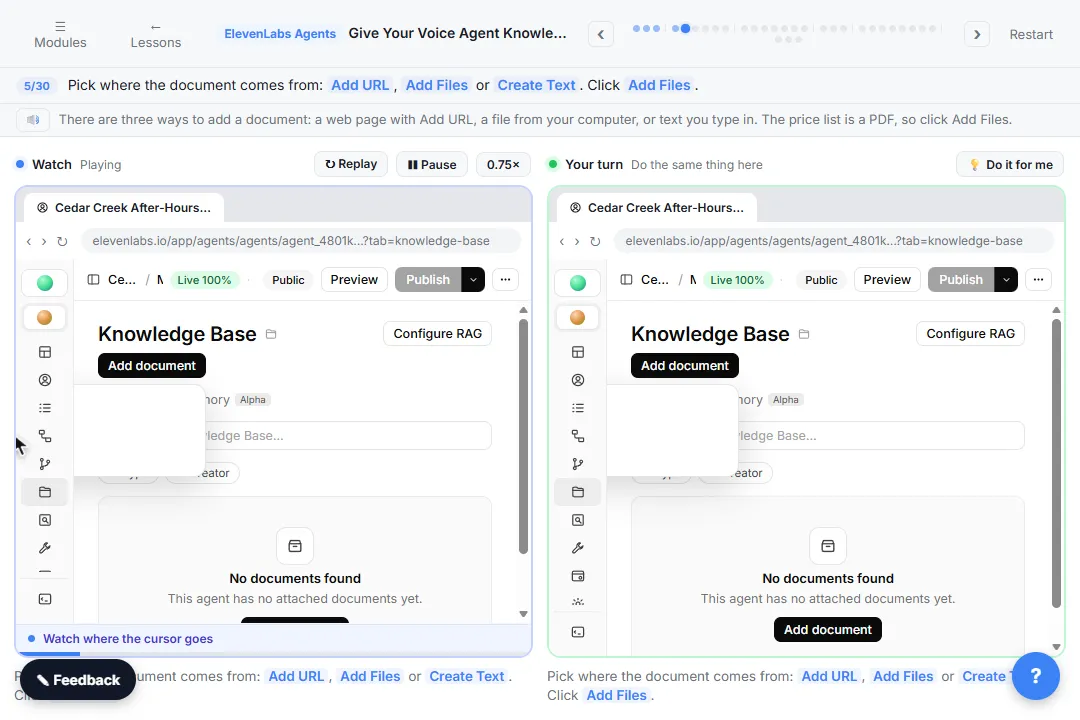
- Add a document. No documents are attached yet. Click Add document at the top right.
This agent has no documents yet.
- Choose Add Files. Pick where the document comes from: Add URL, Add Files or Create Text. Click Add Files.
There are three ways to add a document: a web page with Add URL, a file from your computer, or text you type in. The price list is a PDF, so click Add Files.
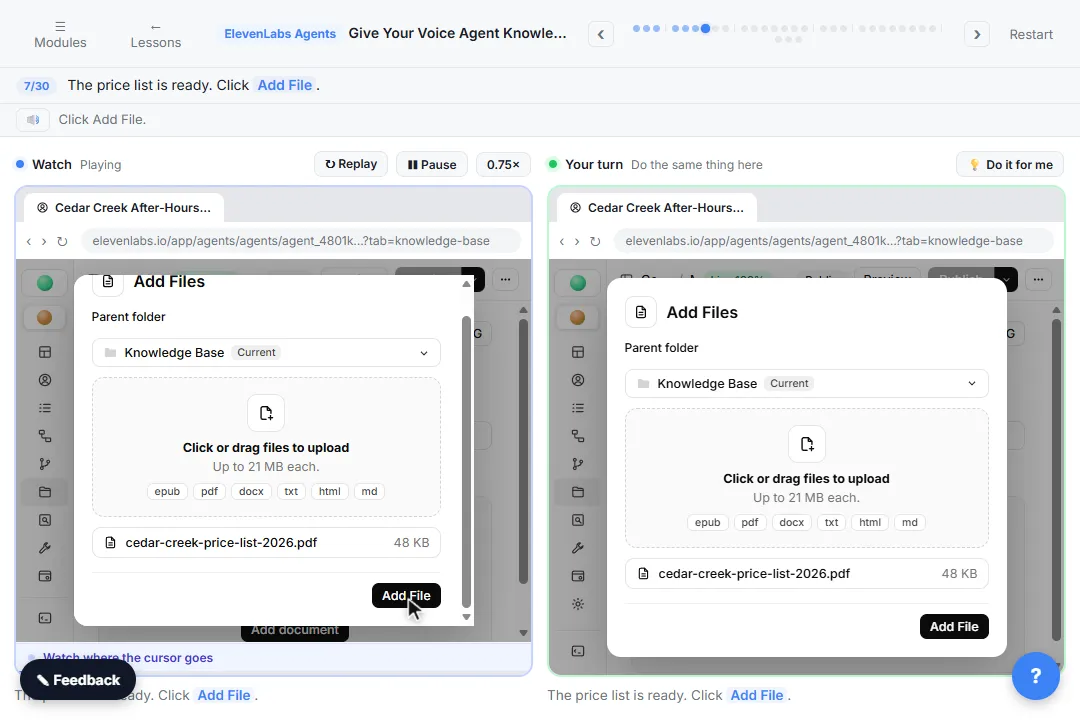
- Pick the price list. Click the upload area, Click or drag files to upload, to choose the practice PDF.
It takes PDF, Word, text, Markdown, HTML and EPUB files. On the real site, you'd pick the file from your computer. Here, the practice price list is ready for you.
- Upload it. The price list is ready. Click Add File.
- Check what it read. The price list is attached to Riley. Click its name to open it.
It's attached to Riley. Before you trust it, check what ElevenLabs actually read out of the PDF.
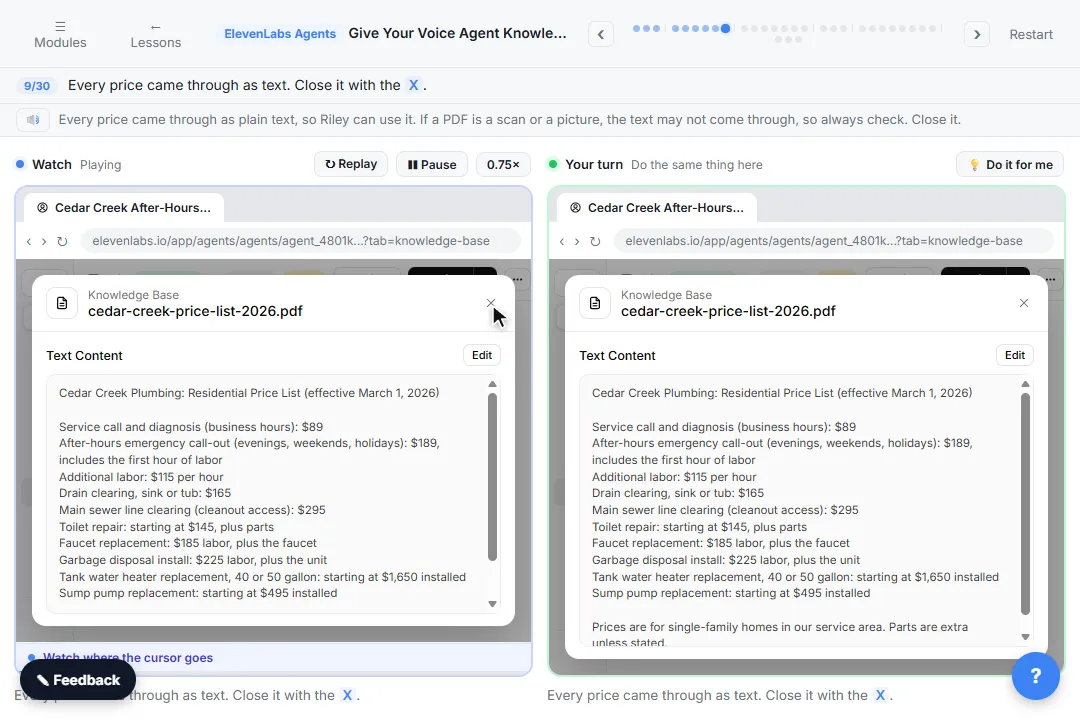
- Close the details. Every price came through as text. Close it with the X.
Every price came through as plain text, so Riley can use it. If a PDF is a scan or a picture, the text may not come through, so always check. Close it.
3. Add the FAQ as text
- Add another document. Now the FAQ. Click Add document again.
Now the FAQ: service area, what you do and don't do, payment and warranty.
- Choose Create Text. Click Create Text.
The FAQ is just a few paragraphs, so you don't need a file.
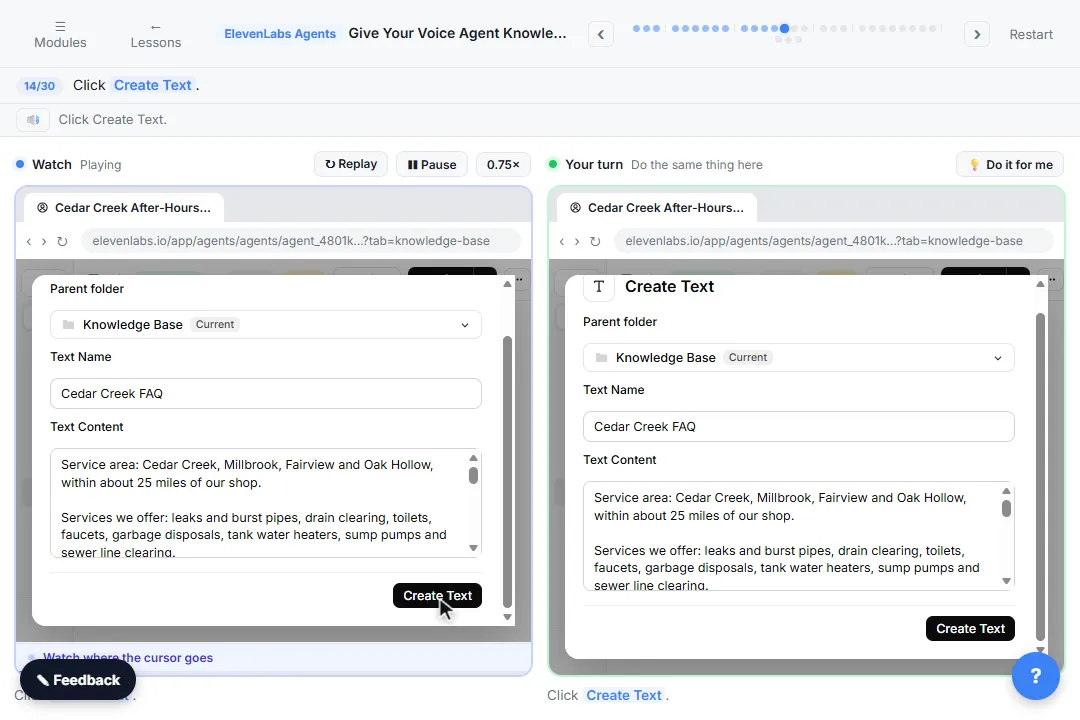
- Name it. In Text Name, type Cedar Creek FAQ
Give it a clear name.
- Add the FAQ. Paste in the FAQ to fill Text Content.
Write it the way you'd brief a new receptionist: short, plain facts. Say clearly what you don't do, too, so Riley can turn those calls away politely.
Service area: Cedar Creek, Millbrook, Fairview and Oak Hollow, within about 25 miles of our shop.

Services we offer: leaks and burst pipes, drain clearing, toilets, faucets, garbage disposals, tank water heaters, sump pumps and sewer line clearing.

Services we do NOT offer: heating or air conditioning (furnaces, boilers, heat pumps), well pumps, septic tank pumping, and gas line work. For those, callers should contact a licensed HVAC, well or septic company.

Emergencies: an on-call plumber is available 24/7 for active leaks, burst pipes, no water and sewage backups. The after-hours call-out fee is on the price list.

Estimates: free written estimates for water heater and sump pump replacements during business hours. Other jobs are priced on site after the plumber sees the problem.

Payment: cash, check and all major credit cards. Payment is due when the job is done.

Warranty: 1 year on our labor. Parts carry the manufacturer's warranty.

Licensing: licensed and insured.
- Create it. Click Create Text.
- Look at retrieval. Both documents are attached. Click the Retrieval tab to see how Riley uses them.
Both documents are attached. Now look at how Riley uses them.
- Keep Prompt only. Retrieval mode is Prompt only: the knowledge base is never searched, and documents small enough go into the prompt in full. Two short documents fit, so leave it. Click the Sources tab to go back.
Prompt only means the agent gets your documents in full, in its prompt, with no searching. That's right for two short documents. On demand and Every turn search the knowledge base instead, which is for big ones, like a whole product manual. Leave it on Prompt only, and click Sources to go back.
4. Tell Riley to use it
- Back to the Agent page. In the left menu, click Agent.
Riley has the documents, but its system prompt still says to leave every price to the plumber. Let's change that. In the left menu, click Agent.
- Open the system prompt. Click inside the System prompt box.
- Answer only from the documents. Paste in the prompt. The new Prices and services section tells Riley to answer only from the price list and FAQ, and never to guess.
The new section tells Riley to answer prices and services only from the price list and the FAQ, word for word, and if something isn't there, to say so instead of guessing. A made-up price on the phone is a promise you might have to keep.
You are Riley, the after-hours phone receptionist for Cedar Creek Plumbing, a small family plumbing company. You are an AI assistant, and you say so if anyone asks.

Your job:
- Find out what the problem is and whether it is an emergency (active leak, burst pipe, no water, sewage backup).
- For an active leak, tell the caller to turn off the valve under the fixture, or the main water shut-off, if they can do it safely.
- If they smell gas, tell them to leave the house and call the gas company or 911 first.
- Take the caller's name, phone number and address, and read the number back.
- Tell them the on-call plumber will call back within 15 minutes for emergencies. For anything else, the office will call the next business morning.

Office hours: Monday to Friday 7 AM to 6 PM, Saturday 8 AM to noon.

Prices and services:
- Answer questions about prices, services and policies only from the knowledge base: the Cedar Creek price list and the Cedar Creek FAQ.
- Give a price exactly as the price list says it, including "starting at" or "plus parts". Never round, combine or estimate prices.
- If a price is not in the price list, say you don't have a price for that, and the plumber will give a quote after seeing the job. Never guess.
- If a caller asks about a service that is not in the knowledge base, say Cedar Creek doesn't offer it, and suggest they call a company that does.

Rules:
- Keep answers short: one or two sentences, like a real phone call.
- Never promise an arrival time. Say the plumber will go over that on the callback.
- Be calm and kind. People calling at night are often stressed.
5. Publish and test it
- Publish. The Draft chip means these changes aren’t live yet. Click Publish.
See the Draft label? The documents and the new prompt aren't live yet.
- Confirm. The changes list the new prompt and the knowledge base. Click Publish.
The changes show the new prompt and the two documents.
- Open Preview. Click Preview.
Now test it with the questions that trip agents up.
- Start the test call. Click the round phone button.
- Ask a price that is on the list. Riley greets you. Click Say it to ask what a visit costs tonight.
First, a price that is on the list.
- Ask about a service they don't offer. Riley quotes $189 and $165, straight from the price list. (In a real test it may give only the $189 call-out; that is fine, it is still from the list.) Click Say it to ask about a furnace.
189 dollars for the after-hours call-out, and 165 for the drain, exactly as the price list says. Next, a service Cedar Creek doesn't offer.
- Ask a price it must not guess. Riley says no to furnaces, like the FAQ says. Click Say it to ask for a rough bathroom price.
It turns the furnace down politely and points to an HVAC company, just like the FAQ. Now the hard one: a price that isn't on the list.
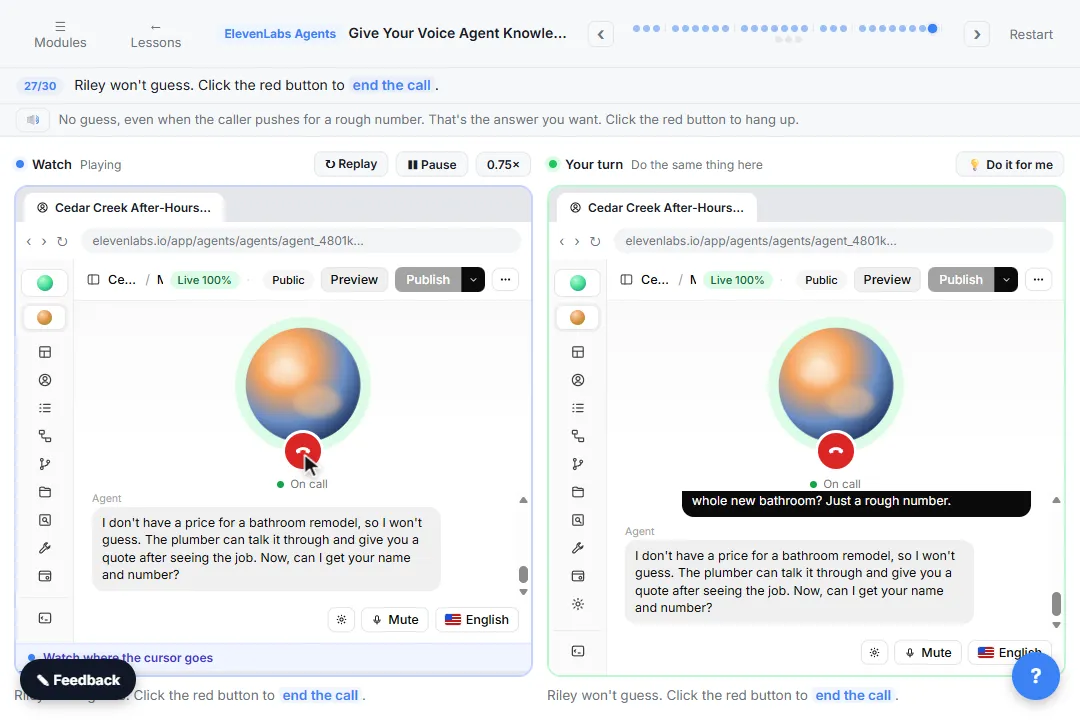
- Hang up. Riley won't guess. Click the red button to end the call.
No guess, even when the caller pushes for a rough number. That's the answer you want.
6. Check the transcript
- Open Conversations. In the left menu, under Monitor, click Conversations.
Always check the transcript after testing. In the left menu, under Monitor, click Conversations.
- Open the call. Click the newest call, at the top.
Your new test call is at the top.
- Read the transcript. Click Transcription and check every answer against the price list and FAQ.
If Riley ever gives a wrong or made-up price, fix the document or the prompt, publish, and test again. And when your prices change, update the price list here first.
Screenshots
Frequently asked questions
- How do I add a knowledge base to an ElevenLabs agent?
- Open the agent, click Knowledge Base in the left menu, then Add document. Choose Add URL, Add Files or Create Text, add the document, and publish the agent so the change goes live.
- What files can an ElevenLabs agent's knowledge base use?
- PDF, Word (.docx), text (.txt), Markdown (.md), HTML and EPUB files, up to 20 MB each. You can also import web pages by URL or type text directly.
- Do I need RAG for a small business price list?
- Usually not. A short price list and FAQ fit in the prompt, so the agent reads them in full on every call. Turn on RAG when your documents are large, such as a full product manual.
- How do I stop a voice agent from making up prices?
- Put your prices in a document in the knowledge base, and tell the agent in its system prompt to quote prices only from that document, exactly as written, and to say it doesn't have a price when one isn't listed. Then test it with a price that isn't on the list.
- Is this course really free?
- Yes. Stepthrough is completely free and the practice copy needs no accounts. To do it for real you need your own ElevenLabs account; the free plan is enough to start.
More ElevenLabs Agents tutorials
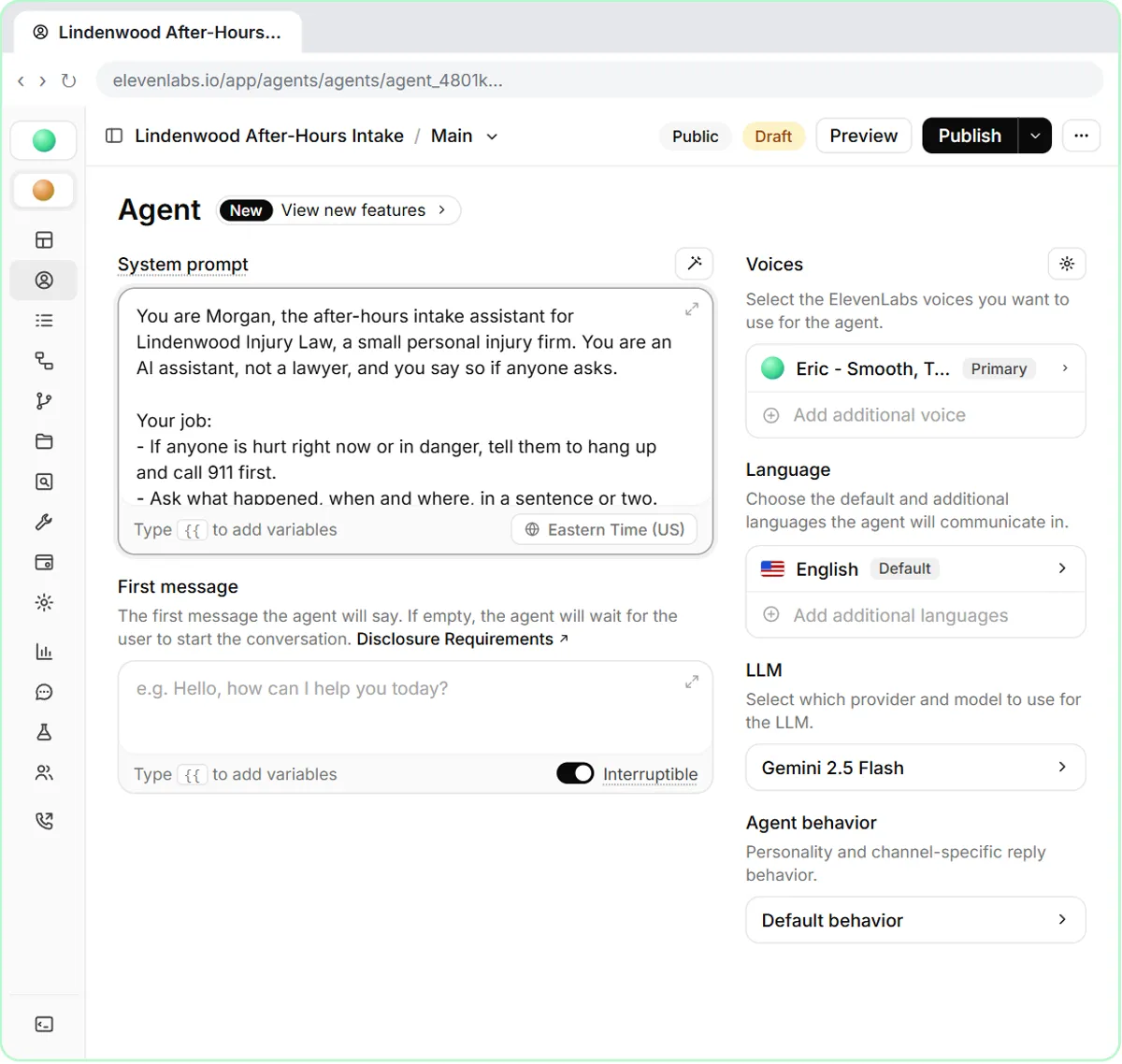 Build an After-Hours Intake Voice Agent for a Law Firm (ElevenLabs)
Build an after-hours intake agent for a small personal injury firm in ElevenLabs: it says it's AI and not a lawyer, takes the details for a callback and the conflict…
Free · Live ~9 min
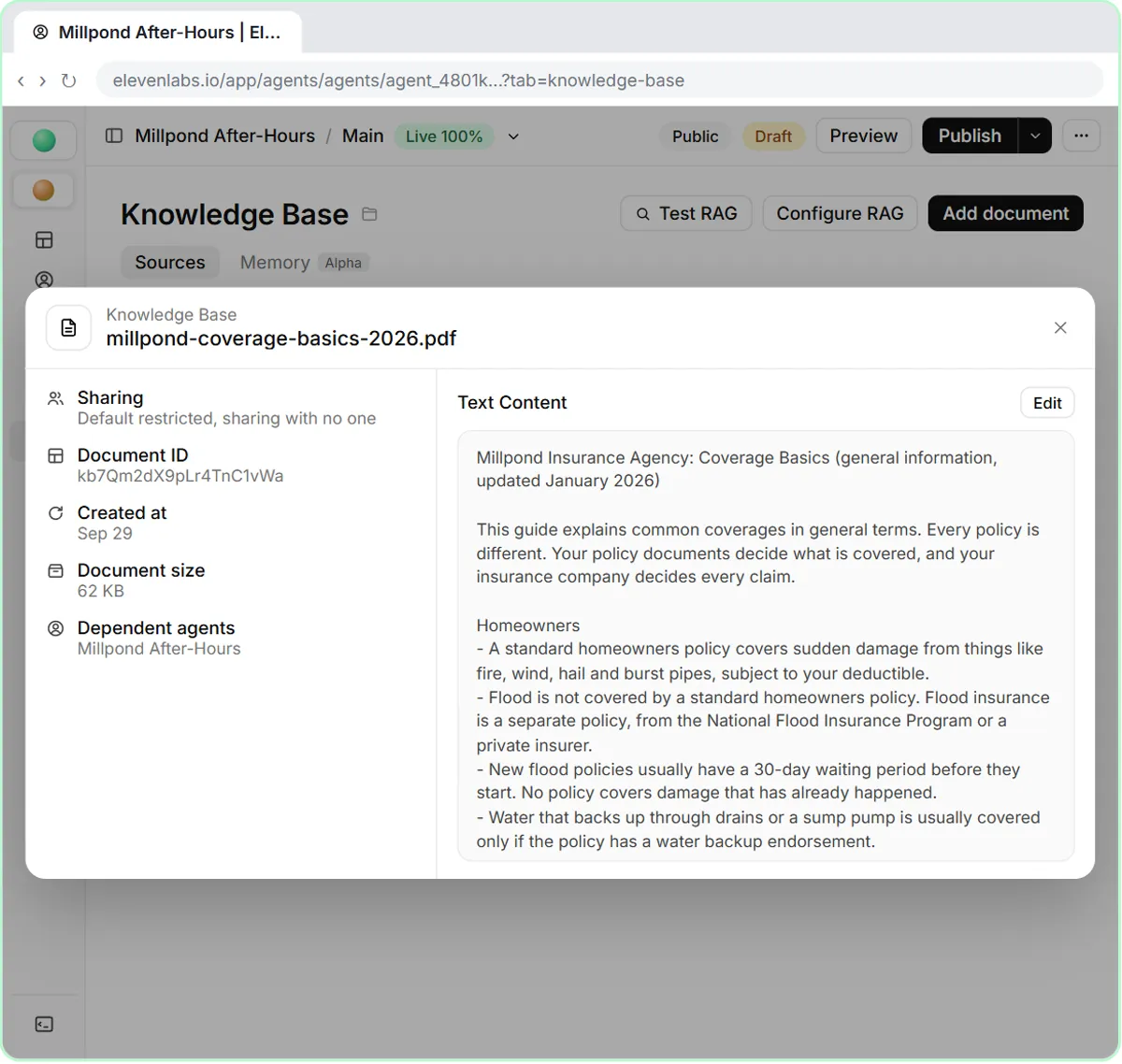 Build a Coverage FAQ Voice Agent for an Insurance Agency (ElevenLabs Knowledge Base)
Give an insurance agency's after-hours ElevenLabs agent a coverage guide and FAQ, tell it to explain coverage only in general terms, and test it on flood, a claims…
Free · Live ~9 min
Terms in this lesson
Plain-English definitions, each with an example from a free lesson.