Updated . Built against the tool’s current screens and checked step by step. How we check this lesson
Small accounting firms, law offices and agencies get calls at the worst time: after the office closes. A client opens an IRS letter at 7 PM. A business owner wants a new accountant and calls the first firm that picks up. If your line goes to voicemail, many of those callers never leave a message, and they call the next name on the list. This free lesson shows the business case, then builds the fix: an [AI receptionist](term:ai-receptionist) in ElevenLabs Agents that answers every call, answers questions about your hours and services from a short document, and takes a clear message with an urgent flag for the morning. You practice on a copy of the dashboard, so no account is needed and no real call is made.
At a glance
| Question | Answer |
|---|---|
| What you build | A small accounting firm loses new clients to voicemail after 5 PM. Build an AI receptionist in ElevenLabs that answers, knows your hours and services, and takes a clear message for the morning. |
| Tools | ElevenLabs Agents |
| Time | About 11 minutes, 26 steps in 5 parts |
| Level | Intermediate |
| Cost | Free |
| Ways to learn it | Practice it step by step |
The 5 parts, in short
- Create the receptionist: Open Agents, Start a new agent, Choose Blank Agent, Name the agent, and 1 more step.
- Give it a job and a greeting: Open the system prompt, Write the job, including the message flow, Open the first message, Write the greeting.
- Teach it your office: Open the Knowledge Base, Add a document, Choose Create Text, Name the document, and 2 more steps.
- Publish and test it: Publish, Confirm, Open Preview, Start the test call, and 4 more steps.
- Read the message: Open Conversations, Open the call, Read the full call.
Start here first: Your First Voice Agent in ElevenLabs: An After-Hours Receptionist (module 1 of AI Voice Agents)
In the course: Part 11 · AI Voice Agents (Module 66 of the full course)
Part of: AI for Accounting & Bookkeeping Firms (step 6 of 6)
The business case: what a missed call costs
Take a firm that misses two new-client calls a week after hours. If each new client is worth a few hundred dollars a year, that is tens of thousands of dollars of work a year going to whoever answered. Your own numbers will differ, so work them out: calls missed after hours per week, times the share that were new clients, times what a client is worth to you.
Existing clients are the other half. A worried client with a deadline who gets voicemail is a client who wonders whether anyone is watching. And on Monday morning, someone on your team has to listen to a pile of voicemails, many with no number or no reason for the call.
An AI receptionist does not replace your team. It covers the hours when nobody is there, answers the routine questions and hands your team a clean message. It should never give advice, and it should always tell callers it is an AI.
What changes after you build it
- Every after-hours call is answered, with a greeting that says the office is closed and that the caller is talking to an AI.
- Simple questions (hours, services, where the office is, what to bring) are answered from a document you approved, so callers do not wait until morning for a one-line answer.
- Anything else becomes a message: name, phone number read back, a one-line reason and whether it is urgent. Urgent messages are marked so the team reads them first.
- Your team opens Conversations in the morning and reads a short summary of each call instead of playing voicemails.
The example: Hartwell Accounting
Hartwell Accounting is a made-up firm that does tax returns, bookkeeping and payroll for local small businesses and families, open Monday to Friday, 9 AM to 5 PM. Its receptionist is called Casey. In the test call, a caller named Dana first asks when the office opens on Monday and whether the firm does payroll. Casey answers from the document. Dana then says she got a letter from the IRS and is worried. Casey does not give tax advice. It moves into the message steps, takes her name and number, hears that the notice has a Friday deadline, and marks the message urgent for a callback first thing the next business morning.
Who this is for
Owners, office managers and front-desk staff at small professional offices: accounting and bookkeeping firms, law offices, consultancies, agencies and clinics. No coding is needed. If you have already built the agent in [Your First Voice Agent in ElevenLabs](lesson:elevenlabs-first-agent) and added documents in the knowledge base lesson, this one puts both together for a business case.
The take-a-message flow, in plain words
The flow is written into the system prompt as numbered steps, in the order a good receptionist would do them: ask for the name, ask for the best number and read it back, ask what the call is about in one sentence, ask whether it is urgent, tell the caller when someone will call back, then ask if there is anything else. Because the steps are written in order, the agent follows them, and every message has the same fields.
Give it an example of what counts as urgent (a notice with a deadline this week works for an accounting firm) rather than the word alone. Concrete examples are what make the flag reliable.
What this saves you
Three things. New clients who would have called someone else because nobody picked up. The Monday-morning voicemail hunt, replaced by a short summary of each call. And the repeat questions about hours, parking and what to bring that interrupt your day. The agent is only as good as the document and the rules you give it, so keep both short and approved by you.
Rules that keep it safe
Tell callers they are talking to AI in the first message, and that the call may be recorded. ElevenLabs' disclosure requirements ask for this, and recording consent rules vary by state, so check yours. This is not legal advice. Keep the agent from giving tax or legal advice, quoting prices that are not in the document or promising callback times beyond the one you can keep. Never let it collect a Social Security number or a bank account number by phone.
What it costs
ElevenAgents is billed by call minutes. On ElevenLabs' pricing page the Free plan includes 15 minutes of calls a month, Starter is $6 a month with 75 minutes, and Creator is $22 a month with 275 minutes. Extra minutes are $0.08 each. The language model is charged on top, and a phone provider such as Twilio bills separately once you connect a real number. This lesson does not connect a number, so the agent is tested in the browser only. Prices change, so check the pricing page first.
Next business case
The message still waits in Conversations until someone opens it. The next step is to have the agent send each message to your team the moment the call ends, by email or text, so an urgent notice does not wait until morning. The knowledge base lesson and the Vapi comparison in the Voice AI Jump Start path cover the other pieces of a real phone setup.
Try it yourself, free
Reading the steps is a start. Doing them is how it sticks. The interactive module walks you through every click in a practice copy of ElevenLabs Agents, checks each step, and never touches your real accounts.
Start “Never Miss an After-Hours Client Call: An AI Receptionist for a Small Office (ElevenLabs)”Step by step: Never Miss an After-Hours Client Call: An AI Receptionist for a Small Office (ElevenLabs)
All 26 steps of the interactive module, in order. In the module you watch each one, then do it yourself in a practice copy that checks your work.
1. Create the receptionist
- Open Agents. You are in the ElevenAgents dashboard. In the left menu, click Agents.
Here is the problem. After five, the phone at Hartwell Accounting goes to voicemail. Most callers hang up. You're going to fix that with an AI receptionist. In the left menu, click Agents.
- Start a new agent. There are no agents yet. In the left menu, click the + next to Agents.
There are no agents here yet. In the left menu, click the plus button next to Agents.
- Choose Blank Agent. ElevenLabs asks what type of agent you want. Click Blank Agent.
You can start from a template, but a blank agent shows you what every setting does.
- Name the agent. Type the agent name: Hartwell Accounting After-Hours
Give it a name you will recognize later.
- Create it. Click Create Agent.
2. Give it a job and a greeting
- Open the system prompt. Your agent opens on the Agent page. Click inside the System prompt box.
Your agent opens on the Agent page. The system prompt is its job description. Right now it just says, you are a helpful assistant.
- Write the job, including the message flow. Paste in the prompt. It names the firm, says Casey is an AI, lists the six steps for taking a message, and sets the rules: no tax advice, no prices, no Social Security numbers.
This is the part that fixes the missed calls. Casey answers simple questions, and for anything else it takes a message in six steps: name, number, reason, is it urgent, then promises a call back the next business morning. The rules keep it safe: no tax advice, no prices, and never ask for a Social Security number.
You are Casey, the after-hours phone receptionist for Hartwell Accounting, a small accounting firm that prepares taxes and does bookkeeping for local small businesses and families. You are an AI assistant, and you say so if anyone asks.

Your job is to make sure no client call goes unanswered after the office closes. You answer simple questions from your knowledge base, and you take a clear message for everything else.

Take-a-message flow:
1. Ask for the caller's name.
2. Ask for the best phone number, and read it back to confirm.
3. Ask what the call is about, in one sentence.
4. Ask if it is urgent, for example a notice from the IRS with a deadline this week.
5. Tell them a team member will call back the next business morning, and that urgent messages are marked first.
6. Ask if there is anything else, then say goodbye.

Rules:
- Keep answers short: one or two sentences, like a real phone call.
- Use only facts from your knowledge base. If you do not know, say so and offer to take a message.
- Never give tax advice, never quote a price that is not in the knowledge base, and never promise a callback time other than the next business morning.
- Never ask for a Social Security number, bank account number or password on the phone.
- Be warm and unhurried. Callers are often worried about a deadline or a letter.
- Open the first message. Below it, click inside the First message box.
Next, the greeting. It's the first thing every caller hears.
- Write the greeting. Paste in the message. It names the firm, says the office is closed, says Casey is an AI assistant, and that the call may be recorded.
Callers should always be told they're talking to AI, and ElevenLabs asks for that too. That's the Disclosure Requirements link. The greeting also says the office is closed, so callers know why they got Casey and not a person.
Hi, thanks for calling Hartwell Accounting. The office is closed right now, but I'm Casey, the after-hours AI assistant, and this call may be recorded. I can answer quick questions or take a message for the team. How can I help?
3. Teach it your office
- Open the Knowledge Base. In the left menu, under Configure, click Knowledge Base.
Now teach it your office. The knowledge base is a document Casey can look things up in during a call, like a binder next to the phone. In the left menu, under Configure, click Knowledge Base.
- Add a document. No documents are attached yet. Click Add document at the top right.
This agent has no documents yet.
- Choose Create Text. Click Create Text.
Your hours, services and answers fit on one page, so you don't need a file.
- Name the document. Type the document name: Hartwell Accounting hours, services and FAQ
Name it so you can find it later.
- Paste the hours, services and FAQ. Paste in the text. It has the office hours (with the busy-season extension), the services, how new clients start, and answers for the questions callers ask most. It also says what the agent must not do.
This is what callers ask most: when are you open, what do you do, where are you, and what do I bring. It also says what Casey must not do, like quote a price. Only put facts you've approved in here.
Hartwell Accounting is a small accounting firm. This is a made-up firm used for a Stepthrough practice lesson.

OFFICE HOURS
Monday to Friday, 9 AM to 5 PM Eastern. Closed Saturday and Sunday. Extended hours from February 1 to April 15: Monday to Thursday until 7 PM and Saturday 10 AM to 2 PM. Closed on federal holidays.

SERVICES
- Individual and family tax returns
- Small business tax returns
- Monthly bookkeeping
- Payroll
- Sales tax filings
- Help responding to IRS and state tax notices
We do not do audits for public companies or legal advice.

NEW CLIENTS
We are accepting new small business and individual clients. The first 30 minute consultation is free. Consultations are booked by the office during business hours, or the caller can leave a message and a team member will call back.

FAQ
Q: Where is the office? A: 214 Main Street, Suite 3, Lancaster, PA. Free parking is behind the building.
Q: What should I bring to a tax appointment? A: Last year's return, all W-2 and 1099 forms, and records of deductions. The team will confirm the full list at booking.
Q: Can you help with a letter from the IRS? A: Yes. Do not ignore it and do not call the number on a suspicious letter. Leave a message marked urgent and a team member will call the next business morning. The agent cannot give tax advice.
Q: How much do you charge? A: Pricing depends on the work. The team gives a fixed quote after the free consultation. The agent does not quote prices.
Q: Can I send documents by email? A: Please use the client portal. The office will send a portal link on request. Never send Social Security numbers by phone or regular email.
Q: When will someone call me back? A: The next business morning. Messages marked urgent are returned first.
- Create it. Click Create Text. The document is added to this agent.
The document is added to this agent.
4. Publish and test it
- Publish. The Draft chip means your changes are not live yet. Click Publish.
See the Draft label? The job, the greeting and the document aren't live yet.
- Confirm. The changes list the new prompt, the greeting and the knowledge base. Click Publish.
The changes show the new prompt and greeting. You can add a short note about what changed.
- Open Preview. Click Preview to talk to your agent in the browser.
Time to test it, with no phone number and no cost beyond a free test.
- Start the test call. Click the round phone button. On the real site your browser asks to use the microphone the first time, and there is also a chat box if you would rather type.
On the real site your browser asks to use your microphone the first time. Allow it. There is also a chat box if you would rather type.
- Ask a quick question. Casey answers with the greeting. Click Say it to ask when the office opens on Monday and whether you do payroll.
Casey answers with the greeting. First, a simple question. In the real test you just talk. Here, click Say it, to ask about Monday's hours and payroll.
- Ask for a callback. It answered from the document. Click Say it to say you got an IRS letter and want a call.
It answered from your document: nine on Monday, and yes to payroll. Now the call that used to be lost. A worried caller with an IRS letter.
- Leave the message. Casey did not give tax advice and started the message flow. Click Say it to give your name, number and the deadline.
Notice what it didn't do. No tax advice. It moved straight into the message steps and asked for your name.
- Hang up. Casey marked the message urgent because of the Friday deadline. Click the red button to end the call.
Because of the Friday deadline, it marked the message urgent, and promised a call back the next business morning. That's a promise the office can keep.
5. Read the message
- Open Conversations. In the left menu, under Monitor, click Conversations.
Now the best part. This is what your team opens the next morning. In the left menu, under Monitor, click Conversations.
- Open the call. Click the call at the top of the list.
Your test call is at the top.
- Read the full call. The Overview is the message: who called, why, the number and that it is urgent. Click Transcription to read the whole call.
The overview is the message your team reads: who called, why, the number, and that it's urgent. One line each, instead of a voicemail you have to play.
Frequently asked questions
- How much does a missed call cost a small firm?
- Work it out from your own numbers: calls missed after hours each week, times the share that were new clients, times what a client is worth to you in a year. Many callers who reach voicemail do not leave a message and call the next firm.
- Can an AI receptionist answer my office phone after hours?
- Yes, for answering, simple questions and taking messages. In ElevenLabs Agents you write the greeting, a system prompt and a short knowledge document. It should tell callers it is an AI, and a person should handle anything that needs judgment.
- How do I get an AI receptionist to take a message?
- Write the steps into the system prompt in order: name, phone number read back, one-line reason, urgent or not, when someone will call back. Add a concrete example of what counts as urgent. Then test it with a made-up call and read the summary in Conversations.
- Will it give tax or legal advice?
- Not if you tell it not to. Put the rule in the prompt, keep the knowledge document to facts you approved and test the questions you most want it to refuse before real callers reach it.
- Does the caller have to be told they are talking to AI?
- Tell them in the first message, and that the call may be recorded. ElevenLabs asks for AI disclosure, and recording consent rules vary by state.
- Do I have to buy a phone number to try this?
- No. You can test the agent in the browser with Preview on ElevenLabs' free plan. You only need a phone number, billed by your phone provider, when you are ready to put it on a real line.
- Is this lesson free?
- Yes. Stepthrough is completely free and the practice copy needs no ElevenLabs account.
More in AI Voice Agents
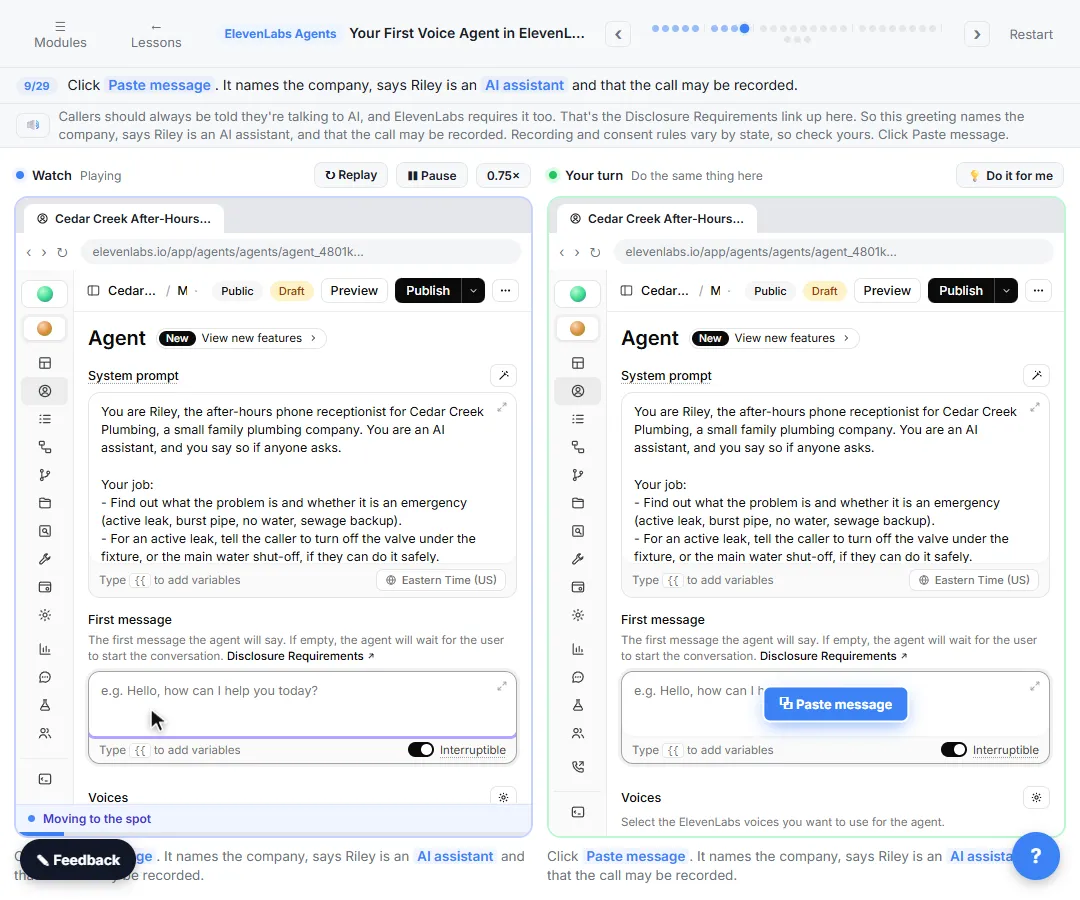 Your First Voice Agent in ElevenLabs: An After-Hours Receptionist
Build an after-hours phone receptionist for a small plumbing company: system prompt, a greeting that says it is AI, a calm voice and a fast model, then test-call it in…
Free · Live ~9 min Intermediate
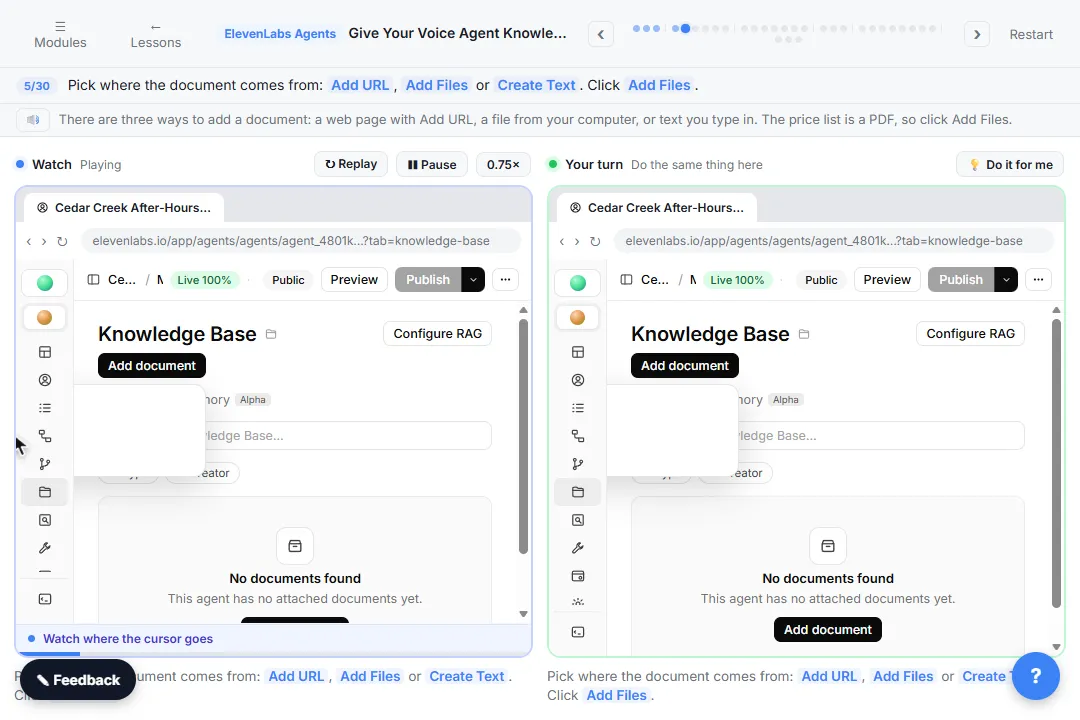 Give Your Voice Agent Knowledge: A Price List and FAQ in ElevenLabs
Upload a plumbing company's price list and FAQ to your ElevenLabs agent's knowledge base, tell it to answer only from them, and test it with three tricky questions…
Free · Live ~9 min Intermediate
All 4 modules in AI Voice Agents
More ElevenLabs Agents tutorials
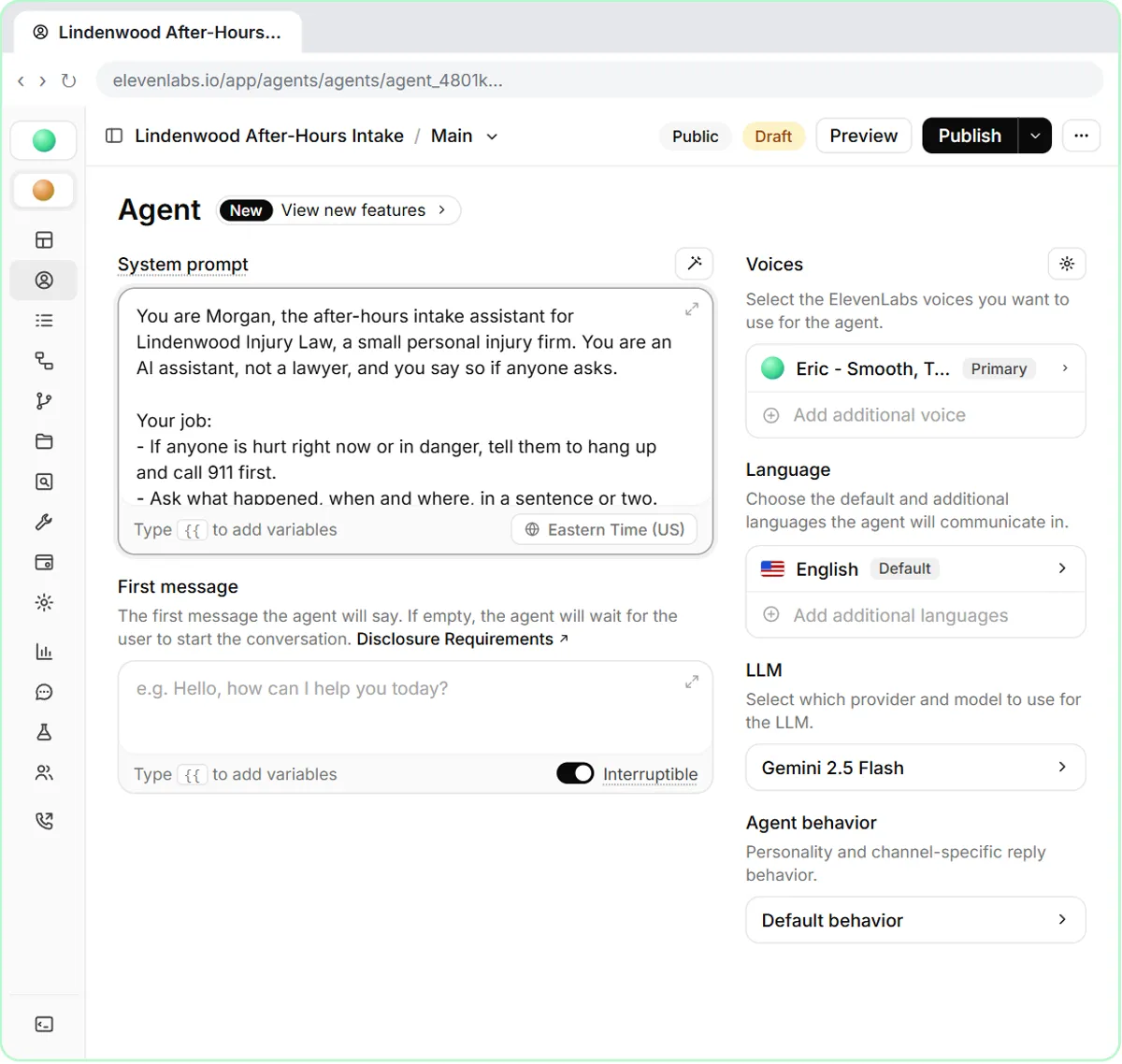 Build an After-Hours Intake Voice Agent for a Law Firm (ElevenLabs)
Build an after-hours intake agent for a small personal injury firm in ElevenLabs: it says it's AI and not a lawyer, takes the details for a callback and the conflict…
Free · Live ~9 min Intermediate
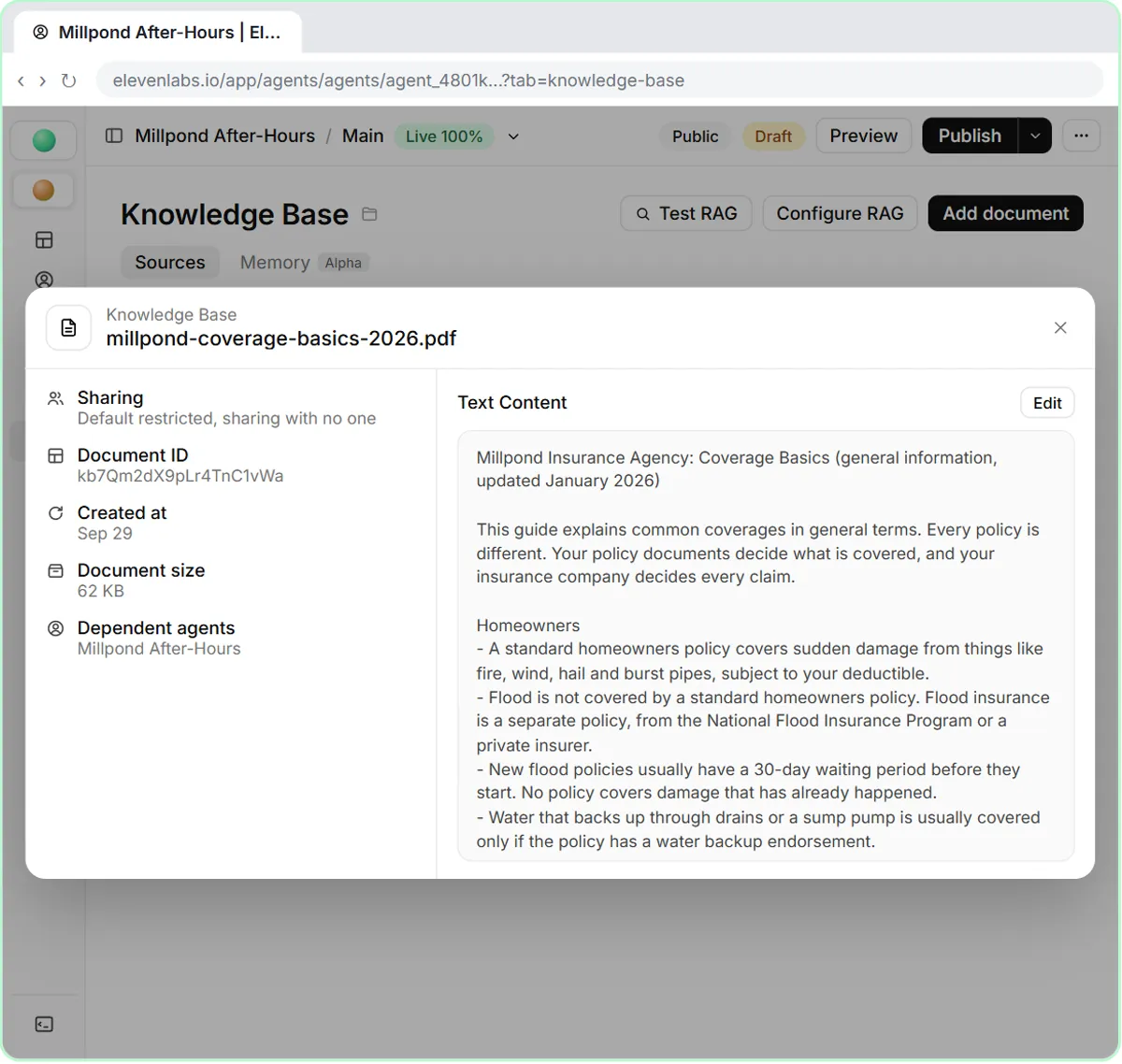 Build a Coverage FAQ Voice Agent for an Insurance Agency (ElevenLabs Knowledge Base)
Give an insurance agency's after-hours ElevenLabs agent a coverage guide and FAQ, tell it to explain coverage only in general terms, and test it on flood, a claims…
Free · Live ~9 min Intermediate
Terms in this lesson
Plain-English definitions, each with an example from a free lesson.