Updated . Built against the tool’s current screens and checked step by step. How we check this lesson
Most AI chatbots answer from everything they have ever read, so you can never be sure where an answer came from. NotebookLM, which Google renamed Gemini Notebook in July 2026, works differently: it answers from the sources you give it and marks every fact with a citation you can click. In this free tutorial you build a notebook from a real-world mix of documents, ask a question that matters, check the answer in the source, and turn it all into a briefing for your team.
At a glance
| Question | Answer |
|---|---|
| What you build | Create a notebook, add a PDF, a Google Doc from Drive and a web page as sources, ask a question and check its citations, save the answer to a note, and turn it all into a Briefing Doc. |
| Tools | Gemini Notebook |
| Time | About 7 minutes, 23 steps in 4 parts |
| Level | Beginner, no coding needed |
| Cost | Free |
| Ways to learn it | Practice it step by step |
The 4 parts, in short
- Create a notebook: Create a new notebook.
- Add your sources: Upload a file, Pick the contract, Upload it, Add another source, and 7 more steps.
- Ask and check the citations: Ask a question, Send it, Check a citation, Save the answer to a note.
- Create a briefing: Open Reports, Choose Briefing Doc, Say who it is for, Generate it, and 3 more steps.
Start here first: Gemini in Gmail: Summarize a Thread and Draft the Reply (module 1 of Gemini for Google Workspace)
In the course: Part 5 · Gemini for Google Workspace (Module 28 of the full course)
Part of: Gemini Jump Start (step 2 of 3). Next up: NotebookLM: Turn Your Documents into a Podcast (Audio Overview)
Part of: Give AI Your Company Knowledge (step 3 of 4). Next up: Give Your Voice Agent Knowledge: A Price List and FAQ in ElevenLabs
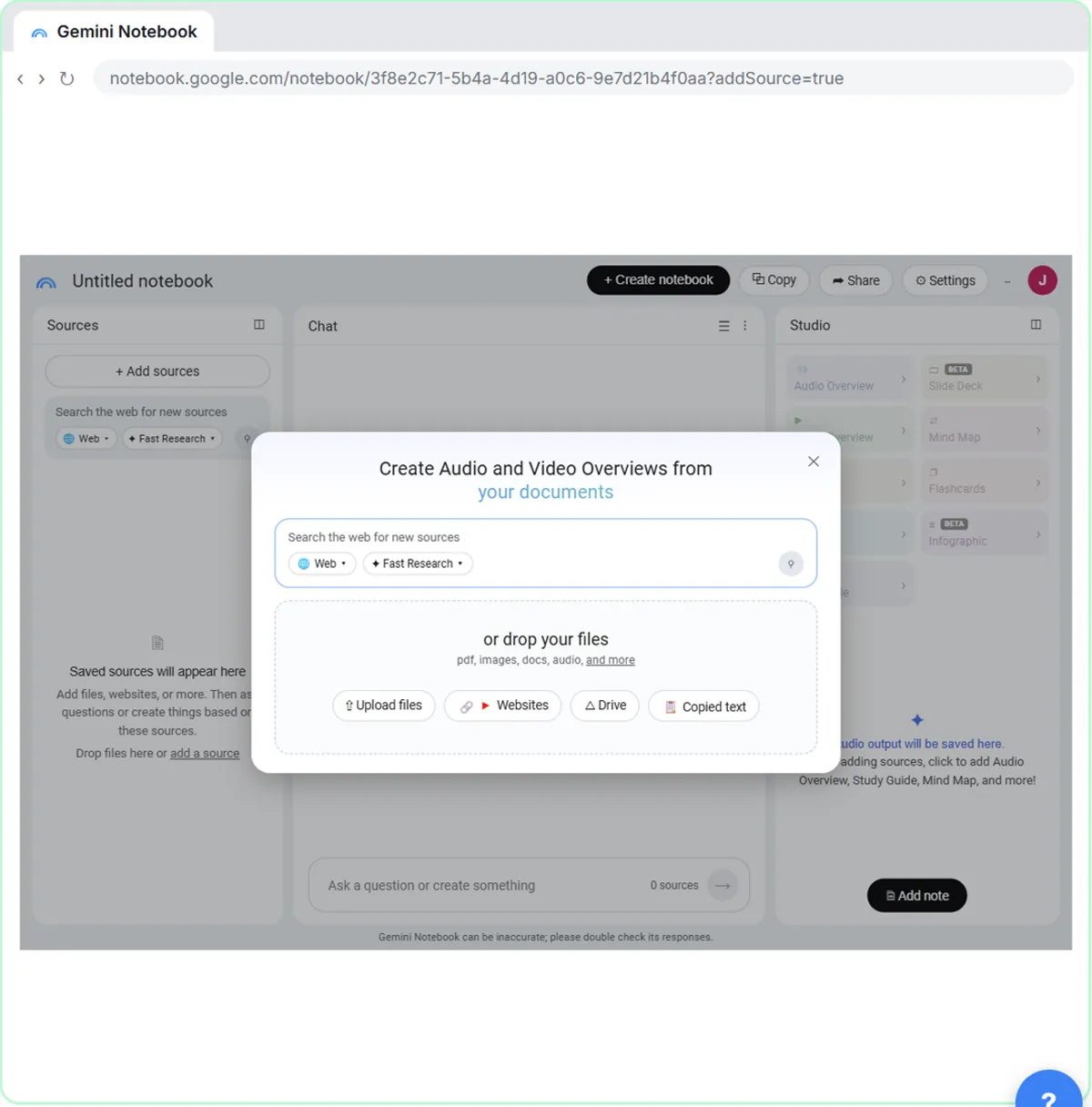
What you will build
You play Jess, who runs Harbor Light Cleaning, a small cleaning company that just signed its first dental office, Northgate Dental. Before her crew starts, Jess needs to know exactly what the contract requires and whether anything conflicts with her own crew handbook.
You create a notebook with three sources: the client's cleaning agreement as a PDF uploaded from your computer, the crew handbook as a Google Doc from Google Drive, and the company's services page as a website link. Then you ask one question, check the answer against the contract, save it as a note, and create a Briefing Doc for the crew lead.
NotebookLM is now Gemini Notebook
Google announced on July 16, 2026 that NotebookLM is now called Gemini Notebook. It is the same product with a new name and logo: existing notebooks and shared links keep working, and it now opens at notebook.google.com. Notebooks also sync with the Gemini app, so you can open the same sources there. Everything in this lesson works the same whichever name you know it by.
Who this NotebookLM tutorial is for
This module is for small business owners, office managers and anyone who has to make sense of long documents: contracts, leases, insurance policies, handbooks and manuals. You do not need any technical background, and you do not need a Google account to practice.
Why the citations matter
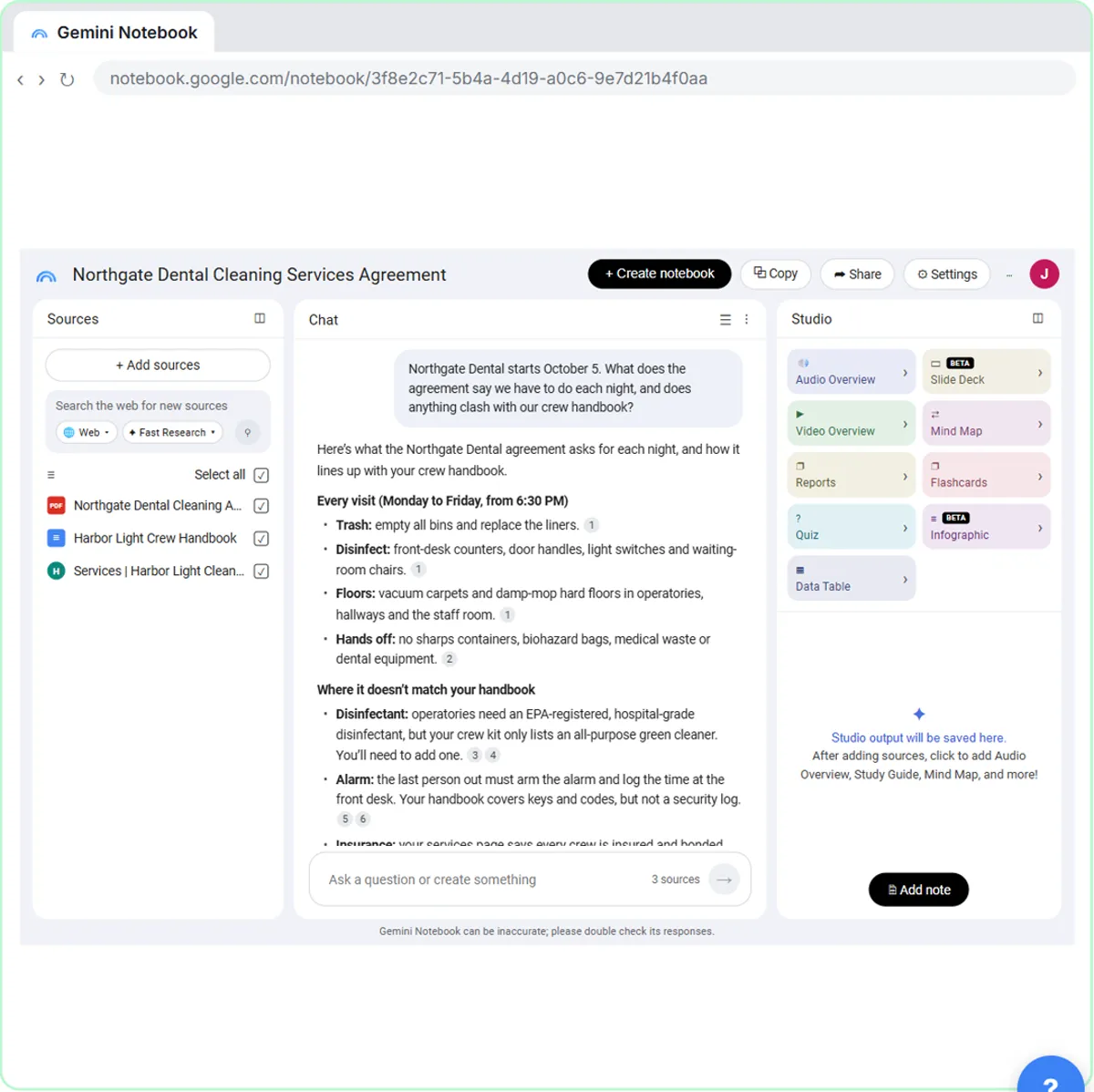
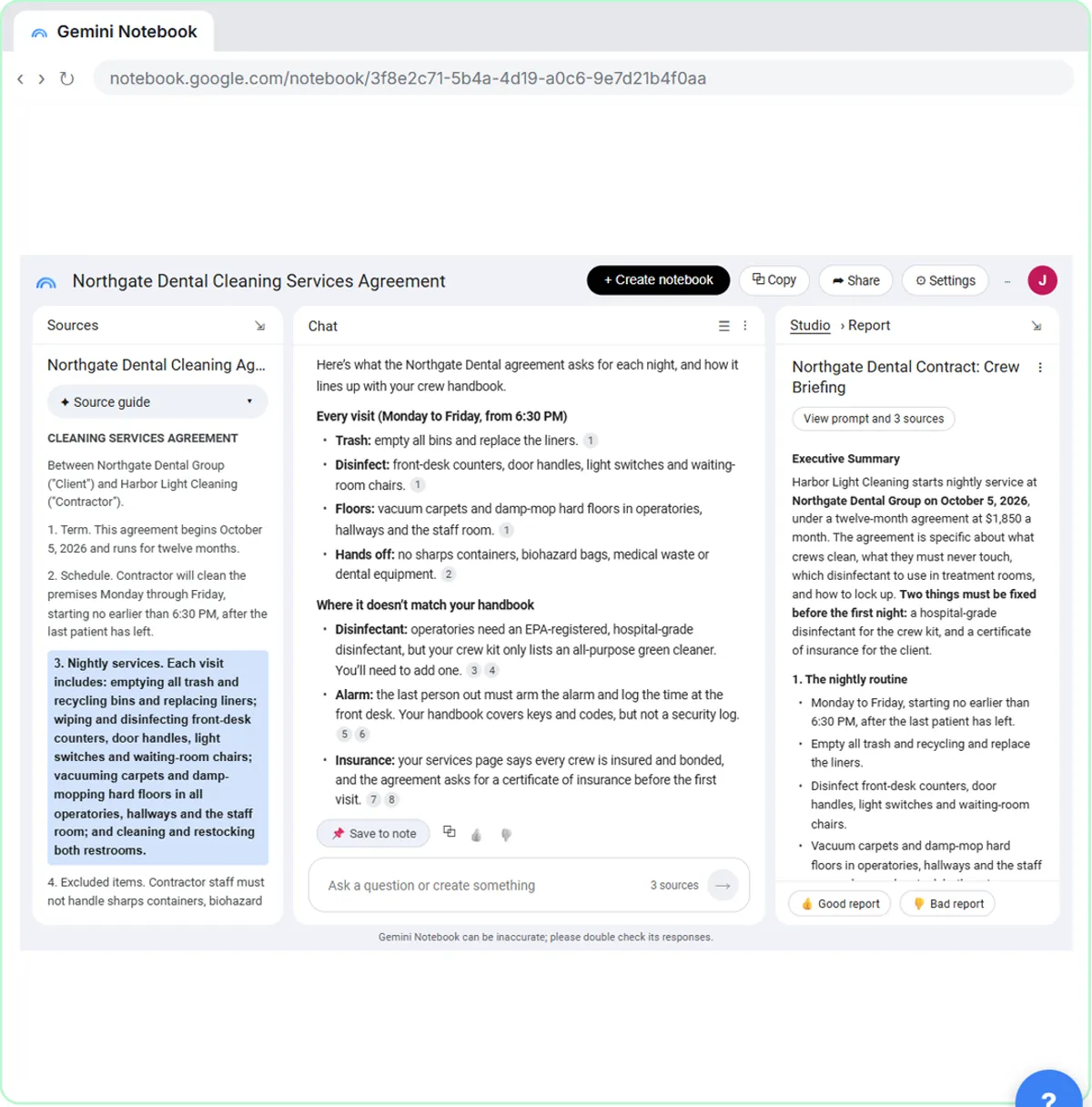
Citations are what make Gemini Notebook useful for real work. Each numbered citation points to the exact passage the answer is based on, so you can check a price, a deadline or a rule in seconds instead of rereading the whole document. In the lesson, the answer spots that the contract requires a hospital-grade disinfectant while the crew kit lists only a green cleaner. Clicking the citation shows the clause in the contract itself, which is how you should check any answer before you act on it.
You can also choose which sources a question uses. Every source has a checkbox in the Sources panel, so you can uncheck one to leave it out, or use Select all to include everything again.
What else the Studio panel can make
The Studio panel turns the same sources into other formats: an Audio Overview (a podcast-style conversation about your sources), a Video Overview, a Mind Map, a Slide Deck, Flashcards, a Quiz, an Infographic, a Data Table and Reports such as a Briefing Doc or Study Guide. Everything you create, including saved notes, is listed in the Studio panel so you can come back to it.
To turn the same kind of documents into a podcast, the next module, NotebookLM: Turn Your Documents into a Podcast, walks through Customize Audio Overview, Interactive mode and sharing an Audio Overview with new hires.
How the interactive lesson works
Every step is shown first on the left, in the Watch panel, with a short voice-over. Then you do it yourself on the right, in Your turn, on a practice copy of Gemini Notebook. Nothing is uploaded, and no Google account is needed.
Try it yourself, free
Reading the steps is a start. Doing them is how it sticks. The interactive module walks you through every click in a practice copy of Gemini Notebook, checks each step, and never touches your real accounts.
Start “NotebookLM (Now Gemini Notebook): Cited Answers and a Briefing from Your Docs”Step by step: NotebookLM (Now Gemini Notebook): Cited Answers and a Briefing from Your Docs
All 23 steps of the interactive module, in order. In the module you watch each one, then do it yourself in a practice copy that checks your work.
1. Create a notebook
- Create a new notebook. Click Create new notebook. (If you already have notebooks, click + New notebook instead. If a message about new features pops up, close it with the X.)
Jess runs Harbor Light Cleaning, and she just signed her first dental office, Northgate Dental. Before the crew starts, she wants to know exactly what the contract asks for. This is Gemini Notebook, the tool Google used to call NotebookLM. It answers from the sources you give it, and shows you where each fact came from.
2. Add your sources
- Upload a file. A new notebook starts by asking for sources. Click Upload files.
A new notebook opens straight to the sources window. You can search the web for sources, drop in files, add website links, pick files from Google Drive, or paste text. The contract is a PDF on Jess's computer.
- Pick the contract. Click Northgate Dental Cleaning Agreement.pdf.
- Upload it. Click Open.
- Add another source. The contract is in, and the notebook named itself. Click + Add sources.
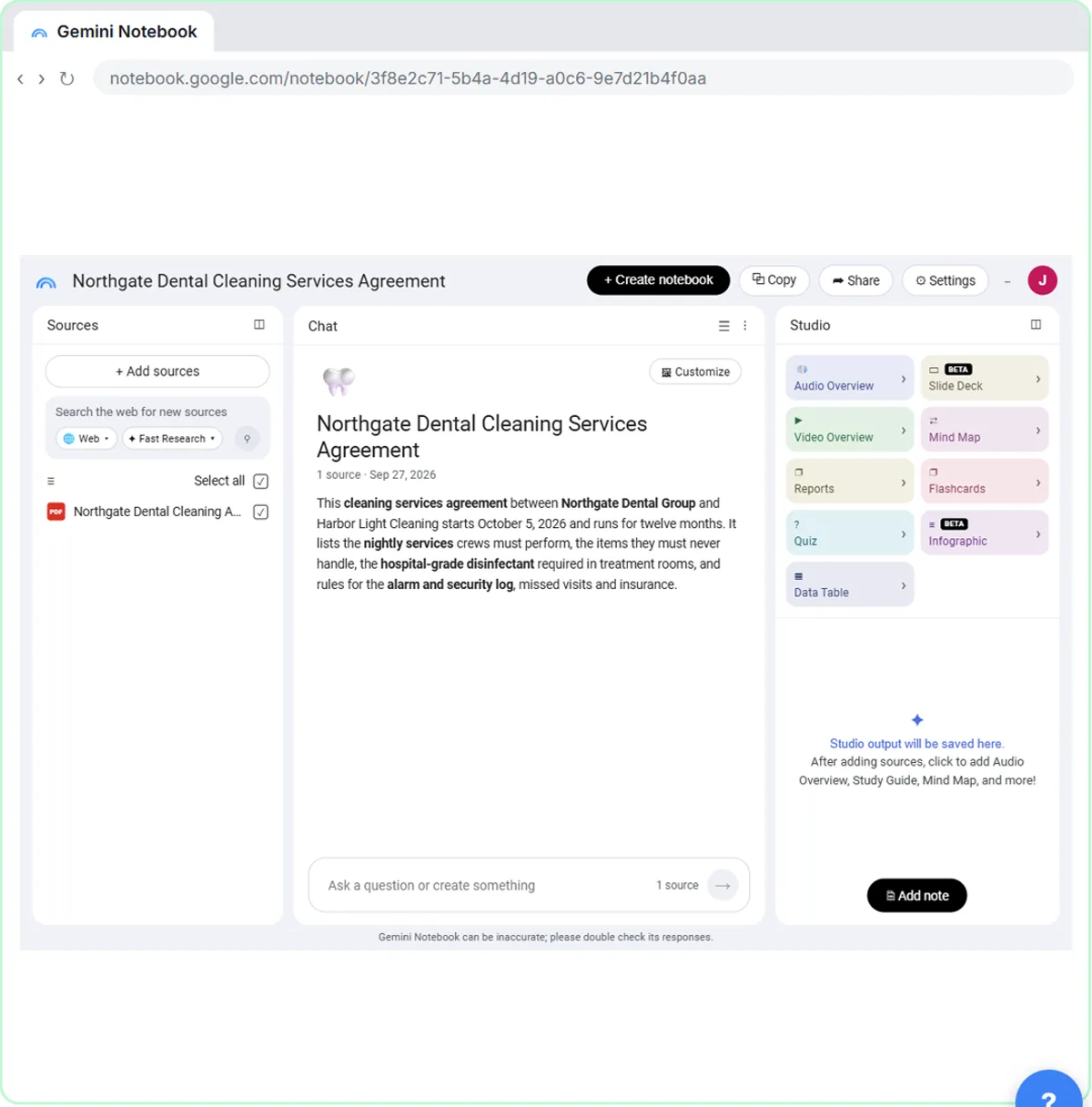
The contract is in the Sources panel, and the notebook gave itself a name and a summary. Now add Jess's crew handbook.
- Add from Google Drive. Click Drive.
The handbook is a Google Doc, so click Drive. Drive files are kept in sync after you import them, so when Jess updates the handbook, the notebook gets the new version.
- Pick the handbook. Click Harbor Light Crew Handbook.
- Insert it. Click Insert.
- Add a website. Click + Add sources again.
Last source: a web page. Jess's own services page says what she promises customers.
- Choose Websites. Click Websites.
The same button takes YouTube links too.
- Paste the link. Paste in the link to add the services page.
To add several at once, separate them with a space or a new line. Only the text you can see on the page is imported, and paid articles are not supported.
- Insert the website. Click Insert.
3. Ask and check the citations
- Ask a question. Three sources, all checked. Paste in the question to ask about the contract and the handbook.
Three sources, all checked, so the chat uses all three. You can uncheck one to leave it out. Now ask the question Jess really cares about.
- Send it. Click the arrow to send it.
- Check a citation. Each small number is a citation. Click the first 1.
Every fact in the answer has a small number next to it. That's a citation. Point at one to preview the quote, and click it to see the passage in the source itself. It even spotted that her green cleaner isn't enough for the treatment rooms.
- Save the answer to a note. The passage is highlighted in the contract. Now click Save to note under the answer. (The note opens in the Studio panel.)
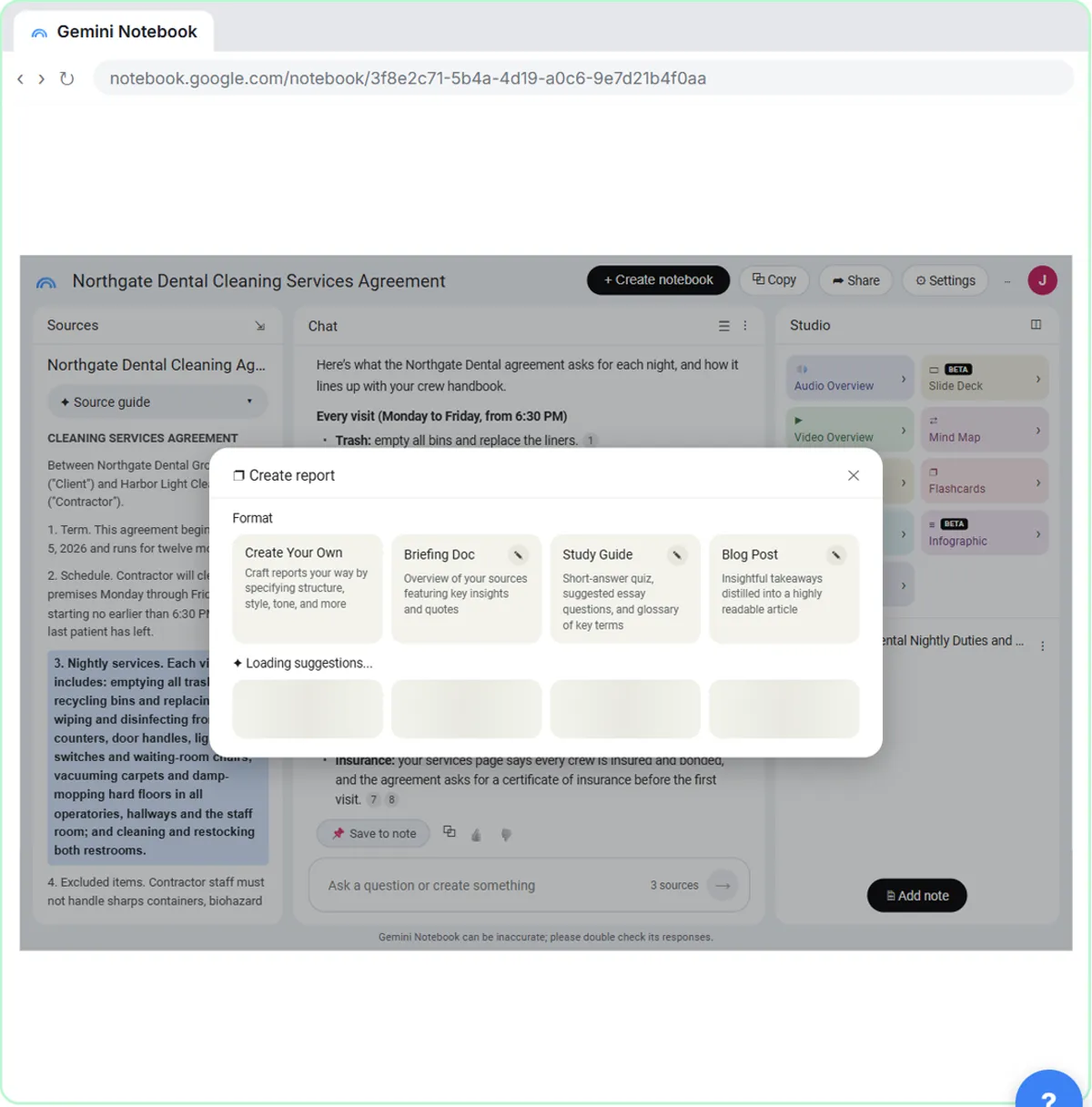
The Sources panel jumps to the contract, with the passage highlighted. That’s how you check an answer before you rely on it. This answer is worth keeping, so click Save to note under it.
4. Create a briefing
- Open Reports. The note is saved in the Studio panel (if it is open, click Studio at the top of the panel to go back to the list). Click Reports.
The note is saved in the Studio panel on the right. Studio turns your sources into something new: an Audio Overview, which sounds like a short podcast, a Video Overview, a Mind Map, a Slide Deck, Flashcards, a Quiz, an Infographic or a Data Table. Jess wants a written briefing for her crew lead, so click Reports.
- Choose Briefing Doc. The dialog starts on the Interactive format. Under Format, click Document, then click Briefing Doc (the pencil on its card).
First pick the format. Interactive is the default, so click Document. Then you can create your own report, or start from Briefing Doc, Study Guide or Blog Post. Gemini also suggests templates that fit your sources.
- Say who it is for. Replace the default description: Paste in the description.
The Briefing Doc comes with a description you can change. Tell it who the briefing is for and what to cover.
Create a briefing doc for my crew lead, Luis. Start with a short executive summary, then cover the nightly routine, the rules on site, and anything we need to fix before the first visit on October 5. Keep it plain and short.
- Generate it. Click Generate now.
- Open the briefing. The briefing is at the top of the Studio list. Click it to open it.
It's ready, at the top of the Studio list, above your note.
- Back to Studio. Read it over. Then click Studio at the top of the panel to go back.
A one-page briefing for Luis: a summary, the nightly routine, the rules on site, and what to fix before October fifth, with the key quotes from the contract. Read it before you pass it on.
- Open your note. Click the saved note.
Your saved answer is here too.
Screenshots
Frequently asked questions
- Is NotebookLM the same as Gemini Notebook?
- Yes. Google renamed NotebookLM to Gemini Notebook in July 2026. It is the same tool with a new name and logo, and existing notebooks and shared links keep working.
- What sources can I add to a notebook?
- PDFs and other files from your computer, Google Docs, Slides and Sheets from Google Drive, website links, public YouTube videos, copied text and more. Free accounts can add up to 50 sources to a notebook.
- How do I check where an answer came from?
- Point at a numbered citation in the answer to preview the quote, and click it to open the source in the Sources panel with that passage highlighted.
- How do I create a briefing document?
- In the Studio panel, click Reports, choose Briefing Doc, optionally change the description of what you want, and click Generate. The report appears in the Studio list.
- Is this course really free?
- Yes. Stepthrough is completely free, and the practice copy needs no accounts. To use Gemini Notebook for real you need your own Google account; it is free to start, and paid plans raise the limits.
More in Gemini for Google Workspace
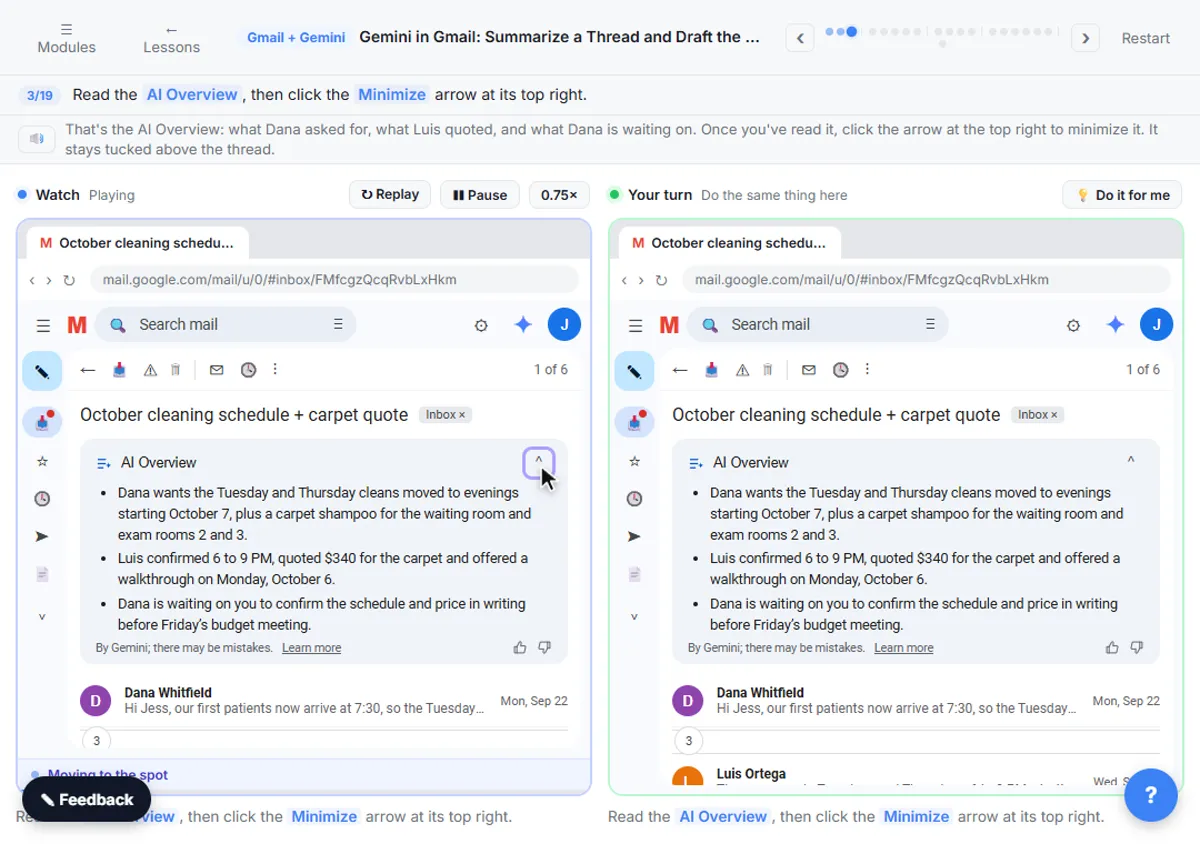 Gemini in Gmail: Summarize a Thread and Draft the Reply
Catch up on a long email thread in seconds with Summarize this email, ask Gemini what you owe, then write, refine and polish the reply with Help me write.
Free · Live ~7 min
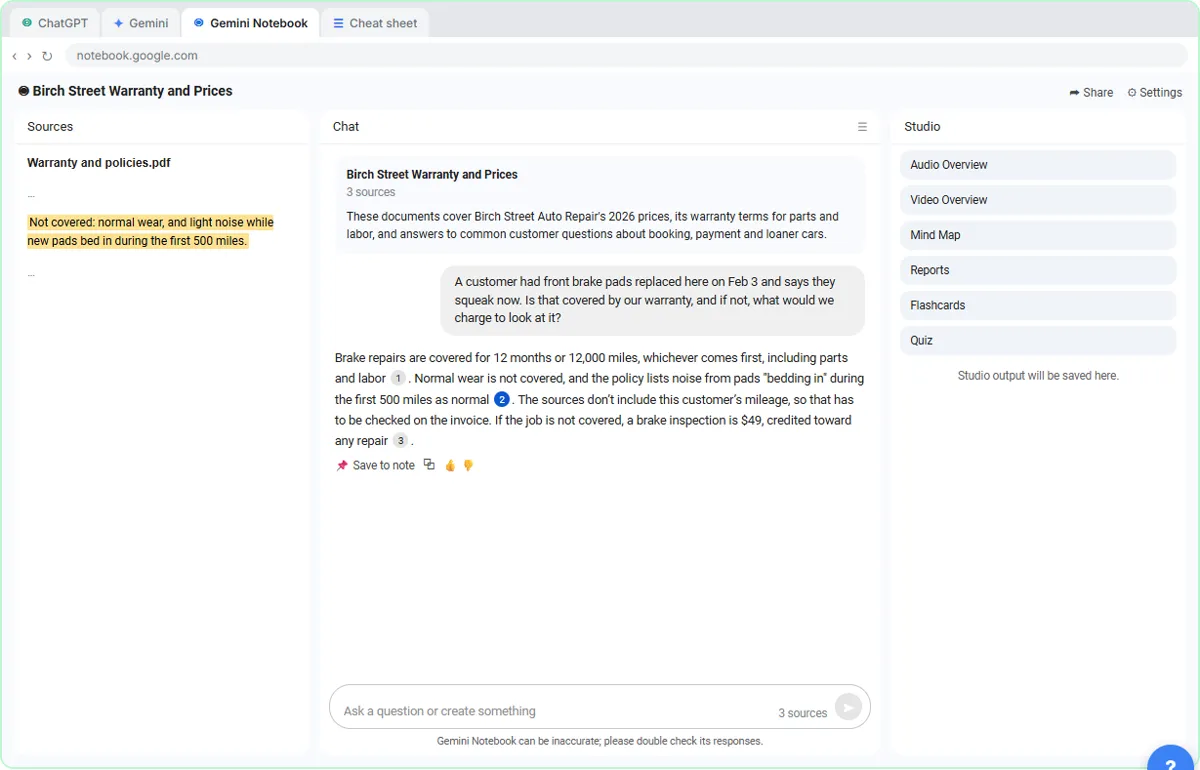 ChatGPT Projects vs Gemini Gems vs Gemini Notebook: Which to Use
Load an auto shop's price list, warranty and FAQ into a ChatGPT Project, a Gemini Gem and Gemini Notebook, ask each the same question, and see which fits which job.
Free · Live ~9 min
All 5 modules in Gemini for Google Workspace
Terms in this lesson
Plain-English definitions, each with an example from a free lesson.