Updated . Built against the tool’s current screens and checked step by step. How we check this lesson
An Audio Overview is a podcast-style conversation that NotebookLM, now called Gemini Notebook, creates from the documents in a notebook. Two AI hosts talk through your sources, and you choose the format, the language, the length and what they focus on. In this free tutorial an office manager turns a new hire handbook and a page of meeting notes into an audio briefing for two new accountants, customizes it, joins the conversation to ask a question, and shares it with the new hires.
At a glance
| Question | Answer |
|---|---|
| What you build | Paste a new hire handbook and meeting notes into a notebook, customize an Audio Overview for two new accountants, listen, join the conversation with Interactive mode, and share it with the new hires. |
| Tools | Gemini Notebook |
| Time | About 6 minutes, 22 steps in 4 parts |
| Level | Beginner, no coding needed |
| Cost | Free |
| Ways to learn it | Practice it step by step |
The 4 parts, in short
- Add your documents: Start a new notebook, Choose Copied text, Paste the handbook, Insert it, and 4 more steps.
- Customize the Audio Overview: Open Audio Overview, Look at the formats and languages, Keep English, Tell the hosts who is listening, and 1 more step.
- Listen and join in: Play it, Turn on Interactive mode, Start the conversation, Join in, and 1 more step.
- Share it: Open the menu, Choose Share, Add the new hires, Send it.
Start here first: Gemini in Gmail: Summarize a Thread and Draft the Reply (module 1 of Gemini for Google Workspace)
In the course: Part 5 · Gemini for Google Workspace (Module 29 of the full course)
Part of: AI at Work: Start Here (step 6 of 8). Next up: AI Agent vs Chatbot vs Automation: One Job Done Three Ways
Part of: Gemini Jump Start (step 3 of 3)
What you will build
You play Dana, the office manager at Ridgeview Accounting, a made-up firm. Two new staff accountants start on Monday. The handbook covers office hours, hybrid work, time off around tax season, keeping client files in the secure portal and expense limits, and last week's meeting notes have their first-week plan. Nobody reads a handbook on day one, but almost everyone will play a podcast.
You add both documents to a notebook, open Customize Audio Overview, keep the Deep Dive format and English, tell the hosts who is listening, and generate the episode. Then you play it, use Interactive mode to ask the hosts a question, and share the notebook and its Audio Overview with the two new hires as viewers.
Deep Dive, Brief, Critique or Debate: which format to pick
Deep Dive is the default: two hosts in a lively conversation that connects the topics in your sources. Use it for onboarding, a long report or anything people should understand, not just skim. Brief is a short overview, about a minute or two, for a quick recap before a meeting. Critique is an expert review of your material with suggestions to improve it, which is useful for a draft policy, a proposal or a training deck. Debate has two hosts explore different perspectives, which helps before a decision such as choosing between two vendors.
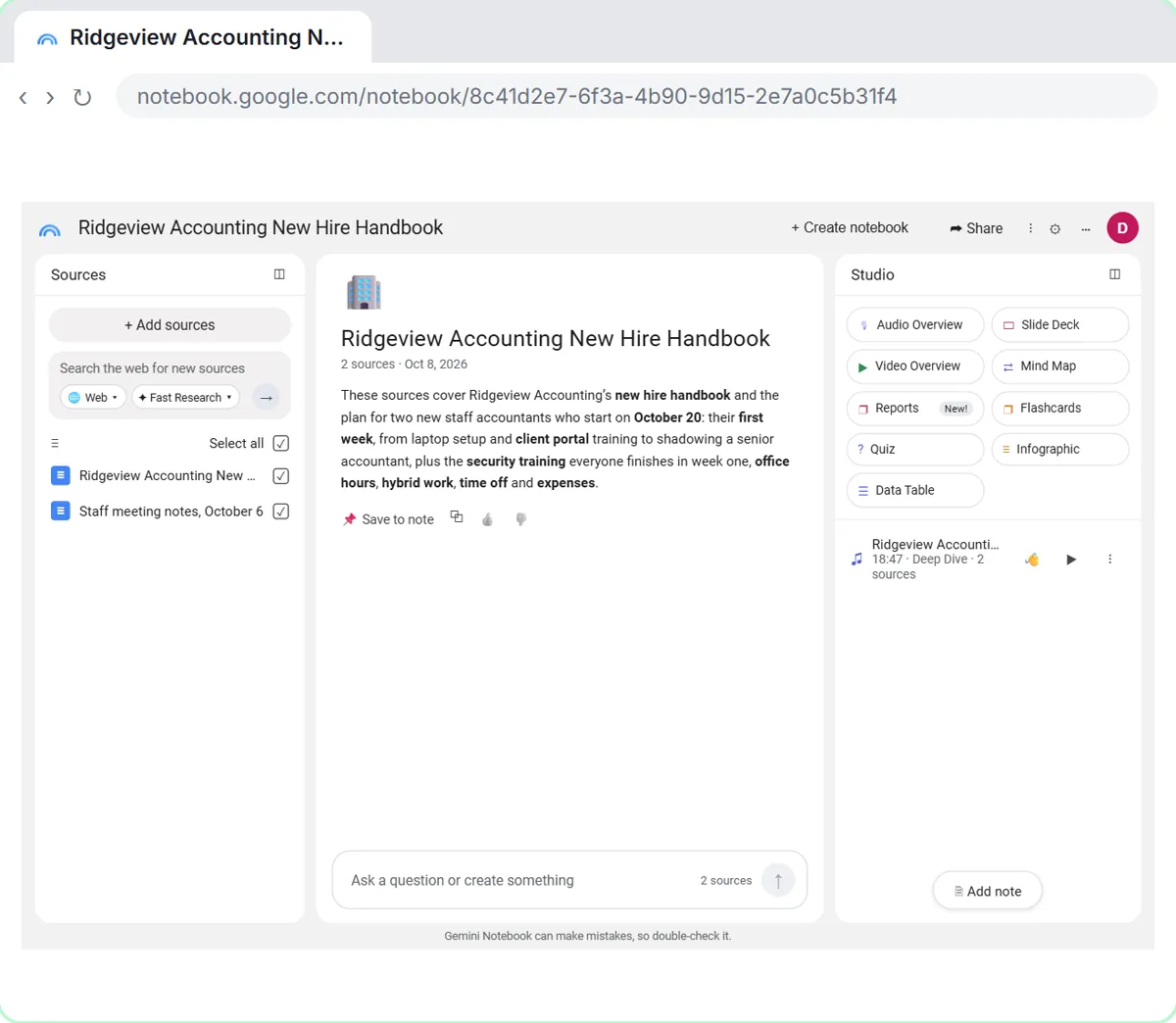
In our test, a Deep Dive at the Default length made from a one-paragraph handbook and a short set of meeting notes came out at 18 minutes 47 seconds, so Default is already a long listen. If you want something closer to ten minutes, try Short, or use the focus box to limit the topics.
Write a good focus for the hosts
The focus box changes the whole episode. Google's own examples are "focus on a specific source", "focus on a specific topic" and "target a specific audience". For work, combine all three: who is listening, which sources or topics to cover, and the tone. For example: "This is for two new staff accountants on their first day. Walk them through their first week, office hours, time off, client files and expenses. Keep it friendly and practical."
Before you share an episode, listen to it. The hosts only talk about your sources, but they can still mix up a date or a number, and a new hire will believe what they hear.
Video Overview and the rest of Studio
Right next to Audio Overview, the Studio panel has Video Overview, which turns the same sources into a narrated video in a Short or an Explainer format, plus Slide Deck, Mind Map, Reports, Flashcards, Quiz, Infographic and Data Table. To get cited answers and a written briefing from the same kind of documents, take the Gemini Notebook module first: it covers sources, citations and Briefing Docs.
How the interactive lesson works
Every step is shown first on the left, in the Watch panel, with a short voice-over. Then you do it yourself on the right, in Your turn, on a practice copy of Gemini Notebook. Long text is pasted for you with one click. Nothing is uploaded, no audio is generated, and no Google account is needed.
Try it yourself, free
Reading the steps is a start. Doing them is how it sticks. The interactive module walks you through every click in a practice copy of Gemini Notebook, checks each step, and never touches your real accounts.
Start “NotebookLM: Turn Your Documents into a Podcast (Audio Overview)”Step by step: NotebookLM: Turn Your Documents into a Podcast (Audio Overview)
All 22 steps of the interactive module, in order. In the module you watch each one, then do it yourself in a practice copy that checks your work.
1. Add your documents
- Start a new notebook. Dana runs the office at Ridgeview Accounting. Click + New notebook.
Dana is the office manager at Ridgeview Accounting, and two new staff accountants start on Monday. Instead of handing them a handbook to read, she'll turn it into a podcast they can play on day one. This is Gemini Notebook, the tool Google used to call NotebookLM.
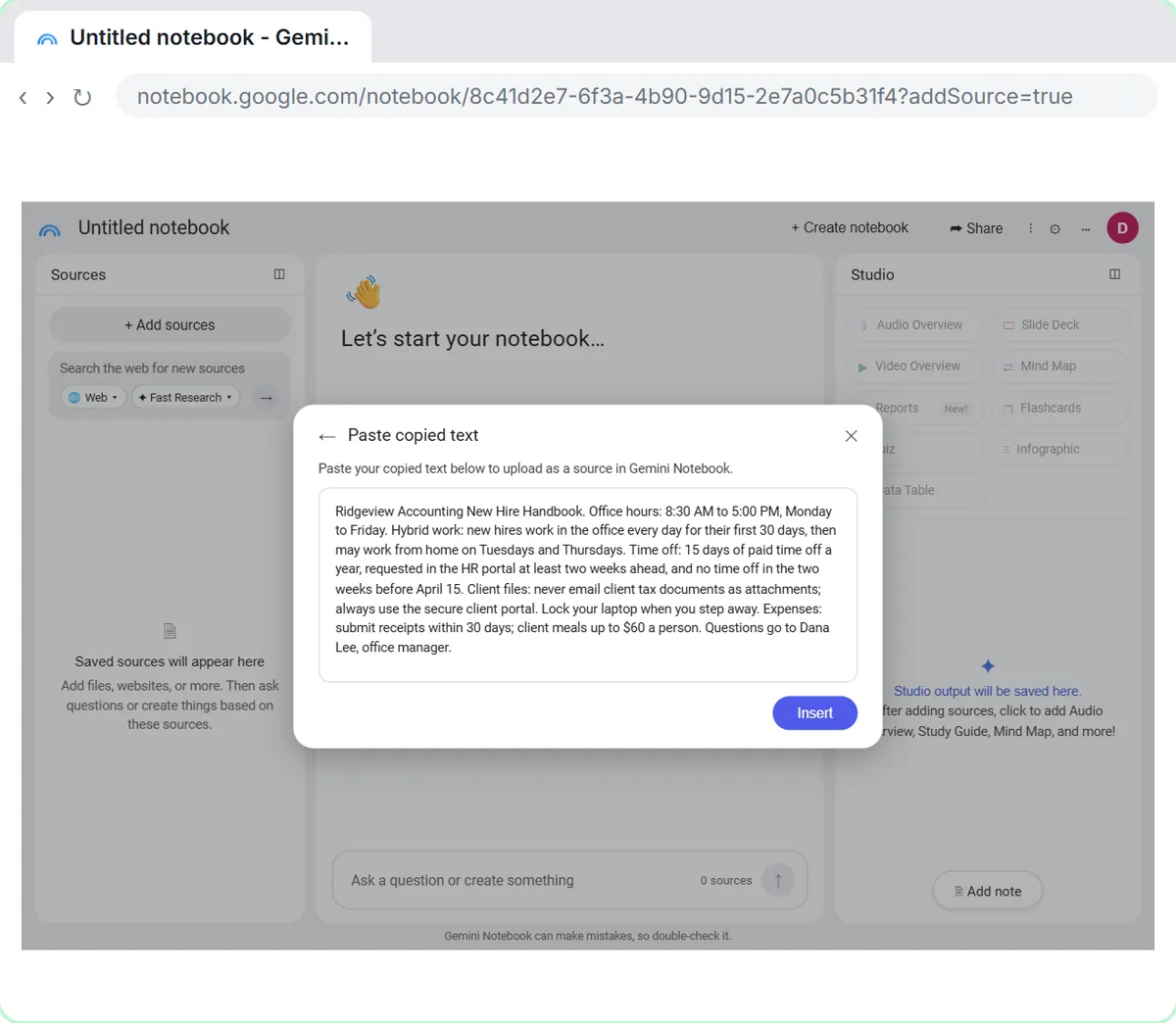
- Choose Copied text. The sources window opens. Dana has the handbook open in another tab, so click Copied text.
A new notebook opens on the sources window. You could upload a file or pick one from Google Drive. Dana already copied the handbook text, so click Copied text.
- Paste the handbook. Paste in the handbook to paste the new hire handbook into the box.
The first line becomes the name of the source.
Ridgeview Accounting New Hire Handbook. Office hours: 8:30 AM to 5:00 PM, Monday to Friday. Hybrid work: new hires work in the office every day for their first 30 days, then may work from home on Tuesdays and Thursdays. Time off: 15 days of paid time off a year, requested in the HR portal at least two weeks ahead, and no time off in the two weeks before April 15. Client files: never email client tax documents as attachments; always use the secure client portal. Lock your laptop when you step away. Expenses: submit receipts within 30 days; client meals up to $60 a person. Questions go to Dana Lee, office manager.
- Insert it. Click Insert.
- Add another source. The handbook is in, and the notebook named itself. Click + Add sources.
The handbook is in the Sources panel, and the notebook gave itself a name and a summary. Now add the notes from last week's staff meeting, which have the new hires' first-week plan.
- Copied text again. Click Copied text.
- Paste the meeting notes. Paste in the meeting notes.
Staff meeting notes, October 6. Two new staff accountants, Priya and Marcus, start Monday, October 20. Their first week: Monday, laptop setup and client portal training with Dana. Tuesday, shadow a senior accountant. Wednesday, practice in the client portal. Friday, team lunch. Everyone finishes the security training in the HR portal in their first week. Parking passes are at the front desk.
- Insert the notes. Click Insert.
2. Customize the Audio Overview
- Open Audio Overview. Two sources, both checked. In the Studio panel, click Audio Overview.
Two sources, both checked. The Studio panel on the right turns them into something new. Audio Overview makes a podcast-style conversation about your sources.
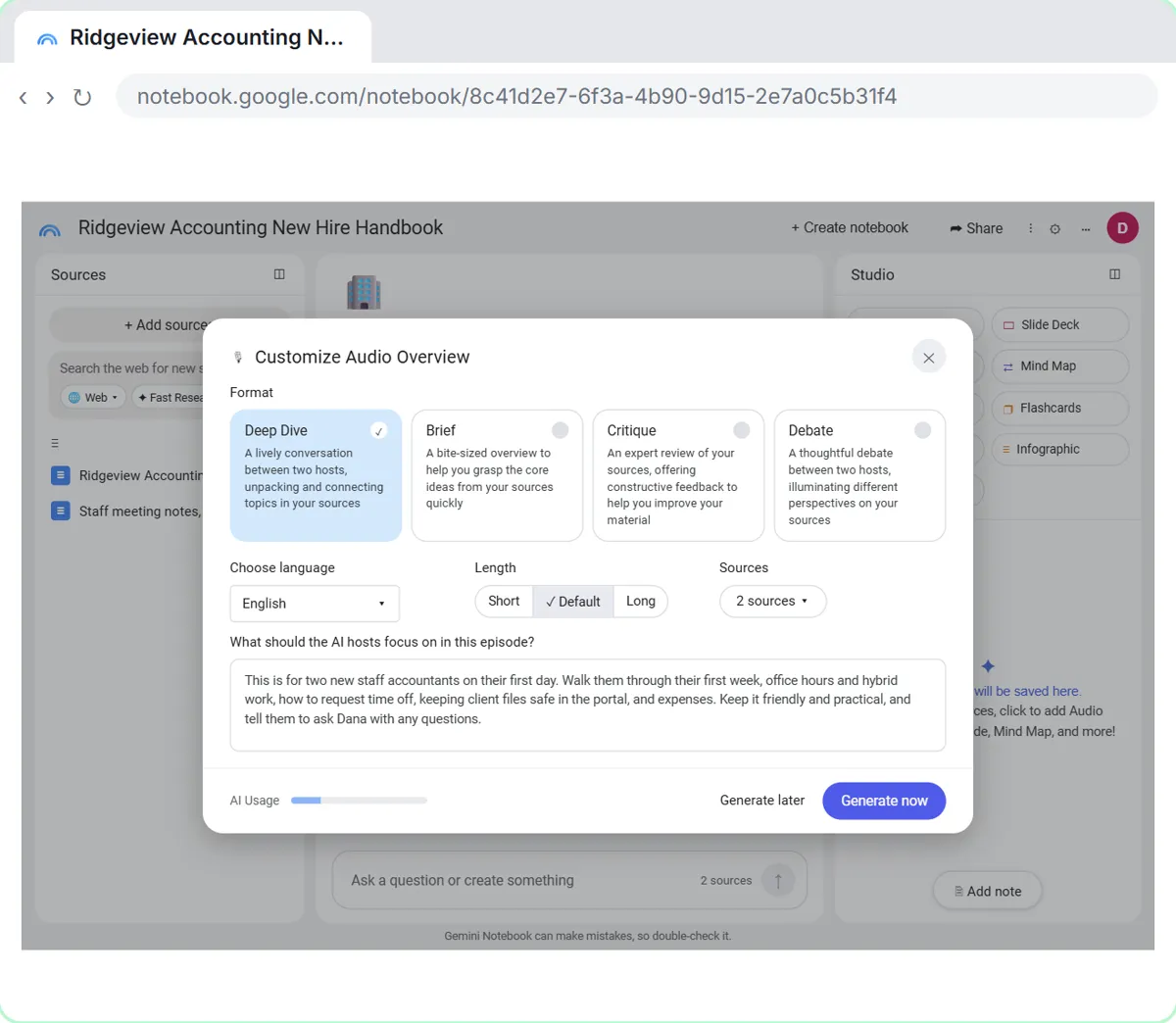
- Look at the formats and languages. The Customize Audio Overview window has four formats. Keep Deep Dive. Then open the Choose language list.
There are four formats. Deep Dive is two hosts in a lively conversation. Brief is a short summary. Critique gives feedback on your material, and Debate argues both sides. Dana wants the conversation, so keep Deep Dive.
- Keep English. There are dozens of languages. Click English.
There are more than eighty languages, which helps if your team works in another one. The new hires speak English, so click English.
- Tell the hosts who is listening. Length stays Default. Under What should the AI hosts focus on in this episode?, Paste in the focus.
Length can be Short, Default or Long, and those choices are for English. Default is fine. The box below matters most: tell the hosts who's listening and what to cover.
This is for two new staff accountants on their first day. Walk them through their first week, office hours and hybrid work, how to request time off, keeping client files safe in the portal, and expenses. Keep it friendly and practical, and tell them to ask Dana with any questions.
- Generate it. Click Generate now. (It takes a few minutes. You can keep working while it runs.)
It takes a few minutes, and Studio shows Generating Audio Overview while you wait. You can close the tab and come back.
3. Listen and join in
- Play it. It is ready in the Studio list, with a title and its length. Click the Play button on it.
It's ready. The notebook gave it a title, and our test run of these two documents came out just under nineteen minutes.
- Turn on Interactive mode. The player opens at the bottom of Studio. Now click Interactive (the waving hand) on the Audio Overview.
The player opens at the bottom, with skip buttons and playback speed. You can also talk to the hosts.
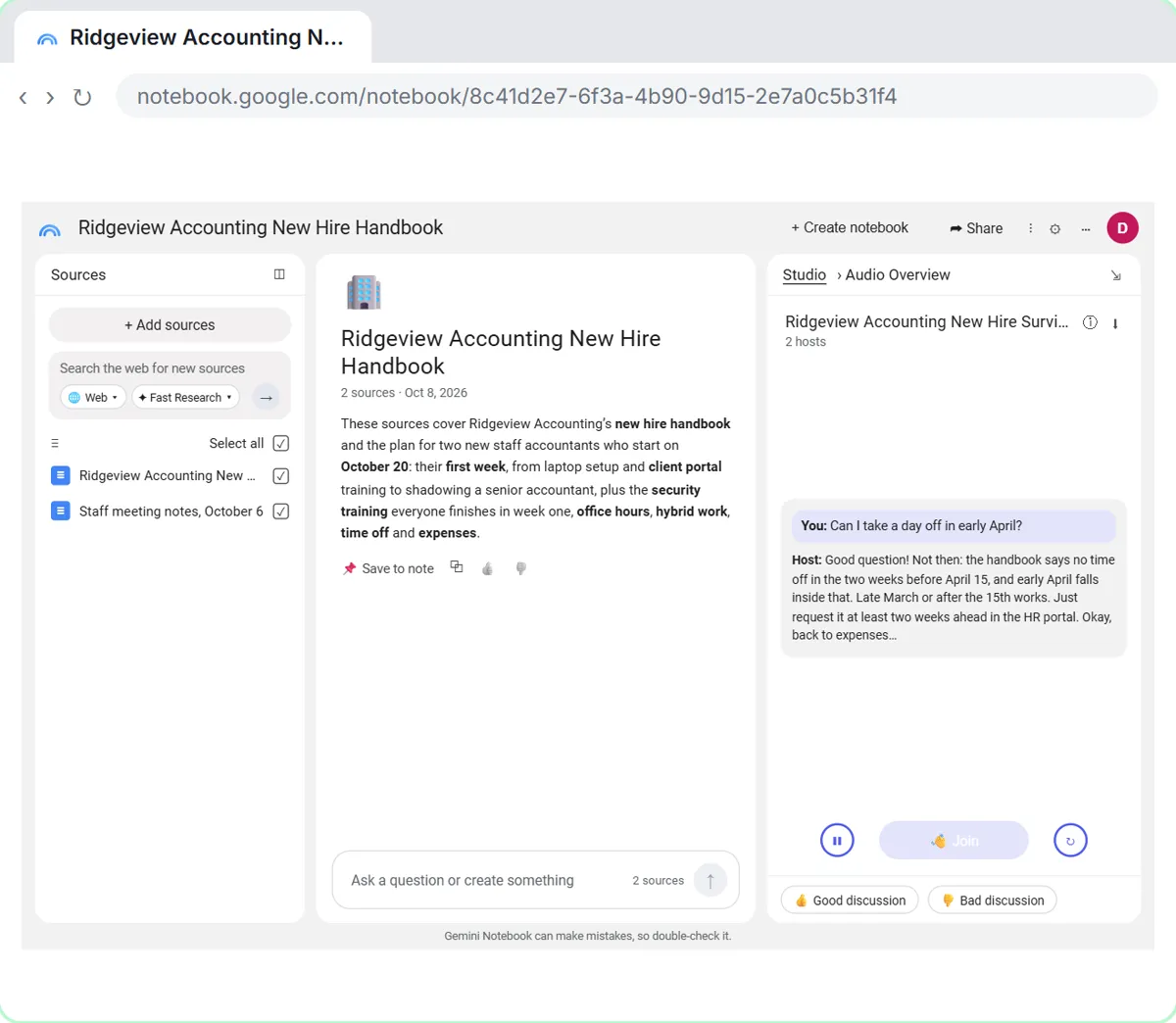
- Start the conversation. Interactive mode opens in the Studio panel. Click the Play button.
Interactive mode opens in the Studio panel.
- Join in. Click Join, then ask your question out loud. (Your browser asks to use the microphone the first time.)
Your browser asks to use the microphone the first time. The hosts stop, answer from your sources, then pick up where they left off. Interactive mode is English only for now.
- Back to Studio. The hosts answered from the handbook. Click Studio at the top of the panel to go back.
They answered from the handbook: early April is out, because there's no time off in the two weeks before April fifteenth.
4. Share it
- Open the menu. Click the ⋮ (More) button on the Audio Overview.
Dana listened to the whole thing first, because AI hosts can still get a detail wrong. Now she'll send it to the new hires.
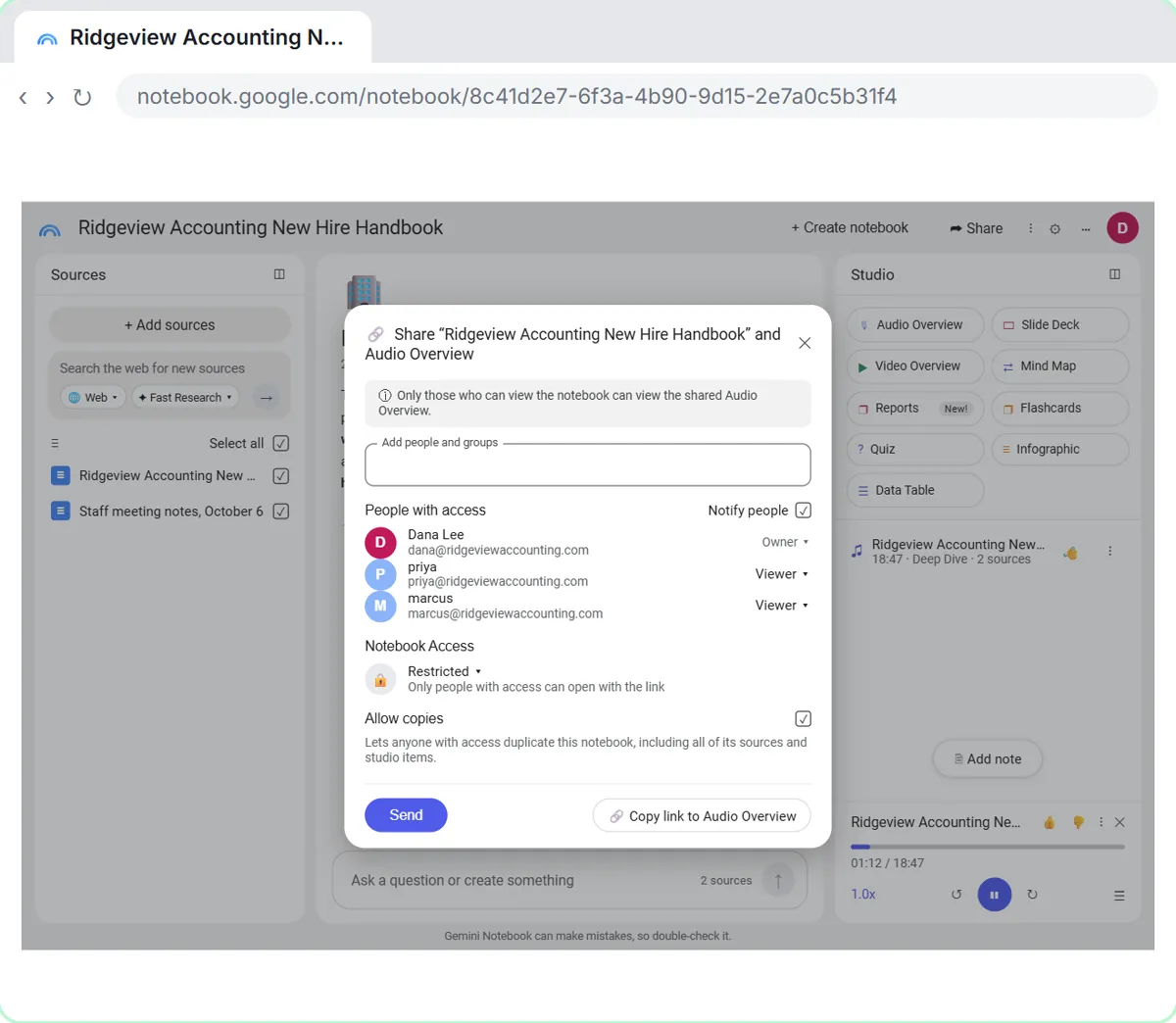
- Choose Share. Click Share. (Download saves the audio file instead.)
Download saves the audio as a file. Dana wants the new hires to have the whole notebook, so click Share.
- Add the new hires. Paste in the emails to add the two new hires.
Only people who can view the notebook can hear the shared Audio Overview, so add the two new hires.
- Send it. They are added as Viewers, and access stays Restricted. Click Send.
They're added as viewers, so they can open it and listen, but can't change the sources. Notebook Access stays Restricted, so only people you add can open it.
Screenshots
Frequently asked questions
- How long is a NotebookLM Audio Overview?
- It depends on your sources, the format and the Length setting (Short, Default or Long). Brief is about a minute or two. In our test, a Deep Dive at Default from two short documents ran 18 minutes 47 seconds. The length choices are available for English.
- What languages can an Audio Overview use?
- More than 80. Pick one under Choose language in the Customize Audio Overview window. The Short and Long length options and Interactive mode are for English.
- Can I edit an Audio Overview?
- Not word by word. You can rename it from its More menu, and to change what it says you generate a new one with a different format, focus or set of sources. The More menu also has Delete and View prompt and sources.
- Can I download a NotebookLM podcast?
- Yes. Click the three dots on the Audio Overview in the Studio panel and choose Download to save the audio file.
- Is an Audio Overview private?
- Yes, until you share it. Only people who can view the notebook can hear a shared Audio Overview. Notebook Access starts as Restricted; it can also be set to Anyone with a link or Public, so check that setting before you click Send, and keep confidential client files out of notebooks you share.
- Is NotebookLM the same as Gemini Notebook?
- Yes. Google renamed NotebookLM to Gemini Notebook in July 2026. It is the same tool, and Audio Overview works the same way under either name.
More in Gemini for Google Workspace
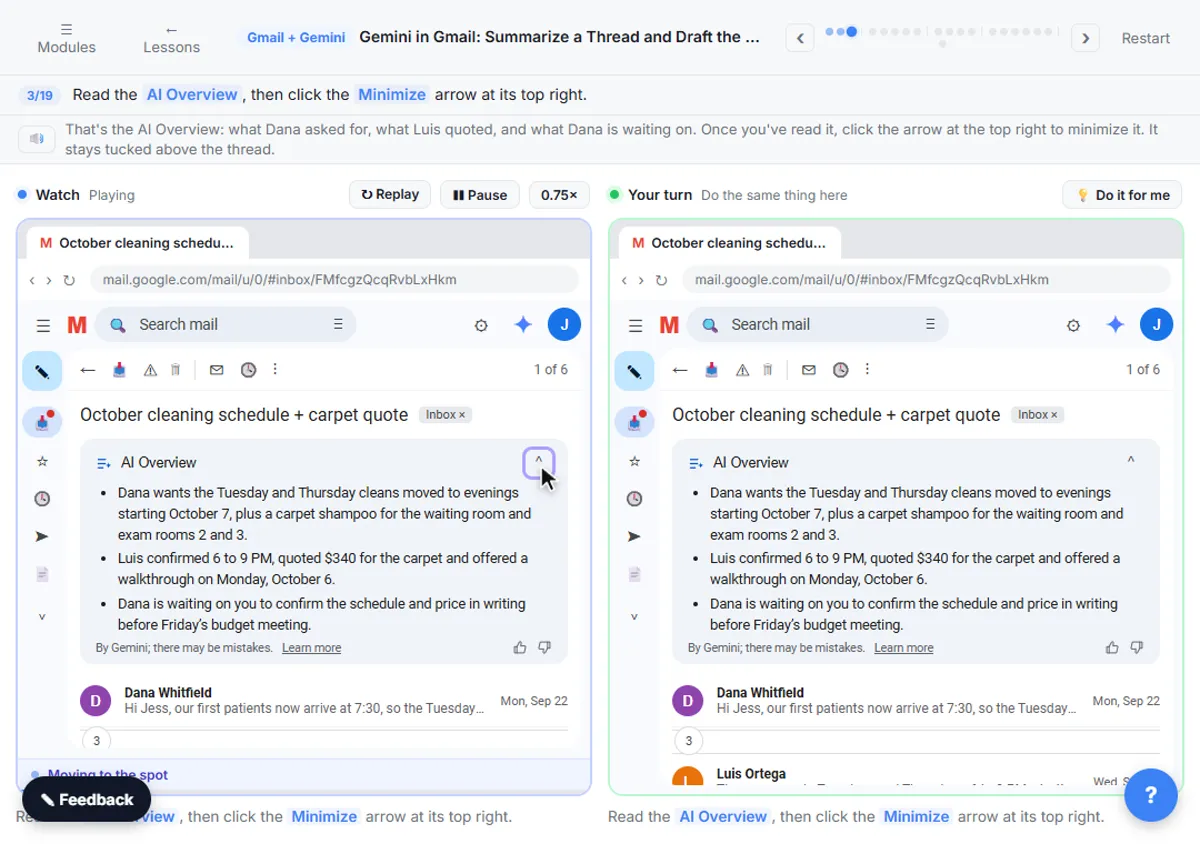 Gemini in Gmail: Summarize a Thread and Draft the Reply
Catch up on a long email thread in seconds with Summarize this email, ask Gemini what you owe, then write, refine and polish the reply with Help me write.
Free · Live ~7 min
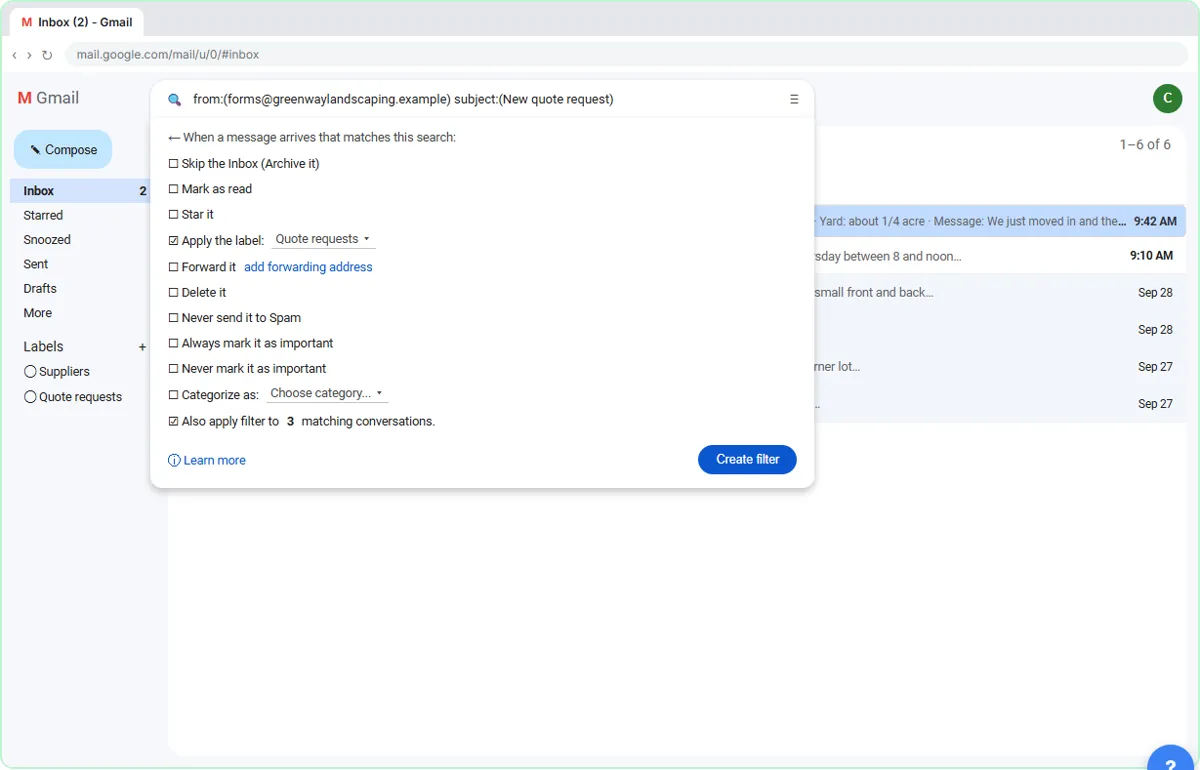 Gmail Filters, Labels and AI Draft Replies With a Human Check
Make Gmail label every website quote request automatically, draft the reply with Help me write, and catch the made-up price before it's sent.
Free · Live ~8 min
All 5 modules in Gemini for Google Workspace
Terms in this lesson
Plain-English definitions, each with an example from a free lesson.