Updated . Built against the tool’s current screens and checked step by step. How we check this lesson
Ask Gemini for a one-page PDF notice, expand it full screen, fix the lines it made up by selecting them or typing over them, then export it. An 8-step practice checked in the real Gemini app.
At a glance
| Question | Answer |
|---|---|
| What you build | Ask Gemini for a one-page PDF notice, expand it full screen, fix the lines it made up by selecting them or typing over them, then export it. An 8-step practice checked in the real Gemini app. |
| Tools | Gemini |
| Time | About 4 minutes, 8 steps in 3 parts |
| Level | Beginner, no coding needed |
| Cost | Free |
| Ways to learn it | Practice it step by step |
The 3 parts, in short
- Ask for the file: Ask for a PDF, Expand to full screen.
- Fix what Gemini made up: Select the line you never wrote, Tell Gemini the change, Click the send arrow, Type a small fix yourself.
- Get the file out: Click Export, Choose PDF.
Start here first: Gemini in Gmail: Summarize a Thread and Draft the Reply (module 1 of Gemini for Google Workspace)
In the course: Part 5 · Gemini for Google Workspace (Module 57 of the full course)
Part of: Gemini Jump Start (step 6 of 8). Next up: Gemini in Google Slides: Fix a Late Change Across a Whole Client Deck
What you'll build
The problem: at Harbor Point Office Park, a made-up office property, any building change means a notice to every tenant, and each small correction means another round of download, edit and re-upload. In this short practice you ask Gemini for a one-page PDF, open it full screen in the chat, fix the lines Gemini invented, and export it. On October 29, 2026, Google announced that files can now be created, previewed and edited right in a Gemini chat, for all users. It takes about 4 minutes and 8 steps. We ran this in the real Gemini app on October 30, 2026; the notice text you'll see is what Gemini really wrote, including its mistakes.
That's the basic shape of a file in the Gemini app: ask for the file type with your facts, expand the preview, select a line to have Gemini change it or type over a word yourself, then use Export. Gemini added details we never gave it, so read every line before it goes out. Google says this is available to all users in every language the Gemini app offers. PDF preview and editing work on web and mobile; documents, spreadsheets, slide decks, Markdown, TXT and code are web only.
- Tools: Gemini
- Time: about 4 minutes, 8 steps in 3 chapters
- Level: beginner, no coding needed
- Price: free
Practice first, then build it for real
Practice copy of the real Gemini screens, checked Oct 30, 2026 in a personal Google account. This is a practice copy: no account is needed and nothing touches your Google Drive. The office park is made up. To build it for real you need your own Gemini account, and some services charge once you use them for real work, so check each tool's current pricing.
Try it yourself, free
Reading the steps is a start. Doing them is how it sticks. The interactive module walks you through every click in a practice copy of Gemini, checks each step, and never touches your real accounts.
Start “Gemini: Make a Tenant Notice as a PDF and Fix It Right in the Chat”Step by step: Gemini: Make a Tenant Notice as a PDF and Fix It Right in the Chat
All 8 steps of the interactive module, in order. In the module you watch each one, then do it yourself in a practice copy that checks your work.
1. Ask for the file
- Ask for a PDF. Ask Gemini for the file type you want, and give it the facts: dates, what changes, who to call. Paste the prompt and press Enter.
This is Priya Nair, the property manager at Harbor Point Office Park. A lobby renovation is coming, and every tenant needs a one page notice. In Gemini, name the file type you want, then give it the facts. The dates, what changes, and who to call.
Create a one-page PDF notice to tenants of Harbor Point Office Park. Lobby renovation runs November 9 to 20. The main entrance is closed during those dates, so tenants should use the east entrance. Questions go to the property office at 555-0142. Keep it plain and friendly.
- Expand to full screen. The notice opens as a live preview right inside the chat. Click the expand icon at the top right of the file to work on it full screen.
The notice opens right inside the chat, so there is no download just to see it.
2. Fix what Gemini made up
- Select the line you never wrote. Read it like the person who has to sign it. Priya never said the carriers were told. Gemini added that. Select the Deliveries & Mail bullet. (In the real app, triple-click it. Here, one click.)
Now read it like the person who has to sign it. Priya never said the mail carriers were notified. Gemini added that on its own.
- Tell Gemini the change. An Ask Gemini box appears under your selection. Say exactly what the line should say.
An Ask Gemini box appears right under your selection. Say exactly what the line should say.
- Click the send arrow. Click the send arrow. In our test, pressing Enter in this box did not send it, so use the arrow. Only the selected bullet changes. The rest of the notice stays as it was.
Only that bullet changes. The rest of the notice stays exactly as it was.
- Type a small fix yourself. Small fixes don't need a prompt. Gemini also wrote that the office answers anytime, which isn't true. Double-click that word in the real app and type over it. Here, type during office hours.
Small fixes don't need a prompt at all. Gemini also promised the office answers any time, which isn't true. Double click that word and type over it. During office hours.
3. Get the file out
- Click Export. Keep reading until every line is something you can stand behind. Then click Export at the top right.
Keep reading until every line is something you can stand behind.
- Choose PDF. For this PDF the menu offers PDF and Drive. Click PDF to get the file for tenants, or Drive to save it for the team. (We opened this menu in the real app but did not download a file.)
For this file, the menu offers PDF and Drive.
More in Gemini for Google Workspace
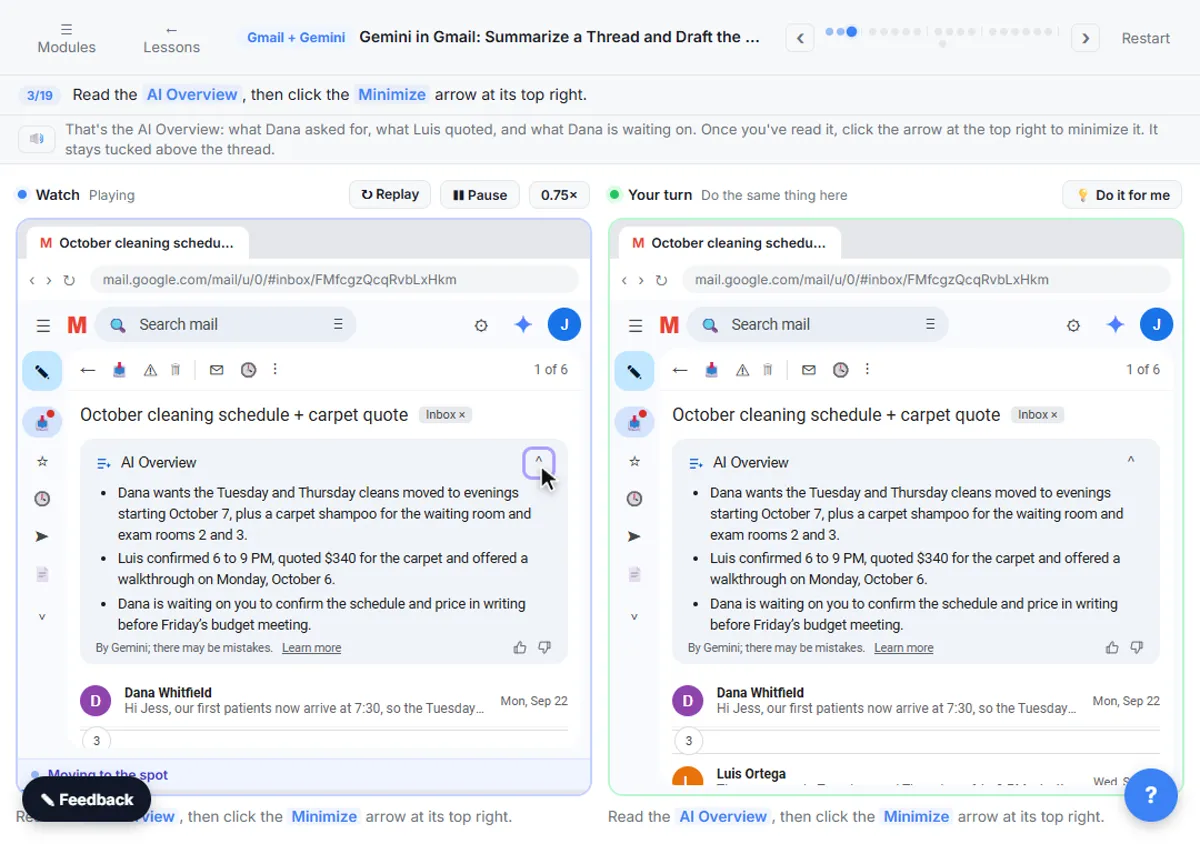 Gemini in Gmail: Summarize a Thread and Draft the Reply
Catch up on a long email thread in seconds with Summarize this email, ask Gemini what you owe, then write, refine and polish the reply with Help me write.
Free · Live ~7 min Beginner
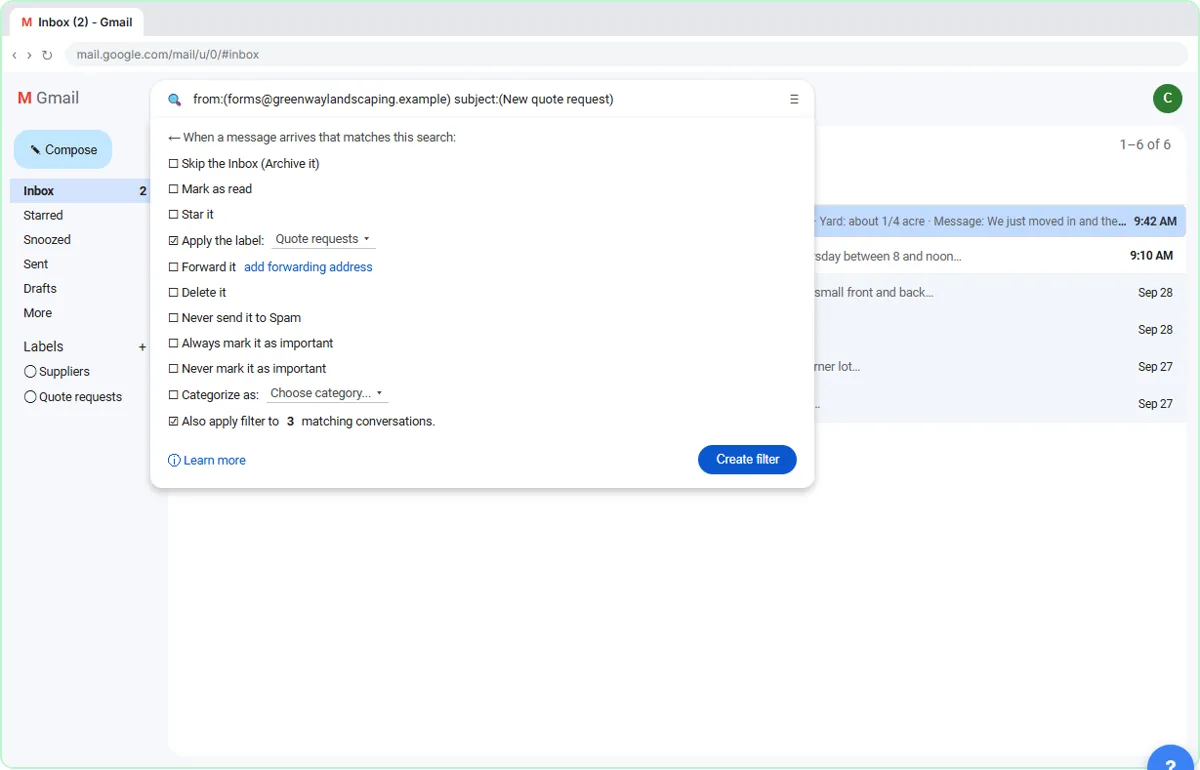 Gmail Filters, Labels and AI Draft Replies With a Human Check
Make Gmail label every website quote request automatically, draft the reply with Help me write, and catch the made-up price before it's sent.
Free · Live ~8 min Intermediate
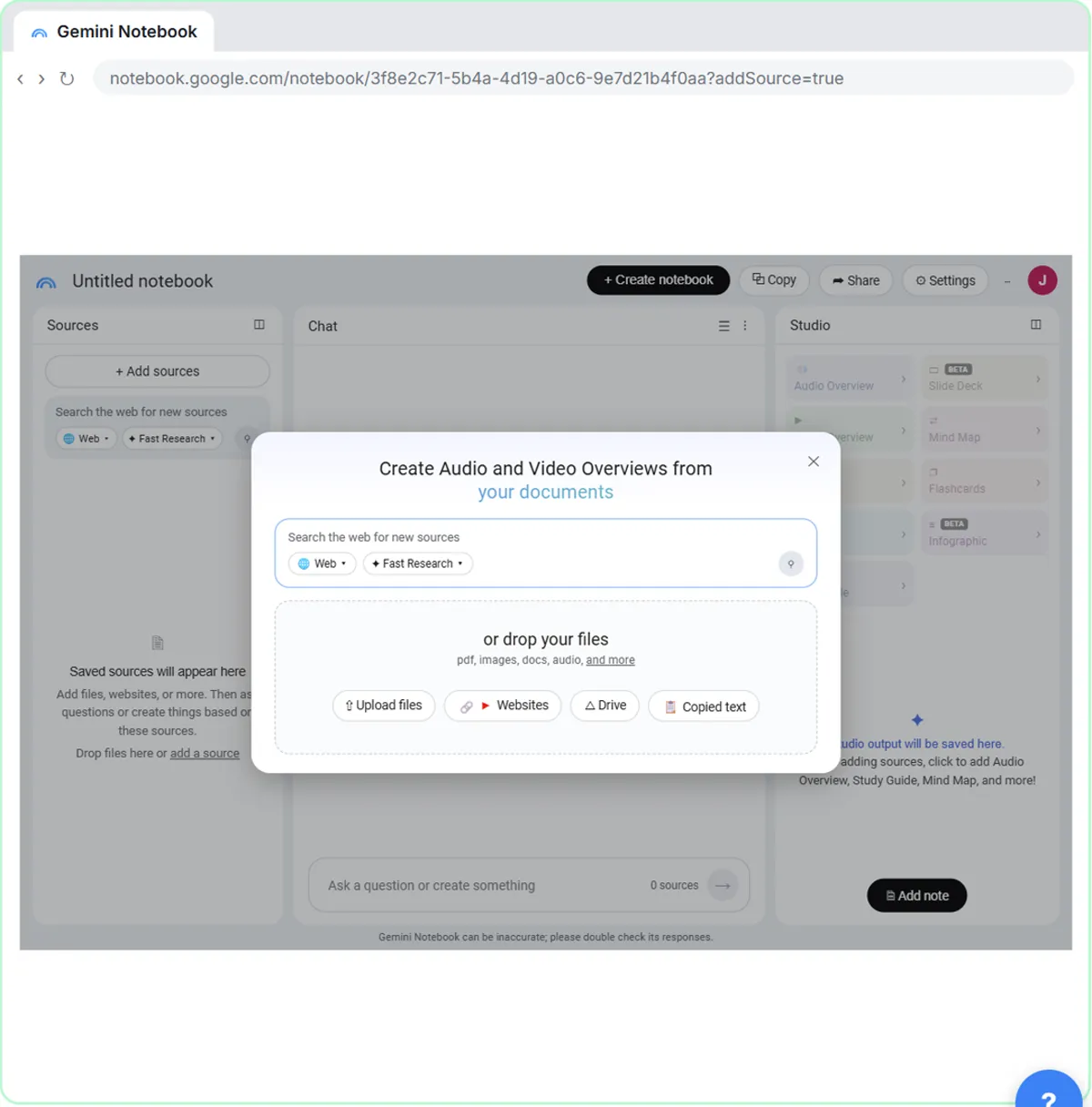 NotebookLM (Now Gemini Notebook): Cited Answers and a Briefing from Your Docs
Create a notebook, add a PDF, a Google Doc from Drive and a web page as sources, ask a question and check its citations, save the answer to a note, and turn it all into…
Free · Live ~7 min Beginner
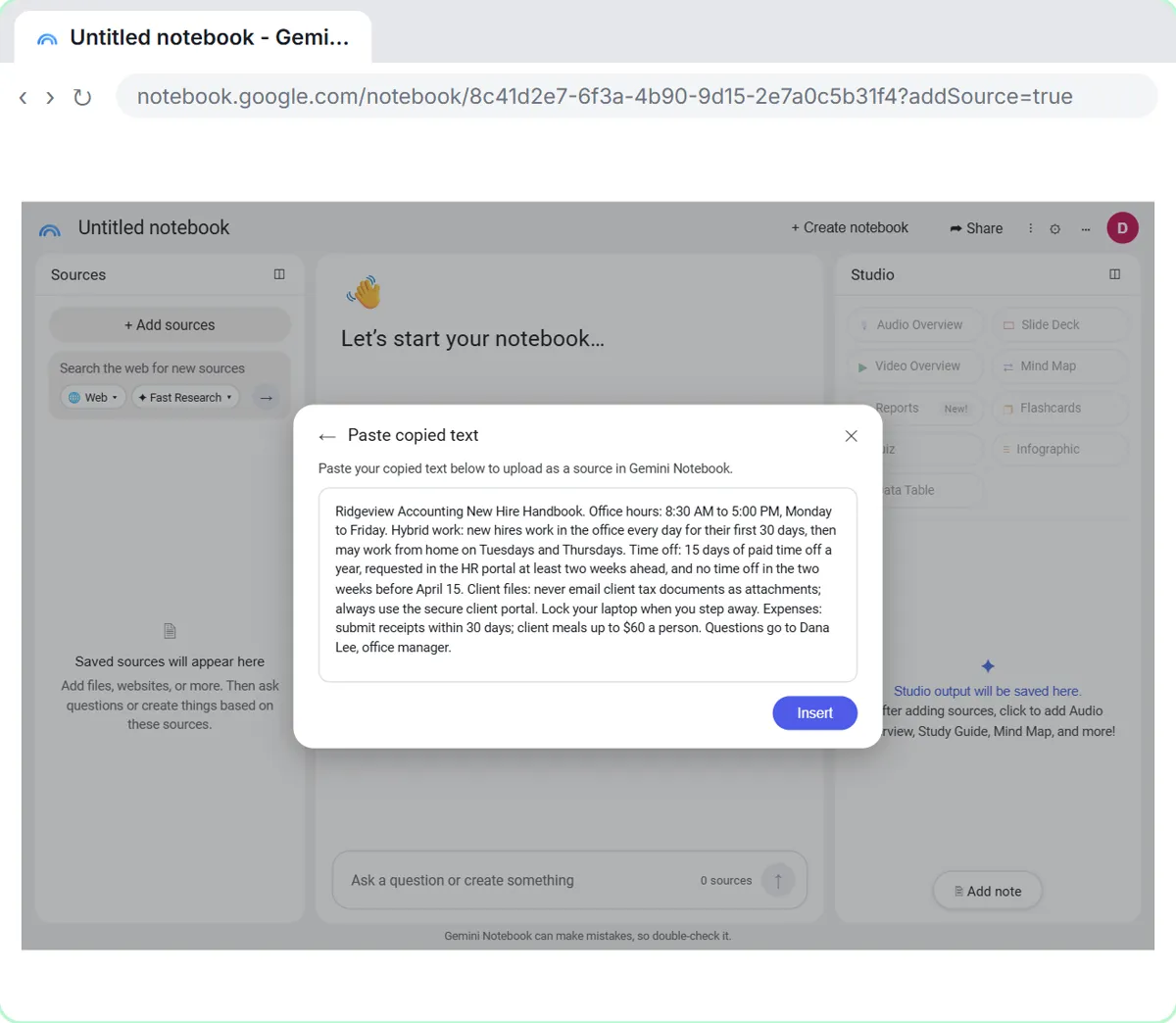 NotebookLM: Turn Your Documents into a Podcast (Audio Overview)
Paste a new hire handbook and meeting notes into a notebook, customize an Audio Overview for two new accountants, listen, join the conversation with Interactive mode…
Free · Live ~6 min Beginner
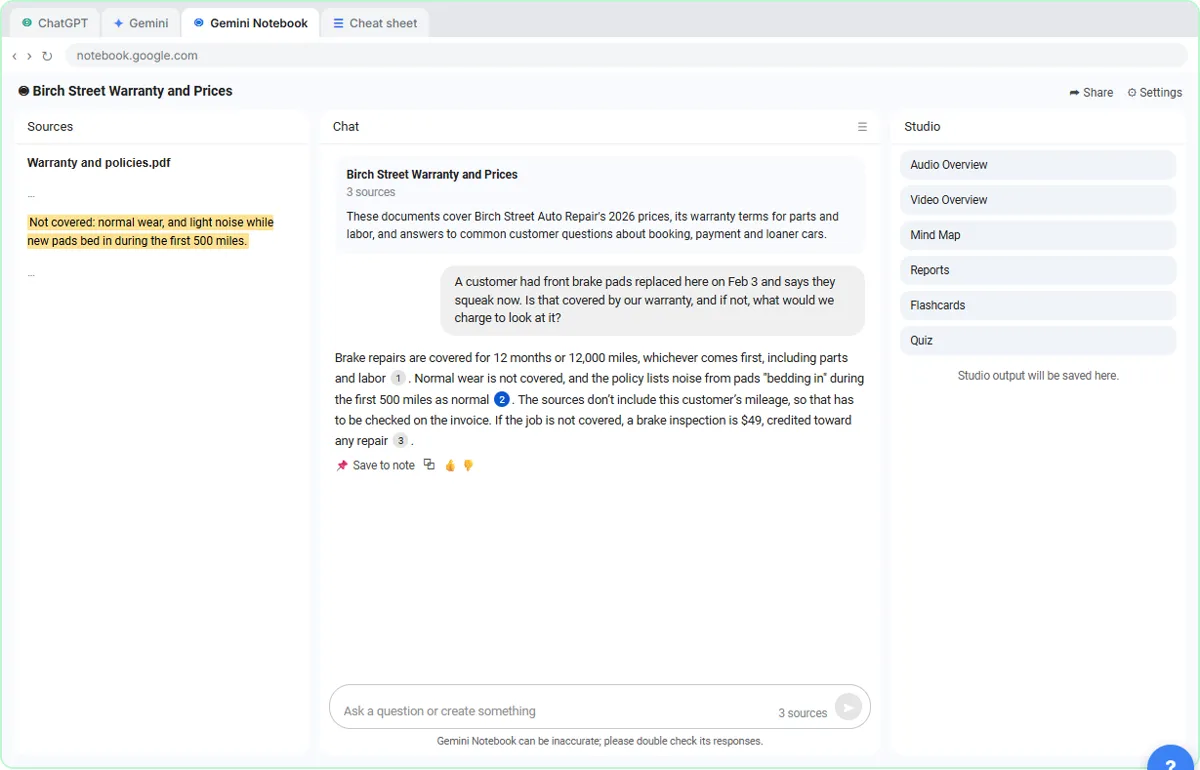 ChatGPT Projects vs Gemini Gems vs Gemini Notebook: Which to Use
Load an auto shop's price list, warranty and FAQ into a ChatGPT Project, a Gemini Gem and Gemini Notebook, ask each the same question, and see which fits which job.
Free · Live ~9 min Beginner
◷Gemini Deep Research: Build a Cited Brief Before a Client MeetingAsk Gemini Deep Research to research a prospect's industry, read its plan before it starts, then check where the key numbers really came from.
Free · Live ~6 min Beginner
All 10 modules in Gemini for Google Workspace
More Gemini tutorials
Terms in this lesson
Plain-English definitions, each with an example from a free lesson.