Updated . Built against the tool’s current screens and checked step by step. How we check this lesson
Two facts changed the day before a client review. Tell Gemini once, check the slides it touched, fix the line it left behind, and know the one-slide route if the rollout has not reached you. An 8-step practice.
At a glance
| Question | Answer |
|---|---|
| What you build | Two facts changed the day before a client review. Tell Gemini once, check the slides it touched, fix the line it left behind, and know the one-slide route if the rollout has not reached you. An 8-step practice. |
| Tools | Google Slides |
| Time | About 4 minutes, 8 steps in 3 parts |
| Level | Beginner, no coding needed |
| Cost | Free |
| Ways to learn it | Practice it step by step |
The 3 parts, in short
- One prompt for the whole deck: Open Ask Gemini, Say what changed, once, Read the summary of changes.
- Check it like you will present it: Open the premium slide, Open the renewal slide, Fix the line a date change leaves behind.
- Your way back, and your way today: Know your way back, If it says no today: one slide at a time.
Start here first: Gemini in Gmail: Summarize a Thread and Draft the Reply (module 1 of Gemini for Google Workspace)
In the course: Part 5 · Gemini for Google Workspace (Module 58 of the full course)
Part of: Gemini Jump Start (step 7 of 8). Next up: Gemini in Google Forms: Turn Survey Responses into Checked Next Steps
What you'll build
The problem: the day before a client review, a date and a number change, and someone has to hunt through the deck for every mention. The slide you miss is the one the client spots. On October 30, 2026, Google announced that Gemini in Google Slides can edit several slides or a whole presentation from one prompt. In this short practice you make that edit for a made-up benefits firm, check it, and fix what it leaves behind. Be clear on what we tested: on October 31 the whole-deck edit had not reached our account, so those two steps follow Google's description. The panel, slide text, Slide preview, Replace, Undo and Version history are from the real app.
That's the basic shape: name the old value and the new one, say what must stay, read the summary, then open each slide it touched and read around the change. Google says these edits can be undone or reverted with version history. It is English only at launch, for Business Standard and Plus, Enterprise Standard and Plus, Google AI Pro and Ultra, and Google AI Pro for Education, and Google warns the rollout may take longer than 15 days. Until it reaches you, the one-slide route with Replace works the same way, a slide at a time.
- Tools: Google Slides
- Time: about 4 minutes, 8 steps in 3 chapters
- Level: beginner, no coding needed
- Price: free
Practice first, then build it for real
Practice based on Google's published description; Google published no screenshots of the whole-deck edit. It requires Business or Enterprise Standard or Plus, Google AI Pro or Ultra, or AI Pro for Education, and is still rolling out. This is a practice copy: no account is needed and nothing touches your Google Drive. The firm and client are made up. To build it for real you need your own Google Slides account, and some services charge once you use them for real work, so check each tool's current pricing.
Try it yourself, free
Reading the steps is a start. Doing them is how it sticks. The interactive module walks you through every click in a practice copy of Google Slides, checks each step, and never touches your real accounts.
Start “Gemini in Google Slides: Fix a Late Change Across a Whole Client Deck”Step by step: Gemini in Google Slides: Fix a Late Change Across a Whole Client Deck
All 8 steps of the interactive module, in order. In the module you watch each one, then do it yourself in a practice copy that checks your work.
1. One prompt for the whole deck
- Open Ask Gemini. This is Dana Reyes at Harbor Point Benefits. Her client review is tomorrow, and two facts just changed. Open the deck in Google Slides and click Ask Gemini, the star at the top right.
This is Dana Reyes at Harbor Point Benefits. Her client review is tomorrow, and two facts just changed.
- Say what changed, once. Name the old value and the new value, then say what must not change. Google says Gemini works out which slides need the edit and makes them itself. Paste the prompt and press Enter. Don't name slide numbers: finding them is Gemini's job.
Now say what changed, once. Give the old value and the new value, then say what must not change. Google says Gemini works out which slides need the edit, and makes the changes itself.
Two facts changed. The renewal date moved from March 1 to April 1, and the premium increase is now 4 percent, not 6 percent. Update every slide that mentions either one and leave everything else as it is.
- Read the summary of changes. Google says a summary of the changes appears in the side panel. Click it. We haven't seen the real one, because this edit hadn't reached our account, so this screen is a plain stand-in and Google's wording may differ.
Google says a summary of the changes appears in the side panel. We haven't seen the real one yet, so this screen is a plain stand-in.
2. Check it like you will present it
- Open the premium slide. A summary is a claim, not proof. Click the premium slide in the filmstrip and read the number yourself.
A summary is a claim, not proof.
- Open the renewal slide. Plus 4 percent, as asked. We closed the panel here to give the slide more room. Now click the renewal slide, and read past the big date.
Plus four percent, as asked.
- Fix the line a date change leaves behind. The date is right, but the line under it still says the work must begin immediately. When we changed this date in the real app, Gemini left that line alone, as we asked. Only Dana knows the new plan. The slides stay normal slides you can edit, so type over the word. Here, type by February 1.
The date is right, but the line under it still says the work must begin immediately. When we changed this date in the real app, Gemini left that line alone, as we asked. Only Dana knows the new plan. These stay normal slides, so type over it. By February first.
3. Your way back, and your way today
- Know your way back. Google says these edits behave as if you made them by hand, so Undo or version history can reverse them. Click the clock icon at the top to see Version history. For a deck someone else built, look here before you trust a big edit.
Google says these edits behave as if you made them by hand, so undo or version history can reverse them.
- If it says no today: one slide at a time. Google warns this rollout may take longer than 15 days. On October 31 our account answered that it can "only edit the currently active slide". If you see that, open one slide, ask for the change on that slide, and a Slide preview opens. Check it, then click Replace. That is the route we ran for real.
Google warns this rollout may take longer than fifteen days. If Gemini tells you it can only edit the current slide, that's your route today.
More in Gemini for Google Workspace
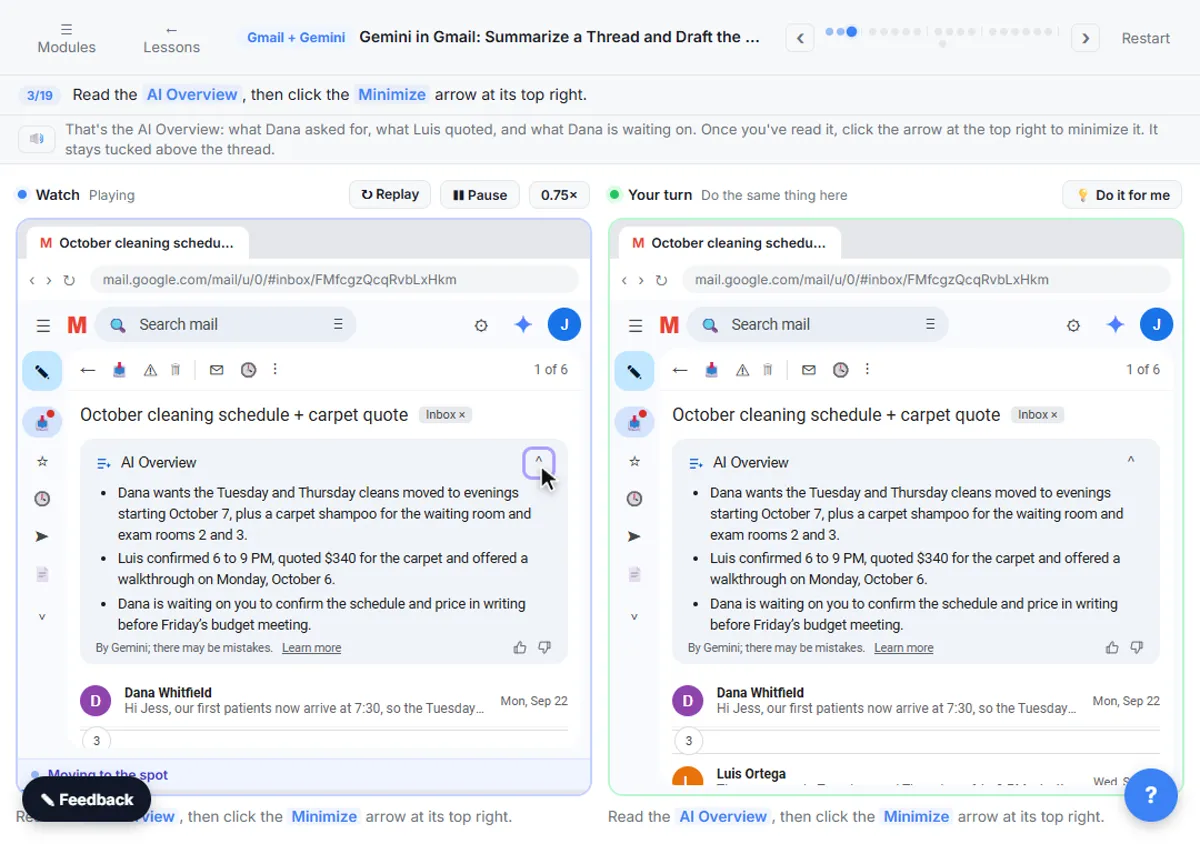 Gemini in Gmail: Summarize a Thread and Draft the Reply
Catch up on a long email thread in seconds with Summarize this email, ask Gemini what you owe, then write, refine and polish the reply with Help me write.
Free · Live ~7 min Beginner
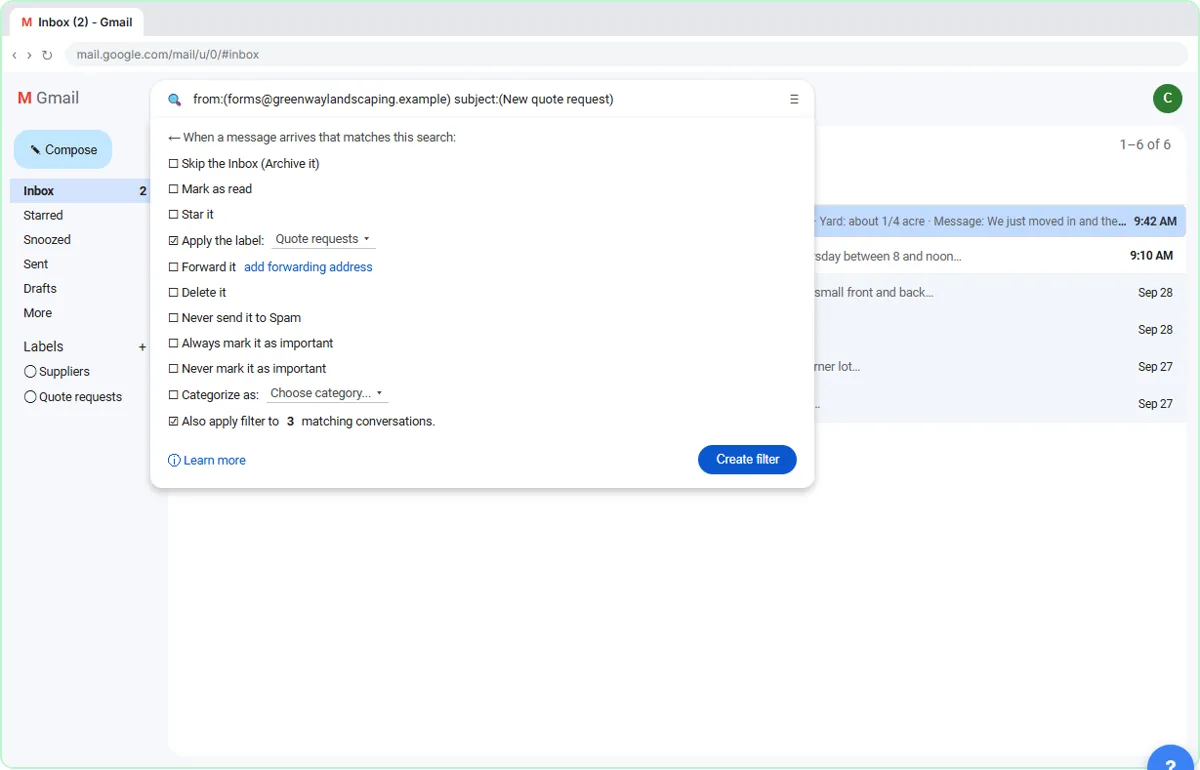 Gmail Filters, Labels and AI Draft Replies With a Human Check
Make Gmail label every website quote request automatically, draft the reply with Help me write, and catch the made-up price before it's sent.
Free · Live ~8 min Intermediate
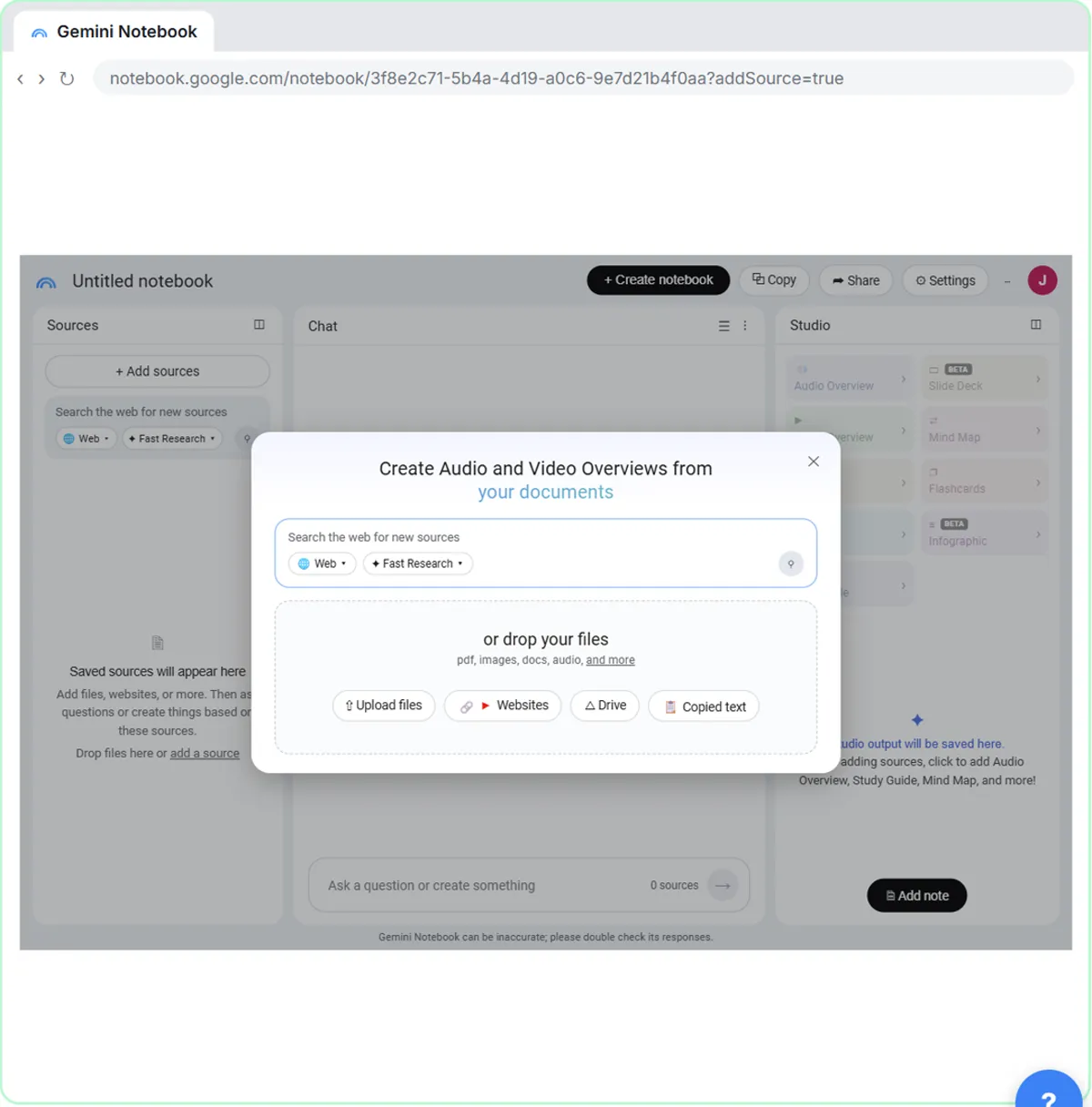 NotebookLM (Now Gemini Notebook): Cited Answers and a Briefing from Your Docs
Create a notebook, add a PDF, a Google Doc from Drive and a web page as sources, ask a question and check its citations, save the answer to a note, and turn it all into…
Free · Live ~7 min Beginner
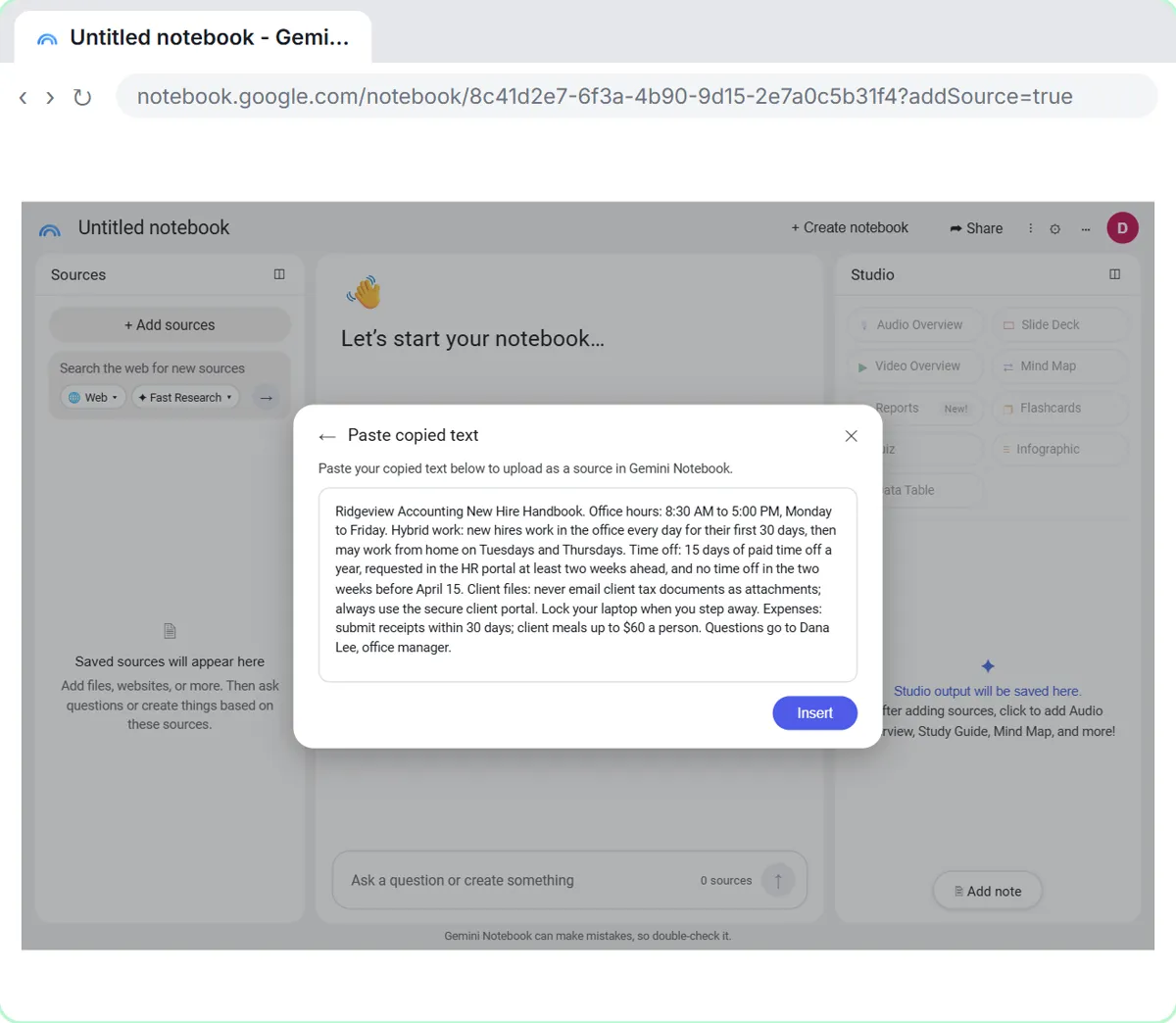 NotebookLM: Turn Your Documents into a Podcast (Audio Overview)
Paste a new hire handbook and meeting notes into a notebook, customize an Audio Overview for two new accountants, listen, join the conversation with Interactive mode…
Free · Live ~6 min Beginner
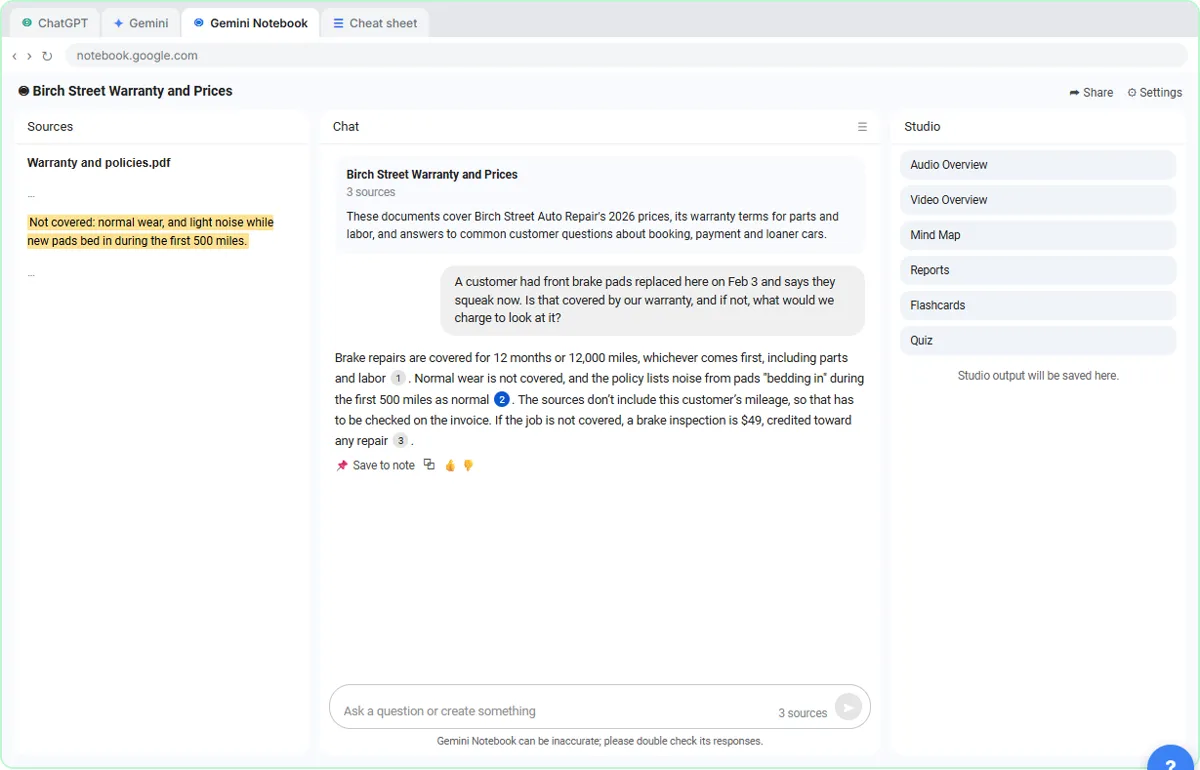 ChatGPT Projects vs Gemini Gems vs Gemini Notebook: Which to Use
Load an auto shop's price list, warranty and FAQ into a ChatGPT Project, a Gemini Gem and Gemini Notebook, ask each the same question, and see which fits which job.
Free · Live ~9 min Beginner
◷Gemini Deep Research: Build a Cited Brief Before a Client MeetingAsk Gemini Deep Research to research a prospect's industry, read its plan before it starts, then check where the key numbers really came from.
Free · Live ~6 min Beginner
All 10 modules in Gemini for Google Workspace
Terms in this lesson
Plain-English definitions, each with an example from a free lesson.