Updated . Built against the tool’s current screens and checked step by step. How we check this lesson
A long email thread can eat half your morning: six replies, three people, and somewhere in there is the one thing you are supposed to do. In this free Gemini in Gmail tutorial you get a thread summed up with one click, ask Gemini what the client is waiting on, and have Help me write draft the reply. Then you fix it in plain words, polish it and send it.
At a glance
| Question | Answer |
|---|---|
| What you build | Catch up on a long email thread in seconds with Summarize this email, ask Gemini what you owe, then write, refine and polish the reply with Help me write. |
| Tools | Gmail and Gemini |
| Time | About 7 minutes, 19 steps in 5 parts |
| Level | Beginner, no coding needed |
| Cost | Free |
| Ways to learn it | Practice it step by step |
The 5 parts, in short
- Catch up on the thread: Open the long thread, Summarize the thread, Minimize the AI Overview.
- Ask Gemini about it: Open the Gemini side panel, Click the Ask Gemini box, Ask about the open email, Submit the question, and 1 more step.
- Draft the reply: Reply to Dana, Open Help me write, Describe the reply, Create the draft.
- Refine the draft: Describe a change, Ask for the missing details, Update the draft, Polish the wording, and 2 more steps.
- Check and send: Check it and send.
In the course: Part 5 · Gemini for Google Workspace (Module 26 of the full course)
Part of: Gemini Jump Start (step 1 of 3). Next up: NotebookLM (Now Gemini Notebook): Cited Answers and a Briefing from Your Docs
Part of: Email on Autopilot (step 2 of 5). Next up: Gmail Filters, Labels and AI Draft Replies With a Human Check
What you will do
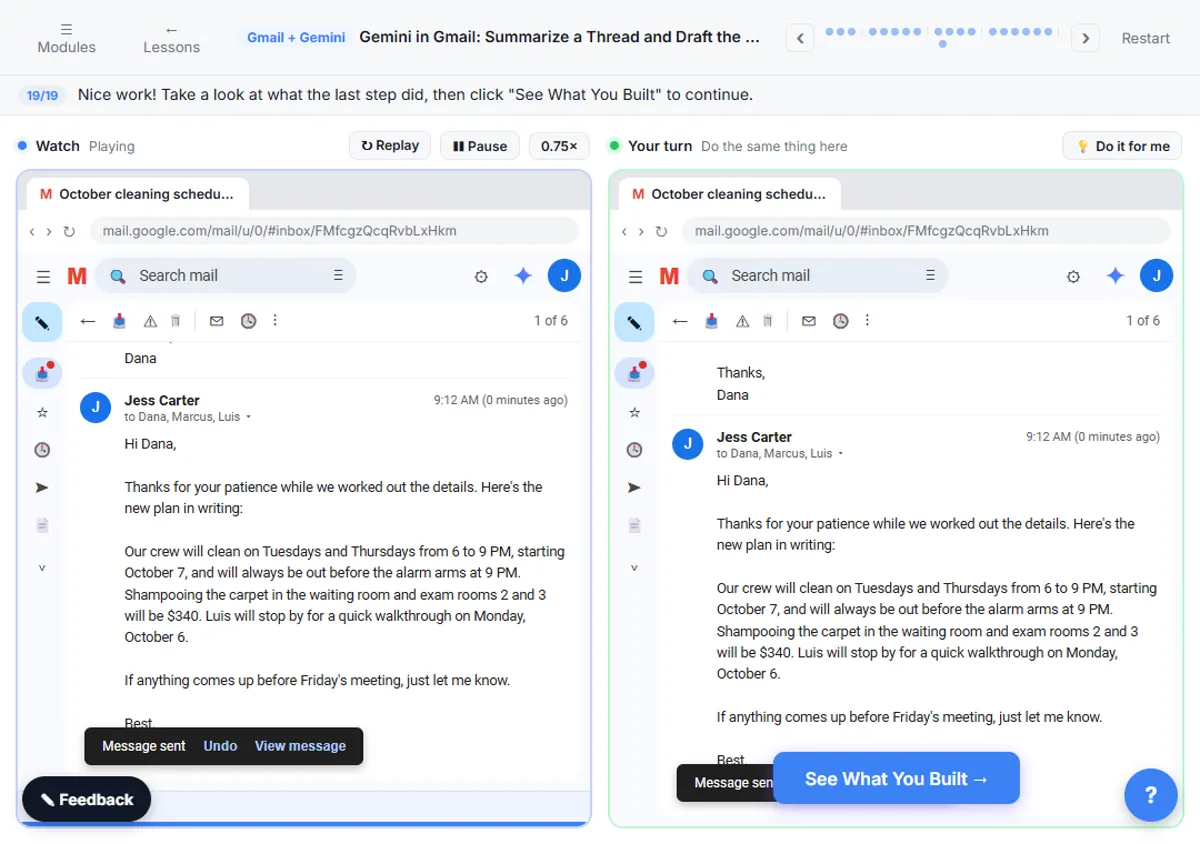
You play Jess, who runs Harbor Light Cleaning, a small commercial cleaning company. A client, Dana, has a six-message thread going about moving her office cleaning to evenings and adding a carpet shampoo. Her coworker Marcus and your crew lead Luis have both chimed in. Dana's last message asks you to confirm the new schedule and the price in writing before her budget meeting on Friday.
Who this Gemini in Gmail tutorial is for
This module is for owners, office managers and anyone who answers client email all day. You do not need any technical background, and you do not need a Google account to practice.
It is the first module in the Gemini for Google Workspace section. The next modules use the same Gemini side panel in Google Docs and Google Sheets.
Summarize this email and the AI Overview
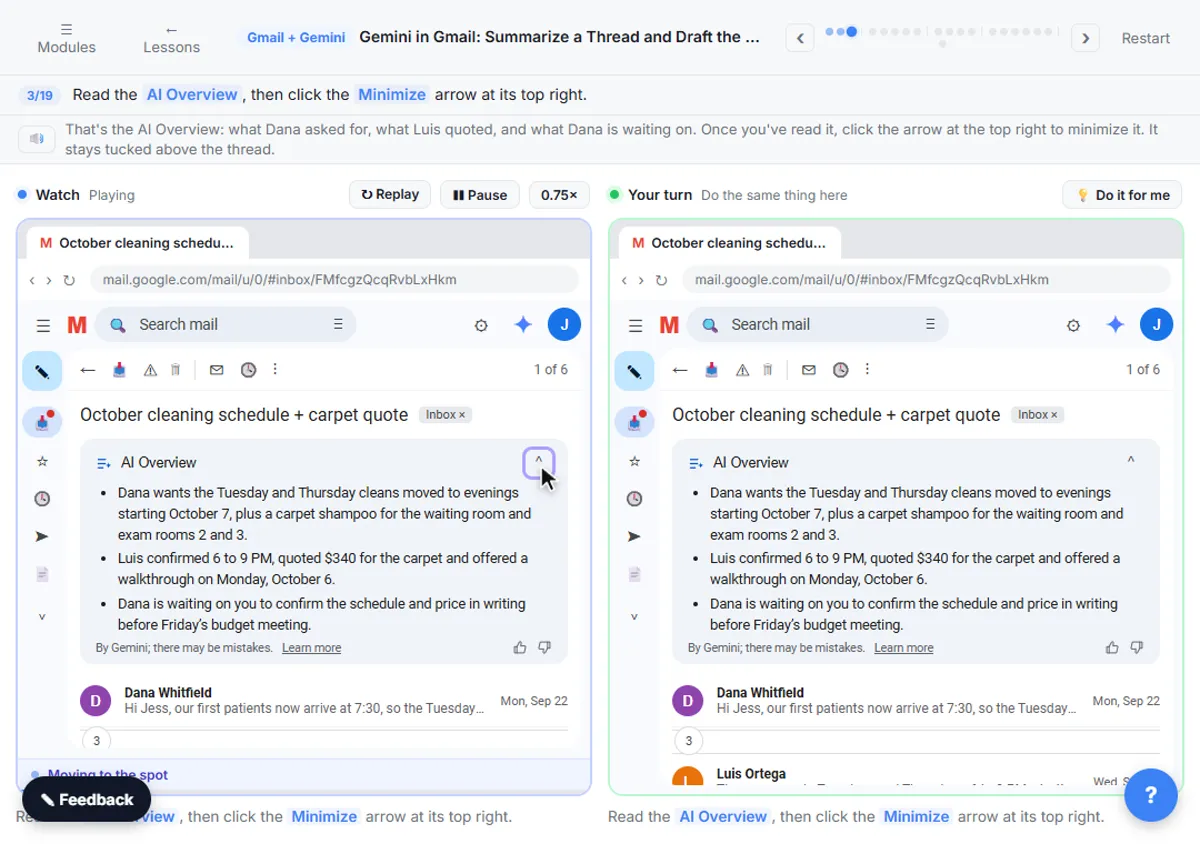
When you open a longer thread in Gmail on a computer, a Summarize this email button can appear at the top of the thread, under the subject line. Click it and Gmail shows an AI Overview: a few bullet points that pull together the key points and replies. You can minimize the overview with the arrow at its top right, and it stays collapsed above the thread until you open it again. On some long threads the overview shows up on its own.
Asking Gemini in the side panel
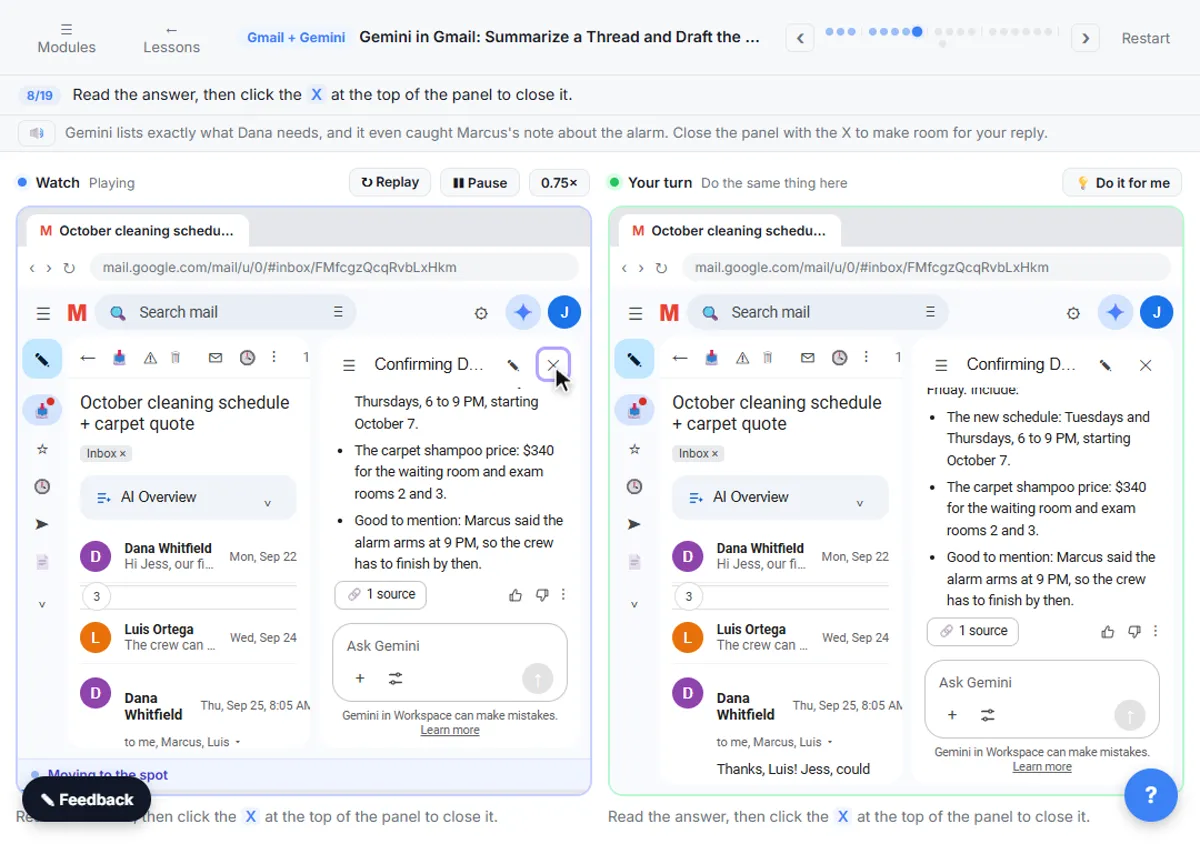
The side panel is for questions the summary does not answer. Click the Gemini spark at the top right of Gmail and type into the Ask Gemini box at the bottom. With an email open, you can ask about that email directly: what someone needs, what the deadlines are, or a list of action items. The panel can also search your inbox, for example to show your unread emails or emails with attachments.
Ask the way you would ask a coworker. "What does Dana still need from me, and by when?" gets a far more useful answer than "summarize."
Help me write: create, change, polish
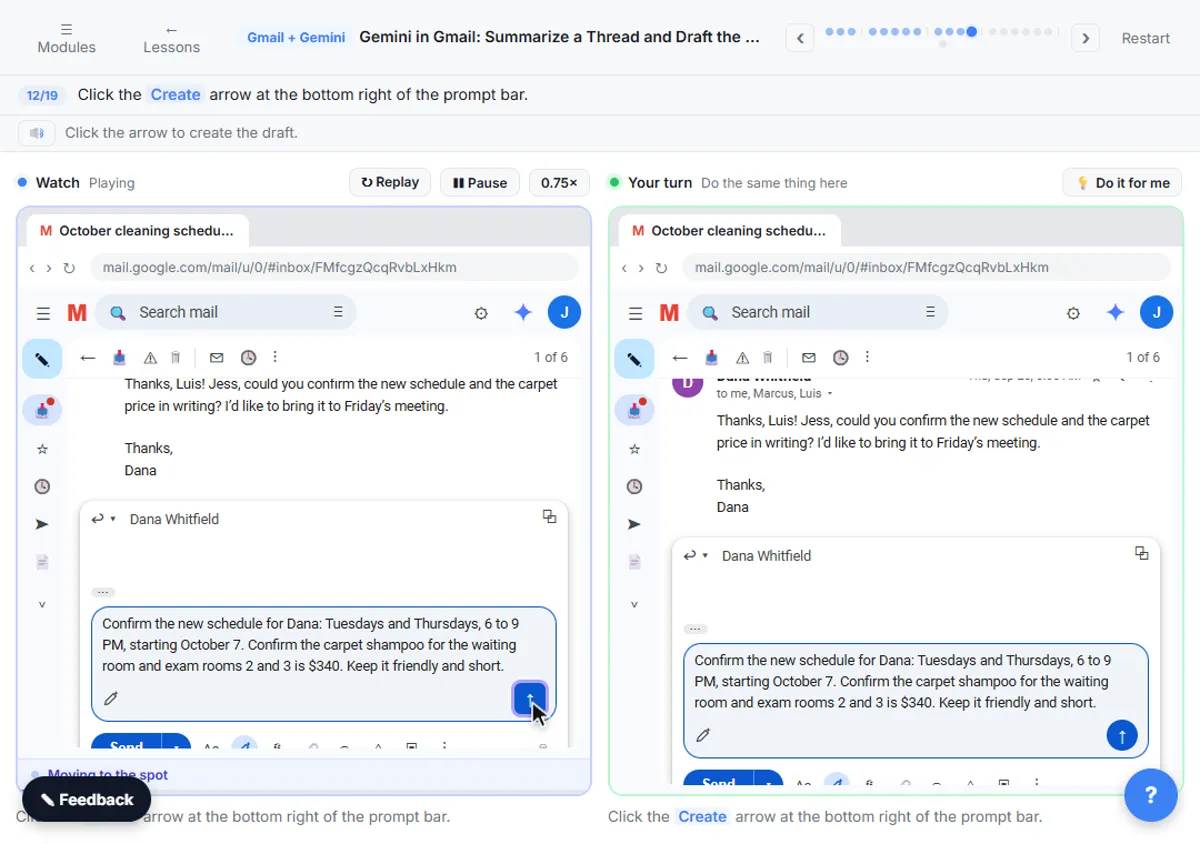
Help me write lives at the bottom of a new email or a reply, in a prompt bar marked with a pencil and a sparkle. You describe the email you want and click the arrow, and Gemini writes the draft straight into your message. The best prompts say who it is for, what it needs to say, and the tone.
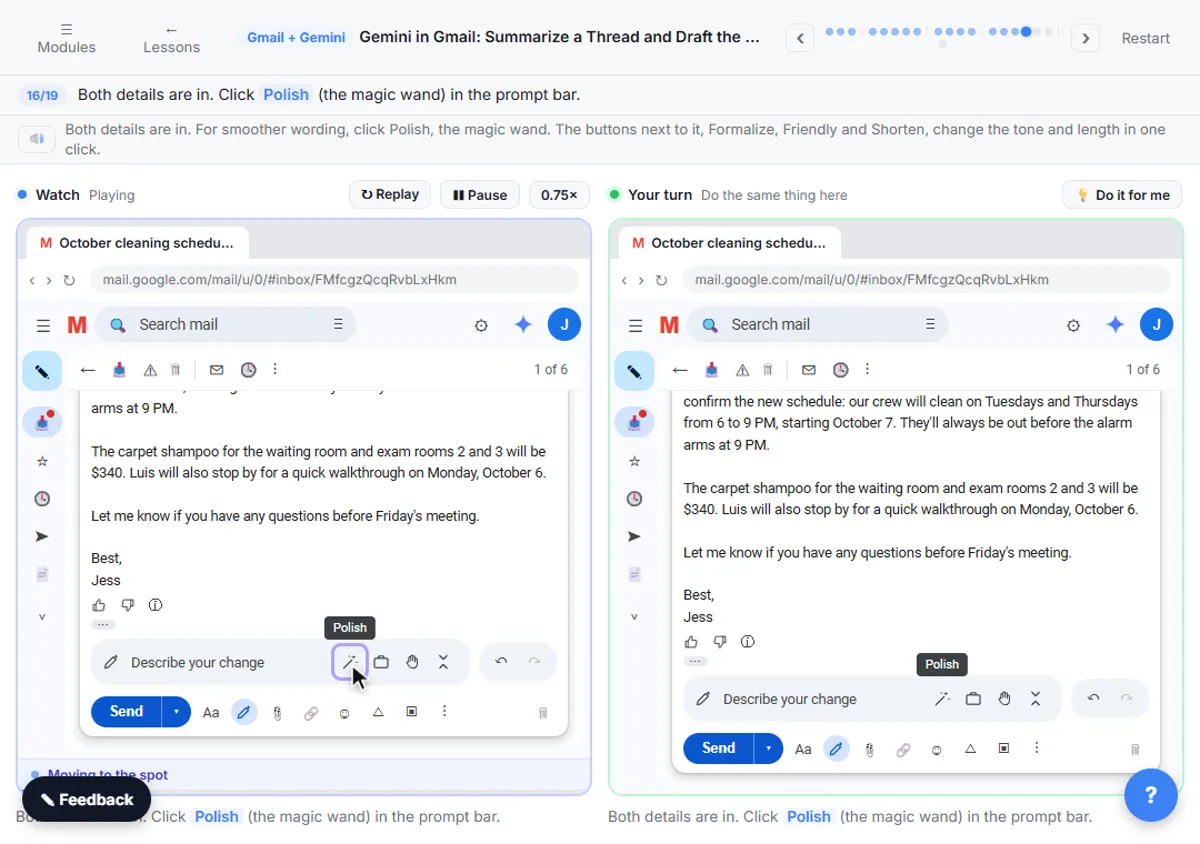
After the first draft, the prompt bar changes to Describe your change. Type a follow-up instruction in your own words, like "mention the Friday deadline" or "add that Luis will do a walkthrough on Monday," and Gemini updates the draft. The preset buttons do common jobs in one click: Polish smooths the wording, and Formalize, Friendly and Shorten change the tone and length. Undo and Redo, at the right of the prompt bar, let you flip between every version until you pick the one you like.
How the interactive lesson works
Every step is shown first on the left, in the Watch panel, with a short voice-over. Then you do it yourself on the right, in Your turn, on a practice copy of Gmail. Each click is checked, so you know right away if you picked the right button. Nothing touches a real inbox, so you can practice freely, then try it on the longest thread in your own Gmail.
Try it yourself, free
Reading the steps is a start. Doing them is how it sticks. The interactive module walks you through every click in a practice copy of Gmail and Gemini, checks each step, and never touches your real accounts.
Start “Gemini in Gmail: Summarize a Thread and Draft the Reply”Step by step: Gemini in Gmail: Summarize a Thread and Draft the Reply
All 19 steps of the interactive module, in order. In the module you watch each one, then do it yourself in a practice copy that checks your work.
1. Catch up on the thread
- Open the long thread. Click the thread October cleaning schedule + carpet quote (6 messages).
This is Jess's inbox at Harbor Light Cleaning, a small commercial cleaning company. A client has a six-message thread going about a new schedule.
- Summarize the thread. Under the subject line, click Summarize this email. (If an AI Overview is already showing there, Gmail made one earlier; just read it.)
Instead of reading all six messages, look under the subject line.
- Minimize the AI Overview. Read the AI Overview, then click the Minimize arrow at its top right.
That's the AI Overview: what Dana asked for, what Luis quoted, and what Dana is waiting on. Once you've read it, click the arrow at the top right to minimize it. It stays tucked above the thread.
2. Ask Gemini about it
- Open the Gemini side panel. At the top right of Gmail, click Ask Gemini (the Gemini spark).
For a specific question, use the Gemini side panel.
- Click the Ask Gemini box. Click the Ask Gemini box at the bottom of the panel.
The panel opens on the right.
- Ask about the open email. Enter the question: “What does Dana still need from me, and by when?”
Ask about the email you have open, in plain words, the way you'd ask a coworker.
- Submit the question. Click the Submit arrow.
- Close the panel. Read the answer, then click the X at the top of the panel to close it.
Gemini lists exactly what Dana needs, and it even caught Marcus's note about the alarm. Close the panel with the X to make room for your reply.
3. Draft the reply
- Reply to Dana. Under Dana’s last message, click Reply.
Now let's answer Dana. Under her last message, click Reply.
- Open Help me write. At the bottom of the reply, click the prompt bar that says Describe your message.
At the bottom of your reply is the Help me write prompt bar, with a pencil and a sparkle.
- Describe the reply. Paste in the prompt. It gives the schedule, the price and the tone.
Tell Gemini what the email needs to say: the schedule, the price, and the tone you want. The more specific you are, the less you'll fix later.
Confirm the new schedule for Dana: Tuesdays and Thursdays, 6 to 9 PM, starting October 7. Confirm the carpet shampoo for the waiting room and exam rooms 2 and 3 is $340. Keep it friendly and short.
- Create the draft. Click the blue Submit arrow at the right of the prompt bar.
4. Refine the draft
- Describe a change. Read the draft. Then click the prompt bar, which now says Describe your change.
Gemini writes the draft right into your reply. It's close, but it left out Luis's walkthrough and the alarm. The prompt bar now says Describe your change.
- Ask for the missing details. Enter the change: “Add that Luis will do a walkthrough on Monday, October 6, and that the crew will be out before the alarm arms at 9 PM.”
Just say what to change, in your own words.
- Update the draft. Click the arrow to apply your change.
- Polish the wording. Both details are in. Click Polish (with the magic wand) in the prompt bar. The ⋮ next to it holds Formalize, Friendly and Shorten.
Both details are in. For smoother wording, click Polish, the magic wand. The three dots next to it hold Formalize, Friendly and Shorten, which change the tone and length in one click.
- Undo to compare. Click Undo at the right of the prompt bar to see the version before Polish.
Not sure the polished version is better?
- Redo to bring it back. Click Redo to bring the polished version back.
You can flip between versions until you find the one you like.
5. Check and send
- Check it and send. Check the names, dates and price against the thread. Then click Send.
Before you send, check it against the thread: names, dates, and prices. Gemini can make mistakes, and it's your name at the bottom. Everything checks out here, so click Send.
Screenshots
Frequently asked questions
- How do I summarize an email thread in Gmail?
- Open the thread on your computer and click Summarize this email at the top, under the subject line. Gmail shows an AI Overview with the key points. You can also click the Gemini spark at the top right and ask Gemini to summarize the email you have open.
- Where is Help me write in Gmail?
- Start a new email or a reply. At the bottom there is a prompt bar with a pencil and sparkle icon that says Describe your message. You can also click the Help me write button in the toolbar at the bottom of the message.
- Can I change the draft Gemini writes?
- Yes. After the first draft, type an instruction in the Describe your change bar, or use the presets: Polish, Formalize, Friendly and Shorten. Undo and Redo let you move between versions. You can also just edit the text yourself before you send.
- Is this course really free?
- Yes. Stepthrough is completely free, and the practice copy needs no accounts. To do it for real you need your own Google account, and some Gemini features need an eligible Google Workspace or Google AI plan.
- Do I need a paid plan for Gemini in Gmail?
- It depends on the feature and your account. Thread summaries and Help me write are widely available, while asking Gemini in the side panel needs an eligible Google Workspace or Google AI plan. Check Google's current plans, since availability changes by country and language.
More in Gemini for Google Workspace
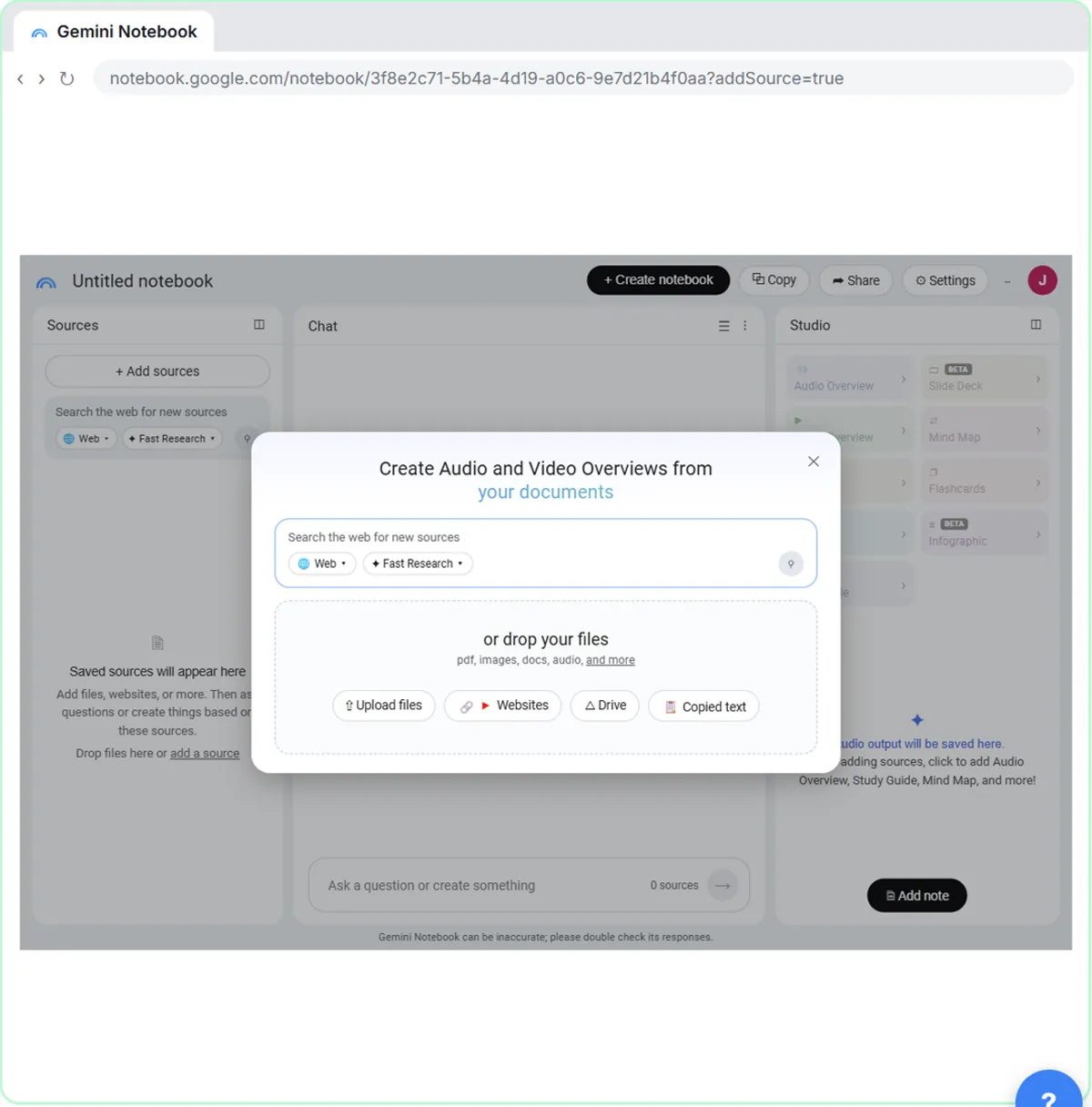 NotebookLM (Now Gemini Notebook): Cited Answers and a Briefing from Your Docs
Create a notebook, add a PDF, a Google Doc from Drive and a web page as sources, ask a question and check its citations, save the answer to a note, and turn it all into…
Free · Live ~7 min
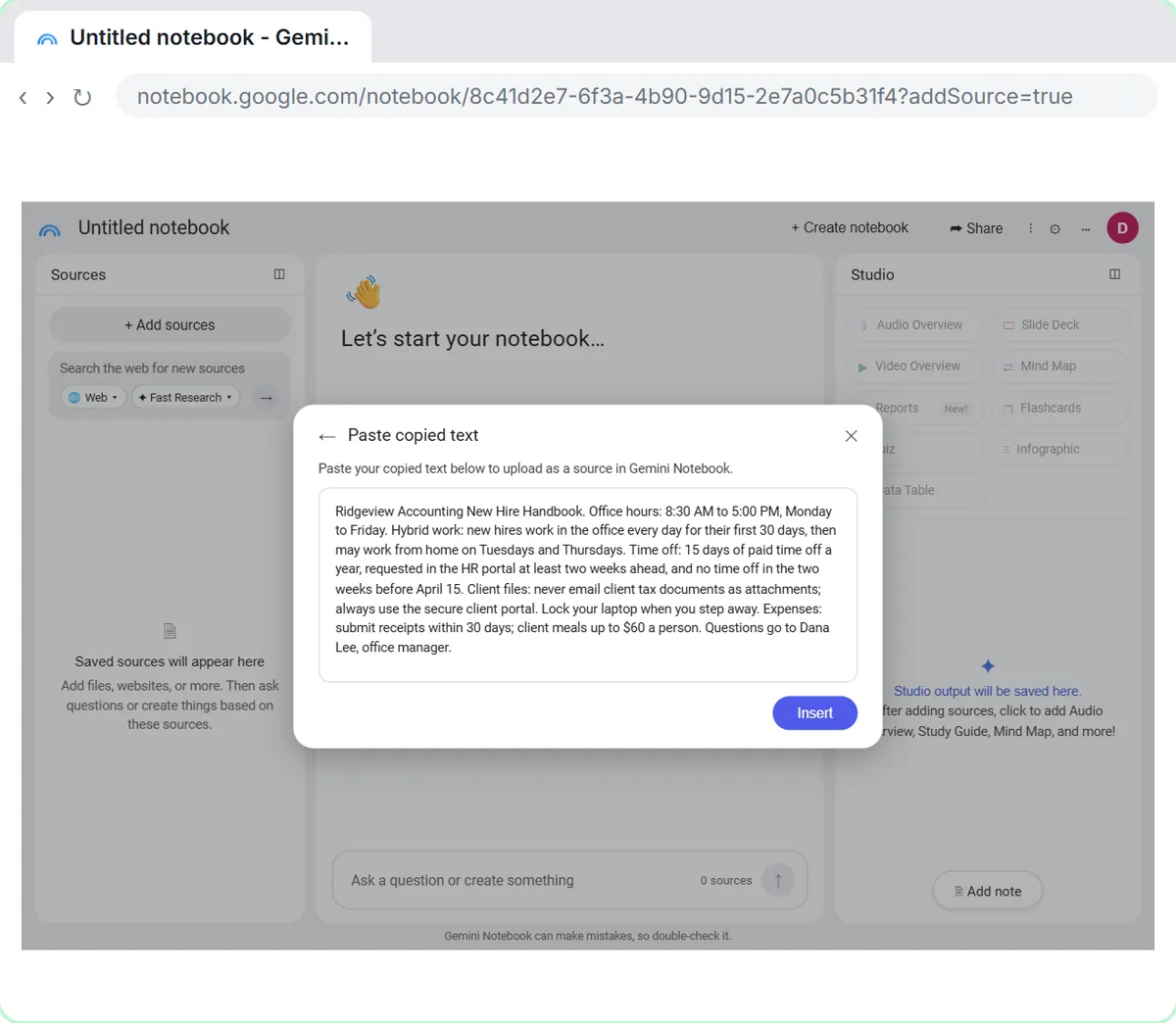 NotebookLM: Turn Your Documents into a Podcast (Audio Overview)
Paste a new hire handbook and meeting notes into a notebook, customize an Audio Overview for two new accountants, listen, join the conversation with Interactive mode…
Free · Live ~6 min
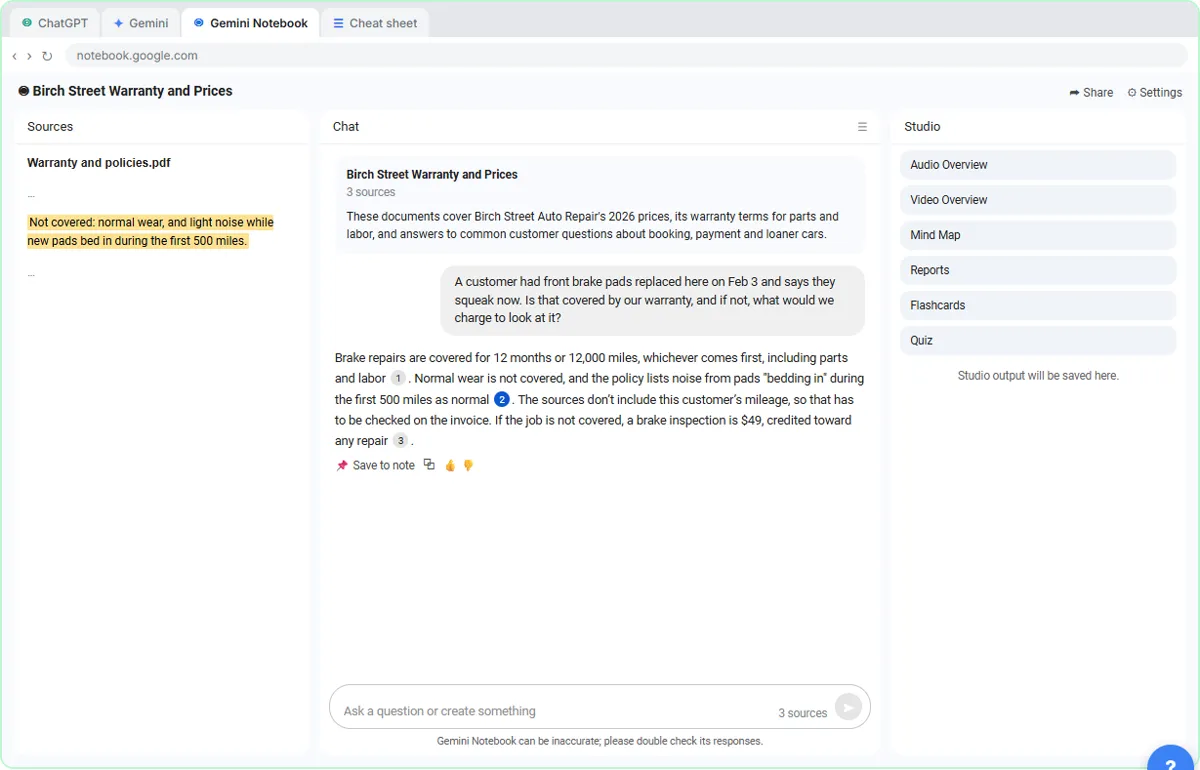 ChatGPT Projects vs Gemini Gems vs Gemini Notebook: Which to Use
Load an auto shop's price list, warranty and FAQ into a ChatGPT Project, a Gemini Gem and Gemini Notebook, ask each the same question, and see which fits which job.
Free · Live ~9 min
All 5 modules in Gemini for Google Workspace
Terms in this lesson
Plain-English definitions, each with an example from a free lesson.