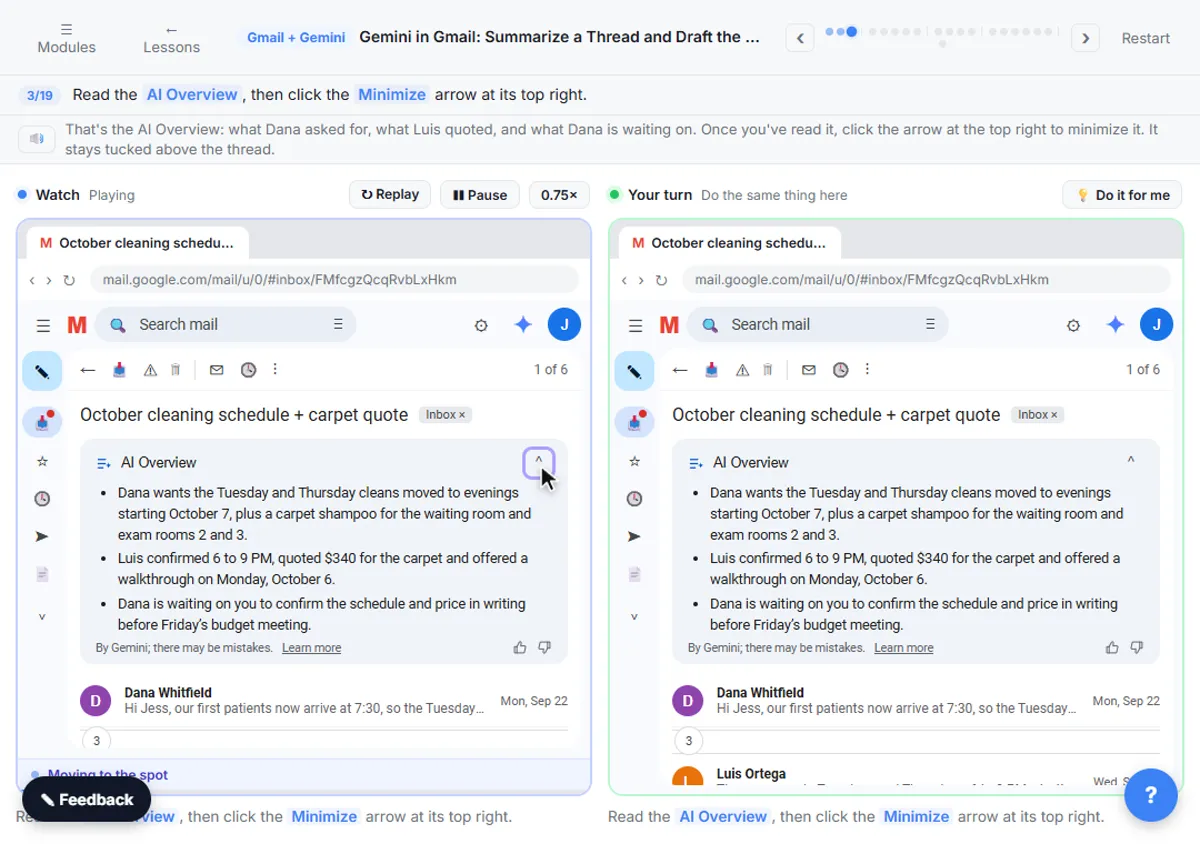
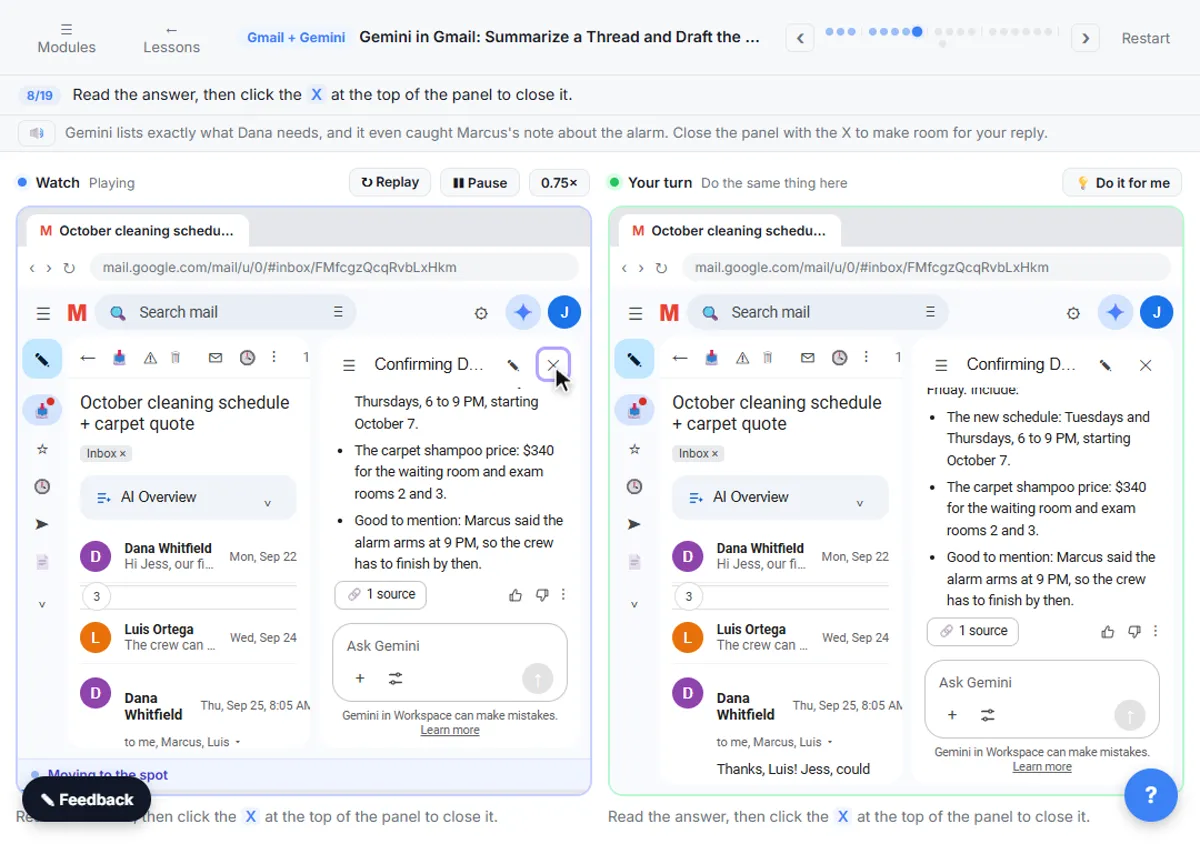
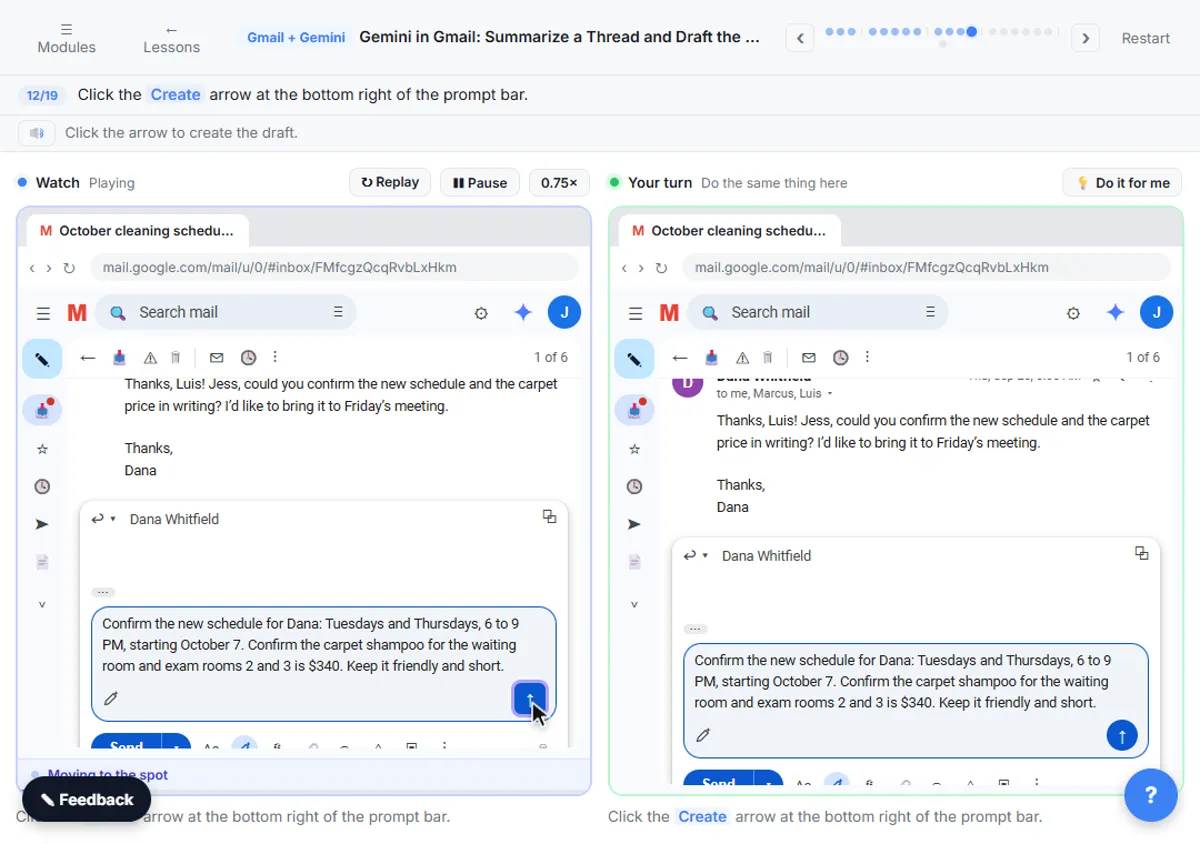
In the lesson, you run a small cleaning company's inbox. A six-message thread, October cleaning schedule + carpet quote, needs an answer. Gemini summarizes it, answers a question about it and drafts the reply. It's fast. The mistakes below are what turn fast into wrong.
Mistake 1: Why not reply from the AI Overview alone?
A summary is for catching up, not for the details. Fix: use Summarize this email to get your bearings, then ask a specific question before you reply.
The AI Overview under the subject line sums up the whole thread in one click. It's great for knowing what the thread is about. But a reply needs specifics: the exact schedule, the price, and who said what. For that, the lesson moves to the side panel.
Mistake 2: Why ask the side panel a specific question?
"Summarize this" twice gets you the same summary twice. Fix: in Ask Gemini, ask the question you actually need answered.
The lesson asks: "What does Dana still need from me, and by when?" Gemini answers with a deadline (written confirmation before her budget meeting this Friday) and a list: the new schedule, Tuesdays and Thursdays, 6 to 9 PM, starting October 7, the carpet price, and a coworker's note about the alarm that's easy to miss in a long thread. A specific question gets you a checklist for the reply.
Mistake 3: Why does a short Help me write prompt need more fixing?
"Reply to Dana" makes Gemini guess what to say. Fix: describe what the email must say, with the details and the tone.
The lesson's prompt: confirm the schedule (Tuesdays and Thursdays, 6 to 9 PM, starting October 7), confirm the carpet shampoo for the waiting room and exam rooms 2 and 3 is $340, "Keep it friendly and short." The more specific you are, the less you fix later. The prompt constraints glossary page explains why limits like "short" help.
Mistake 4: Why not delete the draft and start again?
Starting over throws away the parts that were right. Fix: use Describe your change and say what to fix in your own words.
The lesson's first draft is close, but it leaves out Luis's walkthrough and the alarm. Instead of rewriting, you type one change: "Add that Luis will do a walkthrough on Monday, October 6, and that the crew will be out before the alarm arms at 9 PM." Gemini updates the draft and both details are in. The iterative prompting glossary page covers the habit.
Try it free, step by step
Gemini in Gmail: Summarize a Thread and Draft the Reply. Catch up on a long email thread in seconds with Summarize this email, ask Gemini what you owe, then write, refine and polish the reply with Help me write. You do every step yourself in a practice copy of Gmail and Gemini, it checks your work as you go, and “Do it for me” finishes any step you get stuck on. Free, and nothing touches your real accounts.
Start the free lessonMistake 5: Why check the draft after you click Polish?
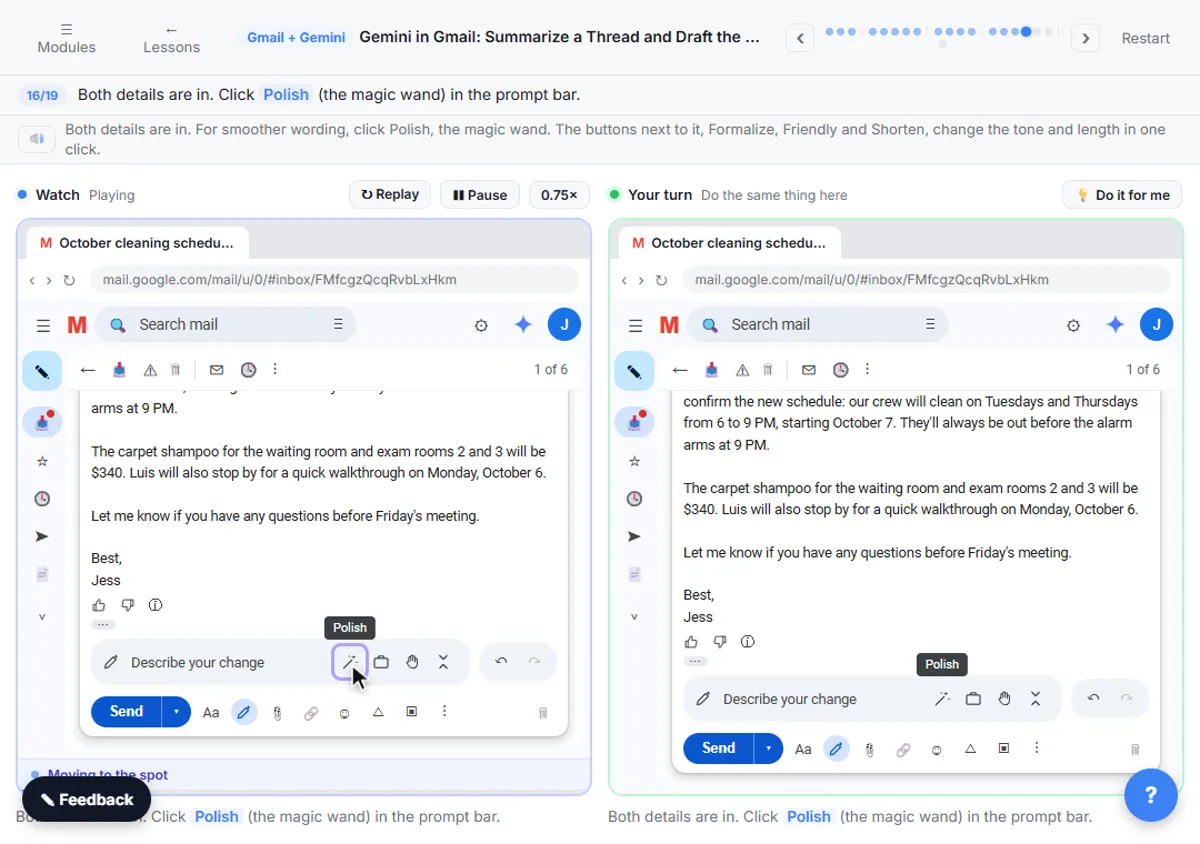
Smoother wording can drop or change a detail. Fix: reread after Polish, and use Undo and Redo to compare versions.
Polish, the magic wand, smooths the wording. The three dots next to it hold Formalize, Friendly and Shorten. Each one rewrites the whole draft, so check that the dates and prices survived. In the lesson you click Undo to step back one version and Redo to bring the polished one back, flipping until you pick.
Mistake 6: Why not let Gemini decide the details?
Because it doesn't know what you've agreed to. Fix: give the facts yourself, and never let a draft add a promise you didn't make.
Everything in the lesson's reply comes from you or from the thread: the schedule, the $340 and the walkthrough date. If a draft adds a discount, a faster date or a "we guarantee," take it out. A reply is a promise in your name.
Mistake 7: Why check names, dates and prices before you send?
Because Gemini can make mistakes, and it's your name at the bottom. Fix: one careful read against the thread, every time.
The lesson ends here: before you click Send, check names, dates and prices against the thread. A wrong start date in a confirmation email is worse than a slow reply.
How do you avoid these mistakes as a team?
A short shared routine is enough:
- Summarize to catch up; ask a specific question before replying.
- Every Help me write prompt states the facts and the tone.
- Fix drafts with Describe your change, not by starting over.
- Reread after Polish, Formalize, Friendly or Shorten.
- No promise goes out that a person didn't decide.
- One read for names, dates and prices before Send.
Leave out private details the reply doesn't need, and follow your company's rules for AI and customer email. The lesson notes that some Gemini features in real Gmail need an eligible Google Workspace or Google AI plan. It's module 5 of the free AI for Customer Support course. For ready-made prompts, see Gemini in Gmail Prompts.
Key takeaways
- The AI Overview is for catching up; ask Ask Gemini a specific question before you reply.
- Give Help me write the facts and the tone, so there's less to fix.
- Fix a draft with Describe your change instead of starting over.
- Reread after Polish or a tone button, and use Undo and Redo to compare.
- Check names, dates and prices against the thread before you click Send.
Frequently asked questions
- Can Gemini in Gmail make mistakes?
Yes. The lesson says so directly, which is why you check names, dates and prices against the thread before sending.
- How do I fix a Gemini draft in Gmail?
Type what to change in the Describe your change bar, in your own words, and click the arrow.
- What does Polish do in Gmail?
It smooths the wording of the draft. Formalize, Friendly and Shorten, under the three dots, change tone and length.
- Is the thread in the lesson real?
No. The cleaning company, Dana, Luis and Marcus are made up for the lesson.