How do you use these prompts?
Each prompt goes in a different place in Gmail:
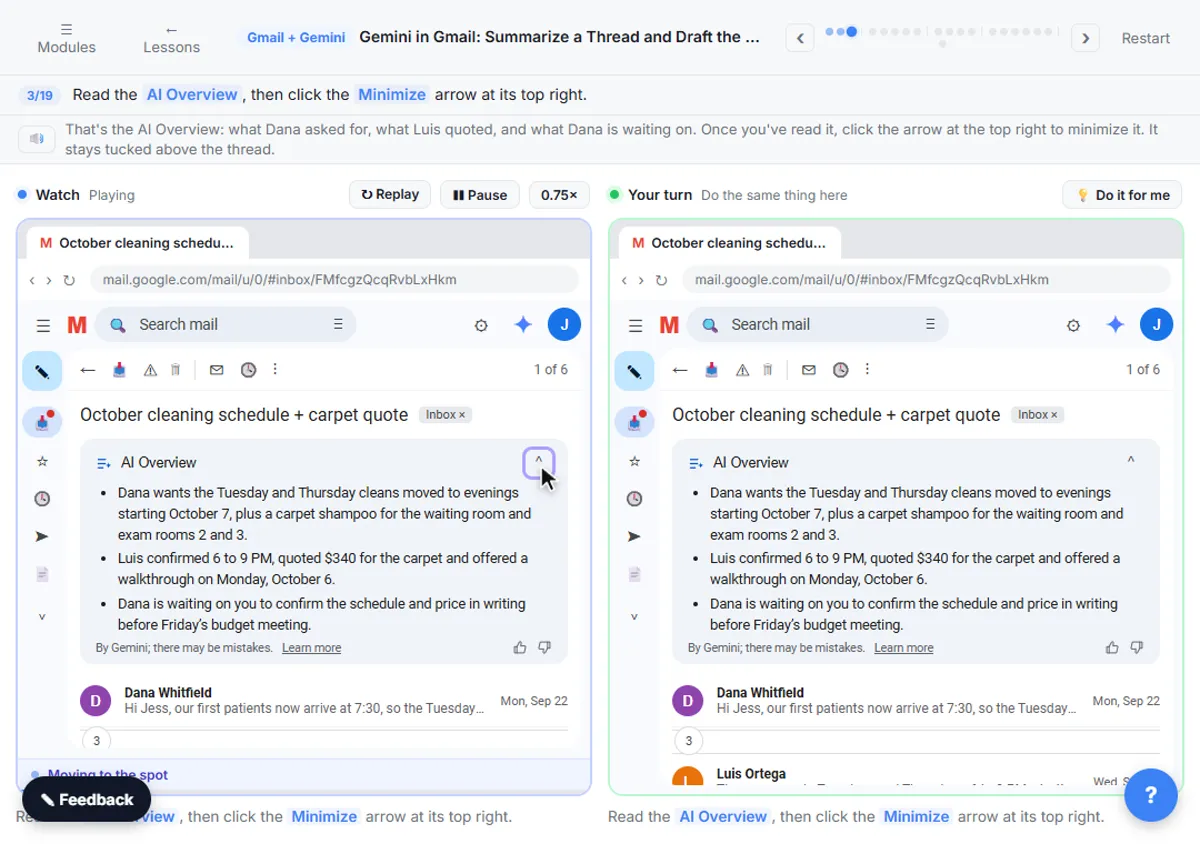
- Summarize this email, under the subject line of a thread, gives you an AI Overview in one click. No prompt needed.
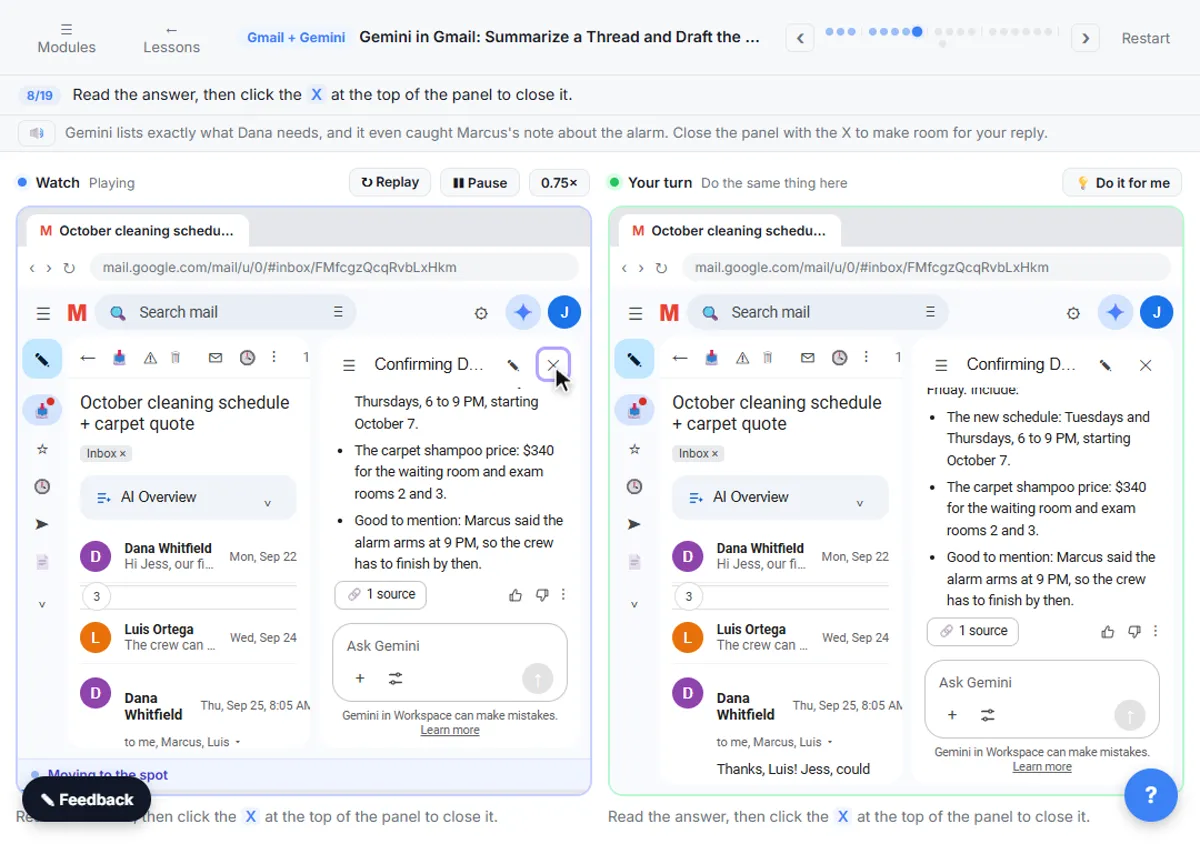
- Ask Gemini, the spark icon at the top right of Gmail, opens a side panel for specific questions about the open email. Prompts 1 to 6 go there.
- Help me write sits at the bottom of a reply, with the bar that says Describe your message. Prompts 7 to 11 go there.
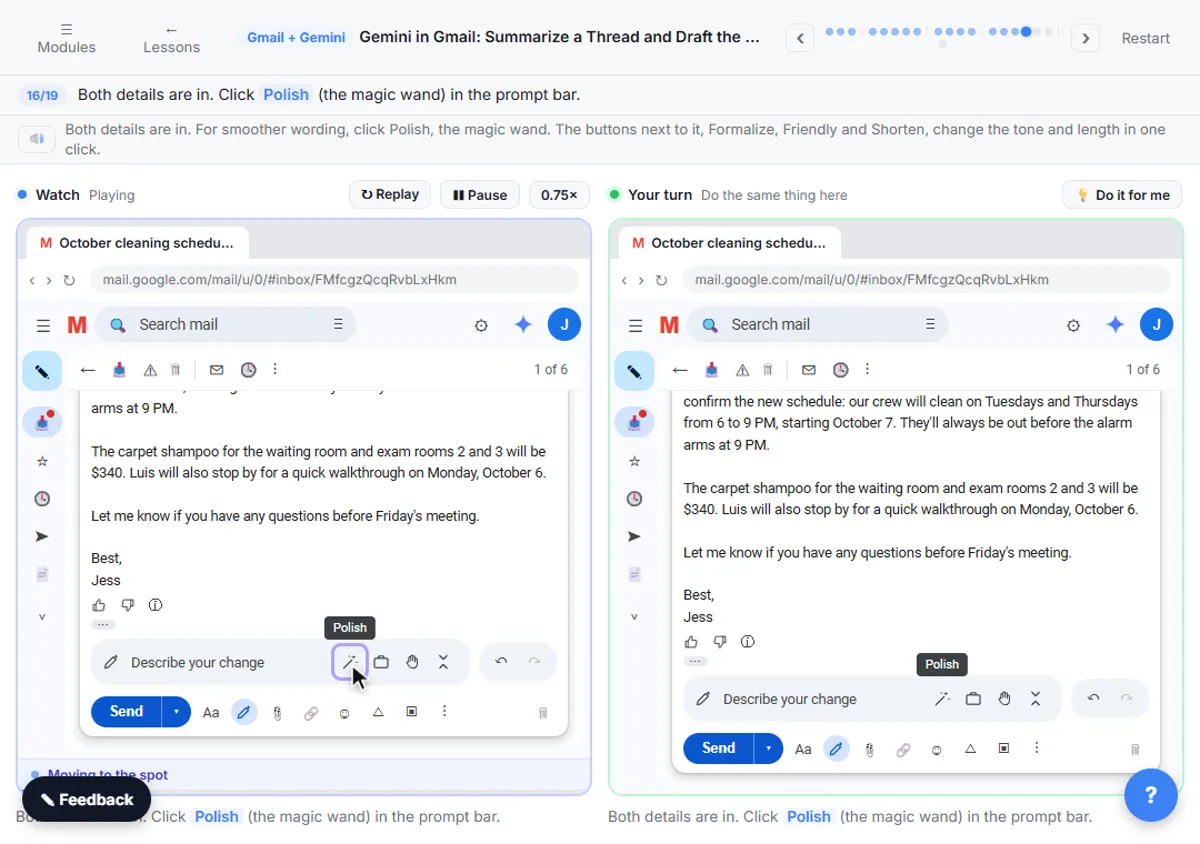
- After the first draft, the bar says Describe your change. Prompts 12 to 15 go there.
The lesson's practice copy notes that some Gemini features in real Gmail need an eligible Google Workspace or Google AI plan. The Gemini and Gmail draft glossary pages cover the basics.
Questions for the Ask Gemini side panel
1. What do they still need from me?
What does [NAME] still need from me, and by when?
This is the lesson's question. It turns a six-message thread into a list, and in the lesson Gemini even catches a coworker's note about the alarm that's easy to miss.
2. What was decided?
What was decided in this thread, and what is still open? List each open item with who it's waiting on.
3. Every number and date
List every price, amount, date and time in this email thread, with who said it.
You'll use this list to check your reply before you send it.
4. What changed since the first message
How has the request changed from the first message to the last one? List what's different now.
5. The tone of the thread
Is [NAME] happy, neutral or frustrated in the latest message? Quote the line that tells you.
6. Questions I should ask back
What's unclear or missing in [NAME]'s request that I should ask about before I commit to anything?
Help me write: first drafts
The lesson's tip applies to every one of these: say what the email needs to say, the details and the tone. The more specific you are, the less you'll fix later.
7. Confirm details
Confirm the [WHAT] for [NAME]: [DETAIL 1], [DETAIL 2]. Confirm the price for [ITEM] is [AMOUNT]. Keep it friendly and short.
This is the shape of the lesson's prompt: the new schedule, starting date and the $340 carpet price, plus the tone.
8. A polite no
Tell [NAME] we can't [REQUEST] because [REASON]. Offer [ALTERNATIVE] instead. Warm, short, no apology paragraph.
9. Ask for something you need
Ask [NAME] for [WHAT YOU NEED] by [DATE] so we can [WHY]. Keep it to three sentences.
10. A status update
Update [NAME] on [PROJECT]: done so far is [DONE], next is [NEXT] on [DATE], and the one thing we need from them is [ASK]. Plain and short.
11. Reply to a complaint
Reply to [NAME]'s complaint about [ISSUE]. Acknowledge it, say what we'll do: [ACTION] by [DATE]. Don't promise anything else. Calm and friendly.
"Don't promise anything else" matters: a draft that adds a refund or a date you didn't offer is a promise in your name.
Describe your change: fixing a draft
12. Add what's missing
Add that [DETAIL], and that [DETAIL].
In the lesson, the first draft leaves out Luis's walkthrough on Monday, October 6, and the crew being out before the alarm arms at 9 PM. One sentence of change puts both in.
13. Take something out
Remove the part about [TOPIC]. Keep everything else the same.
14. Fix a wrong detail
The [DETAIL] is wrong: it should be [CORRECT DETAIL]. Fix only that.
15. Make it fit the reader
Make it shorter and more direct. [NAME] reads email on their phone.
For tone and length, you can also use the buttons next to the prompt bar: Polish (the magic wand), and under the three dots Formalize, Friendly and Shorten. Undo and Redo step between versions until you find the one you like.
Try it free, step by step
Gemini in Gmail: Summarize a Thread and Draft the Reply. Catch up on a long email thread in seconds with Summarize this email, ask Gemini what you owe, then write, refine and polish the reply with Help me write. You do every step yourself in a practice copy of Gmail and Gemini, it checks your work as you go, and “Do it for me” finishes any step you get stuck on. Free, and nothing touches your real accounts.
Start the free lessonWhat should you check before you hit Send?
Names, dates and prices, against the thread. Prompt 3 gives you the list in seconds. The lesson ends on this check for a reason: Gemini can make mistakes, and it's your name at the bottom. Leave out private details a reply doesn't need, and follow your company's rules on AI and customer email. For the full list of traps, read Gemini in Gmail Mistakes to Avoid.
The lesson is part of the free AI for Customer Support course, and also appears in AI for Insurance Agencies and AI for Real Estate.
Key takeaways
- Use Summarize this email to catch up, and the Ask Gemini side panel for specific questions about the open email.
- In Help me write, say what the email must say, the details and the tone.
- Fix a draft with a plain-words change in Describe your change instead of starting over.
- Polish, Formalize, Friendly and Shorten change tone and length; Undo and Redo flip between versions.
- Check names, dates and prices against the thread before you send.
Frequently asked questions
- Where is Help me write in Gmail?
At the bottom of a reply, in the prompt bar with a pencil and a sparkle that says Describe your message.
- How do I ask Gemini a question about an email?
Click Ask Gemini, the spark icon at the top right of Gmail, and type your question in the side panel.
- Can I change a Gemini draft without rewriting it?
Yes. After the first draft, the bar says Describe your change. Say what to change in your own words.
- Is the cleaning company in the lesson real?
No. The cleaning company, Dana and the thread are made up for the lesson.