Updated . Built against the tool’s current screens and checked step by step. How we check this lesson
Select empty cells, click Fill and let Gemini look up where six companies are headquartered, then open one cell's web sources before the list goes to a client. A 7-step practice based on Google's published screens.
At a glance
| Question | Answer |
|---|---|
| What you build | Select empty cells, click Fill and let Gemini look up where six companies are headquartered, then open one cell's web sources before the list goes to a client. A 7-step practice based on Google's published screens. |
| Tools | Google Sheets |
| Time | About 4 minutes, 7 steps in 3 parts |
| Level | Beginner, no coding needed |
| Cost | Free |
| Ways to learn it | Practice it step by step |
The 3 parts, in short
- Pick the empty cells: Select B2:B7, Click Fill.
- Tell Gemini what to fill: Say what goes in the cells, Generate and Insert.
- Check the sources: Click B6, Click Sources, Tick Checked.
Start here first: Gemini in Gmail: Summarize a Thread and Draft the Reply (module 1 of Gemini for Google Workspace)
In the course: Part 5 · Gemini for Google Workspace (Module 56 of the full course)
Part of: Gemini Jump Start (step 5 of 8). Next up: Gemini: Make a Tenant Notice as a PDF and Fix It Right in the Chat
What you'll build
The problem: at Ridgeway Talent Partners, a small recruiting firm, every client search starts with a list of target employers, and someone spends an hour searching where each company is based. In this short practice you select six empty cells in Google Sheets, click Fill, tell Gemini what goes in them, and then do the part that matters: open one cell's web sources and mark the row checked. On October 28, 2026, Google announced that Fill with Gemini now shows the exact web sources behind each cell and can handle up to 3,000 cells in one request. It takes about 4 minutes and 7 steps. Practice based on Google's published screens. Fill with Gemini requires Google Workspace Business Standard or Plus, Enterprise Standard or Plus, or Google AI Pro or Ultra. We haven't run it in an eligible account yet, so the screens follow Google's announcement and help center, and the step text says where the real screen may differ.
That's the basic shape of a research column with Fill with Gemini: select the empty cells, click Fill, say what goes in each cell and which column it is about, then click into a cell and open Sources to see the web pages behind the answer. Mark each row checked once a person has looked, because a neat answer can still be wrong. Fill with Gemini needs Google Workspace Business Standard or Plus, Enterprise Standard or Plus, Google AI Pro or Ultra, Google AI Pro for Education or AI Expanded Access. It is on by default for anyone who has Gemini in Sheets turned on. Google started rolling out the source citations on October 20, 2026, and says they can take up to 15 days to appear.
- Tools: Google Sheets
- Time: about 4 minutes, 7 steps in 3 chapters
- Level: beginner, no coding needed
- Price: free
Practice first, then build it for real
Practice based on Google's published screens. Fill with Gemini requires Google Workspace Business Standard or Plus, Enterprise Standard or Plus, or Google AI Pro or Ultra. This is a practice copy: no account is needed and nothing touches your Google Drive. The recruiting firm is made up, and the sources shown are a sample. To build it for real you need your own Google Sheets account, and some services charge once you use them for real work, so check each tool's current pricing.
Try it yourself, free
Reading the steps is a start. Doing them is how it sticks. The interactive module walks you through every click in a practice copy of Google Sheets, checks each step, and never touches your real accounts.
Start “Google Sheets: Fill a Research Column with Gemini and Check Its Sources”Step by step: Google Sheets: Fill a Research Column with Gemini and Check Its Sources
All 7 steps of the interactive module, in order. In the module you watch each one, then do it yourself in a practice copy that checks your work.
1. Pick the empty cells
- Select B2:B7. Column B, Headquarters is empty for six companies. Click B2, then Shift-click B7 to select the six empty cells. (In this practice, one click selects them.)
This is Dana Ortiz, a recruiter at Ridgeway Talent Partners. She's building a list of target employers for a client search, and she needs to know where each company is based. Typing that in by hand means six searches.
- Click Fill. For an empty selection of several cells, Google says Sheets shows a one-click Fill entry point. Click Fill. Where it sits on the real screen may differ from this practice.
For an empty block of cells, Sheets offers a one click Fill option.
2. Tell Gemini what to fill
- Say what goes in the cells. Write a custom prompt: what each cell should hold and which column it is about. Paste it into the prompt box.
Now say what goes in each cell. Name the column it's about, the format you want, and where it should look first. Here, the headquarters city and state for the company in column A, from the company's own website where possible.
- Generate and Insert. Click Generate and Insert. (That's the button name Google's help center gives for AI function cells; the Fill box may word it differently.) Gemini fills all six cells. One request can now cover up to 3,000 cells.
Gemini fills all six cells at once. A single request can now cover up to three thousand cells.
3. Check the sources
- Click B6. Six answers in seconds. Before anyone uses them, check one. Click cell B6, Duolingo, and hover over its text.
Six answers in seconds. But an answer you can't check isn't ready to send to a client.
- Click Sources. Click Sources. Since October 2026, each cell Gemini fills from the web shows the exact web sources it used. The sources listed here are a sample.
Each cell now shows the exact web pages Gemini used for that answer.
- Tick Checked. The company's own site backs it up. Tick the Checked box in C6, so the team knows a person verified this row. Do the same for every row before the list goes to the client.
The company's own site backs it up. Tick the Checked box for this row, so the team can see a person verified it. Do the same for each row before the list goes out.
More in Gemini for Google Workspace
 Gemini in Gmail: Summarize a Thread and Draft the Reply
Catch up on a long email thread in seconds with Summarize this email, ask Gemini what you owe, then write, refine and polish the reply with Help me write.
Free · Live ~7 min Beginner
 Gmail Filters, Labels and AI Draft Replies With a Human Check
Make Gmail label every website quote request automatically, draft the reply with Help me write, and catch the made-up price before it's sent.
Free · Live ~8 min Intermediate
 NotebookLM (Now Gemini Notebook): Cited Answers and a Briefing from Your Docs
Create a notebook, add a PDF, a Google Doc from Drive and a web page as sources, ask a question and check its citations, save the answer to a note, and turn it all into…
Free · Live ~7 min Beginner
 NotebookLM: Turn Your Documents into a Podcast (Audio Overview)
Paste a new hire handbook and meeting notes into a notebook, customize an Audio Overview for two new accountants, listen, join the conversation with Interactive mode…
Free · Live ~6 min Beginner
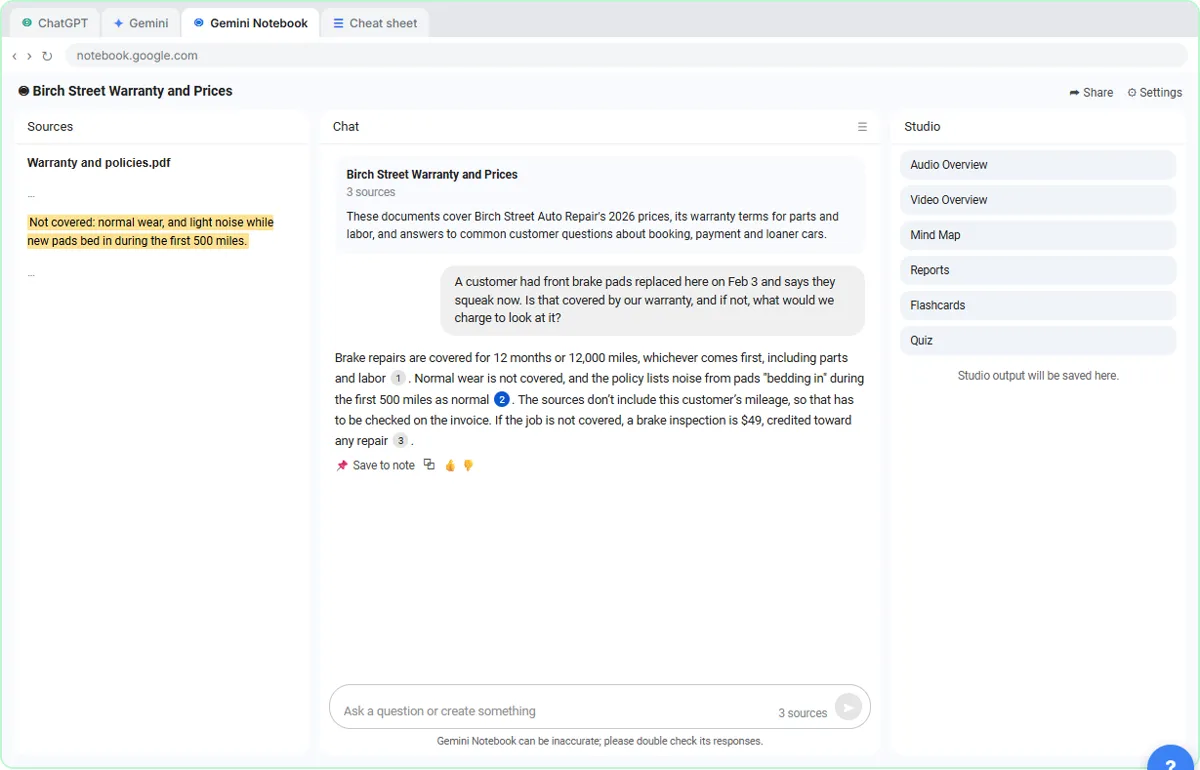 ChatGPT Projects vs Gemini Gems vs Gemini Notebook: Which to Use
Load an auto shop's price list, warranty and FAQ into a ChatGPT Project, a Gemini Gem and Gemini Notebook, ask each the same question, and see which fits which job.
Free · Live ~9 min Beginner
◷Gemini in Google Slides: Fix a Late Change Across a Whole Client DeckTwo facts changed the day before a client review. Tell Gemini once, check the slides it touched, fix the line it left behind, and know the one-slide route if the…
Free · Live ~4 min Beginner
All 10 modules in Gemini for Google Workspace
More Google Sheets tutorials
Terms in this lesson
Plain-English definitions, each with an example from a free lesson.