Updated . Built against the tool’s current screens and checked step by step. How we check this lesson
The HTTP Request node is how n8n talks to any app that has an API, including the ones with no ready-made n8n node. In this free lesson you build it in a practice copy of the n8n editor for a made-up marketing agency: a GET request pulls the client list from its CRM, a query parameter asks for one client, and a POST sends a follow-up note back with the client's email filled in by an expression. The CRM is JSONPlaceholder, a free public test API, so you can repeat every step in your own n8n with no key.
At a glance
| Question | Answer |
|---|---|
| What you build | Connect n8n to any app with an API: GET a CRM's client list, filter it with a query parameter, then POST a note back using an expression. Free practice API, no key needed. |
| Tools | n8n |
| Time | About 9 minutes, 27 steps in 5 parts |
| Level | Intermediate |
| Cost | Free |
| Ways to learn it | Practice it step by step |
The 5 parts, in short
- Start the workflow: Add the first step, Start it by hand, Add the next step, Search for HTTP, and 1 more step.
- GET the client list: Paste the API address, Send the request, See the raw JSON, Back to the table.
- Ask for one client: Turn on query parameters, Name the filter, Give it a value, Run it again, and 1 more step.
- POST a note back: Add another HTTP Request, Search again, Pick HTTP Request, Open Method, and 7 more steps.
- Run it all: Run the whole workflow, Check the log.
Start here first: n8n: What Is n8n? Build Your First Workflow (module 1 of n8n Automation Toolkit)
In the course: Part 9 · n8n Automation Toolkit (Module 78 of the full course)
Part of: n8n Intermediate: Real Business Workflows (step 3 of 10). Next up: Webhooks and Forms in n8n: Capture Data from Anywhere
The practice API
JSONPlaceholder is a free public API with fake data. It needs no key or sign-up. GET /users returns ten fake people; a POST to /posts is answered with a new id but never saved, so nothing you send goes anywhere.
| Request | Method | URL | What comes back |
|---|---|---|---|
| The client list | GET | https://jsonplaceholder.typicode.com/users | 10 items |
| One client | GET | https://jsonplaceholder.typicode.com/users?username=Samantha | 1 item: Clementine Bauch |
| A new note | POST | https://jsonplaceholder.typicode.com/posts | The body you sent plus id 101 |
GET: pull data from an API
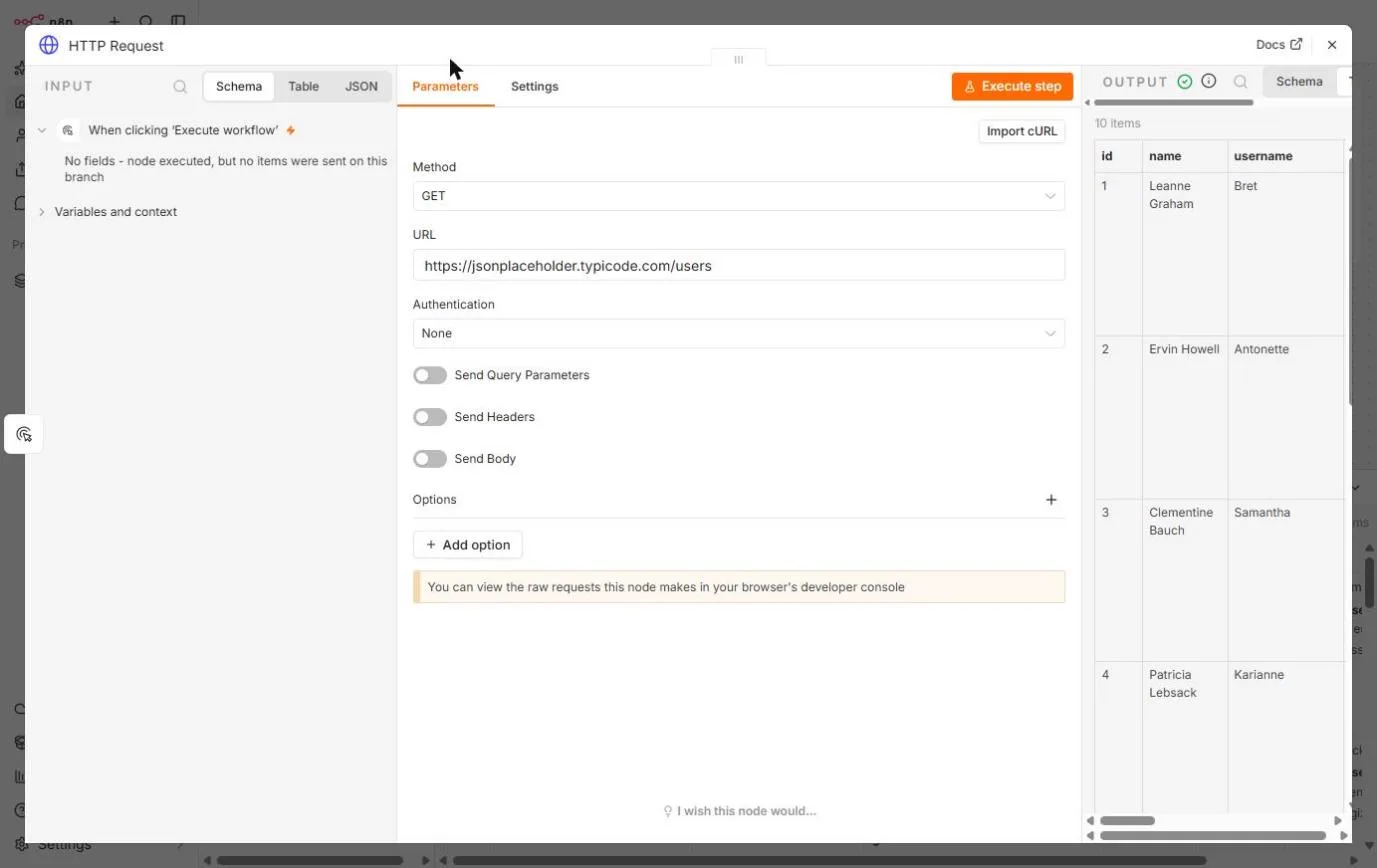
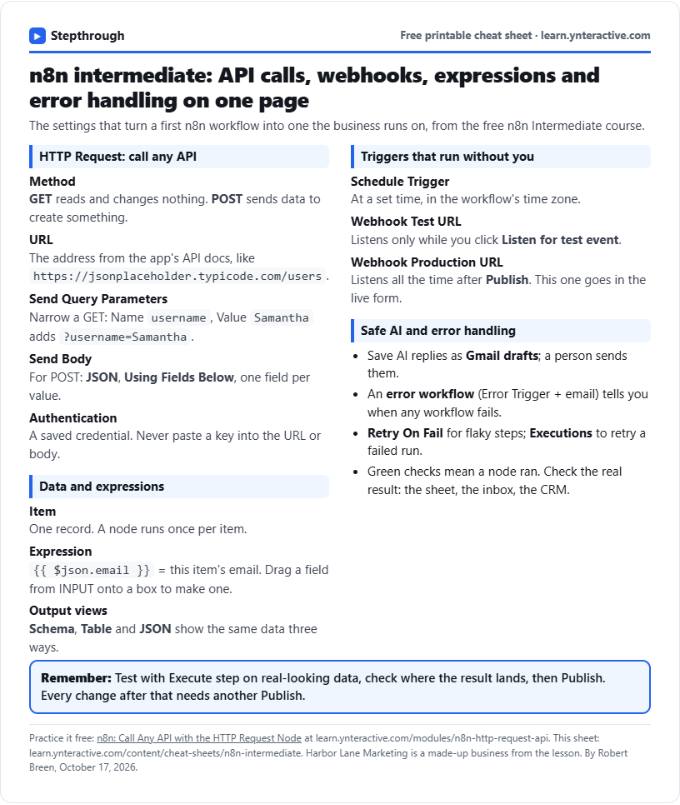
Add an HTTP Request node after your trigger. Method is GET by default, which asks for data and changes nothing. Paste the address from the app's API docs into URL and click Execute step. The OUTPUT shows what came back: for https://jsonplaceholder.typicode.com/users it is 10 items, one per person.
APIs answer in JSON, a list of records with names and values. n8n turns every record into one item, and the next node runs once per item. Switch the OUTPUT between Schema, Table and JSON to see the same data three ways.
Query parameters: ask for less
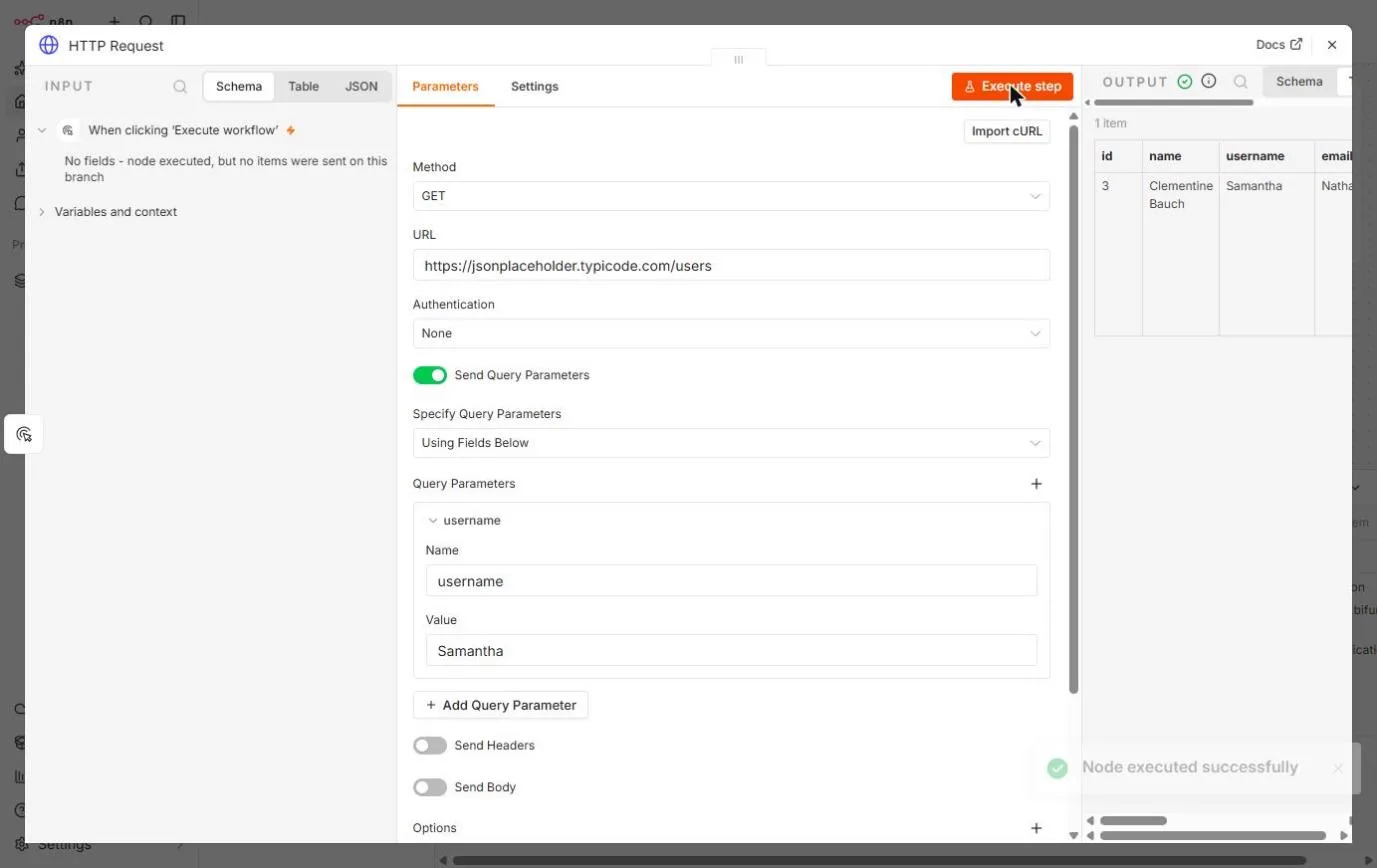
Turn on Send Query Parameters, leave Specify Query Parameters on Using Fields Below, and add a Name and a Value, like username and Samantha. n8n adds ?username=Samantha to the address, and the API sends back only the matching record. Each API lists the parameters it accepts in its docs.
POST: send data back
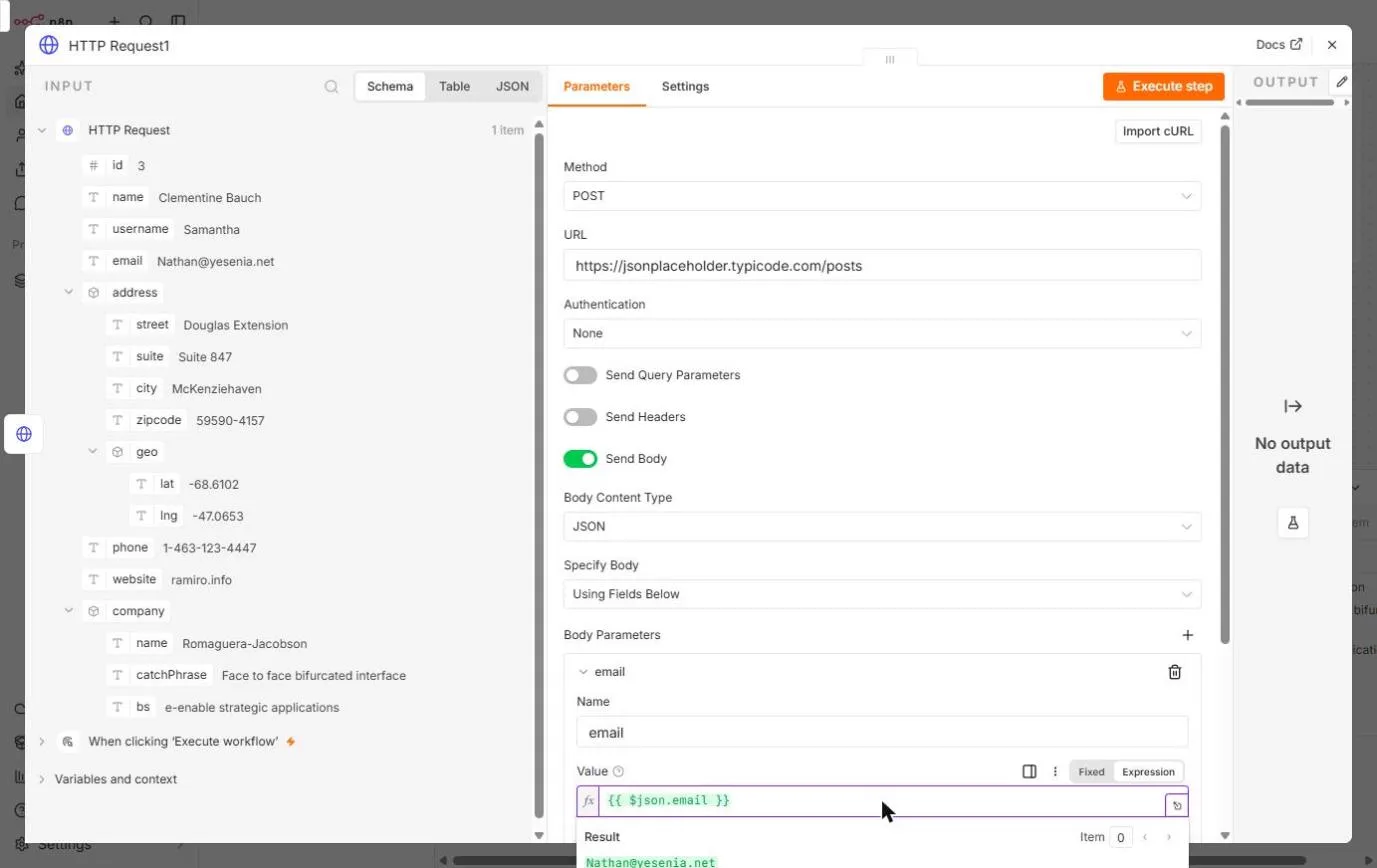
Add a second HTTP Request node, set Method to POST and paste the address that creates a record. Turn on Send Body; Body Content Type JSON and Specify Body Using Fields Below suit most APIs. Name a body field, then drag a field from the INPUT panel onto Value. n8n writes an expression such as {{ $json.email }} and shows the result for the current item under it.
The API's answer is the node's output. JSONPlaceholder answers with what you sent plus a new id, 101. A real CRM would have created the record.
Real APIs need a credential
The practice API is open, so Authentication stays on None. A real app needs to know who you are. Choose its predefined credential type if n8n has one, or a generic one such as Header Auth or Bearer Auth, and save the key there. Never paste a key into the URL or a body field, where it shows up in every execution log.
Links
- n8n (affiliate link): the workflow tool this lesson teaches.
- n8n docs: HTTP Request node: every option of the node.
- JSONPlaceholder: the free fake-data API used in the lesson.
Disclosure: links marked "affiliate link" are partner links. If you sign up through one, Stepthrough may earn a commission at no extra cost to you. The lesson is free either way and does not depend on it.
Try it yourself, free
Reading the steps is a start. Doing them is how it sticks. The interactive module walks you through every click in a practice copy of n8n, checks each step, and never touches your real accounts.
Start “n8n: Call Any API with the HTTP Request Node”Step by step: n8n: Call Any API with the HTTP Request Node
All 27 steps of the interactive module, in order. In the module you watch each one, then do it yourself in a practice copy that checks your work.
1. Start the workflow
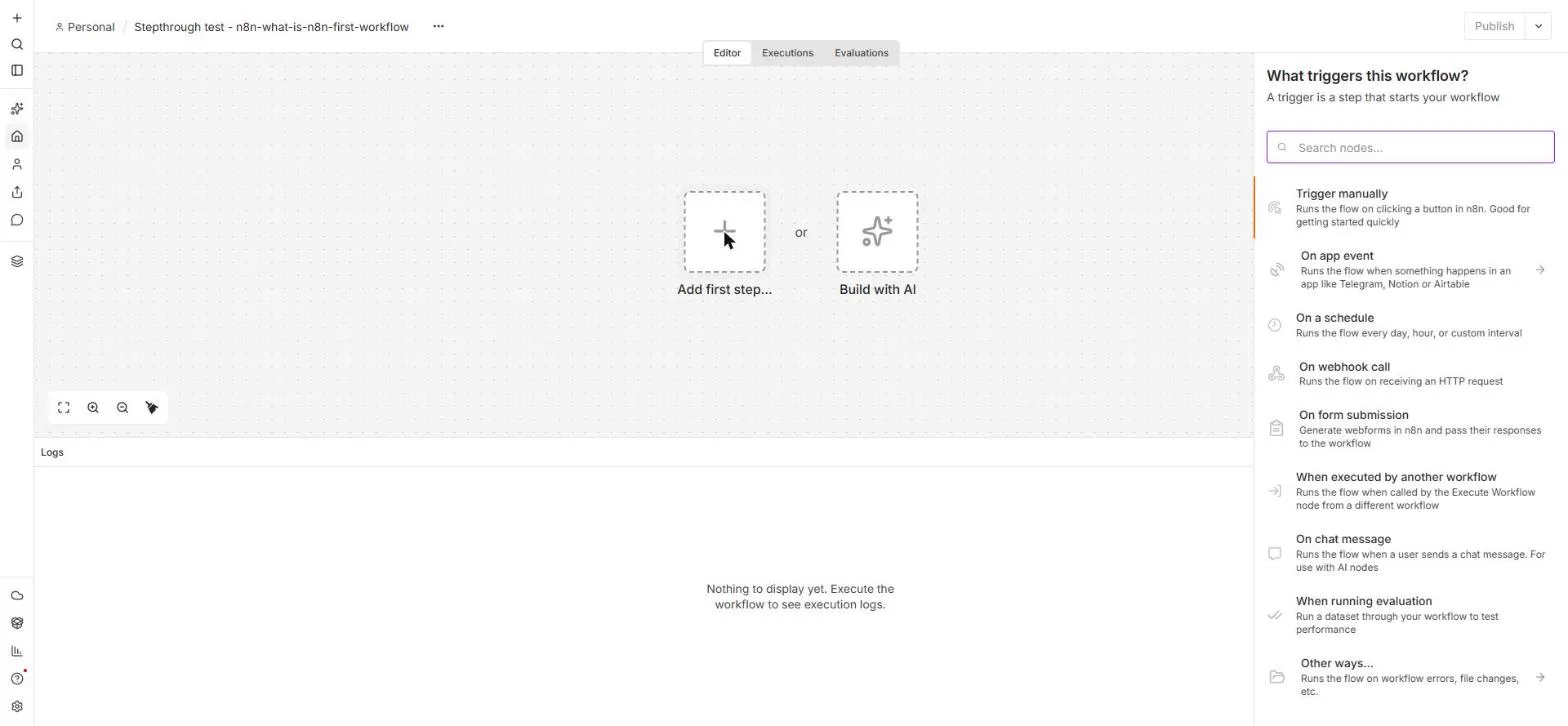
- Add the first step. Harbor Lane Marketing keeps its clients in a CRM that has an API. You will pull client records from it into n8n. This is a new, empty workflow. Click Add first step... in the middle of the canvas.
Harbor Lane Marketing keeps its clients in a CRM, and the CRM has an API. You'll pull client records out of it with n8n, then send a note back. This is a new, empty workflow.
- Start it by hand. The panel asks What triggers this workflow? While you build, the simplest start is a button. Click Trigger manually.
The panel asks, what triggers this workflow. While you're building, the simplest start is a button you click yourself.
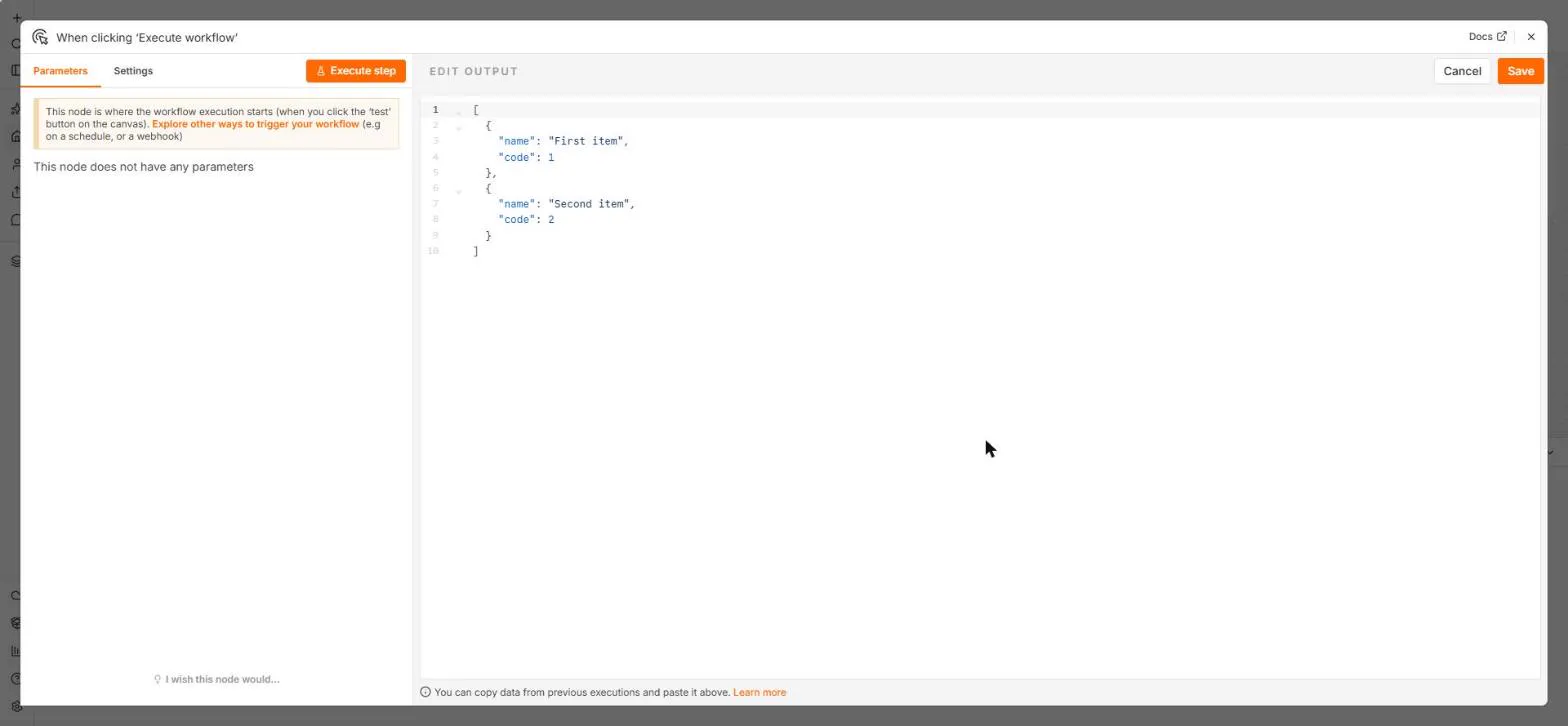
- Add the next step. The trigger is on the canvas as When clicking 'Execute workflow'. Click the small + on its right to add what happens next.
The trigger sits on the canvas as, when clicking execute workflow.
- Search for HTTP. The panel now asks What happens next? Type HTTP in the search box.
Now it asks, what happens next.
- Pick HTTP Request. HTTP Request is at the top: *Makes an HTTP request and returns the response data.* Click it.
HTTP Request is at the top. It makes an HTTP request and returns the response data. This one node can talk to almost any app with an API, even when n8n has no ready-made node for it.
2. GET the client list
- Paste the API address. Method is already GET, which means *give me data*. Paste the address of the client list into URL. This is JSONPlaceholder, a free practice API with ten fake clients, so it needs no key.
Method is already GET. GET means, give me data. Now the URL. That's the address of the client list. We're using JSONPlaceholder, a free practice API with ten fake clients, so you don't need a key.
- Send the request. Click Execute step to send the request.
- See the raw JSON. The OUTPUT says 10 items: one item per client, shown as a table. Click JSON above the output to see what the API really sent back.
The output says ten items. One item for each client, shown as a table.
- Back to the table. JSON is a list of records in curly brackets, each with names and values like "email". n8n turns every record into one item. Click Table to go back.
That's JSON. A list of records in curly brackets, each with a name and a value, like email. n8n turns every record in the list into one item, and the next node runs once for each item.
3. Ask for one client
- Turn on query parameters. You rarely want every client. Turn on Send Query Parameters.
You rarely want every client. Most APIs let you ask for less, with a query parameter. Turn on Send Query Parameters.
- Name the filter. Leave Specify Query Parameters on Using Fields Below. In Name, type username: the field you want to match.
Leave it on, using fields below. In Name, type username. That's the field you want to match.
- Give it a value. In Value, type Samantha.
- Run it again. n8n adds ?username=Samantha to the address for you. Click Execute step again.
n8n adds question mark, username equals Samantha, to the end of the address for you.
- One client back. Now the output says 1 item: Clementine Bauch at Romaguera-Jacobson, with her email, address and company. Close the node with the X at the top right.
Now there's one item. Clementine Bauch, at Romaguera Jacobson, with her email, address and company. The API did the filtering, so you only moved the data you need. Close the node.
4. POST a note back
- Add another HTTP Request. Next you will send something back to the CRM: a follow-up note for this client. Click the + after HTTP Request.
Now send something back to the CRM. A follow-up note for this client.
- Search again. Type HTTP in the search box.
- Pick HTTP Request. Click HTTP Request. n8n names the second one HTTP Request1.
n8n names the second one, HTTP Request 1.
- Open Method. This time the INPUT side already shows Clementine's record from the node before. Click the Method box (it says GET).
This time the input side already shows Clementine's record, from the node before. It says GET.
- Choose POST. Pick POST. POST means *here is some data, please take it*: create a record, log a note, send a message.
- Paste the notes address. Paste the practice address for new notes into URL.
- Turn on Send Body. The data you send goes in the body. Turn on Send Body.
The data you send goes in the body of the request. Turn on Send Body.
- Name the body field. Body Content Type is JSON and Specify Body is Using Fields Below, which is what most APIs want. In Body Field 1, type email in Name.
Body content type is JSON, and specify body is using fields below. That's what most APIs want. In body field one, type email in Name.
- Drag in the email. Don't type the address. Drag email from the INPUT panel on the left onto Value (here, click it). n8n writes the expression {{ $json.email }}.
Don't type the address. Here, just click it. n8n writes an expression, dollar json dot email, in double curly brackets. It means, use this item's email. So it works for any client, not just this one.
- Send it. Under the expression, n8n shows the result for this item: Nathan@yesenia.net. Click Execute step.
Under the expression, n8n shows the result for this item. Nathan at yesenia dot net.
- The API answered. The API answered with the email you sent and a new id, 101. A real CRM would now have a new note. JSONPlaceholder only pretends, so nothing is saved. Close the node.
The API answered with the email you sent, and a new id, one oh one. A real CRM would now have a new note. JSONPlaceholder only pretends, so nothing is saved anywhere. Close the node.
5. Run it all
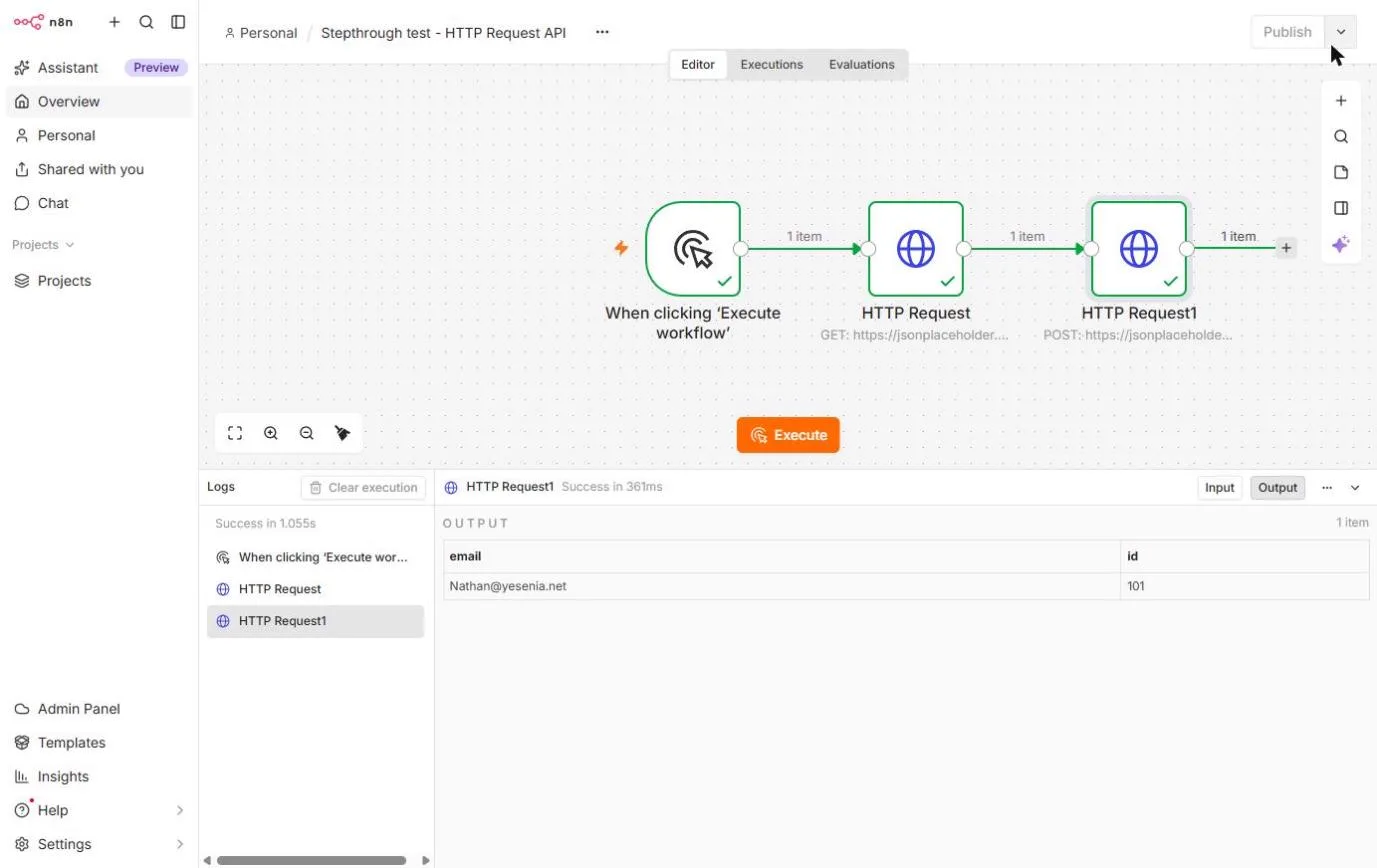
- Run the whole workflow. Click Execute at the bottom of the canvas to run all three nodes in order.
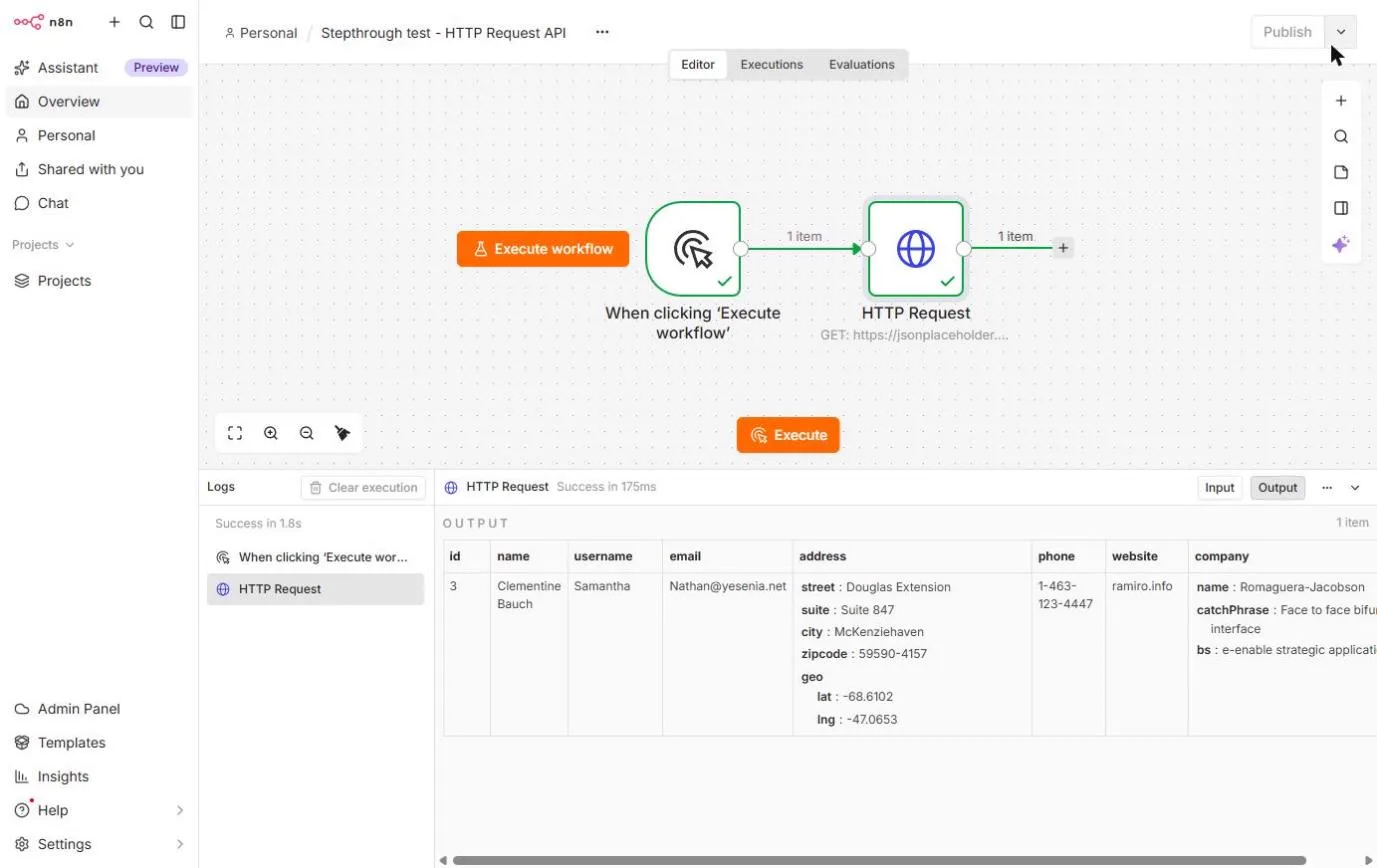
- Check the log. Each node has a green check and 1 item on its line. Click HTTP Request1 in the Logs panel to check what came back.
Every node has a green check, and one item on each line. Green means it ran, not that it's right, so check the result.
Screenshots
Frequently asked questions
- What does the HTTP Request node do in n8n?
- It sends a request to any web address and returns the answer as items. Use it for apps that have an API but no ready-made n8n node.
- What is the difference between GET and POST in n8n?
- GET asks for data and changes nothing. POST sends data in the body, usually to create something, like a note or a contact.
- How do I filter API results in n8n?
- Turn on Send Query Parameters and add a name and value the API supports, such as username = Samantha. The API then returns only matching records.
- Do I need an API key to try this?
- No. The lesson uses JSONPlaceholder, a free public test API with fake data and no key. Real apps need a credential under Authentication.
More in n8n Automation Toolkit
 n8n: What Is n8n? Build Your First Workflow
What n8n is and how it thinks, then your first workflow: a client inquiry form that catches every request and writes a one-line summary. No code, no accounts to connect.
Free · Live ~8 min Beginner
 n8n: Items, JSON and Expressions, Explained by Doing
See how n8n holds data: pin five fake invoices, read them as items, Table and JSON, then write one reminder per invoice and a late fee with drag-and-drop expressions.
Free · Live ~9 min Beginner
 n8n: Run a Workflow on a Schedule (Every Monday at 8am)
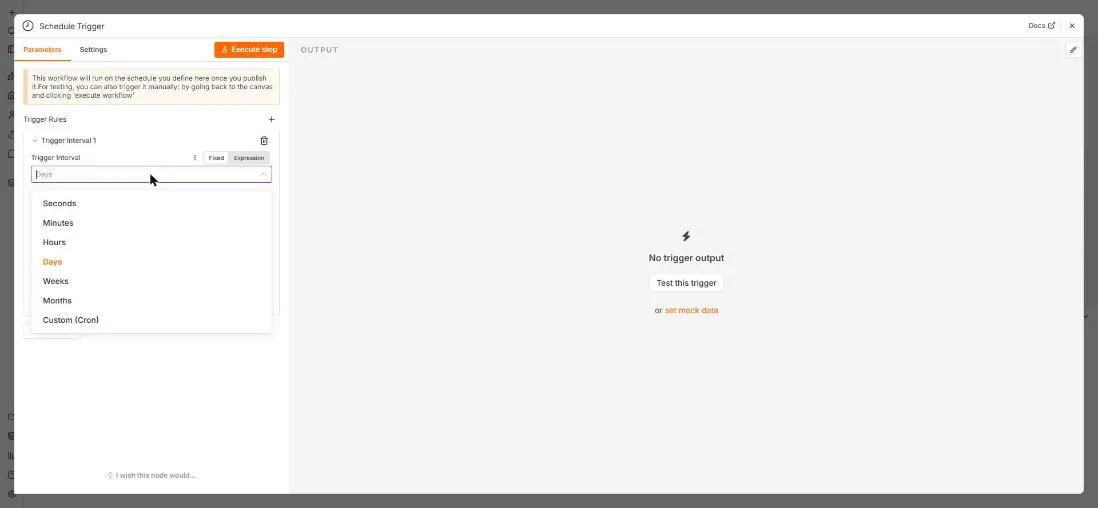
Use the n8n Schedule Trigger to run a workflow by itself: every Monday at 8am, a timesheet reminder. Set the interval, test it now, and check the time zone.
Free · Live ~6 min Beginner
 n8n: Send Form Answers Straight to Google Sheets
Build a consultation request form in n8n (required fields, email, dropdown), test it, and add every answer as a new row in Google Sheets. No webhook, no form tool to…
Free · Live ~10 min Beginner
 n8n: Summarize Customer Emails with OpenAI
Your first AI step in n8n: send each customer email to OpenAI with one prompt and get a one-line summary plus the next step. No agent needed, about a cent of API use.
Free · Live ~9 min Beginner
 Find and Use n8n Templates
Skip the blank canvas. Find a ready-made workflow in the n8n template gallery, import it into your workspace, connect Google Sheets and Gmail, test it with a real form…
Free · Live ~9 min Beginner
All 18 modules in n8n Automation Toolkit
More n8n tutorials
 n8n AI Agent Tutorial: Save Social Media Ideas to Google Sheets
Build an AI agent for BrightPath Marketing that generates social media post ideas and saves them to Google Sheets — chat trigger, AI Agent, system prompt, model…
Free · Live ~12 min Intermediate
 Lovable + n8n: Build a Web App with an AI Backend
Build a contact form in Lovable and connect it to an n8n workflow — webhook trigger, AI Agent, Google Sheets, Gmail, and a Respond node that ties it all together.
Free · Live ~15 min Advanced
 AI Receipt Extractor: Receipts to Google Sheets with n8n
Drop a photo of a receipt into an n8n chat. An AI agent reads it, pulls out the date, vendor and amount, picks a category, and adds a row to Google Sheets.
Free · Live ~12 min Intermediate
 n8n AI Email Responder: Draft Gmail Replies Automatically
Build an n8n agent that watches your Gmail, reads each new customer email, and writes a reply as a draft in the same thread, ready for you to check and send.
Free · Live ~12 min Intermediate
 Daily Job Alerts: Email Each Tech Their Jobs from Google Sheets with n8n
Every morning at 7, n8n reads a plumbing company's jobs sheet, skips anything not assigned yet, and emails each job to the tech it's assigned to — customer, address…
Free · Live ~10 min Intermediate
 Gmail AI Triage: Auto-Label Every Email and Draft Replies
Build an n8n workflow that reads each new email, sorts it as a lead, a client or an invoice with a Text Classifier, adds the matching Gmail label, and drafts a reply to…
Free · Live ~18 min Advanced
Free cheat sheet
Print it or save the PDF: the key steps and checks from this lesson on one page, free.
All free printable cheat sheets
Terms in this lesson
Plain-English definitions, each with an example from a free lesson.