Updated . Built against the tool’s current screens and checked step by step. How we check this lesson
Most office workers spend hours a day typing replies and prompts they already have in their heads. Wispr Flow (wisprflow.ai) is a voice dictation app: you hold a key, talk, and it types clean text wherever your cursor is. In this free business-case lesson you price the typing for a made-up office manager, find the Flow key, speak a messy client reply into Gmail and a long prompt into ChatGPT, and check what comes out. The Flow screens are real screenshots from my own Flow on Windows, captured October 2026. Gmail and ChatGPT are practice copies. This is my own lesson, not an official Wispr Flow course.
At a glance
| Question | Answer |
|---|---|
| What you build | For office workers who type replies and prompts all day: hold one key in Wispr Flow, speak an email and a ChatGPT prompt, then check the clean text. |
| Tools | Wispr Flow |
| Time | About 10 minutes, 29 steps in 9 parts |
| Level | Beginner, no coding needed |
| Cost | Free |
| Ways to learn it | Practice it step by step |
The 9 parts, in short
- Typing is the slow part: See the typing pile, Put a price on it, Meet Wispr Flow.
- Open Flow and find the key: Find your dictation key, Try Flow in another app.
- Pick what to try first: Choose Draft an email, Watch the short demo, See what came out, Try it yourself, and 2 more steps.
- Reply to a client email by voice: Open the client email, Click Reply, Hold Caps Lock and talk, Let go and see the text, and 2 more steps.
- Speak a ChatGPT prompt: Click into the prompt box, Hold Caps Lock and describe the job, Let go, Send the prompt.
- No text box? Copy it: When there is no text box, Copy it and paste it.
- Teach it your words: Open the Dictionary.
- Check your numbers: Read your numbers, Find past dictations, Look in Insights.
- What it saves, and doing it for real: What this saves you, Do it for real.
In the course: Part 2 · Better Prompts (Module 13 of the full course)
Part of: AI at Work: Start Here (step 12 of 17)
Part of: AI Apps Worth Knowing (step 39 of 42)
The business case: typing is the slow part
Picture Maya Chen, who runs the office at Northgate Accounting, a made-up firm. Every day she answers about 40 client emails and writes prompts for ChatGPT. She knows what to say. Typing it out, fixing typos and adding punctuation is what takes the time.
Here is the arithmetic, using example numbers you should replace with your own. Typing replies and prompts takes about 90 minutes a day. Speaking the same words takes about 30 minutes, plus about 10 minutes to read them over. At $40 an hour that saves about 50 minutes a day, or about 4 hours and $160 a week. Wispr Flow's site says it is 4x faster than your keyboard, and in my own account the home page showed 120 words a minute.
Who this is for, and what you need
Office managers, assistants, account managers and anyone who writes email and AI prompts all day. To follow along you need nothing: the lesson is a practice copy. To do it for real you need Wispr Flow installed from wisprflow.ai and a microphone.
Step 1: find your key
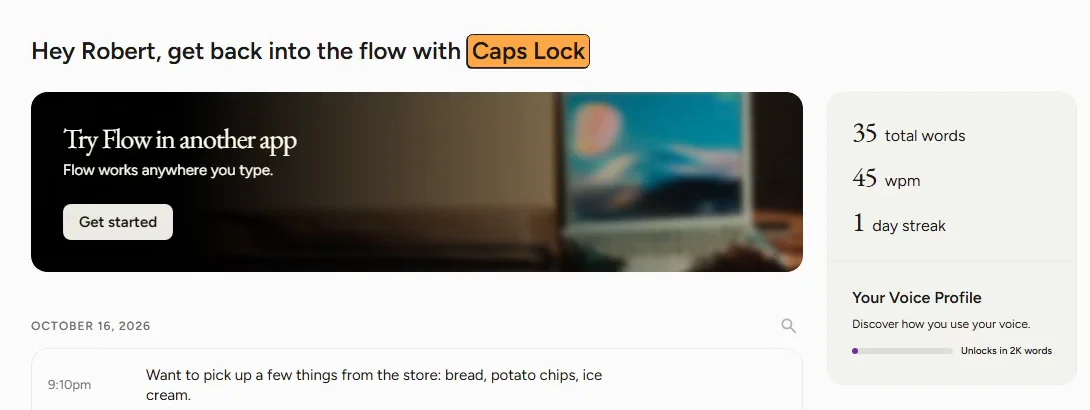
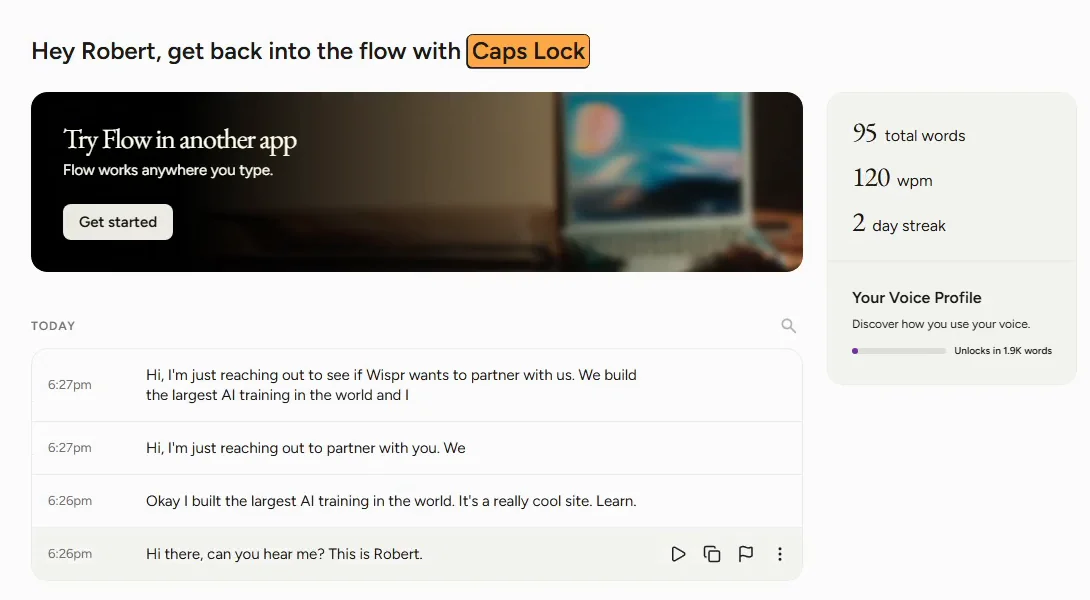
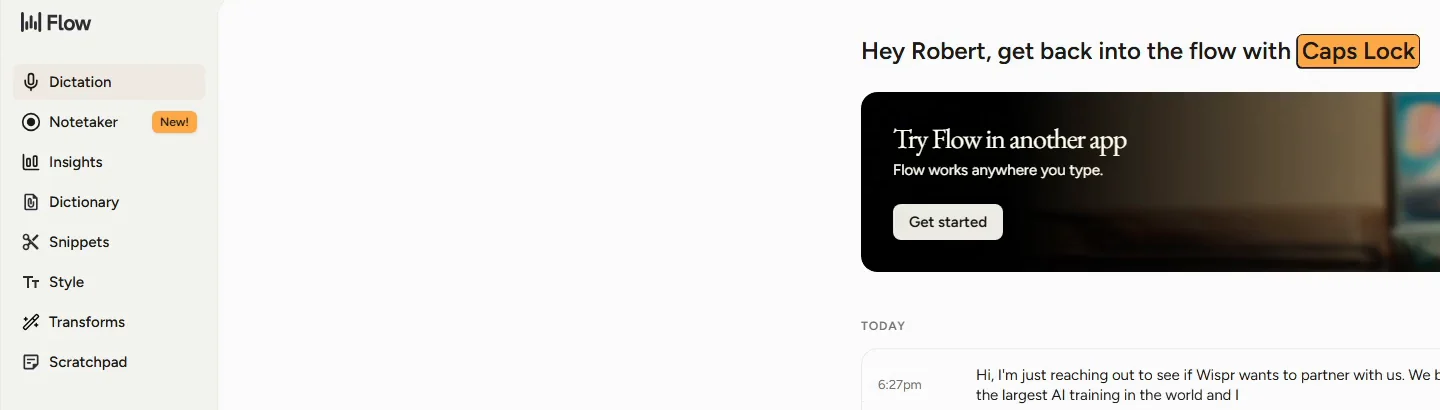
Open Flow. On my Windows PC the home page says "Hey Robert, get back into the flow with Caps Lock", so Caps Lock is the key you hold to talk. Check which key yours names. The banner below says "Try Flow in another app. Flow works anywhere you type." Click Get started.
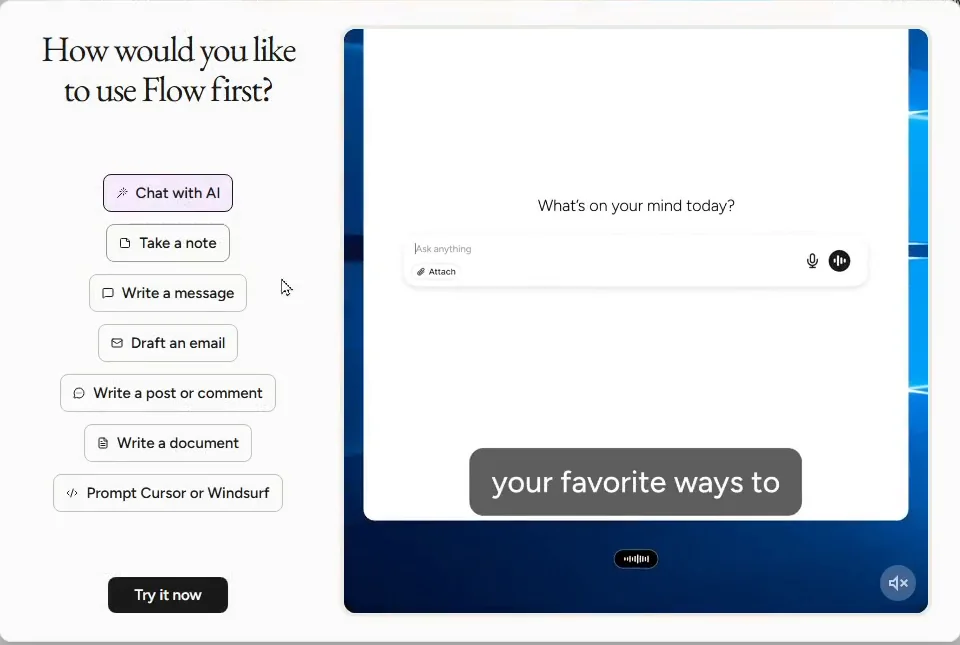
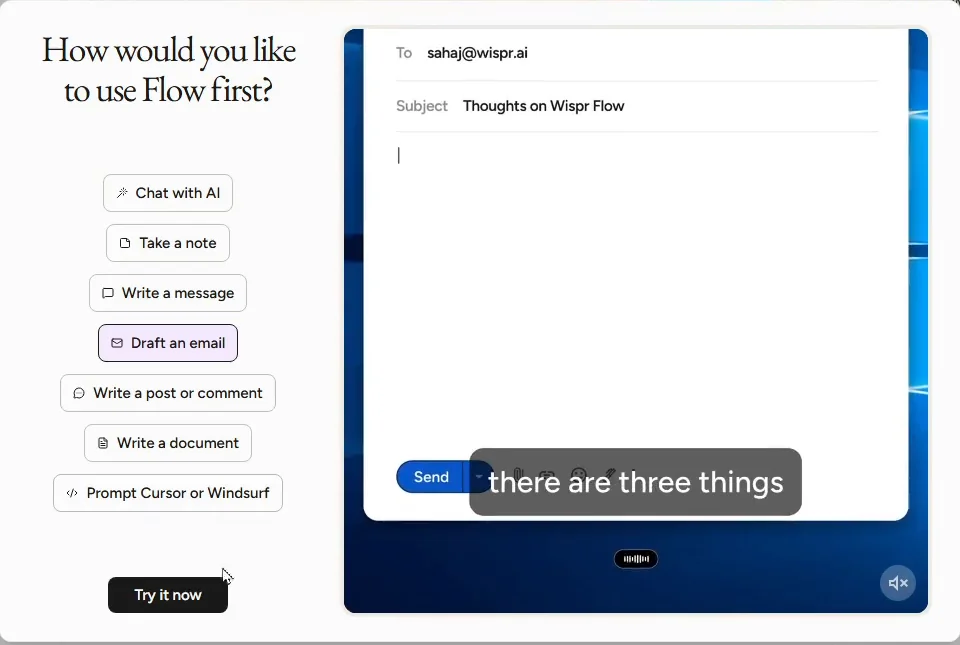
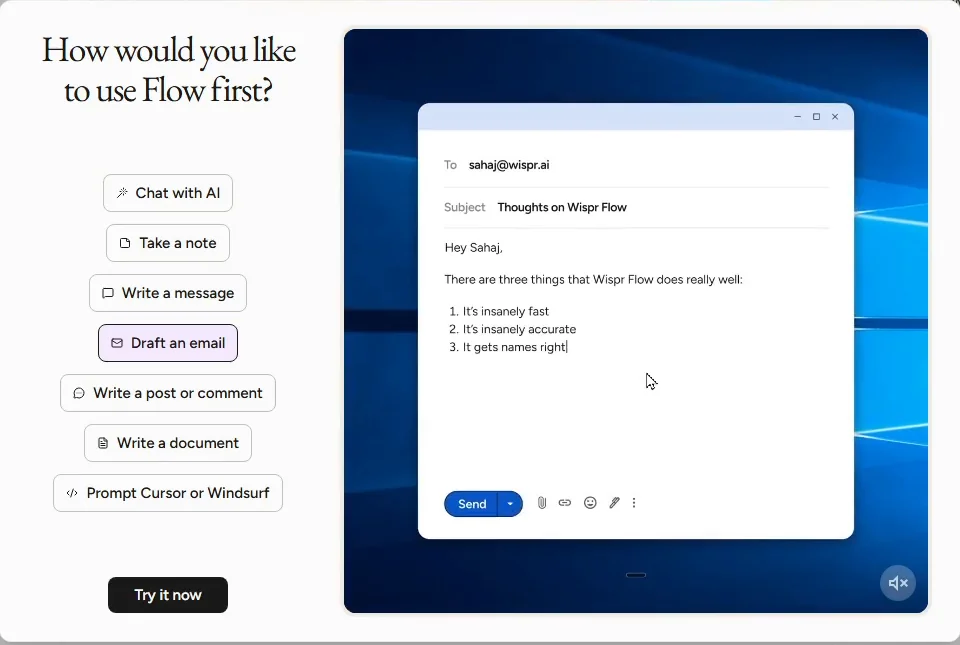
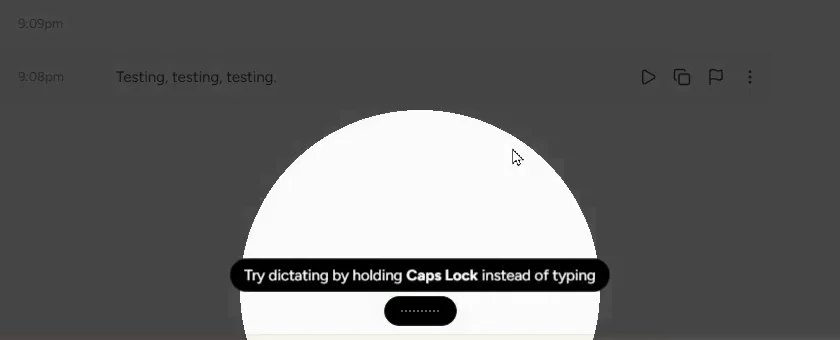
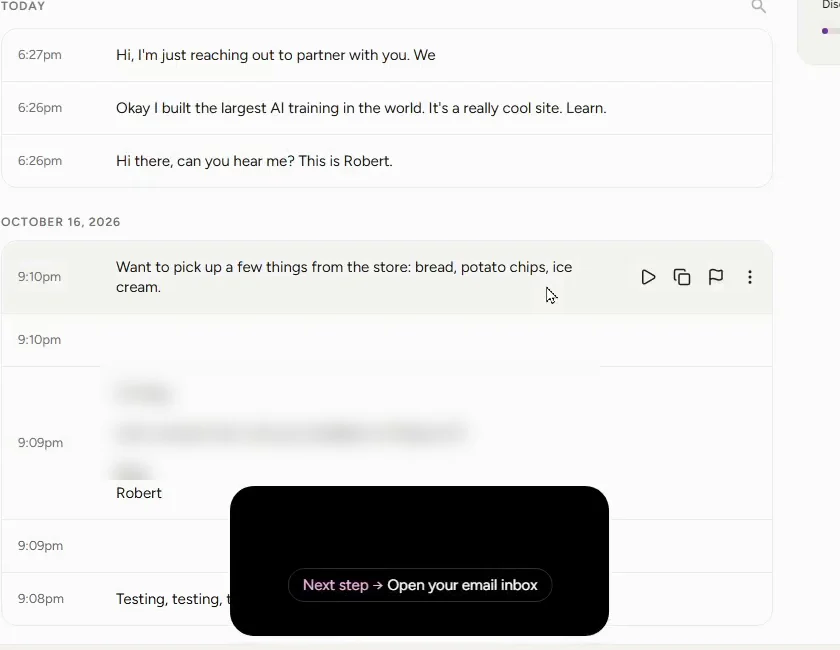
Flow asks "How would you like to use Flow first?" with Chat with AI, Take a note, Write a message, Draft an email, Write a post or comment, Write a document and Prompt Cursor or Windsurf. Pick Draft an email and watch the short demo: speech turns into a formatted email with a numbered list. Click Try it now, and Flow shows "Try dictating by holding Caps Lock instead of typing", then "Next step: Open your email inbox".
Step 2: answer a client email by voice
Open the email and click Reply, so your cursor is in the reply box. Flow types wherever your cursor is. Hold the key and say the reply the way you would say it out loud, for example: "um hi Dan, yeah no problem at all, uh how about Tuesday at 2, no wait, Wednesday at 2...". Let go when you finish.
wisprflow.ai says Flow removes filler words, adds punctuation, formats your writing and catches self-corrections, so "Tuesday, no wait, Wednesday" should come out as just Wednesday. Read the reply before you send it and check names, days and numbers.
Step 3: speak your AI prompts
Prompts are where talking pays off most, because good prompts are long. Click into the ChatGPT box, hold the key and explain the job like you would to a coworker: who it is for, what to include, how long. Let go and send. You get more detail in a few seconds than most people bother to type.
Step 4: when there is no text box
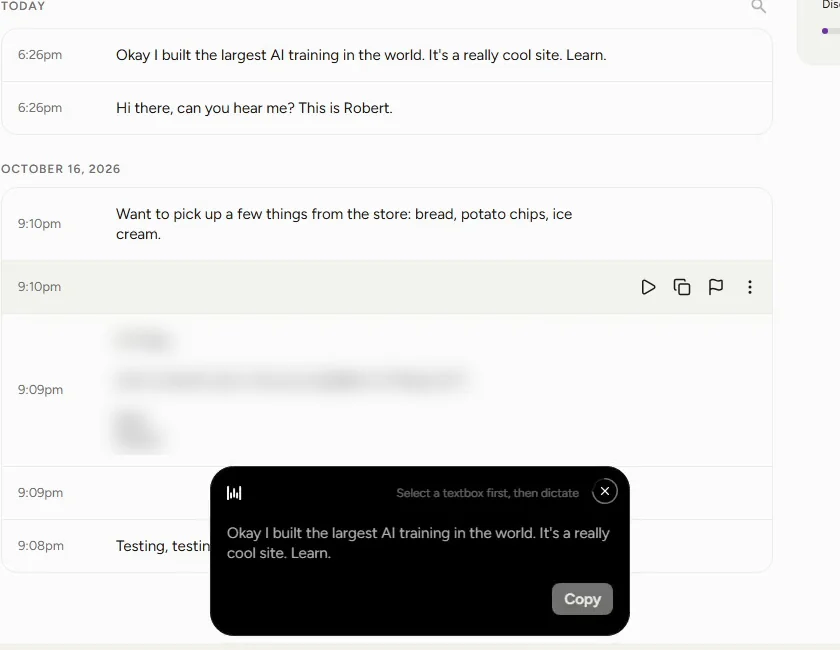
If you talk without a text box selected, Flow shows "Select a textbox first, then dictate" with your words and a Copy button. Click Copy and paste it where it belongs. Every dictation is also listed by time on the home page, where hovering a line shows a Copy transcript button.
Step 5: teach it your words, and check your numbers
Client names and firm terms are what voice tools get wrong most. wisprflow.ai says Flow learns your unique words and names automatically, or lets you add them yourself. Open Dictionary in the sidebar and add the names you say every day.
The home page counts your use: mine showed 95 total words, 120 wpm and a 2 day streak. There is also Insights in the sidebar.
Mistakes to avoid
- Talking before you click into the box. Click first, then hold the key.
- Sending without reading. Flow cleans up how you speak, not what you say.
- Skipping the Dictionary. Add client names once and stop fixing them.
- Dictating confidential details in a room full of people. Think about who can hear you.
Links
- Wispr Flow: the voice dictation app this lesson teaches. It runs on Mac, Windows, iPhone and Android.
- Wispr Flow pricing: current plans. Free gives 2,000 words a week on desktop and 1,000 on mobile with no credit card. Pro is $15 a month, or $12 a month billed annually (read 18 October 2026).
- Wispr Flow news story: what Wispr Flow is, its Notetaker, platforms and security claims.
- Voice and audio AI tools: Wispr Flow in the AI tools directory.
Try it yourself, free
Reading the steps is a start. Doing them is how it sticks. The interactive module walks you through every click in a practice copy of Wispr Flow, checks each step, and never touches your real accounts.
Start “Wispr Flow: Answer Emails and Write AI Prompts by Voice”Step by step: Wispr Flow: Answer Emails and Write AI Prompts by Voice
All 29 steps of the interactive module, in order. In the module you watch each one, then do it yourself in a practice copy that checks your work.
1. Typing is the slow part
- See the typing pile. Maya Chen runs the office at Northgate Accounting, a made-up firm. Every day she answers about 40 client emails and writes prompts for ChatGPT. She knows what to say. Typing it is the slow part. Click today's inbox.
Meet Maya. She runs the office at a small accounting firm. Every day she answers about forty client emails, and writes prompts for ChatGPT. She knows what to say. Typing it is the slow part.
- Put a price on it. Typing replies and prompts takes Maya about 90 minutes a day. Speaking the same words takes about 30 minutes, plus about 10 minutes reading it over. At $40 an hour that saves about 50 minutes a day, or about 4 hours and $160 a week. These are example numbers, so swap in your own. Click the time saved.
Let's put a price on that. About ninety minutes a day of typing. Speaking the same words takes about thirty, plus ten to read it over. That's close to an hour back, every day. These are example numbers. Use your own.
- Meet Wispr Flow. Wispr Flow (wisprflow.ai) turns what you say into clean text wherever your cursor is: Gmail, ChatGPT, Slack and more. It runs on Mac, Windows, iPhone and Android. The Flow screens next are real screenshots from my own Flow on Windows, captured October 2026. Click the Wispr Flow card.
This is Wispr Flow. You talk, and it types clean text wherever your cursor is. These are real screens from my own Flow, on Windows.
2. Open Flow and find the key
- Find your dictation key. This is the Flow home page. The greeting says get back into the flow with Caps Lock. On my Windows PC, Caps Lock is the key you hold to talk. Check which key yours names. Click Caps Lock.
Here's the home page. Look at the greeting. Get back into the flow with Caps Lock. On my computer, Caps Lock is the key you hold to talk.
- Try Flow in another app. The banner says Try Flow in another app. Flow works anywhere you type. That is the whole idea: you do not dictate inside Flow, you dictate into the app you already use. Click Get started.
Flow works anywhere you type. So you don't talk inside Flow. You talk into the app you already use.
3. Pick what to try first
- Choose Draft an email. Flow asks How would you like to use Flow first? The choices are Chat with AI, Take a note, Write a message, Draft an email, Write a post or comment, Write a document and Prompt Cursor or Windsurf. Maya's pile is email. Click Draft an email.
Flow asks how you want to use it first. Chat with A I. Write a message. Draft an email. Maya's pile is email, so pick draft an email.
- Watch the short demo. The right side plays a short demo: an email window, and captions of what the person says, such as there are three things. Nobody types. Click the demo.
It plays a short demo. Watch the captions. Nobody is typing.
- See what came out. A few seconds later the email is written: a greeting, a sentence, and a numbered list of three points. Speech came out as a formatted email. Click the email text.
And there's the email. A greeting, a sentence, and a numbered list. All from speech.
- Try it yourself. Your turn. Click Try it now.
Your turn.
- Hold the key, then talk. Flow shows Try dictating by holding Caps Lock instead of typing, above the small Flow bar at the bottom of the screen. Hold the key while you talk, and let go when you are done. Click the tip.
Here's the trick. Hold Caps Lock while you talk. Let go when you're done.
- Go to your inbox. Then it says Next step: Open your email inbox. Flow works best where you actually write. Click Next step.
Next step. Flow works best where you actually write.
4. Reply to a client email by voice
- Open the client email. This is a practice copy of Gmail. Dan Morales from Harborview Dental, a made-up client, wants to move the year-end review and asks about bank statements. Click his email.
Here's a client email. Dan wants to move his year end review, and asks about bank statements.
- Click Reply. Flow types wherever your cursor is, so first put the cursor in the reply box. Click Reply.
Flow types wherever your cursor is.
- Hold Caps Lock and talk. Now hold Caps Lock and say the reply the way you would say it out loud, "um" and all. Maya even changes her mind on the day. Click and hold the Caps Lock key below.
Now hold Caps Lock, and just talk. Say it the way you'd say it out loud. Ums and all. Maya even changes her mind on the day.
- Let go and see the text. The Flow bar shows it is listening while you talk. Let go of the key when you finish. Click Caps Lock again to let go.
The bar shows it's listening. When you're done, let go.
- Read it before you send. The reply appears in the box with punctuation and paragraphs, and the "um"s are gone. wisprflow.ai says Flow removes filler words, adds punctuation, and catches self-corrections, so "Tuesday, no wait, Wednesday" becomes just Wednesday. This text is an example of that cleanup; your words will differ. Check names, days and numbers. Click the reply text.
And there's the reply. Punctuation, paragraphs, and the ums are gone. She said Tuesday, then Wednesday, and only Wednesday made it in. Still, read it. Check names, days, and numbers.
- Send it. The day, the year and Dan's name are right. In a practice copy nothing really goes out. Click Send.
Everything checks out. Send it.
5. Speak a ChatGPT prompt
- Click into the prompt box. Prompts are where talking helps most, because a good prompt is long. This is a practice copy of ChatGPT. Click the Ask anything box.
Prompts are where talking really pays off. A good prompt is long, and nobody likes typing long prompts.
- Hold Caps Lock and describe the job. Hold Caps Lock and explain what you want like you would to a coworker: who it is for, what to include, how long. Click and hold Caps Lock.
Hold Caps Lock, and explain the job like you would to a coworker. Who it's for, what to include, how long.
- Let go. Say everything, then let go. Click Caps Lock to let go.
Say it all, then let go.
- Send the prompt. A full, clear prompt in a few seconds, with more detail than most people bother to type. Read it, then click the send arrow.
A full, clear prompt in seconds. More detail than most people would ever type. Send it.
6. No text box? Copy it
- When there is no text box. Back in Flow. If you talk with no text box selected, Flow does not lose your words. It shows Select a textbox first, then dictate, with what you said. Click the message.
What if you forget to click into a box? Flow doesn't lose your words. It tells you to select a text box first, and shows what you said.
- Copy it and paste it. Click Copy, then paste it where it belongs. Next time, click into the box first.
7. Teach it your words
- Open the Dictionary. Client names and firm terms are what voice tools get wrong most. wisprflow.ai says Flow learns your unique words and names automatically, or lets you add them yourself. Add the names you say every day, like Harborview. Click Dictionary in the sidebar.
Names are what voice tools get wrong most. Flow learns your words as you go, and you can add them yourself in the dictionary. Add your client names.
8. Check your numbers
- Read your numbers. Back on the home page, the box on the right counts your use. Mine showed 95 total words, 120 wpm and a 2 day streak. wisprflow.ai compares 45 words a minute on a keyboard, so 120 is well over twice that. Click the numbers.
Back on the home page, Flow counts your use. Mine says one hundred twenty words a minute. Flow's own site puts keyboard typing at forty five.
- Find past dictations. Everything you dictate is listed by time under Today. Hover a line to get play, Copy transcript, flag and more buttons. Click the copy button.
Everything you dictate is saved here, by time. Hover a line, and you can copy it again.
- Look in Insights. For more about your use, there is Insights in the sidebar. Open it in your own app once you have a week of dictation. Click Insights.
For more on how you use it, there's Insights in the sidebar.
9. What it saves, and doing it for real
- What this saves you. In our example Maya goes from about 90 minutes a day of typing to about 30 minutes, plus about 10 minutes reading it over, saving about 50 minutes a day, or about 4 hours and $160 a week. Click What this saves you.
So here's what this saves you. Close to an hour a day of typing. Just keep a few minutes to read before you send.
- Do it for real. Install Flow from wisprflow.ai. The free plan gives 2,000 words a week on desktop with no credit card. Start with your next email reply, and read it before you send. Click Do it for real.
Ready to try it? Get Wispr Flow at wispr flow dot A I. The free plan gives you two thousand words a week on desktop. Start with your next email reply.
Screenshots
Frequently asked questions
- Is this an official Wispr Flow course?
- No. This is my own lesson. Wispr Flow is a separate, third-party product. The Flow screens are real screenshots from my own Flow on Windows, captured October 2026, and Gmail and ChatGPT are practice copies.
- Is Wispr Flow free?
- It has a free plan with 2,000 words a week on desktop and 1,000 a week on mobile, and the pricing page says you never need a credit card to start. Pro is $15 a month, or $12 a month billed annually, as of 18 October 2026.
- Does Wispr Flow work in Gmail and ChatGPT?
- Yes. wisprflow.ai says Flow types wherever your cursor is, so it works in every app on your computer with no setup, and it names Gmail, Slack, Notion and ChatGPT among them.
- Which key do I hold to dictate on Windows?
- On my Windows PC the Flow home page named Caps Lock. Hold it while you talk and let go when you finish. Check the key your own Flow home page shows.
- Will it get names right?
- Check them every time. Flow learns your words as you use it, and you can add names yourself in the Dictionary.
Terms in this lesson
Plain-English definitions, each with an example from a free lesson.