Updated . Built against the tool’s current screens and checked step by step. How we check this lesson
At a firm that sells by quote, the first hour of every morning goes to the shared inbox: sorting quote requests from vendor mail, logging each one in a sheet and writing a first reply. A request that waits a day cools off, and a rushed reply promises a date or a price the firm can't keep. Strawberry (strawberrybrowser.com) has routines: a companion runs a set of instructions on a schedule or when something happens in a connected app, and stops at an approval card before anything is sent. This guide shows how to build one for a made-up trade-show builder, run it, read the work trace, fix a promise on an approval card, decline a draft that quoted a price, and tune the routine. It comes with a free practice lesson built from Strawberry's docs and release notes, read 9 November 2026, so screens may differ. This is my own guide, not an official Strawberry course. It follows lesson 1, where a companion researches leads into a sheet and a person approves every email.
At a glance
| Question | Answer |
|---|---|
| What you build | Build a Strawberry routine that reads a shared quote inbox every morning, logs each request to a Google Sheet, drafts the urgent replies and stops at an approval card, so a person approves or declines every send. |
| Tools | Strawberry |
| Time | About 9 minutes, 16 steps in 5 parts |
| Level | Beginner, no coding needed |
| Cost | Free |
| Ways to learn it | Practice it step by step |
The 5 parts, in short
- Open Routines: Open Routines.
- Build the routine: Start a new routine, Pick a daily trigger, Name it, Write the instructions, and 1 more step.
- Run it and read the trace: Run it now, Open the work trace.
- Approve, fix, decline: Fix the promise before it goes, Approve the send, Decline the second one.
- Tune it: Back to Routines, Open the routine, Edit the instructions, Add the price rule, and 1 more step.
Start here first: Build an n8n AI Agent That Writes Deal Follow-Ups (module 1 of AI Automation for Sales)
Part of: AI for Sales Teams (step 14 of 26). Next up: Build an n8n AI Agent That Writes Deal Follow-Ups
Part of: AI Apps Worth Knowing (step 37 of 140). Next up: Preview Every Website Change Before Your Client Sees It using Kosuke
The routine instructions from the lesson
Paste these into Strawberry's create-routine dialog and replace the bracketed parts. The approval line is the one from Strawberry's own routine guide. The third prompt turns a chat that went well into a routine without the dialog.
| Prompt | What it does |
|---|---|
| Read the new emails in [shared inbox] since the last run. For each [request type], add a row to the Google Sheet "[sheet name]" with the date, company, contact, [what matters to you], and a one-line summary. Mark it Urgent when [your rule], otherwise Normal. Skip newsletters and vendor marketing. For Urgent requests, draft a short reply that thanks them, says [who] will call today to go over [what], and asks for [what you need]. Never promise a [date], a [delivery] or a price. Do not answer questions about existing orders or contracts; list those for me instead. Draft the replies and notify me. Do not send until I approve. End with a summary: how many requests, how many urgent, and what needs me. If nothing needs action, delete the automatic chat. | One scoped routine that logs, sorts and drafts, says when to notify you, never sends on its own, and deletes the automatic chat when there is nothing to do. |
| Never mention a price, a price range or a starting price, even if they ask for one. Say that [who] will cover pricing on the call. | The rule Marcus adds after a declined card. Every declined draft is a rule the instructions were missing. |
| Do this workflow every weekday morning at 8. Ask me any targeted questions you need to make the routine reliable. | Strawberry's docs: after a chat handles a workflow correctly, ask the companion to make it a routine and to collect the missing details first. |
The business case: the first hour, done before you sit down
Picture Marcus Bell, sales coordinator at Keystone Exhibits, a made-up 22-person firm in Charlotte that designs and builds trade-show booths. Quote requests arrive in quotes@ overnight, mixed with vendor newsletters, order changes from existing clients and marketing offers. Every morning Marcus reads them all, logs the real requests in a sheet, decides which are urgent (an event within 30 days) and writes a first reply to each.
Here is the arithmetic, with example numbers you should replace with your own. Six to ten emails a day at five minutes each is close to an hour, every morning, before any selling happens. Worse, a rushed reply tends to promise something: a concept by Friday, a price range, a delivery date. The fix is not to let an AI agent answer customers on its own. It is to let a routine do the sorting, logging and drafting on a schedule, and to keep a person on the send button. That is human in the loop built into the morning.
What a Strawberry routine is
Strawberry is a desktop browser for macOS and Windows with AI companions built in. A routine, in its docs' words, is an automation that runs on a schedule or an app event: a trigger, a set of instructions and a companion to run it. When the trigger fires, Strawberry opens a real chat and the companion works through the instructions with your connected apps, such as Gmail and Google Sheets. You read the run like any other chat, with a work trace of every email read, row added and draft queued.
In the real create-routine dialog the trigger menu offers it's (daily schedule), it's been (repeating interval), the date is (run once) and a custom schedule runs; app triggers such as a new email have their own App triggers panel on the Routines page. Since the October 2026 updates a routine can also run once at a date and time, carry an Only if condition so only matching events start a run, post its results into a chat you already use, and show its next runs before you save. Chat History has filters for unread chats, chats that need your input and routine runs. One practical point from Strawberry's release notes: if your computer is off or asleep when a routine is due, it waits and runs the next time you open Strawberry.
Privacy and safety: a routine runs while you are not watching
A companion acts with your logins, and a routine does so on a schedule. Strawberry's own guidance for routines that can send messages or update systems is to let it read and draft, then notify you for approval before anything is sent or changed. Keep Gmail's send action on Ask every time at strawberry://settings/integrations (lesson 1 shows this), and review permissions whenever you add a routine. In Ask Always mode, saved permissions still apply, so check Permanent Permissions too.
Scope the routine to one inbox or label, and connect only the apps it needs. Built-in app connections are shared across every browser profile signed into the same Strawberry account, so check which connected account a routine will use before it touches customers. Shared companions grant edit access to their instructions, so a routine on a shared companion can be changed by anyone who shares it. Chat messages are encrypted before they are saved on Strawberry's servers, per its docs; your firm's own rules for customer data still apply.
Step 1: build the routine from the Routines page
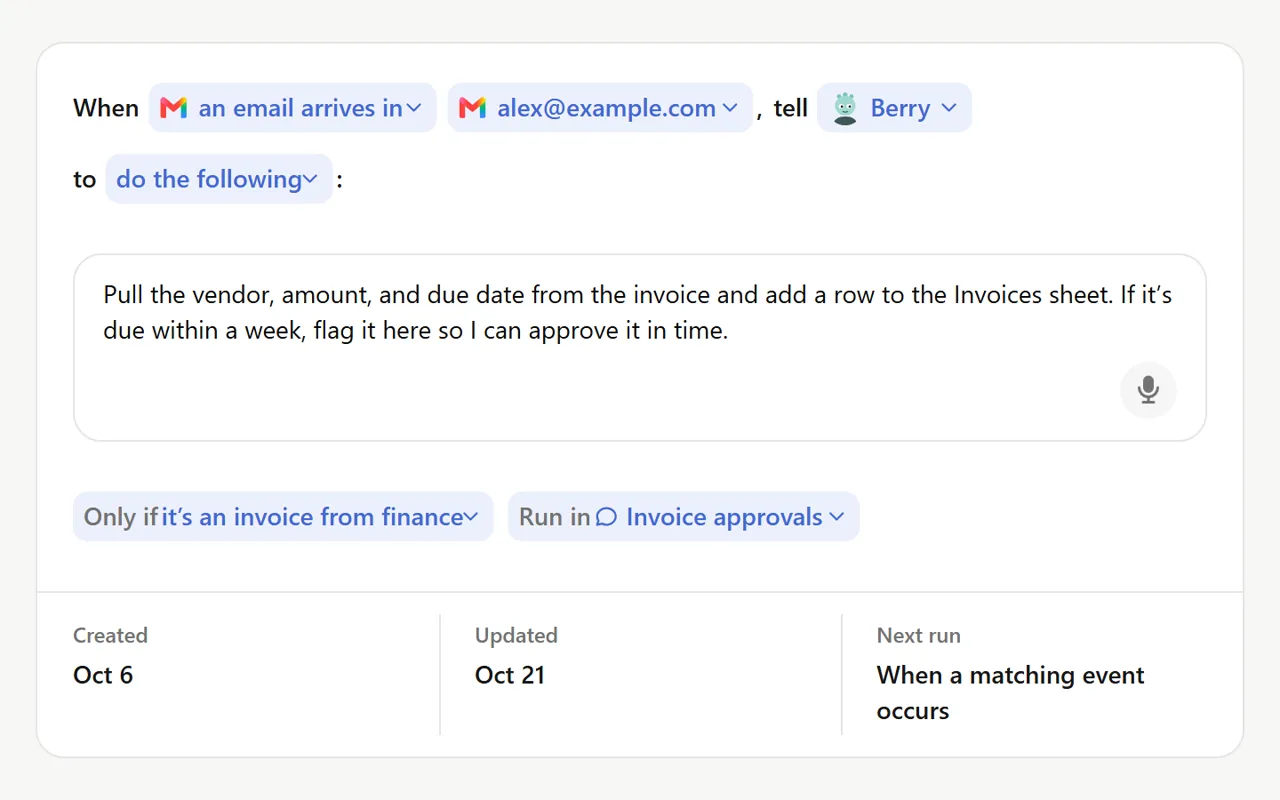
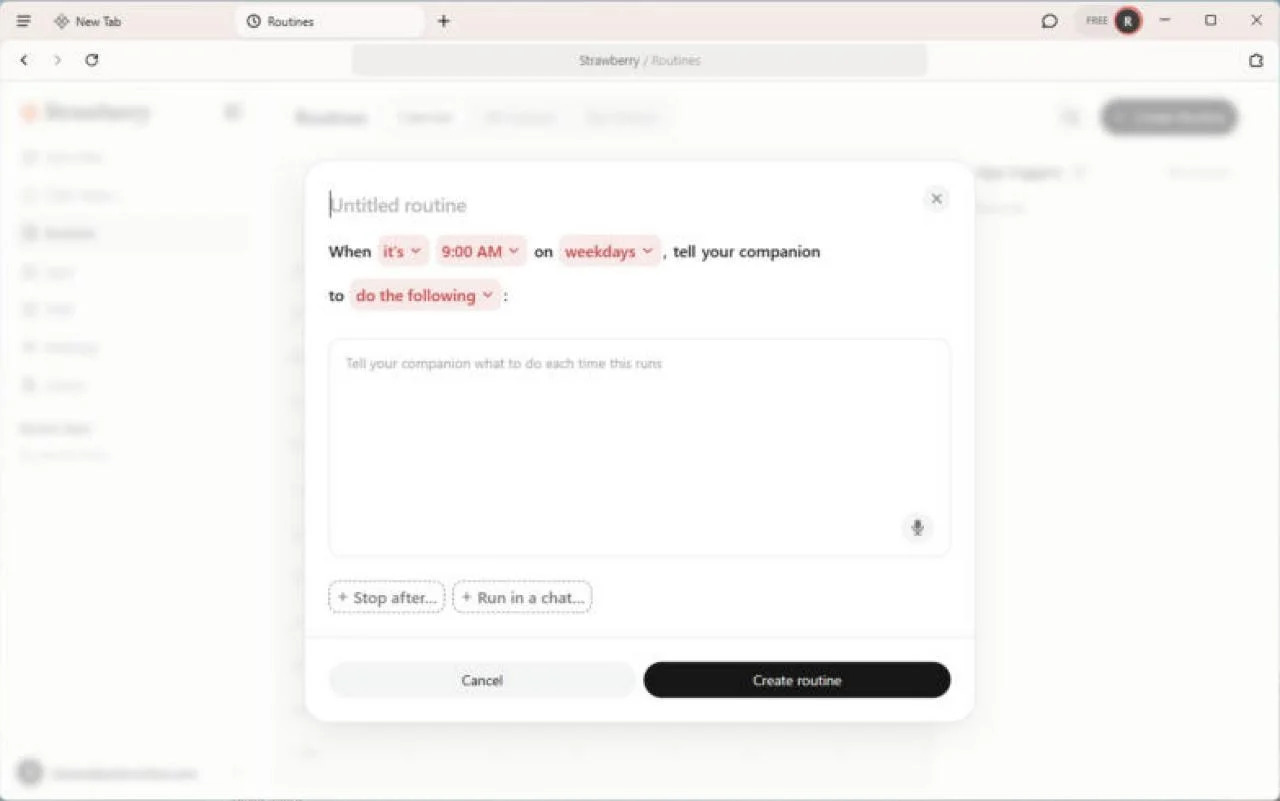
Click Routines in the sidebar, or type strawberry://routines. The page lists every routine across your companions with a run history. Click Create Routine, then Create manually (Create with companion sets it up by chatting instead). Open the menu after When and pick it's (daily schedule); the dialog starts at 9:00 AM on weekdays, so set 8:00 AM and every day. Name it (the field starts as Untitled routine) and paste the instructions from the box above. The sentence at the top then reads: When it's 8:00 AM on every day, tell your companion to do the following. Stop after… and Run in a chat… are optional.
The instructions follow Strawberry's routine best practices: start with the trigger, combine related instructions in one routine (log, sort, draft) rather than three, define notification rules (what counts as needing you, and delete the automatic chat when there is nothing), keep it scoped to one inbox, and use the approval gate: Draft the replies and notify me. Do not send until I approve. Add the things it must never say: dates, prices, answers about contracts.
Step 2: run it once and read the work trace
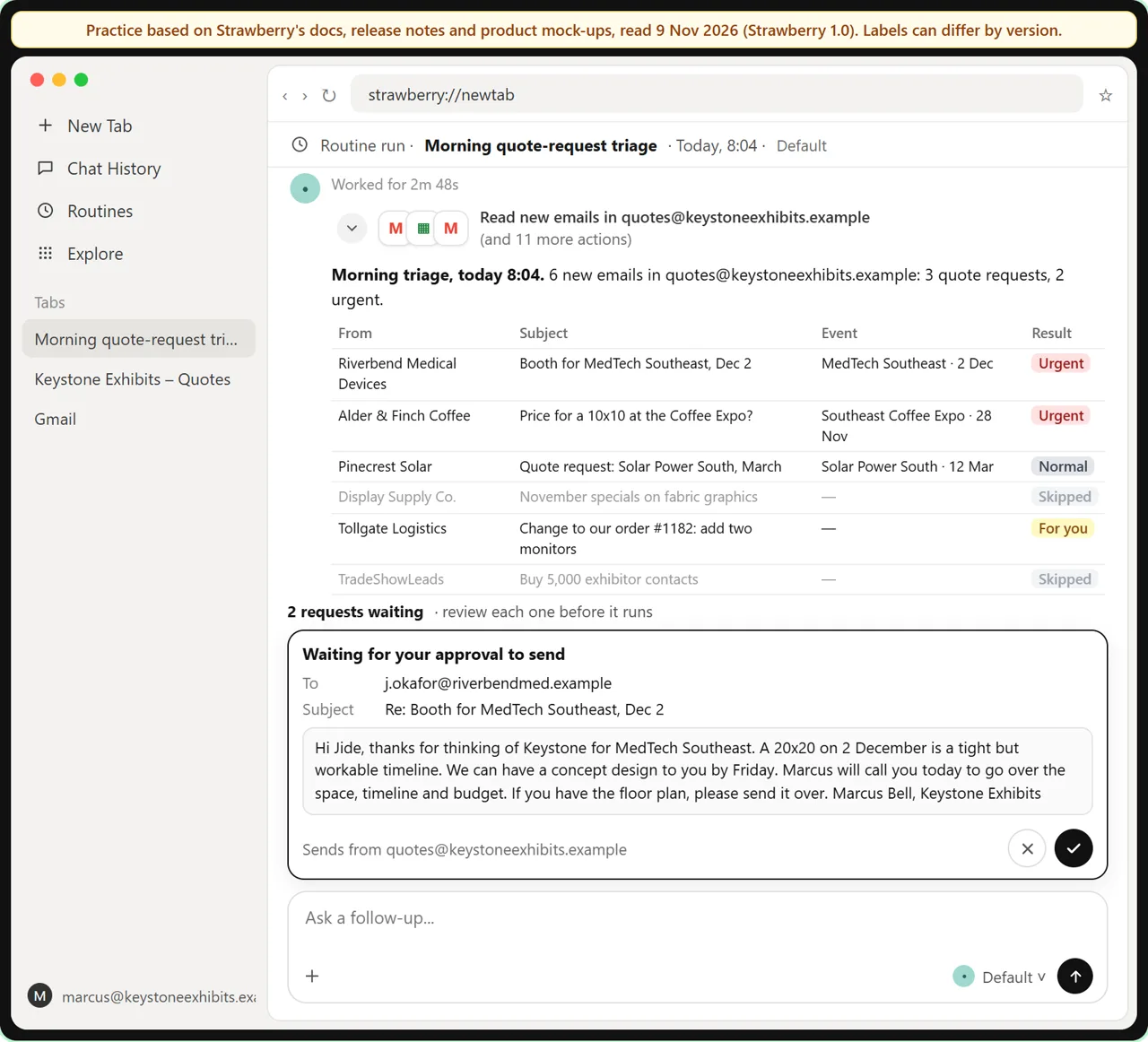
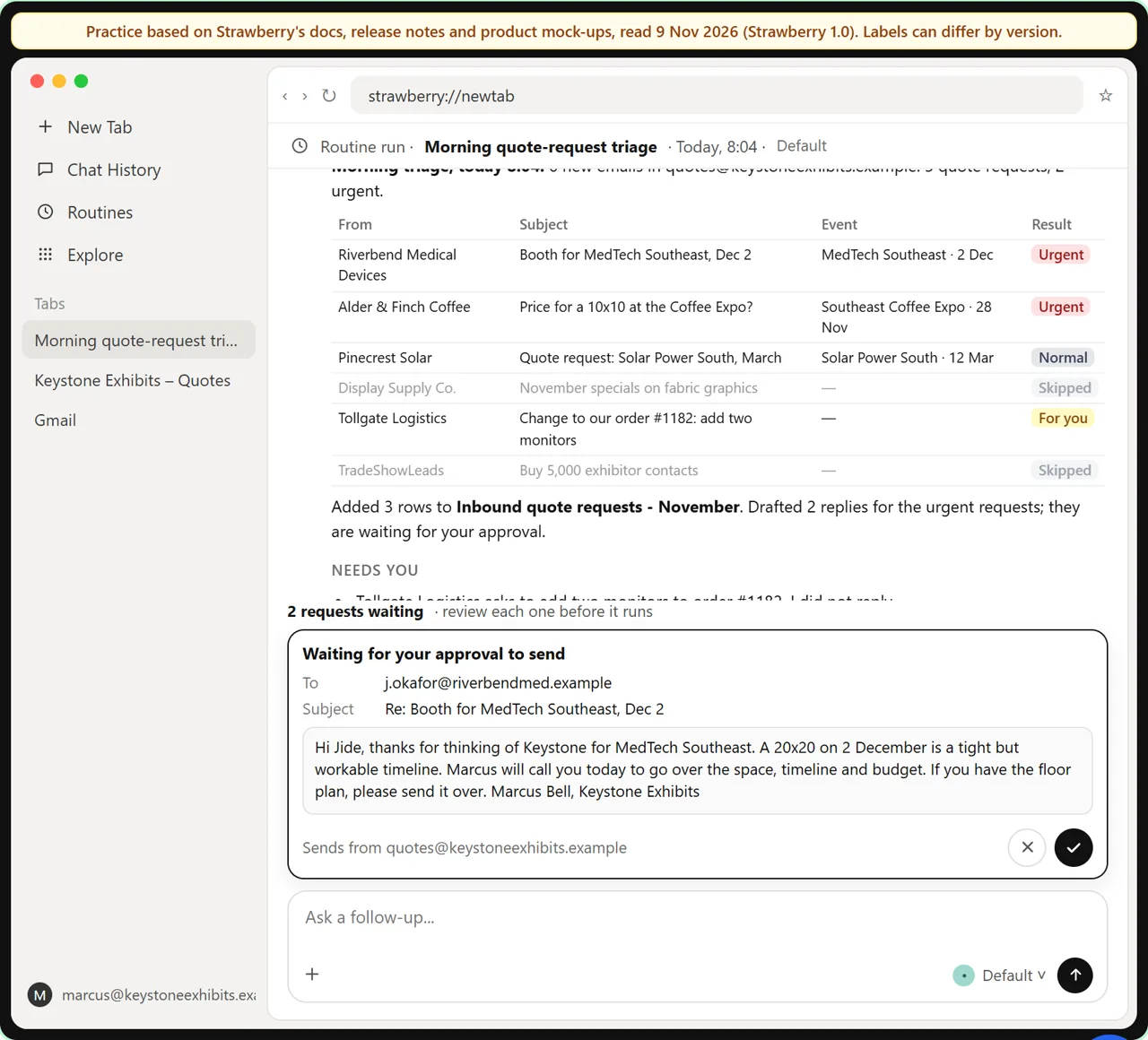
You do not have to wait until tomorrow. The docs say a scheduled routine can be run on demand, and every run opens a chat. In the lesson the run reads six emails: three quote requests go into the sheet, two of them marked Urgent because the events are within 30 days, two newsletters are skipped, and one order change from an existing client is set aside for Marcus because the instructions said not to answer those.
Open the work trace, the row of actions above the answer, and check it against the summary. Three named rows, two named drafts, one named email set aside. On the first few runs do this every time. If the routine is noisy or misses things, Strawberry's guide says to review the run history at strawberry://routines/history and tune the instructions, not to add a second routine.
Step 3: approve, fix or decline each card
Because sending is on Ask every time, each drafted reply waits in an approval request above the chat input, and several can wait at once. Email cards are editable: recipients, subject and body. In the lesson the first draft says we can have a concept design to you by Friday. The design team has not seen the job, and the instructions said never promise a design date, so Marcus edits the sentence out on the card and approves.
The second draft answers a price question with a range. Nobody at Keystone quotes before a call, so Marcus declines it. The email is not sent, the request stays logged as Urgent with a note, and he calls them. Declining is a normal outcome: it is how a routine that drafts and asks does its job even when the answer is no, and it tells you exactly which rule the instructions are missing.
Step 4: tune the routine from its run history
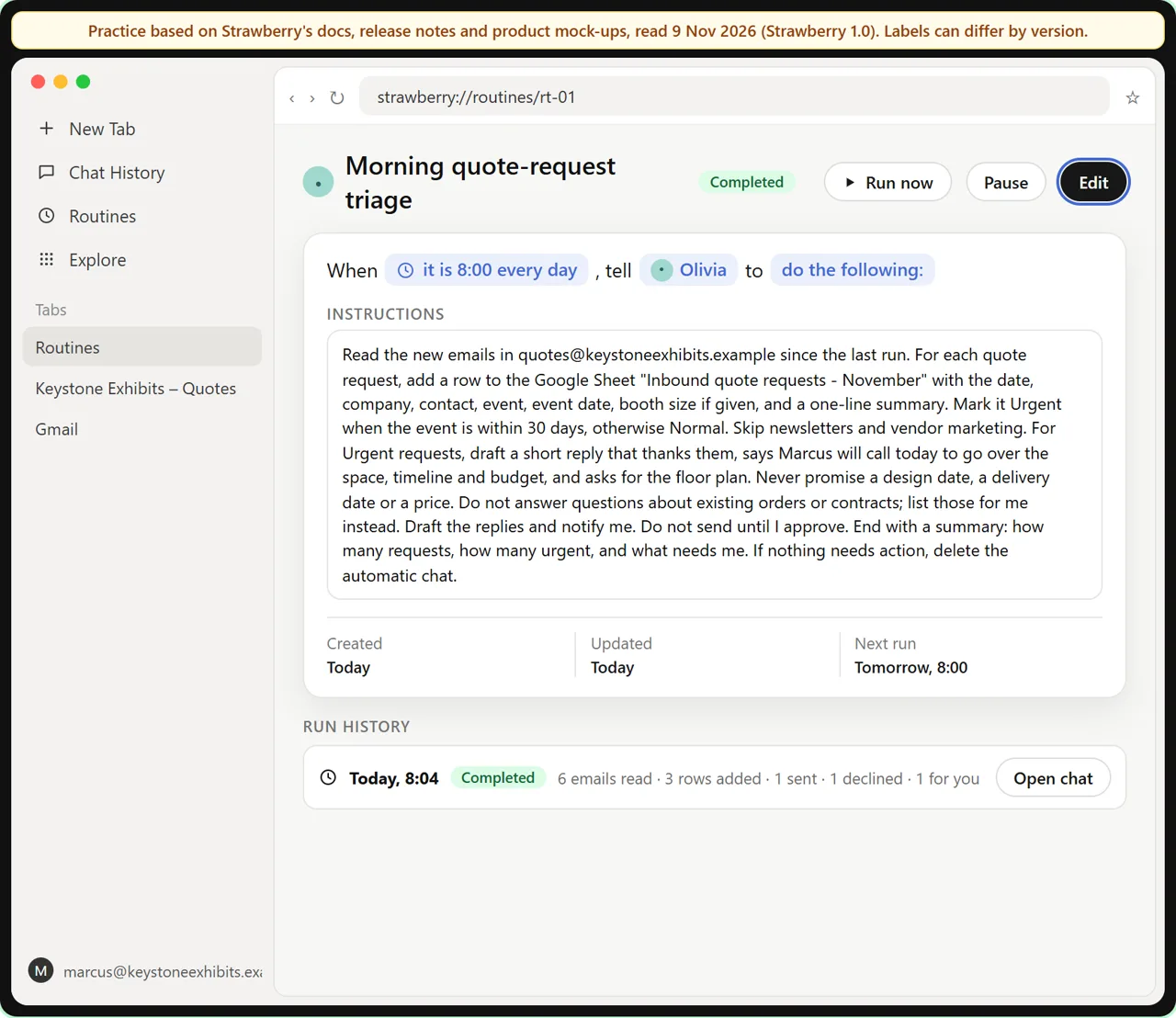
Open the routine from the list. Its page shows when it was created and updated, the next run, the run history, and the actions the docs list: edit, pause and resume, run now, delete. Click Edit, add the missing rule (never mention a price, a price range or a starting price) and save. Changes apply from the next run.
Tomorrow at 8:00 the routine runs on its own, logs the requests, drafts the urgent replies and waits at the approval card. When it has run cleanly for a week, consider an app-trigger version with an Only if condition that drafts the moment an urgent request arrives, and a Run in chat so the results land in the conversation your team already watches.
Where to go next
If you skipped it, lesson 1 researches leads into a sheet and approves every email in Strawberry, including the Ask every time setting this lesson relies on. For the same idea in other tools, see a speed-to-lead agent in n8n, an approval gate in an n8n workflow or client email replies in Lindy.
Not sure whether the job needs a routine, an agent or a plain automation? See AI agent vs chatbot vs automation. When the replies come back, answering a pricing objection is the natural next step.
Who this is for
Sales coordinators, office managers, founders and anyone who owns a shared inbox where requests arrive overnight and first replies matter: quotes, bookings, applications, support. The practice lesson needs nothing installed. To do it for real you need Strawberry on macOS or Windows and the email and sheet apps your team already uses.
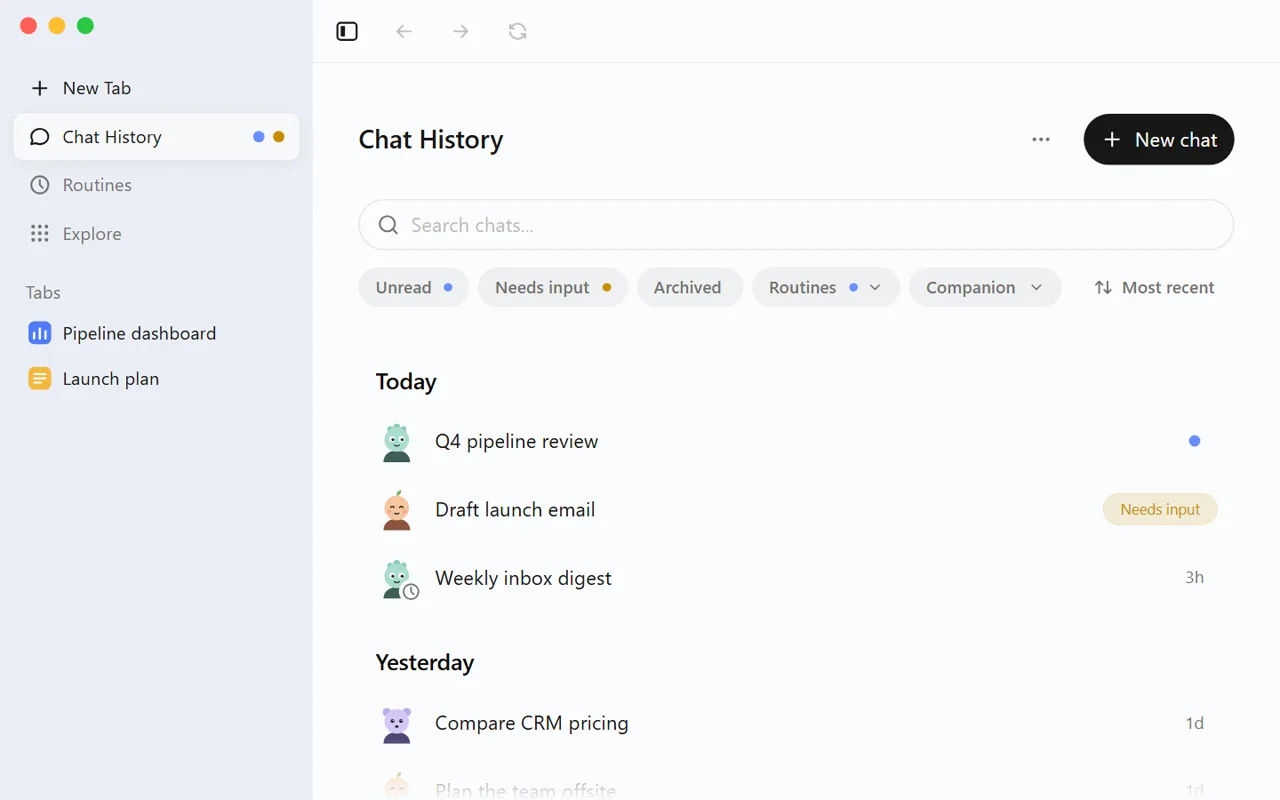
A note on the screens: the lesson and this guide were built from Strawberry's public docs, release notes and product mock-ups on 9 November 2026, after the 1.0 launch, and the same day we checked the Routines page and the create-routine dialog in the real app (Windows, Free plan) and matched the button, menu and trigger labels. The run, approval card and routine detail screens still follow the docs, so labels there can differ in your version. Where the docs describe an action in plain words but do not name its button (Run now, the approval card's buttons), the practice keeps the control plain and says so. The first two images below are Strawberry's own mock-ups from its 21 October 2026 update; the rest are the practice copy.
Mistakes to avoid
- Letting a routine send on its own because the send action was left on Always allow.
- Three routines for one job (read, log, draft) when the docs say to combine related instructions in one.
- Instructions with no notification rule, so every run creates a chat whether or not anything happened.
- Approving a card without reading it against the instructions you wrote.
- Approving a reply that promises a date, a price or an answer about a contract.
- Treating a declined card as a failure instead of a rule to add to the instructions.
- Running a routine from a shared companion whose instructions anyone on the team can change.
- Expecting the routine to run overnight with Strawberry closed: a missed run waits for the next time you open it.
Links
- Strawberry: the product site: download for macOS and Windows, plans and the routine automation page.
- Routines (Strawberry docs): strawberry://routines, New routine, trigger types, Create with companion, run history and the detail and edit pages.
- Routine best practices (Strawberry docs): start with the trigger, combine related instructions, define notification rules, keep routines scoped, use approval gates.
- AI permissions (Strawberry docs): permission mode, connected app tool permissions and editable action approval cards.
- Agent runs (Strawberry docs): the work trace: searches, tool calls, browser actions and questions a companion took.
- Strawberry 1.0 and the 21 October update: Only if conditions, Run in a chat, next runs shown before you save, Chat History filters for routine runs and chats that need input.
Try it yourself, free
Reading the steps is a start. Doing them is how it sticks. The interactive module walks you through every click in a practice copy of Strawberry, checks each step, and never touches your real accounts.
Start “Strawberry: Sort the Quote Inbox Every Morning and Approve Every Reply”
November 2026 spotlight
Strawberry
A desktop browser with built-in AI companions that research leads, fill in spreadsheets and draft replies inside your own tabs, and wait for your approval before anything is sent.
Step by step: Strawberry: Sort the Quote Inbox Every Morning and Approve Every Reply
All 16 steps of the interactive module, in order. In the module you watch each one, then do it yourself in a practice copy that checks your work.
1. Open Routines
- Open Routines. This is Strawberry on Marcus's computer. Every morning he sorts the quote inbox by hand. Today he puts that on a schedule. Click Routines in the sidebar (it opens strawberry://routines).
This is Marcus Bell. He runs sales support at Keystone Exhibits, a made-up firm that builds trade show booths. Every morning, he sorts the quote inbox by hand. He logs each request in a sheet, and writes a first reply. Today he puts that on a schedule.
2. Build the routine
- Start a new routine. The Routines page has three tabs, Calendar, All routines and Run history, and an App triggers panel. Nothing here yet. Click Create Routine. In the real app it opens a small menu: Create with companion (set it up by chatting) or Create manually (choose a skill or write instructions). The practice goes straight to Create manually.
The Routines page lists every routine, with its run history. Nothing here yet.
- Pick a daily trigger. A routine is a trigger, a set of instructions and a companion to run it. The menu after When offers it's (daily schedule), it's been (repeating interval), the date is (run once) and a custom schedule runs. App triggers, such as a new email, live in the App triggers panel once apps are connected. Marcus wants one tidy run each morning, not a reply to every email, so click it's (daily schedule). The real dialog starts at 9:00 AM on weekdays: set 8:00 AM and pick every day (the days menu also has weekdays, weekends and custom).
A routine is a trigger, some instructions, and a companion to run them. There are four kinds of trigger. Daily. Interval. A cron expression. Or an app trigger, like a new email. Marcus wants one tidy run each morning. Not a reply to every email.
- Name it. The schedule reads at 8:00 AM every day. A name and instructions are required. Click the name field at the top (it says Untitled routine) and type Morning quote-request triage.
The schedule is set. Every day at eight. And Strawberry shows the next run before you save. Now give it a name.
- Write the instructions. Paste the instructions. They follow Strawberry's routine best practices: scope it to one inbox, put the related actions (log, sort, draft) in one routine, say when to notify you, and the approval gate from the docs: Draft the replies and notify me. Do not send until I approve.
They follow Strawberry's own advice for routines. One inbox. The related jobs in one routine. Log it, sort it, draft the reply. Clear rules about what to tell Marcus. And the line that matters most. Draft the replies and notify me. Do not send until I approve.
Read the new emails in quotes@keystoneexhibits.example since the last run. For each quote request, add a row to the Google Sheet "Inbound quote requests - November" with the date, company, contact, event, event date, booth size if given, and a one-line summary. Mark it Urgent when the event is within 30 days, otherwise Normal. Skip newsletters and vendor marketing. For Urgent requests, draft a short reply that thanks them, says Marcus will call today to go over the space, timeline and budget, and asks for the floor plan. Never promise a design date, a delivery date or a price. Do not answer questions about existing orders or contracts; list those for me instead. Draft the replies and notify me. Do not send until I approve. End with a summary: how many requests, how many urgent, and what needs me. If nothing needs action, delete the automatic chat.
- Create the routine. Read the sentence at the top once more: When it's 8:00 AM on every day, tell your companion to do the following. The optional + Stop after… and + Run in a chat… chips can stay empty. Click Create routine.
Read the sentence at the top once more. When it is eight every day, tell Olivia to do the following.
3. Run it and read the trace
- Run it now. The routine is on the list with its next run. You don't have to wait until tomorrow: the docs say a scheduled routine can be run on demand. Click Run now. (The docs give this action in plain words, so the button is kept plain.)
The routine is on the list, with its next run. You do not have to wait until tomorrow.
- Open the work trace. Every run opens a real chat, so you can read what it did. Six emails: three quote requests logged to the sheet, two marked Urgent, two skipped, one set aside for Marcus, and 2 requests waiting above the chat input. Before you trust it, click the row of actions to open the work trace.
Every run opens a real chat. So you can read what it did. Six emails. Three quote requests, logged to the sheet. Two marked urgent. Two skipped. One set aside for Marcus. And two requests waiting above the chat box. Before you trust it, open the work trace.
4. Approve, fix, decline
- Fix the promise before it goes. The trace matches the summary. Now the first approval request: the reply to Riverbend Medical Devices. Sends are on Ask every time, so nothing has gone out, and the card is editable. It says we can have a concept design to you by Friday. The instructions said never promise a design date. Paste the fixed reply into the body.
The trace matches the summary. Now the first approval request. It is the reply to Riverbend Medical Devices. Nothing has been sent. Read it like a customer would. It promises a concept design by Friday. The design team has not seen the job. The instructions said, never promise a design date. You can edit the card.
Hi Jide, thanks for thinking of Keystone for MedTech Southeast. A 20x20 on 2 December is a tight but workable timeline. Marcus will call you today to go over the space, timeline and budget. If you have the floor plan, please send it over. Marcus Bell, Keystone Exhibits
- Approve the send. Recipient, subject and body check out now. Click the check mark to approve this one email. (The docs describe editable approval cards but not their button labels, so the buttons are plain icons.)
Check the recipient and the subject. Both look right. Approve this one email.
- Decline the second one. One sent. The second request is the reply to Alder & Finch Coffee, who asked for a price. The draft says booths start around $8,000 to $12,000. Nobody at Keystone quotes a price before a call, and the routine should not either. Click the cross to decline: the email is not sent, the request is logged, and Marcus will call them.
One sent. The second request is the reply to Alder and Finch Coffee. They asked for a price. And the draft gave one. Eight to twelve thousand dollars. Nobody at Keystone quotes a price before a call. Decline it. The email is not sent. The request is still logged. Marcus will call them.
5. Tune it
- Back to Routines. The run is done: one reply sent, one declined, one order change waiting for Marcus. A routine that drafts and asks is doing its job even when you say no. Click Routines in the sidebar.
The run is done. One reply sent. One declined. One order change waiting for Marcus. A routine that drafts and asks is doing its job, even when you say no.
- Open the routine. The card now shows its last run and the next one. Click Morning quote-request triage to open its detail page and run history.
The card shows its last run, and the next one.
- Edit the instructions. The detail page has the sentence builder, Created, Updated and Next run, the run history, and the actions the docs list: edit, pause and resume, run now, delete. The price range in the second draft means the instructions need one more rule. Click Edit.
This page shows when it was created and updated, the next run, and the run history. The price range in the second draft means the instructions need one more rule.
- Add the price rule. Click the end of the instructions and paste the new rule. Strawberry's routine guide says to review run history and tune the prompt: each run you check makes the next one safer.
Never mention a price, a price range, or a starting price. Say that Marcus will cover pricing on the call. Each run you check makes the next one safer.
- Save it. Click Save. Tomorrow at 8:00 the routine runs on its own, logs the requests, drafts the urgent replies, and waits for Marcus at the approval card. One thing to know: a run that comes due while Strawberry is closed waits, and runs the next time you open it.
Tomorrow at eight, the routine runs on its own. It logs the requests. It drafts the urgent replies. And it waits for Marcus at the approval card. One thing to know. If Strawberry is closed at eight, the run waits, and starts the next time you open it. Marcus got his first hour back, and nothing leaves the building without a person saying yes.
Screenshots
Frequently asked questions
- Is this an official Strawberry course?
- No. This is my own guide and practice lesson. Strawberry is a separate product from strawberrybrowser.com. The two product mock-ups are from Strawberry's 21 October 2026 update page, credited and linked; everything else follows Strawberry's public docs and release notes, read 9 November 2026.
- Does a Strawberry routine run when my computer is off?
- Strawberry's release notes say that if your computer is off or asleep when a routine is due, it waits and runs automatically the next time you open Strawberry. So the morning triage is there when you arrive, but a routine is not a server-side job.
- Can a routine send emails without asking me?
- It can if a permission allows it. Set Gmail's send action to Ask every time on its page under strawberry://settings/integrations, and write the approval gate into the instructions: draft and notify, do not send until I approve. Then each send waits in an editable approval card above the chat input.
- What is the difference between a routine and a skill in Strawberry?
- A skill is reusable instructions you run by asking for them in a chat. A routine runs on its own when a trigger fires: a schedule, an interval, a cron expression or an app event such as a new email. A routine can point at a saved skill, so build the skill first and schedule it once it is reliable.
- Which trigger should I pick for a shared inbox?
- Daily gives one tidy run at a set time, which suits a morning triage. An app trigger on new email starts a run per message, which suits urgent requests that cannot wait; since October 2026 you can add an Only if condition so only matching emails start a run.
- Is Strawberry free?
- Strawberry's site lists a free plan with monthly AI credits as well as paid plans. Normal browsing without companion help does not use credits; companion chats, agent runs and routine runs do. Check the current plans on its site.
More in AI Automation for Sales
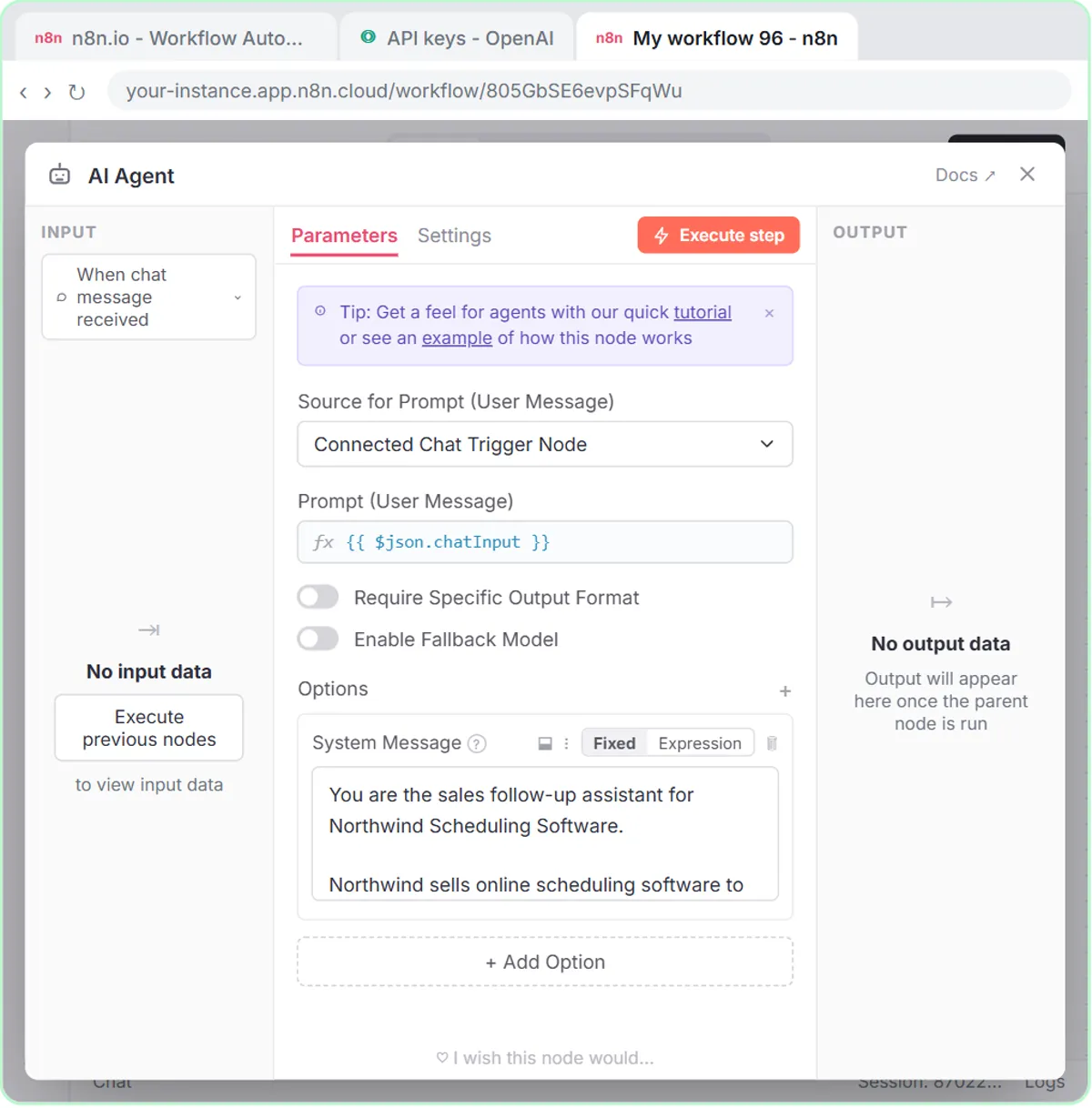 Build an n8n AI Agent That Writes Deal Follow-Ups
Build an AI agent for Northwind Scheduling Software that writes follow-up messages for your open deals and saves them to Google Sheets — chat trigger, AI Agent, system…
Free · Live ~12 min Intermediate
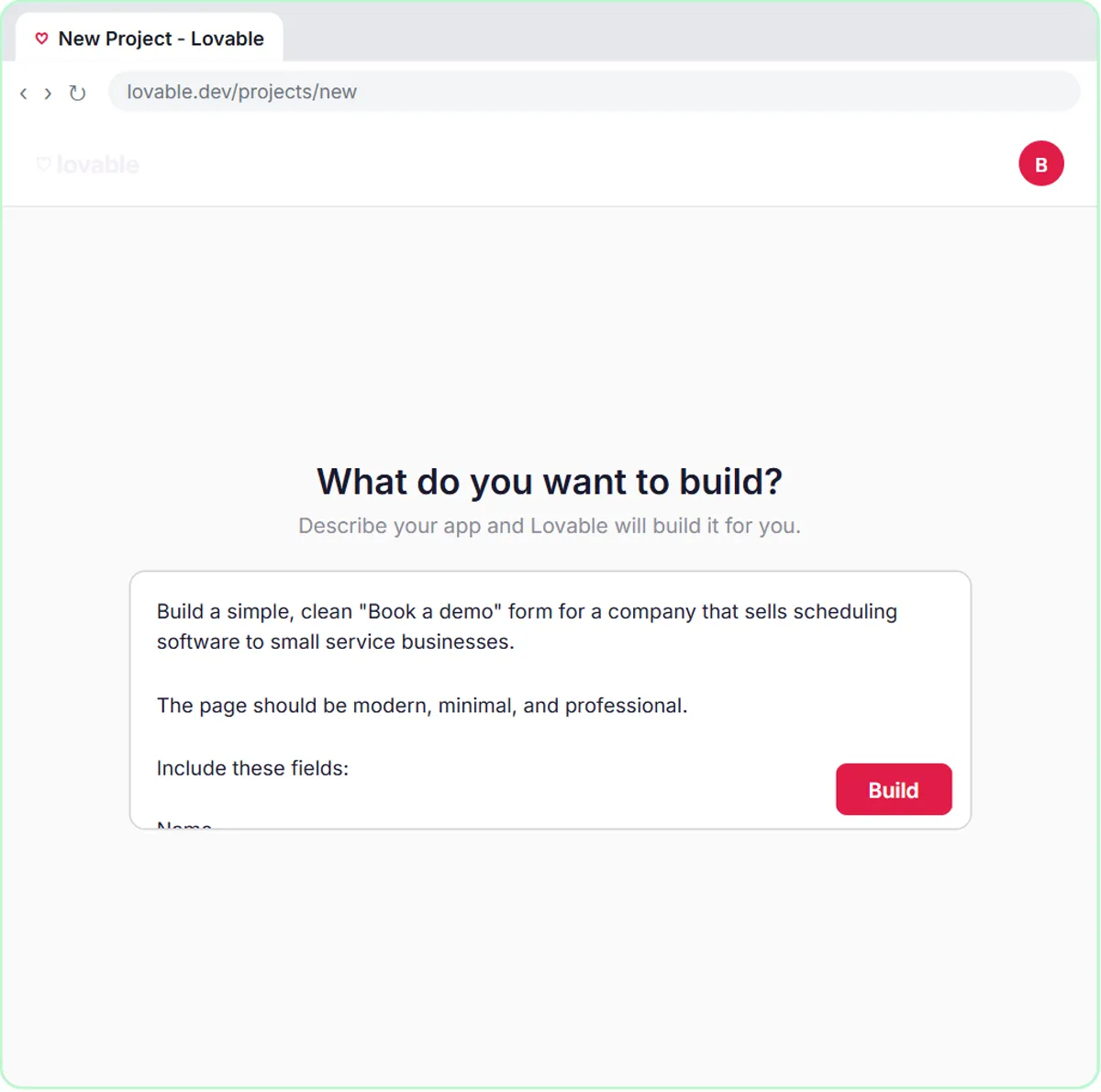 Build an AI Demo Request Form That Qualifies Leads
Build a "Book a demo" form in Lovable for Northwind Scheduling Software and connect it to n8n — the AI agent rates each lead hot, warm or nurture, saves it to Google…
Free · Live ~15 min Advanced
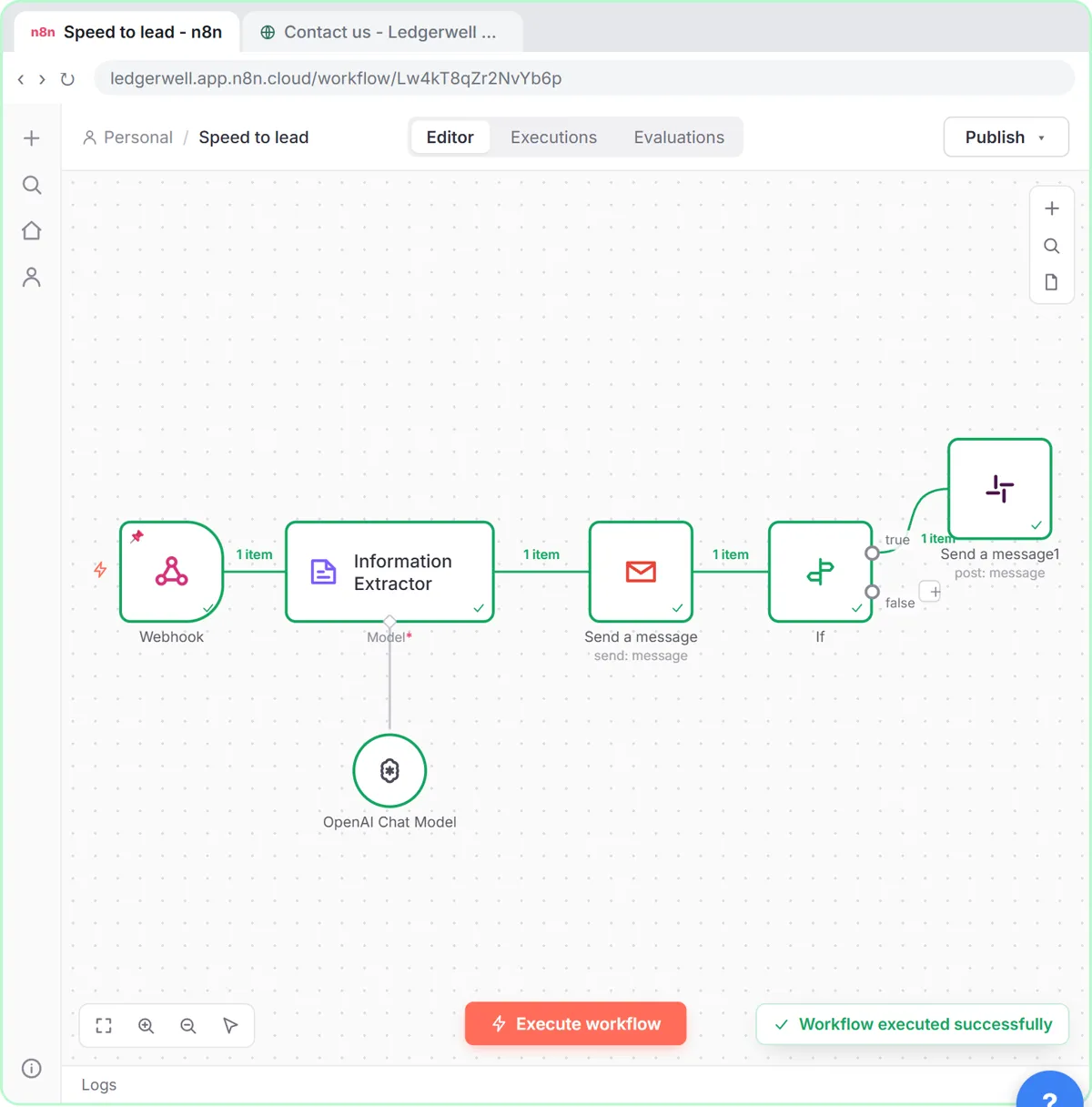 Speed-to-Lead Agent: Answer Every Web Lead in 60 Seconds
Build an n8n workflow that scores every website lead with AI, emails a personal first reply within seconds, and pings Slack only when a lead is hot.
Free · Live ~15 min Advanced
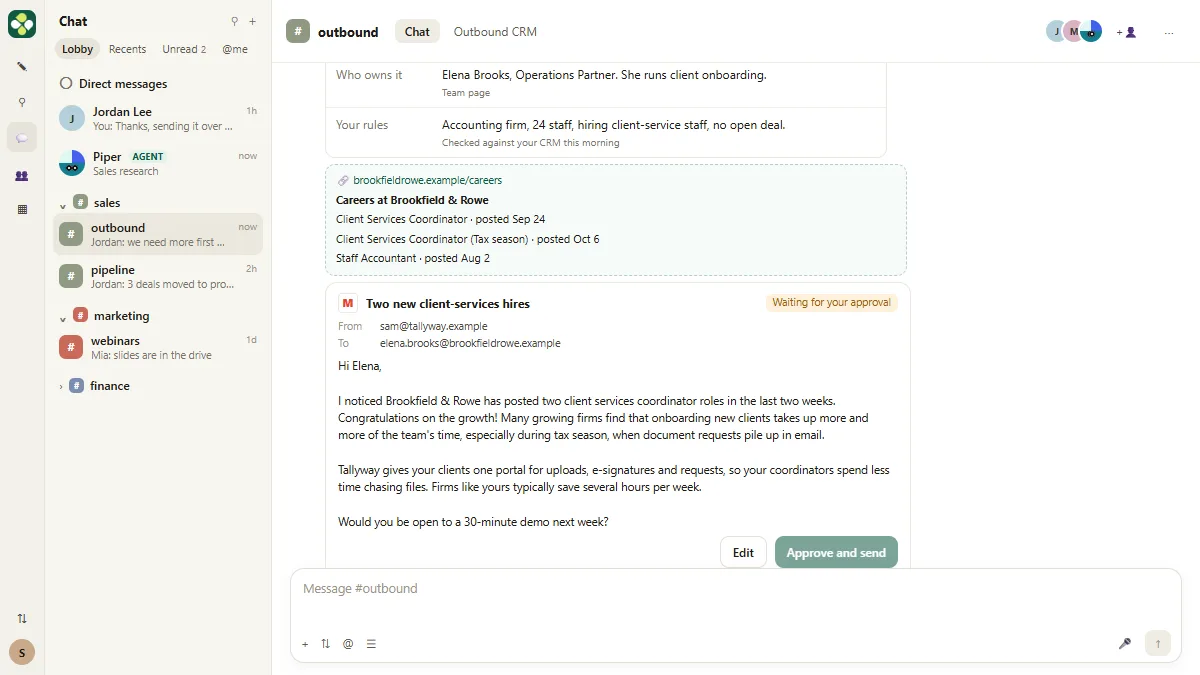 Kylon AI Sales Agent: Find the Reason to Reach Out
Add a sales agent to your Kylon workspace, teach it what a good account looks like, check its sourced reason for one firm, approve a short first email, then make it a…
Free · Live ~8 min Intermediate
◷Pancake: Get Qualified Sales Conversations from Claude Without Hiring a BDRPrice a sales hire against $99 a month, connect Pancake to Claude, describe your ideal client, approve the leads and the messages, then read the replies and learn the…
Free · Live ~16 min Intermediate
◷Never Lose a Client Follow-up using Capsule CRMA business case for a small firm: price what dropped follow-ups cost, then use Capsule CRM to give every enquiry an owner and a next step: add a client, check the…
Free · Live ~18 min Beginner
All 17 modules in AI Automation for Sales
Terms in this lesson
Plain-English definitions, each with an example from a free lesson.