Why this matters
A client webinar is recorded in one take. The host is quiet, the guest is loud, and there is a hiss under both. Fixing that in an audio editor takes an afternoon, or a freelancer and a few days, and the recording is most useful the day it happens.
Auphonic is a website that fixes volume, noise and final loudness automatically. You upload the file, check three settings, and click one button. In our test a 33-second clip was done in about ten seconds.
Practice
Do every step yourself in a practice copy of the real tool. It checks your work, and “Do it for me” finishes any step you get stuck on.
What you’ll build
You help Maya, marketing manager at Northfield Partners, a made-up consulting firm. She has a client webinar recording with a quiet host, a loud guest and background hiss.
You add the file in Auphonic, look at Noise Reduction, the Adaptive Leveler and Loudness Normalization, name the production, run it, and read the gain curve that shows what changed.
What you need
- Nothing to start the practiceAuphonic is a practice copy inside the lesson. Northfield Partners and the webinar are made up.
- A sample recording to try it for realDownload the made-up 33-second webinar (two AI voices, added hiss and hum, one speaker much quieter). It is safe to upload.
- An Auphonic account, to do it for realSign up free at auphonic.com. The free plan gives about 2 hours of processing a month, and free productions get a short jingle added.
- Your own recording, with permissionOnly upload a recording when everyone on it agreed to be recorded and to the file being processed online.
Concepts
Three problems, three settings
Noise Reduction removes steady background sound such as hiss and hum while keeping the voices. The Adaptive Leveler evens out the volume between speakers and within one speaker. Loudness Normalization then sets the volume of the whole file to a standard target (the default is -16 LUFS, labelled Podcasts and Mobile).
All three were switched on by default in our test, so a first run needs no tuning. Open each row to see what it will do before you start.
The gain curve shows its work
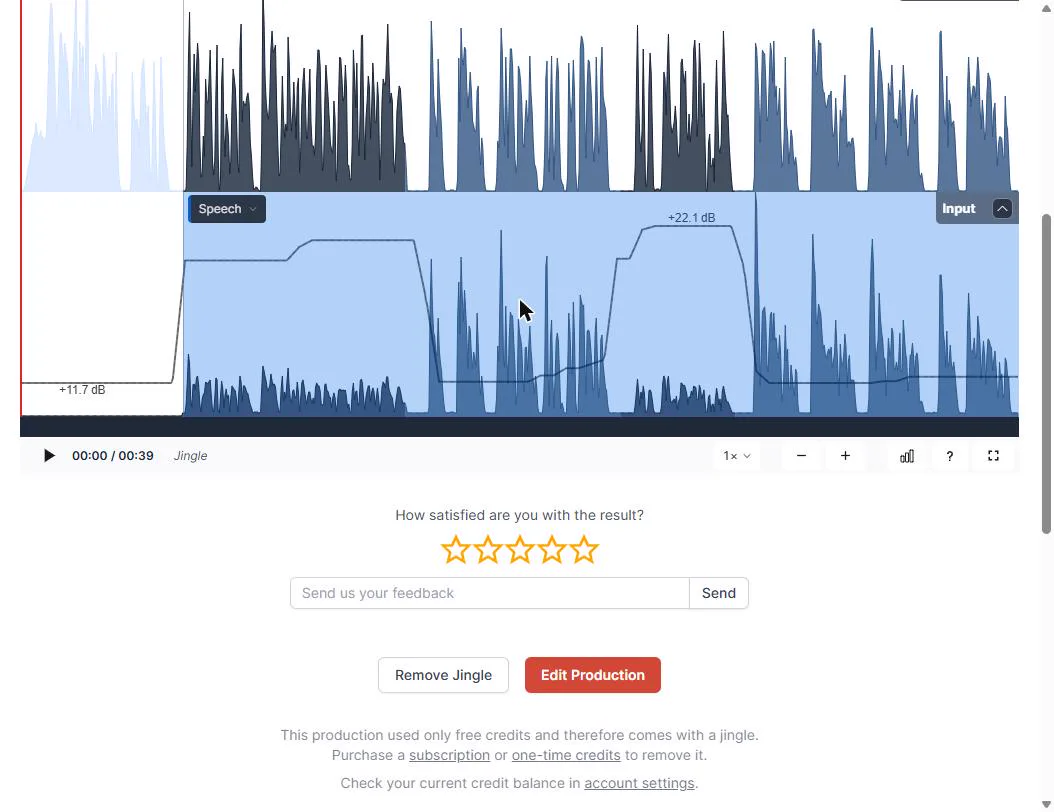
After the run, the result page shows your upload (Input) under the cleaned file (Output). The line over the input is the gain Auphonic applied. In our sample it raised the quiet host by about 22 dB and left the loud guest nearly alone.
That makes it easy to explain, and to spot a problem: if the line jumps up during a pause, listen to that spot.
What the free plan does not do
Speech Recognition (automatic transcripts, subtitles and shownotes) showed "only available for paying users" in our free account. A free production also comes with a short jingle added, and the result page offers Remove Jingle once you buy credits. Check auphonic.com/pricing for current plans before you plan a workflow around either.
Do it for real
Now repeat it in your own account. Tick each step as you go.
Downloads
- Sample client webinar (.mp3, 33 seconds)Made-up recording: a quiet host, a loud guest and background hiss.
- Audio check before you publish (.txt)Six things to listen for after Auphonic has finished.
Quick check
3 questions to check you’ve got it.
1. The host is quiet and the guest is loud. Which setting evens them out?
- Noise Reduction
- Adaptive Leveler
- Loudness Normalization
Show the answer
Adaptive Leveler. The leveler balances the volume between speakers. Noise Reduction removes hiss; Loudness Normalization sets the final volume of the whole file.
2. You want an automatic transcript of the webinar. What did our free account show?
- It ran for free
- A note that speech recognition is only for paying users
- An error and a stopped production
Show the answer
A note that speech recognition is only for paying users. The cleanup is free, but transcripts need paid credits. Check auphonic.com/pricing for current plans.
3. Auphonic says it finished. What do you do before you post the file?
- Post it, the waveform looks right
- Download it and listen all the way through
- Run it again with the strength turned down
Show the answer
Download it and listen all the way through. A free production also has a jingle added, and only your ears can tell whether a pause or a name sounds wrong.
iMini AI Agent: turn a rough idea into a launch kit
Next in this course: iMini AI Agent: turn a rough idea into a launch kit.
Start module 16 →