Updated . Built against the tool’s current screens and checked step by step. How we check this lesson
A good discovery call is wasted if nobody follows up. In Close, log the call with notes, set a dated follow-up task and put the deal in the pipeline, in about two minutes after every call.
At a glance
| Question | Answer |
|---|---|
| What you build | A good discovery call is wasted if nobody follows up. In Close, log the call with notes, set a dated follow-up task and put the deal in the pipeline, in about two minutes after every call. |
| Tools | Close CRM |
| Time | About 7 minutes, 14 steps in 4 parts |
| Level | Beginner, no coding needed |
| Cost | Free |
| Ways to learn it | Practice it step by step |
The 4 parts, in short
- Add the lead: Create a lead, Company and contact.
- Log the call: Open the call menu, Log a call, Notes and duration.
- Set the follow-up: Add a task, What and when, Create Task.
- Put the deal in the pipeline: Add an opportunity, Value and stage, Save, See the pipeline, and 2 more steps.
What you'll build
You run sales for a small bookkeeping firm. Today's discovery call with Lakeview Accounting (made up) went well: three locations, monthly bookkeeping, about $1,200 a month, and they want a proposal by Friday. If the notes stay in your notebook and the reminder in your head, the proposal goes out late and the deal cools. In this lesson you do the two-minute routine in Close CRM: create the lead, log the call, set a dated follow-up and add the deal to the pipeline. Every screen is a real Close screen; all the data is made up.
You created a lead, logged the call with notes and a duration (without dialling), set a dated follow-up task, added a $1,200 monthly opportunity in the first pipeline stage, and found the task waiting in your Inbox. Do this after every call: the notes are there for anyone who picks up the account, the follow-up comes back on the right day, and the pipeline shows what is really coming. Close has a 14-day free trial; check close.com for plans.
- Tools: Close CRM
- Time: about 7 minutes, 14 steps in 4 chapters
- Level: beginner, no coding needed
- Price: free
Practice first, then build it for real
Practice copy built from real Close CRM screens (app.close.com), captured 25 October 2026 in a trial account. Nothing here touches a Close account or makes a call. Lakeview Accounting, Dana Whitfield, the phone number, email and deal are made up. To build it for real you need your own Close CRM account, and some services charge once you use them for real work, so check each tool's current pricing.
Try it yourself, free
Reading the steps is a start. Doing them is how it sticks. The interactive module walks you through every click in a practice copy of Close CRM, checks each step, and never touches your real accounts.
Start “Close CRM: Log a Sales Call and Set a Follow-up So No Deal Goes Cold”Step by step: Close CRM: Log a Sales Call and Set a Follow-up So No Deal Goes Cold
All 14 steps of the interactive module, in order. In the module you watch each one, then do it yourself in a practice copy that checks your work.
1. Add the lead
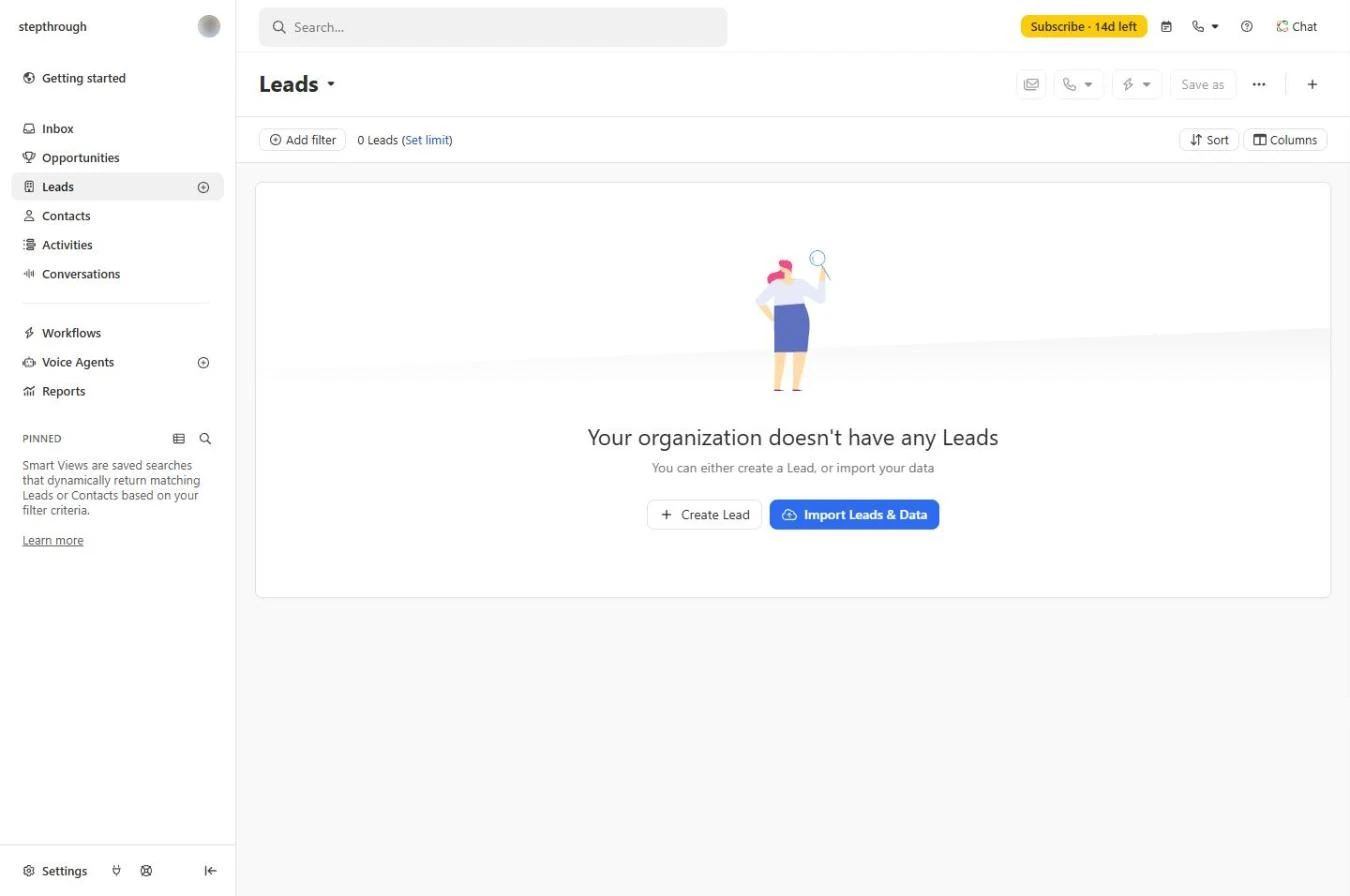
- Create a lead. You just finished a discovery call with Dana Whitfield at Lakeview Accounting (made up). In Close, click Leads in the left bar, then Create Lead. (With leads already in Close, use the + next to Leads.)
You just had a good call. Before anything else, put the company in Close.
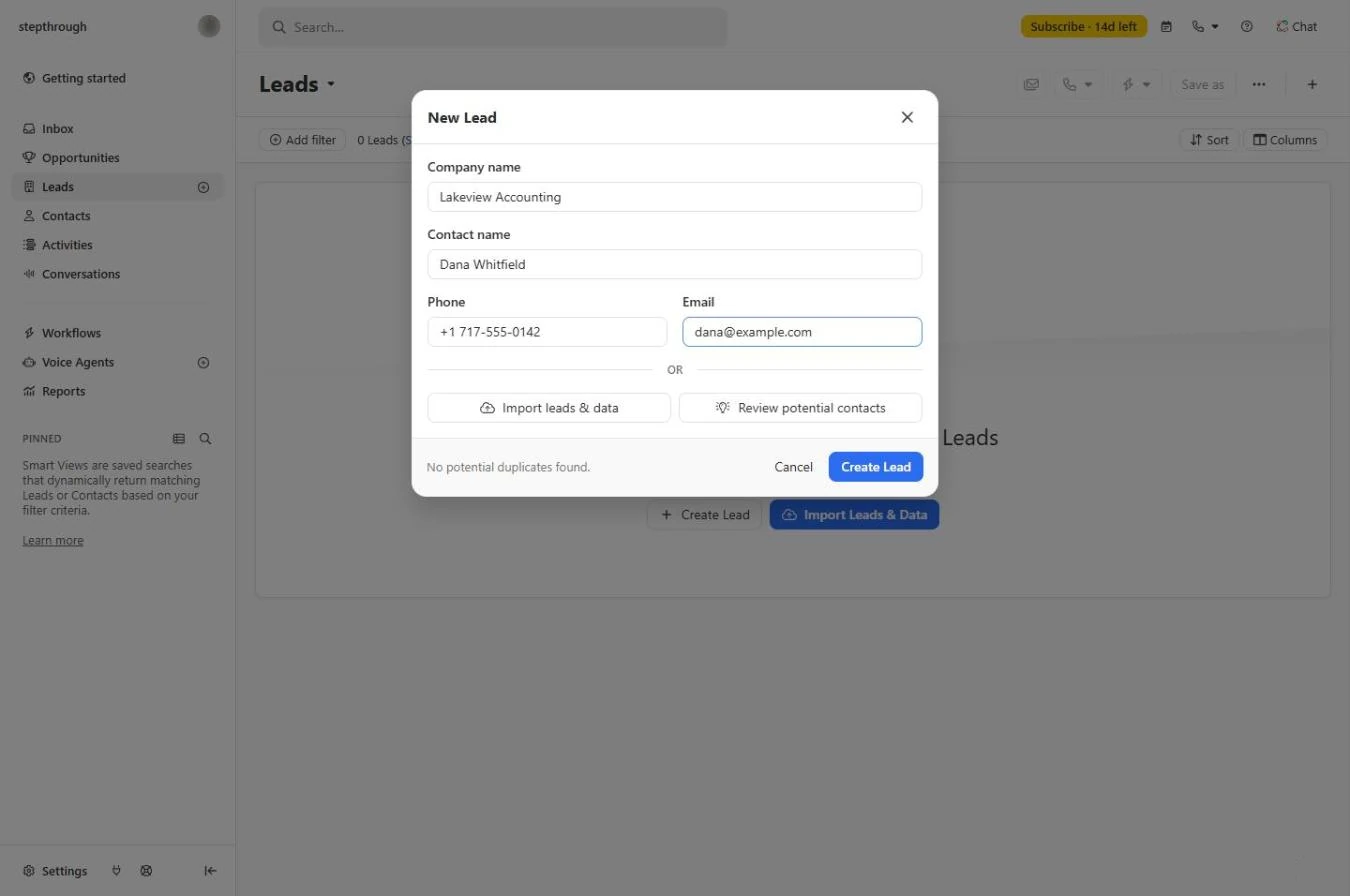
- Company and contact. Type the Company name (Lakeview Accounting), the Contact name (Dana Whitfield), the Phone and the Email. Close checks for duplicates as you type. Click Create Lead.
2. Log the call
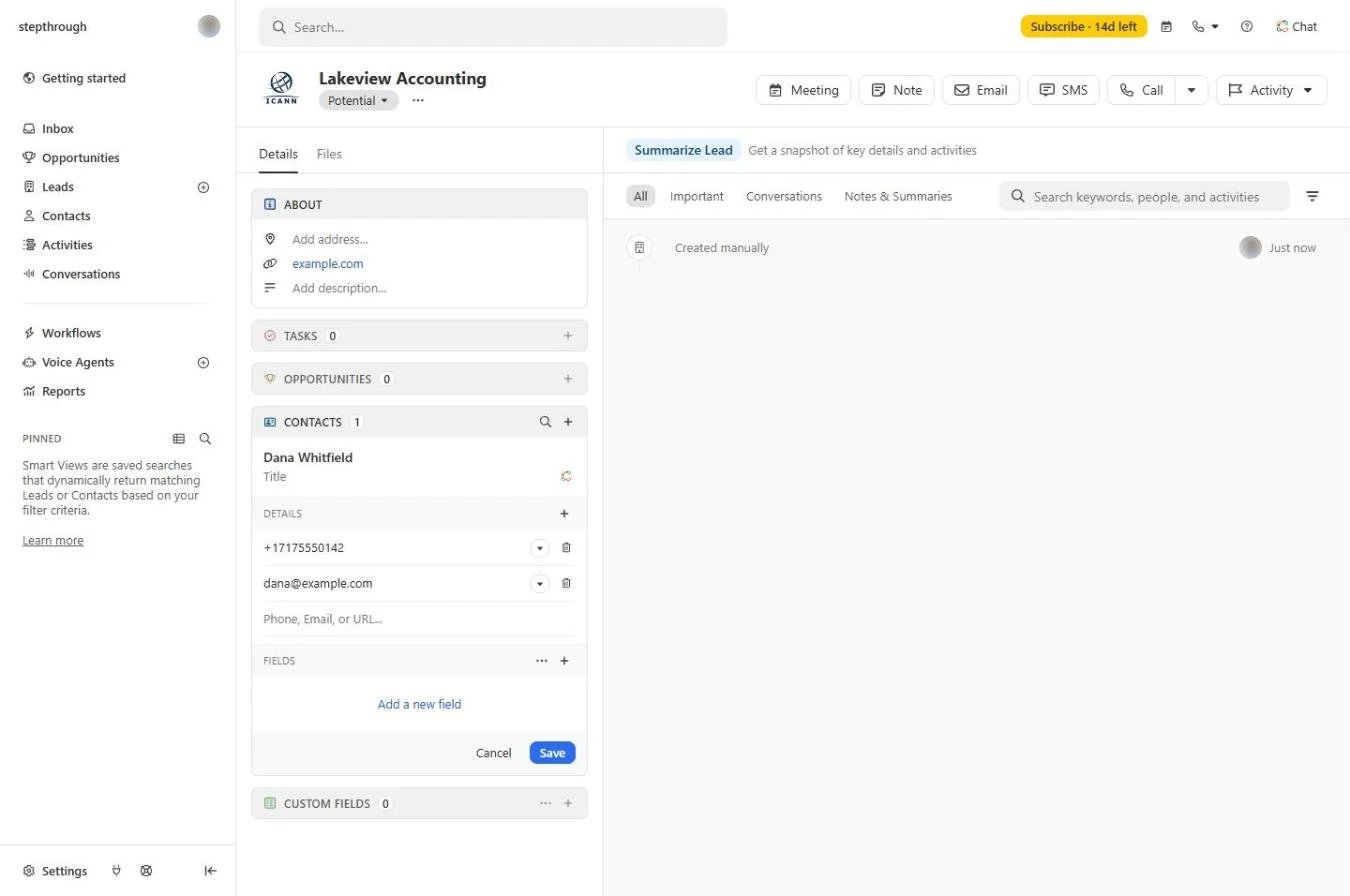
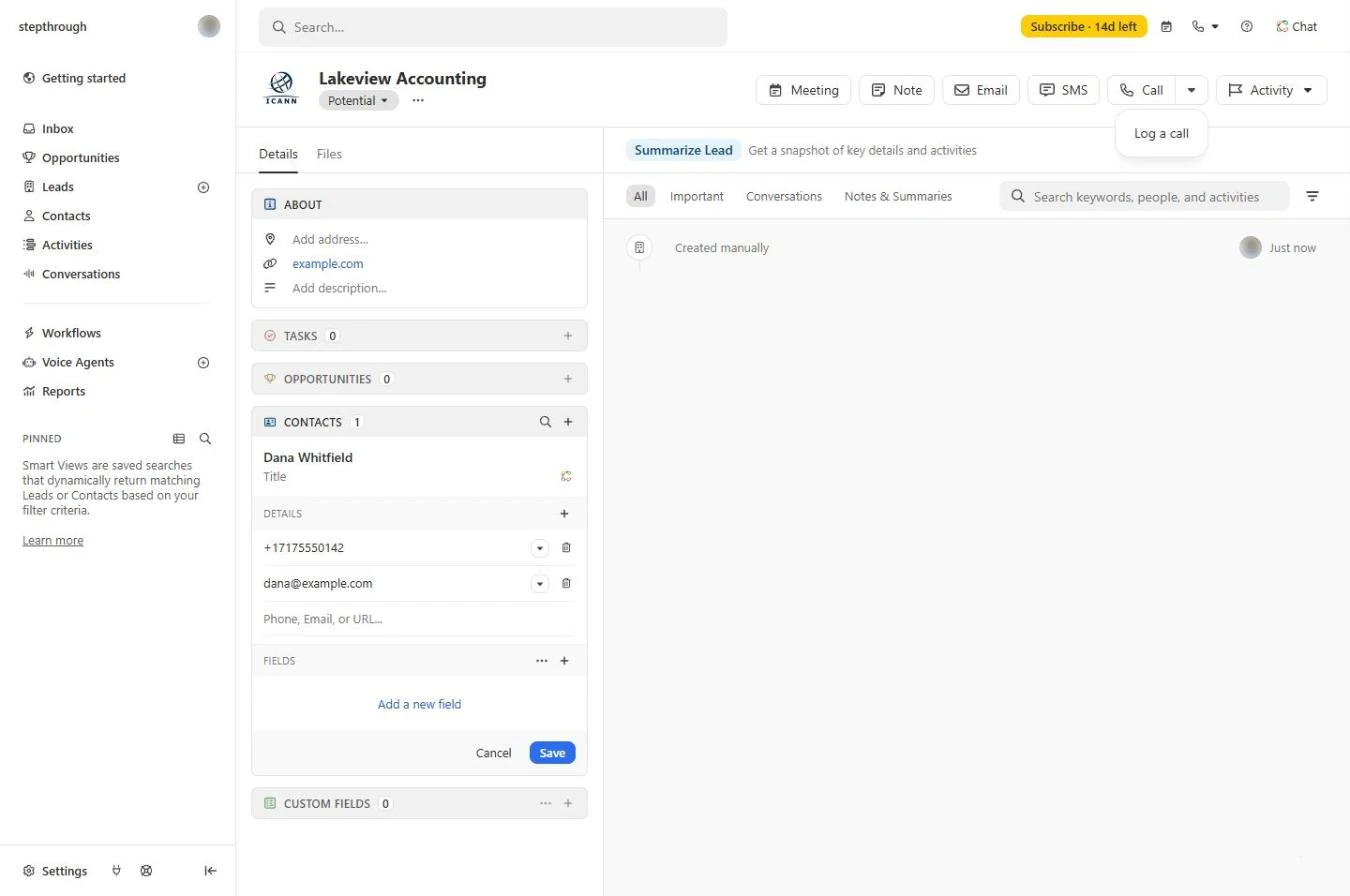
- Open the call menu. The lead page opens: details on the left, the activity timeline on the right. The call already happened, so you log it instead of dialling. Click the small arrow next to Call (not Call itself, which starts a real phone call).
The call already happened, so log it.
- Log a call. Click Log a call.
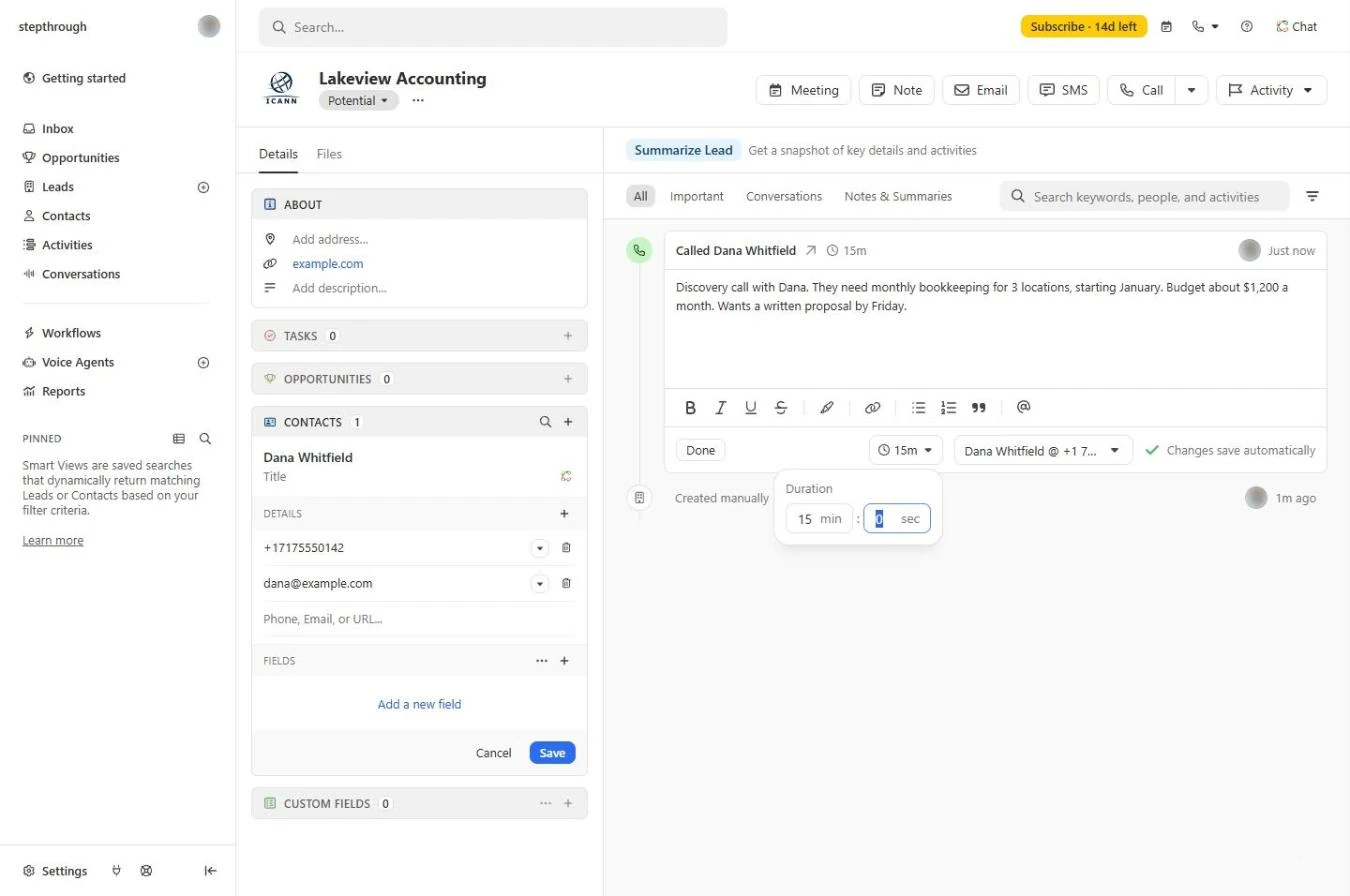
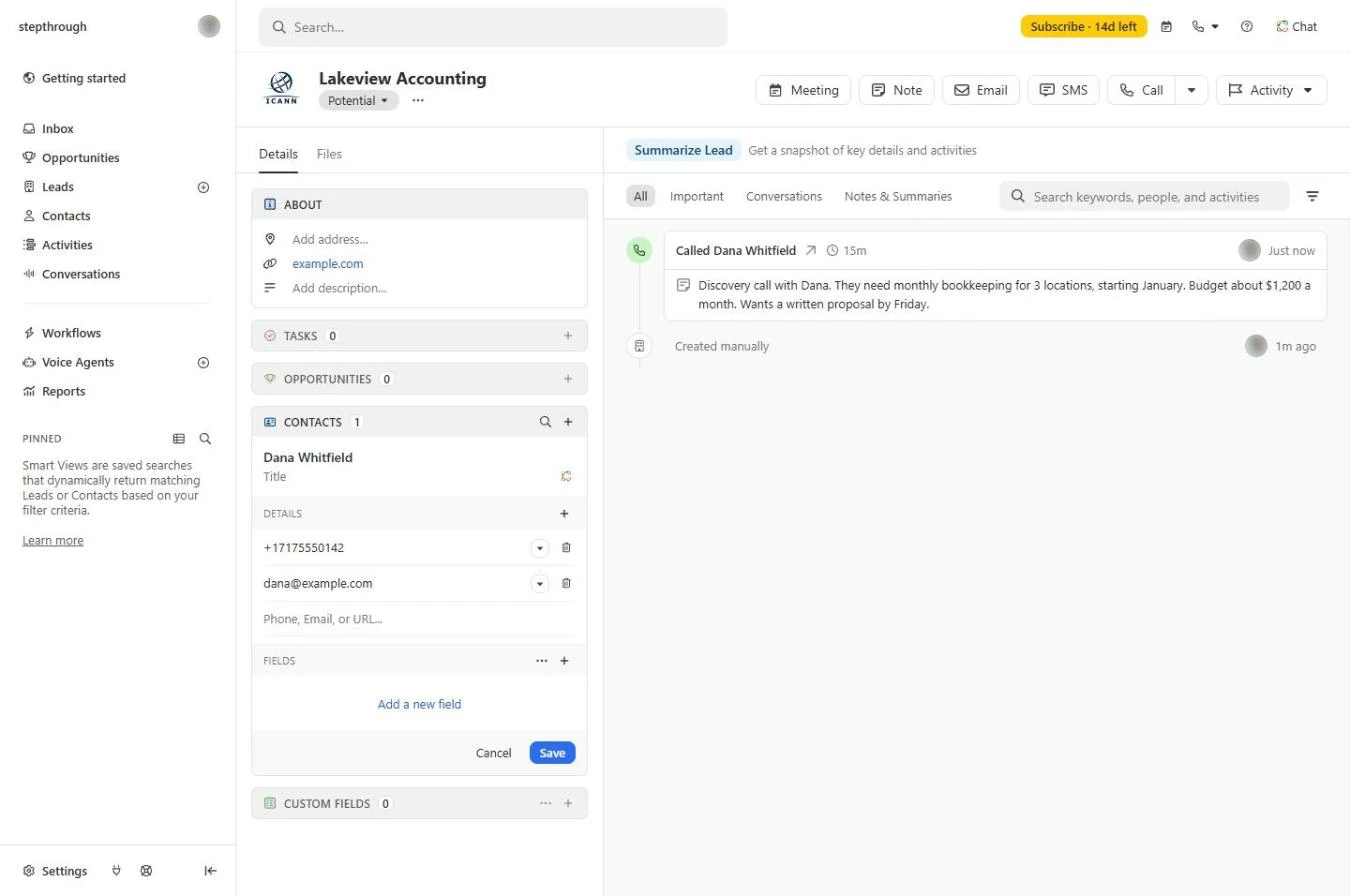
- Notes and duration. A call entry opens on the timeline. Type what you learned: the need, the timing, the budget and what they asked for. Click the clock (0s) to set the duration (15 min), then click Done. Changes save automatically.
Need, timing, budget, and what they asked for. Set the duration, and click Done.
3. Set the follow-up
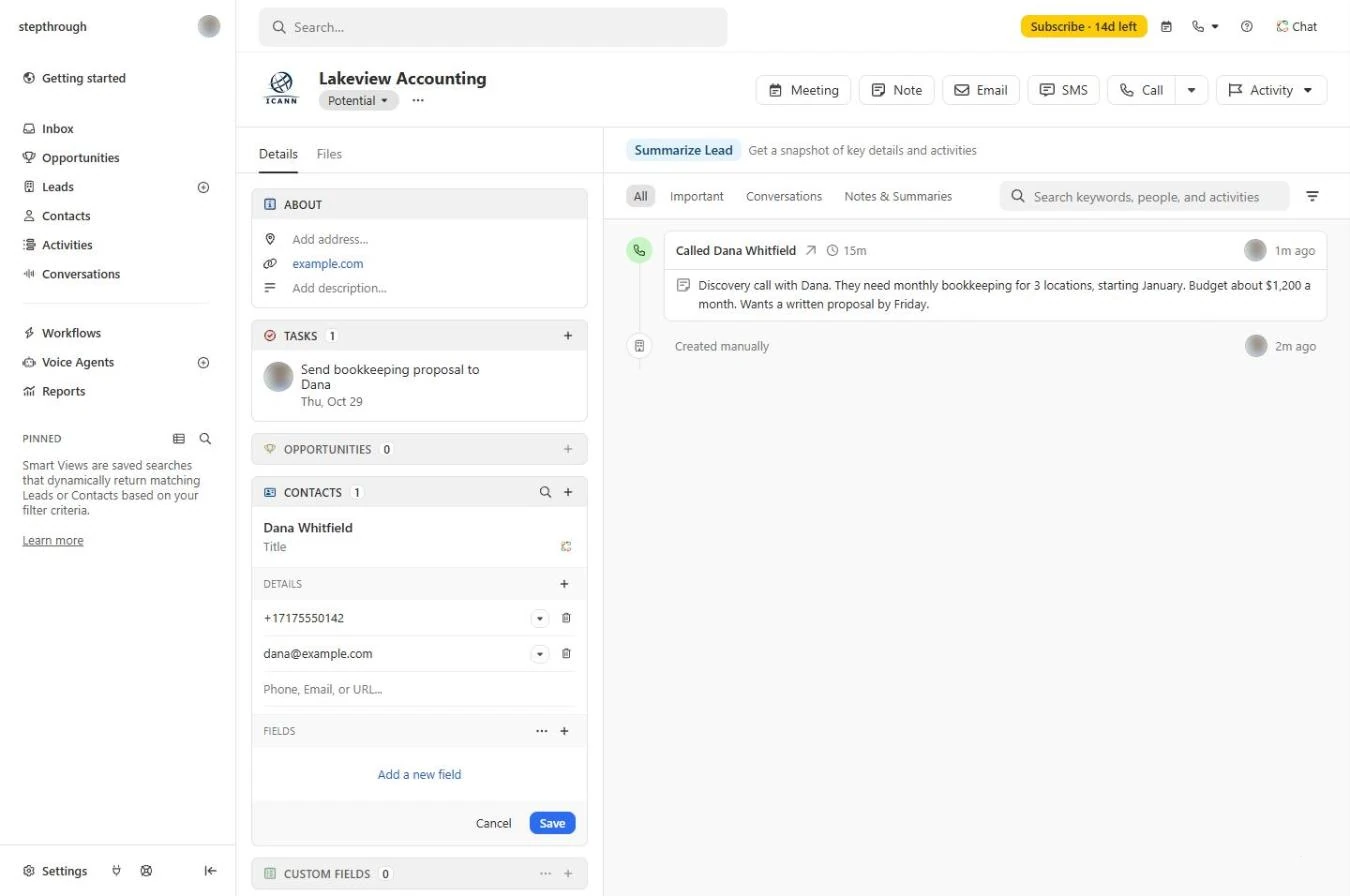
- Add a task. The call is on the timeline for anyone who works this account. Now the most important part: the next step. Click the + next to TASKS.
The call is saved. Now the next step.
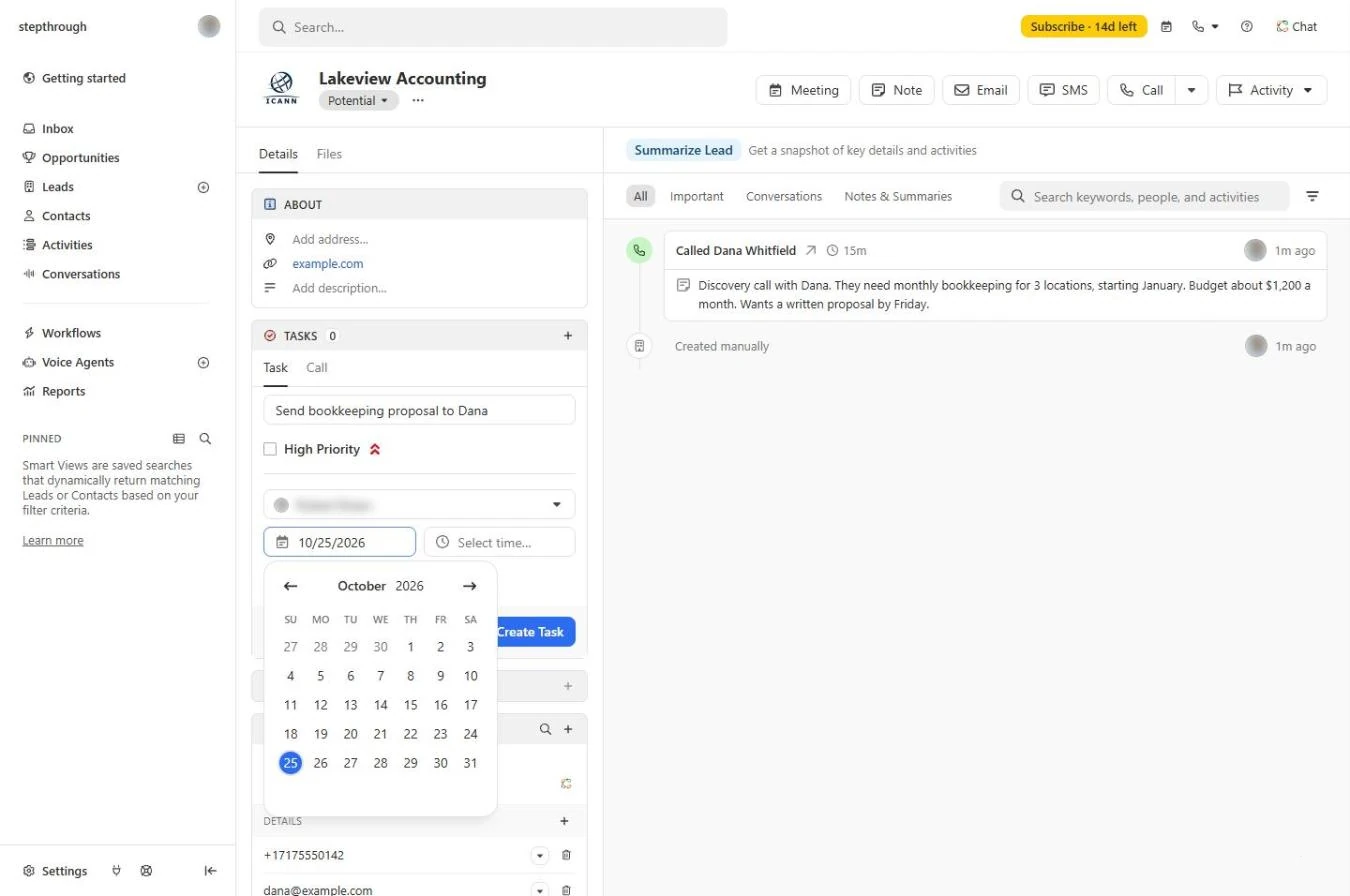
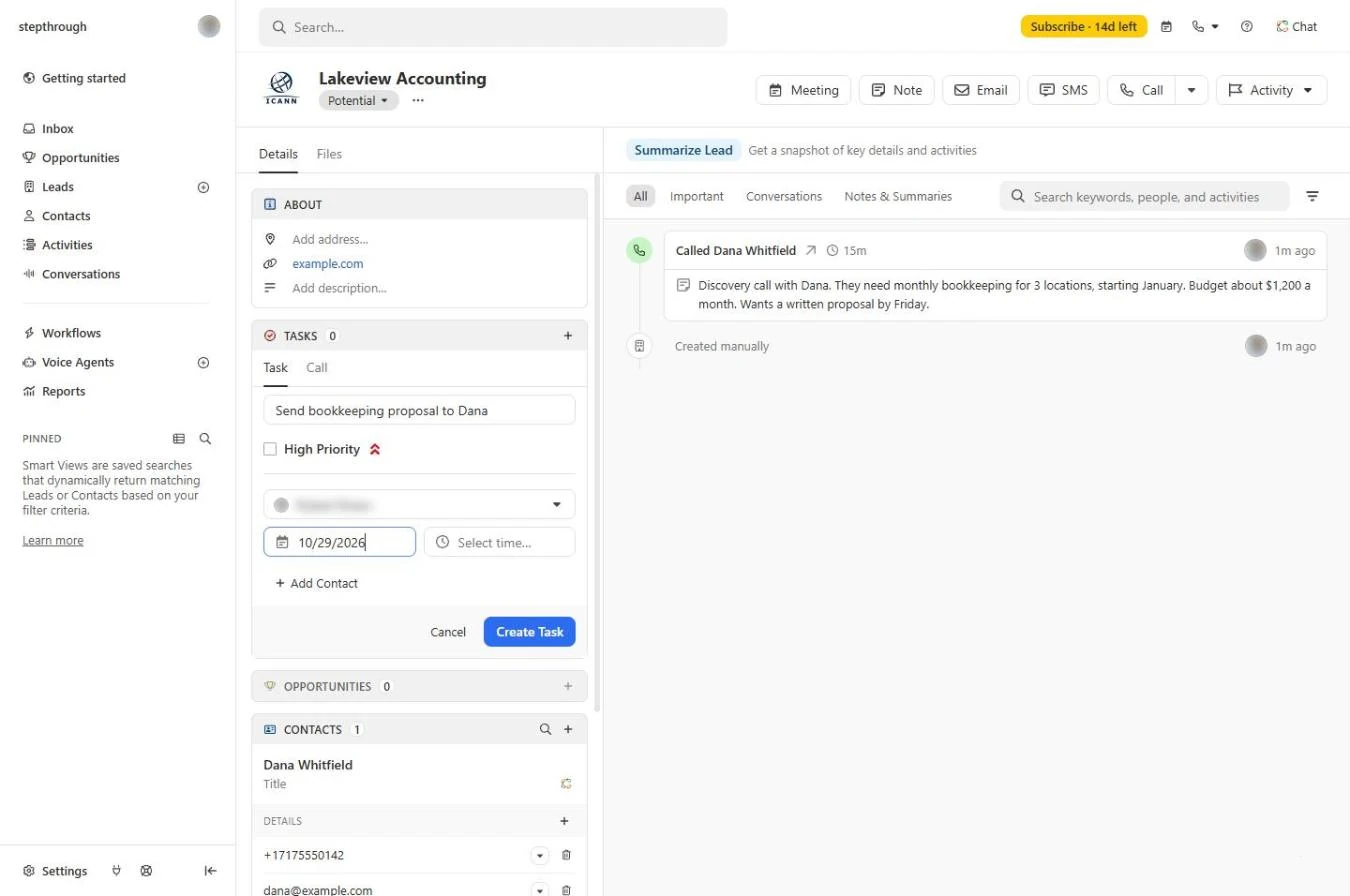
- What and when. Type the task: Send bookkeeping proposal to Dana. Click the date and pick the day before it is due (Thursday, for a Friday promise). The task is assigned to you.
- Create Task. Click Create Task.
4. Put the deal in the pipeline
- Add an opportunity. The task shows under TASKS with its date. So the deal shows up in your forecast, click the + next to OPPORTUNITIES.
Now put the deal in the pipeline.
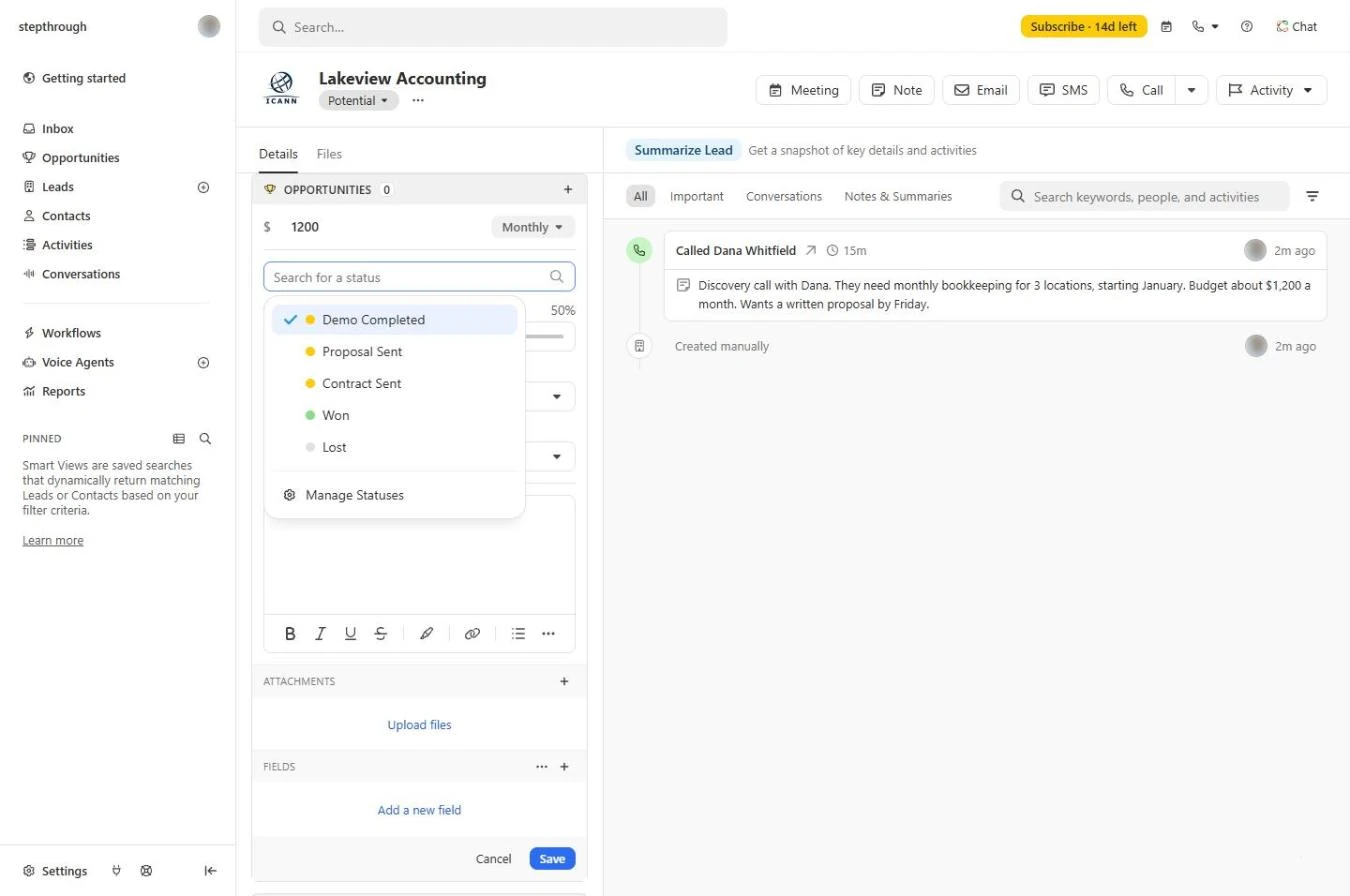
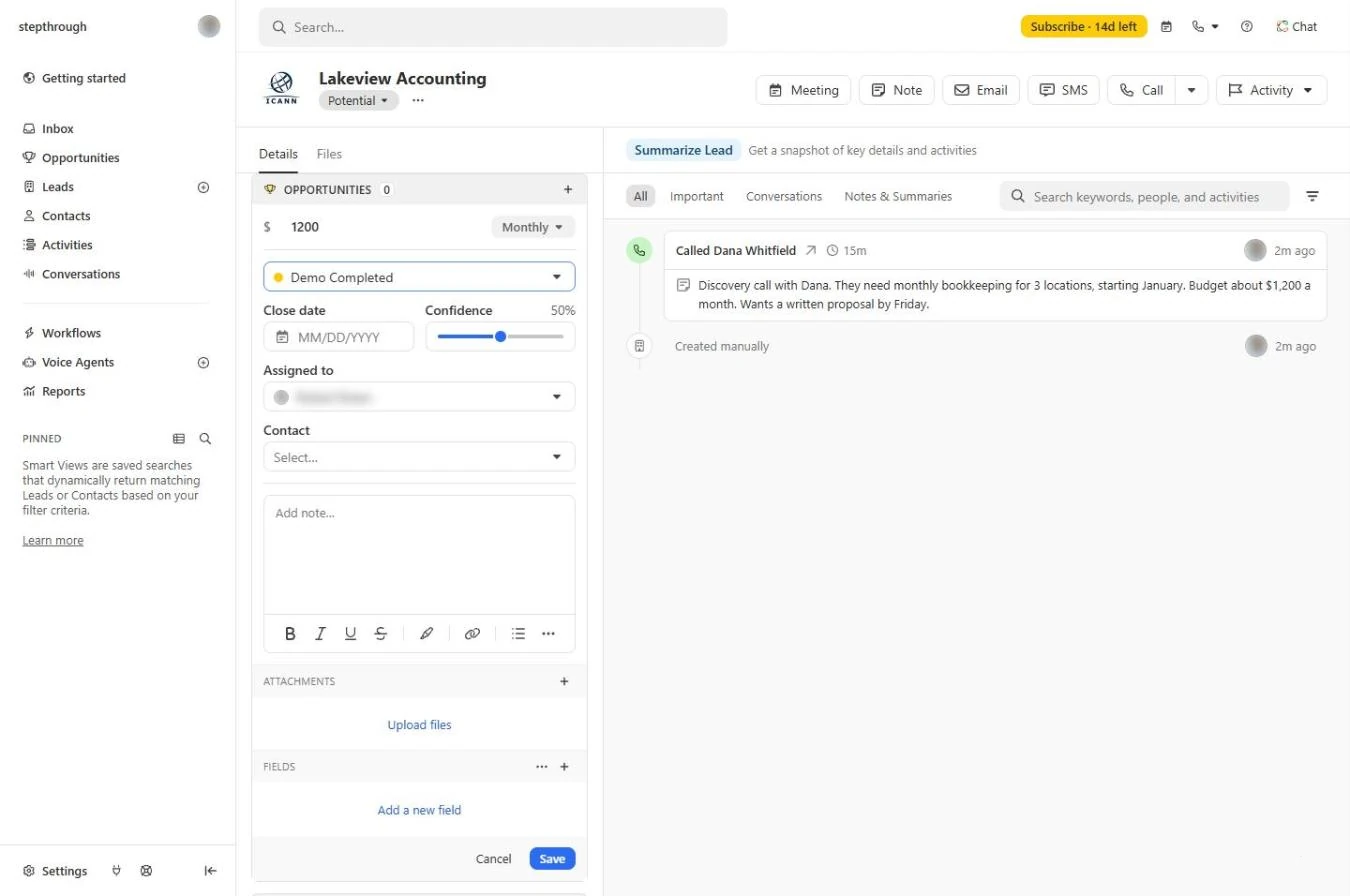
- Value and stage. Type the value (1200) and switch One-time to Monthly. Then open the status list: these are the stages of Close's default pipeline. Keep Demo Completed, the first stage.
- Save. Close date and confidence are optional (50% is the default). Click Save.
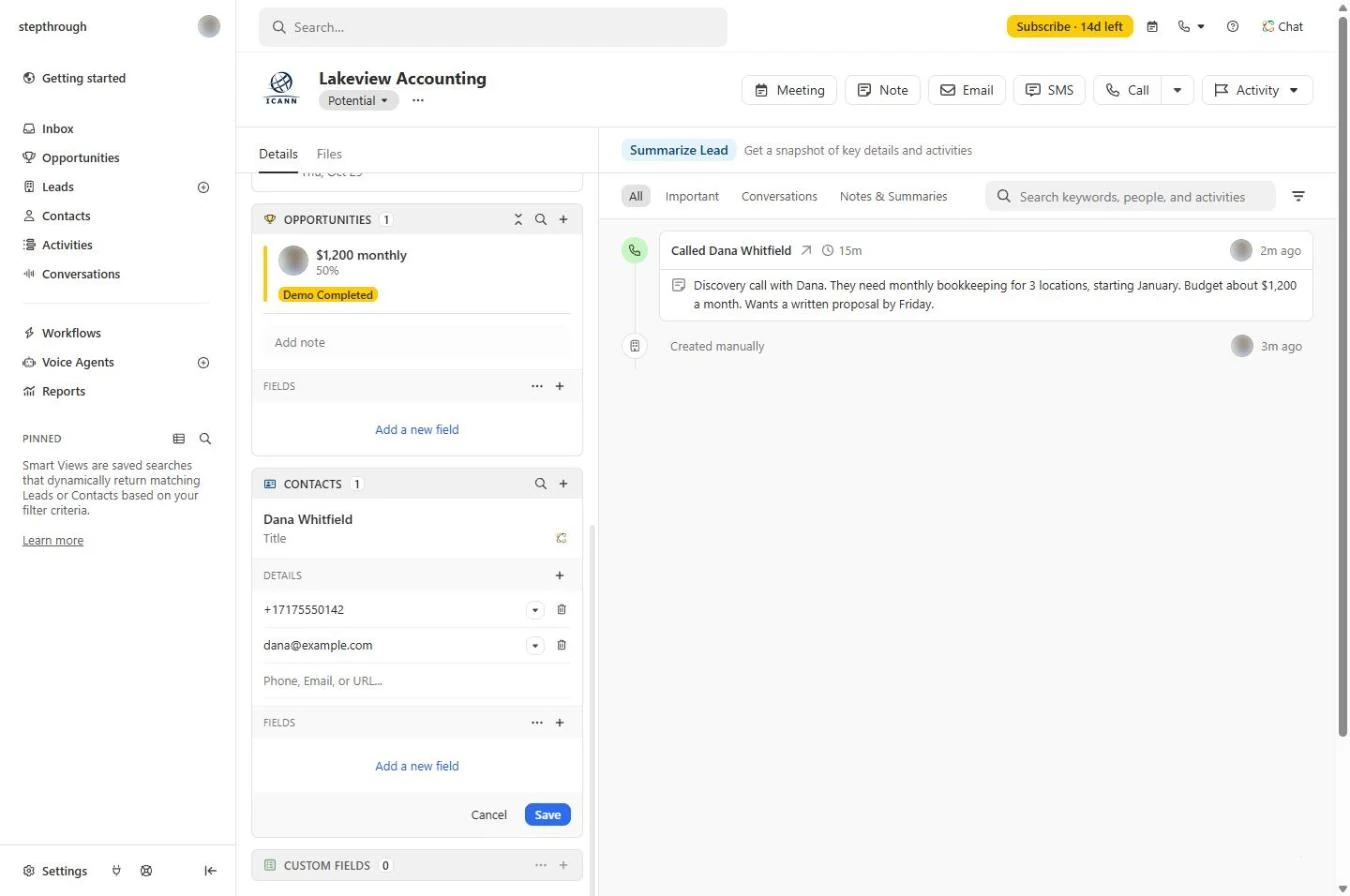
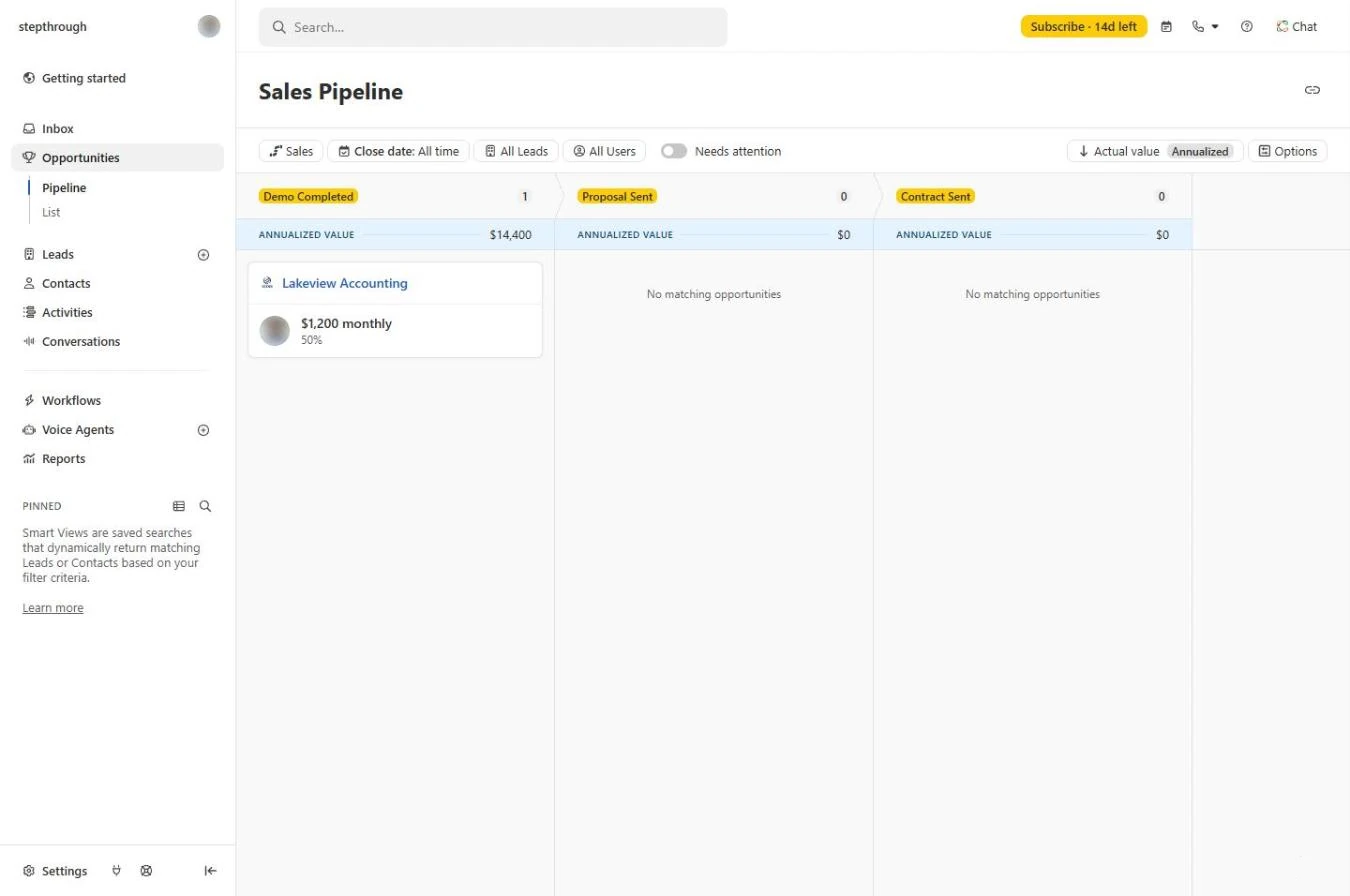
- See the pipeline. The opportunity shows $1,200 monthly on the lead. Click Opportunities in the left bar.
Now look at the whole pipeline.
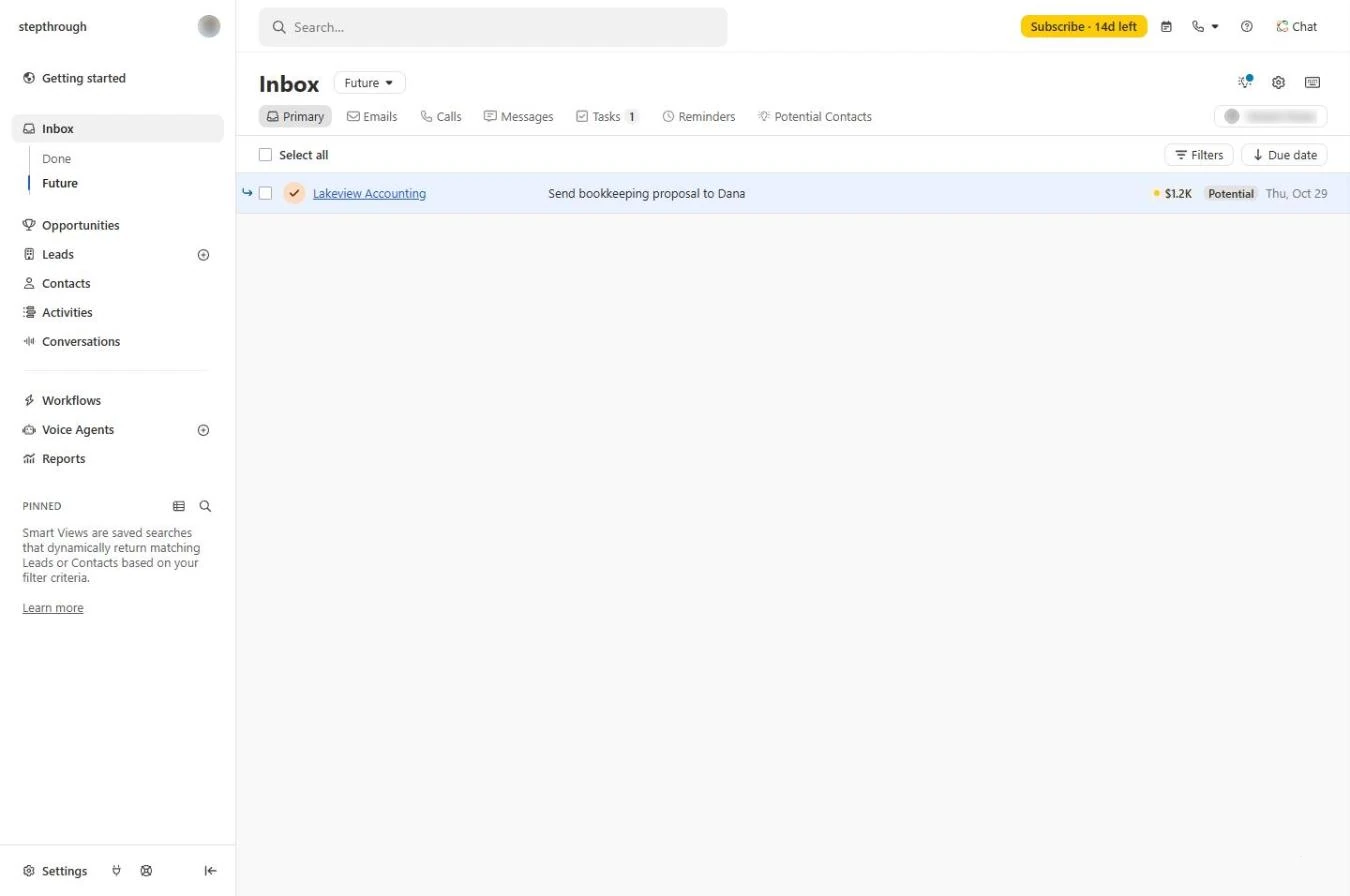
- Check your Inbox. The Sales Pipeline board shows the deal in Demo Completed, with its annualized value. Now check that the follow-up will come back to you: click Inbox, then Future.
The deal is on the board.
- Your follow-up is waiting. The task is in Future with its date. On Thursday it moves into your Inbox, next to the deal value. That is the habit: every call ends with a logged call and a dated next step.
There it is, waiting for Thursday. Every call ends with a logged call and a dated next step.
Screenshots
Terms in this lesson
Plain-English definitions, each with an example from a free lesson.