Updated . Built against the tool’s current screens and checked step by step. How we check this lesson
Kylon is a third-party AI workspace where your team and AI agents work in the same rooms, with the same context. In this free lesson you use a practice copy of it to set up outbound sales for a made-up software company. You add a sales agent, share it with the team's outbound room and tell it once what a good account looks like. Then you ask about one accounting firm, open the source behind the reason it gives, get a shorter first email and approve it. Last, you turn the job into a weekly workflow and read the list it keeps.
At a glance
| Question | Answer |
|---|---|
| What you build | Add a sales agent to your Kylon workspace, teach it what a good account looks like, check its sourced reason for one firm, approve a short first email, then make it a weekly workflow. |
| Tools | Kylon |
| Time | About 8 minutes, 20 steps in 5 parts |
| Level | Beginner, no coding needed |
| Cost | Free |
| Ways to learn it | Practice it step by step |
The 5 parts, in short
- Add a sales agent: Open Members, Start a new agent, Name it, Give it a specialty, and 1 more step.
- Bring it into the room: Open the outbound room, Add someone to the room, Pick Piper, Share the agent with the room.
- Teach it a good account: Say what a good account is, Send it.
- Ask about one account: Ask about an account, Send the question, Check the source, Ask for a shorter email, and 2 more steps.
- Make it weekly: Ask for a weekly run, Send it, Open Outbound CRM.
Start here first: Build an n8n AI Agent That Writes Deal Follow-Ups (module 1 of AI Automation for Sales)
Part of: AI Apps Worth Knowing (step 3 of 8). Next up: VisualGPT: Product Photos, Listing Images and Ads from One Phone Photo
What you will do: one outbound job, start to finish
You are Sam, who runs sales and marketing at Tallyway, a made-up client-portal app for small accounting firms. The team needs more first meetings this quarter, and nobody has time to research accounts one by one. You want an agent that only suggests a firm when something has actually changed there, and that shows you why.
In the practice copy you open Members, create an agent named Piper with the specialty Sales research, and keep How it runs on Kylon-hosted. You open the outbound room, add Piper and choose Grant access and add, so the whole room can use it. You paste your rules for a good account and send them. You ask about one firm, Brookfield & Rowe CPAs, click the careers page behind the reason, ask for a shorter email and click Approve and send. Then you ask for the same sweep every Monday and open the Outbound CRM tab.
Who this is for
Founders, sales reps and marketers at small B2B companies who do their own outbound and want research done before they write. You do not need any AI or CRM experience. The lesson is a practice copy, so no agent is created, no email is sent, no credits are used, and you do not need a Kylon account to take it.
How Kylon works
Kylon is a team chat built around agents. The left rail opens Chat, Members, Apps and Workflows. The Chat list has Lobby, Recents, Unread and @me views, your direct messages, and rooms grouped by section such as sales or marketing. An agent is a workspace member with a name, a specialty and a profile: you message it, @mention it in a room and hand it work, the way you would a colleague.
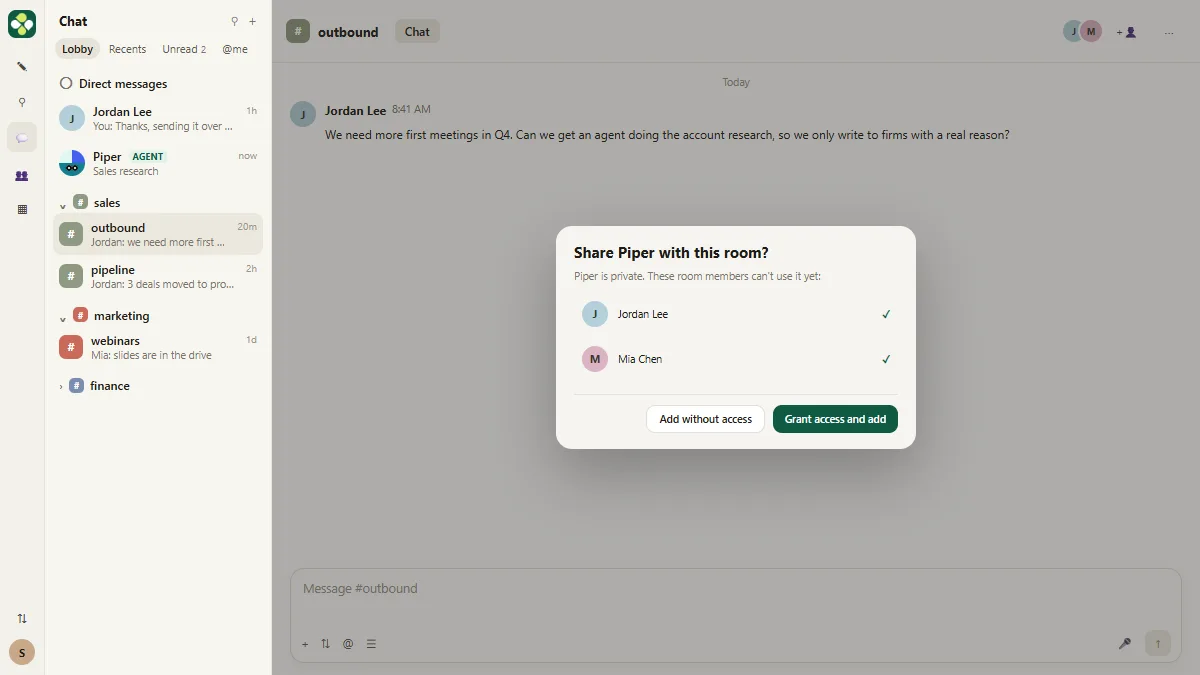
When you create an agent you choose, once, how it runs. Kylon-hosted runs on Kylon Cloud with no setup and uses Kylon credits; Bring your own connects Codex, Claude Code or Devin on your own computer or account. A new agent starts private, with no access to existing rooms. When you add a private agent to a room, Kylon asks whether to share it: Grant access and add puts the room's members on the agent's access list, Add without access does not.
Agents keep what they learn in memory, connect to tools such as Gmail, HubSpot and Apollo through workspace connections, and can build small apps and tables in the room. Recurring work becomes a workflow: a saved automation that runs on a schedule or a trigger, with a history of every run.
Step 1: write down what a good account is, once
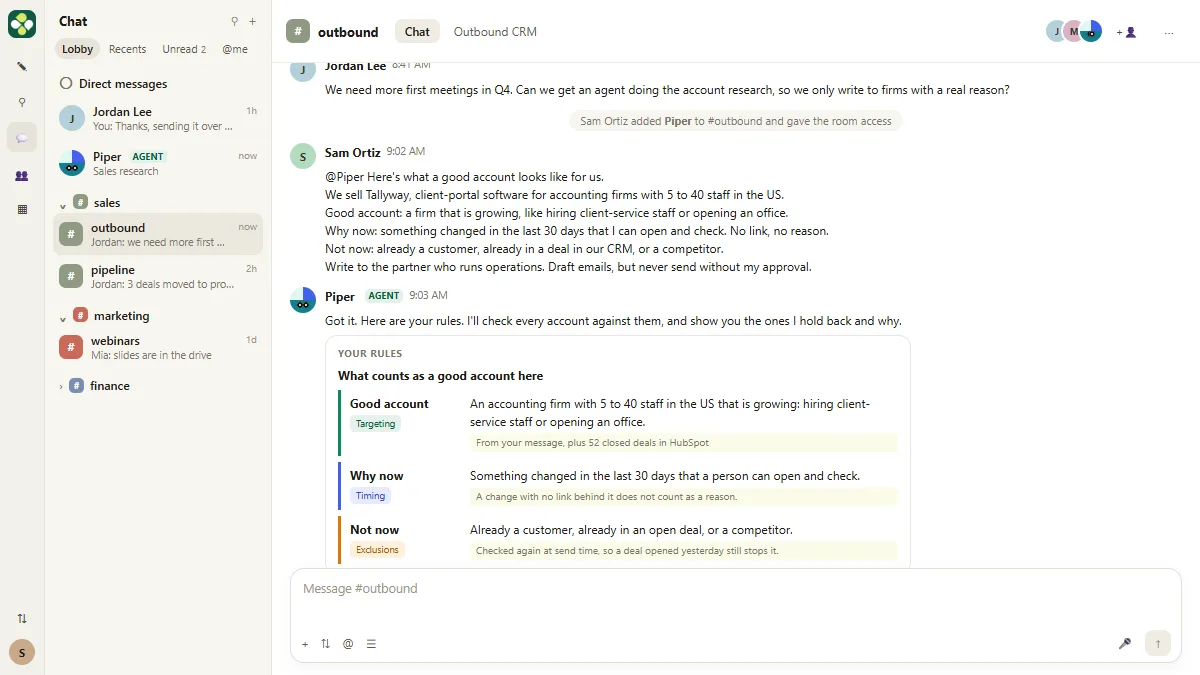
The agent is only as good as your definition. In the lesson the message says who you sell to (accounting firms with 5 to 40 staff in the US), what counts as a reason to write now (a change in the last 30 days that you can open and check), and who to leave alone (customers, open deals, competitors). It also says who to write to and that nothing is sent without approval.
The agent answers with three rules, Good account, Why now and Not now, each with where it came from. Every account it suggests later traces back to one of them, and the ones it holds back show the rule that stopped them.
Step 2: check the reason before you read the email
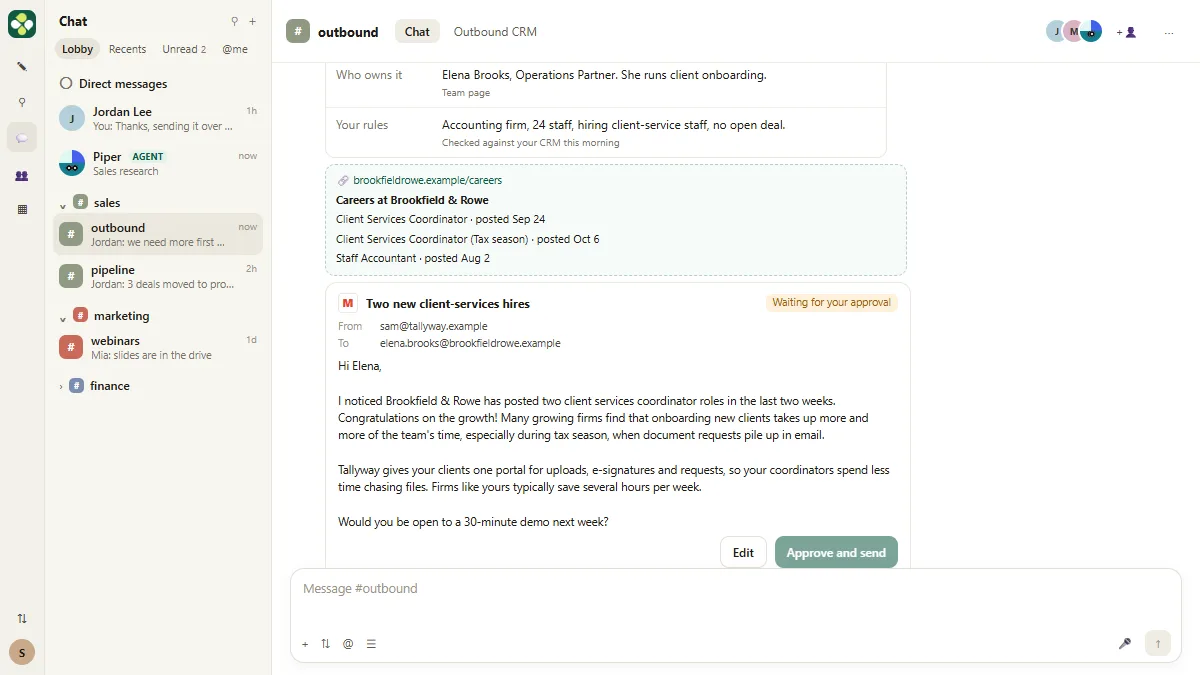
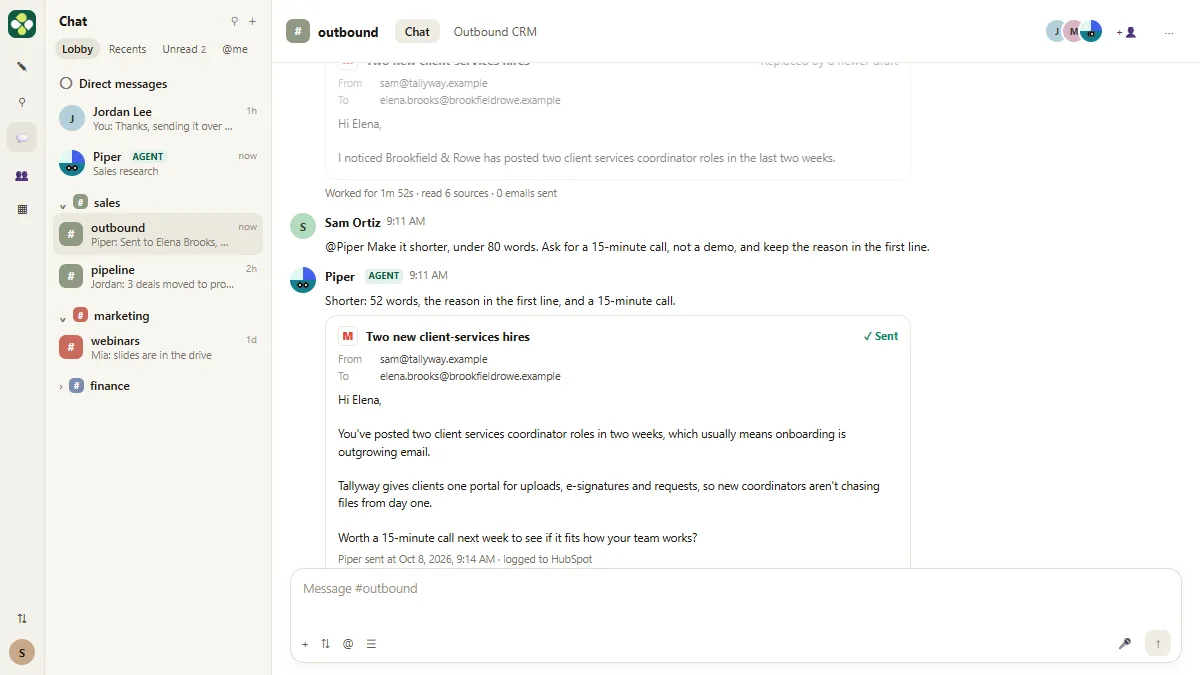
Ask about one account in plain words. The answer comes in two parts: the reason (What changed, Who owns it, Your rules), each line with its source, then the email. Open the source. In the lesson the careers page really does list two client services coordinator roles posted in the last two weeks, so the reason holds.
The first draft is long and asks for a 30-minute demo, so you ask for under 80 words, a 15-minute call and the reason in the first line. Approval is on by default in Kylon, so the draft waits until you click Approve and send. The email then goes out from your own connected inbox, and the agent notes what it did: how long it worked, how many sources it read and how many emails it sent.
Step 3: make it a weekly workflow
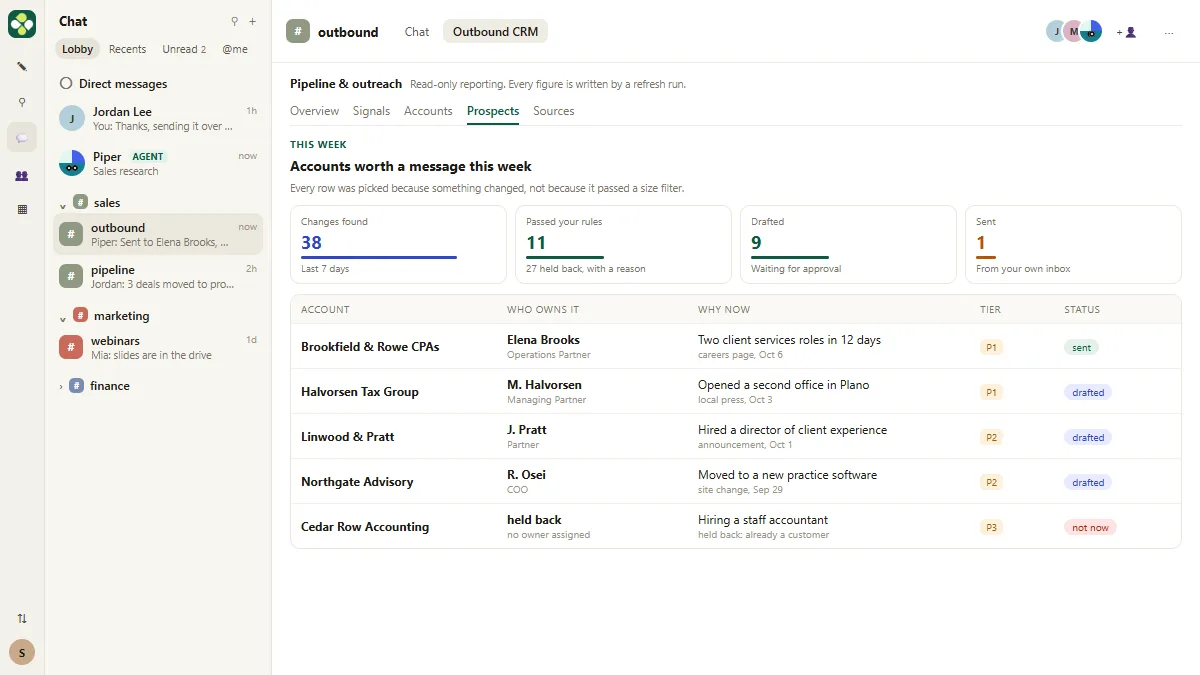
One good email does not fill a pipeline. Ask the agent to run the same sweep every Monday at 8:00 AM, keep approval on and post a summary in the room. It sets up a workflow with a schedule trigger and shows its next run. The Outbound CRM tab lists the week's accounts with who owns the decision, why now, a tier and a status, and the accounts held back with the reason they were held back.
Mistakes to avoid
- Skipping the definition. Without rules for a good account and a reason to write now, an agent falls back to size and industry filters, which every competitor uses too.
- Trusting a reason you did not open. Click the source behind every reason before you approve the email.
- Turning approval off too early. Leave it on until you have read a few weeks of drafts for a list you trust.
- Letting the first draft go out. Ask for the length, the ask and the opening you want in the same room, instead of rewriting it yourself.
Credits, data and what to check
A Kylon-hosted agent uses Kylon credits, and research that reads many pages or calls data providers such as Apollo uses more. Check kylon.io/pricing for current plans, since they change. Email goes out from your own inbox and domain, so the usual cold-email rules apply: follow anti-spam law in your country, honor opt-outs, and keep volumes sensible. Before you connect a CRM or mailbox, check what your company's AI and data policy allows.
Links
- Kylon (kylon.io): the workspace this lesson teaches. It is a separate product with its own account, plans and credits.
- Kylon sales outreach: Kylon's own page on signal-based outreach, with the rules, reason and approval flow used in this lesson.
- Kylon docs: Agents: Kylon-hosted agents versus bringing your own, and the New agent dialog.
Try it yourself, free
Reading the steps is a start. Doing them is how it sticks. The interactive module walks you through every click in a practice copy of Kylon, checks each step, and never touches your real accounts.
Start “Kylon AI Sales Agent: Find the Reason to Reach Out”Step by step: Kylon AI Sales Agent: Find the Reason to Reach Out
All 20 steps of the interactive module, in order. In the module you watch each one, then do it yourself in a practice copy that checks your work.
1. Add a sales agent
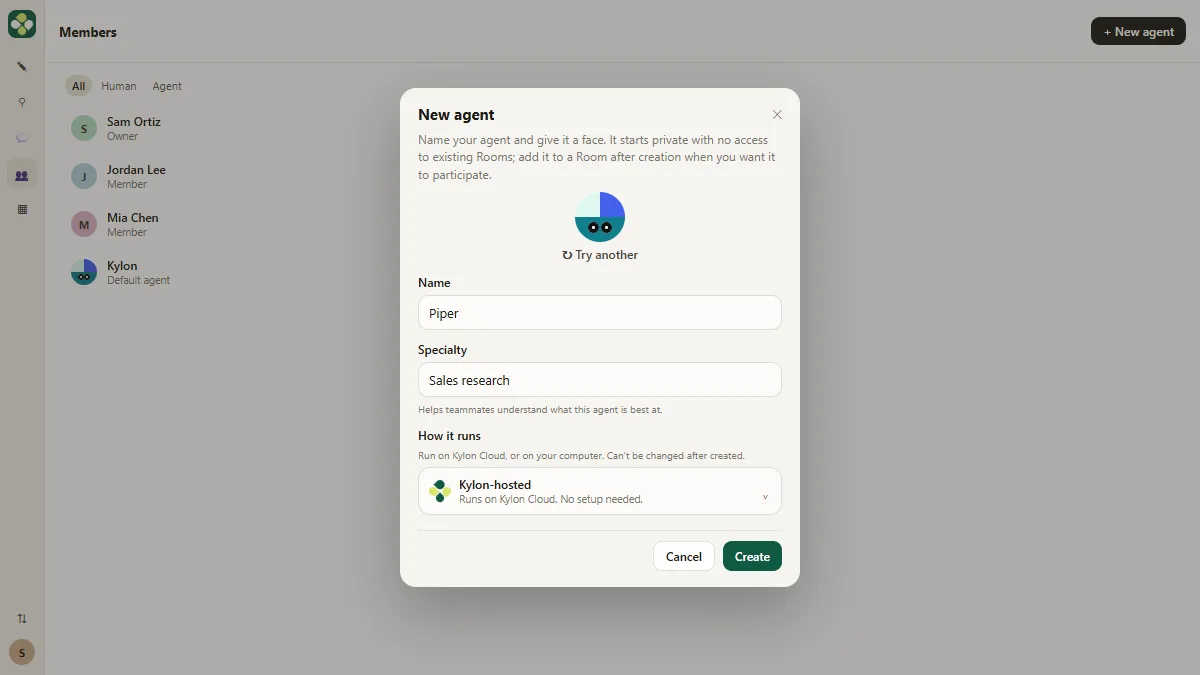
- Open Members. This is a Kylon workspace. Click the Members icon in the left rail.
This is Kylon. It's a shared workspace, where your team and AI agents work in the same rooms. First, add a sales agent.
- Start a new agent. Click New agent.
An agent is a member of the workspace, just like a person.
- Name it. In Name, type Piper.
Give it a name your team will use.
- Give it a specialty. In Specialty, type Sales research.
The specialty tells teammates what this agent is best at.
- Create the agent. How it runs is set to Kylon-hosted, which needs no setup. Click Create.
How it runs is set to Kylon-hosted. That runs on Kylon Cloud, with no setup. You can't change it later.
2. Bring it into the room
- Open the outbound room. Click the outbound room under sales in the chat list.
Piper is in your chat list now. But a new agent starts private, with no rooms.
- Add someone to the room. Click the Add people icon at the top right of the room.
Now bring Piper in.
- Pick Piper. Click Piper in the list.
- Share the agent with the room. Kylon asks whether the people in this room may use the agent. Click Grant access and add.
Kylon asks one more thing. Should the people in this room be able to use Piper? They should.
3. Teach it a good account
- Say what a good account is. Mention @Piper and describe, once, what a good account looks like, why now, and what to leave alone. Paste in the rules.
Now tell Piper what a good account looks like, in your own words. Who you sell to. What counts as a reason to write now. And who to leave alone.
@Piper Here's what a good account looks like for us.
We sell Tallyway, client-portal software for accounting firms with 5 to 40 staff in the US.
Good account: a firm that is growing, like hiring client-service staff or opening an office.
Why now: something changed in the last 30 days that I can open and check. No link, no reason.
Not now: already a customer, already in a deal in our CRM, or a competitor.
Write to the partner who runs operations. Draft emails, but never send without my approval.
- Send it. Click the send arrow.
Piper turns your words into three rules. Good account, why now, and not now. Every account it picks later goes back to one of these.
4. Ask about one account
- Ask about an account. Ask @Piper about one firm. Paste in the question.
Now try it on one firm. Ask Piper if it's worth writing to.
- Send the question. Click the send arrow.
Piper researches the firm on the open web, and checks your CRM.
- Check the source. Piper gives the reason first: What changed, Who owns it and Your rules, each with its source. Click the careers page link under What changed.
Read the reason before the email. What changed, who owns it, and how it fits your rules. Each line has a source.
- Ask for a shorter email. The reason checks out, but the draft is long and asks for a 30-minute demo. Tell Piper what to change. Paste in the edit.
Two new client service roles. The reason is real. But the draft is long, and it asks for a thirty minute demo. Tell Piper what to change.
- Send the change. Click the send arrow.
Approval is on by default, so nothing goes out until you say so.
- Approve and send. Read the new draft. Then click Approve and send.
Read the new draft. It's short, the reason comes first, and it asks for fifteen minutes. It goes out from your own inbox.
5. Make it weekly
- Ask for a weekly run. Ask @Piper to do this every Monday. Paste in the weekly ask.
One account is good. A full week is better. Ask Piper to do this every Monday morning, with approval still on.
@Piper Every Monday at 8:00 AM, find this week's accounts that pass my rules, draft an email for each, keep approval on, and post a summary here.
- Send it. Click the send arrow.
Piper sets up a workflow, a task that runs on a schedule. Each run is saved, so you can check it later.
- Open Outbound CRM. Click the Outbound CRM tab at the top of the room.
Every account has its reason and its status. The ones that failed your rules are held back, with the rule that stopped them. Approve the drafts there each Monday.
Screenshots
Frequently asked questions
- How does the interactive lesson work?
- Each step is shown to you first (Watch). Then you do it yourself in a practice copy that checks every click (Your turn). If you get stuck, press Do it for me. It is a practice copy, so no agent is created, no email is sent and no Kylon account is touched.
- Is Kylon part of Stepthrough?
- No. Kylon is a separate, third-party product from kylon.io. This lesson is free and teaches the steps as shown on kylon.io, in Kylon's docs and in its public videos. To use it for real you need your own Kylon account; check kylon.io for its current plans.
- Does a Kylon agent send email on its own?
- It can, from your own connected inbox. Approval is on by default, so every message waits for you until you turn approval off for a list you trust. In this lesson you approve the one email yourself.
- Where does the agent's reason to reach out come from?
- From public sources such as job postings, news and website changes, plus your CRM to rule out customers and open deals. Each reason is shown with its source so you can open it and check.
- What is the difference between Kylon-hosted and bring your own agent?
- A Kylon-hosted agent runs on Kylon Cloud, needs no setup and uses Kylon credits. Bring your own runs through a provider you already use, such as Codex or Claude Code on your own computer. You choose once, when you create the agent, and cannot change it later.
More in AI Automation for Sales
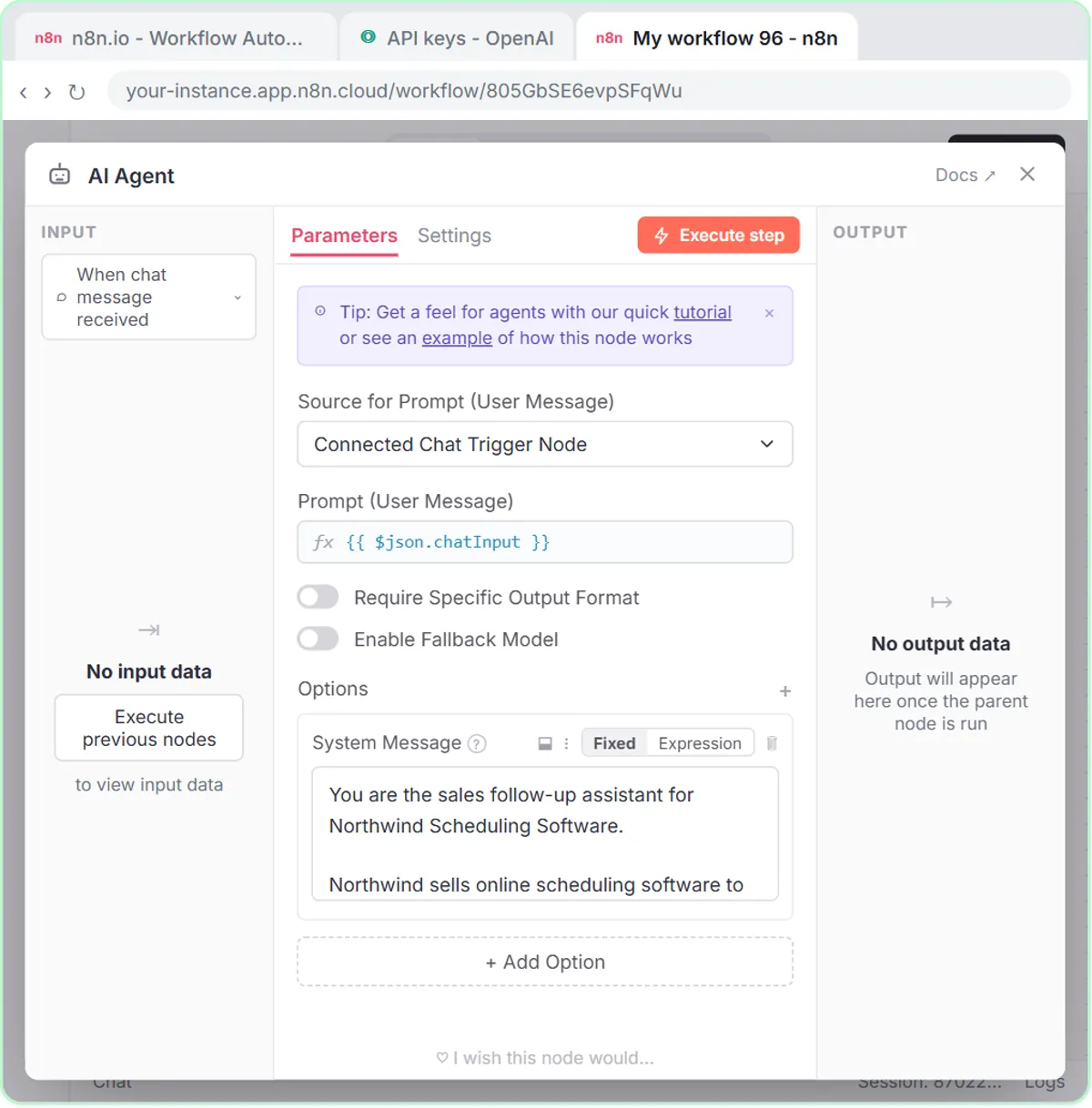 Build an n8n AI Agent That Writes Deal Follow-Ups
Build an AI agent for Northwind Scheduling Software that writes follow-up messages for your open deals and saves them to Google Sheets — chat trigger, AI Agent, system…
Free · Live ~12 min
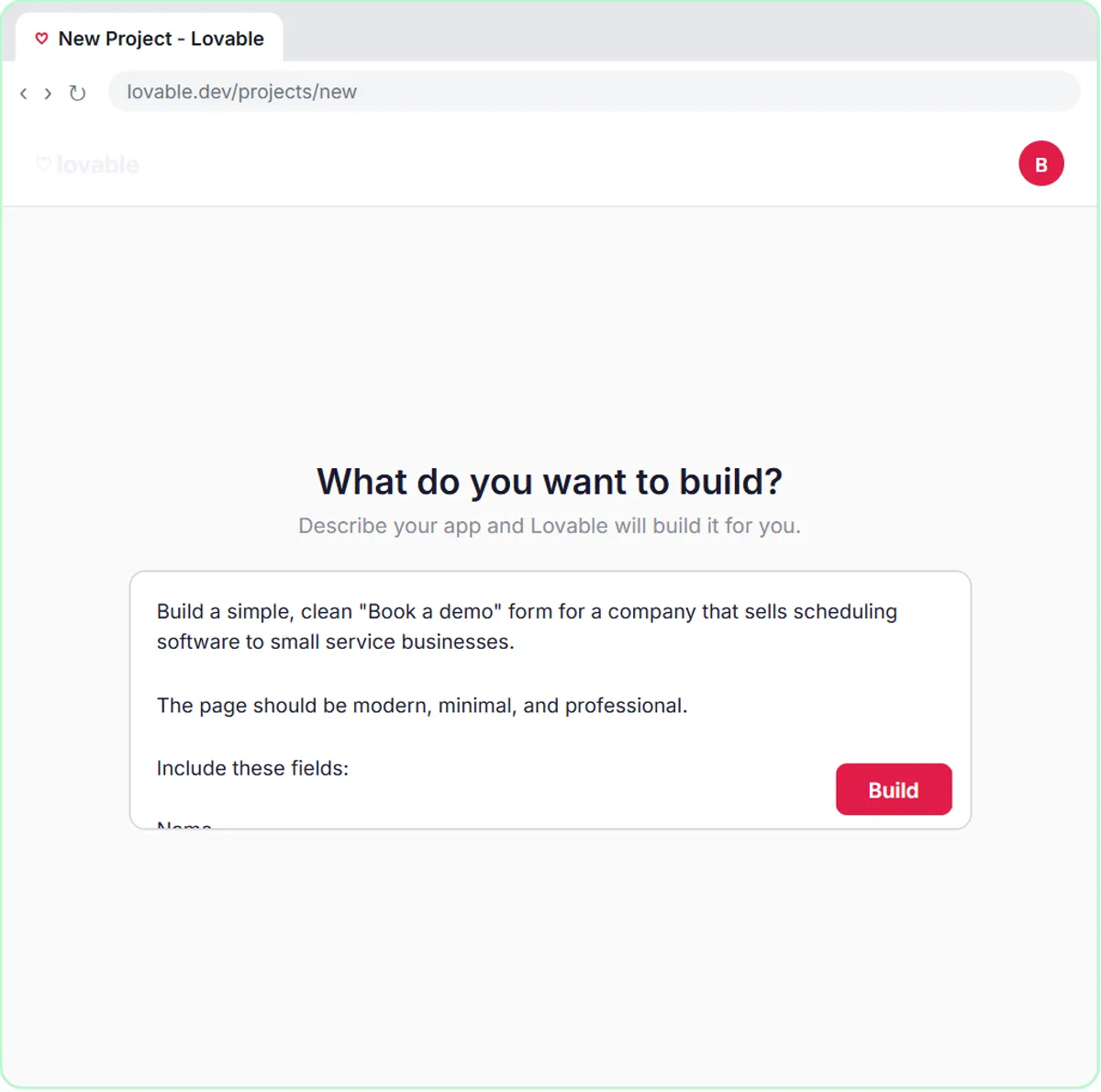 Build an AI Demo Request Form That Qualifies Leads
Build a "Book a demo" form in Lovable for Northwind Scheduling Software and connect it to n8n — the AI agent rates each lead hot, warm or nurture, saves it to Google…
Free · Live ~15 min
All 4 modules in AI Automation for Sales
Terms in this lesson
Plain-English definitions, each with an example from a free lesson.