Updated . Built against the tool’s current screens and checked step by step. How we check this lesson
Three checks before you share anything you build with an AI app builder: who can open it, where the data lives, and what it will cost. Open the Publish panel without publishing, find client data in the page code, and ask Lovable in free Chat mode what a safe version needs.
At a glance
| Question | Answer |
|---|---|
| What you build | Three checks before you share anything you build with an AI app builder: who can open it, where the data lives, and what it will cost. Open the Publish panel without publishing, find client data in the page code, and ask Lovable in free Chat mode what a safe version needs. |
| Tools | Lovable |
| Time | About 10 minutes, 17 steps in 5 parts |
| Level | Beginner, no coding needed |
| Cost | Free |
| Ways to learn it | Practice it step by step |
The 5 parts, in short
- Can we send it on Monday?: The three checks, Open the project.
- Check 1: who can open it: Open the Publish panel, Who can see it?, Read the three choices, Close it and open the code.
- Check 2: where the data lives: Search the code for a client, Open the client list.
- Check 3: ask what safe costs: Switch to Chat mode, Pick Chat, Ask the question, Send it, and 1 more step.
- Ship it, or not yet: Check what the checks cost, No credits used, What the checks found, The rule.
Start here first: Lovable: Build or Buy? Vibe Code an Office App in One Prompt (module 1 of Vibe Coding for Business)
What you'll build
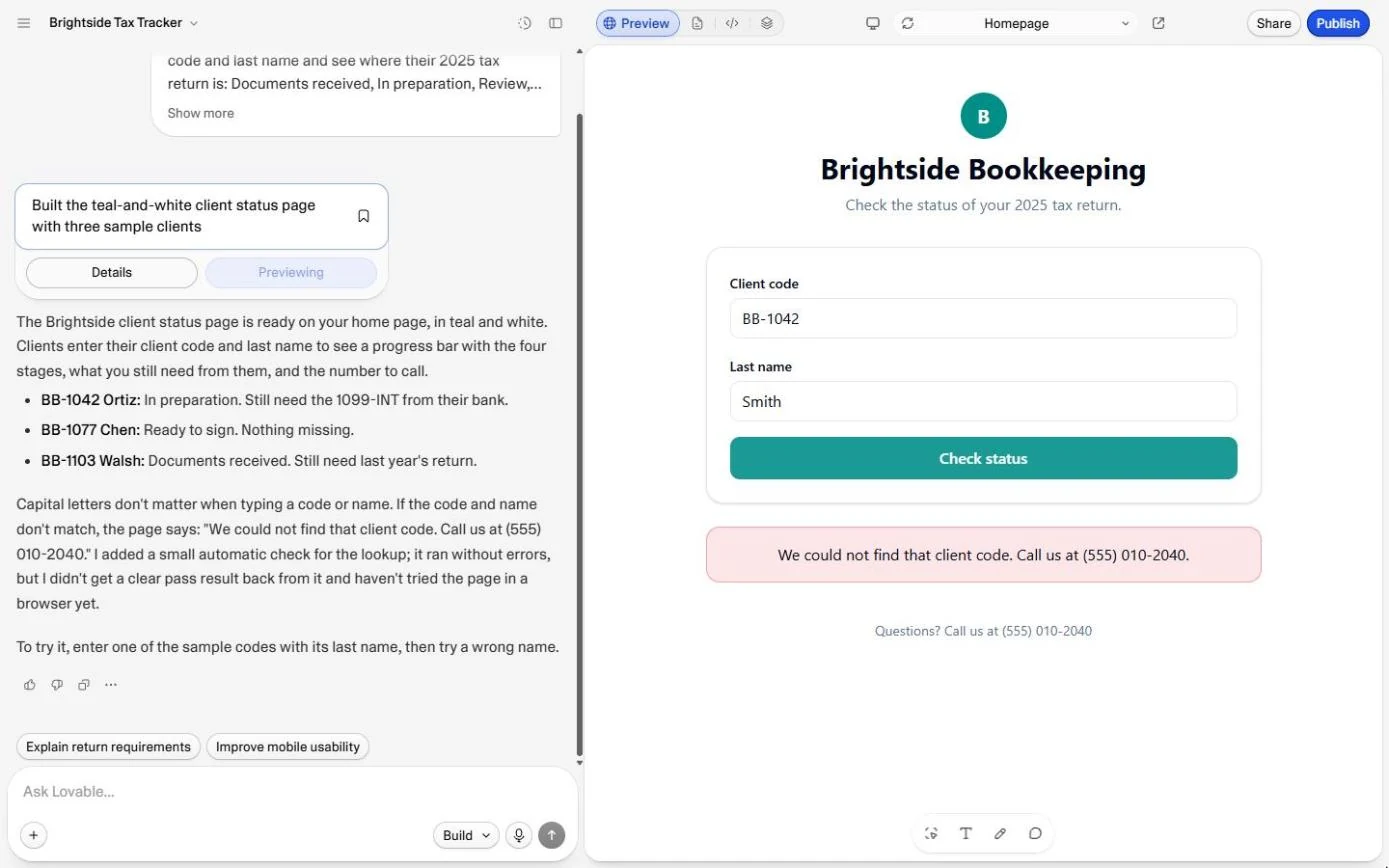
The partners at Brightside Bookkeeping (made up) liked the client status page from the last lesson and want it sent to clients on Monday. Before Marcus shares the link, he does three checks that apply to anything you vibe code. Who can open it: the Publish panel says anyone with the link. Where the data lives: Search code finds all three clients written into the page itself, even though the security scan says no issues. What it costs: he asks Lovable in Chat mode, which is free and changes nothing, and gets a plan with logins, a database and access rules. Every screen is a real Lovable screen; nothing is published or changed.
Who can open it: Public, anyone with the link (Invite only is one click away; workspace-only needs the Business plan). Where the data lives: Search code found all three clients in src/lib/clients.ts, inside the page, although the scan said no security issues. What it costs: in free Chat mode Lovable laid out client logins, a Lovable Cloud database and row-level security, with 20 free Cloud credits a month for hosting and build credits to make the change. The rule: made-up data, share the demo; real client data, logins and rules first, then test as the wrong client, then publish.
- Tools: Lovable
- Time: about 10 minutes, 17 steps in 5 chapters
- Level: beginner, no coding needed
- Price: free
Practice first, then build it for real
Practice copy built from real Lovable screens (lovable.dev, captured 24 October 2026). Nothing here touches your account or spends credits, and in our run nothing was published or changed. Lovable's answer is its real reply; plans and prices change, so check yours. Brightside Bookkeeping, Marcus and the clients are made up. To build it for real you need your own Lovable account, and some services charge once you use them for real work, so check each tool's current pricing.
Try it yourself, free
Reading the steps is a start. Doing them is how it sticks. The interactive module walks you through every click in a practice copy of Lovable, checks each step, and never touches your real accounts.
Start “Lovable: Check Logins, Data and Cost Before You Share an App”Step by step: Lovable: Check Logins, Data and Cost Before You Share an App
All 17 steps of the interactive module, in order. In the module you watch each one, then do it yourself in a practice copy that checks your work.
1. Can we send it on Monday?
- The three checks. The partners want the client status page from the last lesson sent to clients on Monday. Before you share anything you vibe code, ask three questions: who can open it, where the data lives, and what it will cost. Click The three checks.
The partners want the status page sent to clients on Monday. Before you share anything you build, ask three questions. Who can open it. Where the data lives. And what it'll cost.
- Open the project. You will do all three in the same Lovable project, without publishing or changing anything. Click the Lovable card.
You'll do all three in the same project, without publishing anything.
2. Check 1: who can open it
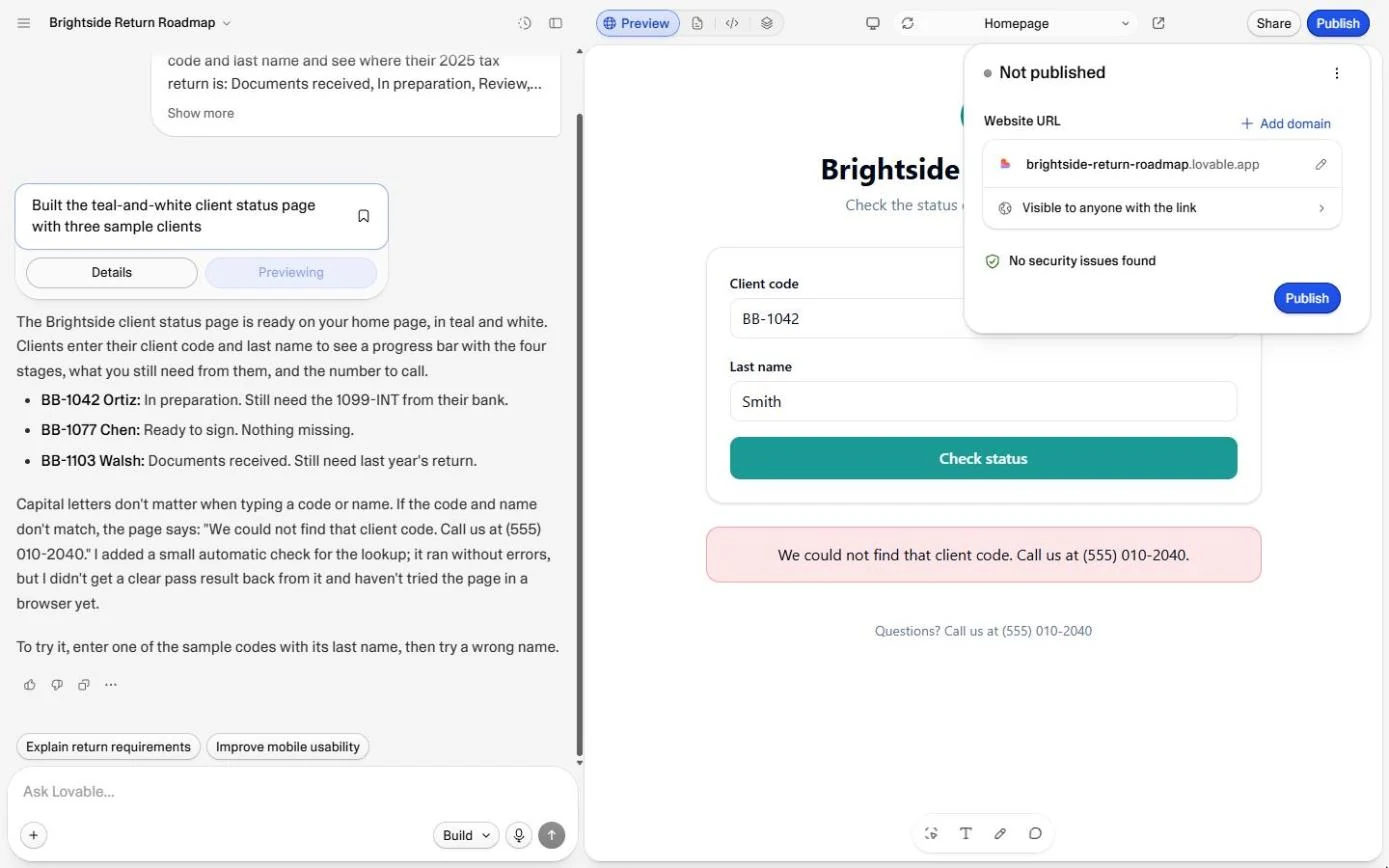
- Open the Publish panel. This is the status page project from the last lesson. Click Publish at the top right. It only opens a panel: nothing goes live until you click the second Publish button inside it.
Here's the status page project. It only opens a panel. Nothing goes live yet.
- Who can see it?. The panel shows Not published, the web address it would get, Visible to anyone with the link, and a green No security issues found. Remember that last line. Click Visible to anyone with the link.
Not published yet. Visible to anyone with the link. And a green line: no security issues found. Remember that.
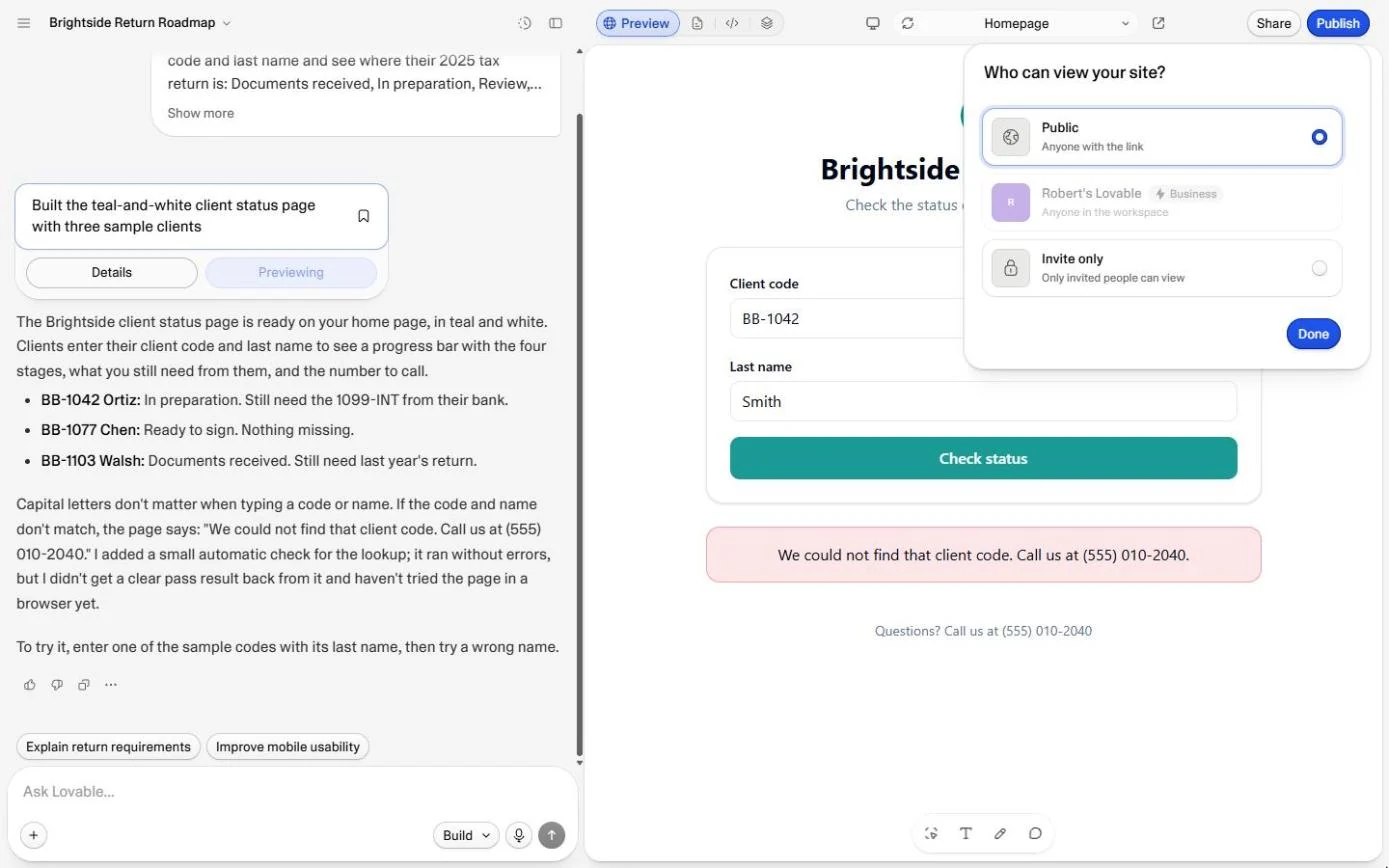
- Read the three choices. Public: anyone with the link. Your workspace: only your team (it needs the Business plan, so it is greyed out here). Invite only: only people you invite. Leave it on Public for now and click Done.
Public, anyone with the link. Your workspace, only your team, on the Business plan. Or invite only. Leave it as it is, and click Done.
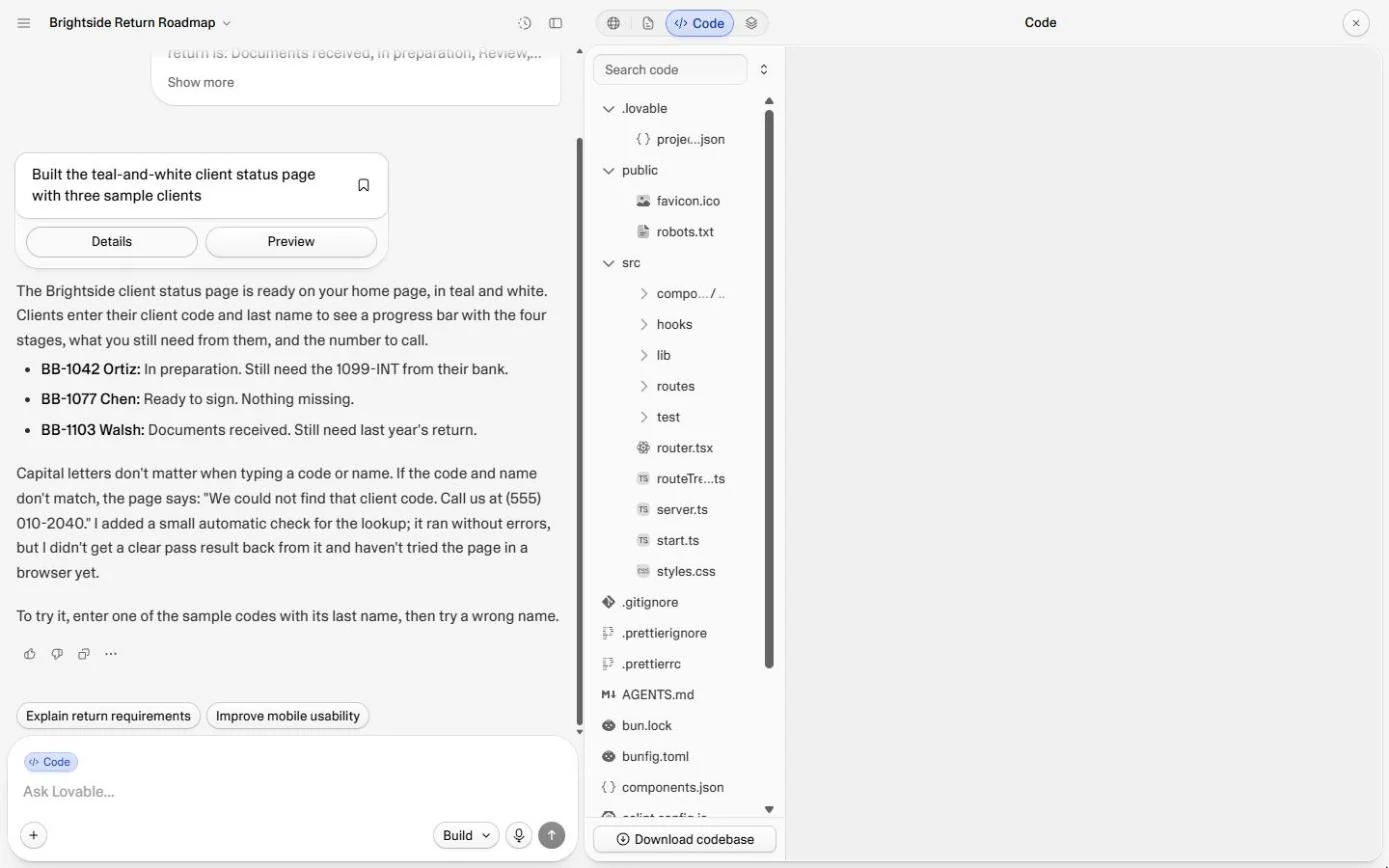
- Close it and open the code. Do not click the blue Publish button. Instead click the code icon (</>) at the top: that closes the panel and opens the code.
Don't click the blue Publish button.
3. Check 2: where the data lives
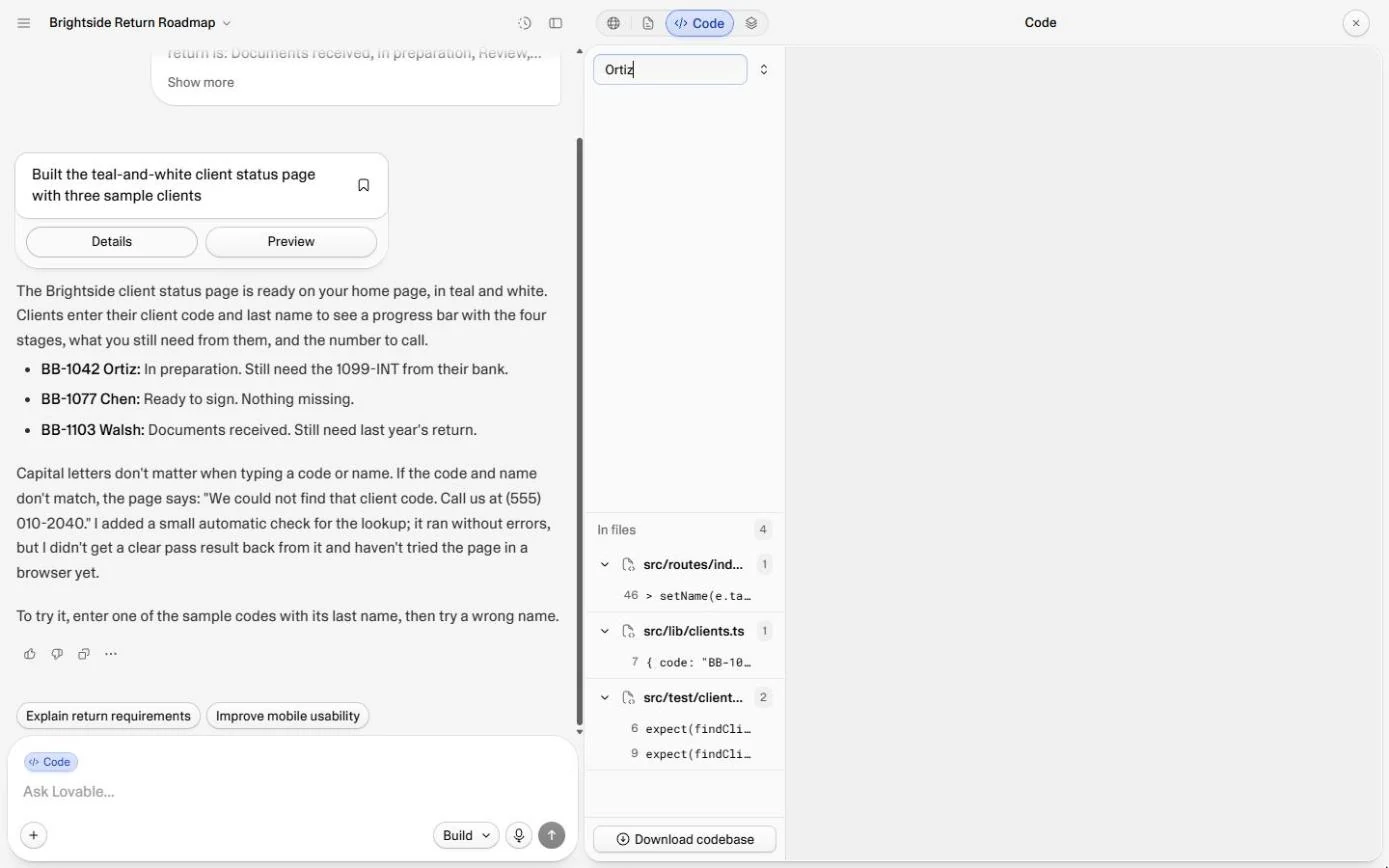
- Search the code for a client. Where are the clients kept? Click Search code and type a client's surname: Ortiz.
Where are the clients kept? Search the code for a client's surname. Ortiz.
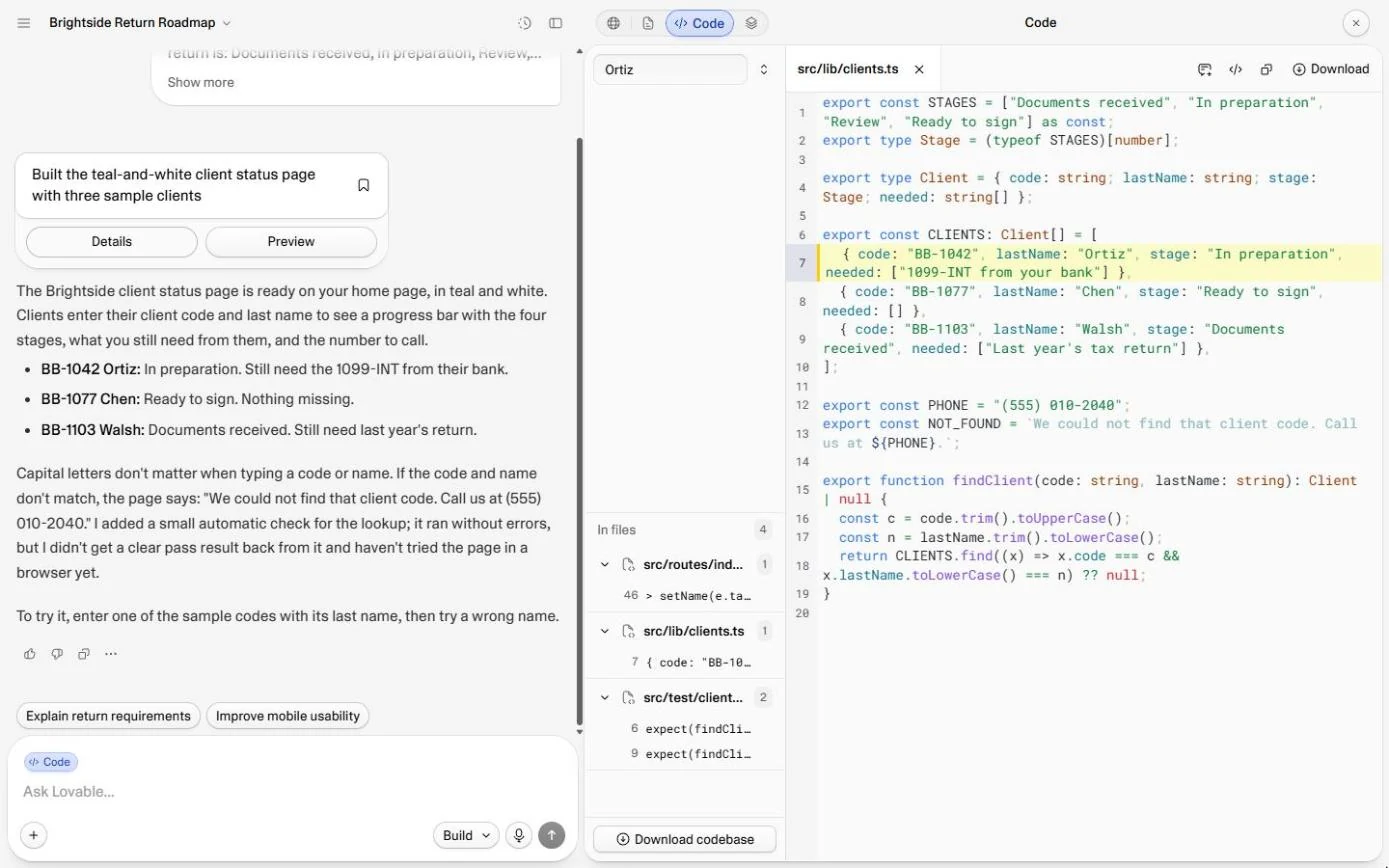
- Open the client list. Ortiz is in 4 places in 3 files. Click the result in src/lib/clients.ts.
Ortiz shows up in three files.
4. Check 3: ask what safe costs
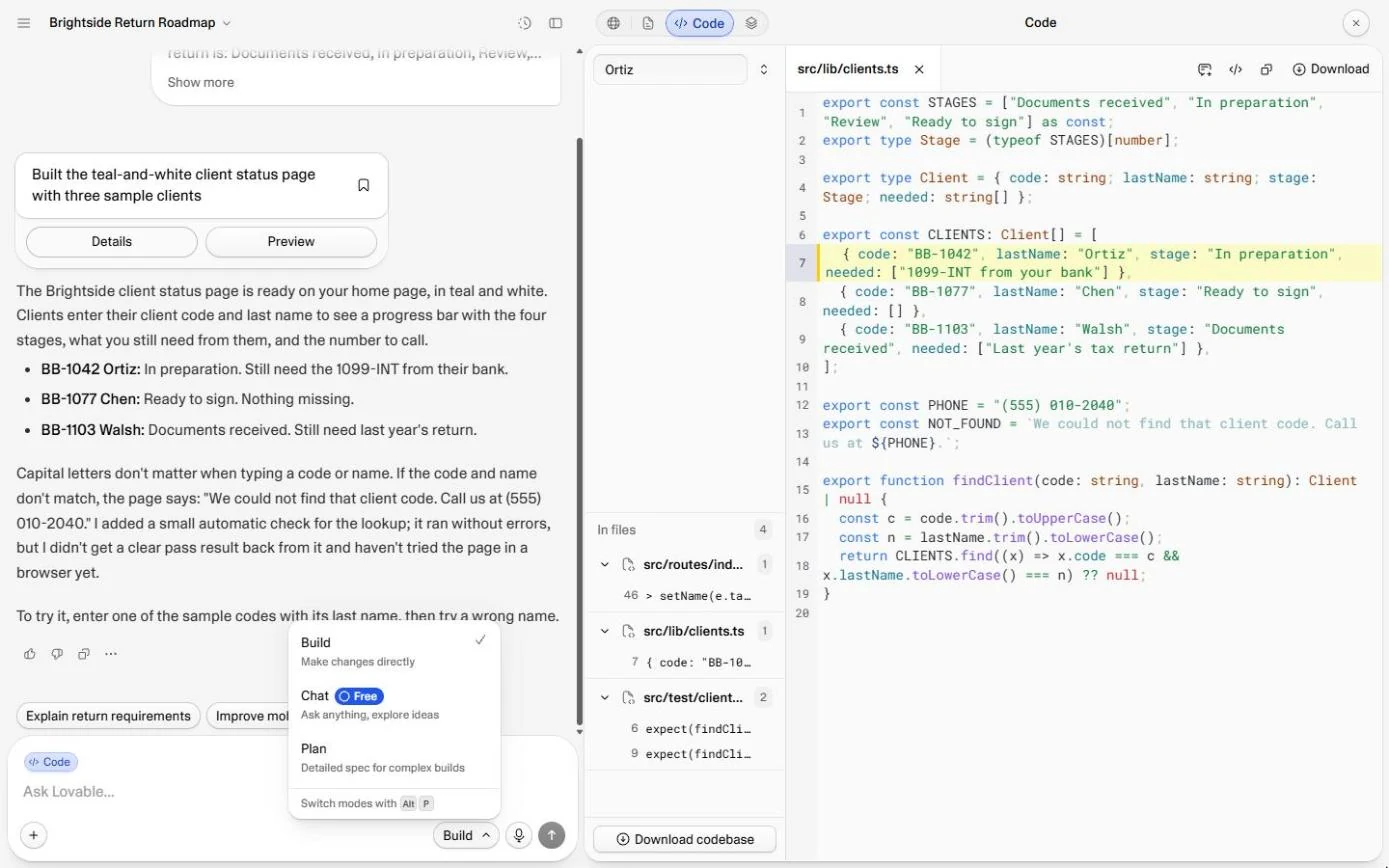
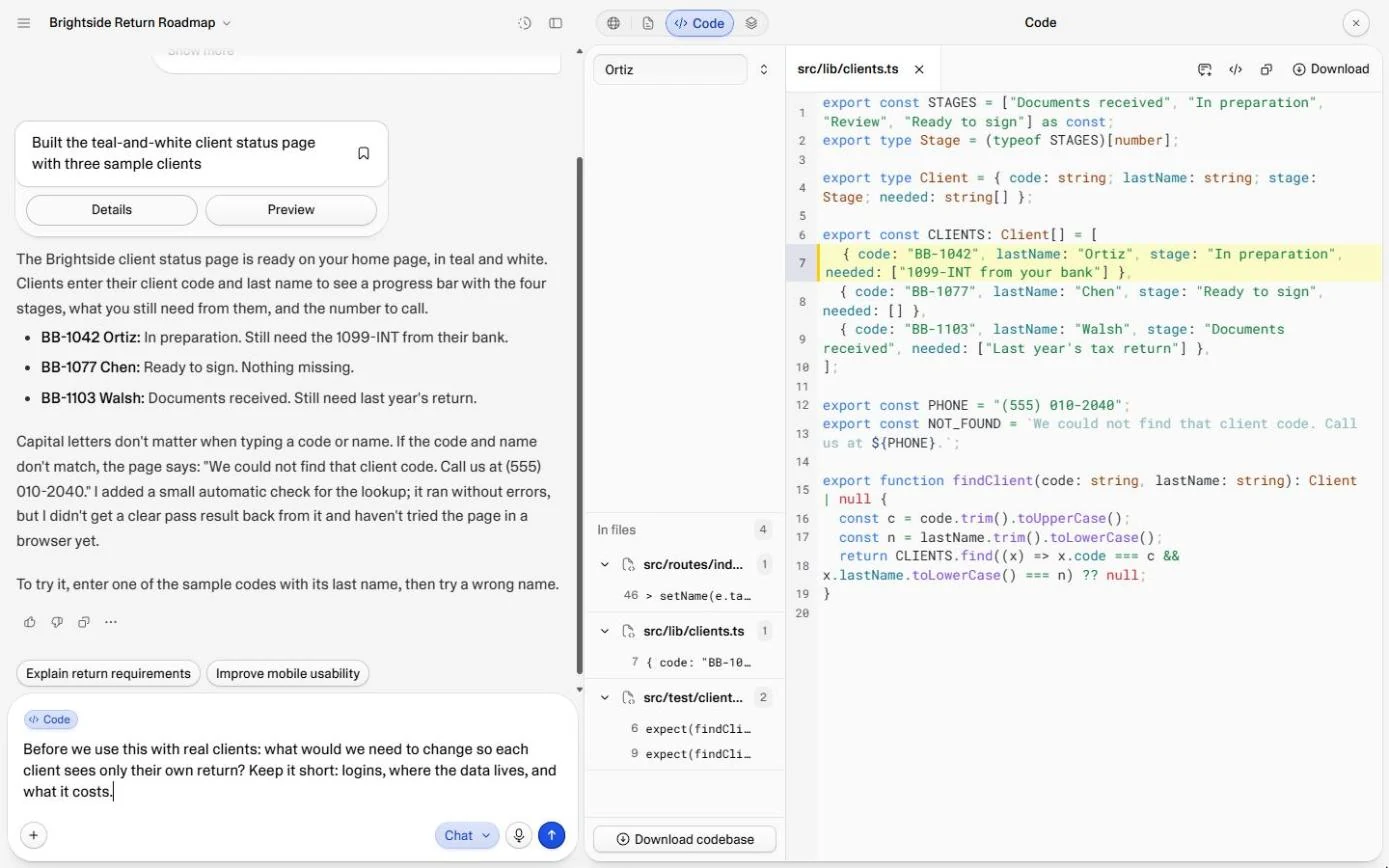
- Switch to Chat mode. There they are: all three clients, their stages and what each one still owes, written into the page. Anyone who opens the page can read this file, and the scan still said no issues. Now ask Lovable what a safe version needs, without changing anything: click Build under the chat box.
There they are. All three clients, written into the page itself. Anyone who opens the page can read this. And the scan said no issues. Now ask Lovable what a safe version needs.
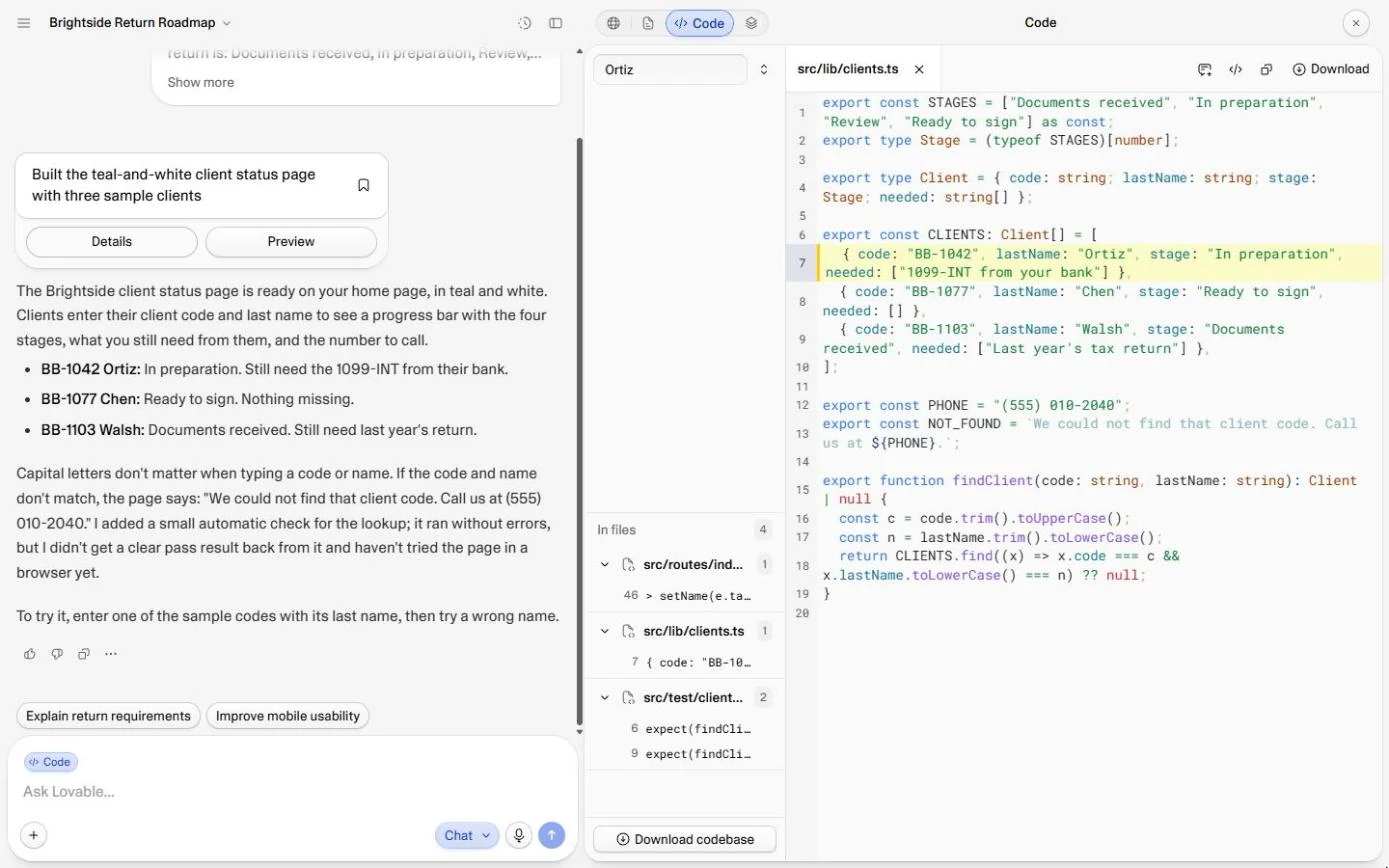
- Pick Chat. Build changes your app. Chat (marked Free) answers questions and changes nothing. Plan writes a spec for big changes. Click Chat.
Build changes your app. Chat answers questions, changes nothing, and it's free.
- Ask the question. Paste the question. It asks for the three things you care about, in plain words, and asks for a short answer.
Logins, where the data lives, and what it costs. Keep it short.
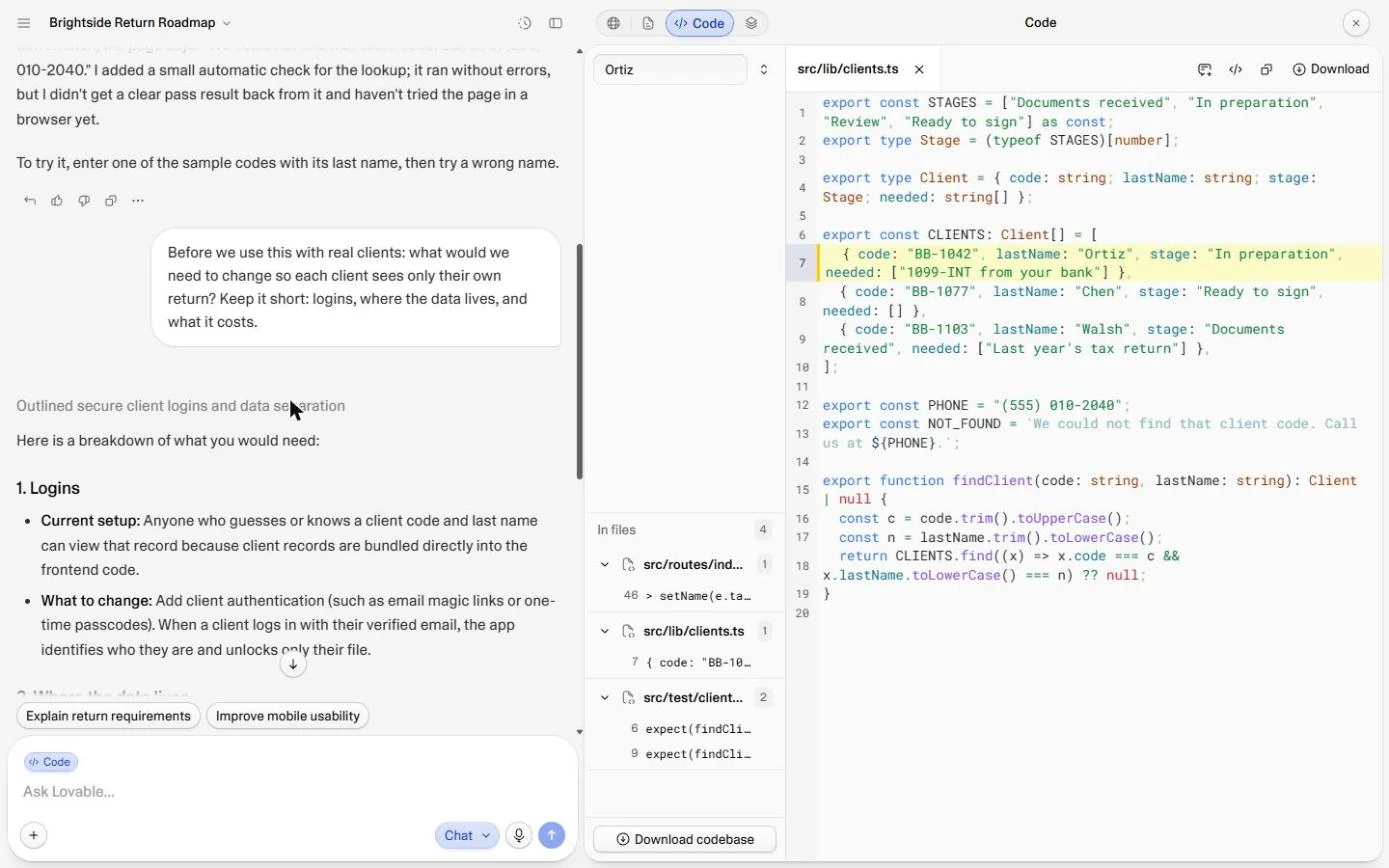
Before we use this with real clients: what would we need to change so each client sees only their own return? Keep it short: logins, where the data lives, and what it costs.
- Send it. Click the arrow.
Send it.
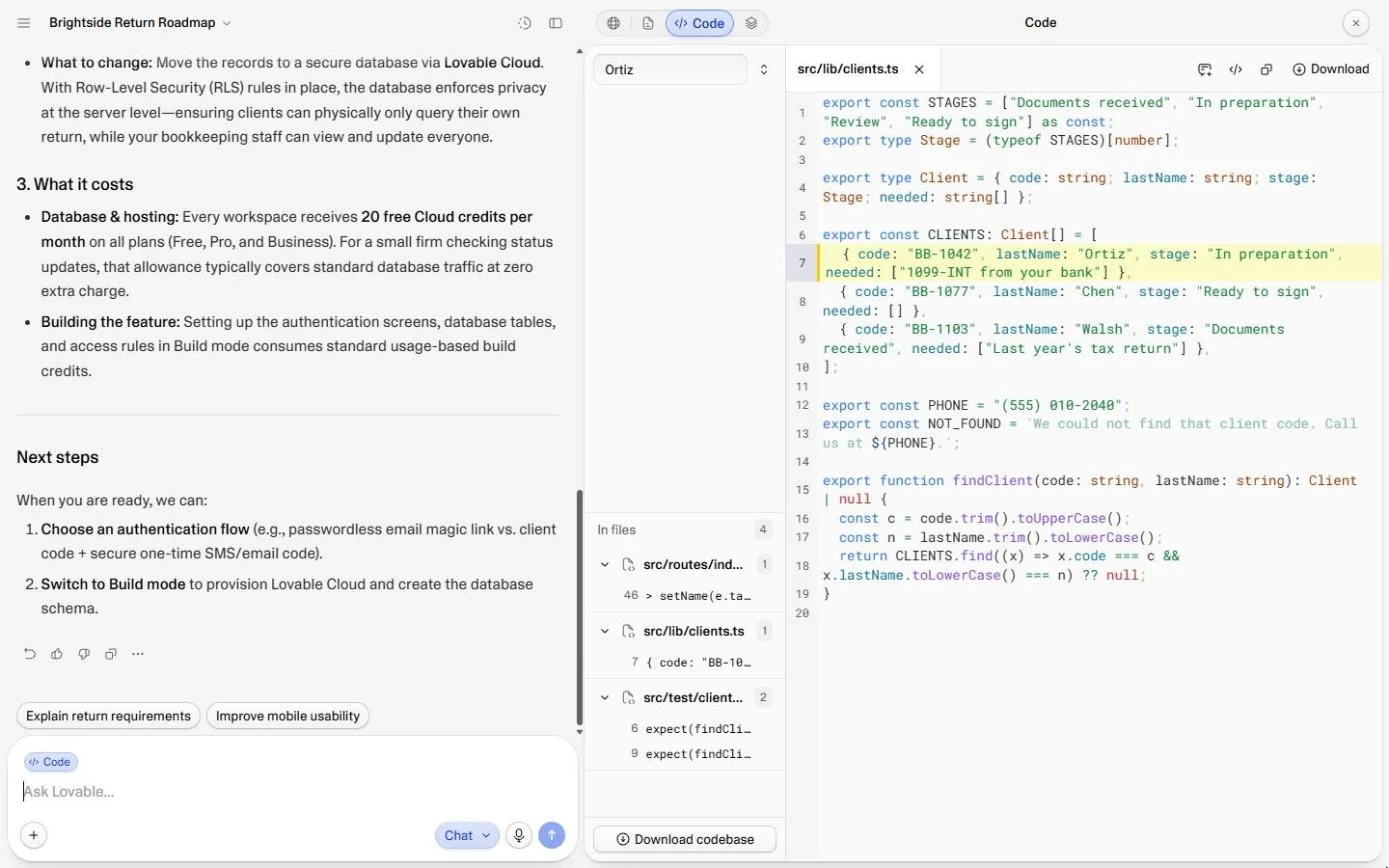
- Read the answer from the top. The answer ends with the costs: 20 free Cloud credits per month on every plan for the database, plus build credits to add it. Scroll up the chat to the start of the answer (in the practice, click the chat).
It ends with the cost. Twenty free cloud credits a month for the database, plus build credits to make the change.
5. Ship it, or not yet
- Check what the checks cost. 1. Logins: anyone who knows a code and a surname gets in, so add client logins (an email magic link or a one-time code). Part 2 moves the records into a Lovable Cloud database with row-level security. Now click the project name at the top left.
Part one. Anyone with a code and a surname gets in, so add real logins. Part two. Move the records into a database, with rules.
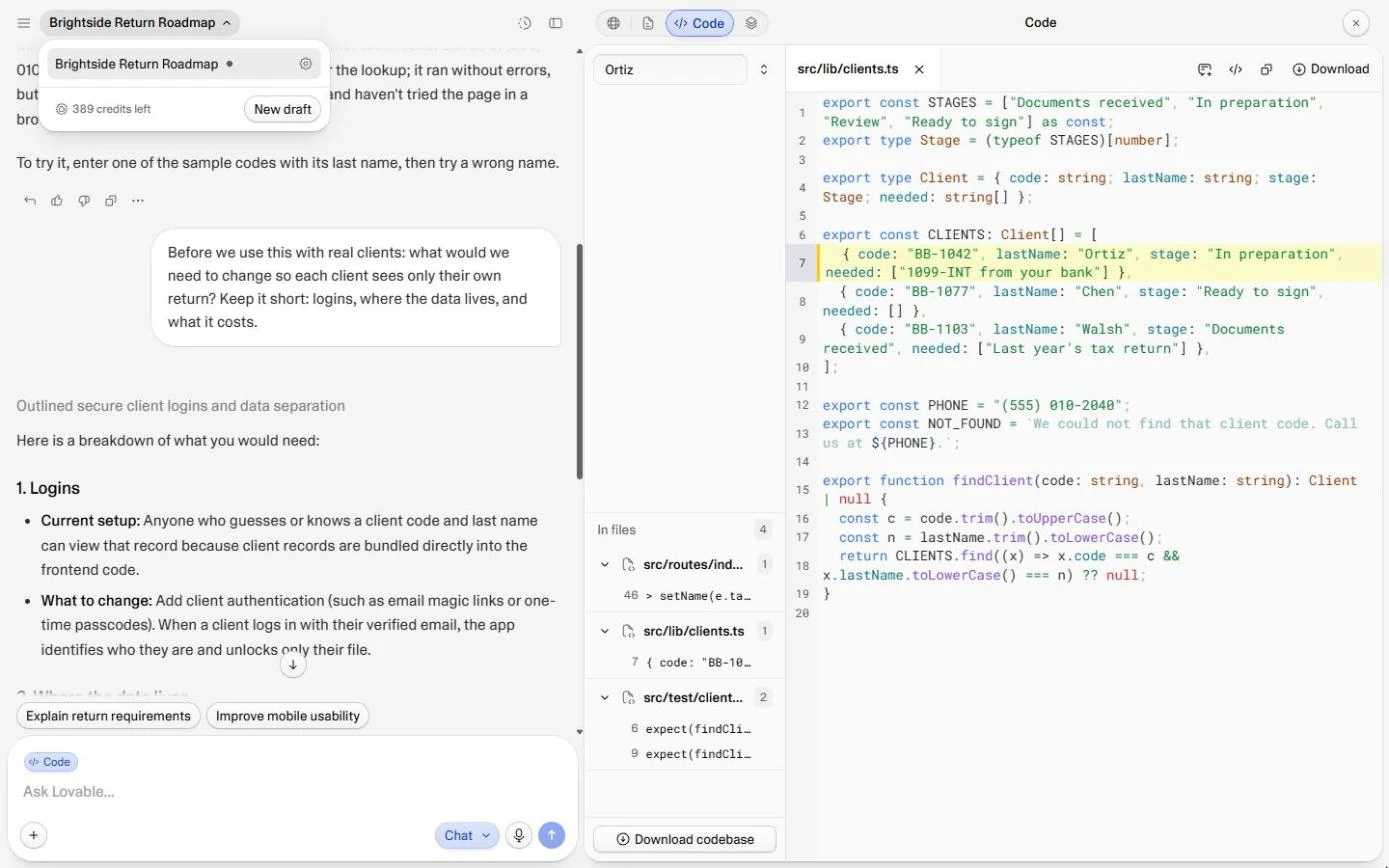
- No credits used. The credits left are the same as at the end of the status page lesson (ours said 389 both times): opening Publish, searching the code and Chat mode cost nothing. Click the credits line.
The same number as before. The checks cost nothing.
- What the checks found. Public link, client data inside the page, and a clear plan to fix it. Click What the three checks found.
A public link, client data inside the page, and a plan to fix it.
- The rule. Made-up data: share the demo. Real client data: logins and database rules first, test as the wrong client, then publish. Click The rule.
Made-up data, share the demo. Real client data, logins and rules first. Then test as the wrong client. Then publish.
Screenshots
More in Vibe Coding for Business
All 3 modules in Vibe Coding for Business
More Lovable tutorials
 Lovable + n8n: Build a Web App with an AI Backend
Build a contact form in Lovable and connect it to an n8n workflow — webhook trigger, AI Agent, Google Sheets, Gmail, and a Respond node that ties it all together.
Free · Live ~15 min Advanced
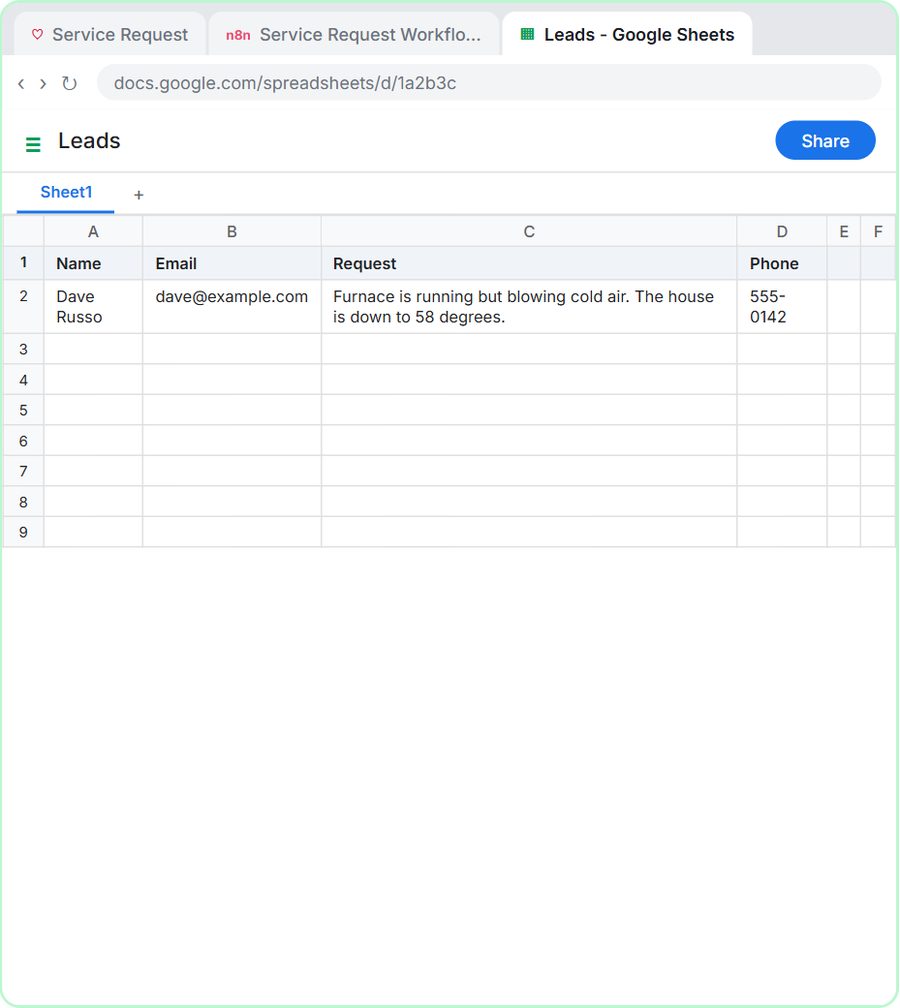 Build an AI Service Request Form for Your HVAC Company
Build a service request form in Lovable for Cedar Ridge Heating & Air and connect it to n8n — the AI agent sorts each job into repair, maintenance, install or…
Free · Live ~15 min Advanced
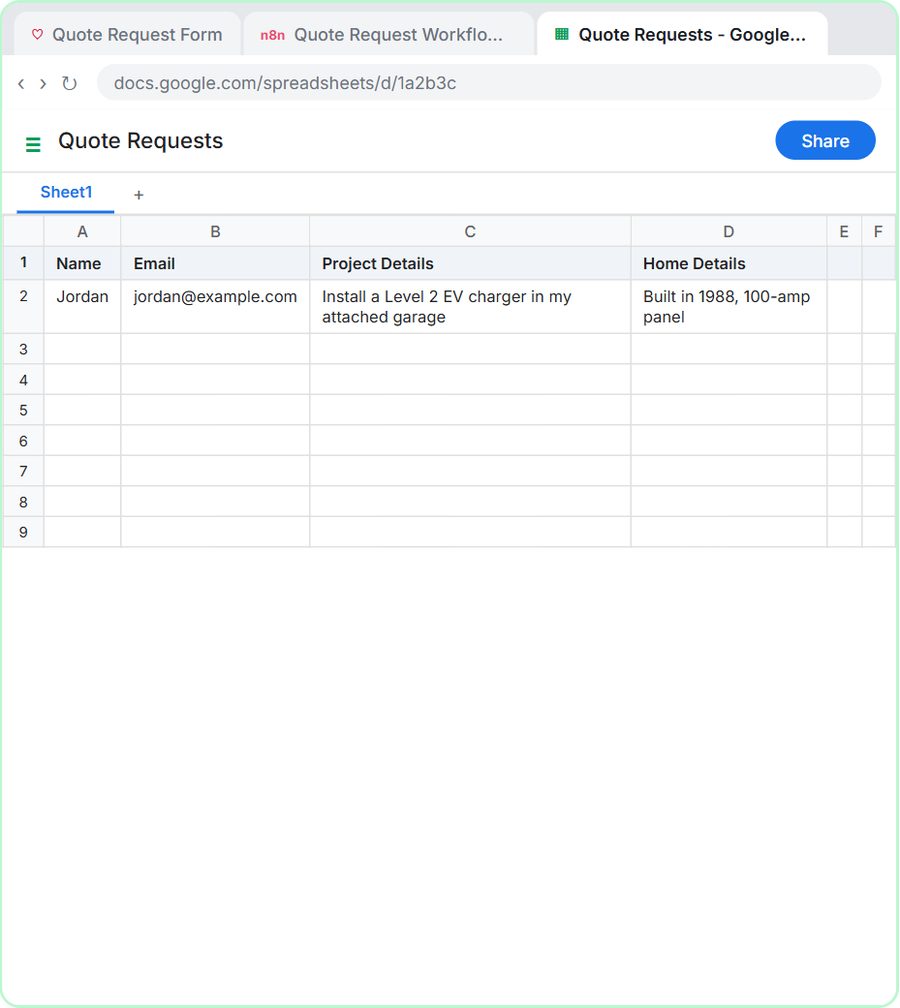 Build an AI Quote Request Form for Electrical Contractors
Build a quote request form in Lovable and connect it to an n8n workflow — webhook trigger, an AI Agent that drafts an initial estimate note, Google Sheets, Gmail, and a…
Free · Live ~15 min Advanced
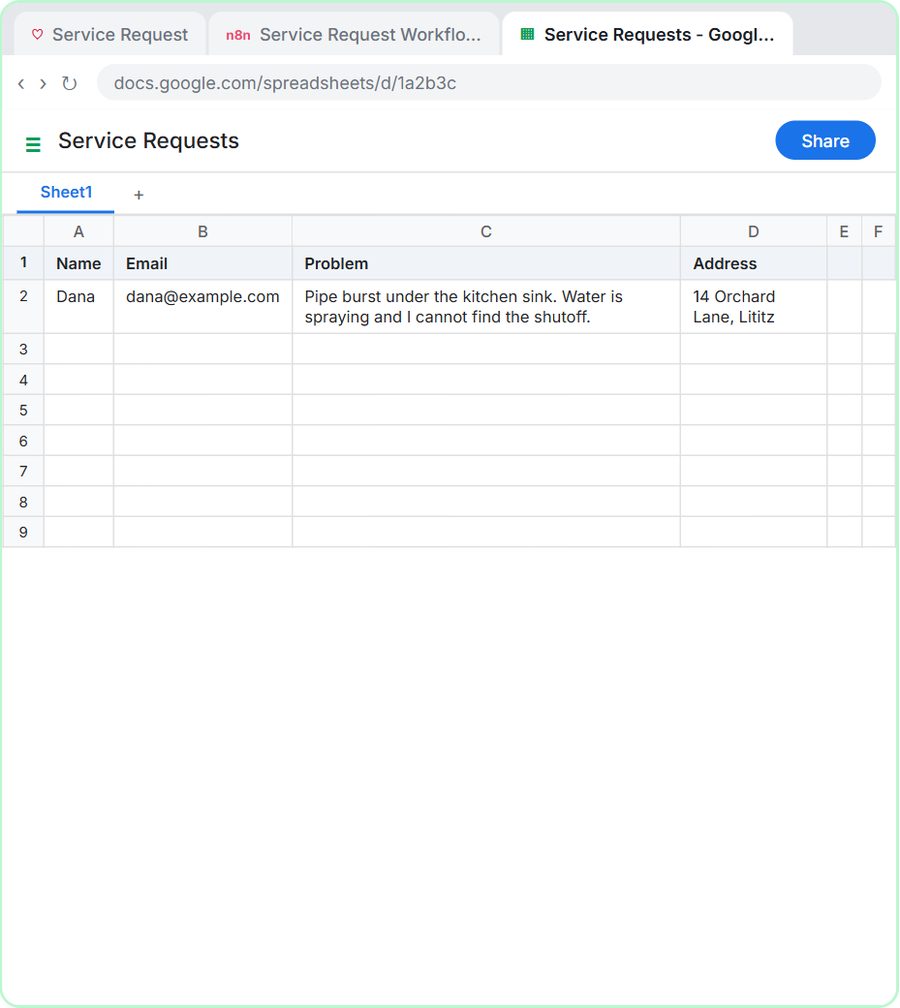 Build an AI Emergency Request Form for Your Plumbing Company
Build an emergency service-request form in Lovable and connect it to an n8n workflow — webhook trigger, AI Agent that prioritizes the job, Google Sheets, Gmail, and a…
Free · Live ~15 min Advanced
 Build an AI Demo Request Form That Qualifies Leads
Build a "Book a demo" form in Lovable for Northwind Scheduling Software and connect it to n8n — the AI agent rates each lead hot, warm or nurture, saves it to Google…
Free · Live ~15 min Advanced
 Build a Lead Magnet Signup Form with an AI Welcome Email
Build a "Get the free guide" signup form in Lovable for Harbor & Pine Coffee Roasters and connect it to n8n — the AI agent tags each lead by interest, saves it to…
Free · Live ~15 min Advanced
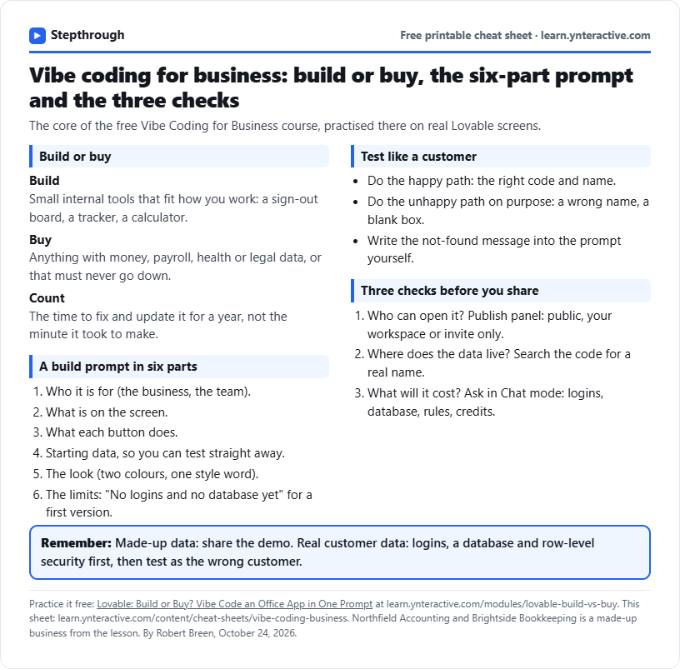
Free cheat sheet
Print it or save the PDF: the key steps and checks from this lesson on one page, free.
All free printable cheat sheets
Terms in this lesson
Plain-English definitions, each with an example from a free lesson.