Updated . Built against the tool’s current screens and checked step by step. How we check this lesson
OpenAI is retiring custom GPTs on December 11, 2026. After that date a GPT and its page stop working. If your business relies on one, this free tutorial shows you how to rebuild it as a ChatGPT Project with the same instructions and files, so your team keeps the same answers. You copy everything that makes the GPT work, create the project, move it over and test it on a real customer question.
At a glance
| Question | Answer |
|---|---|
| What you build | Custom GPTs retire on December 11, 2026. Copy your GPT's instructions, starters and files, rebuild it as a ChatGPT Project with project-only memory, and test it on a real customer question. |
| Tools | ChatGPT |
| Time | About 7 minutes, 25 steps in 5 parts |
| Level | Beginner, no coding needed |
| Cost | Free |
| Ways to learn it | Practice it step by step |
The 5 parts, in short
- Find your GPT: Open More, Open GPTs, Go to My GPTs, Edit the GPT, and 1 more step.
- Copy what makes it work: Copy the instructions, Note the files and starters, Leave the editor.
- Create the Project: Open Projects, New project, Name the project, Open memory settings, and 2 more steps.
- Move the instructions and files: Open the project menu, Project settings, Paste the instructions, Save settings, and 5 more steps.
- Test it: Ask a real question, Send it.
Start here first: Summarize a Meeting Transcript with ChatGPT (module 1 of ChatGPT for Everyday Work)
In the course: Part 3 · ChatGPT for Everyday Work (Module 18 of the full course)
Part of: ChatGPT Jump Start (step 6 of 8). Next up: Make Images with ChatGPT for Your Business
What you will do
You play Rosa, who owns Sunny Paws Dog Grooming, a small, made-up grooming shop. Her team uses a custom GPT called Sunny Paws Booking Helper to answer price, booking and cancellation questions from two files: a price list and a policies document.
You work in a practice copy of ChatGPT on the web: the GPTs and My GPTs pages, the GPT editor's Create and Configure tabs, the Create project dialog, and a project's Chats and Sources tabs and Project settings.
What is changing, and what OpenAI recommends
According to OpenAI's Custom GPT retirement and migration FAQ, custom GPTs are scheduled to retire on December 11, 2026, across all ChatGPT plans. Enterprise workspaces with an approved deferral have until February 11, 2027. Existing GPTs keep working until then. Personal accounts (Free, Go, Plus and Pro) can already no longer create new GPTs.
OpenAI's official path is plugins: in My GPTs you choose Migrate to plugin, which turns the GPT's instructions into a skill and copies its knowledge files. It uses the latest published version, it doesn't move your old GPT conversations or custom actions, and creating or editing plugins is currently limited to supported Business and Enterprise workspaces. A ChatGPT Project is the do-it-yourself route that works on every plan, and it's what this module teaches.
What a Project can and can't do compared with a GPT
A Project keeps chats, files and instructions in one place, and its instructions override your general custom instructions for chats inside it. Web search, canvas, image creation and data analysis are available in every project chat, so there are no capability checkboxes to set.
Some GPT features have no direct match. There are no conversation starter buttons, so put them in the instructions or in a file. Custom actions that call other apps don't carry over; connected apps in the + menu can sometimes cover the same job. A project can be shared with invited people or anyone with the link, but it isn't a public GPT Store listing. There is also no recommended model per project, and chats you had with the GPT can't be moved into a project, so copy out anything you want to keep before December 11.
Which plan you need
Projects are available on every ChatGPT plan, including Free. File limits per project differ: 5 files on Free, 25 on Go and Plus, and 40 on Pro, Business, Enterprise and Edu, with up to 10 files uploaded at once. Sharing a project is available on all plans, with different collaborator limits. Project-only memory keeps the project's memories separate from your other chats, and shared projects always use it.
Try it yourself, free
Reading the steps is a start. Doing them is how it sticks. The interactive module walks you through every click in a practice copy of ChatGPT, checks each step, and never touches your real accounts.
Start “Replace Your Custom GPT with a ChatGPT Project”Step by step: Replace Your Custom GPT with a ChatGPT Project
All 25 steps of the interactive module, in order. In the module you watch each one, then do it yourself in a practice copy that checks your work.
1. Find your GPT
- Open More. In the sidebar, click More (some workspaces call it Explore).
Rosa runs Sunny Paws Dog Grooming, and her team answers booking questions with a custom GPT. OpenAI is retiring custom GPTs on December 11, 2026. After that, the GPT and its page stop working. Today you'll rebuild it as a ChatGPT Project, which works on every plan. First, find the GPT. In the sidebar, click More.
- Open GPTs. Click GPTs.
- Go to My GPTs. At the top right, click My GPTs.
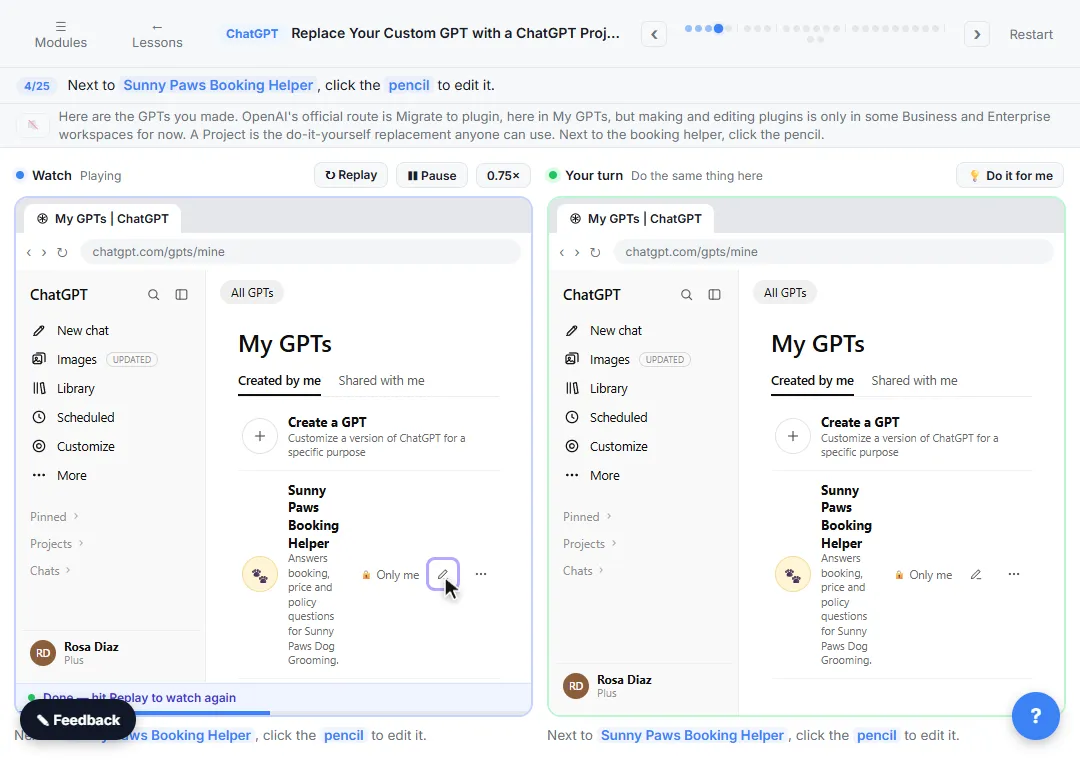
- Edit the GPT. Next to Sunny Paws Booking Helper, click the pencil to edit it.
Here are the GPTs you made. OpenAI's official route is the Migrate to plugin button, here in My GPTs. A Project is the do-it-yourself replacement: it works on every plan and keeps your instructions and files in one place. Next to the booking helper, click the pencil.
- Open Configure. The GPT editor opens. Click the Configure tab.
The GPT editor opens. Everything that makes the GPT useful is on the Configure tab.
2. Copy what makes it work
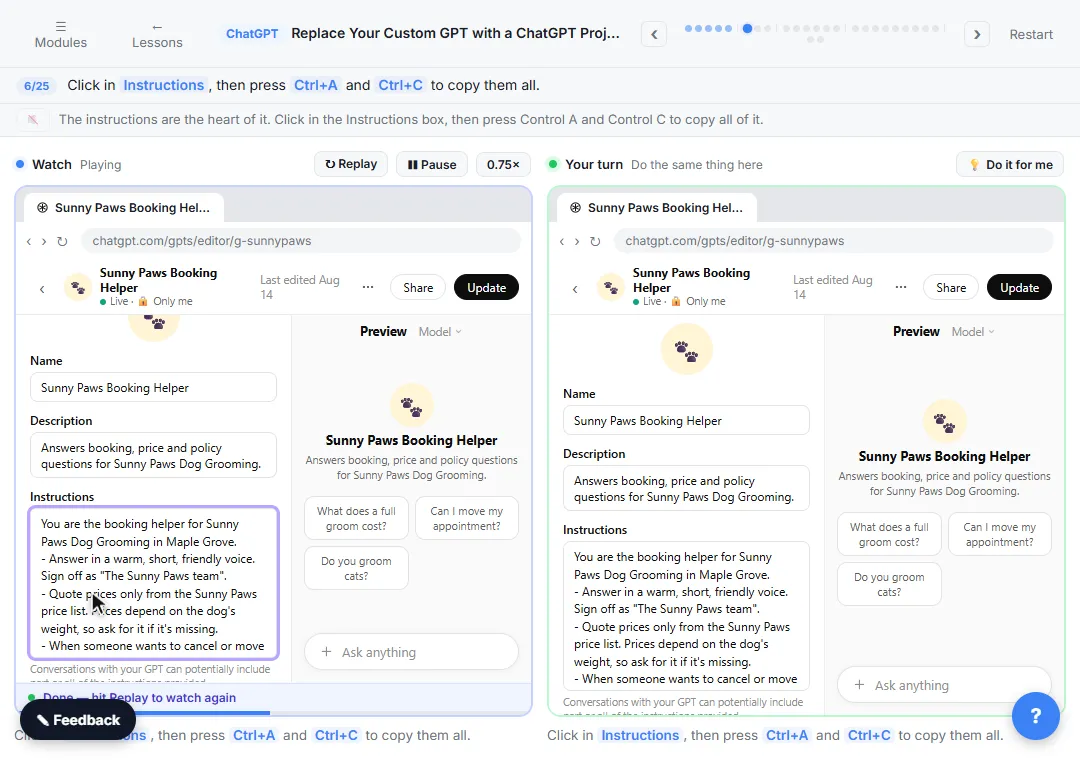
- Copy the instructions. Click in Instructions, then press Ctrl+A and Ctrl+C to copy them all.
The instructions are the heart of it.
- Note the files and starters. Scroll down and look at the Conversation starters, Knowledge files, Capabilities and Actions. Click the two Knowledge files to note their names.
Now note what else it uses. Three conversation starters, two knowledge files, the price list and the policies, web search and canvas turned on, and no actions. Projects have web search and canvas built in, but no custom actions and no starter buttons, so we'll turn the starters into a line in the instructions.
- Leave the editor. Click the back arrow at the top left. Don't click Update; nothing changed.
That's everything. There's no need to click Update, since we didn't change the GPT.
3. Create the Project
- Open Projects. In the sidebar, click Projects to open the list.
In the sidebar, click Projects.
- New project. Click New project, the + next to Projects.
- Name the project. In Project name, type Sunny Paws Booking.
Give it a name your team will recognize.
- Open memory settings. At the bottom of the dialog, click Default memory.
The button at the bottom, Default memory, sets the project's memory.
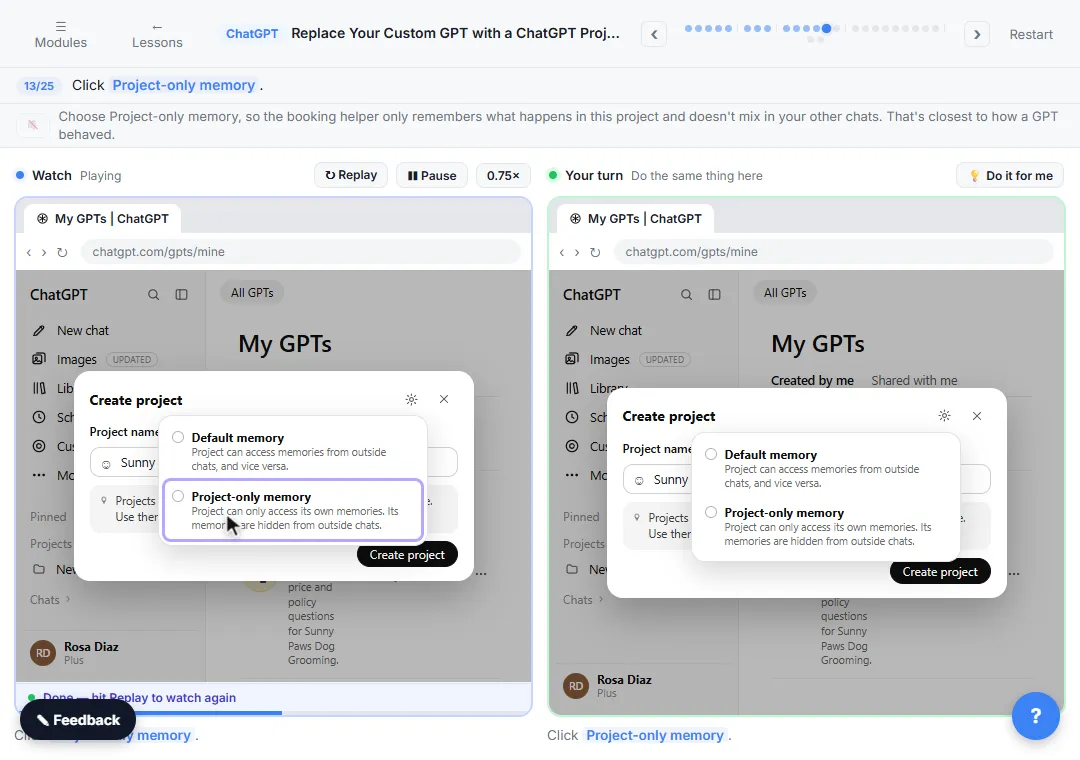
- Choose Project-only memory. Click Project-only memory.
That's closest to how a GPT behaved.
- Create the project. Click Create project.
4. Move the instructions and files
- Open the project menu. The project page opens. At the top right, click ⋯.
Here's the new project page, with a chat box and Chats and Sources tabs. The instructions live in the project settings. At the top right, click the three dots.
- Project settings. Click Project settings.
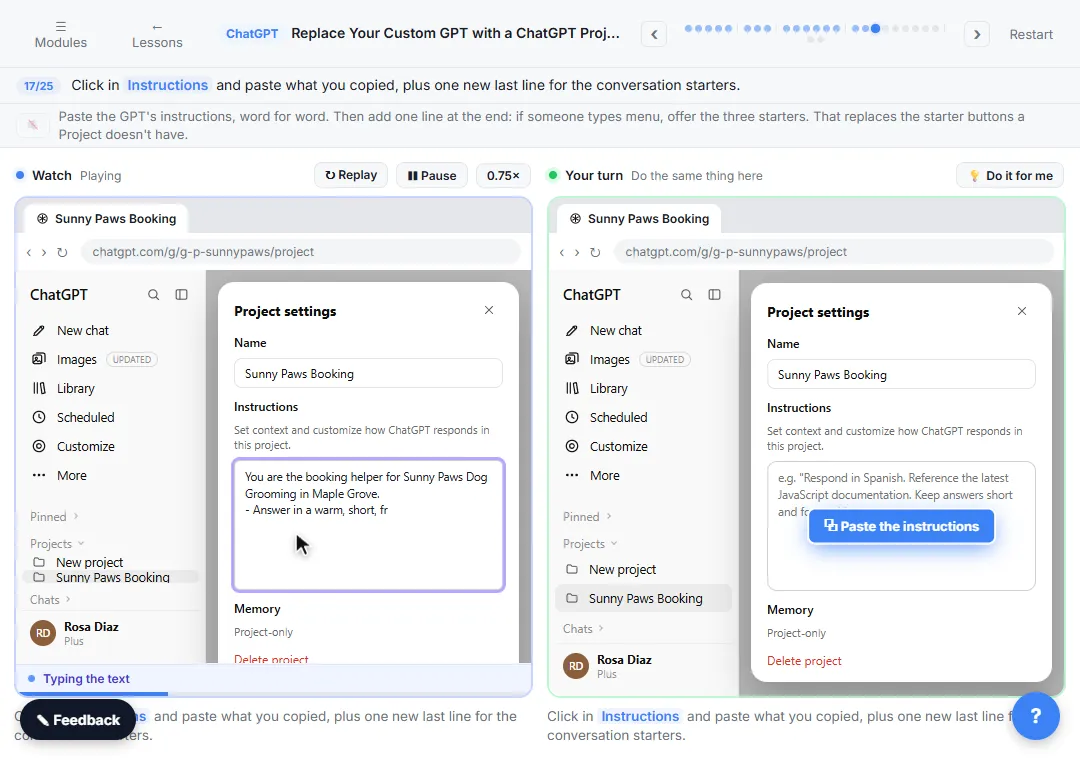
- Paste the instructions. Click in Instructions and paste what you copied, plus one new last line for the conversation starters.
Then add one line at the end: if someone types menu, offer the three starters. That replaces the starter buttons a Project doesn't have.
You are the booking helper for Sunny Paws Dog Grooming in Maple Grove.
- Answer in a warm, short, friendly voice. Sign off as "The Sunny Paws team".
- Quote prices only from the Sunny Paws price list. Prices depend on the dog's weight, so ask for it if it's missing.
- When someone wants to cancel or move a booking, explain the policy from the policies file.
- Never promise a time slot. Say Rosa will confirm by text.
- If you don't know, say so and give the shop number, (555) 010-4412.
- If I type "menu", offer these starting points: What does a full groom cost? / Can I move my appointment? / Do you groom cats?
- Save settings. Click Save.
The instructions now apply to every chat in this project, and they take priority over your general custom instructions.
- Open Sources. Click the Sources tab.
Next, the files.
- Add files. Click Add sources, then Upload.
- Pick the price list. Click Sunny Paws price list.pdf.
Pick the same two files the GPT used.
- Add the policies. Hold Ctrl and click Sunny Paws policies.docx.
Then hold Control and click the policies file, so both are selected.
- Open them. Click Open.
Both files are now project sources. Plus accounts can keep 25 files in a project, Free accounts 5.
5. Test it
- Ask a real question. Click New chat in Sunny Paws Booking and paste a real customer question.
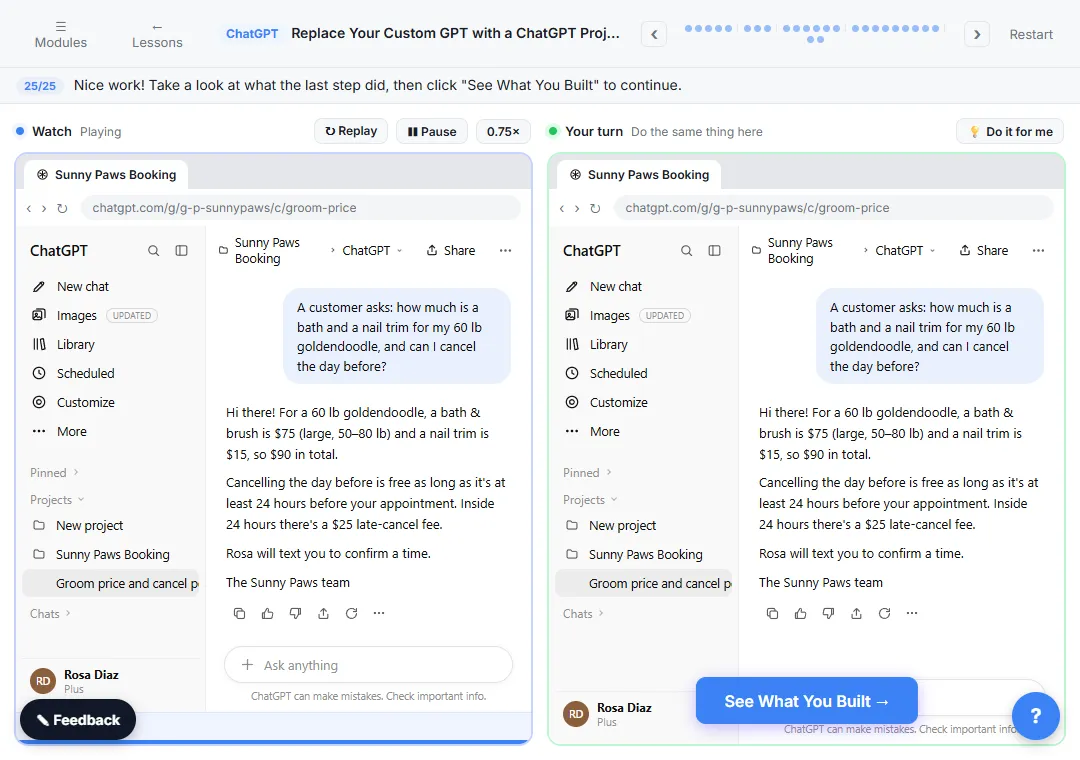
Now test it with a real question, one that needs both files: a price by weight, and the cancellation policy.
- Send it. Click the send arrow. Check the answer: $90, the 24-hour rule, and Rosa confirms the time.
Then check it like you would the GPT: seventy-five for a large bath, fifteen for nails, the 24-hour cancel rule, and Rosa confirming the time. Your old GPT keeps working until December 11, but its chats won't move over, so copy anything you need before then.
Screenshots
Frequently asked questions
- When do custom GPTs stop working?
- OpenAI scheduled custom GPTs to retire on December 11, 2026, across all plans. Enterprise workspaces with an approved deferral have until February 11, 2027. Until then, existing GPTs keep working.
- Can I convert a custom GPT into a Project automatically?
- No. OpenAI's built-in option is Migrate to plugin in My GPTs, where your workspace offers it. To use a Project instead, copy the GPT's instructions into Project settings and upload the same knowledge files, as this module shows.
- Will my old GPT chats move to the Project?
- No. Chats created with a GPT can't be moved into a project, and migration to a plugin doesn't move them either. Copy out anything important before the retirement date.
- What replaces conversation starters in a Project?
- Projects don't have starter buttons. Add a line to the project instructions, such as "If I type menu, offer these starting points", or keep your starter questions in a file in Sources.
- Is this course really free?
- Yes. Stepthrough is completely free, and the practice copy needs no account. Projects themselves are available on every ChatGPT plan, including Free.
More in ChatGPT for Everyday Work
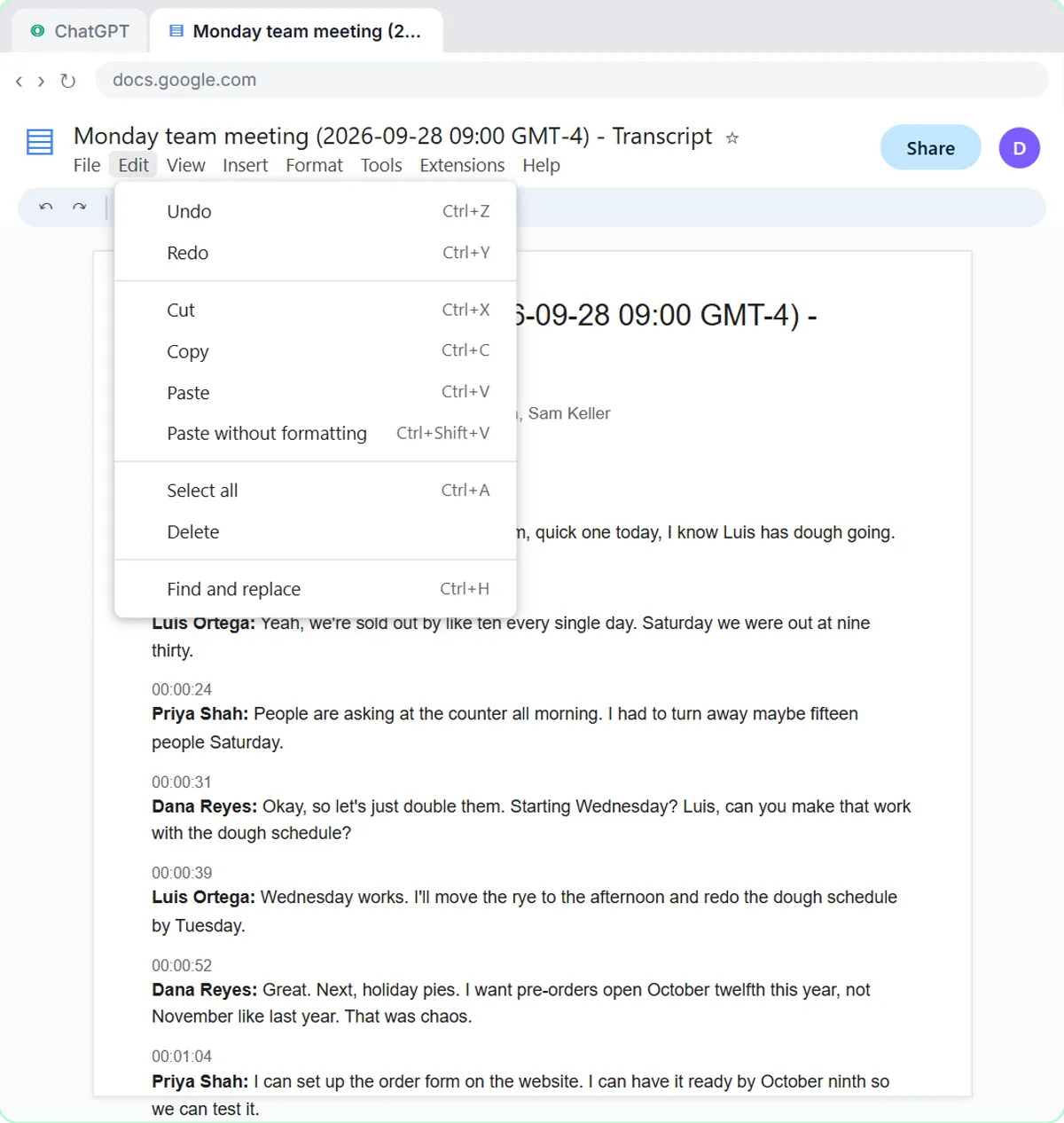 Summarize a Meeting Transcript with ChatGPT
Paste a long meeting transcript into ChatGPT and get the decisions, an action items table with owners and due dates, and a follow-up email ready to send.
Free · Live ~9 min
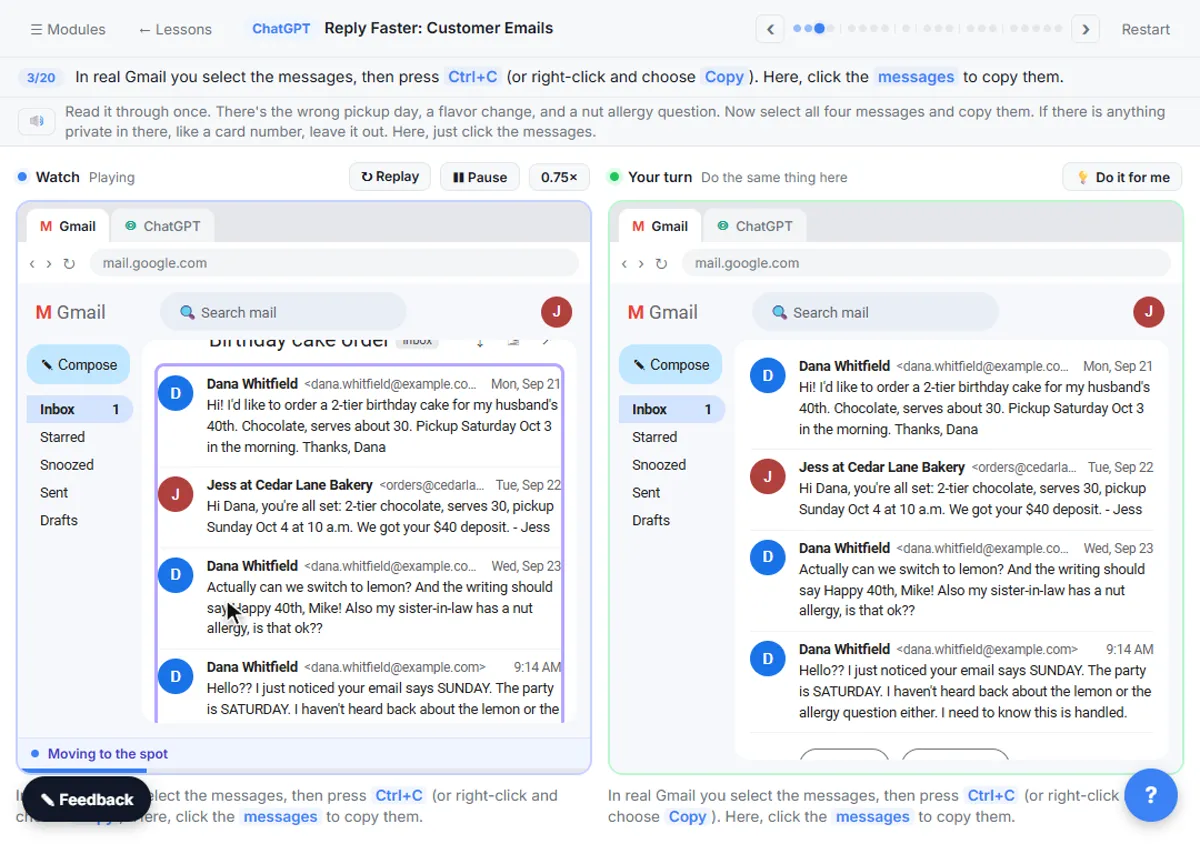 Reply Faster: Turn a Messy Customer Email Thread into a Clear, Friendly Reply
Turn a messy customer email thread into a clear, friendly reply: give ChatGPT the thread and your facts, check every promise, fix the tone, and send it from Gmail.
Free · Live ~9 min
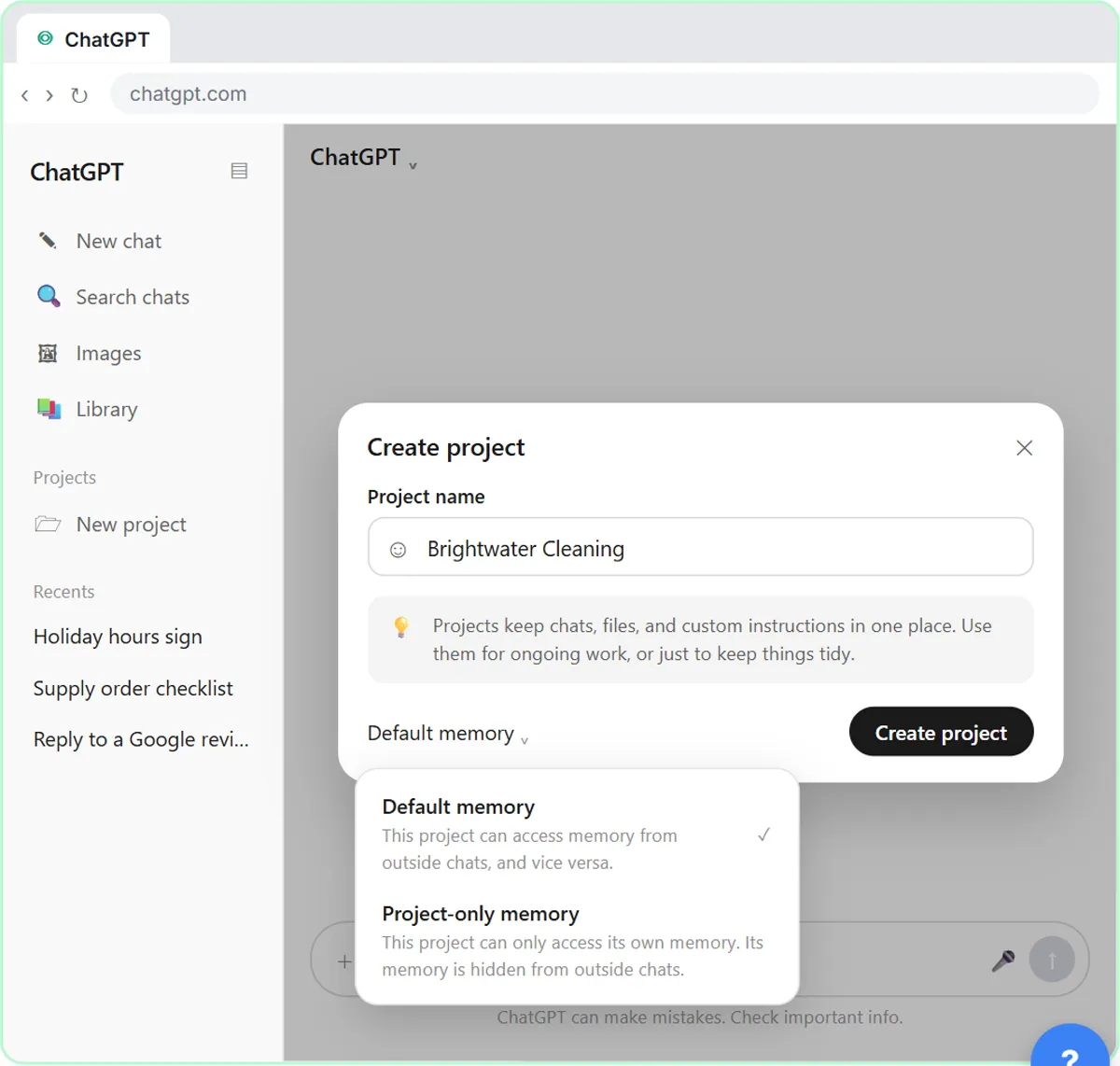 ChatGPT Projects: Keep Your Brand Voice, Files and Instructions in One Place
Set up a ChatGPT Project with your brand voice instructions, your price list and your style guide, so every new chat already knows your business.
Free · Live ~9 min
 Analyze a Spreadsheet with ChatGPT: Upload a CSV, Get a Chart and Three Takeaways
Upload a CSV of sales to ChatGPT, have it check the data first, ask your questions, get a chart you can download, and finish with the three takeaways that matter.
Free · Live ~10 min
 ChatGPT Work: Have ChatGPT Do a Multi-Step Task
Switch ChatGPT to Work, hand it a real job (compare three suppliers into a spreadsheet), approve the sites it opens, skip a login, answer its question, check the file…
Free · Live ~8 min
All 7 modules in ChatGPT for Everyday Work
More ChatGPT tutorials
 Prompt Writing 101: Role, Context, Task, Format
Ask ChatGPT for the same customer email twice, once vaguely and once with a four-part prompt, and see exactly why structure gets a better answer.
Free · Live ~8 min
 Get Your Business Recommended by ChatGPT
Ask ChatGPT who it recommends in your town, see which pages it trusts, then use it to write an FAQ page and Business Profile copy that answer real customer questions.
Free · Live ~10 min
 ChatGPT Projects vs Gemini Gems vs Gemini Notebook: Which to Use
Load an auto shop's price list, warranty and FAQ into a ChatGPT Project, a Gemini Gem and Gemini Notebook, ask each the same question, and see which fits which job.
Free · Live ~9 min
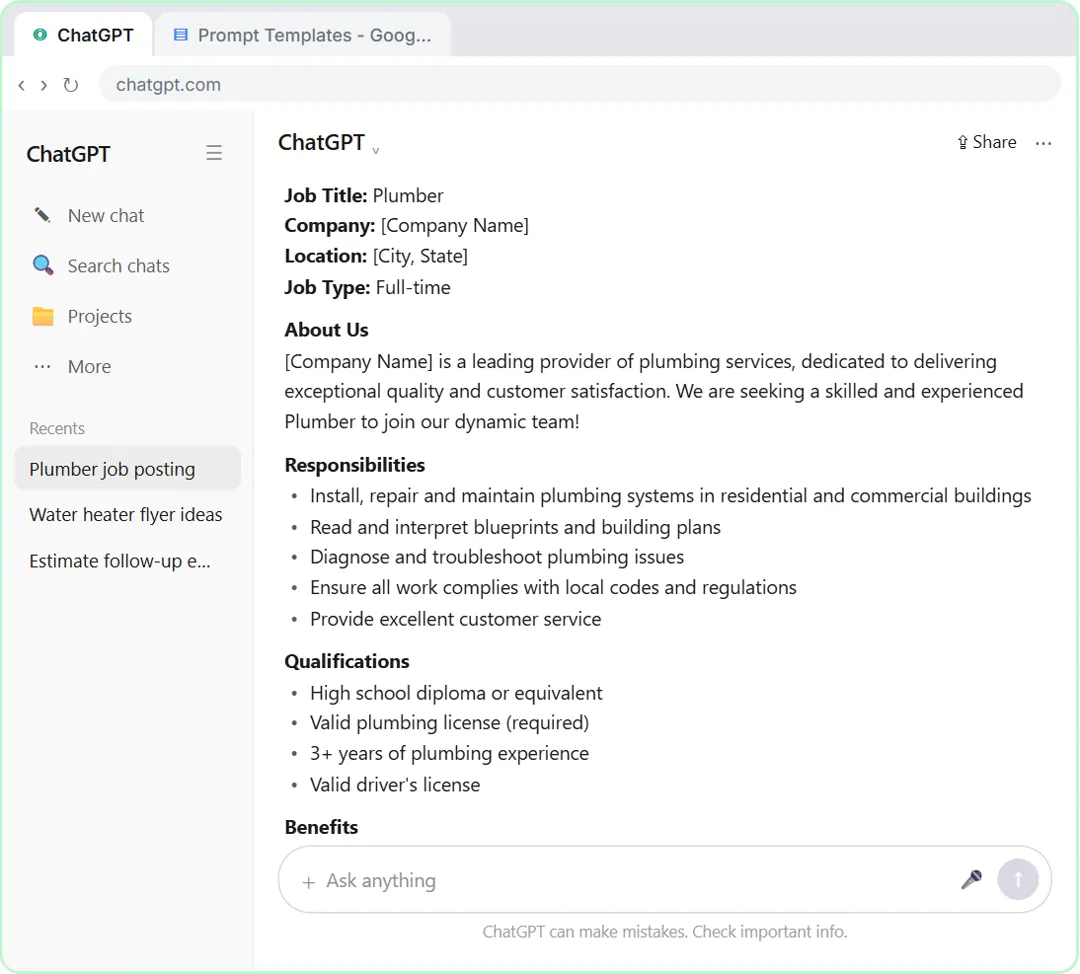 Make ChatGPT Ask You Questions First: The Interview Prompt
Ask for a job posting the quick way, then with the interview prompt: ChatGPT asks what it needs, one question at a time, and writes a posting you can actually use.
Free · Live ~6 min
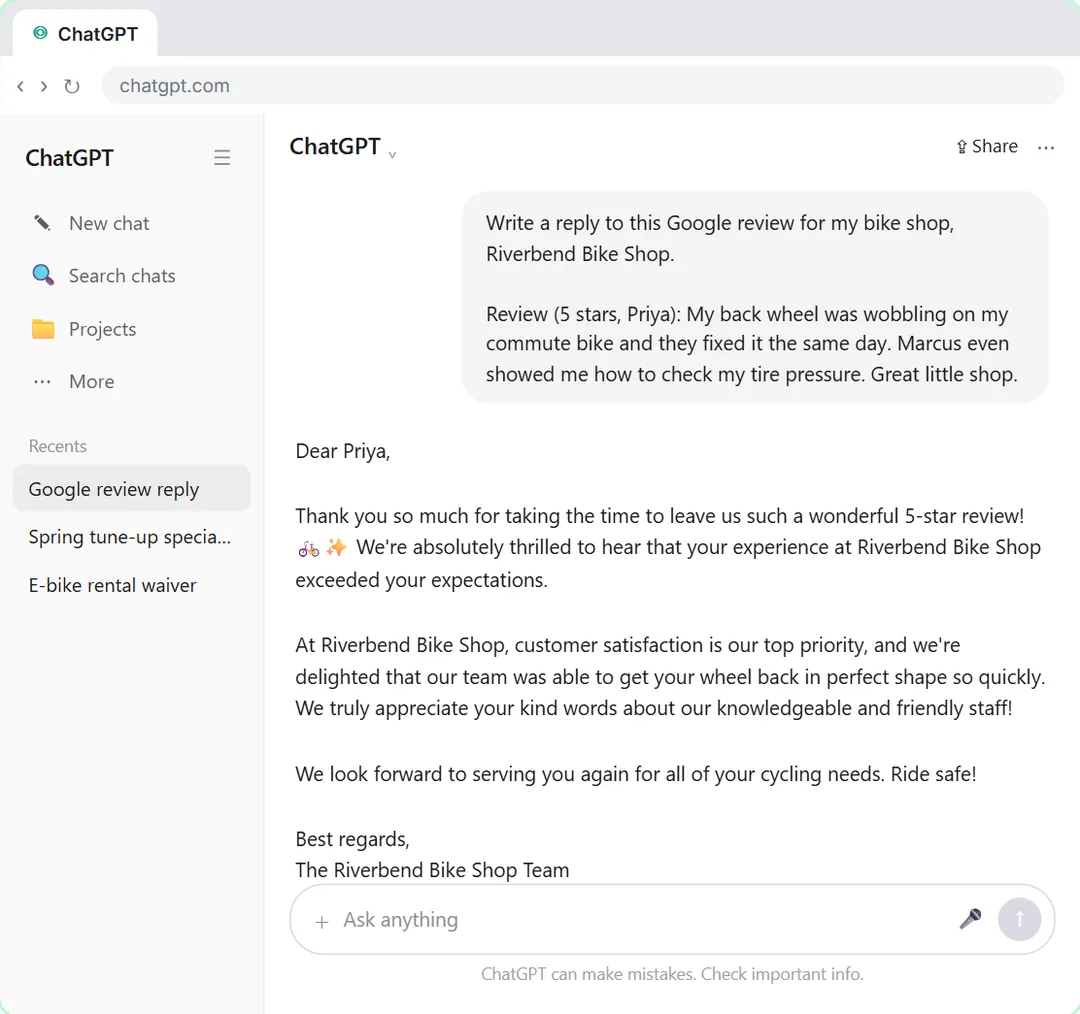 Give Examples: Few-Shot Prompts That Copy Your Style
Paste three of your real past replies into ChatGPT and get new Google review replies that sound like you, not like a template.
Free · Live ~6 min
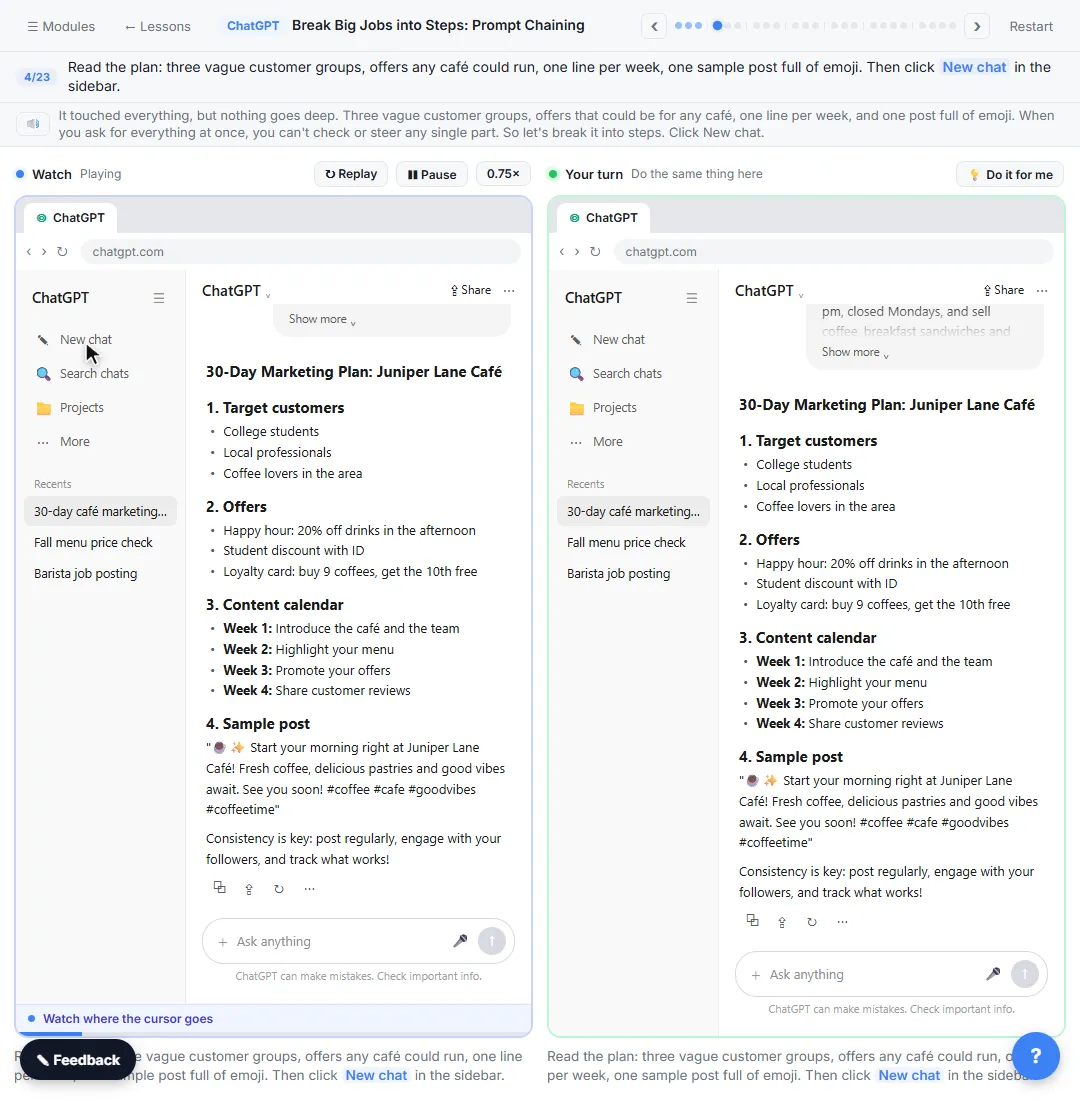 Break Big Jobs into Steps: Prompt Chaining for a Marketing Plan
Ask ChatGPT for a whole marketing plan in one prompt, then build a better one in four small steps: customers, offers, a calendar table and the posts.
Free · Live ~7 min
Terms in this lesson
Plain-English definitions, each with an example from a free lesson.