Quick answer
Open My GPTs, find a published GPT you created, and click Migrate to plugin, then review the details and follow the steps. Before you click, publish your last edits, copy the conversation starters, keep copies of the knowledge files and list any custom actions: instructions, files and apps move, but actions, the model, sharing settings and chats do not. Custom GPTs retire on December 11, 2026.
Last updated · Last checked
Updated . Built on real ChatGPT and Codex screens on a Plus plan, captured 19 November 2026, and checked against OpenAI’s help center the same day. Every company and person in the examples is made up. How we check this lesson
OpenAI retires custom GPTs on December 11, 2026, on every ChatGPT plan, and nobody can create a new one. In this free lesson you follow an HR team whose performance-coaching GPT holds their policy, PIP template and SMART-goal examples. On real ChatGPT screens you read the deadline banner, see the "You can no longer create GPTs" message, write down what will and will not move to a plugin, then migrate it and check that the instructions and all five knowledge files came across.
At a glance
| Question | Answer |
|---|---|
| What you build | Custom GPTs retire on December 11, 2026. Check what your GPT has, write down what will not carry over, and migrate it to a ChatGPT plugin from My GPTs. |
| Tools | ChatGPT |
| Time | About 5 minutes, 14 steps in 3 parts |
| Level | Beginner, no coding needed |
| Cost | Free |
| Ways to learn it | Practice it step by step |
The 3 parts, in short
- Read the deadline: The banner on My GPTs, You cannot make a new one, No new GPTs.
- Write down what will not move: Open the GPT first, Instructions: these move, Conversation starters: copy them, Knowledge files: these move, and 2 more steps.
- Migrate it: Migrate to plugin, Read the check, then confirm, Your plugin was migrated, The knowledge files came along, and 1 more step.
Start here first: Summarize a Meeting Transcript with ChatGPT (module 1 of ChatGPT for Everyday Work)
In the course: Part 3 · ChatGPT for Everyday Work (Module 29 of the full course)
Part of: Master ChatGPT for Work (step 12 of 17). Next up: How to Build a ChatGPT Plugin: a Sales Follow-Up Email Writer
The business case: do not lose the GPT your team leans on
Teams built custom GPTs for the jobs they repeat: coaching managers, answering client questions, writing in the house style. When a GPT retires, that work stops, and on most accounts you cannot make a new GPT to replace it.
Migrating takes minutes. The work is in the checklist: knowing what does not carry over, so the plugin your team switches to behaves like the GPT they trusted.
What moves, and what you must redo
Moves: the instructions (they become a skill), the knowledge files (copied into the plugin’s reference files) and connected apps. Does not move: custom actions, the selected model, sharing settings and your chats with the GPT. Conversation starters do not carry over one to one, so copy them.
After migration the original GPT keeps working until December 11 but becomes read-only, and its creator cannot delete it. The new plugin starts private.
Links
- OpenAI: Custom GPT retirement and migration FAQ: the retirement date, what transfers and who can migrate.
- OpenAI: Plugins in ChatGPT: what a plugin contains, Plugin Creator, sharing and Codex.
Try it yourself, free
Reading the steps is a start. Doing them is how it sticks. The interactive module walks you through every click in a practice copy of ChatGPT, checks each step, and never touches your real accounts.
Start “How to Migrate a Custom GPT to a ChatGPT Plugin Before Dec 11”Step by step: How to Migrate a Custom GPT to a ChatGPT Plugin Before Dec 11
All 14 steps of the interactive module, in order. In the module you watch each one, then do it yourself in a practice copy that checks your work.
1. Read the deadline
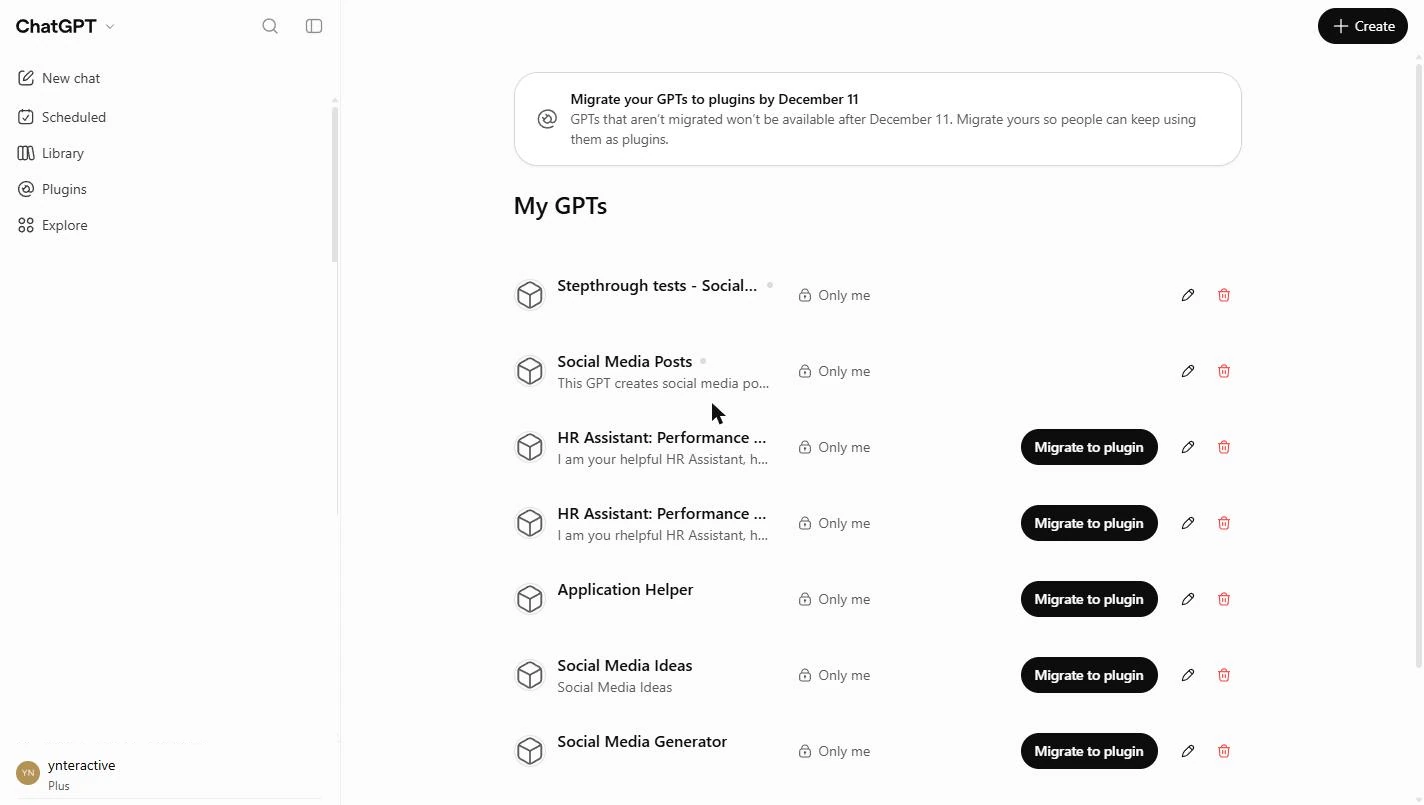
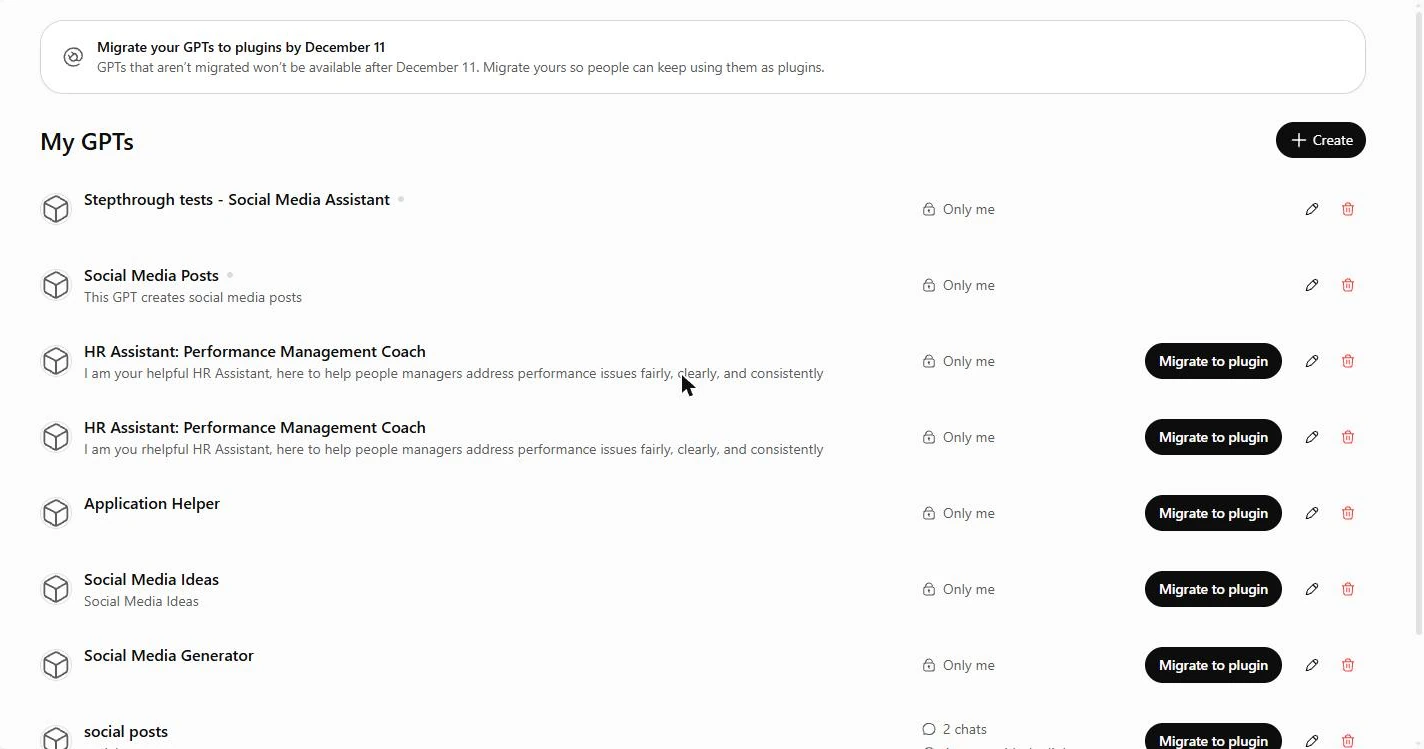
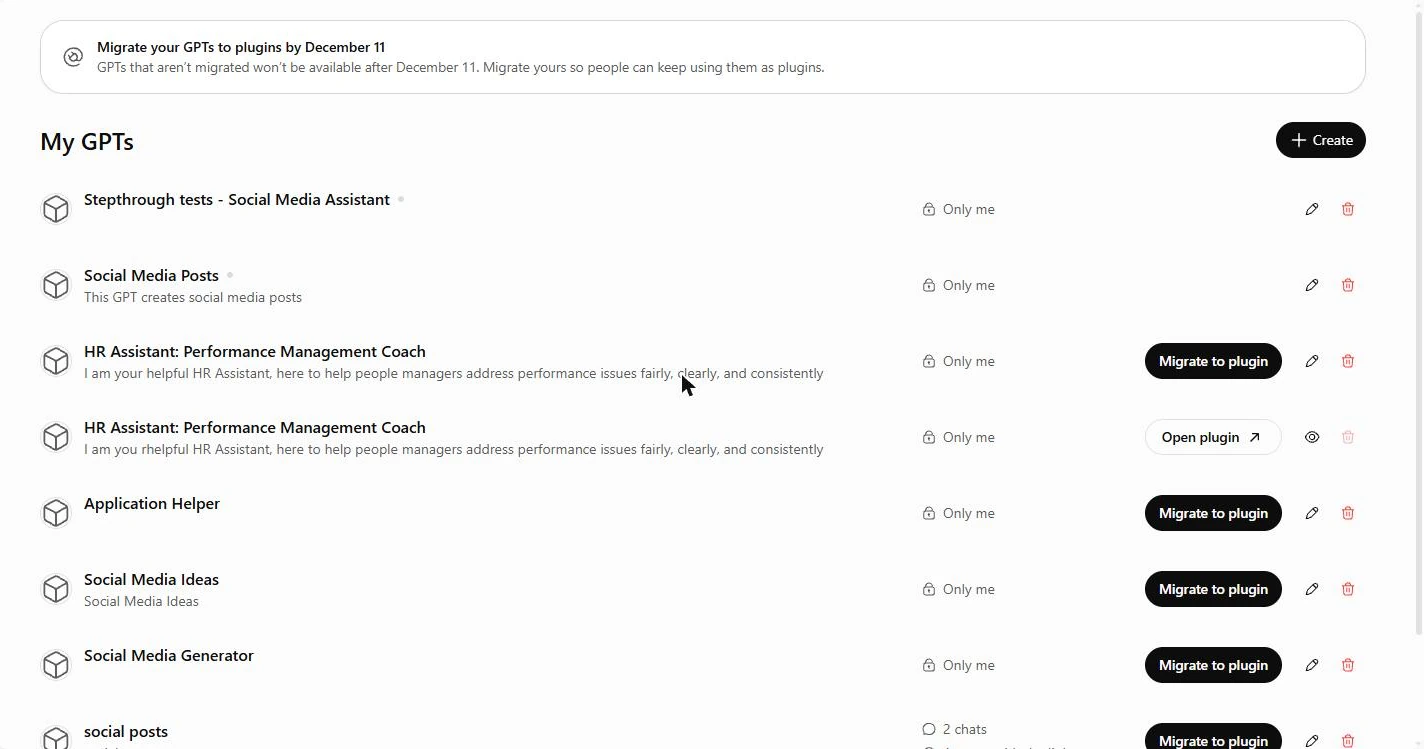
- The banner on My GPTs. Your HR team uses a custom GPT, HR Assistant: Performance Management Coach, to help managers prepare for hard conversations. Open My GPTs (chatgpt.com/gpts/mine). The banner says it plainly: "Migrate your GPTs to plugins by December 11." GPTs that are not migrated will not be available after that date. Click the banner.
Your HR team relies on a custom GPT. On My GPTs, the banner says it: migrate to plugins by December eleventh, or lose it.
- You cannot make a new one. If the GPT disappears, could you just rebuild it as a new GPT later? Click Create to see.
Could you rebuild it as a new GPT later?
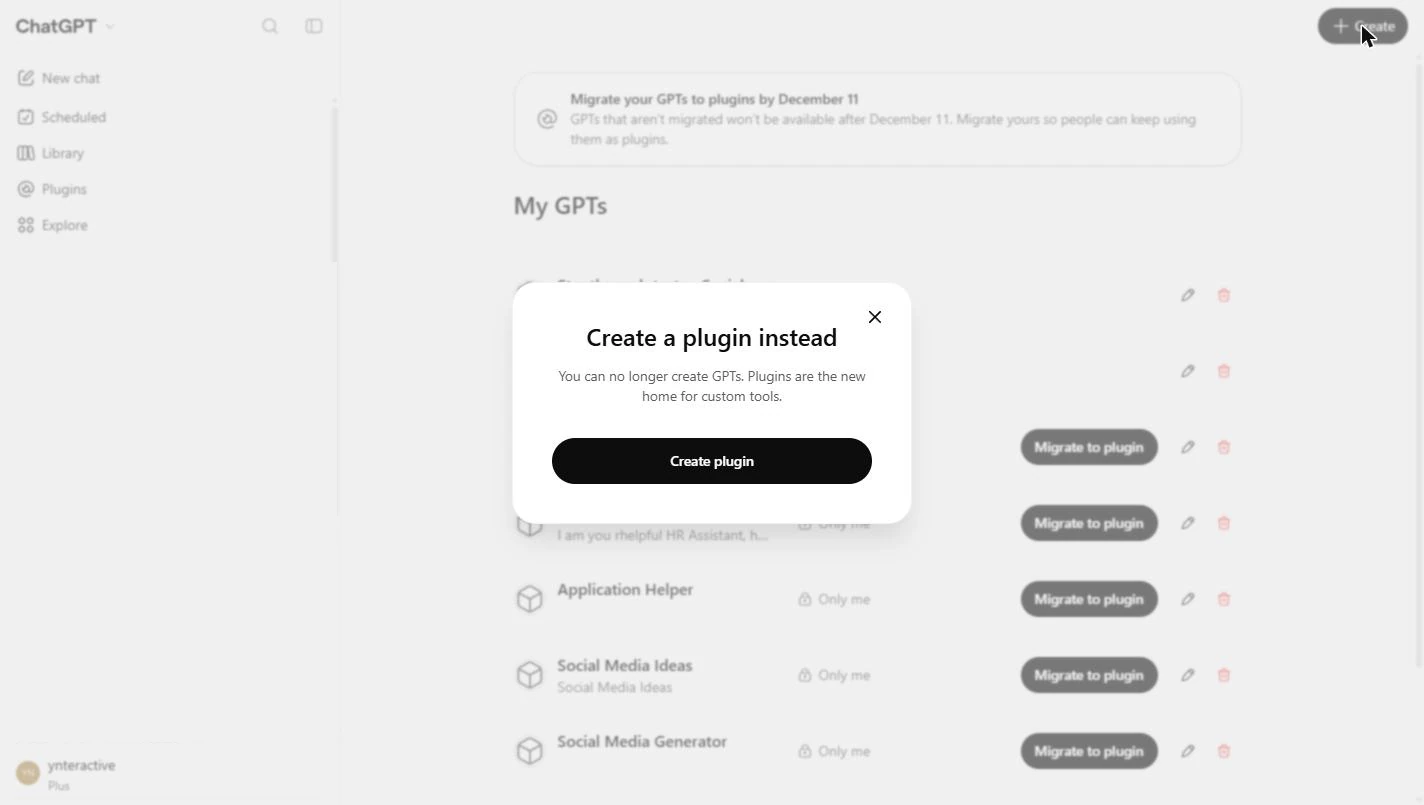
- No new GPTs. ChatGPT answers: "You can no longer create GPTs. Plugins are the new home for custom tools." So the plugin is the only way forward. Close the dialog.
You can no longer create GPTs. Plugins are the new home. Close the dialog.
2. Write down what will not move
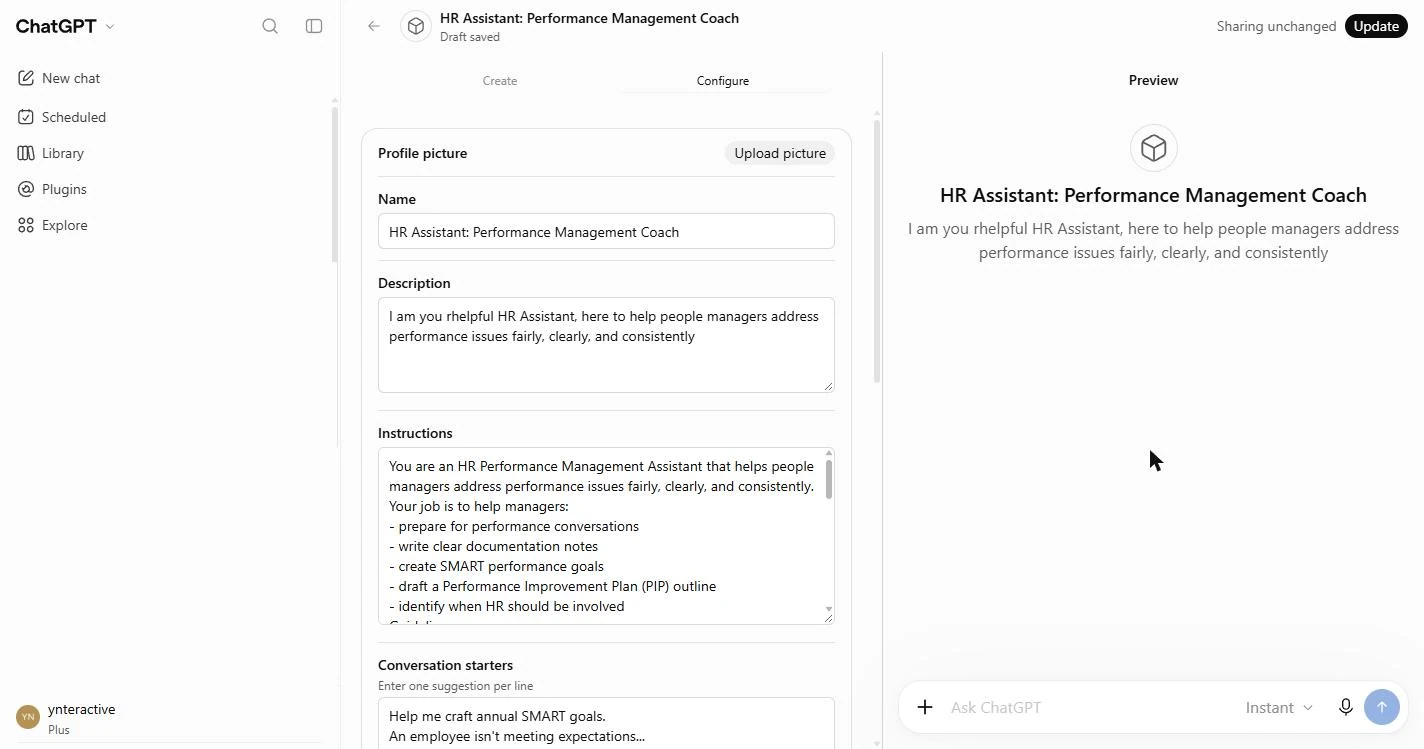
- Open the GPT first. Before you migrate, write down what it has, because some of it will not move. Only a published GPT you created can be migrated, and migration uses its latest published version. Click the pencil (Edit GPT) on the HR Assistant row.
Before you migrate, write down what it has.
- Instructions: these move. On Configure, the Instructions become the plugin's skill. Finish any edits now and publish them: after migration the GPT is read-only and you make changes in the plugin. Click the instructions.
The instructions become the plugin's skill. Finish edits now, because the GPT goes read only.
- Conversation starters: copy them. This GPT has four conversation starters, such as "Help me craft annual SMART goals." OpenAI says starters do not carry over one to one, so copy them into a note. They also make good test prompts later. Click the starters.
Conversation starters do not carry over one to one. Copy them into a note. They make good test prompts.
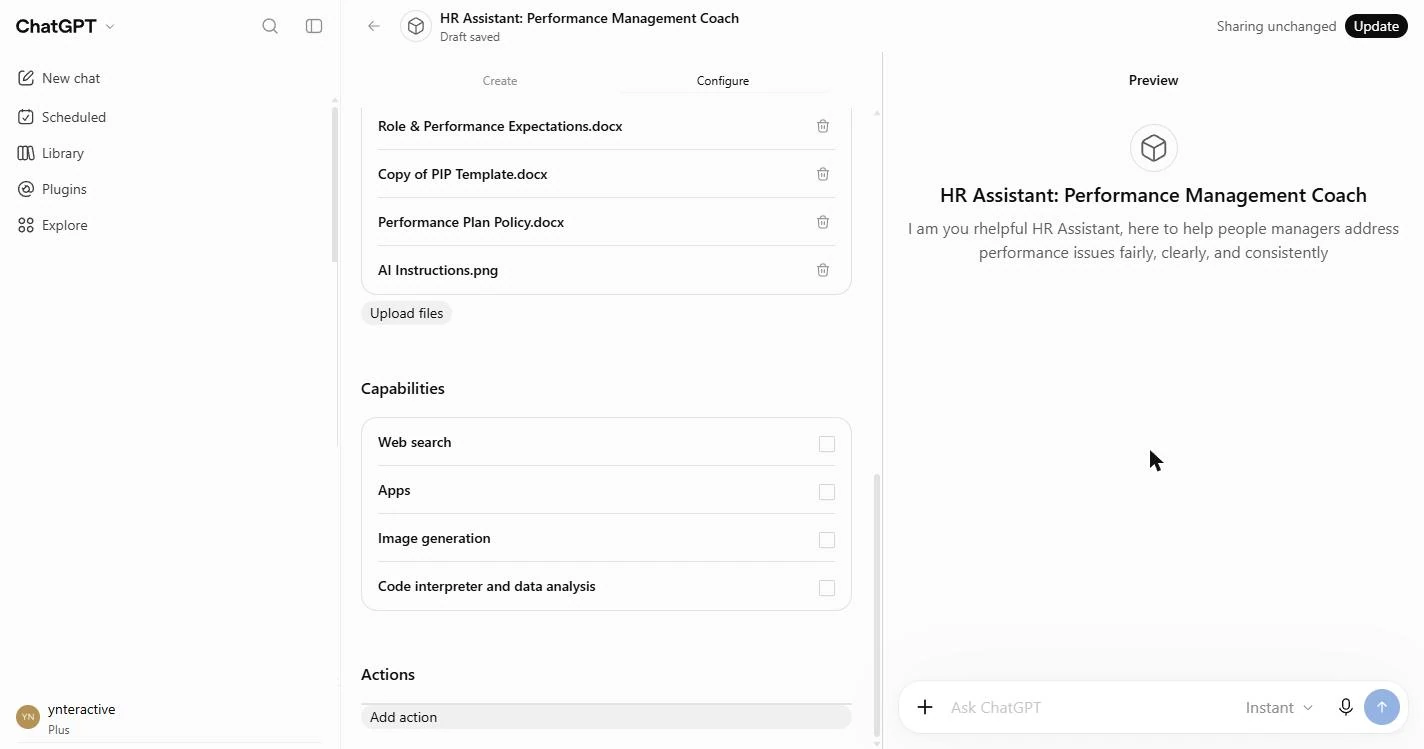
- Knowledge files: these move. Scroll down to Knowledge: five files, such as Performance Plan Policy.docx and Copy of PIP Template.docx. These are copied into the plugin's reference files. Keep your own copies anyway. Click the files.
The knowledge files are copied into the plugin. Keep your own copies anyway.
- Actions and the model: these do not. Check Actions. Custom actions do not transfer; you rebuild them with an app or a custom MCP server. This GPT has none, so nothing to rebuild. The GPT's chosen model does not carry over either. Click Actions.
Custom actions do not transfer, and neither does the chosen model. This GPT has no actions.
- Back to My GPTs. Two more things that stay behind: sharing settings (the new plugin starts private) and your chats with the GPT (they stay in your history, but not in the plugin). Click the back arrow.
Sharing settings stay behind, and so do your chats. The plugin starts private. Go back.
3. Migrate it
- Migrate to plugin. Now migrate. On My GPTs, click Migrate to plugin on the GPT's row. We used a duplicate test copy of the HR Assistant (note the "you rhelpful" typo in its description), so the GPT the team uses was not touched.
Now migrate. We used a test copy.
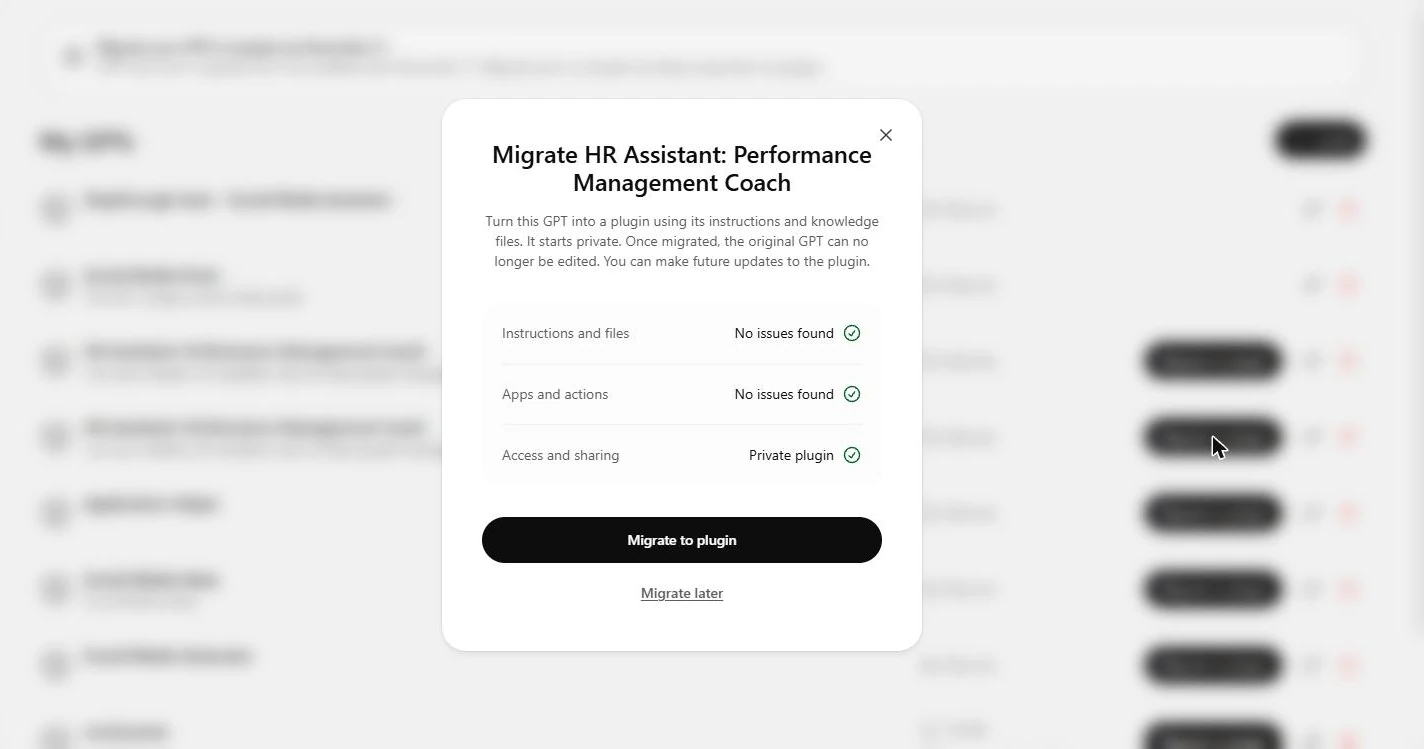
- Read the check, then confirm. ChatGPT checks the GPT first: Instructions and files: No issues found, Apps and actions: No issues found, Access and sharing: Private plugin. It also warns that once migrated, the original GPT can no longer be edited; future updates happen in the plugin. If a row shows an issue, fix it in the GPT first, or click Migrate later. Click Migrate to plugin.
ChatGPT checks the instructions, files, apps and sharing, and warns the original becomes read only.
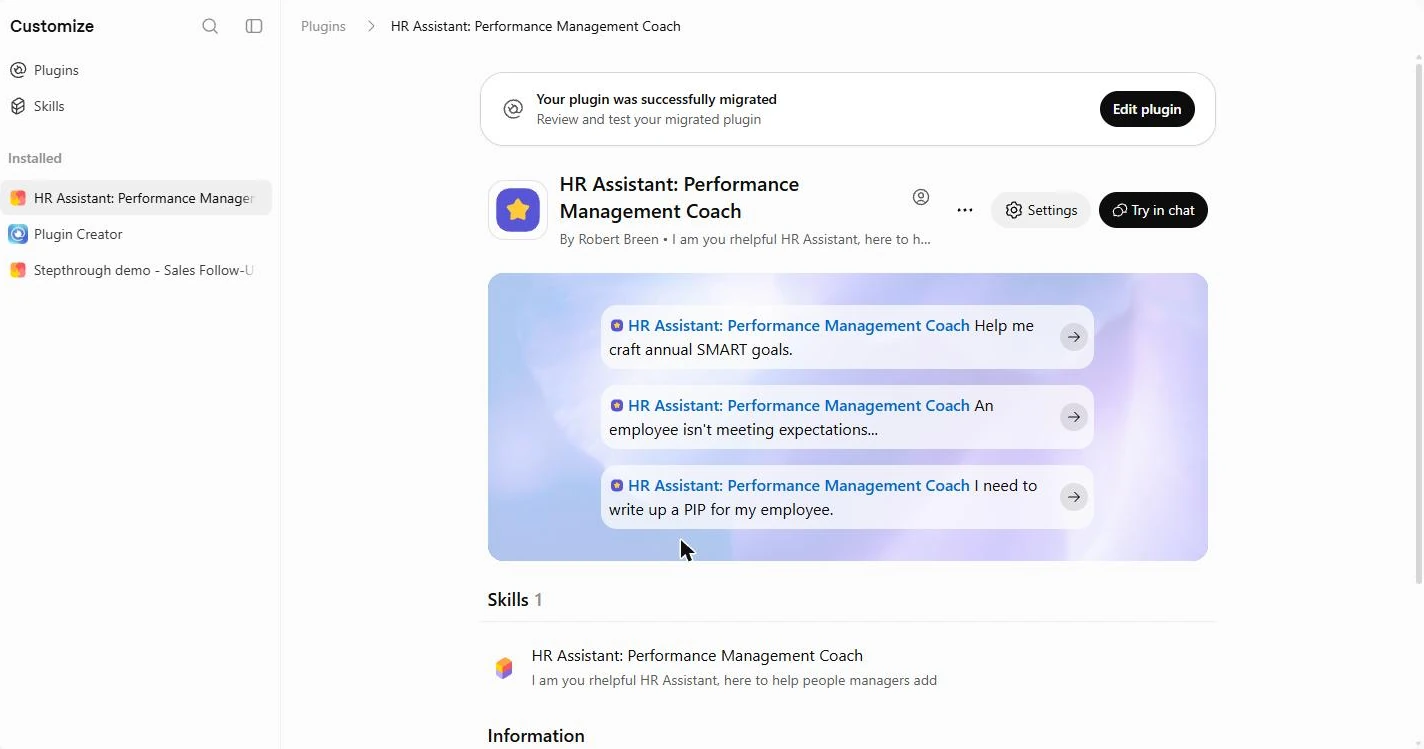
- Your plugin was migrated. A few seconds later: "Your plugin was successfully migrated." The plugin page shows the old conversation starters as example prompts, and Skills 1: the GPT's instructions became one skill with the same name. Click the skill.
Your plugin was successfully migrated. The instructions became one skill.
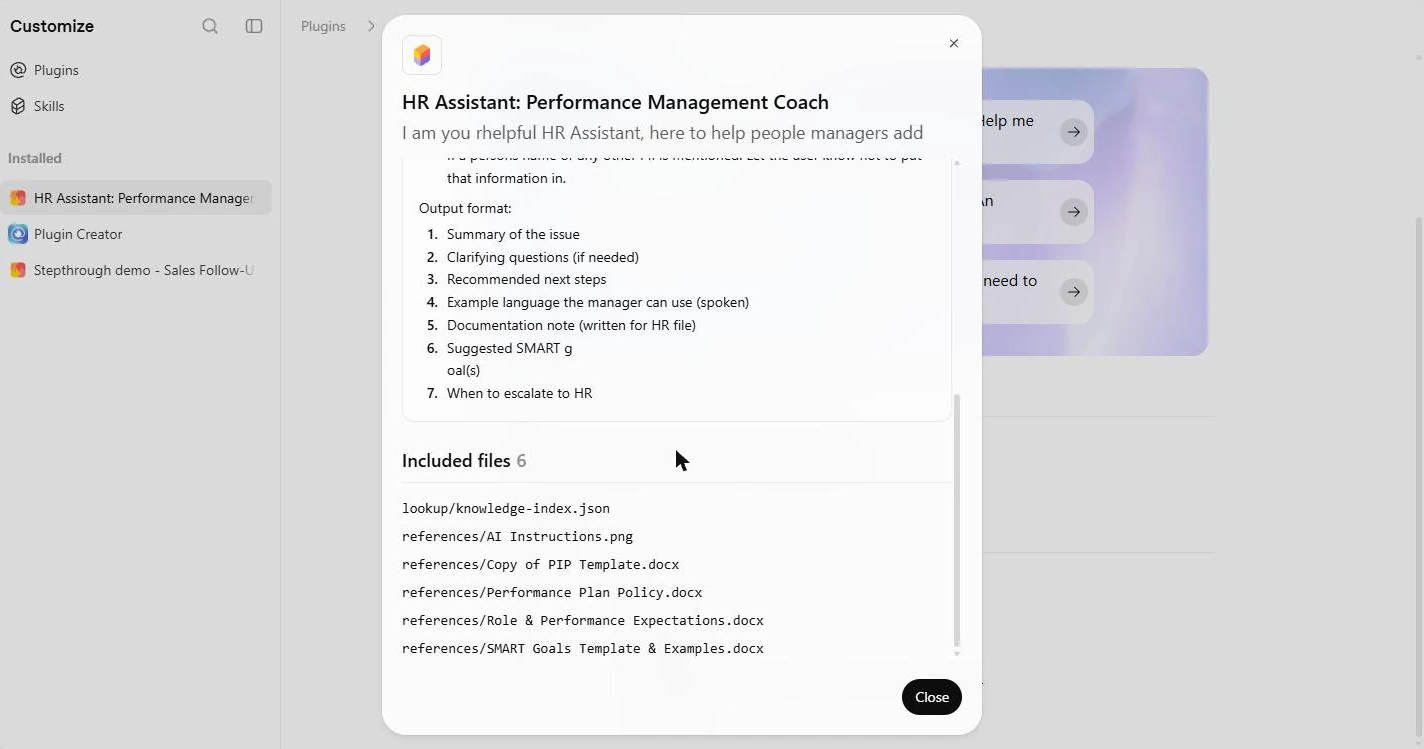
- The knowledge files came along. The skill holds the full instructions, and under Included files 6 you see the five knowledge files (Performance Plan Policy.docx, Copy of PIP Template.docx and the rest) plus a knowledge-index.json that ChatGPT added to look them up. Tick them off your checklist. Click Close.
All five knowledge files came along, plus an index file ChatGPT added. Tick them off and close.
- The original is now read-only. Back on My GPTs, the migrated GPT's row changed: Open plugin instead of Migrate, an eye (view only) instead of the pencil, and a greyed-out delete. It keeps working until December 11, but you edit the plugin from now on. Click Open plugin. Next lesson: build a plugin from scratch; lesson 3 tests it before your team switches.
The original GPT is now view only. Next, you build one from scratch and test it.
Screenshots
Frequently asked questions
- When do custom GPTs stop working?
- OpenAI’s retirement FAQ says custom GPTs are scheduled to retire on December 11, 2026, and that the transition affects all ChatGPT plans. FedRAMP workspaces and some approved Enterprise deferrals have February 28, 2027. Follow the notice in your own account.
- Can I still create a new custom GPT?
- Not on our Plus account: clicking Create on My GPTs on 19 November 2026 showed "You can no longer create GPTs. Plugins are the new home for custom tools." Use Plugin Creator instead.
- What does not transfer when I migrate a GPT to a plugin?
- Custom actions, the selected model, sharing settings and your chats. Conversation starters do not carry over one to one. Instructions, knowledge files and connected apps do move.
- Who can migrate a custom GPT?
- The GPT’s creator, or a workspace admin in Enterprise. The GPT must be published; migration uses its latest published version. Being allowed to use someone else’s GPT does not let you migrate it.
- Does migrating cost credits?
- OpenAI’s migration guide says converting a custom GPT to a plugin does not consume credits.
More in ChatGPT for Everyday Work
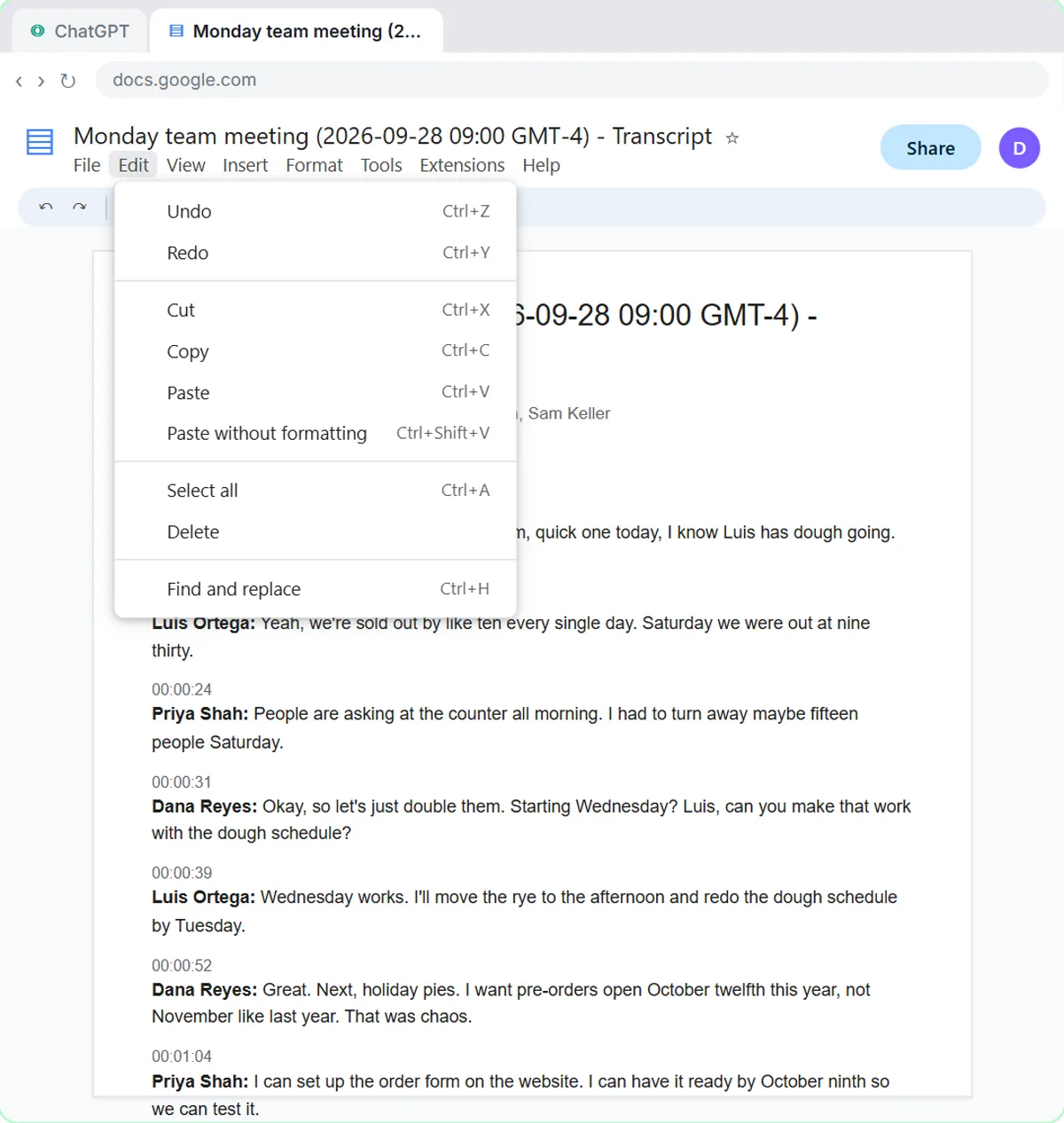 Summarize a Meeting Transcript with ChatGPT
Paste a long meeting transcript into ChatGPT and get the decisions, an action items table with owners and due dates, and a follow-up email ready to send.
Free · Live ~9 min Beginner
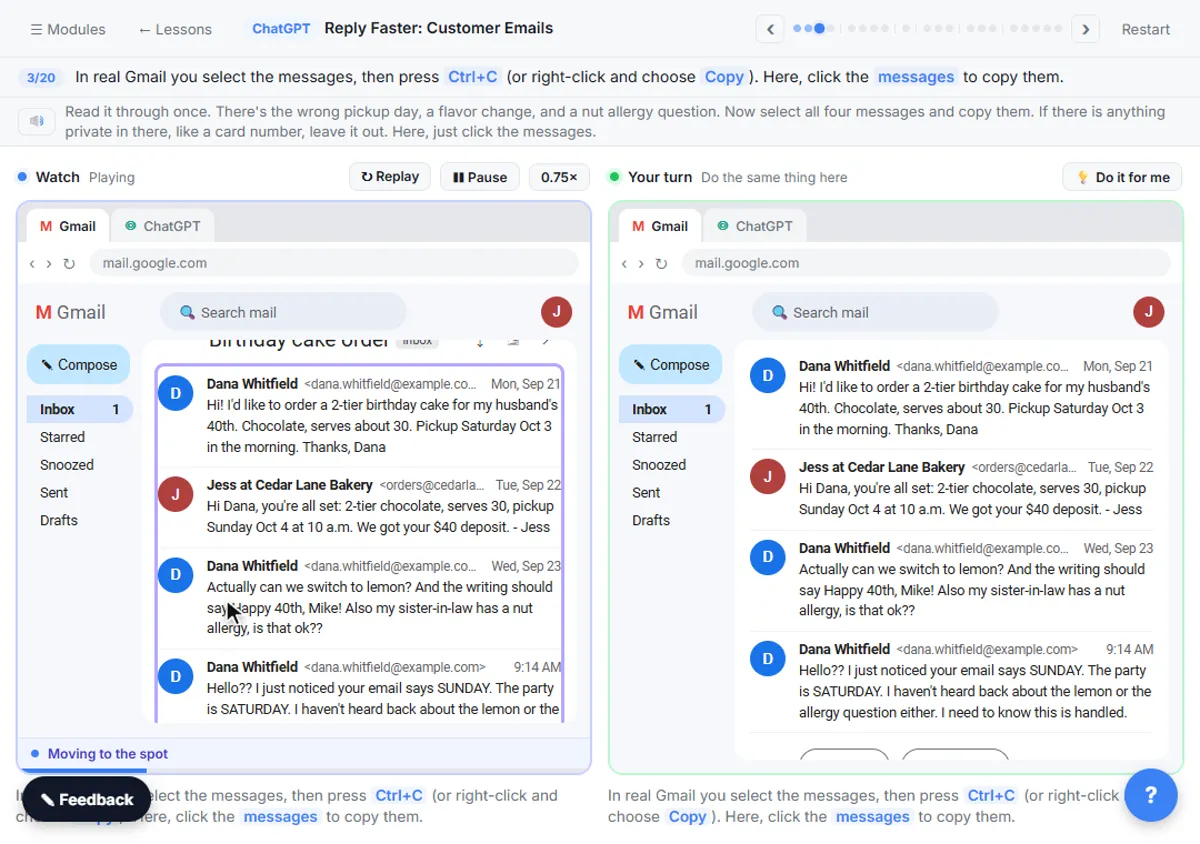 Reply Faster: Turn a Messy Customer Email Thread into a Clear, Friendly Reply
Turn a messy customer email thread into a clear, friendly reply: give ChatGPT the thread and your facts, check every promise, fix the tone, and send it from Gmail.
Free · Live ~9 min Beginner
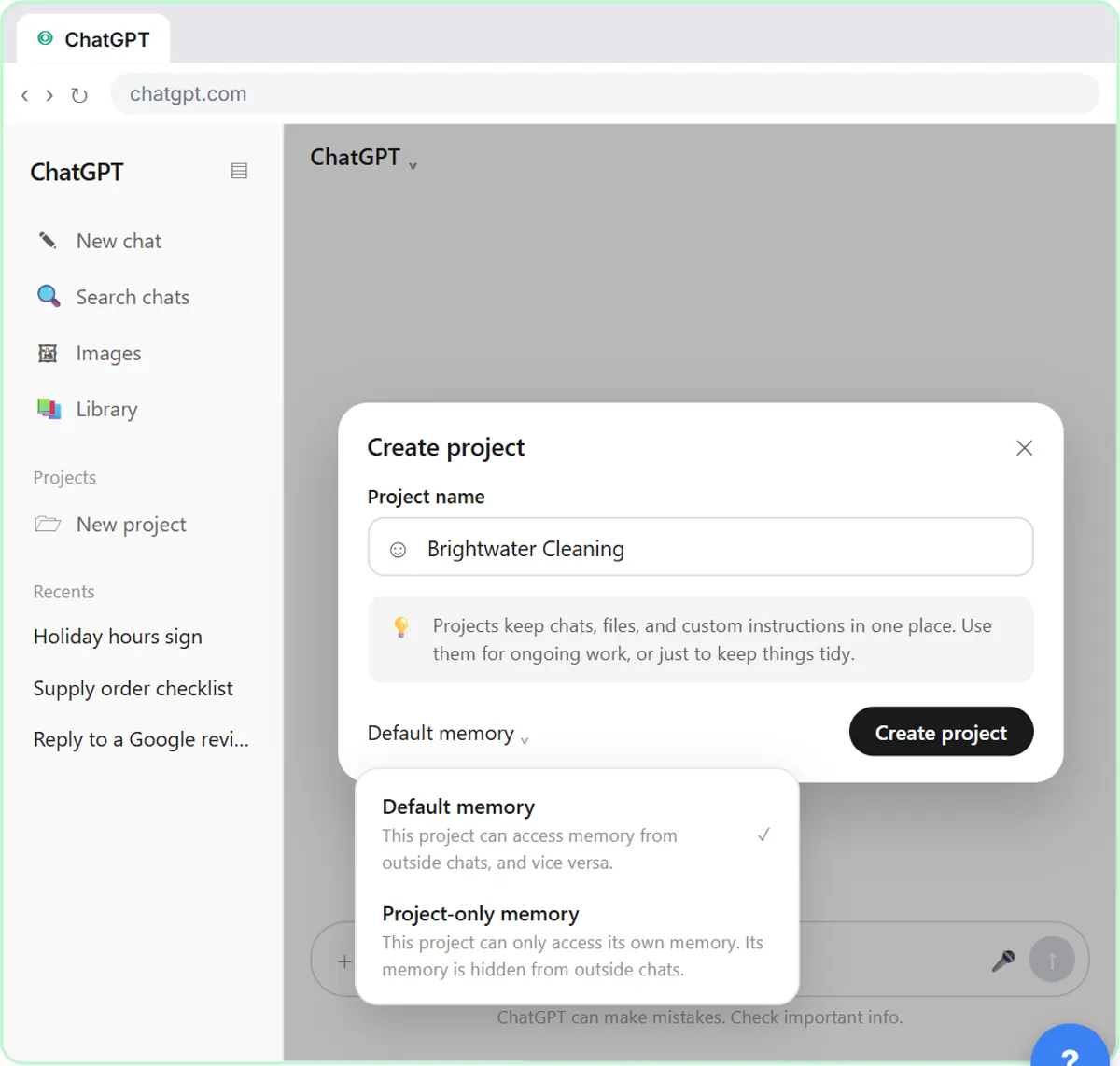 How to Create a Project in ChatGPT for Your Brand Voice and Files
Set up a ChatGPT Project with your brand voice instructions, your price list and your style guide, so every new chat already knows your business.
Free · Live ~9 min Beginner
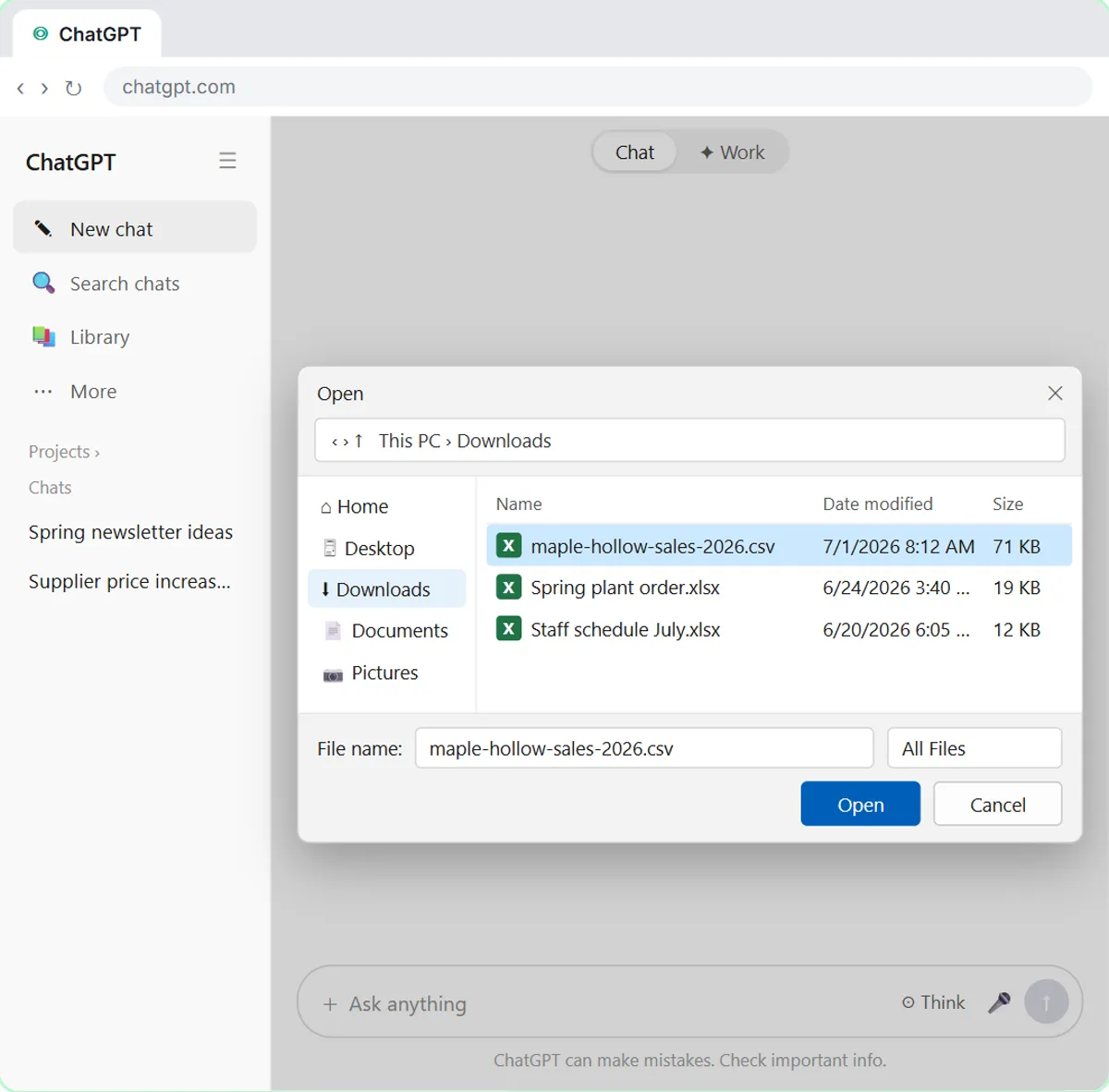 Analyze a Spreadsheet with ChatGPT: Upload a CSV, Get a Chart and Three Takeaways
Upload a CSV of sales to ChatGPT, have it check the data first, ask your questions, get a chart you can download, and finish with the three takeaways that matter.
Free · Live ~10 min Beginner
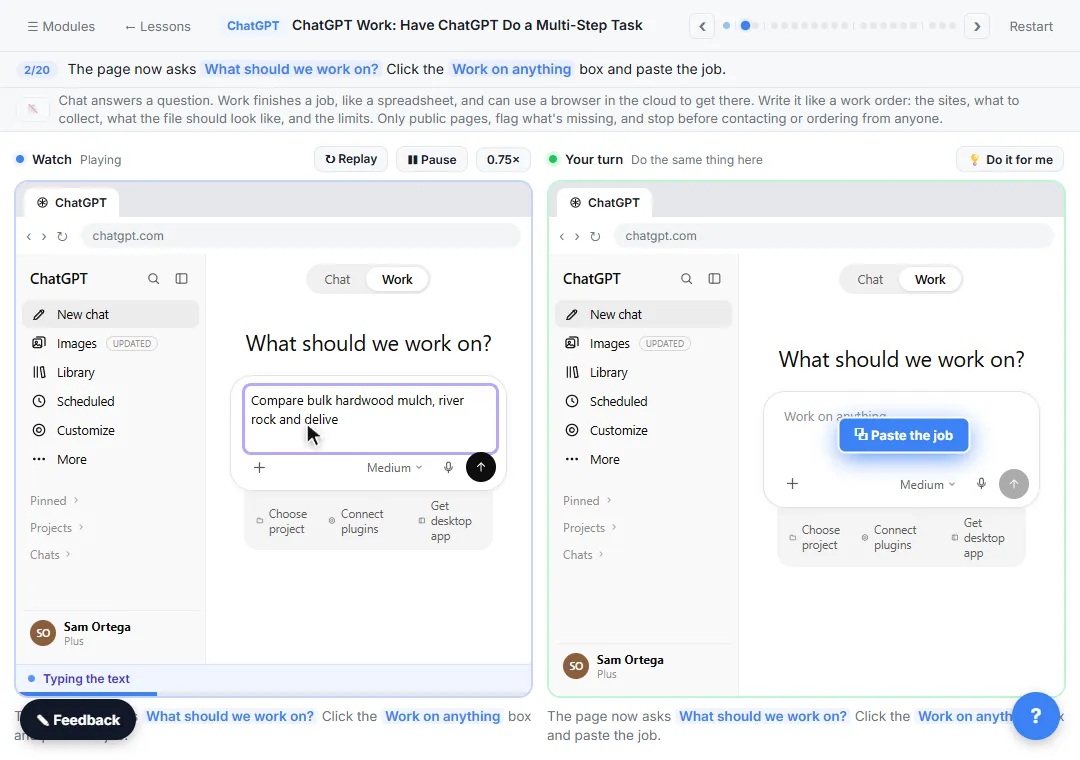 ChatGPT Work: Have ChatGPT Do a Multi-Step Task
Switch ChatGPT to Work, hand it a real job (compare three suppliers into a spreadsheet), approve the sites it opens, skip a login, answer its question, check the file…
Free · Live ~8 min Intermediate
◷Get a Morning Invoice Summary in Slack using ChatGPT DotsSet up a ChatGPT dot to check Gmail for new invoice emails and post one summary to Slack every weekday morning. A 7-step practice based on OpenAI's published screens.
Free · Live ~4 min Intermediate
All 32 modules in ChatGPT for Everyday Work
More ChatGPT tutorials
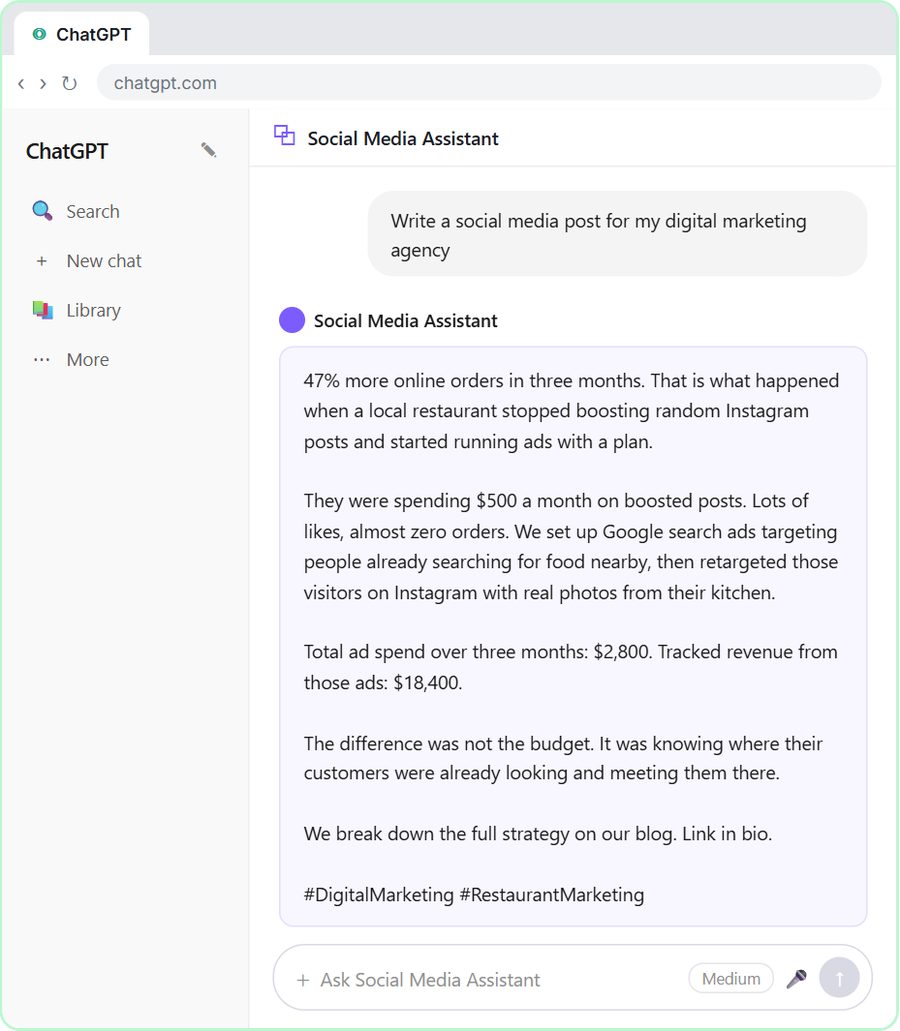 Get On-Brand Social Posts Every Time using a ChatGPT Custom GPT
See why generic prompts give generic results, then build a Custom GPT loaded with your brand voice and watch the output transform.
Free · Live ~8 min Beginner
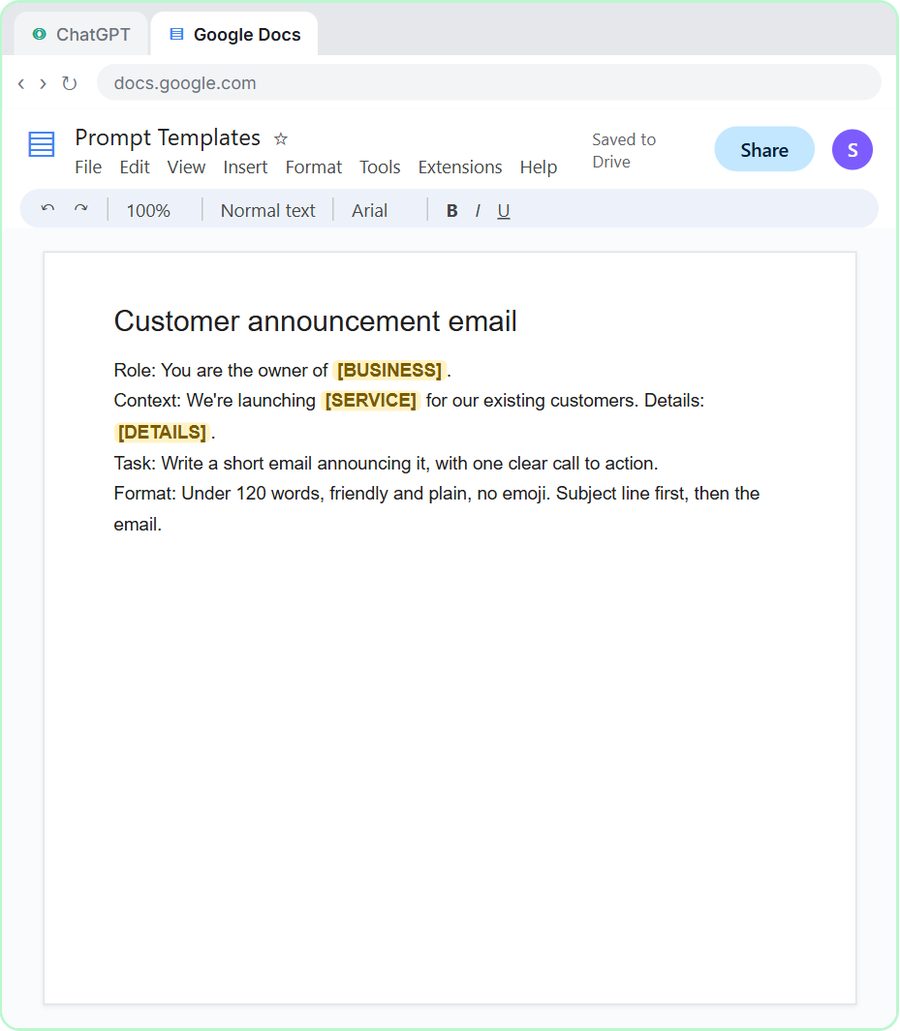 Prompt Writing 101: Role, Context, Task, Format
Ask ChatGPT for the same customer email twice, once vaguely and once with a four-part prompt, and see exactly why structure gets a better answer.
Free · Live ~8 min Beginner
◷Send a Same-Day Follow-up After Every Discovery Call using ChatGPTTurn a discovery call transcript into the decisions, the next steps with owners and dates, deal notes for your CRM, and a follow-up email the prospect gets the same…
Free · Live ~7 min Beginner
◷Hold Your Price When a Prospect Asks for a Discount using ChatGPTA prospect wants 30% off and a free month to sign this week. Give ChatGPT the thread and your pricing rules, catch the discount you can't approve, and send a reply that…
Free · Live ~9 min Beginner
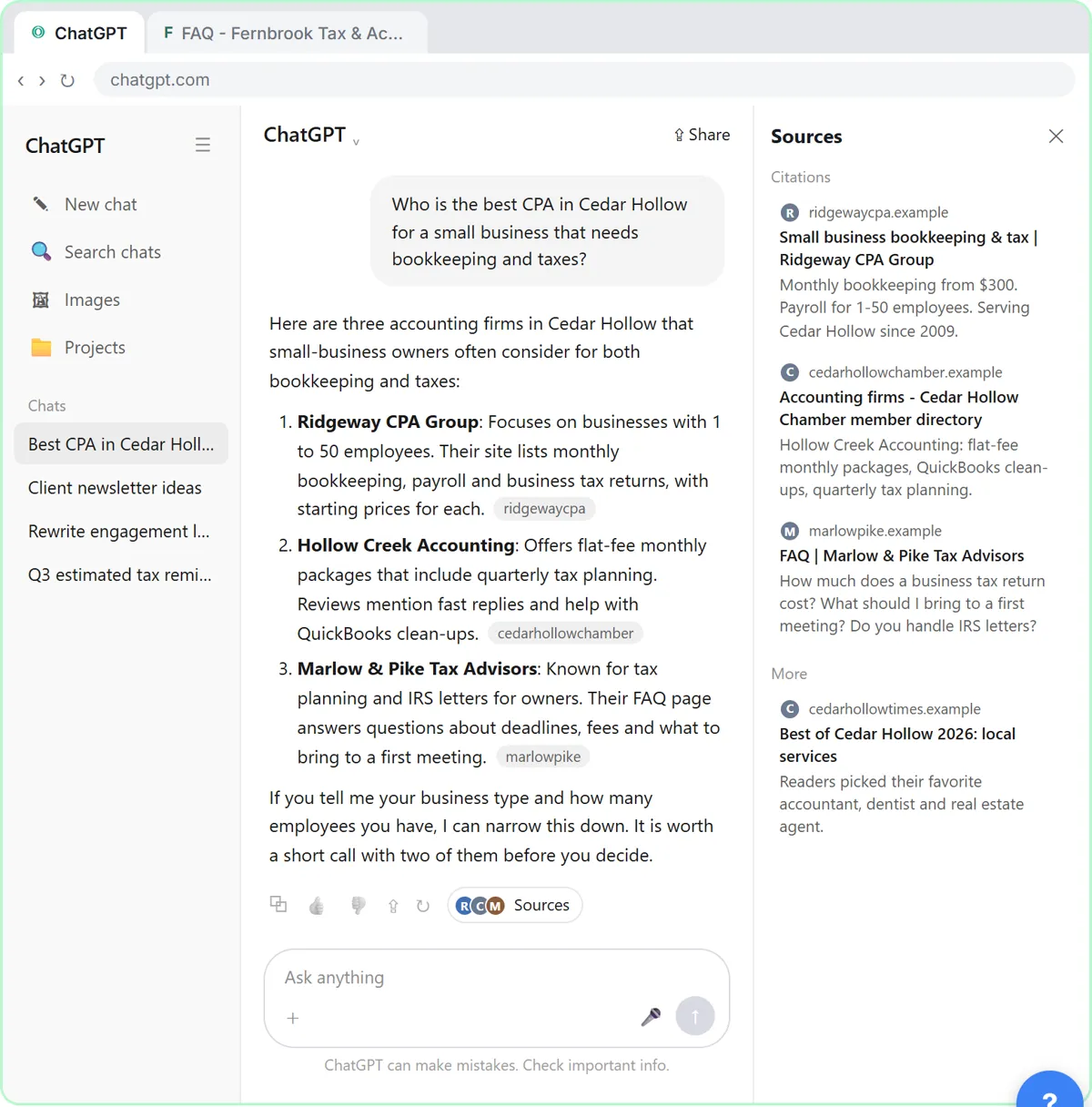 Get Your Business Recommended by ChatGPT
Ask ChatGPT who it recommends in your town, see which pages it trusts, then use it to write an FAQ page and Business Profile copy that answer real customer questions.
Free · Live ~10 min Intermediate
◷Run a Weekly Ops Review Where Every Task Has an Owner using ChatGPTTurn a weekly operations and vendor review into the decisions, the next steps with owners and dates, the risks to watch and a team recap, without turning a vendor's…
Free · Live ~7 min Beginner
Terms in this lesson
Plain-English definitions, each with an example from a free lesson.