Updated . Built against the tool’s current screens and checked step by step. How we check this lesson
Invoices that sit unseen in one person's inbox get paid late, or twice. In this free practice you set up a ChatGPT dot, OpenAI's always-on agent launched on September 29, 2026, to check Gmail for new invoice emails every weekday at 8 AM and post one summary to #finance in Slack. Practice based on OpenAI's published screens. Dots requires ChatGPT Pro or Business Premium.
At a glance
| Question | Answer |
|---|---|
| What you build | Set up a ChatGPT dot to check Gmail for new invoice emails and post one summary to Slack every weekday morning. A 7-step practice based on OpenAI's published screens. |
| Tools | ChatGPT |
| Time | About 4 minutes, 7 steps in 3 parts |
| Level | Intermediate |
| Cost | Free |
| Ways to learn it | Practice it step by step |
The 3 parts, in short
- Connect the apps: Open your dot's profile, Connect Gmail, Connect Slack.
- Give it the job: Describe the job, Send it.
- Check the schedule: Open Scheduled, Open the task.
Start here first: Summarize a Meeting Transcript with ChatGPT (module 1 of ChatGPT for Everyday Work)
In the course: Part 3 · ChatGPT for Everyday Work (Module 26 of the full course)
Part of: ChatGPT Jump Start (step 12 of 12)
What business problem does this solve?
You play Maya Chen, office manager at Harbor Lane Design Studio, a small, made-up design firm. Vendor invoices arrive in her inbox all week, mixed in with everything else, and the finance channel hears about them only when someone remembers to forward them. A bill with a short due date gets paid late, and a resent invoice sometimes gets paid twice.
After this setup, one summary lands in #finance every weekday morning: vendor, invoice number, amount, due date and a link to each email, with anything due within 7 days or that looks like a duplicate flagged. Maya still approves every payment.
How is this practice built if you can't get a dot?
Our accounts are on ChatGPT Plus, which doesn't include dots, so this practice could not be tested in a real dot. The screens follow only what OpenAI has published: the launch announcement's product images and the help center article Getting started with your dot. Where OpenAI hasn't shown a screen, such as the desktop profile layout or the permission review, the practice keeps it plain and the step text says the real screen may differ.
Who can get ChatGPT dots?
As of October 14, 2026, OpenAI lists dots for Pro users over 18 outside the European Economic Area, Switzerland and the UK, for Business Premium in all supported regions, and as an Enterprise, Edu and Healthcare beta that a workspace admin must turn on. Free, Go and Plus don't include dots. Your first dot is included in Pro or Business Premium at no extra cost, and rollout is gradual.
Can't get Dots? What can you do on Plus today?
Do this on Plus today: the free ChatGPT Work lesson hands ChatGPT a multi-step job and makes it a weekly scheduled task, which covers much of the same ground when you start the work yourself. Plus allows 5 active scheduled tasks.
How do you keep a dot safe with your inbox?
Connect only the apps the job needs, and give read access where reading is enough: OpenAI notes that permission to read information may not include permission to change it or send messages. Write the limits into the job, and use Customize, Custom rules to make the dot ask before taking action on anything that sends. Asking for a draft or a summary doesn't authorize sending. Disconnecting an app doesn't delete what a dot already learned from it; only resetting the dot does. Review the first few summaries against your inbox before the team relies on them.
Links
- OpenAI: Introducing dots: the announcement, September 29, 2026
- OpenAI Help Center: Getting started with your dot: setup, plugins, custom rules and scheduled tasks
- Can't get Dots? Do this on Plus today: ChatGPT Work: the free lesson that schedules a multi-step job on Plus
Try it yourself, free
Reading the steps is a start. Doing them is how it sticks. The interactive module walks you through every click in a practice copy of ChatGPT, checks each step, and never touches your real accounts.
Start “Get a Morning Invoice Summary in Slack using ChatGPT Dots”Step by step: Get a Morning Invoice Summary in Slack using ChatGPT Dots
All 7 steps of the interactive module, in order. In the module you watch each one, then do it yourself in a practice copy that checks your work.
1. Connect the apps
- Open your dot's profile. This is Maya's dot, Pip. At the top of the conversation, click its name to open its profile. (OpenAI's help center: select your dot's name or avatar to open the profile.)
This is Maya Chen, office manager at Harbor Lane Design Studio. Invoices land in her inbox all week, and the finance channel hears about them late. Her ChatGPT dot, Pip, can watch for them. First, click Pip's name at the top to open its profile.
- Connect Gmail. Under Customize → Plugins, find Gmail and click Connect. In the real app you review the app's permissions before it connects; that screen isn't shown here.
Under Customize, Plugins, you choose which apps the dot can use. Find Gmail and click Connect. In the real app you review its permissions first. Reading email and sending email are separate permissions, so give it only what the job needs.
- Connect Slack. Now click Connect next to Slack, so Pip can post in your channels. OpenAI says messaging channels like Slack are set up from the desktop app; the exact screen may look different.
Now Slack, so Pip can post the summary where the team already works.
2. Give it the job
- Describe the job. Click the Send a message box and paste the job. It says when to run, what to read, where to post, and what Pip must never do.
Now give Pip the job, like a work order. When to run, what to look for, where to post, what to flag, and the limits. Read only. Never reply, forward, delete or pay anything.
Every weekday at 8 AM, check my Gmail for invoice emails that arrived since your last check. Post one summary to #finance in Slack: vendor, invoice number, amount, due date and a link to each email. Flag anything due within 7 days or that looks like a duplicate. Read only: never reply to, forward, delete or pay anything.
- Send it. Click the send arrow.
Pip confirms the plan, shows a preview of this morning's summary, and adds it as a scheduled task.
3. Check the schedule
- Open Scheduled. Pip replied with a preview and set up the task. In the profile, click Scheduled. (The help center lists In progress, Scheduled and Completed in your dot's profile.)
Three invoices, one due this week, and a total. Always check where a scheduled job lives. In the profile, click Scheduled.
- Open the task. Click Weekday invoice digest to see its repeat schedule, time and notifications. This is where you change or pause it later.
There it is. Here you can change the repeat schedule, the time, or when it notifies you. Review the first few summaries against your inbox before the team relies on them.
Frequently asked questions
- Do I need ChatGPT Pro for dots?
- You need Pro (outside the EEA, Switzerland and the UK), Business Premium, or an Enterprise beta your admin turns on. Plus doesn't include dots as of October 14, 2026. This practice is free and needs no account.
- Can a dot read my Gmail and post to Slack?
- Yes. Through plugins a dot can connect to over 4,000 apps, including Gmail, and OpenAI says you can connect your dot to Slack, set up from the desktop app.
- Will the dot reply to vendors or pay invoices?
- Only if you let it. In this practice the job says read only and never reply, forward, delete or pay, and custom rules can make it ask before taking action on anything that sends.
- Where do I change or pause the morning summary?
- Open your dot's profile and go to Scheduled, or the Scheduled section in ChatGPT. Open the task to change its repeat schedule, time or completion notifications. To pause the whole dot, use the ••• menu in its profile and select Pause.
- Was this tested in a real dot?
- No. It is a practice based on OpenAI's published screens and help center, because our accounts are on Plus. The step text says where the real screen may differ.
More in ChatGPT for Everyday Work
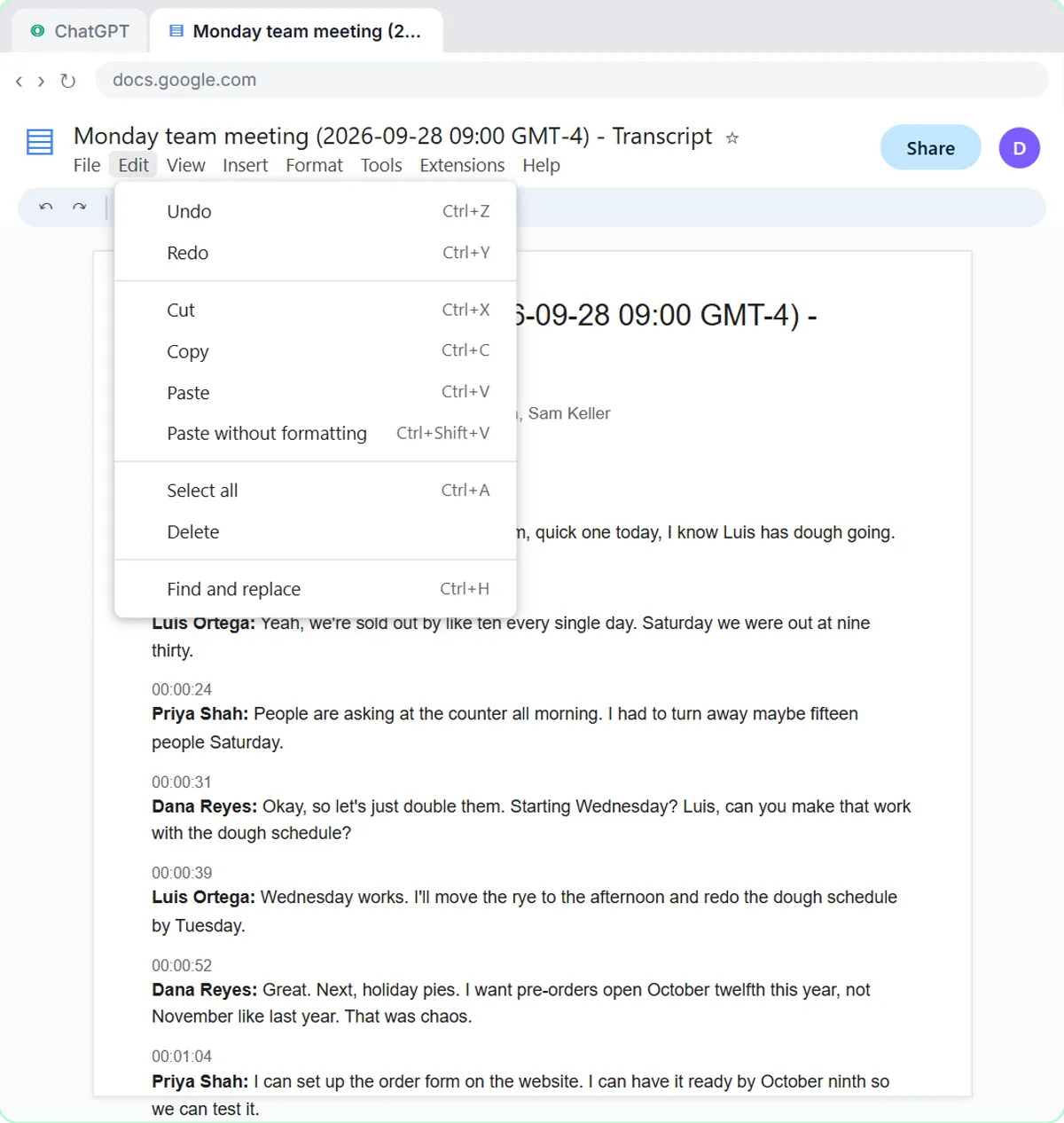 Summarize a Meeting Transcript with ChatGPT
Paste a long meeting transcript into ChatGPT and get the decisions, an action items table with owners and due dates, and a follow-up email ready to send.
Free · Live ~9 min Beginner
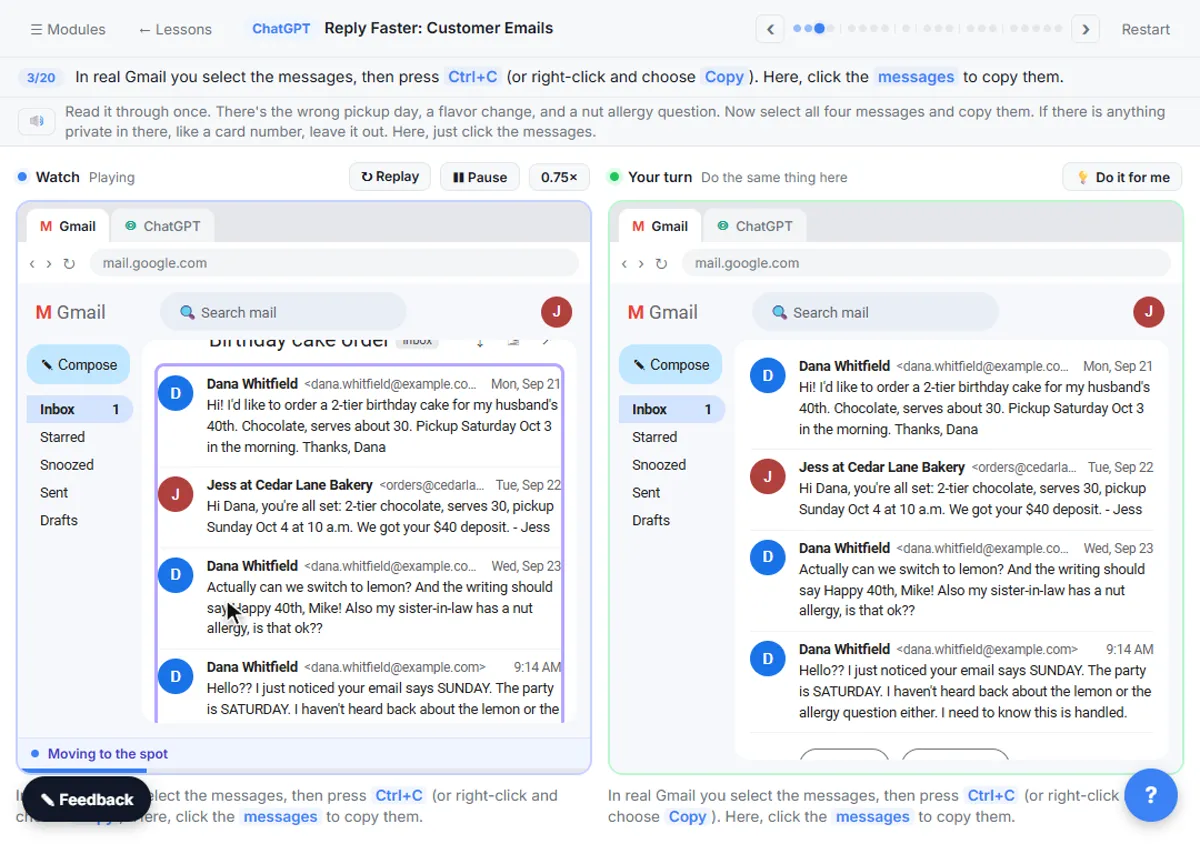 Reply Faster: Turn a Messy Customer Email Thread into a Clear, Friendly Reply
Turn a messy customer email thread into a clear, friendly reply: give ChatGPT the thread and your facts, check every promise, fix the tone, and send it from Gmail.
Free · Live ~9 min Beginner
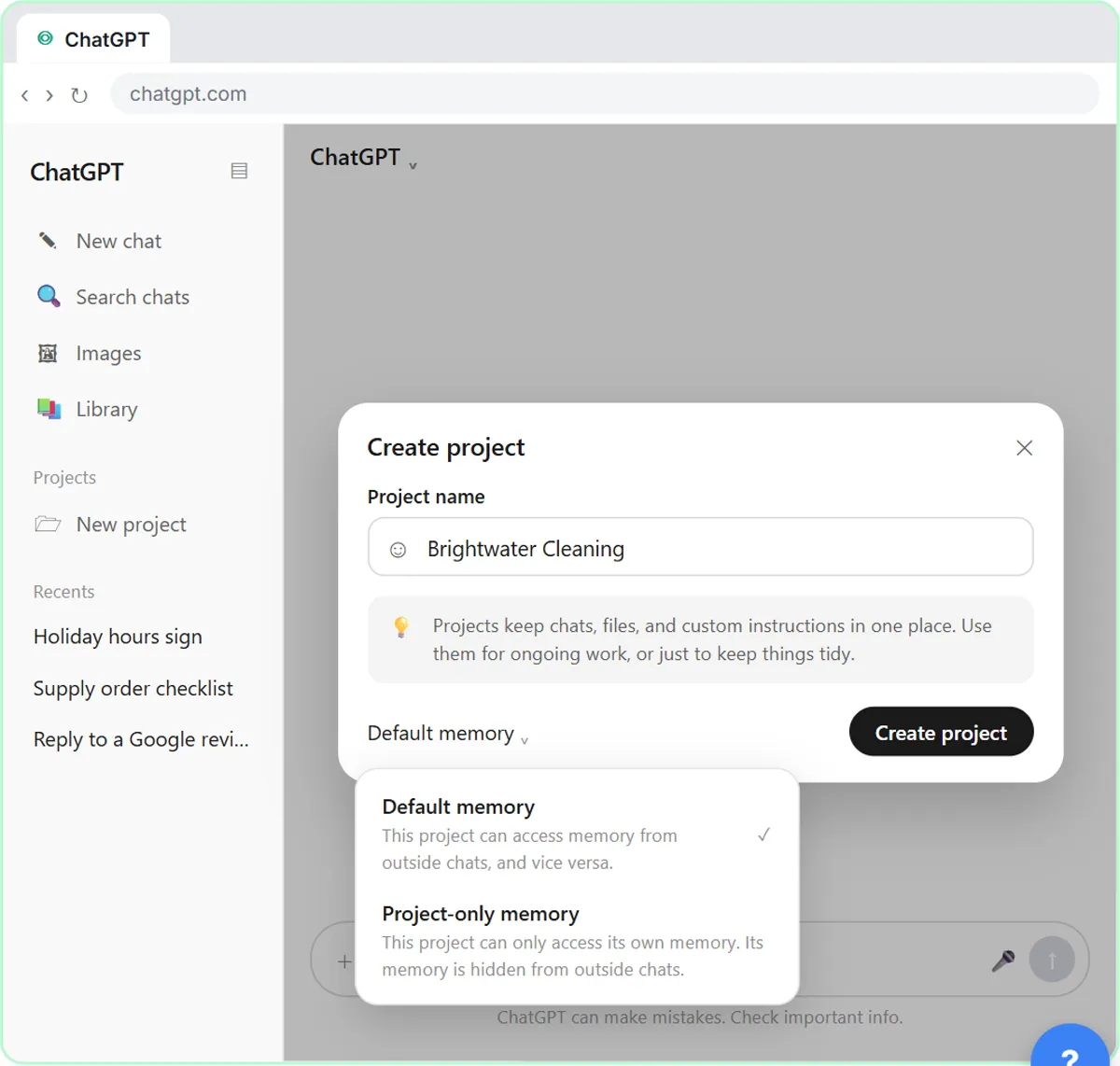 ChatGPT Projects: Keep Your Brand Voice, Files and Instructions in One Place
Set up a ChatGPT Project with your brand voice instructions, your price list and your style guide, so every new chat already knows your business.
Free · Live ~9 min Beginner
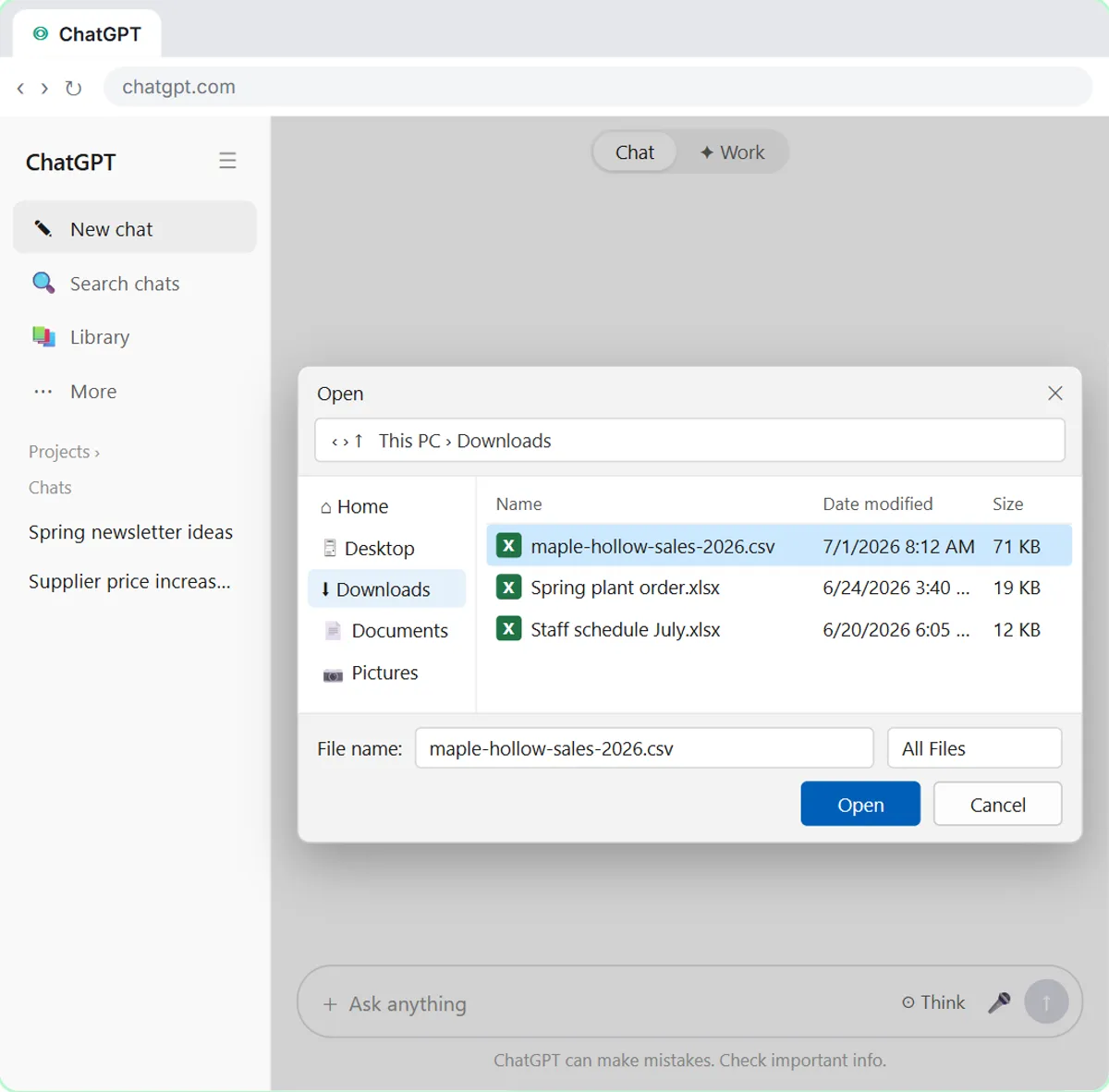 Analyze a Spreadsheet with ChatGPT: Upload a CSV, Get a Chart and Three Takeaways
Upload a CSV of sales to ChatGPT, have it check the data first, ask your questions, get a chart you can download, and finish with the three takeaways that matter.
Free · Live ~10 min Beginner
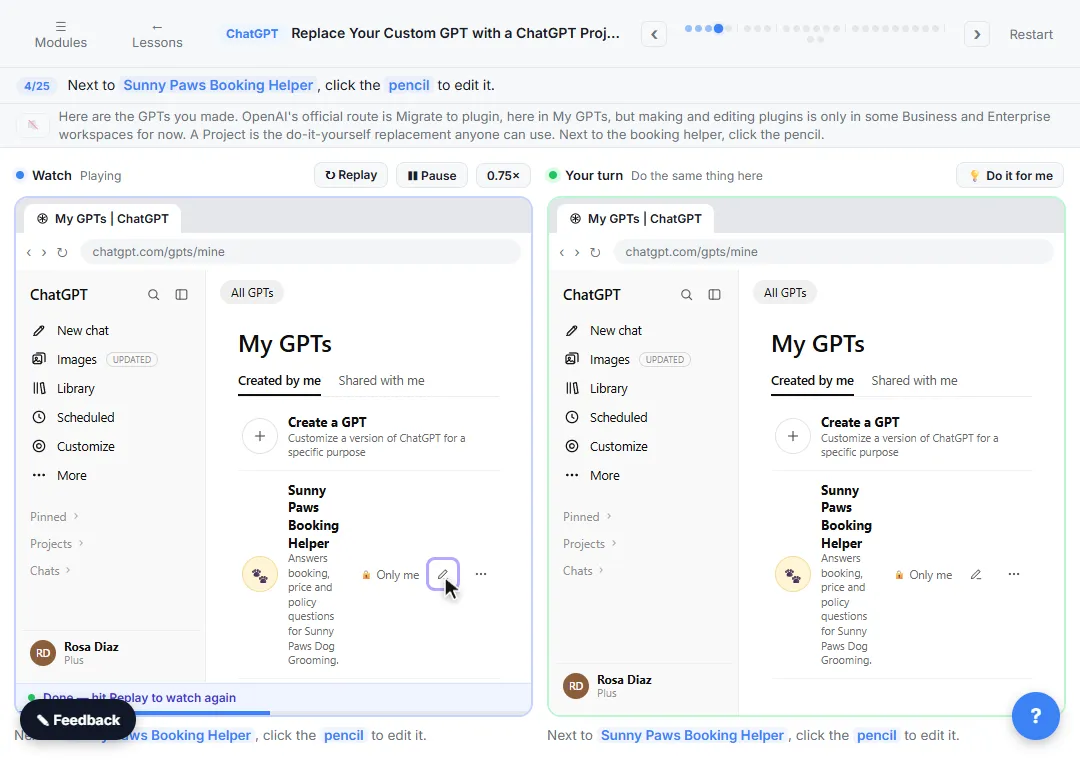 Replace Your Custom GPT with a ChatGPT Project
Custom GPTs retire on December 11, 2026. Copy your GPT's instructions, starters and files, rebuild it as a ChatGPT Project with project-only memory, and test it on a…
Free · Live ~7 min Beginner
◷Write an Incident Report in 5 Minutes using ChatGPTTurn scribbled notes and two witness statements into a clear internal incident report with the facts in order, follow-up actions and every gap flagged, then a neutral…
Free · Live ~9 min Beginner
All 11 modules in ChatGPT for Everyday Work
More ChatGPT tutorials
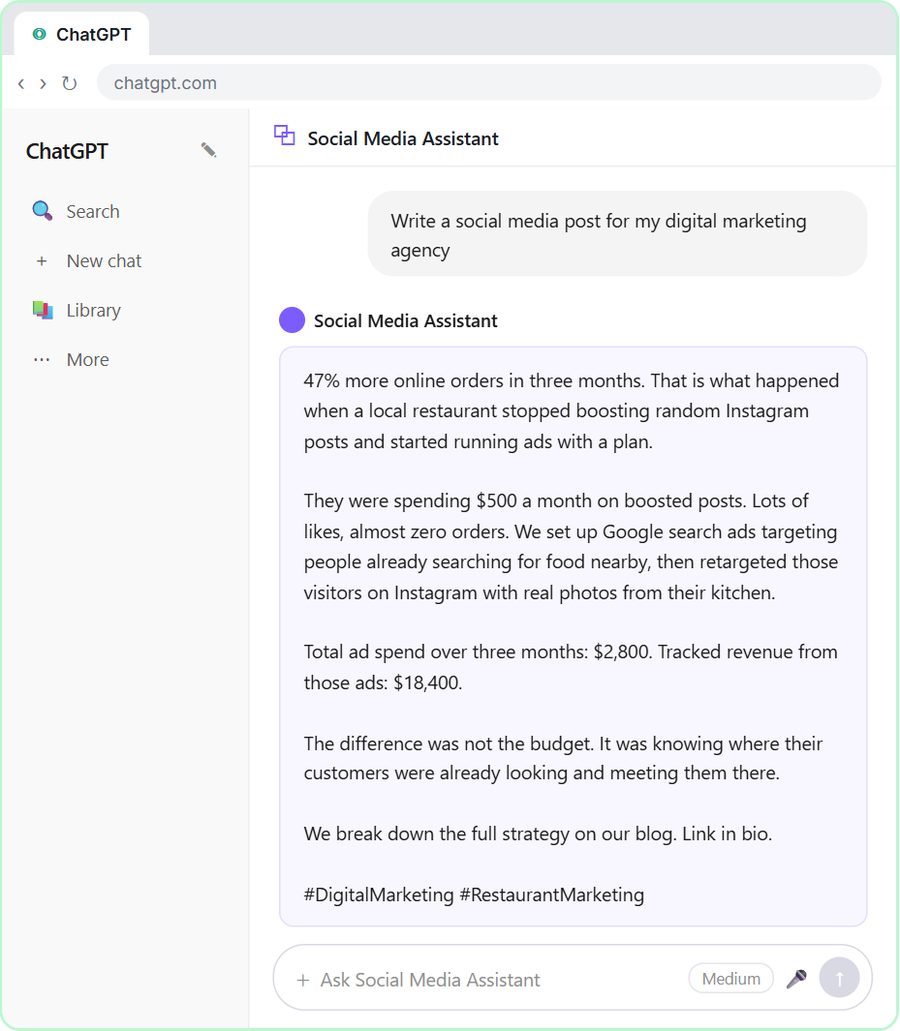 Get On-Brand Social Posts Every Time using a ChatGPT Custom GPT
See why generic prompts give generic results, then build a Custom GPT loaded with your brand voice and watch the output transform.
Free · Live ~8 min Beginner
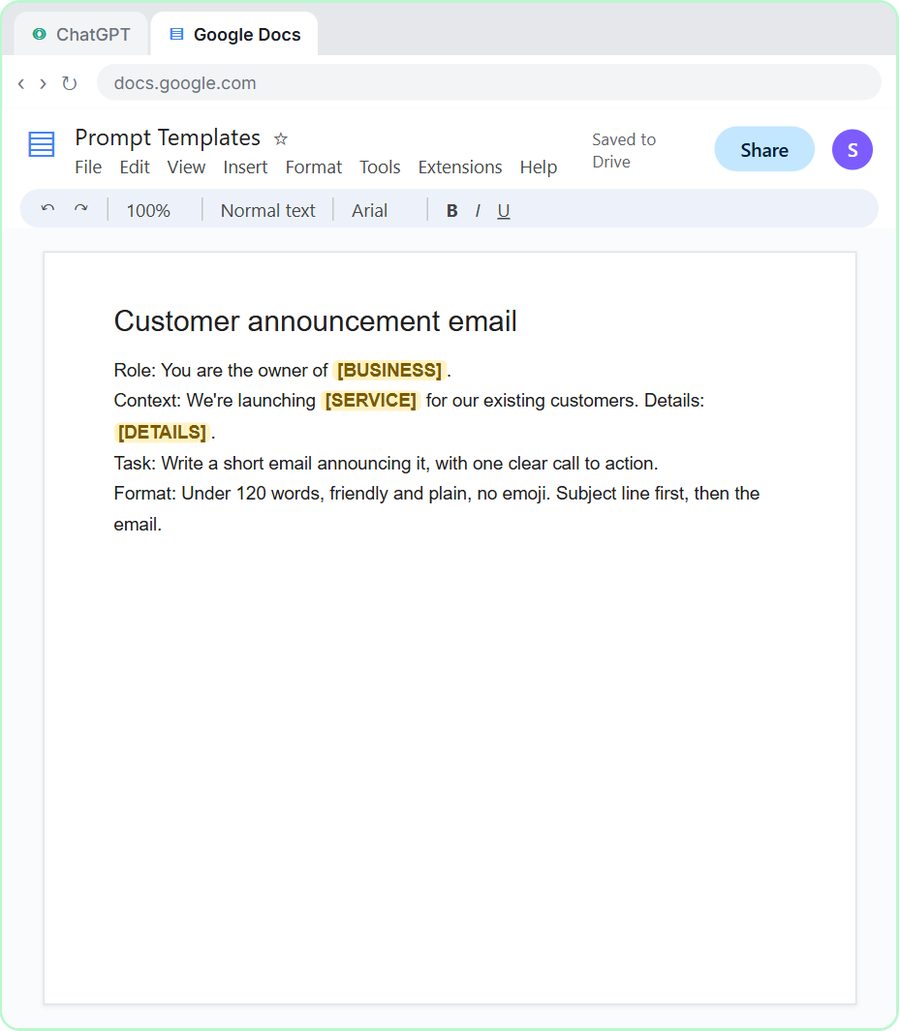 Prompt Writing 101: Role, Context, Task, Format
Ask ChatGPT for the same customer email twice, once vaguely and once with a four-part prompt, and see exactly why structure gets a better answer.
Free · Live ~8 min Beginner
◷Send a Same-Day Follow-up After Every Discovery Call using ChatGPTTurn a discovery call transcript into the decisions, the next steps with owners and dates, deal notes for your CRM, and a follow-up email the prospect gets the same…
Free · Live ~7 min Beginner
◷Hold Your Price When a Prospect Asks for a Discount using ChatGPTA prospect wants 30% off and a free month to sign this week. Give ChatGPT the thread and your pricing rules, catch the discount you can't approve, and send a reply that…
Free · Live ~9 min Beginner
 Get Your Business Recommended by ChatGPT
Ask ChatGPT who it recommends in your town, see which pages it trusts, then use it to write an FAQ page and Business Profile copy that answer real customer questions.
Free · Live ~10 min Intermediate
◷Run a Weekly Ops Review Where Every Task Has an Owner using ChatGPTTurn a weekly operations and vendor review into the decisions, the next steps with owners and dates, the risks to watch and a team recap, without turning a vendor's…
Free · Live ~7 min Beginner
Terms in this lesson
Plain-English definitions, each with an example from a free lesson.